navigation system MAZDA MODEL 3 4-DOOR 2017 Owners Manual
[x] Cancel search | Manufacturer: MAZDA, Model Year: 2017, Model line: MODEL 3 4-DOOR, Model: MAZDA MODEL 3 4-DOOR 2017Pages: 612
Page 152 of 612
4–22
When Driving
Instrument Cluster and Display
The active driving display indicates the following information:
Blind Spot Monitoring (BSM) Operation Conditions and Warnings
Refer to Blind Spot Monitoring (BSM) on page 4-88.
Distance Recognition Support System (DRSS) Warnings
Refer to Distance Recognition Support System (DRSS) on page 4-101.
Traffic Sign Recognition System (TSR) traffic signs and Warnings
Refer to Traffic Sign Recognition System (TSR) on page 4-94.
Mazda Radar Cruise Control (MRCC) Operation Conditions and Warnings
Refer to Mazda Radar Cruise Control (MRCC) on page 4-107.
Lane-keep Assist System (LAS) & Lane Departure Warning System (LDWS) Operation
Conditions and Warnings
Refer to Lane-keep Assist System (LAS) & Lane Departure Warning System (LDWS) on
page 4-117.
Smart City Brake Support (SCBS) Warnings
Refer to Smart City Brake Support (SCBS) on page 4-128.
Smart Brake Support (SBS) Warnings
Refer to Smart Brake Support (SBS) on page 4-133.
Cruise Control Operation Conditions
Refer to Cruise Control on page 4-146.
Navigation Guidance (vehicles with navigation system)
Speed limit indicator (vehicles with navigation system)
Vehicle Speed
Each setting/adjustment for the active driving display can be performed on the center display.
1. Select the icon on the home screen and display the Settings screen.
2. Select the AD-Disp tab.
3. Select the desired item and perform the setting/adjustment.
Method for adjusting screen brightness (automatically/manually) Screen brightness initial settings (automatic adjustment is selected) Screen brightness adjustment (manual adjustment is selected) Display position of active driving display (display height) Active driving display angle adjustment (display angle correction) The combination of street name display , lane guidance, and turn by turn (TBT) can be
changed. (navigation guidance) Active driving display ON/OFF (indication) Reset settings (reset)
Mazda3_8FL6-EA-16F_Edition2.indb 222016/08/10 17:35:52
Page 224 of 612
4–94
When Driving
i-ACTIVSENSE
*Some models.
Traffic Sign Recognition System (TSR)*
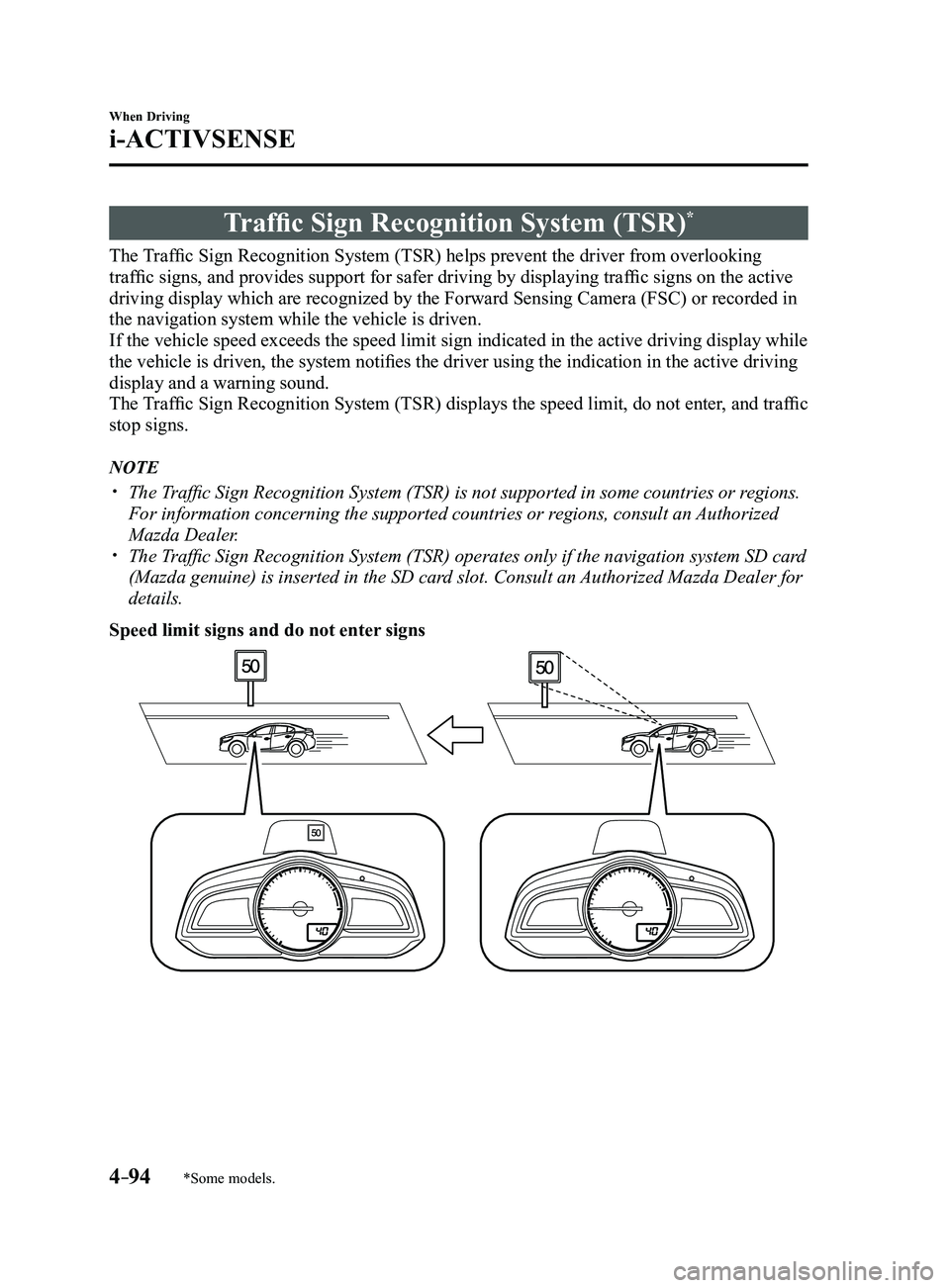
The Traffic Sign Recognition System (TSR) helps prevent the driver from overlooking
traffic signs, and provides support for safer driving by displaying traffic signs on the active
driving display which are recognized by the Forward Sensing Camera (FSC\
) or recorded in
the navigation system while the vehicle is driven.
If the vehicle speed exceeds the speed limit sign indicated in the activ\
e driving display while
the vehicle is driven, the system notifies the driver using the indication in the active driving
display and a warning sound.
The Traffic Sign Recognition System (TSR) displays the speed limit, do not enter, and traffic
stop signs.
NOTE
The Traffic Sign Recognition System (TSR) is not supported in some countries or regions.
For information concerning the supported countries or regions, consult an Authorized
Mazda Dealer.
The Traffic Sign Recognition System (TSR) operates only if the navigation system SD card
(Mazda genuine) is inserted in the SD card slot. Consult an Authorized Mazda Dealer for
details.
Speed limit signs and do not enter signs
Mazda3_8FL6-EA-16F_Edition2.indb 942016/08/10 17:36:40
Page 226 of 612
4–96
When Driving
i-ACTIVSENSE
NOTE
The Traffic Sign Recognition System (TSR) does not operate if there is a malfunction in
the Forward Sensing Camera (FSC). Under the following conditions, the Traffic Sign Recognition System (TSR) may not
operate normally.
An object placed on the dashboard is reflected in the windshield and picked up by the
camera. Heavy luggage is loaded in the luggage compartment or on the r ear seat and the
vehicle is tilted. The tire pressures are not adjusted to the specified pressure. Tires other than standard tires are equipped. The vehicle is driven on the ramp and surrounding area to or from a rest area or a
tollgate on a highway. When surrounding brightness suddenly changes such as when entering or exiting a
tunnel. The illumination of the headlights is weakened because of dirt or the op\
tical axis is
deviated. The windshield is dirty or foggy. The windshield and camera are fogged (water droplets). Strong light is directed at the front of the vehicle (such as backlight or high-beam
headlights of on-coming vehicles). The vehicle is making a sharp turn. Strong light reflects off the road. A traffic sign is in a position which makes it difficult to reflect the light from the
vehicle's headlights, such as when the vehicle is driven at night or in \
a tunnel. The vehicle is driven under weather conditions such as rain, fog, or sno\
w . The stored map data for the navigation system is not current. The camera cannot capture a traffic sign's image. A traffic sign is obscured by mud or snow. A traffic sign is concealed by trees or a vehicle. A traffic sign is partially shaded. A traffic sign is bent or warped. A traffic sign is too low or too high. A traffic sign is too bright or too dark (including electronic traffic signs). A traffic sign is too big or too small. There is an object similar to the traffic sign being read (such as another traffic sign or
other signs resembling it).
The Traffic Sign Recognition System (TSR) does not operate if the active driving display
is set to non-display. The Traffic Sign Recognition System (TSR) can be set to inoperable.
Refer to Personalization Featur es on page 9-12.
Mazda3_8FL6-EA-16F_Edition2.indb 962016/08/10 17:36:41
Page 228 of 612
4–98
When Driving
i-ACTIVSENSE
NOTE
Speed limit signs
When the vehicle speed is about 1 km/h (0.6 mph) or faster, the speed limit sign is
displayed when any one of the following conditions are met.
The Forward Sensing Camera (FSC) recognizes a speed limit sign as a sign targeted
for your vehicle and the vehicle passes it. The speed limit sign stor ed in the navigation system is read (if the Forward Sensing
Camera (FSC) does not recognize a speed limit sign).
In the following cases, display of the speed limit sign stops.
The Forward Sensing Camera (FSC) recognizes the speed limit sign and the vehicle is
driven for a certain distance after passing the sign. Each sensor determines that the vehicle has changed dir ection of travel. The Forward Sensing Camera (FSC) recognizes a new speed limit sign which differs
from the previous one (displays the new speed limit sign). The speed limit sign stor ed in the navigation system is not read within a certain period
of time (if the Forward Sensing Camera (FSC) does not recognize a speed limit sign,
the speed limit sign stored in the navigation system is displayed).
The vehicle speed exceeds the displayed speed limit sign by 30 km/h (19\
mph) or mor e
after a certain period of time has elapsed since the speed limit sign wa\
s displayed.
(Except when there is information for the speed limit sign in the navigation system)
Do not enter signs
A do not enter sign is displayed when all of the following conditions are met.
The vehicle speed is about 60 km/h (37 mph) or slower . The Forward Sensing Camera (FSC) recognizes a do not enter sign as a sign targeted
for your vehicle and the vehicle passes it.
In the following case, the display of the do not enter sign stops.
The Forward Sensing Camera (FSC) recognizes the do not enter sign and a certain
period of time has elapsed since the vehicle passed the sign.
Mazda3_8FL6-EA-16F_Edition2.indb 982016/08/10 17:36:42
Page 327 of 612

5–35
Interior Features
Audio System
Switches around commander knob
The following operations can be done by pressing the switches around the\
commander knob.
: Displays the home screen.
: Displays the Entertainment screen.
: Displays the Navigation screen (Only navigation-equipped vehicles). For operation
of the Navigation screen, refer to the navigation system manual. If the SD card for the
navigation system is not inserted, the compass indicating the direction \
in which the vehicle
is moving is displayed.
: Displays the Favorites screen. Long-press to store particular items in Favorites. (Radio,
phonebook and destination of the navigation system can be programmed.)
: Returns to previous screen.
Commander knob operation
(Selection of icons on screen)
1. Tilt or turn the commander knob and move the cursor to the desired icon.
2. Press the commander knob and select the icon.
NOTE
Long-press operation of the commander knob is also possible for some functions.\
Mazda3_8FL6-EA-16F_Edition2.indb 352016/08/10 17:37:30
Page 330 of 612
5–38
Interior Features
Audio System
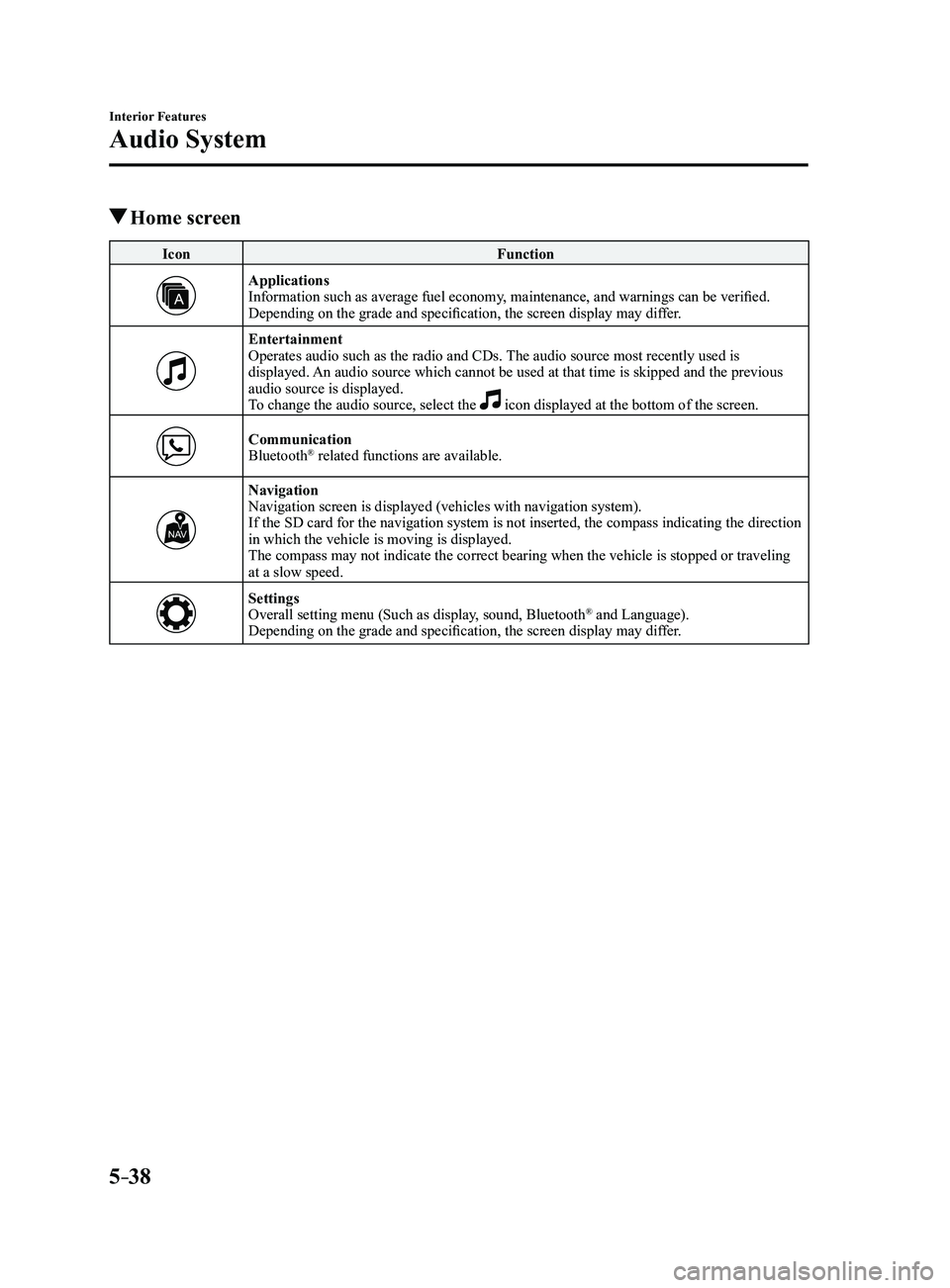
Home screen
IconFunction
ApplicationsInformation such as average fuel economy, maintenance, and warnings can be verified.
Depending on the grade and specification, the screen display may differ.
EntertainmentOperates audio such as the radio and CDs. The audio source most recently used is
displayed. An audio source which cannot be used at that time is skipped and the pre\
vious
audio source is displayed.
To change the audio source, select the
icon displayed at the bottom of the screen.
CommunicationBluetooth® related functions are available.
NavigationNavigation screen is displayed (vehicles with navigation system).
If the SD card for the navigation system is not inserted, the compass in\
dicating the direction
in which the vehicle is moving is displayed.
The compass may not indicate the correct bearing when the vehicle is sto\
pped or traveling
at a slow speed.
SettingsOverall setting menu (Such as display, sound, Bluetooth® and Language).
Depending on the grade and specification, the screen display may differ.
Mazda3_8FL6-EA-16F_Edition2.indb 382016/08/10 17:37:33
Page 349 of 612
5–57
Interior Features
Audio System
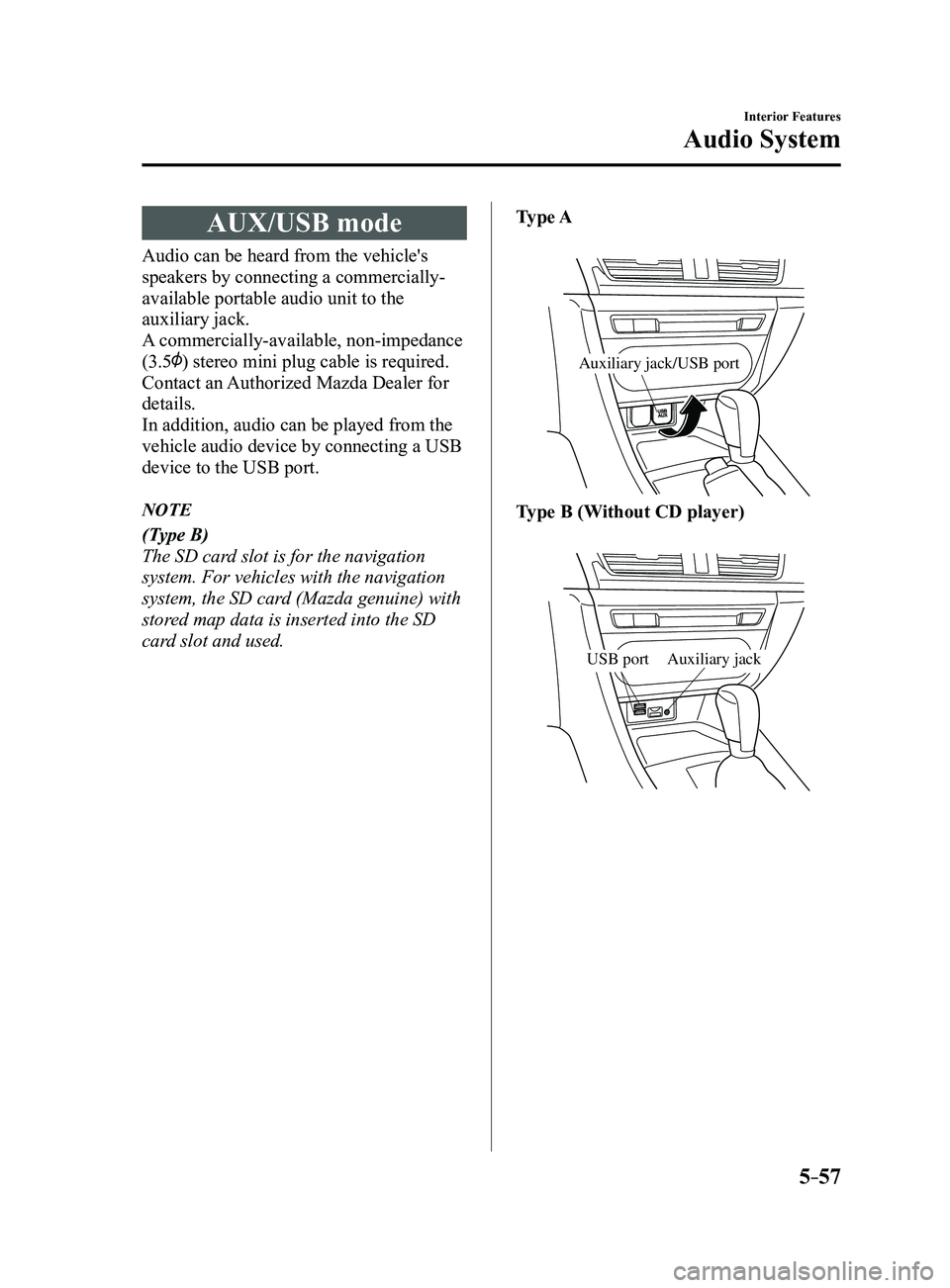
AUX/USB mode
Audio can be heard from the vehicle's
speakers by connecting a commercially-
available portable audio unit to the
auxiliary jack.
A commercially-available, non-impedance
(3.5
) stereo mini plug cable is required.
Contact an Authorized Mazda Dealer for
details.
In addition, audio can be played from the
vehicle audio device by connecting a USB
device to the USB port.
NOTE
(Type B)
The SD card slot is for the navigation
system. For vehicles with the navigation
system, the SD card (Mazda genuine) with
stored map data is inserted into the SD
card slot and used.Type A
Auxiliary jack/USB port
Type B (Without CD player)
Auxiliary jackUSB port
Mazda3_8FL6-EA-16F_Edition2.indb 572016/08/10 17:37:48
Page 374 of 612
5–82
Interior Features
Bluetooth®
*Some models.
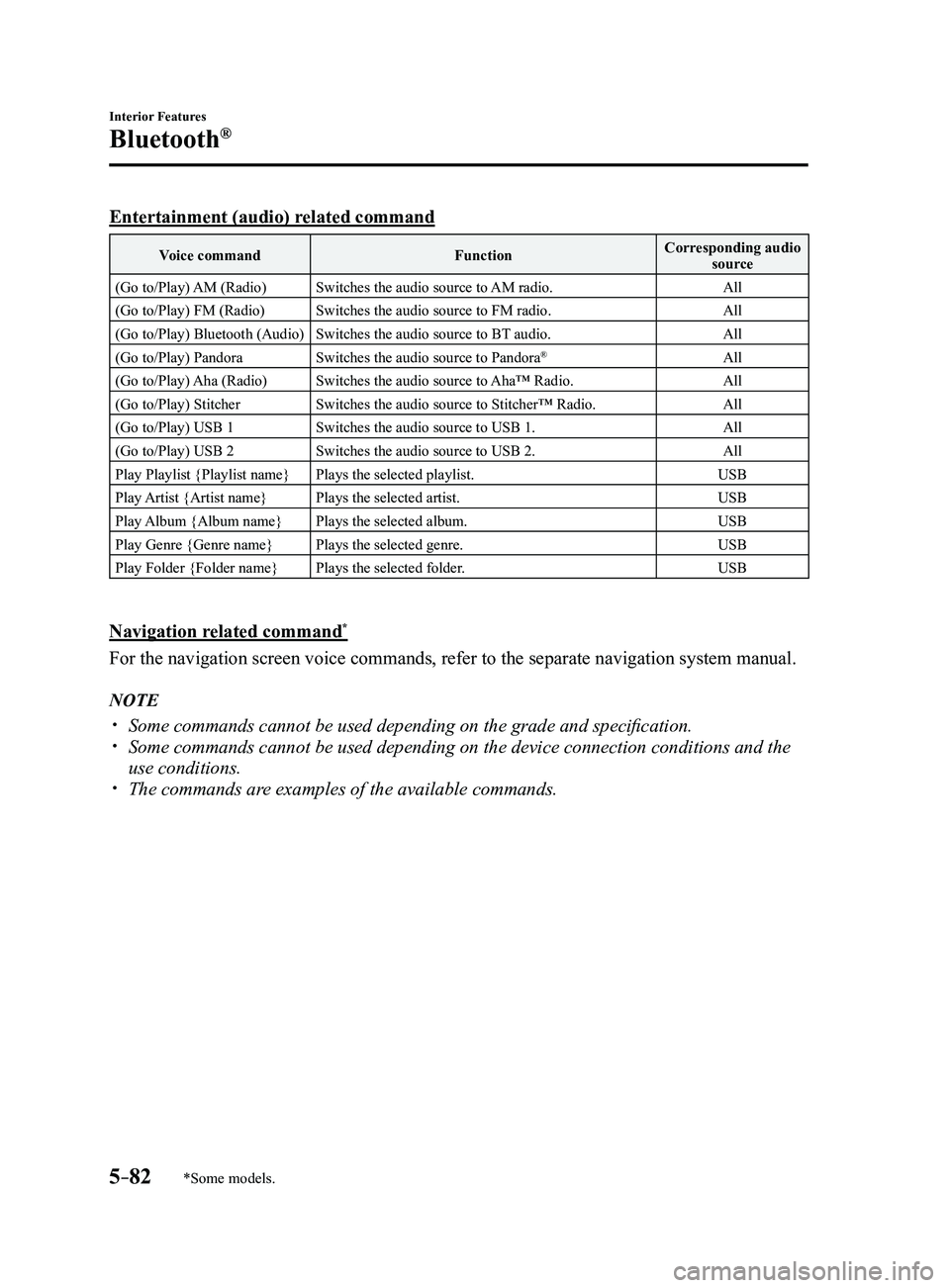
Entertainment (audio) related command
Voice commandFunctionCorresponding audio
source
(Go to/Play) AM (Radio) Switches the audio source to AM radio. All
(Go to/Play) FM (Radio) Switches the audio source to FM radio. All
(Go to/Play) Bluetooth (Audio) Switches the audio source to BT audio. All
(Go to/Play) Pandora Switches the audio source to Pandora
®All
(Go to/Play) Aha (Radio) Switches the audio source to Aha™ Radio. All
(Go to/Play) Stitcher Switches the audio source to Stitcher™ Radio. All
(Go to/Play) USB 1 Switches the audio source to USB 1. All
(Go to/Play) USB 2 Switches the audio source to USB 2. All
Play Playlist {Playlist name} Plays the selected playlist. USB
Play Artist {Artist name} Plays the selected artist. USB
Play Album {Album name} Plays the selected album. USB
Play Genre {Genre name} Plays the selected genre. USB
Play Folder {Folder name} Plays the selected folder. USB
Navigation related command*
For the navigation screen voice commands, refer to the separate navigati\
on system manual.
NOTE
Some commands cannot be used depending on the grade and specific ation. Some commands cannot be used depending on the device connection conditio\
ns and the
use conditions. The commands are examples of the available commands.
Mazda3_8FL6-EA-16F_Edition2.indb 822016/08/10 17:38:02
Page 392 of 612
5–10 0
Interior Features
Bluetooth®
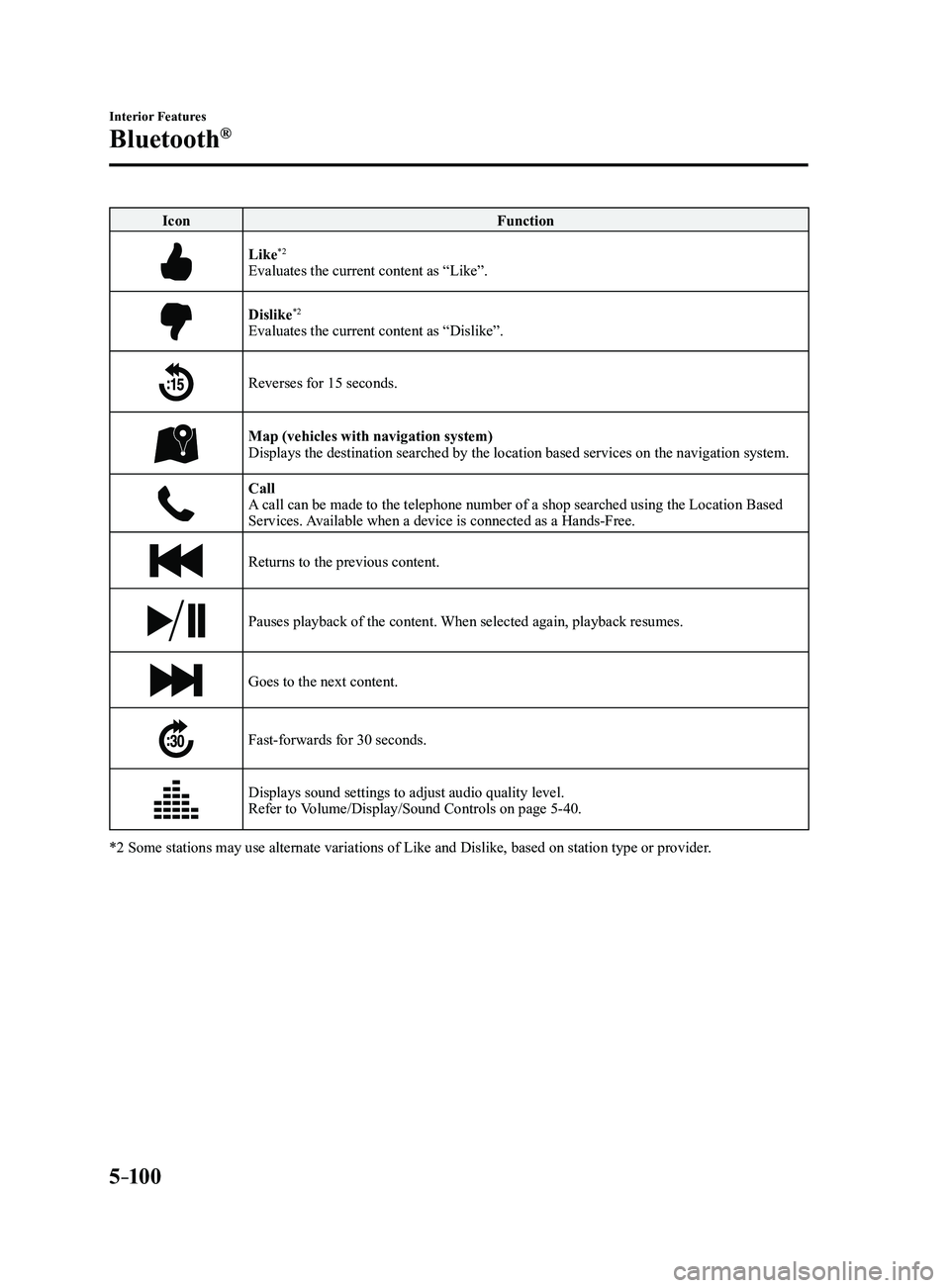
IconFunction
Like*2
Evaluates the current content as “Like”.
Dislike*2
Evaluates the current content as “Dislike”.
Reverses for 15 seconds.
Map (vehicles with navigation system)Displays the destination searched by the location based services on the \
navigation system.
CallA call can be made to the telephone number of a shop searched using the Location Based
Services. Available when a device is connected as a Hands-Free.
Returns to the previous content.
Pauses playback of the content. When selected again, playback resumes.
Goes to the next content.
Fast-forwards for 30 seconds.
Displays sound settings to adjust audio quality level.
Refer to Volume/Display/Sound Controls on page 5-40.
*2 Some stations may use alternate variations of Like and Dislike, based\
on station type or provider.
Mazda3_8FL6-EA-16F_Edition2.indb 1002016/08/10 17:38:17
Page 394 of 612
5–102
Interior Features
Bluetooth®
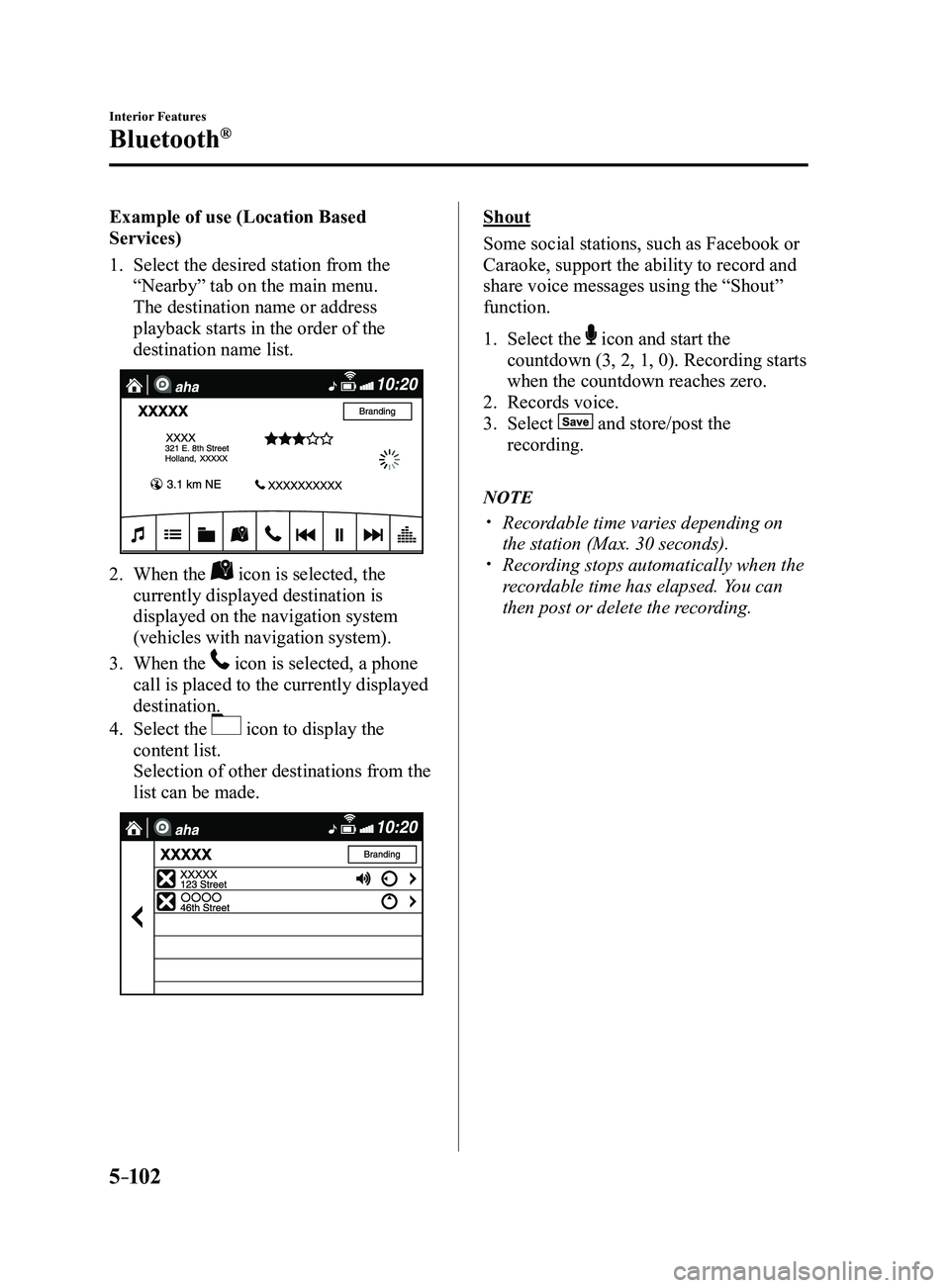
Example of use (Location Based
Services)
1. Select the desired station from the
“Nearby” tab on the main menu.
The destination name or address
playback starts in the order of the
destination name list.
2. When the icon is selected, the
currently displayed destination is
displayed on the navigation system
(vehicles with navigation system).
3. When the icon is selected, a phone
call is placed to the currently displayed
destination.
4. Select the icon to display the
content list.
Selection of other destinations from the
list can be made.
Shout
Some social stations, such as Facebook or
Caraoke, support the ability to record and
share voice messages using the “Shout”
function.
1. Select the icon and start the
countdown (3, 2, 1, 0). Recording starts
when the countdown reaches zero.
2. Records voice.
3. Select and store/post the
recording.
NOTE
Recordable time varies depending on
the station (Max. 30 seconds). Recording stops automatically when the
recordable time has elapsed. You can
then post or delete the recording.
Mazda3_8FL6-EA-16F_Edition2.indb 1022016/08/10 17:38:19