audio MAZDA MODEL 3 5-DOOR 2017 Manual PDF
[x] Cancel search | Manufacturer: MAZDA, Model Year: 2017, Model line: MODEL 3 5-DOOR, Model: MAZDA MODEL 3 5-DOOR 2017Pages: 612
Page 377 of 612
5–85
Interior Features
Bluetooth®
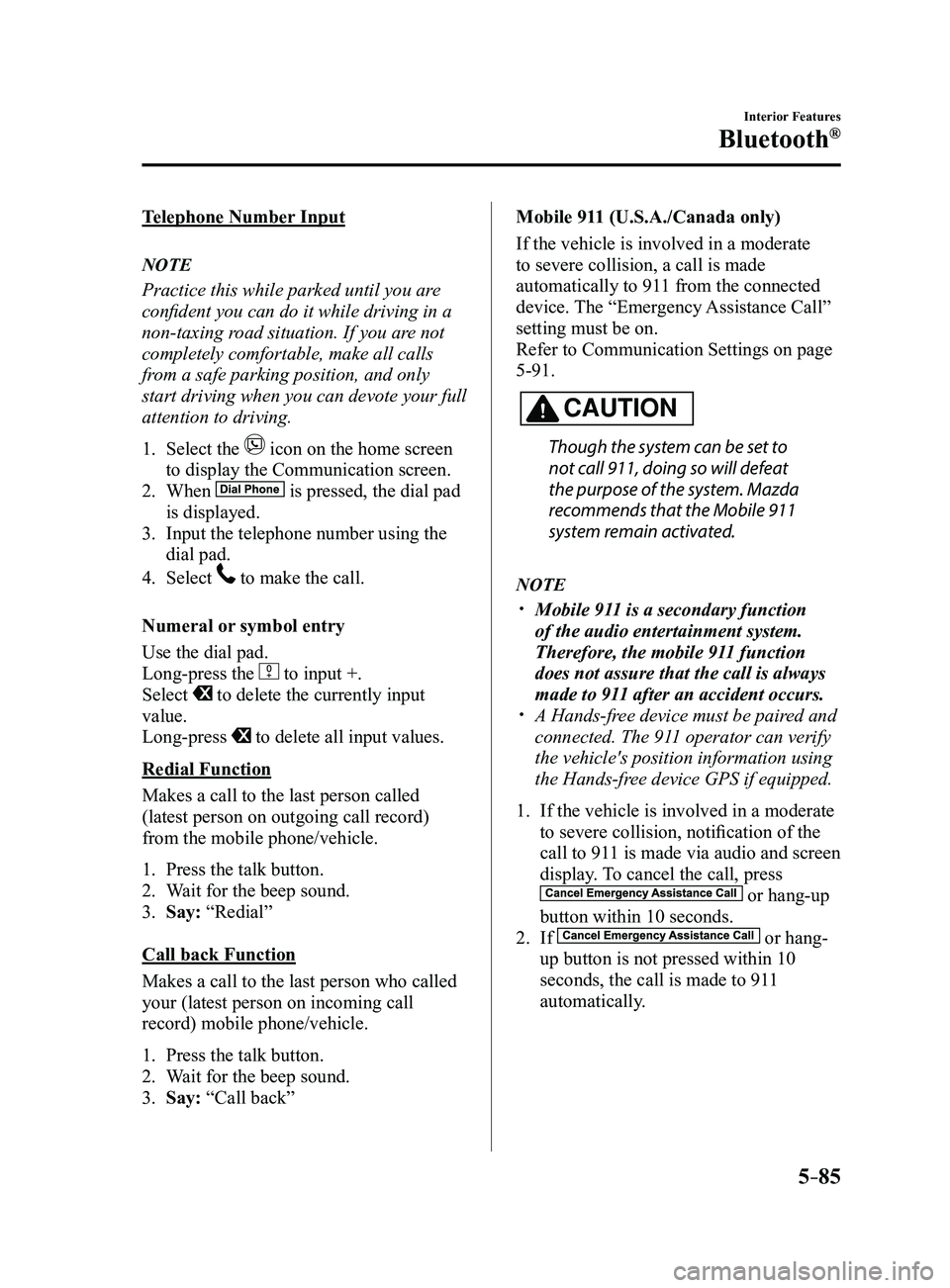
Telephone Number Input
NOTE
Practice this while parked until you are
confident you can do it while driving in a
non-taxing road situation. If you are not
completely comfortable, make all calls
from a safe parking position, and only
start driving when you can devote your full
attention to driving.
1. Select the icon on the home screen
to display the Communication screen.
2. When is pressed, the dial pad
is displayed.
3. Input the telephone number using the
dial pad.
4. Select to make the call.
Numeral or symbol entry
Use the dial pad.
Long-press the
to input +.
Select to delete the currently input
value.
Long-press
to delete all input values.
Redial Function
Makes a call to the last person called
(latest person on outgoing call record)
from the mobile phone/vehicle.
1. Press the talk button.
2. Wait for the beep sound.
3. Say: “Redial”
Call back Function
Makes a call to the last person who called
your (latest person on incoming call
record) mobile phone/vehicle.
1. Press the talk button.
2. Wait for the beep sound.
3. Say: “Call back” Mobile 911 (U.S.A./Canada only)
If the vehicle is involved in a moderate
to severe collision, a call is made
automatically to 911 from the connected
device. The “Emergency Assistance Call”
setting must be on.
Refer to Communication Settings on page
5-91.
CAUTION
Though the system can be set to
not call 911, doing so will defeat
the purpose of the system. Mazda
recommends that the Mobile 911
system remain activated.
NOTE
Mobile 911 is a secondary function
of the audio entertainment system.
Therefore, the mobile 911 function
does not assure that the call is always
made to 911 after an accident occurs.
A Hands-free device must be paired and
connected. The 911 operator can verify
the vehicle's position information using
the Hands-free device GPS if equipped.
1. If the vehicle is involved in a moderate
to severe collision, notification of the
call to 911 is made via audio and screen
display. To cancel the call, press
or hang-up
button within 10 seconds.
2. If or hang-
up button is not pressed within 10
seconds, the call is made to 911
automatically.
Mazda3_8FL6-EA-16F_Edition2.indb 852016/08/10 17:38:05
Page 378 of 612
5–86
Interior Features
Bluetooth®
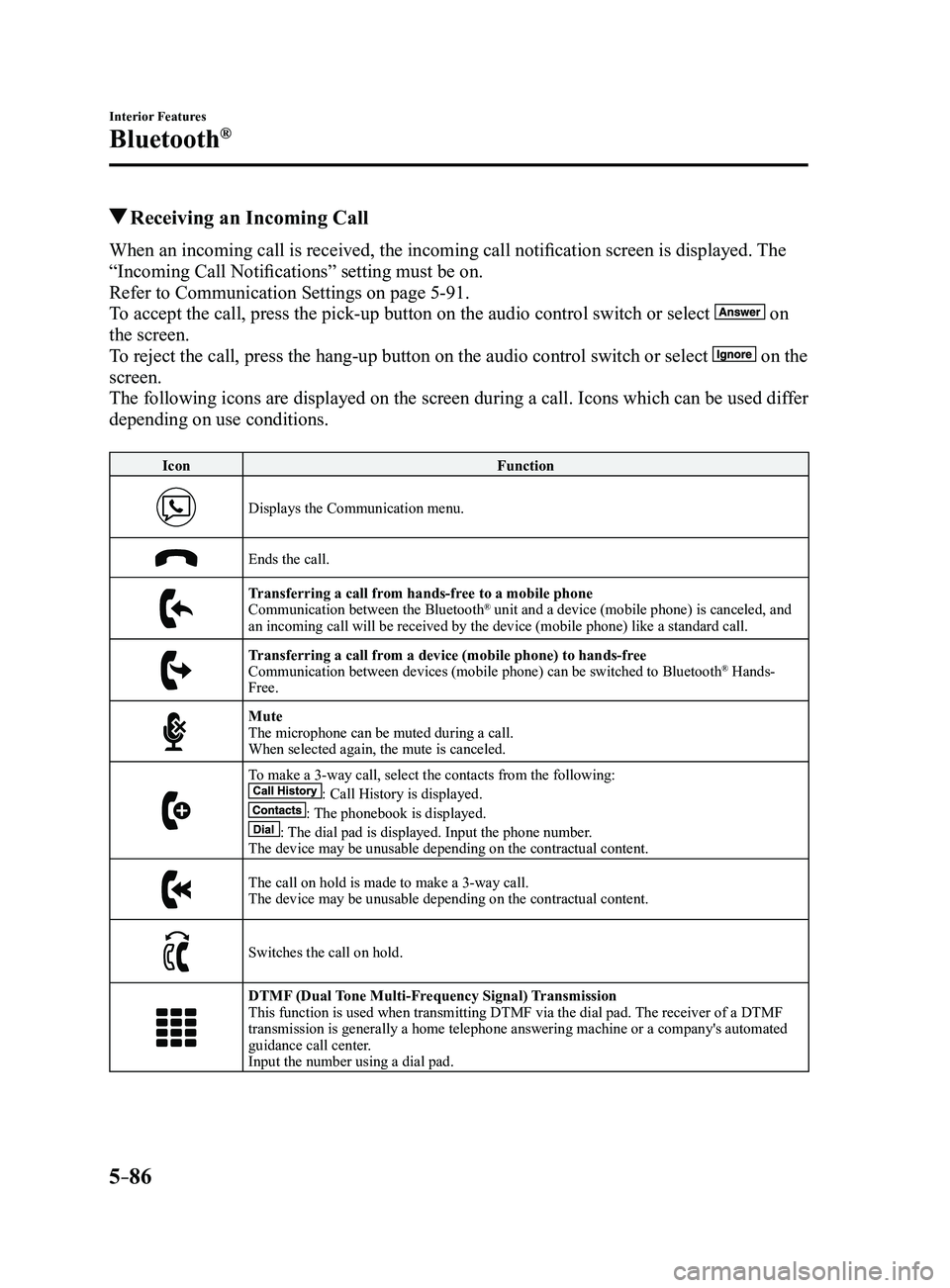
Receiving an Incoming Call
When an incoming call is received, the incoming call notification screen is displayed. The
“Incoming Call Notifications” setting must be on.
Refer to Communication Settings on page
5-91.
To accept the call, press the pick-up button on the audio control switch \
or select
on
the screen.
To reject the call, press the hang-up button on the audio control switch \
or select
on the
screen.
The following icons are displayed on the screen during a call. Icons whi\
ch can be used differ
depending on use conditions.
Icon Function
Displays the Communication menu.
Ends the call.
Transferring a call from hands-free to a mobile phoneCommunication between the Bluetooth® unit and a device (mobile phone) is canceled, and
an incoming call will be received by the device (mobile phone) like a \
standard call.
Transferring a call from a device (mobile phone) to hands-freeCommunication between devices (mobile phone) can be switched to Bluetooth® Hands-
Free.
MuteThe microphone can be muted during a call.
When selected again, the mute is canceled.
To make a 3-way call, select the contacts from the following:: Call History is displayed.: The phonebook is displayed.: The dial pad is displayed. Input the phone number.The device may be unusable depending on the contractual content.
The call on hold is made to make a 3-way call.The device may be unusable depending on the contractual content.
Switches the call on hold.
DTMF (Dual Tone Multi-Frequency Signal) TransmissionThis function is used when transmitting DTMF via the dial pad. The receiver of a DTMF
transmission is generally a home telephone answering machine or a compan\
y's automated
guidance call center.
Input the number using a dial pad.
Mazda3_8FL6-EA-16F_Edition2.indb 862016/08/10 17:38:08
Page 384 of 612
5–92
Interior Features
Bluetooth®
*Some models.
Bluetooth® Audio*
Applicable Bluetooth® specification
(Recommended)
Ver. 1.1/1.2/2.0
EDR/2.1 EDR/3.0
(conformity)
Response profile
A2DP (Advanced Audio Distribution
Profile) Ver. 1.0/1.2 AVRCP (Audio/Video Remote Control
Profile) Ver. 1.0/1.3/1.4
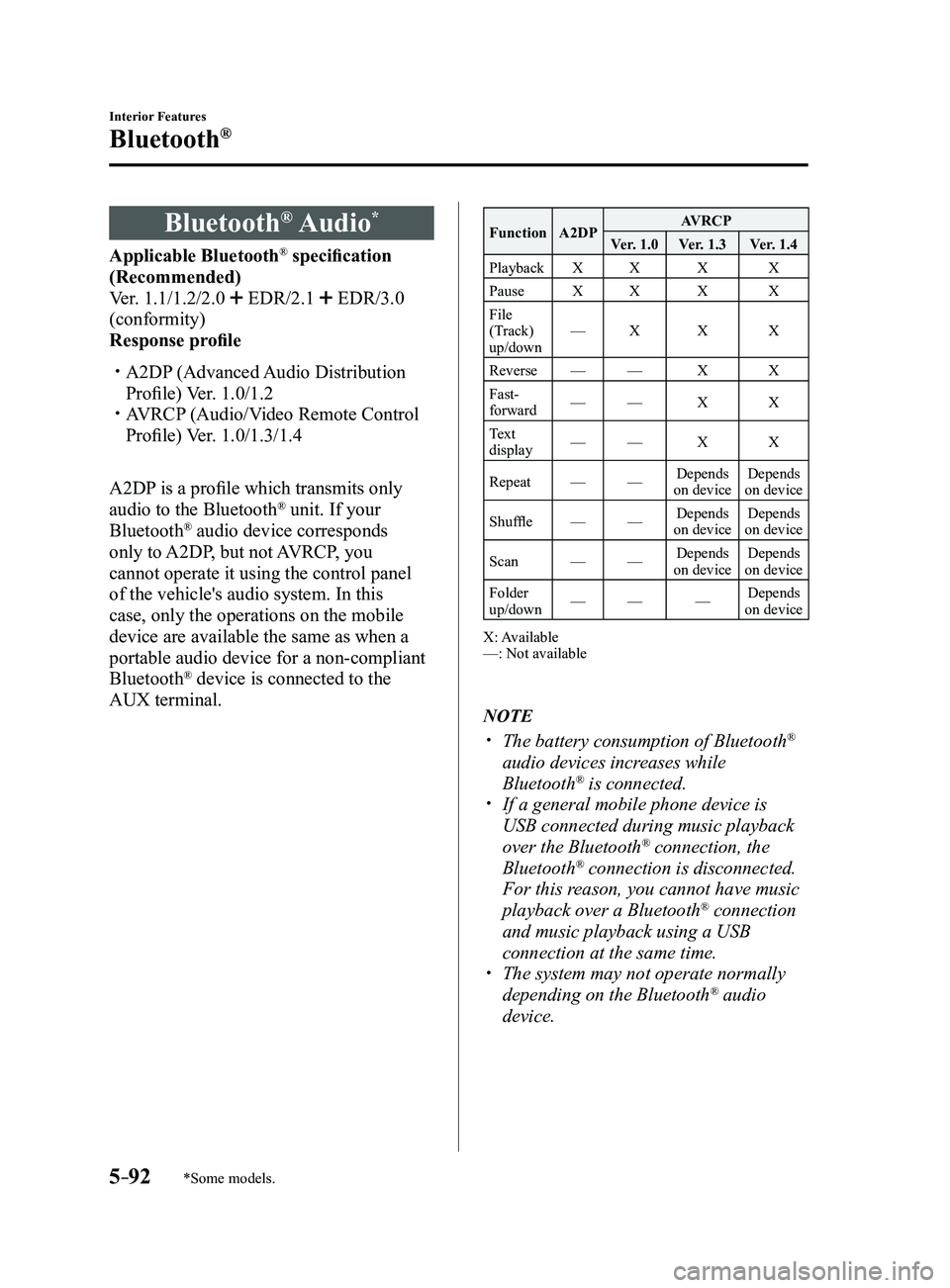
A2DP is a profile which transmits only
audio to the Bluetooth
® unit. If your
Bluetooth® audio device corresponds
only to A2DP, but not AVRCP, you
cannot operate it using the control panel
of the vehicle's audio system. In this
case, only the operations on the mobile
device are available the same as when a
portable audio device for a non-compliant
Bluetooth
® device is connected to the
AUX terminal.
Function A2DP AVRCP
Ver. 1.0 Ver. 1.3 Ver. 1.4
Playback XX X X
Pause XX X X
File
(Track)
up/down —
X X X
Reverse —— X X
Fast-
forward —
— X X
Text
display —
— X X
Repeat ——Depends
on device Depends
on device
Shuffle ——Depends
on device Depends
on device
Scan ——Depends
on device Depends
on device
Folder
up/down —
— —Depends
on device
X: Available
—: Not available
NOTE
The battery consumption of Bluetooth®
audio devices increases while
Bluetooth
® is connected. If a general mobile phone device is
USB connected during music playback
over the Bluetooth® connection, the
Bluetooth® connection is disconnected.
For this reason, you cannot have music
playback over a Bluetooth
® connection
and music playback using a USB
connection at the same time.
The system may not operate normally
depending on the Bluetooth® audio
device.
Mazda3_8FL6-EA-16F_Edition2.indb 922016/08/10 17:38:12
Page 385 of 612
5–93
Interior Features
Bluetooth®
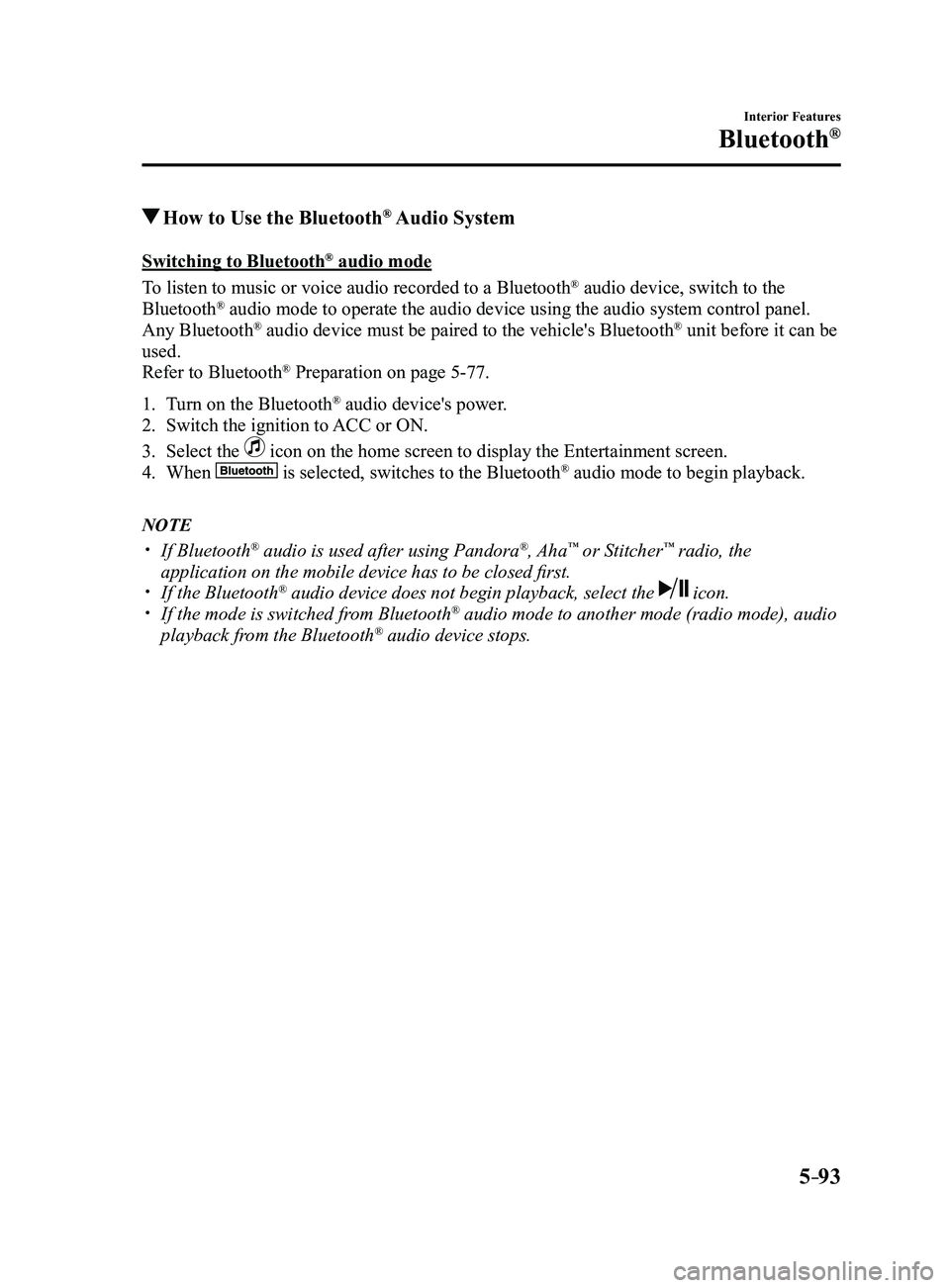
How to Use the Bluetooth® Audio System
Switching to Bluetooth® audio mode
To listen to music or voice audio recorded to a Bluetooth
® audio device, switch to the
Bluetooth® audio mode to operate the audio device using the audio system control p\
anel.
Any Bluetooth® audio device must be paired to the vehicle's Bluetooth® unit before it can be
used.
Refer to Bluetooth
® Preparation on page 5-77.
1. Turn on the Bluetooth® audio device's power.
2. Switch the ignition to ACC or ON.
3. Select the icon on the home screen to display the Entertainment screen.
4. When is selected, switches to the Bluetooth® audio mode to begin playback.
NOTE
If Bluetooth® audio is used after using Pandora®, Aha™ or Stitcher™ radio, the
application on the mobile device has to be closed first.
If the Bluetooth® audio device does not begin playback, select the icon. If the mode is switched fr om Bluetooth® audio mode to another mode (radio mode), audio
playback from the Bluetooth® audio device stops.
Mazda3_8FL6-EA-16F_Edition2.indb 932016/08/10 17:38:13
Page 386 of 612
5–94
Interior Features
Bluetooth®
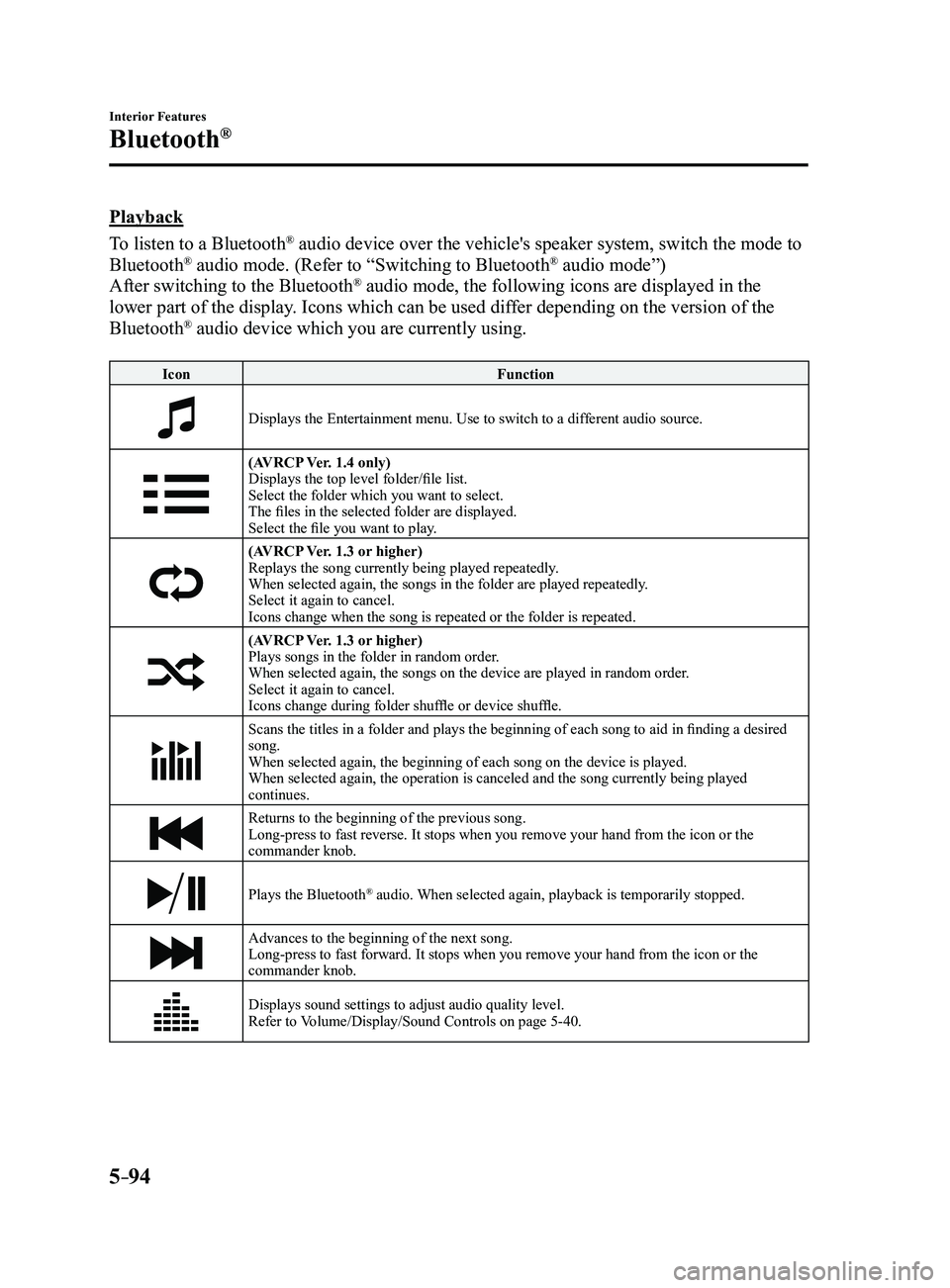
Playback
To listen to a Bluetooth
® audio device over the vehicle's speaker system, switch the mode to
Bluetooth® audio mode. (Refer to “Switching to Bluetooth® audio mode”)
After switching to the Bluetooth® audio mode, the following icons are displayed in the
lower part of the display. Icons which can be used differ depending on the version of the
Bluetooth
® audio device which you are currently using.
Icon Function
Displays the Entertainment menu. Use to switch to a different audio source.
(AVRCP Ver. 1.4 only)
Displays the top level folder/file list.
Select the folder which you want to select.
The files in the selected folder are displayed.
Select the file you want to play.
(AVRCP Ver. 1.3 or higher)Replays the song currently being played repeatedly.
When selected again, the songs in the folder are played repeatedly.
Select it again to cancel.
Icons change when the song is repeated or the folder is repeated.
(AVRCP Ver. 1.3 or higher)Plays songs in the folder in random order.
When selected again, the songs on the device are played in random order.
Select it again to cancel.
Icons change during folder shuffle or device shuffle.
Scans the titles in a folder and plays the beginning of each song to aid in finding a desired
song.
When selected again, the beginning of each song on the device is played.\
When selected again, the operation is canceled and the song currently be\
ing played
continues.
Returns to the beginning of the previous song.
Long-press to fast reverse. It stops when you remove your hand from the \
icon or the
commander knob.
Plays the Bluetooth® audio. When selected again, playback is temporarily stopped.
Advances to the beginning of the next song.
Long-press to fast forward. It stops when you remove your hand from the \
icon or the
commander knob.
Displays sound settings to adjust audio quality level.
Refer to Volume/Display/Sound Controls on page 5-40.
Mazda3_8FL6-EA-16F_Edition2.indb 942016/08/10 17:38:13
Page 387 of 612
5–95
Interior Features
Bluetooth®
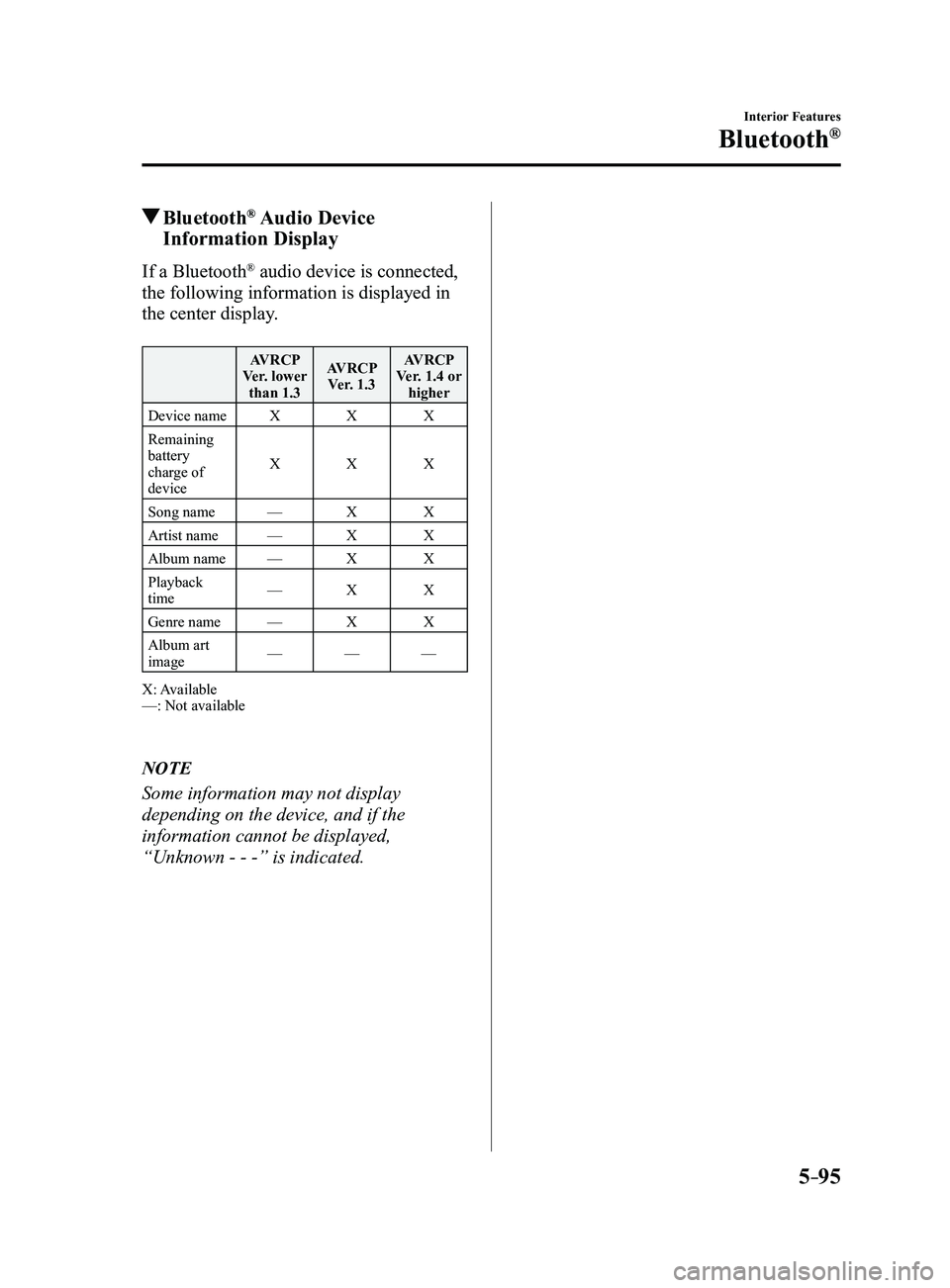
Bluetooth® Audio Device
Information Display
If a Bluetooth® audio device is connected,
the following information is displayed in
the center display.
AVRCP
Ver. lower than 1.3 AVRCP
Ver. 1.3 AVRCP
Ver. 1.4 or higher
Device name XXX
Remaining
battery
charge of
device X
XX
Song name —XX
Artist name —XX
Album name —XX
Playback
time —
XX
Genre name —XX
Album art
image —
——
X: Available
—: Not available
NOTE
Some information may not display
depending on the device, and if the
information cannot be displayed,
“Unknown - - -” is indicated.
Mazda3_8FL6-EA-16F_Edition2.indb 952016/08/10 17:38:13
Page 389 of 612
5–97
Interior Features
Bluetooth®
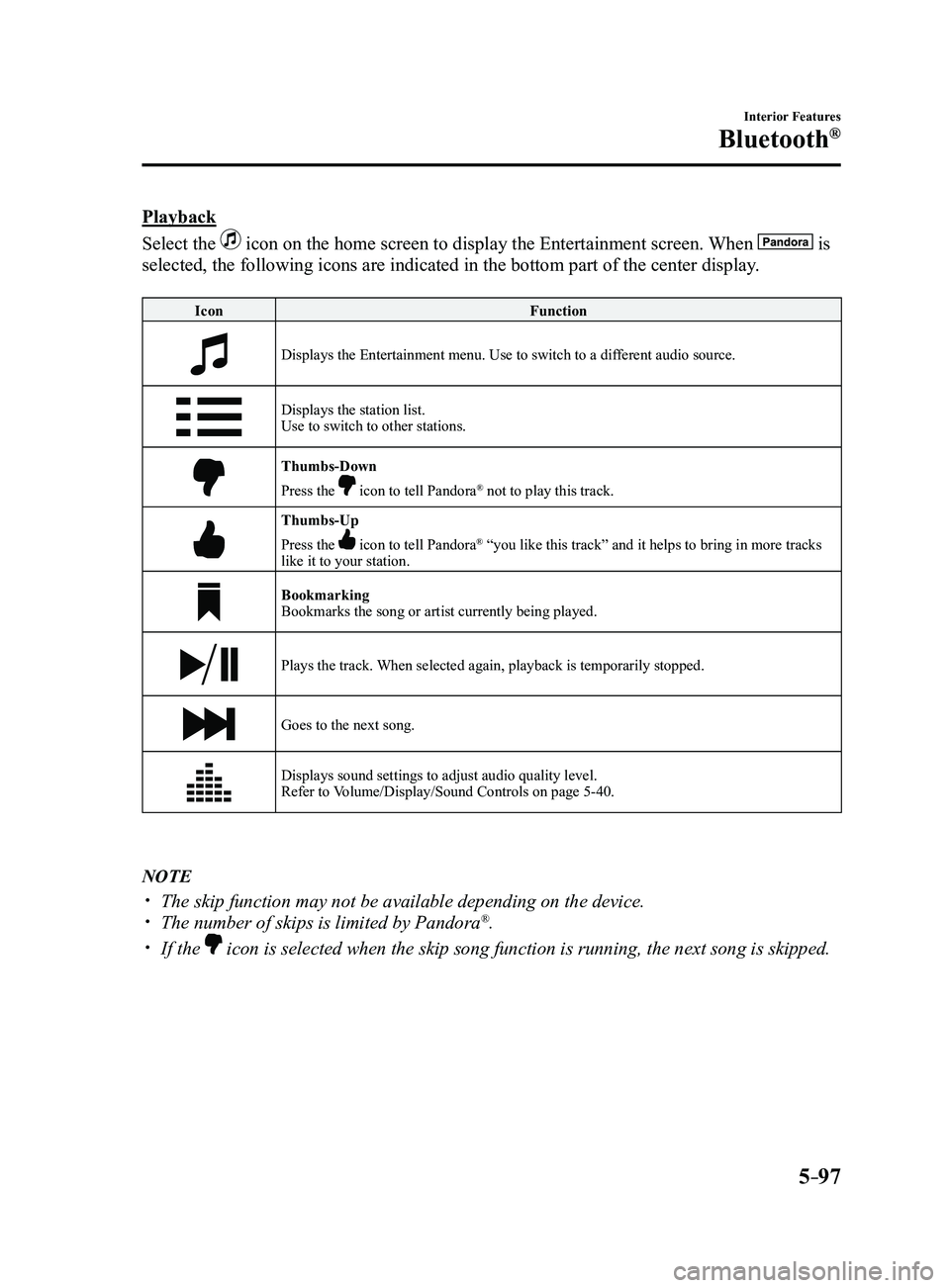
Playback
Select the
icon on the home screen to display the Entertainment screen. When is
selected, the following icons are indicated in the bottom part of the ce\
nter display.
IconFunction
Displays the Entertainment menu. Use to switch to a different audio source.
Displays the station list.
Use to switch to other stations.
Thumbs-Down
Press the icon to tell Pandora® not to play this track.
Thumbs-Up
Press the icon to tell Pandora® “you like this track” and it helps to bring in more tracks
like it to your station.
Bookmarking
Bookmarks the song or artist currently being played.
Plays the track. When selected again, playback is temporarily stopped.
Goes to the next song.
Displays sound settings to adjust audio quality level.
Refer to Volume/Display/Sound Controls on page 5-40.
NOTE
The skip function may not be available depending on the device. The number of skips is limited by Pandora®.
If the icon is selected when the skip song function is running, the next song \
is skipped.
Mazda3_8FL6-EA-16F_Edition2.indb 972016/08/10 17:38:14
Page 391 of 612

5–99
Interior Features
Bluetooth®
How to Use Aha™
What is Aha™?
Aha
*1 is an application which can be used to enjoy various Internet content s\
uch as Internet
radio and podcasts.
Stay connected to your friends activities by getting updates from Facebo\
ok and Twitter.
Using the location-based service, nearby services and destinations can b\
e searched or real-
time local information can be obtained.
For details on Aha, refer to “http://www.aharadio.com/”.
*1 Aha, the Aha logo, and the Aha trade dress are trademarks or registered trademarks of
Harman International Industries, Inc., used with permission.
NOTE
The service content pr ovided by Aha varies depending on the country in which the user
resides. In addition, the service is not available in some countries. To operate Aha from your Bluetooth® device, perform the following in advance:
Install the Aha application to your device. Create an Aha account for your device. Log onto Aha using your device. Select the preset station on your device.
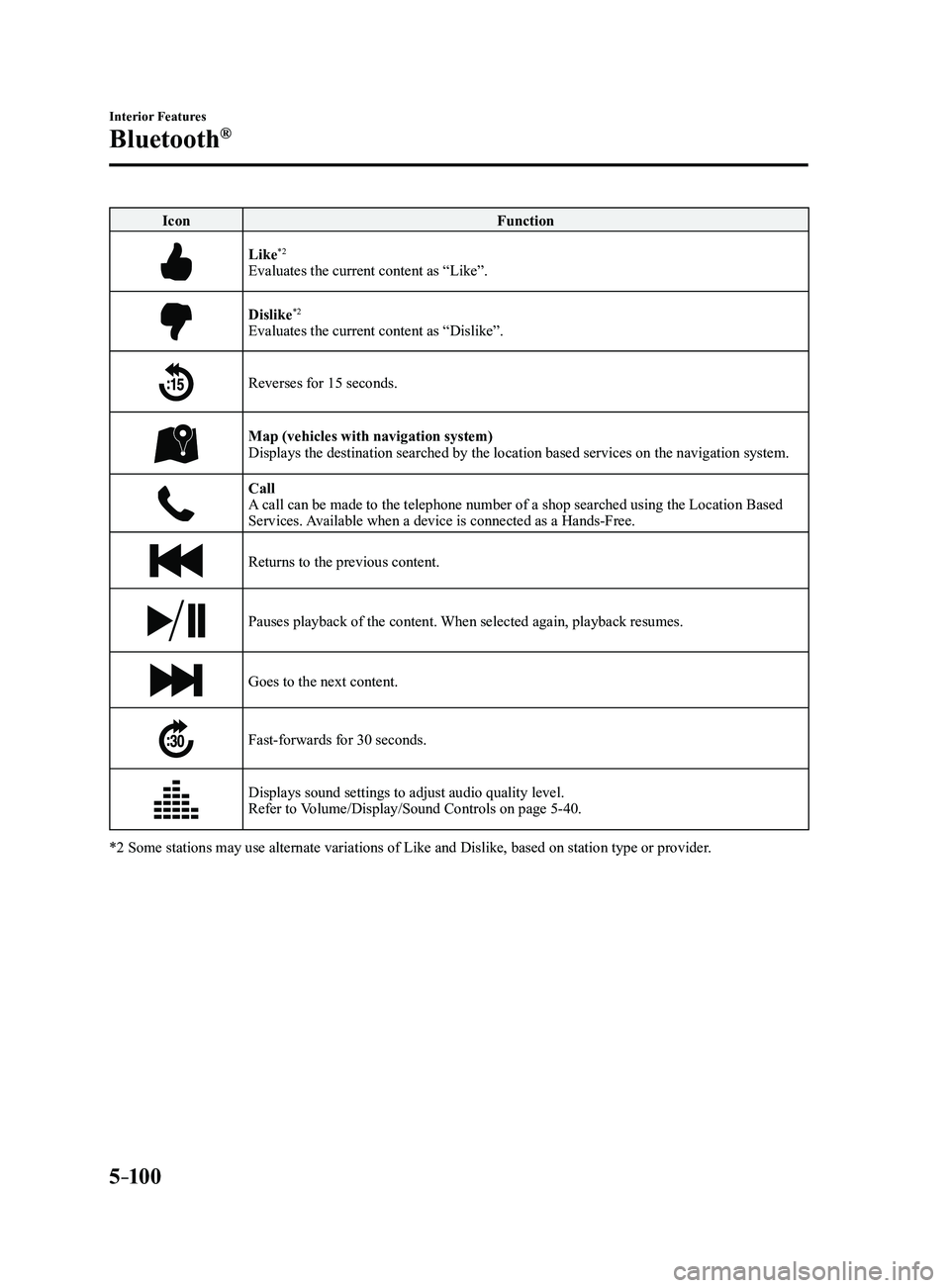
Playback
Select the
icon on the home screen to display the Entertainment screen. When is
selected, the following icons are displayed at the bottom of the center \
display. The displayed
icon differs depending on the selected station.
In addition, icons other than the following icons may be displayed.
Icon Function
Displays the Entertainment menu. Use to switch to a different audio source.
Displays the main menu.
Use to switch to other stations.
Displays the content list.Use to switch to other desired content on the station.
ShoutRecords voice.
Records voice and posts it as playable audio to Facebook and other social stations.
Mazda3_8FL6-EA-16F_Edition2.indb 992016/08/10 17:38:16
Page 392 of 612
5–10 0
Interior Features
Bluetooth®
IconFunction
Like*2
Evaluates the current content as “Like”.
Dislike*2
Evaluates the current content as “Dislike”.
Reverses for 15 seconds.
Map (vehicles with navigation system)Displays the destination searched by the location based services on the \
navigation system.
CallA call can be made to the telephone number of a shop searched using the Location Based
Services. Available when a device is connected as a Hands-Free.
Returns to the previous content.
Pauses playback of the content. When selected again, playback resumes.
Goes to the next content.
Fast-forwards for 30 seconds.
Displays sound settings to adjust audio quality level.
Refer to Volume/Display/Sound Controls on page 5-40.
*2 Some stations may use alternate variations of Like and Dislike, based\
on station type or provider.
Mazda3_8FL6-EA-16F_Edition2.indb 1002016/08/10 17:38:17
Page 395 of 612

5–103
Interior Features
Bluetooth®
How to Use Stitcher™ Radio
What is Stitcher™ Radio?
Stitcher
™*1 radio is an application which can be used to listen to Internet radio o\
r stream
podcasts.
Recommended content is automatically selected by registering content which you put into
your favorites, or by pressing the Like or Dislike button.
For details on Stitcher
™ Radio, refer to “http://stitcher.com/”.
*1 Stitcher™, the Stitcher™ logo, and the Stitcher™ trade dress are trademarks or registered
trademarks of Stitcher, Inc., used with permission.
NOTE
To operate Stitcher™ Radio from your Bluetooth® device, perform the following in advance:
Install the Stitcher™ Radio application to your device. Create a Stitcher™ Radio account for your device. Log onto Stitcher™ Radio using your device.
Playback
Select the
icon on the home screen to display the Entertainment screen. When is
selected, the following icons are indicated in the bottom part of the ce\
nter display.
Icon Function
Displays the Entertainment menu. Use to switch to a different audio source.
Displays the station list.
Use to switch to other stations.
DislikeEvaluates the current program as “Dislike”.
LikeEvaluates the current program as “Like”.
Adds the current station to your favorites or deletes the current statio\
n from your favorites.
Reverses for 30 seconds.
Mazda3_8FL6-EA-16F_Edition2.indb 1032016/08/10 17:38:19