service MAZDA MODEL 3 5-DOOR 2017 Owners Manual
[x] Cancel search | Manufacturer: MAZDA, Model Year: 2017, Model line: MODEL 3 5-DOOR, Model: MAZDA MODEL 3 5-DOOR 2017Pages: 612
Page 3 of 612
A Word to Mazda Owners
Thank you for choosing a Mazda. We at Mazda design and build vehicles with complete
customer satisfaction in mind.
To help ensure enjoyable and trouble-free operation of your Mazda, read t\
his manual
carefully and follow its recommendations.
An Authorized Mazda Dealer knows your vehicle best. So when maintenance or \
service is
necessary, that's the place to go.
Our nationwide network of Mazda professionals is dedicated to providing \
you with the best
possible service.
We assure you that all of us at Mazda have an ongoing interest in your mo\
toring pleasure
and in your full satisfaction with your Mazda product.Mazda Motor CorporationHIROSHIMA, JAPAN
Important Notes About This Manual
Keep this manual in the glove compartment as a handy reference for the s\
afe and enjoyable use of your Mazda.
Should you resell the vehicle, leave this manual with it for the next ow\
ner.
All specifications and descriptions are accurate at the time of printing. Because improvement is a constant goal at
Mazda, we reserve the right to make changes in specifications at any time without notice and without obligation.
Air-Conditioning and the Environment
Your Mazda's genuine air conditioner is filled with a refrigerant that has been found not to damage the earth's
ozone layer. If the air conditioner does not operate properly, consult an Authorized Mazda Dealer.
Perchlorate
Certain components of this vehicle such as [air bag modules, seat belt p\
retensioners, lithium batteries,…] may
contain Perchlorate Material-- Special handling may apply for service or\
vehicle end of life disposal. See
www.dtsc.ca.gov/hazardouswaste/perchlorate.
Please be aware that this manual applies to all models, equipment and options. As a result, you may find
some explanations for equipment not installed on your vehicle.
©2016 Mazda Motor Corporation Sep. 2016 (Print2)
Mazda3_8FL6-EA-16F_Edition2.indb 32016/08/10 17:34:43
Page 84 of 612
3–8
Before Driving
Keys
Trunk button (4–door)
To open the trunk lid, press and hold the
trunk button until the trunk lid opens.
Panic button
If you witness from a distance someone
attempting to break into or damage your
vehicle, press and hold the panic button
to activate the vehicle's alarm. Call
emergency services if necessary.
NOTE
The panic button will work whether any
door or the liftgate/trunk lid is open or
closed.
(Turning on the alarm)
Pressing the panic button for 1 second or
more will trigger the alarm for about 2
minutes and 30 seconds, and the following
will occur:
The horn sounds intermittently. The hazard warning lights flash.
(Turning off the alarm)
The alarm stops by pressing any button on
the key.
Operational Range
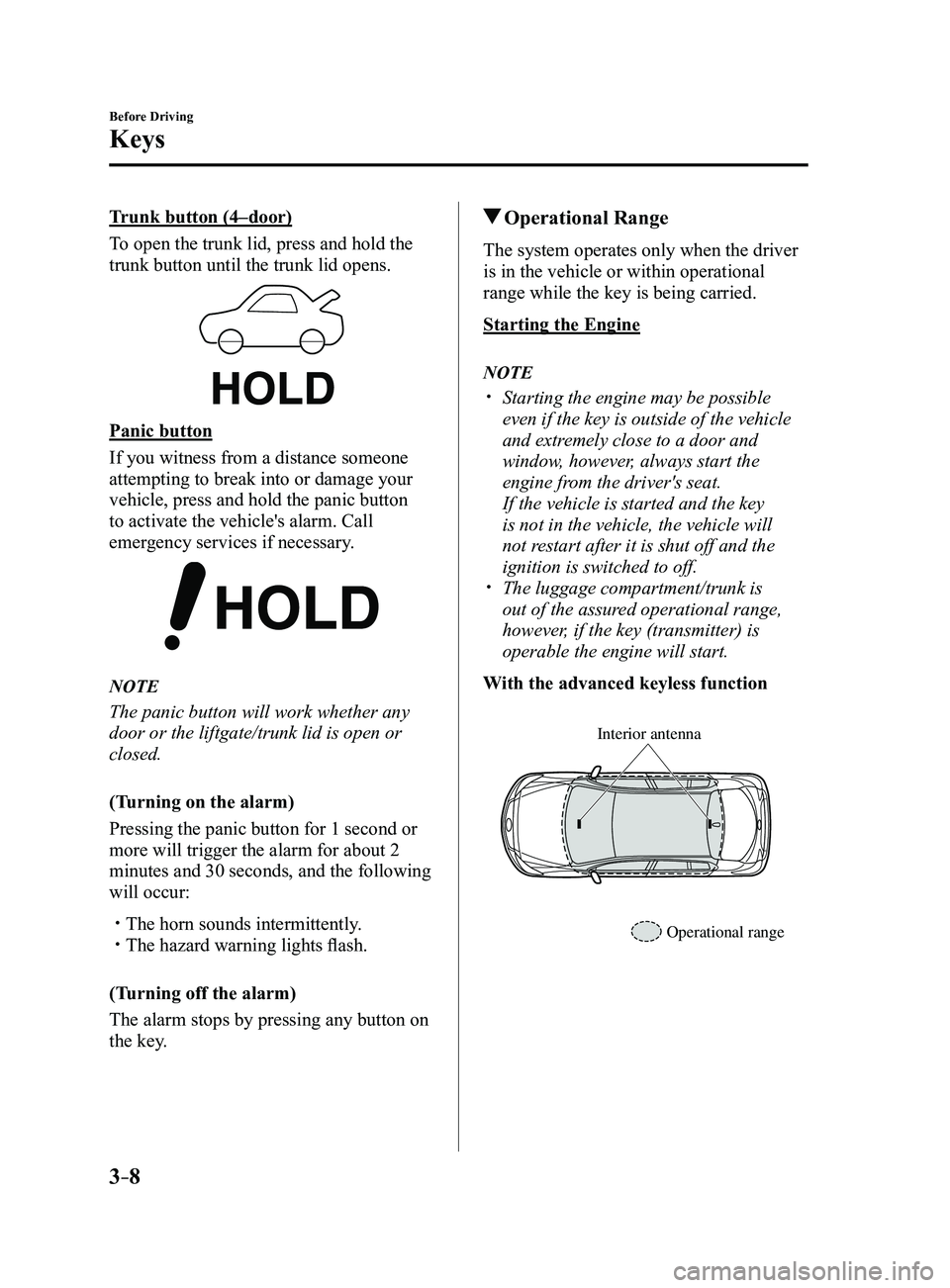
The system operates only when the driver
is in the vehicle or within operational
range while the key is being carried.
Starting the Engine
NOTE
Starting the engine may be possible
even if the key is outside of the vehicle
and extremely close to a door and
window, however, always start the
engine from the driver's seat.
If the vehicle is started and the key
is not in the vehicle, the vehicle will
not restart after it is shut off and the
ignition is switched to off.
The luggage compartment/trunk is
out of the assured operational range,
however, if the key (transmitter) is
operable the engine will start.
With the advanced keyless function
Interior antenna
Operational range
Mazda3_8FL6-EA-16F_Edition2.indb 82016/08/10 17:35:18
Page 237 of 612
4–107
When Driving
i-ACTIVSENSE
*Some models.
Mazda Radar Cruise Control (MRCC)*
The Mazda Radar Cruise Control (MRCC) system is designed to maintain headway control*1
according to the vehicle speed using a radar sensor (front) to detect \
the distance to a vehicle
ahead, and by presetting the vehicle speed between 30 km/h (19 mph) an\
d 145 km/h (90 mph),
the driver is freed from having to constantly use the accelerator or bra\
ke pedals.
*1 Headway Control: Control of the distance between your vehicle and the ve\
hicle ahead
detected by the Mazda Radar Cruise Control (MRCC) system.
Additionally, if your vehicle starts closing in on the vehicle ahead because, for ex\
ample, the
vehicle ahead brakes suddenly, a warning sound and a warning indication in the display are
activated simultaneously to alert you to maintain a sufficient distance between the vehicles.
Use the Mazda Radar Cruise Control (MRCC) system on expressways and other highways
which do not require a lot of repeated acceleration and deceleration.
WARNING
Do not rely completely on the Mazda Radar Cruise Control (MRCC) system and always
drive carefully:
The Mazda Radar Cruise Control (MRCC) system is designed to reduce load on the driver,
and although it maintains a constant vehicle speed, or specifically, it maintains a constant
distance between your vehicle and the detected vehicle ahead according to the vehicle
speed, the system has detection limitations depending on the type of vehicle ahead and its
conditions, the weather conditions, and the road conditions. Additionally, the system may
be unable to decelerate sufficiently to avoid hitting the vehicle ahead if the vehicle ahead
applies the brakes suddenly or another vehicle cuts into the driving lane, which could result in
an accident. Always verify the safety of the surrounding area and depress the brake pedal or
accelerator pedal while keeping a safer distance from vehicles ahead or on-coming vehicles.
Do not use the Mazda Radar Cruise Control (MRCC) system in the following locations.
Otherwise, it could lead to an accident:
Roads with sharp cur ves and where vehicle traffic is heavy and there is insufficient
space between vehicles. Roads where frequent and repetitive acceleration and
deceleration occur (Driving under these conditions using the Mazda Radar Cruise
Control (MRCC) system is not possible).
When entering and exiting interchanges, service areas, and parking areas of highways
(If you exit a highway while headway control is in use, the vehicle ahead will no longer
be tracked and your vehicle may accelerate to the set speed).
Slippery roads such as ice or snow-bound roads (The tires could spin causing you to
lose vehicle control). Long descending slopes (to maintain distance between vehicles, the system automatically
and continuously applies the brakes which could result in the loss of brake power).
For the purposes of safety, switch the Mazda Radar Cruise Control (MRCC) system off
when it is not being used.
Mazda3_8FL6-EA-16F_Edition2.indb 1072016/08/10 17:36:46
Page 338 of 612
5–46
Interior Features
Audio System
Commercial-free music from nearly
every genre —rock to pop, hip-hop to
country, jazz, classical and more. Plus
live performances and artist-dedicated
channels.
Live sports Play-by-Play & Expert Talk
—every NFL game, every NASCAR
®
race, 24/7 sports talk, college sports and
more.
Exclusive entertainment, comedy and
talk —The biggest names, compelling
talk, hilarious comedy.
World-class news plus local traffic and
weather.
Sign up for SiriusXM Satellite Radio
today!
NOTE
To listen to SiriusXM, a prior
subscription (fee-based) is required. The channels which you can r eceive
depend on the package you subscribe
to.
Satellite radio is broadcast as Sirius,
XM, and SiriusXM in the U.S.A.,
and Sirius and XM in Canada. In
this owner’s manual, only the name
SiriusXM is used.
For traffic and weather channels, map
information is not displayed and only
audio broadcasts can be received.
Call 877-447-0011 (U.S.A.)/
877-209-0079 (Canada) to activate.
For more information, visit www.
siriusxm.com (U.S.A.)/www.siriusxm.
ca (Canada). Satellite radio is only
available in regions providing satellite
radio service (some areas of the United
States and Canada). Contact Authorized
Mazda Dealer for details.
How to Activate Satellite Radio
You must call SiriusXM to activate your
service. Activation is free and takes only a
few minutes.
New customers can receive a free
introductory subscription with a limited
term trial offer by calling 877-447-0011
(U.S.A.)/877-209-0079 (Canada) to
activate.
SiriusXM service uses an ID code to
identify your radio. This code is needed to
activate SiriusXM service, and report any
problems.
Please have the following information
ready:
Radio ID (8-digit electronic serial No.)
Refer to Displaying the Radio ID (ESN) Valid credit card information (may not
be required at initial sign-up)
Be sure you are parked outside with a clear
view of open sky, you will be instructed
to turn on your radio (in SiriusXM mode
and tuned to channel 184 (Sirius)/1 (XM
and SiriusXM)). Activation typically takes
only 2—5 minutes.
Displaying the Radio ID (ESN)
When channel 0 is selected, the radio ID is
displayed. Use the PREVIOUS or NEXT
channel buttons to select channel 0.
Mazda3_8FL6-EA-16F_Edition2.indb 462016/08/10 17:37:41
Page 364 of 612
5–72
Interior Features
Audio System
Gracenote Database (Type B)
When a USB device is connected to this unit and the audio is played, the album name,
artist name, genre and title information are automatically displayed if \
there is a match in
the vehicle's database compilation to the music being played. The information stored in this
device uses database information in the Gracenote music recognition service.
CAUTION
For information related to the most recent Gracenote database which can be used and
how to install it, go to the Mazda Hands Free Website:
http://www.mazdahandsfree.com
Introduction
Music recognition technology and related data are provided by Gracenote
®. Gracenote is the
industry standard in music recognition technology and related content de\
livery. For more
information visit www.gracenote.com.
CD and music-related data from Gracenote, Inc., copyright © 2000 to present Gracenote.
Gracenote Software, copyright © 2000 to present Gracenote. One or more patents owned
by Gracenote apply to this product and service. See the Gracenote website for a non-
exhaustive list of applicable Gracenote patents. Gracenote, CDDB, MusicID, MediaVOCS,
the Gracenote logo and logotype, and the “Powered by Gracenote” logo are either registered
trademarks or trademarks of Gracenote in the United States and/or other countries.
Gracenote® End User License Agreement
This application or device contains software from Gracenote, Inc. of Emeryville, California
(“Gracenote”). The software from Gracenote (the “Gracenote Software”) enables this
application to perform disc and/or file identification and obtain music-related information,
including name, artist, track, and title information (“Gracenote Data”) from online servers
or embedded databases (collectively, “Gracenote Servers”) and to perform other functions.
You may use Gracenote Data only by means of the intended End-User functions of this
application or device.
You agree that you will use Gracenote Data, the Gracenote Software, and Gracenote Servers
for your own personal non-commercial use only. You agree not to assign, copy, transfer or
transmit the Gracenote Software or any Gracenote Data to any third party. YOU AGREE
NOT TO USE OR EXPLOIT GRACENOTE DATA, THE GRACENOTE SOFTWARE, OR
GRACENOTE SERVERS, EXCEPT AS EXPRESSLY PERMITTED HEREIN.
Mazda3_8FL6-EA-16F_Edition2.indb 722016/08/10 17:37:56
Page 365 of 612
5–73
Interior Features
Audio System
You agree that your non-exclusive license to use the Gracenote Data, the Gracenote
Software, and Gracenote Servers will terminate if you violate these restrictions. If your
license terminates, you agree to cease any and all use of the Gracenote Data, the Gracenote
Software, and Gracenote Servers. Gracenote reserves all rights in Gracenote Data, the
Gracenote Software, and the Gracenote Servers, including all ownership rights. Under no
circumstances will Gracenote become liable for any payment to you for any information
that you provide. You agree that Gracenote, Inc. may enforce its rights under this Agreement
against you directly in its own name.
The Gracenote service uses a unique identifier to track queries for statistical purposes. The
purpose of a randomly assigned numeric identifier is to allow the Gracenote service to count
queries without knowing anything about who you are. For more information, see the web
page for the Gracenote Privacy Policy for the Gracenote service.
The Gracenote Software and each item of Gracenote Data are licensed to you “AS IS.”
Gracenote makes no representations or warranties, express or implied, regarding the
accuracy of any Gracenote Data from in the Gracenote Servers. Gracenote reserves the right
to delete data from the Gracenote Servers or to change data categories for any cause that
Gracenote deems sufficient. No warranty is made that the Gracenote Software or Gracenote
Servers are error-free or that functioning of Gracenote Software or Gracenote Servers will
be uninterrupted. Gracenote is not obligated to provide you with new enhanced or additional
data types or categories that Gracenote may provide in the future and is free to discontinue
its services at any time.
GRACENOTE DISCLAIMS ALL WARRANTIES EXPRESS OR IMPLIED,
INCLUDING, BUT NOT LIMITED TO, IMPLIED WARRANTIES OF
MERCHANTABILITY, FITNESS FOR A PARTICULAR PURPOSE, TITLE, AND
NON-INFRINGEMENT. GRACENOTE DOES NOT WARRANT THE RESULTS THAT
WILL BE OBTAINED BY YOUR USE OF THE GRACENOTE SOFTWARE OR ANY
GRACENOTE SERVER. IN NO CASE WILL GRACENOTE BE LIABLE FOR ANY
CONSEQUENTIAL OR INCIDENTAL DAMAGES OR FOR ANY LOST PROFITS OR
LOST REVENUES.
© 2000 to present. Gracenote, Inc.
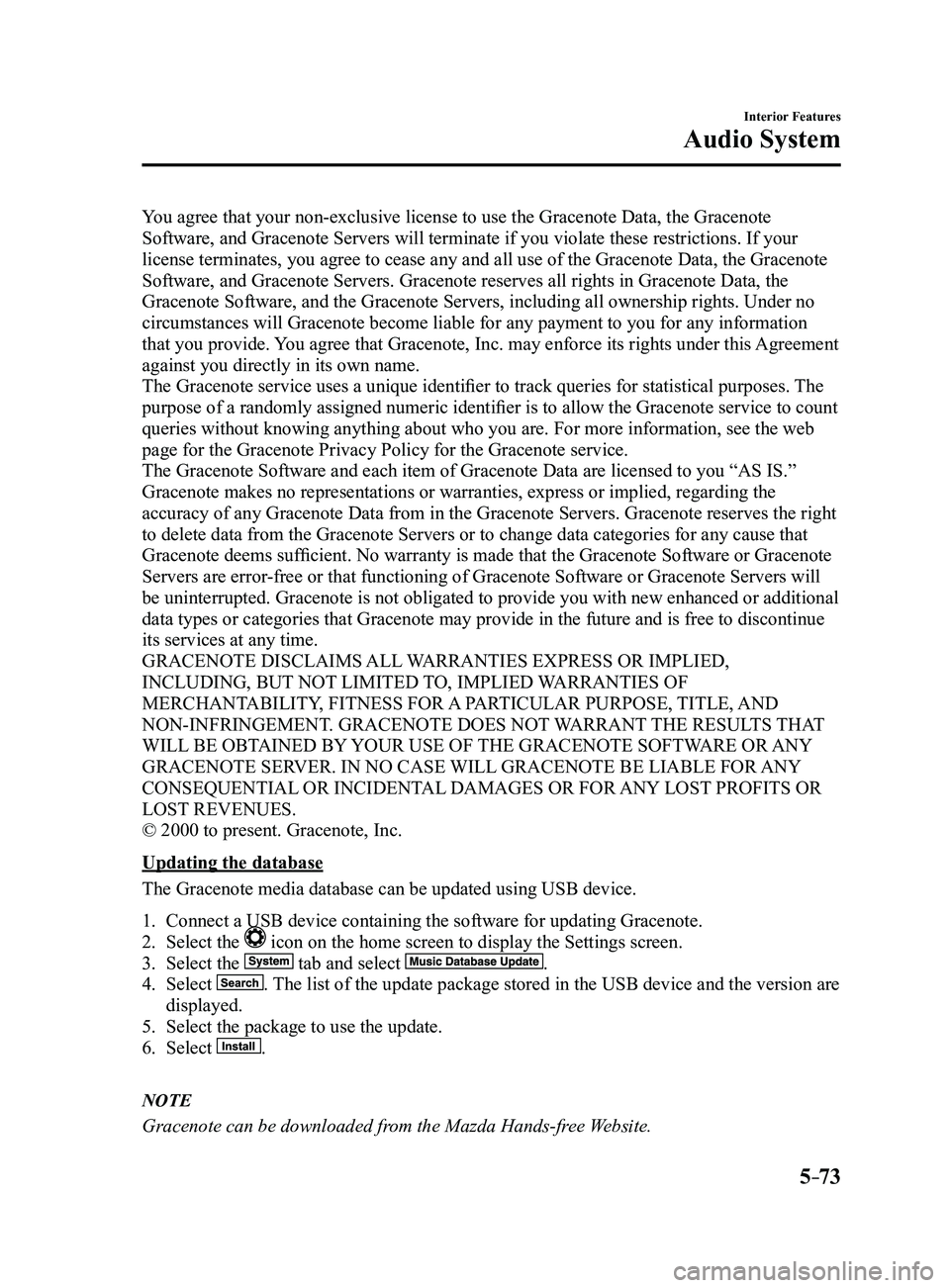
Updating the database
The Gracenote media database can be updated using USB device.
1. Connect a USB device containing the software for updating Gracenote.
2. Select the icon on the home screen to display the Settings screen.
3. Select the tab and select .
4. Select . The list of the update package stored in the USB device and the version are
displayed.
5. Select the package to use the update.
6. Select .
NOTE
Gracenote can be downloaded from the Mazda Hands-free Website.
Mazda3_8FL6-EA-16F_Edition2.indb 732016/08/10 17:37:57
Page 369 of 612

5–77
Interior Features
Bluetooth®
Conversation volume and the volume of the voice guidance and ringtone ca\
n each be set in
advance.
1. Select the icon on the home screen to display the Communication screen.
2. Select .
3. Adjust the and the using the slider.
Bluetooth® Preparation
Device pairing
To use Bluetooth
® audio and Hands-Free,
the device equipped with Bluetooth® has
to be paired to the unit using the following
procedure. A maximum of seven devices
including Bluetooth
® audio devices and
hands-free mobile phones can be paired.
NOTE
The Bluetooth® system may not operate
for 1 or 2 minutes after the ignition
is switched to ACC or ON. However,
this does not indicate a problem. If the
Bluetooth
® system does not connect
automatically after 1 or 2 minutes have
elapsed, make sure that the Bluetooth
®
setting on the device is normal and
attempt to reconnect the Bluetooth
®-
enabled device from the vehicle side.
If Bluetooth®-enabled devices are used
in the following locations or conditions,
connection via Bluetooth
® may not be
possible.
The device is in a location hidden
from the center display such as
behind or under a seat, or inside the
glove compartment.
The device contacts or is cover ed by
a metal object or body. The device is set to power-saving
mode. Pairing Procedure
1. Select the icon on the home screen
to display the Settings screen.
2. Select the tab.
3. Select .
4. Turn the Bluetooth® setting on.
5. Select to display the
message and switch to the device
operation.
6. Using your device, perform a search
for the Bluetooth® device (Peripheral
device).
7. Select “Mazda” from the device list
searched by the device.
8. (Device with Bluetooth® version 2.0)
Input the displayed 4-digit pairing code
into the device.
(Device with Bluetooth® version 2.1
or higher)
Make sure the displayed 6-digit code
on the audio is also displayed on the
device, and touch the
.
Connection permission and phonebook
access permission for your mobile
device may be required depending on
the mobile device.
9. If pairing is successful, the functions of
the device connected to Bluetooth® are
displayed.
10. (Devices compatible with Mazda
Email / SMS function)
SMS (Short Message Service)
messages, and E-mail for the device are
downloaded automatically. A download
permission operation for your device
may be required depending on the
device.
Mazda3_8FL6-EA-16F_Edition2.indb 772016/08/10 17:37:59
Page 379 of 612
5–87
Interior Features
Bluetooth®
NOTE
If the ignition is switched off during a
hands-free call, the line is transferred
to the device (Mobile phone)
automatically.
If the DTMF code has two or more
digits or symbols, each one must be
transmitted individually.
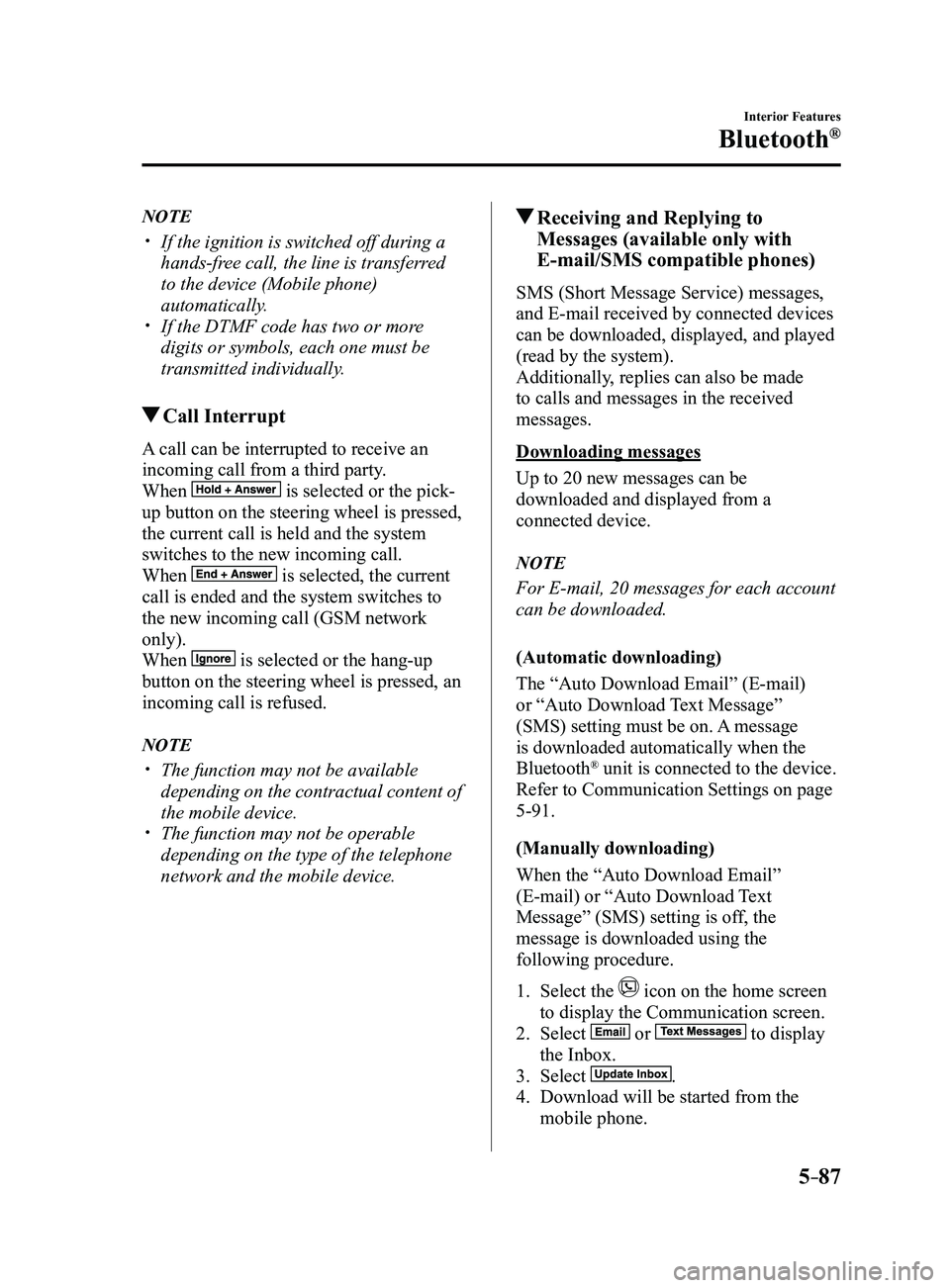
Call Interrupt
A call can be interrupted to receive an
incoming call from a third party.
When
is selected or the pick-
up button on the steering wheel is pressed,
the current call is held and the system
switches to the new incoming call.
When
is selected, the current
call is ended and the system switches to
the new incoming call (GSM network
only).
When
is selected or the hang-up
button on the steering wheel is pressed, an
incoming call is refused.
NOTE
The function may not be available
depending on the contractual content of
the mobile device.
The function may not be operable
depending on the type of the telephone
network and the mobile device.
Receiving and Replying to
Messages (available only with
E-mail/SMS compatible phones)
SMS (Short Message Service) messages,
and E-mail received by connected devices
can be downloaded, displayed, and played
(read by the system).
Additionally, replies can also be made
to calls and messages in the received
messages.
Downloading messages
Up to 20 new messages can be
downloaded and displayed from a
connected device.
NOTE
For E-mail, 20 messages for each account
can be downloaded.
(Automatic downloading)
The “Auto Download Email” (E-mail)
or “Auto Download Text Message”
(SMS) setting must be on. A message
is downloaded automatically when the
Bluetooth
® unit is connected to the device.
Refer to Communication Settings on page
5-91.
(Manually downloading)
When the “Auto Download Email”
(E-mail) or “Auto Download Text
Message” (SMS) setting is off, the
message is downloaded using the
following procedure.
1. Select the icon on the home screen
to display the Communication screen.
2. Select or to display
the Inbox.
3. Select .
4. Download will be started from the
mobile phone.
Mazda3_8FL6-EA-16F_Edition2.indb 872016/08/10 17:38:09
Page 391 of 612

5–99
Interior Features
Bluetooth®
How to Use Aha™
What is Aha™?
Aha
*1 is an application which can be used to enjoy various Internet content s\
uch as Internet
radio and podcasts.
Stay connected to your friends activities by getting updates from Facebo\
ok and Twitter.
Using the location-based service, nearby services and destinations can b\
e searched or real-
time local information can be obtained.
For details on Aha, refer to “http://www.aharadio.com/”.
*1 Aha, the Aha logo, and the Aha trade dress are trademarks or registered trademarks of
Harman International Industries, Inc., used with permission.
NOTE
The service content pr ovided by Aha varies depending on the country in which the user
resides. In addition, the service is not available in some countries. To operate Aha from your Bluetooth® device, perform the following in advance:
Install the Aha application to your device. Create an Aha account for your device. Log onto Aha using your device. Select the preset station on your device.
Playback
Select the
icon on the home screen to display the Entertainment screen. When is
selected, the following icons are displayed at the bottom of the center \
display. The displayed
icon differs depending on the selected station.
In addition, icons other than the following icons may be displayed.
Icon Function
Displays the Entertainment menu. Use to switch to a different audio source.
Displays the main menu.
Use to switch to other stations.
Displays the content list.Use to switch to other desired content on the station.
ShoutRecords voice.
Records voice and posts it as playable audio to Facebook and other social stations.
Mazda3_8FL6-EA-16F_Edition2.indb 992016/08/10 17:38:16
Page 392 of 612
5–10 0
Interior Features
Bluetooth®
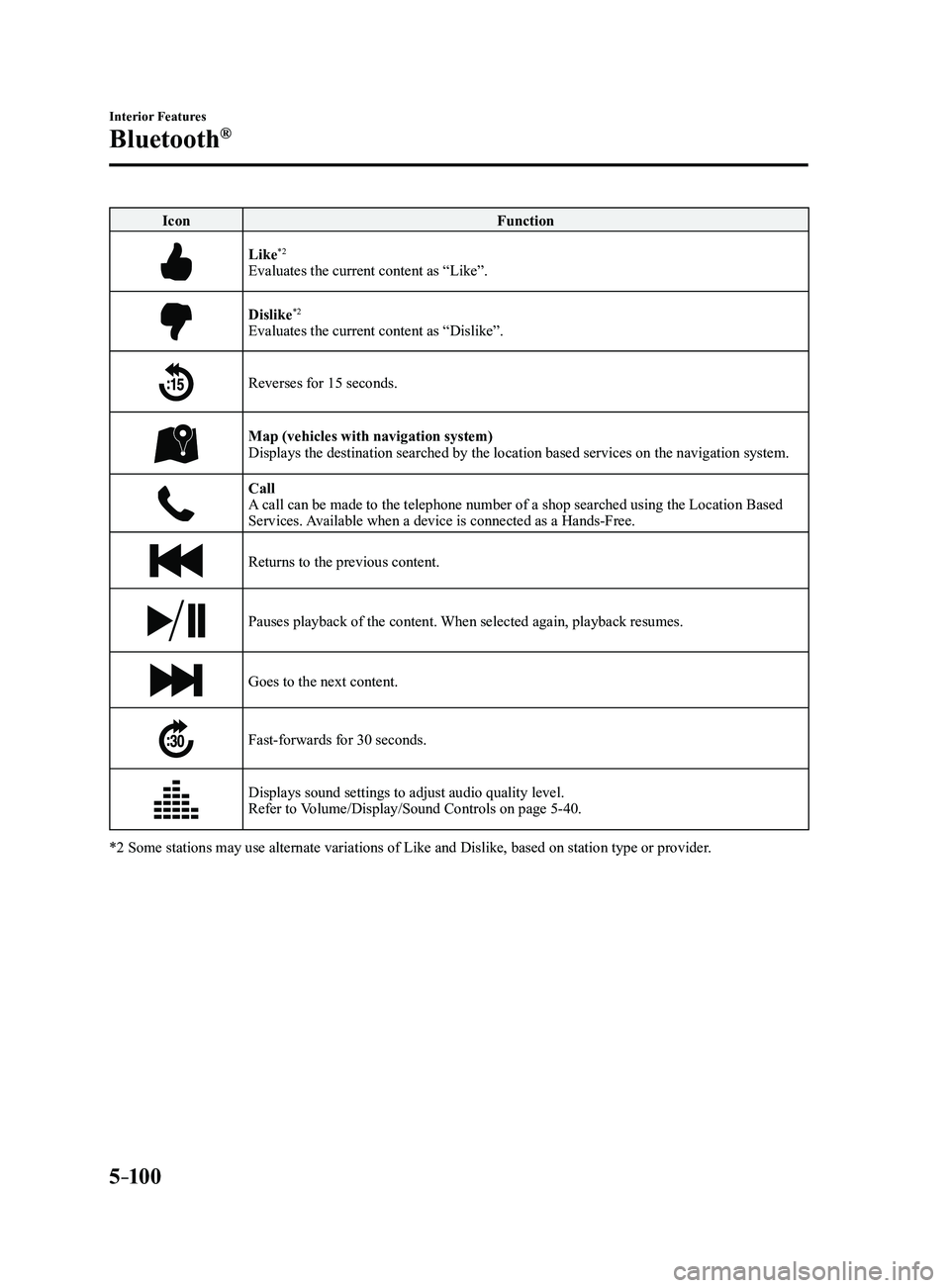
IconFunction
Like*2
Evaluates the current content as “Like”.
Dislike*2
Evaluates the current content as “Dislike”.
Reverses for 15 seconds.
Map (vehicles with navigation system)Displays the destination searched by the location based services on the \
navigation system.
CallA call can be made to the telephone number of a shop searched using the Location Based
Services. Available when a device is connected as a Hands-Free.
Returns to the previous content.
Pauses playback of the content. When selected again, playback resumes.
Goes to the next content.
Fast-forwards for 30 seconds.
Displays sound settings to adjust audio quality level.
Refer to Volume/Display/Sound Controls on page 5-40.
*2 Some stations may use alternate variations of Like and Dislike, based\
on station type or provider.
Mazda3_8FL6-EA-16F_Edition2.indb 1002016/08/10 17:38:17