ad blue MAZDA MODEL CX-50 2023 Owners Manual
[x] Cancel search | Manufacturer: MAZDA, Model Year: 2023, Model line: MODEL CX-50, Model: MAZDA MODEL CX-50 2023Pages: 583, PDF Size: 85.63 MB
Page 173 of 583
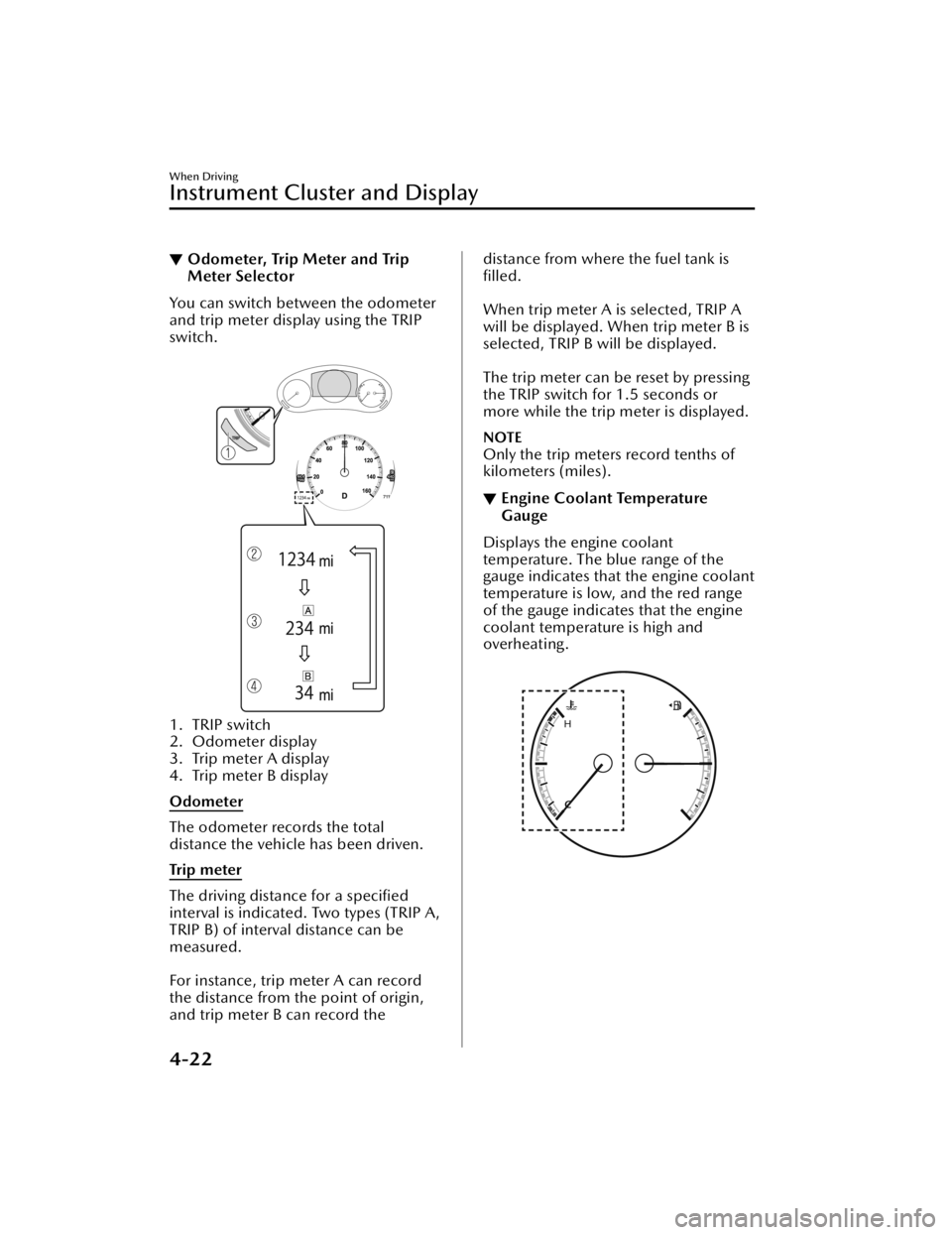
▼Odometer, Trip Meter and Trip
Meter Selector
You can switch between the odometer
and trip meter display using the TRIP
switch.
1. TRIP switch
2. Odometer display
3. Trip meter A display
4. Trip meter B display
Odometer
The odometer records the total
distance the vehicle has been driven.
Tr i p m e te r
The driving distance for a specified
interval is indicated. Two types (TRIP A,
TRIP B) of interval distance can be
measured.
For instance, trip meter A can record
the distance from the point of origin,
and trip meter B can record the
distance from where the fuel tank is
filled.
When trip meter A is selected, TRIP A
will be displayed. When trip meter B is
selected, TRIP B will be displayed.
The trip meter can be reset by pressing
the TRIP switch for 1.5 seconds or
more while the trip meter is displayed.
NOTE
Only the trip meters record tenths of
kilometers (miles).
▼ Engine Coolant Temperature
Gauge
Displays the engine coolant
temperature. The blue range of the
gauge indicates that the engine coolant
temperature is low, and the red range
of the gauge indicates that the engine
coolant temperature is high and
overheating.
When Driving
Instrument Cluster and Display
4-22
CX-50_8KB8-EA-22A_Edition2_new
2022-1-6 14:55:18
Page 320 of 583
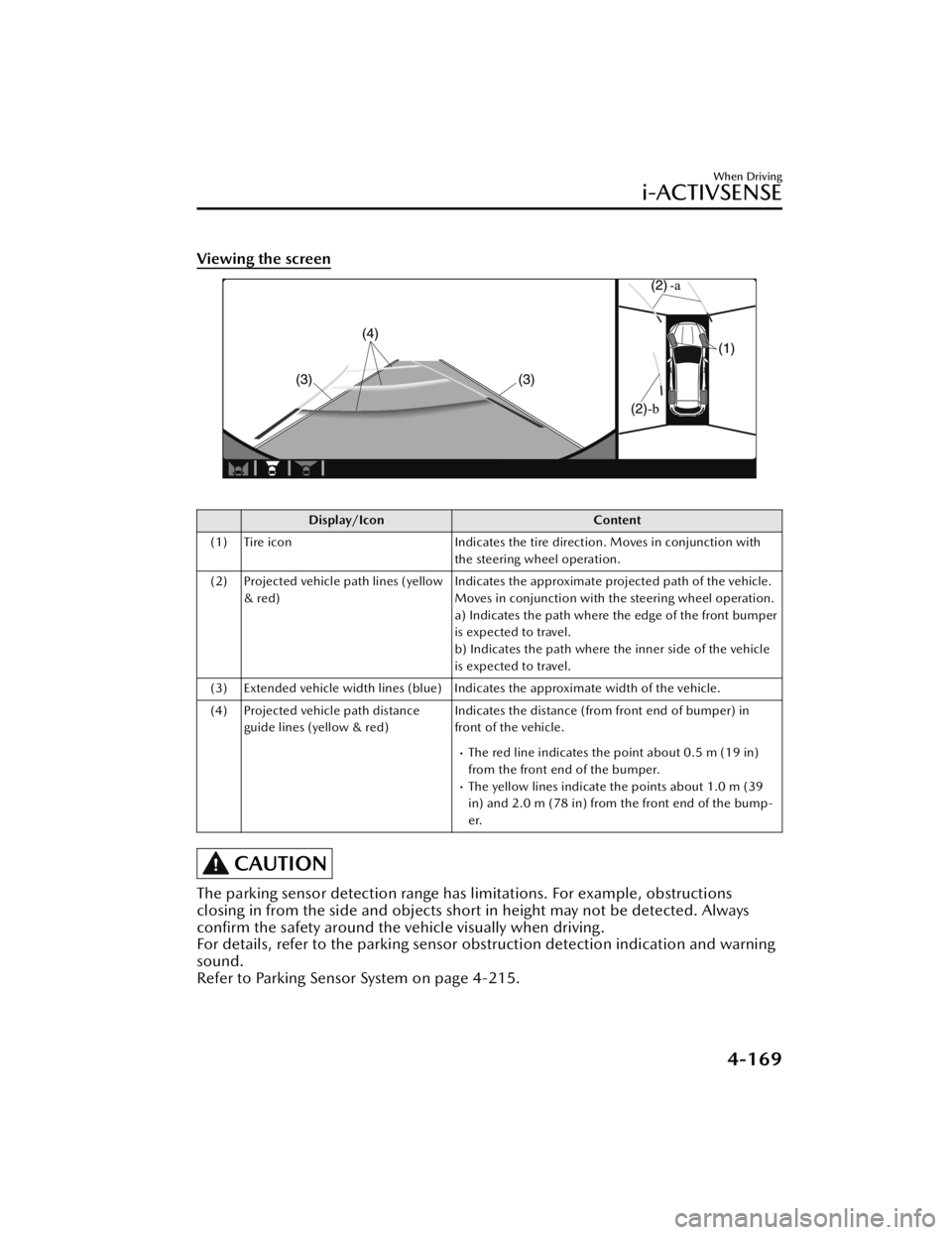
Viewing the screen
Display/IconContent
(1) Tire icon Indicates the tire direction. Moves in conjunction with
the steering wheel operation.
(2) Projected vehicle path lines (yellow & red) Indicates the approximate projected path of the vehicle.
Moves in conjunction with the steering wheel operation.
a) Indicates the path where the edge of the front bumper
is expected to travel.
b) Indicates the path where the inner side of the vehicle
is expected to travel.
(3) Extended vehicle width lines (blue) Indicates the approximate width of the vehicle.
(4) Projected vehicle path distance guide lines (yellow & red) Indicates the distance (from front end of bumper) in
front of the vehicle.
The red line indicates the point about 0.5 m (19 in)
from the front end of the bumper.
The yellow lines indicate the points about 1.0 m (39
in) and 2.0 m (78 in) from the front end of the bump-
er.
CAUTION
The parking sensor detection range has limitations. For example, obstructions
closing in from the side and objects shor
t in height may not be detected. Always
confirm the safety around the vehicle visually when driving.
For details, refer to the parking sensor ob struction detection indication and warning
sound.
Refer to Parking Sensor System on page 4-215.
When Driving
i-ACTIVSENSE
4-169
CX-50_8KB8-EA-22A_Edition2_new 2022-1-6 14:55:18
Page 323 of 583

Viewing the screen
Display/IconContent
(1) Extended vehicle width lines and distance guide lines (blue & red) Indicates the approximate width of the vehicle and the
distance (from front end of bumper) in front of the vehi-
cle.
The red lines indicate the points up to about 0.5 m (19
in) from the front end of the bumper.
NOTE
The front wide view screen displays the image in front of the vehicle at a wide angle
and corrects the image to help detect approaching obstructions from the side.
Therefore, it differs from the actual view.
When Driving
i-ACTIVSENSE
4-172
CX-50_8KB8-EA-22A_Edition2_new
2022-1-6 14:55:18
Page 325 of 583

Viewing the screen
Display/IconContent
(1) Projected vehicle path lines (yellow) Indicates the approximate projected path of the vehicle. Moves in conjunction with the steering wheel operation.
The projected vehicle path lines (yellow) indicate the
path the inner side of the vehicle is expected to travel.
(2) Vehicle parallel guide lines (blue) Indicates the approximate vehicle width including the door mirrors.
(3) Vehicle front end guide lines (blue) Indicates the point about 0.25 m (9.84 in) from the front edge of the vehicle (front edge of the bumper).
NOTE
The setting can be changed so that the projected vehicle path lines are not
displayed.
Refer to the Settings section in the Mazda Connect Owner's Manual.
When Driving
i-ACTIVSENSE
4-174
CX-50_8KB8-EA-22A_Edition2_new 2022-1-6 14:55:18
Page 328 of 583

If the position or angle of each camera changes due to tilting of the vehicle, the
image may appear distorted.
Lines on the road may appear distorted at the seams where each of the camera
images merge.
The screen area for each camera may appear bright/dark depending on the
illumination level around any of the cameras.
Viewing the screen
Display/Icon Content
(1) Tire icon Indicates the tire direction. Moves in conjunction with
the steering wheel operation.
(2) Projected vehicle path lines (yellow & red) Indicates the approximate projected path of the vehicle.
Moves in conjunction with the steering wheel operation.
a) Indicates the path where the edge of the rear bumper
is expected to travel.
b) Indicates the path where the outer side of the vehicle
is expected to travel.
(3) Extended vehicle width lines (blue) These guide lines indicate the approximate width of the vehicle.
(4) Projected vehicle path distance guide lines (yellow & red) These guide lines indicate the approximate distance to a
point measured from the rear of the vehicle (from the
end of the bumper).
The red line indicates the point about 0.5 m (19 in)
from the rear end of the bumper.
The yellow lines indicate the points about 1.0 m (39
in) and 2.0 m (78 in) from the rear end of the bumper.
NOTE
The setting can be changed so that the projected vehicle path lines are not
displayed.
Refer to the Settings section in the Mazda Connect Owner's Manual.
When Driving
i-ACTIVSENSE
4-177
CX-50_8KB8-EA-22A_Edition2_new
2022-1-6 14:55:18
Page 333 of 583

Viewing the screen
Display/IconContent
(1) Extended vehicle width lines and distance guide lines (blue & red) These guide lines indicate the approximate width of the
vehicle and distance to a point measured from the rear
of the vehicle (from the end of the bumper).
The red lines indicate the points up to about 0.5 m
(19 in) from the rear end of the bumper.
NOTE
The top view/rear wide view screen displays the image at the rear of the vehicle at a
wide angle and corrects the image to help
detect approaching obstructions from the
side. Therefore, it differs from the actual view.
▼ Margin of Error Between Road Surface
on Screen and Actual Road Surface
There might be some margin of error between the road surface appearing on the
screen and the actual road surface. A margin of error in the perceived distance could
lead to an accident, therefore be aware of the following conditions which can more
easily produce errors in the perceived distance.
The vehicle tilts due to weight of passengers and cargo.
If the vehicle is tilted, obstructions picked up by a camera can appear farther or
closer than the actual distance from the vehicle.
Front camera
When Driving
i-ACTIVSENSE
4-182
CX-50_8KB8-EA-22A_Edition2_new 2022-1-6 14:55:18
Page 388 of 583
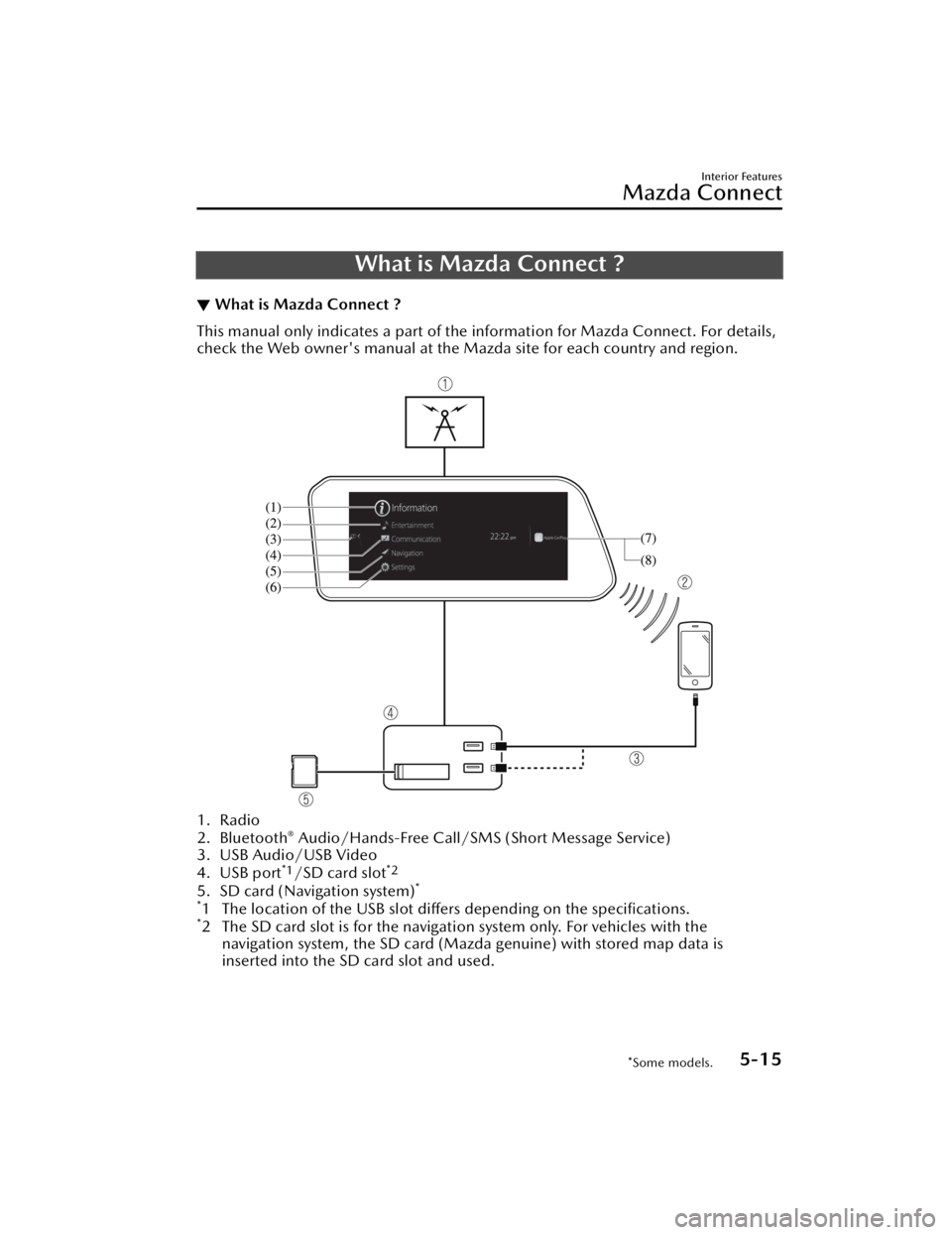
What is Mazda Connect ?
▼What is Mazda Connect ?
This manual only indicates a part of the information for Mazda Connect. For details,
check the Web owner's manual at the Mazda site for each country and region.
1. Radio
2. Bluetooth® Audio/Hands-Free Call/SMS
(Short Message Service)
3. USB Audio/USB Video
4. USB port
*1/SD card slot*2
5. SD card (Navigation system)*
*
1 The location of the USB slot differs depending on the specifications.*2 The SD card slot is for the navigati on system only. For vehicles with the
navigation system, the SD card (Mazda genuine) with stored map data is
inserted into the SD card slot and used.
Interior Features
Mazda Connect
*Some models.5-15
CX-50_8KB8-EA-22A_Edition2_new 2022-1-6 14:55:18
Page 389 of 583

No. MenuExplanation
(1) Information Fuel Efficiency Monitor:
Monitor fuel
efficiency in real time and view fuel
efficiency history.
SiriusXM Travel Link
*:
Access traffic information, weather, fuel prices, parking information
and sports scores.
Vehicle Status Monitor:
View important vehicle maintenance messages, information, and inter-
vals.
(2) Entertainment FM
AM
SiriusXM
*
Pandora*
Bluetooth
USB1 Audio/USB2 Audio
USB1 Video/USB2 Video
Audio
Off
(3) Notifications Displays text messages received by the mobile device paired to Mazda
Connect and notifications from the vehicle.
(4) Communication By connecting your mobile device,
such as a Smartphone, to Mazda
Connect via Bluetooth
®, you can use the hands-free call and short mes-
sage functions.
(5) Navigation The navigation system (vehicles with navigation system) can be used
when the SD card for the navigation system is inserted.
If the SD card for the navigation system is not inserted, the compass in-
dicating the direction in which the ve
hicle is moving is displayed. The
compass may not indicate the correct bearing when the vehicle is stop-
ped or traveling at a slow speed.
For the navigation system operation, refer to the navigation system
manual.
Interior Features
Mazda Connect
5-16*Some models.
CX-50_8KB8-EA-22A_Edition2_new 2022-1-6 14:55:18
Page 390 of 583
No. MenuExplanation
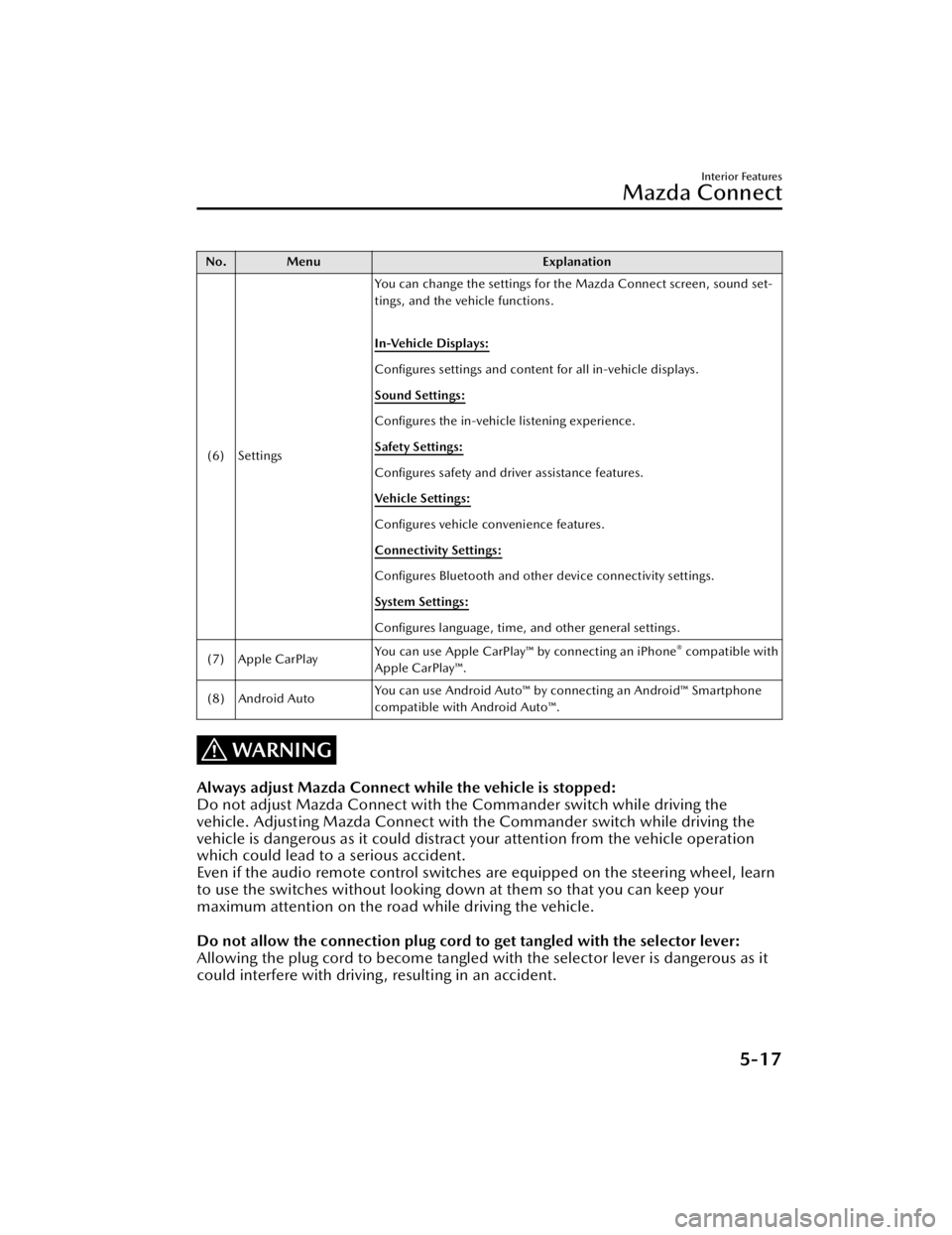
(6) Settings You can change the settings for the Mazda Connect screen, sound set-
tings, and the vehicle functions.
In-Vehicle Displays:
Configures settings and content for all in-vehicle displays.
Sound Settings:
Configures
the in-vehicle listening experience.
Safety Settings:
Configures safety and driver assistance features.
Ve h i c l e S e t t i n g s :
Configures vehicle convenience features.
Connectivity Settings:
Configures Bluetooth and other device connectivity settings.
System Settings:
Configures language, time, and other general settings.
(7) Apple CarPlay You can use Apple CarPlay™ by connecting an iPhone
® compatible with
Apple CarPlay™.
(8) Android Auto You can use Android Auto™ by connecting an Android™ Smartphone
compatible with Android Auto™.
WARNING
Always adjust Mazda Connect while the vehicle is stopped:
Do not adjust Mazda Connect with th
e Commander switch while driving the
vehicle. Adjusting Mazda Connect with the Commander switch while driving the
vehicle is dangerous as it could distract your attention from the vehicle operation
which could lead to a serious accident.
Even if the audio remote control switches are equipped on the steering wheel, learn
to use the switches without looking down at them so that you can keep your
maximum attention on the road while driving the vehicle.
Do not allow the connection plug cord to get tangled with the selector lever:
Allowing the plug cord to become tangled with the selector lever is dangerous as it
could interfere with driving , resulting in an accident.
Interior Features
Mazda Connect
5-17
CX-50_8KB8-EA-22A_Edition2_new 2022-1-6 14:55:18
Page 394 of 583
No.Item Explanation
4
Vo l u m e k n o b :
Volume adjustment
Adjust the volume by turning the volume knob.
If you adjust the volume during voice guidance, the volume of the
voice guidance will change.
If you adjust the volume during a hands-free call, the conversation vol-
ume will change.
Press the volume knob to mute/pause the audio. Press the knob again
to resume.
Po we r o ff /o n
Press and hold to turn off the Mazda Connect power and turn off the
screen.
Press and hold again to turn on the Mazda Connect power.
NOTE
If you press the volume knob to mute an audio source which can be
paused, such as Apple CarPlay™, USB audio, or Bluetooth® audio,
while it is playing, the song playback pauses. Press the volume knob
again to cancel the mute and the pause at the same time.
Selecting a radio station
Radio stations saved to your Favorites can be selected by sliding the
volume knob left (SEEK DOWN)/right (SEEK UP) while listening to
FM/AM/SiriusXM
®. The station will change each time you slide the
volume knob.
If you want to manually tune to the next available station before or af-
ter the currently selected station, slide and hold the volume knob left
(SEEK DOWN) or right (SEEK UP) until you hear a beep and the tuner
will select the next available station.
Playback Control
Music and video files can be cued when listening to stored content via
USB, Bluetooth
®, and SiriusXM®, audio, or video.
Slide the volume knob right to skip to the next track or slide it to the
left to go back to the previous track. You can also slide and hold the
volume knob to fast forward or rewind the track.
Interior Features
Mazda Connect
5-21
CX-50_8KB8-EA-22A_Edition2_new 2022-1-6 14:55:18