on off MAZDA MODEL MX-5 MIATA 2019 Owners Manual
[x] Cancel search | Manufacturer: MAZDA, Model Year: 2019, Model line: MODEL MX-5 MIATA, Model: MAZDA MODEL MX-5 MIATA 2019Pages: 553, PDF Size: 59 MB
Page 273 of 553

98.3*1, 98.7, 104.3*1, 107.1
*1 Radio stations with good reception
The frequency changes as follows each
time
is pressed.
89.3→98.3→104.3→98.3
NOTE
Only one Genre can be selected.
It may not be possible to receive any
station even if the Genre Seek function is
used.
If a program in the selected genre is not
broadcast to a region, reception is not
possible even if the Genre Seek function
is used.
The Genre Seek function searches for
genre code (program type) which FM
analog broadcasts transmit.
specialty programs (HD2-HD8) cannot
be searched because they are not FM
analog broadcasts.
If radio stations which are selected by
scanning using the Genre Seek function
are
broadcasting stations,
they are changed from analog
broadcasts to
broadcasts
after a few seconds if the reception
conditions are good. The genre is
displayed after the switch, however, the
genre for FM analog broadcasts may
differ.
▼ HD Radio
What is HD Radio™ Technology and
how does it work?
HD Radio™ Technology is the digital
evolution of analog AM/FM radio. Your
radio product has a special receiver which
allows it to receive
digital broadcasts
(where available) in a ddition to the analog
broadcasts it already receives. Digital
broadcasts have better sound quality than
analog broadcasts as digital broadcasts
provide free, crystal clear audio. For more
information, and a guide to available radio
stations and programming, please visit
www.hdradio.com.
Benefits of HD Radio™ Technology
(Information)
The song title, artist name, album name
and genre will appear on the screen when
available by the radio station.
(Multicast)
On the FM radio frequency most digital
stations have “multiple” or supplemental
programs on each FM station.
Listening to HD Radio™ Technology
If
icon turns on by selecting a radio
station which is an
broadcasting
station, the analog broadcast is switched to
an
broadcast automatically after
a few seconds and then received.
If the
broadcast is stopped and
changed to an analog broadcast, press
down
to turn off .
Interior Features
Audio Set
5-27
MX-5_8GV5-EA-18E_Edition3 2018-7-17 15:48:16
Page 274 of 553
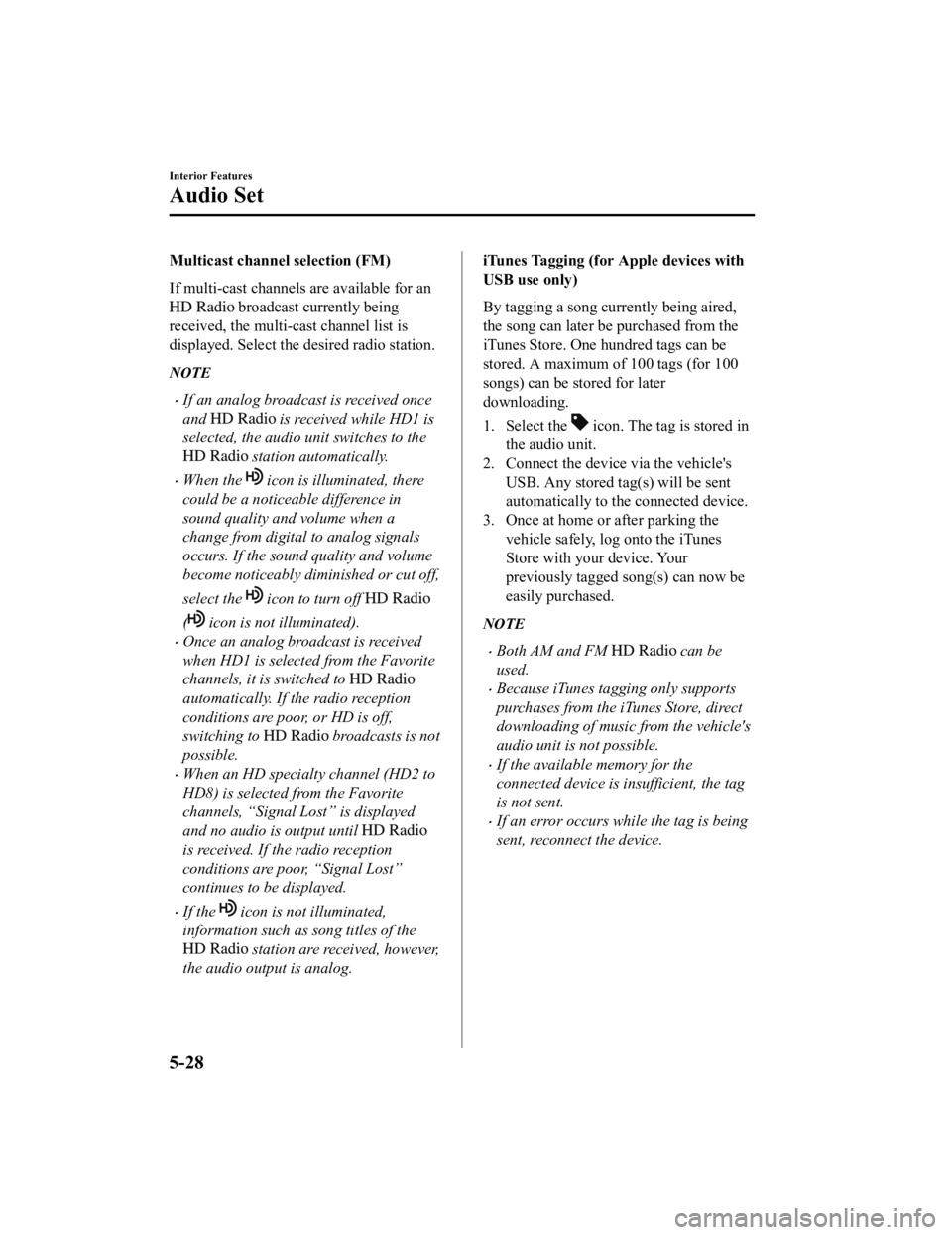
Multicast channel selection (FM)
If multi-cast channels are available for an
broadcast currently being
received, the multi-cast channel list is
displayed. Select the desired radio station.
NOTE
If an analog broadcast is received once
and
is received while HD1 is
selected, the audio unit switches to the
station automatically.
When the icon is illuminated, there
could be a noticeable difference in
sound quality and volume when a
change from digital to analog signals
occurs. If the sound quality and volume
become noticeably diminished or cut off,
select the
icon to turn off
( icon is not illuminated).
Once an analog broadcast is received
when HD1 is selected from the Favorite
channels, it is switched to
automatically. If the radio reception
conditions are poor, or HD is off,
switching to
broadcasts is not
possible.
When an HD specialty channel (HD2 to
HD8) is selected from the Favorite
channels, “Signal Lost” is displayed
and no audio is output until
is received. If the radio reception
conditions are poor, “Signal Lost”
continues to be displayed.
If the icon is not illuminated,
information such as song titles of the
station are received, however,
the audio output is analog.
iTunes Tagging (for Apple devices with
USB use only)
By tagging a song currently being aired,
the song can later be purchased from the
iTunes Store. One hundred tags can be
stored. A maximum of 100 tags (for 100
songs) can be stored for later
downloading.
1. Select the
icon. The tag is stored in
the audio unit.
2. Connect the device via the vehicle's
USB. Any stored tag(s) will be sent
automatically to the connected device.
3. Once at home or after parking the
vehicle safely, log onto the iTunes
Store with your device. Your
previously tagged song(s) can now be
easily purchased.
NOTE
Both AM and FM can be
used.
Because iTunes tagging only supports
purchases from the iTunes Store, direct
downloading of music from the vehicle's
audio unit is not possible.
If the available memory for the
connected device is insufficient, the tag
is not sent.
If an error occurs while the tag is being
sent, reconnect the device.
Interior Features
Audio Set
5-28
MX-5_8GV5-EA-18E_Edition3 2018-7-17 15:48:16
Page 276 of 553
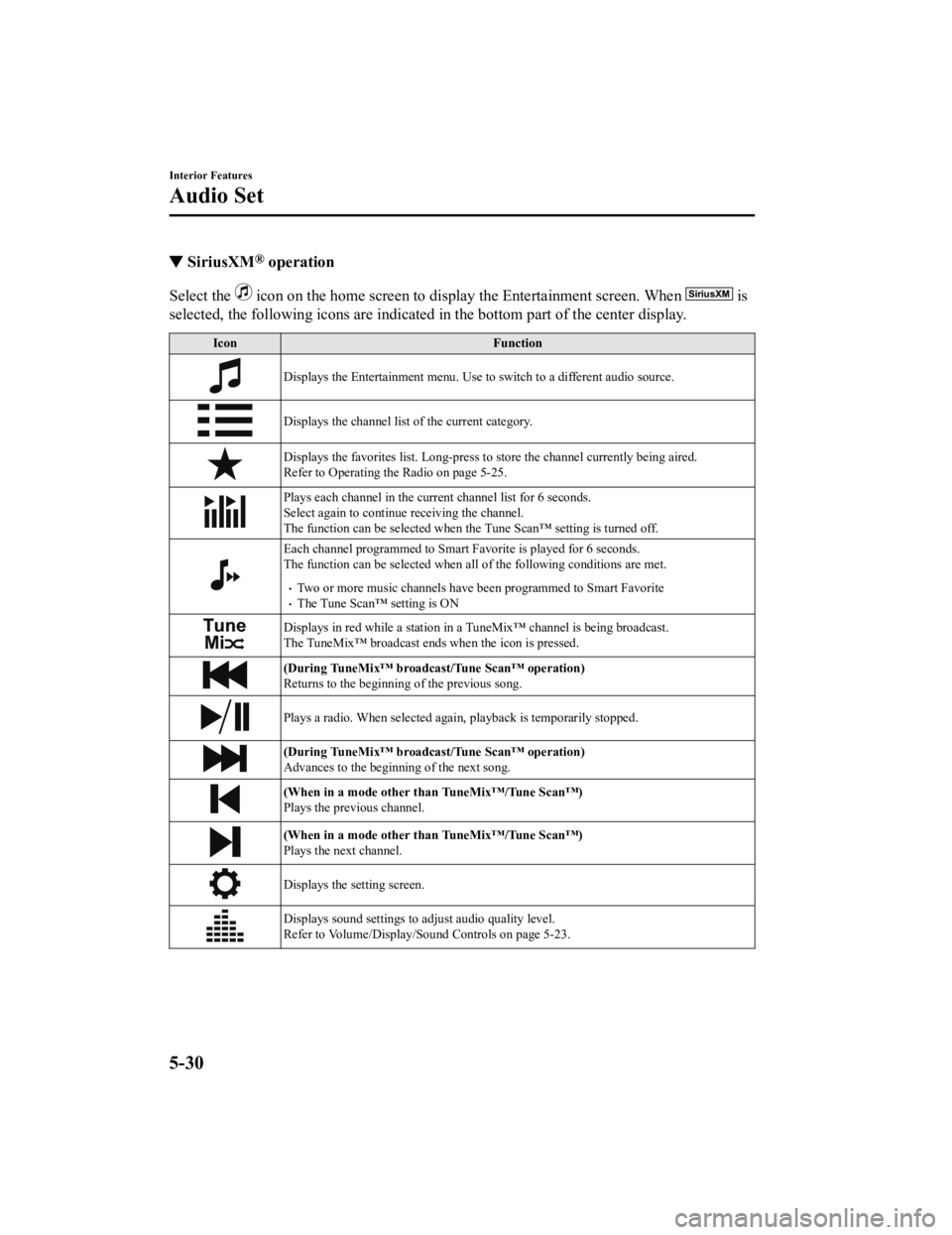
▼SiriusXM® operation
Select the icon on the home screen to display the Entertainment screen. W
hen is
selected, the following icons are indicated in the bottom part of the center display.
IconFunction
Displays the Entertainment menu. Use to switch to a different audio source.
Displays the channel list of the current category.
Displays the favorites list. Long-press to store the channel cu rrently being aired.
Refer to Operating the Radio on page 5-25.
Plays each channel in the curre nt channel list for 6 seconds.
Select again to continue receiving the channel.
The function can be selected when the Tune Scan™ setting is turned off.
Each channel programmed to Smart Favorite is played for 6 secon ds.
The function can be selected when all of the following conditio ns are met.
Two or more music channels have been programmed to Smart FavoriteThe Tune Scan™ setting is ON
Displays in red while a station in a TuneMix™ channel is being broadcast.
The TuneMix™ broadcast ends when the icon is pressed.
(During TuneMix™ broadcast/Tune Scan™ operation)
Returns to the beginning of the previous song.
Plays a radio. When selected aga in, playback is temporarily stopped.
(During TuneMix™ broadcast/Tune Scan™ operation)
Advances to the beginning of the next song.
(When in a mode other than TuneMix™/Tune Scan™)
Plays the previous channel.
(When in a mode other than TuneMix™/Tune Scan™)
Plays the next channel.
Displays the setting screen.
Displays sound settings to adjust audio quality level.
Refer to Volume/Display/Sound Controls on page 5-23.
Interior Features
Audio Set
5-30
MX-5_8GV5-EA-18E_Edition3 2018-7-17 15:48:16
Page 277 of 553

Selection from channel list
Receivable channels can be displayed on
the channel list screen. You can easily
select the channel you want to listen from
the list. Each category can be also
displayed.
1. Select the
icon to display the
channel list.
2. Select a desired channel.
(Select from category list)
1. Select the
icon to display the
channel list.
2. Select
to display the
category list.
3. Select a desired category.
Creating TuneMix™ Channel
The music channels programmed to Smart
Favorite can be programmed to the
TuneMix™ Channel.
NOTE
Smart Favorite can be programmed by
selecting
on the SiriusXM
Settings screen.
The TuneMix™ Channel cannot be
created unless two or more SiriusXM
music channels have been programmed
to Smart Favorite.
1. Select the
icon to display the
channel list.
2. Select the
tab.
3. Select
.
4. Select
.
5. Select the desired music channel to the
TuneMix™ Channel.
6. Select
to register the TuneMix™
Channel.
▼ Parental lock
If a channel is locked, the channel is
muted.
To use the parental lock function, the PIN
code must be initialized first.
By using the session lock, the parental
lock can be enabled or disabled during the
current drive cycle (from when the
ignition is switched on to switched off).
When the session lock is on, the parental
lock is available. When the session lock is
off, the parental lock is temporarily
canceled.
When canceling the parental lock or
session lock, or when changing the PIN
code, PIN code input is required.
PIN code reset
If the registered code has been forgotten,
reset the code to the default [0000] code.
1. Select the
icon.
2. Select
.
3. Select
.
4. Input the default code [0000] using the
number buttons.
5. Select
.
6. Input the new PIN code using the
number buttons.
7. Select
.
Interior Features
Audio Set
5-31
MX-5_8GV5-EA-18E_Edition3 2018-7-17 15:48:16
Page 292 of 553

If Android Auto™ cannot be connected
When the message, “Mobile Device Error”, is displayed and Android Auto™ cannot
be connected.
Make sure that the Android™ Smartphone in question is compatibl e with Android Auto™.
Before trying to reconnect your Android™ Smartphone to the conn ector cord, do the
Bluetooth
® device pairing again.
If the Android Auto™ connection setting cannot be changed
Depending on your Android™ Smartphone, the connection setting m ay have been in
charging mode only when the connector cord is connected.
In this case, switch off the Andr oid Auto™ connection setting o nce, and then switch it back
on while connected to USB mode.
The connection setting can be changed to the Android Auto™ conn ection in the
tab
on the Settings screen (page 5-75).
Interior Features
Audio Set
5-46
MX-5_8GV5-EA-18E_Edition3 2018-7-17 15:48:16
Page 295 of 553

Hang-up button
Ends the call or refuses an incoming call. In addition, it ends the voice recognition
operation.
Commander switch
The commander switch is used for volume adjustment and display operation. Tilt or turn the
commander knob to move the cursor. Press the commander knob to select the icon.
Volume adjustment
The volume dial of the commander switch is used to adjust the v olume. Turn the dial to the
right to increase volume, t o the left to decrease it.
The volume can also be adjusted using the volume button on the steering wheel.
NOTE
Press the volume dial to switch the audio MUTE on and off.
If the volume is lower compared to other audio modes, increase the volume from the
device side.
Conversation volume and the volume of the voice guidance and ringtone can each be set in
advance.
1. Select the
icon on the home screen to display the Communication screen.
2. Select
.
3. Adjust the
and the using the slider.
Interior Features
Audio Set
5-49
MX-5_8GV5-EA-18E_Edition3 2018-7-17 15:48:16
Page 297 of 553

After a device is registered, the system
automatically identifies the device. By
activating Bluetooth
® Hands-Free again,
or by activating Bluetooth
® Hands-Free
first after switching the ignition from OFF
to ACC, the device connection condition
is indicated in the center display.
IMPORTANT note about pairing and
automatic reconnection:
If pairing is redone on the same
mobile phone device, first clear
“Mazda” displayed on the Bluetooth
®
setting screen of the mobile device.
When the OS of the device is updated,
the pairing information may be deleted.
If this happens, reprogram the pairing
information to the Bluetooth
® unit.
Before you pair your device, make sure
that Bluetooth
® is “ON”, both on your
phone and on the vehicle.
▼ Device selection
If several devices have been paired, the
Bluetooth
® unit links the device last
paired. If you would like to link a different
paired device, it is n ecessary to change the
link. The order of device priority after the
link has been changed is maintained even
when the ignition is switched off.
Connecting other devices
1. Select the
icon on the home screen
to display the Settings screen.
2. Select the
tab.
3. Select
.
4. Turn the Bluetooth
® setting on.
5. Select the name of the device you
would like to connect.
6.
selection
Connects both devices as hands-free
and Bluetooth
® audio.
selection
Connects as a hands-free device.
selection
Connects as Bluetooth
® audio.
NOTE
The following functions can be used for
the Hands-free or audio.
Hands-free: Phone calls and
E-mail/SMS
Audio: Bluetooth® audio, Pandora®,
Aha™, Stitcher™ radio
Disconnecting a device
1. Select the
icon on the home screen
to display the Settings screen.
2. Select the
tab.
3. Select
.
4. Turn the Bluetooth
® setting on.
5. Select the device name which is currently connected.
6. Select
.
▼ Deleting a device
Selecting and deleting devices
1. Select the
icon on the home screen
to display the Settings screen.
2. Select the
tab.
3. Select
.
4. Turn the Bluetooth
® setting on.
5. Select the device name which you
would like to delete.
6. Select
.
7. Select
.
Deleting all devices
1. Select the
icon on the home screen
to display the Settings screen.
Interior Features
Audio Set
5-51
MX-5_8GV5-EA-18E_Edition3 2018-7-17 15:48:16
Page 309 of 553

Bluetooth® Hands-Free
▼Making a Call
For Mazda Connect, making calls is
possible using any of the following six
methods:
Phonebook downloaded from
Bluetooth
® device (mobile phone)
(voice recognition function can be used)
Favorites
Call record
Dialing a telephone number (voice
recognition function can be used)
“Redial” - Voice recognition command
for making a call to the latest outgoing
call record.
“Call back” - Voice recognition
command for making a call to the latest
incoming call record.
Phonebook Usage
Telephone calls can be made by saying the
contact name in the downloaded
phonebook or the name of a person whose
phone number has been registered in the
Bluetooth
® Hands-Free. Refer to Import
contact (Download Phonebook).
1. Press the talk button.
2. Wait for the beep sound.
3. Say: “Call XXXXX... (Ex. “John”)
Mobile”. (You can also say, “Home”,
“Work”, or “Other” instead of
“Mobile”, depending on how you set
up your contact information.)
4. Follow the voice guidance to make the call, or simple press the pick-up button
on the steering switch during or after
the guidance to make the call.
Screen operation
1. Select the
icon on the home screen
to display the Communication screen.
2. Select
to display the contact
list.
3. Select the contact you would like to
call to display the details for the
contact.
4. Select the desired phone number to
make the call.
Import contact (Download Phonebook)
Phonebook data from your device (Mobile
phone) can be sent and registered to your
Bluetooth
® Hands-Free phonebook using
Bluetooth
®.
(Automatic downloading)
The “Auto Download Contacts” setting
must be on. When hands-free is connected
to the device, the phonebook is
downloaded automatically.
Refer to Communication Settings on page
5-72.
(Manually downloading)
If the “Auto Download Contacts” setting
is off, download the phonebook using the
following procedure.
1. Select the
icon on the home screen
to display the Communication screen.
2. Select
to display the contact
list.
3. Select
.
4. Select
or
to switch to the
device operation.
5. If
is selected, select
.
Interior Features
Audio Set
5-63
MX-5_8GV5-EA-18E_Edition3 2018-7-17 15:48:16
Page 314 of 553

NOTE
If the ignition is switched off during a
hands-free call, the line is transferred to
the device (Mobile phone)
automatically.
If the DTMF code has two or more
digits or symbols, each one must be
transmitted individually.
▼Call Interrupt
A call can be interrupted to receive an
incoming call from a third party.
When
is selected or the
pick-up button on the steering wheel is
pressed, the current call is held and the
system switches to t he new incoming call.
When
is selected, the current
call is ended and the system switches to
the new incoming call (GSM network
only).
When
is selected or the hang-up
button on the steering wheel is pressed, an
incoming call is refused.
NOTE
The function may not be available
depending on the contractual content of
the mobile device.
The function may not be operable
depending on the type of the telephone
network and the mobile device.
▼ Receiving and Replying to Messages
(available only with E-mail/SMS
compatible phones)
SMS (Short Message Service) messages,
and E-mail received by connected devices
can be downloaded, displayed, and played
(read by the system).
Additionally, replies can also be made to
calls and messages in the received
messages.
Downloading messages
Up to 20 new messages can be
downloaded and displayed from a
connected device.
NOTE
For E-mail, 20 messages for each account
can be downloaded.
(Automatic downloading)
The “Auto Download Email” (E-mail) or
“Auto Download Text Message” (SMS)
setting must be on. A message is
downloaded automatically when the
Bluetooth
® unit is connected to the device.
Refer to Communication Settings on page
5-72.
(Manually downloading)
When the “Auto Download Email”
(E-mail) or “Aut o Download Text
Message” (SMS) set ting is off, the
message is downloaded using the
following procedure.
1. Select the
icon on the home screen
to display the Communication screen.
2. Select
or to display
the Inbox.
3. Select
.
Interior Features
Audio Set
5-68
MX-5_8GV5-EA-18E_Edition3 2018-7-17 15:48:16
Page 318 of 553

▼Communication Settings
Select the icon on the home screen to display the Communication screen.
Select
to change the setting.
Item Setting Function
Bluetooth
®— Go to Bluetooth® setting menu.
Refer to Bluetooth® Preparation on page 5-50.
Incoming Call Notifi‐
cations On/Off Notifies when an incoming call is received.
Auto Download Text
Message On/Off
Downloads SMS automatically when the Bluetooth
® unit is connected
to the device.
Text Notifications On/Off Notifies when a new SMS is received.
Auto Download
Email
*1On/Off Downloads E-mail automatically when the Bluetooth® unit is connect‐
ed to the device.
Email Notifications On/Off Notifies when a new Email is received.
Auto Download Call
History On/Off
Downloads Call History automa
tically when the Bluetooth
® unit is
connected to the device.
Auto Download Con‐
tacts
*1On/Off Downloads the phonebook automatically when the Bluetooth® unit is
connected to the device.
Ringtone Car/Phone/OffThe type of ring tone can be chan
ged. Three selections are available
including the standard ring tone set on the vehicle, the ring tone regis‐
tered to your Bluetooth
® device, or no ring tone.
Phone Volume Adjusts using
the slider. Adjusts the conversation volume.
VR and Ringtone Adjusts using
the slider. Adjusts the voice guidance and ringtone volume.
Contacts Display Or‐
der First Name, Last
Name Displays the contact information
in alphabetical order of the first
name.
Last Name, First Name Displays the contact information
in alphabetical order of the last
name.
Edit Preset Messages — Edits the preset message.
Refer to Receiving and Replying t
o Messages (available only with
E-mail/SMS compatible phones) on page 5-68.
Emergency Assistance
Call On/Off Mobile Utilizes the Mobile 911 function.
Restore Factory set‐
tings — Initializes all Communication Settings.
*1 Depending on the device, it may b
e necessary to acquire download permission on the device side.
Interior Features
Audio Set
5-72
MX-5_8GV5-EA-18E_Edition3 2018-7-17 15:48:16