audio MAZDA MODEL TRIBUTE 2002 (in English) User Guide
[x] Cancel search | Manufacturer: MAZDA, Model Year: 2002, Model line: MODEL TRIBUTE, Model: MAZDA MODEL TRIBUTE 2002Pages: 256, PDF Size: 2.66 MB
Page 35 of 256

Treble adjust
The treble adjust control allows you to increase or decrease the audio
system's treble output.
Press the audio control until TREB
is displayed.
Turn the control to increase (right)
or decrease (left) the amount of
treble output.
Bass adjust
The bass adjust control allows you to increase or decrease the audio
system's bass output.
Press the audio control until BASS
appears.
Entertainment Systems
35
Page 36 of 256

Turn the control to increase (right)
or decrease (left) the amount of
bass output.
Speaker fade adjust
Speaker sound can be adjusted between the front and rear speakers.
Press the audio control until FADE
appears.
Turn the control (right or left) to
adjust between the front and rear
speakers.
Entertainment Systems
36
Page 37 of 256

Speaker balance adjust
Speaker sound distribution can be adjusted between the right and left
speakers.
Press the audio control until BAL
appears.
Turn the control (right or left) to
adjust between the right and left
speakers.
Mid-range adjust (if equipped)
Your vehicle may be equipped with a mid-range adjust. The TUNE
control allows you to adjust the mid-range levels.
Press the audio control until MID
appears in the display.
Entertainment Systems
37
Page 39 of 256
Auto memory tuning
Auto memory tuning allows you to set strong radio stations without
losing your original manually set preset stations. This feature is helpful
on trips when you travel between cities with different radio stations.
Starting autoset memory preset
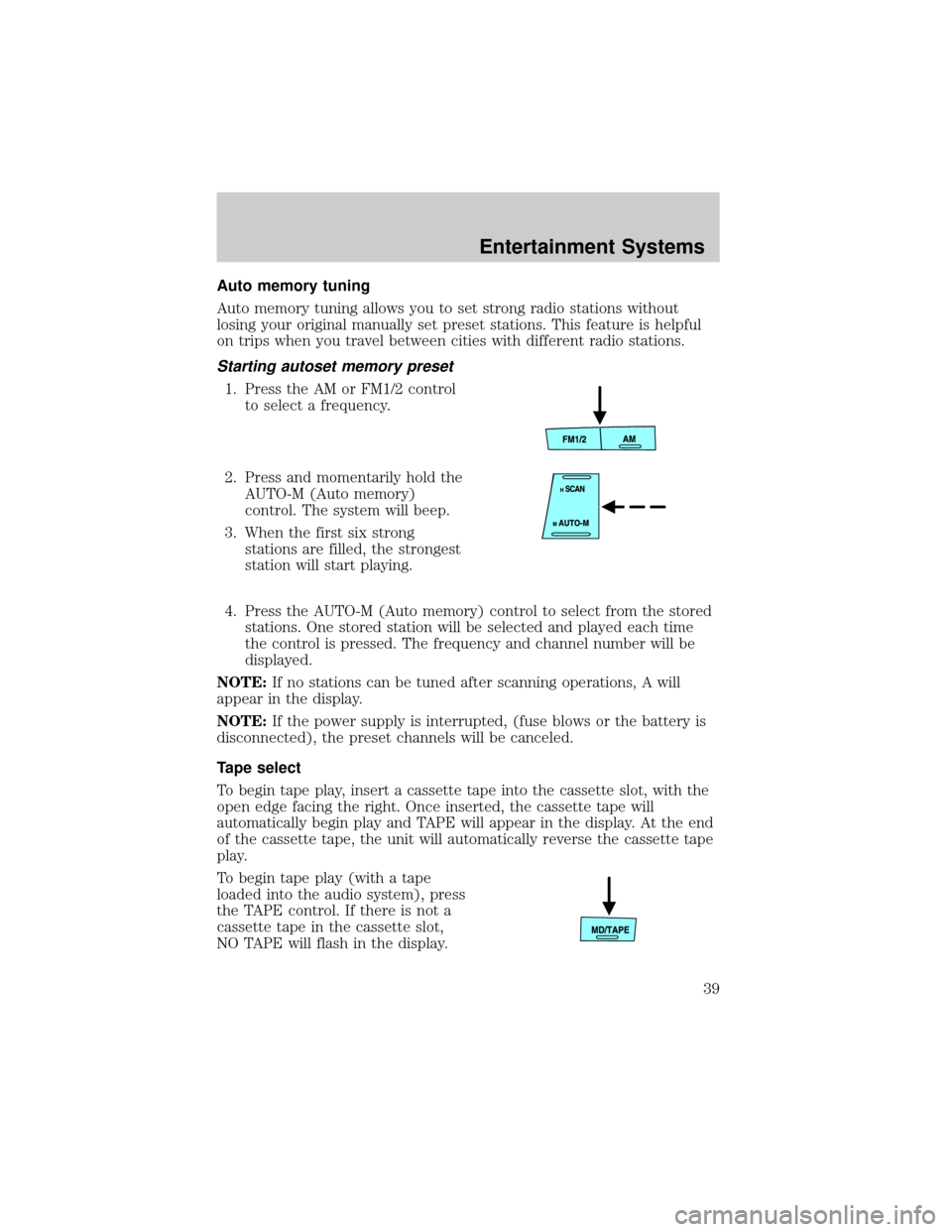
1. Press the AM or FM1/2 control
to select a frequency.
2. Press and momentarily hold the
AUTO-M (Auto memory)
control. The system will beep.
3. When the first six strong
stations are filled, the strongest
station will start playing.
4. Press the AUTO-M (Auto memory) control to select from the stored
stations. One stored station will be selected and played each time
the control is pressed. The frequency and channel number will be
displayed.
NOTE:If no stations can be tuned after scanning operations, A will
appear in the display.
NOTE:If the power supply is interrupted, (fuse blows or the battery is
disconnected), the preset channels will be canceled.
Tape select
To begin tape play, insert a cassette tape into the cassette slot, with the
open edge facing the right. Once inserted, the cassette tape will
automatically begin play and TAPE will appear in the display. At the end
of the cassette tape, the unit will automatically reverse the cassette tape
play.
To begin tape play (with a tape
loaded into the audio system), press
the TAPE control. If there is not a
cassette tape in the cassette slot,
NO TAPE will flash in the display.
Entertainment Systems
39
Page 40 of 256

The cassette's top side is playing whenis illuminated in the display.
The cassette's bottom side is playing when
is illuminated in the
display.
NOTE:When a metal tape is inserted, the player will automatically
compensate and MTL will appear in the display.
Press the VOL (Volume) control to
stop cassette play.
CD select
To begin CD play:
1. Insert a CD into the slot, label
side up. The system will
auto-load the CD and begin play
after a short pause. The disc
number and the track number will illuminate in the display.
Tape direction select
Press the PROG RDM control to
play the alternate side of a tape.
NOTE:When the end of the cassette
is reached, the audio system will
automatically reverse play.
Repeat play
The repeat play feature works in tape and CD modes and allows you to
listen to a selection repeatedly.
Entertainment Systems
40
Page 43 of 256

NOTE:APC may not operate properly if:
²A tape was recorded at a low level.
²A tape has long, silent intervals.
²A tape is a live recording.
²A tape has very short intervals of less than 3 seconds.
CD loading
The load feature allows you to load up to six single CDs into the audio
system.
1. Press the LOAD control.
2. IN will appear in the display
when the system is ready to
receive a CD.
3. Load the CD into the player.
Multiple CD loading
This feature allows you to autoload
up to 6 discs into the internal multi
disc CD player.
1. Press and hold the LOAD control until a beep is heard.
2. When IN is displayed, insert the CD.
3. When IN is displayed again, insert the next CD.
NOTE:The first CD will automatically play when:
²there is not a CD inserted for 15 seconds after IN is displayed
²the CD tray is full
Inserting CDs into desired tray number
1. Press and hold the LOAD
control until a beep is heard.
2. Press the memory preset
control for the desired CD tray
within 5 seconds after the beep
is heard.
3. When IN is displayed, insert the CD.
NOTE:The CD cannot be inserted to the desired tray number if the
number is already occupied.
Entertainment Systems
43
Page 46 of 256
a second time, the minutes will be set to 00. If the clock's current time
setting is within the latter part of the hour (from 30 to 59 min), the hour
setting will automatically advance one hour.
Changing the display mode
The display can be changed to alternate between the clock and the
audio. When the clock mode is selected, the time is displayed.
Press the CLOCK control to
alternate the display.
NOTE:If the audio operation is selected while the clock mode is on, the
selected audio mode will be displayed for ten seconds, then the display
will revert to the clock mode.
TROUBLESHOOTING THE CD CHANGER (IF EQUIPPED)
If sound skips:
²You may be traveling on a rough road, playing badly scratched discs or
the disc may be dirty. Skipping will not scratch the discs or damage
the player.
If your changer does not work, it may be that:
²A disc is already loaded where you want to insert a disc.
²The disc is inserted with the label surface downward.
²The disc is dusty or defective.
²The player's internal temperature is above 60ÉC (140ÉF). Allow the
player to cool down before operating.
²A disc with format and dimensions not within industry standards is
inserted.
CD units are designed to play commercially pressed 12 cm (4.75
in) audio compact discs only. Due to technical incompatibility,
certain recordable and re-recordable compact discs may not
function correctly when used in Mazda CD players. Irregular
shaped CDs, CDs with a scratch protection film attached, and CDs
with homemade paper (adhesive) labels should not be inserted
into the CD player. The label may peel and cause the CD to
become jammed. It is recommended that homemade CDs be
identified with permanent felt tip marker rather than adhesive
labels. Ball point pens may damage CDs. Please contact your
dealer for further information.
Entertainment Systems
46
Page 47 of 256

CD TIPS- CONDENSATION PHENOMENON
Immediately after turning on the heater when the vehicle is cold, the CD
or optical components (prism and lens) in the CD player/changer may
become clouded with condensation. When this happens, the CD will eject
immediately when placed in the unit. A clouded CD can be corrected
simply by wiping it with a soft cloth. Clouded optical components will
clear naturally in about an hour. Wait for normal operation to return
before attempting to use the unit.
HANDLING THE IN-DASH CD PLAYER
²Do not spill any liquid on the audio system.
²Do not insert any objects, other than CDs, into the slot.
²The CD revolves at a high speed within the unit. Defective (cracked or
badly bent) CDs should never be used.
²Do not use non-conventional discs such as heart-shaped, octagonal
discs, etc. The CD player could be damaged.
²A new CD may have rough edges on its inner and outer perimeters. If
a disc with rough edges is used, proper setting will not be possible
and the CD player will not play the CD. Remove the rough edges in
advance by using a ball-point pen or pencil as shown above. To
remove the rough edges, rub the side of the pen or pencil against the
inner and outer perimeter of the CD.
²When driving over rough or uneven surfaces, the audio sound may
jump.
²The CD player has been designed to play CDs bearing the
identification logo as shown. No other discs can be played.
²Do not stick paper or tape on the CD. Avoid scratching the reverse
side of the CD (the side without a label).
²Dust, finger smudges, and dirt can decrease the amount of light
reflected from the signal surface, thereby effecting sound quality.
Gently wipe a soiled CD with a soft cloth from the center to the edge.
²Do not use record sprays, antistatic agents, or household spray
cleaners. Volatile chemicals such as benzine and thinner can also
damage the surface of the CD and must not be used. Do not use
anything that can damage, warp or fog CDs.
Entertainment Systems
47
Page 48 of 256

²Keep CDs in their cases and avoid direct sunlight to avoid warping.
²The CD player ejects the CD is inserted upside down. Also dirty
and/or defective CDs may be ejected.
²Do not insert cleaning discs into the CD player.
CD units are designed to play commercially pressed 12 cm (4.75
in) audio compact discs only. Due to technical incompatibility,
certain recordable and re-recordable compact discs may not
function correctly when used in Mazda CD players. Irregular
shaped CDs, CDs with a scratch protection film attached, and CDs
with homemade paper (adhesive) labels should not be inserted
into the CD player. The label may peel and cause the CD to
become jammed. It is recommended that homemade CDs be
identified with permanent felt tip marker rather than adhesive
labels. Ball point pens may damage CDs. Please contact your
dealer for further information.
CD AND CD CHANGER CARE
²Handle discs by their edges only. Never touch the playing surface.
²Do not expose discs to direct sunlight or heat sources for extended
periods of time.
RADIO FREQUENCY INFORMATION
The Federal Communications Commission (FCC) and the Canadian Radio
and Telecommunications Commission(CRTC) establish the frequencies
AM and FM stations may use for their broadcasts. Allowable frequencies
are:
AM 530, 540±1600, 1610 kHz
FM 87.7, 87.9±107.7, 107.9 MHz
Not all frequencies are used in a given area.
Entertainment Systems
48
Page 49 of 256

Radio reception factors
Three factors can affect radio reception:
²Distance/strength.The further an FM signal travels, the weaker it is.
The listenable range of the average FM station is approximately 40 km
(24 miles). This range can be affected by ªsignal modulation.º Signal
modulation is a process radio stations use to increase their
strength/volume relative to other stations.
²Terrain.Hills, mountains and tall buildings between your vehicle's
antenna and the radio station signal can cause FM reception problems.
Static can be caused on AM stations by power lines, electric fences,
traffic lights and thunderstorms. Moving away from an interfering
structure (out of its ªshadowº) returns your reception to normal.
²Station overload.Weak signals are sometimes captured by stronger
signals when you pass a broadcast tower. A stronger signal may
temporarily overtake a weaker signal and play while the weak station
frequency is displayed.
The audio system automatically switches to single channel reception if it
will improve the reception of a station normally received in stereo.
AUDIO SYSTEM WARRANTIES AND SERVICE
Refer to the ªWarranty Guideº for audio system warranty information.
If service is necessary, see your dealer.
Entertainment Systems
49