ECO mode MAZDA MX5 MIATA 2017 Owner's Manual
[x] Cancel search | Manufacturer: MAZDA, Model Year: 2017, Model line: MX5 MIATA, Model: MAZDA MX5 MIATA 2017Pages: 568, PDF Size: 16.58 MB
Page 161 of 568

4 –47 When Driving
Switches and Controls
*Some models.Auto-light control *
When the headlight switch is in the position and the ignition is switched ON, the light
sensor senses the surrounding lightness or darkness and automatically turns the headlights,
other exterior lights and dashboard illumination on or off.
CAUTION
Do not shade the light sensor by adhering a sticker or a label on the windshield. Otherwise
the light sensor will not operate correctly.
The light sensor also works as a rain sensor for the auto-wiper control. Keep hands and
scrapers clear of the windshield when the wiper lever is in the position and the
ignition is switched ON as fingers could be pinched or the wipers and wiper blades could be
damaged when the wipers activate automatically. If you are going to clean the windshield,
be sure the wipers are turned off completely when it is particularly tempting to leave the
engine running. This is particularly important when clearing ice and snow.
NOTE
The headlights, other exterior lights and dashboard illumination may not turn off
immediately even if the surrounding area becomes well-lit because the light sensor
determines that it is night time if the surrounding area is continuously dark for several
minutes such as inside long tunnels, traffic jams inside tunnels , or in indoor parking lots.
In this case, the lights turn off if the light switch is turned to the position.
The dashboard illumination can be adjusted by rotating the knob in the instrument cluster.
Also, the day/night mode can be changed by rotating the knob until a beep sound is heard.
To adjust the brightness of the dashboard illumination:
Refer to Dashboard Illumination on page 4-15 .
The sensitivity of the auto-light control may be changed.
Refer to Personalization Features on page 9-9 .
MX-5_8FR4-EA-16J_Edition1.indb 47 2016/08/11 20:28:53
Page 183 of 568

4 –69 When Driving
Fuel Economy Monitor
*Some models.Fuel Economy Monitor *
For vehicles with type B audio, the Fuel Consumption informatio n is displayed by operating
each icon in the display.
In addition, after completing a trip, the total energy efficiency to date is displayed in the
ending display when the ending display is turned on.
1. Select the icon on the home screen to display the applications screen.
2. Select the “Fuel Economy Monitor”.
3. Operate the commander switch or touch the screen and display the menu.
NOTE
When the menu is displayed by touching the screen, the display is hidden automatically after
6 seconds.
4. Select the icon in the menu and perform the operation. Each ico n operates as follows:Indication on display Control status
Hides the menu display.
Displays the application screen.
Resets the fuel economy data.
Displays the following setting screen.
Ending display on/off switching
On/off switching for function which synchronizes
reset fuel economy data to trip meter (Trip A)
MX-5_8FR4-EA-16J_Edition1.indb 69 2016/08/11 20:28:59
Page 185 of 568

4 –71 When Driving
Drive Selection
*Some models.Drive Selection *
Drive selection is a system to switch the vehicle's drive mode. When the sport mode
is selected, vehicle's response against accelerator operation is enhanced. This provides
additional quick acceleration which may be needed to safely mak e maneuvers such as lane
changes, merging onto freeways, or passing other vehicles.
CAUTION Do not use the sport mode when driving on slippery roads such as wet or snow-covered
roads. It may cause tire slipping.
NOTE
When the sport mode is selected, driving at higher engine speeds increases and it may
increase fuel consumption. Mazda recommends that you cancel the sport mode on normal
driving.
Drive mode cannot be switched in the following conditions:
ABS/TCS/DSC is operating
Cruise control is operating.
Steering wheel is being operated abruptly
MX-5_8FR4-EA-16J_Edition1.indb 71 2016/08/11 20:28:59
Page 190 of 568
4 –76 When Driving
i-ACTIVSENSE
*Some models.High Beam Control System (HBC) *
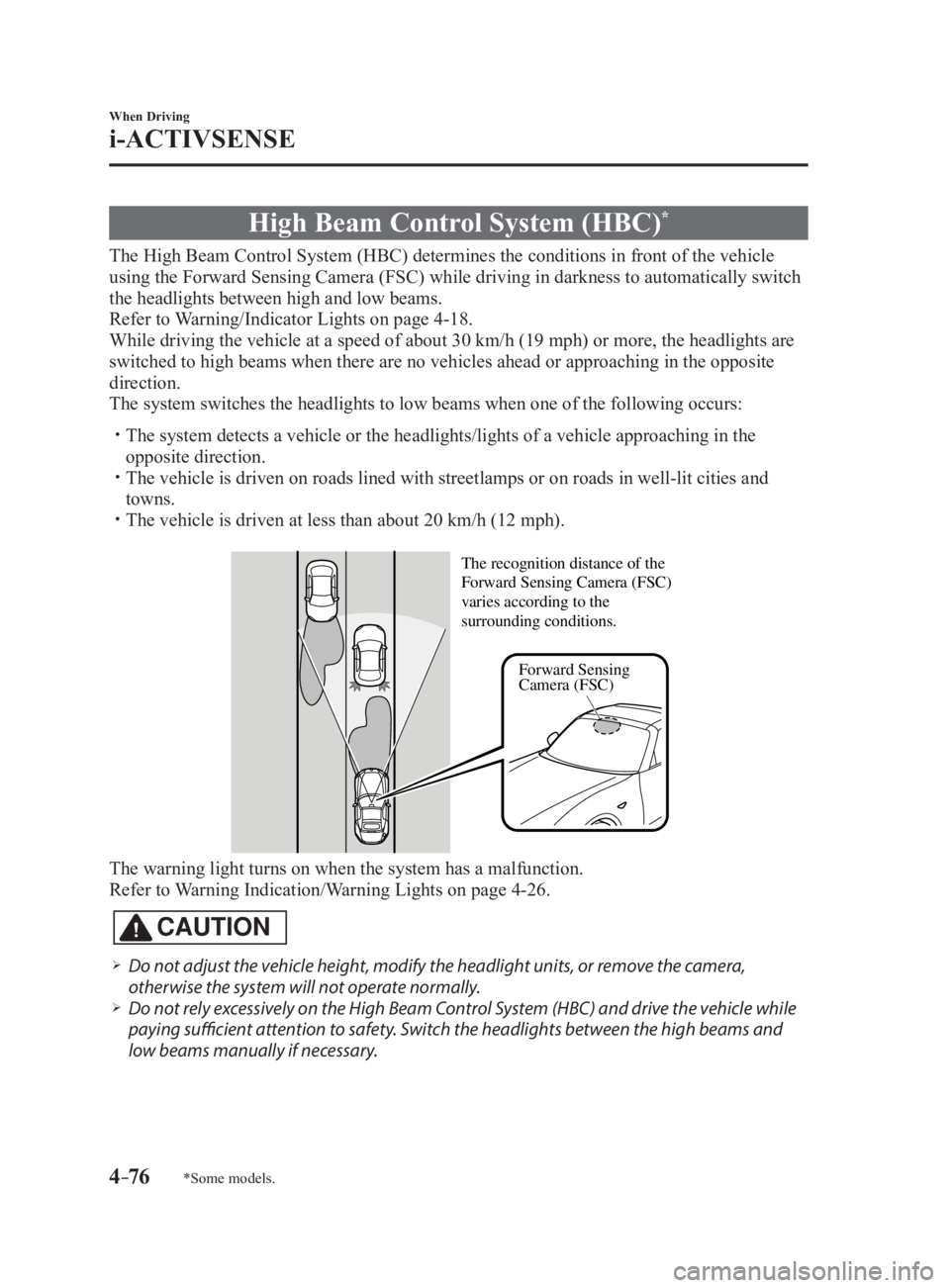
The High Beam Control System (HBC) determines the conditions in front of the vehicle
using the Forward Sensing Camera (FSC) while driving in darknes s to automatically switch
the headlights between high and low beams.
Refer to Warning/Indicator Lights on page 4-18 .
While driving the vehicle at a speed of about 30 km/h (19 mph) or more, the headlights are
switched to high beams when there are no vehicles ahead or approaching in the opposite
direction.
The system switches the headlights to low beams when one of the following occurs:
The system detects a vehicle or the headlights/lights of a vehicle approaching in the
opposite direction.
The vehicle is driven on roads lined with streetlamps or on roads in well-lit cities and
towns.
The vehicle is driven at less than about 20 km/h (12 mph).
Forward Sensing
Camera (FSC)The recognition distance of the
Forward Sensing Camera (FSC)
varies according to the
surrounding conditions.
The warning light turns on when the system has a malfunction.
Refer to Warning Indication/Warning Lights on page 4-26 .
CAUTION
Do not adjust the vehicle height, modify the headlight units, or remove the camera,
otherwise the system will not operate normally.
Do not rely excessively on the High Beam Control System (HBC) and drive the vehicle while
paying sufficient attention to safety. Switch the headlights between the high beams and
low beams manually if necessary.
MX-5_8FR4-EA-16J_Edition1.indb 76 2016/08/11 20:29:00
Page 235 of 568

5 –13 Interior Features
Audio System
*Some models.AntennaAM/FM Radio Antenna
The AM/FM radio antenna receives both
AM and FM signals.
To remove the antenna, turn it
counterclockwise.
To install the antenna, turn it clockwise.
Make sure the antenna is securely
installed. Install
Rem ove
CAUTION To prevent damage to the antenna,
remove it before passing beneath a
low overhead clearance.
NOTE
When leaving your vehicle unattended, we
recommend that you remove the antenna
and store it inside the vehicle. Satellite Radio Antenna *
The satellite radio antenna receives
SiriusXM signals. Satellite radio antenna
MX-5_8FR4-EA-16J_Edition1.indb 13 2016/08/11 20:29:09
Page 242 of 568

5 –20 Interior Features
Audio System Operating Tips for OGGOGG is the audio compression format for
Xiph. Org Foundation.
Audio data can be created and stored at a
higher compression ratio than MP3.
This unit plays files with the extension
(.ogg) as OGG files.
CAUTION Do not use an audio file extension on
files other than audio files. In addition,
do not change the audio file extension.
Otherwise, the unit will not recognize
the file correctly resulting in noise or a
malfunction.
OGG files written under specifications
other than the indicated specification
may not play normally or files or folder
names may not display correctly.
The file extension may not be provided
depending on the computer operating
system, version, software, or settings. In
this case, add the file extension “.ogg” to
the end of the file name, and then write
it to the memory.
Operating Tips for USB device
This unit plays audio files as follows: Extension Playback with this unit
.mp3 MP3
.wma WMA
.aac *1
AAC
.m4a
.wav *1
WAV
.ogg *1
OGGCAUTION Do not use an audio file extension on
files other than audio files. In addition,
do not change the audio file extension.
Otherwise, the unit will not recognize
the file correctly resulting in noise or a
malfunction.
NOTE
Playback may not be possible
depending on the type and condition of
the USB flash memory even if the audio
file complies with the standard.
A copyright protected WMA/AAC file
cannot be played in this unit.
(Type B)
If a file name in the USB memory is too
long, it could cause operation problems
such as not being able to playback the
song.
(Recommended: Within 80 characters)
The order of the music data stored in
the device may differ from the playback
order.
To prevent loss or damage of stored
data, we recommend that you always
back up your data.
If a device exceeds the maximum
electric current value of 1,000 mA,
it may not operate or recharge when
connected.
Do not pull out the USB device while in
the USB mode (only pull it out while in
FM/AM radio or CD mode).
The device will not operate if the data is
password protected.
MP3/WMA/AAC/OGG *1
files written
under specifications other than the
indicated specification may not play
normally or files/folder names may not
display correctly.
*1 Type B
MX-5_8FR4-EA-16J_Edition1.indb 20 2016/08/11 20:29:11
Page 243 of 568

5 –21 Interior Features
Audio System Operating Tips for iPodThis unit supports playback of music files
recorded to an iPod.
*
iPod is a trademark of Apple Inc.,
registered in the U.S. and other
countries.
The iPod may not be compatible
depending on the model or OS version. In
this case, an error message is displayed.
CAUTION
Remove the iPod when it is not in
use. Because the iPod is not designed
to withstand excessive changes in
temperature inside the cabin, it could be
damaged or the battery may deteriorate
due to the excessive temperature or
humidity inside the cabin if it is left in the
vehicle.
If data in the iPod is lost while it is
connected to the unit, Mazda cannot
guarantee recovery of any lost data.
If the iPod battery is deteriorated, the
iPod may not recharge and playback
may not be possible when it is connected
to the unit.
For details on using the iPod, refer to the
iPod instruction manual.
When connecting the iPod to a USB port,
all commands are made from the audio
unit. iPod control is not possible.
NOTE
The audio unit cannot display images or
videos stored in an iPod.
MX-5_8FR4-EA-16J_Edition1.indb 21 2016/08/11 20:29:11
Page 247 of 568

5 –25 Interior Features
Audio System
*Some models.NOTE
If not operated for several seconds, the
display returns to the previous display. To
reset bass, treble, fade, and balance, press
the menu button (
) for 2 seconds.
The unit will beep and “CLEAR” will be
displayed.
ALC (Automatic volume adjustment)
The automatic level control (ALC)
changes the audio volume automatically
according to the vehicle speed. The faster
the vehicle speed, the higher the volume
increases. ALC has ALC OFF and ALC
LEVEL 1 to 7 modes. At ALC LEVEL 7,
the amount that the volume can increase
is at the maximum. Select the mode
according to the driving conditions.
BEEP (Audio operation sound)
The setting for the operation sound when
pressing and holding a button can be
changed. The initial setting is ON. Set to
OFF to mute the operation sound.
BT SETUP mode *
Music and other audio such as voice data
recorded on portable audio devices and
mobile phones available on the market
which are equipped with the Bluetooth ®
transmission function can be listened to
via wireless transmission over the vehicle's
speakers. Using the BT SETUP mode,
these devices can be programmed to the
Bluetooth ®
unit or changed (page 5-77 ).
12Hr 24Hr (12 Hr/24 Hr time
adjustment)
Rotating the audio control dial switches
the display between 12 and 24-hour clock
time (page 5-26 ).
MX-5_8FR4-EA-16J_Edition1.indb 25 2016/08/11 20:29:12
Page 250 of 568
5 –28 Interior Features
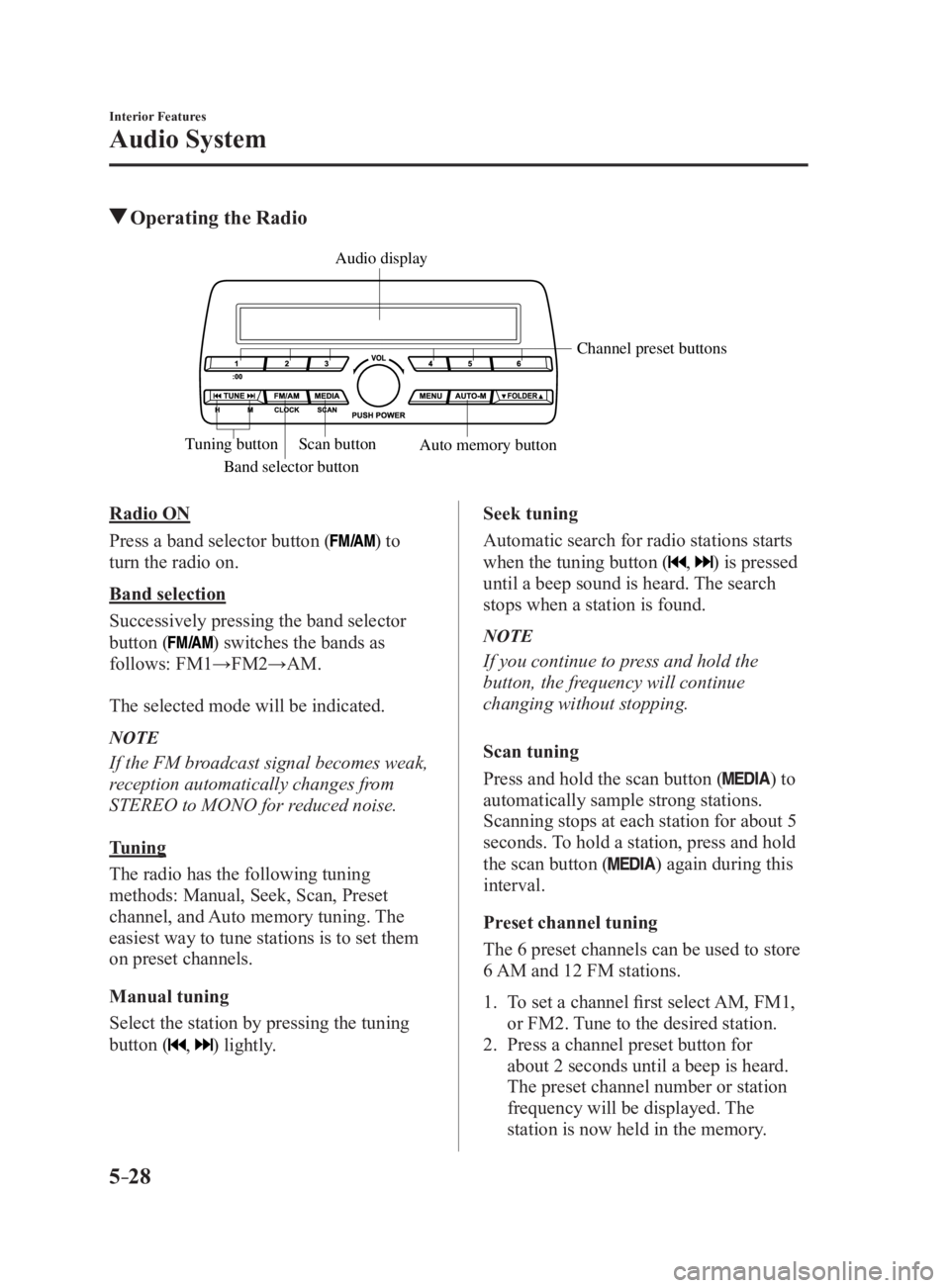
Audio System Operating the Radio
Band selector button Channel preset buttons
Scan button
Auto memory buttonTuning button Audio display
Radio ON
Press a band selector button (
) to
turn the radio on.
Band selection
Successively pressing the band selector
button (
) switches the bands as
follows: FM1→FM2→AM.
The selected mode will be indicated.
NOTE
If the FM broadcast signal becomes weak,
reception automatically changes from
STEREO to MONO for reduced noise.
Tuning
The radio has the following tuning
methods: Manual, Seek, Scan, Preset
channel, and Auto memory tuning. The
easiest way to tune stations is to set them
on preset channels.
Manual tuning
Select the station by pressing the tuning
button (
, ) lightly. Seek tuning
Automatic search for radio stations starts
when the tuning button (
, ) is pressed
until a beep sound is heard. The search
stops when a station is found.
NOTE
If you continue to press and hold the
button, the frequency will continue
changing without stopping.
Scan tuning
Press and hold the scan button (
) to
automatically sample strong stations.
Scanning stops at each station for about 5
seconds. To hold a station, press and hold
the scan button (
) again during this
interval.
Preset channel tuning
The 6 preset channels can be used to store
6 AM and 12 FM stations.
1. To set a channel first select AM, FM1,
or FM2. Tune to the desired station.
2. Press a channel preset button for
about 2 seconds until a beep is heard.
The preset channel number or station
frequency will be displayed. The
station is now held in the memory.
MX-5_8FR4-EA-16J_Edition1.indb 28 2016/08/11 20:29:12
Page 252 of 568
5 –30 Interior Features
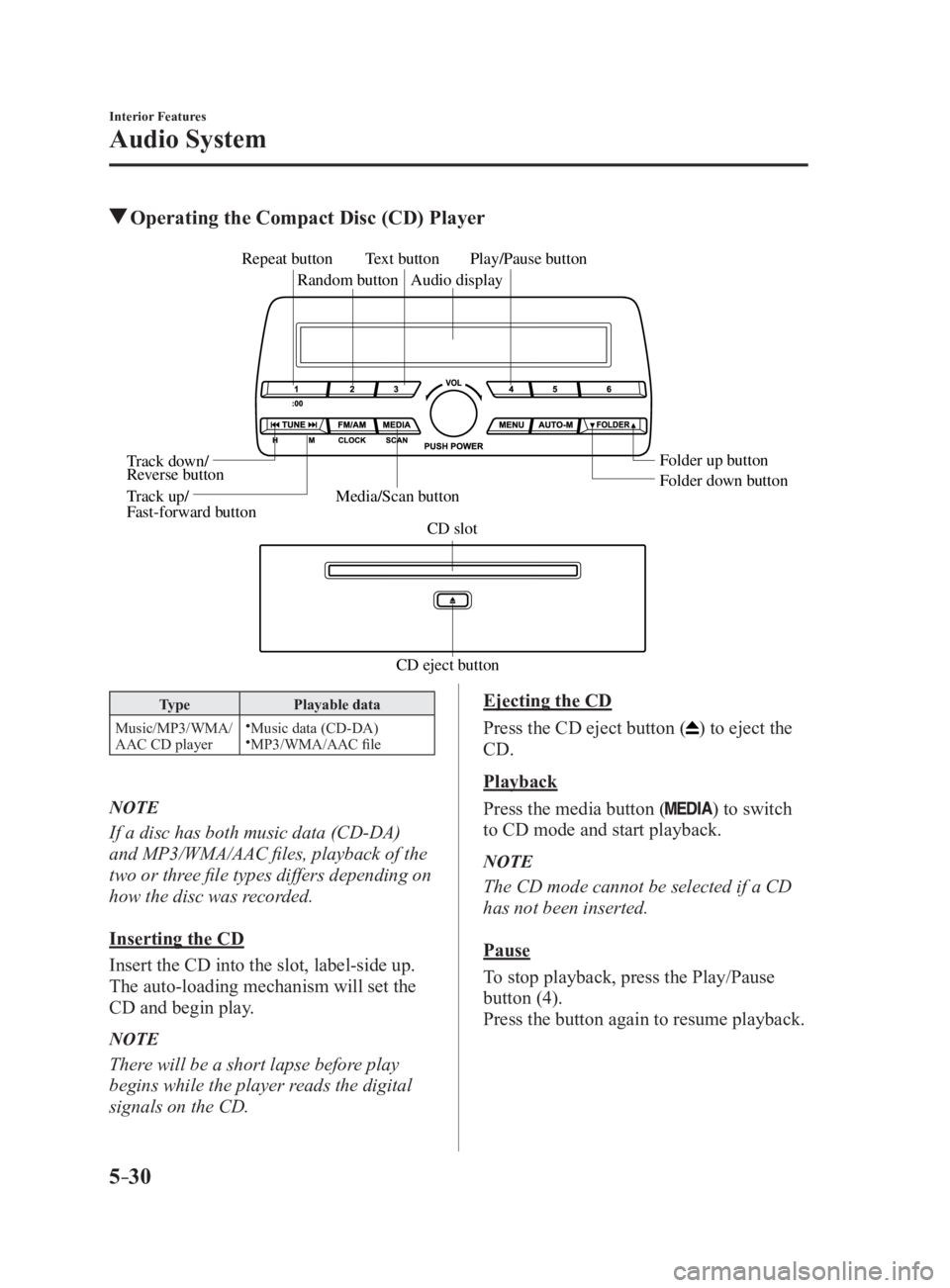
Audio System Operating the Compact Disc (CD) Player
CD eject button CD slotMedia/Scan button Folder down buttonFolder up buttonPlay/Pause button
Random buttonRepeat button
Audio displayTe xt button
T rack down/
Re verse button
T rack up/
F ast-forward button
Type Playable data
Music/MP3/WMA/
AAC CD player
Music data (CD-DA)
MP3/WMA/AAC file
NOTE
If a disc has both music data (CD-DA)
and MP3/WMA/AAC files, playback of the
two or three file types differs depending on
how the disc was recorded.
Inserting the CD
Insert the CD into the slot, label-side up.
The auto-loading mechanism will set the
CD and begin play.
NOTE
There will be a short lapse before play
begins while the player reads the digital
signals on the CD. Ejecting the CD
Press the CD eject button (
) to eject the
CD.
Playback
Press the media button (
) to switch
to CD mode and start playback.
NOTE
The CD mode cannot be selected if a CD
has not been inserted.
Pause
To stop playback, press the Play/Pause
button (4).
Press the button again to resume playback.
MX-5_8FR4-EA-16J_Edition1.indb 30 2016/08/11 20:29:13