audio MAZDA MX5 MIATA 2017 Manual Online
[x] Cancel search | Manufacturer: MAZDA, Model Year: 2017, Model line: MX5 MIATA, Model: MAZDA MX5 MIATA 2017Pages: 568, PDF Size: 16.58 MB
Page 318 of 568

5 –96 Interior Features
Bluetooth ®
*Some models.Entertainment (audio) related command Voice command Function Corresponding audio
source
(Go to/Play) AM (Radio) Switches the audio source to AM radio. All
(Go to/Play) FM (Radio) Switches the audio source to FM radio. All
(Go to/Play) Bluetooth (Audio) Switches the audio source to BT audio. All
(Go to/Play) Pandora Switches the audio source to Pandora ®
All
(Go to/Play) Aha (Radio) Switches the audio source to Aha™ Radio. All
(Go to/Play) Stitcher Switches the audio source to Stitcher™ Radio. All
(Go to/Play) USB 1 Switches the audio source to USB 1. All
(Go to/Play) USB 2 Switches the audio source to USB 2. All
Play Playlist {Playlist name} Plays the selected playlist. USB
Play Artist {Artist name} Plays the selected artist. USB
Play Album {Album name} Plays the selected album. USB
Play Genre {Genre name} Plays the selected genre. USB
Play Folder {Folder name} Plays the selected folder. USB
Navigation related command *
For the navigation screen voice commands, refer to the separate navigation system manual.
NOTE
Some commands cannot be used depending on the grade and specific ation.
Some commands cannot be used depending on the device connection conditions and the
use conditions.
The commands are examples of the available commands.
MX-5_8FR4-EA-16J_Edition1.indb 96 2016/08/11 20:29:26
Page 328 of 568
5 –106 Interior Features
Bluetooth ®
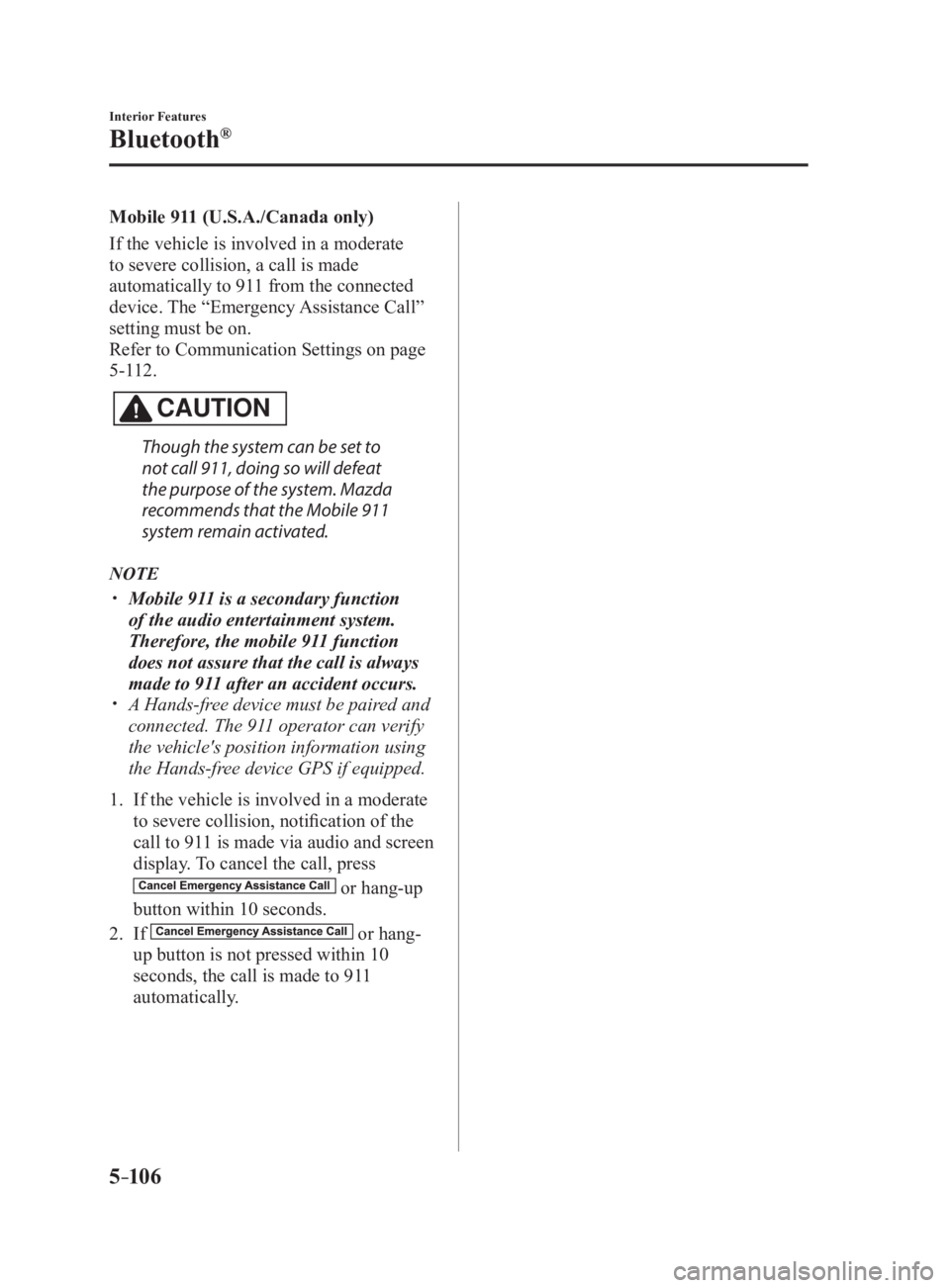
Mobile 911 (U.S.A./Canada only)
If the vehicle is involved in a moderate
to severe collision, a call is made
automatically to 911 from the connected
device. The “Emergency Assistance Call”
setting must be on.
Refer to Communication Settings on page
5-112 .
CAUTION Though the system can be set to
not call 911, doing so will defeat
the purpose of the system. Mazda
recommends that the Mobile 911
system remain activated.
NOTE
Mobile 911 is a secondary function
of the audio entertainment system.
Therefore, the mobile 911 function
does not assure that the call is always
made to 911 after an accident occurs.
A Hands-free device must be paired and
connected. The 911 operator can verify
the vehicle's position information using
the Hands-free device GPS if equipped.
1. If the vehicle is involved in a moderate
to severe collision, notification of the
call to 911 is made via audio and screen
display. To cancel the call, press
or hang-up
button within 10 seconds.
2. If or hang-
up button is not pressed within 10
seconds, the call is made to 911
automatically.
MX-5_8FR4-EA-16J_Edition1.indb 106 2016/08/11 20:29:28
Page 329 of 568
5 –107 Interior Features
Bluetooth ®
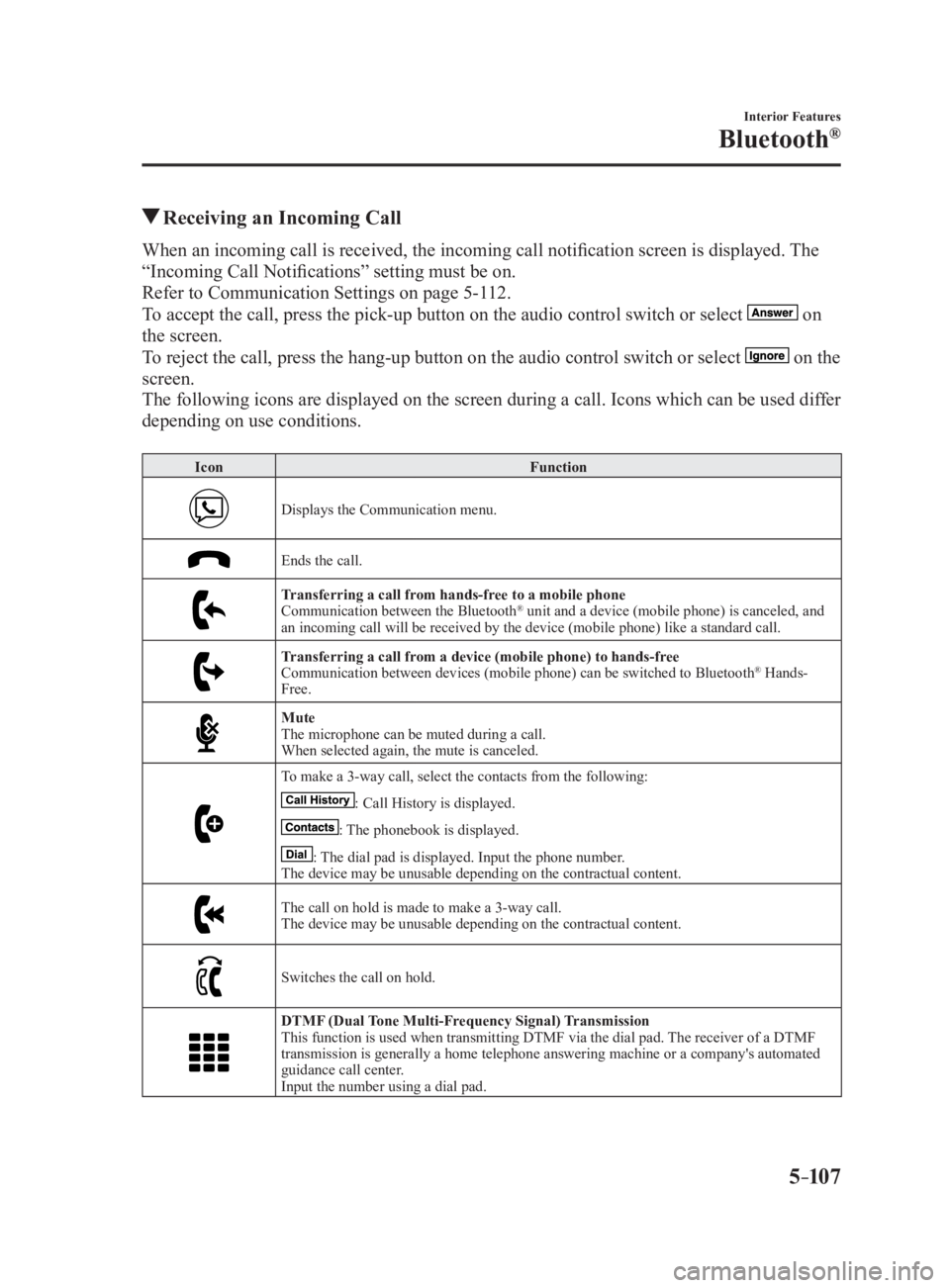
Receiving an Incoming CallWhen an incoming call is received, the incoming call notificatio n screen is displayed. The
“Incoming Call Notifications” setting must be on.
Refer to Communication Settings on page 5-112 .
To accept the call, press the pick-up button on the audio control switch or select
on
the screen.
To reject the call, press the hang-up button on the audio control switch or select
on the
screen.
The following icons are displayed on the screen during a call. Icons which can be used differ
depending on use conditions. Icon Function
Displays the Communication menu.
Ends the call.
Transferring a call from hands-free to a mobile phone
Communication between the Bluetooth ®
unit and a device (mobile phone) is canceled, and
an incoming call will be received by the device (mobile phone) like a standard call.
Transferring a call from a device (mobile phone) to hands-free
Communication between devices (mobile phone) can be switched to Bluetooth ®
Hands-
Free.
Mute
The microphone can be muted during a call.
When selected again, the mute is canceled.
To make a 3-way call, select the contacts from the following:
: Call History is displayed.
: The phonebook is displayed.
: The dial pad is displayed. Input the phone number.
The device may be unusable depending on the contractual content.
The call on hold is made to make a 3-way call.
The device may be unusable depending on the contractual content.
Switches the call on hold.
DTMF (Dual Tone Multi-Frequency Signal) Transmission
This function is used when transmitting DTMF via the dial pad. The receiver of a DTMF
transmission is generally a home telephone answering machine or a company's automated
guidance call center.
Input the number using a dial pad.
MX-5_8FR4-EA-16J_Edition1.indb 107 2016/08/11 20:29:29
Page 335 of 568
5 –113 Interior Features
Bluetooth ®
Bluetooth ®
Audio (Type A)Applicable Bluetooth ®
specification
(Recommended)
Ver. 2.0
Response profile
A2DP (Advanced Audio Distribution
Profile) Ver. 1.0/1.2
AVRCP (Audio/Video Remote Control
Profile) Ver. 1.0/1.3
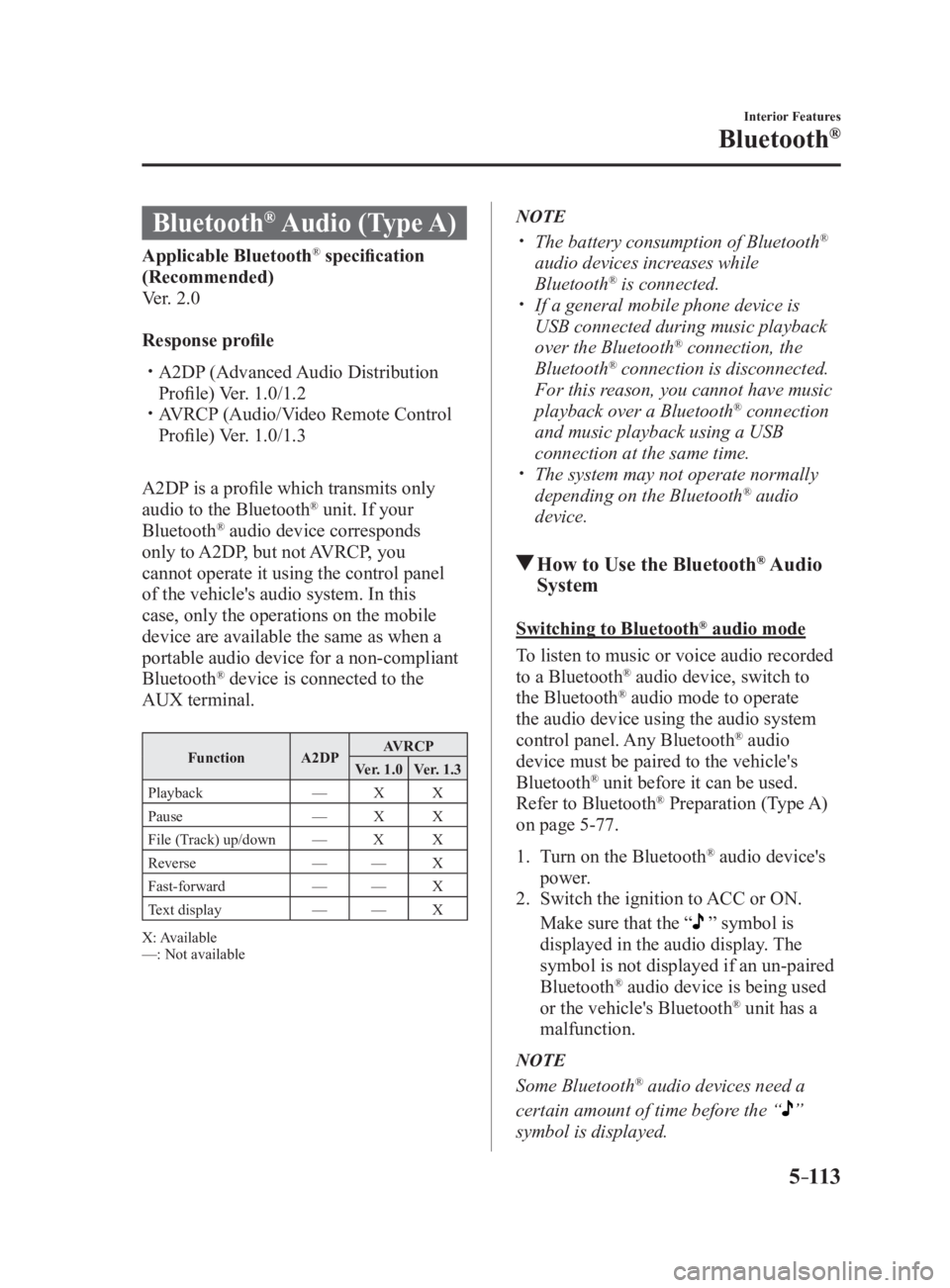
A2DP is a profile which transmits only
audio to the Bluetooth ®
unit. If your
Bluetooth ®
audio device corresponds
only to A2DP, but not AVRCP, you
cannot operate it using the control panel
of the vehicle's audio system. In this
case, only the operations on the mobile
device are available the same as when a
portable audio device for a non-compliant
Bluetooth ®
device is connected to the
AUX terminal. Function A2DP AVRCP
Ver. 1.0 Ver. 1.3
Playback — X X
Pause — X X
File (Track) up/down — X X
Reverse — — X
Fast-forward — — X
Text display — — X
X: Available
—: Not available NOTE
The battery consumption of Bluetooth ®
audio devices increases while
Bluetooth ®
is connected.
If a general mobile phone device is
USB connected during music playback
over the Bluetooth ®
connection, the
Bluetooth ®
connection is disconnected.
For this reason, you cannot have music
playback over a Bluetooth ®
connection
and music playback using a USB
connection at the same time.
The system may not operate normally
depending on the Bluetooth ®
audio
device.
How to Use the Bluetooth ®
Audio
System Switching to Bluetooth ®
audio mode
To listen to music or voice audio recorded
to a Bluetooth ®
audio device, switch to
the Bluetooth ®
audio mode to operate
the audio device using the audio system
control panel. Any Bluetooth ®
audio
device must be paired to the vehicle's
Bluetooth ®
unit before it can be used.
Refer to Bluetooth ®
Preparation (Type A)
on page 5-77 .
1. Turn on the Bluetooth ®
audio device's
power.
2. Switch the ignition to ACC or ON.
Make sure that the “ ” symbol is
displayed in the audio display. The
symbol is not displayed if an un-paired
Bluetooth ®
audio device is being used
or the vehicle's Bluetooth ®
unit has a
malfunction.
NOTE
Some Bluetooth ®
audio devices need a
certain amount of time before the “
”
symbol is displayed.
MX-5_8FR4-EA-16J_Edition1.indb 113 2016/08/11 20:29:30
Page 336 of 568
5 –114 Interior Features
Bluetooth ®
3. Press the media button ( ) to switch to the Bluetooth ®
audio mode
and start playback.
If the current device version is lower
than AVRCP Ver. 1.3: “BT Audio” is
displayed.
If the current device is AVRCP Ver. 1.3:
The playback time is displayed.
NOTE
If the Bluetooth ®
audio device does not
begin playback, press the Play/Pause
button (4).
If a call is received on a hands-free
mobile phone during playback from the
Bluetooth ®
audio device, the playback is
stopped. Playback from the Bluetooth ®
audio device resumes after the call
ends.
Playback
1. To listen to a Bluetooth ®
audio device
over the vehicle's speaker system,
switch the mode to Bluetooth ®
audio mode. (Refer to “Switching to
Bluetooth ®
audio mode”)
2. To stop playback, press the Play/Pause
button (4).
3. Press the button again to resume
playback.
Selecting a file (track)
Selects the next file (track)
Short-press the track up button ( ).
Selects the beginning of the current file
(track)
Short-press the track down button ( ). Fast-forward/Reverse (AVRCP Ver. 1.3)
Fast-forward
Press and hold the fast-forward button
( ).
Reverse
Press and hold the reverse down button
( ).
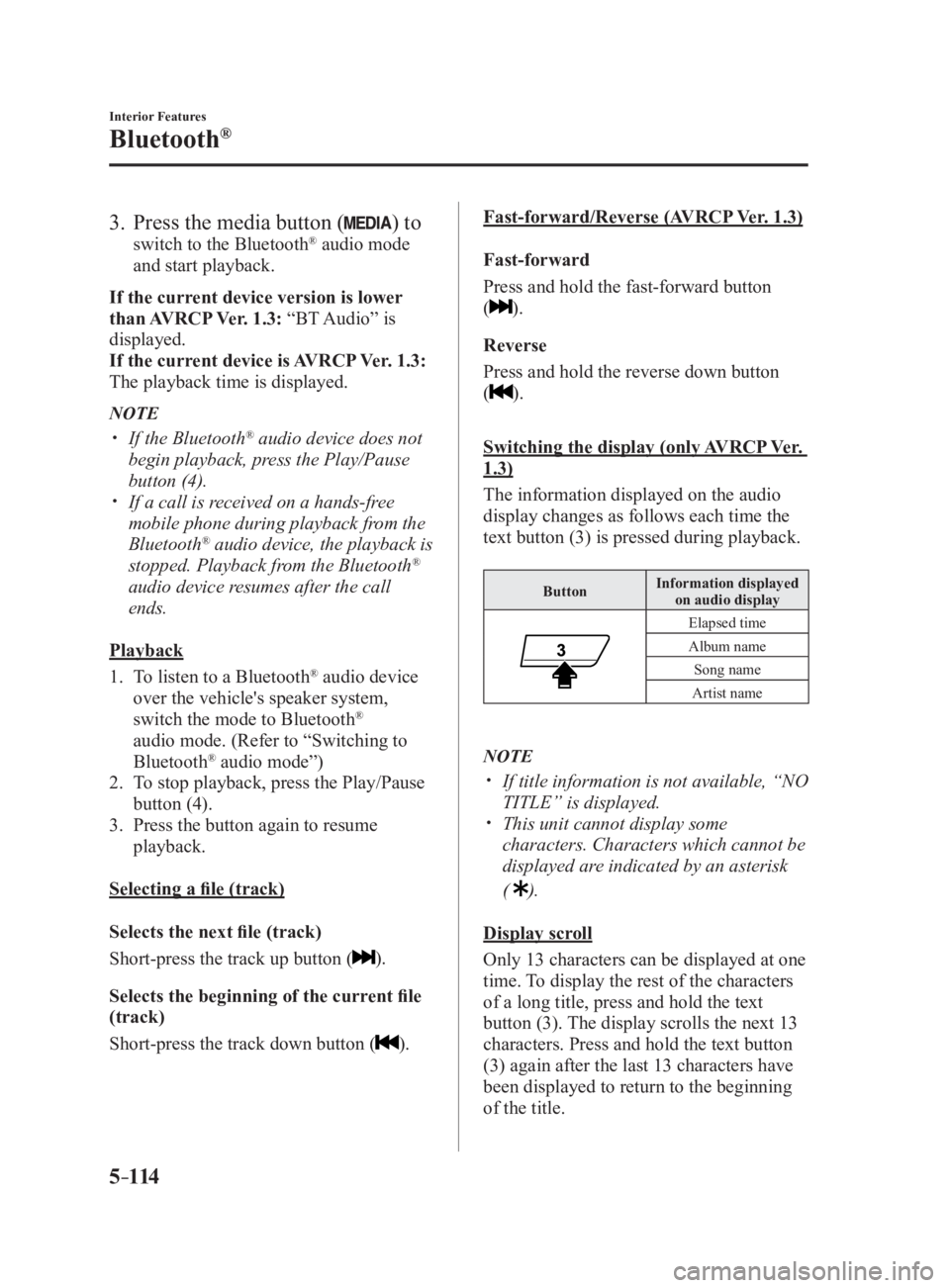
Switching the display (only AVRCP Ver.
1.3)
The information displayed on the audio
display changes as follows each time the
text button (3) is pressed during playback. Button Information displayed
on audio display
Elapsed time
Album name
Song name
Artist name
NOTE
If title information is not available, “NO
TITLE” is displayed.
This unit cannot display some
characters. Characters which cannot be
displayed are indicated by an asterisk
(
).
Display scroll
Only 13 characters can be displayed at one
time. To display the rest of the characters
of a long title, press and hold the text
button (3). The display scrolls the next 13
characters. Press and hold the text button
(3) again after the last 13 characters have
been displayed to return to the beginning
of the title.
MX-5_8FR4-EA-16J_Edition1.indb 114 2016/08/11 20:29:30
Page 337 of 568
5 –115 Interior Features
Bluetooth ®
Bluetooth ®
Audio Device
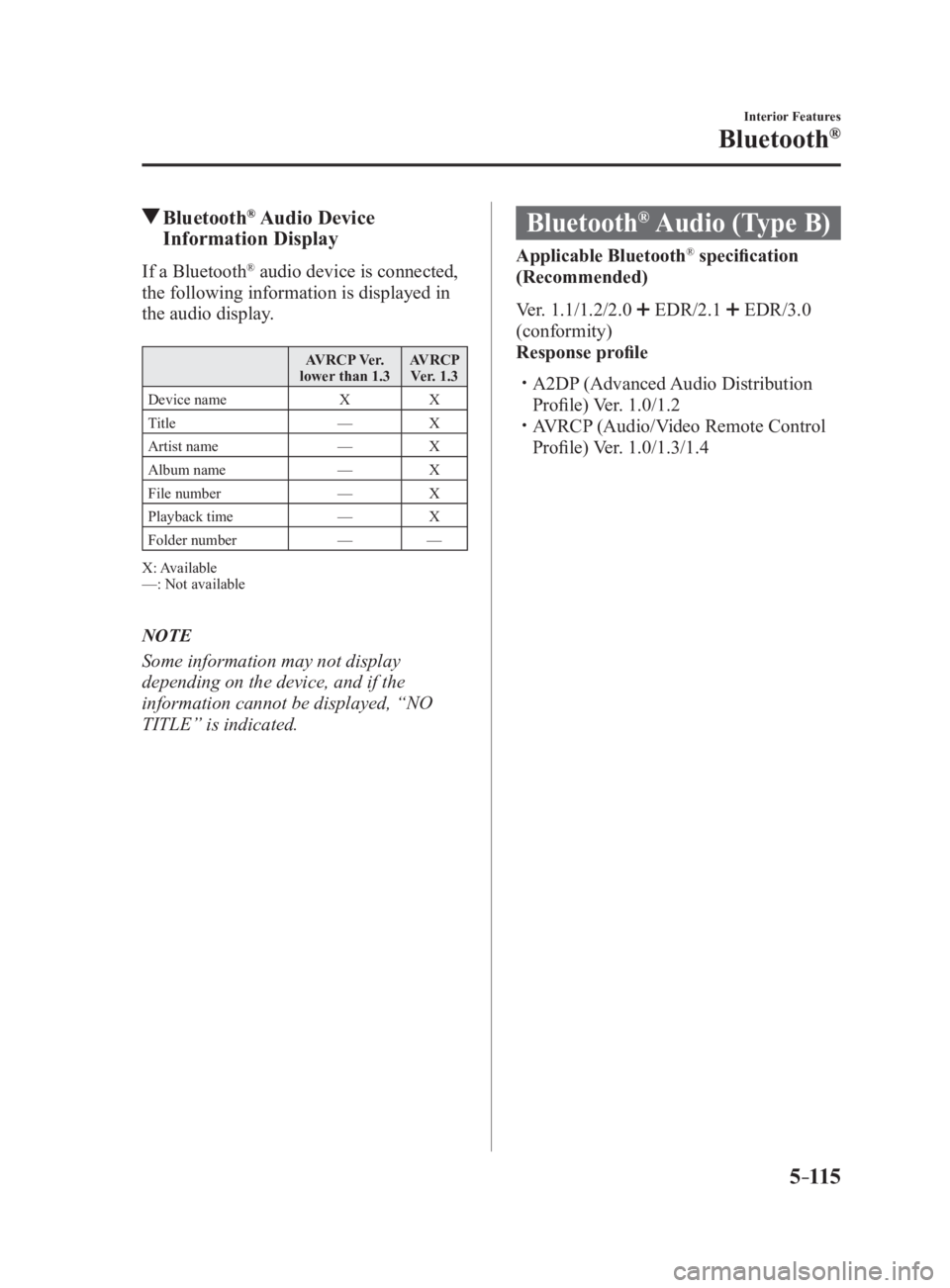
Information DisplayIf a Bluetooth ®
audio device is connected,
the following information is displayed in
the audio display. AVRCP Ver.
lower than 1.3 AVRCP
Ver. 1.3
Device name X X
Title — X
Artist name — X
Album name — X
File number — X
Playback time — X
Folder number — —
X: Available
—: Not available
NOTE
Some information may not display
depending on the device, and if the
information cannot be displayed, “NO
TITLE” is indicated. Bluetooth ®
Audio (Type B) Applicable Bluetooth ®
specification
(Recommended)
Ver. 1.1/1.2/2.0
EDR/2.1 EDR/3.0
(conformity)
Response profile
A2DP (Advanced Audio Distribution
Profile) Ver. 1.0/1.2
AVRCP (Audio/Video Remote Control
Profile) Ver. 1.0/1.3/1.4
MX-5_8FR4-EA-16J_Edition1.indb 115 2016/08/11 20:29:31
Page 338 of 568
5 –116 Interior Features
Bluetooth ®
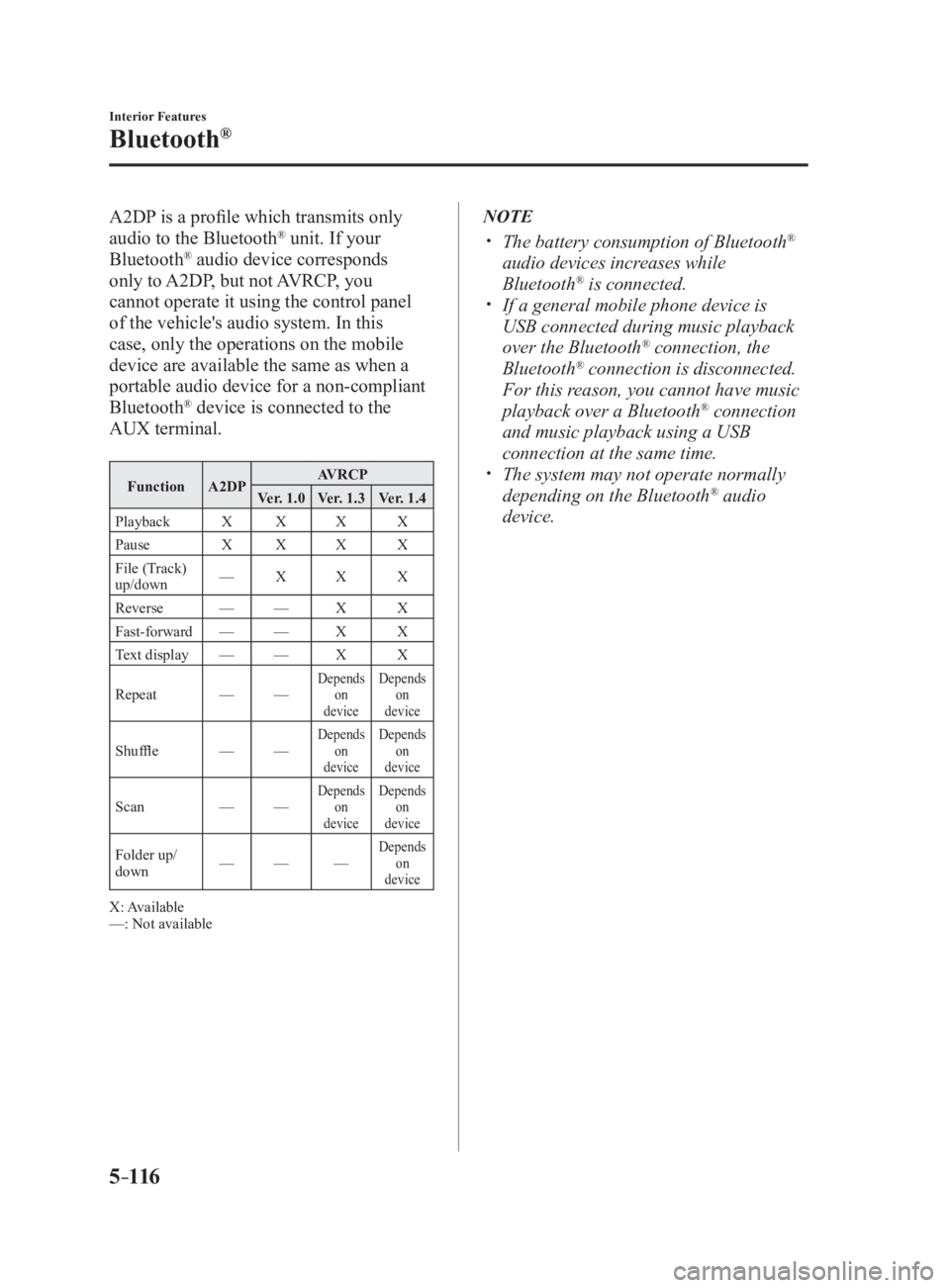
A2DP is a profile which transmits only
audio to the Bluetooth ®
unit. If your
Bluetooth ®
audio device corresponds
only to A2DP, but not AVRCP, you
cannot operate it using the control panel
of the vehicle's audio system. In this
case, only the operations on the mobile
device are available the same as when a
portable audio device for a non-compliant
Bluetooth ®
device is connected to the
AUX terminal. Function A2DP AVRCP
Ver. 1.0 Ver. 1.3 Ver. 1.4
Playback X X X X
Pause X X X X
File (Track)
up/down — X X X
Reverse — — X X
Fast-forward — — X X
Text display — — X X
Repeat — — Depends
on
device Depends
on
device
Shuffle — — Depends
on
device Depends
on
device
Scan — — Depends
on
device Depends
on
device
Folder up/
down — — — Depends
on
device
X: Available
—: Not available NOTE
The battery consumption of Bluetooth ®
audio devices increases while
Bluetooth ®
is connected.
If a general mobile phone device is
USB connected during music playback
over the Bluetooth ®
connection, the
Bluetooth ®
connection is disconnected.
For this reason, you cannot have music
playback over a Bluetooth ®
connection
and music playback using a USB
connection at the same time.
The system may not operate normally
depending on the Bluetooth ®
audio
device.
MX-5_8FR4-EA-16J_Edition1.indb 116 2016/08/11 20:29:31
Page 339 of 568
5 –117 Interior Features
Bluetooth ®
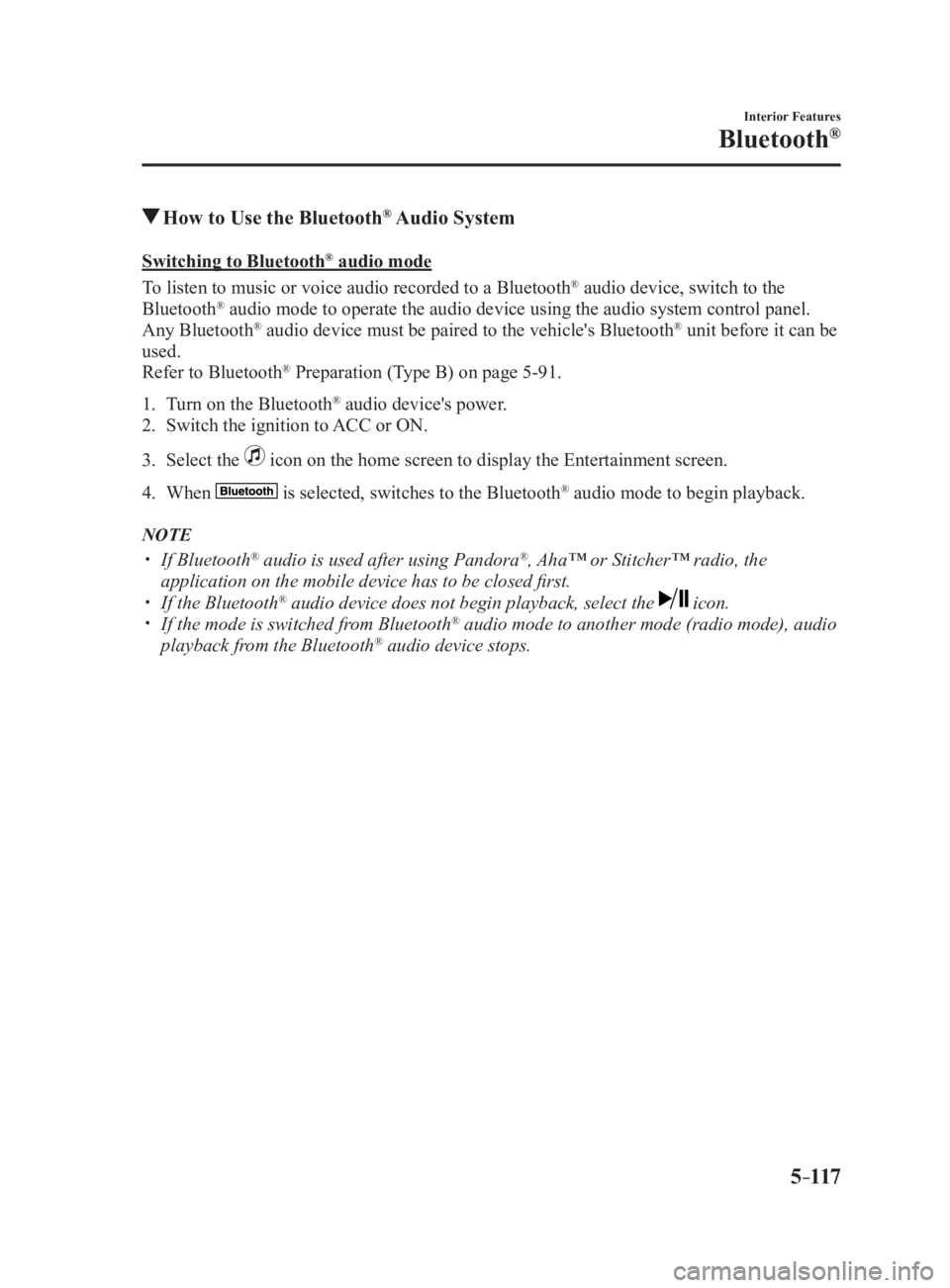
How to Use the Bluetooth ®
Audio SystemSwitching to Bluetooth ®
audio mode
To listen to music or voice audio recorded to a Bluetooth ®
audio device, switch to the
Bluetooth ®
audio mode to operate the audio device using the audio system control panel.
Any Bluetooth ®
audio device must be paired to the vehicle's Bluetooth ®
unit before it can be
used.
Refer to Bluetooth ®
Preparation (Type B) on page 5-91 .
1. Turn on the Bluetooth ®
audio device's power.
2. Switch the ignition to ACC or ON.
3. Select the icon on the home screen to display the Entertainment screen.
4. When is selected, switches to the Bluetooth ®
audio mode to begin playback.
NOTE
If Bluetooth ®
audio is used after using Pandora ®
, Aha™ or Stitcher™ radio, the
application on the mobile device has to be closed first.
If the Bluetooth ®
audio device does not begin playback, select the icon.
If the mode is switched from Bluetooth ®
audio mode to another mode (radio mode), audio
playback from the Bluetooth ®
audio device stops.
MX-5_8FR4-EA-16J_Edition1.indb 117 2016/08/11 20:29:31
Page 340 of 568
5 –118 Interior Features
Bluetooth ®
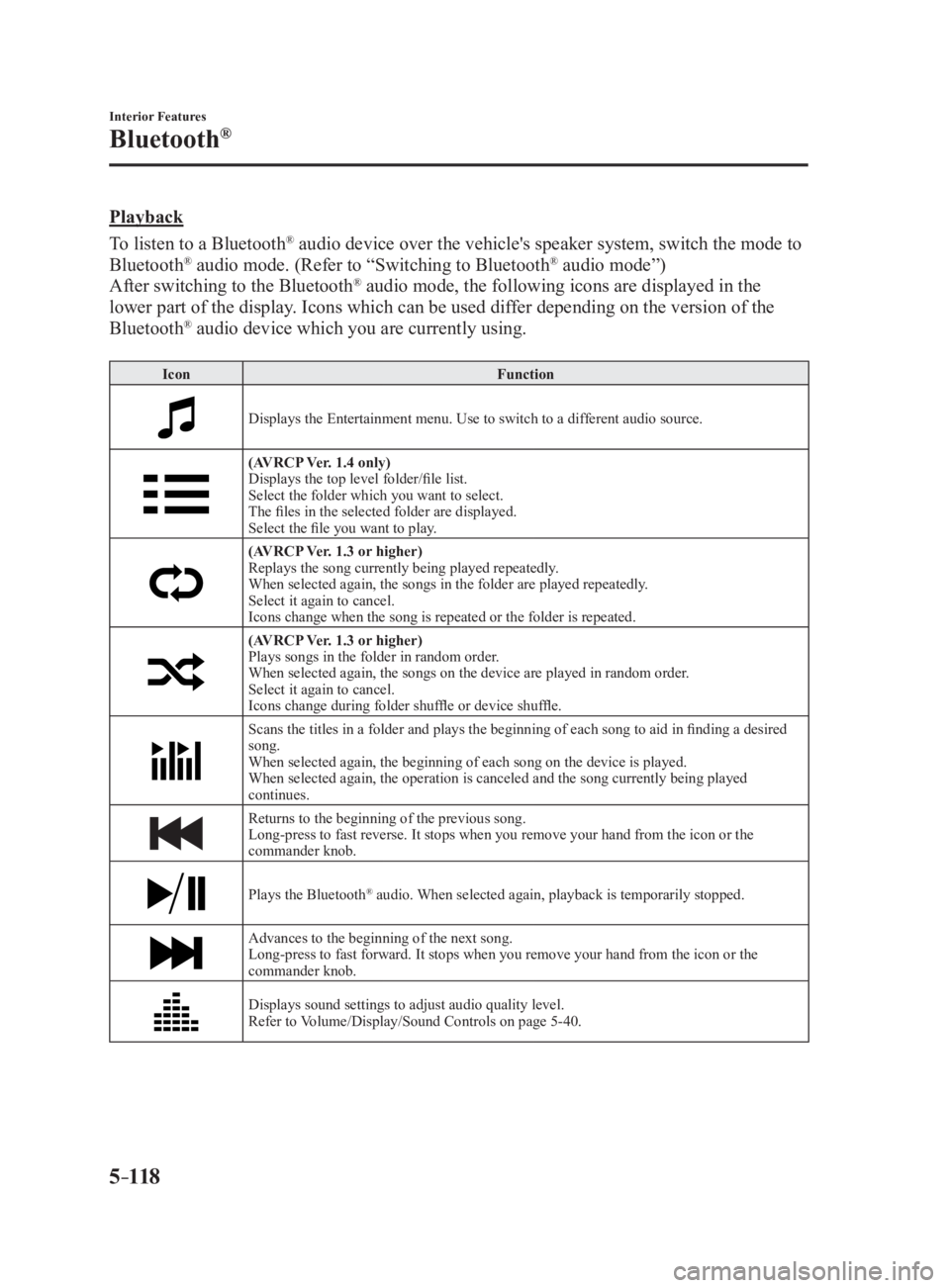
Playback
To listen to a Bluetooth ®
audio device over the vehicle's speaker system, switch the mode to
Bluetooth ®
audio mode. (Refer to “Switching to Bluetooth ®
audio mode”)
After switching to the Bluetooth ®
audio mode, the following icons are displayed in the
lower part of the display. Icons which can be used differ depending on the version of the
Bluetooth ®
audio device which you are currently using. Icon Function
Displays the Entertainment menu. Use to switch to a different audio source.
(AVRCP Ver. 1.4 only)
Displays the top level folder/file list.
Select the folder which you want to select.
The files in the selected folder are displayed.
Select the file you want to play.
(AVRCP Ver. 1.3 or higher)
Replays the song currently being played repeatedly.
When selected again, the songs in the folder are played repeatedly.
Select it again to cancel.
Icons change when the song is repeated or the folder is repeated.
(AVRCP Ver. 1.3 or higher)
Plays songs in the folder in random order.
When selected again, the songs on the device are played in random order.
Select it again to cancel.
Icons change during folder shuffle or device shuffle.
Scans the titles in a folder and plays the beginning of each so ng to aid in finding a desired
song.
When selected again, the beginning of each song on the device is played.
When selected again, the operation is canceled and the song currently being played
continues.
Returns to the beginning of the previous song.
Long-press to fast reverse. It stops when you remove your hand from the icon or the
commander knob.
Plays the Bluetooth ®
audio. When selected again, playback is temporarily stopped.
Advances to the beginning of the next song.
Long-press to fast forward. It stops when you remove your hand from the icon or the
commander knob.
Displays sound settings to adjust audio quality level.
Refer to Volume/Display/Sound Controls on page 5-40 .
MX-5_8FR4-EA-16J_Edition1.indb 118 2016/08/11 20:29:31
Page 341 of 568
5 –119 Interior Features
Bluetooth ®
Bluetooth ®
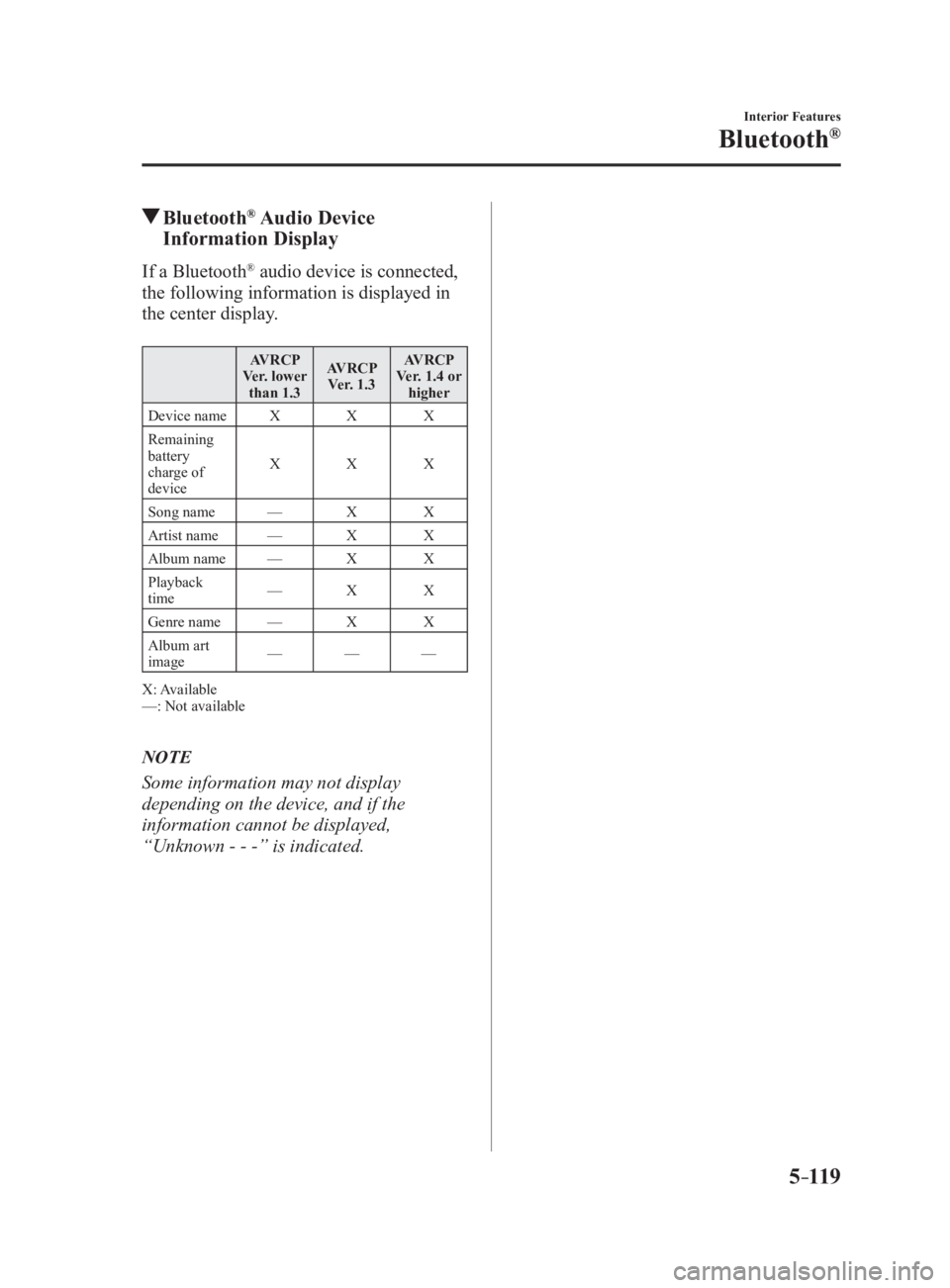
Audio Device
Information DisplayIf a Bluetooth ®
audio device is connected,
the following information is displayed in
the center display. AVRCP
Ver. lower
than 1.3 AVRCP
Ver. 1.3 AVRCP
Ver. 1.4 or
higher
Device name X X X
Remaining
battery
charge of
device X X X
Song name — X X
Artist name — X X
Album name — X X
Playback
time — X X
Genre name — X X
Album art
image — — —
X: Available
—: Not available
NOTE
Some information may not display
depending on the device, and if the
information cannot be displayed,
“Unknown - - -” is indicated.
MX-5_8FR4-EA-16J_Edition1.indb 119 2016/08/11 20:29:31