steering MERCEDES-BENZ A CLASS 2012 Workshop Manual
[x] Cancel search | Manufacturer: MERCEDES-BENZ, Model Year: 2012, Model line: A CLASS, Model: MERCEDES-BENZ A CLASS 2012Pages: 356, PDF Size: 4.96 MB
Page 211 of 356
The fuel supply is interrupted to protect the
engine when the red band is reached.
Outside temperature display
You should pay special attention to road con-
ditions when temperatures are around the
freezing point.
The outside temperature display is in the mul-
tifunction display.
Changes in the outside temperature are dis-
played after a short delay. Speedometer with segments
The segments in the speedometer indicate
which speed range is available.
R Cruise control activated ( Y page 168):
The segments light up from the stored
speed to the maximum speed.
R Variable SPEEDTRONIC activated
(Y page 171):
The
segments light up from the start of the
scale to the selected limit speed.
R DISTRONIC PLUS activated (Y page 173):
One or two segments in the set speed
range light up.
R DISTRONIC PLUS detects a vehicle in front:
The segments between the speed of the
vehicle in front and the stored speed light
up. Operating the on-board computer
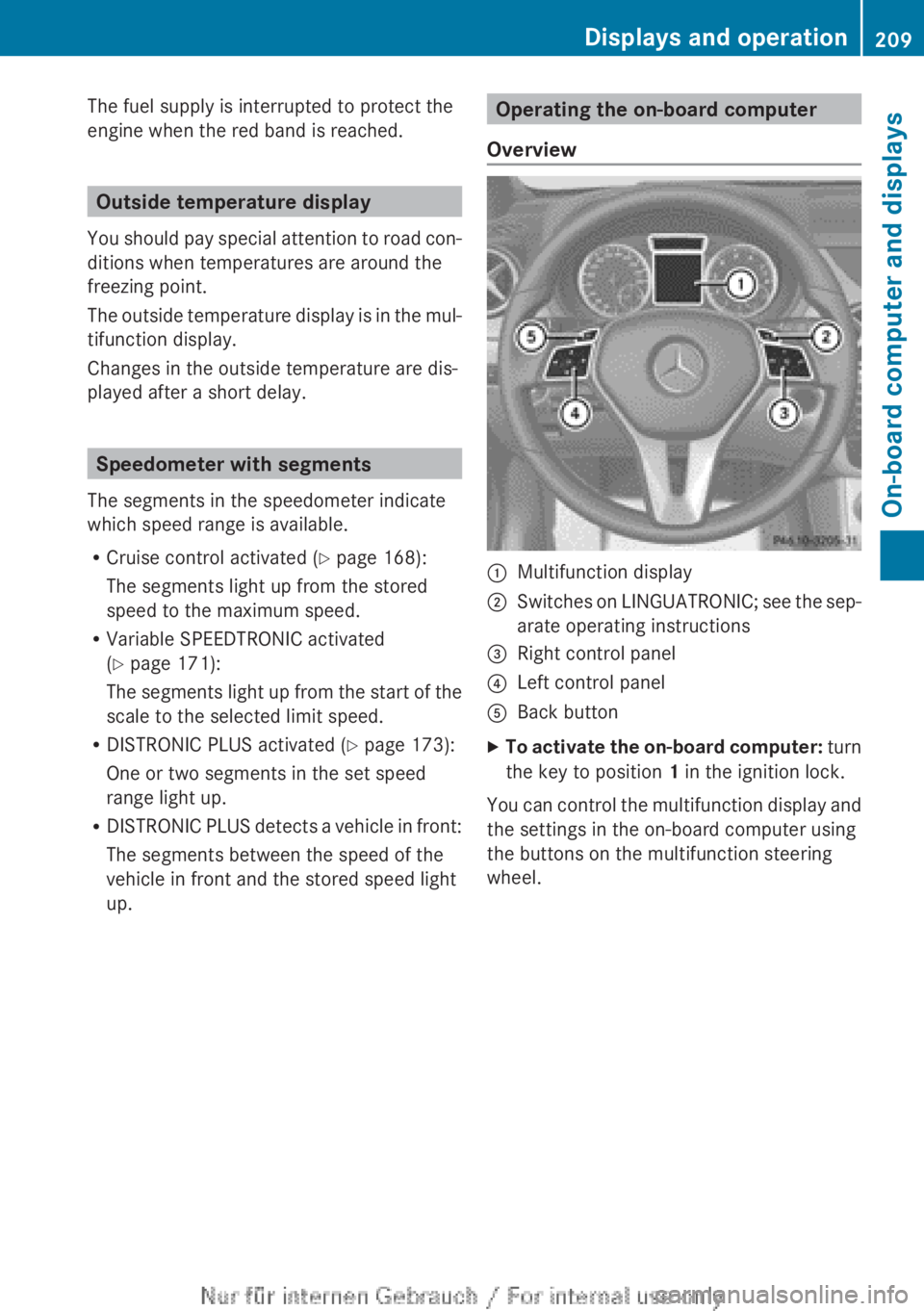
Overview :
Multifunction display
; Switches on LINGUATRONIC; see the sep-
arate operating instructions
= Right control panel
? Left control panel
A Back button
X To activate the on-board computer:
turn
the key to position 1 in the ignition lock.
You can control the multifunction display and
the settings in the on-board computer using
the buttons on the multifunction steering
wheel. Displays and operation
209
On-board computer and displays Z
Page 213 of 356
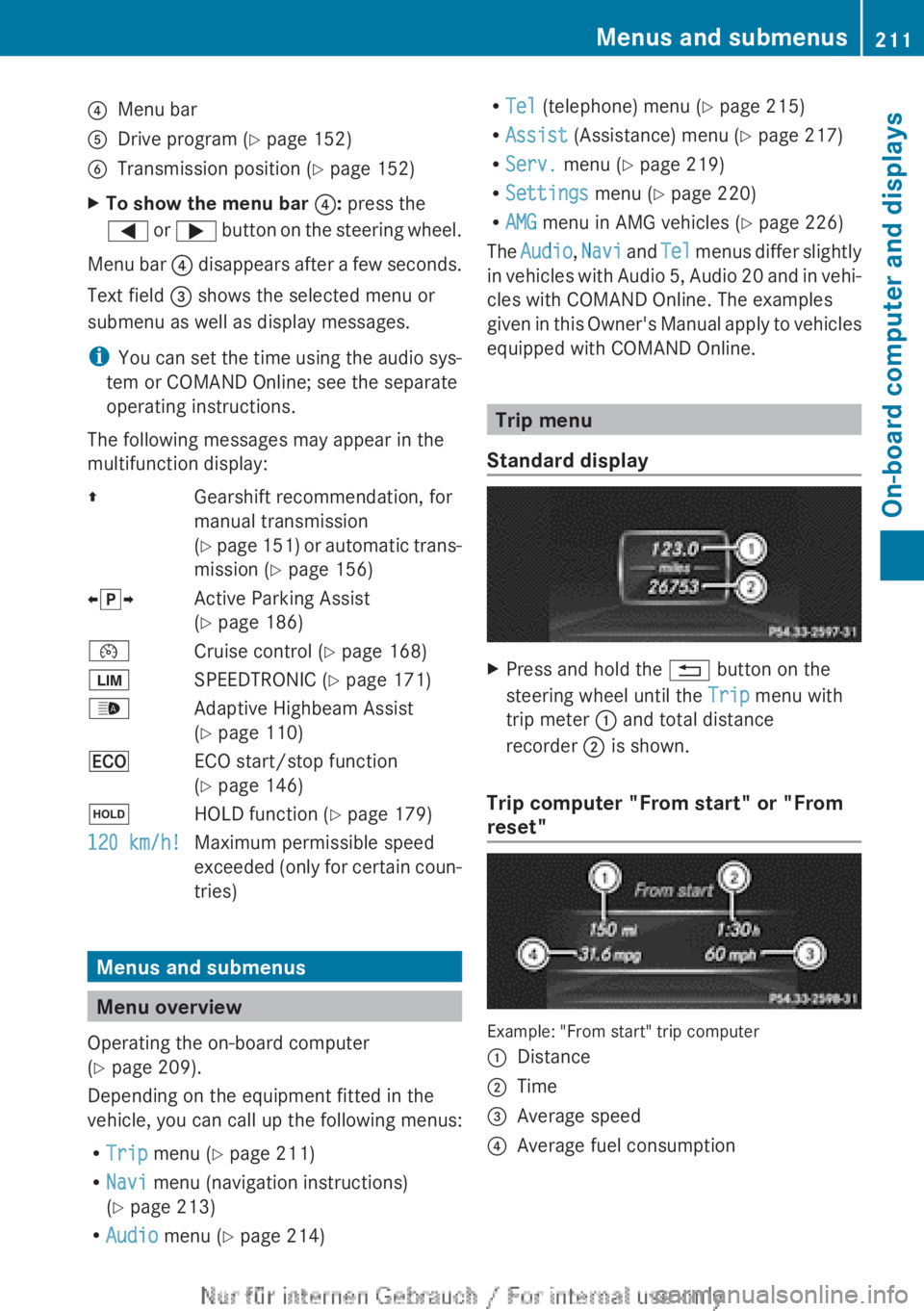
?
Menu bar
A Drive program (Y page 152)
B Transmission position ( Y page 152)
X To show the menu bar ?: press the
= or ; button on the steering wheel.
Menu bar ?
disappears after a few seconds.
Text field = shows the selected menu or
submenu as well as display messages.
i You can set the time using the audio sys-
tem or COMAND Online; see the separate
operating instructions.
The following messages may appear in the
multifunction display:
Z Gearshift recommendation, for
manual transmission
(Y
page 151) or automatic trans-
mission ( Y page 156)
XjY Active Parking Assist
(Y page 186)
¯ Cruise control ( Y page 168)
È SPEEDTRONIC ( Y page 171)
_ Adaptive Highbeam Assist
(Y page 110)
¤ ECO start/stop function
(Y page 146)
ë HOLD function ( Y page 179)
120 km/h! Maximum permissible speed
exceeded
(only for certain coun-
tries) Menus and submenus
Menu overview
Operating the on-board computer
(Y page 209).
Depending on the equipment fitted in the
vehicle, you can call up the following menus:
R Trip menu (Y page 211)
R Navi menu (navigation instructions)
(Y page 213)
R Audio menu (Y page 214) R
Tel (telephone) menu ( Y page 215)
R Assist (Assistance) menu (Y page 217)
R Serv. menu (Y page 219)
R Settings menu (Y page 220)
R AMG menu in AMG vehicles ( Y page 226)
The Audio, Navi
and Tel menus differ slightly
in vehicles with Audio 5, Audio 20 and in vehi-
cles with COMAND Online. The examples
given in this Owner's Manual apply to vehicles
equipped with COMAND Online. Trip menu
Standard display X
Press and hold the % button on the
steering wheel until the Trip menu with
trip meter : and total distance
recorder ; is shown.
Trip computer "From start" or "From
reset" Example: "From start" trip computer
:
Distance
; Time
= Average speed
? Average fuel consumption Menus and submenus
211
On-board computer and displays Z
Page 218 of 356
while driving will distract you from traffic con-
ditions. You could then lose control of the
vehicle. There is a risk of an accident.
Only
operate these devices if road traffic con-
ditions permit. If you are unsure about the
surrounding conditions, pull over to a safe
location and make entries only while the vehi-
cle is stationary.
When telephoning, you must observe the
legal requirements for the country in which
you are currently driving.
X Switch on your mobile phone and audio
system or COMAND Online, see the sepa-
rate operating instructions.
X Place a mobile phone in the mobile phone
bracket ( Y page 279), or establish a Blue-
tooth ®
connection with the audio system
or
COMAND Online (see the separate oper-
ating instructions).
X Press the =
or ; button on the steer-
ing wheel to select the Tel menu.
You will see one of the following display mes-
sages in the multifunction display:
R Please
enter PIN: the mobile phone has
been placed in the mobile phone bracket
and the PIN has not been entered.
When you enter your PIN via the mobile
phone, LINGUATRONIC, the audio system
or COMAND Online, the mobile phone
searches for a network.
R Telephone ready or the name of the net-
work provider: the mobile phone has found
a network and is ready to receive.
R Telephone No service: there is no net-
work available or the mobile phone is
searching for a network.
i You can obtain further information about
suitable mobile phones and connecting
mobile phones via Bluetooth ®
:
R from any Mercedes Benz Service Centre
R on the Internet at: http://
www.mercedes-benz.com/connect Accepting a call
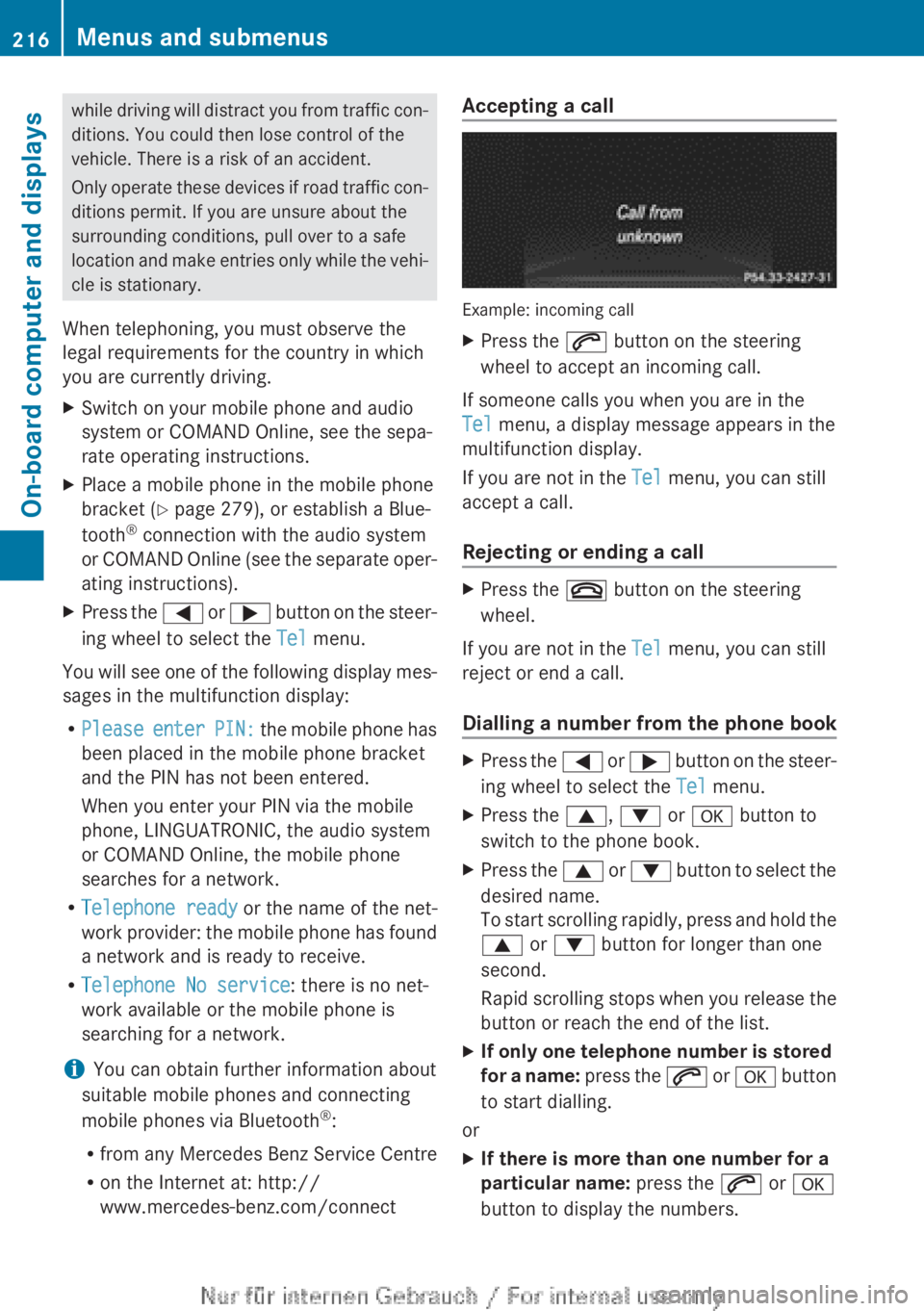
Example: incoming call
X
Press the 6 button on the steering
wheel to accept an incoming call.
If someone calls you when you are in the
Tel menu, a display message appears in the
multifunction display.
If you are not in the Tel menu, you can still
accept a call.
Rejecting or ending a call X
Press the ~ button on the steering
wheel.
If you are not in the Tel menu, you can still
reject or end a call.
Dialling a number from the phone book X
Press the =
or ; button on the steer-
ing wheel to select the Tel menu.
X Press the 9, : or a button to
switch to the phone book.
X Press the 9
or : button to select the
desired name.
To start scrolling rapidly, press and hold the
9 or : button for longer than one
second.
Rapid scrolling stops when you release the
button or reach the end of the list.
X If only one telephone number is stored
for
a name: press the 6 or a button
to start dialling.
or
X If there is more than one number for a
particular name: press the 6 or a
button to display the numbers. 216
Menus and submenus
On-board computer and displays
Page 229 of 356
X
Press the = or ; button to select
Interm. Time.
X Press a to confirm.
The intermediate time is displayed for five
seconds.
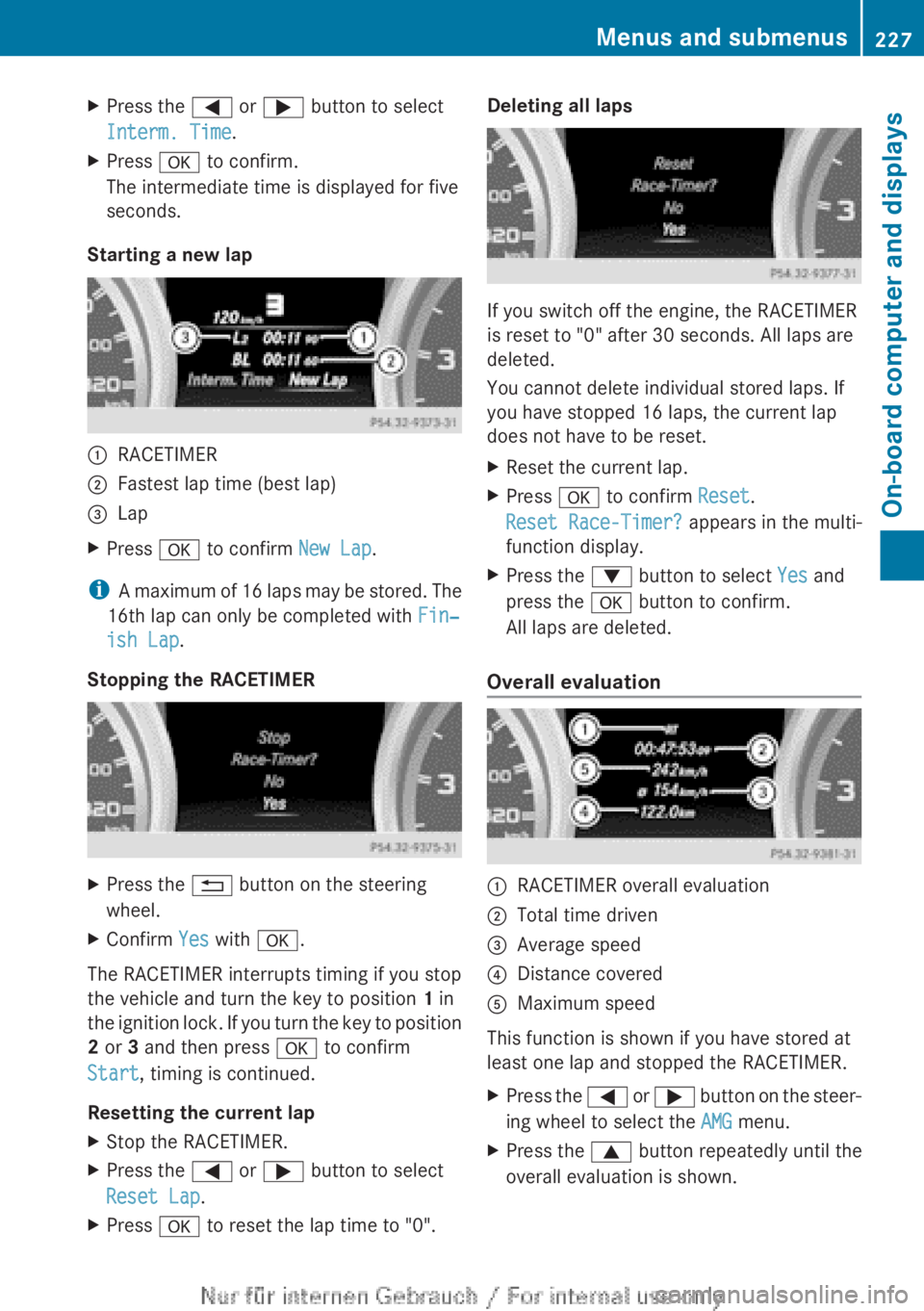
Starting a new lap :
RACETIMER
; Fastest lap time (best lap)
= Lap
X Press a to confirm New Lap.
i A maximum of 16 laps may be stored. The
16th lap can only be completed with Fin‐
ish Lap.
Stopping the RACETIMER X
Press the % button on the steering
wheel.
X Confirm Yes with a.
The RACETIMER interrupts timing if you stop
the vehicle and turn the key to position 1 in
the
ignition lock. If you turn the key to position
2 or 3 and then press a to confirm
Start, timing is continued.
Resetting the current lap
X Stop the RACETIMER.
X Press the = or ; button to select
Reset Lap.
X Press a to reset the lap time to "0". Deleting all laps
If you switch off the engine, the RACETIMER
is reset to "0" after 30 seconds. All laps are
deleted.
You cannot delete individual stored laps. If
you have stopped 16 laps, the current lap
does not have to be reset.
X
Reset the current lap.
X Press a to confirm Reset.
Reset Race-Timer? appears in the multi-
function display.
X Press the : button to select Yes and
press the a button to confirm.
All laps are deleted.
Overall evaluation :
RACETIMER overall evaluation
; Total time driven
= Average speed
? Distance covered
A Maximum speed
This function is shown if you have stored at
least one lap and stopped the RACETIMER.
X Press the =
or ; button on the steer-
ing wheel to select the AMG menu.
X Press the 9 button repeatedly until the
overall evaluation is shown. Menus and submenus
227
On-board computer and displays Z
Page 231 of 356
Display messages
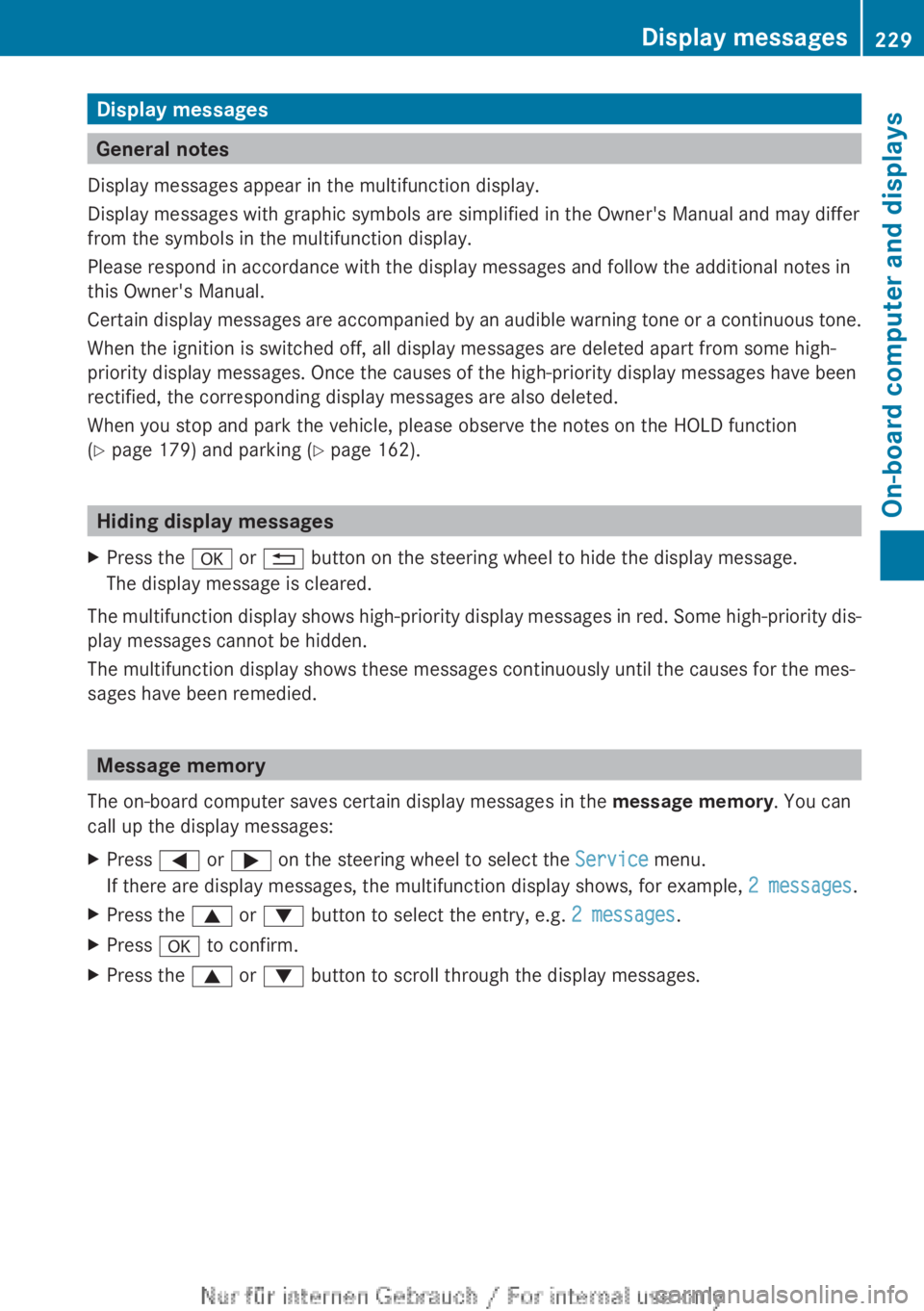
General notes
Display messages appear in the multifunction display.
Display messages with graphic symbols are simplified in the Owner's Manual and may differ
from the symbols in the multifunction display.
Please respond in accordance with the display messages and follow the additional notes in
this Owner's Manual.
Certain
display messages are accompanied by an audible warning tone or a continuous tone.
When the ignition is switched off, all display messages are deleted apart from some high-
priority display messages. Once the causes of the high-priority display messages have been
rectified, the corresponding display messages are also deleted.
When you stop and park the vehicle, please observe the notes on the HOLD function
(Y page 179) and parking ( Y page 162).Hiding display messages
X Press the a or % button on the steering wheel to hide the display message.
The display message is cleared.
The multifunction display shows high-priority display messages in red. Some high-priority dis-
play messages cannot be hidden.
The multifunction display shows these messages continuously until the causes for the mes-
sages have been remedied. Message memory
The on-board computer saves certain display messages in the message memory. You can
call up the display messages:
X Press = or ; on the steering wheel to select the Service menu.
If there are display messages, the multifunction display shows, for example, 2 messages.
X Press the 9 or : button to select the entry, e.g. 2 messages.
X Press a to confirm.
X Press the 9 or : button to scroll through the display messages. Display messages
229
On-board computer and displays Z
Page 249 of 356
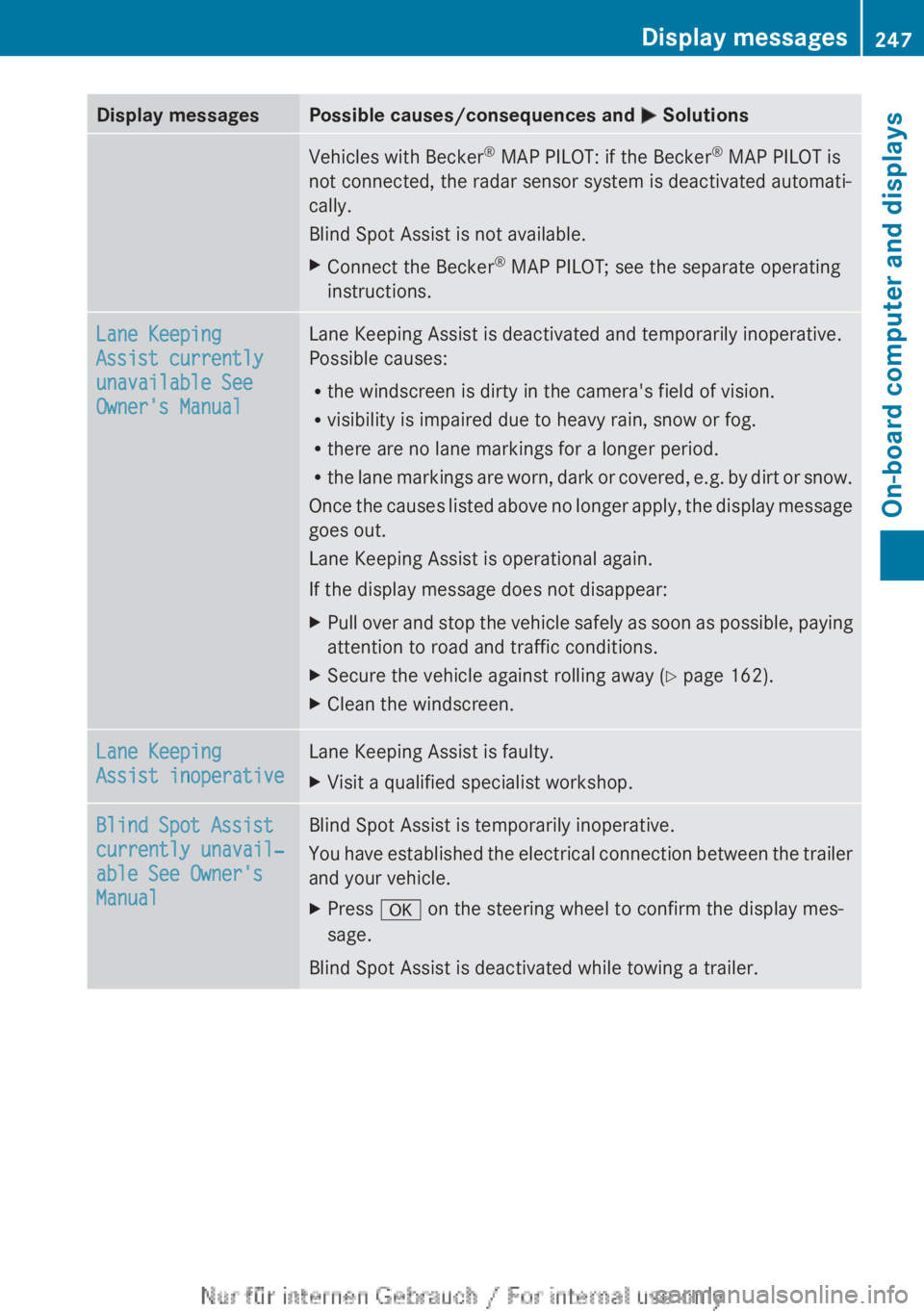
Display messages Possible causes/consequences and
M SolutionsVehicles with Becker
®
MAP PILOT: if the Becker ®
MAP PILOT is
not connected, the radar sensor system is deactivated automati-
cally.
Blind Spot Assist is not available.
X Connect the Becker ®
MAP PILOT; see the separate operating
instructions. Lane Keeping
Assist currently
unavailable See
Owner's Manual Lane Keeping Assist is deactivated and temporarily inoperative.
Possible causes:
R
the windscreen is dirty in the camera's field of vision.
R visibility is impaired due to heavy rain, snow or fog.
R there are no lane markings for a longer period.
R the
lane markings are worn, dark or covered, e.g. by dirt or snow.
Once the causes listed above no longer apply, the display message
goes out.
Lane Keeping Assist is operational again.
If the display message does not disappear:
X Pull over and stop the vehicle safely as soon as possible, paying
attention to road and traffic conditions.
X Secure the vehicle against rolling away ( Y page 162).
X Clean the windscreen. Lane Keeping
Assist inoperative Lane Keeping Assist is faulty.
X
Visit a qualified specialist workshop. Blind Spot Assist
currently unavail‐
able See Owner's
Manual Blind Spot Assist is temporarily inoperative.
You
have established the electrical connection between the trailer
and your vehicle.
X Press a on the steering wheel to confirm the display mes-
sage.
Blind Spot Assist is deactivated while towing a trailer. Display messages
247
On-board computer and displays Z
Page 250 of 356
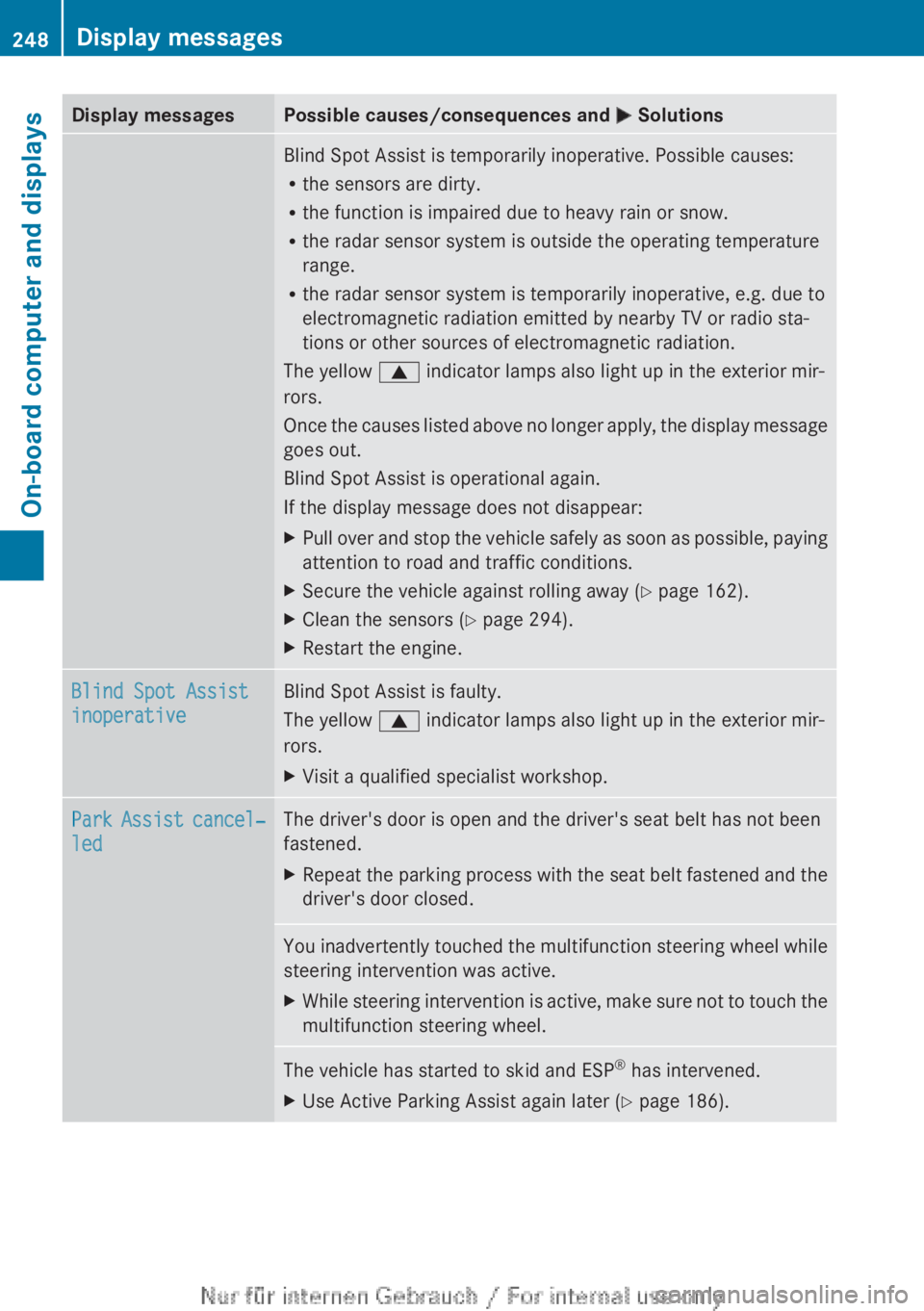
Display messages Possible causes/consequences and
M SolutionsBlind Spot Assist is temporarily inoperative. Possible causes:
R
the sensors are dirty.
R the function is impaired due to heavy rain or snow.
R the radar sensor system is outside the operating temperature
range.
R the radar sensor system is temporarily inoperative, e.g. due to
electromagnetic radiation emitted by nearby TV or radio sta-
tions or other sources of electromagnetic radiation.
The yellow 9 indicator lamps also light up in the exterior mir-
rors.
Once
the causes listed above no longer apply, the display message
goes out.
Blind Spot Assist is operational again.
If the display message does not disappear:
X Pull over and stop the vehicle safely as soon as possible, paying
attention to road and traffic conditions.
X Secure the vehicle against rolling away ( Y page 162).
X Clean the sensors ( Y page 294).
X Restart the engine. Blind Spot Assist
inoperative Blind Spot Assist is faulty.
The yellow
9 indicator lamps also light up in the exterior mir-
rors.
X Visit a qualified specialist workshop. Park Assist cancel‐
led The driver's door is open and the driver's seat belt has not been
fastened.
X
Repeat the parking process with the seat belt fastened and the
driver's door closed. You inadvertently touched the multifunction steering wheel while
steering intervention was active.
X
While steering intervention is active, make sure not to touch the
multifunction steering wheel. The vehicle has started to skid and ESP
®
has intervened.
X Use Active Parking Assist again later (Y page 186).248
Display messages
On-board computer and displays
Page 253 of 356
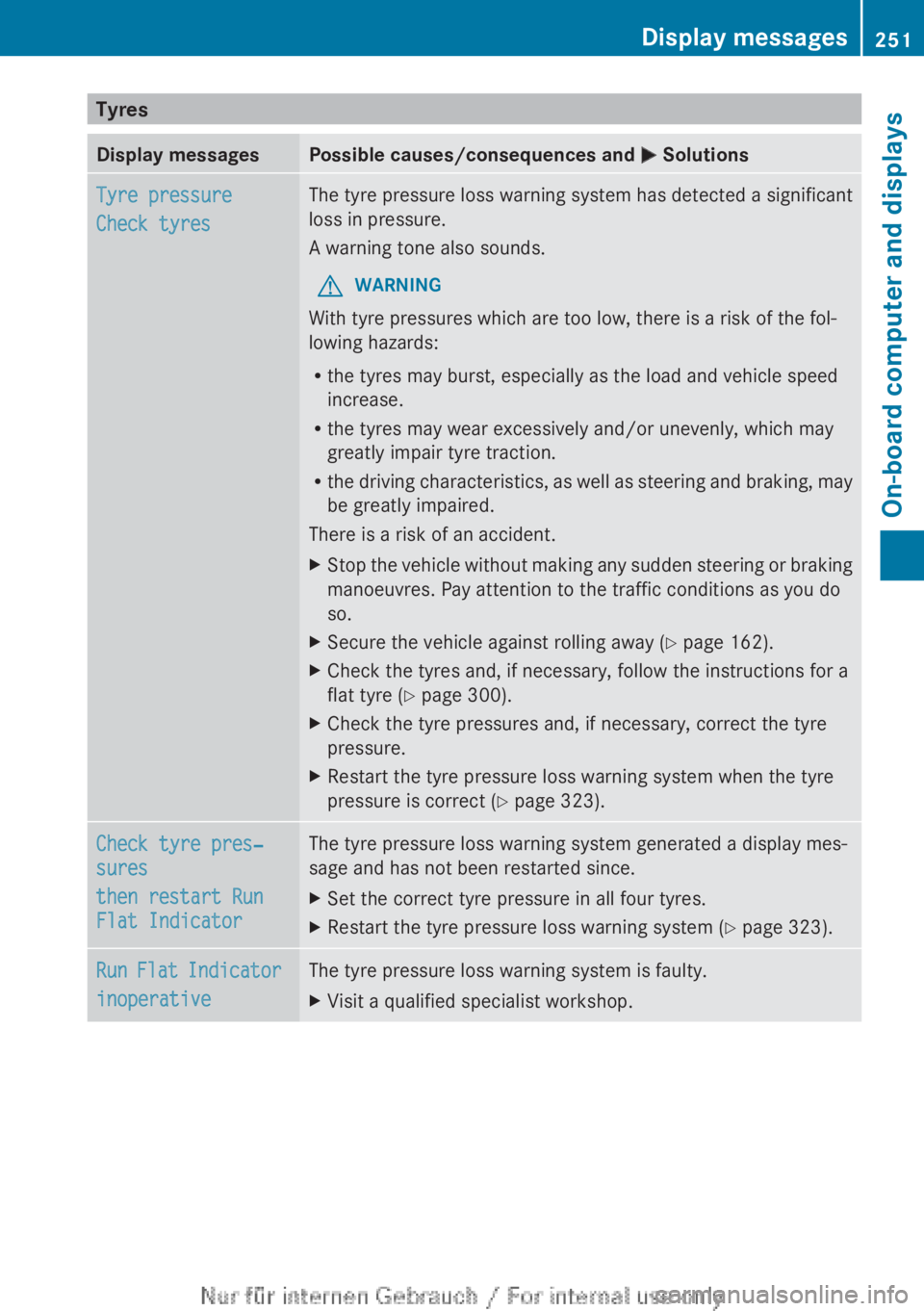
Tyres
Display messages Possible causes/consequences and
M SolutionsTyre pressure
Check tyres The tyre pressure loss warning system has detected a significant
loss in pressure.
A warning tone also sounds.
G WARNING
With tyre pressures which are too low, there is a risk of the fol-
lowing hazards:
R the tyres may burst, especially as the load and vehicle speed
increase.
R the tyres may wear excessively and/or unevenly, which may
greatly impair tyre traction.
R the
driving characteristics, as well as steering and braking, may
be greatly impaired.
There is a risk of an accident.
X Stop the vehicle without making any sudden steering or braking
manoeuvres. Pay attention to the traffic conditions as you do
so.
X Secure the vehicle against rolling away ( Y page 162).
X Check the tyres and, if necessary, follow the instructions for a
flat tyre (Y page 300).
X Check the tyre pressures and, if necessary, correct the tyre
pressure.
X Restart the tyre pressure loss warning system when the tyre
pressure is correct (Y page 323). Check tyre pres‐
sures
then restart Run
Flat Indicator The tyre pressure loss warning system generated a display mes-
sage and has not been restarted since.
X
Set the correct tyre pressure in all four tyres.
X Restart the tyre pressure loss warning system (Y page 323). Run Flat Indicator
inoperative The tyre pressure loss warning system is faulty.
X
Visit a qualified specialist workshop. Display messages
251
On-board computer and displays Z
Page 257 of 356
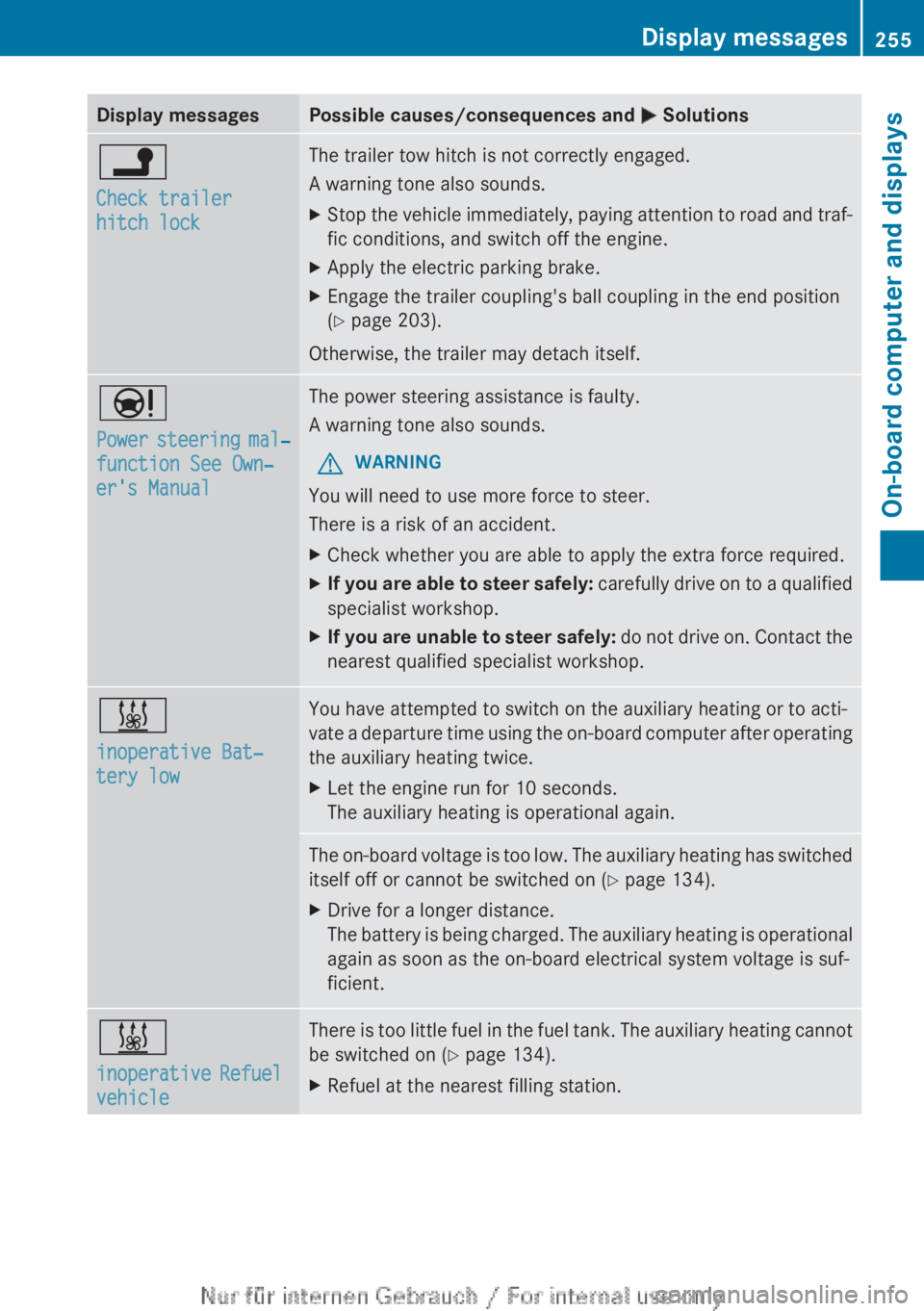
Display messages Possible causes/consequences and
M Solutionsj
Check trailer
hitch lock The trailer tow hitch is not correctly engaged.
A warning tone also sounds.
X
Stop the vehicle immediately, paying attention to road and traf-
fic conditions, and switch off the engine.
X Apply the electric parking brake.
X Engage the trailer coupling's ball coupling in the end position
(Y page 203).
Otherwise, the trailer may detach itself. Ð
Power
steering mal‐
function See Own‐
er's Manual The power steering assistance is faulty.
A warning tone also sounds.
G WARNING
You will need to use more force to steer.
There is a risk of an accident.
X Check whether you are able to apply the extra force required.
X If you are able to steer safely:
carefully drive on to a qualified
specialist workshop.
X If you are unable to steer safely:
do not drive on. Contact the
nearest qualified specialist workshop. &
inoperative Bat‐
tery low You have attempted to switch on the auxiliary heating or to acti-
vate
a departure time using the on-board computer after operating
the auxiliary heating twice.
X Let the engine run for 10 seconds.
The auxiliary heating is operational again. The on-board voltage is too low. The auxiliary heating has switched
itself off or cannot be switched on
(Y page 134).
X Drive for a longer distance.
The
battery is being charged. The auxiliary heating is operational
again as soon as the on-board electrical system voltage is suf-
ficient. &
inoperative
Refuel
vehicle There is too little fuel in the fuel tank. The auxiliary heating cannot
be switched on (
Y page 134).
X Refuel at the nearest filling station. Display messages
255
On-board computer and displays Z
Page 282 of 356
sion surrounding the possible health risk
posed by electromagnetic fields.
Mercedes-Benz recommends the use of an
approved exterior aerial. This ensures:
R
optimal mobile phone reception quality in
the vehicle
R mutual influences between the vehicle
electronics and mobile phones are mini-
mised
An exterior aerial has the following advan-
tages:
R it
conducts the electromagnetic fields gen-
erated by a wireless device to the exterior.
R the field strength in the vehicle interior is
lower than in a vehicle that does not have
an exterior aerial.
Information on retrofitting two-way radios
and mobile phones (RF transmitters)
(Y page 336).
General notes There are various mobile phone brackets that
may be fitted in your vehicle; in some cases,
these are country-specific.
You can connect a Bluetooth
®
-capable
mobile phone with Audio 20 or COMAND
Online
via the Bluetooth ®
interface. This also
applies if your vehicle is equipped with con-
venience telephony.
More information on suitable mobile phones,
mobile phone brackets and on connecting
Bluetooth ®
-capable mobile phones with
Audio 20 or COMAND Online can be obtained:
R at your Mercedes-Benz Service Centre
R on the Internet at http://www.mercedes-
benz.com/connect
i The functions and services available when
you use the phone depend on your mobile
phone model and service provider. Using a mobile phone If the mobile phone is inserted in the mobile
phone bracket, you can speak to the person
you are calling using the hands-free system.
X
Open the telephone compartment
(Y page 270).
X Place the mobile phone bracket into the
pre-installed fitting (see the separate
installation instructions for the mobile
phone fitting).
X Insert the mobile phone into the mobile
phone bracket (see the separate installa-
tion instructions for the mobile phone fit-
ting).
i On
some mobile phone brackets, first you
have to connect the phone to the mobile
phone bracket via Bluetooth ®
(see the sep-
arate operating instructions for the mobile
phone bracket).
If this is the case, the mobile phone does
not have to be inserted into the bracket for
you to be able to use the telephone func-
tions. However, the charging function and
aerial function are not available.
Operating the mobile phone You can operate the telephone using the
6 and ~ buttons on the multifunction
steering
wheel. You can operate other mobile
phone functions via the on-board computer
(Y page 215).
When you remove the key from the ignition
lock, the mobile phone stays switched on.
However, you can no longer use the hands-
free system.
If you have an active call and would like to
take the key out of the ignition lock, first
remove the mobile phone from the bracket.
i If you use a mobile phone bracket which
is connected to your mobile via Blue-
tooth ®
and you wish to continue a call on
your mobile phone:
You should switch the call to "Private
mode" before you remove the key from the 280
Features
Stowing and features