change time MERCEDES-BENZ A-CLASS HATCHBACK 2018 Owner's Manual
[x] Cancel search | Manufacturer: MERCEDES-BENZ, Model Year: 2018, Model line: A-CLASS HATCHBACK, Model: MERCEDES-BENZ A-CLASS HATCHBACK 2018Pages: 609, PDF Size: 10.73 MB
Page 234 of 609
The Drive
AwayAssi stfunction is active under
th efo llowing conditions:
R IfPa rking Assist PARKTRONIC is activated.
R Every time thege ar is changed tok orh
when theve hicle is at a standstill.
R Ifth e de tected obs tacle is less than appr ox.
1. 0 m away.
R Ifth e manoeuvring assis tance function is
acti vated in the multimedia sy stem.
Sy stem limitations
Drive AwayAssi stis not available on inclines and
when driving with a trailer.
Fu nction of Cross Traf fic Alert
% Also read the instructions on Blind Spot
Assist (→ page 237). Ve
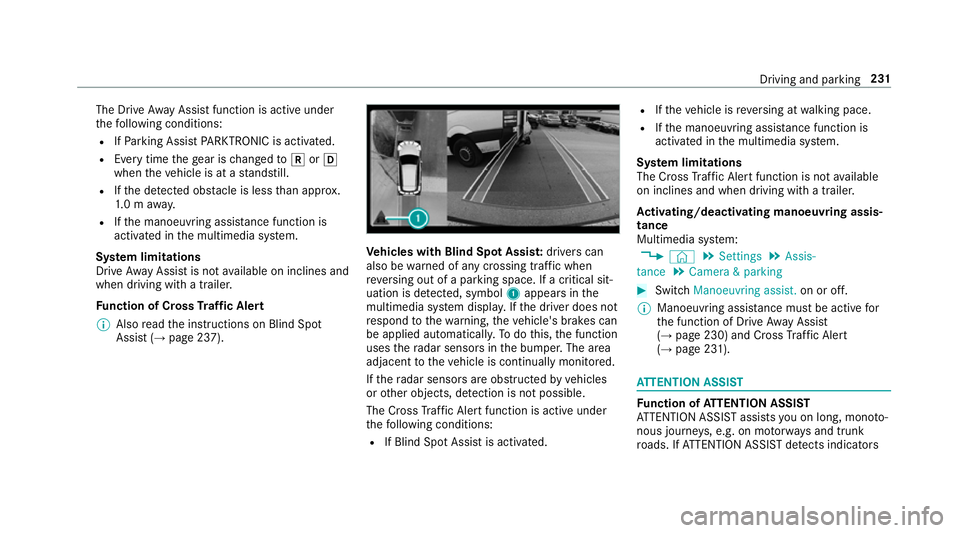
hicles with Blind Spot Assis t:drivers can
also be warned of any crossing traf fic when
re ve rsing out of a parking space. If a critical sit‐
uation is de tected, symbol 1appea rsinthe
multimedia sy stem displa y.Ifth e driver does not
re spond tothewa rning, theve hicle's brakes can
be applied automaticall y.To do this, the function
uses thera dar sensors in the bumper. The area
adjacent totheve hicle is continually monitored.
If th era dar sensors are obstructed byvehicles
or other objects, de tection is not possible.
The Cross Traf fic Alert function is acti veunder
th efo llowing conditions:
R If Blind Spot Assist is activated. R
Ifth eve hicle is reve rsing at walking pace.
R Ifth e manoeuvring assis tance function is
acti vated in the multimedia sy stem.
Sy stem limitations
The Cross Traf fic Alert function is not available
on inclines and when driving with a trailer.
Ac tivating/deactivating manoeuv ring assis‐
tance
Multimedia sy stem:
, © .
Settings .
Assis-
tance .
Camera & parking #
Switch Manoeuvring assist. on or off.
% Manoeuvring assis tance mu stbe active for
th e function of Drive AwayAssi st
( → page 230) and Cross Traf fic Alert
(→ page 231). AT
TENTION ASSI ST Fu
nction of ATTENTION ASSI ST
AT TENTION ASSIST assists you on long, mon oto‐
nous journe ys, e.g. on mo torw ays and trunk
ro ads. If ATTENTION ASSIST de tects indicators Driving and pa
rking 231
Page 238 of 609
ve
hicle in front, forve hicle speed and for braking
in good time. The maximum permissible speed
also depends on factors su chasthero ad sur‐
fa ce and traf fic conditions. Tr
af fic Sign Assist Fu
nction of Traf fic Sign Assist Tr
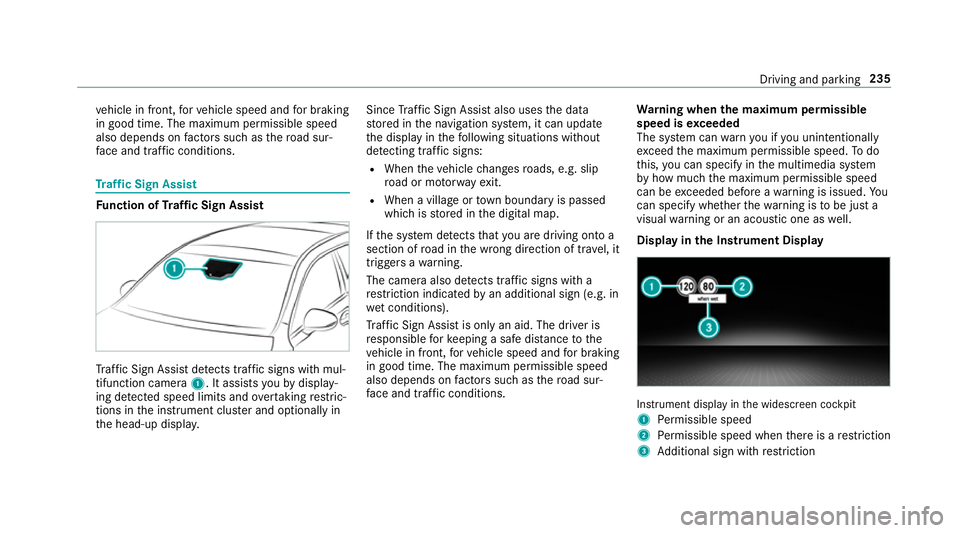
af fic Sign Assi stdetects traf fic signs wi thmul‐
tifunction camera 1. It assistsyo uby display‐
ing de tected speed limits and overtaking restric‐
tions in the instrument clus ter and optionally in
th e head-up displa y. Since
Traf fic Sign Assi stalso uses the data
st ored in the navigation sy stem, it can update
th e display in thefo llowing situations without
de tecting traf fic signs:
R When theve hicle changes roads, e.g. slip
ro ad or mo torw ay ex it.
R When a village or town boundary is passed
which is stored in the digital map.
If th e sy stem de tects that you are driving on to a
section of road in the wrong direction of tr avel, it
triggers a warning.
The camera also de tects traf fic signs wi th a
re striction indicated byan additional sign (e.g. in
we t conditions).
Tr af fic Sign Assi stis only an aid. The driver is
re sponsible forke eping a safe dis tance tothe
ve hicle in front, forve hicle speed and for braking
in good time. The maximum permissible speed
also depends on factors su chasthero ad sur‐
fa ce and traf fic conditions. Wa
rning when the maximum permissible
speed is exceeded
The sy stem can warnyou if you unin tentionally
exc eed the maximum permissible speed. Todo
th is, you can specify in the multimedia sy stem
by how much the maximum permissible speed
can be exceeded before a warning is issued. Yo u
can specify whe ther thewa rning is tobe just a
visual warning or an acoustic one as well.
Display in the Instrument Display In
stru ment display in the widescreen cockpit
1 Perm issible speed
2 Perm issible speed when there is a restriction
3 Additional sign with restriction Driving and pa
rking 235
Page 244 of 609
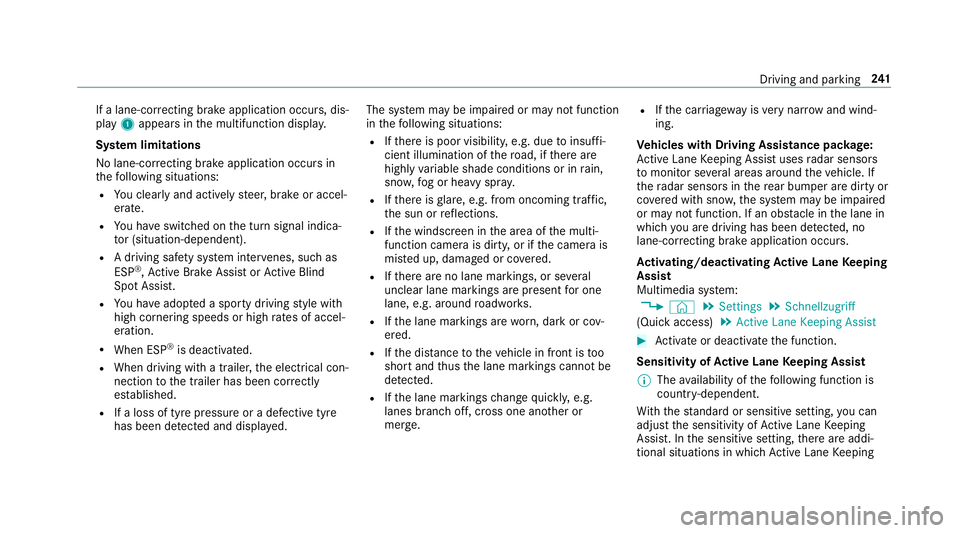
If a lane-cor
recting brake application occu rs, dis‐
play 1appears in the multifunction displa y.
Sy stem limitations
No lane-cor recting brake application occu rsin
th efo llowing situations:
R You clear lyand actively steer, brake or accel‐
erate.
R You ha veswitched on the turn signal indica‐
to r (situation-dependent).
R A driving saf ety sy stem inter venes, su chas
ESP ®
,Ac tive Brake Assi stor Active Blind
Spot Assi st.
R You ha veadop ted a sporty driving style with
high cornering speeds or high rates of accel‐
eration.
R When ESP ®
is deactivated.
R When driving with a trailer, the electrical con‐
nection tothe trailer has been cor rectly
es tablished.
R If a loss of tyre pressure or a defective tyre
has been de tected and displ ayed. The sy
stem may be impaired or may not function
in thefo llowing situations:
R Ifth ere is poor visibility, e.g. due toinsuf fi‐
cient illumination of thero ad, if there are
highly variable shade conditions or in rain,
sno w,fog or heavy spr ay.
R Ifth ere is glare, e.g. from oncoming traf fic,
th e sun or reflections.
R Ifth e windscreen in the area of the multi‐
function camera is dirty, or if the camera is
mis ted up, damaged or co vered.
R Ifth ere are no lane markings, or se veral
unclear lane markings are present for one
lane, e.g. around roadwor ks.
R Ifth e lane markings are worn, dark or cov‐
ered.
R Ifth e dis tance totheve hicle in front is too
short and thus the lane markings cann otbe
de tected.
R Ifth e lane markings change quickl y,e.g.
lanes branch off, cross one ano ther or
mer ge. R
Ifth e car riag ewa y is very nar row and wind‐
ing.
Ve hicles with Driving Assistance pac kage:
Ac tive Lane Keeping Assist uses radar sensors
to monitor se veral areas around theve hicle. If
th era dar sensors in there ar bumper are dirty or
co vered with sno w,the sy stem may be impaired
or may not function. If an obs tacle in the lane in
which you are driving has been de tected, no
lane-cor recting brake application occu rs.
Ac tivating/deactivating Active Lane Keeping
Assist
Multimedia sy stem:
, © .
Settings .
Schnellzugriff
(Quick access) .
Active Lane Keeping Assist #
Activate or deacti vate the function.
Sensitivity of Active Lane Keeping Assist
% The availability of thefo llowing function is
countr y-dependent.
Wi th th est andard or sensitive setting, you can
adjust the sensitivity of Active Lane Keeping
Assist. In the sensitive setting, there are addi‐
tional situations in which Active Lane Keeping Driving and parking
241
Page 259 of 609
R
Trip computer From startandFrom reset
R ECO displa y(→ page 160) #
Toselect the function tobe rese t:swipe
upwards or down wards on the left-hand
To uch Control. #
Press the left-hand Touch Control. #
Select Yes. #
Press the left-hand Touch Control.
If yo u press and hold the left-hand Touch Con‐
trol, theva lues of the function will be reset
immediatel y. Calling up navigation instructions on
the on-
board compu ter On-board computer:
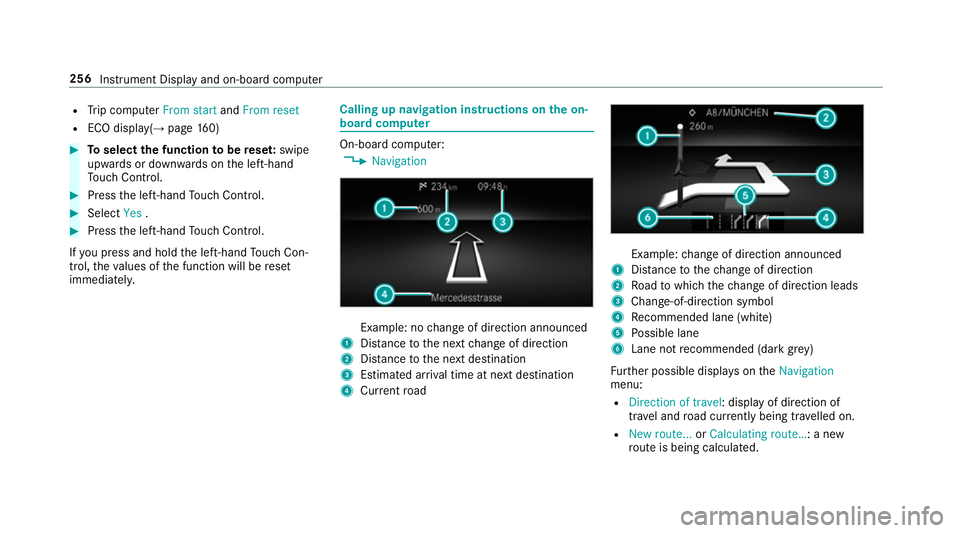
, Navigation Example: no
change of direction announced
1 Distance tothe next change of direction
2 Distance tothe next destination
3 Estimated ar riva l time at next destination
4 Current road Example:
change of direction announced
1 Distance tothech ange of direction
2 Road towhich thech ange of direction leads
3 Chan ge-of-direction symbol
4 Recommended lane (white)
5 Possible lane
6 Lane not recommended (da rkgrey)
Fu rther possible displa yson theNavigation
menu:
R Direction of travel: display of direction of
tra vel and road cur rently being tr avelled on.
R New route... orCalculating route… : a new
ro ute is being calculated. 256
Instru ment Display and on-board computer
Page 266 of 609
#
Tointer rupt avo ice output: speak inthe
middle of a voice dialogue when the sy stem
is still answering.
The voice output is shor tened and the con‐
clusion is reached more quickl y.
% The Voice barge-in option must be switched
on in the multimedia sy stem forth is
(→ page 263). Overview of
the LINGU ATRO NIC ope rable
functions Yo
u can use the LINGU ATRO NIC voice control
sy stem tooperate thefo llowing functions
depending on theve hicle equipment:
R Telephone
R Text messa ges
R Navigation
R Address book
R Radio
R Media
R Vehicle functions
R Weather Fu
ll functionality is only available foryo u with
activation of online voice control (→ page 263). Note
s on the language setting Yo
u can change the language of LINGU ATRO NIC
via the sy stem language settings. If the set sys‐
te m language is not suppor tedby LINGUA‐
TRONIC, English will be selected.
LINGU ATRO NIC is available in thefo llowing lan‐
guages:
R German
R English
R French
R Italian
R Dutch
R Polish
R Portuguese
R Russian
R Swedish
R Spanish
R Czech R
Turkish Setting LINGU
ATRO NIC (multimedia sy stem) Requ
irements:
Fo r online voice control:
R Your vehicle is connected with your
Mercedes me user account (→ page 391).
R There is an In tern et connection
(→ page 396).
Fo r activation of contacts for online use:
R Online voice control is activated.
Multimedia sy stem:
, © .
Settings .
System .
LIN-
GUATRONIC
Switching voice activation of LINGU ATRO NIC
on/o ff #
Select Voice activation "Hi Mercedes".
Depending on the pr evious status, the func‐
tion is activated or deactivated. LINGU
ATRO NIC 263
Page 307 of 609
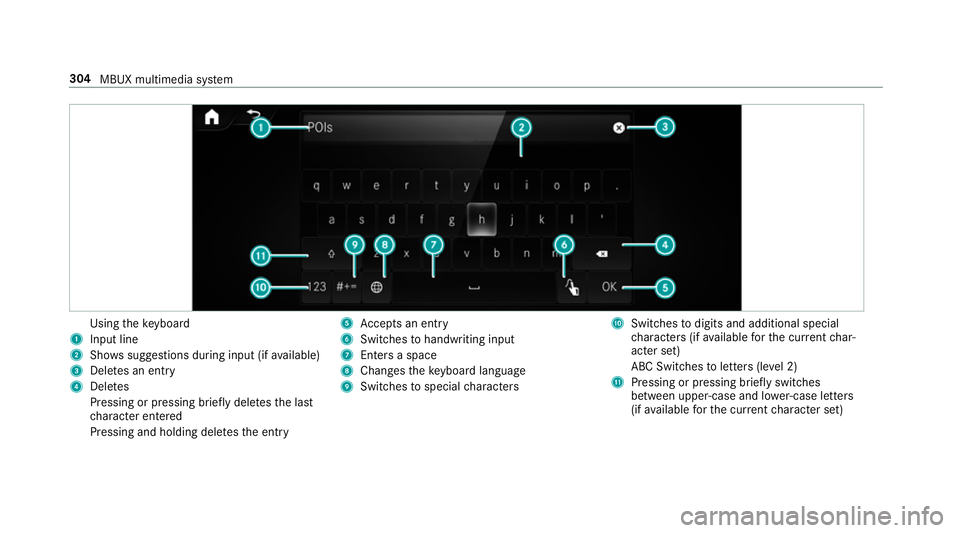
Using
theke yboard
1 Input line
2 Shows suggestions during input (if available)
3 Dele tes an entry
4 Dele tes
Pressing or pressing brief lydele testh e last
ch aracter entered
Pressing and holding dele testh e entry 5
Accepts an entry
6 Switches tohandwriting input
7 Enters a space
8 Changes theke yboard language
9 Switches tospecial characters A
Swit ches todigits and additional special
ch aracters (if available forth e cur rent char‐
acter set)
ABC Swit ches toletters (le vel 2)
B Pressing or pressing brief lyswitches
between upper-case and lo wer-case letters
(if available forth e cur rent character set) 304
MBUX multimedia sy stem
Page 311 of 609
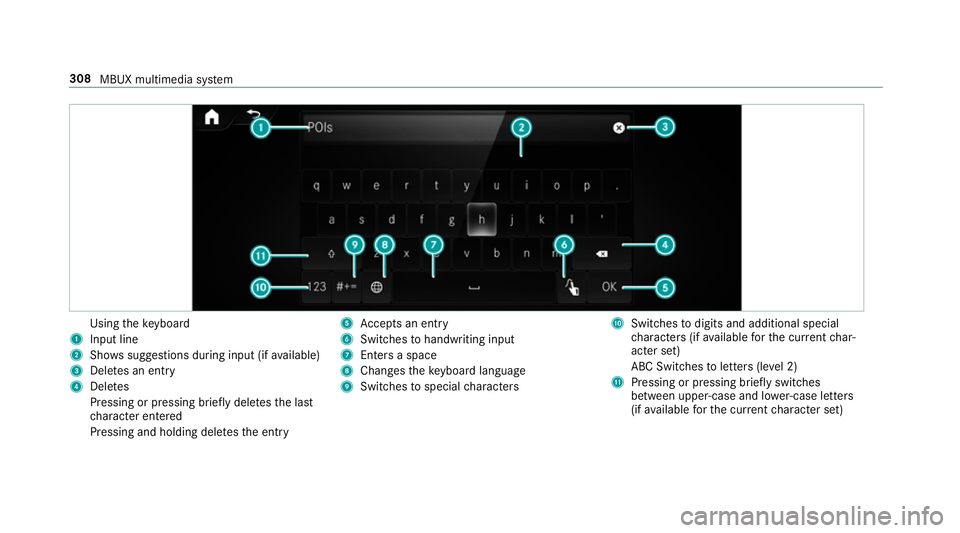
Using
theke yboard
1 Input line
2 Shows suggestions during input (if available)
3 Dele tes an entry
4 Dele tes
Pressing or pressing brief lydele testh e last
ch aracter entered
Pressing and holding dele testh e entry 5
Accepts an entry
6 Switches tohandwriting input
7 Enters a space
8 Changes theke yboard language
9 Switches tospecial characters A
Swit ches todigits and additional special
ch aracters (if available forth e cur rent char‐
acter set)
ABC Swit ches toletters (le vel 2)
B Pressing or pressing brief lyswitches
between upper-case and lo wer-case letters
(if available forth e cur rent character set) 308
MBUX multimedia sy stem
Page 314 of 609
#
Toselect a suggestion: select one ofthe
entri es. #
Ifav ailable, display additional suggestions
with q orr. #
Resume character input. The letters can be
written next toeach other or abo veeach
ot her. #
Toend character input: presstheG but‐
to n.
Setting the keyboard forch aracter entry
Multimedia sy stem:
, Settings .
System .
Controls .
Key-
boards and handwriting #
Confirm Select keyboards.
Select theke yboard language in the list. Sy
stem settings Display
Configuring display settings
Multimedia sy
stem:
, © .
Settings .
System .
Styles
& display
Setting the design #
Select Styles. #
Select Classic ,Sport orProgressive .
The multimedia sy stem display changes
depending on thest yle selected. If youre ve rt
to thefa ctory settings, theClassic style is
set.
Ad apting the ambient light for the style #
Select Adapt ambient lighting. #
Activate or deacti vate the function.
This function adjusts the ambient light for
th e selected display style.
Setting the display brightness #
Select Display brightness . #
Select a brightness value.
Switching the display off/on #
Off: select Display off . #
On: press a button, %,forex ample.
Selecting the display design #
Select Day/night design . #
Select Automatic, Day design orNight
design .
Switching thetemp erature display on/off #
Select Temperature display . #
Select Outside temp. orCoolant temp..
The selec tedte mp erature is displa yed in the
instrument clus ter. MBUX multimedia sy
stem 311
Page 320 of 609
Importing/exporting data
* NO
TELoss of da tadue topremature
re mo val #
Do not remo vethe data storage
medium when data is being expor ted.
Mercedes-Benz is not liable for any loss of
data. Re
quirements:
R The vehicle is stationary
R The ignition is swit ched on.
R A USB device is connected.
Multimedia sy stem:
, © .
Settings .
System .
System
backup #
Select Import data orExport data.
Importing #
Select a data storage medium.
A prom ptappears asking whe ther youre ally
wish to overwrite the cur rent da ta. If da ta originates from ano
ther vehicle, this is recog‐
nised du ring da tareading. #
Con firm the prom pt.
The files are impor ted. The multimedia sy stem is
re star ted once the data has been impor ted.
% Current vehicle settings can be edited af ter
th e import.
Exporting
If PIN pr otection is activated, your PIN is reques‐
te d. #
Ente rth efo ur-digit PIN. #
Select a data storage medium.
A prom ptappears asking whe ther youre ally
wish tocar ryout theex port. #
Confirm the prom pt.
The data is expor ted. The data export may
ta ke several minutes.
% After successful export, the data is sa ved in
th e "MyMercedesBac kup" directory which
can be found on thestorage medium. Ac
tivating/deactivating PIN pr otection Re
quirements:
Unb locking forth e PIN:
R There is an Internet connection.
R A Mercedes me account exists at http://
www.me rcedes.me.
R An individual user profile is active
(→ page 291).
Multimedia sy stem:
, © .
Settings .
System .
PIN pro-
tection
Setting the PIN #
Select Set PIN. #
Enter a four-digit PIN. #
Enterth efo ur-digit PIN again.
If bo thPINs match, PIN pr otection is active.
Changing the PIN #
Select Change settings. #
Enterth e cur rent PIN. MBUX multimedia sy
stem 317
Page 321 of 609
#
Select Change PIN. #
Set a new PIN.
Ac tivating PIN pr otection for data export #
Select Protect data export .
Ac tivate or deacti vate the function.
Un blocking the PIN via the Mercedes me por‐
tal
If th e PIN has been entered incor rectly three
times, the PIN will be bloc ked. You can ha ve a
single-use password sent to you via the
Mercedes me connect online por talto reset the
PIN pr otection. #
Select Unblock PIN. #
Ente rth e single-use password.
PIN pr otection is reset, and you can set a
new PIN. Software upda
teInformation on software upda
tes
A software upda teconsi sts of thre esteps:
R Downloading or copying of the data requ ired
fo r ins tallation R
Installation of the update
R Activation of the update byrestarting the
sy stem
The multimedia sy stem pr ovides a message
when an update is available.
Depending on the source, you can per form vari‐
ous updates:
Software updates Source of
the
update Up
date type
Interne tN avigation map, sys‐
te m updates, Digital
Owner's Manual
External storage
medium, e.g. USB
fl ash drive Na
vigation maps %
Installation can take several minutes and
cancellation is not possible. If you do not
ins tallth e software updates then thest atus
of your vehicle will not be up-to-date. During
th e ins tallation, individual functions or con‐ trol elements are not
available or on lyavaila‐
ble toa limited deg ree.
Ad vantages of updating software
Software updates ensure your vehicle's tech nol‐
ogy is al ways up-to-date.
In order toimpr oveth equ ality of our services
yo u will recei vefuture updates foryo ur multime‐
dia sy stem, the Mercedes me connect services
and your vehicle's communication module.
These will con veniently be sent to you via the
mobile phone connection in your vehicle and, in
many cases, ins talled automaticall y.Yo u can
monitor thest atus of your updates at any time
on the Mercedes me por tal and find information
about po tential inno vations.
Yo ur advantages at a glance:
R con veniently recei vesoftware update s via
th e mobile phone network
R impr ovesth equ ality and availability of
Mercedes me connect services
R keeps your multimedia sy stem and communi‐
cation module up-to-date 318
MBUX multimedia sy stem