change time MERCEDES-BENZ A-CLASS HATCHBACK 2018 Service Manual
[x] Cancel search | Manufacturer: MERCEDES-BENZ, Model Year: 2018, Model line: A-CLASS HATCHBACK, Model: MERCEDES-BENZ A-CLASS HATCHBACK 2018Pages: 609, PDF Size: 10.73 MB
Page 349 of 609
When an intermediate destination has been
re ached, you will see the intermediate destina‐
tion flag with the number of your Î inter‐
mediate destination. Route guidance is contin‐
ued.
Swit ching navigation announcements on/off #
Toswitch off: turnthevo lume control on
th esteering wheel or next totheto uchpad
during a navigation announcement
(→ page 301).
The Spoken driving recommendations have
been deactivated. message appears.
or #
Show the navigation menu (→ page 324).#
Select !.
The symbol changes to# . #
Toactivate: select#.
The cur rent navigation announcement is
pl ay ed.
The symbol changes to! .
% This function can be added and called up
from thefa vo urites within the navigation cat‐
egor y. Switching navigation announcements on/off
during a phone call #
Press the© button on thesteering wheel
or on theto uchpad.
or #
Tap on © inthe media displa y. #
Select Settings . #
Select System . #
Select Audio. #
Select Navigation and traffic announce-
ments . #
Switch Driving recommendations during call
on or off.
When the option is switched on, the display
button is activated. #
Tolea vethe menu: selectq. Ad
justing the volume of navigation
announcements
Multimedia sy stem:
, © .
Settings .
Sys-
tem .
Audio .
Navigation and traffic
announcements #
Select Driving recommendation vol. . #
Set thevo lume. #
Tolea vethe menu: selectq.
Ro ute guidance is active #
Turn thevo lume control on thesteering
wheel or next totheto uchpad during a navi‐
ga tion announcement.
Switching audio fadeout on or off during nav‐
igation announcements #
Press the© button on thesteering wheel
or on theto uchpad.
or #
Tap on © inthe media displa y. #
Select Settings . #
Select System . 346
MBUX multimedia sy stem
Page 358 of 609
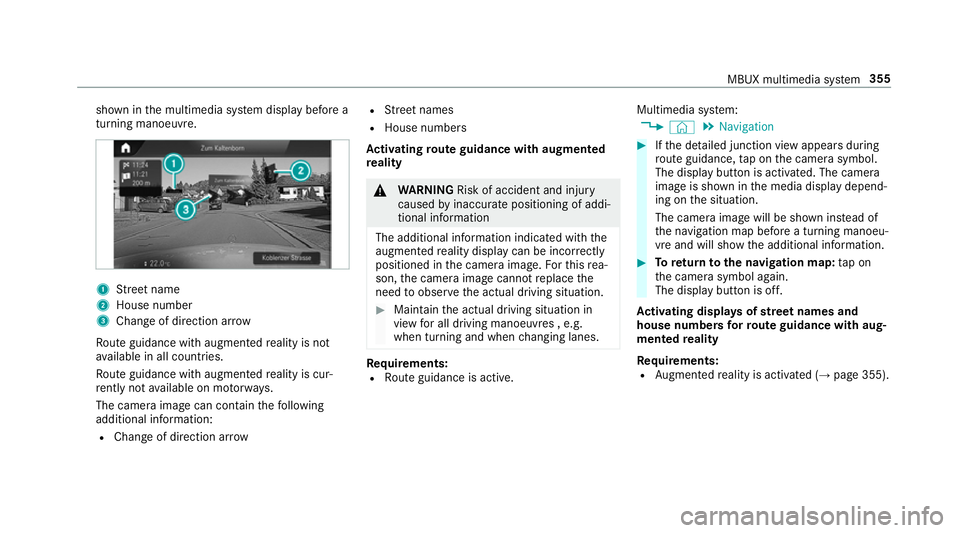
shown in
the multimedia sy stem display before a
turning manoeuvre. 1
Street name
2 House number
3 Change of di rection ar row
Ro ute guidance with augmented reality is not
av ailable in all countries.
Ro ute guidance with augmented reality is cur‐
re ntly not available on mo torw ays.
The camera image can contain thefo llowing
additional information:
R Change of direction ar row R
Street names
R House numbe rs
Ac tivating route guidance with augmented
re ality &
WARNING Risk of accident and inju ry
caused byinaccura tepositioning of addi‐
tional information
The additional information indicated with the
augmen tedre ality display can be incor rectly
positioned in the camera image. Forth is rea‐
son, the camera image cann otreplace the
need toobser vethe actual driving situation. #
Maintain the actual driving situation in
view for all driving manoeuvres , e.g.
when turning and when changing lanes. Re
quirements:
R Route guidance is active. Multimedia sy
stem:
, © .
Navigation #
Ifth e de tailed junction view appears during
ro ute guidance, tap on the camera symbol.
The display button is activated. The camera
image is shown in the media display depend‐
ing on the situation.
The camera image will be shown ins tead of
th e navigation map before a turning manoeu‐
vre and will show the additional information. #
Toreturn tothe navigation map: tap on
th e camera symbol again.
The display button is off.
Ac tivating displa ysofstre et names and
house numbers forro ute guidance with aug‐
mented reality
Re quirements:
R Augmented reality is activated (→ page 355). MBUX multimedia sy
stem 355
Page 361 of 609
#
Using quick- access: repeatedly tap or press
on theÄ compass symbol on the map.
The view changes in the sequence 3D,2D
heading up to2D north up .
If th e map is mo ved, it can switch between
3D and 2D north up .
Selecting POI symbols for the map display
Multimedia sy stem:
, © .
Navigation .
Z
POIs include filling stations and ho tels, forex am‐
ple. These can be displa yed as symbols on the
map. Not all POIs are available everywhere.
Pe rsonal POIs are destinations which you ha ve
sa ve d on a USB device, forex ample.
% The display of POI symbols on the map can
be activated or deactivated as a favo urite. #
Toswitch on/off using quick- access: if
av ailable, swit chPOI symbols on or off.
The POI symbols forth e selected categories
are shown on the map.
or #
Toswitch on/off in the menu: select
Advanced. #
Select View. #
Select Map elements. #
Select POI symbols . #
Swit chDisplay POIs on or off.
Selecting ca tegories #
Select All categories inthe menu r. #
Switch Show all on or off.
The POI symbols for all categories are shown
on the map.
or #
Select the categories and sub-categories (if
av ailable) r. #
Swit chthe categories and sub-categories (if
av ailable) on or off.
The POI symbols forth e selected categories
are shown on the map.
Selecting personal POI categories #
Select Personal POIs inthe menu r. #
Select a category r. #
Switch Display on the map on or off.
When the display is switched on and the
ve hicle approaches a personal POI in this
categor y,a visual and audible notification
can be issued. #
Toset a notification when appro aching:
select a category or a personal POI V. #
Switch Visual warning andAcoustic notifica-
tion on or off.
Switching display of catego ries forqu ick-
access on/off #
Switch a category on or off in the menu.
Re setting the POI symbol display #
Select Reset POIs inthe menu.
The settings are reset tothest andard set‐
tings. 358
MBUX multimedia sy stem
Page 363 of 609
#
Select Map version.
The de tail information is displa yed.
% The online map update service from
Mercedes me connect can be used to
update the map data (→ page 361).
A message is shown in the media display
when a new map version is available.
% Info rm ation about new versions of the digital
map can be obtained from a Mercedes-Benz
service cent re.
Overview of avoiding an area for the route
Yo u can define areas along a route that you
wo uld like toavoid.
Mo torw ays or multi-lane expressw ays, which are
ro uted thro ugh an area tobe avo ided are taken
into account forth ero ute.
Av oiding a new area for the route
Multimedia sy stem:
, © .
Naviga-
tion .
Z .
Advanced .
Route .
Avoid
options .
Avoid areas #
Select Avoid new area. #
Tostart in the map: selectUsing map. #
Movethe map (→ page 357). #
Tostart via destination sear ch:select Via
address entry. #
Enter the address (→ page 326). #
Select the destination in the list or accept
with a.
The map appears. #
Toshow an area: tap or press on the control
element.
A redre ctangle appea rs. This designates the
area that should be avoided. #
Tochange the map scale: movetwo fingers
apart or toget her on the media display or on
th eto uchpad.
The map is zoomed in or out. #
Toset an area: tap or press on the control
element.
The area is entered into the list. Changing an area
tobe avo ided
Multimedia sy stem:
, © .
Naviga-
tion .
Z .
Advanced .
Route .
Avoid
options .
Avoid areas #
Select an area in the list. #
Select Edit. #
Tomo vean area on the map: swipe in any
direction on the control element. #
Tochange the size of the area: tap or press
on the control element. #
Swipe up or down on the control element. #
Tap or press on the control element. #
Totake account of an area for the route:
select an area from the list. #
Activate Avoid area.
The display button is acti vated.
If ro ute guidance is active, a new route is cal‐
culated.
If th ere is no route yet,th e setting is car ried
ove rto the next route guidance. 360
MBUX multimedia sy stem
Page 372 of 609
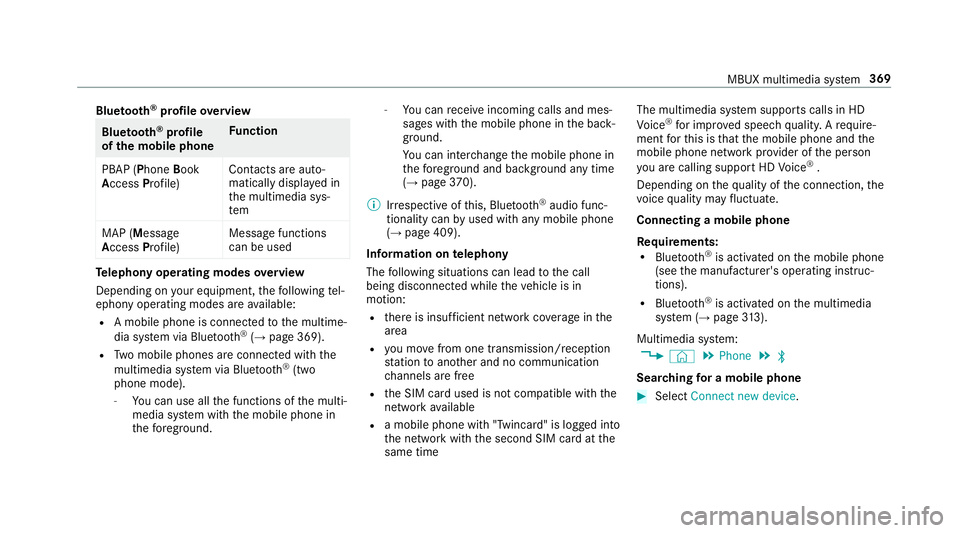
Blue
tooth ®
profile overview Blue
tooth ®
profile
of the mobile phone Fu
nction
PBAP (Phone Book
Access Profile) Contacts are auto‐
matically displa
yed in
th e multimedia sys‐
tem
MAP (Message
Access Profile) Message functions
can be used Te
lephony operating modes overview
Depending on your equipment, thefo llowing tel‐
ephony operating modes are available:
R A mobile phone is connec tedto the multime‐
dia sy stem via Blue tooth®
(→ page 369).
R Two mobile phones are connected with the
multimedia sy stem via Blue tooth®
(two
phone mode).
- You can use all the functions of the multi‐
media sy stem with the mobile phone in
th efo re ground. -
You can recei veincoming calls and mes‐
sages with the mobile phone in the back‐
ground.
Yo u can inter change the mobile phone in
th efo re ground and bac kground any time
(→ page 370).
% Irre spective of this, Blue tooth®
audio func‐
tionality can byused with any mobile phone
(→ page 409).
Information on telephony
The following situations can lead tothe call
being disconnected while theve hicle is in
motion:
R there is insuf ficient network co verage inthe
area
R you mo vefrom one transmission/reception
st ation toano ther and no communication
ch annels are free
R the SIM card used is not compatible with the
network available
R a mobile phone with "Twincard" is logged into
th e network with the second SIM card at the
same time The multimedia sy
stem supports calls in HD
Vo ice ®
for impr oved speech qualit y.Arequ ire‐
ment forth is is that the mobile phone and the
mobile phone network pr ovider of the person
yo u are calling suppo rtHD Voice ®
.
Depending on thequ ality of the connection, the
vo ice quality may fluctuate.
Connecting a mobile phone
Requ irements:
R Blue tooth ®
is activated on the mobile phone
(see the manufacturer's operating instruc‐
tions).
R Blue tooth ®
is activated on the multimedia
sy stem (→ page313).
Multimedia sy stem:
, © .
Phone .
ª
Sear ching for a mobile phone #
Select Connect new device . MBUX multimedia sy
stem 369
Page 373 of 609
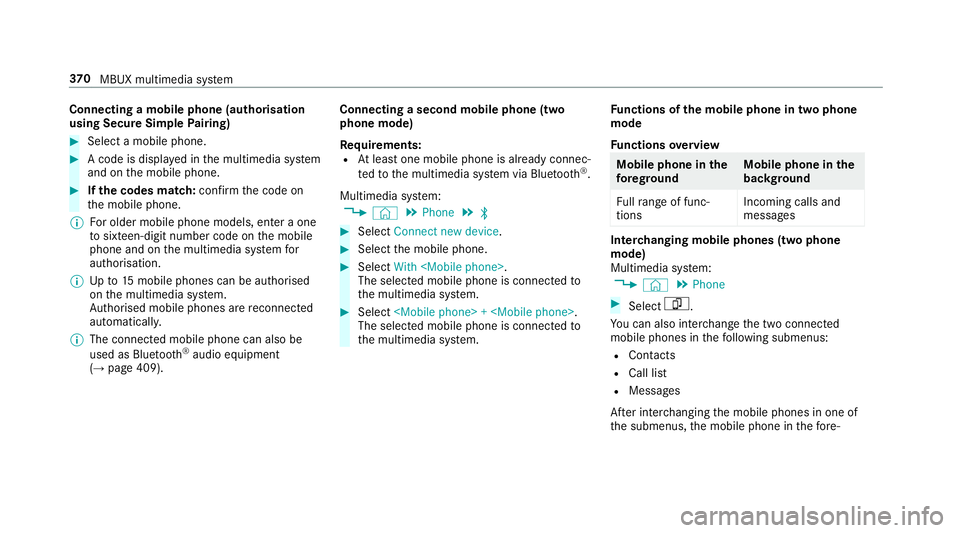
Connecting a mobile phone (au
thorisation
using Secure Simple Pairing) #
Select a mobile phone. #
A code is displa yed in the multimedia sy stem
and on the mobile phone. #
Ifth e codes match: confirm the code on
th e mobile phone.
% For older mobile phone models, enter a one
to sixteen-digit number code on the mobile
phone and on the multimedia sy stem for
authorisation.
% Upto15 mobile phones can be auth orised
on the multimedia sy stem.
Auth orised mobile phones are reconnected
au tomatical ly.
% The connected mobile phone can also be
used as Blue tooth®
audio equipment
(→ page 409). Connecting a second mobile phone (two
phone mode)
Requ irements:
R Atleast one mobile phone is already connec‐
te dto the multimedia sy stem via Blue tooth®
.
Multimedia sy stem:
, © .
Phone .
ª #
Select Connect new device. #
Select the mobile phone. #
Select With
The selected mobile phone is connected to
th e multimedia sy stem. #
Select
The selected mobile phone is connected to
th e multimedia sy stem. Fu
nctions of the mobile phone in two phone
mode
Fu nctions overview Mobile phone in
the
fo re gr ound Mobile phone in
the
bac kground
Fu llra nge of func‐
tions Incoming calls and
messa
ges Inter
changing mobile phones (two phone
mode)
Multimedia sy stem:
, © .
Phone #
Select F.
Yo u can also inter change the two connected
mobile phones in thefo llowing submenus:
R Contacts
R Call list
R Messages
Af ter inter changing the mobile phones in one of
th e submenus, the mobile phone in thefo re‐ 37 0
MBUX multimedia sy stem
Page 405 of 609
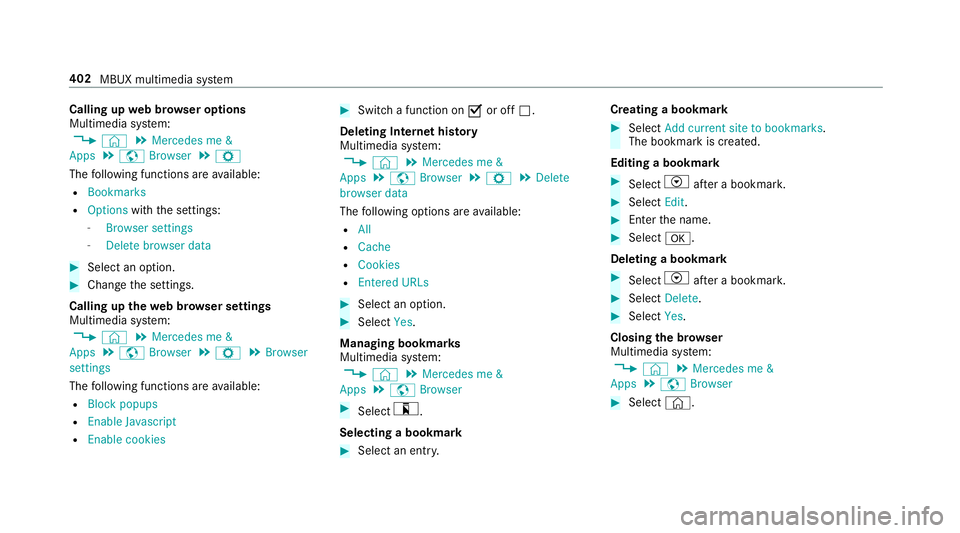
Calling up
web br owser options
Multimedia sy stem:
, © .
Mercedes me &
Apps .
z Browser .
Z
The following functions are available:
R Bookmarks
R Options withthe settings:
- Browser settings
- Delete browser data #
Select an option. #
Change the settings.
Calling up thewe b br owser settings
Multimedia sy stem:
, © .
Mercedes me &
Apps .
z Browser .
Z .
Browser
settings
The following functions are available:
R Block popups
R Enable Javascript
R Enable cookies #
Swit cha function on Oor off ª.
Deleting Internet his tory
Multimedia sy stem:
, © .
Mercedes me &
Apps .
z Browser .
Z .
Delete
browser data
The following options are available:
R All
R Cache
R Cookies
R Entered URLs #
Select an option. #
Select Yes.
Managing bookmar ks
Multimedia sy stem:
, © .
Mercedes me &
Apps .
z Browser #
Select ?.
Selecting a bookmark #
Select an entry. Creating a bookmark #
Select Add current site to bookmarks .
The bookmark is created.
Editing a bookmark #
Select Vafte r a bookmar k. #
Select Edit. #
Enter the name. #
Select a.
Deleting a bookmark #
Select Vafte r a bookmar k. #
Select Delete. #
Select Yes.
Closing the br owser
Multimedia sy stem:
, © .
Mercedes me &
Apps .
z Browser #
Select ©. 402
MBUX multimedia sy stem
Page 441 of 609
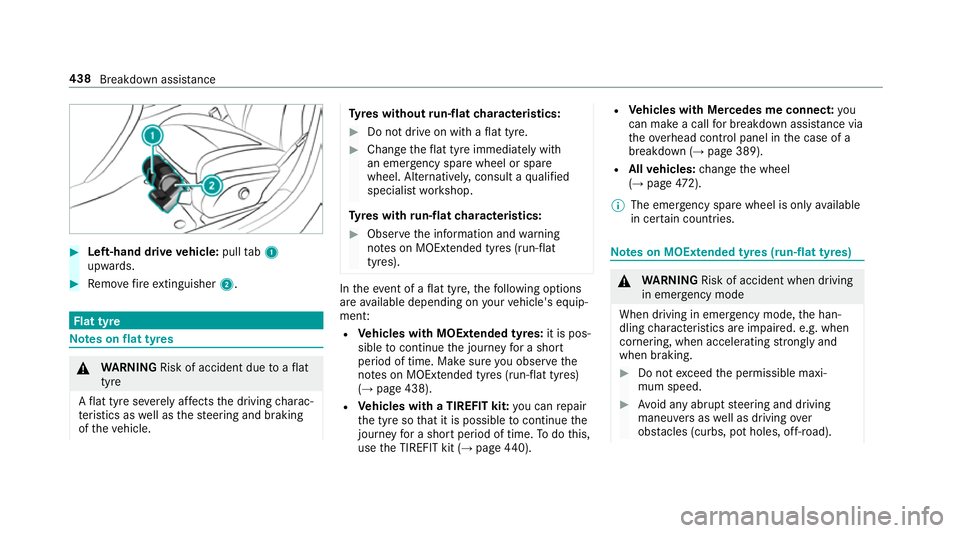
#
Left-hand drive vehicle: pulltab1
upwards. #
Remo vefire extinguisher 2. Flat tyre
Note
s onflat tyres &
WARNING Risk of accident due toaflat
tyre
A flat tyre se verely affects the driving charac‐
te rist ics as well as thesteering and braking
of theve hicle. Ty
res without run-flat characteristics: #
Do not drive on with a flat tyre. #
Chan getheflat tyre immediately with
an emer gency spa rewheel or spare
wheel. Alternativel y,consult a qualified
specialist workshop.
Ty res with run-flat characteristics: #
Obse rveth e information and warning
no tes on MOExtended tyres (run-flat
tyres). In
theeve nt of a flat tyre, thefo llowing options
are available depending on your vehicle's equip‐
ment:
R Vehicles with MOExtended tyres: it is pos‐
sible tocontinue the journey for a short
period of time. Make sure you obse rvethe
no tes on MOExtended tyres (run-flat tyres)
(→ page 438).
R Vehicles with a TIREFIT kit: you can repair
th e tyre so that it is possible tocontinue the
jou rney for a short period of time. Todo this,
use the TIREFIT kit (→ page440). R
Vehicles with Mercedes me connect: you
can make a call for breakdown assi stance via
th eov erhead control panel in the case of a
breakdown (→ page 389).
R Allvehicles: change the wheel
(→ page 472).
% The emergency spa rewheel is only available
in cer tain countries. Note
s on MOExtended tyres (run-flat tyres) &
WARNING Risk of accident when driving
in eme rgency mode
When driving in emer gency mode, the han‐
dling characteristics are impaired. e.g. when
cornering, when accelerating stronglyand
when braking. #
Do not exceed the permissible maxi‐
mum speed. #
Avoid any abrupt steering and driving
maneuvers as well as driving over
obs tacles (curbs, pot holes, off-road). 438
Breakdown assis tance
Page 476 of 609
#
Remo vethe hub caps if necessary
(→ page 473). #
Raise theve hicle (→ page473). Re
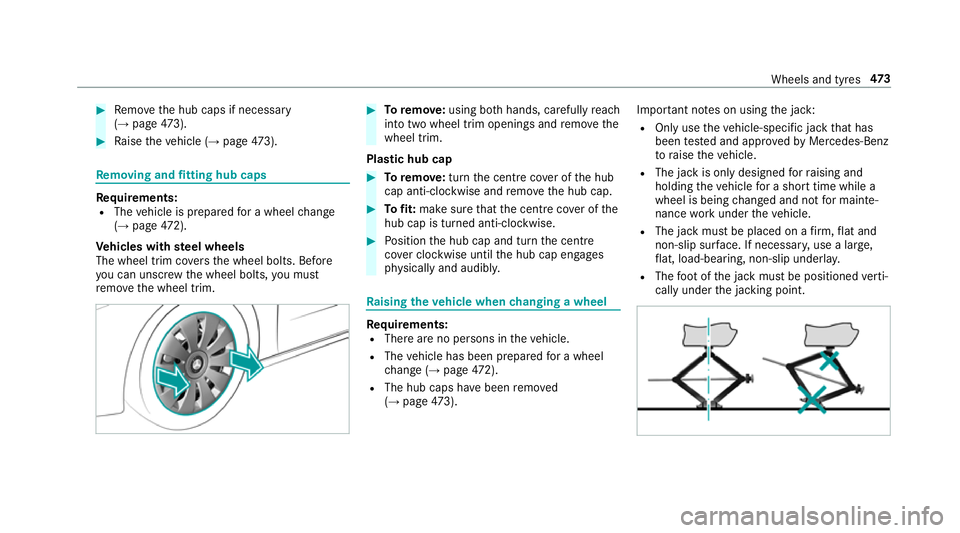
moving and fitting hub caps Re
quirements:
R The vehicle is prepared for a wheel change
(→ page 472).
Ve hicles with steel wheels
The wheel trim co vers the wheel bolts. Before
yo u can unscr ewthe wheel bolts, you must
re mo vethe wheel trim. #
Toremo ve:using bo thhands, carefully reach
into two wheel trim openings and remo vethe
wheel trim.
Plastic hub cap #
Toremo ve:turn the cent recover of the hub
cap anti-clockwise and remo vethe hub cap. #
Tofit: make sure that the cent recover of the
hub cap is turned anti-clockwise. #
Position the hub cap and turn the cent re
co ver clockwise until the hub cap engages
ph ysically and audibly. Ra
ising theve hicle when changing a wheel Re
quirements:
R There are no persons in theve hicle.
R The vehicle has been prepared for a wheel
ch ange (→ page472).
R The hub caps havebeen remo ved
( → page 473). Impo
rtant no tes on using the jack:
R Only use theve hicle-specific jack that has
been tested and appr ovedby Mercedes-Benz
to raise theve hicle.
R The jack is only designed forra ising and
holding theve hicle for a short time while a
wheel is being changed and not for mainte‐
nance workunder theve hicle.
R The jack must be placed on a firm ,fl at and
non-slip sur face. If necessar y,use a lar ge,
fl at, load-bearing, non-slip unde rlay.
R The foot ofthe jack must be positioned verti‐
cally under the jacking point. Wheels and tyres
473
Page 564 of 609
1,
2, 3 ...
12 V battery
see Battery (vehicle)
12 V so cket
see Soc ket (12 V)
11 5 V soc ket
see Soc ket (1 15 V)
230 V soc ket
see Soc ket (230 V)
360° Camera ........................................... 221
Ca re .................................................... 432
Fu nction .............................................. 221
Opening the camera co ver (r eve rsing
camera) .............................................. .225
Selecting a view ................................... 224
Setting favo urites ................................ 225
Swit ching automatic operation
on/off (r eversing camera) .................. .224 A
A/C function Activating/deactivating (multimedia
sy stem) ................................................ 14 3Switching on/off (control panel) .........
14 2
ABS (Anti-lock Braking Sy stem) ............ .185
Ac celeration
see Kickdown
Ac cess data
Setting (Blue tooth®
) ............................ 397
Ac oustic locking verification signal
Ac tivating/deactivating ......................... 66
Ac tivating/deactivating automatic
vo lume adjustment
Ad vanced sound sy stem ......................4 18
Burmes ter®
sur round sound sy stem ....4 16
Ac tive Blind Spot Assi st.......................... 237
Ac tivating/deactivating ...................... .240
Brake application ................................. 238
Fu nction .............................................. 237
Sy stem limitations ...............................2 37
Tr ailer operation .................................. 238
Ac tive bonn et(pedestrian pr otection) .. 420
Operation ............................................ 420
Re setting ............................................. 420
Ac tive Brake Assi st
Fu nction/no tes ................................... 19 0Setting .................................................
19 6
Ac tive Di stance Assist DISTRO NIC........ 200
Ac tive Emergency Stop Assist .............. 210
Ac tive Lane Change Assi st.................. 208
Calling up a speed ............................... 202
Displa ysinthe Instrument Display .......2 10
Fu nction .............................................. 200
Increasing/decreasing speed .............. 202
Re quirements: .................................... .202
Ro ute-based speed adap tation ........... .205
Selecting ............................................. 202
St eering wheel buttons ....................... 202
St oring a speed ................................... 202
Switching off/deactivating .................. 202
Switching on/activating ......................2 02
Sy stem limitations ...............................2 00
Ac tive Eme rgency Stop Assist ................ 210
Ac tive headlamps .................................... 12 5
Ac tive Lane Change Assi st..................... 208
Ac tivating/deactivating ...................... .210
Fu nction .............................................. 208
Ac tive Lane Keeping Assist .................... 24 0
Ac tivating/deactivating ...................... .241
Ac tivating/deactivating thewa rning .... 24 2 Index
561