ad blue MERCEDES-BENZ AMG GT R-ROADSTER 2020 Owners Manual
[x] Cancel search | Manufacturer: MERCEDES-BENZ, Model Year: 2020, Model line: AMG GT R-ROADSTER, Model: MERCEDES-BENZ AMG GT R-ROADSTER 2020Pages: 441, PDF Size: 7.76 MB
Page 26 of 441
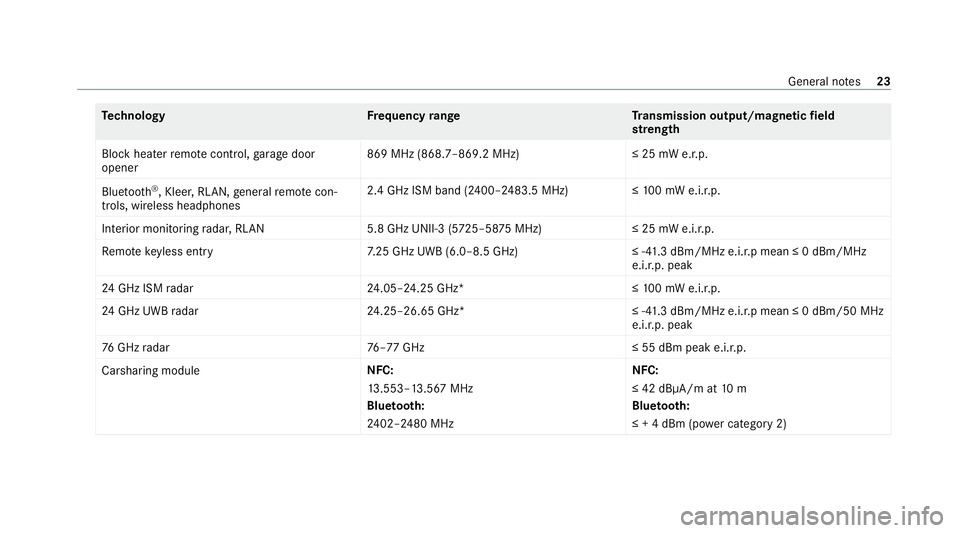
Te
ch nology Frequency rang eT ransmission output/magnetic field
st re ngth
Block heater remo tecontrol, garage door
opener 869 MHz (868.7–869.2 MHz
)≤25 mW e.r.p.
Blue tooth ®
, Kleer, RLAN, general remo tecon‐
trols, wi reless headphones 2.4 GHz ISM band (2400–2483.5 MHz
)≤100 mW e.i.r.p.
Interior monitoring radar, RLAN 5.8 GHz UNII-3 (5725–58 75MHz) ≤ 25 mW e.i.r.p.
Re mo tekeyless entry 7.25 GHz UWB (6.0–8.5 GHz) ≤ -41.3 dBm/MHz e.i.r.p mean ≤ 0 dBm/MHz
e.i.r.p. peak
24 GHz ISM radar 24.05–24.25 GHz* ≤10 0 mW e.i.r.p.
24 GHz UWB radar 24.25–26.65 GHz* ≤ -41.3 dBm/MHz e.i.r.p mean ≤ 0 dBm/50 MHz
e.i.r.p. peak
76 GHz radar 76–77 GHz ≤ 55 dBm peak e.i.r.p.
Carsharing module NFC:
13
.553–13.567 MHz
Blue tooth:
24 02–2480 MHz NFC:
≤ 42 dBμA/m at
10 m
Blue tooth:
≤ + 4 dBm (po wer category 2) General no
tes23
Page 115 of 441
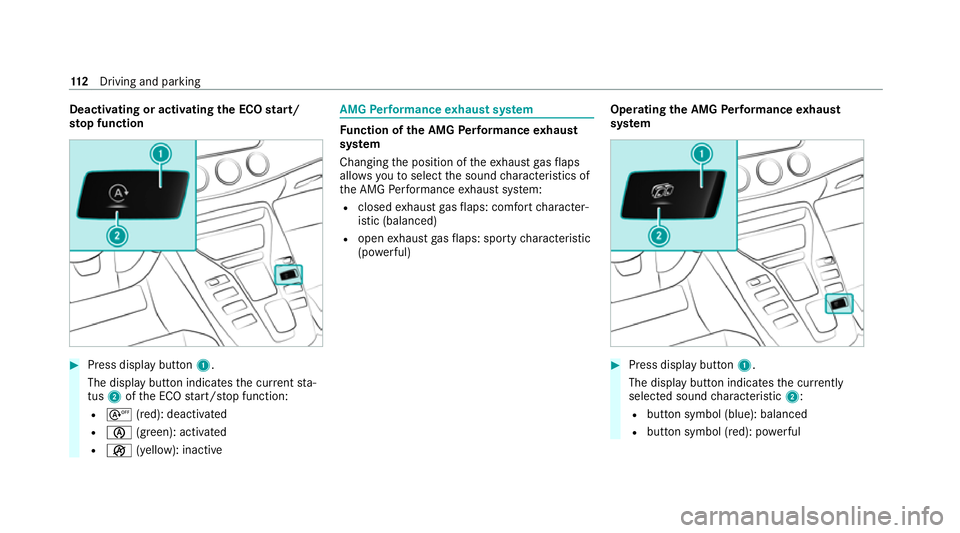
Deactivating or activating
the ECO start/
sto p function #
Press display button1.
The display button indicates the cur rent sta‐
tus 2ofthe ECO start/ stop function:
R s (red): deactivated
R è (green): activated
R ç (yellow): inactive AMG
Performance exhaust sy stem Fu
nction of the AMG Performance exhaust
sy stem
Changing the position of theex haust gasflaps
allo wsyouto select the sound characteristics of
th e AMG Performance exhaust sy stem:
R closed exhaust gasflaps: com fort ch aracter‐
istic (balanced)
R open exhaust gasflaps: sporty characteristic
(po werful) Ope
rating the AMG Performance exhaust
sy stem #
Press display button 1.
The display button indicates the cur rently
selected sound characteristic 2:
R button symbol (blue): balanced
R button symbol (red): po werful 11 2
Driving and pa rking
Page 124 of 441

%
Tomanoeuvre with an open driver's door,
open the driver's door while stationary and
engage transmission position hork
again.
Engaging drive position D #
Depress the brake pedal and pull the E-
SELECT selector le ver back past thefirst
point of resis tance.
When the automatic transmission is in transmis‐
sion position h, it shiftsthege ars automati‐
call y.This depends on thefo llowing factors:
R the selected drive prog ram
R the position of the accelera tor pedal
R the driving speed Note
s onthe double-clutch function The double-clut
chfunction is active when chang‐
ing down in all drive programs. The double-
clut chfunction reduces load change reactions
and suppo rts sporty driving. The acoustic per‐
ception of the double-clutch function changes
depending on the drive prog ram. Ro
cking theve hicle free Ro
cking theve hicle free can help tofree a vehi‐
cle that has become trapped in slush or sn ow.
To rock theve hicle free, mo vethe E-SELECT
selector le ver upwards and down wards past the
point of resis tance in order toswitch between
transmission positions hand k(/ page119).
% The ma ximum design speed when switching
between hand kis 9 km/h. Manual
gearshifting #
Toactivate/deacti vate: press display but‐
to n1.
The displ aybutton displa ys the cur rently
selected gear setting 2:
R M(red): manual gearshifting
R D(blue): automatic transmission Driving and parking
121
Page 138 of 441
R
More drive torque is transferred tothe wheel
or wheels with traction. Ac
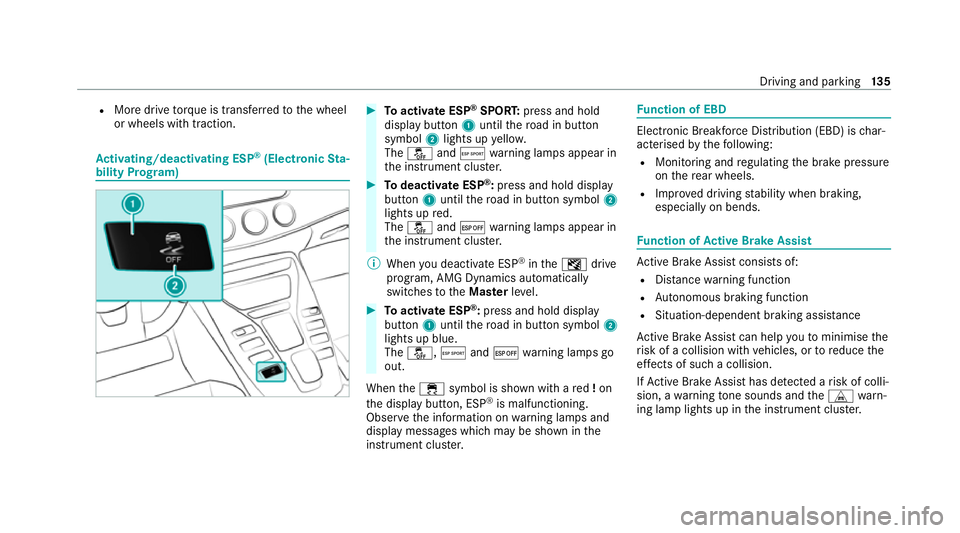
tivating/deactivating ESP ®
(Electronic Sta‐
bility Prog ram) #
Toactivate ESP ®
SPORT: press and hold
display button 1until thero ad in button
symbol 2lights up yello w.
The å andÆ warning lamps appear in
th e instrument clus ter. #
Todeactivate ESP ®
:press and hold displ ay
button 1until thero ad in button symbol 2
lights up red.
The å and¤ warning lamps appear in
th e instrument clus ter.
% When you deactivate ESP ®
in theI drive
prog ram, AMG Dynamics auto matically
switches totheMas terleve l. #
Toactivate ESP ®
:press and hold display
button 1until thero ad in button symbol 2
lights up blue.
The å, Æand¤ warning lamps go
out.
When the÷ symbol is shown with a red!on
th e display button, ESP ®
is malfunctioning.
Obser vethe information on warning lamps and
display messages which may be shown in the
instrument clus ter. Fu
nction of EBD Elect
ronic Breakforce Distribution (EBD) is char‐
acterised bythefo llowing:
R Monitoring and regulating the brake pressure
on there ar wheels.
R Impr oved driving stability when braking,
especially on bends. Fu
nction of Active Brake Assi st Ac
tive Brake Assi stconsi sts of:
R Distance warning function
R Autonomous braking function
R Situation-dependent braking assi stance
Ac tive Brake Assi stcan help youto minimise the
ri sk of a collision with vehicles, or toreduce the
ef fects of such a collision.
If Ac tive Brake Assi sthas de tected a risk of colli‐
sion, a warning tone sounds and theL warn‐
ing lamp lights up in the instrument clus ter. Driving and pa
rking 13 5
Page 153 of 441
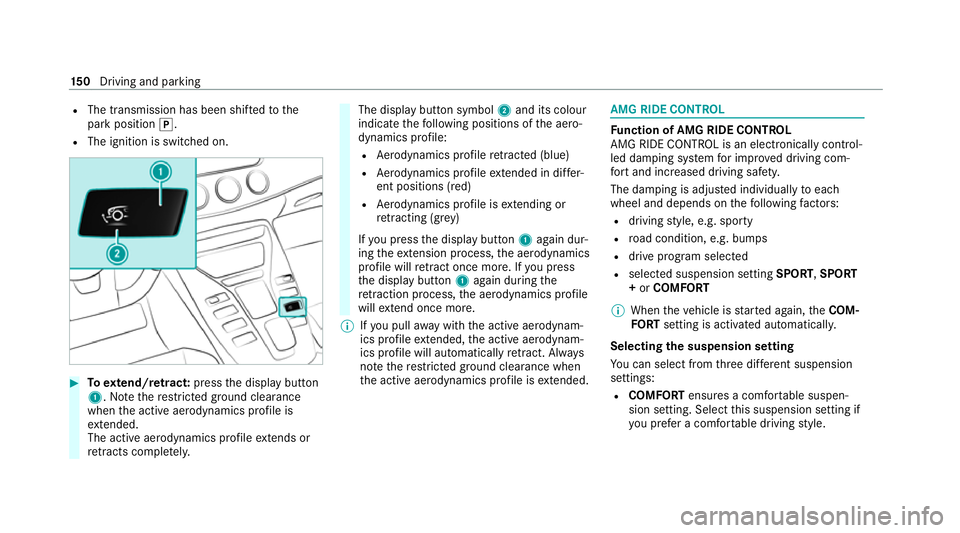
R
The transmission has been shif tedto the
park position j.
R The ignition is switched on. #
Toextend/r etra ct: press the display button
1. Notethere stricted ground clearance
when the active aerodynamics profile is
ex tended.
The acti veaerodynamics profile extends or
re tracts compl etely. The display button symbol
2and its colour
indicate thefo llowing positions of the aero‐
dynamics profile:
R Aerodynamics profile retracted (blue)
R Aerodynamics profile extended in di ffer‐
ent positions (red)
R Aerodynamics profile is extending or
re tracting (gr ey)
If yo u press the display button 1again dur‐
ing theex tension process, the aerodynamics
profile will retract once more. If you press
th e display button 1again during the
re traction process, the aerodynamics profile
will extend once more.
% Ifyo u pull away with the active aerodynam‐
ics profile extended, the active aerodynam‐
ics profile will automatically retract. Alw ays
no te there stricted ground clearance when
th e active aerodynamics profile is extended. AMG RIDE CONTROL
Fu
nction of AMG RIDE CONTROL
AMG RIDE CONTROL is an electronically control‐
led damping sy stem for impr oved driving com‐
fo rt and inc reased driving saf ety.
The damping is adjus ted individually toeach
wheel and depends on thefo llowing factors:
R driving style, e.g. sporty
R road condition, e.g. bumps
R drive program selec ted
R selected suspension setting SPORT,SPORT
+ or COMFORT
% When theve hicle is star ted again, theCOM‐
FO RT setting is activated automatically.
Selecting the suspension setting
Yo u can select from thre e dif fere nt suspension
settings:
R COMFORT ensures a comfor table suspen‐
sion setting. Select this suspension setting if
yo u prefer a comfor table driving style. 15 0
Driving and pa rking
Page 154 of 441
R
SPORT ensures a firm er suspension setting.
Select this suspension setting when employ‐
ing a sporty driving style, e.g. on winding
count ryroads.
R SPORT PLUS ensures avery firm suspension
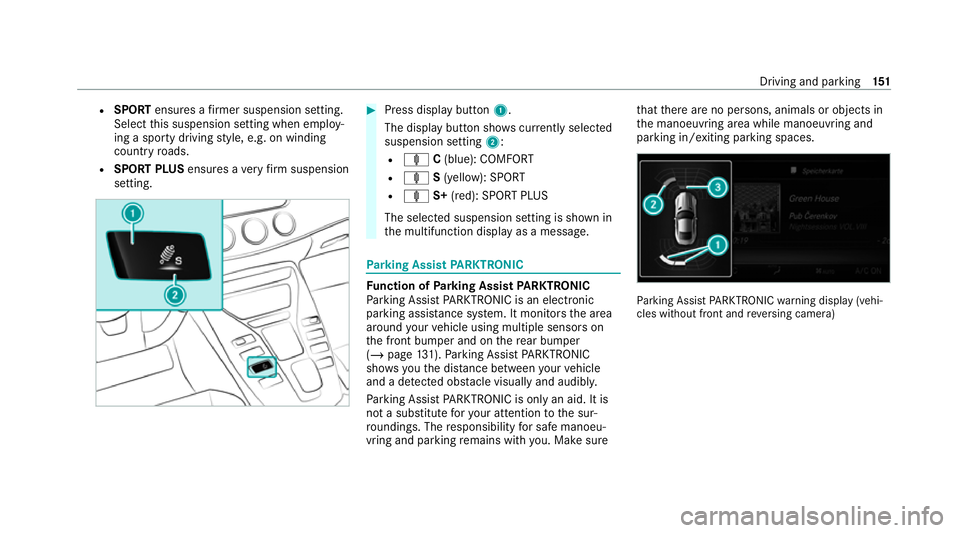
setting. #
Press display button 1.
The display button sho wscurrently selected
suspension setting 2:
R ä C(blue): COMFORT
R ä S(yellow): SPORT
R ä S+(red): SPORT PLUS
The selected suspension setting is shown in
th e multifunction display as a message. Pa
rking Assist PARKTRONIC Fu
nction of Parking Assist PARKTRONIC
Pa rking Assist PARKTRONIC is an electronic
parking assi stance sy stem. It monitors the area
around your vehicle using multiple sensors on
th e front bumper and on there ar bumper
(/ page 131).Pa rking Assist PARKTRONIC
sho wsyouth e dis tance between your vehicle
and a de tected obs tacle visually and audibly.
Pa rking Assist PARKTRONIC is on lyan aid. It is
not a substitute foryo ur attention tothe sur‐
ro undings. The responsibility for safe manoeu‐
vring and parking remains with you. Make sure th
at there are no persons, animals or objects in
th e manoeuvring area while manoeuvring and
parking in/exiting parking spaces. Pa
rking Assist PARKTRONIC warning display (vehi‐
cles without front and reve rsing camera) Driving and parking
151
Page 193 of 441
R
Calculation of expected time of ar riva l.
Setting the time zone
Multimedia sy stem:
4 System 5
& Time and date
5 Time zone:
The list of count ries is displa yed. #
Select a count ry#.
Depending on the count ry, time zones are
displa yed. #
Select a time zone.
The time zone set is displa yed af terTime
zone:.
Setting summer time
The Automatic Summer Time andSummer Time
options cannot be selected in all countries.
Multimedia sy stem:
4 System 5
& Time and date
Au tomatically #
Switch Automatic Summer Time onO or off
ª. Manual
ly #
Switch Automatic Summer Time offª. #
Select Summer Time. #
Select OnorOff.
Setting the time and date form at
Multimedia sy stem:
4 System 5
& Time and date
5 Set format #
Set the date and time form at#.
Setting the time manually
Re quirements:
R The Manual time adjustment function is
switched on.
Multimedia sy stem:
4 System 5
& Time and date
5 Set time #
Set the hours. #
Navigate totheright toset the minutes. #
Set the minutes. #
Confirm changes when exiting the menu. The date is set automatically via GPS. Connectivity
Setting up a hotspot via business
telephony
Multimedia sy stem:
4 System 5
ö Connectivity
5 Set up hotspot #
Select Select the vehicle's mobile hotspot . #
Select Business phone.
The hotspot is active.
Exte rnal devices (e.g. tablets) can be connec‐
te dto the multimedia sy stem via business
te lephon y.
% Information about setting up a hotspot
(/ page 259). Blue
tooth ® Information about Blu
etoo th®
Bl ue tooth ®
tech nology is a standard for short-
ra nge wi reless data transfer up toappr oximately
10 m. 19 0
Multimedia sy stem
Page 194 of 441
Yo
u can use Blue tooth®
to connect your mobile
phone tothe multimedia sy stem and use thefo l‐
lowing functions, forex ample:
R Hands-free sy stem with access tothefo llow‐
ing options:
- con tacts (/ page 239)
- call lists (/ page241)
- text messa ge (/page 242)
R Internet connection (/ page 257)
R Listening tomusic via Blue tooth®
audio
R Trans ferring business cards (vCards) into the
ve hicle
Blue tooth ®
is a regis tere d trademark of Blue‐
toot h Special Interest Group (SIG) Inc.
% Internet connection via Blue tooth®
is not
av ailable in all countries.
Ac tivating/deactivating Blue tooth ®
Re quirements:
R Deactivate Blue tooth®
: Apple CarPl ay®
is not
active. Multimedia sy
stem:
4 System 5
ö Connectivity #
Activate Oor deacti vate ª Bluetoo th®
.
If Android Autois active, a prom ptappears ask‐
ing whe ther Blue tooth®
should be deactivated. #
Select Yes.
Android Autois closed and Blue tooth®
is
deactivated. Wi
-Fi Wi
-Fi connection overview
Yo u can use Wi-Fi toestablish a connection with
a Wi -Fi network and toaccess the Internet or
ot her network devices.
The following connection options are available:
R Wi-Fi connection
The Wi-Fi connection toaWi -Fi-capable
device, e.g. the cus tomer's mobile phone or
a ta blet PC is es tablished.
R Multimedia sy stem as a Wi-Fi hotspot Using
this function, a tablet PC or no tebook
can be connecte d,forex ample.
To establish a connection, you can use thefo l‐
lowing me thods:
R WPS PIN
The connection toa secure Wi-Fi network is
made via a PIN.
R WPS PBC
The connection toa secure Wi-Fi network is
made bypressing a button (push button).
R Security key
The connection toa secure Wi-Fi network is
made via a secu rity key.
Setting up Wi-Fi
Requ irements:
R The device tobe connec ted supports one of
th eth re e means of connection described
(/ page 191). Multimedia sy
stem 191
Page 217 of 441
R
Announce street names
The multimedia sy stem announces the
names of thero ads that will follow the
upcoming change of direction.
This function is not available in all countries
and languages.
Displ aying destination information
Requ irements:
R A destination is entered.
Multimedia sy stem:
4 Navigation #
Select Intermediate destinations and info.
The following information is displa yed:
R Intermediate destinations and destination
The route can also include up tofour
intermediate destinations.
R Name, addre ss
R Remaining driving dis tance
R Time of ar rival Selecting an alternative
route
Multimedia sy stem:
4 Navigation 5
À Route and position #
Select Alternative route.
The routes are displ ayed in accordance with
th e setting made in thero ute settings.
The cur rently selected route is shown with a
dark blue line. #
Select the alternative route.
Swit ching the automatic filling station
sear chon/off
Multimedia sy stem:
4 Navigation 5
Z Options #
Switch Reserve fuel level onO or off ª.
Switched on O: whenthe fuel reser velevel
is reached, a prom ptappears asking whe ther
yo uwa nttostart sear ching forfilling sta‐
tions.
Using au tomatic filling station sear ch
Re quirements:
The automatic filling station sear chis activated
O (/ page 214). The prom
ptFuel tank reserve level Do you want
to start the search for filling stations? appears. #
Select Yes.
The au tomatic filling station sear chbegins.
The available filling stations along thero ute
or in the vicinity are displa yed. #
Select thefilling station. #
When there is no route, thefilling station is
set as the destination.
or #
When there is a route, thefilling station is set
as the next intermediate destination.
St arting the automatic service station
sear ch
Re quirements:
R ATTENTION ASSIST and theSuggest rest
area function are activated (/ page157).
Driving situation
The ATTENTION ASSIST Do you want to start
the rest area search? messageis shown. 214
Multimedia sy stem
Page 234 of 441
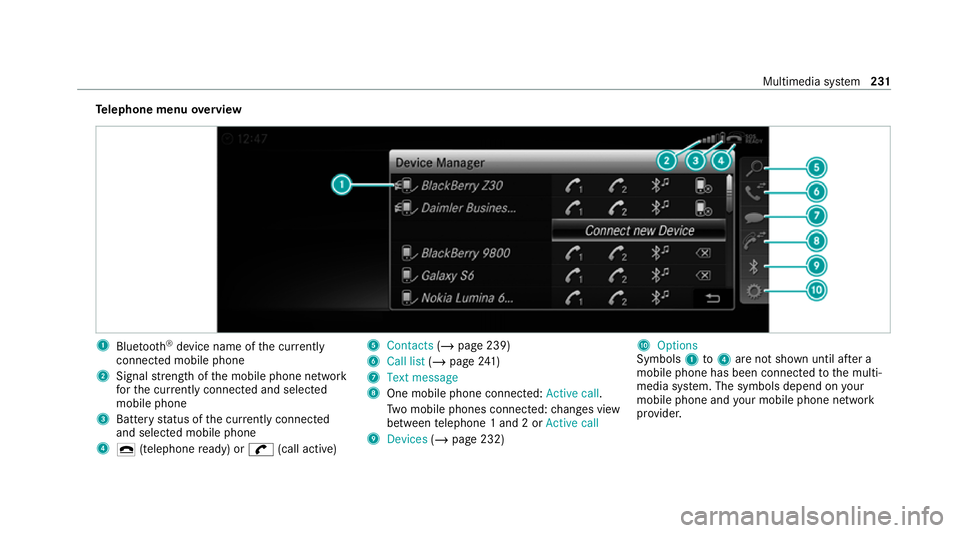
Te
lephone menu overview 1
Blue tooth ®
device name of the cur rently
connected mobile phone
2 Signal stre ngth of the mobile phone network
fo rth e cur rently connected and selected
mobile phone
3 Battery status of the cur rently connected
and selected mobile phone
4 ¢ (telephone ready) or w(call active) 5
Contacts (/page 239)
6 Call list (/page 241)
7 Text message
8 One mobile phone connected: Active call.
Tw o mobile phones connected: changes view
between telephone 1 and 2 or Active call
9 Devices (/page 232) A
Options
Symbols 1to4 are not shown until af ter a
mobile phone has been connected tothe multi‐
media sy stem. The symbols depend on your
mobile phone and your mobile phone network
pr ov ider. Multimedia sy
stem 231