reset MERCEDES-BENZ B-CLASS HATCHBACK 2015 User Guide
[x] Cancel search | Manufacturer: MERCEDES-BENZ, Model Year: 2015, Model line: B-CLASS HATCHBACK, Model: MERCEDES-BENZ B-CLASS HATCHBACK 2015Pages: 293, PDF Size: 10.83 MB
Page 103 of 293
Headlamp flasher
X
To switch on: turn the key in the ignition lock
to position 1or 2or start the drive system.
X Pull the combination switch in the direction of
arrow =. Headlamp cleaning system
Vehicles with bi-xenon headlamps: the head-
lamps are cleaned automatically if the "Wipe
with washer fluid" function is operated five
times (Y page 108) while the lights are on and
the drive system is running. When you switch off the ignition, the automatic headlamp cleaning
system is reset and counting is resumed from 0. Hazard warning lamps
X
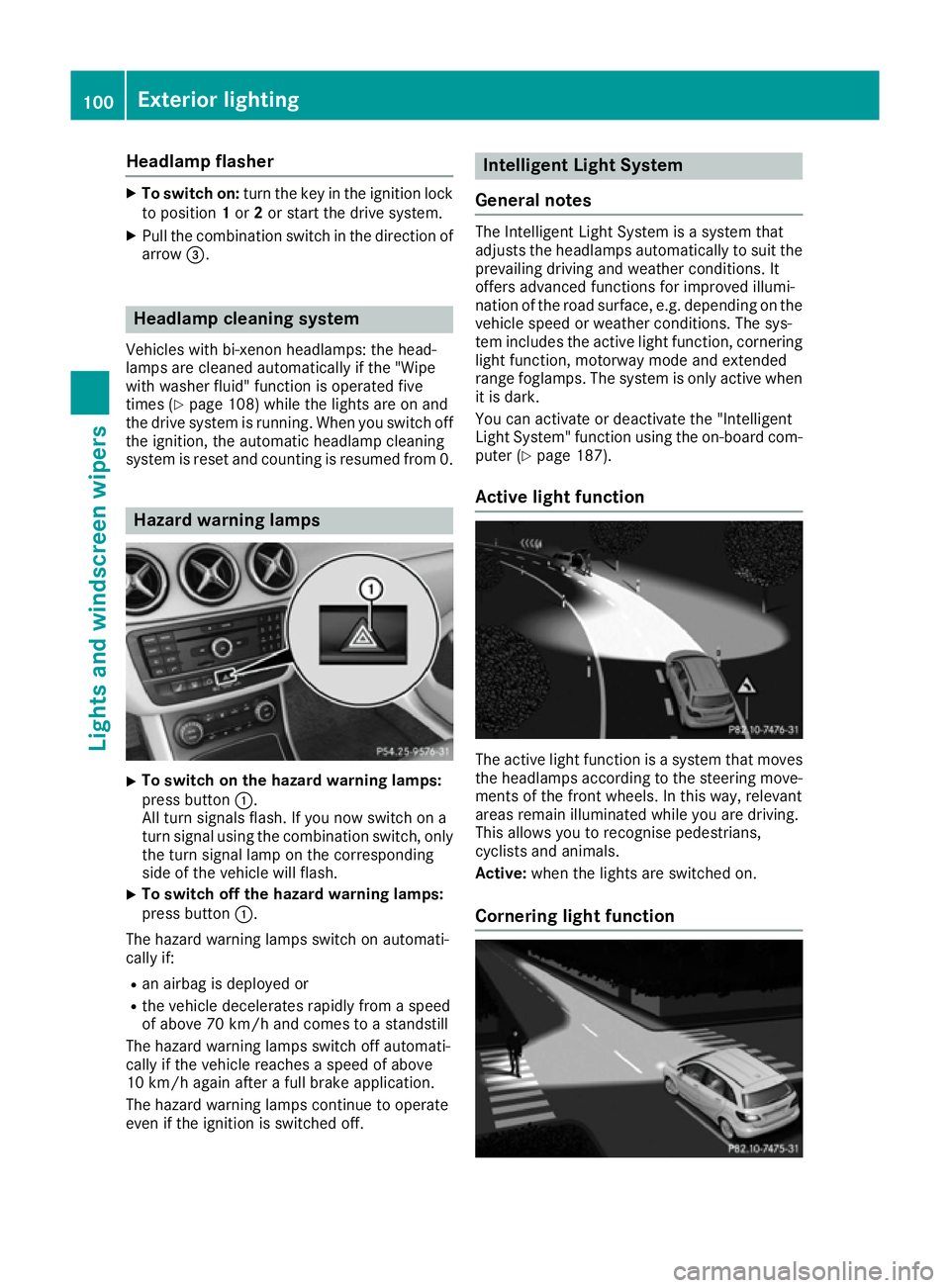
To switch on the hazard warning lamps:
press button :.
All turn signals flash. If you now switch on a
turn signal using the combination switch, only the turn signal lamp on the corresponding
side of the vehicle will flash.
X To switch off the hazard warning lamps:
press button
:.
The hazard warning lamps switch on automati-
cally if:
R an airbag is deployed or
R the vehicle decelerates rapidly from a speed
of above 70 km/h and comes to a standstill
The hazard warning lamps switch off automati-
cally if the vehicle reaches a speed of above
10 km/h again after a full brake application.
The hazard warning lamps continue to operate
even if the ignition is switched off. Intelligent Light System
General notes The Intelligent Light System is a system that
adjusts the headlamps automatically to suit the
prevailing driving and weather conditions. It
offers advanced functions for improved illumi-
nation of the road surface, e.g. depending on the vehicle speed or weather conditions. The sys-
tem includes the active light function, corneringlight function, motorway mode and extended
range foglamps. The system is only active when it is dark.
You can activate or deactivate the "Intelligent
Light System" function using the on-board com-
puter (Y page 187).
Active light function The active light function is a system that moves
the headlamps according to the steering move-
ments of the front wheels. In this way, relevant
areas remain illuminated while you are driving.
This allows you to recognise pedestrians,
cyclists and animals.
Active: when the lights are switched on.
Cornering light function 100
Exterior lightingLights and windscreen wipers
Page 141 of 293
Energy consumption indicator
:may differ
from the indicator in the From start
From start
(Y page 176) trip computer in the Trip
Trip menu.
Displaying energy consumption and recu-
perated electric energy:
X Switch on Audio 20/COMAND Online (see
the separate operating instructions).
X To select Vehicle
Vehicle from the main function bar:
turn and press the controller.
The vehicle menu appears.
X To select Consumption
Consumption: turn and press the
controller.
Energy consumption :and recuperated
electric energy ;for the last 15 minute s of
the journey are shown.
Exiting the vehicle settings: X Press the %button on the controller.
or X To select %: slide 6and press the con-
troller.
To reset values: the values are reset From
From
start start along with the trip computer
(Y page 178).
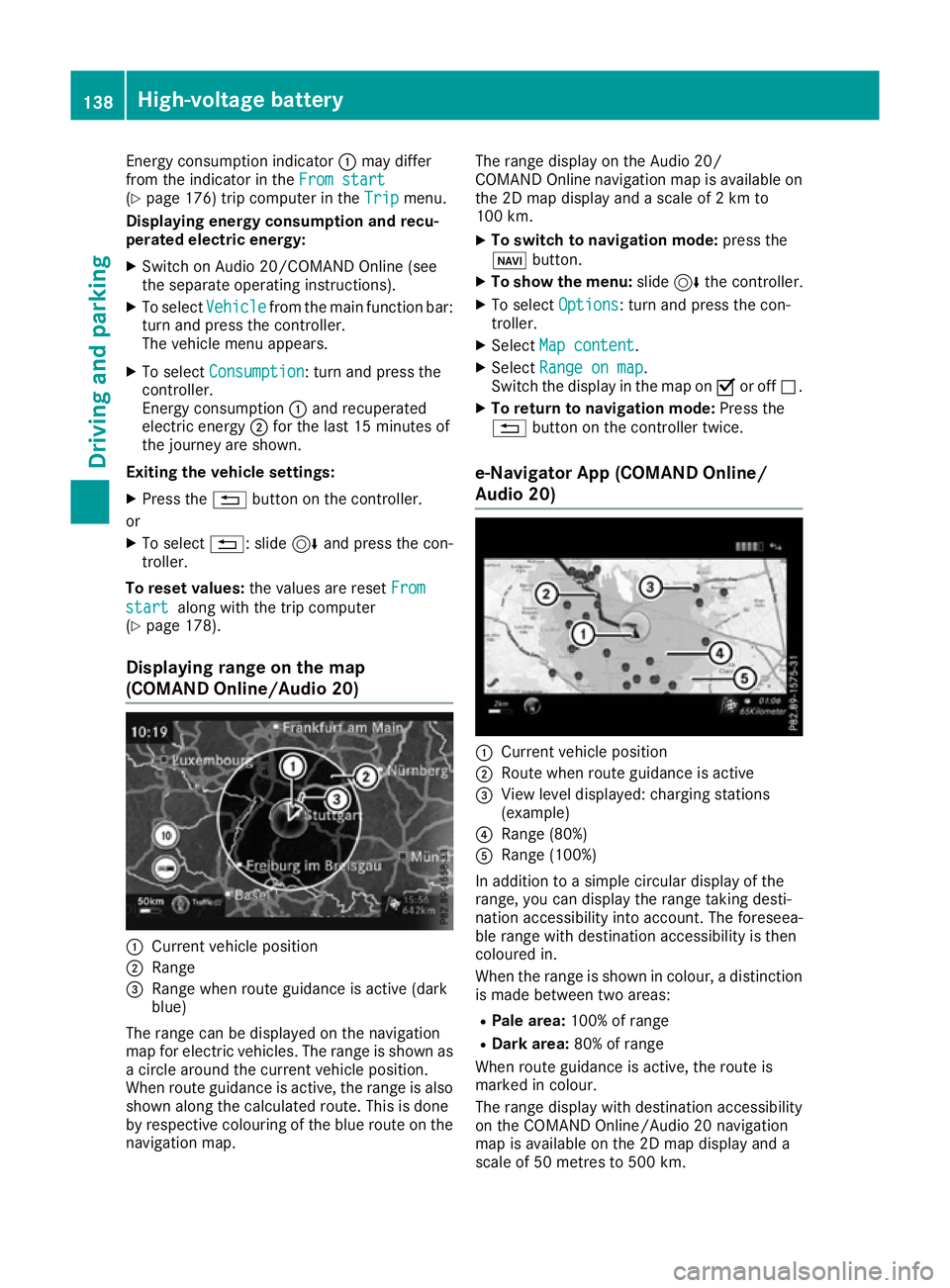
Displaying range on the map
(COMAND Online/Audio 20) :
Current vehicle position
; Range
= Range when route guidance is active (dark
blue)
The range can be displayed on the navigation
map for electric vehicles. The range is shown as
a circle around the current vehicle position.
When route guidance is active, the range is also
shown along the calculated route. This is done
by respective colouring of the blue route on the
navigation map. The range display on the Audio 20/
COMAND Online navigation map is available on
the 2D map display and a scale of 2 km to
100 km.
X To switch to navigation mode: press the
ß button.
X To show the menu: slide6the controller.
X To select Options Options: turn and press the con-
troller.
X Select Map content
Map content.
X Select Range on map
Range on map .
Switch the display in the map on Oor off ª.
X To return to navigation mode: Press the
% button on the controller twice.
e-Navigator App (COMAND Online/
Audio 20) :
Current vehicle position
; Route when route guidance is active
= View level displayed: charging stations
(example)
? Range (80%)
A Range (100%)
In addition to a simple circular display of the
range, you can display the range taking desti-
nation accessibility into account. The foreseea-
ble range with destination accessibility is then
coloured in.
When the range is shown in colour, a distinction
is made between two areas:
R Pale area: 100% of range
R Dark area: 80% of range
When route guidance is active, the route is
marked in colour.
The range display with destination accessibility
on the COMAND Online/Audio 20 navigation
map is available on the 2D map display and a
scale of 50 metres to 500 km. 138
High-voltage batteryDriving and parking
Page 144 of 293
If, after the charging process, the charging cable
is:
R left connected to the power socket, the cur-
rently selected values will be used for the next
charging process.
R removed from the power socket, the values
will be reset to the minimum setting for the
next charging process. You may then need to reset the values of the maximum charge cur-
rent.
If the charge current values that have been set
on the charging cable and the on-board com-
puter are different, the high-voltage battery is
charged using the lower value.
If the vehicle requires more time than usual to
charge the high-voltage battery, check:
R the settings of the maximum charge current
on the controls of the charging cable
R the settings of the maximum charge current in
the menu of the on-board computer
Indicator lamps on the vehicle socket When the indicator lamps on the vehicle socket
light up, this means the following: Left indicator lamp
Ì Ì Lights up The charging cable can be
connected or removed.
Flashes The charging cable connector
has been connected incor-
rectly. Right indicator lamp
Ý ÝFlashes
slowly in
orange The connection between the
vehicle and the current
source is being established
before charging begins.
Flashes
slowly in
green The high-voltage battery is
charging.
Lights up
green The high-voltage battery is
fully charged.
Flashes rap-
idly in red A malfunction has occurred
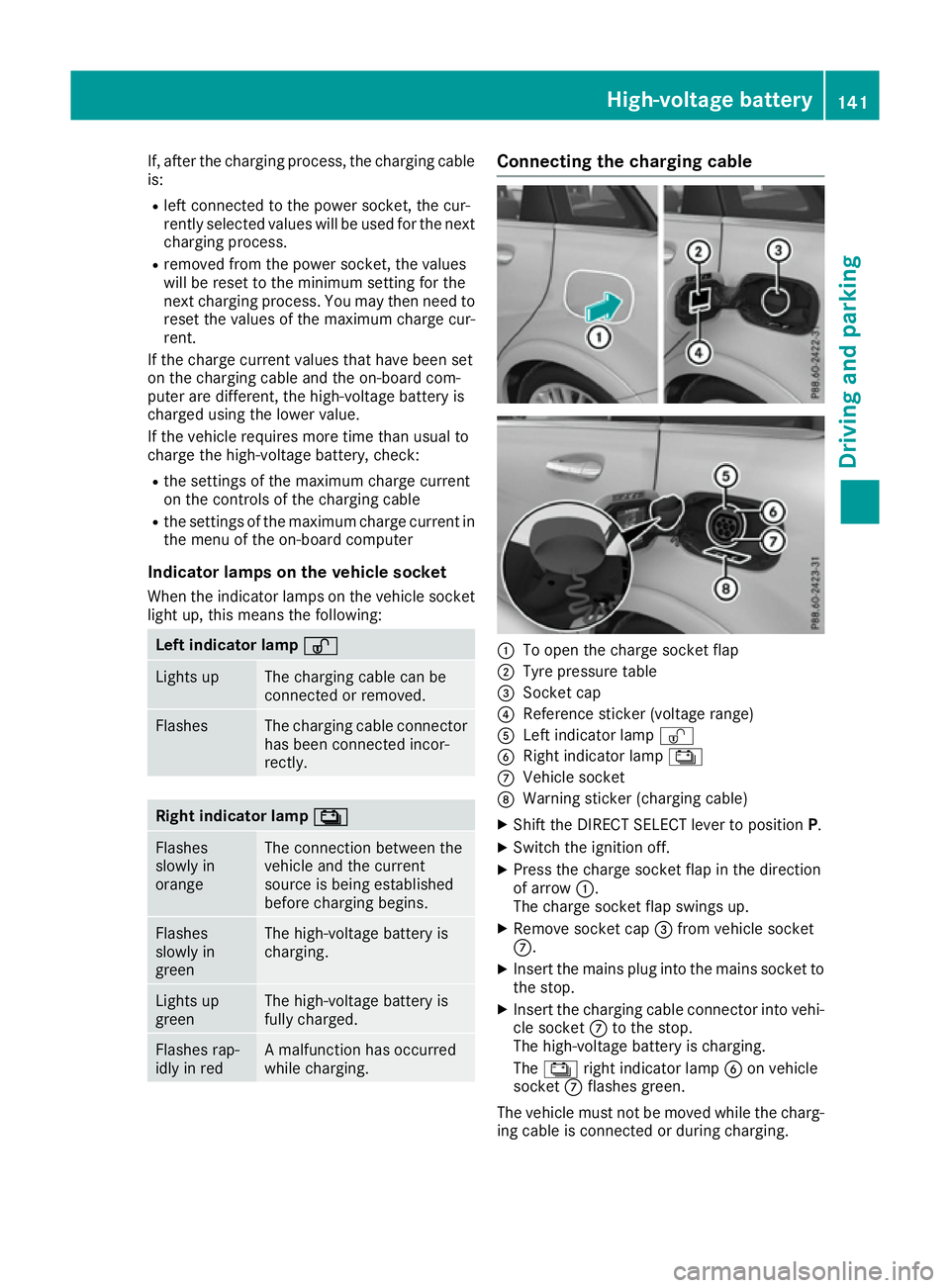
while charging. Connecting the charging cable
:
To open the charge socket flap
; Tyre pressure table
= Socket cap
? Reference sticker (voltage range)
A Left indicator lamp Ì
B Right indicator lamp Ý
C Vehicle socket
D Warning sticker (charging cable)
X Shift the DIRECT SELECT lever to position P.
X Switch the ignition off.
X Press the charge socket flap in the direction
of arrow :.
The charge socket flap swings up.
X Remove socket cap =from vehicle socket
C.
X Insert the mains plug into the mains socket to
the stop.
X Insert the charging cable connector into vehi-
cle socket Cto the stop.
The high-voltage battery is charging.
The Ý right indicator lamp Bon vehicle
socket Cflashes green.
The vehicle must not be moved while the charg- ing cable is connected or during charging. High-voltage battery
141Driving and parking Z
Page 151 of 293
Drive sensibly – save energy
Observe the following tips to save energy:
R The tyres should always be inflated to the rec-
ommended tyre pressure.
R Remove unnecessary loads.
R Remove roof racks when they are not needed.
R Avoid frequent acceleration or braking.
Energy consumption also increases when driv-
ing in low or high outside temperatures, in stop-
start traffic, on short journeys and in hilly ter-
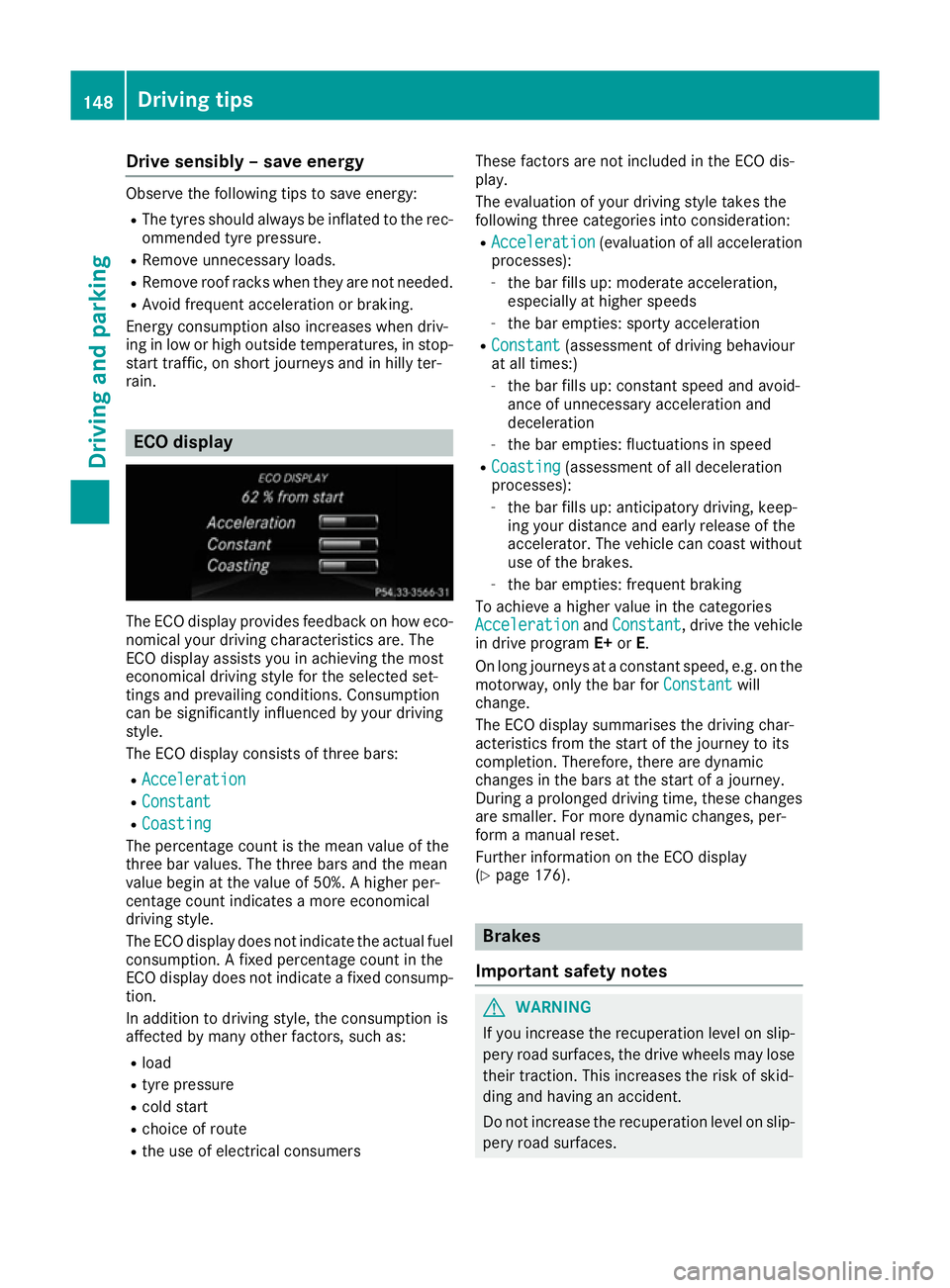
rain. ECO display
The ECO display provides feedback on how eco-
nomical your driving characteristics are. The
ECO display assists you in achieving the most
economical driving style for the selected set-
tings and prevailing conditions. Consumption
can be significantly influenced by your driving
style.
The ECO display consists of three bars:
R Acceleration Acceleration
R Constant
Constant
R Coasting
Coasting
The percentage count is the mean value of the
three bar values. The three bars and the mean
value begin at the value of 50%. A higher per-
centage count indicates a more economical
driving style.
The ECO display does not indicate the actual fuel
consumption. A fixed percentage count in the
ECO display does not indicate a fixed consump- tion.
In addition to driving style, the consumption is
affected by many other factors, such as:
R load
R tyre pressure
R cold start
R choice of route
R the use of electrical consumers These factors are not included in the ECO dis-
play.
The evaluation of your driving style takes the
following three categories into consideration:
R Acceleration
Acceleration (evaluation of all acceleration
processes):
- the bar fills up: moderate acceleration,
especially at higher speeds
- the bar empties: sporty acceleration
R Constant Constant (assessment of driving behaviour
at all times:)
- the bar fills up: constant speed and avoid-
ance of unnecessary acceleration and
deceleration
- the bar empties: fluctuations in speed
R Coasting Coasting (assessment of all deceleration
processes):
- the bar fills up: anticipatory driving, keep-
ing your distance and early release of the
accelerator. The vehicle can coast without
use of the brakes.
- the bar empties: frequent braking
To achieve a higher value in the categories
Acceleration Acceleration andConstant
Constant, drive the vehicle
in drive program E+orE.
On long journeys at a constant speed, e.g. on the motorway, only the bar for Constant
Constant will
change.
The ECO display summarises the driving char-
acteristics from the start of the journey to its
completion. Therefore, there are dynamic
changes in the bars at the start of a journey.
During a prolonged driving time, these changes are smaller. For more dynamic changes, per-
form a manual reset.
Further information on the ECO display
(Y page 176). Brakes
Important safety notes G
WARNING
If you increase the recuperation level on slip- pery road surfaces, the drive wheels may lose
their traction. This increases the risk of skid-
ding and having an accident.
Do not increase the recuperation level on slip-
pery road surfaces. 148
Driving tipsDriving and pa
rking
Page 168 of 293
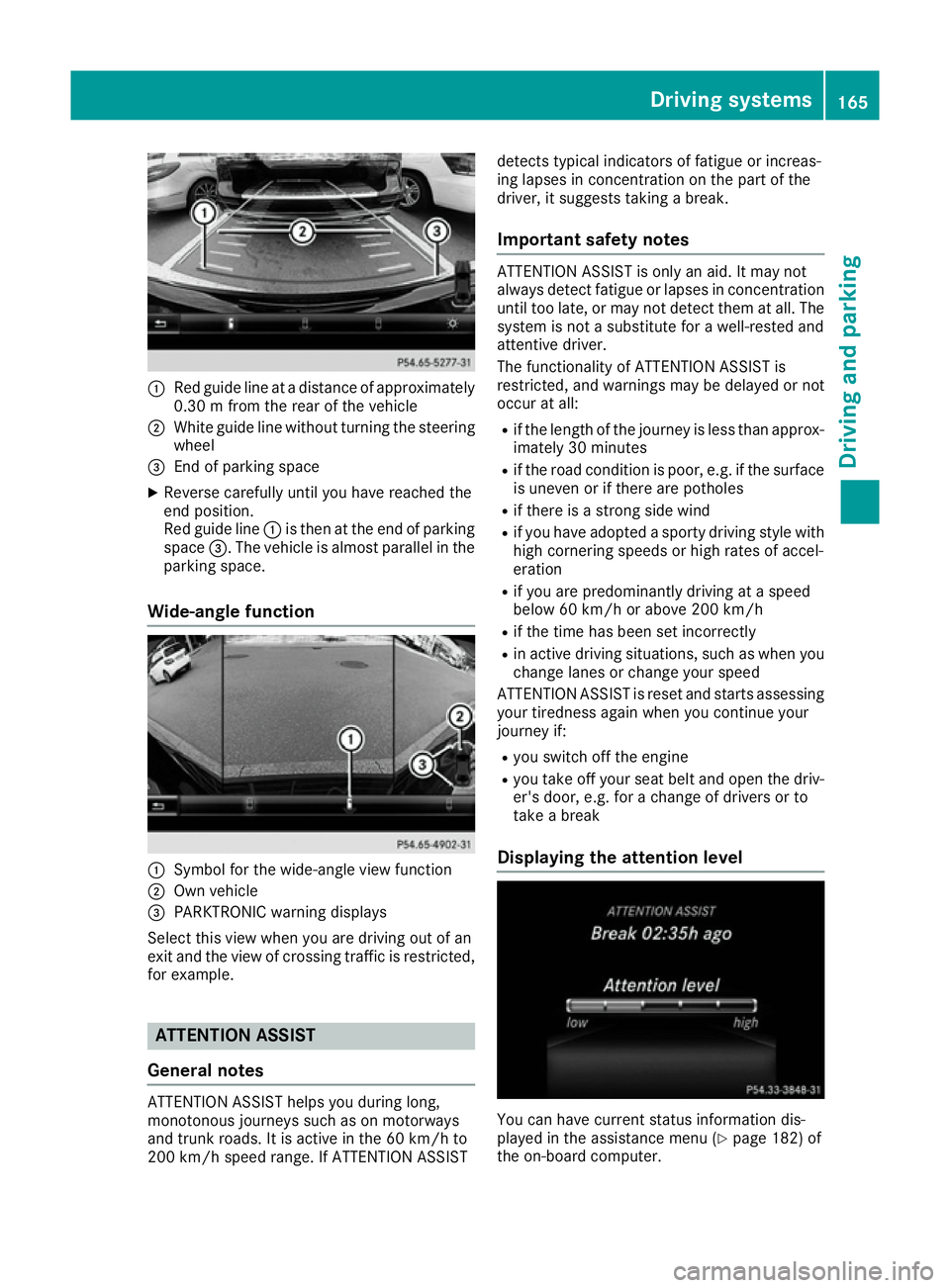
:
Red guide line at a distance of approximately
0.30 m from the rear of the vehicle
; White guide line without turning the steering
wheel
= End of parking space
X Reverse carefully until you have reached the
end position.
Red guide line :is then at the end of parking
space =. The vehicle is almost parallel in the
parking space.
Wide-angle function :
Symbol for the wide-angle view function
; Own vehicle
= PARKTRONIC warning displays
Select this view when you are driving out of an
exit and the view of crossing traffic is restricted, for example. ATTENTION ASSIST
General notes ATTENTION ASSIST helps you during long,
monotonous journeys such as on motorways
and trunk roads. It is active in the 60 km/h to
200 km/h speed range. If ATTENTION ASSIST detects typical indicators of fatigue or increas-
ing lapses in concentration on the part of the
driver, it suggests taking a break.
Important safety notes ATTENTION ASSIST is only an aid. It may not
always detect fatigue or lapses in concentration
until too late, or may not detect them at all. The system is not a substitute for a well-rested and
attentive driver.
The functionality of ATTENTION ASSIST is
restricted, and warnings may be delayed or not
occur at all:
R if the length of the journey is less than approx-
imately 30 minutes
R if the road condition is poor, e.g. if the surface
is uneven or if there are potholes
R if there is a strong side wind
R if you have adopted a sporty driving style with
high cornering speeds or high rates of accel-
eration
R if you are predominantly driving at a speed
below 60 km/h or above 200 km/h
R if the time has been set incorrectly
R in active driving situations, such as when you
change lanes or change your speed
ATTENTION ASSIST is reset and starts assessing
your tiredness again when you continue your
journey if:
R you switch off the engine
R you take off your seat belt and open the driv-
er's door, e.g. for a change of drivers or to
take a break
Displaying the attention level You can have current status information dis-
played in the assistance menu (Y
page 182) of
the on-board computer. Driving systems
165Driving and parking Z
Page 177 of 293
If necessary, counteract the reduced regenera-
tive braking effect by applying the brake your-
self. Charge level display
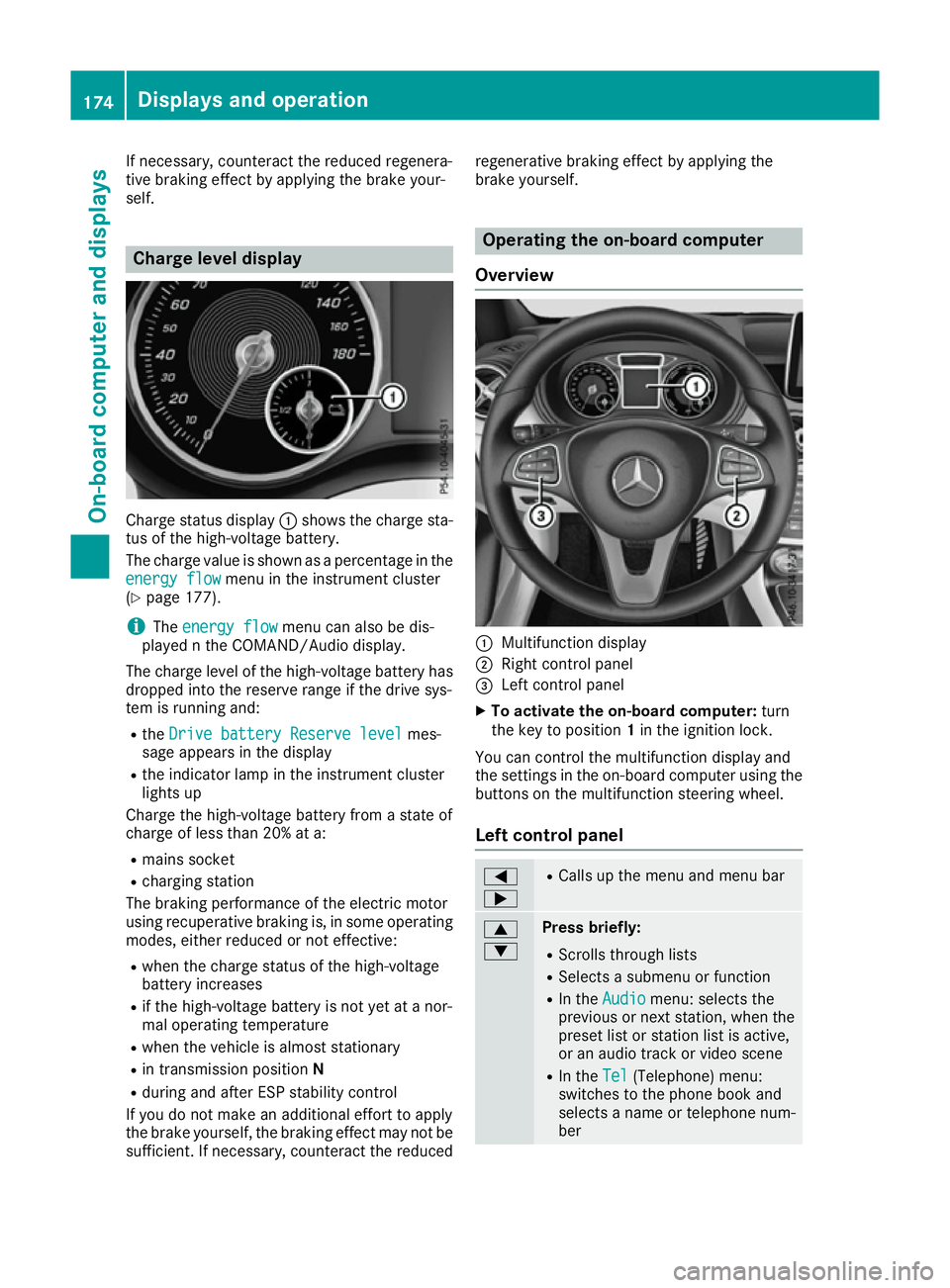
Charge status display
:shows the charge sta-
tus of the high-voltage battery.
The charge value is shown as a percentage in the
energy flow
energy flow menu in the instrument cluster
(Y page 177).
i The
energy flow
energy flow menu can also be dis-
played n the COMAND/Audio display.
The charge level of the high-voltage battery has dropped into the reserve range if the drive sys-
tem is running and:
R the Drive battery Reserve level Drive battery Reserve level mes-
sage appears in the display
R the indicator lamp in the instrument cluster
lights up
Charge the high-voltage battery from a state of
charge of less than 20% at a:
R mains socket
R charging station
The braking performance of the electric motor
using recuperative braking is, in some operating
modes, either reduced or not effective:
R when the charge status of the high-voltage
battery increases
R if the high-voltage battery is not yet at a nor-
mal operating temperature
R when the vehicle is almost stationary
R in transmission position N
R during and after ESP stability control
If you do not make an additional effort to apply
the brake yourself, the braking effect may not be sufficient. If necessary, counteract the reduced regenerative braking effect by applying the
brake yourself. Operating the on-board computer
Overview :
Multifunction display
; Right control panel
= Left control panel
X To activate the on-board computer: turn
the key to position 1in the ignition lock.
You can control the multifunction display and
the settings in the on-board computer using the buttons on the multifunction steering wheel.
Left control panel =
; R
Calls up the menu and menu bar 9
: Press briefly:
R Scrolls through lists
R Selects a submenu or function
R In the Audio Audio menu: selects the
previous or next station, when the preset list or station list is active,
or an audio track or video scene
R In the Tel Tel(Telephone) menu:
switches to the phone book and
selects a name or telephone num-
ber 174
Displays and operationOn-board computer and displays
Page 179 of 293
R
_ Adaptive Highbeam Assist
(Y page 101)
R ë HOLD function (Y page 154)
R 120 km/h!
120 km/h! Maximum permissible speed
exceeded (only for certain countries) Menus and submenus
Menu overview
Using the =or; button on the steering
wheel, open the menu bar.
Operating the on-board computer (Y page 174).
Depending on the equipment fitted in the vehi-
cle, you can call up the following menus:
R Trip
Trip menu (Y page 176)
R Navi Navi menu (navigation instructions)
(Y page 178)
R Audio
Audio menu (Y page 180)
R Tel
Tel menu (telephone) (Y page 181)
R Assist.
Assist. menu (assistance) (Y page 182)
R Serv.
Serv. menu (Y page 184)
R Settings
Settings menu (settings) (Y page 184)
The displays for the Audio
Audio, Navi
NaviandTel
Tel menus
may differ slightly to those in your vehicle.
The examples given in this Owner's Manual
apply to vehicles equipped with COMAND
Online. Trip menu
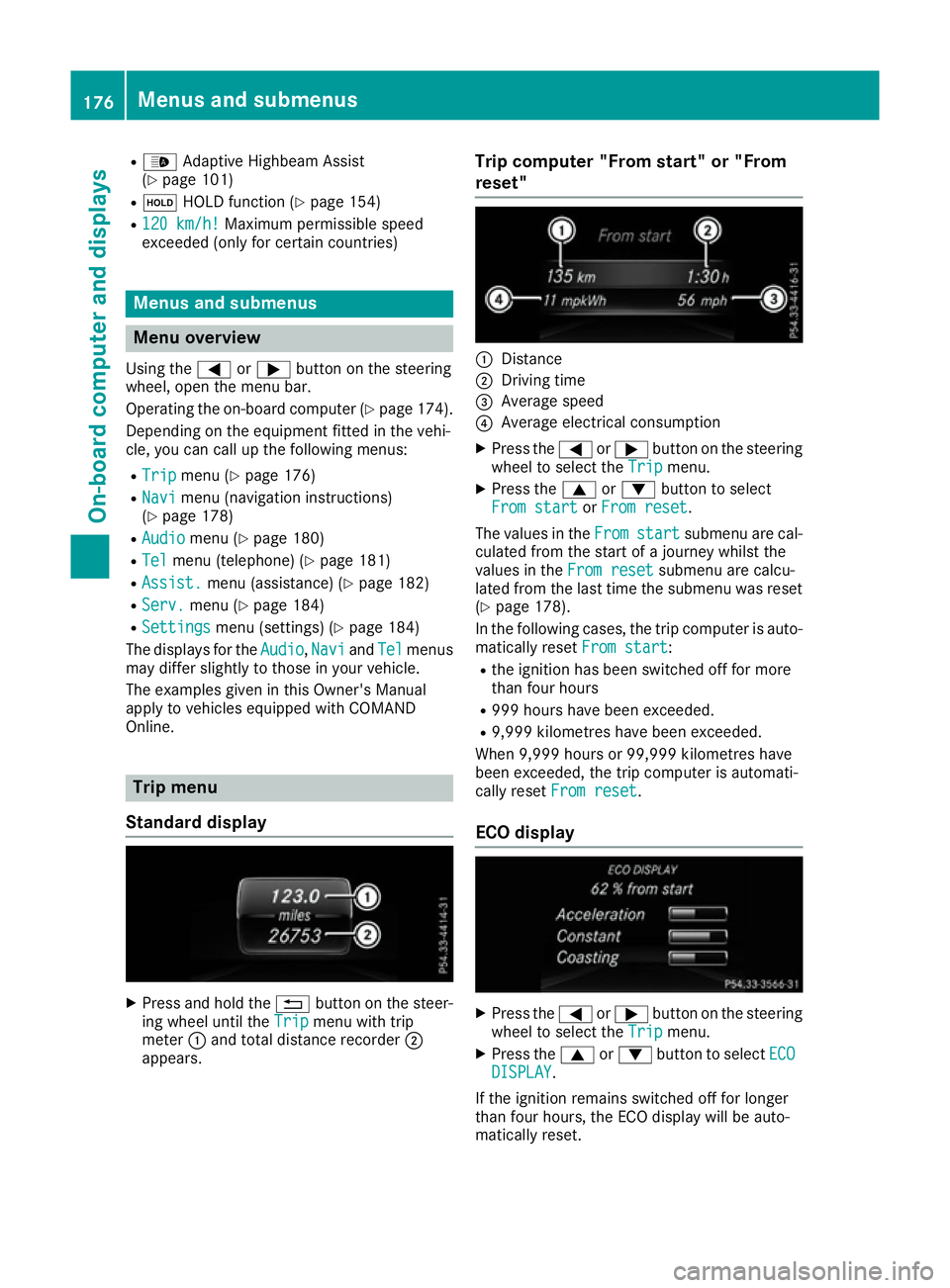
Standard display X
Press and hold the %button on the steer-
ing wheel until the Trip Tripmenu with trip
meter :and total distance recorder ;
appears. Trip computer "From start" or "From
reset" :
Distance
; Driving time
= Average speed
? Average electrical consumption
X Press the =or; button on the steering
wheel to select the Trip
Tripmenu.
X Press the 9or: button to select
From start
From start orFrom reset
From reset.
The values in the From
Fromstart
start submenu are cal-
culated from the start of a journey whilst the
values in the From reset From resetsubmenu are calcu-
lated from the last time the submenu was reset
(Y page 178).
In the following cases, the trip computer is auto-
matically reset From start From start:
R the ignition has been switched off for more
than four hours
R 999 hours have been exceeded.
R 9,999 kilometres have been exceeded.
When 9,999 hours or 99,999 kilometres have
been exceeded, the trip computer is automati-
cally reset From reset From reset.
ECO display X
Press the =or; button on the steering
wheel to select the Trip
Tripmenu.
X Press the 9or: button to select ECO
ECO
DISPLAY
DISPLAY.
If the ignition remains switched off for longer
than four hours, the ECO display will be auto-
matically reset. 176
Menus and submenusOn-board computer and displays
Page 181 of 293
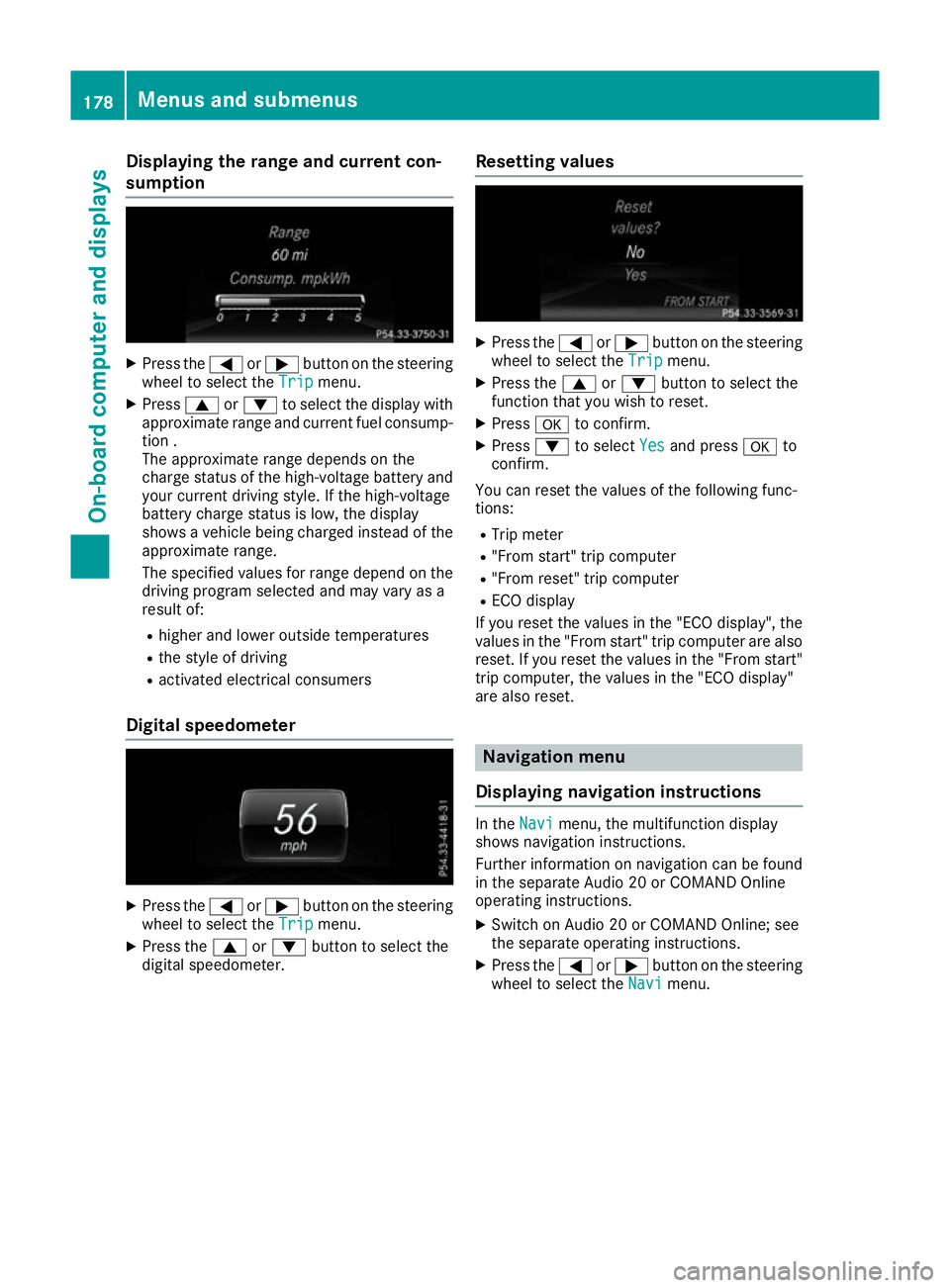
Displaying the range and current con-
sumption
X
Press the =or; button on the steering
wheel to select the Trip Tripmenu.
X Press 9or: to select the display with
approximate range and current fuel consump-
tion .
The approximate range depends on the
charge status of the high-voltage battery and your current driving style. If the high-voltage
battery charge status is low, the display
shows a vehicle being charged instead of the
approximate range.
The specified values for range depend on the
driving program selected and may vary as a
result of:
R higher and lower outside temperatures
R the style of driving
R activated electrical consumers
Digital speedometer X
Press the =or; button on the steering
wheel to select the Trip Tripmenu.
X Press the 9or: button to select the
digital speedometer. Resetting values X
Press the =or; button on the steering
wheel to select the Trip
Tripmenu.
X Press the 9or: button to select the
function that you wish to reset.
X Press ato confirm.
X Press :to select Yes
Yesand press ato
confirm.
You can reset the values of the following func-
tions:
R Trip meter
R "From start" trip computer
R "From reset" trip computer
R ECO display
If you reset the values in the "ECO display", the
values in the "From start" trip computer are also
reset. If you reset the values in the "From start" trip computer, the values in the "ECO display"
are also reset. Navigation menu
Displaying navigation instructions In the
Navi
Navimenu, the multifunction display
shows navigation instructions.
Further information on navigation can be found in the separate Audio 20 or COMAND Online
operating instructions.
X Switch on Audio 20 or COMAND Online; see
the separate operating instructions.
X Press the =or; button on the steering
wheel to select the Navi Navimenu. 178
Menus and submenusOn-boa
rdcompu ter and displays
Page 183 of 293
No route could be calculated to the selected
destination.
R O
You have reached the destination or an inter-
mediate destination. Audio menu
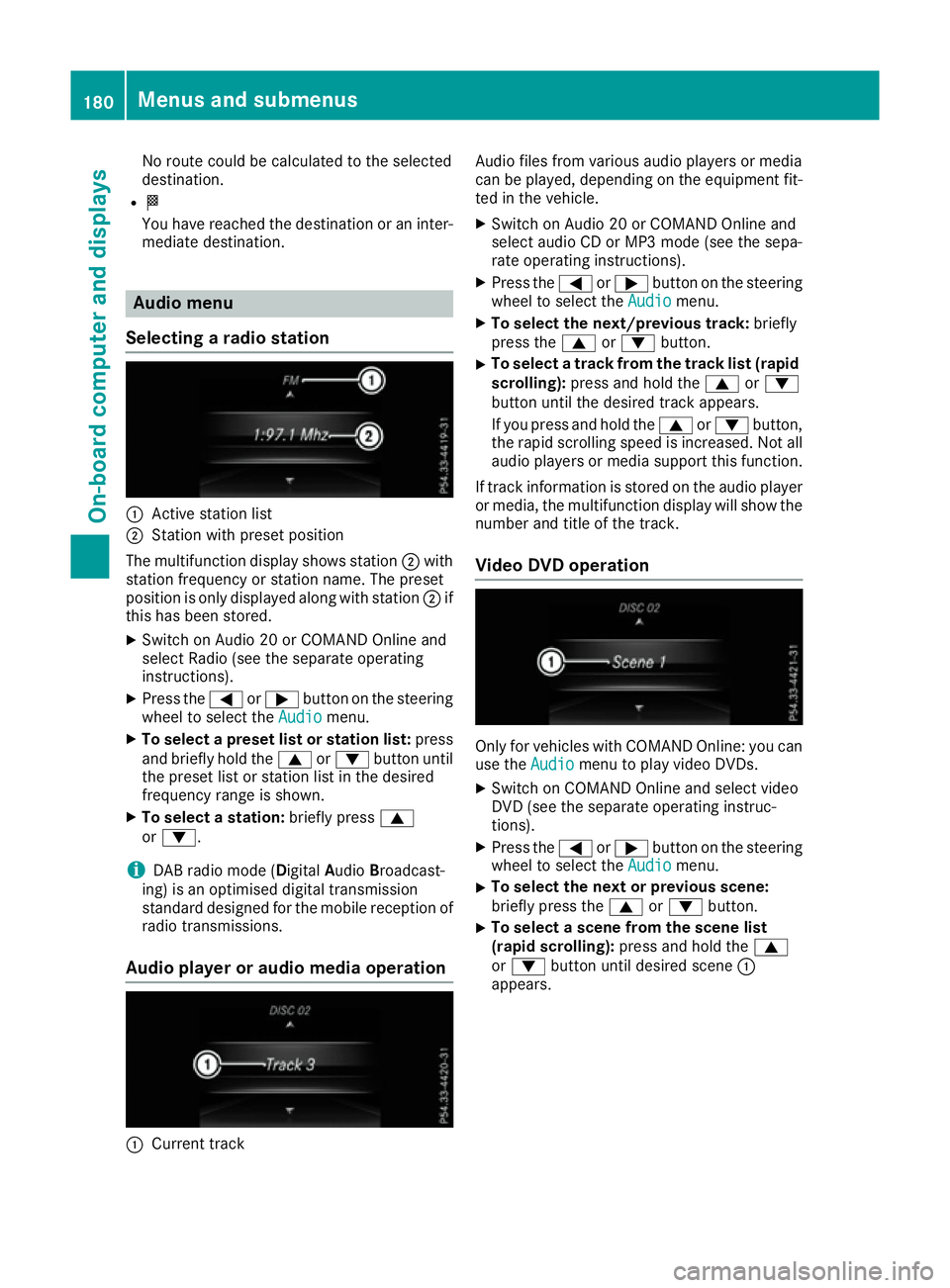
Selecting a radio station :
Active station list
; Station with preset position
The multifunction display shows station ;with
station frequency or station name. The preset
position is only displayed along with station ;if
this has been stored.
X Switch on Audio 20 or COMAND Online and
select Radio (see the separate operating
instructions).
X Press the =or; button on the steering
wheel to select the Audio
Audio menu.
X To select a preset list or station list: press
and briefly hold the 9or: button until
the preset list or station list in the desired
frequency range is shown.
X To select a station: briefly press9
or :.
i DAB radio mode (Digital
AudioBroadcast-
ing) is an optimised digital transmission
standard designed for the mobile reception of
radio transmissions.
Audio player or audio media operation :
Current track Audio files from various audio players or media
can be played, depending on the equipment fit-
ted in the vehicle.
X Switch on Audio 20 or COMAND Online and
select audio CD or MP3 mode (see the sepa-
rate operating instructions).
X Press the =or; button on the steering
wheel to select the Audio
Audio menu.
X To select the next/previous track: briefly
press the 9or: button.
X To select a track from the track list (rapid
scrolling): press and hold the 9or:
button until the desired track appears.
If you press and hold the 9or: button,
the rapid scrolling speed is increased. Not all audio players or media support this function.
If track information is stored on the audio player
or media, the multifunction display will show the number and title of the track.
Video DVD operation Only for vehicles with COMAND Online: you can
use the Audio Audiomenu to play video DVDs.
X Switch on COMAND Online and select video
DVD (see the separate operating instruc-
tions).
X Press the =or; button on the steering
wheel to select the Audio Audiomenu.
X To select the next or previous scene:
briefly press the
9or: button.
X To select a scene from the scene list
(rapid scrolling):
press and hold the 9
or : button until desired scene :
appears. 180
Menus and submenusOn-board computer and displays
Page 191 of 293
X
Press the =or; button on the steering
wheel to select the Settings
Settings menu.
X Press the :or9 button to select the
Vehicle
Vehicle submenu.
X Press ato confirm.
X Press the :or9 button to select the
Acoustic Lock
Acoustic Lock function.
If the Acoustic Lock
Acoustic Lock function is activated,
the & symbol in the multifunction display
lights up orange.
X Press the abutton to save the setting.
Comfort Switching belt adjustment on/off
X Press the =or; button on the steering
wheel to select the Settings
Settingsmenu.
X Press the :or9 button to select the
Convenience
Convenience submenu.
X Press ato confirm.
X Press the :or9 button to select the
Belt adjustment
Belt adjustment function.
When the Belt adjustment Belt adjustment function is acti-
vated, the seat belt is displayed in orange in
the multifunction display.
X Press the abutton to save the setting.
For further information on belt adjustment, see
(Y page 38).
Switching the fold mirrors in when lock-
ing function on/off
This function is only available when the vehicle is
equipped with the electrical fold-in function.
When you activate the Auto. fold-in mir‐
Auto. fold-in mir‐
rors
rors function, the exterior mirrors are folded in
when the vehicle is locked. When you unlock the vehicle and then open the driver's or front-
passenger door, the exterior mirrors fold out
again.
If you have switched on the Auto. fold-in Auto. fold-in
mirrors
mirrors function and you fold in the exterior
mirrors using the button on the door
(Y page 94), they will not fold out automatically.
The exterior mirrors can then only be folded out
using the button on the door.
X Press the =or; button on the steering
wheel to select the Settings
Settings menu.
X Press the :or9 button to select the
Convenience
Convenience submenu.
X Press ato confirm. X
Press the :or9 button to select the
Auto. fold-in mirrors Auto. fold-in mirrors function.
If the Auto. fold-in mirrors
Auto. fold-in mirrors function is
switched on, the multifunction display shows the exterior mirror in orange.
X Press the abutton to save the setting.
Resetting to factory settings X
Press the =or; button on the steering
wheel to select the Settings
Settingsmenu.
X Press the :or9 button to select the
Factory setting
Factory setting submenu.
X Press ato confirm.
The Reset all settings? Reset all settings? function
appears.
X Press the :or9 button to select No Noor
Yes
Yes.
X Press the abutton to confirm the selec-
tion.
If you have selected Yes Yes, the multifunction
display shows a confirmation message.
For safety reasons, not all functions are reset. 188
Menus and submenusOn-board computer and displays