phone MERCEDES-BENZ C-Class 2011 W204 Comand Manual
[x] Cancel search | Manufacturer: MERCEDES-BENZ, Model Year: 2011, Model line: C-Class, Model: MERCEDES-BENZ C-Class 2011 W204Pages: 190, PDF Size: 2.21 MB
Page 24 of 190

X
To confi rm your selecti on:pre ssbutton
a.
X To confi rm the mes sage:pre ssthe
a or% button. Men
usand submen us
The num bero fm enus depends onthe vehicle
equipment. Menu Functions
andsubmenu s Navigation
system Navigation
systemdisplays Audio Select
sa stat ion
Operates theDVD changer ,
memory card,MUSIC
REGISTE R,Media Interface
Operates videoDVD Telephone Ac
cept s/rej ectsa call
Makes/ endsacall
Select sa phone bookentry
Redials Nav
igation system menu
Rout eguida nceinactive The
display showstheroad onwhich the
vehicle iscurren tlytravelin g,provided the
digital mapcontains it.
Rout eguida nceactive The
display shows:
R the distanc eto the destin ation
R the distanc eto the nextchange ofdirection
R current street
R the travel direction arrow If
achange ofdirection isimminent ,the
displa yshows:
R the road youwillbeturning onto
R the distance tothe next change ofdirection
and adistance graphic
R aright orleft-t urnarrow
Lane recommen dationsarealso shown inthe
displa y,provided thedigital mapcontains the
necessary data.During achange ofdirection,
the number oflanes mayincrease. Lane
recommen dationsareshown inthe displa yas
a line with anarrow. Audio
menu
Adjust ingthe volume X
Press theW orX button.
Setting thestat ion/c hannel X
Switch onCOMAND (Ypage 31).
X Switch onFM /AM radio (Ypage 120)or
SatRadio (Ypage 124).
X In the multifunction display,select the
audi omenu usingthe= or; button.
X To selec tthe next/ previo usstation /
chann elfrom thememory: brieflypress
the : or9 button.
X To selectthe next/ previo usstation /
chann el:press andhold the: or
9 button.
Operating theDVD chang er/memo ry
card/MUS ICREGI STER/Me dia
Inte rface X
Switch onCOMAND (Ypag e31).
X Switch onDisc, Memory
Card (Ypag e131), MUSIC
REGISTE R(Y pag e139) orMedia
Int. (Ypag e143).
X In the multifunction display, sele ctthe
au dio menu using the = or; button. 22
Multifunc
tionsteering wheelAtaglan ce
ZACOMAND NTG4.0BR204USAEdition A2011; 1;3,en-US
d2ire nkl Version:3.0.3.6
<003000230024002300250023002000250035002400490023002C002D00300024
002D00200034003300230030002D00230023V
-Seite 22
Page 25 of 190

X
To select the next/ prev ious track :
bri eflypre ssthe : or9 button.
X To search forthe next/ prev ious track :
pre ssand holdthe : or9 button.
i Whe nyou play aCD/D VDwith track
inform ation,thetrack name andnumber
are shown inthe multifunct iondisplay .The
track name isdispla yedwhen anMP3 CD
is being played.
Operat ingvideo DVD X
Switch onCOMAND (Ypage 31).
X Switch onDVD-Video (Ypage 153).
X In the multifunction display,select the
audi omenu withthe= or; button.
X To selec tthe nex t/previo ussce ne:
brie flypress the: or9 button. Tele
phone menu G
Warning
A drive r'sattention tothe road must always
be his/he rprimary focuswhendriving.For
you rsafet yand thesafe tyof other s,we
rec omm endthat you pull overtoasafe
location andstop before placing ortaking a
telephone call.Ifyou choose touse themobile
phone whiledriving, pleaseusethehandsfree
device andonly usethemobile phonewhen
weather, road,andtraffic conditionspermit.
Some jurisdiction sprohibit thedriver from
using acellular mobilephonewhiledriving a
vehicle.
Bear inmind thatataspeed ofjust 30mph
(approximately 50km/ h),your vehicle is
coverin gadistance of44 feet (approximately
14 m)every second.
Operat ingthe telephone X
Switch onCOMAND (Ypage 31).
X Call upthe basic telephone menu
(Y page 103). If
the telephone hasnotyetbeen authorized,
the Bluetooth Readymessage appearsin
the multifunct iondisplay .
If the telephone isswitched onand
authorized, thePhone Readymessage
appears inthe multifunct iondisplay .
Acc epting acall X
Press the6 button.
If the telep hone menu isdis pla yedin the
mul tifunctio ndisplay, thename ornumb erof
the perso ncallin gappear s.
Rej ectin gor end ingacall X
Press the~ button.
Cal linganumbe rfrom thephone book If
you rmobile phone canaccept calls,youcan
search foranumber inthe COMAND phone
book andcallthenumber.
X In the multifunct iondisplay ,select the
Telephone menuusingthe= or;
button .
The Phone Readymessage appearsinthe
multifunct iondisplay .
X Press the:, 9ora button to
display thephone book.
X Press the: or9 button toselect the
name youwant.
The saved names aresorted alphabe tically.
X An exact phone number exists:pressthe
6 ora button tomake thecall.
The Connecting Callmessage andthe
number dialedappear inthe multifunct ion
display .The name alsoappea rsifit is
stored inthe phone book.Thephone
number dialedis stored inthe Calls
Dialed calllist(Ypage 109).
The phone bookentryappea rsinthe
multifunction displaywhen thecall is
conn ected. Multifunction
steeringwheel
23Ataglance
ZACOMAND NTG4.0BR204USAEdition A2011; 1;3,en-US
d2irenkl Version:3.0.3.6
2010-
05-31T09:21 :57+02:00-Seite 23 Z
Page 26 of 190

X
Several phonenumbers exist:pressthe
6 ora button todisplay allthe
phone numbers forthe selected entry.
X Press the: or9 button toselect the
phone number youwant.
X Press the6 ora button tomake the
call.
The Connecting Callmessage andthe
number dialedappea rint he multifunction
displa y.The name alsoappea rsifit is
stored inthe phone book.Thephone
number dialedis stored inthe Calls
Dialed calllist(Ypage 109).
The phone bookentryappea rsinthe
multifunction displaywhen thecall is
conn ected.
i Ifyou press the: or9 button for
longer thanasecond, theon-board
computer showsthenames inrapid scroll.
Rapi dscroll speeds upafter fourseconds.
It stops whenyourelease thebutton again
or the end ofthe listisreached.
i Ifyou donot want tomake acall, youcan
close thephone bookbypressing the
~ button.
Redialing COMAND
savesthelast phone numbers or
names dialed.
X In the multifunction display,select the
phone menuusingthe= or;
button.
The Phone Readymessage appearsinthe
multifunction display.
X Press the6 button todispla ythe list
with thelast numbers ornames dialed.
X Press the: or9 button toselect a
phone number orname.
X Press the6 ora button tomake the
call. Operat
ingCOMAND Selec
tingamainfunc tion
Ini tial situatio n You
wouldlike toswi tch from navigation
mode (addre ssentry menu) tothe system
settings, forexamp le.
X To switch onnavi gatio nmode: pressthe
g function button.
X To show themenu: pressW the COM AND
controll er.
X Sele ctDesti nationby sliding VÆand
turning cVdtheCOM AND controll erand
pres sW toconfirm.
X Sele ctAddre ssEntry andpres sW to
confirm.
The address entry menu appears. Addres
sentry menu
: Mai nfunc tion bar
X Sli de theCOMA NDcontrol ler ZV and
swit chtomain function bar :.
X Se lec tSys tem inthemain function bar by
tur nin gcVd theCOMA NDcontrol ler and
pre ssW toconfirm .
The systemmen uappear s. 24
Op
era ting COMAN DAtaglan ce
ZACOMA NDNTG4 .0BR2 04USAEd ition A20 11;1; 3,en-US
d2i ren kl Version :3. 0.3.6
20
10-05-31 T09 :21:57 +02:00 -Sei te24
Page 31 of 190

Opt
ion 2:city listasselection list COMAND
eithershows theselect ionlist
automatic allyoryou can callupthe select ion
list from thelistwith charact erbar.
The example showstheselect ionlistafter the
city NEW YORK hasbeen entered. Theentryis
highlighted automatically. X
Confirm NEWYORK bypressing W
COMAND controller.
The address entrymenu appears. Youcan
now enterastr eet, forexample. i
You willfind furth erinfor mation inthe
"Dest ination entry" sect ion(Ypage 51). Entering
character sin the address
and thephone book
Introd uction The
following sectiondescribes howtoent er
charact ersinthe phone book(Ypage 106)
and theaddress book(Ypage 113)when
creat inganew entry. Creat
inganew entr yint he phone book X
Ca llup the inpu tmenu with data fields
(Y page 108). Phone
book:inputmenu withdata fields
: Select eddata fieldwithcursor
; Character bar
Creat inganew entry inthe address
book X
Call upthe input menu withdata fields
(Y page 113). Input
menu withdata fields
: Select eddata fieldwithcursor
; Character bar
Entering character s The
example describes howtoent erthe
surname Schulz. Opera
tingCOMAND
29Ataglance
ZACOMAND NTG4.0BR204USAEdition A2011 ;1; 3,en-U S
d2irenk lV ersion:3.0.3.6
2010
-05-31T09 :21:57+0 2:00-Seite 29 Z
Page 32 of 190
X
Sel ect Sby turni ngcVd andsliding ZVÆ
the COMAND controllera nd pre ssW to
confi rm.
S is ente redinto thedata field.A ll
char acters are shown inblack andcan
always beselec tedinthe char acterbar.
The char acterbar offers char acters
cor respo ndingto the respe ctive data field
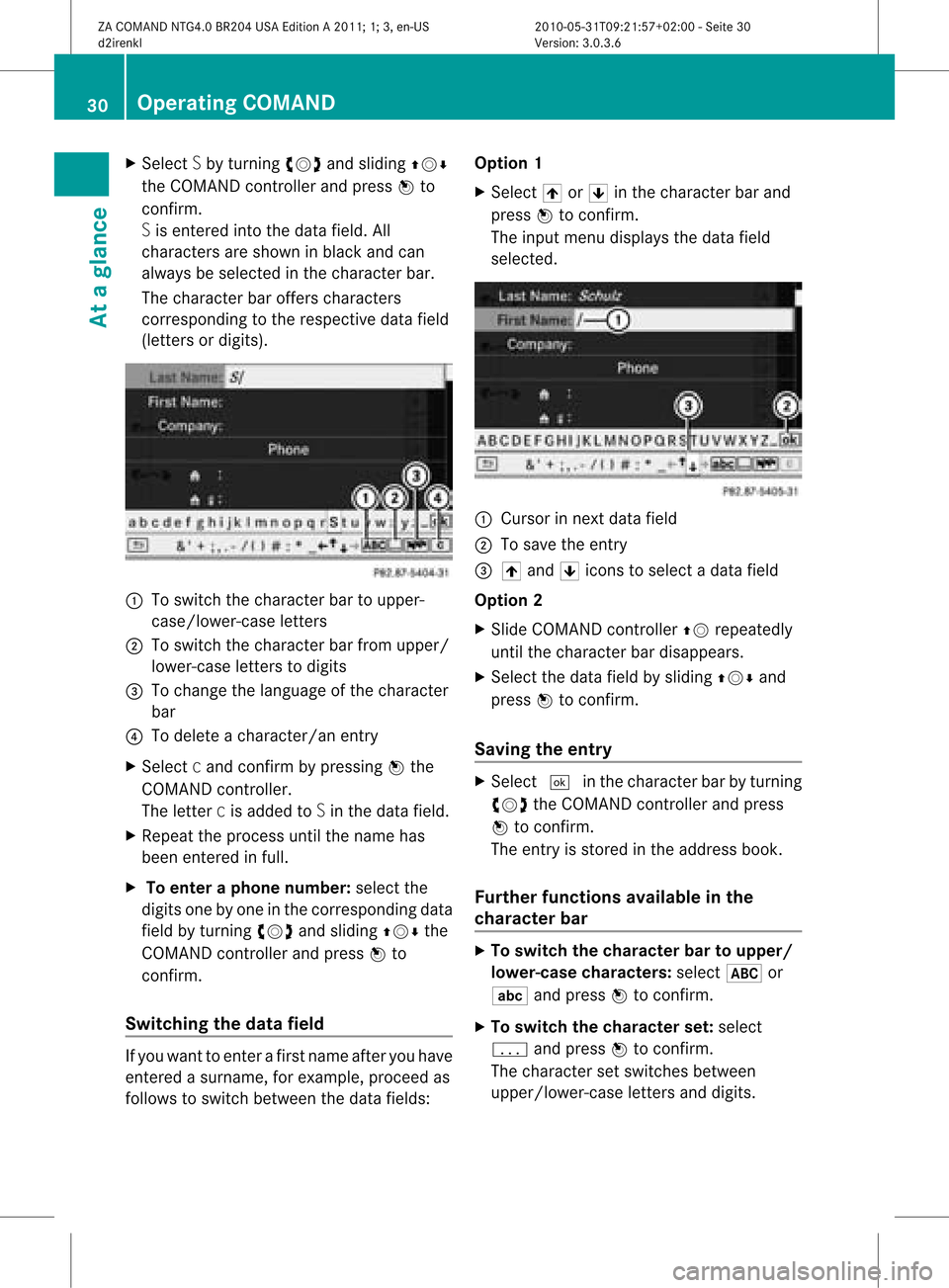
(lett ersordigit s). :
Toswitc hthe char acterbar toupper-
case/ lower- caseletters
; Toswitc hthe char acterbar fromu pper/
lower-c aseletters todigits
= Tochang ethe language ofthe charac ter
bar
? Todelete acharac ter/anent ry
X Select cand confirm bypressin gW the
COMAND controller.
The lettercis added toSin the data field.
X Repeat theproces suntil thename has
been entered infull.
X To enter aphone number: select the
digits onebyone inthe corr espondin gdata
field byturn ingcVd andsliding ZVÆthe
COMAND controller and press Wto
con firm.
Switching thedatafield If
you want toent erafirst name afteryouhave
ent ered asurname, forexample, proceedas
follows toswitc hbetween thedata fields: Opt
ion 1
X Select 4or5 inthe charac terbar and
press Wtocon firm.
The input menu displays thedata field
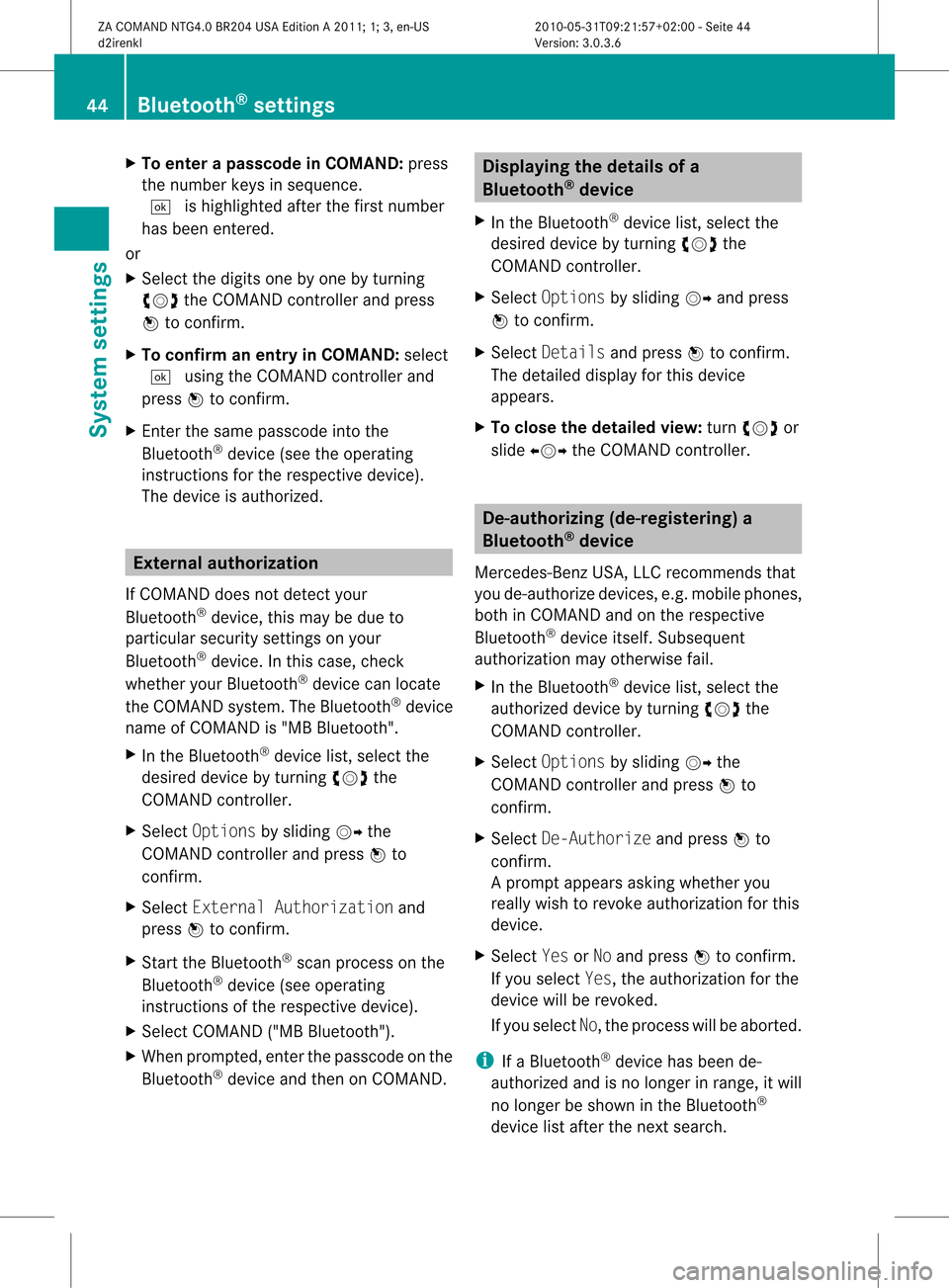
select ed. :
Cursor innex tdata field
; Tosave theen try
= 4 and 5icons toselec tada tafield
Opt ion 2
X Slide COMAND controller ZV repeatedly
until thecharac terbar disappears.
X Select thedata fieldbysliding ZVÆand
press Wtocon firm.
Saving theentr y X
Select ¬inthe charac terbar byturn ing
cVd theCOMAND controller and press
W tocon firm.
The entryisstor edinthe address book.
Furt herfunct ionsavaila bleinthe
char acter bar X
To switch thechar acter bartoupp er/
lower-case character s:select *or
E andpress Wtocon firm.
X To switch thechar acter set:select
p andpress Wtocon firm.
The charac terset switc hesbetween
upper/lower- caseletters and digits. 30
Oper
ating COMANDAtaglance
ZACOMAND NTG4.0BR204USAEditionA2011 ;1; 3,en- US
d2iren kl Version:3.0 .3.6
2010
-05-31T09: 21:57+0 2:00-Seite 30
Page 44 of 190
X
Sel ect Individua lizationOnand press
W toconfi rm.
Yo uha ve switche dind ividu aliza tion onO
or off ª. Blue
tooth®
se tting s Gen
eral informati onabo ut
Blue tooth®
Blu etoo th®
-cap ablede vice s,e.g. mob ile
pho nes, mustcomply withacert ainprofile in
order tobe conn ected toCOMAND. Every
Bluetooth ®
device hasitsown specific
Bluetooth ®
name.
Bluetooth ®
techn ology isthe standard for
short- range wireless datatrans mission ofup
to approximately 10meters. Bluetooth ®
can
be used toexchan gevCards, forexample.
Bluetooth ®
is aregistered trademark ofthe
Bluetooth SpecialInterest Group (SIG)Inc. Conditions
foraBluet ooth ®
connection
You canconnectmobile phones andlaptops
with COMAND.
To do so, the following conditionsneed tobe
met:
R Bluetooth ®
-capable devices,e.g.mobile
phones, needtocomply withacert ain
profile (Ypage 99)inorder tobe
conn ected toCOMAND. EveryBluetooth ®device
hasitsown specific Bluetooth ®
name.
R Bluetooth ®
must beactivated inCOMAND
and onthe respect iveBluetooth ®
device;
see theseparate operating instructions.
R the Bluetooth ®
device mustbe"visible" to
COMAND inorder forCOMAND tofind and
display it.For thesettingprocedures,
please seetheoperating instructions for
the Bluetooth ®
device.
i Once amobile phonehasbeen
conn ected, reception andtrans mission
volume maychange. <00350003001400090016000100140009000E0007002100040005000100030014
0009001600010014F
ingBluetooth ®
X Press theSbutton .
The system menuappears.
X Select Settings byturnin gcVd the
COMAND controller andpress Wto
conf irm.
X Select Bluetooth andpress Wtoconf irm.
X Select Activate Bluetooth andpress
W toconf irm.
This switches Bluetooth ®
on O oroff ª. Connec
tingBluetooth ®
devices
General information Before
usingyourBluetooth ®
device with
COMAND forthe first time, youwillneed to
conn ectit.
Connect ingcomprises:
R searching foraBluetooth ®
device
R subsequently authorizingit
i You canconn ectuptoten devices to
COMAND.
You canobtain moredetailed information
about suitable mobilephones andabout
conn ectin gBluetooth ®
-capable mobile
phones toCOMAND onthe Internet at 42
Bluetooth ®
settingsSystem settings
ZACOMAND NTG4.0BR204USAEdition A2011; 1;3,en-US
d2irenk lV ersion:3.0.3.6
2010
-05-31T09 :21:57+0 2:00-Seite 42
Page 45 of 190
http://ww
w.mbusa-mob ile.com. Orcall
the Merced es-Benz Customer Assistance
Center at1-800-FOR-MERC edes
(1-800-367-6372) (fortheUSA) orCu stomer
Rel ations at1-800-387-0100 (forCanada ).
Searchi ngfor Bluetoo th®
devic es X
Activate Bluetooth ®
(Y pag e42).
X Select Settin gsinthe system menu by
turning cVdtheCOMAND controllerand
press Wtoconfirm.
X Select Blueto othPhones andpress Wto
confirm.
X Select Update andpress Wtoconfirm.
COMAND searches forBlue tooth ®
devi ces
withi nrang e.Afterashort while,the
Bluetooth ®
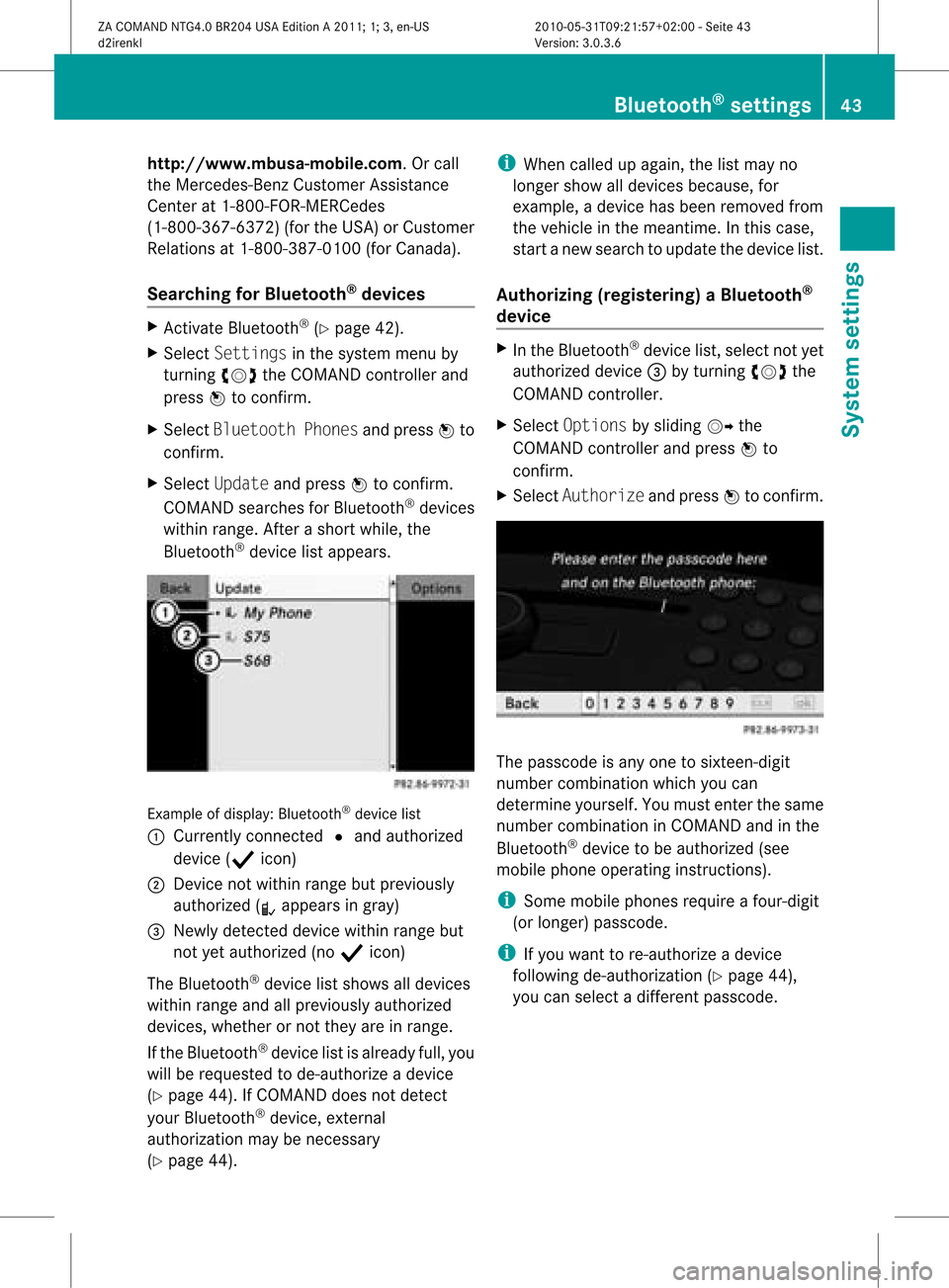
device listappea rs. Example
ofdispla y:Bluetooth ®
device list
: Currently connected #and authorized
device (Yicon)
; Device notwithin rangebutpreviousl y
authorized (Lappea rsingray)
= Newly detected devicewithinrangebut
not yetauthorized (noY icon)
The Bluetooth ®
device listshows alldevices
within rangeandallpreviousl yauthorized
devices, whether ornot they areinrange.
If the Bluetooth ®
device listisalrea dyfull, you
will berequested tode-authorize adevice
(Y page 44).IfCOMAND doesnotdetect
your Bluetooth ®
device, external
authorization maybenecessary
(Y page 44). i
When called upagai n,the listmay no
longer showalldevices because, for
example, adevice hasbeen removed from
the vehicle inthe meantime. Inthis case,
start anew search toupda tethe device list.
Authorizing (registering) aBluet ooth ®
device X
In the Bluet ooth®
devic elist, selec tnot yet
authorized device=byturnin gcVd the
COMAND controller.
X Select Options bysliding VYthe
COMAND controller andpress Wto
conf irm.
X Select Authorize andpress Wtoconf irm. The
passcode isany one tosixteen -digit
number combinat ionwhich youcan
determin eyourself. Youmust enter thesame
number combinat ioninCOMAND andinthe
Bluetooth ®
device tobe authorized (see
mobile phoneoperating instructions).
i Some mobile phones requireafour-digit
(or longer) passcode.
i Ifyou want tore-authoriz eadevice
following de-authorizat ion(Y page 44),
you can select adifferent passcode. Bluetooth
®
settings 43System
settings
ZACOMAND NTG4.0BR204USAEdition A2011; 1;3,en-US
d2irenk lV ersion:3.0.3.6
2010
-05-31T09 :21:57+0 2:00-Seite 43
Page 46 of 190
X
To enter apassc odeinCOMA ND:press
the numbe rkeys insequence.
¬ ishighlighted afterthefirst number
has been entered.
or
X Select thedigits onebyone byturn ing
cVd theCOMAND controller andpress
W tocon firm.
X To confirm anentry inCOMAND: select
¬ using theCOMAND controller and
press Wtocon firm.
X En ter the same passcode intothe
Bluetoot h®
device (seetheoperatin g
inst ruct ions forthe respect ivedevice).
The device isauthoriz ed. Externa
laut horiz ation
If COMAND doesnotdetec tyour
Bluetoot h®
device, thismay bedue to
particular securitysett ings onyour
Bluetoot h®
device. Inthis case, check
whether yourBluetoot h®
device canlocate
the COMAND system.TheBluetoot h®
device
name ofCOMAND is"MB Bluetoot h".
X In the Bluetoot h®
device list,select the
desired devicebyturn ingcVd the
COMAND controller.
X Select Options bysliding VYthe
COMAND controller andpress Wto
con firm.
X Select Externa lAuthori zationand
press Wtocon firm.
X Start the Bluetoot h®
scan process onthe
Bluetoot h®
device (seeoperatin g
inst ruct ions ofthe respect ivedevice).
X Select COMAND ("MBBluetoot h").
X When prompt ed,enterthe passcode onthe
Bluetoot h®
device andthen onCOMAND . Displaying
thedeta ilsofa
Bluet ooth®
device
X In the Bluetoot h®
device list,select the
desired devicebyturn ingcVd the
COMAND controller.
X Select Options bysliding VYandpress
W tocon firm.
X Select Details andpress Wtocon firm.
The detailed displayforthis device
appears.
X To close thedeta iledview: turncVd or
slide XVY theCOMAND controller. De-aut
horizing(de-r egistering) a
Bluet ooth®
device
Mercedes- BenzUSA ,LLC recom mends that
you de-author izedevices, e.g.mobile phones,
both inCOMAND andonthe respect ive
Bluetoot h®
device itself.Subsequent
authoriz ationmayother wisefail.
X In the Bluetoot h®
device list,select the
authoriz eddevice byturn ingcVd the
COMAND controller.
X Select Options bysliding VYthe
COMAND controller andpress Wto
con firm.
X Select De-Auth orizeandpress Wto
con firm.
Ap rompt appears asking whethe ryou
really wishtorevoke authorization forthis
device.
X Select YesorNo and press Wtoconf irm.
If you select Yes,theauthorization forthe
device willberevoked.
If you select No,the process willbeaborted.
i IfaBluetooth ®
device hasbeen de-
authorized andisno longer inrange, itwill
no longer beshown inthe Bluetooth ®
device listafter thenext search. 44
Bluetooth ®
settingsSystem settings
ZACOMAND NTG4.0BR204USAEdition A2011; 1;3,en-US
d2irenk lV ersion:3.0.3.6
2010
-05-31T09 :21:57+0 2:00-Seite 44
Page 64 of 190

Opt
ion 2 X
En ter anaddress inthe address entry
menu, e.g.acity, street and house number
(Y page 51).
X Select POIandpress Wtocon firm.
X Det ermine thepoint ofinterest categor y
(Y page 62). Entering
apoint ofint eres tusing
name search
This function gives youaccess toall points of
inter estavailable inthe digital map.
X Select Search ByName inthe menu and
press Wtocon firm.
Al ist ofall point sof interest inthe digit al
map appears.
X Proc eedasdesc ribed inthe "point of
int erest listwith characterbar" section
(Y page 65). Enter
ingapoint ofint eres tusing the
phone number search
This function gives youaccess toall points of
inter estthat have aphone number.
X Select Search ByPhone Number and
press Wtocon firm.
You willsee alist ofphone numbers.
X Proceed asdescribed inthe "point of
inter estlistwith charact erbar" section
(Y page 65). Assigning
apoint ofint eres tcatego ry
Intro ductio n The
catego riesand points ofinteres t
ava ilable dep end onthe distance fromthe
vehi cleposi tion youhave setforthe pointof
interes t.
R poi ntofinteres tin the vicini tyof the
desti nation: Alpha
betica llysorted categoriesare
ava ilable ,as wel las poi nts ofinteres tint he
vicinity ofthe destination positionarranged
by distance.
R point ofinterest inthe vicinity ofthe current
position:
Alphabetically sortedcategories are
availa ble,aswell aspoints ofinterest inthe
vicinity ofthe vehicle position arranged by
distance.
R point ofinterest withinagiven city:
If you have onlyentered thestate/
province, alphabetically sortedcategories
and alpha betically sortedpointsofinterest
within theprovince areavaila ble.
If you have entered morethanthestate/
province, alphabetically sortedcategories
and points ofinterest inthe vicinity ofthe
address enteredandarranged inorder of
distance areavaila ble.
R point ofinterest usingname search:
An alpha betically sortedlistofall points of
interest isavaila ble.
Selec tingacatego ry Depend
ingonthe numbe rofcate gor ies
availabl e,you willsee themain categor ylist
eit her withth ech arac terb ar(opt ion1)or as
a selec tionlist (opt ion2).
Opt ion 1:ma incat egory listwith
char acterbar
X Selec tacategory.Pro ceed asdes crib edin
the "Enter ingcharacte rs"secti on
(Y page 27). 62
En
terin gpoi nts ofintere stNavig ation
ZACOM AND NTG4.0BR20 4USA EditionA2011; 1;3,en-US
d2i renkl Version:3.0.3.6
2010-05
-31T09:21:57+0 2:00-Sei te62
Page 65 of 190

:
Icon formain category
; Main category list
Option 2:main catego rylist assele ction
list
X Select amain category byturning cVdthe
COMAND controller. Example
display:main category listforpoints of
interest
: Selected maincategory withtheGicon
for subca tegories
X Irrespective ofthe option, pressWto
confirm yourselection .
If the select edmain categor ydoes not
con tain anysub-cat egories, thepoint of
int erest listappears.
If the select edmain categor ycon tains sub-
categor ies,you willsee thelistofsub-
categor ieseither withthecharact erbar
(option 1)or as aselect ionlist(option 2).
The following illustration showsthe
RESTAUR ANTmain categor ywith available
sub-cat egories asan example. :
Tocall upallent ries inthe RESTAUR ANT
main categor y
; Tocall upallent ries inthe BREWPUB
subcategor y
= Character bar
X Opt ion 1:select acategor y.Proceed as
described inthe "Searchin gfor aphone
book entry"section (Ypage 106).
X Option 2:select acategory byturnin g
cVd theCOMAND controller.
X Irrespect iveofthe option, pressWto
conf irmyour selection.
The point ofinteres tlist appears. It
con tain sthe point sof interest thatare
available inthe subcat egoryandarewithin
the searc hradius.
i Sear chradius means:COMA NDsearc hes
within aradius ofapprox imately100 km
and cease ssearc hingwhen 50point sof
int erest havebeen found.
If COMA NDdoes notfindany point sof
int erest within thisradius, itext ends its
searc hrang eto approx imately200 km.If
COMA NDfinds one point ofint erest within
this radius, itfin ishes thesearc h.
i Ifyou selec tthe ALL listitem, thepoint of
interest listcont ains allpoints ofinterest
for allsubcategories inthe RESTAURANT
main category whichliewithin thesearch
radius.
If you select theOTHER RESTAURANTS list
item atthe end ofthe list, thepoints of
interest contains allpoints ofinterest
which cannot beassigned toany Entering
pointsofinterest
63Navigation
ZACOMAND NTG4.0BR204USAEdition A2011; 1;3,en-US
d2irenkl Version:3.0.3.6
2010-
05-31T09:21 :57+02:00-Seite 63 Z