navi control MERCEDES-BENZ C-Class 2012 W204 Comand Manual
[x] Cancel search | Manufacturer: MERCEDES-BENZ, Model Year: 2012, Model line: C-Class, Model: MERCEDES-BENZ C-Class 2012 W204Pages: 234, PDF Size: 6.74 MB
Page 7 of 234
CD/DVD
Eject ing (DV Ddriv e).... ................ ...1 55
Ejecting (Rear Seat Entertainment
System) <0021002100210021002100210021002100210021002100210021002100210021
0021002100210021002100210021002100210021002100210021002100210021
002100210021002100210021002100210021> 217
Inserting (DVDchange r)................ 154
Inserting (Rear Seat
Entertainment System)<0021002100210021002100210021002100210021002100210021002100210021
00210021V 216
Chang ingdirec tion
Announcement phase<0021002100210021002100210021002100210021002100210021002100210021
002100210021002100210021V 78
Cha nge ofdire ction phase............... 78
Prep aration phase....... ..................... 78
Chann elprese ts<0021002100210021002100210021002100210021002100210021002100210021
0021002100210021002100210021002100210021002100210021002100210021V 146
Characte rentry <0021002100210021002100210021002100210021002100210021002100210021
0021002100210021002100210021002100210021002100210021002100210021
002100210021> 28
Characte rs
Entering <0021002100210021002100210021002100210021002100210021002100210021
0021002100210021002100210021002100210021002100210021002100210021
00210021002100210021002100210021002100210021> 31
Ci ty
Entering <0021002100210021002100210021002100210021002100210021002100210021
0021002100210021002100210021002100210021002100210021002100210021
00210021002100210021002100210021002100210021> 55
Cl ear button <0021002100210021002100210021002100210021002100210021002100210021
0021002100210021002100210021002100210021002100210021002100210021
002100210021002100210021002100210021> 19
COMA ND
Basi cfunc tion s.<0021002100210021002100210021002100210021002100210021002100210021
002100210021002100210021002100210021002100210021002100210021V 33
Comp onents <0021002100210021002100210021002100210021002100210021002100210021
0021002100210021002100210021002100210021002100210021002100210021
0021002100210021> 16
Switchi ngon/off ..............................33
COMA NDcontroll er<0021002100210021002100210021002100210021002100210021002100210021
0021002100210021002100210021002100210021002100210021V 18
COMA NDcontrol panel <0021002100210021002100210021002100210021002100210021002100210021
0021002100210021002100210021V 17
COMA NDdisplay <0021002100210021002100210021002100210021002100210021002100210021
0021002100210021002100210021002100210021002100210021002100210021
0021> 20
Cl eani nginstructio ns<0021002100210021002100210021002100210021002100210021002100210021
0021002100210021002100210021V 22
Setting <0021002100210021002100210021002100210021002100210021002100210021
0021002100210021002100210021002100210021002100210021002100210021
0021002100210021002100210021002100210021002100210021> 40
Switchi ngon/off ..............................33
COMA NDoperatin gsyste m....... .........16
Co mpass function <0021002100210021002100210021002100210021002100210021002100210021
0021002100210021002100210021002100210021002100210021V 108
Co nne ctin gaU SBdevice <0021002100210021002100210021002100210021002100210021002100210021
0021V 157
Co py protec tion(CD/ DVD )............... 165
Cros shair position
Saving <0021002100210021002100210021002100210021002100210021002100210021
0021002100210021002100210021002100210021002100210021002100210021
00210021002100210021002100210021002100210021002100210021> 99D
Data carrie r
MUSIC REGISTER .............. ............. 168
Data medium
Audi oDVD <0021002100210021002100210021002100210021002100210021002100210021
0021002100210021002100210021002100210021002100210021002100210021
00210021002100210021> 164
CD/DVD <0021002100210021002100210021002100210021002100210021002100210021
0021002100210021002100210021002100210021002100210021002100210021
00210021002100210021002100210021> 165
MP3 <0021002100210021002100210021002100210021002100210021002100210021
0021002100210021002100210021002100210021002100210021002100210021
002100210021002100210021002100210021002100210021002100210021> 164
Date format
Setting <0021002100210021002100210021002100210021002100210021002100210021
0021002100210021002100210021002100210021002100210021002100210021
0021002100210021002100210021002100210021002100210021> 41
De leti ng
Ca lllis ts <0021002100210021002100210021002100210021002100210021002100210021
0021002100210021002100210021002100210021002100210021002100210021
002100210021002100210021002100210021> 131De
stinati on
Adopti ngfrom thelisto fpreviou s
destina tions<0021002100210021002100210021002100210021002100210021002100210021
0021002100210021002100210021002100210021002100210021002100210021
00210021002100210021> 96
Assigni ngadesti nation toan
add ress book entry <0021002100210021002100210021002100210021002100210021002100210021
0021002100210021002100210021002100210021V 96
De stinati onentry <0021002100210021002100210021002100210021002100210021002100210021
0021002100210021002100210021002100210021002100210021002100210021V 53
Addres s.<0021002100210021002100210021002100210021002100210021002100210021
0021002100210021002100210021002100210021002100210021002100210021
0021002100210021002100210021002100210021> 54
Destinati onmemory <0021002100210021002100210021002100210021002100210021002100210021
00210021002100210021002100210021V 60
Intermedi atestop <0021002100210021002100210021002100210021002100210021002100210021
002100210021002100210021002100210021002100210021V 62
Last desti nation <0021002100210021002100210021002100210021002100210021002100210021
002100210021002100210021002100210021002100210021002100210021V 61
Map <0021002100210021002100210021002100210021002100210021002100210021
0021002100210021002100210021002100210021002100210021002100210021
0021002100210021002100210021002100210021002100210021002100210021
0021V 61
Poi ntofinterest <0021002100210021002100210021002100210021002100210021002100210021
002100210021002100210021002100210021002100210021002100210021V 66
Using geo-coo rdinates<0021002100210021002100210021002100210021002100210021002100210021
00210021002100210021V 62
De stinati oninfo rmation <0021002100210021002100210021002100210021002100210021002100210021
00210021002100210021V 83
De stinati onmemory <0021002100210021002100210021002100210021002100210021002100210021
00210021002100210021002100210021002100210021V 94
Deleti nganentry <0021002100210021002100210021002100210021002100210021002100210021
0021002100210021002100210021002100210021002100210021V 97
My add ress <0021002100210021002100210021002100210021002100210021002100210021
0021002100210021002100210021002100210021002100210021002100210021
002100210021002100210021> 94
Storing adesti nation ..................... ...95
De stinati ons
Search &Send <0021002100210021002100210021002100210021002100210021002100210021
0021002100210021002100210021002100210021002100210021002100210021
0021> 76
Di gital map
Upda ting<0021002100210021002100210021002100210021002100210021002100210021
0021002100210021002100210021002100210021002100210021002100210021
00210021002100210021002100210021> 109
Di splayi ngthe track andalbum .......162
Di stanc e
see Navi gation, route overvi ew
DTMF tones
Sending <0021002100210021002100210021002100210021002100210021002100210021
0021002100210021002100210021002100210021002100210021002100210021
002100210021002100210021002100210021> 124
DVD
Cop yprotection <0021002100210021002100210021002100210021002100210021002100210021
0021002100210021002100210021002100210021002100210021V 165
Data medium<0021002100210021002100210021002100210021002100210021002100210021
0021002100210021002100210021002100210021002100210021002100210021
0021> 165
Sele cting atrack <0021002100210021002100210021002100210021002100210021002100210021
002100210021002100210021002100210021002100210021V 160
DVD menu <0021002100210021002100210021002100210021002100210021002100210021
0021002100210021002100210021002100210021002100210021002100210021
0021002100210021002100210021002100210021> 190
DVD playbac kcondit ions<0021002100210021002100210021002100210021002100210021002100210021
0021V 187
DVD -Video
Pictu resettings ..............................186
DVD -Video operatio n
Automa ticpictu reshu toff .............. 186 In
dex
5
Page 11 of 234
Stat
ion
Selectin g... .....................................1 46
Storing <0021002100210021002100210021002100210021002100210021002100210021
0021002100210021002100210021002100210021002100210021002100210021
00210021002100210021002100210021002100210021> 146
Station search<0021002100210021002100210021002100210021002100210021002100210021
0021002100210021002100210021002100210021002100210021002100210021
002100210021> 146
Storage options
Sele cting .... ................ .................. .... 96
Summer andstandard time
Switchi ng<0021002100210021002100210021002100210021002100210021002100210021
0021002100210021002100210021002100210021002100210021002100210021
002100210021002100210021002100210021> 41
Surround sound<0021002100210021002100210021002100210021002100210021002100210021
0021002100210021002100210021002100210021002100210021002100210021
002100210021> 35
Syste mlanguag e
Setting <0021002100210021002100210021002100210021002100210021002100210021
0021002100210021002100210021002100210021002100210021002100210021
0021002100210021002100210021002100210021002100210021> 45T
Tele phone
Ending anactive call<0021002100210021002100210021002100210021002100210021002100210021
002100210021002100210021V 123
Entering phonenumbe rs....... .........121
Incoming call<0021002100210021002100210021002100210021002100210021002100210021
0021002100210021002100210021002100210021002100210021002100210021
0021> 120
Maki ngacall<0021002100210021002100210021002100210021002100210021002100210021
0021002100210021002100210021002100210021002100210021002100210021
0021> 123
Maki ngacall viaspee ddia l........... 122
Outgo ingcall <0021002100210021002100210021002100210021002100210021002100210021
0021002100210021002100210021002100210021002100210021002100210021
0021> 121
Red ialing <0021002100210021002100210021002100210021002100210021002100210021
0021002100210021002100210021002100210021002100210021002100210021
00210021002100210021002100210021> 122
Reje cting/accep tingawa iting
call <0021002100210021002100210021002100210021002100210021002100210021
0021002100210021002100210021002100210021002100210021002100210021
0021002100210021002100210021002100210021002100210021002100210021
0021V 123
Sending DTMFtones......................124
Single call<0021002100210021002100210021002100210021002100210021002100210021
0021002100210021002100210021002100210021002100210021002100210021
002100210021002100210021> 122
Switchi nghands -freemicrop hone
on/off <0021002100210021002100210021002100210021002100210021002100210021
0021002100210021002100210021002100210021002100210021002100210021
002100210021002100210021002100210021002100210021> 123
Togg ling<0021002100210021002100210021002100210021002100210021002100210021
0021002100210021002100210021002100210021002100210021002100210021
002100210021002100210021002100210021> 124
Tele phone basicmenu
Blue tooth ®
interfa ce<0021002100210021002100210021002100210021002100210021002100210021
002100210021002100210021V 119
Tele phone number
Entering <0021002100210021002100210021002100210021002100210021002100210021
0021002100210021002100210021002100210021002100210021002100210021
002100210021002100210021002100210021> 121
Text messag es(SMS )
Ca lling the sende r.<0021002100210021002100210021002100210021002100210021002100210021
002100210021002100210021002100210021V 134
Deleti ng<0021002100210021002100210021002100210021002100210021002100210021
0021002100210021002100210021002100210021002100210021002100210021
002100210021002100210021002100210021> 135
Inbox ..............................................133
Informati onand requ ireme nts....... 133
Rea ding .......................................... 133
Storing senderina ddress book.....135
Time
Setting thetime <0021002100210021002100210021002100210021002100210021002100210021
002100210021002100210021002100210021002100210021002100210021V 41
Time format
Setting <0021002100210021002100210021002100210021002100210021002100210021
0021002100210021002100210021002100210021002100210021002100210021
0021002100210021002100210021002100210021002100210021> 41
Time zone
Setting <0021002100210021002100210021002100210021002100210021002100210021
0021002100210021002100210021002100210021002100210021002100210021
0021002100210021002100210021002100210021002100210021> 41Tone
settin gs
Bala nceand fade r.<0021002100210021002100210021002100210021002100210021002100210021
00210021002100210021002100210021002100210021V 34
Treb leand bass.<0021002100210021002100210021002100210021002100210021002100210021
00210021002100210021002100210021002100210021002100210021V 34
Track
Sele cting .............. .......................... 218
Track information ..............................220
Traffic jamfunc tion .............................82
Traffi cPro gram
Swi tchi ngoff <0021002100210021002100210021002100210021002100210021002100210021
0021002100210021002100210021002100210021002100210021002100210021
0021002100210021> 33
Traffic reportread-alo udfunc tion ..... 93
Treble andbass
Adjusting <0021002100210021002100210021002100210021002100210021002100210021
0021002100210021002100210021002100210021002100210021002100210021
002100210021002100210021002100210021> 34 U
Usi ngthe telephone <0021002100210021002100210021002100210021002100210021002100210021
0021002100210021002100210021002100210021V 120 V
V-Cards Rece iving <0021002100210021002100210021002100210021002100210021002100210021
0021002100210021002100210021002100210021002100210021002100210021
0021002100210021002100210021> 142
Video DVD
Fast forwa rd/rew ind....... .............. .189
Opera tion.............. .........................186
Pau sefunction <0021002100210021002100210021002100210021002100210021002100210021
002100210021002100210021002100210021002100210021002100210021V 189
Selecti ng....... ............................ ..... 190
Selecti ngafilm /title ..................... .189
Sele cting ascene/cha pter............ 189
Showi ng/hid ingthe control menu.188
Stop function <0021002100210021002100210021002100210021002100210021002100210021
0021002100210021002100210021002100210021002100210021002100210021
0021> 189
Video DVDmode
Switchi ngto<0021002100210021002100210021002100210021002100210021002100210021
0021002100210021002100210021002100210021002100210021002100210021
002100210021> 187
Voic eCo ntrol Syste m
Settings <0021002100210021002100210021002100210021002100210021002100210021
0021002100210021002100210021002100210021002100210021002100210021
00210021002100210021002100210021002100210021> 42
Volume
Adjusting <0021002100210021002100210021002100210021002100210021002100210021
0021002100210021002100210021002100210021002100210021002100210021
002100210021002100210021002100210021> 33
Navi gationannou ncements .............33
Phone calls.<0021002100210021002100210021002100210021002100210021002100210021
0021002100210021002100210021002100210021002100210021002100210021
00210021002100210021> 34 W
Waveb and
Switchi ng(radio ).<0021002100210021002100210021002100210021002100210021002100210021
00210021002100210021002100210021002100210021V 145
Waypoi nts
Accepting waypoints forthe route ...66
Editing ................................... ...........65
Entering <0021002100210021002100210021002100210021002100210021002100210021
0021002100210021002100210021002100210021002100210021002100210021
00210021002100210021002100210021002100210021> 64 In
dex
9
Page 18 of 234
COMAN
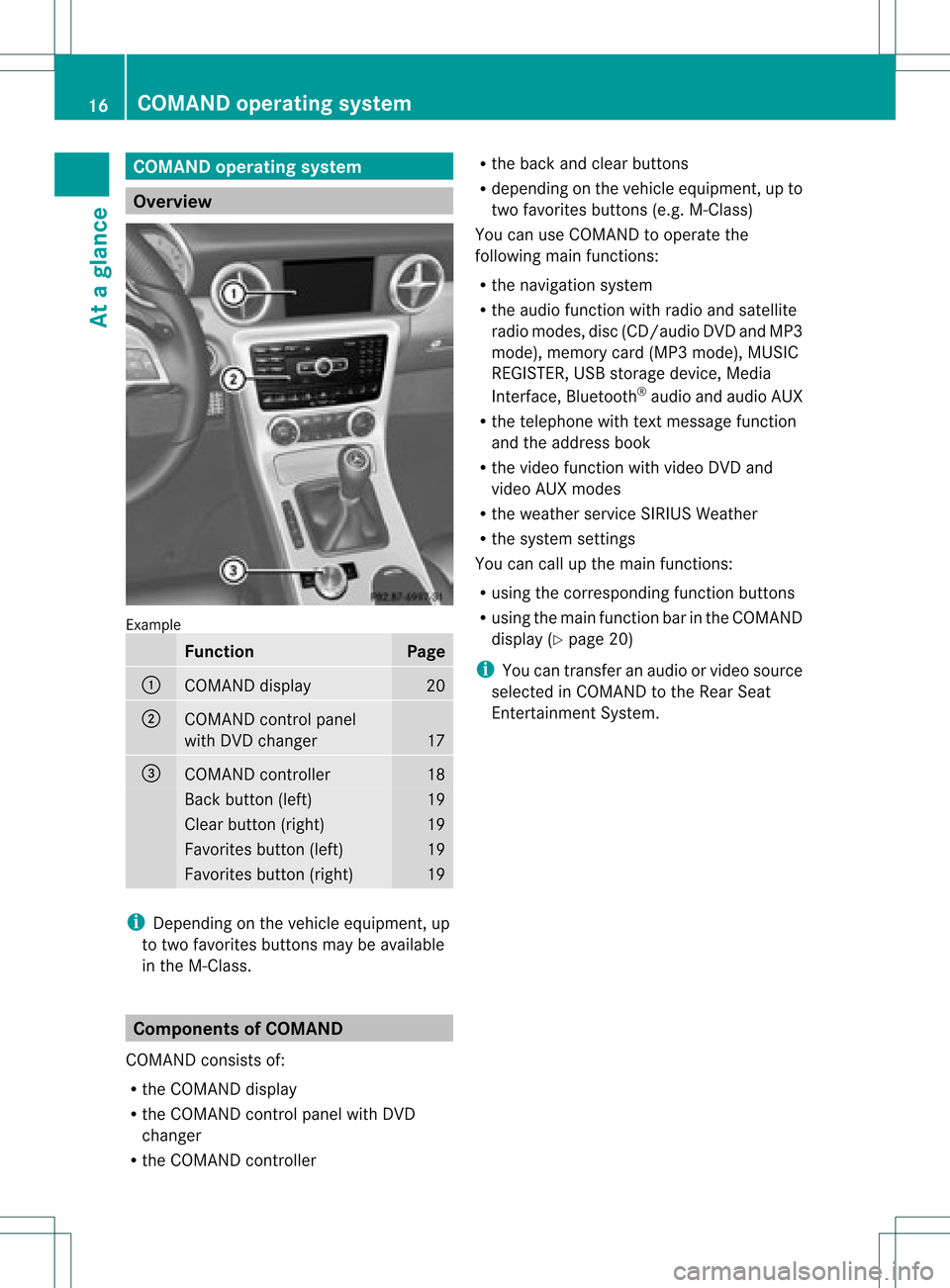
Doper ating syst em Over
view Ex
ample Funct
ion Pag
e :
COMA
NDdispl ay 20
;
COMA
NDcontrol pane l
wit hDV Dch ang er 17
=
COMA
NDcontroll er 18
Bac
kbut ton(lef t) 19
Clear
button( right) 19
Favori
tesbutton (left) 19
Favori
tesbutton (right) 19
i
Dependi ngon the vehicl eequ ipme nt,up
to two favori tesbuttons maybeava ilable
in the M-Cla ss. Co
mponen tsof COMA ND
COMAND consistsof:
R the COMAND display
R the COMAND controlpanelwithDVD
changer
R the COMAND controller R
the back andclearbuttons
R depe nding onthe vehicl eequ ipme nt,upto
two favori tesbuttons (e.g.M-Cla ss)
You canuseCOMAND toopera tethe
foll owi ngmain functions:
R the naviga tionsystem
R the audio function withradioand satel lite
radi omodes ,disc (CD/au dioDVD andMP3
mode) ,memory card(MP3 mode) ,MUSIC
REGISTER ,USB storage device,Medi a
Interface, Bluetooth ®
au dio and audio AUX
R the telep hone withtextmessa gefunction
and theaddress book
R the vide ofunction withvideoDVD and
vide oAUX modes
R the wea ther service SIRIUSWeather
R the system settings
You cancallupthe main functions:
R usi ng the correspo ndingfunction buttons
R usi ngthe main function barinthe COMAND
disp lay(Ypag e20)
i You cantransfer anaudio orvide osource
sele cted inCOMAND tothe RearSeat
En tert ainmen tSystem . 16
COMAND
operatingsystemAtaglance
Page 20 of 234
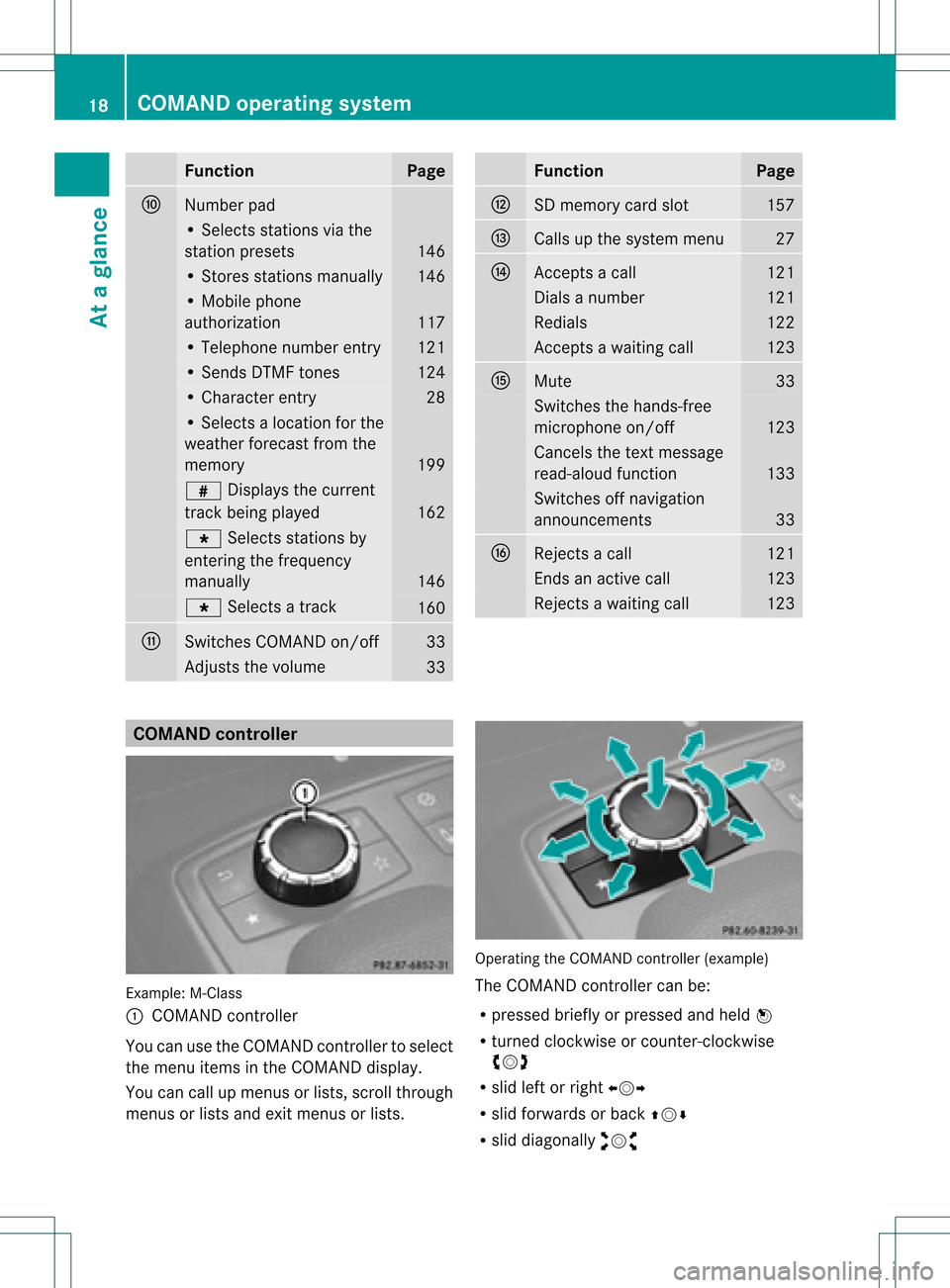
Funct
ion Pag
e F
Numb
erpad •
Sel ect sst atio nsvia the
st atio npresets 146
•
Stores stations manually 146
•
Mobi lephone
au thorizatio n 117
•
Tele phone number entry 121
•
Sends DTMFtones 124
•
Cha racter entry 28
•
Selects aloca tion forthe
wea ther forecast fromthe
memory 199
z
Displaysthe current
track being played 162
g
Selects stations by
entering thefrequ ency
manua lly 146
g
Selects atrack 160
G
Switches
COMAND on/off 33
Adjusts
thevolu me 33 Func
tion Page
H
SD
memory cardslot 157
I
Ca
lls up the system menu 27
J
Accepts
acall 121
Dial
sa number 121
Red
ials 122
Accepts
awa iting call 123
K
Mute 33
Switches
thehands-free
micropho neon/off 123
Ca
ncels thetext messa ge
read -alou dfunction 133
Switches
offnaviga tion
announcements 33
L
Rejects
acall 121
Ends
anactive call 123
Rejects
awa iting call 123
COMA
NDcontrolle r Example
:M-Class
: COMAND controller
Yo ucan usethe COMAND control lert oselect
the menu itemsinthe COMAND display.
You cancallupmenus orlists, scroll through
menus orlists andexitmenus orlists. Operating
theCOMAND controller (example)
The COMAND controller canbe:
R pressed brieflyorpressed andheld W
R turned clockwiseorcount er-clockwise
cVd
R slid leftorright XVY
R slid forwards orback ZVÆ
R slid diagonally aVb 18
COMAND
operatingsystemAtaglance
Page 23 of 234
Menu
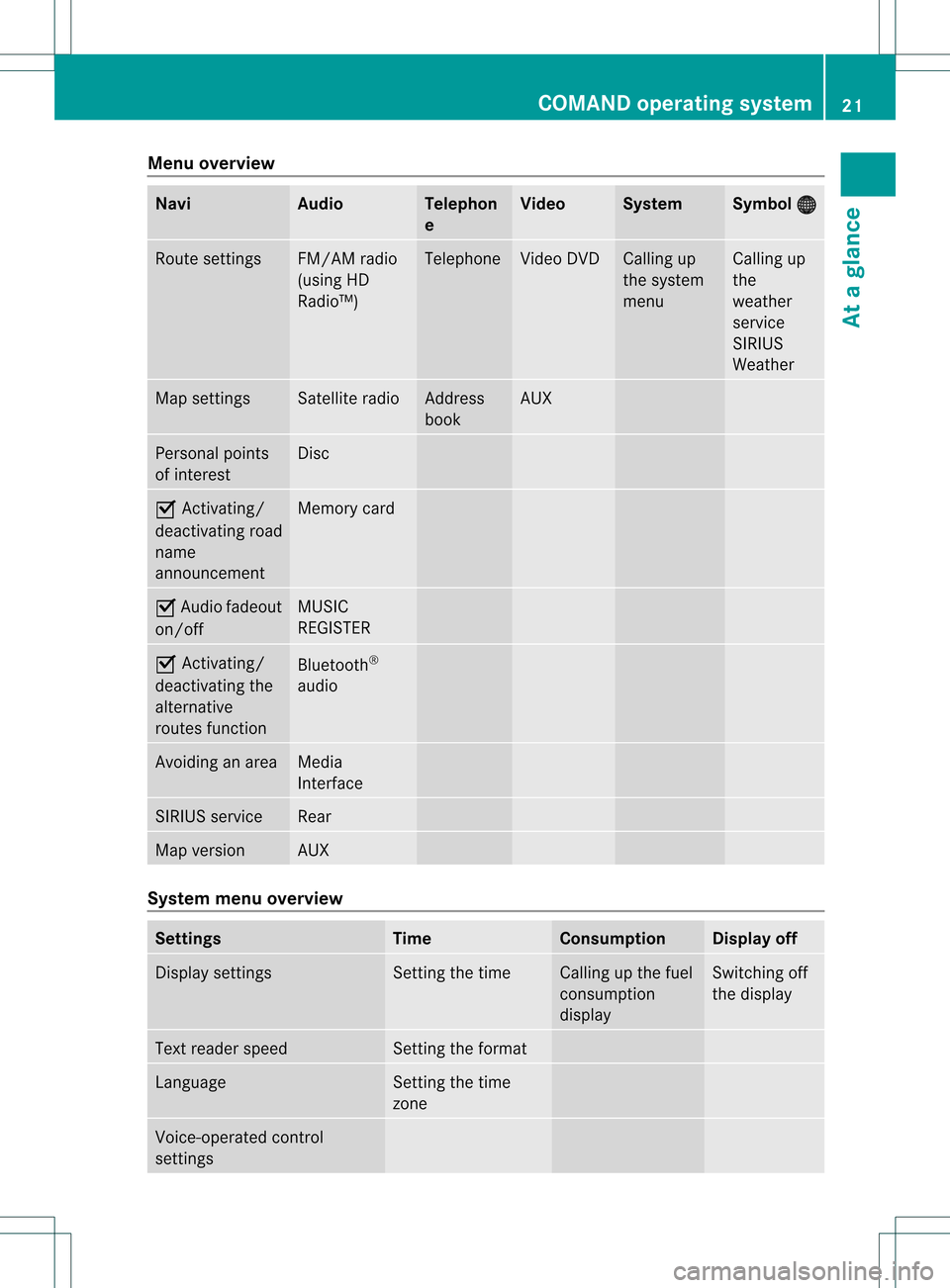
overview Navi Audio Tele
phon
e Video System Symbol
® Rou
tesettings FM/AM
radio
(us ing HD
Ra dio ™) Tele
phone Vide
oDVD Ca
lling up
the system
menu Ca
lling up
the
wea ther
service
SIRIUS
Wea ther Map
settings Satell
iteradi o Address
book AUX
Persona
lpoi nts
of interest Disc
O
Activating/
dea ctivating road
name
announceme nt Memory
card O
Audi ofade out
on/off MUSIC
REGISTER O
Activating/
dea ctivating the
alterna tive
routes function Blue
tooth ®
au dio Avoidi
nganarea Medi
a
Interface SIRIUS
service Rea
r Map
versio n AUX
System
menuoverview Setting
s Time Co
nsumption Di
splay off Displ
aysettings Setting
thetime Ca
lling up the fuel
consumpti on
disp lay Switching
off
the disp lay Text
readerspee d Setting
theformat Langu
age Setting
thetime
zone Voice-op
eratedcontrol
settings COMA
NDoperating system
21Ataglan ce
Page 28 of 234
The
number dialedisstored inthe
correspon dingcalllist.
i Ifthere areseveral numbers forthis
name, youseealist ofsub-ent ries.
X Press :or9 toselect the
phone number youwant.
X Press the6 or9 button againto
place thecall.
Redialing COMAND
savesthelast phone numbers or
names dialed.
X Press the=; buttonsto select the
Phone menu.
X Press the; button toopen thelistof
dialed numbers.
X Press the:9 buttonsto select the
desired nameorphone number.
X To connec tacall:press 6or9 onthe
mul tifunctio nstee ring wheel. Ope
ratin gCO MA ND Se
lecti ng am ainfunc tion
Ini tial situatio n You
wouldlike toswi tch from navigation
mode (addre ssentry menu) tothe system
settings, forexamp le.
X To switch onnavi gatio nmode: pressthe
Ø function button.
X To show themenu: pressW the COM AND
controll er.
X Sele ctDesti nation by
sliding VÆand
turning cVdtheCOM AND controll erand
pres sW toconfirm.
X Sele ctAddre ssEntry and
pres sW to
confirm.
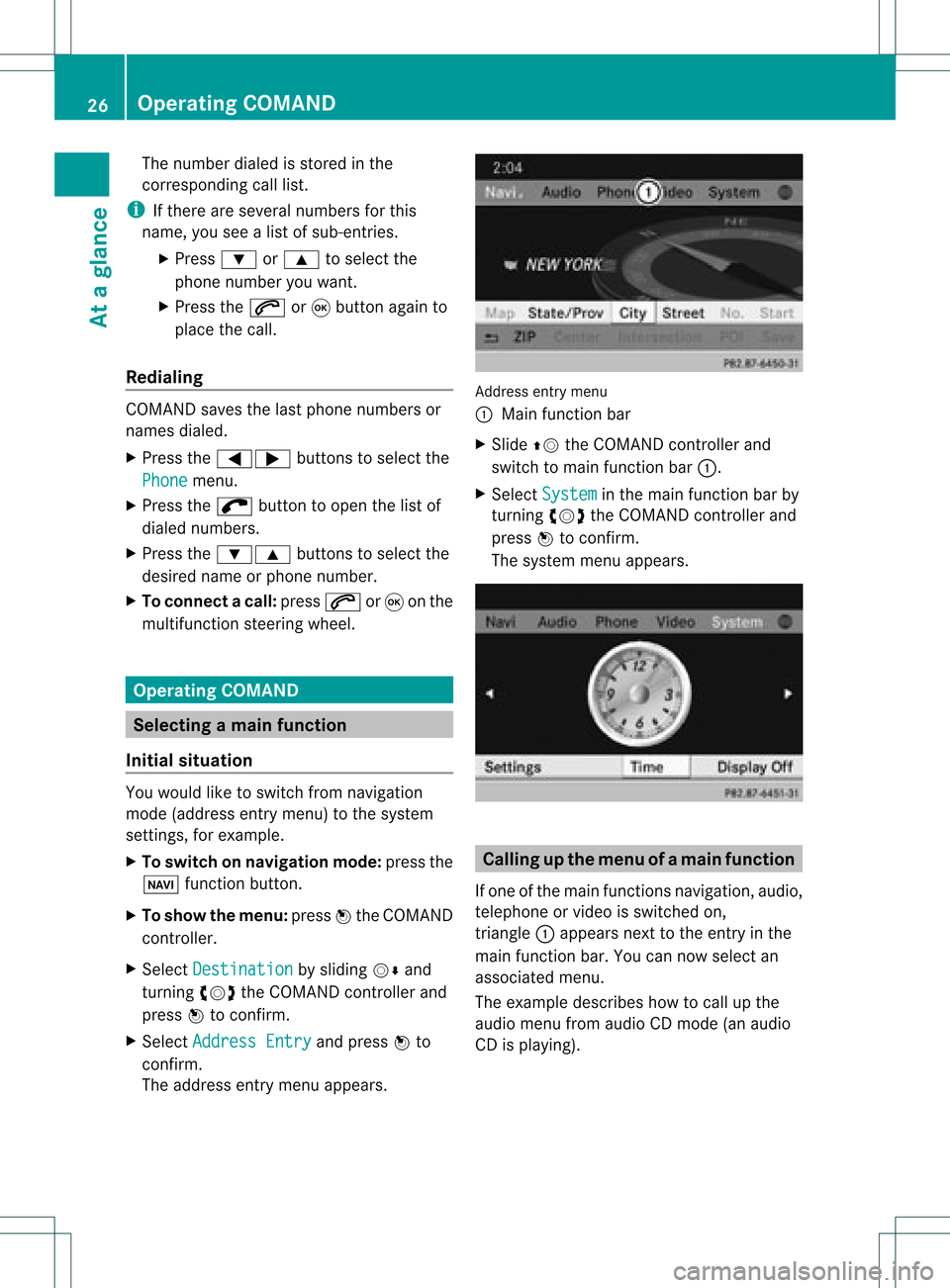
The address entry menu appears. Addre
ssentry menu
: Mai nfunc tion bar
X Sli de ZV theCOMA NDcontrol ler and
swit chtomain function bar :.
X Se lec tSys tem in
themain function bar by
tur nin gcVd theCOMA NDcontrol ler and
pre ssW toconfirm .
The systemmen uappear s. Calli
ngup themen uofam ainfunc tion
If one ofthe mainfunc tion snav igat ion,audio,
te leph oneor vide ois swit ched on,
tr iang le: appear sne xt to theen try in the
main function bar. Youcannowsele ctan
asso ciatedmen u.
The example describeshow tocall upthe
audio menufrom audio CDmod e(an audio
CD isplayin g). 26
Op
era ting COMAN DAtaglan ce
Page 30 of 234
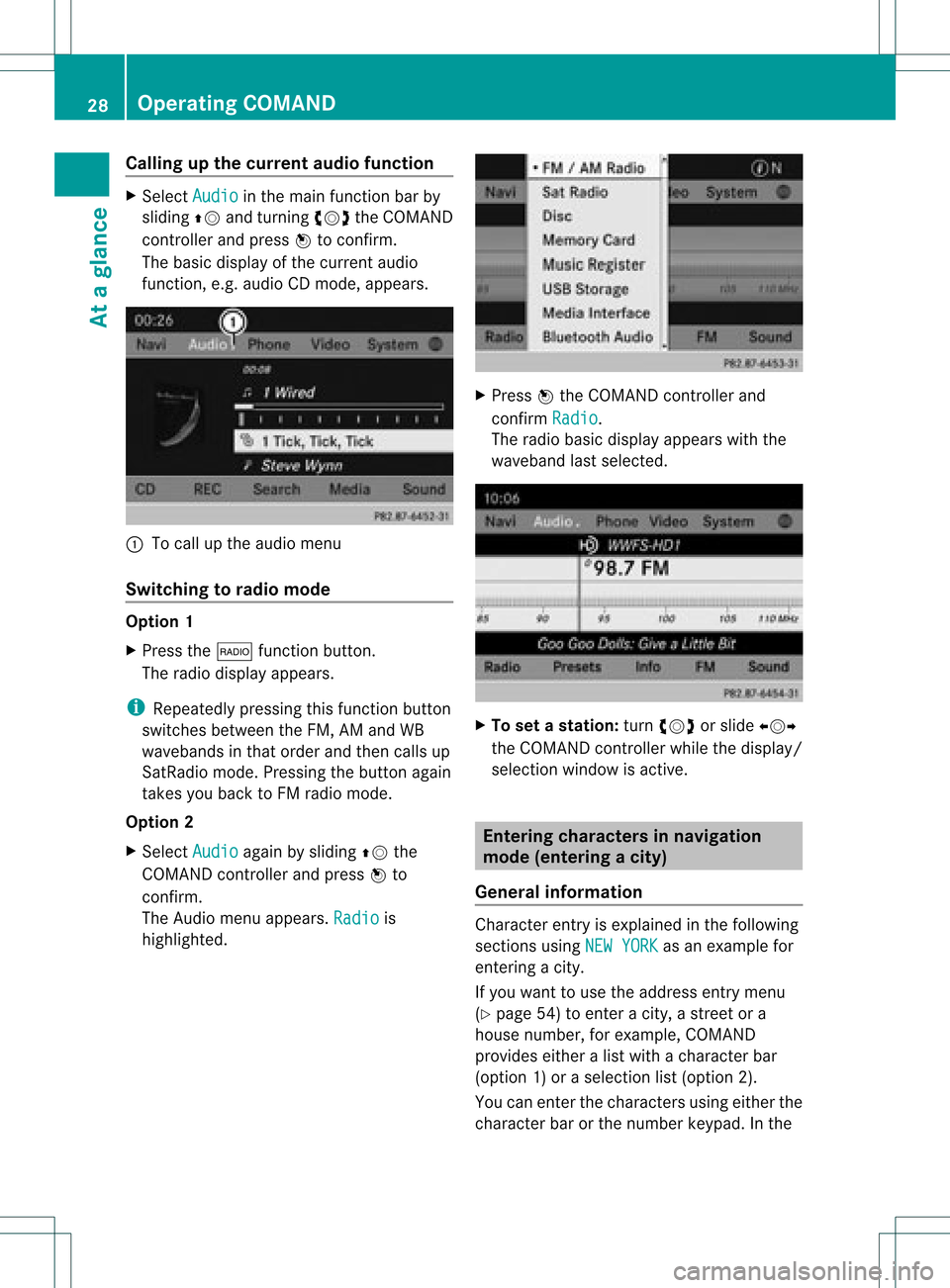
Callin
gup thecur ren tau dio funct ion X
Sel ect Audio in
themain function bar by
slidin gZV andturnin gcVd theCOMA ND
co ntroll erand pres sW toconfirm .
The basic displayofthecur ren taudio
fun ction ,e. g. audio CDmod e,appear s. :
Tocall uptheaudio menu
Swit chingto radio mod e Op
tion1
X Pre ssthe$ function button.
The radio displayappear s.
i Repeat edlypressin gth is fun ction button
swit ches bet ween theFM ,AM and WB
waveb andsin that ord erand then call sup
Sat Radio mode.Pre ssin gth ebut tona gain
takes youback toFM radio mode.
Option 2
X Select Audio again
bysliding ZVthe
COMAND controller andpress Wto
conf irm.
The Audio menuappears. Radio is
highlighted. X
Press Wthe COMAND controller and
conf irmRadio .
The radio basic display appears withthe
waveband lastselected. X
To set astat ion: turn cVd orslide XVY
the COMAND controller while thedisplay /
selection windowisactive. Entering
characters innavigation
mode (entering acity)
Gener alinfor mation Charact
erent ryisexplain edinthe followin g
sect ions using NEWYORK as
an exam plefor
ent erin gacit y.
If you want touse theaddress entrymen u
(Y page 54)toent eracit y,astr eet ora
house numbe r,for exam ple,COMAN D
prov ides eitheralist with achar acterbar
(optio n1)or aselect ionlist(option 2).
You canenterthe charac tersusing either the
charac terbar orthe number keypad. Inthe 28
Oper
ating COMANDAtaglance
Page 35 of 234
Basi
cfunc tions ofCO MA ND Sw
itchin gCO MA ND on/o ff
X Pre ssthe qcontro lknob.
Aw arning mes sage appear s.COMA ND
calls uptheprev iously selectedmen u.
i Ifyou switchoff COMA ND,playbac kof
the curre ntaudio or vide os ource willalso
be switched off. Switching
theCOMAND displayon/
off
X Press theW functionbutton .
or
X Select System in
the main functionbar by
sliding ZVandturnin gcVd theCOMAND
cont roller andpress Wtoconf irm.
In both cases, thesystem menuappears.
X To switch off:select Display Off and
press Wtoconf irm.
X To switch on:press oneofthe funct ion
button s,e.g. W, Øorthe % back
button . Mut
e
Sound fromanaudio/video source X
Press the8 button onCOMAND oron
the multifunct ionsteerin gwheel.
The sound fromtherespect iveaudio or
video source isswitched onormuted.
i When thesound isoff, thesystem
display sthe , icon inthe status line.
When youchange theaudio orvideo
source, oradjust thevolume, sound
automatically switchesonagain.
i Even ifthe sound isswitched off,you will
still hear navigation system
announc ements. Switching
offallnavigation
announcements X
Navigat ionannouncements: pressthe
8 button duringtheannounc ement.
Switching navigation announcements
back on X
Press 8again.
i The navigation announcementsare
swi tched onaga inifyou start anew route
gui dance orifCOMAND isswi tched offand
on with theqcontrol knob. Adjusting
thevolume
Adjusting thevolume forthe audio or
video source X
Turn theqcontrol knob.
or
X Press theW orX button onthe
multi function steeringwheel.
The volumeofthe currently selected audio
or vide osource changes.
You canalsoadju stthe volu meforthe
foll owi ng:
R naviga tionannouncements
R phone calls
R voice outputofthe Voice Control System
(see theseparate operating instructions)
Adjust ingthe volume fornavigation
announcements During
anavigation announcemen t:
X Turn qthe cont rolknob.
or
X Press theW orX button onthe
multifunction steeringwheel. Basic
functions ofCOMAND
33Ataglance Z
Page 42 of 234
COMAN
Dfea tures
Thes eOper atingIn st ruc tions desc ribeall
st andar dand optionalequipm enta vail able
for you rCOMAND systematthe time of
purcha se.Cou ntry-specifi cdeviation sare
possible. Pleasenotethat your COMAND
system maynotbeequipped withallthe
features described. Display
settings Sett
ingthe bright ness
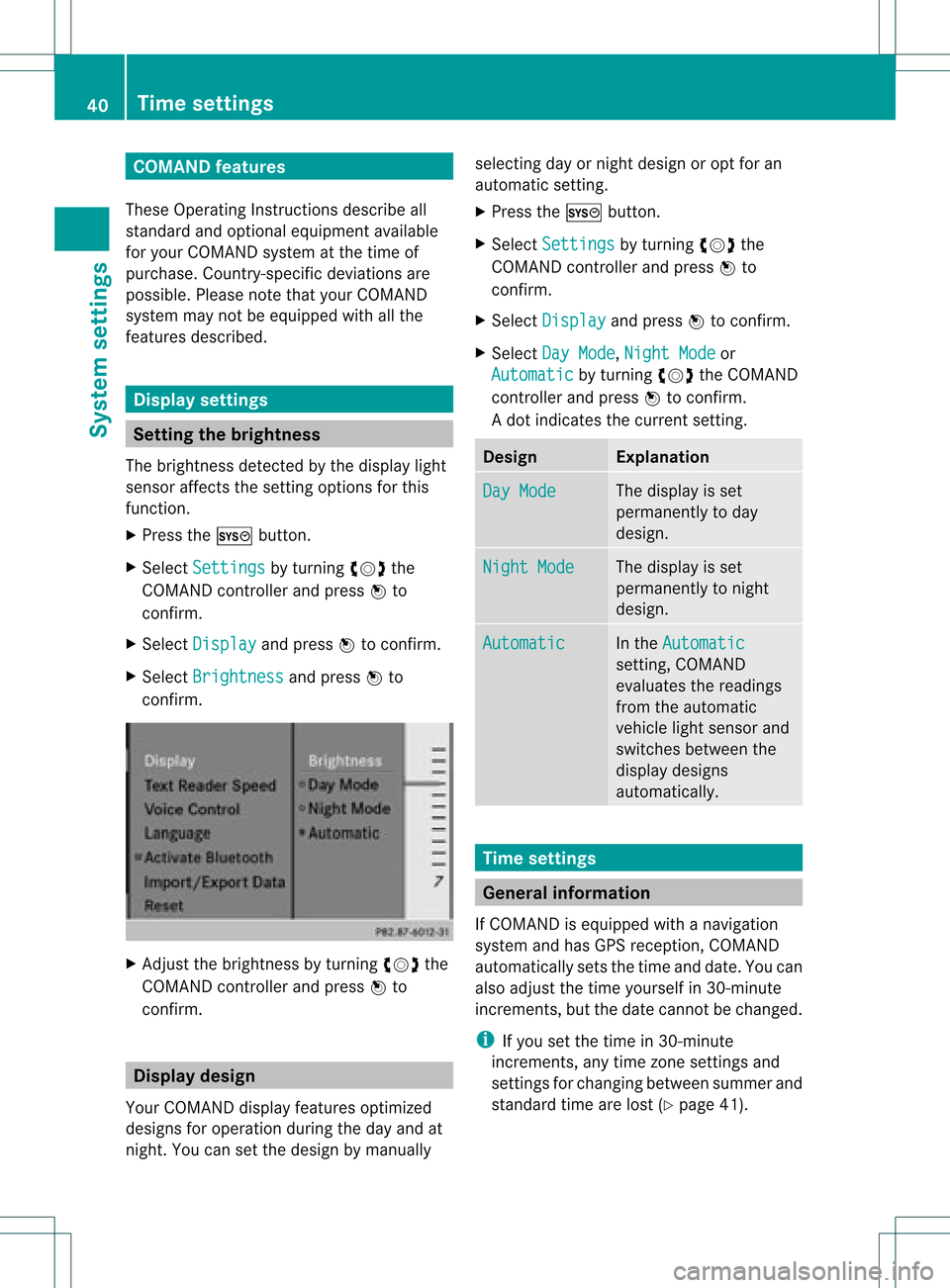
The brightn essdetec tedbythe display light
sensor affectsthe settingoption sfor this
func tion.
X Press theW button .
X Select Setting s by
turn ingcVd the
COMAND controller andpress Wto
con firm.
X Select Display and
press Wtocon firm.
X Select Brightn ess and
press Wto
con firm. X
Adj ust the brightn essbyturn ingcVd the
COMAND controller andpress Wto
con firm. Display
design
Your COMAND displayfeatures optimized
designs foroperation duringtheday and at
night .You can setthe design bymanually selecting
dayornight design oropt foran
automatic setting.
X Press theW button .
X Select Settings by
turnin gcVd the
COMAND controller andpress Wto
conf irm.
X Select Display and
press Wtoconf irm.
X Select DayMode ,
Night Mode or
Automatic by
turnin gcVd theCOMAND
cont roller andpress Wtoconf irm.
A dot indicates thecurrent setting. Design Explanat
ion Day
Mode The
display isset
permanent lyto day
design. Night
Mode The
display isset
permanent lyto night
design. Automatic In
the Automatic sett
ing, COMAND
evaluates thereadings
from theautomatic
vehicle lightsensor and
switches betweenthe
display designs
automatically. Time
settings General
information
If COMAND isequipped withanavigation
system andhasGPS reception ,COMAND
automatically setsthetime anddate. Youcan
also adjust thetime yourself in30- minute
increm ents,but thedate cannotbe changed.
i Ifyou setthe time in30- minute
increm ents,any time zonesett ings and
sett ings forchanging betweensummerand
standard timearelost (Ypage 41). 40
Tim
esettingsSystem settings
Page 43 of 234
i
The following navigation systemfunctions
require thetime, timezoneand summer/
standard timetobe set correc tlyinorder
to work properly:
R route guidance onroutes withtime-
dependent trafficguidance
R calculation ofexpect edtime ofarrival Setting
thetime
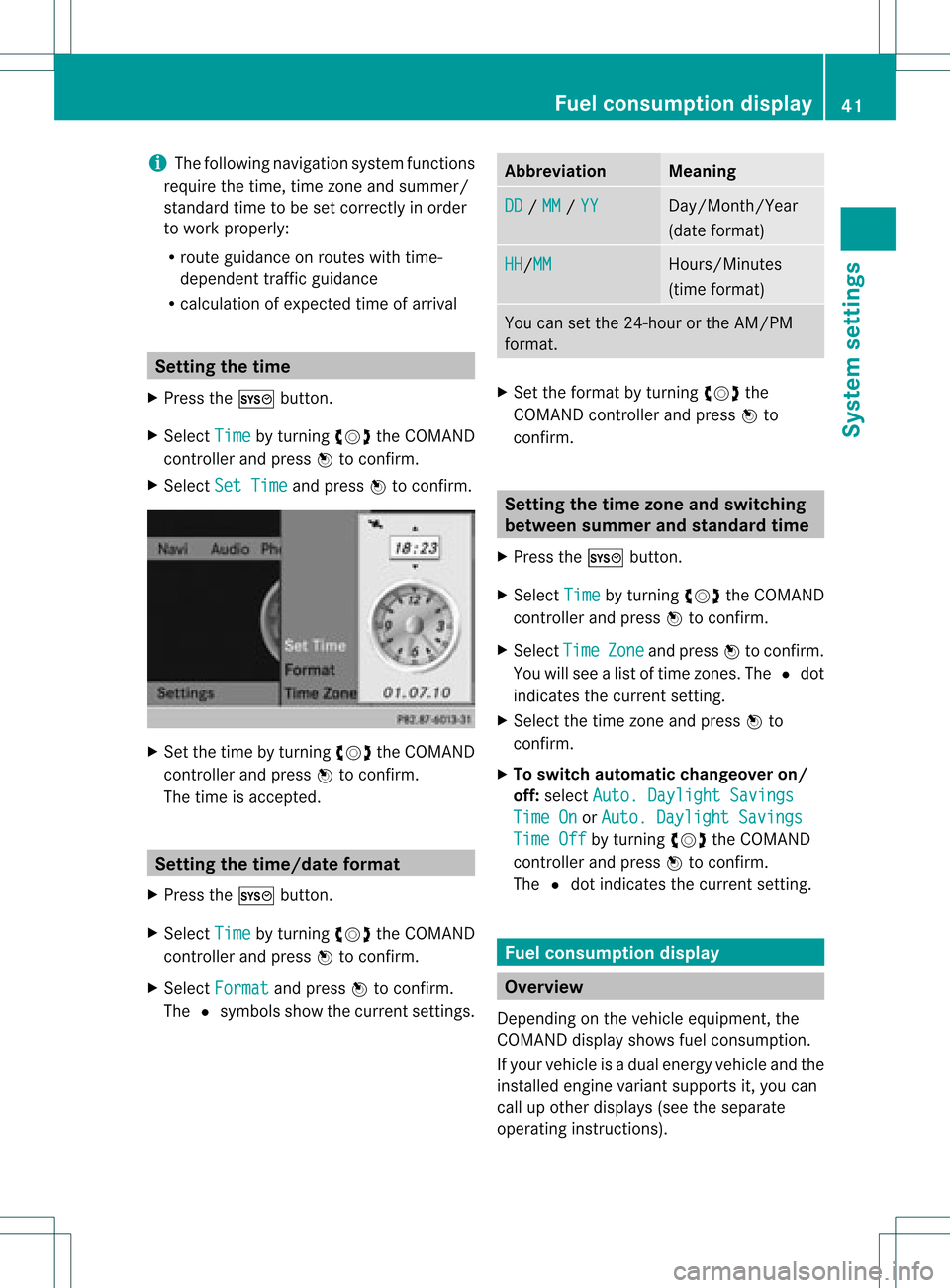
X Press theW button .
X Select Time by
turnin gcVd theCOMAND
cont roller andpress Wtoconf irm.
X Select SetTime and
press Wtoconf irm. X
Set thetime byturnin gcVd theCOMAND
cont roller andpress Wtoconf irm.
The time isaccepted. Setting
thetime/da teform at
X Press theW button .
X Select Time by
turnin gcVd theCOMAND
cont roller andpress Wtoconf irm.
X Select Format and
press Wtoconf irm.
The #symbols showthecurren tsett ings. Abbreviat
ion Meaning
DD /
MM /
YY Day/Mon
th/Year
(date format ) HH /MM Hours/
Minutes
(time format ) You
cansetthe 24-hour orthe AM/ PM
format . X
Set theformat byturn ingcVd the
COMAND controller andpress Wto
con firm. Sett
ingthe timezone andswitching
between summerand stand ardtime
X Press theW button .
X Select Time by
turn ingcVd theCOMAND
con troller andpress Wtocon firm.
X Select Time Zone and
press Wtocon firm.
You willsee alist oftime zones.The #dot
indicat esthe curren tsett ing.
X Select thetime zoneand press Wto
con firm.
X To switch automat icchangeover on/
off: select Auto. Dayligh tSavings Time
On or
Auto. Dayligh tSavings Time
Off by
turn ingcVd theCOMAND
con troller andpress Wtocon firm.
The #dot indicat esthe curren tsett ing. Fuel
consumpt iondispla y Overview
Depen dingonthe vehicle equipment, the
COMAND displayshowsfuelconsumption .
If your vehicle isadual energy vehicle andthe
inst alled engin evariant supports it,you can
call upother displays (seetheseparate
operatin ginst ruct ions). Fuel
consumpt iondispla y
41System settings