radio MERCEDES-BENZ C-Class 2015 W205 Comand Manual
[x] Cancel search | Manufacturer: MERCEDES-BENZ, Model Year: 2015, Model line: C-Class, Model: MERCEDES-BENZ C-Class 2015 W205Pages: 214, PDF Size: 5.16 MB
Page 29 of 214
Switching the sound on or off
Media source sound X
Press the thumbwheel beside the control-
ler.
or
X Press the 0063button on the multifunction
steering wheel.
i When the sound is switched off, you will
see the 006Bsymbol in the status bar. If you
change the media source or change the
volume, the sound is automatically
switched on.
i Even if the sound is switched off, you will
still hear navigation system announce-
ments.
Switching navigation announcements
off and on again X
To switch off navigation announce-
ments: press the thumbwheel beside the
controller during the announcement.
The Spoken
Spoken driving driving recommendations
recommendations
have been deactivated.
have been deactivated. message
appears.
X To switch navigation announcements
back on: switch COMAND off and then on
again (Y page 26).
or
X Start a new route calculation
(Y page 69).
or
X Select 006A: while route guidance is active,
show the menu and press the controller
(Y page 82). Function menu
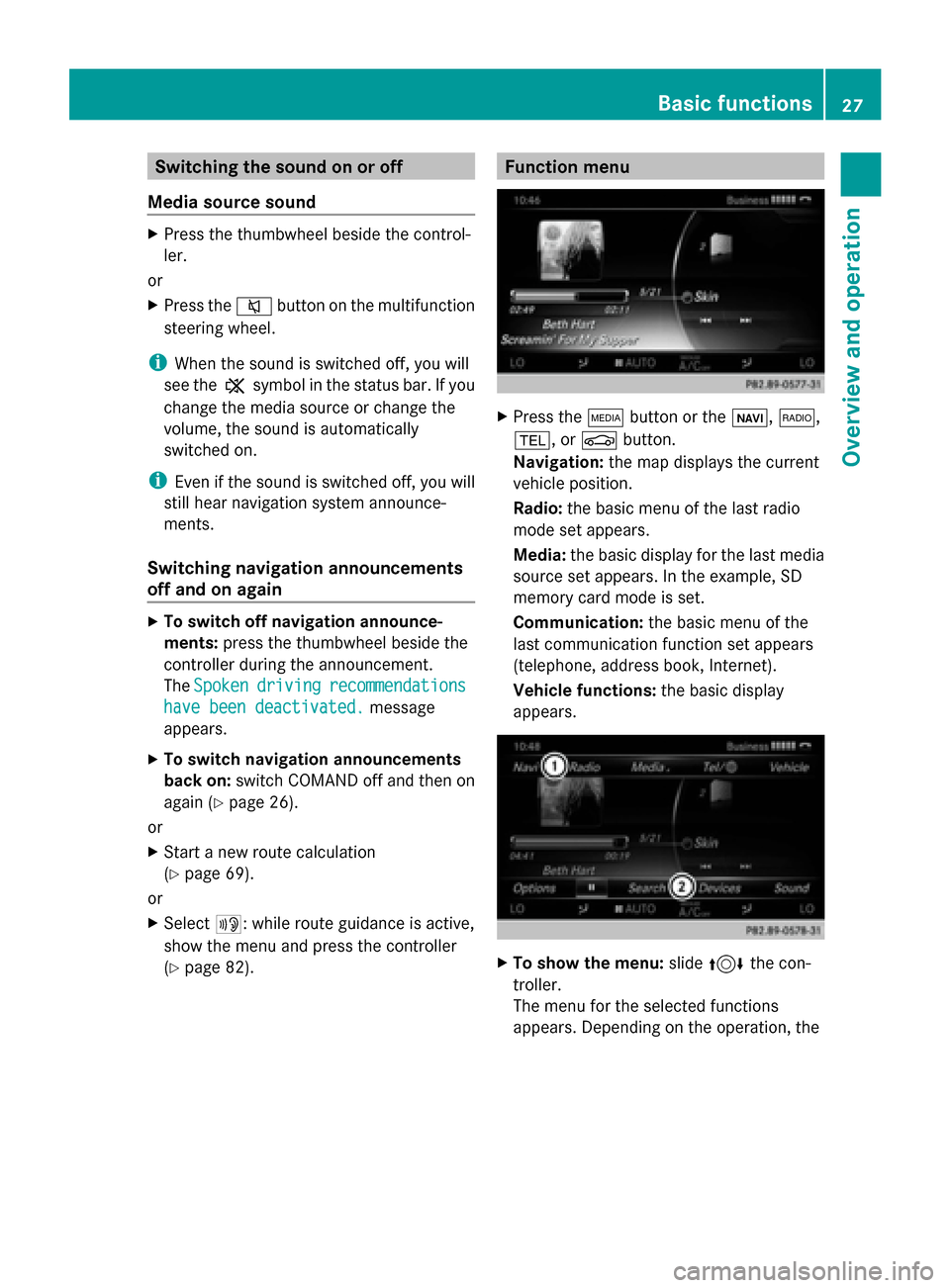
X
Press the 00FDbutton or the 00CB,002A,
002B, or 00D4button.
Navigation: the map displays the current
vehicle position.
Radio: the basic menu of the last radio
mode set appears.
Media: the basic display for the last media
source set appears. In the example, SD
memory card mode is set.
Communication: the basic menu of the
last communication function set appears
(telephone, address book, Internet).
Vehicle functions: the basic display
appears. X
To show the menu: slide4 the con-
troller.
The menu for the selected functions
appears. Depending on the operation, the Basic functions
27Overview and operation
Page 34 of 214
X
To delete a character: touch the touch-sen-
sitive surface with your finger and glide
your finger to the left.
The character last entered is deleted.
X To finish the entry and switch back to the
list: press the touchpad. Favorites
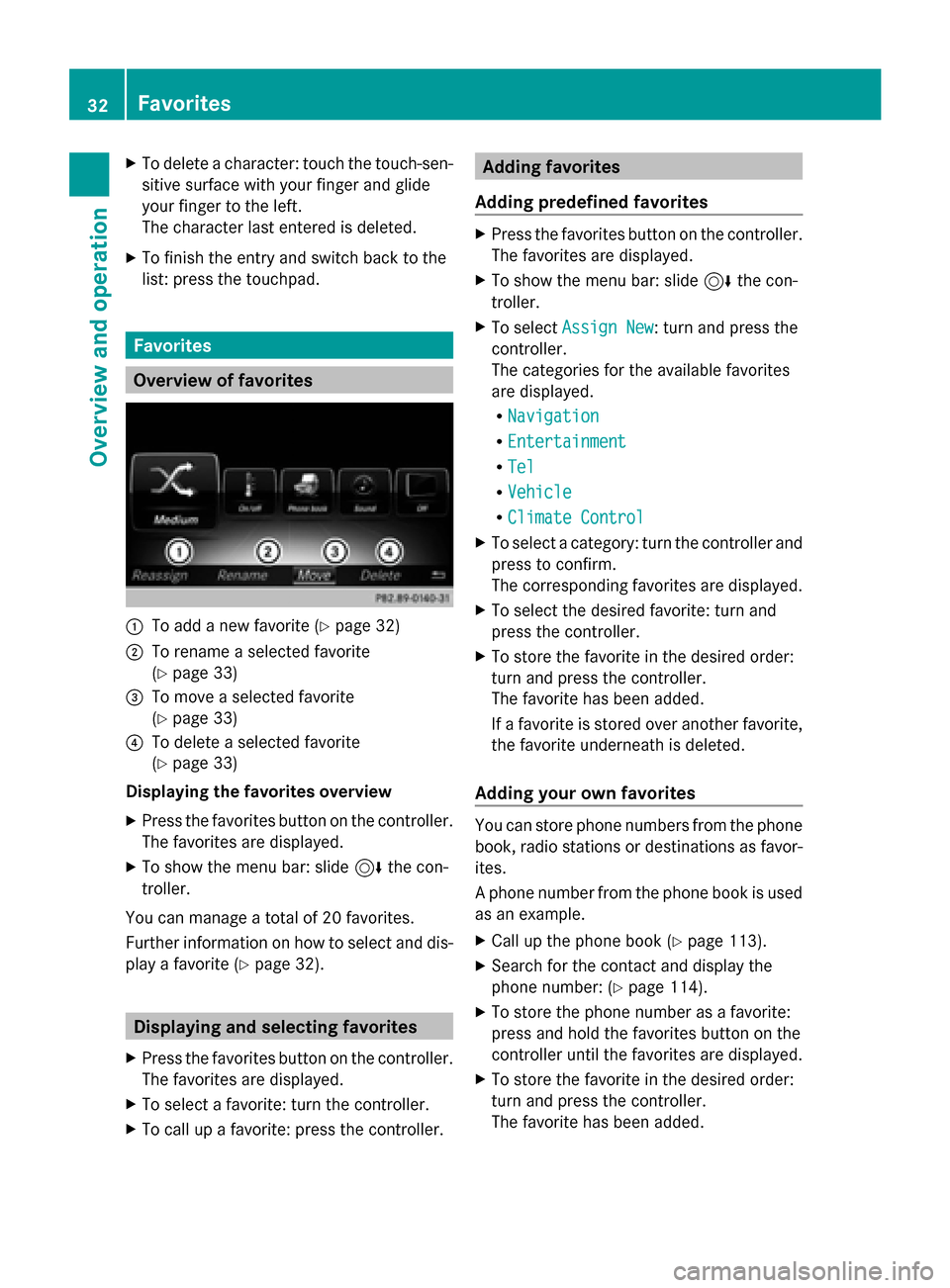
Overview of favorites
0043
To add a new favorite (Y page 32)
0044 To rename a selected favorite
(Ypage 33)
0087 To move a selected favorite
(Ypage 33)
0085 To delete a selected favorite
(Ypage 33)
Displaying the favorites overview
X Press the favorites button on the controller.
The favorites are displayed.
X To show the menu bar: slide 6the con-
troller.
You can manage a total of 20 favorites.
Further information on how to select and dis-
play a favorite (Y page 32). Displaying and selecting favorites
X Press the favorites button on the controller.
The favorites are displayed.
X To select a favorite: turn the controller.
X To call up a favorite: press the controller. Adding favorites
Adding predefined favorites X
Press the favorites button on the controller.
The favorites are displayed.
X To show the menu bar: slide 6the con-
troller.
X To select Assign New Assign New: turn and press the
controller.
The categories for the available favorites
are displayed.
R Navigation Navigation
R Entertainment
Entertainment
R Tel
Tel
R Vehicle
Vehicle
R Climate Control
Climate Control
X To select a category: turn the controller and
press to confirm.
The corresponding favorites are displayed.
X To select the desired favorite: turn and
press the controller.
X To store the favorite in the desired order:
turn and press the controller.
The favorite has been added.
If a favorite is stored over another favorite,
the favorite underneath is deleted.
Adding your own favorites You can store phone numbers from the phone
book, radio stations or destinations as favor-
ites.
A phone number from the phone book is used
as an example.
X Call up the phone book (Y page 113).
X Search for the contact and display the
phone number: (Y page 114).
X To store the phone number as a favorite:
press and hold the favorites button on the
controller until the favorites are displayed.
X To store the favorite in the desired order:
turn and press the controller.
The favorite has been added. 32
FavoritesOverview and operation
Page 44 of 214
Bluetooth
®
technology is a standard for
short-range wireless data transmissions up to
approximately 10 meters. You can use Blue-
tooth ®
to connect your mobile phone to
COMAND to, for example:
R use the hands-free system
R establish an Internet connection
R listen to music using Bluetooth ®
Audio
R exchange vCards
Bluetooth ®
is a registered trademark of Blue-
tooth Special Interest Group (SIG) Inc. Activating/deactivating Bluetooth
®
X Press the 00D4button in the center con-
sole.
The Vehicle
Vehicle menu appears.
X To select System Settings System Settings : slide6the
controller, turn and press to confirm.
A menu appears.
X To select Activate Bluetooth
Activate Bluetooth: turn and
press the controller.
This switches Bluetooth ®
on 0073 or off 0053. Setting the system language
This function allows you to determine the lan-
guage for the menu displays and the naviga-
tion messages. The selected language affects
the characters available for entry.
i The navigation announcements are not
available in all languages. If a language is
not available, the navigation announce-
ments will be in English.
i When you set the system language, the
language of the Voice Control System will
change accordingly. If it is not supported
by the Voice Control System, English will be
selected. X
Press the 00D4button.
The Vehicle Vehicle menu appears.
X To select System Settings
System Settings : slide6the
controller, turn and press to confirm.
A menu appears.
X To select Language Language : turn and press the
controller.
The list of languages appears. The 003Bdot
indicates the current setting.
X Select the desired language.
COMAND loads the selected language and
sets it. Calling up and editing the Favorites
function
The Favorites function can be called up via the
system menu or via the 007Dbutton on the
controller or the touchpad.
To call up the Favorites function via the
system menu:
X Press the 00D4button.
The system menu appears.
X To select System SystemSettings
Settings: slide 6and
press the controller.
A menu appears.
X To select Favorite Favorite Functions
Functions : press the
controller.
A menu appears.
X To select the desired function, e.g. Radio
Radio:
turn and press the controller.
A menu appears.
To call up the Favorites function via the
controller or touchpad:
X Press the 007Dbutton.
Call up the Favorite Functions Favorite Functions menu.
The Favorites function can be exited at any
time. To exit the Favorites function:
R Press the 007Dbutton again
R Press the 0038button on the controller
R Press the 0038button in the display. 42
Calling up and editing the Favorites functionSystem settings
Page 46 of 214

X
Insert the SD memory card (Y page 168).
or
X Connect a USB device (e.g. a USB memory
stick) (Y page 168).
X Press the 00D4button in the center con-
sole.
The Vehicle
Vehicle menu appears.
X To select System SystemSettings
Settings: slide 6and
press the controller.
A menu appears.
X To select Data Import/Export Data Import/Export: turn and
press the controller.
X Select Import Data
Import Data orExport Data
Export Data.
i If you import data such as address data,
the existing data on COMAND is overwrit-
ten. You will see a message to this effect.
COMAND is restarted after the data import. If PIN protection is activated, a PIN prompt
appears when you select Export Data Export Data.
X To enter the PIN: turn the controller and
press 0054to confirm.
PIN protection is deactivated.
X To select Memory Card
Memory Card, USB 1 USB 1orUSB 2
USB 2:
turn and press the controller.
This function exports all the data to the
selected disc.
A window appears with the message that
the data has been exported.
You can export address data, bookmarks,
system settings that you have made and radio
station lists, for example. Personal music files
in the MEDIA REGISTER cannot be saved and
imported again using this function. Mercedes-Benz is not liable for any loss of
data. Reset function
You can reset COMAND to the factory set-
tings. Amongst other things, this will delete
all personal COMAND data. These include:
R Channel presets
R Entries in the destination memory
R Entries in the list of previous destinations
in the navigation system
R Entries in the address book
R Authorized telephone
In addition, an activated PIN protection,
which you have used to protect your data
against unwanted export, will be deactivated.
Resetting is recommended before selling or
transferring ownership of your vehicle, for
example.
Data on the internal hard drive, e.g. music
files in the MEDIA REGISTER, will be deleted.
Mercedes-Benz is not liable for any loss of
data.
X Press the 00D4button in the center con-
sole.
The Vehicle
Vehicle menu appears.
X To select System Settings System Settings : slide6the
controller, turn and press to confirm.
A menu appears.
X To select Reset Reset: turn and press the con-
troller.
A prompt appears asking whether you wish
to reset.
X Select Yes YesorNo
No.
If you select No
Nothe process is canceled.
If you select Yes
Yesa prompt will appear again
asking whether you really wish to reset.
X Select Yes
YesorNo
No.
If you select Yes
Yesa message will be shown.
COMAND is reset to the factory settings
and restarted. 44
Reset functionSystem settings
Page 64 of 214
Your COMAND equipment
These operating instructions describe all
standard and optional equipment available
for your COMAND system at the time of pur-
chase. Country-specific differences are pos-
sible. Please note that your COMAND system
may not be equipped with all the features
described. This also applies to safety-relevant
systems and functions. Therefore, the equip-
ment on your COMAND system may differ
from that in the descriptions and illustrations.
Should you have any questions concerning
equipment and operation, please consult an
authorized Mercedes-Benz Center. Introduction
Important safety notes
G
WARNING
If you operate information systems and com-
munication equipment integrated in the vehi-
cle while driving, you will be distracted from
traffic conditions. You could also lose control
of the vehicle. There is a risk of an accident.
Only operate the equipment when the traffic
situation permits. If you are not sure that this
is possible, park the vehicle paying attention
to traffic conditions and operate the equip-
ment when the vehicle is stationary.
You must observe the legal requirements for
the country in which you are currently driving
when operating COMAND.
COMAND calculates the route to the destina-
tion without taking account of the following,
for example:
R traffic lights
R stop and yield signs
R merging lanes
R parking or stopping in a no parking/no
stopping zone
R other road and traffic rules and regulations
R narrow bridges COMAND can give incorrect navigation com-
mands if the actual street/traffic situation
does not correspond with the digital map's
data. Digital maps do not cover all areas nor
all routes in an area. For example, a route may
have been diverted or the direction of a one-
way street may have changed.
For this reason, you must always observe
road and traffic rules and regulations during
your journey. Road and traffic rules and reg-
ulations always have priority over the sys-
tem's driving recommendations.
Navigation announcements are intended to
direct you while driving without diverting your
attention from the road and driving.
Please always use this feature instead of con-
sulting the map display for directions. Look-
ing at the icons or map display can distract
you from traffic conditions and driving, and
increase the risk of an accident.
General notes
Operational readiness of the navigation
system The navigation system must determine the
position of the vehicle before first use or
whenever operational status is restored.
Therefore, you may have to drive for a while
before precise route guidance is possible.
GPS reception Among other things, correct functioning of
the navigation system depends on GPS recep-
tion. In certain situations, GPS reception may
be impaired, there may be interference or
there may be no reception at all, e.g. in tun-
nels or parking garages.
i Using roof carriers may impair the correct
functioning of a roof antenna (phone, sat-
ellite radio, GPS). 62
Int
roductionNavigation
Page 65 of 214
Entry restriction
For vehicles in certain countries, there is a
data entry restriction.
The restriction is active from a vehicle speed
of above approximately 3 mph (5 km/h). As
soon as the speed falls below approximately
2 mph (3 km/h), the restriction becomes
inactive.
When the restriction is active, certain entries
cannot be made. This will be indicated by the
fact that certain menu items are grayed out
and cannot be selected.
The following entries are not possible, for
example:
R entering the destination city and street
R entering a destination via the map
R entering POIs in the vicinity of a city or via
a name search
R editing entries
Other entries are possible, such as entering
points of interest in the vicinity of the desti-
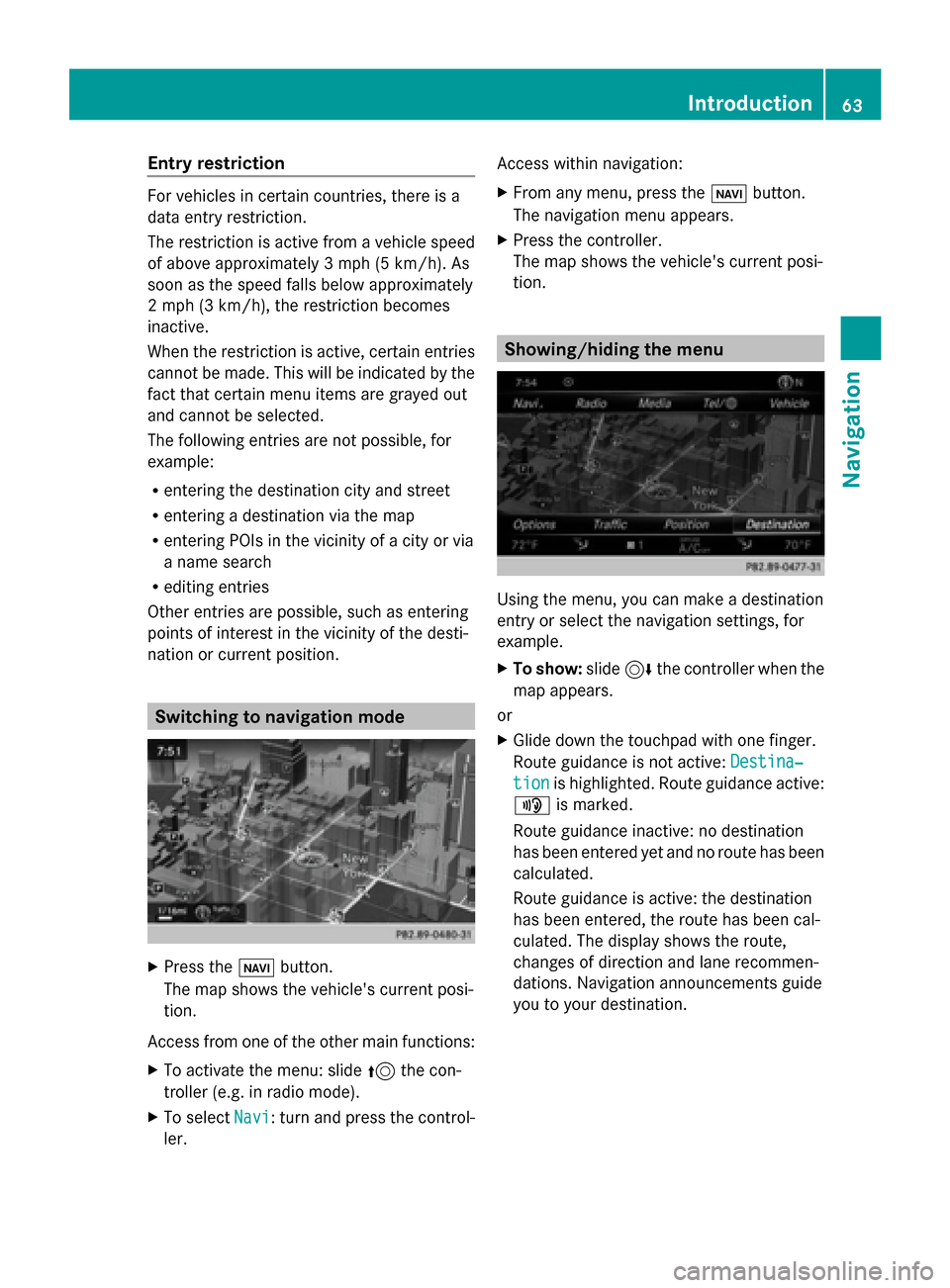
nation or current position. Switching to navigation mode
X
Press the 00CBbutton.
The map shows the vehicle's current posi-
tion.
Access from one of the other main functions:
X To activate the menu: slide 5the con-
troller (e.g. in radio mode).
X To select Navi
Navi: turn and press the control-
ler. Access within navigation:
X
From any menu, press the 00CBbutton.
The navigation menu appears.
X Press the controller.
The map shows the vehicle's current posi-
tion. Showing/hiding the menu
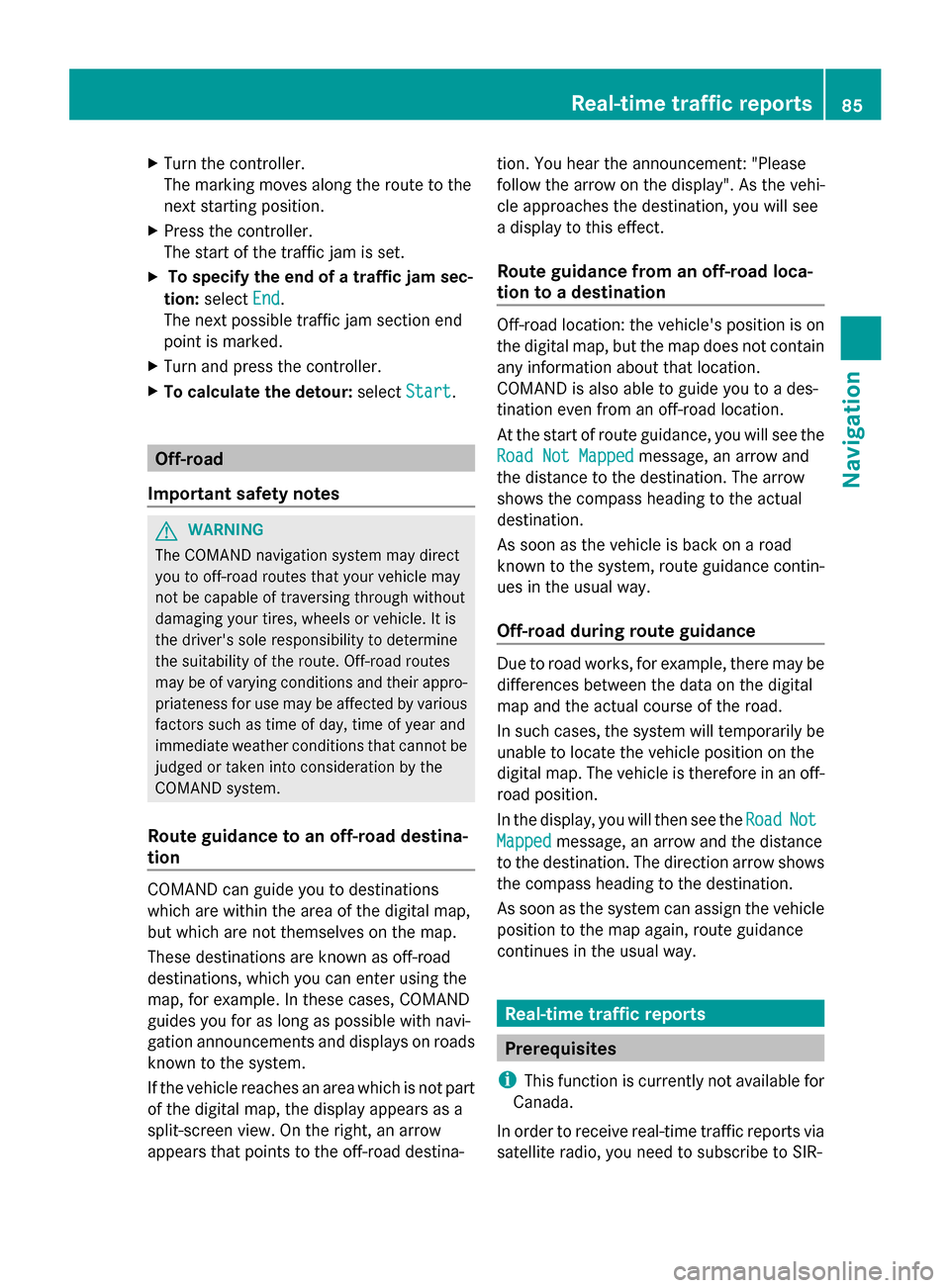
Using the menu, you can make a destination
entry or select the navigation settings, for
example.
X
To show: slide6the controller when the
map appears.
or
X Glide down the touchpad with one finger.
Route guidance is not active: Destina‐
Destina‐
tion tion is highlighted. Route guidance active:
008F is marked.
Route guidance inactive: no destination
has been entered yet and no route has been
calculated.
Route guidance is active: the destination
has been entered, the route has been cal-
culated. The display shows the route,
changes of direction and lane recommen-
dations. Navigation announcements guide
you to your destination. Introduction
63Navigation Z
Page 87 of 214
X
Turn the controller.
The marking moves along the route to the
next starting position.
X Press the controller.
The start of the traffic jam is set.
X To specify the end of a traffic jam sec-
tion: select End
End.
The next possible traffic jam section end
point is marked.
X Turn and press the controller.
X To calculate the detour: selectStart Start. Off-road
Important safety notes G
WARNING
The COMAND navigation system may direct
you to off-road routes that your vehicle may
not be capable of traversing through without
damaging your tires, wheels or vehicle. It is
the driver's sole responsibility to determine
the suitability of the route. Off-road routes
may be of varying conditions and their appro-
priateness for use may be affected by various
factors such as time of day, time of year and
immediate weather conditions that cannot be
judged or taken into consideration by the
COMAND system.
Route guidance to an off-road destina-
tion COMAND can guide you to destinations
which are within the area of the digital map,
but which are not themselves on the map.
These destinations are known as off-road
destinations, which you can enter using the
map, for example. In these cases, COMAND
guides you for as long as possible with navi-
gation announcements and displays on roads
known to the system.
If the vehicle reaches an area which is not part
of the digital map, the display appears as a
split-screen view. On the right, an arrow
appears that points to the off-road destina- tion. You hear the announcement: "Please
follow the arrow on the display". As the vehi-
cle approaches the destination, you will see
a display to this effect.
Route guidance from an off-road loca-
tion to a destination
Off-road location: the vehicle's position is on
the digital map, but the map does not contain
any information about that location.
COMAND is also able to guide you to a des-
tination even from an off-road location.
At the start of route guidance, you will see the
Road Not Mapped Road Not Mapped
message, an arrow and
the distance to the destination. The arrow
shows the compass heading to the actual
destination.
As soon as the vehicle is back on a road
known to the system, route guidance contin-
ues in the usual way.
Off-road during route guidance Due to road works, for example, there may be
differences between the data on the digital
map and the actual course of the road.
In such cases, the system will temporarily be
unable to locate the vehicle position on the
digital map. The vehicle is therefore in an off-
road position.
In the display, you will then see the
Road RoadNot
Not
Mapped
Mapped message, an arrow and the distance
to the destination. The direction arrow shows
the compass heading to the destination.
As soon as the system can assign the vehicle
position to the map again, route guidance
continues in the usual way. Real-time traffic reports
Prerequisites
i This function is currently not available for
Canada.
In order to receive real-time traffic reports via
satellite radio, you need to subscribe to SIR- Real-time traffic reports
85Navigation Z
Page 88 of 214
IUS XM Satellite Radio Traffic Message
Service.
Further information on satellite radio
(Y page 157).
COMAND can receive traffic reports via sat-
ellite radio and take account of these for
route guidance in the navigation system.
Received traffic reports are displayed on the
map either as text or as symbols. Real-time traffic reports on the map
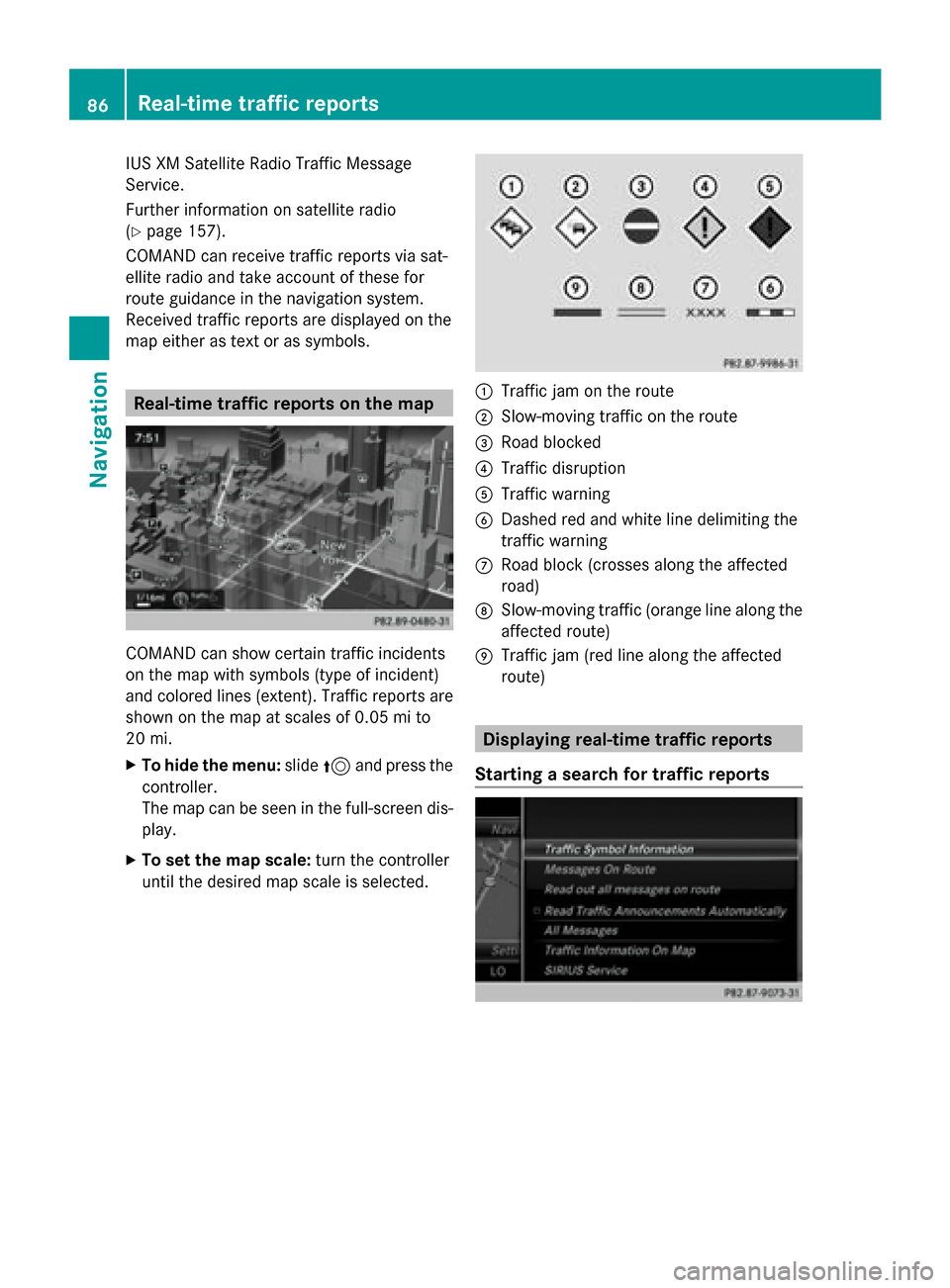
COMAND can show certain traffic incidents
on the map with symbols (type of incident)
and colored lines (extent). Traffic reports are
shown on the map at scales of 0.05 mi to
20 mi.
X To hide the menu: slide5and press the
controller.
The map can be seen in the full-screen dis-
play.
X To set the map scale: turn the controller
until the desired map scale is selected. 0043
Traffic jam on the route
0044 Slow-moving traffic on the route
0087 Road blocked
0085 Traffic disruption
0083 Traffic warning
0084 Dashed red and white line delimiting the
traffic warning
006B Road block (crosses along the affected
road)
006C Slow-moving traffic (orange line along the
affected route)
006D Traffic jam (red line along the affected
route) Displaying real-time traffic reports
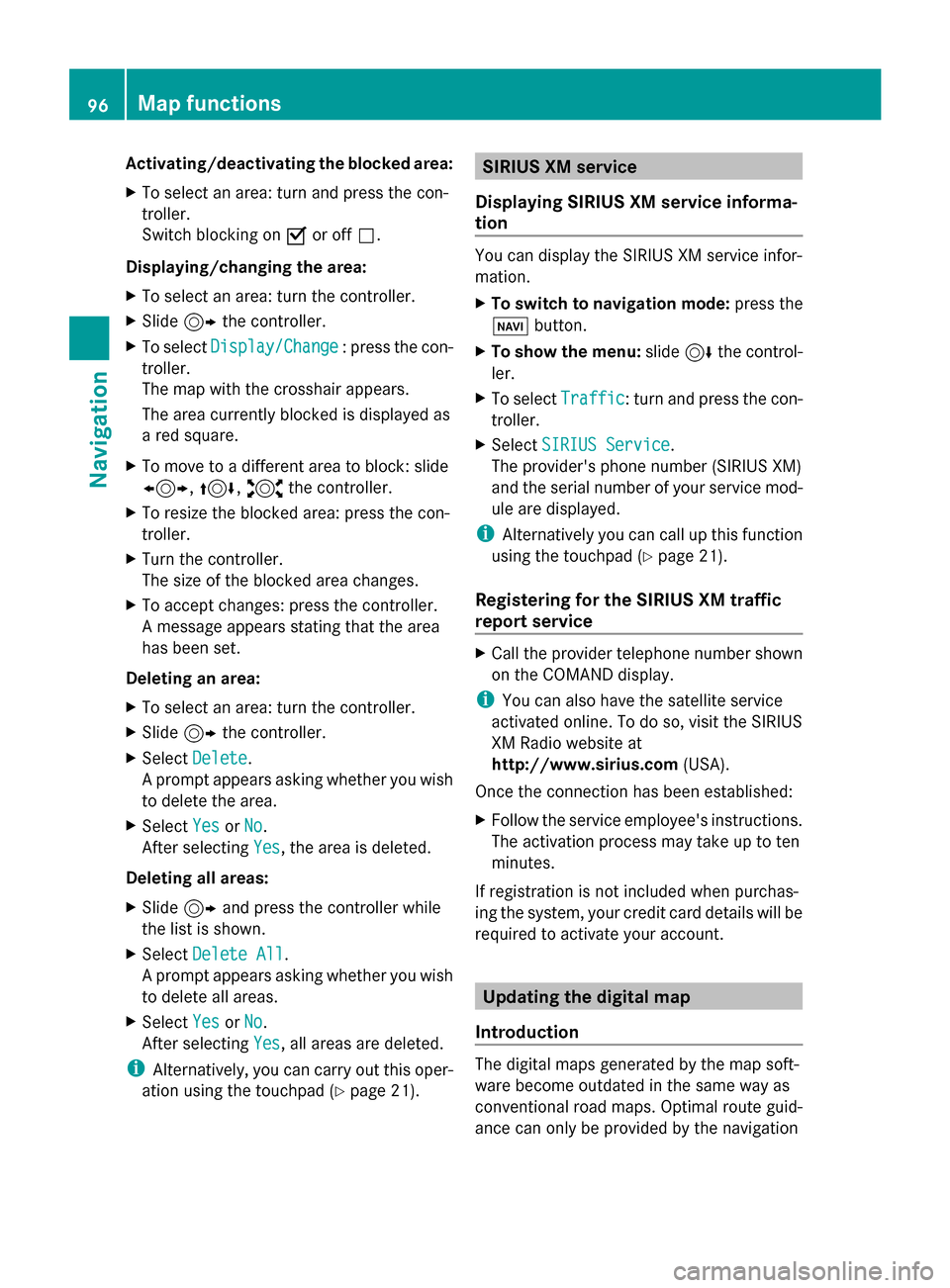
Starting a search for traffic reports 86
Real-time traffic reportsNavigation
Page 98 of 214
Activating/deactivating the blocked area:
X To select an area: turn and press the con-
troller.
Switch blocking on 0073or off 0053.
Displaying/changing the area:
X To select an area: turn the controller.
X Slide 9the controller.
X To select Display/Change
Display/Change : press the con-
troller.
The map with the crosshair appears.
The area currently blocked is displayed as
a red square.
X To move to a different area to block: slide
1, 4,2the controller.
X To resize the blocked area: press the con-
troller.
X Turn the controller.
The size of the blocked area changes.
X To accept changes: press the controller.
A message appears stating that the area
has been set.
Deleting an area:
X To select an area: turn the controller.
X Slide 9the controller.
X Select Delete
Delete .
A prompt appears asking whether you wish
to delete the area.
X Select Yes
Yes orNo No.
After selecting Yes
Yes , the area is deleted.
Deleting all areas:
X Slide 9and press the controller while
the list is shown.
X Select Delete All
Delete All .
A prompt appears asking whether you wish
to delete all areas.
X Select Yes
Yes orNo No.
After selecting Yes
Yes , all areas are deleted.
i Alternatively, you can carry out this oper-
ation using the touchpad ( Ypage 21). SIRIUS XM service
Displaying SIRIUS XM service informa-
tion You can display the SIRIUS XM service infor-
mation.
X
To switch to navigation mode: press the
00BE button.
X To show the menu: slide6the control-
ler.
X To select Traffic Traffic: turn and press the con-
troller.
X Select SIRIUS Service
SIRIUS Service.
The provider's phone number (SIRIUS XM)
and the serial number of your service mod-
ule are displayed.
i Alternatively you can call up this function
using the touchpad ( Ypage 21).
Registering for the SIRIUS XM traffic
report service X
Call the provider telephone number shown
on the COMAND display.
i You can also have the satellite service
activated online. To do so, visit the SIRIUS
XM Radio website at
http://www.sirius.com (USA).
Once the connection has been established:
X Follow the service employee's instructions.
The activation process may take up to ten
minutes.
If registration is not included when purchas-
ing the system, your credit card details will be
required to activate your account. Updating the digital map
Introduction The digital maps generated by the map soft-
ware become outdated in the same way as
conventional road maps. Optimal route guid-
ance can only be provided by the navigation96
Map functionsNavigation
Page 137 of 214
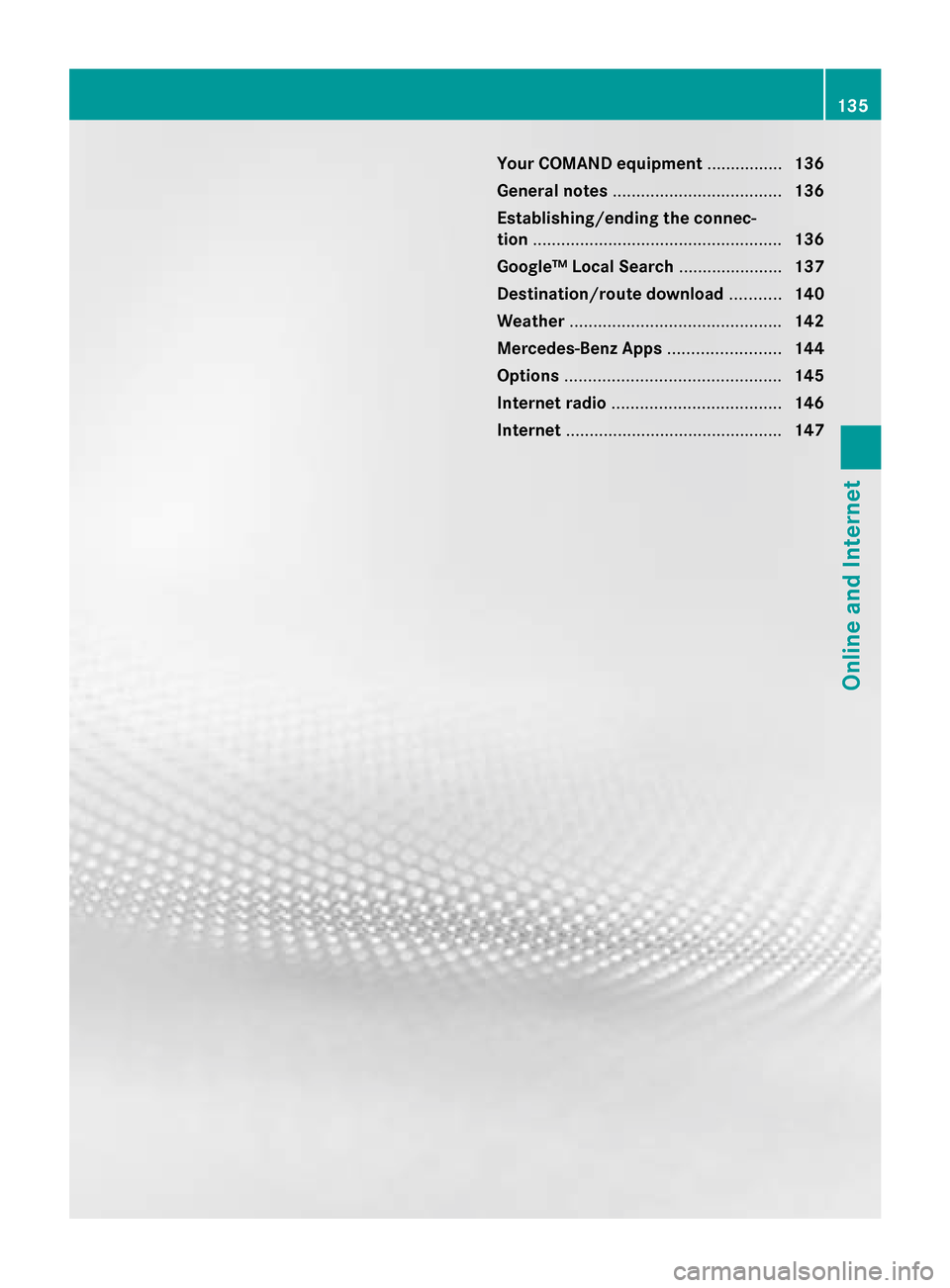
Your COMAND equipment
................136
General notes .................................... 136
Establishing/ending the connec-
tion ..................................................... 136
Google™ Local Search ......................137
Destination/route download ...........140
Weather ............................................. 142
Mercedes-Benz Apps ........................144
Options .............................................. 145
Internet radio .................................... 146
Internet .............................................. 147 135Online and Internet