radio MERCEDES-BENZ C-Class 2015 W205 Comand Manual
[x] Cancel search | Manufacturer: MERCEDES-BENZ, Model Year: 2015, Model line: C-Class, Model: MERCEDES-BENZ C-Class 2015 W205Pages: 214, PDF Size: 5.16 MB
Page 138 of 214
Your COMAND equipment
These operating instructions describe all
standard and optional equipment available
for your COMAND system at the time of pur-
chase. Country-specific differences are pos-
sible. Please note that your COMAND system
may not be equipped with all the features
described. This also applies to safety-relevant
systems and functions. Therefore, the equip-
ment on your COMAND system may differ
from that in the descriptions and illustrations.
Should you have any questions concerning
equipment and operation, please consult an
authorized Mercedes-Benz Center. General notes
Conditions for access
To use Mercedes-Benz Apps and Internet
access, the following conditions must be ful-
filled:
R mbrace is activated and operational
R mbrace is activated for Mercedes-Benz
Apps and Internet access
Priority of connections: an emergency call
has the highest priority. When a service call,
e.g. a breakdown service call or the MB Info
Call, is active, an emergency call can still be
initiated.
A service call, on the other hand, has priority
over a current Internet connection. Therefore,
you cannot establish an Internet connection
during a service call.
i The availability of individual Mercedes-
Benz Apps may vary depending on the
country.
i The terms of use are shown when the sys-
tem is used for the first time and then once
a year thereafter. Only read and accept the
terms of use when the vehicle is stationary.
i The driver is not permitted to call up web-
sites while driving and use of the Mercedes-
Benz Apps is restricted. Establishing/ending the connection
Establishing the connection
Read the conditions for establishing a con-
nection (Y page 136).
A connection can be established by:
R entering a web address (Y page 147).
R calling up the Mercedes-Benz Mobile Web-
site (Y page 144).
R calling up a Mercedes-Benz App
(Y page 144).
R calling up a Favorite.
R calling up the Internet radio (Y page 146).
R establishing an Internet connection via a
wireless networking device. The "Allow
shared WiFi usage" option must be acti-
vated on COMAND for this (Y page 39).
Ending the connection
X Press Cancel
Cancel in the connections window. Connection status
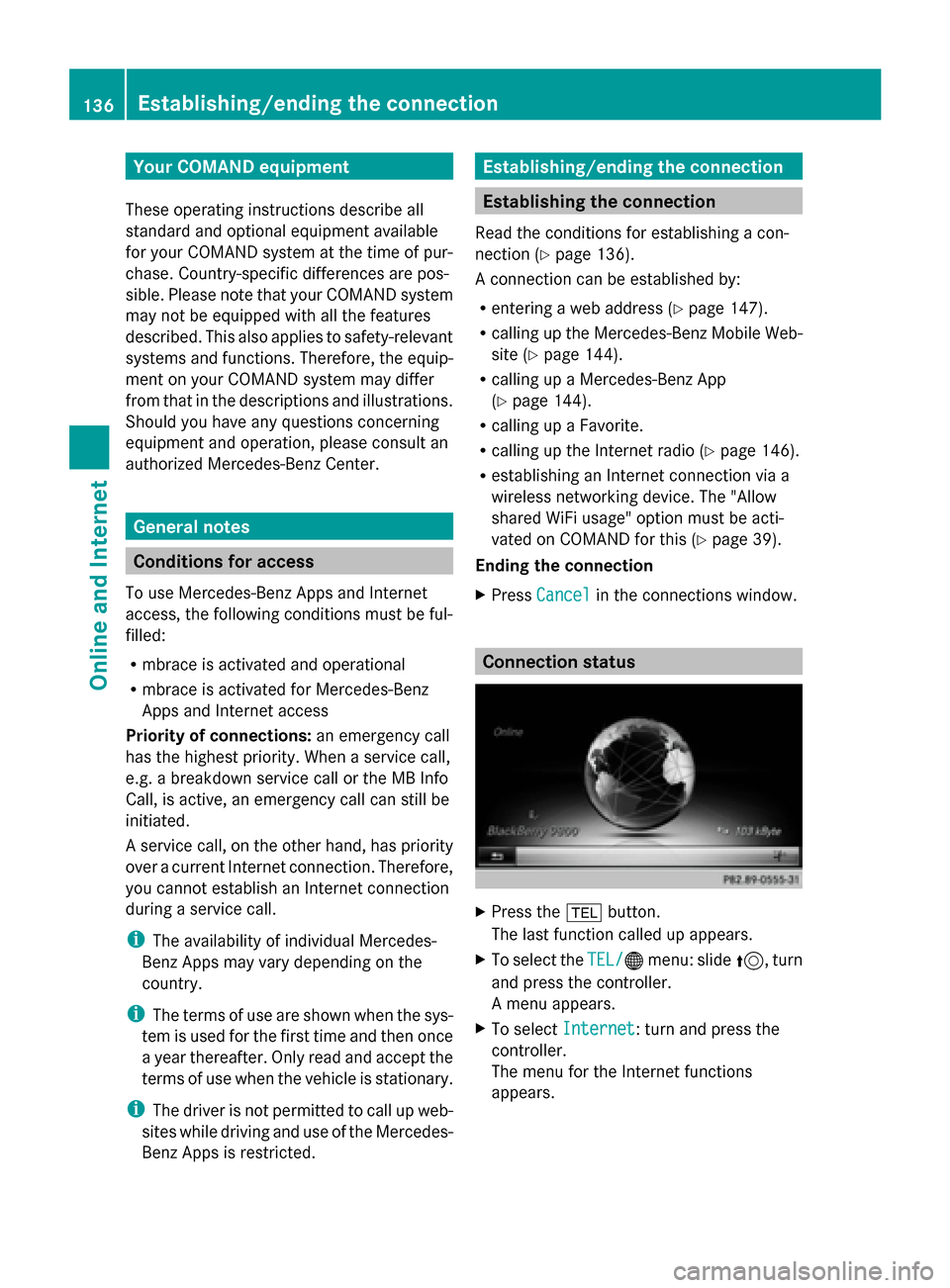
X
Press the 002Bbutton.
The last function called up appears.
X To select the TEL/ TEL/00A7menu: slide 5, turn
and press the controller.
A menu appears.
X To select Internet Internet : turn and press the
controller.
The menu for the Internet functions
appears. 136
Establishing/ending
theconnectionOnline and Internet
Page 148 of 214
Internet radio
General notes
A good Internet connection enables an effi-
cient transmission of audio data. Connecting
your mobile phone to the vehicle's exterior
antenna via the phone bracket ensures the
best possible reception.
i Bear in mind that a relatively large volume
of data can be transmitted when using
Internet radio. An average 12 8kbit per sec-
ond data transfer rate can transfer 56 MB
of data in one hour.
The data transfer rate of a station is dis-
played while receiving data. Calling up the Internet radio
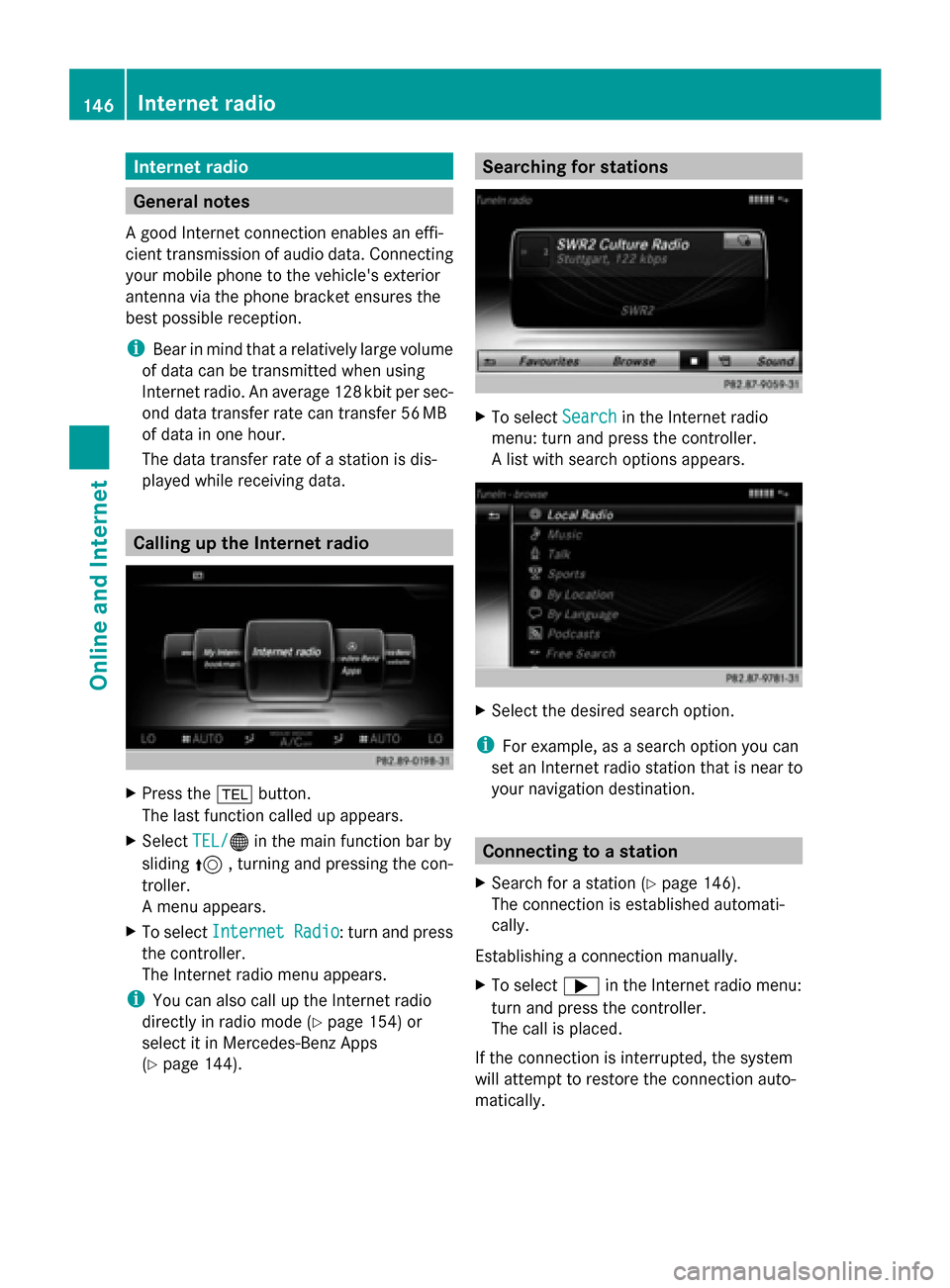
X
Press the 002Bbutton.
The last function called up appears.
X Select TEL/ TEL/00A7 in the main function bar by
sliding 5, turning and pressing the con-
troller.
A menu appears.
X To select Internet Radio
Internet Radio : turn and press
the controller.
The Internet radio menu appears.
i You can also call up the Internet radio
directly in radio mode (Y page 154) or
select it in Mercedes-Benz Apps
(Y page 144). Searching for stations
X
To select Search Searchin the Internet radio
menu: turn and press the controller.
A list with search options appears. X
Select the desired search option.
i For example, as a search option you can
set an Internet radio station that is near to
your navigation destination. Connecting to a station
X Search for a station (Y page 146).
The connection is established automati-
cally.
Establishing a connection manually.
X To select 0065in the Internet radio menu:
turn and press the controller.
The call is placed.
If the connection is interrupted, the system
will attempt to restore the connection auto-
matically. 146
Internet radioOnline and Internet
Page 149 of 214
Manually re-establishing a connection
X
Select 0065again in the Internet radio
menu.
Ending data transfer:
X Select 00DBin the Internet radio menu.
or
X Change to another audio source, for exam-
ple Media
Media.
If you change to a main function that is not an
audio source, e.g. navigation, the data con-
nection remains on. You can continue listen-
ing to the set station. Pressing the 002Bbut-
ton takes you back to Internet radio. Saving a station as a favorite
X To select the Favorites Favoritesmenu: turn and
press the controller.
X Select Save ... as Favorite
Save ... as Favorite.
The set station is saved as a favorite. Further options X
To select 00DEin the Internet radio menu:
turn and press the controller.
A menu appears. You can load station
logos, select a stream or automatic play-
back on starting, for example.
X To select Show station logos Show station logos: turn and
press the controller.
The function is activated 0073or deactivated
0053.
X Select Automatic play at start
Automatic play at start.
The function is activated 0073or deactivated
0053. Sound settings
X To select Sound
Soundin the menu: turn and press
the controller.
The menu appears showing the last
accessed sound setting. Internet
Calling up a website
Display restriction Internet pages cannot be shown while the
vehicle is in motion.
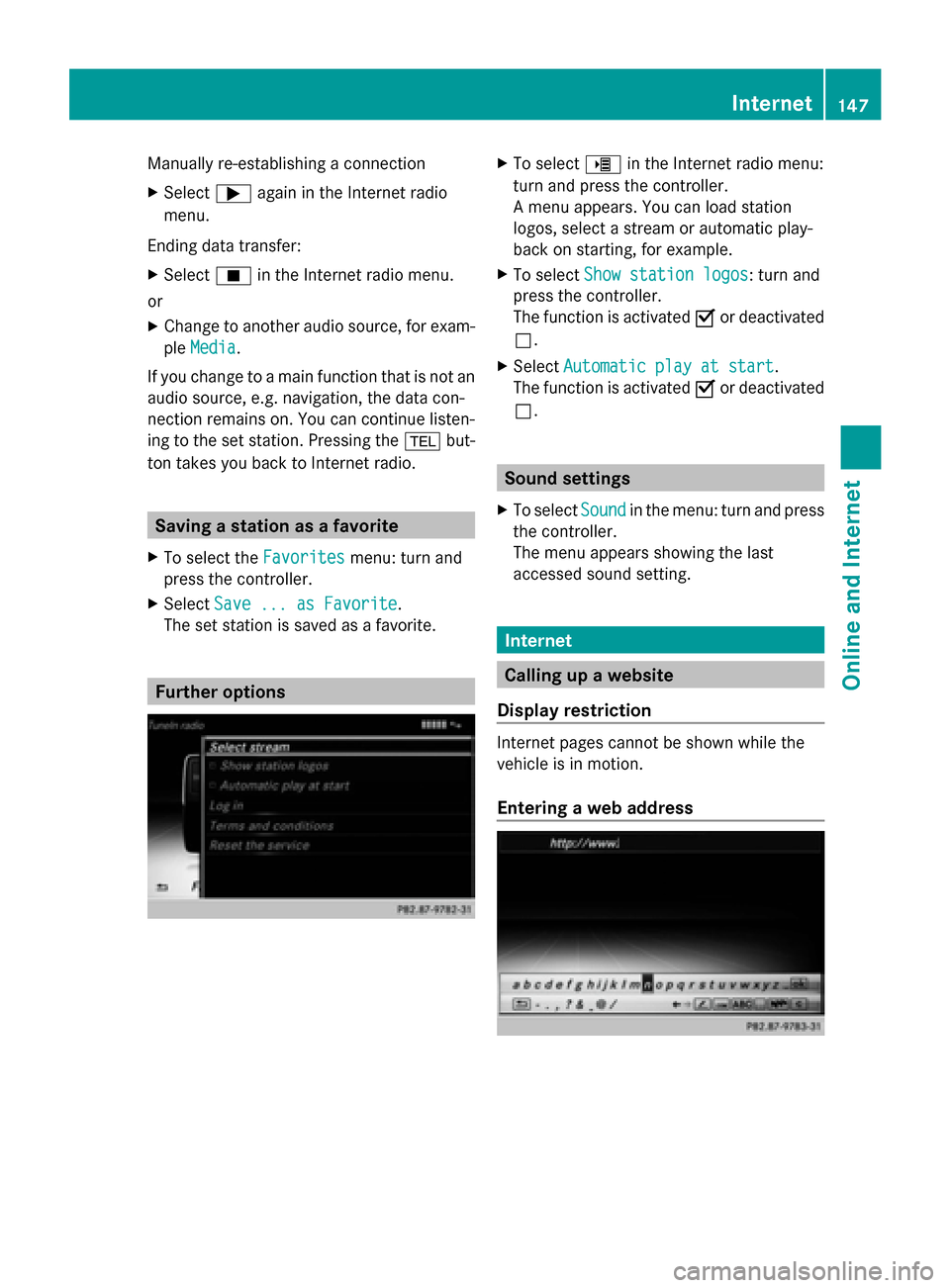
Entering a web address Internet
147Online and Internet
Page 155 of 214
Radio mode
........................................ 154
Satellite radio .................................... 157 153Radio
Page 156 of 214

Radio mode
Switching to radio mode
X Press the 002Abutton.
The radio display appears. You will hear the
last station played on the last waveband
selected. Radio overview
0043
Main function bar
0044 Status bar with compass display
0087 Main display field with available stations
and displays
0085 Display of radio station selected
0083 Radio menu bar
0084 Climate control status bar
X To activate the main function and menu
bar: in radio mode, slide 009700520064the control-
ler. Radio menu overview
Radio main function bar
R HD FM Radio HD FM Radio: HD FM radio mode
R HD AM Radio
HD AM Radio: HD/MW radio mode
R Sat Radio
Sat Radio: satellite radio
R Radio Station Presets
Radio Station Presets : 99 preset posi-
tions for radio stations
R Info
Info on
onRadio
Radio : Digital Operator's Manual
R Internet Radio
Internet Radio: Internet radio Radio menu bar "Options"
R Tag This Track
Tag This Track: saves track information
on an Apple device for a later purchase
option via iTunes
R Enter Frequency Enter Frequency: manual frequency
entry
R Current Current Station/Channel
Station/Channel Listing
Listing: list
of available stations
R Edit List
Edit List : selects and edits station pre-
sets
R Show Station Information
Show Station Information: switches
artist and track display and station name
on/off
R HD Radio HD Radio: switches HD Radio on/off
Radio menu bar
R 00D3: searches for stations by name
R Waveband Waveband : waveband selection
R Info Info : displays additional information about
the current station (radio text)
R Sound
Sound: sound settings, Burmester sound Setting the waveband
Button activation X
Press the 002Abutton again.
You can switch between HD
HDFM
FM Radio
Radio, HD
HD
AM Radio
AM Radio andRadio Station Presets
Radio Station Presets. 154
Radio modeRadio
Page 157 of 214

Using the main function bar
X
In radio mode: slide 00970052the controller.
The radio main function bar and menu bar
appear. Radio Radiois active.
X Press the controller.
A menu appears with a selection of HD HDFM
FM
Radio
Radio, HD AM Radio
HD AM Radio, Radio Station
Radio Station
Presets
Presets, Info on Radio
Info on Radio andInternet
Internet
Radio
Radio.
X Turn the controller until the required wave-
band is in the center. Press the controller.
Using the radio menu bar X
In radio mode: slide 00520064the controller.
The radio main function bar and menu bar
appear.
X To select Waveband Waveband: turn and press the
controller.
A menu appears with a selection of HD
HD FM FM
Radio
Radio, HD AM Radio
HD AM Radio, Radio Station
Radio Station
Presets
Presets, Info on Radio
Info on Radio andInternet
Internet
Radio
Radio.
X Turn the controller until the required wave-
band is in the center. Press the controller. Selecting a station
From the main display field All currently available stations are displayed.
X In radio mode: turn the controller until the
desired station is in the center. Using the current station list
i
The station list is available in the HD AM
and HD FM wavebands. It includes all sta-
tions that can be received.
X In radio mode: press the controller.
The station list appears with the stations
currently available.
X To select the desired station: turn and
press the controller.
Using frequency entry X
In radio mode: slide 00520064the controller.
The radio menu bar appears.
X To select Options Options: turn and press the con-
troller.
X Select Enter Frequency
Enter Frequency .
X Using the telephone keypad, enter the sta-
tion frequency in the entry field.
Using the search function X
In radio mode: slide 00520064the controller.
The radio menu bar appears.
X Select 00D3and enter the first letters of the
required station using the controller.
As soon as enough characters have been
entered, COMAND shows a list of the avail-
able stations.
X To select stations from the list: turn the
controller and press to confirm. Radio mode
155Radio
Page 158 of 214
Tagging music tracks
If an Apple ®
device is connected, the music
tracks and artist displayed in the radio text
can be stored. Using iTunes you have the
option of purchasing this track.
X In radio mode: slide 00520064the controller.
X Select Options Options.
X Select Tag This Track
Tag This Track.
A message appears in COMAND about stor-
ing the track information. Station Information
X In radio mode: slide 00520064the controller.
X To select Options
Options: turn and press the con-
troller.
X You can determine whether or not the
artist, track or station name are shown in
the main display area with 0073or0053 before
Show Station Information
Show Station Information. Station list
i The station list is only available in the FM/
AM waveband. It includes all FM and AM
stations that can currently be received.
X In radio mode: press the controller.
The station list appears with the stations
currently available. Storing a station
i The available stations for your region are
already saved in COMAND. There are 99
preset positions available. Storing current stations
X
In radio mode: slide 00520064the controller.
X To select Options Options: turn and press the con-
troller.
X Select Edit List
Edit List.
X Select the position of the required preset:
turn the controller.
This can also be a preset position that is
already occupied, which is then overwritten
by the current station.
X Slide 00520096the controller.
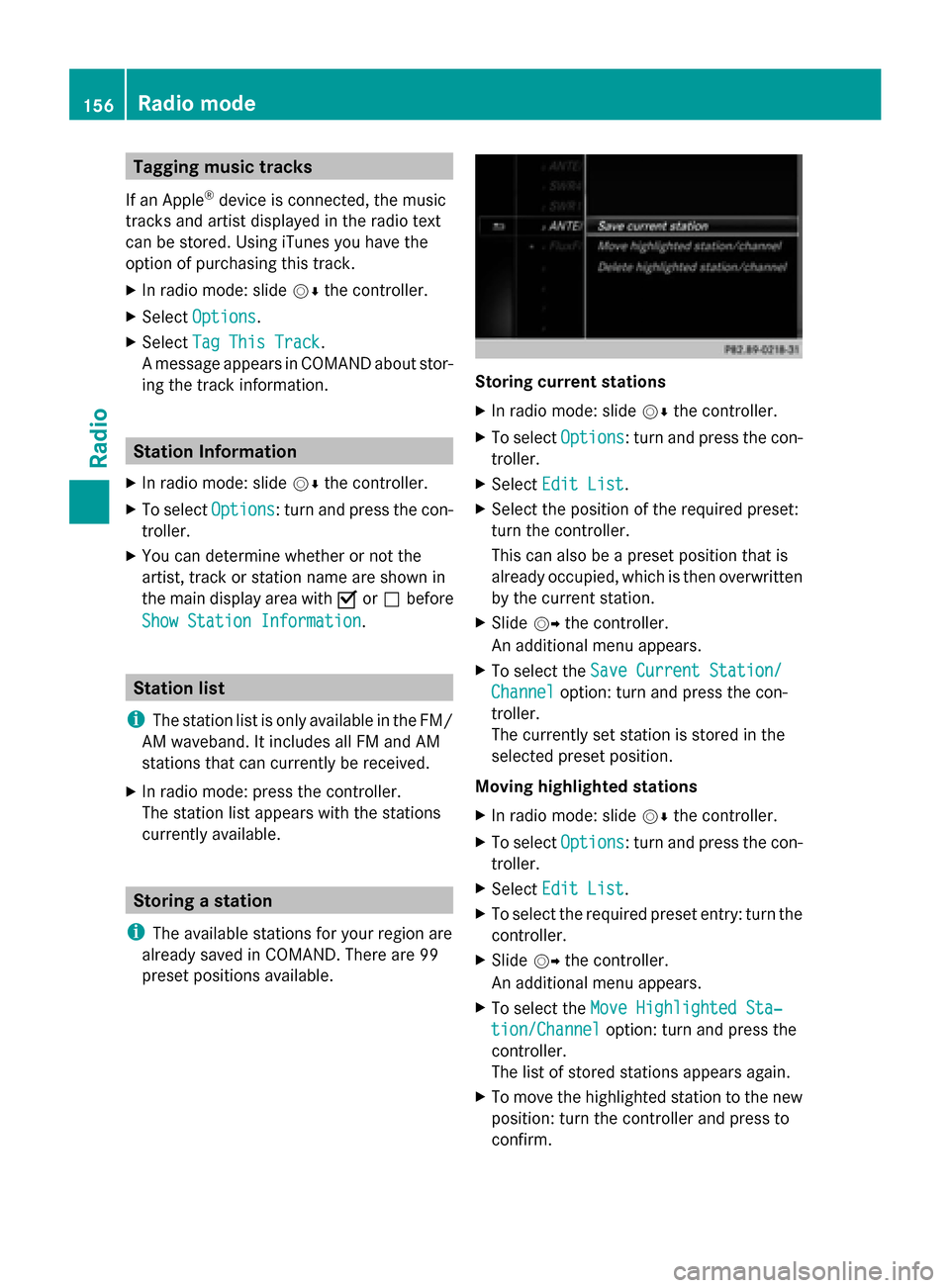
An additional menu appears.
X To select the Save Current Station/ Save Current Station/
Channel Channel option: turn and press the con-
troller.
The currently set station is stored in the
selected preset position.
Moving highlighted stations
X In radio mode: slide 00520064the controller.
X To select Options Options: turn and press the con-
troller.
X Select Edit List
Edit List.
X To select the required preset entry: turn the
controller.
X Slide 00520096the controller.
An additional menu appears.
X To select the Move Highlighted Sta‐
Move Highlighted Sta‐
tion/Channel
tion/Channel option: turn and press the
controller.
The list of stored stations appears again.
X To move the highlighted station to the new
position: turn the controller and press to
confirm. 156
Radio modeRadio
Page 159 of 214
Deleting highlighted stations
X
In radio mode: slide 00520064the controller.
X To select Options Optionsin the radio menu bar:
turn and press the controller.
X Select Edit List
Edit List.
X To select the required preset entry: turn the
controller.
X Slide 00520096the controller.
X To select the Delete Highlighted Sta‐
Delete Highlighted Sta‐
tion/Channel tion/Channel option in the additional
menu: turn and press the controller.
X Select Yes
Yes if you really wish to delete the
highlighted sender: press the controller,
otherwise select: No
No: press the controller. Calling up sound settings
X In radio mode: slide 00520064the controller.
X To select Sound
Soundin the radio menu bar: turn
and press the controller.
The sound menu appears: (Y page 200).Radio text
This function is available in HD and FM/AM
radio mode.
Radio text is additional data, meta data or
similar that, in addition to displaying the artist
and track, also includes information on the
current program.
X To switch on radio text: in radio mode, slide
00520064 the controller.
The Radio menu bar is shown.
X To select Info
Info: turn and press the control-
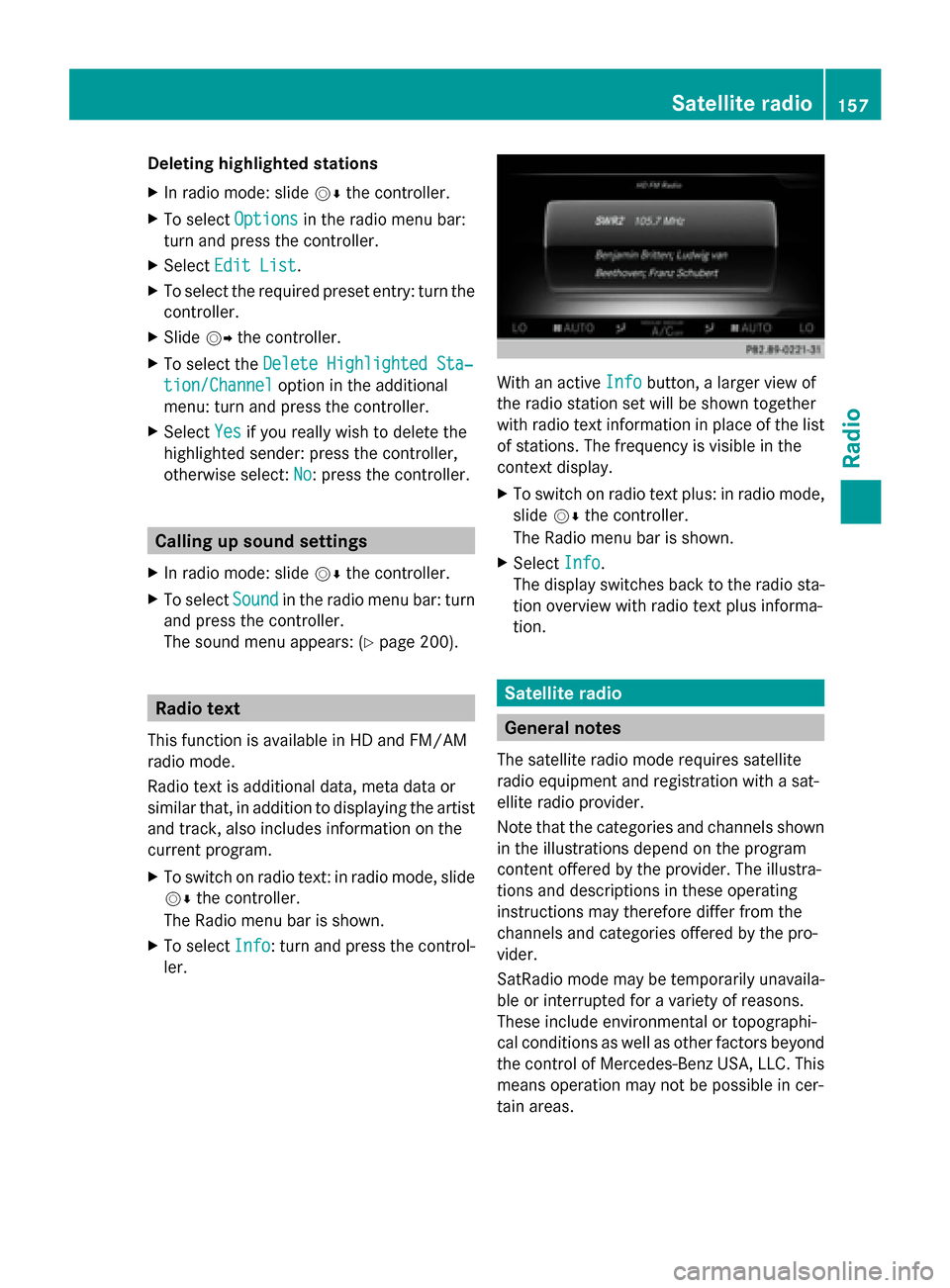
ler. With an active
Info Infobutton, a larger view of
the radio station set will be shown together
with radio text information in place of the list
of stations. The frequency is visible in the
context display.
X To switch on radio text plus: in radio mode,
slide 00520064the controller.
The Radio menu bar is shown.
X Select Info Info.
The display switches back to the radio sta-
tion overview with radio text plus informa-
tion. Satellite radio
General notes
The satellite radio mode requires satellite
radio equipment and registration with a sat-
ellite radio provider.
Note that the categories and channels shown
in the illustrations depend on the program
content offered by the provider. The illustra-
tions and descriptions in these operating
instructions may therefore differ from the
channels and categories offered by the pro-
vider.
SatRadio mode may be temporarily unavaila-
ble or interrupted for a variety of reasons.
These include environmental or topographi-
cal conditions as well as other factors beyond
the control of Mercedes-Benz USA, LLC. This
means operation may not be possible in cer-
tain areas. Satellite
radio
157Radio
Page 160 of 214
These include:
R
tunnels
R parking garages
R locations inside or next to buildings
R locations in the vicinity of other structures
SIRIUS XM Satellite Radio offers more than
140 digital-quality radio channels providing
100% commercial-free music, sports, news
and entertainment.
SIRIUS XM Satellite Radio employs a fleet of
high-performance satellites to broadcast
around the clock throughout the USA and
Canada.
The satellite radio program is available for a
monthly fee. Details are available from the
SIRIUS XM Service Center and at
http://www.siriusxm.com (USA) or
http://www.siriusxm.ca (Canada).
Your new Mercedes-Benz vehicle comes with
SIRIUS XM Satellite Radio pre-installed at the
factory. This service is free for a six-month
trial period. About a month before the trial
period ends, information will be provided on
how to extend this subscription. An acoustic
signal sounds and a message is shown,
describing how the subscription can be
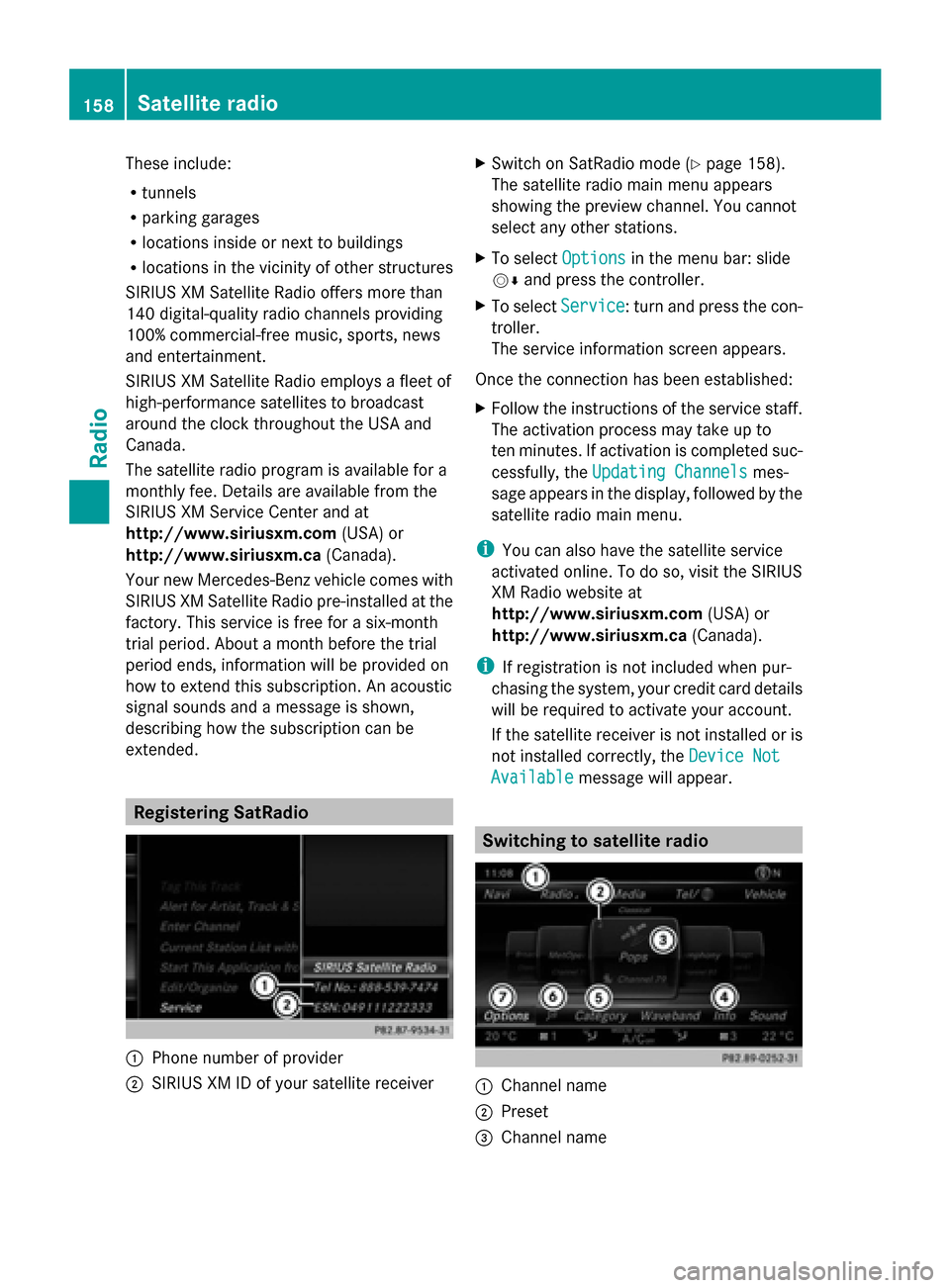
extended. Registering SatRadio
0043
Phone number of provider
0044 SIRIUS XM ID of your satellite receiver X
Switch on SatRadio mode (Y page 158).
The satellite radio main menu appears
showing the preview channel. You cannot
select any other stations.
X To select Options Optionsin the menu bar: slide
00520064 and press the controller.
X To select Service Service: turn and press the con-
troller.
The service information screen appears.
Once the connection has been established:
X Follow the instructions of the service staff.
The activation process may take up to
ten minutes. If activation is completed suc-
cessfully, the Updating Channels Updating Channels mes-
sage appears in the display, followed by the
satellite radio main menu.
i You can also have the satellite service
activated online. To do so, visit the SIRIUS
XM Radio website at
http://www.siriusxm.com (USA) or
http://www.siriusxm.ca (Canada).
i If registration is not included when pur-
chasing the system, your credit card details
will be required to activate your account.
If the satellite receiver is not installed or is
not installed correctly, the Device Not Device Not
Available
Available message will appear. Switching to satellite radio
0043
Channel name
0044 Preset
0087 Channel name 158
Satellite radioRadio
Page 161 of 214
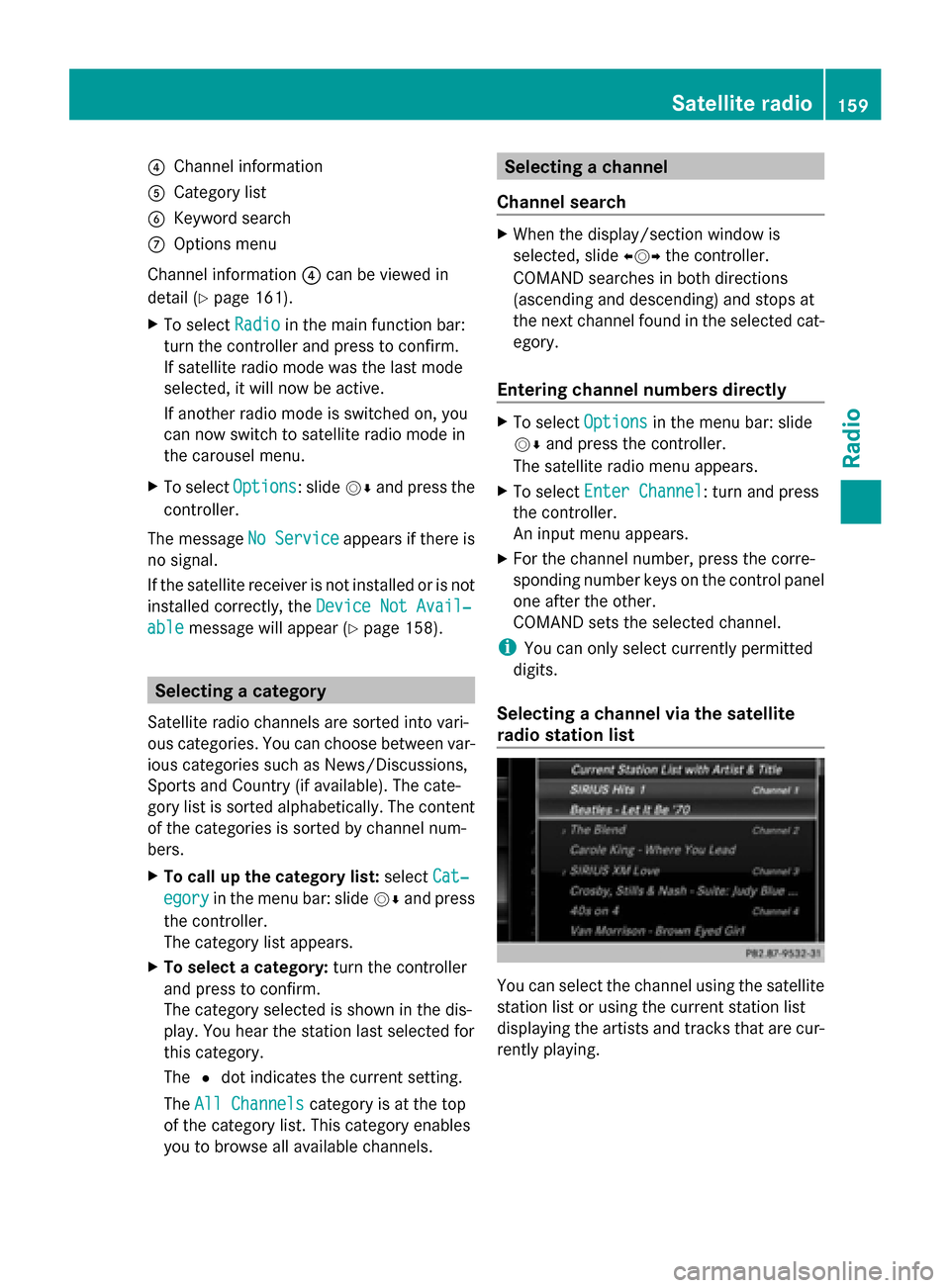
0085
Channel information
0083 Category list
0084 Keyword search
006B Options menu
Channel information 0085can be viewed in
detail ( Ypage 161).
X To select Radio
Radio in the main function bar:
turn the controller and press to confirm.
If satellite radio mode was the last mode
selected, it will now be active.
If another radio mode is switched on, you
can now switch to satellite radio mode in
the carousel menu.
X To select Options Options: slide 00520064and press the
controller.
The message No Service
No Serviceappears if there is
no signal.
If the satellite receiver is not installed or is not
installed correctly, the Device Not Avail‐
Device Not Avail‐
able
able message will appear (Y page 158).Selecting a category
Satellite radio channels are sorted into vari-
ous categories. You can choose between var-
ious categories such as News/Discussions,
Sports and Country (if available). The cate-
gory list is sorted alphabetically. The content
of the categories is sorted by channel num-
bers.
X To call up the category list: selectCat‐
Cat‐
egory
egory in the menu bar: slide 00520064and press
the controller.
The category list appears.
X To select a category: turn the controller
and press to confirm.
The category selected is shown in the dis-
play. You hear the station last selected for
this category.
The 0036dot indicates the current setting.
The All Channels
All Channels category is at the top
of the category list. This category enables
you to browse all available channels. Selecting a channel
Channel search X
When the display/section window is
selected, slide 009500520096the controller.
COMAND searches in both directions
(ascending and descending) and stops at
the next channel found in the selected cat-
egory.
Entering channel numbers directly X
To select Options Optionsin the menu bar: slide
00520064 and press the controller.
The satellite radio menu appears.
X To select Enter Channel
Enter Channel: turn and press
the controller.
An input menu appears.
X For the channel number, press the corre-
sponding number keys on the control panel
one after the other.
COMAND sets the selected channel.
i You can only select currently permitted
digits.
Selecting a channel via the satellite
radio station list You can select the channel using the satellite
station list or using the current station list
displaying the artists and tracks that are cur-
rently playing. Satellite radio
159Radio