off MERCEDES-BENZ C-Class 2017 W205 Comand Manual
[x] Cancel search | Manufacturer: MERCEDES-BENZ, Model Year: 2017, Model line: C-Class, Model: MERCEDES-BENZ C-Class 2017 W205Pages: 178, PDF Size: 5.62 MB
Page 14 of 178
Authorizing a mobile phone (con-
necting) ............................................ 93
Call lists ......................................... 109
Call waiting ...................................... 99
Calling up the telephone menu ........ 91
Calls with several participants ......... 98
Conference calls .............................. 98
Connecting a mobile phone (gen-
eral information) .............................. 91
De-authorizing (disconnecting) a
mobile phone ................................... 95
Deleting a speed dial preset .......... 111
Deleting messages ........................ 118
Displaying Bluetooth
®connection
details .............................................. 95
Downloading messages manually .. 113
E-mail ............................................. 112
E-mail requirements ....................... 112
E-mail settings ............................... 112
Ending an active call ........................ 99
Entering a number ........................... 96
Entering phone numbers .................. 96
Establishing the connection from
the mobile phone ............................. 94
Function restrictions ........................ 91
Functions available during a call ...... 97
General notes .................................. 90
Incoming call during an existing
call ................................................... 99
Making a call .................................... 96
Message conditions ....................... 112
Message settings ........................... 112
Operating options ............................ 90
Phone book .................................... 100
Reading messages ......................... 114
Reception and transmission vol-
ume ................................................. 95
Reconnecting a mobile phone
automatically ................................... 94
Rejecting a call (COMAND) .............. 96
Safety notes ..................................... 90
Sending DTMF tones ........................ 98
Setting up a speed dial .................. 111
Switching between calls (call wait- ing) .................................................. 98
Switching between mobile
phones ............................................. 94
Switching the microphone on/off .... 98 Telephone menu overvi
ew ............... 91
T
ext message conditions ............... 112
Text message settings ................... 112
Text messages (SMS) .................... 112
Toggling ........................................... 98
Using the telephone ......................... 96
Writing e-mails ............................... 116
Writing text messages ................... 115
Telephone number
Entering ........................................... 96
Text messages (SMS)
Calling the sender .......................... 117
Calling up the settings menu ......... 112
Configuring the text messages
displayed ....................................... 112
Deleting ......................................... 118
Displaying details ........................... 115
Downloading manually ................... 113
Editing text templates .................... 117
Inbox .............................................. 114
Reading .......................................... 114
Reading aloud ................................ 114
Settings ......................................... 112
Storing sender in address book ..... 118
Storing the sender as a new
address book entry ........................ 117
Using a phone number in the text .. 117
Using text templates ...................... 117
Writing ........................................... 115
Time
Setting ............................................. 36
Setting summer/standard time ....... 35
Setting the format ............................ 36
Setting the time ............................... 36
Setting the time zone ....................... 35
Setting the time/date format .......... 36
Switching automatic time on/off ..... 35
Touchpad
Calling up quick access for audio
and telephone .................................. 23
Changing the input language for
handwriting recognition ................... 26
Changing the station/music
track ................................................ 27
Character suggestions ..................... 26
Deleting characters ......................... 26
Entering a space .............................. 26
Entering characters ......................... 25
12Index
Page 21 of 178
RNavigation system
-Navigation via the hard drive
-Entering destinations via free destination
search
-Realistic 3D map with textured city models
-Personal POIs and routes using SD memory
card
-Navigation functions, e.g. Drive Informa-
tion
-Dynamic route guidance with traffic reports
via SIRIUS satellite radio
RCommunication
-Messaging functions (text messages,
email)
-Address book
-Internet browser
-Mercedes-Benz Apps with online search,
Facebook, stock prices, news and much
more
-Mercedes-Benz Mobile Website
-WiFi interface for the connection of a
smartphone to the multimedia system
RSIRIUS Weather
-Weather data as an information chart (cur-
rent forecast, 5-day preview, detailed infor-
mation)
-Weather data on the weather map, e.g. rain
radar data, storm characteristics and the
track of tropical cyclones (hurricanes,
typhoons)
RVehicle functions
-Vehicle settings, such as ambient lighting,
belt adjustment and tow-away alarm
-360° camera
-Rear view camera
-Climate control functions, such as climate
mode, perfume atomizer and auxiliary heat-
ing
-DYNAMIC SELECT (individual drive pro-
gram)
RFavorites button
Fast access to favorites fu
nctions using the
favorites button on the controller or on the
touchpad
Display
General notes
!Avoid any direct contact with the display
surface. Pressure on the display surface may
result in impairments to the display, which
could be irreversible.
Wearing polarized sunglasses may impair your
ability to read the display.
The display has an automatic temperature-con-
trolled switch-off feature. The brightness is
automatically reduced if the temperature is too
high. The display may then temporarily switch
off completely.
Overview
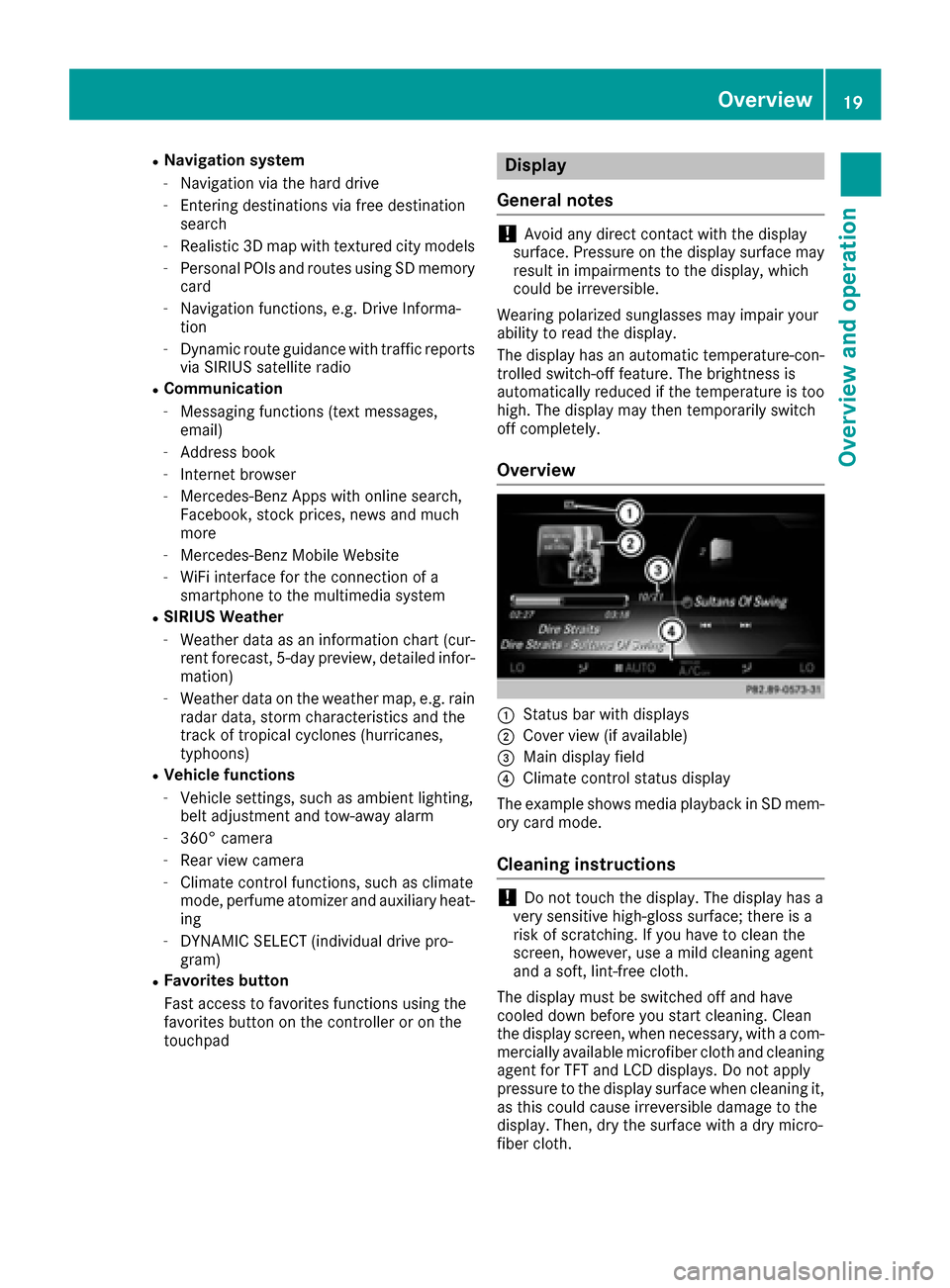
:Status bar with displays
;Cover view (if available)
=Main display field
?Climate control status display
The example shows media playback in SD mem-
ory card mode.
Cleaning instructions
!Do not touch the display. The display has a
very sensitive high-gloss surface; there is a
risk of scratching. If you have to clean the
screen, however, use a mild cleaning agent
and a soft, lint-free cloth.
The display must be switched off and have
cooled down before you start cleaning. Clean
the display screen, when necessary, with a com- mercially available microfiber cloth and cleaning
agent for TFT and LCD displays. Do not apply
pressure to the display surface when cleaning it,
as this could cause irreversible damage to the
display. Then, dry the surface with a dry micro-
fiber cloth.
Overview19
Overview and operation
Page 22 of 178
Avoid using alcoholic thinners, gasoline or abra-
sive cleaning agents. These could damage the
display surface.
Buttons and controller
Overview
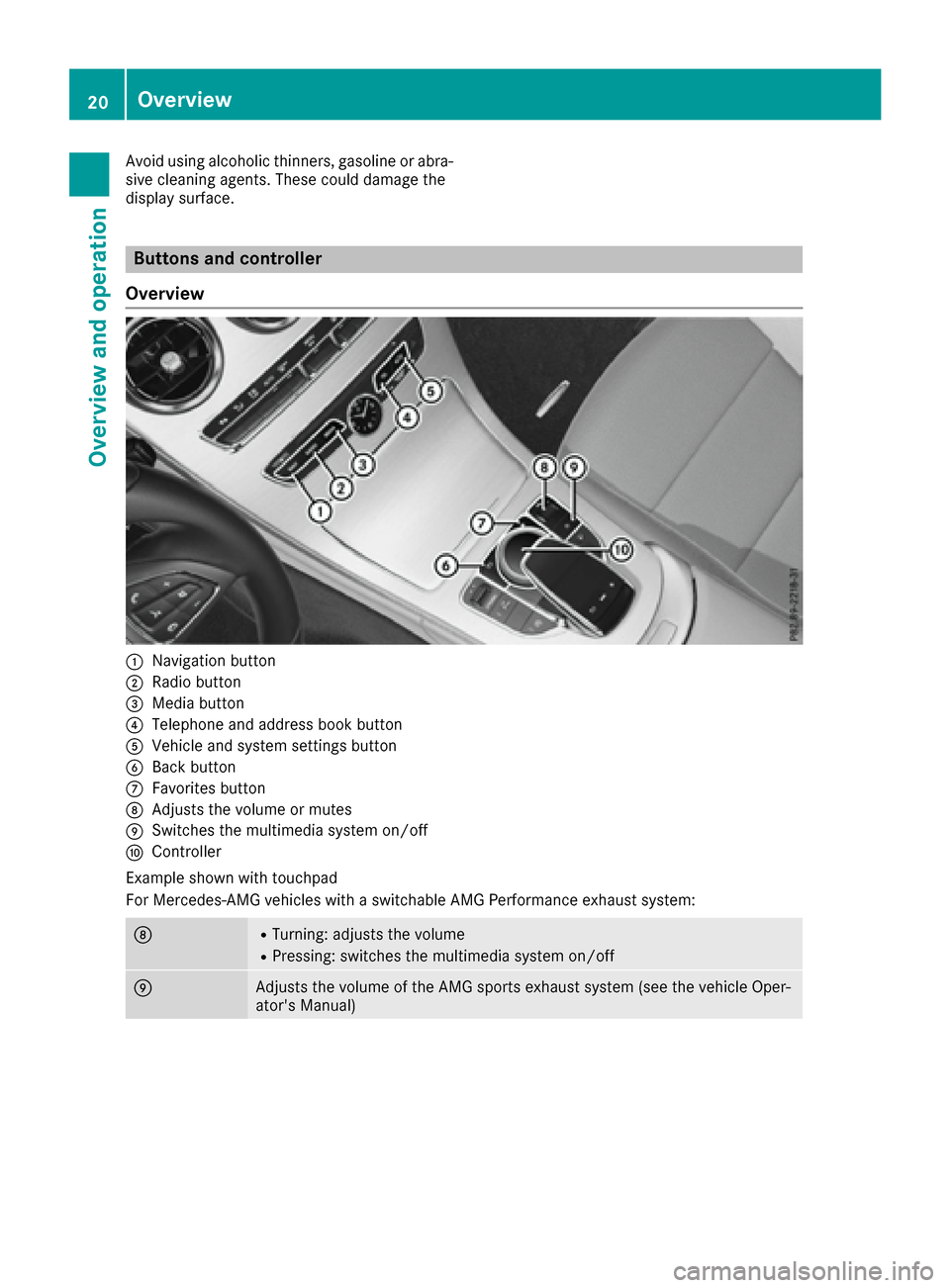
:Navigation button
;Radio button
=Media button
?Telephone and address book button
AVehicle and system settings button
BBack button
CFavorites button
DAdjusts the volume or mutes
ESwitches the multimedia system on/off
FController
Example shown with touchpad
For Mercedes-AMG vehicles with a switchable AMG Performance exhaust system:
DRTurning: adjusts the volume
RPressing: switches the multimedia system on/off
EAdjusts the volume of the AMG sports exhaust system (see the vehicle Oper-
ator's Manual)
20Overview
Overview and operation
Page 23 of 178
For Mercedes-AMG vehicles with a switchable AMG Performance exhaust system:
DRTurning: adjusts the volume
RPressing: switches the multimedia system on/off
EAdjusts the volume of the AMG sports exhaust system (see the vehicle Oper-
ator's Manual)
Back button
You can use the%button to exit a menu or to
call up the basic display of the current operating
mode.
XTo exit the menu: briefly press the%
button.
The multimedia system changes to the next
higher menu level in the current operating
mode.
XTo call up the basic display: press the%
button for longer than two seconds.
The multimedia system changes to the basic
display of the current operating mode.
Controller
The controller in the center console lets you:
Rselect menu items on the display
Renter characters
Rselect a destination on the map
Rsave entries
The controller can be:
Rturned 3
Rslid left or right 1
Rslid forwards or back 4
Rslid diagonally2
Rpressed briefly or pressed and held 7
Favorites button
With the favorites button, you can select, add or
edit favorites.
XPress the favorites button on the controller.
The favorites are displayed.
XTo select a favorite: turn and press the con-
troller.
Other functions (
Ypage 32).
Touchpad
Multimedia system with touchpad: alternatively,
you can use the touchpad to select and enter
information (
Ypage 22).
Multifunction steering wheel
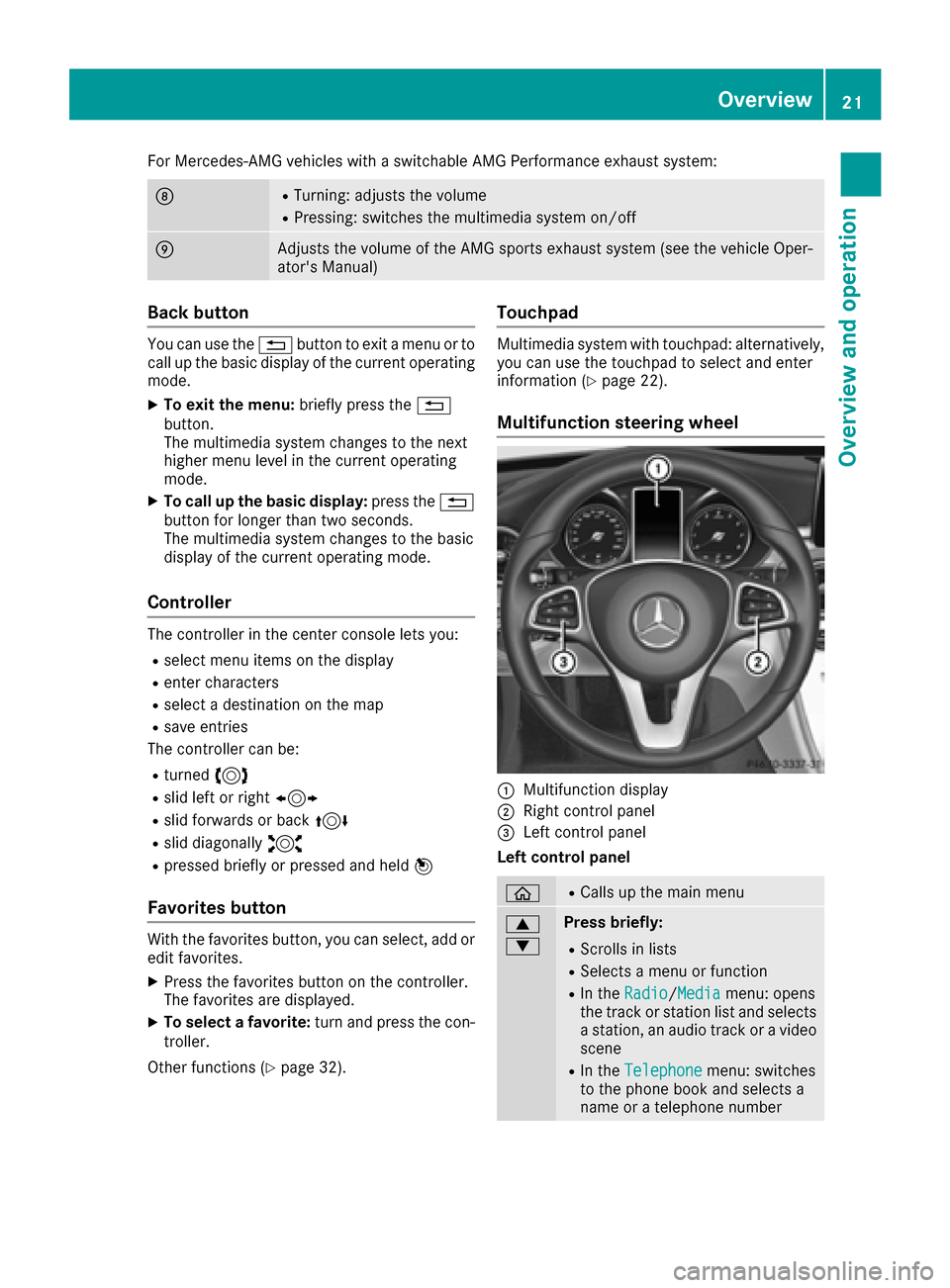
:Multifunction display
;Right control panel
=Left control panel
Left control panel
òRCalls up the main menu
9
:Press briefly:
RScrolls in lists
RSelects a menu or function
RIn the Radio/Mediamenu: opens
the track or station list and selects
a station, an audio track or a video
scene
RIn the Telephonemenu: switches
to the phone book and selects a
name or a telephone number
Overview21
Overview and operation
Page 24 of 178
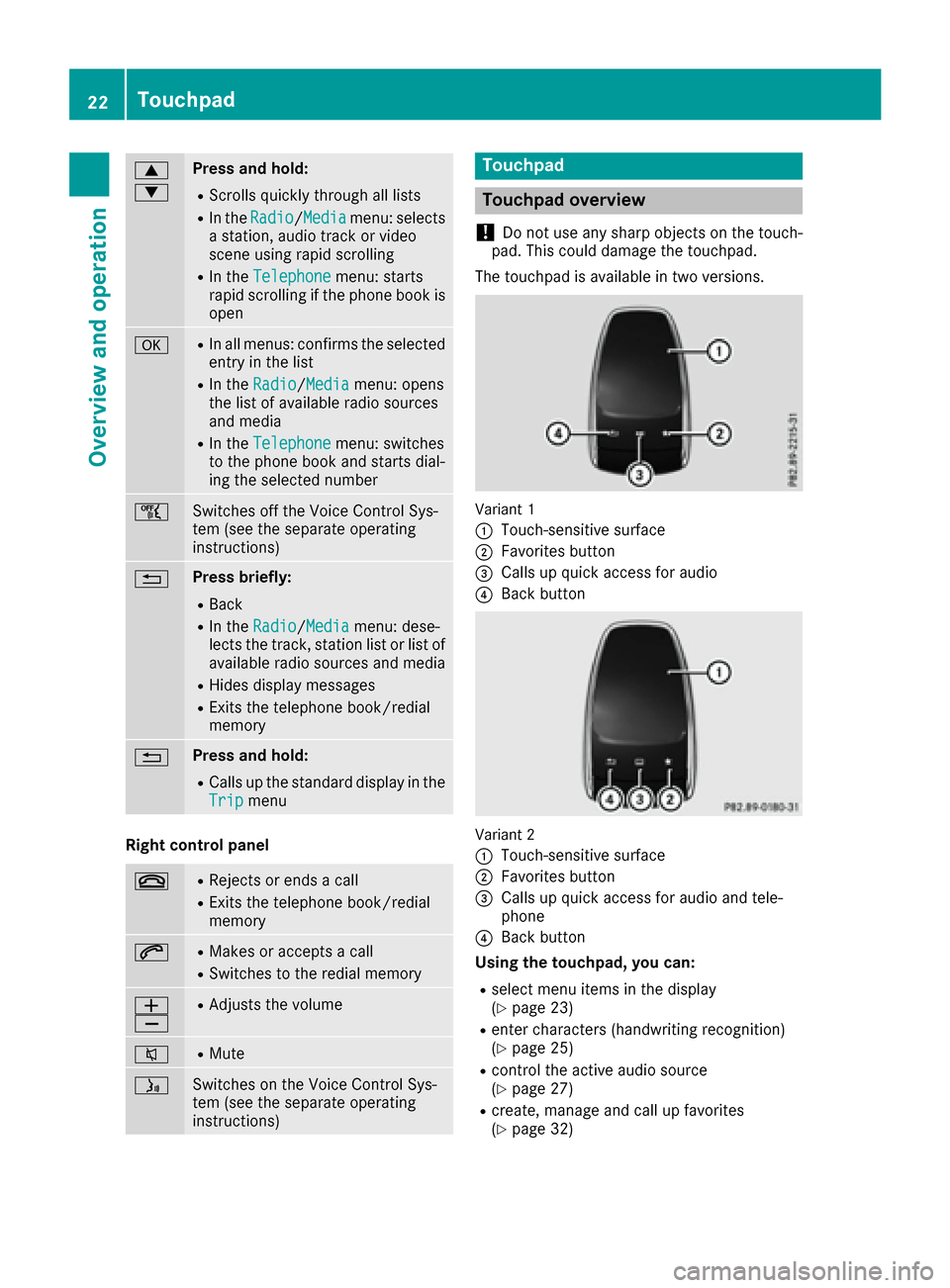
9
:Press and hold:
RScrolls quickly through all lists
RIn theRadio/Mediamenu: selects
a station, audio track or video
scene using rapid scrolling
RIn the Telephonemenu: starts
rapid scrolling if the phone book is
open
aRIn all menus: confirms the selected
entry in the list
RIn the Radio/Mediamenu: opens
the list of available radio sources
and media
RIn the Telephonemenu: switches
to the phone book and starts dial-
ing the selected number
ñSwitches off the Voice Control Sys-
tem (see the separate operating
instructions)
%Press briefly:
RBack
RIn the Radio/Mediamenu: dese-
lects the track, station list or list of
available radio sources and media
RHides display messages
RExits the telephone book/redial
memory
%Press and hold:
RCalls up the standard display in the
Tripmenu
Right control panel
~RRejects or ends a call
RExits the telephone book/redial
memory
6RMakes or accepts a call
RSwitches to the redial memory
W
XRAdjusts the volume
8RMute
óSwitches on the Voice Control Sys-
tem (see the separate operating
instructions)
Touchpad
Touchpad overview
!
Do not use any sharp objects on the touch-
pad. This could damage the touchpad.
The touchpad is available in two versions.
Variant 1
:
Touch-sensitive surface
;Favorites button
=Calls up quick access for audio
?Back button
Variant 2
:
Touch-sensitive surface
;Favorites button
=Calls up quick access for audio and tele-
phone
?Back button
Using the touchpad, you can:
Rselect menu items in the display
(Ypage 23)
Renter characters (handwriting recognition)
(Ypage 25)
Rcontrol the active audio source
(Ypage 27)
Rcreate, manage and call up favorites
(Ypage 32)
22Touchpad
Overview and operation
Page 25 of 178
Renter destinations in the navigation system
Rsave entries
Further information on operating the touchpad
(
Ypage 23).
Switching the touchpad on/off
XPress the Øbutton.
The vehicle menu is displayed.
XTo select System Settings: slide6, turn
and press the controller.
A menu appears.
XTo select Touchpad: turn and press the con-
troller.
XSelect Activate Touchpad.
The touchpad is switched on Oor off ª.
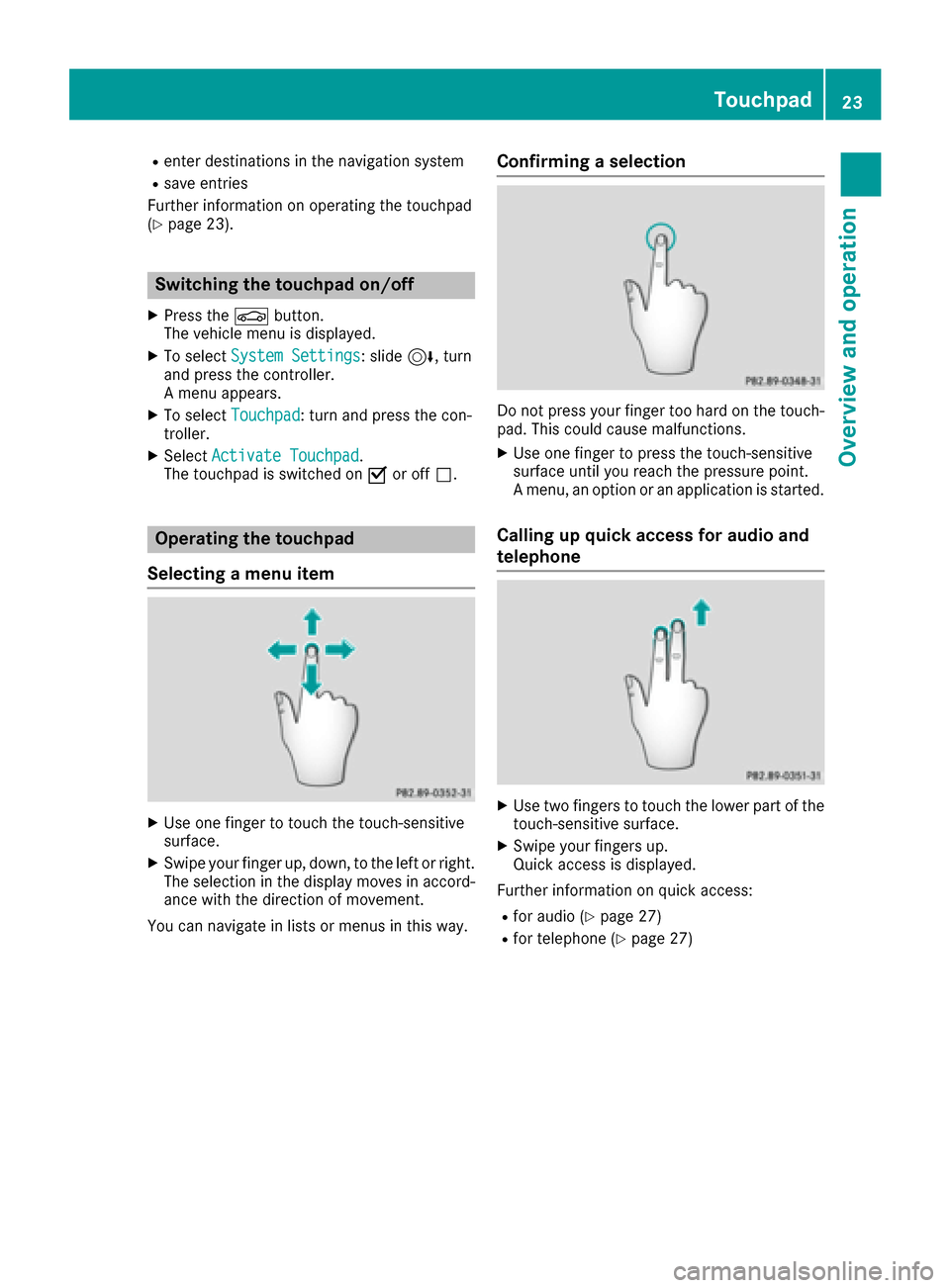
Operating the touchpad
Selecting a menu item
XUse one finger to touch the touch-sensitive
surface.
XSwipe your finger up, down, to the left or right.
The selection in the display moves in accord- ance with the direction of movement.
You can navigate in lists or menus in this way.
Confirming a selection
Do not press your finger too hard on the touch-
pad. This could cause malfunctions.
XUse one finger to press the touch-sensitive
surface until you reach the pressure point.
A menu, an option or an application is started.
Calling up quick access for audio and
telephone
XUse two fingers to touch the lower part of the
touch-sensitive surface.
XSwipe your fingers up.
Quick access is displayed.
Further information on quick access:
Rfor audio (Ypage 27)
Rfor telephone (Ypage 27)
Touchpad23
Overview and operation
Page 27 of 178
Zooming out of the map
XTouch the touch-sensitive surface with two
fingers, spaced far apart.
XGlide your fingers towards each other.
The map scale is reduced.
Handwriting recognition
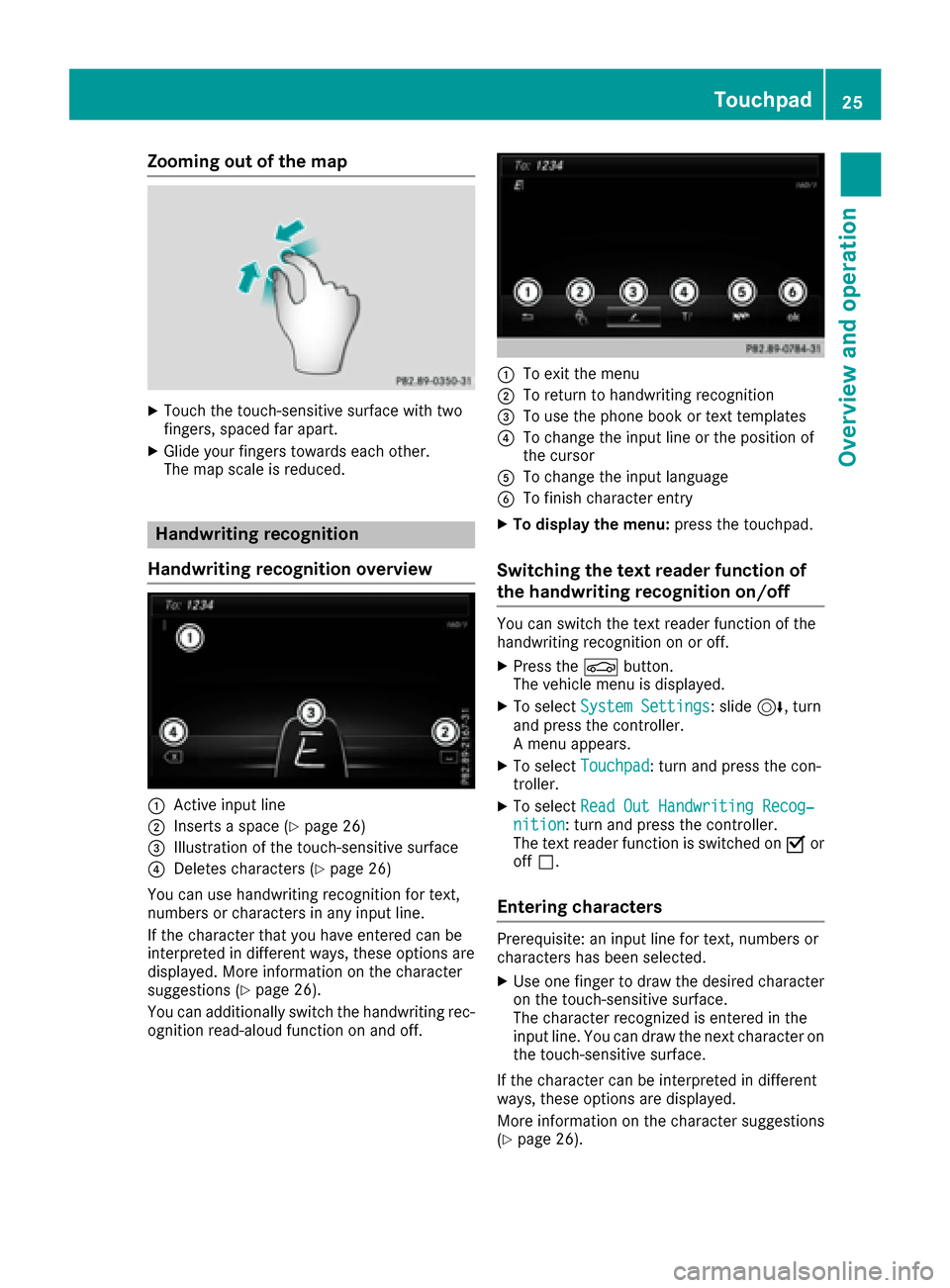
Handwriting recognition overview
:Active input line
;Inserts a space (Ypage 26)
=Illustration of the touch-sensitive surface
?Deletes characters (Ypage 26)
You can use handwriting recognition for text,
numbers or characters in any input line.
If the character that you have entered can be
interpreted in different ways, these options are
displayed. More information on the character
suggestions (
Ypage 26).
You can additionally switch the handwriting rec-
ognition read-aloud function on and off.
:To exit the menu
;To return to handwriting recognition
=To use the phone book or text templates
?To change the input line or the position of
the cursor
ATo change the input language
BTo finish character entry
XTo display the menu: press the touchpad.
Switching the text reader function of
the handwriting recognition on/off
You can switch the text reader function of the
handwriting recognition on or off.
XPress theØbutton.
The vehicle menu is displayed.
XTo select System Settings: slide6, turn
and press the controller.
A menu appears.
XTo select Touchpad: turn and press the con-
troller.
XTo select Read Out Handwriting Recog‐nition: turn and press the controller.
The text reader function is switched on Oor
off ª.
Entering characters
Prerequisite: an input line for text, numbers or
characters has been selected.
XUse one finger to draw the desired character
on the touch-sensitive surface.
The character recognized is entered in the
input line. You can draw the next character on
the touch-sensitive surface.
If the character can be interpreted in different
ways, these options are displayed.
More information on the character suggestions
(
Ypage 26).
Touchpad25
Overview and operation
Page 29 of 178
Switching between the controller and
the touchpad as input device
Prerequisite: an input line for text, numbers or
characters has been selected.
XTo switch from character entry using the
controller to handwriting recognition on
the touchpad:use one finger to press the
touchpad.
Handwriting recognition on the touchpad is
active.
XTo switch from handwriting recognition
on the touchpad to character entry using
the controller: press the controller.
Character entry using the controller is active.
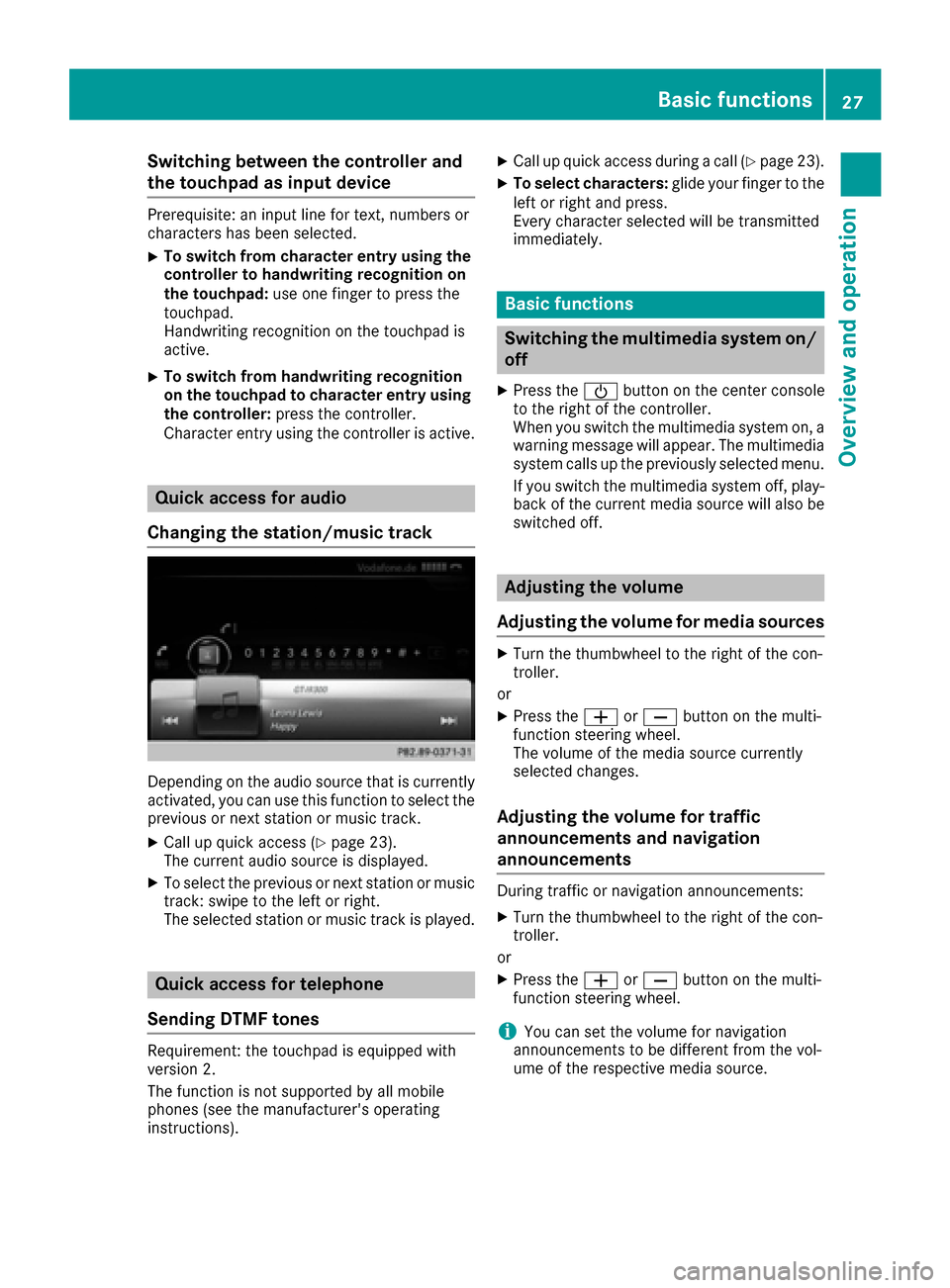
Quick access for audio
Changing the station/music track
Depending on the audio source that is currently
activated, you can use this function to select the
previous or next station or music track.
XCall up quick access (Ypage 23).
The current audio source is displayed.
XTo select the previous or next station or music
track: swipe to the left or right.
The selected station or music track is played.
Quick access for telephone
Sending DTMF tones
Requirement: the touchpad is equipped with
version 2.
The function is not supported by all mobile
phones (see the manufacturer's operating
instructions).
XCall up quick access during a call (Ypage 23).
XTo select characters: glide your finger to the
left or right and press.
Every character selected will be transmitted
immediately.
Basic functions
Switching the multimedia system on/
off
XPress the Übutton on the center console
to the right of the controller.
When you switch the multimedia system on, a
warning message will appear. The multimedia
system calls up the previously selected menu.
If you switch the multimedia system off, play- back of the current media source will also be
switched off.
Adjusting the volume
Adjusting the volume for media sources
XTurn the thumbwheel to the right of the con-
troller.
or
XPress the WorX button on the multi-
function steering wheel.
The volume of the media source currently
selected changes.
Adjusting the volume for traffic
announcements and navigation
announcements
During traffic or navigation announcements:
XTurn the thumbwheel to the right of the con-
troller.
or
XPress the WorX button on the multi-
function steering wheel.
iYou can set the volume for navigation
announcements to be different from the vol-
ume of the respective media source.
Basic functions27
Overview and operation
Page 30 of 178
Adjusting the volumefor phone calls
You can adjust thevolume for hands-free mod e
during atelephon ecall .
XTurn th ethumbwheel to th eright of th econ-
troller .
or
XPress th eW orX buttonon th emulti-
function steering wheel.
iSetting th evolume for th eVoic eControl
Syste mvoice output ;see th eseparat eoper -
ating instructions.
Switching the sound on oroff
Media source sound
XPress th ethumbwheel to th eright of th econ-
troller .
or
XPress th e8 buttonon th emultifunction
steering wheel.
iIf th eaudio output is switched off ,th estatus
lin ewill sho wthe8 symbol. If you switch
th emedia source or chang eth evolume, th e
soun dis automatically switched on .
iEven if thesoun dis switched off ,you will still
hear navigation system announcements .
Switching navigationannouncements
off and onagain
XTo switch off navigation announcements:
press th ethumbwheel to th eright of th econ-
troller during th eannouncement.
The Spoken drivin grecommendations
hav ebee ndeactivated.message
appears.
XTo switch navigation announcement son
again: switch th emultimedia system off and
then on again (
Ypage 27).
or
XStart ane wrout ecalculation (Ypage 58).
or
XWhil erout eguidance is active ,sho wthe
men uand select
(Ypage 74) .
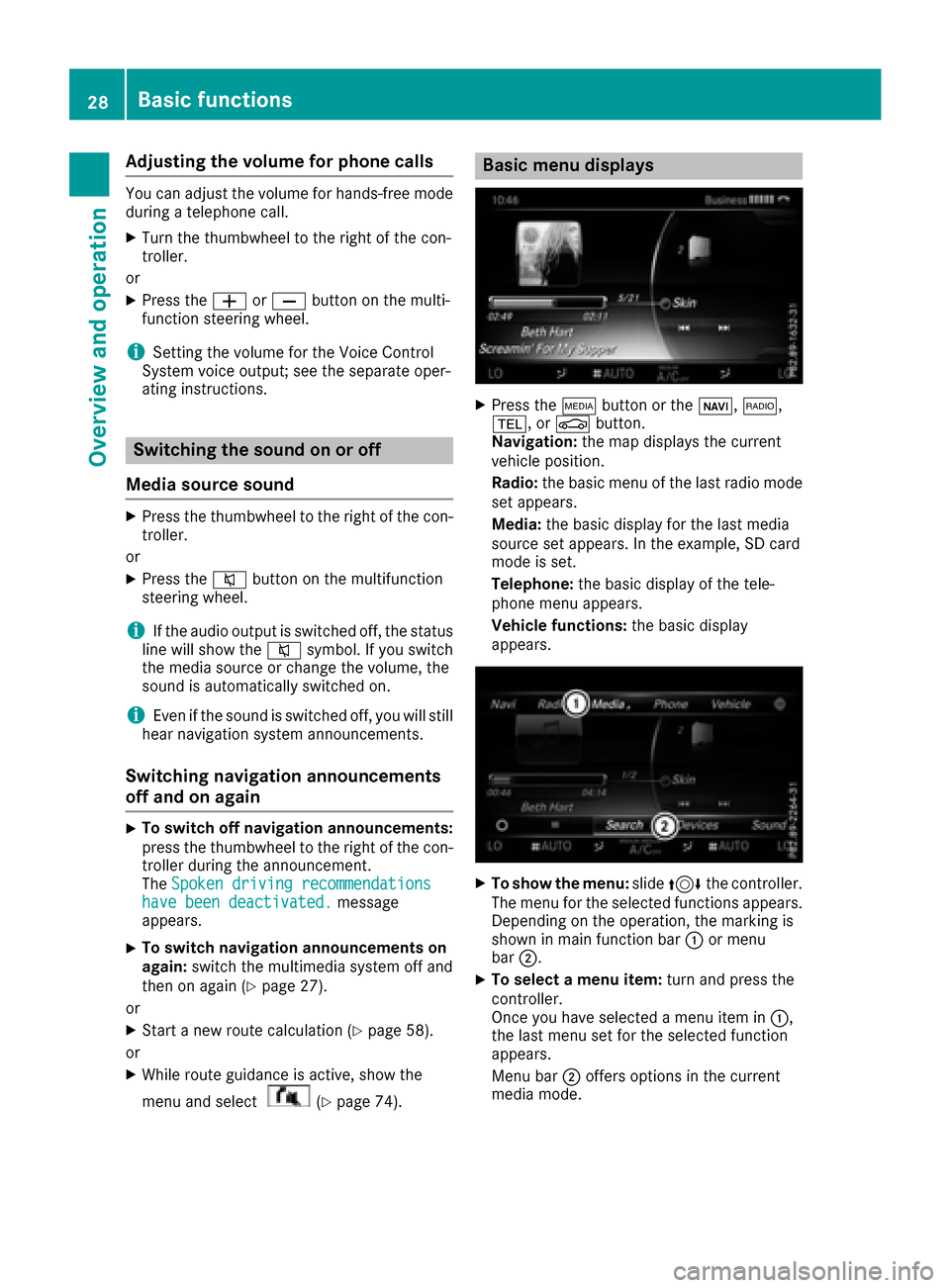
Basic menu displays
XPress theÕ buttonor th eß, $,
%, orØ button.
Navigation: themap displays th ecurren t
vehicl eposition .
Radio :th ebasic men uof th elast radi omod e
set appears.
Media: thebasic display for th elast media
source set appears. In th eexample, SD car d
mod eis set .
Telephone: thebasic display of th etele-
phone men uappears.
Vehicle functions: thebasic display
appears.
XTo sho wth emenu: slide4 thecontroller .
The men ufor th eselected function sappears.
Dependin gon th eoperation ,th emarking is
shown in main function bar :or men u
bar ;.
XTo select amen uitem: turnand press th e
controller .
Once you hav eselected amen uitem in :,
th elast men uset for th eselected function
appears.
Men ubar ;offers option sin th ecurren t
media mode.
28Basic functions
Overview and operation
Page 37 of 178
Switching the display on/off
XPress theØbutton.
or
XPress Vehiclein the main function bar.
The vehicle menu is displayed.
XTo select Display Off: slide6, turn and
press the controller.
The display goes out.
XTo switch the display on again: press the
controller.
Time settings
General information
The multimedia system can automatically set
the time and date.
The following navigation system functions
require the time, time zone and summer and
standard time to be set correctly in order to
work properly:
Rroute guidance on routes with time-depend-
ent traffic guidance
Rcalculation of expected time of arrival
Switching automatic time on and off
The Automatic Time Settingsfunction is
used to activate or deactivate the automatic
setting of the time and date. This function is
activated when the vehicle leaves the factory.
XPress the Øbutton.
or
XPress Vehiclein the main function bar.
The vehicle menu is displayed.
XTo select Time: slide6, turn and press the
controller.
A menu appears.
XTo select AutomaticTimeSettings: press
the controller.
XTo switch the function on Oor off ª: press
the controller.
Setting the time zone
To set the time zone, the Automatic TimeSettingsfunction must be activated.
XPress theØbutton.
or
XPress Vehiclein the main function bar.
The vehicle menu is displayed.
XTo select Time: slide6, turn and press the
controller.
A menu appears.
XTo select Time Zone:: turn and press the
controller.
A list of countries appears. The #dot indi-
cates the current setting.
XTo select the country in which you are
currently driving: turn and press the con-
troller.
The country is accepted.
A time zone list may also be displayed,
depending on the country selected.
XTo select the desired time zone: turn and
press the controller.
The time zone is accepted.
A list of available options for setting summer
time appears (
Ypage 35).
Setting summer and standard time
You can use the DaylightSavingTimemenu
to set automatic summer time changeover or
switch the summer time setting on or off. The
changeover to summer time advances the time
by one hour.
The Daylight
SavingTimemenu or the Auto‐maticoption is not available in all countries.
XPress theØbutton.
or
XSelect Vehiclein the main function bar.
The vehicle menu is displayed.
XTo select Time: slide6, turn and press the
controller.
A menu appears.
XTo select Daylight Saving Time: turn and
press the controller.
A list of available options for setting summer
time appears.
XTo select Automatic,Onor Off: turn and
press the controller.
Time settings35
System settings
Z