off MERCEDES-BENZ C-Class 2017 W205 Comand Manual
[x] Cancel search | Manufacturer: MERCEDES-BENZ, Model Year: 2017, Model line: C-Class, Model: MERCEDES-BENZ C-Class 2017 W205Pages: 178, PDF Size: 5.62 MB
Page 56 of 178
XTo switch to navigation mode:press the
Ø button.
XIf no route guidance is active, select.
iIf route guidance is active, first slide 6the
controller and show the menu.
XSelect Route Settings.
XSelect a route type.
A filled circle indicates the current selection.
RActive route guidance: the multimedia sys-
tem calculates a new route.
RInactive route guidance: the multimedia
system uses the selection as the new set-
ting.
iRoute guidance active: a destination has
been entered and the route has been calcu-
lated.
Route guidance inactive: no destination has
been entered yet and no route has been cal-
culated yet.
FastRouteThe multimedia system cal-
culates a route with a short
travel time.
DynamicTrafficRoute
Based on the Fast Routeroute type and includes traf-
fic reports on the route for the
route guidance.
Eco RouteThe multimedia system cal-
culates an economical route.
The journey may take slightly
longer compared to taking
the fast route.
ShortRouteThe multimedia system cal-
culates a short distance
route.
TheDynamic Traffic Routeroute type uses
real-time traffic reports from SIRIUS satellite
radio.
Further Information on real-time traffic reports
(
Ypage 76).
XTo calculate alternative routes: select
Calculate Alternative Routes
.
Switch the function on Oor off ª.
Function activated: after each route calcula-
tion, route alternatives are offered that cor-
respond to the local conditions (
Ypage 75). If desired, you can have the multimedia sys-
tem calculate alternative routes even during
route guidance (
Ypage 75).
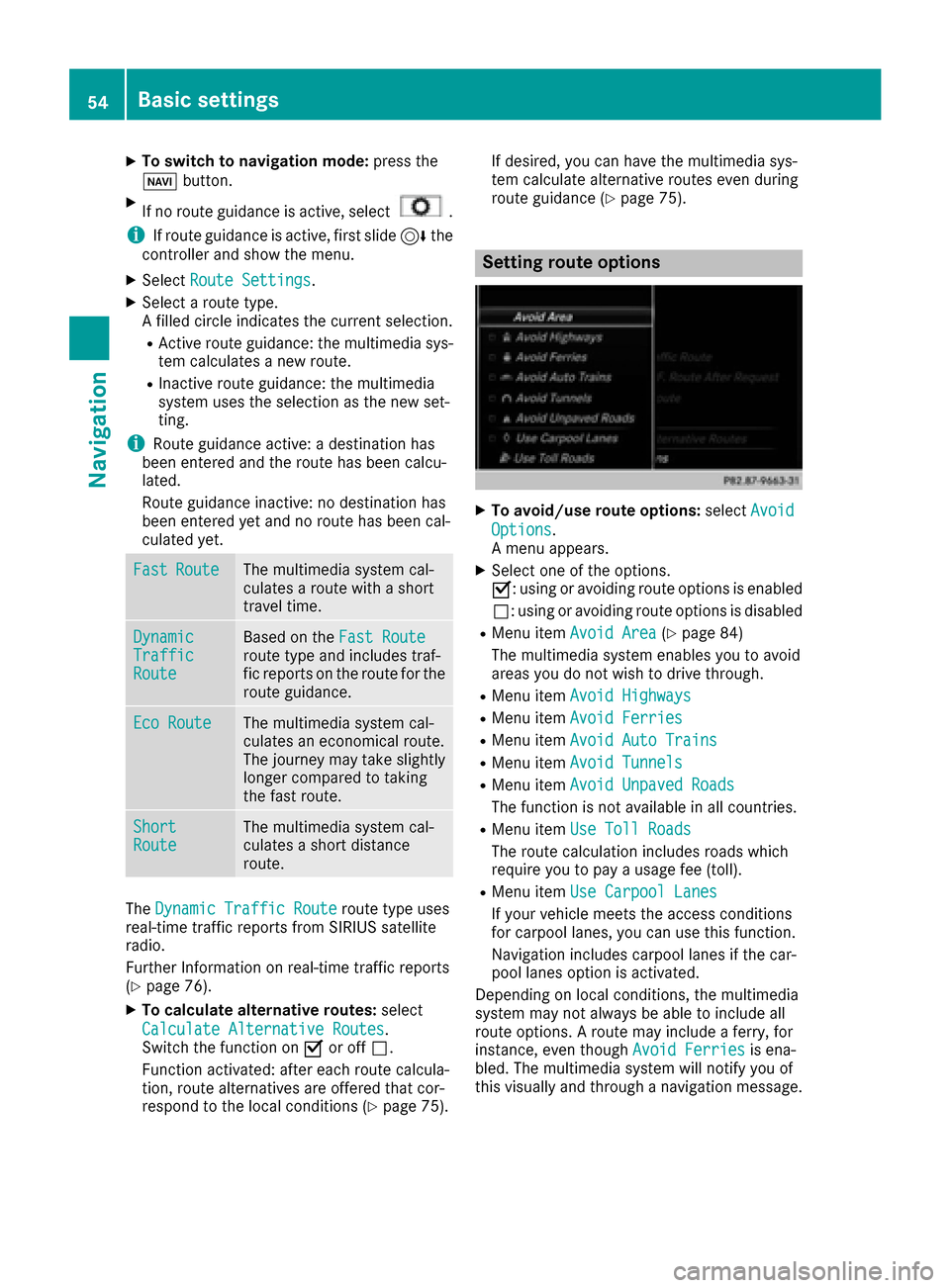
Setting route options
XTo avoid/use route options:
selectAvoid
Options.
A menu appears.
XSelect one of the options.
O: using or avoiding route options is enabled
ª: using or avoiding route options is disabled
RMenu item Avoid Area(Ypage 84)
The multimedia system enables you to avoid
areas you do not wish to drive through.
RMenu item Avoid Highways
RMenu itemAvoid Ferries
RMenu itemAvoid Auto Trains
RMenu itemAvoid Tunnels
RMenu itemAvoid Unpaved Roads
The function is not available in all countries.
RMenu itemUse Toll Roads
The route calculation includes roads which
require you to pay a usage fee (toll).
RMenu itemUse Carpool Lanes
If your vehicle meets the access conditions
for carpool lanes, you can use this function.
Navigation includes carpool lanes if the car-
pool lanes option is activated.
Depending on local conditions, the multimedia
system may not always be able to include all
route options. A route may include a ferry, for
instance, even though Avoid Ferries
is ena-
bled. The multimedia system will notify you of
this visually and through a navigation message.
54Basic settings
Navigation
Page 57 of 178
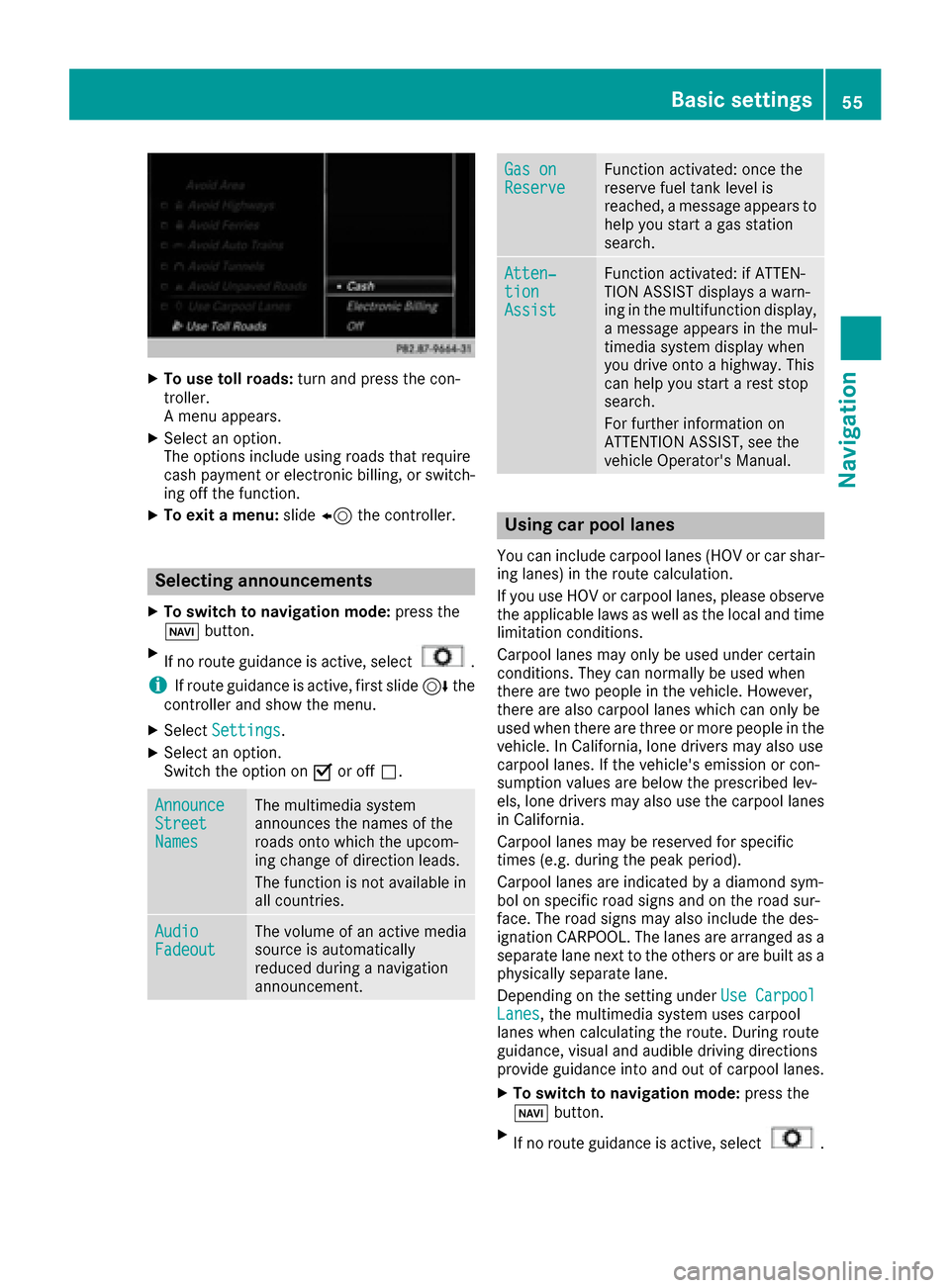
XTo use toll roads:turn and press the con-
troller.
A menu appears.
XSelect an option.
The options include using roads that require
cash payment or electronic billing, or switch-
ing off the function.
XTo exit a menu: slide8 the controller.
Selecting announcements
XTo switch to navigation mode: press the
Ø button.
XIf no route guidance is active, select.
iIf route guidance is active, first slide 6the
controller and show the menu.
XSelect Settings.
XSelect an option.
Switch the option on Oor off ª.
AnnounceStreetNames
The multimedia system
announces the names of the
roads onto which the upcom-
ing change of direction leads.
The function is not available in
all countries.
AudioFadeoutThe volume of an active media
source is automatically
reduced during a navigation
announcement.
Gas onReserveFunction activated: once the
reserve fuel tank level is
reached, a message appears to
help you start a gas station
search.
Atten‐tionAssist
Function activated: if ATTEN-
TION ASSIST displays a warn-
ing in the multifunction display,
a message appears in the mul-
timedia system display when
you drive onto a highway. This
can help you start a rest stop
search.
For further information on
ATTENTION ASSIST, see the
vehicle Operator's Manual.
Using car pool lanes
You can include carpool lanes (HOV or car shar-
ing lanes) in the route calculation.
If you use HOV or carpool lanes, please observe
the applicable laws as well as the local and time
limitation conditions.
Carpool lanes may only be used under certain
conditions. They can normally be used when
there are two people in the vehicle. However,
there are also carpool lanes which can only be
used when there are three or more people in the
vehicle. In California, lone drivers may also use
carpool lanes. If the vehicle's emission or con-
sumption values are below the prescribed lev-
els, lone drivers may also use the carpool lanes
in California.
Carpool lanes may be reserved for specific
times (e.g. during the peak period).
Carpool lanes are indicated by a diamond sym-
bol on specific road signs and on the road sur-
face. The road signs may also include the des-
ignation CARPOOL. The lanes are arranged as a
separate lane next to the others or are built as a
physically separate lane.
Depending on the setting under Use Carpool
Lanes, the multimedia system uses carpool
lanes when calculating the route. During route
guidance, visual and audible driving directions
provide guidance into and out of carpool lanes.
XTo switch to navigation mode: press the
Ø button.
XIf no route guidance is active, select.
Basic settings55
Navigation
Z
Page 61 of 178
XTo switch to navigation mode:press the
Ø button.
XIf no route guidance is active, select Desti‐nation.
iIf route guidance is active, first slide6the
controller and show the menu.
XSelect Free Destination Search.
XEnter the first few letters of the city and
street, e.g. NEWandEMP.
While entering the information, the number of
exact matches/all hits is shown.
---/---
is displayed if fewer than three char-
acters have been entered.
999+
is displayed if there are too many hits.
XSelect the ¬symbol.
The search results are displayed
(
Ypage 59).
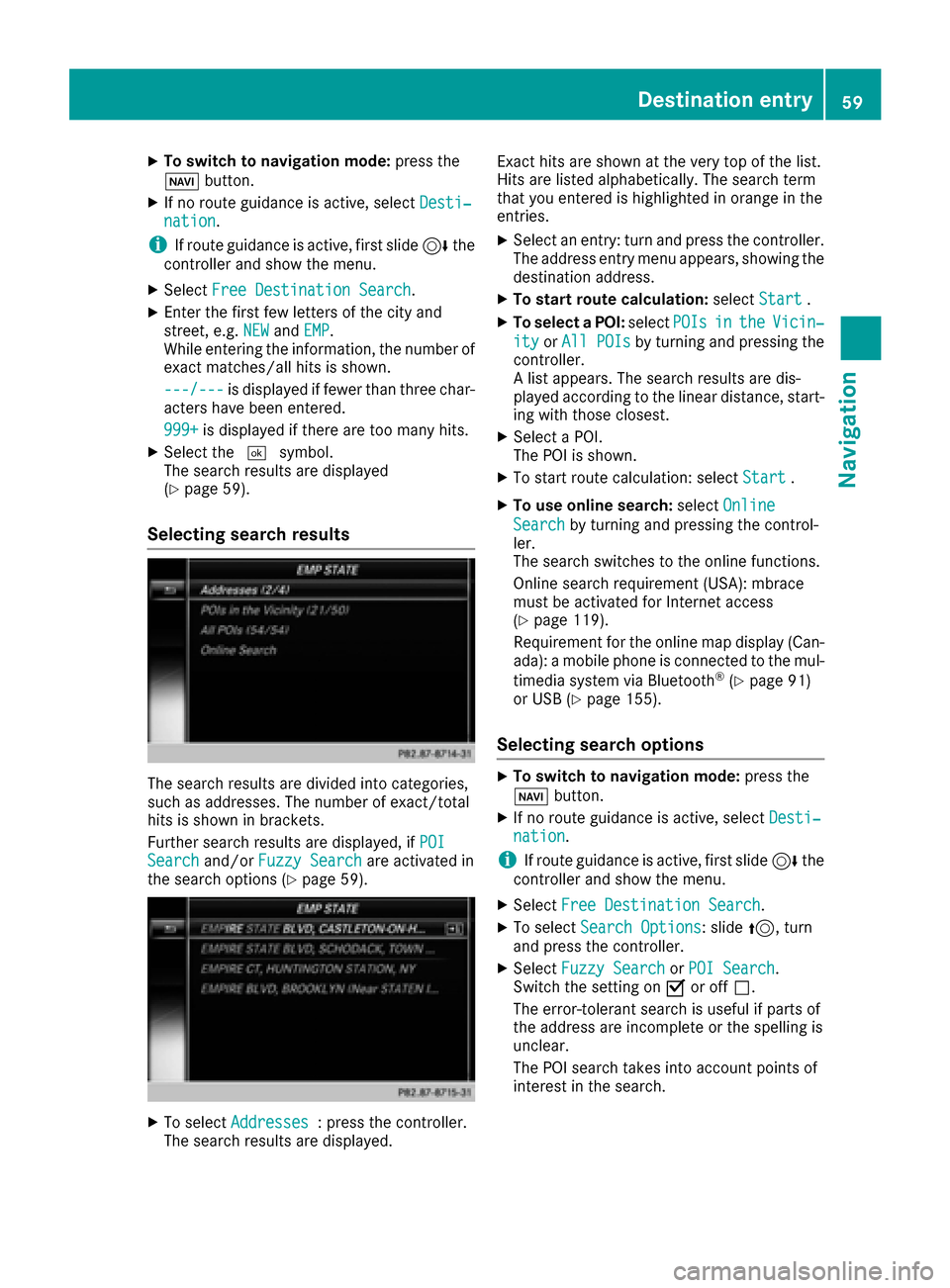
Selecting search results
The search results are divided into categories,
such as addresses. The number of exact/total
hits is shown in brackets.
Further search results are displayed, if POI
Searchand/orFuzzy Searchare activated in
the search options (Ypage 59).
XTo select Addresses: press the controller.
The search results are displayed. Exact hits are shown at the very top of the list.
Hits are listed alphabetically. The search term
that you entered is highlighted in orange in the
entries.
XSelect an entry: turn and press the controller.
The address entry menu appears, showing the
destination address.
XTo start route calculation:
selectStart.
XTo select a POI: selectPOIsintheVicin‐
ityorAll POIsby turning and pressing the
controller.
A list appears. The search results are dis-
played according to the linear distance, start-
ing with those closest.
XSelect a POI.
The POI is shown.
XTo start route calculation: select Start.
XTo use online search:selectOnline
Searchby turning and pressing the control-
ler.
The search switches to the online functions.
Online search requirement (USA): mbrace
must be activated for Internet access
(
Ypage 119).
Requirement for the online map display (Can-
ada): a mobile phone is connected to the mul-
timedia system via Bluetooth
®(Ypage 91)
or USB (Ypage 155).
Selecting search options
XTo switch to navigation mode: press the
Ø button.
XIf no route guidance is active, select Desti‐nation.
iIf route guidance is active, first slide6the
controller and show the menu.
XSelect Free Destination Search.
XTo select Search Options: slide5, turn
and press the controller.
XSelect Fuzzy SearchorPOI Search.
Switch the setting on Oor off ª.
The error-tolerant search is useful if parts of
the address are incomplete or the spelling is
unclear.
The POI search takes into account points of
interest in the search.
Destination entry59
Navigation
Z
Page 69 of 178
Personal POIs and routes
General notes
The use of personal POIs for displaying traffic
surveillance equipment is not permitted in everycountry. Please observe the country-specific
regulations and always drive at a suitable speed.
Personal POIs are filed in categories:
RNot Classified
Standard entry for personal POIs
RMercedes-Benz Apps
Personal POIs (destinations, routes) that you
have imported via the online functions.
RCategories which you have created yourself,
e.g. on your PC
Personal routes are not categorized.
Settings for personal POIs
Displaying on the map
Requirements: an SD card with personal POIs is
inserted (Ypage 141).
The SD card has the FAT data system format
(e.g. FAT32).
All personal POIs of the selected category are
displayed on the map with a corresponding sym-
bol.
If the "Alert when approaching" function is acti-
vated (
Ypage 67), the symbols are displayed
up to a map scale of 2 mi.
XTo switch to navigation mode: press the
Ø button.
XIf no route guidance is active, select.
iIf route guidance is active, first slide 6the
controller and show the menu.
XSelect Personal POIs.
XSelectDisplay on the Map.
The menu displays the categories available on
the SD card.
XTo select a category: turn the controller and
press to confirm.
All personal POIs in the selected category are
displayed Oor not displayed ª, depending
on the previous status.
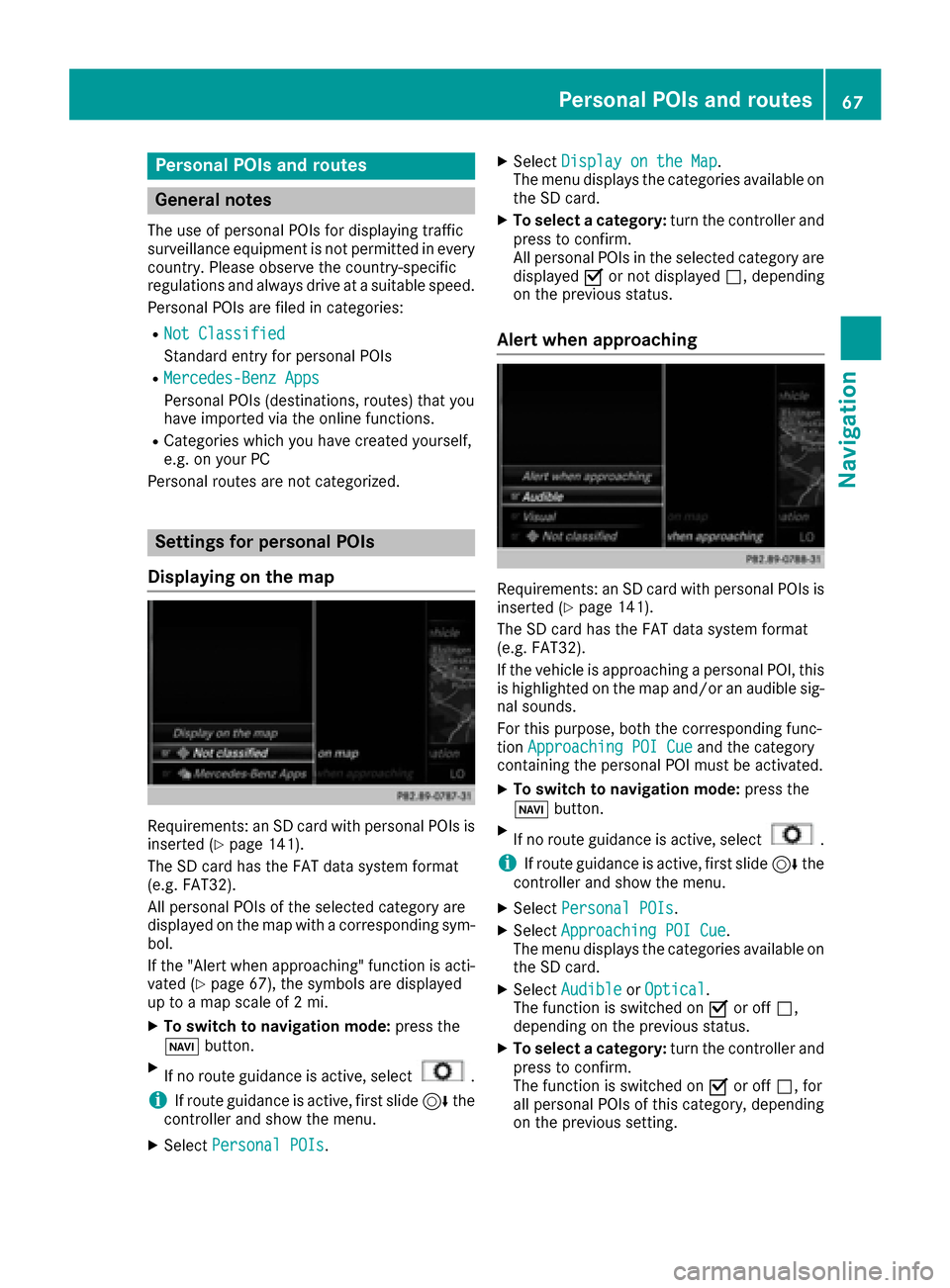
Alert when approaching
Requirements: an SD card with personal POIs is
inserted (Ypage 141).
The SD card has the FAT data system format
(e.g. FAT32).
If the vehicle is approaching a personal POI, this
is highlighted on the map and/or an audible sig-
nal sounds.
For this purpose, both the corresponding func-
tion Approaching POI Cue
and the category
containing the personal POI must be activated.
XTo switch to navigation mode: press the
Ø button.
XIf no route guidance is active, select.
iIf route guidance is active, first slide 6the
controller and show the menu.
XSelect Personal POIs.
XSelectApproaching POI Cue.
The menu displays the categories available on
the SD card.
XSelect AudibleorOptical.
The function is switched on Oor off ª,
depending on the previous status.
XTo select a category: turn the controller and
press to confirm.
The function is switched on Oor off ª, for
all personal POIs of this category, depending
on the previous setting.
Personal POIs and routes67
Navigation
Z
Page 70 of 178
Saving personal POIs and routes
General notes
Personal POIs and routes are geodata which are
saved in open GPX format (GPS Exchange for-
mat) on the SD card.
Requirements: the SD card has the FAT data
system format (e.g. FAT32).
Personal POI from current vehicle posi-
tion or crosshair position
XInsert the SD memory card (Ypage 141).
XTo switch to navigation mode: press the
Ø button.
XWhen the map is displayed, press the con-
troller until a message appears.
The current vehicle position is saved to the
Not Classified
category on the SD card
and also stored in the "Last destinations"
memory (
Ypage 81).
If the "Move map" function is selected
(
Ypage 53), the crosshair position is saved.
iIf no SD card is inserted, the personal POI
will only be stored in the "Last destinations"
memory.
Personal POI from destination address
XInsert the SD memory card (Ypage 141).
XTo switch to navigation mode: press the
Ø button.
XCall up the address entry menu and enter the
destination address (Ypage 56).
XSelect Saveby sliding 6the controller.
XTurn and press the controller.
XTo make a selection, turn and press the con-
troller.
XEnter the name.
XSelect a category.
The current address is saved as a personal
POI on the SD card.
iYou can select a destination from the Pre‐vious DestinationsorContactsmemo-
ries and save it on the SD card.
RPrevious Destinations(Ypage 60)
RContacts(Ypage 60)
Personal route from a tour including
intermediate destinations
XInsert the SD memory card (Ypage 141).
XTo switch to navigation mode: press the
Ø button.
XEnter a destination, e.g. by address
(Ypage 56).
XStart route calculation (Ypage 58).
XEnter an intermediate destination
(Ypage 64).
XSelect Save As Personal Routein the
intermediate destinations menu.
The route is saved in the Personal Routes
folder on the SD card.
Importing personal destinations and
routes via Mercedes-Benz Apps
You can use Mercedes-Benz Apps (e.g. Down-
load POI, Local Search) to import destinations to
the navigation system. These have their own
symbol and are filed in the Mercedes-Benz
Appscategory.
You can save the imported destinations and
routes as personal POIs and routes (
Ypage 68).
When importing routes, please note:
RThe Mercedes-Benz Apps may generate a
route based on a different map from the one
used by the multimedia system. Points on the
route may therefore be situated off the digital
roads.
RThe Mercedes-Benz Apps minimize the num-
ber of route points offered.
For this reason an imported route com-
menced in the multimedia system may devi-
ate from the original route from the
Mercedes-Benz Apps.
68Personal POIs and routes
Navigation
Page 72 of 178
into consideration. Therefore, the outward
and return routes may differ from each other.
XTo start route guidance:turn and press the
controller to select Start
.
Recording the route
General notes
Routes are recorded using the SD card.
Requirements: the SD card has the FAT data
system format (e.g. FAT32).
When recording the route, bear in mind the fol-
lowing:
RIf the SD card is inserted, it must not be
removed during recording.
RIf route recording is started manually, it must
be finished manually before the multimedia
system is switched off (e. g. when the engine
is switched off).
RThe multimedia system minimizes the num-
ber of route points recorded. Therefore when
the recorded route is subsequently com-
menced, it may differ from the route that was
originally recorded.
Starting/finishing route recording
XInsert the SD memory card (Ypage 141).
XTo switch to navigation mode: press the
Ø button.
XIf no route guidance is active, select.
iIf route guidance is active, first slide 6the
controller and show the menu.
XSelect Memory Card.
XSelectStart Route Recording.
The route is recorded and REC appears at the
bottom edge of the screen.
XTo stop recording, select End RouteRecordingfrom the menu.
The route is stored under Personal Routes.
Displaying/editing the recorded route
XInsert the SD memory card (Ypage 141).
XTo switch to navigation mode: press the
Ø button.
XIf no route guidance is active, select.
iIf route guidance is active, first slide 6the
controller and show the menu.
XSelect Memory Card.
XSelectPersonal Routes.
Previously recorded routes are displayed.
XTo select a route, turn and press the control-
ler.
The map appears with a menu. The recorded
route is shown on the map in blue.
XTo calculate a route: selectStart.
XTo change the name and symbol: select
Edit
.
XSelect Change NameorEdit Icon.
XCharacter entry (Ypage 29).
XSelect a symbol.
Route guidance
General notes
The multimedia system calculates the route to
the destination without taking the following into
account, for example:
Rtraffic lights
Rstop and yield signs
Rparking or stopping restrictions
Rroad narrowing
Rtemporary traffic rules and regulations
The navigation system can give differing driving
recommendations if the actual street/traffic sit-
uation does not correspond with the digital
map's data. For example, if the road layout or
the direction of a one-way street has been
changed.
For this reason, you must always observe road
and traffic rules and regulations during your
journey. Road and traffic rules and regulations
always have priority over system driving recom-
mendations.
Route guidance begins once a route has been
calculated (
Ypage 58).
The multimedia system guides you to your des-
tination by means of navigation announcements
in the form of audible navigation announce-
ments and route guidance displays.
The route guidance displays can be seen if nav-
igation mode is switched on.
If you do not follow the navigation announce-
ments or if you leave the calculated route, the
70Route guidance
Navigation
Page 76 of 178
Switching navigation announcements
on/off
XTo switch off navigation announcements:
during a navigation announcement, press thethumbwheel to the right of the controller.
or
XPress the 8button on the multifunction
steering wheel during a navigation message.
The Spoken driving recommendations
have been deactivated.message
appears.
XTo switch navigation announcements
back on: slide6the controller.
XTo select: turn and press the control-
ler.
The multimedia system automatically switches
the navigation announcements back on when:
Ra new route is calculated
Ryou start the vehicle
A navigation message is given if the route is
recalculated during dynamic route guidance due
to new traffic reports (
Ypage 76).
Canceling/continuing route guidance
Canceling route guidance
XSlide 6the controller.
The menu is shown.
XTo select Destination: turn and press the
controller.
XSelect Cancel Active Route Guidance.
The blue route line is no longer shown on the
map.
Resuming route guidance
XSlide 6the controller.
The menu is shown.
XTo select Destination: turn and press the
controller.
XSelect Continue Route Guidance.
The multimedia system calculates the route.
Route information
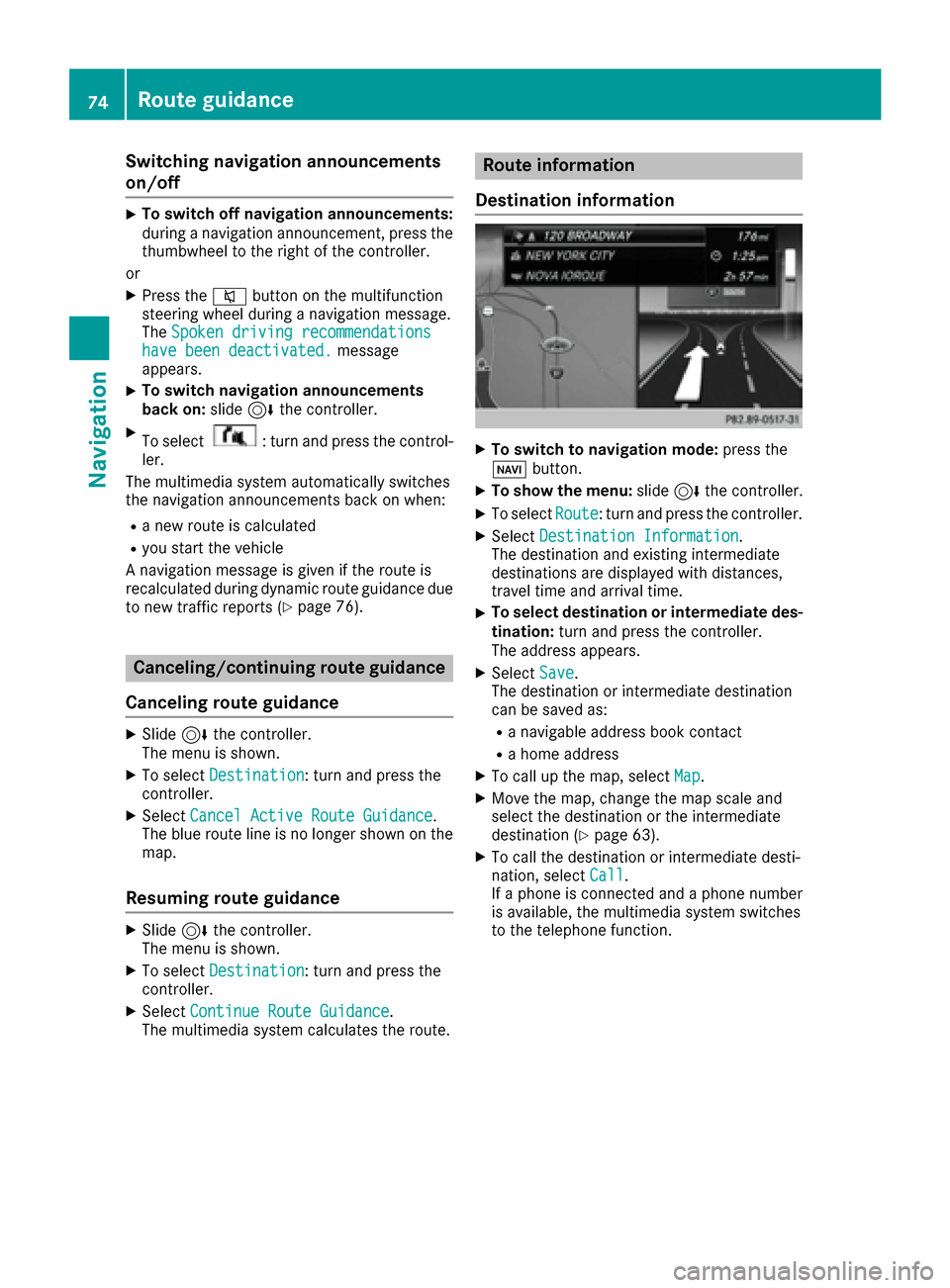
Destination information
XTo switch to navigation mode: press the
Ø button.
XTo show the menu: slide6the controller.
XTo select Route: turn and press the controller.
XSelectDestination Information.
The destination and existing intermediate
destinations are displayed with distances,
travel time and arrival time.
XTo select destination or intermediate des-
tination: turn and press the controller.
The address appears.
XSelect Save.
The destination or intermediate destination
can be saved as:
Ra navigable address book contact
Ra home address
XTo call up the map, select Map.
XMove the map, change the map scale and
select the destination or the intermediate
destination (
Ypage 63).
XTo call the destination or intermediate desti-
nation, selectCall.
If a phone is connected and a phone number
is available, the multimedia system switches
to the telephone function.
74Route guidance
Navigation
Page 77 of 178
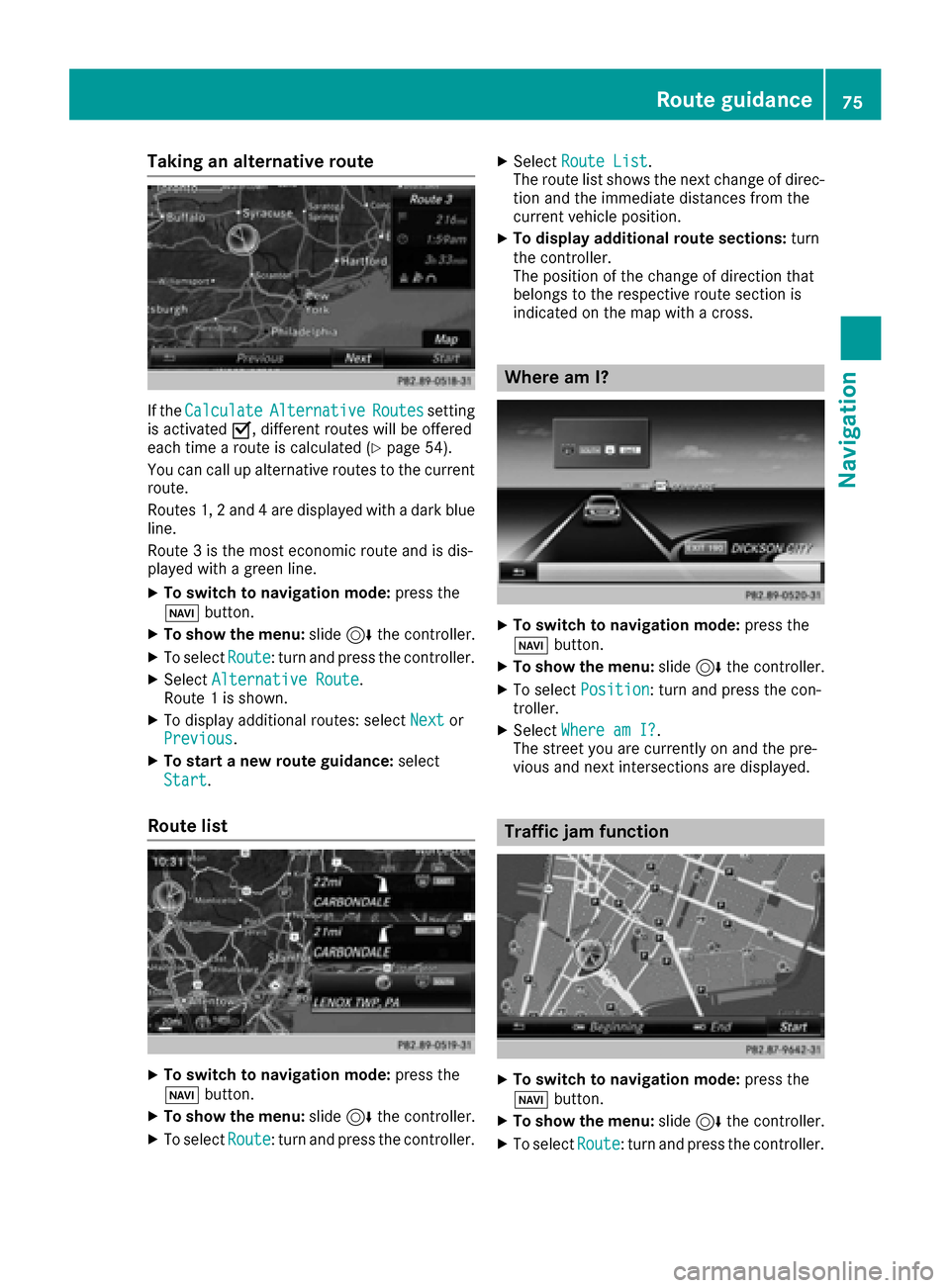
Taking an alternative route
If theCalculateAlternativeRoutessetting
is activated O, different routes will be offered
each time a route is calculated (
Ypage 54).
You can call up alternative routes to the current
route.
Routes 1, 2 and 4 are displayed with a dark blue line.
Route 3 is the most economic route and is dis-
played with a green line.
XTo switch to navigation mode: press the
Ø button.
XTo show the menu: slide6the controller.
XTo select Route: turn and press the controller.
XSelectAlternative Route.
Route 1 is shown.
XTo display additional routes: select Nextor
Previous.
XTo start a new route guidance: select
Start
.
Route list
XTo switch to navigation mode: press the
Ø button.
XTo show the menu: slide6the controller.
XTo select Route: turn and press the controller.
XSelectRoute List.
The route list shows the next change of direc-
tion and the immediate distances from the
current vehicle position.
XTo display additional route sections: turn
the controller.
The position of the change of direction that
belongs to the respective route section is
indicated on the map with a cross.
Where am I?
XTo switch to navigation mode: press the
Ø button.
XTo show the menu: slide6the controller.
XTo select Position: turn and press the con-
troller.
XSelect Where am I?.
The street you are currently on and the pre-
vious and next intersections are displayed.
Traffic jam function
XTo switch to navigation mode: press the
Ø button.
XTo show the menu: slide6the controller.
XTo select Route: turn and press the controller.
Route guidance75
Navigation
Z
Page 78 of 178
XSelectDetour.
XTo specify the start of the traffic jam sec-
tion: select Beginning
.
The next possible traffic jam section starting
point is marked.
XTurn the controller.
The marking moves along the route to the
next starting position.
XPress the controller.
The start of the traffic jam is set.
XTo specify the end of a traffic jam section:
select End
.
The next possible traffic jam section end point
is marked.
XTurn the controller.
The marking moves along the route to the
next end position.
XPress the controller.
The end of the traffic jam is determined.
XTo calculate the detour: selectStart.
Off-road
General notes
The navigation system may guide you to off-road
routes that your vehicle cannot drive on without
causing damage to the tires or wheels or the
vehicle itself. It is the driver’s sole responsibility to determine the suitability of the route. The
condition of the off-road routes may vary. The
navigability of off-road routes may be influenced
by various factors such as time of day, time of
year and prevailing weather conditions. The nav-
igation system cannot judge these factors or
take them into account for route guidance.
Route guidance to an off-road destina-
tion
The multimedia system can guide you to desti-
nations which are within the area of the digital
map, but which are not themselves on the map.
These destinations are known as off-road des-
tinations, which you can enter using the map, for
example. In these cases, the multimedia system
guides you for as long as possible with naviga-
tion announcements and displays on roads
known to the system.
If the vehicle reaches an area which is not part ofthe digital map, the display appears as a split-
screen view. On the right, an arrow appears that points to the off-road destination. You hear the
announcement: "Please follow the arrow on the
display". As the vehicle approaches the desti-
nation, you will see a display to this effect.
Route guidance from an off-road loca-
tion to a destination
Off-road location: the vehicle's position is on the
digital map, but the map does not contain any
information about that location. The multimedia
system is able to guide you to a destination even
from an off-road location.
At the start of route guidance, you will see the
Road Not Mapped
message, an arrow and the
distance to the destination. The arrow shows
the compass heading to the actual destination.
As soon as the vehicle is back on a road known
to the system, route guidance continues in the
usual way.
Off-road during route guidance
Due to road construction, for example, there
may be differences between the data on the
digital map and the actual course of the road.
In such cases, the system will temporarily be
unable to locate the vehicle position on the dig-
ital map. The vehicle is therefore in an off-road
position.
In the display, you will then see the Road Not
Mappedmessage, an arrow and the distance to
the destination. The direction arrow shows the
compass heading to the destination.
As soon as the system can assign the vehicle
position to the map again, route guidance con-
tinues in the usual way.
Real-time traffic reports
Prerequisites
This function is currently not available for Can-
ada.
In order to receive real-time traffic reports via
satellite radio, you need to subscribe to SIRIUS
XM Satellite Radio Traffic Message Service.
Further information on satellite radio
(
Ypage 133).
The multimedia system can receive traffic
reports via satellite radio and take account of
these for route guidance in the navigation sys-
76Real-time traffic reports
Navigation
Page 81 of 178
XTo select the road, area or region:turn the
controller and press to confirm.
The traffic report is displayed (
Ypage 78).
There may be several traffic reports for the
affected road.
XTo close the display: press the%button.
Settings for the display on the map
You can switch these displays on/off on the
map:
RIncidents
RSpeed & Flow
RFree Flow
XTo switch to navigation mode: press the
Ø button.
XTo show the menu: slide6the controller.
XTo select Traffic: turn and press the con-
troller.
XTo select Traffic Information On Map:
turn and press the controller.
XSelect Incidents,Speed & Flowor FreeFlow.
The display is on Oor off ª.
Reading out traffic reports on the
route
Introduction
The text reader function is only available while
route guidance is active. It reads out traffic
reports affecting the current route.
You can select from the following text reader
properties:
RLanguage (Ypage 39)
RText reader speed (Ypage 37)
You can start the text reader function manually
or set it to automatic.
Starting the text reader function man-
ually
XTo switch to navigation mode: press the
Ø button.
XTo show the menu: slide6the controller.
XTo select Traffic: turn and press the con-
troller.
XSelect ReadOutAllMessagesonRoute.
The multimedia system reads out the reports in sequential order.
If there are no reports for the route, the Read
Out All Messages on Routemenu item is
gray and cannot be selected.
XTo cancel the read-aloud function:
select Cancel Read-Aloud Function
.
The multimedia system reads the current
report aloud and then exits the read-aloud
function.
Automatic text reader function
XTo switch to navigation mode: press the
Ø button.
XTo show the menu: slide6the controller.
XTo select Traffic: turn and press the con-
troller.
XSelect Read Traffic AnnouncementsAutomatically.
Depending on the previous state, switch the
option on Oor off ª.
Recalculating the route dynamically
TheDynamicTrafficRouteroute type takes
into account all of the traffic reports it receives
for the current route when calculating the route
(
Ypage 53).
If you have selected Dynamic Traffic Route
as the route type, the multimedia system guides
you to your destination along the updated route.
Storing destinations
General notes
If a route to a destination has been calculated,
the multimedia system saves the destination to
the last destinations memory. If the memory is
full, the multimedia system overwrites the old-
est destination. When you save the current vehi-
cle position or a crosshair position, this position
is stored in the "Last destinations" memory.
You can save destinations permanently in the
address book and on an SD card. For example,
you can save a destination as your home
address immediately after entering the address
(
Ypage 57).
Storing destinations79
Navigation
Z