steering MERCEDES-BENZ C-CLASS CABRIOLET 2016 Manual PDF
[x] Cancel search | Manufacturer: MERCEDES-BENZ, Model Year: 2016, Model line: C-CLASS CABRIOLET, Model: MERCEDES-BENZ C-CLASS CABRIOLET 2016Pages: 377, PDF Size: 6.9 MB
Page 224 of 377
The segments between the speed of the vehi-
cle in front and the stored speed light up. Rev counter
! Do not drive in the overrevving range. Doing
so will damage the engine.
The red band in the rev counter indicates the
engine's overrevving range.
The fuel supply is interrupted to protect the
engine when the red band is reached. Outside temperature display
You should pay special attention to road condi-
tions when temperatures are around freezing
point.
Bear in mind that the outside temperature dis-
play indicates the measured air temperature
and not the road surface temperature.
The outside temperature display is in the multi-
function display (Y page 222).
Changes in the outside temperature are dis-
played after a short delay. Coolant temperature gauge
G
WARNING
If you open the bonnet while the engine is
overheating or while there is a fire in the
engine compartment, you could come into
contact with hot gases or other leaking ser-
vice products. There is a danger of injury.
Allow an overheating engine to cool down
before opening the bonnet. If there is a fire in the engine compartment, leave the bonnet
closed and notify the fire brigade.
The coolant temperature display is shown in the lower section of the rev counter (Y page 35).
At high outside temperatures and when driving
in mountainous terrain, the coolant temperature
may rise to the end of the scale.
Under normal operating conditions and with the specified coolant level, the display may rise to
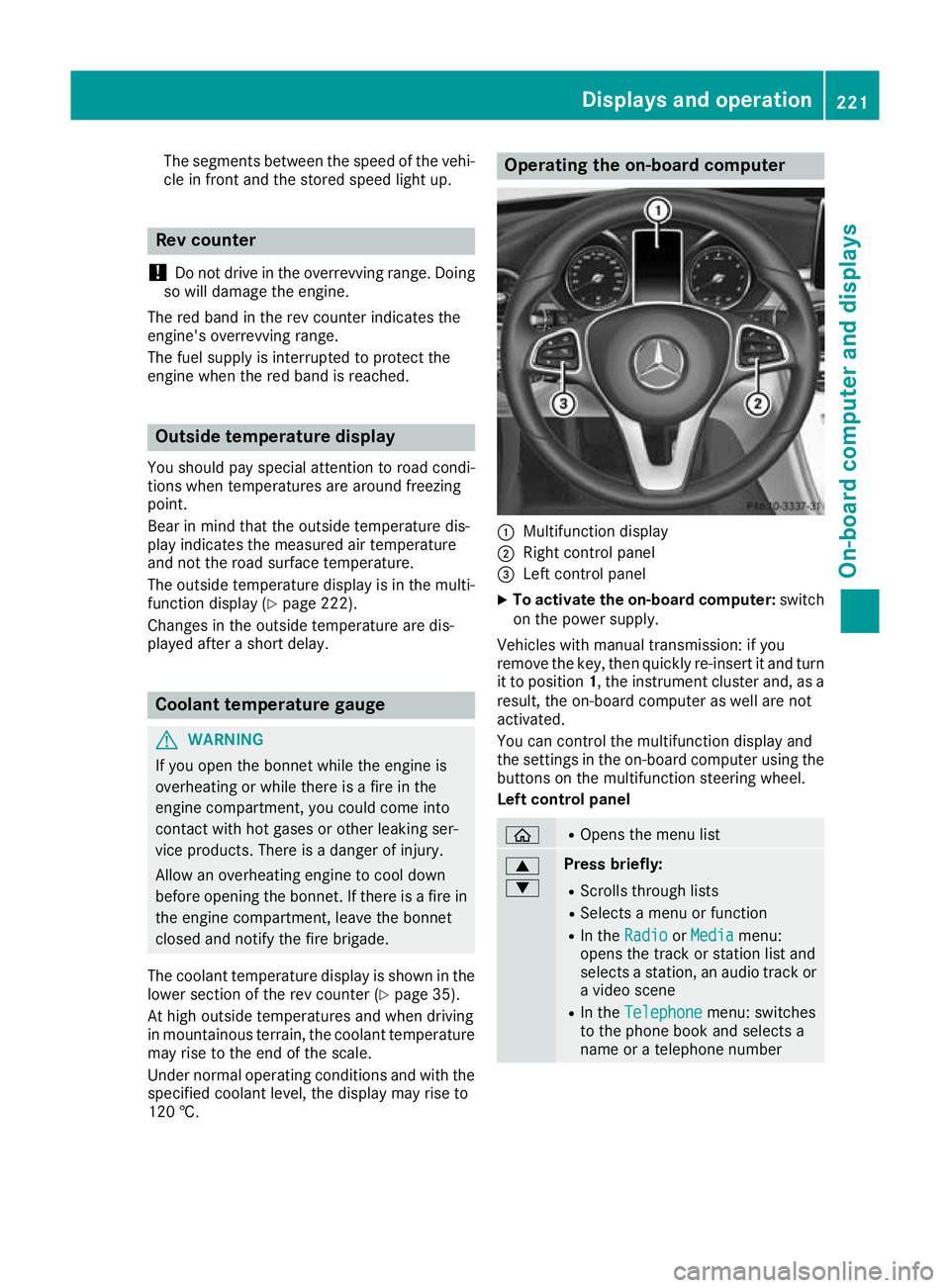
120 †. Operating the on-board computer
:
Multifunction display
; Right control panel
= Left control panel
X To activate the on-board computer: switch
on the power supply.
Vehicles with manual transmission: if you
remove the key, then quickly re-insert it and turn
it to position 1, the instrument cluster and, as a
result, the on-board computer as well are not
activated.
You can control the multifunction display and
the settings in the on-board computer using the buttons on the multifunction steering wheel.
Left control panel ò R
Opens the menu list 9
: Press briefly:
R Scrolls through lists
R Selects a menu or function
R In the Radio Radio orMedia
Media menu:
opens the track or station list and
selects a station, an audio track or a video scene
R In the Telephone Telephone menu: switches
to the phone book and selects a
name or a telephone number Displays and operation
221On-board computer and displays Z
Page 225 of 377
9
: Press and hold:
R
Scrolls quickly through all lists
R In the Radio Radio orMedia Media menu:
selects a station, audio track or
video scene using rapid scrolling
R In the Telephone Telephone menu: starts
rapid scrolling if the phone book is open a R
In all menus: confirms the selected
entry in the list
R In the Radio
Radio orMedia
Media menu:
opens the list of available radio
sources or media
R In the Telephone Telephone menu: switches
to the phone book and starts dial-
ling the selected number ñ R
Vehicles with multimedia system
Audio 20:
Switches off voice-operated con-
trol for navigation (see manufac-
turer's operating instructions)
R Vehicles with multimedia system
COMAND Online:
Switches off LINGUATRONIC (see
the separate operating instruc-
tions) % Press briefly:
R Back
R In the Radio Radio orMedia
Media menu: dese-
lects the track or station list or list
of available radio sources or media
R Hides display messages
R Exits the telephone book/redial
memory % Press and hold:
R
Calls up the standard display in the
Trip Trip menu Right control panel
~ R
Rejects or ends a call
R Exits the telephone book/redial
memory 6 R
Makes or accepts a call
R Switches to the redial memory W
X R
Adjusts the volume 8 R
Mute ó R
Vehicles with multimedia system
Audio 20:
Switches on voice-operated con-
trol for navigation (see manufac-
turer's operating instructions)
R Vehicles with multimedia system
COMAND Online:
Switches on LINGUATRONIC (see
the separate operating instruc-
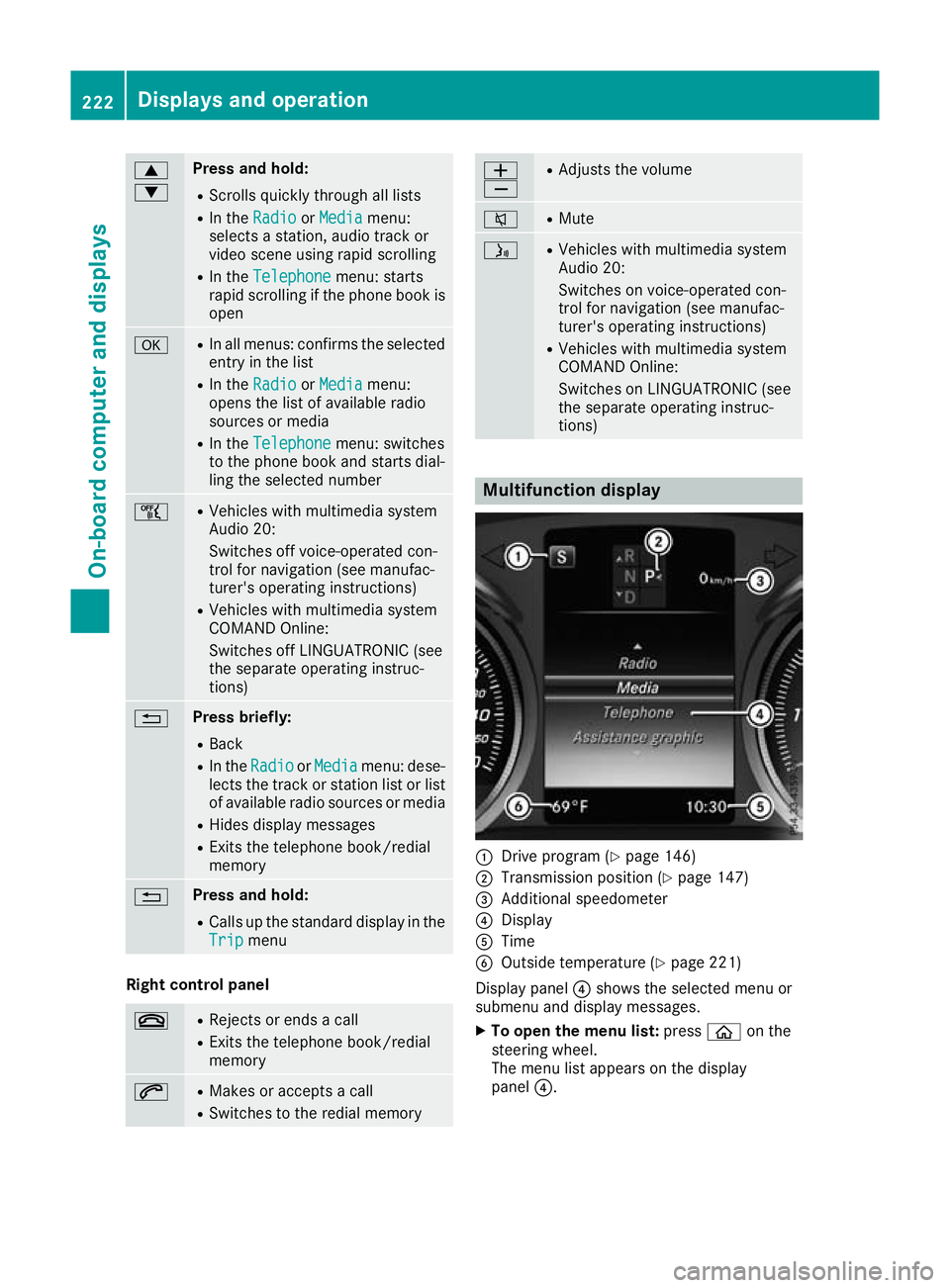
tions) Multifunction display
:
Drive program (Y page 146)
; Transmission position (Y page 147)
= Additional speedometer
? Display
A Time
B Outside temperature (Y page 221)
Display panel ?shows the selected menu or
submenu and display messages.
X To open the menu list: pressòon the
steering wheel.
The menu list appears on the display
panel ?. 222
Displays and operationOn-board computer and displays
Page 226 of 377
Possible readings on the multifunction dis-
play:
R ZGearshift recommendation for manual
transmission (Y page 144) or for automatic
transmission (manual gearshifting)
(Y page 152)
R j Active Parking Assist (Y page 188)
R È SPEEDTRONIC (Y page 169)
R ¯ Cruise control (Y page 167)
R a DISTRONIC PLUS Steering Assist and
Stop&Go Pilot (Y page 178)
R _ Adaptive Highbeam Assist Plus
(Y page 117)
R è ECO start/stop function (Y page 137)
R ë HOLD function (Y page 179)
R ð Maximum permissible speed exceeded
(for certain countries only) Head-up display
General notes The Head-up Display projects information from
the navigation system and the driver assistance
systems above the dashboard into the driver's
field of vision. This way, the Head-up Display
enables drivers to see information without hav-
ing to take their eyes off the road.
A requirement for the display of the content is
that the following functions are available in the
vehicle and are switched on:
R Cruise control
R SPEEDTRONIC
R DISTRONIC PLUS
R Traffic Sign Assist
R Navigation
Important safety notes The head-up display is only an aid and is not a
substitute for attentive driving.
Speed limits and overtaking restrictions are not
always correctly displayed. Traffic signs always
have priority over the Traffic Sign Assist display.
The visibility of the head-up display is influenced by the following conditions:
R the driver's seat position
R the positioning of the display image
R the general light conditions R
sunglasses with polarisation filters
R wet road surfaces
R blocking of sunlight by objects on the display
cover
In the event of extreme sunlight, sections of the
display may fade. This can be reversed by
switching the head-up display off and on again.
i Vehicles with the head-up display are equip-
ped with a special windscreen. Should repairs
be necessary, have the windscreen replaced
at a qualified specialist workshop.
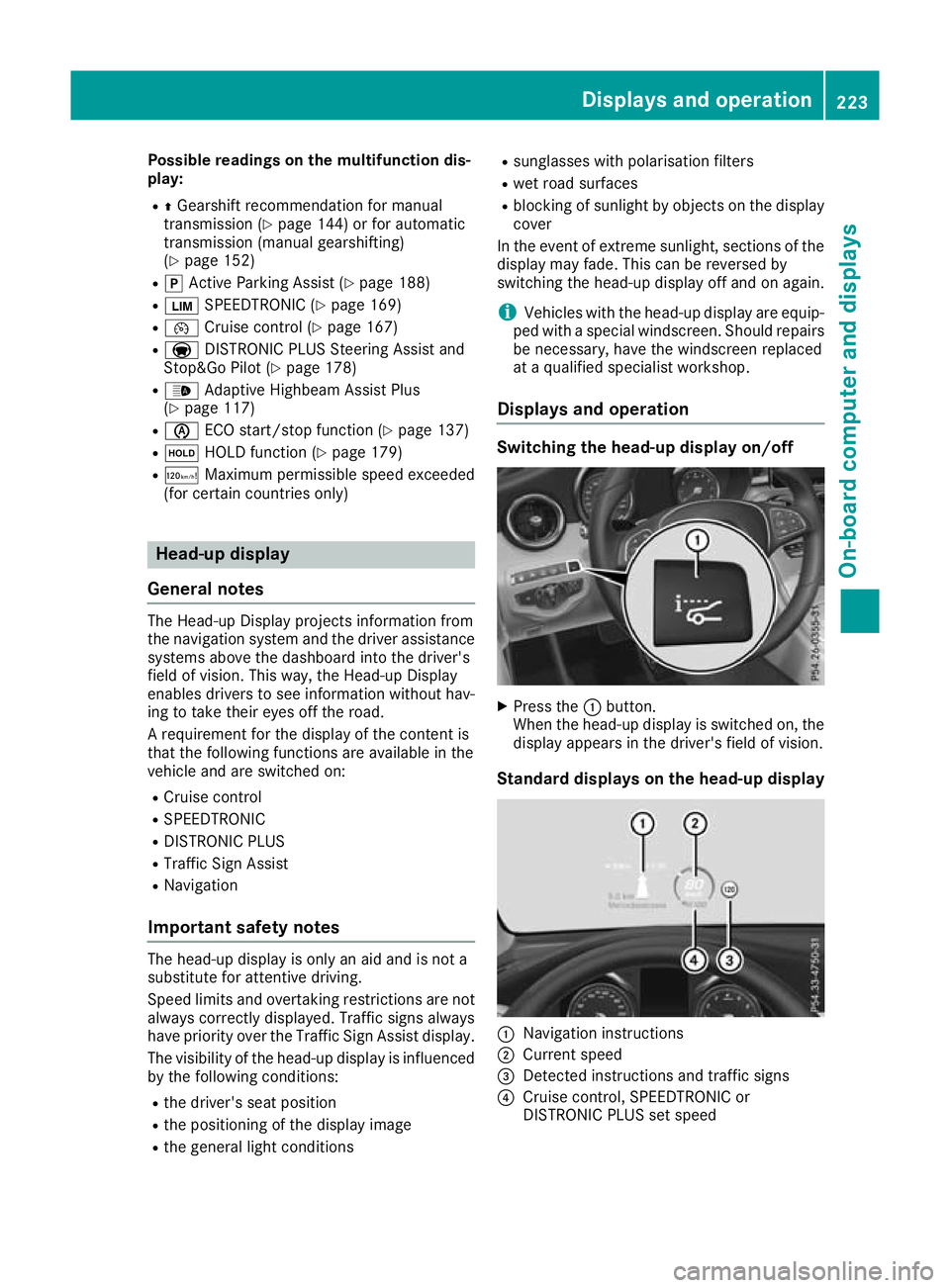
Displays and operation Switching the head-up display on/off
X
Press the :button.
When the head-up display is switched on, the display appears in the driver's field of vision.
Standard displays on the head-up display :
Navigation instructions
; Current speed
= Detected instructions and traffic signs
? Cruise control, SPEEDTRONIC or
DISTRONIC PLUS set speed Displays and operation
223On-board computer and displays Z
Page 227 of 377

AMG displays on the head-up display
:
Upshift indicator
; RACETIMER lap
= RACETIMER lap time
? Current speed
A Currently selected gear, gearshift options
with manual gearshifting
B Current engine speed
Setting options You can make the following settings on the
head-up display submenu:
R Adjust the position of the head-up display on
the windscreen (Y page 235)
R Adjust the brightness of the displays on the
head-up display (Y page 235)
R Select which information you want to appear
on the head-up display (Y page 234)
Using the Display content
Display content function, you
can, depending on your vehicle's equipment,
choose between four standard displays. The
selected content then appears on the head-
up display.
In Mercedes-AMG vehicles, you can choose
between further AMG displays in addition to
the standard displays, depending on your
vehicle's equipment.
If you select a display with traffic signs, traffic
signs detected by Traffic Sign Assist appear
on the head-up display. Menus and submenus
Menu overview
Press òon the steering wheel to open the
menu list.
Operating the on-board computer (Y page 221).Depending on the vehicle equipment, you can
select the following menus:
R Trip
Trip menu (Y page 224)
R Navi Navi menu (navigation instructions)
(Y page 226)
R Radio
Radio menu (Y page 228)
R Media
Media menu (Y page 228)
R Telephone
Telephone menu (Ypage 230)
R Assistance graphic
Assistance graphic menu (Ypage 231)
R Service
Service menu (Ypage 232)
R Settings
Settings menu (Ypage 232)
R AMG
AMG menu in Mercedes-AMG vehicles
(Y page 237) Trip menu
Standard display X
Press and hold the %button on the steer-
ing wheel until the Trip
Tripmenu with trip
meter :and total distance recorder ;
appears. 224
Menus and submenusOn-board computer and displays
Page 228 of 377
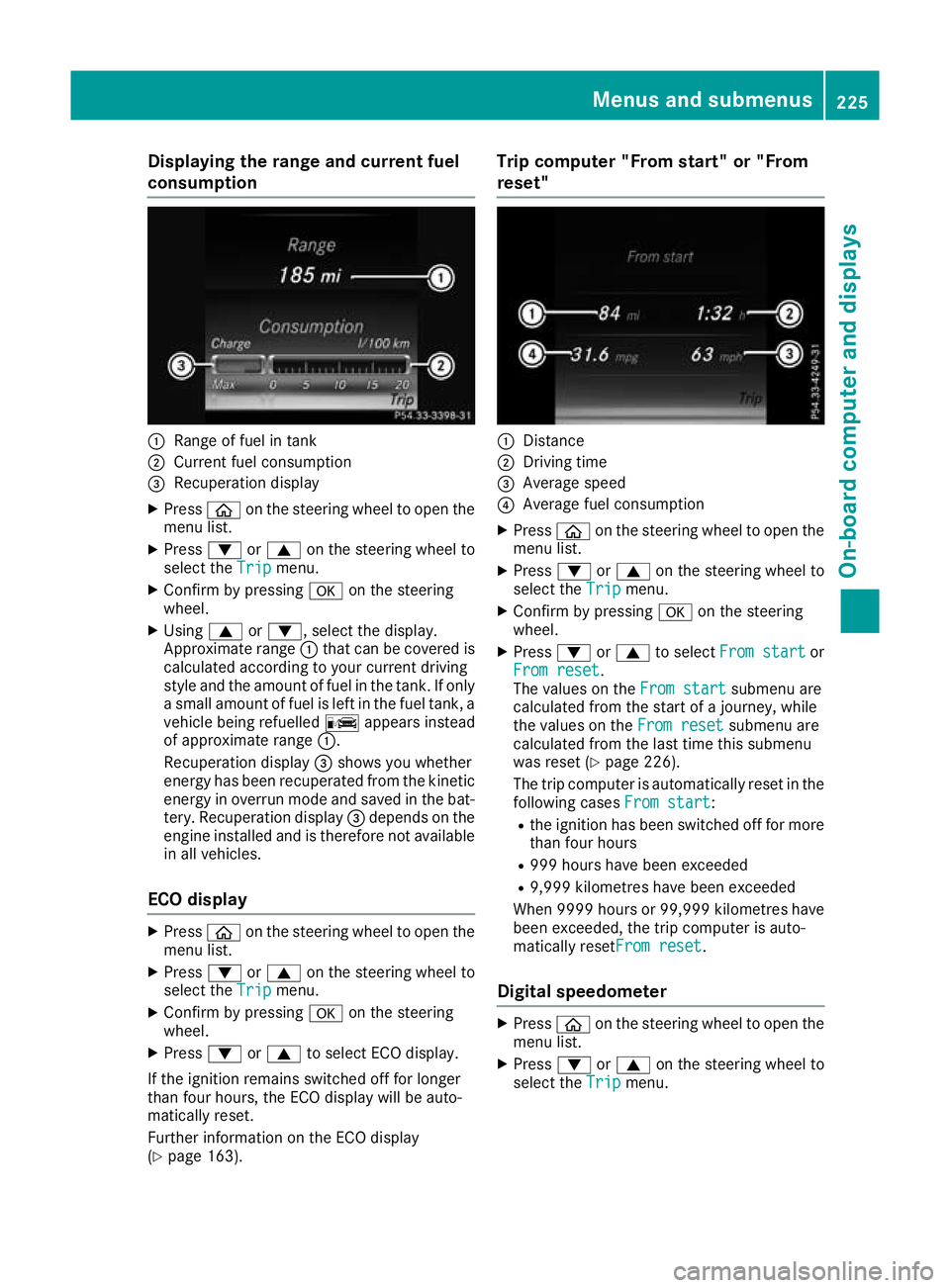
Displaying the range and current fuel
consumption :
Range of fuel in tank
; Current fuel consumption
= Recuperation display
X Press òon the steering wheel to open the
menu list.
X Press :or9 on the steering wheel to
select the Trip
Tripmenu.
X Confirm by pressing aon the steering
wheel.
X Using 9or:, select the display.
Approximate range :that can be covered is
calculated according to your current driving
style and the amount of fuel in the tank. If only a small amount of fuel is left in the fuel tank, a
vehicle being refuelled Cappears instead
of approximate range :.
Recuperation display =shows you whether
energy has been recuperated from the kinetic energy in overrun mode and saved in the bat-
tery. Recuperation display =depends on the
engine installed and is therefore not available in all vehicles.
ECO display X
Press òon the steering wheel to open the
menu list.
X Press :or9 on the steering wheel to
select the Trip
Trip menu.
X Confirm by pressing aon the steering
wheel.
X Press :or9 to select ECO display.
If the ignition remains switched off for longer
than four hours, the ECO display will be auto-
matically reset.
Further information on the ECO display
(Y page 163). Trip computer "From start" or "From
reset"
:
Distance
; Driving time
= Average speed
? Average fuel consumption
X Press òon the steering wheel to open the
menu list.
X Press :or9 on the steering wheel to
select the Trip
Trip menu.
X Confirm by pressing aon the steering
wheel.
X Press :or9 to select From start From start or
From reset
From reset.
The values on the From start From startsubmenu are
calculated from the start of a journey, while
the values on the From reset From resetsubmenu are
calculated from the last time this submenu
was reset (Y page 226).
The trip computer is automatically reset in the following cases From start
From start:
R the ignition has been switched off for more
than four hours
R 999 hours have been exceeded
R 9,999 kilometres have been exceeded
When 9999 hour sor 99,999 kilometres have
been exceeded, the trip computer is auto-
matically resetFrom reset From reset.
Digital speedometer X
Press òon the steering wheel to open the
menu list.
X Press :or9 on the steering wheel to
select the Trip
Tripmenu. Menus and submenus
225On-board computer and displays Z
Page 229 of 377
X
Confirm by pressing aon the steering
wheel.
X Press :or9 to select the digital
speedometer.
Resetting values X
Press òon the steering wheel to open the
menu list.
X Press :or9 on the steering wheel to
select the Trip
Trip menu.
X Confirm by pressing aon the steering
wheel.
X Press :or9 to select the function that
you wish to reset.
X Press abriefly.
X Press :to select Yes Yesand press ato
confirm.
You can reset the values of the following func- tions:
R Trip meter
R "From start" trip computer
R "From reset" trip computer
R ECO display
If you reset the values in the "ECO display",
the values in the "From start" trip computer
are also reset. If you reset the values in the
"From start" trip computer, the values in the
"ECO display" are also reset. Navigation menu
Displaying navigation instructions On the
Navi Navimenu, the multifunction display
shows navigation instructions. You can find fur-
ther information on navigation instructions in
the Digital Owner's Manual in the multimedia
system.
X Switch on the multimedia system.
X Press òon the steering wheel to open the
menu list.
X Press :or9 on the steering wheel to
select the Navi
Navi menu.
X Confirm by pressing aon the steering
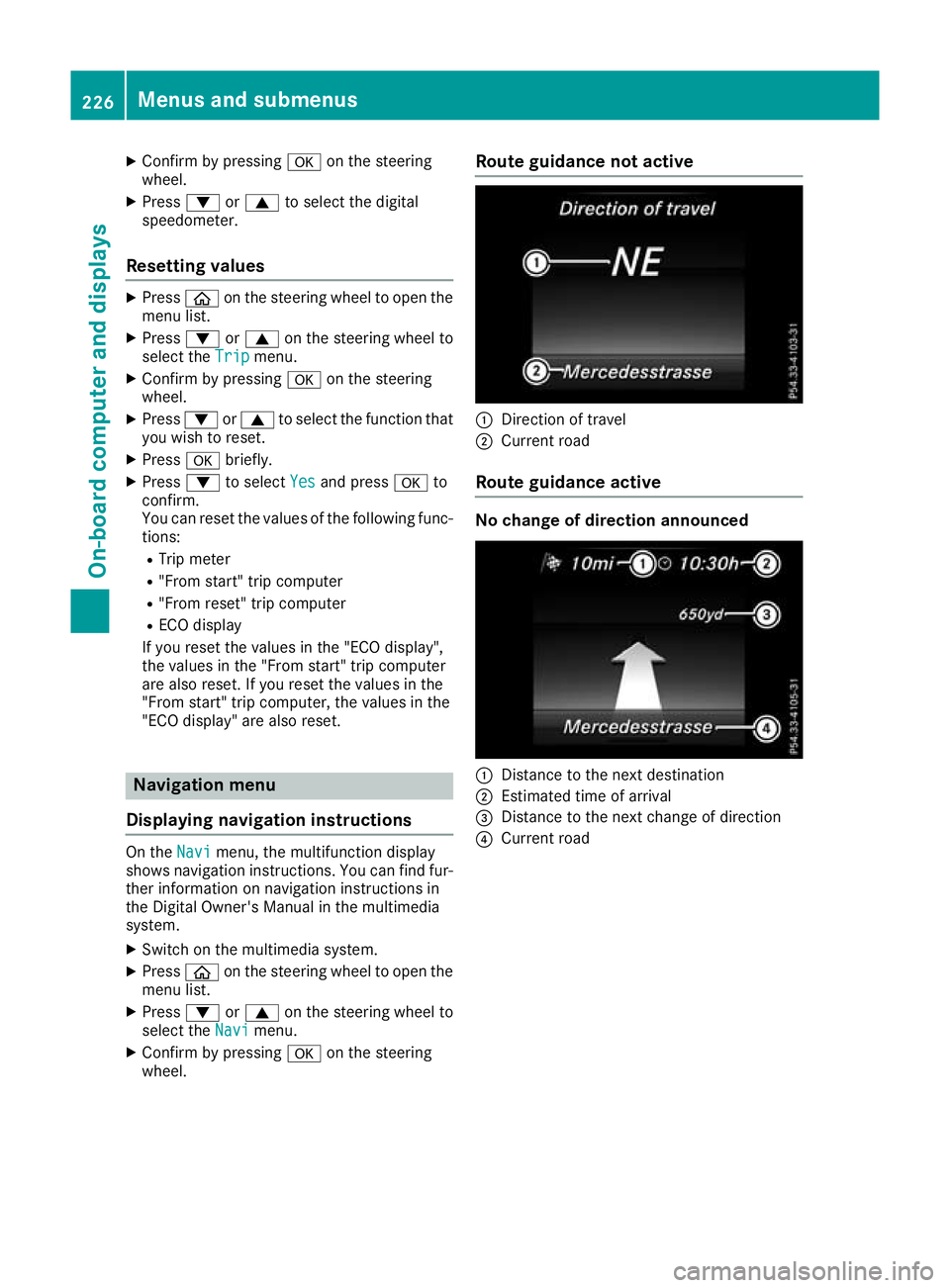
wheel. Route guidance not active
:
Direction of travel
; Current road
Route guidance active No change of direction announced
:
Distance to the next destination
; Estimated time of arrival
= Distance to the next change of direction
? Current road 226
Menus and submenusOn-board computer and displays
Page 231 of 377
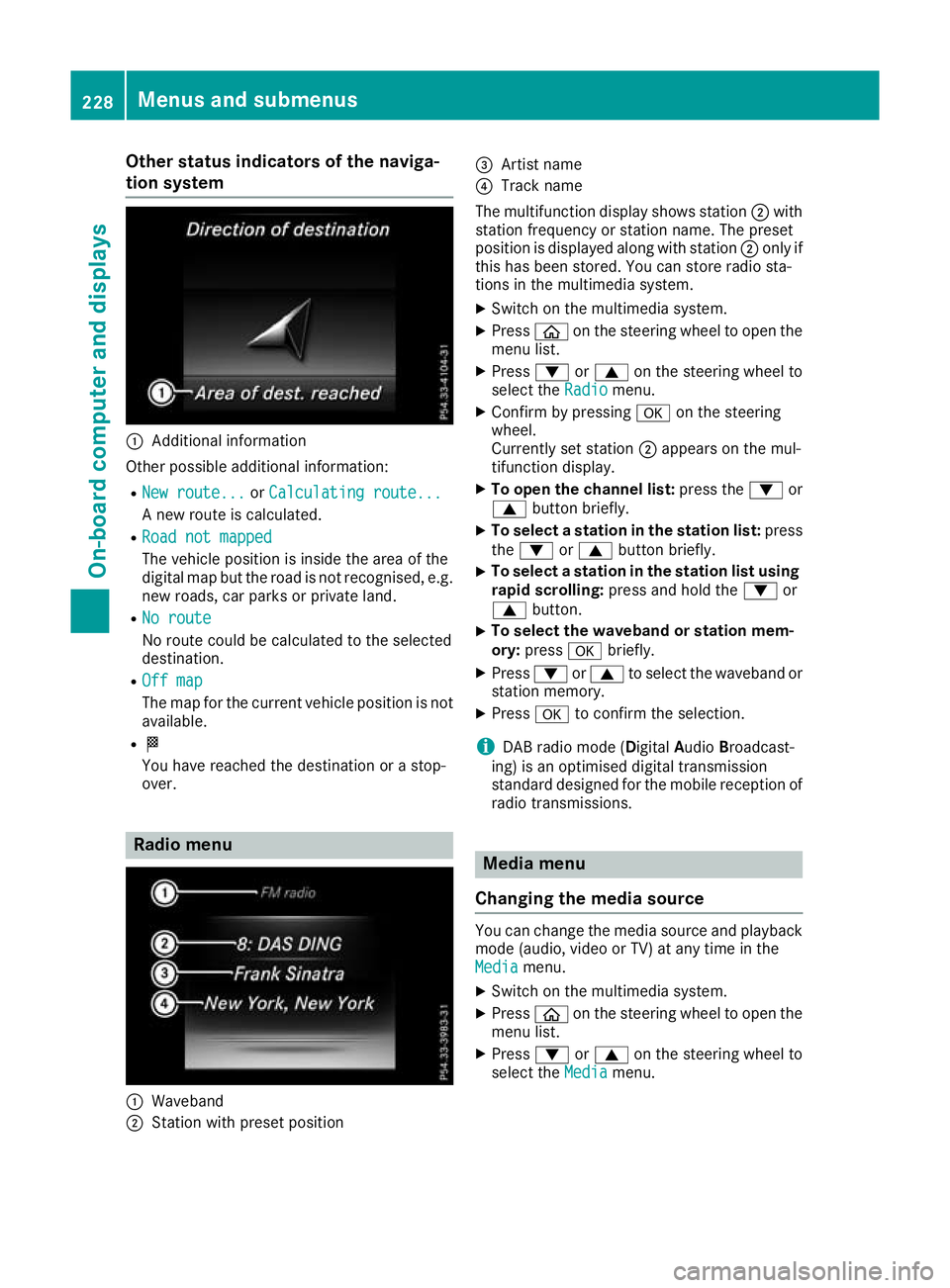
Other status indicators of the naviga-
tion system :
Additional information
Other possible additional information: R New route...
New route... orCalculating route...
Calculating route...
A new route is calculated.
R Road not mapped
Road not mapped
The vehicle position is inside the area of the
digital map but the road is not recognised, e.g. new roads, car parks or private land.
R No route
No route
No route could be calculated to the selected
destination.
R Off map Off map
The map for the current vehicle position is not
available.
R O
You have reached the destination or a stop-
over. Radio menu
:
Waveband
; Station with preset position =
Artist name
? Track name
The multifunction display shows station ;with
station frequency or station name. The preset
position is displayed along with station ;only if
this has been stored. You can store radio sta-
tions in the multimedia system.
X Switch on the multimedia system.
X Press òon the steering wheel to open the
menu list.
X Press :or9 on the steering wheel to
select the Radio Radiomenu.
X Confirm by pressing aon the steering
wheel.
Currently set station ;appears on the mul-
tifunction display.
X To open the channel list: press the:or
9 button briefly.
X To select a station in the station list: press
the : or9 button briefly.
X To select a station in the station list using
rapid scrolling: press and hold the :or
9 button.
X To select the waveband or station mem-
ory:
press abriefly.
X Press :or9 to select the waveband or
station memory.
X Press ato confirm the selection.
i DAB radio mode (Digital
AudioBroadcast-
ing) is an optimised digital transmission
standard designed for the mobile reception of
radio transmissions. Media menu
Changing the media source You can change the media source and playback
mode (audio, video or TV) at any time in the
Media Media menu.
X Switch on the multimedia system.
X Press òon the steering wheel to open the
menu list.
X Press :or9 on the steering wheel to
select the Media
Mediamenu. 228
Menus and submenusOn-board computer and displays
Page 232 of 377
X
Confirm by pressing aon the steering
wheel.
X To open the media sources list: pressa
briefly.
The list shows the following media sources,
for example:
R CD or DVD (DVD only in the COMAND
Online multimedia system)
R SD card
R Media Register (only in the COMAND
Online multimedia system)
R USB storage device
R Bluetooth ®
-capable audio device
Please observe further information on media
support and media operation in the multimedia
system (see Digital Owner's Manual).
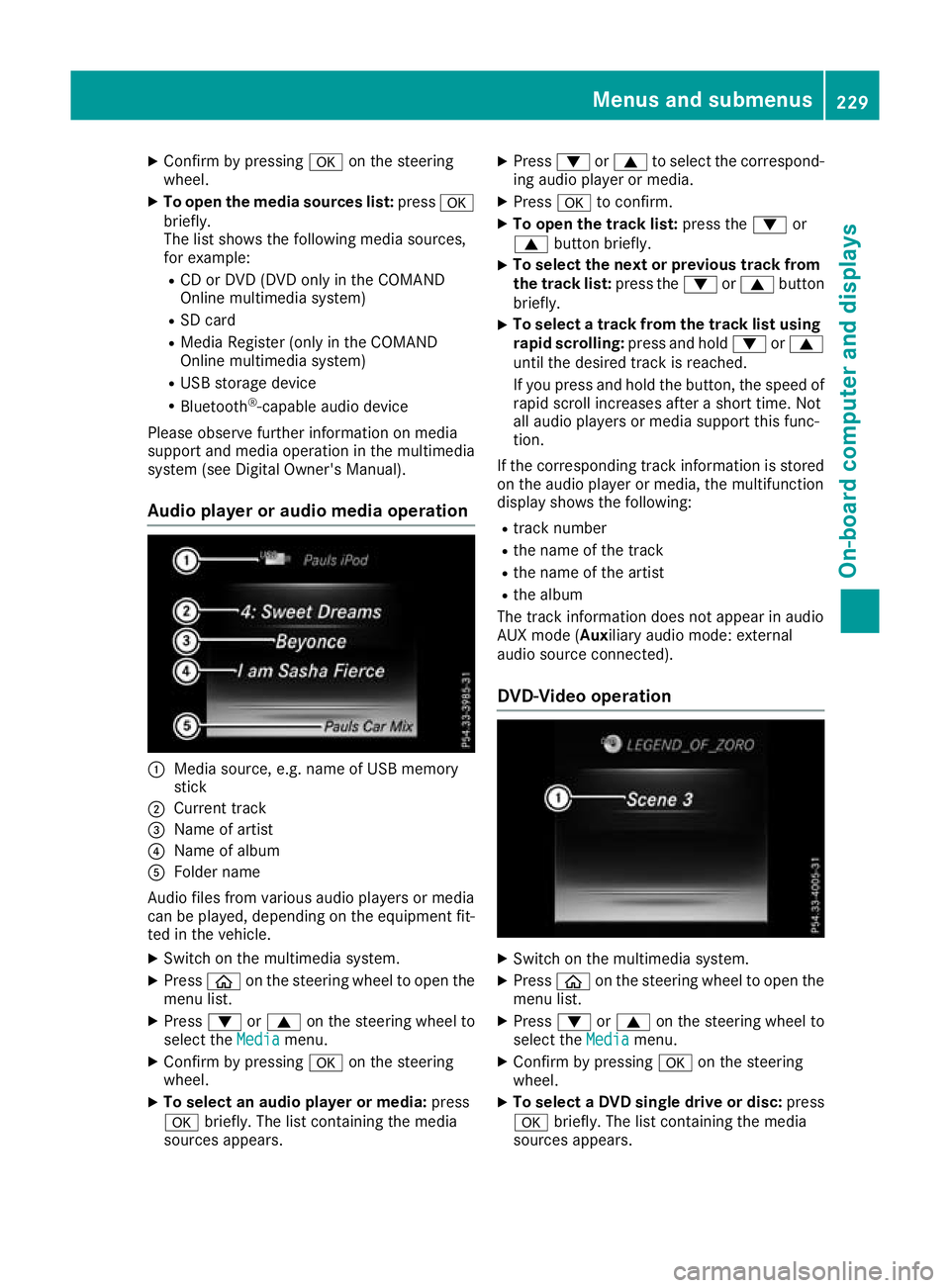
Audio player or audio media operation :
Media source, e.g. name of USB memory
stick
; Current track
= Name of artist
? Name of album
A Folder name
Audio files from various audio players or media
can be played, depending on the equipment fit- ted in the vehicle.
X Switch on the multimedia system.
X Press òon the steering wheel to open the
menu list.
X Press :or9 on the steering wheel to
select the Media
Media menu.
X Confirm by pressing aon the steering
wheel.
X To select an audio player or media: press
a briefly. The list containing the media
sources appears. X
Press :or9 to select the correspond-
ing audio player or media.
X Press ato confirm.
X To open the track list: press the:or
9 button briefly.
X To select the next or previous track from
the track list: press the:or9 button
briefly.
X To select a track from the track list using
rapid scrolling: press and hold:or9
until the desired track is reached.
If you press and hold the button, the speed of rapid scroll increases after a short time. Not
all audio players or media support this func-
tion.
If the corresponding track information is stored on the audio player or media, the multifunction
display shows the following:
R track number
R the name of the track
R the name of the artist
R the album
The track information does not appear in audio
AUX mode (Aux iliary audio mode: external
audio source connected).
DVD-Video operation X
Switch on the multimedia system.
X Press òon the steering wheel to open the
menu list.
X Press :or9 on the steering wheel to
select the Media Mediamenu.
X Confirm by pressing aon the steering
wheel.
X To select a DVD single drive or disc: press
a briefly. The list containing the media
sources appears. Menus and submenus
229On-board computer and displays Z
Page 233 of 377
X
Press :or9 to select the correspond-
ing DVD single drive or disc.
X Press ato confirm.
X To open the scene list: press the:or
9 button briefly.
X To select the next or previous scene in the
scene list: press the:or9 button
briefly.
X To select a scene from the scene list using
rapid scrolling: press and hold:or9
until desired scene :is reached.
X Press ato confirm your selection.
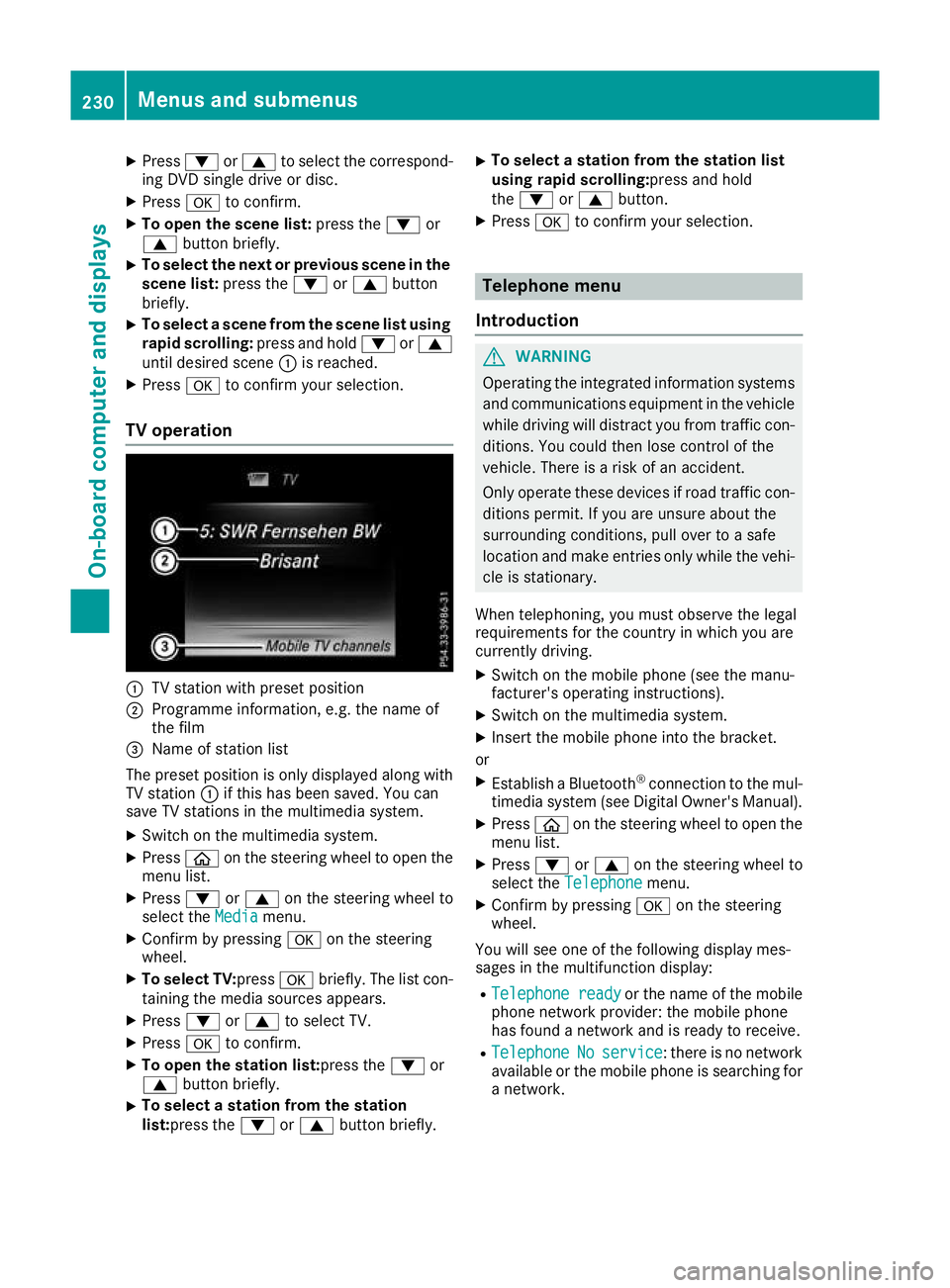
TV operation :
TV station with preset position
; Programme information, e.g. the name of
the film
= Name of station list
The preset position is only displayed along with TV station :if this has been saved. You can
save TV stations in the multimedia system.
X Switch on the multimedia system.
X Press òon the steering wheel to open the
menu list.
X Press :or9 on the steering wheel to
select the Media
Mediamenu.
X Confirm by pressing aon the steering
wheel.
X To select TV: pressabriefly. The list con-
taining the media sources appears.
X Press :or9 to select TV.
X Press ato confirm.
X To open the station list:press the :or
9 button briefly.
X To select a station from the station
list:press the
:or9 button briefly. X
To select a station from the station list
using rapid scrolling:press and hold
the
: or9 button.
X Press ato confirm your selection. Telephone menu
Introduction G
WARNING
Operating the integrated information systems and communications equipment in the vehicle
while driving will distract you from traffic con-
ditions. You could then lose control of the
vehicle. There is a risk of an accident.
Only operate these devices if road traffic con-
ditions permit. If you are unsure about the
surrounding conditions, pull over to a safe
location and make entries only while the vehi-
cle is stationary.
When telephoning, you must observe the legal
requirements for the country in which you are
currently driving. X Switch on the mobile phone (see the manu-
facturer's operating instructions).
X Switch on the multimedia system.
X Insert the mobile phone into the bracket.
or X Establish a Bluetooth ®
connection to the mul-
timedia system (see Digital Owner's Manual).
X Press òon the steering wheel to open the
menu list.
X Press :or9 on the steering wheel to
select the Telephone Telephone menu.
X Confirm by pressing aon the steering
wheel.
You will see one of the following display mes-
sages in the multifunction display:
R Telephone ready Telephone ready or the name of the mobile
phone network provider: the mobile phone
has found a network and is ready to receive.
R Telephone
Telephone No
Noservice
service: there is no network
available or the mobile phone is searching for
a network. 230
Menus and submenusOn-board computer and displays
Page 234 of 377
i
You can obtain further information about
suitable mobile phones and connecting
mobile phones via Bluetooth ®
:
R on the Internet at http://www.mercedes-
benz.com/connect
R at any Mercedes-Benz Service Centre
Accepting a call If someone calls you when you are in the
Tele‐ Tele‐
phone
phone menu, a display message appears in the
multifunction display.
You can accept a call at any time irrespective of
the selected menu.
X Press the 6button on the steering wheel
to accept the call.
Rejects or ends a call X
Press the ~button on the steering wheel
to reject or end the call.
Selecting an entry in the phone book X
Press òon the steering wheel to open the
menu list.
X Press :or9 on the steering wheel to
select the Telephone
Telephone menu.
X Confirm by pressing aon the steering
wheel.
X Press :, 9ora to switch to the
phone book.
X Press :or9 to select the names one
after the other.
or X To start rapid scrolling: press and hold:
or 9 for longer than one second.
The names are displayed quickly one after the
other in the phone book.
If you press and hold the :or9 button
for longer than five seconds, the name with
the next or previous initial letter in the alpha-
bet appears.
Rapid scrolling stops when you release the
button or reach the end of the list.
X If only one telephone number is stored for
a name: press the 6ora button to
start dialling.
or X
If there is more than one number for a
name: press the 6ora button to dis-
play the numbers.
X Press :or9 to select the number you
want to dial.
X Press the 6ora button to start dial-
ling.
or
X To exit the telephone book: press the~
or % button briefly.
Redialling The on-board computer saves the last names or
numbers dialled in the redial memory.
X Press òon the steering wheel to open the
menu list.
X Press :or9 on the steering wheel to
select the Telephone Telephone menu.
X Confirm by pressing aon the steering
wheel.
X Press the 6button to switch to the redial
memory.
X Press :or9 to select the desired
name or number.
X Press the 6ora button to start dial-
ling.
or X To exit the redial memory: press the~
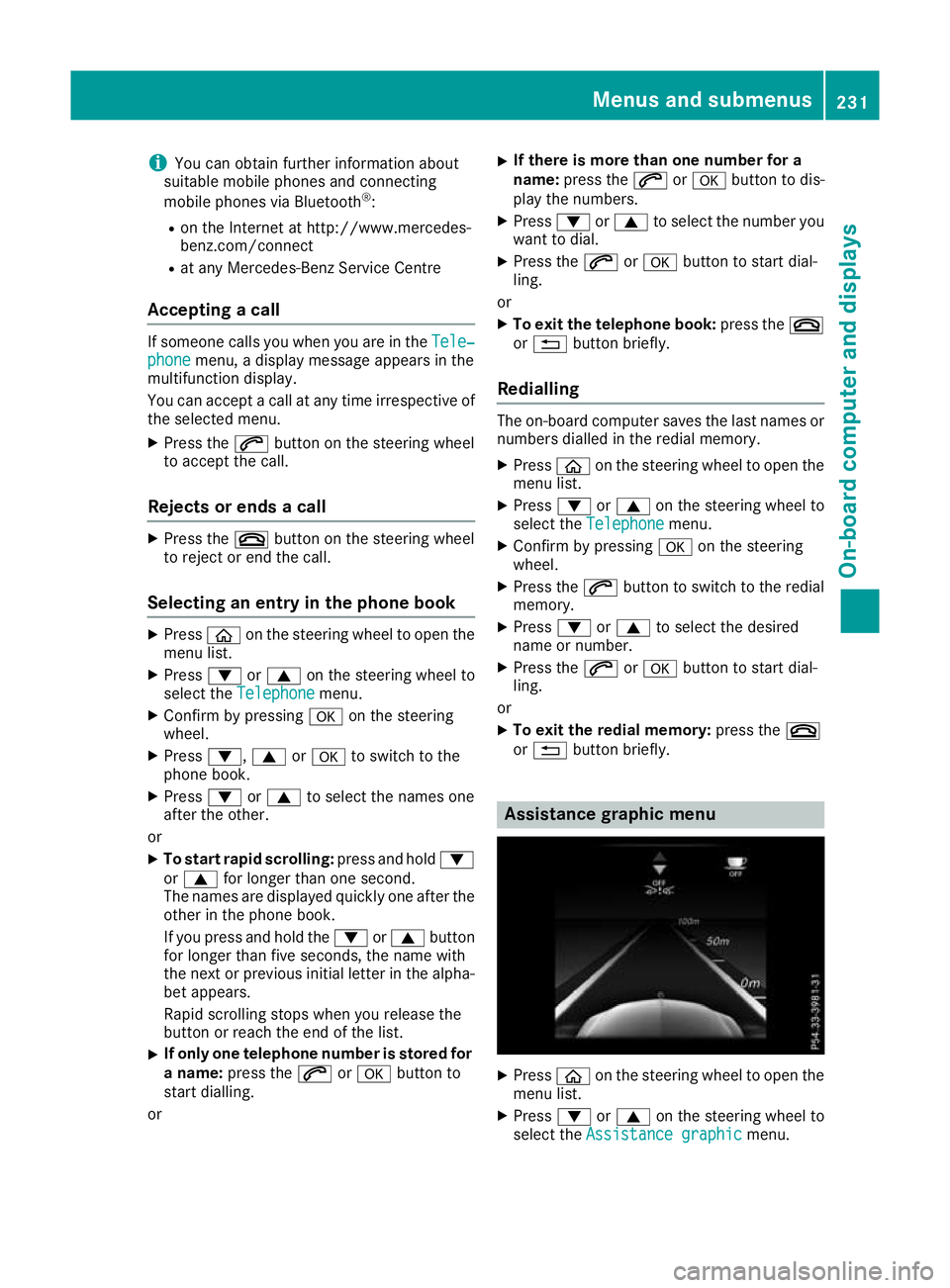
or % button briefly. Assistance graphic menu
X
Press òon the steering wheel to open the
menu list.
X Press :or9 on the steering wheel to
select the Assistance graphic Assistance graphic menu. Menus and submenus
231On-board computer and displays Z