steering MERCEDES-BENZ C-CLASS CABRIOLET 2016 Manual Online
[x] Cancel search | Manufacturer: MERCEDES-BENZ, Model Year: 2016, Model line: C-CLASS CABRIOLET, Model: MERCEDES-BENZ C-CLASS CABRIOLET 2016Pages: 377, PDF Size: 6.9 MB
Page 235 of 377
X
Confirm by pressing aon the steering
wheel.
The assistance graphic shows you the status
of and/or information from the following driv-
ing systems or driving safety systems:
R DISTRONIC PLUS distance display
(Y page 171)
R Traffic Sign Assist (Y page 202)
R Distance warning function and autono-
mous braking system of COLLISION PRE-
VENTION ASSIST PLUS (Y page 69)
R PRE-SAFE ®
Brake (Y page 76)
R Blind Spot Assist (Y page 204) or Active
Blind Spot Assist (Y page 207)
R ATTENTION ASSIST (Y page 201)
R Lane Keeping Assist (Y page 206) or Active
Lane Keeping Assist (Y page 210)
X Press :to display the ATTENTION ASSIST
assessment. Service menu
Introduction Depending on the equipment fitted in the vehi-
cle, you have the following options on the Ser‐ Ser‐
vice
vice menu:
R Call up display messages in the message
memory (Y page 241)
R Restart the tyre pressure loss warning system
(Y page 347) or checking the tyre pressure
electronically (Y page 349)
R Call up the service due date (Y page 313)
R Display the AdBlue ®
level and range
(Y page 232)
Displaying the AdBlue ®
level and range X
Press òon the steering wheel to open the
menu list.
X Press :or9 on the steering wheel to
select the Service
Service menu.
X Confirm by pressing aon the steering
wheel.
X Press :or9 to select the AdBlue
AdBlue
submenu.
X Press ato confirm your selection.
The range and AdBlue ®
level appear in a bar
display in the multifunction display. Observe the information and notes on "Refuel-
ling" (Y page 156). Settings menu
Introduction Depending on the equipment fitted in the vehi-
cle, you have the following options on the Set‐ Set‐
tings
tings menu:
R Changing assistant settings (Y page 232)
R Changing head-up display settings
(Y page 234)
R Changing the light settings (Y page 235)
R Changing the instrument cluster settings
(Y page 236)
R Changing the vehicle settings (Y page 237)
R Restoring the factory settings (Y page 237)
Assistance submenu Activating/deactivating ESP
®
Observe the "Important safety notes" section in the description of ESP ®
(Y page 72). G
WARNING
If you deactivate ESP ®
, ESP ®
no longer sta-
bilises the vehicle. There is an increased risk
of skidding and an accident.
Only deactivate ESP ®
in the situations descri-
bed in the following.
It may be best to deactivate ESP ®
in the follow-
ing situations:
R when snow chains are used
R in deep snow
R on sand or gravel
Activate/deactivate ESP ®
in Mercedes-AMG
vehicles (Y page 74).
Further information about ESP ®
(Y page 72).
X Start the engine.
X Press òon the steering wheel to open the
menu list.
X Press :or9 on the steering wheel to
select the Settings
Settings menu.
X Confirm by pressing aon the steering
wheel. 232
Menus and submenusOn-board computer and displays
Page 236 of 377
X
Press :or9 to select the Assistance Assistance
submenu.
X Press ato confirm.
X Select ESP ESPwith : or9.
X Press ato confirm.
The current selection appears.
X To activate/deactivate: pressaagain.
If warning lamp åon the instrument clus-
ter lights up when the vehicle is ready to drive,
ESP ®
is deactivated.
If warning lamps ÷andå light up con-
tinuously, ESP ®
is not available due to a mal-
function.
Observe the information on warning lamps
(Y page 275).
Observe the information on display messages
(Y page 242).
Traffic Sign Assist
You can activate or deactivate the warning func-
tion of Traffic Sign Assist in the Traffic TrafficSign
Sign
Assist
Assist menu. When the message function is
activated, detected traffic signs and information
appear in the multifunction display for five sec-
onds.
X Press òon the steering wheel to open the
menu list.
X Press the :or9 button on the steering
wheel to select the Settings
Settings menu.
X Confirm by pressing aon the steering
wheel.
X Press :or9 to select the Assistance
Assistance
submenu.
X Press ato confirm.
X Select Traffic Sign Assist
Traffic Sign Assist with: or
9.
X Press ato confirm.
The current selection appears.
X Activate or deactivate the warning func-
tion: press aagain.
For further information about Traffic Sign Assist, see (Y page 202).
Activating/deactivating COLLISION PRE-
VENTION ASSIST PLUS
X Press òon the steering wheel to open the
menu list.
X Press :or9 on the steering wheel to
select the Settings
Settings menu. X
Confirm by pressing aon the steering
wheel.
X Press :or9 to select the Assistance Assistance
submenu.
X Press ato confirm.
X Select Collision Prevention Collision Prevention with9
or :.
X Press ato confirm.
The current selection appears.
X To activate/deactivate: pressaagain.
When COLLISION PREVENTION ASSIST PLUS
is deactivated, the æsymbol appears in
the multifunction display in the Assistance
Assistance
graphic
graphic menu.
Further information about COLLISION PREVEN- TION ASSIST PLUS (Y page 69).
Activating/deactivating PRE-SAFE ®
Brake
PRE‑SAFE ®
Brake is only available for vehicles
with the Driving Assistance package.
X Press òon the steering wheel to open the
menu list.
X Press :or9 on the steering wheel to
select the Settings
Settings menu.
X Confirm by pressing aon the steering
wheel.
X Press :or9 to select the Assistance
Assistance
submenu.
X Press ato confirm.
X Select with :or9 PRE-SAFE Brake
PRE-SAFE Brake.
X Press ato confirm.
The current selection appears.
X To activate/deactivate: pressaagain.
When PRE-SAFE ®
Brake is deactivated, the
æ symbol appears in the multifunction dis-
play in the Assistance graphic
Assistance graphic menu.
Further information on PRE‑ SAFE®
Brake
(Y page 76).
Activating/deactivating Blind Spot Assist
X Press òon the steering wheel to open the
menu list.
X Press :or9 on the steering wheel to
select the Settings
Settings menu.
X Confirm by pressing aon the steering
wheel.
X Press :or9 to select the Assistance
Assistance
submenu. Menus and submenus
233On-board computer and displays Z
Page 237 of 377
X
Press ato confirm.
X Use the :or9 button to select Blind
Blind
Spot Assist
Spot Assist.
X Press ato confirm.
The current selection appears.
X To activate/deactivate: press theabut-
ton again.
Further information about Blind Spot Assist
(Y page 204).
Further information about Active Blind Spot
Assist (Y page 207).
Setting ATTENTION ASSIST
X Press òon the steering wheel to open the
menu list.
X Press :or9 on the steering wheel to
select the Settings
Settings menu.
X Confirm by pressing aon the steering
wheel.
X Press :or9 to select the Assistance Assistance
submenu.
X Press ato confirm.
X Select ATTENTION ASSIST
ATTENTION ASSIST with: or
9.
X Press ato confirm.
X Press :or9 to select Deactivated
Deactivated,
Standard
Standard orSensitive
Sensitive.
X Press the abutton to confirm the selec-
tion.
When ATTENTION ASSIST is deactivated, the
é symbol appears in the Assistance
Assistance
graphic graphic menu in the multifunction display.
Further information about ATTENTION ASSIST
(Y page 201).
Setting Lane Keeping Assist
X Press òon the steering wheel to open the
menu list.
X Press :or9 on the steering wheel to
select the Settings
Settings menu.
X Confirm by pressing aon the steering
wheel.
X Press :or9 to select the Assistance
Assistance
submenu.
X Press ato confirm.
X Use the :or9 button to select Lane
Lane
Keeping Assist
Keeping Assist. X
Press ato confirm.
The current selection Standard StandardorAdaptive Adaptive
appears.
X To change the setting: pressaagain.
Further information about Lane Keeping Assist
(Y page 206).
Further information about Active Lane Keeping
Assist (Y page 210).
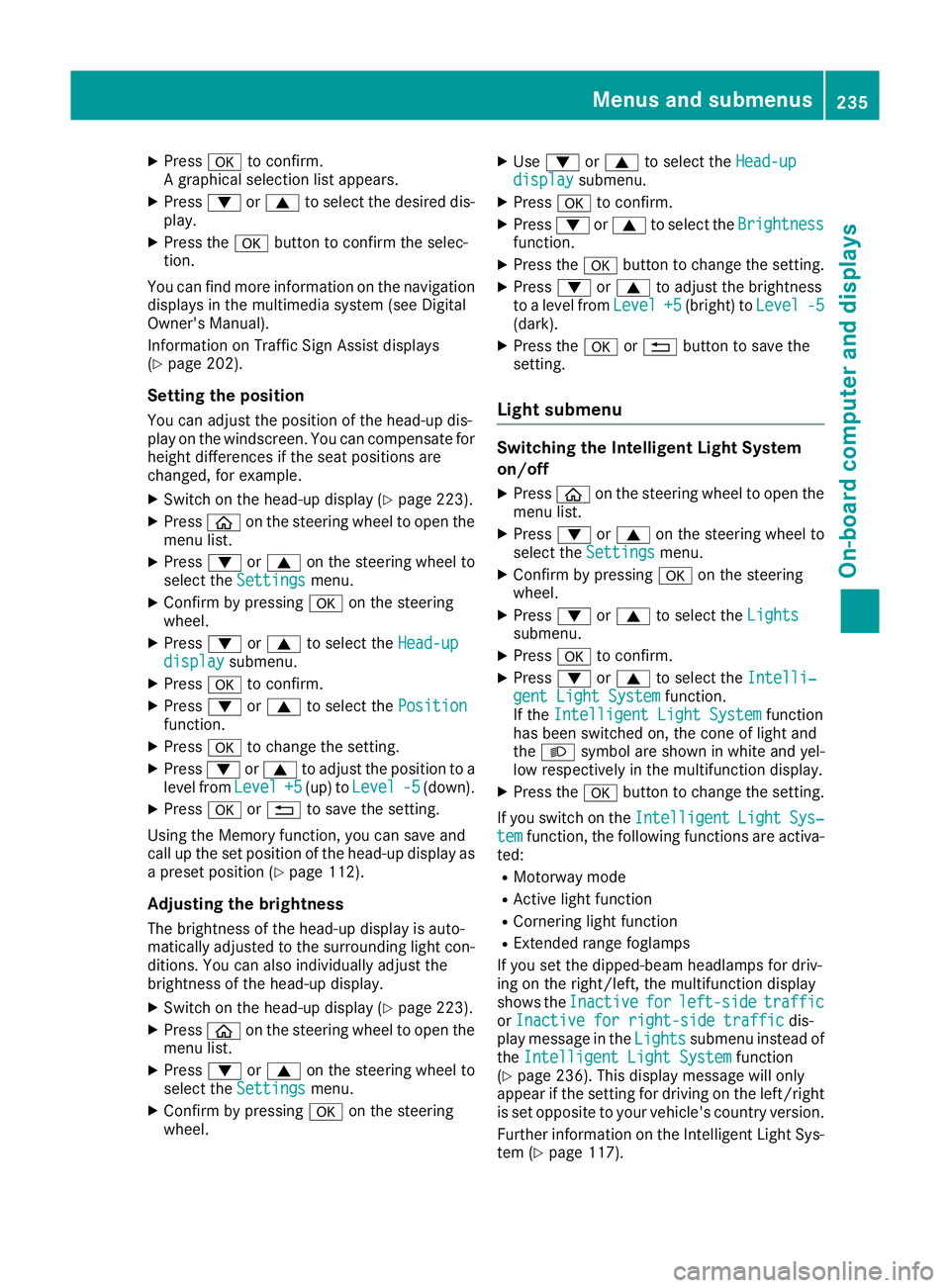
Head-up display submenu Selecting other displays
:
Vehicle speed display
; Vehicle speed and navigation instruction
display
= Vehicle speed display and Traffic Sign Assist
You have up to four different display options
with the Display Display content
contentfunction, depending
on the vehicle's equipment. The selected con-
tent appears in the Head-up Display.
In Mercedes-AMG vehicles, you can also choose
between two AMG displays. If you select an
AMG display, the head-up display shows AMG-
specific content.
If you select a display with traffic signs, traffic
signs detected by Traffic Sign Assist appear on
the head-up display.
X Press òon the steering wheel to open the
menu list.
X Press :or9 on the steering wheel to
select the Settings Settings menu.
X Confirm by pressing aon the steering
wheel.
X Press :or9 to select the Head-up Head-up
display display submenu.
X Press ato confirm.
X Select Display
Display content
contentwith: or9. 234
Menus and submenusOn-board computer and displays
Page 238 of 377
X
Press ato confirm.
A graphical selection list appears.
X Press :or9 to select the desired dis-
play.
X Press the abutton to confirm the selec-
tion.
You can find more information on the navigation
displays in the multimedia system (see Digital
Owner's Manual).
Information on Traffic Sign Assist displays
(Y page 202).
Setting the position You can adjust the position of the head-up dis-
play on the windscreen. You can compensate for
height differences if the seat positions are
changed, for example.
X Switch on the head-up display (Y page 223).
X Press òon the steering wheel to open the
menu list.
X Press :or9 on the steering wheel to
select the Settings
Settings menu.
X Confirm by pressing aon the steering
wheel.
X Press :or9 to select the Head-up Head-up
display
display submenu.
X Press ato confirm.
X Press :or9 to select the Position
Position
function.
X Press ato change the setting.
X Press :or9 to adjust the position to a
level from Level
Level +5
+5(up) to Level
Level -5
-5(down).
X Press aor% to save the setting.
Using the Memory function, you can save and
call up the set position of the head-up display as
a preset position (Y page 112).
Adjusting the brightness
The brightness of the head-up display is auto-
matically adjusted to the surrounding light con- ditions. You can also individually adjust the
brightness of the head-up display.
X Switch on the head-up display (Y page 223).
X Press òon the steering wheel to open the
menu list.
X Press :or9 on the steering wheel to
select the Settings
Settings menu.
X Confirm by pressing aon the steering
wheel. X
Use : or9 to select the Head-up Head-up
display display submenu.
X Press ato confirm.
X Press :or9 to select the Brightness
Brightness
function.
X Press the abutton to change the setting.
X Press :or9 to adjust the brightness
to a level from Level
Level+5
+5(bright) to Level
Level-5
-5
(dark).
X Press the aor% button to save the
setting.
Light submenu Switching the Intelligent Light System
on/off
X Press òon the steering wheel to open the
menu list.
X Press :or9 on the steering wheel to
select the Settings
Settings menu.
X Confirm by pressing aon the steering
wheel.
X Press :or9 to select the Lights
Lights
submenu.
X Press ato confirm.
X Press :or9 to select the Intelli‐ Intelli‐
gent Light System
gent Light System function.
If the Intelligent Light System
Intelligent Light System function
has been switched on, the cone of light and
the L symbol are shown in white and yel-
low respectively in the multifunction display.
X Press the abutton to change the setting.
If you switch on the Intelligent
IntelligentLight
LightSys‐
Sys‐
tem
tem function, the following functions are activa-
ted:
R Motorway mode
R Active light function
R Cornering light function
R Extended range foglamps
If you set the dipped-beam headlamps for driv-
ing on the right/left, the multifunction display
shows the Inactive Inactive for
forleft-side
left-side traffic
traffic
or Inactive for right-side traffic
Inactive for right-side traffic dis-
play message in the Lights
Lightssubmenu instead of
the Intelligent Light System
Intelligent Light System function
(Y page 236). This display message will only
appear if the setting for driving on the left/right is set opposite to your vehicle's country version.
Further information on the Intelligent Light Sys-
tem (Y page 117). Menus and submenus
235On-board computer and displays Z
Page 239 of 377
Setting the dipped-beam headlamps for
driving on the left/right
This function is only available in vehicles with
the Intelligent Light System.
You can use this function to switch between
symmetrical and asymmetrical dipped beam
(Y page 114).
X Press òon the steering wheel to open the
menu list.
X Press :or9 on the steering wheel to
select the Settings
Settings menu.
X Confirm by pressing aon the steering
wheel.
X Press :or9 to select the Lights Lights
submenu.
X Press ato confirm.
X Press :or9 to select the Dipped
Dipped
beams Setting for
beams Setting for function.
You will see the selected setting, right-
right-
side traffic
side traffic orleft-side traffic
left-side traffic.
X Press the abutton to save the setting.
If you change the setting, conversion does not
take place until the next time the vehicle is
stationary.
If you set the dipped-beam headlamps for driv-
ing on the right/left, then motorway mode and
the extended range foglamps are unavailable.
These are only deactivated if the setting for driv-
ing on the left/right is set opposite to your vehi- cle's country version.
A qualified specialist workshop can set the
dipped-beam headlamps for driving on the left/
right.
Instrument cluster submenu Selecting the unit of measurement for dis-
tance
The Display
Display unit unitSpeed-/odometer
Speed-/odometer function
allows you to choose whether certain displays
appear in kilometres or miles in the multifunc-
tion display.
X Press òon the steering wheel to open the
menu list.
X Press the :or9 button on the steering
wheel to select the Settings Settingsmenu.
X Confirm by pressing aon the steering
wheel.
X Use : or9 to select the Instrument
Instrument
cluster
cluster submenu. X
Press ato confirm.
X Press :or9 to select the Display Display
unit Speed-/odometer unit Speed-/odometer function.
The current setting km
kmorMiles
Miles appears.
X Press the abutton to change the setting.
The selected unit of measurement for distance
applies to the:
R digital speedometer in the Trip Tripmenu
R total distance recorder and the trip meter
R trip computer
R current consumption and the range
R range
R navigation instructions in the Navi
Navimenu
R cruise control
R SPEEDTRONIC
R DISTRONIC PLUS with Steering Assist and
Stop&Go Pilot
R ASSYST PLUS service interval display
Switching the additional speedometer
on/off
United Kingdom: this function is unavailable.
The additional speedometer is always switched
on.
If the additional speedometer is switched on,
the speed is shown in the status bar of the mul- tifunction display instead of the outside tem-
perature.
The speed display is inverse to your speedome-
ter.
X Press òon the steering wheel to open the
menu list.
X Press :or9 on the steering wheel to
select the Settings Settings menu.
X Confirm by pressing aon the steering
wheel.
X Press :or9 to select the Instru‐
Instru‐
ment cluster
ment cluster submenu.
X Press ato confirm.
X Using :or9, select the Digital
Digital
speedo [km/h]
speedo [km/h] function.
The current selection appears.
X To activate/deactivate: pressaagain. 236
Menus and submenusOn-board computer and displays
Page 240 of 377
Vehicle submenu
Setting permanent SPEEDTRONIC
X Press òon the steering wheel to open the
menu list.
X Press :or9 on the steering wheel to
select the Settings
Settings menu.
X Confirm by pressing aon the steering
wheel.
X Press :or9 to select the Vehicle
Vehicle
submenu.
X Press ato confirm.
X Press :or9 to select the Limit
Limit
speed (winter tyres)
speed (winter tyres) function.
The current setting appears.
X Press ato confirm.
X Press :or9 to set permanent SPEED-
TRONIC in increments of ten ( 160 km/h
160 km/hto
240 km/h
240 km/h). The Off
Offsetting switches perma-
nent SPEEDTRONIC off.
X Press the abutton to store the entry.
Further information on permanent SPEED-
TRONIC (Y page 171).
Restoring the factory settings X
Press the òbutton on the steering wheel
to open the menu list.
X Press :or9 on the steering wheel to
select the Settings
Settings menu.
X Confirm by pressing aon the steering
wheel.
X Press :or9 to select the Factory
Factory
settings
settings submenu.
X Press ato confirm.
The Reset all settings?
Reset all settings? function
appears.
X Press :or9 to select No
No orYes
Yes .
X Press the abutton to confirm the selec-
tion.
If you have selected Yes
Yes , the multifunction
display shows a confirmation message.
For safety reasons, not all functions will be
reset: the Limit speed (winter tyres) Limit speed (winter tyres) per-
manent SPEEDTRONIC function can only be set
in the Vehicle
Vehicle submenu. AMG menu (Mercedes-AMG vehicles)
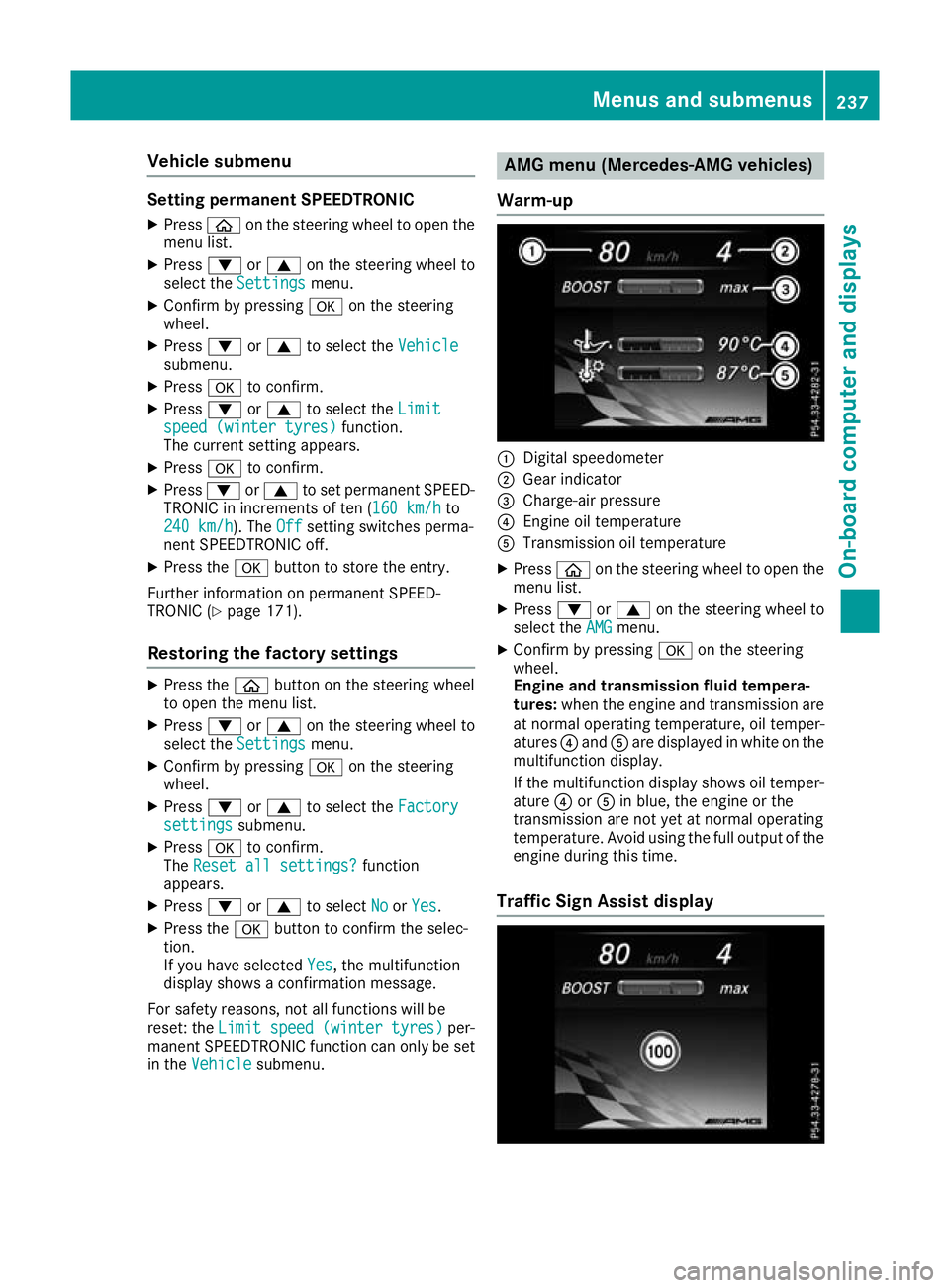
Warm-up :
Digital speedometer
; Gear indicator
= Charge-air pressure
? Engine oil temperature
A Transmission oil temperature
X Press òon the steering wheel to open the
menu list.
X Press :or9 on the steering wheel to
select the AMG
AMG menu.
X Confirm by pressing aon the steering
wheel.
Engine and transmission fluid tempera-
tures: when the engine and transmission are
at normal operating temperature, oil temper-
atures ?and Aare displayed in white on the
multifunction display.
If the multifunction display shows oil temper- ature ?orA in blue, the engine or the
transmission are not yet at normal operating
temperature. Avoid using the full output of the
engine during this time.
Traffic Sign Assist display Menus and submenus
237On-board computer and displays Z
Page 241 of 377
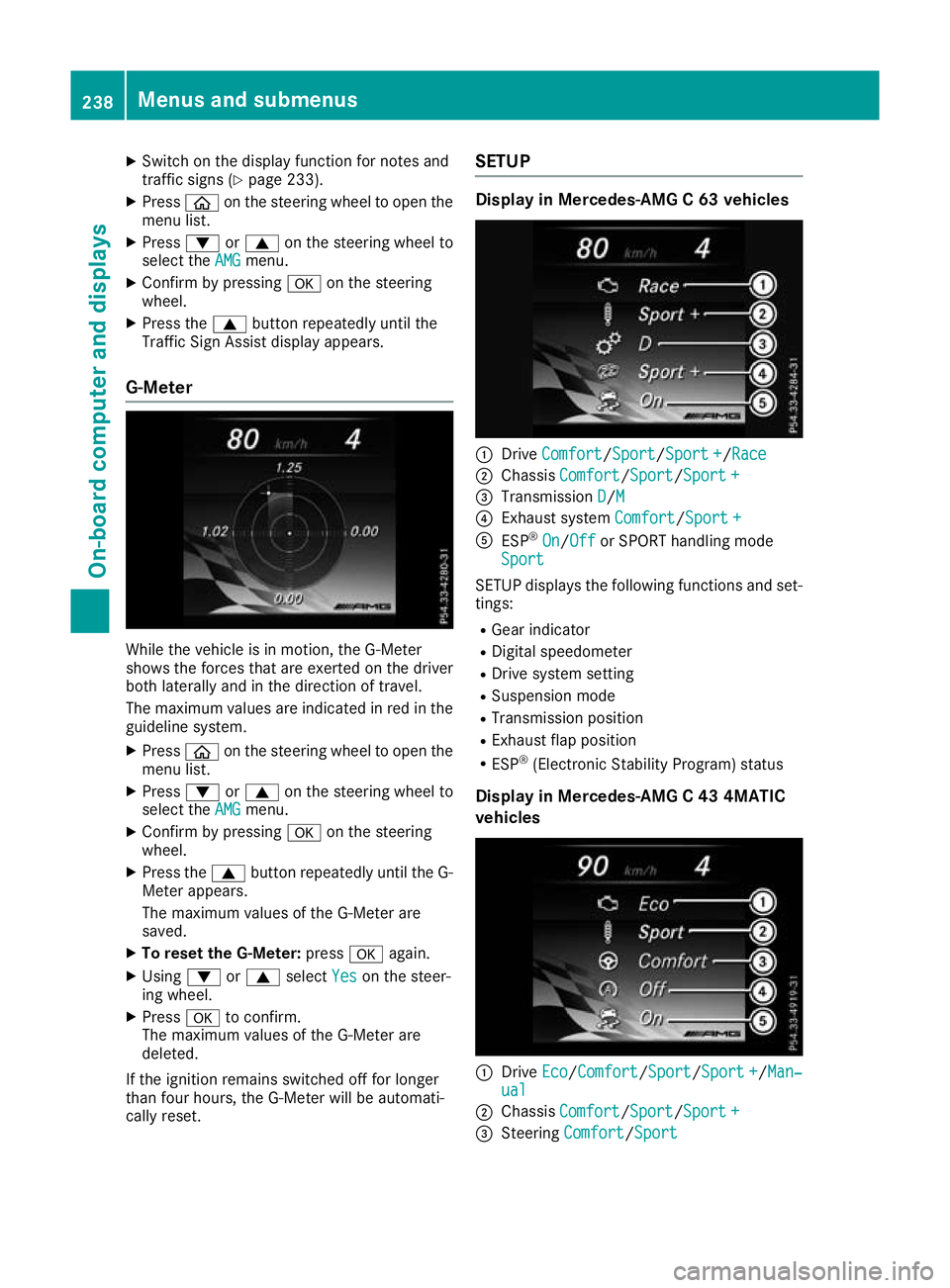
X
Switch on the display function for notes and
traffic signs (Y page 233).
X Press òon the steering wheel to open the
menu list.
X Press :or9 on the steering wheel to
select the AMG AMGmenu.
X Confirm by pressing aon the steering
wheel.
X Press the 9button repeatedly until the
Traffic Sign Assist display appears.
G-Meter While the vehicle is in motion, the G-Meter
shows the forces that are exerted on the driver
both laterally and in the direction of travel.
The maximum values are indicated in red in the
guideline system.
X Press òon the steering wheel to open the
menu list.
X Press :or9 on the steering wheel to
select the AMG
AMG menu.
X Confirm by pressing aon the steering
wheel.
X Press the 9button repeatedly until the G-
Meter appears.
The maximum values of the G-Meter are
saved.
X To reset the G-Meter: pressaagain.
X Using :or9 select Yes
Yes on the steer-
ing wheel.
X Press ato confirm.
The maximum values of the G-Meter are
deleted.
If the ignition remains switched off for longer
than four hours, the G-Meter will be automati-
cally reset. SETUP Display in Mercedes-AMG C 63 vehicles
:
Drive Comfort Comfort/ Sport Sport/Sport +Sport+/Race
Race
; Chassis Comfort
Comfort/Sport Sport/Sport +Sport +
= Transmission D
D/MM
? Exhaust system Comfort
Comfort/Sport +Sport +
A ESP ®
On
On/Off Off or SPORT handling mode
Sport
Sport
SETUP displays the following functions and set- tings:
R Gear indicator
R Digital speedometer
R Drive system setting
R Suspension mode
R Transmission position
R Exhaust flap position
R ESP ®
(Electronic Stability Program) status
Display in Mercedes-AMG C 43 4MATIC
vehicles :
Drive Eco Eco/ComfortComfort/Sport Sport/Sport +Sport +/Man‐ Man‐
ual
ual
; Chassis Comfort
Comfort/Sport Sport/Sport +Sport +
= Steering Comfort
Comfort/Sport Sport 238
Menus and submenusOn-board computer and displays
Page 242 of 377
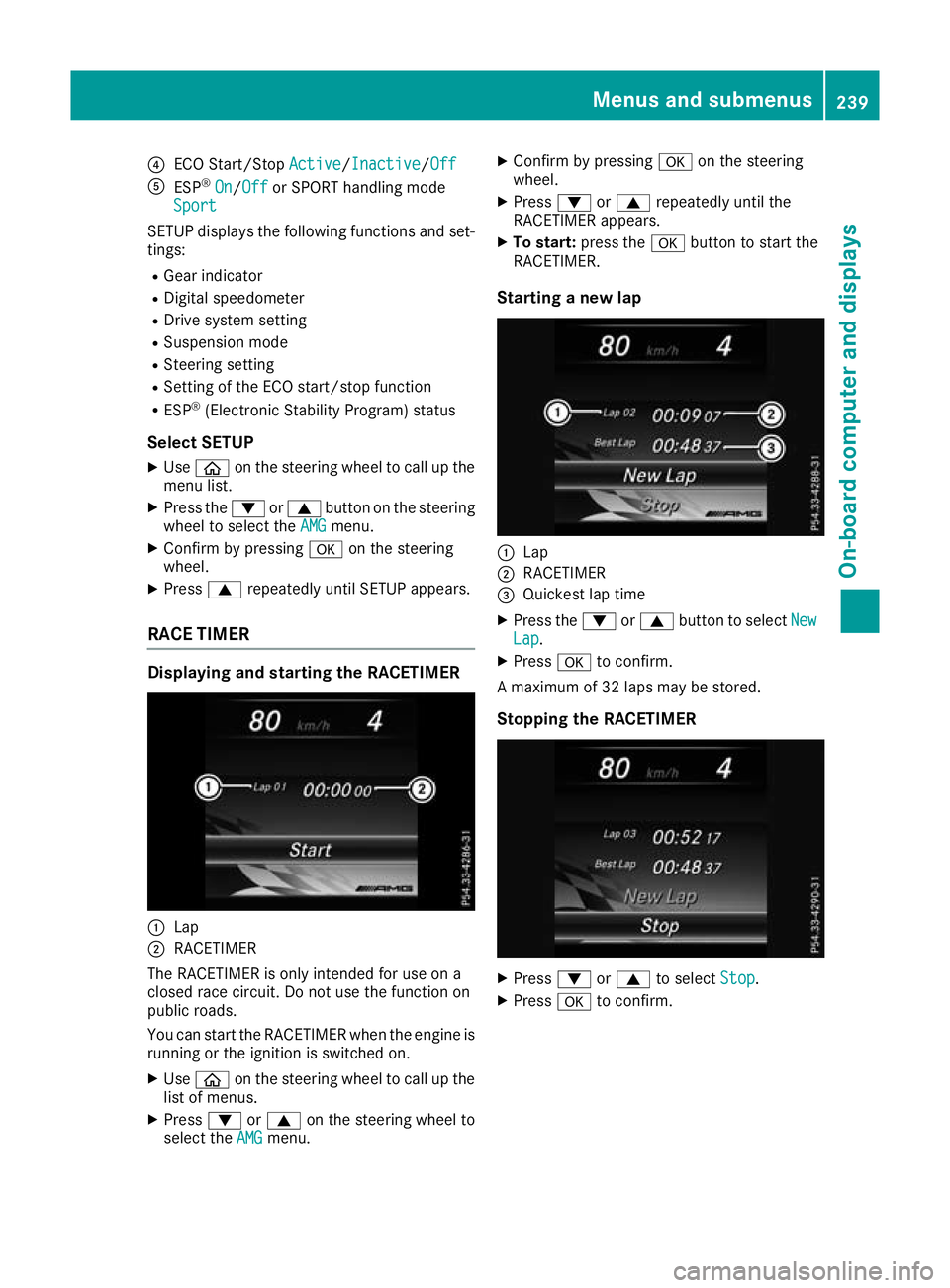
?
ECO Start/Stop Active
Active/InactiveInactive/ Off
Off
A ESP ®
On
On/Off Off or SPORT handling mode
Sport
Sport
SETUP displays the following functions and set- tings:
R Gear indicator
R Digital speedometer
R Drive system setting
R Suspension mode
R Steering setting
R Setting of the ECO start/stop function
R ESP ®
(Electronic Stability Program) status
Select SETUP X Use ò on the steering wheel to call up the
menu list.
X Press the :or9 button on the steering
wheel to select the AMG
AMG menu.
X Confirm by pressing aon the steering
wheel.
X Press 9repeatedly until SETUP appears.
RACE TIMER Displaying and starting the RACETIMER
:
Lap
; RACETIMER
The RACETIMER is only intended for use on a
closed race circuit. Do not use the function on
public roads.
You can start the RACETIMER when the engine is running or the ignition is switched on.
X Use ò on the steering wheel to call up the
list of menus.
X Press :or9 on the steering wheel to
select the AMG
AMG menu. X
Confirm by pressing aon the steering
wheel.
X Press :or9 repeatedly until the
RACETIMER appears.
X To start: press the abutton to start the
RACETIMER.
Starting a new lap :
Lap
; RACETIMER
= Quickest lap time
X Press the :or9 button to select New New
Lap
Lap .
X Press ato confirm.
A maximum of 32 laps may be stored.
Stopping the RACETIMER X
Press :or9 to select Stop
Stop.
X Press ato confirm. Menus and submenus
239On-board computer and displays Z
Page 243 of 377

Continuing the RACETIMER
X
Press :or9 to select Continue
Continue.
X Press ato confirm.
Resetting the RACETIMER X
Press :or9 to select Stop
Stop.
The RACETIMER is stopped.
X Press :or9 to select Reset
Reset.
X Press ato confirm.
All laps are deleted. Lap evaluation :
Lap
; Lap time
= Average lap speed
? Lap length
This function is only available if you have stored
at least two laps and have stopped the RACE-
TIMER.
X Use ò on the steering wheel to call up the
list of menus.
X Press :or9 on the steering wheel to
select the AMG AMGmenu.
X Confirm by pressing aon the steering
wheel.
X Press the :or9 button to select Lap
Lap
List
List.
X Press ato confirm.
The lap evaluation appears.
X Press the 9or: button to select a dif-
ferent lap evaluation.
The fastest lap is indicated by flashing sym-
bol :. Display messages
Introduction
General notes Display messages appear in the multifunction display.
Display messages with graphic symbols are simplified in the Owner's Manual and may differ from
the symbols in the multifunction display.
Please respond in accordance with the display messages and follow the additional notes in this
Owner's Manual.
With certain display messages, you will also hear a warning tone.
You can hide the display messages. The display messages are then stored in the message memory.
Rectify the cause of a display message as soon as possible. 240
Display messagesOn-board computer and displays
Page 244 of 377
When you stop and park the vehicle, please observe the notes on:
R HOLD function (Y page 179)
R Parking (Y page 159)
Hides display messages X
Press the aor% button on the steering wheel.
The multifunction display hides the display message.
High-priority display messages are shown in red in the multifunction display. Some high-priority
display messages cannot be hidden.
The multifunction display shows these messages continuously until the causes for the messages
have been remedied.
Message memory The on-board computer saves certain display messages in the
message memory. You can call up
the display messages:
X Press òon the steering wheel to open the menu list.
X Press :or9 on the steering wheel to select the Service
Service menu.
X Confirm by pressing aon the steering wheel.
X Press :or9 to select the message memory.
If there are no display messages, the No messages
No messages display appears in the multifunction display.
When there are display messages, the number of stored messages appears.
X Press ato confirm.
X Press :or9 to scroll through the display messages. Display messages
241On-board computer and displays Z