steering MERCEDES-BENZ C-CLASS CABRIOLET 2016 Repair Manual
[x] Cancel search | Manufacturer: MERCEDES-BENZ, Model Year: 2016, Model line: C-CLASS CABRIOLET, Model: MERCEDES-BENZ C-CLASS CABRIOLET 2016Pages: 377, PDF Size: 6.9 MB
Page 198 of 377

"Reverse parking" function
Reversing straight into a parking space
without steering input
:
White guide line without steering input –
vehicle width including the exterior mirrors
(static)
; Yellow guide lines for vehicle width including
the exterior mirrors – dynamic for current
steering input
= Yellow guide line at a distance of approx-
imately 1.0 m from the rear of the vehicle
? Red guide line at a distance of approximately
0.30 m from the rear of the vehicle
X Make sure that the reversing camera is acti-
vated (Y page 193).
The lane and guide lines appear.
X With the help of white guide line :, check
whether the vehicle will fit into the parking
space.
X Using white guide line :as a guide, carefully
reverse until you reach the end position.
Red guide line ?is then at the end of the
parking space. The vehicle is almost parallel
in the parking space.
Reverse perpendicular parking with steer- ing input X
After driving past the parking space, stop the
vehicle, paying attention to road and traffic
conditions.
X Make sure that the reversing camera is acti-
vated (Y page 193).
The lane and guide lines appear in the camera
image.
X While the vehicle is stationary, turn the steer-
ing wheel in the direction of the parking spaceuntil yellow guide lines ;reach parking
space marking :.
Yellow guide lines ;dynamically adapt to the
current steering input.
X Maintain the steering input and reverse care-
fully. X
Stop the vehicle when it is almost exactly in
front of the parking space. :
Parking space markings
= White guide lines – for current steering input
White guide lines =should be as close to par-
allel with parking space markings :as possi-
ble.
X Turn the steering wheel to the centre position
while the vehicle is stationary. Driving systems
195Driving and parking Z
Page 199 of 377
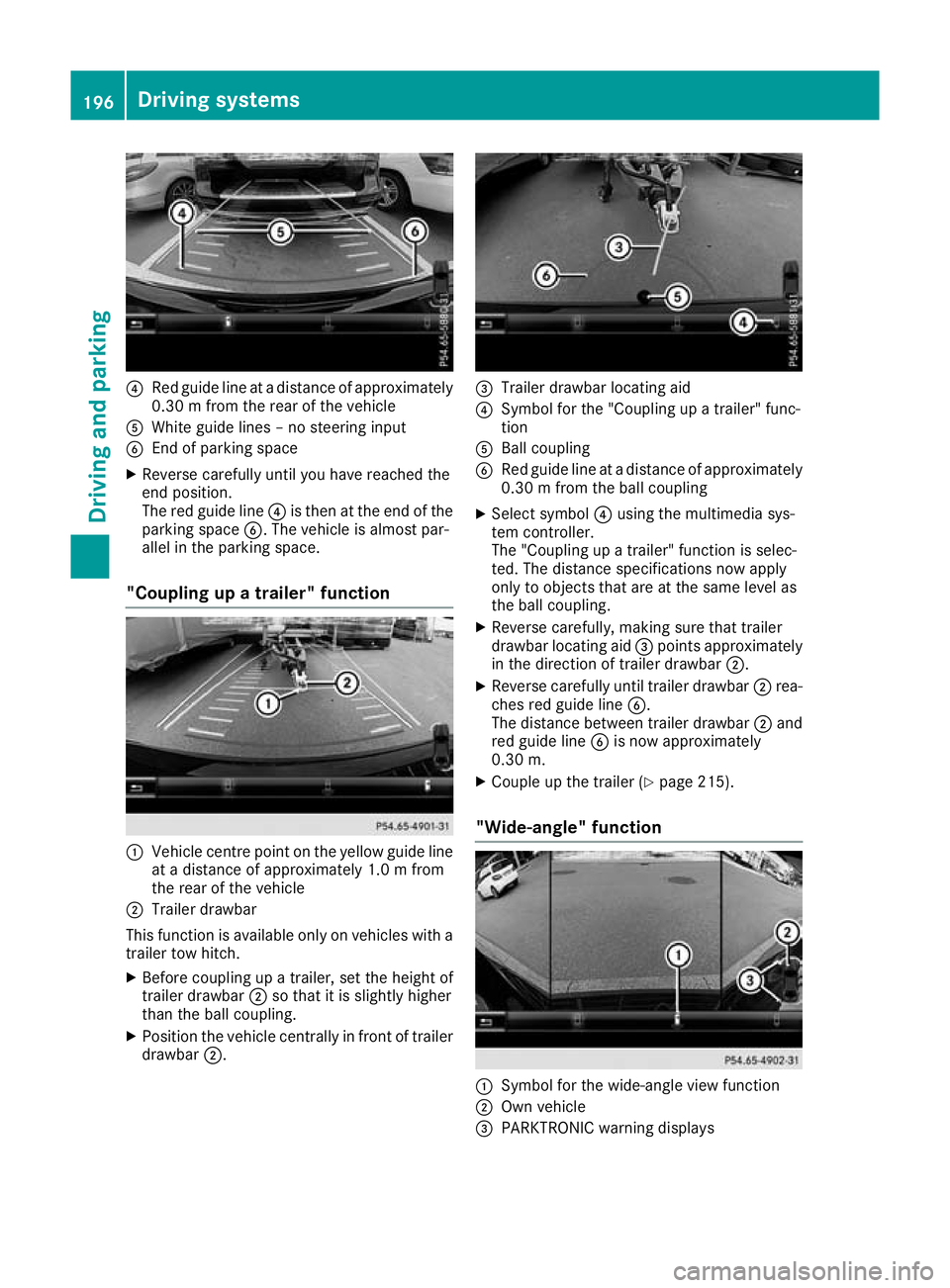
?
Red guide line at a distance of approximately
0.30 m from the rear of the vehicle
A White guide lines – no steering input
B End of parking space
X Reverse carefully until you have reached the
end position.
The red guide line ?is then at the end of the
parking space B. The vehicle is almost par-
allel in the parking space.
"Coupling up a trailer" function :
Vehicle centre point on the yellow guide line
at a distance of approximately 1.0 m from
the rear of the vehicle
; Trailer drawbar
This function is available only on vehicles with a
trailer tow hitch.
X Before coupling up a trailer, set the height of
trailer drawbar ;so that it is slightly higher
than the ball coupling.
X Position the vehicle centrally in front of trailer
drawbar ;. =
Trailer drawbar locating aid
? Symbol for the "Coupling up a trailer" func-
tion
A Ball coupling
B Red guide line at a distance of approximately
0.30 m from the ball coupling
X Select symbol ?using the multimedia sys-
tem controller.
The "Coupling up a trailer" function is selec-
ted. The distance specifications now apply
only to objects that are at the same level as
the ball coupling.
X Reverse carefully, making sure that trailer
drawbar locating aid =points approximately
in the direction of trailer drawbar ;.
X Reverse carefully until trailer drawbar ;rea-
ches red guide line B.
The distance between trailer drawbar ;and
red guide line Bis now approximately
0.30 m.
X Couple up the trailer (Y page 215).
"Wide-angle" function :
Symbol for the wide-angle view function
; Own vehicle
= PARKTRONIC warning displays 196
Driving systemsDriving and pa
rking
Page 200 of 377
You can also use the reversing camera to select
a wide-angle view.
When PARKTRONIC is operational (Y page 186),
a symbol for your own vehicle appears on the
multimedia system display. If the PARKTRONIC
warning displays are active, warning displays =
light up on the multimedia system display in yel-
low or red respectively.
Object detection The reversing camera helps detect moving and
stationary objects. If an object (person, vehicle
or other obstacle) is detected, this object is
marked with a bar. Objects located some dis-
tance away from the vehicle are marked with a
yellow bar. If the distance to the object is very
small, the bar is displayed in red.
Object detection works only in wide-angle view.
To use the function, it must be switched on in the
multimedia system (see Digital Owner's Man-
ual). 360° camera
General notes The 360° camera is a camera system compris-
ing four cameras.
The system evaluates images from the following
cameras:
R reversing camera
R front camera
R two side cameras on the exterior mirrors
The cameras cover the immediate surroundings
of the vehicle. The system assists you, e.g. when
parking or at exits with reduced visibility.
You can show images from the 360° camera in
full-screen mode or in seven different split-
screen views on the multimedia system. A split-
screen view also includes a top view of the vehi-
cle. This view is calculated from the data sup-
plied by the installed cameras (virtual camera).
The seven split-screen views are: R top view and image from the reversing cam-
era (130° viewing angle)
R top view and image from the front camera
(130° viewing angle without displaying the
maximum steering wheel angle)
R top view and enlarged rear view
R top view and enlarged front view R
top view and trailer view (vehicles with trailer
tow hitch)
R top view and images from the rear-facing side
cameras (rear wheel view)
R top view and images from the forward-facing
side cameras (front wheel view)
When the function is active and you shift the
transmission from Dor Rto N, the guide lines
are hidden in the multimedia system.
When you change between transmission posi-
tions Dand R, you see the previously selected
front or rear view.
Distances measured by PARKTRONIC will also
be displayed:
R as red or yellow brackets around the vehicle
symbol in top view in split-screen mode or
R at the bottom right as red or yellow brackets
around the vehicle symbol in full-screen mode
The line thickness and colour of the brackets
show how far the vehicle is from an object.
R yellow brackets with thin lines: PARKTRONIC
is active
R yellow brackets with normal lines: an object is
present in close range of the vehicle
R red line: an object is present in the immediate
close range of the vehicle
Important safety notes The 360° camera is only an aid and may show a
distorted view of obstacles, show them incor-
rectly or not show them at all. The 360° camera is not a substitute for attentive driving.
The responsibility for safe manoeuvring and
parking remains with you. Make sure that there
are no persons, animals or objects in range
while manoeuvring and parking.
You are responsible for safety at all times and
must always pay attention to your immediate
surroundings when parking and manoeuvring.
This applies to the areas behind, in front of and beside the vehicle. You could otherwise endan-
ger yourself and others.
The 360° camera will not function or will func-
tion only to a limited extent:
R if the doors are open
R if the exterior mirrors are folded in
R if the boot lid is open
R in heavy rain, snow or fog
R at night or in very dark places
R if the cameras are exposed to very bright light Driving systems
197Driving and parking Z
Page 202 of 377
The full-screen option is available only in the fol-
lowing views:
R top view with image from the reversing cam-
era
R top view with image from the front camera
Multimedia system display Important safety notes
The camera system may show a distorted view
of obstacles, show them incorrectly or not show
them at all. Obstacles in the following locations are not shown by the system:
R under the front and rear bumpers
R very close to the front and rear bumpers
R in the area immediately above the recessed
handle on the boot lid
R very close to the exterior mirrors
R in the transitional areas between the various
cameras in the virtual top view
! Objects not at ground level may appear to
be further away than they actually are, e.g.:
R the bumper of a parked vehicle
R the drawbar of a trailer
R the ball coupling of a trailer tow hitch
R the rear section of an HGV
R a slanted post
Use the guidelines only for orientation.
Approach objects no further than the bottom- most guideline.
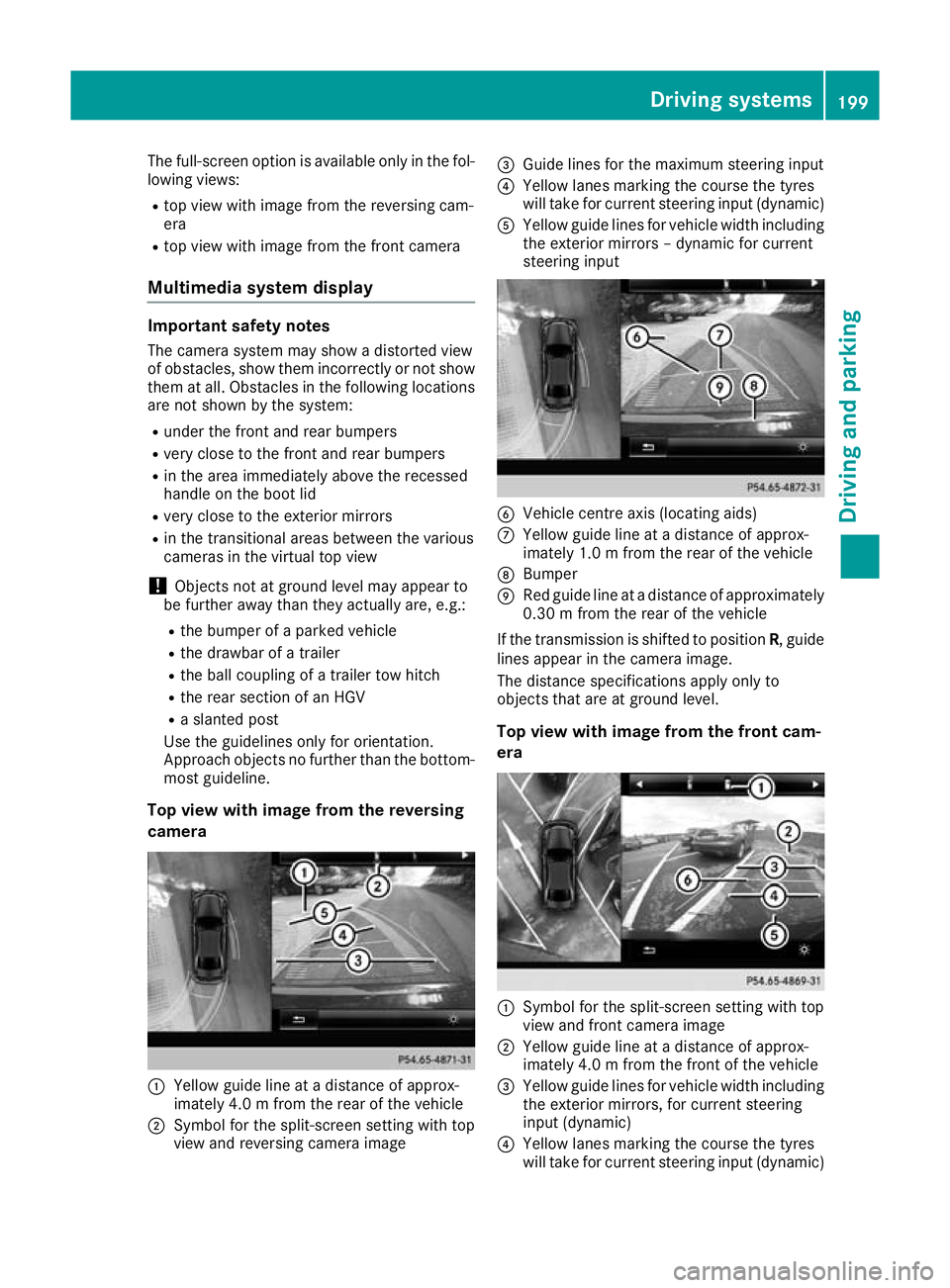
Top view with image from the reversing
camera :
Yellow guide line at a distance of approx-
imately 4.0 m from the rear of the vehicle
; Symbol for the split-screen setting with top
view and reversing camera image =
Guide lines for the maximum steering input
? Yellow lanes marking the course the tyres
will take for current steering input (dynamic)
A Yellow guide lines for vehicle width including
the exterior mirrors – dynamic for current
steering input B
Vehicle centre axis (locating aids)
C Yellow guide line at a distance of approx-
imately 1.0 m from the rear of the vehicle
D Bumper
E Red guide line at a distance of approximately
0.30 m from the rear of the vehicle
If the transmission is shifted to position R, guide
lines appear in the camera image.
The distance specifications apply only to
objects that are at ground level.
Top view with image from the front cam-
era :
Symbol for the split-screen setting with top
view and front camera image
; Yellow guide line at a distance of approx-
imately 4.0 m from the front of the vehicle
= Yellow guide lines for vehicle width including
the exterior mirrors, for current steering
input (dynamic)
? Yellow lanes marking the course the tyres
will take for current steering input (dynamic) Driving systems
199Driving and parking Z
Page 205 of 377

Displaying the attention level
In the Assistance menu (Y
page 232) of the on-
board computer, you can call up the current sta-
tus information.
X Select the assistance graphic display for
ATTENTION ASSIST using the on-board com-
puter (Y page 231).
The following information appears: R the length of the journey since the last break
R the attention level determined by ATTENTION
ASSIST (Attention level Attention level), displayed in a
bar display in five levels from high to low
R if ATTENTION ASSIST is unable to calculate
the attention level and cannot issue a warn-
ing, the System suspended
System suspended message
appears. The bar display then changes the
display, e.g. if you are driving at a speed below 60 km/h or above 200 km/h
Activating ATTENTION ASSIST X
Activate ATTENTION ASSIST using the on-
board computer (Y page 234).
The system determines the attention level of
the driver depending on the setting selected:
If Standard
Standard is selected: the sensitivity with
which the system determines the attention level
is set to normal.
If Sensitive
Sensitive is selected: the sensitivity is set
higher. The attention level detected by ATTEN-
TION ASSIST is adapted accordingly and the
driver is warned earlier.
When ATTENTION ASSIST is deactivated, the
é symbol appears on the multifunction dis-
play in the assistance graphic when the engine is running.
When ATTENTION ASSIST has been deactivated,
it is automatically reactivated after the engine
has been switched off. The sensitivity selected corresponds to the last selection activated
(standard/sensitive).
Warning on the multifunction display If fatigue or increasing lapses in concentration
are detected, a warning appears on the multi-
function display:
ATTENTION ASSIST ATTENTION ASSIST Take a
Take a
break!
break! .
In addition to the message shown on the multi-
function display, you will then hear a warning
tone.
X If necessary, take a break.
X Confirm the message by pressing the a
button on the steering wheel.
On long journeys, take regular breaks that allow for adequate recuperation. If you do not take a
break and ATTENTION ASSIST still detects
increasing lapses in concentration, you will be
warned again after 15 minutes at the earliest.
This will happen only if ATTENTION ASSIST still
detects typical indicators of fatigue or increas-
ing lapses in concentration.
Vehicles with COMAND Online multimedia
system: if a warning appears on the multifunc-
tion display, a service station search is per-
formed in the multimedia system. You can
select a service station and you will then be
navigated to this service station. This function
can be activated and deactivated in the
COMAND Online multimedia system (see Digital
Owner's Manual). Traffic Sign Assist
General notes Traffic Sign Assist displays the maximum speed
permitted and overtaking restrictions to the
driver on the instrument cluster. Driving onto a 202
Driving syste
msDriving and parking
Page 209 of 377

Display in the Assist image
When Blind Spot Assist is activated, grey radar
waves propagating backwards appear next to
the vehicle in the Assist image on the multifunc-
tion display (Y page 231). Above a speed of
30 km/h, the colour of the radar waves in the
Assist image changes to green :. Blind Spot
Assist is then ready for use.
Towing a trailer
If you couple up a trailer, make sure that you
have correctly established the electrical con-
nection. This can be accomplished by checking
the trailer lighting. Blind Spot Assist is then
deactivated. The Blind Spot Assist not Blind Spot Assist not
available when towing a trailer See
available when towing a trailer See
Owner's Manual
Owner's Manual message appears in the mul-
tifunction display.
Lane Keeping Assist General notes
Lane Keeping Assist monitors the area in front of
your vehicle by means of multifunction cam-
era :attached at the top of the windscreen.
Lane Keeping Assist detects lane markings on
the road and can warn you before you leave your lane unintentionally. This function is available in a speed range
between 60 km/h and 200 km/h.
A warning may be given if a front wheel passes
over a lane marking. It will warn you by means of intermittent vibration through the steering
wheel for up to 1.5 seconds.
Important safety notes G
WARNING
Lane Keeping Assist cannot always clearly
identify lane markings.
In these cases, Lane Keeping Assist may:
R give an unnecessary warning
R not give a warning
There is a risk of an accident.
Always pay particular attention to the traffic
situation and keep in lane, especially if Lane
Keeping Assist alerts you. G
WARNING
The Lane Keeping Assist warning does not
return the vehicle to the original lane. There is a risk of an accident.
Always steer, apply the brakes or accelerate
the vehicle yourself, especially if Lane Keep-
ing Assist alerts you.
Lane Keeping Assist can neither reduce the risk
of an accident if you fail to adapt your driving
style nor override the laws of physics. Lane
Keeping Assist cannot take into account road,
weather or traffic conditions. Lane Keeping
Assist is only an aid. You are responsible for the
distance to the vehicle in front, for vehicle
speed, for braking in good time and for staying in
lane.
Lane Keeping Assist does not keep your vehicle in its lane.
The system may be impaired or may not function
in the following situations:
R poor visibility, e.g. due to insufficient illumi-
nation of the road, or due to snow, rain, fog or spray
R glare, e.g. from oncoming traffic, the sun or
reflection from other vehicles (e.g. if the road
surface is wet)
R the windscreen is dirty, misted up, damaged
or covered, for instance by a sticker, in the
vicinity of the camera 206
Driving syste
msDriving and parking
Page 212 of 377
Due to the nature of the system:
R warnings may be issued in error when driving
close to crash barriers or similar solid boun-
daries
R warnings may be interrupted when you are
driving alongside particularly long vehicles,
such as lorries, for a prolonged time
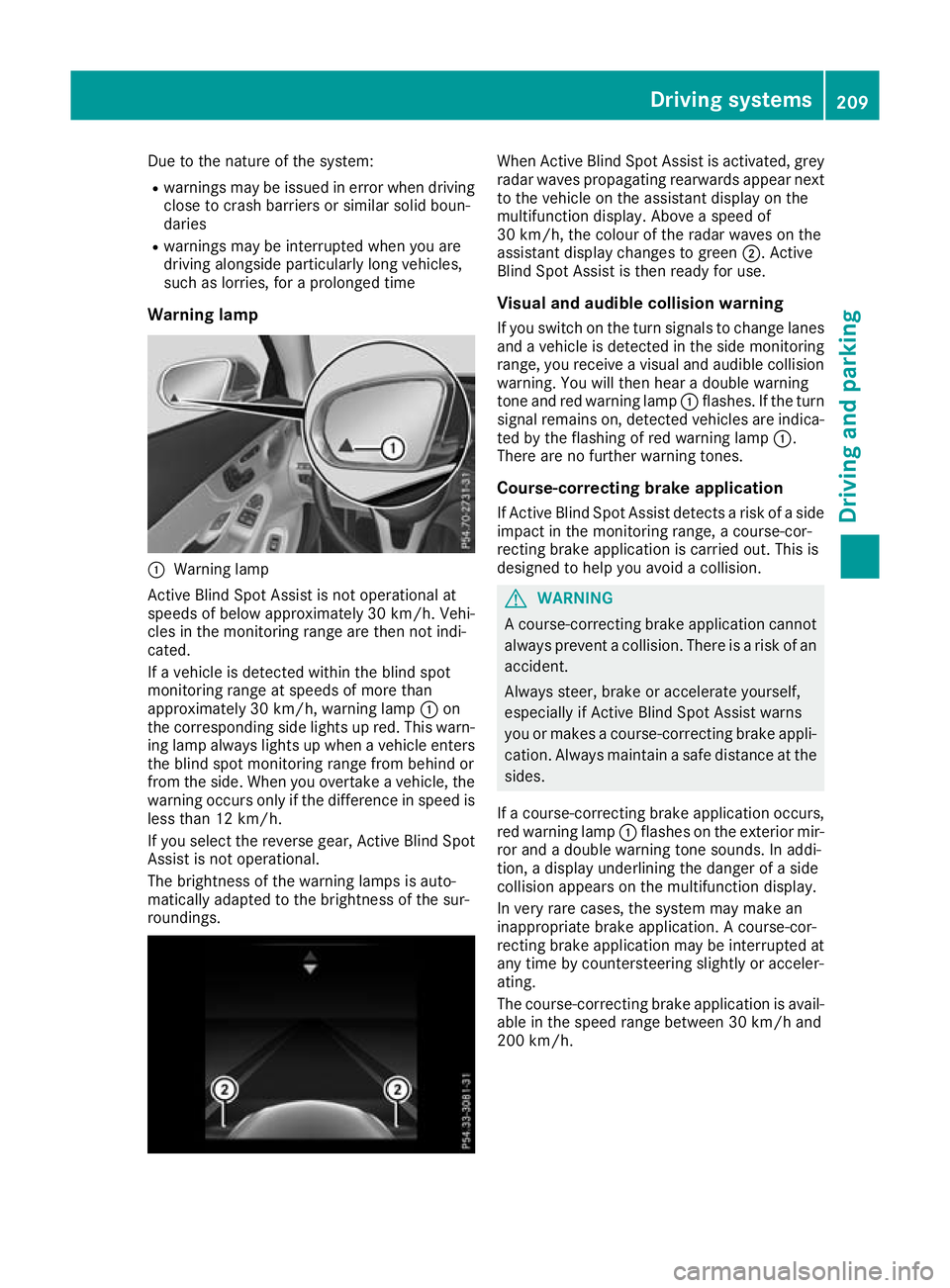
Warning lamp :
Warning lamp
Active Blind Spot Assist is not operational at
speeds of below approximately 30 km/h. Vehi-
cles in the monitoring range are then not indi-
cated.
If a vehicle is detected within the blind spot
monitoring range at speeds of more than
approximately 30 km/h, warning lamp :on
the corresponding side lights up red. This warn-
ing lamp always lights up when a vehicle enters the blind spot monitoring range from behind or
from the side. When you overtake a vehicle, the
warning occurs only if the difference in speed is less than 12 km/h.
If you select the reverse gear, Active Blind Spot
Assist is not operational.
The brightness of the warning lamps is auto-
matically adapted to the brightness of the sur-
roundings. When Active Blind Spot Assist is activated, grey
radar waves propagating rearwards appear next
to the vehicle on the assistant display on the
multifunction display. Above a speed of
30 km/h, the colour of the radar waves on the
assistant display changes to green ;. Active
Blind Spot Assist is then ready for use.
Visual and audible collision warning If you switch on the turn signals to change lanes
and a vehicle is detected in the side monitoring range, you receive a visual and audible collision warning. You will then hear a double warning
tone and red warning lamp :flashes. If the turn
signal remains on, detected vehicles are indica-
ted by the flashing of red warning lamp :.
There are no further warning tones.
Course-correcting brake application
If Active Blind Spot Assist detects a risk of a side
impact in the monitoring range, a course-cor-
recting brake application is carried out. This is
designed to help you avoid a collision. G
WARNING
A course-correcting brake application cannot always prevent a collision. There is a risk of an
accident.
Always steer, brake or accelerate yourself,
especially if Active Blind Spot Assist warns
you or makes a course-correcting brake appli-
cation. Always maintain a safe distance at the sides.
If a course-correcting brake application occurs, red warning lamp :flashes on the exterior mir-
ror and a double warning tone sounds. In addi-
tion, a display underlining the danger of a side
collision appears on the multifunction display.
In very rare cases, the system may make an
inappropriate brake application. A course-cor-
recting brake application may be interrupted at
any time by countersteering slightly or acceler-
ating.
The course-correcting brake application is avail-
able in the speed range between 30 km/h and
200 km/h. Driving systems
209Driving and parking Z
Page 214 of 377
In such cases, Active Lane Keeping Assist
can:
R give an unnecessary warning and then
make a course-correcting brake application
to the vehicle
R neither give a warning nor intervene
There is a risk of an accident.
Always pay particular attention to the traffic
situation and keep within the lane, especially
if Active Lane Keeping Assist alerts you. Ter-
minate the intervention in a non-critical driv-
ing situation.
The system may be impaired or may not function in the following situations:
R poor visibility, e.g. due to insufficient illumi-
nation of the road, or due to snow, rain, fog or
spray
R glare, e.g. from oncoming traffic, the sun or
reflection from other vehicles (e.g. if the road
surface is wet)
R the windscreen is dirty, misted up, damaged
or covered, for instance by a sticker, in the
vicinity of the camera
R the radar sensors in the front or rear bumpers
or the radiator trim are dirty, e.g. obscured by
snow
R no or several, unclear lane markings are pres-
ent for one lane, e.g. in a construction area
R the lane markings are worn away, dark or cov-
ered up, e.g. by dirt or snow
R the distance to the vehicle in front is so small
that the lane markings cannot be detected
R the lane markings change quickly, e.g. lanes
branch off, cross one another or merge
R the road is very narrow and winding
R there are highly variable shade conditions on
the roadway
If no vehicle is detected in the adjacent lane and broken lane markings are detected, no lane-cor-
recting brake application is made.
Warning vibration through the steering
wheel A warning may be given if a front wheel passes
over a lane marking. It will warn you by means of intermittent vibration in the steering wheel for
up to 1.5 seconds. Lane-correcting brake application
If you leave your lane, under certain circumstan-
ces, the vehicle will brake briefly on one side.
This is intended to help you return the vehicle to the original lane. G
WARNING
A lane-correcting brake application cannot
always bring the vehicle back into the original lane. There is a risk of an accident.
Always steer, brake or accelerate yourself,
especially if Active Lane Keeping Assist warns
you or makes a lane-correcting brake appli-
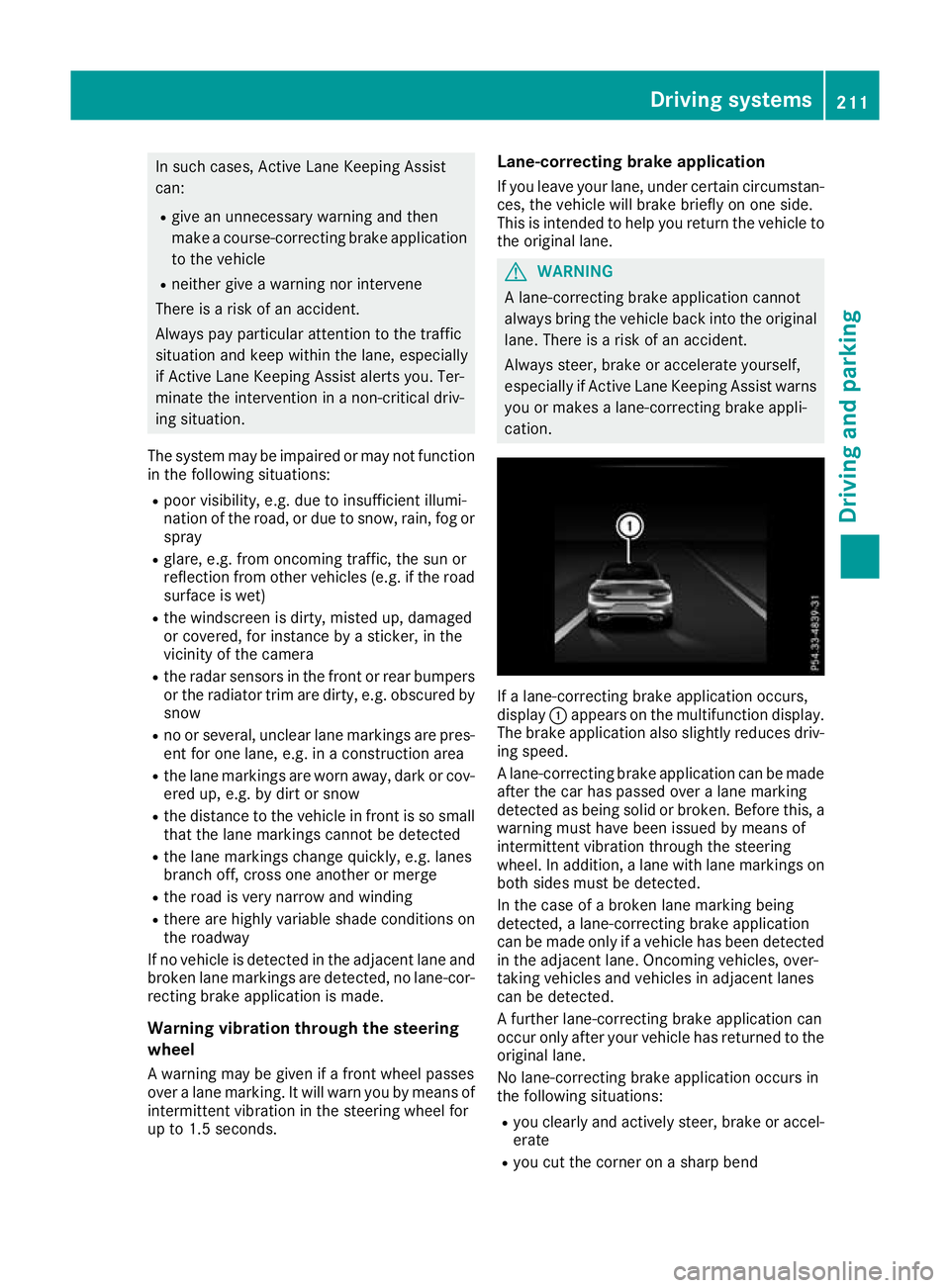
cation. If a lane-correcting brake application occurs,
display :appears on the multifunction display.
The brake application also slightly reduces driv- ing speed.
A lane-correcting brake application can be made
after the car has passed over a lane marking
detected as being solid or broken. Before this, a warning must have been issued by means of
intermittent vibration through the steering
wheel. In addition, a lane with lane markings on
both sides must be detected.
In the case of a broken lane marking being
detected, a lane-correcting brake application
can be made only if a vehicle has been detected
in the adjacent lane. Oncoming vehicles, over-
taking vehicles and vehicles in adjacent lanes
can be detected.
A further lane-correcting brake application can
occur only after your vehicle has returned to the original lane.
No lane-correcting brake application occurs in
the following situations:
R you clearly and actively steer, brake or accel-
erate
R you cut the corner on a sharp bend Driving systems
211Driving and parking Z
Page 215 of 377
R
you have switched on the turn signal
R a driving safety system engages, such as
ESP ®
, PRE-SAFE ®
Brake or Active Blind Spot
Assist
R you have adopted a sporty driving style with
high cornering speeds or high rates of accel-
eration
R ESP ®
is deactivated
R the transmission is not in position D
R on vehicles with a trailer tow hitch, the elec-
trical connection to the trailer has been cor-
rectly established
R a loss of tyre pressure or a defective tyre has
been detected and displayed
R an obstacle has been detected in the lane in
which you are driving
Active Lane Keeping Assist may not detect other road users or traffic situations. An inappropriate
brake application may be interrupted at any time
in the following situations:
R you steer slightly in the opposite direction
R you switch on the turn signal
R you brake or accelerate significantly
A lane-correcting brake application is interrup-
ted automatically in the following situations:
R a driving safety system engages, such as
ESP ®
, PRE-SAFE ®
Brake or Active Blind Spot
Assist
R lane markings are no longer detected
Activating/deactivating Active Lane
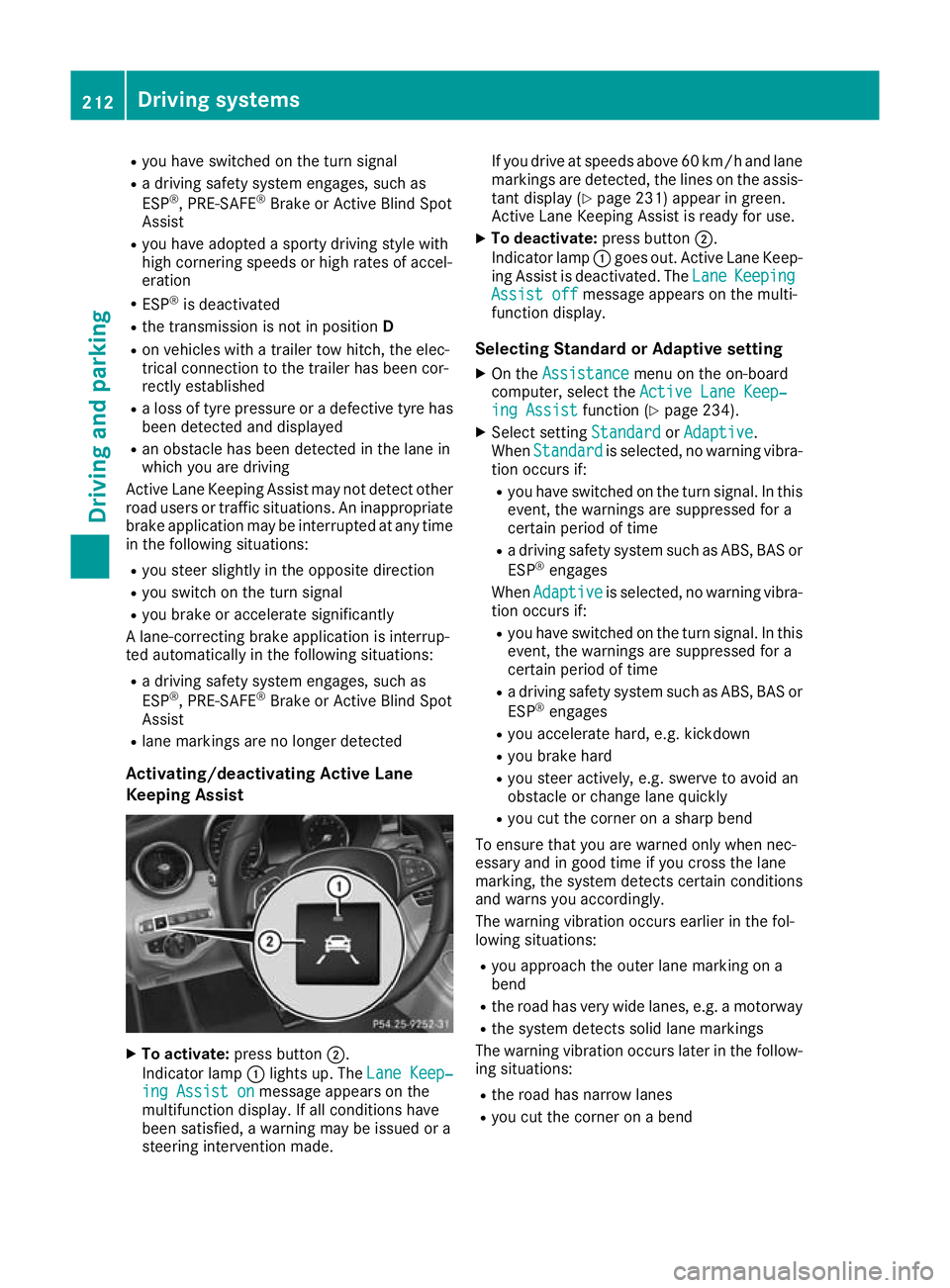
Keeping Assist X
To activate: press button ;.
Indicator lamp :lights up. The Lane Keep‐ Lane Keep‐
ing Assist on
ing Assist on message appears on the
multifunction display. If all conditions have
been satisfied, a warning may be issued or a
steering intervention made. If you drive at speeds above 60 km/h and lane
markings are detected, the lines on the assis-
tant display (Y page 231) appear in green.
Active Lane Keeping Assist is ready for use.
X To deactivate: press button;.
Indicator lamp :goes out. Active Lane Keep-
ing Assist is deactivated. The Lane LaneKeeping Keeping
Assist off
Assist off message appears on the multi-
function display.
Selecting Standard or Adaptive setting X On the Assistance
Assistance menu on the on-board
computer, select the Active Lane Keep‐
Active Lane Keep‐
ing Assist
ing Assist function (Ypage 234).
X Select setting Standard
StandardorAdaptive
Adaptive.
When Standard
Standard is selected, no warning vibra-
tion occurs if:
R you have switched on the turn signal. In this
event, the warnings are suppressed for a
certain period of time
R a driving safety system such as ABS, BAS or
ESP ®
engages
When Adaptive Adaptive is selected, no warning vibra-
tion occurs if:
R you have switched on the turn signal. In this
event, the warnings are suppressed for a
certain period of time
R a driving safety system such as ABS, BAS or
ESP ®
engages
R you accelerate hard, e.g. kickdown
R you brake hard
R you steer actively, e.g. swerve to avoid an
obstacle or change lane quickly
R you cut the corner on a sharp bend
To ensure that you are warned only when nec-
essary and in good time if you cross the lane
marking, the system detects certain conditions
and warns you accordingly.
The warning vibration occurs earlier in the fol-
lowing situations:
R you approach the outer lane marking on a
bend
R the road has very wide lanes, e.g. a motorway
R the system detects solid lane markings
The warning vibration occurs later in the follow- ing situations:
R the road has narrow lanes
R you cut the corner on a bend 212
Driving systemsDriving and pa
rking
Page 217 of 377
Couple and uncouple the trailer carefully. If you
do not couple the trailer to the towing vehicle
correctly, the trailer could become detached.
When towing a trailer, your vehicle's handling
characteristics will be different to when driving
without a trailer.
The vehicle/trailer combination:
R is heavier
R is restricted in its acceleration and gradient-
climbing capability
R has an increased braking distance
R is affected more by strong crosswinds
R demands more sensitive steering
R has a larger turning circle
This can impair the vehicle's handling charac-
teristics. Adapt your driving style accordingly.
Maintain a safe distance. Drive carefully.
When towing a trailer, always adjust your speed to the current road and weather conditions. Do
not exceed the maximum permissible speed for
your vehicle/trailer combination. Notes on towing a trailer
General notes Towing a trailer is not possible with
Mercedes
‑AMG vehicles.
When towing a trailer, set the tyre pressure on
the rear axle of the towing vehicle for a maxi-
mum load. Further information on the tyre pres-
sure table in the fuel filler flap (Y page 345).
You will find permissible trailer loads under
"Technical data" (Y page 369).
Driving tips Observe the information on ESP
®
trailer stabili-
sation (Y page 75).
The maximum permissible speed for vehicle/
trailer combinations depends on the type of
trailer. Before beginning the journey, check the
trailer's documents to see what the maximum
permitted speed is. Observe the maximum per-
missible speed in the relevant country.
For certain Mercedes-Benz vehicles, the maxi-
mum permissible rear axle load is increased
when towing a trailer. See the "Technical data"
section to find out whether this applies to your
vehicle (Y page 369). In the event of increased
rear axle load, the car/trailer combination may not exceed a maximum speed of 100 km/h for
reasons concerning the operating permit. This
also applies in countries in which the maximum
permissible speed for car/trailer combinations
is greater than 100 km/h.
When towing a trailer, your vehicle's handling
characteristics will be different to when driving
without a trailer and the vehicle will consume
more fuel.
Shift to a lower gear in good time on long and
steep downhill gradients.
This also applies in the case of:
R activated DISTRONIC PLUS
R activated cruise control
This will use the braking effect of the engine, so
less braking will be required to maintain the
vehicle speed. This relieves the load on the
brake system and prevents the brakes from
overheating and wearing too quickly. If you need
additional braking, depress the brake pedal
repeatedly rather than continuously.
Driving tips R
Maintain a greater distance to the vehicle in
front than when driving without a trailer.
R Avoid braking abruptly. If possible, brake gen-
tly at first to allow the trailer to run on. Then,
increase the braking force rapidly.
R The values given for gradient-climbing capa-
bilities from a standstill refer to sea level.
When driving in mountainous areas, note that
the power output of the engine, and conse-
quently the vehicle's gradient-climbing capa-
bility from a standstill, decrease with increas- ing altitude.
If the trailer swings from side to side:
X Do not accelerate under any circumstances.
X Do not countersteer.
X Brake, if necessary. Folding the ball coupling in/out
Folding out the ball coupling G
WARNING
If the ball coupling is not correctly engaged,
the trailer can detach. There is a risk of an
accident. 214
Towing a trailerDriving and parking