audio MERCEDES-BENZ C-CLASS SALOON 2012 User Guide
[x] Cancel search | Manufacturer: MERCEDES-BENZ, Model Year: 2012, Model line: C-CLASS SALOON, Model: MERCEDES-BENZ C-CLASS SALOON 2012Pages: 557, PDF Size: 10.15 MB
Page 304 of 557
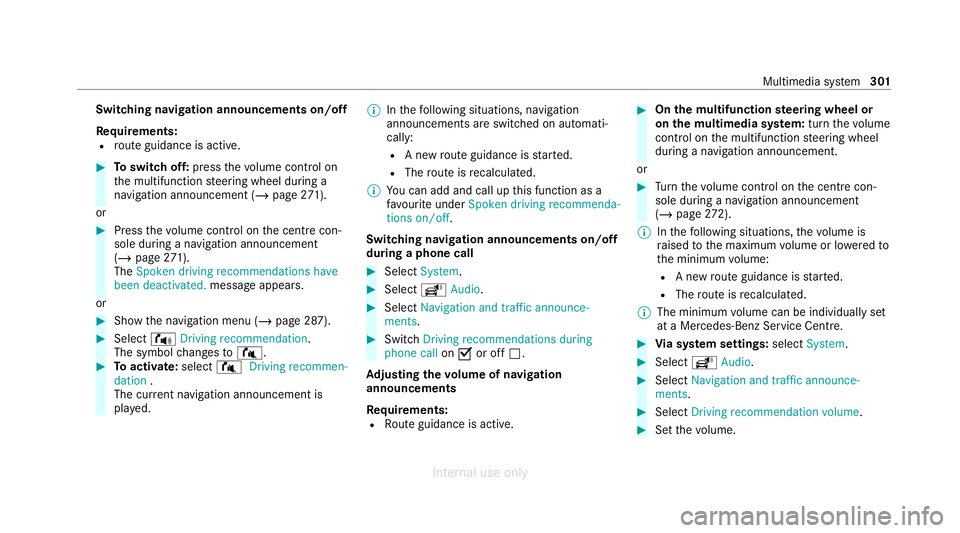
Switching navigation announcements on/off
Re
quirements:
R route guidance is active. #
Toswitch off: pressthevo lume control on
th e multifunction steering wheel during a
navigation announcement (/ page271).
or #
Press thevo lume control on the cent recon‐
sole du ring a navigation announcement
(/ page 271).
The Spoken driving recommendations have
been deactivated. messageappears.
or #
Show the navigation menu (/ page 287).#
Select !Driving recommendation .
The symbol changes to# . #
Toactivate: select#Driving recommen-
dation .
The cur rent navigation announcement is
pl ay ed. %
Inthefo llowing situations, navigation
announcements are switched on automati‐
cally:
R A new route guidance is star ted.
R The route is recalculated.
% You can add and call up this function as a
fa vo urite under Spoken driving recommenda-
tions on/off.
Swit ching navigation announcements on/off
during a phone call #
Select System. #
Select õAudio. #
Select Navigation and traffic announce-
ments. #
Swit chDriving recommendations during
phone call onO or off ª.
Ad justing the volume of navigation
announcements
Re quirements:
R Route guidance is active. #
On the multifunction steering wheel or
on the multimedia sy stem: turn thevo lume
control on the multifunction steering wheel
during a navigation announcement.
or #
Turn thevo lume control on the cent recon‐
sole du ring a navigation announcement
(/ page 272).
% Inthefo llowing situations, thevo lume is
ra ised tothe maximum volume or lo weredto
th e minimum volume:
R A new route guidance is star ted.
R The route is recalculated.
% The minimum volume can be individually set
at a Mercedes-Benz Service Cent re. #
Via sy stem settings: selectSystem. #
Select õAudio. #
Select Navigation and traffic announce-
ments. #
Select Driving recommendation volume. #
Set thevo lume. Multimedia sy
stem 301
Internal use only
Page 305 of 557
#
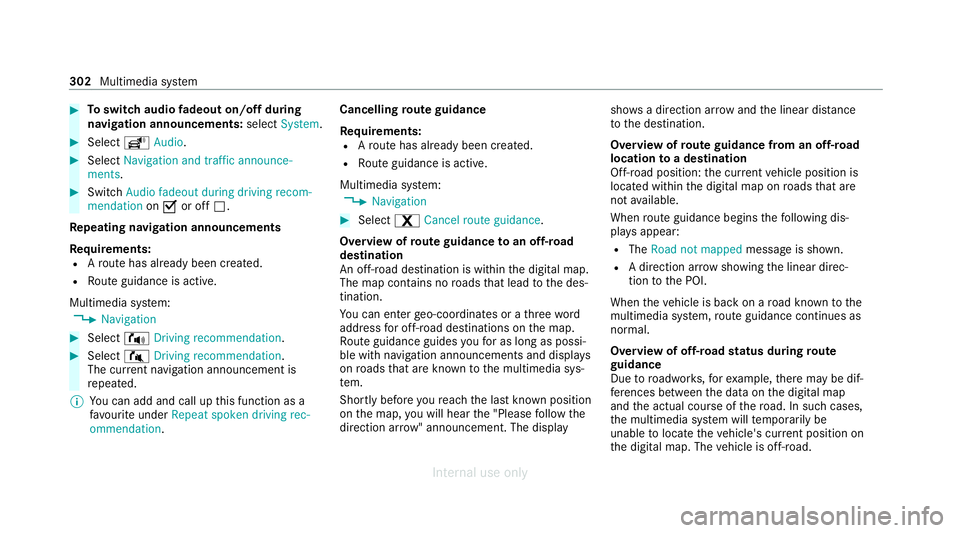
Toswitch audio fadeout on/off during
navigation announcements: selectSystem . #
Select õAudio. #
Select Navigation and traffic announce-
ments . #
Switch Audio fadeout during driving recom-
mendation onO or off ª.
Re peating navigation announcements
Re quirements:
R Aro ute has already been created.
R Route guidance is active.
Multimedia sy stem:
4 Navigation #
Select !Driving recommendation .#
Select #Driving recommendation .
The cur rent navigation announcement is
re peated.
% You can add and call up this function as a
fa vo urite under Repeat spoken driving rec-
ommendation . Cancelling
route guidance
Re quirements:
R Aro ute has already been created.
R Route guidance is active.
Multimedia sy stem:
4 Navigation #
Select %Cancel route guidance .
Overview of route guidance toan off-road
destination
An off-road destination is within the digital map.
The map conta ins noroads that lead tothe des‐
tination.
Yo u can en terge o-coordinates or a thre ewo rd
address for off-road destinations on the map.
Ro ute guidance guides youfo r as long as possi‐
ble with navigation announcements and displa ys
on roads that are kn ownto the multimedia sys‐
te m.
Shortly before youre ach the last know n position
on the map, you will hear the "Please follow the
direction ar row" announcement. The displ aysho
wsa direction ar rowand the linear dis tance
to the destination.
Overview of route guidance from an off-road
location toa destination
Off-road position: the cur rent vehicle position is
located within the digital map on roads that are
not available.
When route guidance begins thefo llowing dis‐
pla ysappear:
R The Road not mapped message is shown.
R A direction ar row showing the linear direc‐
tion tothe POI.
When theve hicle is back on a road kn ownto the
multimedia sy stem, route guidance continues as
no rm al.
Overview of off- road status during route
guidance
Due toroadwor ks,fo rex ample, there may be dif‐
fe re nces between the data on the digital map
and the actual course of thero ad. In such cases,
th e multimedia sy stem will temp orarily be
unable tolocate theve hicle's cur rent position on
th e digital map. The vehicle is off-road. 302
Multimedia sy stem
Internal use only
Page 320 of 557
#
Ifth e codes match: confirm the code on
th e mobile phone.
Connecting a mobile phone (authorisation by
entering a passk ey) #
Select the mobile phone. #
Choose a one tosixteen-digit number combi‐
nation as a passk ey. #
On the multimedia sy stem: enter the pass‐
ke y and select a. #
On the mobile phone: enterthe passk ey
again and con firm.
% Upto15 mobile phones can be auth orised
on the multimedia sy stem.
Auth orised mobile phones are reconnected
au tomatical ly.
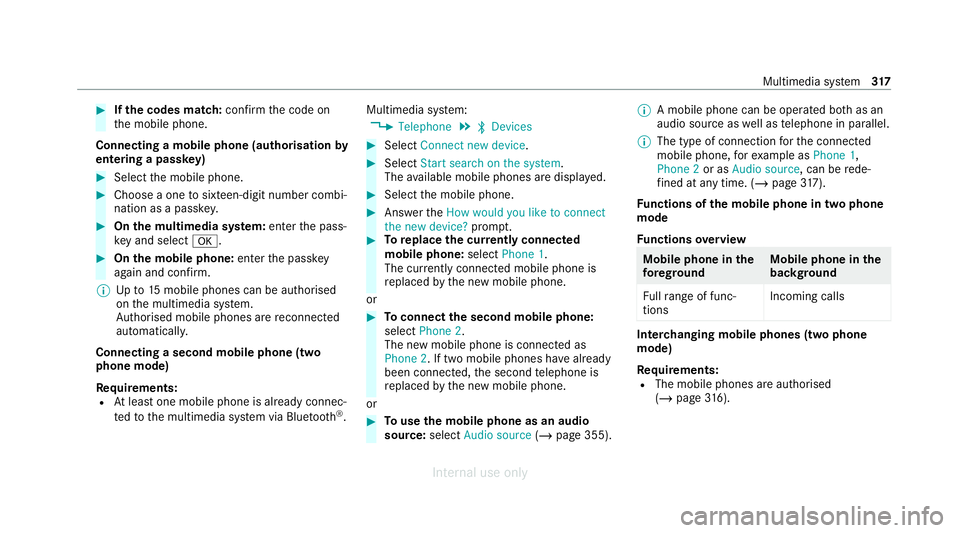
Connecting a second mobile phone (two
phone mode)
Re quirements:
R Atleast one mobile phone is already connec‐
te dto the multimedia sy stem via Blue tooth ®
. Multimedia sy
stem:
4 Telephone 5
ª Devices #
Select Connect new device. #
Select Start search on the system.
The available mobile phones are displa yed. #
Select the mobile phone. #
Answer theHow would you like to connect
the new device? prompt. #
Toreplace the cur rently connected
mobile phone: selectPhone 1.
The cur rently connected mobile phone is
re placed bythe new mobile phone.
or #
Toconnect the second mobile phone:
select Phone 2.
The new mobile phone is connec ted as
Phone 2. If two mobile phones ha vealready
been connec ted, the second telephone is
re placed bythe new mobile phone.
or #
Touse the mobile phone as an audio
source: selectAudio source (/page 355). %
A mobile phone can be operated bo thas an
audio source as well as telephone in parallel.
% The type of connection forth e connected
mobile phone, forex ample as Phone 1,
Phone 2 or asAudio source , can berede‐
fi ned at any time. (/ page 317).
Fu nctions of the mobile phone in two phone
mode
Fu nctions overview Mobile phone in
the
fo re gr ound Mobile phone in
the
bac kground
Fu llra nge of func‐
tions Incoming calls In
terc hanging mobile phones (two phone
mode)
Re quirements:
R The mobile phones are authorised
(/ page 316). Multimedia sy
stem 317
Internal use only
Page 321 of 557
Multimedia sy
stem:
4 Telephone 5
ª Devices #
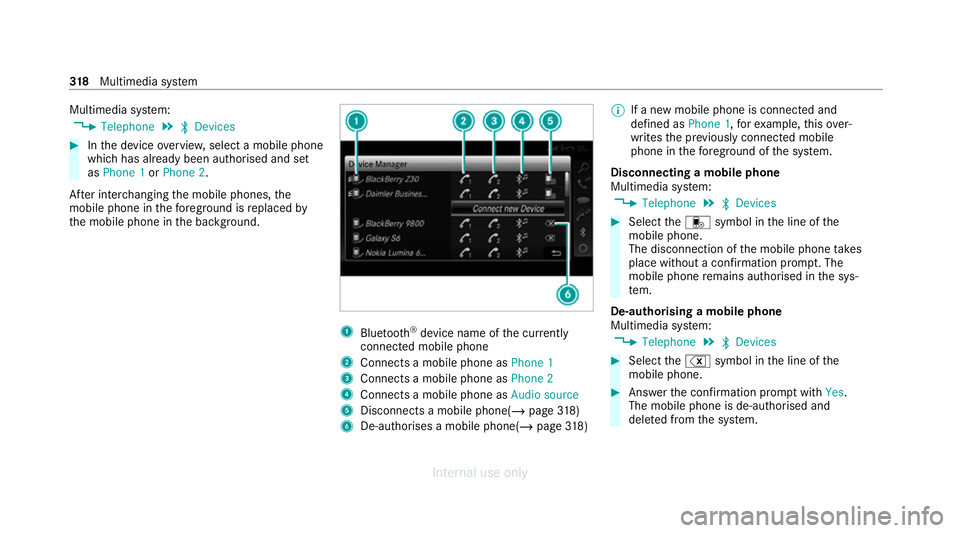
Inthe device overview, select a mobile phone
which has already been authorised and set
as Phone 1 orPhone 2.
Af ter inter changing the mobile phones, the
mobile phone in thefo re ground isreplaced by
th e mobile phone in the bac kground. 1
Blue tooth ®
device name of the cur rently
connected mobile phone
2 Connects a mobile phone as Phone 1
3 Connects a mobile phone as Phone 2
4 Connects a mobile phone as Audio source
5 Disconnects a mobile phone( /page 318)
6 De-authorises a mobile phone(/ page 318) %
If anew mobile phone is connected and
de fined as Phone 1, forex ample, this ov er‐
writes the pr eviously connec ted mobile
phone in thefo re ground of the sy stem.
Disconnecting a mobile phone
Multimedia sy stem:
4 Telephone 5
ª Devices #
Select thei symbol in the line of the
mobile phone.
The disconnection of the mobile phone takes
place without a confi rmation prom pt. The
mobile phone remains auth orised inthe sys‐
te m.
De-authorising a mobile phone
Multimedia sy stem:
4 Telephone 5
ª Devices #
Select the% symbol in the line of the
mobile phone. #
Answer the confi rmation prom ptwith Yes.
The mobile phone is de-authorised and
dele ted from the sy stem. 318
Multimedia sy stem
Internal use only
Page 323 of 557
#
Select Reception volume orTransmission
volume. #
Set thevo lume.
Fu rther information on there commended recep‐
tion and transmission volume: https://
www.me rcedes-benz-mobile.com/
Ad justing the call and ringtone volume
Multimedia sy stem:
4 System 5
õ Audio 5
Telephone #
Select Speech volume orRingtone volume .#
Set thevo lume.
St arting or stopping mobile phone voice rec‐
ognition
Re quirements:
R The mobile phone is connecte dto the multi‐
media sy stem (/ page316).
St arting mobile phone voice recognition #
Press and hold theó button on the multi‐
function steering wheel for more than one
second.
Yo u can use mobile phone voice recognition. St
opping mobile phone voice recognition #
Press the8 or~ button on the multi‐
function steering wheel. Calls
Te
lephone operation
Multimedia sy stem:
4 Telephone 5
ª Contacts
Making a call #
Select Numerical keypad. #
Ente rth e number. #
Select w.
The call is made.
Ac cepting a call #
Select Accept .
Re jecting a call #
Select Reject.
No ting an incoming call in "In-Car Of fice" #
If "In-Car Of fice" is available: select
Reminder (/page 326). Ending a call #
Select =.
Ac tivating functions during a call #
Toshow all functions, navigate down.
The following functions are available during a
call:
R End call
R Make additional call
R Keyboard (showtosend DTMF tones)
R Switch Mute mic onO or off ª.
R Private mode (an activecall in hands-free
mode is transfer redove rto thete lephone)
Conducting calls with se veral participants
Requ irements:
R There is an active call (/ page 320).
R Another call is being made.
Switching between calls #
Select call #.
The selected call is active. The other call is
on hold. 320
Multimedia sy stem
Internal use only
Page 331 of 557
Apple CarPlay
®Overview of Apple CarPlay
®&
WARNING Risk of dist raction from infor‐
mation sy stems and communications
equipment
If yo u operate information and communica‐
tion equipment integ rated in theve hicle
when driving, you will be distracted from the
traf fic situation. This could also cause youto
lose control of theve hicle. #
Only operate this equipment when the
traf fic situation permits. #
Ifyo u cannot be sure of this, stop the
ve hicle whilst paying attention toroad
and traf fic conditions and ope rate the
equipment with theve hicle stationar y. Yo
u must obse rveth e legal requirements forthe
country in whi chyou are cur rently driving when
operating the multimedia sy stem.
iPhone ®
functions can be used via the multime‐
dia sy stem using Apple CarPlay ®
. They are oper‐
ated using the cent ral control element or theSiri
®
vo ice control sy stem. You can activate the
vo ice control sy stem bypressing and holding the
ó button on the multifunction steering wheel.
When using Apple CarPlay ®
with voice control,
th e multimedia sy stem can still be operated via
LINGU ATRO NIC (/ page 250).
Only one mobile phone at a time can be connec‐
te d via Apple CarPlay ®
to the multimedia sys‐
te m.
The availability of Apple CarPlay ®
may vary
according tothe count ry.
The service pr ovider is responsible forth is appli‐
cation and the services and conte nt connected
to it.
Apple CarPlay ®
is a regis tere d trademark of
Apple Inc.
Information on Apple CarPlay ®
While using Apple CarPlay ®
va rious functions of
th e multimedia sy stem, e.g. telephony or the
media sources Blue tooth ®
audio and iPod ®
, are
una vailable. Only one
route guidance can be active at a time.
If ro ute guidance is active on the multimedia sys‐
te m, it is closed when route guidance is star ted
on the mobile phone.
Connecting an iPhone ®
via Apple CarPlay ®
Re quirements:
R Apple ®
operating sy stem version iOS 8.3 or
abo veis ins talled on the iPhone ®
.
R An Internet connection is requiredforth e full
ra nge of functions for Apple CarPlay ®
.
R The iPhone ®
is connected tothe multimedia
sy stem via the USB port çusing a suita‐
ble cable (/ page 349).
Multimedia sy stem:
4 Connect 5
Apple CarPlay
Setting automatic or manual start
A messa geappears when connec tedfo rth efirst
time. #
Automatic star t:select Automatically.
Start automatically is activatedO. 328
Multimedia sy stem
Internal use only
Page 333 of 557
using
the cent ral control element or voice con‐
trol sy stem. You can activate thevo ice control
sy stem bypressing and holding theó button
on the multifunction steering wheel.
When using Android Autowith voice control, the
multimedia sy stem can still be operated using
LINGU ATRO NIC (/ page 250).
Only one mobile phone at a time can be connec‐
te d via Android Autowith the multimedia sys‐
te m.
The availability of Android Autoand Android Auto
apps may vary according tothe count ry.
The service pr ovider is responsible forth is appli‐
cation and the services and conte nt connected
to it.
Information on Android Auto
While using Android Auto,va rious functions of
th e multimedia sy stem, forex ample the media
source Blue tooth ®
audio, are not available.
On lyone route guidance can be active at a time.
If ro ute guidance is active on the multimedia sys‐
te m, it is closed when route guidance is star ted
on the mobile phone. Connecting a mobile phone via Android
Auto
Requ irements:
R The firs t acti vation of Android Autoon the
multimedia sy stem must be car ried out when
th eve hicle is stationary for saf etyre asons.
R The mobile phone suppo rts Android Auto
from Android 5.0.
R The Android Autoapp is ins talled on the
mobile phone.
R In order touse thete lephone functions, the
mobile phone must be connected tothe mul‐
timedia sy stem via Blue tooth®
(/ page 316).
If th ere was no prior Internet connection, this
is es tablished with the use of the mobile
phone with Android Auto.
R The mobile phone is connected tothe multi‐
media sy stem via the USB port çusing a
suitable cable (/ page 349).
R An Internet connection is requiredforth e full
ra nge of functions for Android Auto. Multimedia sy
stem:
4 Connect 5
Android Auto #
Select the mobile phone from the device list.
Ac cepting/rejecting the data pr otection reg‐
ulations
A message with the data pr otection regulations
appears. #
Select Accept & Start .
or #
Select Decline & End.
Ac tivating automatic start #
Select Start automatically O.
St arting manually #
Select the mobile phone from the device list.
Exiting Android Auto #
Press theò button on the multifunction
st eering wheel, forex ample. 330
Multimedia sy stem
Internal use only
Page 349 of 557
Setting
theTu neIn Radio options
Multimedia sy stem:
4 Radio 5
Þ Radio source
5 TuneIn Radio 5
Z Options
The following options are available:
R Select stream: select thest re am quality
R Login to TuneIn account: log in to your
Tu neIn user account
R Log out of account: log out of your TuneIn
user account #
Select an option. Media
Au
dio mode In
fo rm ation on the audio mode &
WARNING Risk of dist raction when han‐
dling data storage media
If yo u handle a data storage medium while
driving, your attention is diver ted from the traf
fic conditions. This could also cause you
to lose control of theve hicle. #
Only handle a data storage medium
when theve hicle is stationar y. Pe
rm issible file sy stems:
R FAT32
R exFAT
R NTFS
Pe rm issible data storage medium:
R SD card
R USB storage device
R iPod ®
/iPhone ®
R MTP devices
R Blue tooth ®
audio equipment
% Obse rveth efo llowing no tes:
R The multimedia sy stem supports a total
of up to50,000 files.
R Data storage media up to2 TB are sup‐
por ted (32‑bit address space). Suppor
tedfo rm ats:
R MP3
R WMA
R AAC
R WAV
R FLAC
R ALAC
% Obser vethefo llowing no tes:
R Due tothe lar gevariet y of available
music files rega rding encoders, sampling
ra tes and data rates, playback cannot
alw ays be guaranteed.
R Due tothe wide range of USB devices
av ailable on the mar ket, pl ayback cann ot
be guaranteed for all USB devices.
R Cop y-pr otected music files or DRM
enc rypte dfiles cannot be pla yed bac k.
R MP3 pla yers must support Media Trans‐
fe r Pr otocol (MTP). 346
Multimedia sy stem
Internal use only
Page 350 of 557
Manufactured under licence from Dolby Labora‐
to
ries. Dolb y,Dol byAudio and the double-D sym‐
bol are trademar ksof Dolby Laboratories. Graceno
te,th e Graceno telogo and logotype,
"P ow ered byGracen ote", MusicID and Pla ylist
Plus are either regis tere d trademar ksor trade‐
mar ksof Graceno te, Inc. in theUn ited States
and/or other countries. "Made
for iPod", and "Made for iPhone," mean
th at an electronic accesso ryhas been designed
to connect specifically toiPod ®
, or iPhone ®
,
re spectivel y,and has been certified bythe de vel‐
oper tomeet Apple per form ance standards.
Apple ®
is not responsible forth e operation of
th is device or its compliance with saf ety and reg‐
ulatory standards. Please no tethat the use of
th is accessory with iPod, or iPhone may af fect
wi reless per form ance.
iPhone ®
, iPod ®
, iPod classic ®
, iPod nano ®
, and
iPod touch ®
are trademar ksof Apple Inc., regis‐
te re d in theU. S. and other countries. Lightning ®
is a trademark of Apple Inc.
Note s on copyright
Au dio files that you create or reproduce yourself
fo r playback aregeneral lysubject tocopyright
pr otection. In many count ries, reproductions,
eve nfo r private use, are not permitted without
th e prior consent of the copyright holder. Make
sure that you kn owabout the applicable copy‐
ri ght regulations and that you co mply withthese. Multimedia sy
stem 347
Internal use only
Page 352 of 557
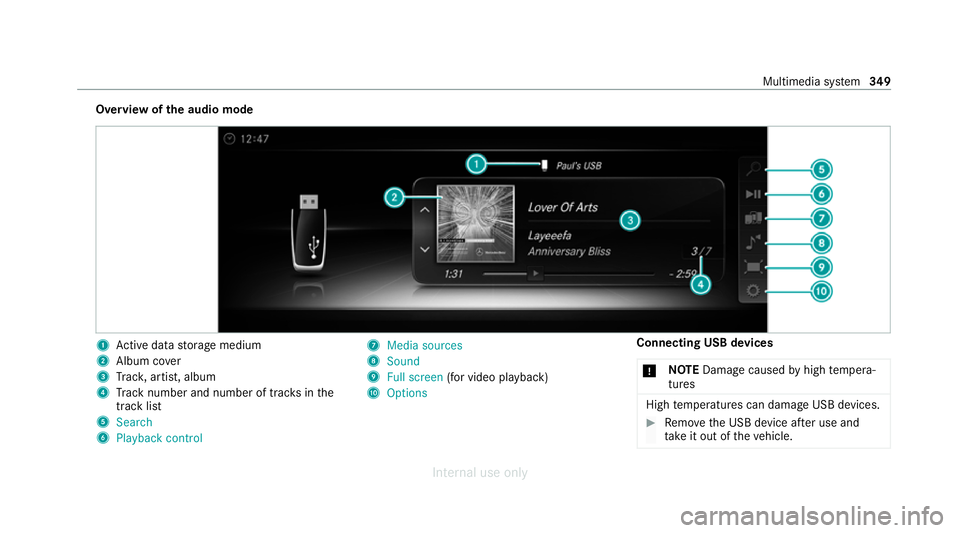
Overview of
the audio mode 1
Active da tastorage medium
2 Album co ver
3 Trac k, artist, album
4 Track number and number of trac ksinthe
track li st
5 Search
6 Playback control 7
Media sources
8 Sound
9 Full screen (for video play back)
A Options Connecting USB devices
* NO
TEDama gecaused byhigh temp era‐
tures High
temp eratures can damage USB devices. #
Remo vethe USB device af ter use and
ta ke it out of theve hicle. Multimedia sy
stem 349
Internal use only