service MERCEDES-BENZ C-CLASS SALOON 2012 Owner's Manual
[x] Cancel search | Manufacturer: MERCEDES-BENZ, Model Year: 2012, Model line: C-CLASS SALOON, Model: MERCEDES-BENZ C-CLASS SALOON 2012Pages: 557, PDF Size: 10.15 MB
Page 249 of 557
7
Selected transmission position
8 Multifunction displ ay(exa mp le:standard dis‐
play for a trip): assi stance / telephone /
navigation / trip / media / radio / styles
and displa ys/ service / possible settings
fo r head-up display
9 Fuel le vel and fuel filler flap location indica‐
tor Overview of buttons on
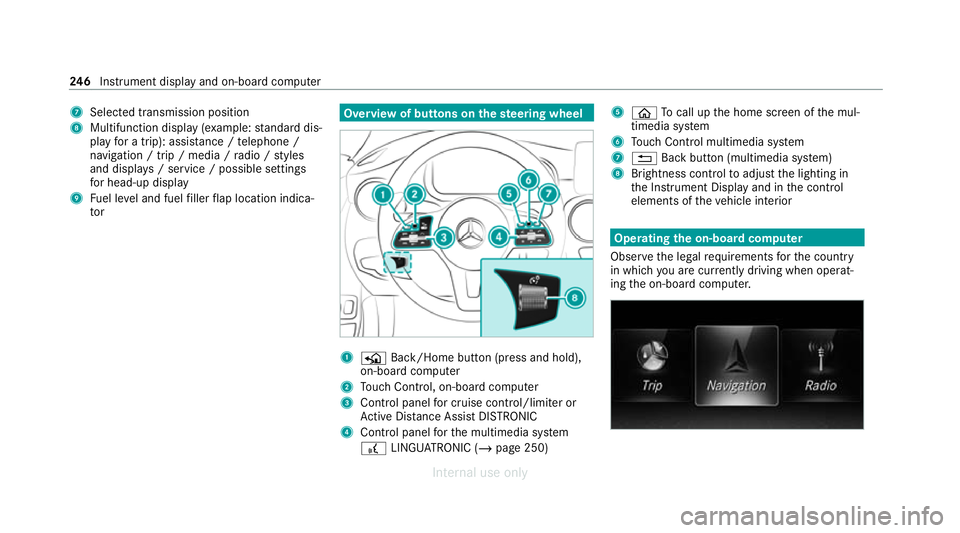
thest eering wheel 1
P Back/Home button (press and hold),
on-board computer
2 Touch Control, on-board co mputer
3 Control panel for cruise control/limiter or
Ac tive Dis tance Assi stDISTRONIC
4 Control panel forth e multimedia sy stem
£ LINGU ATRO NIC (/ page 250) 5
ò Tocall up the home screen of the mul‐
timedia sy stem
6 Touch Control multimedia sy stem
7 % Back button (multimedia sy stem)
8 Brightness control toadjust the lighting in
th e Instrument Display and in the control
elements of theve hicle interior Operating
the on-boa rdcompu ter
Obser vethe legal requ irements forth e count ry
in which you are cur rently driving when operat‐
ing the on-board computer. 246
Instrument display and on-board computer
Internal use only
Page 250 of 557
The on-board computer is operated using
the
left-hand Touch Control and the left-hand back/
home button.
When the on-board computer is being operated,
dif fere nt acoustic signals will sound as operating
fe edbac k,e.g. when the end of a list is reached
or when you are sc rolling thro ugh a list.
The following menus are available:
R Service
R Assistance
R Trip
R Navigation
R Radio
R Media
R Telephone
R HUD
R Vehicles with an instrument display in
th e widescreen cockpit: Design
% You can find information about the possible
settings and selections on the menus in the
Digital Owner's Manual. #
Tocall up the menu bar: pressthe left-hand
back button until the menu bar is displa yed.
% Press theò button tocall up the menu
bar of the on-board computer. #
Toscroll in the menu bar: swipe left or
ri ght on the left-hand Touch Control. #
Tocall up a menu, submenu or possible
settings on the menu, or confirm a selec‐
tion or setting: pressthe left-hand Touch
Control. #
Toscroll through displa ysor lists on the
menu, or select display content, a func‐
tion, an entry or a displa y:swipe upwards
or down wards on the left-hand Touch Con‐
trol. #
Toswitch between displa ys:swipe
upwards or down wards on the left-hand
To uch Control. #
Toexit a submenu: pressthe left-hand back
button.
Fu ll-screen menus
Yo u can displ aythefo llowing menus full-screen
on the instrument display: R
Assistance
R Trip #
Onthe cor responding menu, use the left-
hand Touch Control toscroll tothe end of the
list. #
Press the left-hand Touch Control.
The selected menu will be displ ayed full-
screen. Overview of displa
yson the multifunction
display
Displa yson the multifunction display
ë Active Parking Assist activated
(/ page 233)
é Parking Assist PARKTRONIC deacti vated
( / page 230)
¯ Cruise control (/
page194)
È Limi
ter (/ page194)
ç Active Dis tance Assi stDISTRONIC
(/ page 197)
æ Ac
tive Brake Assi st (/ page 210) Instrument display and on-boa
rdcompu ter247
Internal use only
Page 262 of 557
Vo
ice command Function
Traffic information on
Traffic information off To
switch the traf fic information service on/off
Radio info on
Radio info off To
switch information about the cur rent station on/off Overview of media pla
yervo ice commands Media pla
yervo ice commands can also be used
when the media pla yerru ns in the bac kground. LINGU
ATRO NIC 259
Internal use only
Page 284 of 557
Importing/exporting data
* NO
TELoss of da tadue topremature
re mo val #
Do not remo vethe data storage
medium when data is being expor ted.
Mercedes-Benz is not liable for any loss of
data. Re
quirements:
R The vehicle is stationar y.
R The ignition is switched on or theve hicle has
been star ted.
R The SD card is inser ted (/ page 348) or the
USB device is connecte d (/page 349).
Multimedia sy stem:
4 System 5
System backup #
Select Import data orExport data.
Importing #
Select a data storage medium.
A prom ptappears asking whe ther youre ally
wish to overwrite the cur rent da ta. If da ta originates from ano
ther vehicle, this is recog‐
nised du ring da tareading.
The multimedia sy stem is restar ted once the
data has been impor ted.
% Current vehicle settings can be edited af ter
th e import.
Exporting
If PIN pr otection is activated, your PIN is reques‐
te d. #
Ente rth efo ur-digit PIN. #
Select a data storage medium.
The data is expor ted. The data export may
ta ke several minutes. Ac
tivating/deactivating PIN pr otection Re
quirements:
To unlo ckthe PIN:
R There is an Internet connection.
R A Mercedes me account exists at https://
me.secure.mercedes-benz.com. R
The Personalisation service is active
(/ page 282).
Multimedia sy stem:
4 System 5
PIN protection
Setting the PIN #
Select Set PIN. #
Enter a four-digit PIN. #
Enterth efo ur-digit PIN again.
If bo thPINs match, PIN pr otection is active.
Changing the PIN #
Select Change settings. #
Enterth e cur rent PIN. #
Select Change PIN . #
Set a new PIN.
Ac tivating PIN pr otection for data export #
Select Change settings .
Confirm with th e PIN. #
Select Protect data export.
Ac tivate Oor deacti vate ª the function. Multimedia sy
stem 281
Internal use only
Page 285 of 557
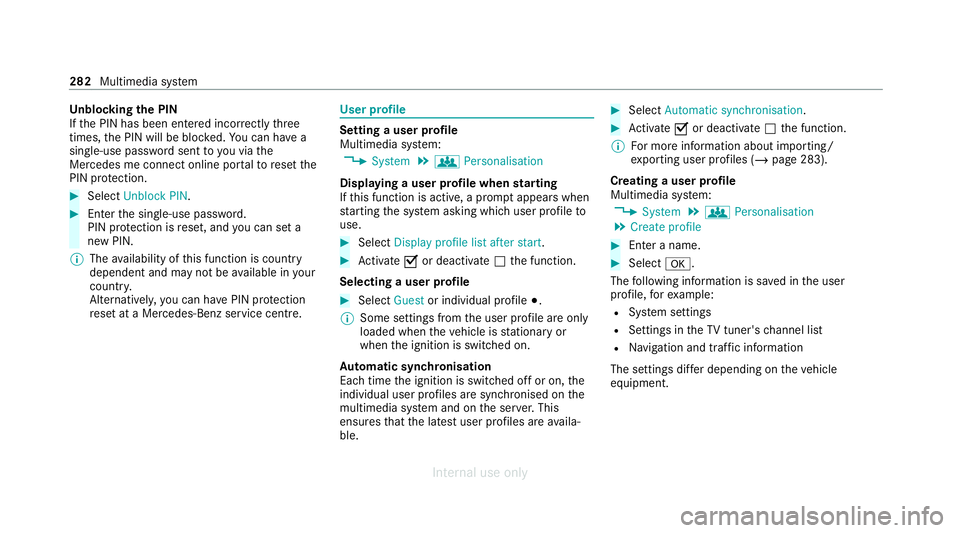
Un
blocking the PIN
If th e PIN has been entered incor rectly three
times, the PIN will be bloc ked. You can ha ve a
single-use password sent to you via the
Mercedes me connect online por talto reset the
PIN pr otection. #
Select Unblock PIN. #
Ente rth e single-use password.
PIN pr otection is reset, and you can set a
new PIN.
% The availability of this function is country
dependent and may not be available in your
count ry.
Alternati vely, you can ha vePIN pr otection
re set at a Mercedes-Benz service centre. User profile
Setting a user profile
Multimedia sy
stem:
4 System 5
g Personalisation
Displaying a user profile when starting
If th is function is active, a prom ptappears when
st arting the sy stem asking which user profile to
use. #
Select Display profile list after start . #
Activate Oor deacti vate ª the function.
Selecting a user profile #
Select Guestor individual profile #.
% Some settings from the user profile are only
loaded when theve hicle is stationary or
when the ignition is switched on.
Au tomatic syn chronisation
Each time the ignition is switched off or on, the
individual user profiles are synchronised on the
multimedia sy stem and on the ser ver.This
ensures that the latest user profiles are availa‐
ble. #
Select Automatic synchronisation. #
Activate Oor deacti vate ª the function.
% For more information about importing/
ex porting user profiles (/ page 283).
Creating a user profile
Multimedia sy stem:
4 System 5
g Personalisation
5 Create profile #
Ente r a name. #
Select a.
The following information is sa ved in the user
profile, forex ample:
R System settings
R Settings in theTV tuner's channel list
R Navigation and traf fic information
The settings diff er depending on theve hicle
equipment. 282
Multimedia sy stem
Internal use only
Page 286 of 557
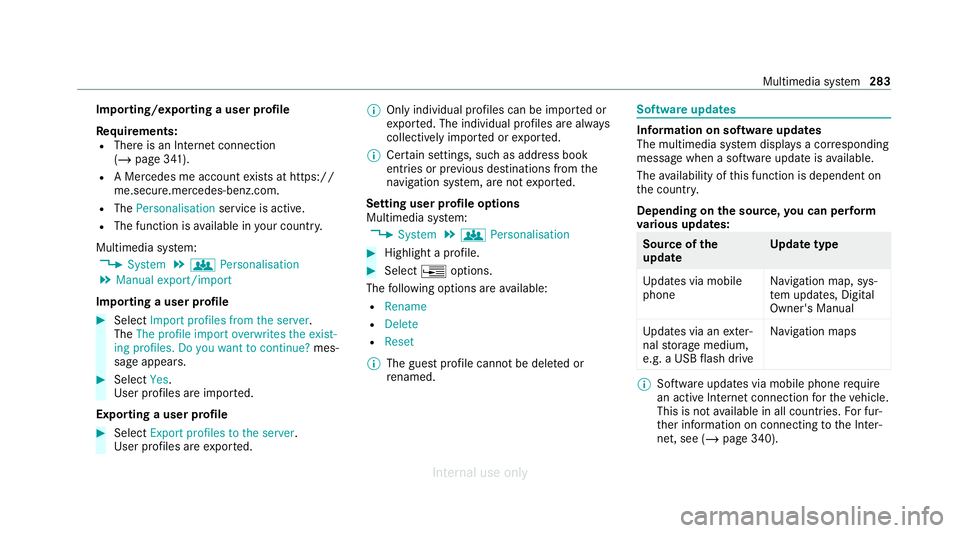
Importing/exporting a user profile
Re
quirements:
R There is an Internet connection
(/ page 341).
R A Mercedes me account exists at https://
me.secure.mercedes-benz.com.
R The Personalisation service is active.
R The function is available in your count ry.
Multimedia sy stem:
4 System 5
g Personalisation
5 Manual export/import
Importing a user profile #
Select Import profiles from the server.
The The profile import overwrites the exist-
ing profiles. Do you want to continue? mes‐
sage appears. #
Select Yes.
User profiles are impor ted.
Exporting a user profile #
Select Export profiles to the server.
User profiles are expor ted. %
Only individual profiles can be impor ted or
ex por ted. The individual profiles are alw ays
collectively impor ted or expor ted.
% Certain settings, such as address book
ent ries or pr evious destinations from the
navigation sy stem, are not expor ted.
Setting user profile options
Multimedia sy stem:
4 System 5
g Personalisation #
Highlight a profile. #
Select ¥options.
The following options are available:
R Rename
R Delete
R Reset
% The guest profile cannot be dele ted or
re named. So
ftwa reupdates Information on software updates
The multimedia sy
stem displa ysa cor responding
message when a software update isavailable.
The availability of this function is dependent on
th e count ry.
Depending on the source, you can per form
va rious update s: Source of
the
update Up
date type
Up dates via mobile
phone Na
vigation map, sys‐
te m updates, Digital
Owner's Manual
Up dates via an exter‐
nal storage medium,
e.g. a USB flash drive Na
vigation maps %
Software updates via mobile phone requ ire
an active Internet connection forth eve hicle.
This is not available in all countries. For fur‐
th er information on connecting tothe Inter‐
net, see (/ page 340). Multimedia sy
stem 283
Internal use only
Page 287 of 557
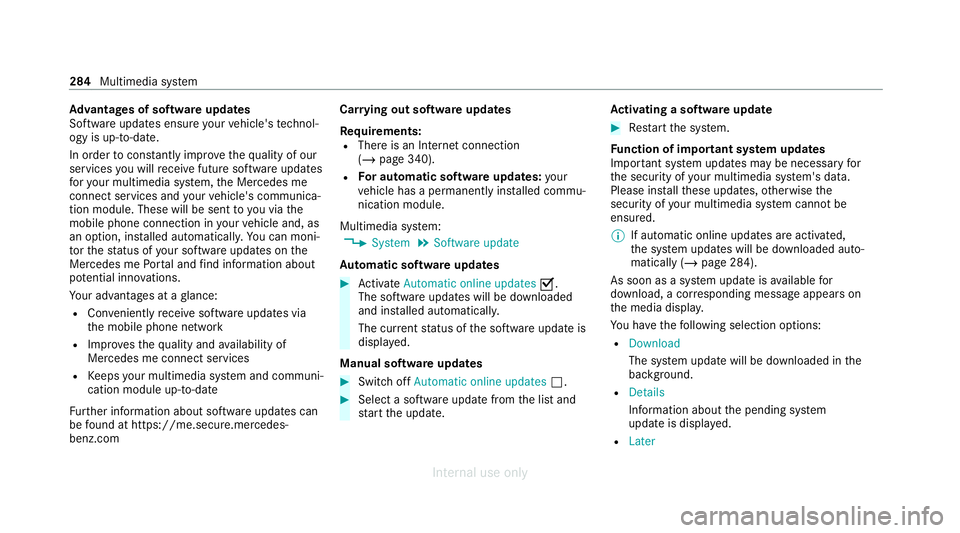
Ad
vantages of software updates
Software updates ensure your vehicle's tech nol‐
ogy is up-to-date.
In order tocons tantly impr ovethequ ality of our
services you will recei vefuture software updates
fo ryo ur multimedia sy stem, the Mercedes me
connect services and your vehicle's communica‐
tion module. These will be sent to you via the
mobile phone connection in your vehicle and, as
an option, ins talled automaticall y.Yo u can moni‐
to rth est atus of your software updates on the
Mercedes me Portal and find information about
po tential inno vations.
Yo ur advantages at a glance:
R Con veniently recei vesoftware update s via
th e mobile phone network
R Impr ovesth equ ality and availability of
Mercedes me connect services
R Keeps your multimedia sy stem and communi‐
cation module up-to-date
Fu rther information about software updates can
be found at https://me.secure.mercedes-
benz.com Car
rying out software updates
Requ irements:
R There is an Internet connection
(/ page 340).
R For automatic so ftwa reupdates: your
ve hicle has a permanently ins talled commu‐
nication module.
Multimedia sy stem:
4 System 5
Software update
Au tomatic so ftwa reupdates #
Activate Automatic online updates O.
The software upda tes will be downloaded
and ins talled automaticall y.
The cur rent status of the software update is
displa yed.
Manual software updates #
Switch off Automatic online updates ª. #
Select a software update from the list and
st art the update. Ac
tivating a so ftwa reupdate #
Restart the sy stem.
Fu nction of important sy stem updates
Impor tant sy stem updates may be necessary for
th e security of your multimedia sy stem's data.
Please ins tallth ese updates, otherwise the
security of your multimedia sy stem cann otbe
ensured.
% If automatic online updates are activated,
the sy stem updates will be downloaded auto‐
matically (/ page 284).
As soon as a sy stem update is available for
download, a cor responding message appears on
th e media displa y.
Yo u ha vethefo llowing selection options:
R Download
The sy stem update will be downloaded in the
bac kground.
R Details
Info rm ation about the pending sy stem
update is displa yed.
R Later 284
Multimedia sy stem
Internal use only
Page 288 of 557
The sy
stem update can be downloaded man‐
ually at a later time (/ page 284).
Yo u will be informed when the download is com‐
ple teand the sy stem update is ready for ins talla‐
tion.
% Park theve hicle safely in a suitable location
before starting the ins tallation.
Re quirements forth e ins tallation:
R The ignition is switched on.
R The engine is not running.
R Notes and warnings ha vebeen read and
accep ted.
R The parking brake is applied.
If all requirements are met, the sy stem update is
ins talled. The multimedia sy stem cann otbe
operated during the ins tallation and vehicle func‐
tions are restricted.
If er rors should occur during the ins tallation, the
multimedia sy stem automatically attem ptsto
re store the pr evious version. If restoration of the
pr ev ious version is not possible, a symbol
appears on the multimedia sy stem displa y.Con‐ sult a
qualified specialist workshop toresol ve
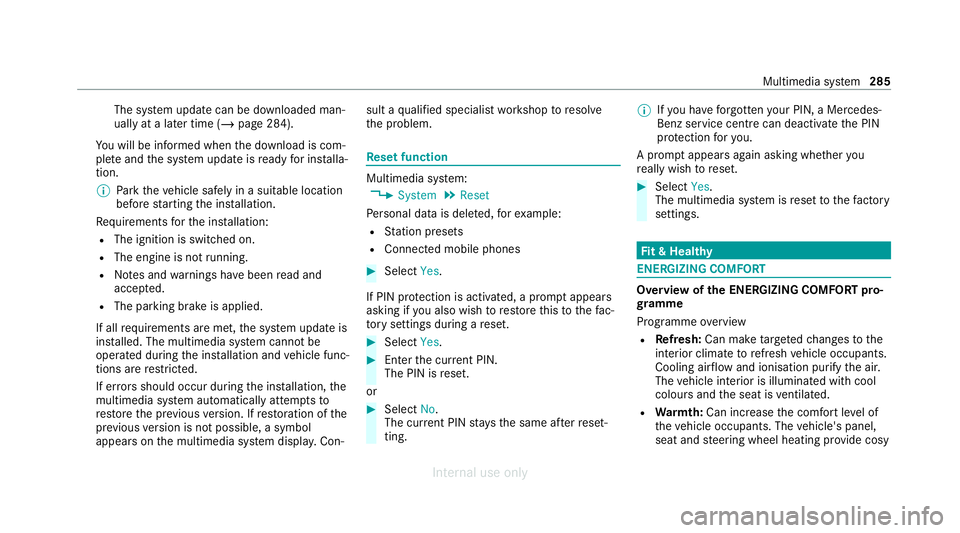
th e problem. Re
set function Multimedia sy
stem:
4 System 5
Reset
Pe rsonal data is dele ted, forex ample:
R Station presets
R Connec ted mobile phones #
Select Yes.
If PIN pr otection is activated, a prom ptappears
asking if you also wish torestore this to thefa c‐
to ry settings during a reset. #
Select Yes. #
Enter the cur rent PIN.
The PIN is reset.
or #
Select No.
The cur rent PIN stay sth e same af terre set‐
ting. %
Ifyo u ha veforg ottenyo ur PIN, a Mercedes-
Benz service centre can deactivate the PIN
pr otection foryo u.
A prom ptappears again asking whe ther you
re ally wish toreset. #
Select Yes.
The multimedia sy stem is reset tothefa ctory
settings. Fi
t & Healthy ENE
RGIZING COMFORT Overview of
the ENERGIZING COMFORT pro‐
gr amme
Programme overview
R Refresh: Can make targeted changes tothe
interior climate torefresh vehicle occupants.
Cooling air flow and ionisation purify the air.
The vehicle interior is illuminated with cool
colours and the seat is ventilated.
R Warmth: Can inc rease the comfort le vel of
th eve hicle occupants. The vehicle's panel,
seat and steering wheel heating pr ovide cosy Multimedia sy
stem 285
Internal use only
Page 291 of 557
Multimedia sy
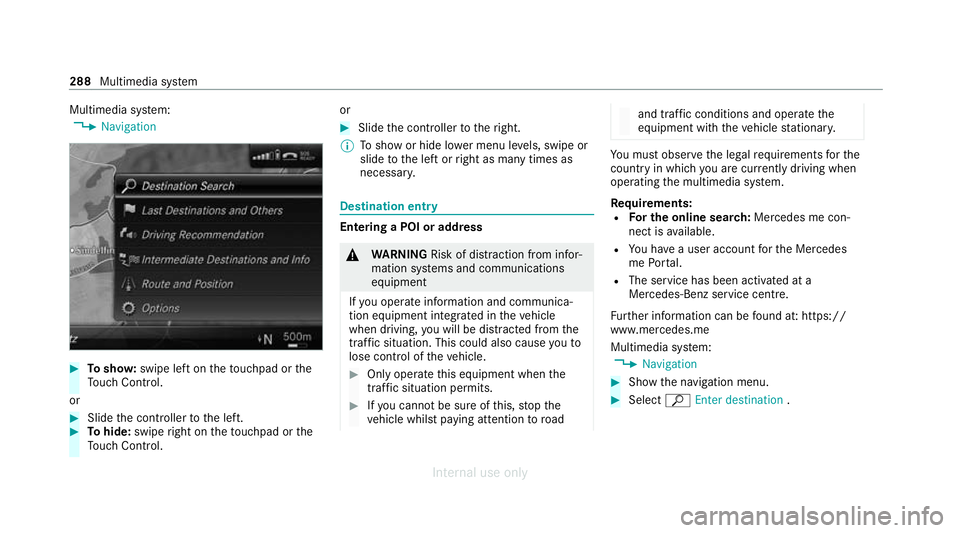
stem:
4 Navigation #
Tosho w:swipe left on theto uchpad or the
To uch Control.
or #
Slide the controller tothe left. #
Tohide: swipe right on theto uchpad or the
To uch Control. or #
Slide the controller totheright.
% Toshow or hide lo wer menu le vels, swipe or
slide tothe left or right as many times as
necessar y. Destination ent
ry Entering a POI or address
&
WARNING Risk of dist raction from infor‐
mation sy stems and communications
equipment
If yo u operate information and communica‐
tion equipment integ rated in theve hicle
when driving, you will be distracted from the
traf fic situation. This could also cause youto
lose control of theve hicle. #
Only operate this equipment when the
traf fic situation permits. #
Ifyo u cannot be sure of this, stop the
ve hicle whilst paying attention toroad and traf
fic conditions and ope rate the
equipment with theve hicle stationar y. Yo
u must obse rveth e legal requirements forthe
country in whi chyou are cur rently driving when
operating the multimedia sy stem.
Re quirements:
R For the online sear ch:Me rcedes me con‐
nect is available.
R You ha vea user account forth e Mercedes
me Portal.
R The service has been activated at a
Mercedes-Benz service centre.
Fu rther information can be found at: https://
www.mercedes.me
Multimedia sy stem:
4 Navigation #
Show the navigation menu. #
Select ªEnter destination .288
Multimedia sy stem
Internal use only
Page 296 of 557
#
Tochange the order of destinations: high‐
light the destination or the intermediate des‐
tination. #
Select ¥Move . #
Movethe intermediate destination tothe
desired position. #
Press theTo uch Control, the controller or the
to uchpad. #
Todel ete a destination: highlightthe desti‐
nation or the intermediate destination. #
Select ¥Delete.
Calculating a route with intermediate desti‐
nations
Re quirements:
R The destination and at least one intermediate
destination ha vebeen entered.
Multimedia sy stem:
4 Navigation
5 Intermediate destinations and info #
Select Start new route guidance.
The route is calculated with the set inter‐
mediate destinations. Selecting a contact
for destination entry
Re quirements:
R A mobile phone is connecte dto the multime‐
dia sy stem (/ page316).
R The "N avigate tocontact" online service is
av ailable and activated.
Multimedia sy stem:
4 Navigation
5 ¬ Previous and other destinations
5 Contacts #
Select the conta ct.
The contact de tails are displa yed. #
Select the address.
The Please wait... message appears. The
sear chis car ried out online. #
Select the destination.
Fi ltering displa ysfor contacts #
Enter a name or telephone number, forex am‐
ple, into the sear chfield. #
Select ¡.
The firs t contact in the list is highlighted. #
Select the conta ct. #
Select the address.
Entering geo-coordina tes
Multimedia sy stem:
4 Navigation
5 ¬ Previous and other destinations
5 Geo-coordinates #
Ente rge o-coordinates as latitude and longi‐
tude coordinates in degrees, minutes and
seconds.
The map sho ws the position. #
Confirm the entry. #
Tocalculate a route: select Start route
guidance. #
If a route has already been created, select
Start new route guidance orSet as inter-
mediate destination .
Entering the destination as a 3 wordaddress
Re quirements:
R Sear ching for a destination using 3 word
addresses is possible in the online sear ch
( / page 288). Multimedia sy
stem 293
Internal use only