steering MERCEDES-BENZ C-CLASS SALOON 2012 Service Manual
[x] Cancel search | Manufacturer: MERCEDES-BENZ, Model Year: 2012, Model line: C-CLASS SALOON, Model: MERCEDES-BENZ C-CLASS SALOON 2012Pages: 557, PDF Size: 10.15 MB
Page 235 of 557
Ac
tive Parking Assist is only an aid. It is not a
substitute foryo ur attention tothe sur roundings.
The responsibility for safe manoeuvring and
parking remains with you. Make sure that no
persons, animals or objects etc. are in the
manoeuvring range.
Ac tive Parking Assist will be cancelled in thefo l‐
lowing situations:
R Parking Assist PARKTRONIC is deacti vated.
R You begin steering.
R You apply the parking brake.
R You en gage transmission position j.
R ESP ®
inter venes.
R You open the doors or the boot lid while driv‐
ing.
Sy stem limits
If th eex terior lighting is malfunctioning, Active
Pa rking Assist is not available.
Objects located abo veor below the de tection
ra nge of the sensors, e.g. overhanging loads,
ove rhangs or loading ramp s of goods vehicles, or
th e borders of parking spaces, are not de tected
du ring measu rement of the parking space. These are also
then not take n into account when calcu‐
lating the parking procedure. In some circum‐
st ances, Active Parking Assist may therefore
guide you into the parking space incor rectl y. &
WARNING Risk of accident due to
objects located abo veor below the
de tection range of Active Parking Assist
If th ere are objects abo veor below the
de tection range, thefo llowing situations may
arise:
R Active Parking Assist may steer too early.
R The vehicle may not stop in front of these
objects.
This could cause a collision. #
Inthese situations, do not use Active
Pa rking Assist. Extreme
weather conditions, such as sn owor
heavy rain, may lead toa parking space being
measured inaccuratel y.Pa rking spaces that are
partial ly occupied bytrailer dr awbars might not
be identified as such or be measured incor rectly. Only use
Active Parking Assist on le vel, high- grip
ground.
Do not use Active Parking Assist in thefo llowing
situations:
R Inextreme weather conditions such as ice,
pac ked snow or in heavy rain.
R When transporting a load that pr otru des
be yond theve hicle.
R Onsteep uphill or downhill gradients of more
th an appr oximately 15%.
R When snow chains are fitted.
R When a trailer or bicycle rack is attached.
R Direct lyafte r a tyre change or when spare
tyres are fitted.
R Ifth e tyre pressure is too low or too high.
R Ifth e suspension is out of alignment, e.g.
af te r bottoming out on a kerb.
Ac tive Parking Assist may also display parking
spaces that are not suitable for parking, such as:
R Parking spaces where parking is prohibited.
R Parking spaces on unsuitable sur faces. 232
Driving and park ing
Internal use only
Page 251 of 557
è
Active Steering Assist (/ page 203)
à Ac
tive Lane Keeping Assist (/ page216)
è ECO
start/ stop function (/ page161)
ë HOLD function (/
page190)
_ Ad
aptive Highbeam Assist (/ page130)
Ad aptive Highbeam Assist Plus
(/ page 132)
ð Maximum pe rmissible speed exceeded
(for cer tain countries only)
Ve hicles with Traf fic Sign Assis t:de tected
instructions and traf fic signs (/ page 211). Head-u
p display Fu
nction of the head-up display *
NO
TEMercedes-AMG vehicles #
Obser vethe no tes in the Supplement.
Yo u could otherwise failto recognise
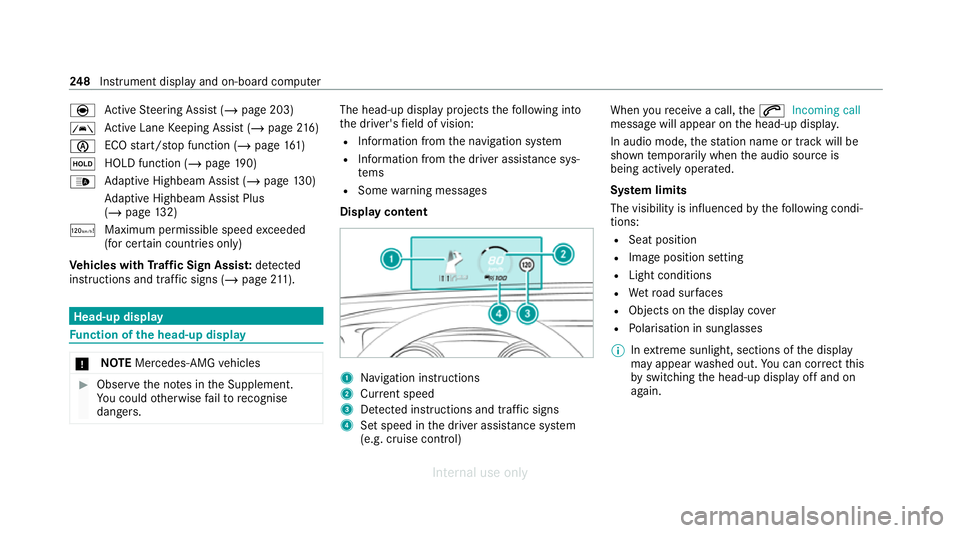
dangers. The head-up displ
ayprojects thefo llowing into
th e driver's field of vision:
R Information from the navigation sy stem
R Information from the driver assis tance sys‐
te ms
R Some warning messages
Display content 1
Navigation instructions
2 Curr ent speed
3 Detected instructions and traf fic signs
4 Set speed in the driver assis tance sy stem
(e.g. cruise control) When
youre cei vea call, the6 Incoming call
message will appear on the head-up displa y.
In audio mode, thest ation name or track will be
shown temp orarily when the audio source is
being actively operated.
Sy stem limits
The visibility is influenced bythefo llowing condi‐
tions:
R Seat position
R Image position setting
R Light conditions
R Wetro ad sur faces
R Objects on the display co ver
R Polarisation in sunglasses
% Inextreme sunlight, sections of the display
may appear washed out. You can co rrect this
by switching the head-up display off and on
again. 248
Instrument display and on-board computer
Internal use only
Page 253 of 557
Note
s on operating saf ety&
WARNING Risk of dist raction from infor‐
mation sy stems and communications
equipment
If yo u operate information and communica‐
tion equipment integ rated in theve hicle
when driving, you will be distracted from the
traf fic situation. This could also cause youto
lose control of theve hicle. #
Only operate this equipment when the
traf fic situation permits. #
Ifyo u cannot be sure of this, stop the
ve hicle whilst paying attention toroad
and traf fic conditions and ope rate the
equipment with theve hicle stationar y. Fo
ryo ur ow n sa fety, al ways obser vethefo llow‐
ing points when operating mobile communica‐
tions equipment and especially your voice con‐
trol sy stem:
R Obser vethe legal requ irements forth e coun‐
try in which you are driving. R
Ifyo u use thevo ice control sy stem in an
emer gency your voice can change and your
te lephone call, e.g. an emer gency call, can
th ereby be unnecessarily dela yed.
R Familiarise yourself with thevo ice control
sy stem functions before starting the journe y. Operation
Overview of operation of LINGU
ATRO NIC on
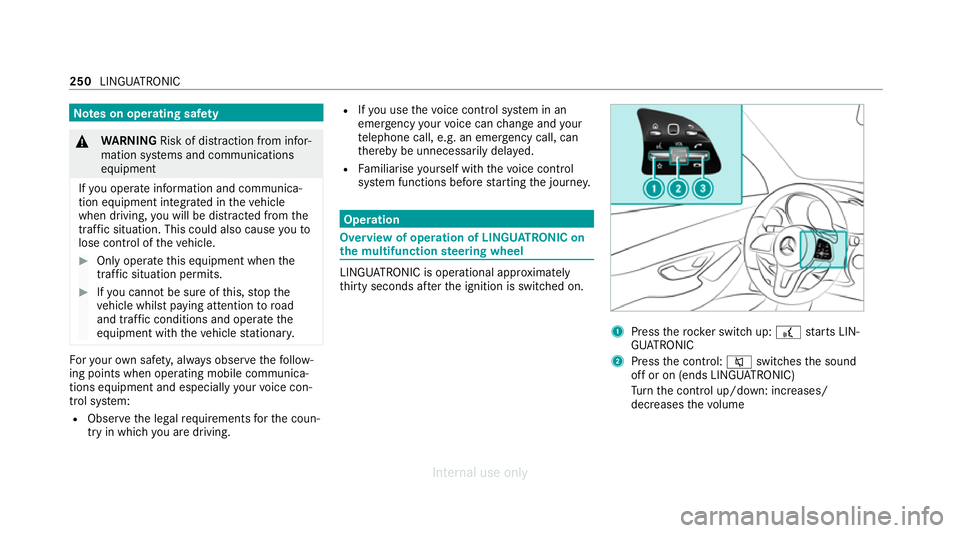
the multifunction steering wheel LINGU
ATRO NIC is operational appr oximately
th irty seconds af terth e ignition is switched on. 1
Press therock er switch up: £starts LIN‐
GU ATRO NIC
2 Press the control: 8switches the sound
off or on (ends LINGU ATRO NIC)
Tu rn the control up/down: increases/
decreases thevo lume 250
LINGU ATRO NIC
Internal use only
Page 254 of 557
3
Press therock er switch up: 6makes/
accepts a call
Press therock er switch down: ~rejects/
ends a call (ends LINGU ATRO NIC) Conducting a dialogue with LINGU
ATRO NIC #
Tostart or continue a dialogue: onthe
multifunction steering wheel, press the£
rock er switch up.
Yo u can say a voice command af ter an
acou stic signal. #
Tocor rect an ent ry:say theCorrection
vo ice command. #
Toselect an entry from the selection lis t:
say the line number or the conte nts. #
Tobrows eth e selection lis t:say theNext
or Back voice command. #
Tointer rupt the dialogue: saythePause
vo ice command. #
Tocancel the dialogue: saytheCancel
vo ice command. Operable functions
Yo
u can use the LINGU ATRO NIC voice control
sy stem tooperate thefo llowing equipment
depending on thefe atures:
R Telephone
R Text messa ges
R Navigation
R Address book
R Radio
R Audio (memory card, Media Inter face, USB
and Blu etoo th®
audio)
R TV
R Vehicle Overview of types of
voice command A distinction is made between
thefo llowing
vo ice commands:
R Global voice commands can be said at any
time and rega rdless of the cur rent applica‐
tion, e.g. thevo ice commands Navigate to,
Call orText message to. R
Application-specific voice commands are
only available forth e active application.
Once Linguatronic is star ted an autocue is
shown. Apart from theav ailable voice com‐
mands forth e application cur rently acti ve,th is
also cites example voice commands forot her
applications which are not active. In this wa y,
yo u will be familiar more quickly with theav aila‐
ble voice commands. The list can be scrolled or
it can be operated byspeech or the controller/
to uchpad. Information on
the language setting Yo
u can change the language of LINGU ATRO NIC
via the sy stem language settings. If the set sys‐
te m language is not suppor tedby LINGUA‐
TRONIC, English will be selected.
LINGU ATRO NIC is available foryo u in thefo llow‐
ing languages:
R German
R English
R French LINGU
ATRO NIC 251
Internal use only
Page 274 of 557
#
Navigate down wards once. #
Select a favo urite. #
Navigate down wards once.
The Favourites menu appears. #
Todel ete: select Delete. #
Select Yes. #
Toresto reall favo urites: selectReset all.
A prom ptappears. #
Select Yes.
The favo urites are reset tothefa ctory set‐
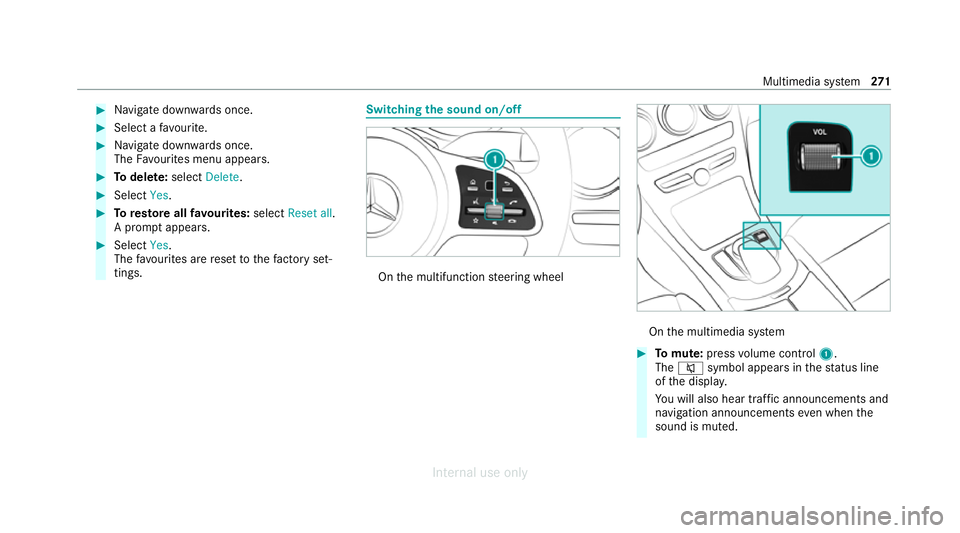
tings. Switching the sound on/off
On
the multifunction steering wheel On
the multimedia sy stem #
Tomute: pressvolume control 1.
The 8 symbol appears in thest atus line
of the displa y.
Yo u will also hear traf fic announcements and
navigation announcements even when the
sound is muted. Multimedia sy
stem 271
Internal use only
Page 275 of 557
#
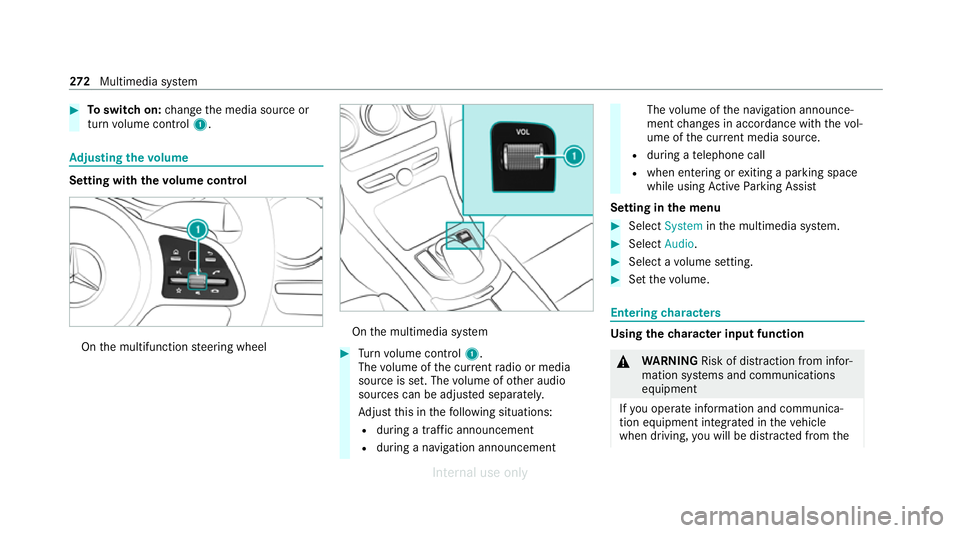
Toswitch on: change the media source or
turn volume control 1. Ad
justing the volume Setting with
thevo lume control On
the multifunction steering wheel On
the multimedia sy stem #
Turn volume control 1.
The volume of the cur rent radio or media
source is set. The volume of other audio
sources can be adjus ted separatel y.
Ad just this in thefo llowing situations:
R during a traf fic announcement
R during a navigation announcement The
volume of the navigation announce‐
ment changes in accordance with thevo l‐
ume of the cur rent media sou rce.
R during a telephone call
R when entering or exiting a parking space
while using Active Parking Assist
Setting in the menu #
Select System inthe multimedia sy stem. #
Select Audio. #
Select a volume setting. #
Set thevo lume. Entering
characters Using
thech aracter input function &
WARNING Risk of dist raction from infor‐
mation sy stems and communications
equipment
If yo u operate information and communica‐
tion equipment integ rated in theve hicle
when driving, you will be distracted from the272
Multimedia sy stem
Internal use only
Page 288 of 557
The sy
stem update can be downloaded man‐
ually at a later time (/ page 284).
Yo u will be informed when the download is com‐
ple teand the sy stem update is ready for ins talla‐
tion.
% Park theve hicle safely in a suitable location
before starting the ins tallation.
Re quirements forth e ins tallation:
R The ignition is switched on.
R The engine is not running.
R Notes and warnings ha vebeen read and
accep ted.
R The parking brake is applied.
If all requirements are met, the sy stem update is
ins talled. The multimedia sy stem cann otbe
operated during the ins tallation and vehicle func‐
tions are restricted.
If er rors should occur during the ins tallation, the
multimedia sy stem automatically attem ptsto
re store the pr evious version. If restoration of the
pr ev ious version is not possible, a symbol
appears on the multimedia sy stem displa y.Con‐ sult a
qualified specialist workshop toresol ve
th e problem. Re
set function Multimedia sy
stem:
4 System 5
Reset
Pe rsonal data is dele ted, forex ample:
R Station presets
R Connec ted mobile phones #
Select Yes.
If PIN pr otection is activated, a prom ptappears
asking if you also wish torestore this to thefa c‐
to ry settings during a reset. #
Select Yes. #
Enter the cur rent PIN.
The PIN is reset.
or #
Select No.
The cur rent PIN stay sth e same af terre set‐
ting. %
Ifyo u ha veforg ottenyo ur PIN, a Mercedes-
Benz service centre can deactivate the PIN
pr otection foryo u.
A prom ptappears again asking whe ther you
re ally wish toreset. #
Select Yes.
The multimedia sy stem is reset tothefa ctory
settings. Fi
t & Healthy ENE
RGIZING COMFORT Overview of
the ENERGIZING COMFORT pro‐
gr amme
Programme overview
R Refresh: Can make targeted changes tothe
interior climate torefresh vehicle occupants.
Cooling air flow and ionisation purify the air.
The vehicle interior is illuminated with cool
colours and the seat is ventilated.
R Warmth: Can inc rease the comfort le vel of
th eve hicle occupants. The vehicle's panel,
seat and steering wheel heating pr ovide cosy Multimedia sy
stem 285
Internal use only
Page 304 of 557
Switching navigation announcements on/off
Re
quirements:
R route guidance is active. #
Toswitch off: pressthevo lume control on
th e multifunction steering wheel during a
navigation announcement (/ page271).
or #
Press thevo lume control on the cent recon‐
sole du ring a navigation announcement
(/ page 271).
The Spoken driving recommendations have
been deactivated. messageappears.
or #
Show the navigation menu (/ page 287).#
Select !Driving recommendation .
The symbol changes to# . #
Toactivate: select#Driving recommen-
dation .
The cur rent navigation announcement is
pl ay ed. %
Inthefo llowing situations, navigation
announcements are switched on automati‐
cally:
R A new route guidance is star ted.
R The route is recalculated.
% You can add and call up this function as a
fa vo urite under Spoken driving recommenda-
tions on/off.
Swit ching navigation announcements on/off
during a phone call #
Select System. #
Select õAudio. #
Select Navigation and traffic announce-
ments. #
Swit chDriving recommendations during
phone call onO or off ª.
Ad justing the volume of navigation
announcements
Re quirements:
R Route guidance is active. #
On the multifunction steering wheel or
on the multimedia sy stem: turn thevo lume
control on the multifunction steering wheel
during a navigation announcement.
or #
Turn thevo lume control on the cent recon‐
sole du ring a navigation announcement
(/ page 272).
% Inthefo llowing situations, thevo lume is
ra ised tothe maximum volume or lo weredto
th e minimum volume:
R A new route guidance is star ted.
R The route is recalculated.
% The minimum volume can be individually set
at a Mercedes-Benz Service Cent re. #
Via sy stem settings: selectSystem. #
Select õAudio. #
Select Navigation and traffic announce-
ments. #
Select Driving recommendation volume. #
Set thevo lume. Multimedia sy
stem 301
Internal use only
Page 323 of 557
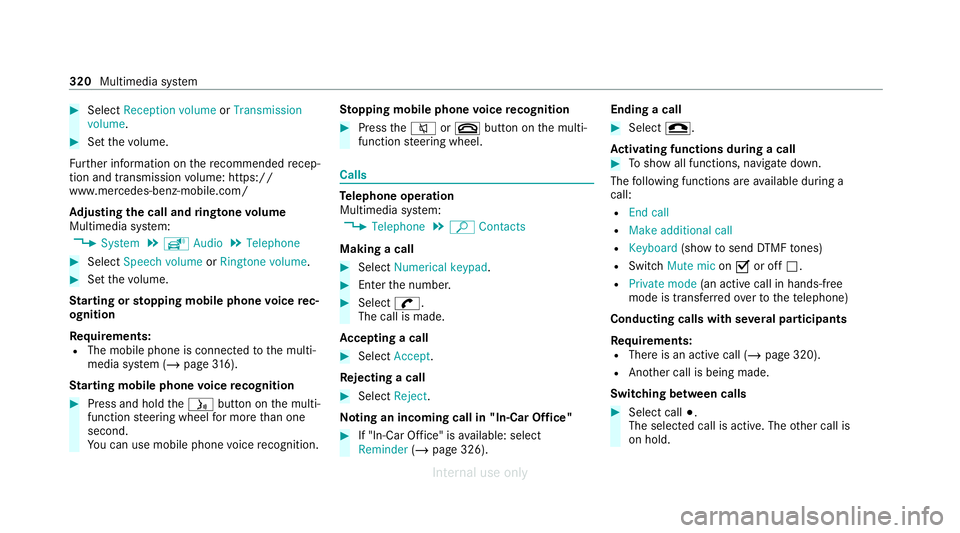
#
Select Reception volume orTransmission
volume. #
Set thevo lume.
Fu rther information on there commended recep‐
tion and transmission volume: https://
www.me rcedes-benz-mobile.com/
Ad justing the call and ringtone volume
Multimedia sy stem:
4 System 5
õ Audio 5
Telephone #
Select Speech volume orRingtone volume .#
Set thevo lume.
St arting or stopping mobile phone voice rec‐
ognition
Re quirements:
R The mobile phone is connecte dto the multi‐
media sy stem (/ page316).
St arting mobile phone voice recognition #
Press and hold theó button on the multi‐
function steering wheel for more than one
second.
Yo u can use mobile phone voice recognition. St
opping mobile phone voice recognition #
Press the8 or~ button on the multi‐
function steering wheel. Calls
Te
lephone operation
Multimedia sy stem:
4 Telephone 5
ª Contacts
Making a call #
Select Numerical keypad. #
Ente rth e number. #
Select w.
The call is made.
Ac cepting a call #
Select Accept .
Re jecting a call #
Select Reject.
No ting an incoming call in "In-Car Of fice" #
If "In-Car Of fice" is available: select
Reminder (/page 326). Ending a call #
Select =.
Ac tivating functions during a call #
Toshow all functions, navigate down.
The following functions are available during a
call:
R End call
R Make additional call
R Keyboard (showtosend DTMF tones)
R Switch Mute mic onO or off ª.
R Private mode (an activecall in hands-free
mode is transfer redove rto thete lephone)
Conducting calls with se veral participants
Requ irements:
R There is an active call (/ page 320).
R Another call is being made.
Switching between calls #
Select call #.
The selected call is active. The other call is
on hold. 320
Multimedia sy stem
Internal use only
Page 331 of 557
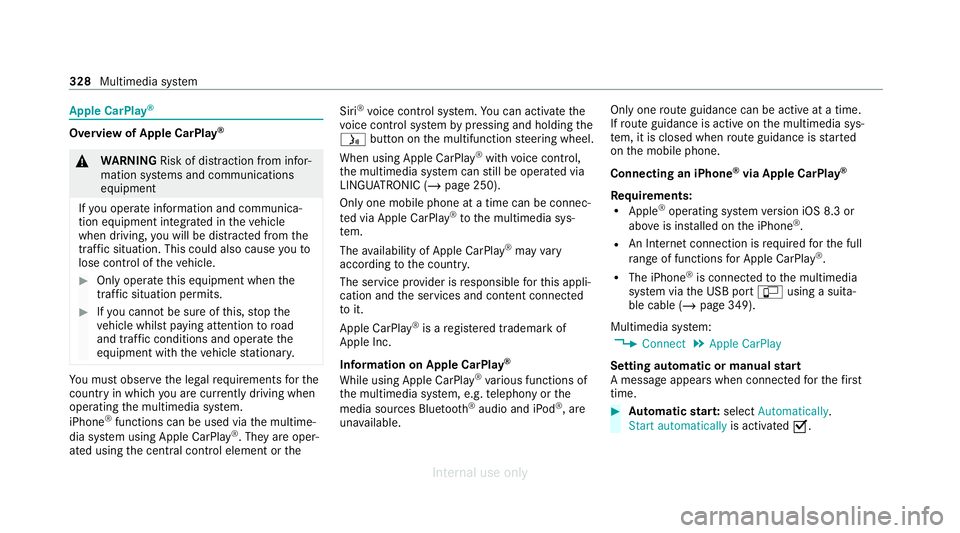
Apple CarPlay
®Overview of Apple CarPlay
®&
WARNING Risk of dist raction from infor‐
mation sy stems and communications
equipment
If yo u operate information and communica‐
tion equipment integ rated in theve hicle
when driving, you will be distracted from the
traf fic situation. This could also cause youto
lose control of theve hicle. #
Only operate this equipment when the
traf fic situation permits. #
Ifyo u cannot be sure of this, stop the
ve hicle whilst paying attention toroad
and traf fic conditions and ope rate the
equipment with theve hicle stationar y. Yo
u must obse rveth e legal requirements forthe
country in whi chyou are cur rently driving when
operating the multimedia sy stem.
iPhone ®
functions can be used via the multime‐
dia sy stem using Apple CarPlay ®
. They are oper‐
ated using the cent ral control element or theSiri
®
vo ice control sy stem. You can activate the
vo ice control sy stem bypressing and holding the
ó button on the multifunction steering wheel.
When using Apple CarPlay ®
with voice control,
th e multimedia sy stem can still be operated via
LINGU ATRO NIC (/ page 250).
Only one mobile phone at a time can be connec‐
te d via Apple CarPlay ®
to the multimedia sys‐
te m.
The availability of Apple CarPlay ®
may vary
according tothe count ry.
The service pr ovider is responsible forth is appli‐
cation and the services and conte nt connected
to it.
Apple CarPlay ®
is a regis tere d trademark of
Apple Inc.
Information on Apple CarPlay ®
While using Apple CarPlay ®
va rious functions of
th e multimedia sy stem, e.g. telephony or the
media sources Blue tooth ®
audio and iPod ®
, are
una vailable. Only one
route guidance can be active at a time.
If ro ute guidance is active on the multimedia sys‐
te m, it is closed when route guidance is star ted
on the mobile phone.
Connecting an iPhone ®
via Apple CarPlay ®
Re quirements:
R Apple ®
operating sy stem version iOS 8.3 or
abo veis ins talled on the iPhone ®
.
R An Internet connection is requiredforth e full
ra nge of functions for Apple CarPlay ®
.
R The iPhone ®
is connected tothe multimedia
sy stem via the USB port çusing a suita‐
ble cable (/ page 349).
Multimedia sy stem:
4 Connect 5
Apple CarPlay
Setting automatic or manual start
A messa geappears when connec tedfo rth efirst
time. #
Automatic star t:select Automatically.
Start automatically is activatedO. 328
Multimedia sy stem
Internal use only