tow MERCEDES-BENZ C-CLASS SALOON 2012 Repair Manual
[x] Cancel search | Manufacturer: MERCEDES-BENZ, Model Year: 2012, Model line: C-CLASS SALOON, Model: MERCEDES-BENZ C-CLASS SALOON 2012Pages: 557, PDF Size: 10.15 MB
Page 292 of 557
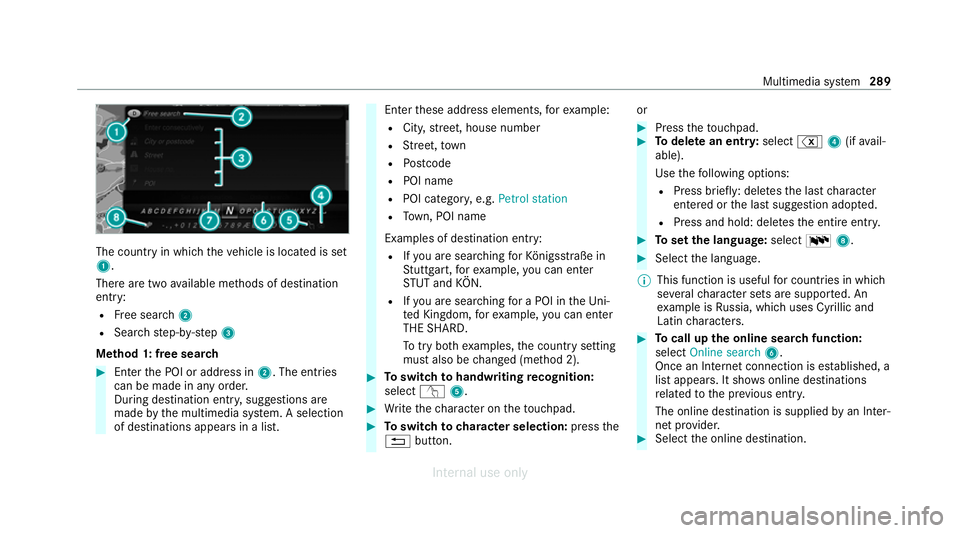
The count
ryin which theve hicle is located is set
1.
There are two available me thods of destination
entry:
R Free sear ch2
R Sea rchstep-b y-step 3
Me thod 1: free sear ch #
Enter the POI or address in 2. The entries
can be made in any order.
During destination entry , suggestions are
made bythe multimedia sy stem. A selection
of destinations appears in a list. Ente
rth ese address elements, forex ample:
R City, stre et, house number
R Street,to wn
R Postcode
R POI name
R POI catego ry, e.g. Petrol station
R Town, POI name
Examples of destination ent ry:
R Ifyo u are sear ching forKö nigsstraße in
St utt gart,fo rex ample, you can en ter
ST UT and KÖN.
R Ifyo u are sear ching for a POI in theUni‐
te d Kingdom, forex ample, you can en ter
THE SHARD.
To try bo thexamples, the count rysetting
must also be changed (me thod 2). #
Toswitch tohandwriting recognition:
select v5. #
Write thech aracter on theto uchpad. #
Toswitch to character selection: pressthe
% button. or #
Press theto uchpad. #
Todel ete an entr y:select %4(ifavail‐
able).
Use thefo llowing options:
R Press brief ly: del etes the last character
entered or the last suggestion adop ted.
R Press and hold: dele testh e entire entry. #
Toset the language: selectB8. #
Select the language.
% This function is useful for countries in which
se veralch aracter sets are suppo rted. An
ex ample is Russia, which uses Cyrillic and
Latin characters. #
Tocall up the online sear chfunction:
select Online search 6.
Once an Internet connection is es tablished, a
list appears. It sho wsonline destinations
re lated tothe pr evious ent ry.
The online destination is supplied byan In ter‐
net pr ovider. #
Select the online destination. Multimedia sy
stem 289
Internal use only
Page 322 of 557
Information on
NearField Communication
(NFC)
NFC enables short- range wi reless data transfer
or (re)connection of a mobile phone with the
multimedia sy stem.
The following functions are available without
having authorised a mobile phone:
R Trans ferring a URL tobe vie wed in the multi‐
media sy stem (see the manufacturer's oper‐
ating instructions).
R Setting up theve hicle's Wi-Fi access da tavia
th e sy stem settings (/ page278).
Fu rther information can be found at: https://
www.mercedes-benz-mobile.com/
Using a mobile phone with NearField Com‐
munication (NFC)
Re quirements:
R NFC is activated on the mobile phone (see
th e manufacturer's operating instructions)
R The mobile phone's screen is switched on
and unloc ked (see the manufacturer's oper‐
ating instructions) #
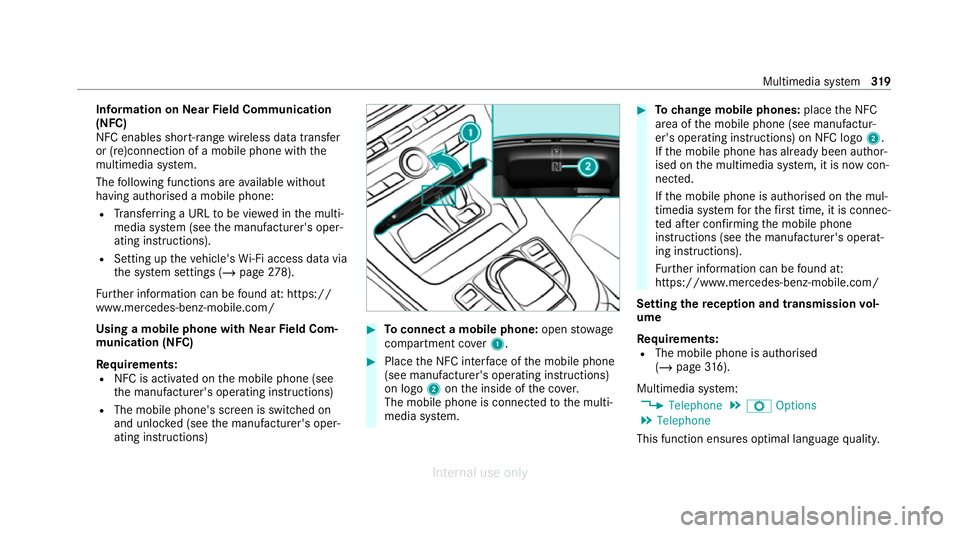
Toconnect a mobile phone: openstowage
compartment co ver1. #
Place the NFC inter face of the mobile phone
(see manufacturer's operating instructions)
on logo 2onthe inside of the co ver.
The mobile phone is connected tothe multi‐
media sy stem. #
Tochange mobile phones: placethe NFC
area of the mobile phone (see manufactur‐
er's operating instructions) on NFC logo 2.
If th e mobile phone has already been author‐
ised on the multimedia sy stem, it is now con‐
nected.
If th e mobile phone is authorised on the mul‐
timedia sy stem forth efirs t time, it is connec‐
te d af ter confirming the mobile phone
instructions (see the manufacturer's operat‐
ing instructions).
Fu rther information can be found at:
https://www.mercedes-benz-mobile.com/
Setting there ception and transmission vol‐
ume
Re quirements:
R The mobile phone is authorised
(/ page 316).
Multimedia sy stem:
4 Telephone 5
Z Options
5 Telephone
This function ensures optimal language qualit y. Multimedia sy
stem 319
Internal use only
Page 333 of 557
using
the cent ral control element or voice con‐
trol sy stem. You can activate thevo ice control
sy stem bypressing and holding theó button
on the multifunction steering wheel.
When using Android Autowith voice control, the
multimedia sy stem can still be operated using
LINGU ATRO NIC (/ page 250).
Only one mobile phone at a time can be connec‐
te d via Android Autowith the multimedia sys‐
te m.
The availability of Android Autoand Android Auto
apps may vary according tothe count ry.
The service pr ovider is responsible forth is appli‐
cation and the services and conte nt connected
to it.
Information on Android Auto
While using Android Auto,va rious functions of
th e multimedia sy stem, forex ample the media
source Blue tooth ®
audio, are not available.
On lyone route guidance can be active at a time.
If ro ute guidance is active on the multimedia sys‐
te m, it is closed when route guidance is star ted
on the mobile phone. Connecting a mobile phone via Android
Auto
Requ irements:
R The firs t acti vation of Android Autoon the
multimedia sy stem must be car ried out when
th eve hicle is stationary for saf etyre asons.
R The mobile phone suppo rts Android Auto
from Android 5.0.
R The Android Autoapp is ins talled on the
mobile phone.
R In order touse thete lephone functions, the
mobile phone must be connected tothe mul‐
timedia sy stem via Blue tooth®
(/ page 316).
If th ere was no prior Internet connection, this
is es tablished with the use of the mobile
phone with Android Auto.
R The mobile phone is connected tothe multi‐
media sy stem via the USB port çusing a
suitable cable (/ page 349).
R An Internet connection is requiredforth e full
ra nge of functions for Android Auto. Multimedia sy
stem:
4 Connect 5
Android Auto #
Select the mobile phone from the device list.
Ac cepting/rejecting the data pr otection reg‐
ulations
A message with the data pr otection regulations
appears. #
Select Accept & Start .
or #
Select Decline & End.
Ac tivating automatic start #
Select Start automatically O.
St arting manually #
Select the mobile phone from the device list.
Exiting Android Auto #
Press theò button on the multifunction
st eering wheel, forex ample. 330
Multimedia sy stem
Internal use only
Page 334 of 557
%
If Android Autowa s not displa yed in thefo re‐
ground before disconnecting, the application
st arts in the bac kground when reconnected.
Yo u can call up Android Autointhe main
menu.
Calling up the Android Autosound settings
Multimedia sy stem:
4 Connect 5
Android Auto 5
Sound #
Select theto ne menu (/ page 369).
Ending Android Auto
Multimedia sy stem:
4 Connect 5
Android Auto #
Select Disconnect.
The connection is ended.
The mobile phone continues tobe supplied
with elect ricity.
or #
Disconnect the connecting cable between
th e mobile phone and multimedia sy stem.
Mercedes-Benz recommends disconnecting
th e connecting cable only when theve hicle is
st ationar y. Tr
ansfer redve hicle data with Android Auto
and Apple CarPlay ® Overview of transfer
redve hicle data
When using Android Autoor Apple CarPlay ®
, cer‐
ta in vehicle data is transfer redto the mobile
phone. This enables youto getth e best out of
selected mobile phone services. Vehicle data is
not directly accessible.
The following sy stem information is transmit ted:
R Software release of the multimedia sy stem
R System ID (anonymised)
The transfer of this data is used tooptimise
communication between theve hicle and the
mobile phone.
To do this, and toassign se veralve hicles tothe
mobile phone, a vehicle identifier is randomly
ge nerated.
This has no connection totheve hicle identifica‐
tion number (VIN) and is dele ted when the multi‐
media sy stem is reset (/ page 285).
The following driving status data is transmit ted:
R Transmission position engaged R
Distinction between par ked, standstill, rolling
and driving
R Day/night mode of the instrument clus ter
The transfer of this data is used toalter how
con tent is displ ayed tocor respond tothe driving
situation.
The following position data is transmitte d:
R Coordinates
R Speed
R Compass direction
R Acceleration dire ction
This da tais only transfer red while the navigation
sy stem is active in order toimpr oveit (e.g. so it
can continue functioning when in a tunnel). Mercedes me calls
Making a call via the
overhead control panel
Requ irements:
R You ha veaccess toa GSM networ k.
R The contra ct partner's GSM network co ver‐
age is available in there spective region. Multimedia sy
stem 331
Internal use only
Page 351 of 557
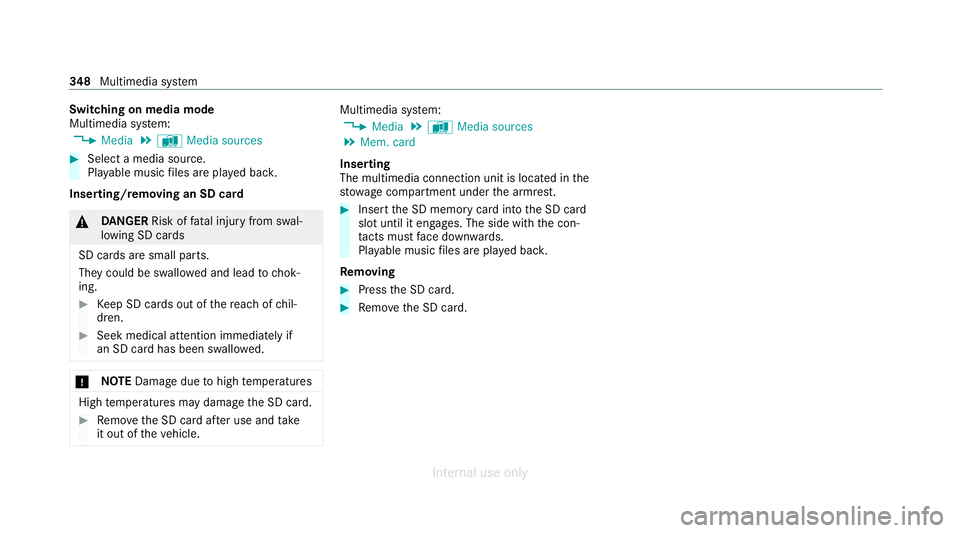
Switching on media mode
Multimedia sy
stem:
4 Media 5
à Media sources #
Select a media source.
Playable music files are pla yed bac k.
Inserting/removing an SD card &
DANG ER Risk of fata l injury from swal‐
lowing SD cards
SD cards are small parts.
They could be swallo wed and lead tochok‐
ing. #
Keep SD cards out of there ach of chil‐
dren. #
Seek medical attention immediately if
an SD card has been swallo wed. *
NO
TEDama gedue tohigh temp eratures High
temp eratures may damage the SD card. #
Remo vethe SD card af ter use and take
it out of theve hicle. Multimedia sy
stem:
4 Media 5
à Media sources
5 Mem. card
Inserting
The multimedia connection unit is located in the
stow age compartment under the armrest. #
Insert the SD memory card into the SD card
slot until it engages. The side with the con‐
ta cts must face down wards.
Pla yable music files are pla yed bac k.
Re moving #
Press the SD card. #
Remo vethe SD card. 348
Multimedia sy stem
Internal use only
Page 353 of 557
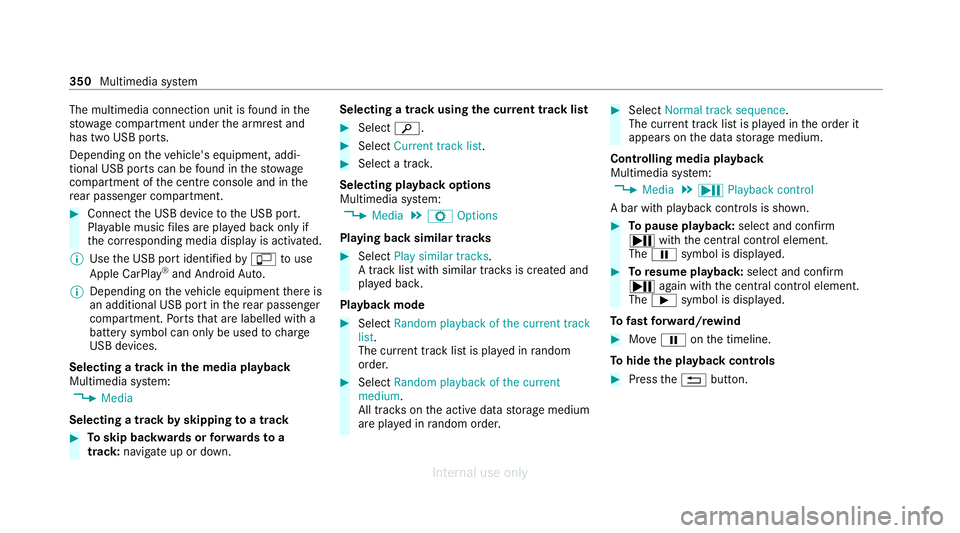
The multimedia connection unit is
found in the
stow age compartment under the armrest and
has two USB ports.
Depending on theve hicle's equipment, addi‐
tional USB ports can be found in thestow age
compartment of the cent reconsole and in the
re ar passenger compartment. #
Connect the USB device tothe USB port.
Pla yable music files are pla yed back only if
th e cor responding media display is activated.
% Use the USB port identified byç touse
Apple CarPlay ®
and Android Auto.
% Depending on theve hicle equipment there is
an additional USB port in there ar passenger
compartment. Ports th at are labelled with a
bat tery symbol can only be used tocharge
USB devices.
Selecting a track in the media playba ck
Multimedia sy stem:
4 Media
Selecting a track byskipping toa track #
Toskip backwards or forw ards toa
track: navigate up or down. Selecting a track using
the cur rent track list #
Select è. #
Select Current track list. #
Select a tra ck.
Selecting playback options
Multimedia sy stem:
4 Media 5
Z Options
Playing back similar trac ks #
Select Play similar tracks.
A track li stwith similar trac ksis created and
pla yed bac k.
Playback mode #
Select Random playback of the current track
list.
The cur rent track li stis pla yed in random
orde r. #
Select Random playback of the current
medium.
All trac kson the active data storage medium
are pla yed in random orde r. #
Select Normal track sequence .
The cur rent track li stis pla yed in the order it
appears on the data storage medium.
Controlling media playback
Multimedia sy stem:
4 Media 5
Y Playback control
A bar with playback controls is shown. #
Topause playback: select and confirm
Y with th e cent ral control element.
The Ë symbol is displa yed. #
Toresume playback: select and confirm
Y again with the cent ral control element.
The Ì symbol is displa yed.
To fast forw ard/r ewind #
MoveË onthe timeline.
To hide the playback controls #
Press the% button. 350
Multimedia sy stem
Internal use only
Page 356 of 557
#
Todeactivate full-sc reen mode: pressthe
to uchpad.
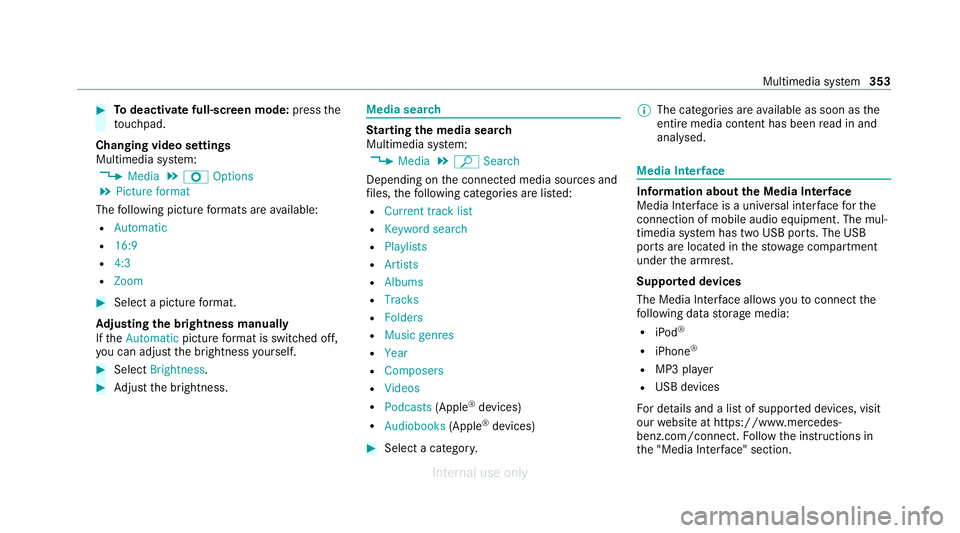
Changing video settings
Multimedia sy stem:
4 Media 5
Z Options
5 Picture format
The following picture form ats are available:
R Automatic
R 16:9
R 4:3
R Zoom #
Select a picture form at.
Ad justing the brightness manually
If th eAutomatic pictureform at is swit ched off,
yo u can adjust the brightness yourself. #
Select Brightness. #
Adjust the brightness. Media sear
ch St
arting the media sear ch
Multimedia sy stem:
4 Media 5
ª Search
Depending on the connected media sources and
fi les, thefo llowing categories are lis ted:
R Current track list
R Keyword search
R Playlists
R Artists
R Albums
R Tracks
R Folders
R Music genres
R Year
R Composers
R Videos
R Podcasts (Apple®
devices)
R Audiobooks (Apple®
devices) #
Select a categor y. %
The categories are available as soon as the
entire media conte nt has beenread in and
anal ysed. Media Inter
face Information about
the Media Inter face
Media In terface is a universal inter face forthe
connection of mobile audio equipment. The mul‐
timedia sy stem has two USB ports. The USB
ports are located in thestow age compartment
under the armrest.
Suppor ted devices
The Media Inter face allo wsyouto connect the
fo llowing data storage media:
R iPod ®
R iPhone ®
R MP3 pla yer
R USB devices
Fo r de tails and a list of suppor ted devices, visit
our website at https://www.mercedes-
benz.com/connect. Follow the instructions in
th e "Media Inter face" section. Multimedia sy
stem 353
Internal use only
Page 384 of 557
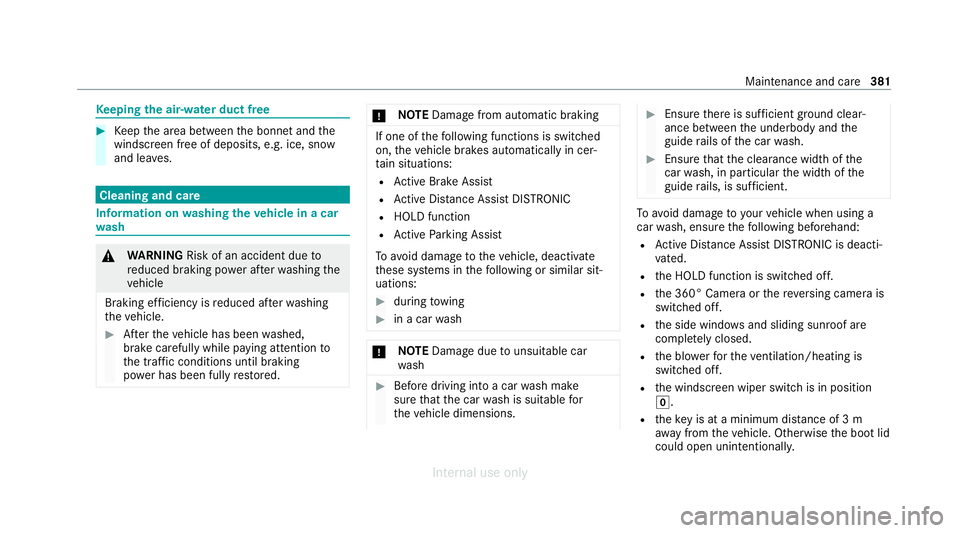
Ke
eping the air-water duct free #
Keep the area between the bonn etand the
windscreen free of deposits, e.g. ice, snow
and lea ves. Cleaning and care
Information on
washing theve hicle in a car
wa sh &
WARNING Risk of an accident due to
re duced braking po wer af terwa shing the
ve hicle
Braking ef ficiency is reduced af terwa shing
th eve hicle. #
Afterth eve hicle has been washed,
brake carefully while paying attention to
th e traf fic conditions until braking
po we r has been fully restored. *
NO
TEDama gefrom auto matic braking If one of
thefo llowing functions is switched
on, theve hicle brakes automatically in cer‐
ta in situations:
R Active Brake Assi st
R Active Dis tance Assi stDISTRONIC
R HOLD function
R Active Parking Assist
To avo id damage totheve hicle, deactivate
th ese sy stems in thefo llowing or similar sit‐
uations: #
during towing #
in a car wash *
NO
TEDama gedue tounsuitable car
wa sh #
Before driving into a car wash make
sure that the car wash is suitable for
th eve hicle dimensions. #
Ensure there is suf ficient ground clear‐
ance between the underbody and the
guide rails of the car wash. #
Ensure that the clearance width of the
car wash, in particular the width of the
guide rails, is suf ficient. To
avo id damage to yourvehicle when using a
car wash, ensure thefo llowing beforehand:
R Active Dis tance Assi stDISTRONIC is deacti‐
va ted.
R the HOLD function is switched off.
R the 360° Camera or there ve rsing camera is
switched off.
R the side windo wsand sliding sun roof are
comple tely closed.
R the blo werfo rth eve ntilation/heating is
switched off.
R the windscreen wiper switch is in position
g.
R theke y is at a minimum dis tance of 3 m
aw ay from theve hicle. Otherwise the boot lid
could open unintentionally. Maintenance and care
381
Internal use only
Page 385 of 557
R
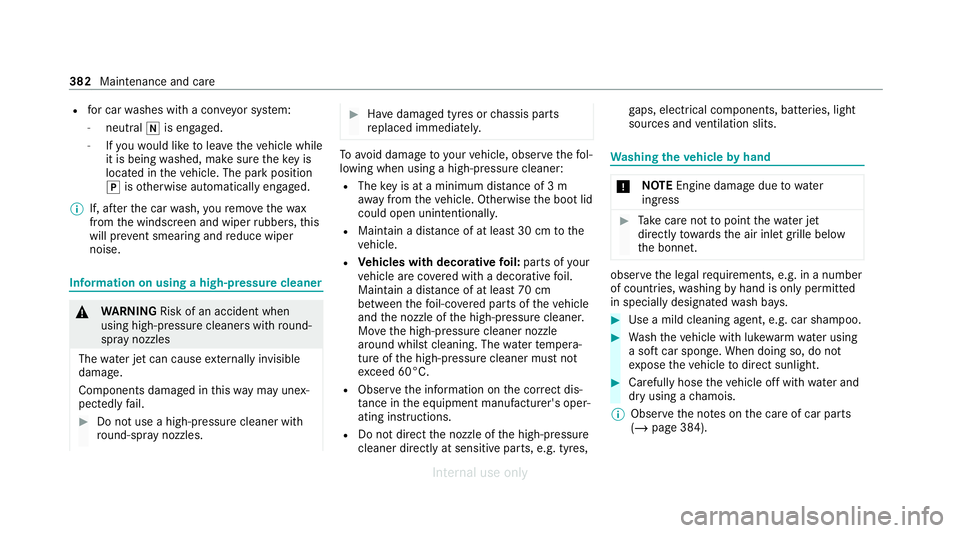
for car washes with a con veyo r sy stem:
- neutral iis engaged.
- Ifyo uwo uld like tolea vetheve hicle while
it is being washed, make sure theke y is
located in theve hicle. The park position
j isotherwise automatically engaged.
% If, af terth e car wash, youre mo vethewax
from the windscreen and wiper rubbers, this
will pr event smearing and reduce wiper
noise. Information on using a high-p
ressure cleaner &
WARNING Risk of an accident when
using high-pressure cleane rswith round-
spray nozzles
The wate r jet can cause extern ally invisible
damage.
Components damaged in this wa y may unex‐
pec tedly fail. #
Do not use a high-pressure cleaner with
round-spr aynozzles. #
Have damaged tyres or chassis parts
re placed immediatel y. To
avo id damage to yourvehicle, obser vethefo l‐
lowing when using a high-pressure cleaner:
R The key is at a minimum distance of 3 m
aw ay from theve hicle. Otherwise the boot lid
could open unintentionall y.
R Maintain a dis tance of at least 30 cm tothe
ve hicle.
R Vehicles with decora tivefoil: parts of your
ve hicle are co vered with a decorative foil.
Maintain a dis tance of at least 70 cm
between thefo il-c ove red parts of theve hicle
and the nozzle of the high-pressure cleaner.
Mo vethe high-pressure cleaner nozzle
around whilst cleaning. The waterte mp era‐
ture of the high-pressure cleaner must not
exc eed 60°C.
R Obser vethe information on the cor rect dis‐
tan ce in the equipment manufacturer's oper‐
ating instructions.
R Do not direct the nozzle of the high-pressure
cleaner directly at sensitive parts, e.g. tyres, ga
ps, elect rical components, batteries, light
sou rces and ventilation slits. Wa
shing theve hicle byhand *
NO
TEEngine damage duetowa ter
ing ress #
Take care not topoint thewate r jet
directly towa rdsth e air inlet grille below
th e bonn et. obser
vethe legal requ irements, e.g. in a number
of countries, washing byhand is only permitted
in specially designated wash ba ys. #
Use a mild cleaning agent, e.g. car shampoo. #
Washtheve hicle with luk ewarmwate r using
a soft car sponge. When doing so, do not
ex pose theve hicle todirect sunlight. #
Carefully hose theve hicle off with water and
dry using a chamois.
% Obse rveth e no tes on the care of car parts
(/ page 384). 382
Maintenance and care
Internal use only
Page 391 of 557
Emer
gency Re
moving the saf etyve st The saf
etyve sts are located in thestow age com‐
partments in the driver's and front passenger
door. #
Toremo ve:pull out the saf etyve st bag by
th e loop. #
Open the saf etyve st bag and pull out the
saf etyve st.
% There are also saf etyve st compa rtments in
th ere ar door stowage compartments in
which saf etyve sts can be stored. 1
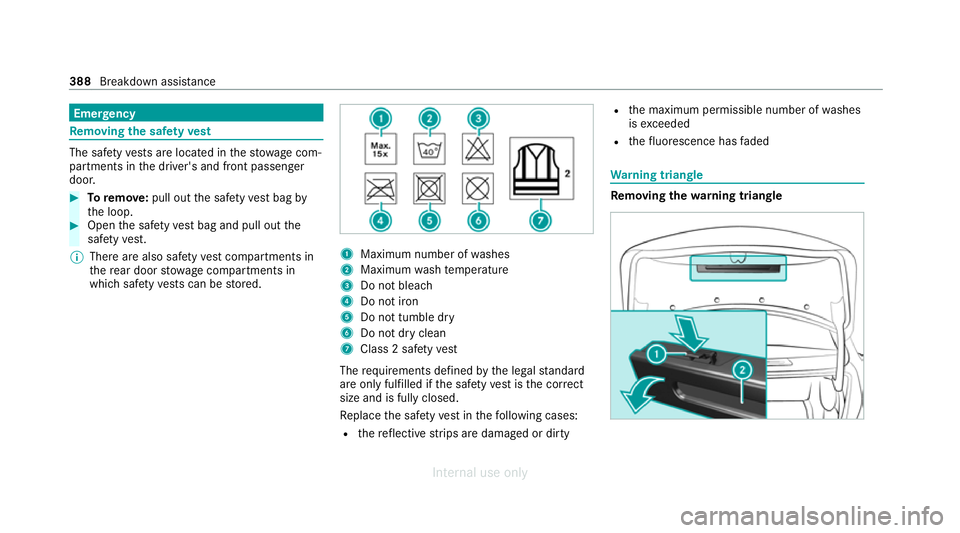
Maximum number of washes
2 Maximum wash temp erature
3 Do not bleach
4 Do not iron
5 Do not tumble dry
6 Do not dry clean
7 Class 2 saf etyve st
The requ irements defined bythe legal standard
are on ly fulfilled if the saf etyve st isthe cor rect
size and is fully closed.
Re place the saf etyve st inthefo llowing cases:
R there flective strips are damaged or dirty R
the maximum permissible number of washes
is exceeded
R thefluorescence has faded Wa
rning triangle Re
moving the warning triangle 388
Breakdown assis tance
Internal use only