steering MERCEDES-BENZ C-Class SEDAN 2015 W205 Repair Manual
[x] Cancel search | Manufacturer: MERCEDES-BENZ, Model Year: 2015, Model line: C-Class SEDAN, Model: MERCEDES-BENZ C-Class SEDAN 2015 W205Pages: 406, PDF Size: 7.62 MB
Page 227 of 406
Important safety notes
If you fail to adapt your driving style, Active
Lane Keeping Assist can neither reduce the
risk of accident nor override the laws of phys- ics. Active Lane Keeping Assist cannot take
account of road and weather conditions. It
may not recognize traffic situations. Active
Lane Keeping Assist is only an aid. You are
responsible for the distance to the vehicle in
front, for vehicle speed, for braking in good
time and for staying in your lane.
Active Lane Keeping Assist cannot continu-
ously keep your vehicle in its lane. G
WARNING
Active Lane Keeping Assist cannot always
clearly detect lane markings.
In such cases, Active Lane Keeping Assist
can:
R give an unnecessary warning and then
make a course-correcting brake application
to the vehicle
R not give a warning or intervene
There is a risk of an accident.
Always pay particular attention to the traffic
situation and keep within the lane, especially
if Active Lane Keeping Assist alerts you. Ter-
minate the intervention in a non-critical driv-
ing situation.
The system may be impaired or may not func-
tion if:
R there is poor visibility, e.g. due to insuffi-
cient illumination of the road, or due to
snow, rain, fog or spray
R there is glare, e.g. from oncoming traffic,
the sun or reflections (e.g. when the road
surface is wet)
R the windshield is dirty, fogged up, damaged
or covered, for instance by a sticker, in the
vicinity of the camera
R the radar sensors in the front or rear bump-
ers or the radiator grill are dirty, e.g.
obscured by snow R
there are no, several or unclear lane mark-
ings for a lane, e.g. in areas with road con-
struction work
R the lane markings are worn away, dark or
covered up, e.g. by dirt or snow
R the distance to the vehicle in front is too
small and the lane markings thus cannot be
detected
R the lane markings change quickly, e.g.
lanes branch off, cross one another or
merge
R the road is narrow and winding
R there are strong shadows cast on the road
If no vehicle is detected in the adjacent lane
and there are broken lane markings detected,
no lane-correcting brake application is made.
Warning vibration in the steering wheel
A warning may be given if a front wheel
passes over a lane marking. It will warn you by
means of intermittent vibration in the steer-
ing wheel for up to 1.5 seconds.
Lane-correcting brake application
If you leave your lane, under certain circum-
stances the vehicle will brake briefly on one
side. This is meant to assist you in bringing
the vehicle back to the original lane. G
WARNING
A lane-correcting brake application cannot
always bring the vehicle back into the original lane. There is a risk of an accident.
Always steer, brake or accelerate yourself,
especially if Active Lane Keeping Assist warns
you or makes a lane-correcting brake appli-
cation. Driving systems
225Driving and parking Z
Page 228 of 406
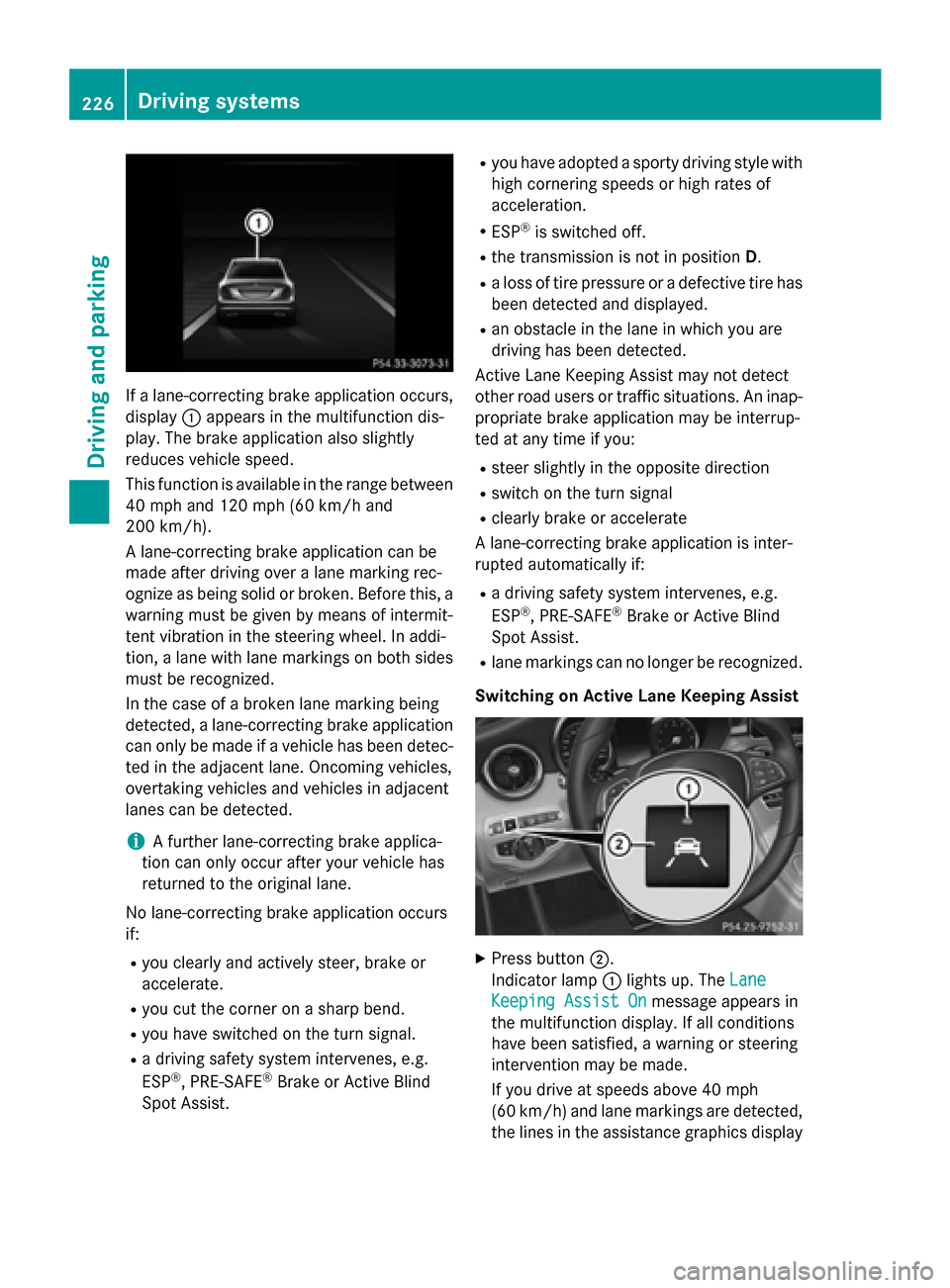
If a lane-correcting brake application occurs,
display 0043appears in the multifunction dis-
play. The brake application also slightly
reduces vehicle speed.
This function is available in the range between
40 mph and 120 mph (60 km/h and
200 km/h).
A lane-correcting brake application can be
made after driving over a lane marking rec-
ognize as being solid or broken. Before this, a
warning must be given by means of intermit-
tent vibration in the steering wheel. In addi-
tion, a lane with lane markings on both sides must be recognized.
In the case of a broken lane marking being
detected, a lane-correcting brake application can only be made if a vehicle has been detec-
ted in the adjacent lane. Oncoming vehicles,
overtaking vehicles and vehicles in adjacent
lanes can be detected.
i A further lane-correcting brake applica-
tion can only occur after your vehicle has
returned to the original lane.
No lane-correcting brake application occurs
if:
R you clearly and actively steer, brake or
accelerate.
R you cut the corner on a sharp bend.
R you have switched on the turn signal.
R a driving safety system intervenes, e.g.
ESP ®
, PRE-SAFE ®
Brake or Active Blind
Spot Assist. R
you have adopted a sporty driving style with
high cornering speeds or high rates of
acceleration.
R ESP ®
is switched off.
R the transmission is not in position D.
R a loss of tire pressure or a defective tire has
been detected and displayed.
R an obstacle in the lane in which you are
driving has been detected.
Active Lane Keeping Assist may not detect
other road users or traffic situations. An inap- propriate brake application may be interrup-
ted at any time if you:
R steer slightly in the opposite direction
R switch on the turn signal
R clearly brake or accelerate
A lane-correcting brake application is inter-
rupted automatically if:
R a driving safety system intervenes, e.g.
ESP ®
, PRE-SAFE ®
Brake or Active Blind
Spot Assist.
R lane markings can no longer be recognized.
Switching on Active Lane Keeping Assist X
Press button 0044.
Indicator lamp 0043lights up. The Lane Lane
Keeping Assist On
Keeping Assist On message appears in
the multifunction display. If all conditions
have been satisfied, a warning or steering
intervention may be made.
If you drive at speeds above 40 mph
(60 km/h) and lane markings are detected, the lines in the assistance graphics display 226
Driving systemsDriving and parking
Page 234 of 406
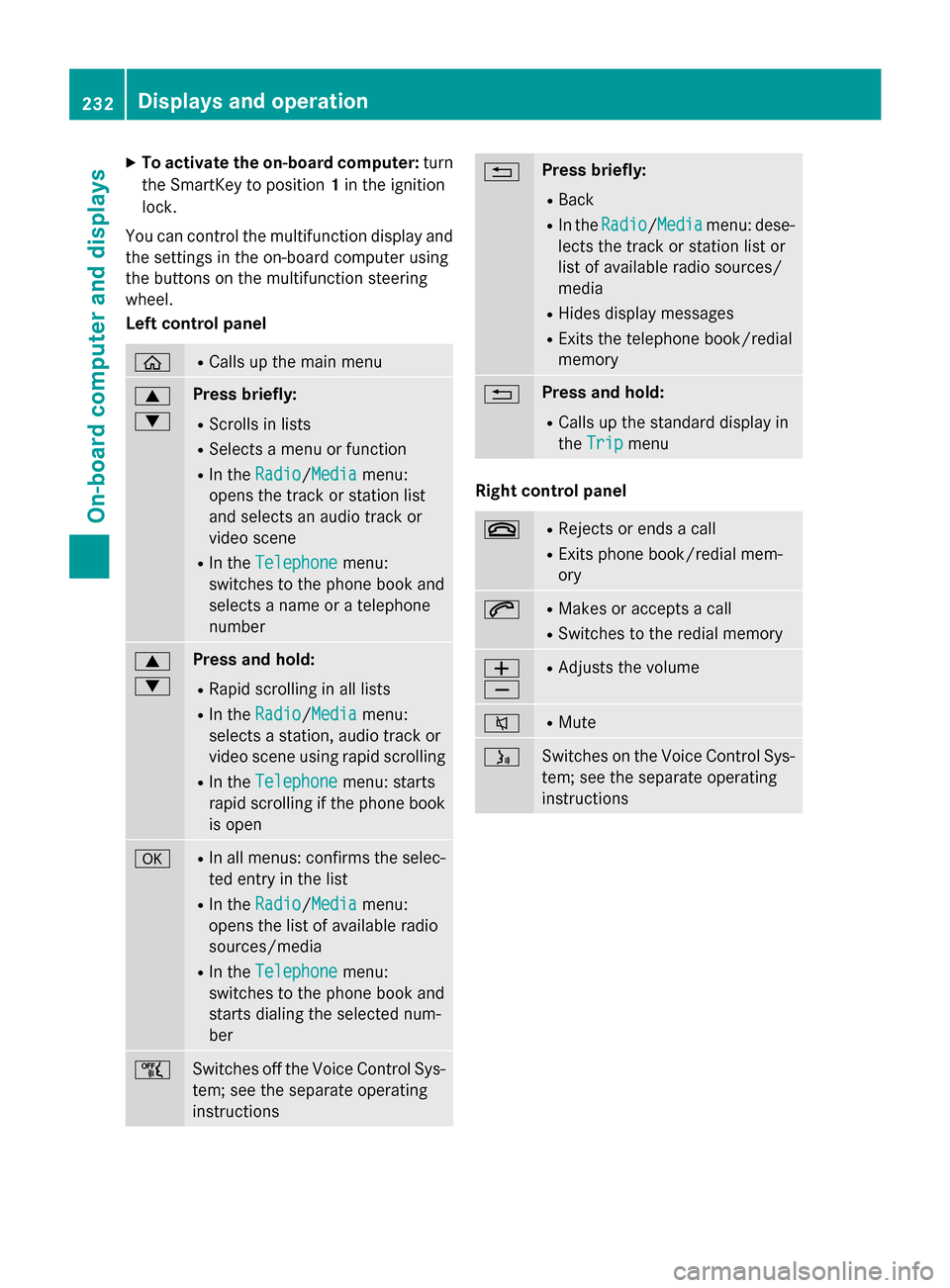
X
To activate the on-board computer: turn
the SmartKey to position 1in the ignition
lock.
You can control the multifunction display and
the settings in the on-board computer using
the buttons on the multifunction steering
wheel.
Left control panel 00E2 R
Calls up the main menu 0063
0064 Press briefly:
R Scrolls in lists
R Selects a menu or function
R In the Radio
Radio/ Media Mediamenu:
opens the track or station list
and selects an audio track or
video scene
R In the Telephone Telephone menu:
switches to the phone book and
selects a name or a telephone
number 0063
0064 Press and hold:
R Rapid scrolling in all lists
R In the Radio Radio/Media Mediamenu:
selects a station, audio track or
video scene using rapid scrolling
R In the Telephone Telephone menu: starts
rapid scrolling if the phone book is open 0076 R
In all menus: confirms the selec-
ted entry in the list
R In the Radio
Radio/ Media
Media menu:
opens the list of available radio
sources/media
R In the Telephone
Telephone menu:
switches to the phone book and
starts dialing the selected num-
ber 00E1
Switches off the Voice Control Sys-
tem; see the separate operating
instructions 0038 Press briefly:
R Back
R In the Radio Radio/ Media
Mediamenu: dese-
lects the track or station list or
list of available radio sources/
media
R Hides display messages
R Exits the telephone book/redial
memory 0038 Press and hold:
R Calls up the standard display in
the Trip Trip menu Right control panel
0076 R
Rejects or ends a call
R Exits phone book/redial mem-
ory 0061 R
Makes or accepts a call
R Switches to the redial memory 0081
0082 R
Adjusts the volume 0063 R
Mute 00E3
Switches on the Voice Control Sys-
tem; see the separate operating
instructions 232
Displays and operationOn-board computer and displays
Page 235 of 406
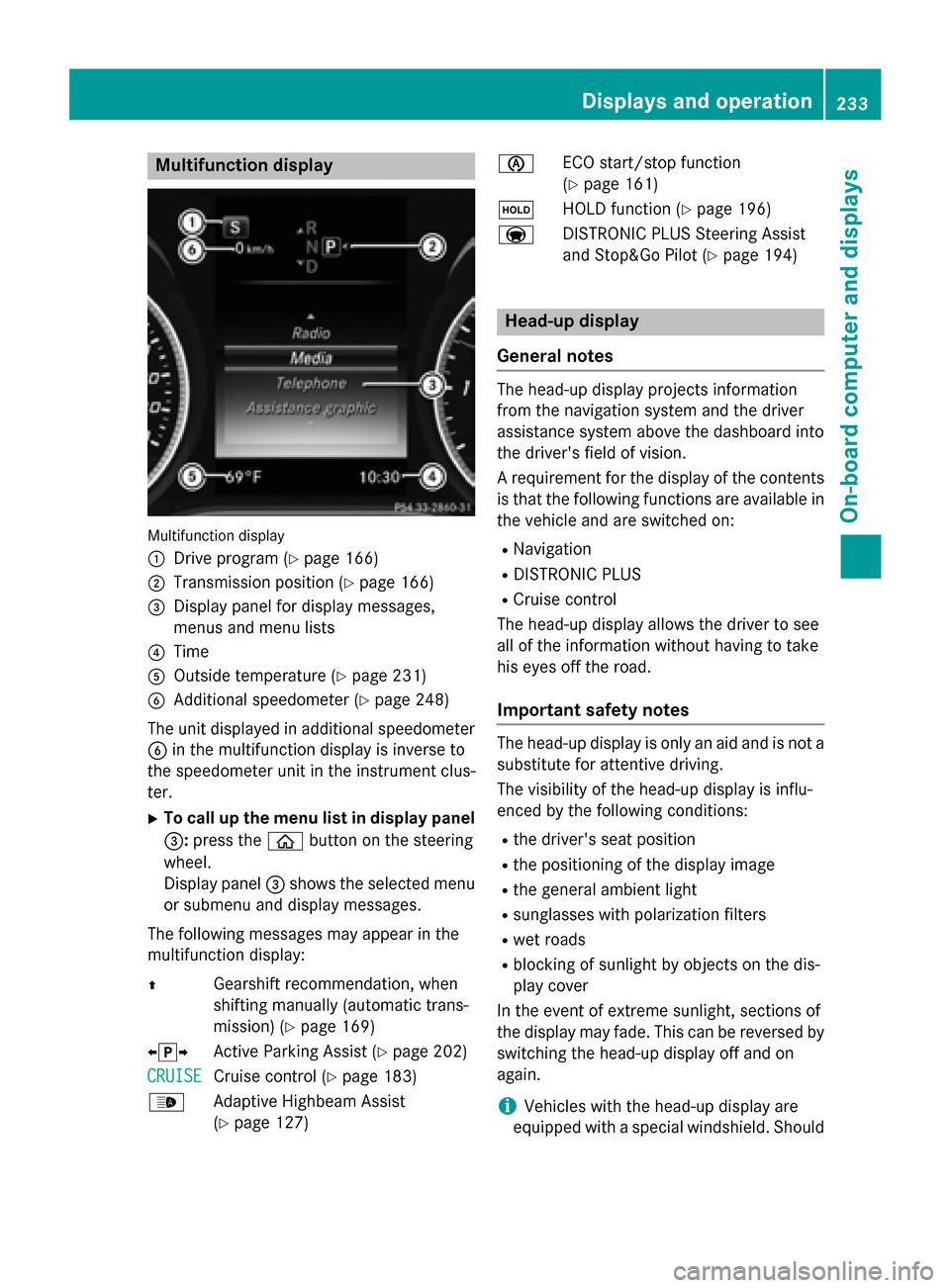
Multifunction display
Multifunction display
0043
Drive program (Y page 166)
0044 Transmission position (Y page 166)
0087 Display panel for display messages,
menus and menu lists
0085 Time
0083 Outside temperature (Y page 231)
0084 Additional speedometer (Y page 248)
The unit displayed in additional speedometer
0084 in the multifunction display is inverse to
the speedometer unit in the instrument clus-
ter.
X To call up the menu list in display panel
0087: press the 00E2button on the steering
wheel.
Display panel 0087shows the selected menu
or submenu and display messages.
The following messages may appear in the
multifunction display:
0097 Gearshift recommendation, when
shifting manually (automatic trans-
mission) (Y page 169)
0095005D0096 Active Parking Assist (Y page 202)
CRUISE
CRUISE Cruise control (Y
page 183)
00CE Adaptive Highbeam Assist
(Ypage 127) 00D6
ECO start/stop function
(Ypage 161)
00D9 HOLD function (Y page 196)
004F DISTRONIC PLUS Steering Assist
and Stop&Go Pilot (Y page 194) Head-up display
General notes The head-up display projects information
from the navigation system and the driver
assistance system above the dashboard into
the driver's field of vision.
A requirement for the display of the contents
is that the following functions are available in the vehicle and are switched on:
R Navigation
R DISTRONIC PLUS
R Cruise control
The head-up display allows the driver to see
all of the information without having to take
his eyes off the road.
Important safety notes The head-up display is only an aid and is not a
substitute for attentive driving.
The visibility of the head-up display is influ-
enced by the following conditions:
R the driver's seat position
R the positioning of the display image
R the general ambient light
R sunglasses with polarization filters
R wet roads
R blocking of sunlight by objects on the dis-
play cover
In the event of extreme sunlight, sections of
the display may fade. This can be reversed by
switching the head-up display off and on
again.
i Vehicles with the head-up display are
equipped with a special windshield. Should Displays and operation
233On-board computer and displays Z
Page 237 of 406
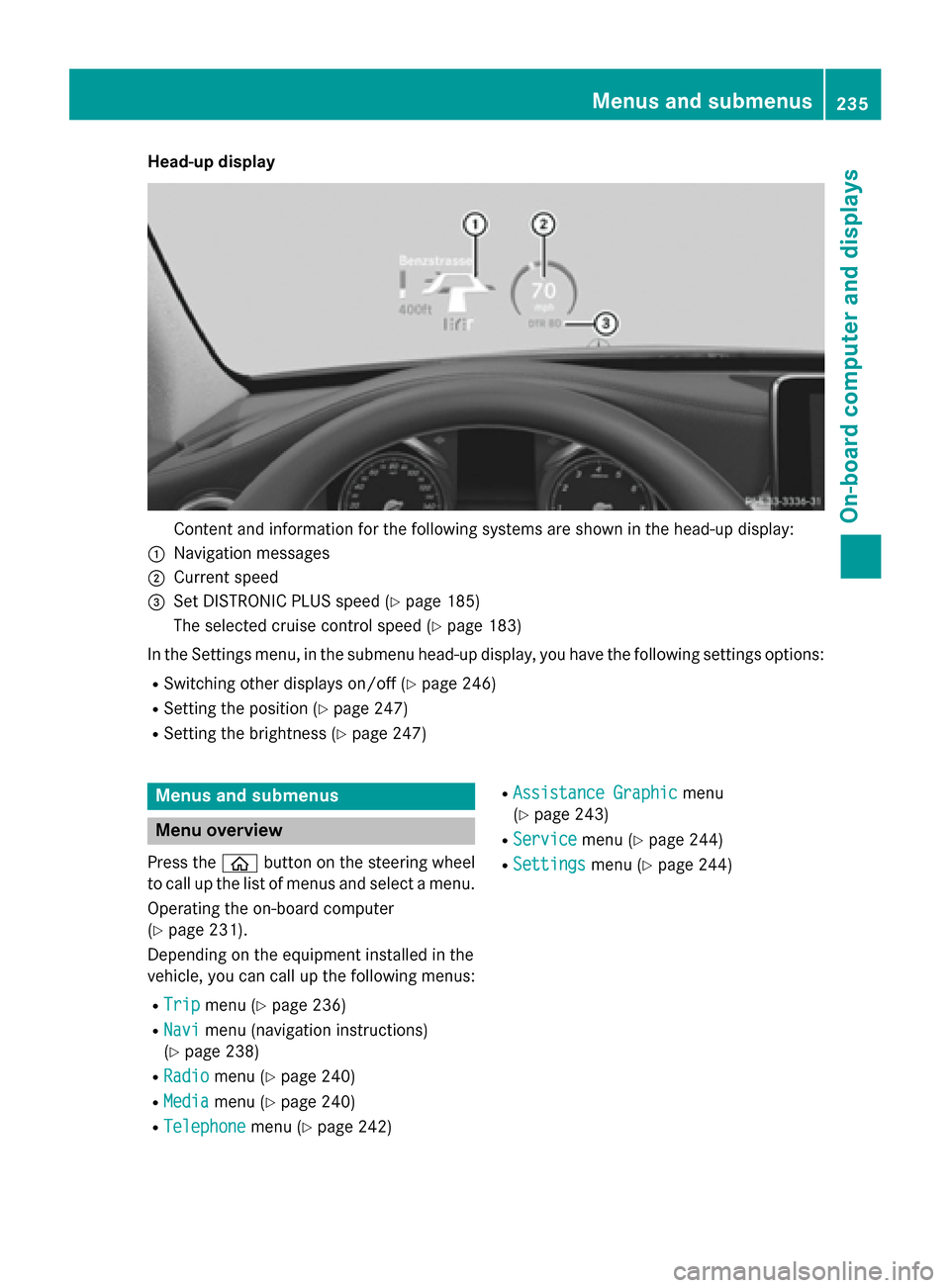
Head-up display
Content and information for the following systems are shown in the head-up display:
0043 Navigation messages
0044 Current speed
0087 Set DISTRONIC PLUS speed (Y page 185)
The selected cruise control speed (Y page 183)
In the Settings menu, in the submenu head-up display, you have the following settings options: R Switching other displays on/off (Y page 246)
R Setting the position (Y page 247)
R Setting the brightness (Y page 247)Menus and submenus
Menu overview
Press the 00E2button on the steering wheel
to call up the list of menus and select a menu.
Operating the on-board computer
(Y page 231).
Depending on the equipment installed in the
vehicle, you can call up the following menus:
R Trip Trip menu (Y page 236)
R Navi
Navi menu (navigation instructions)
(Y page 238)
R Radio Radio menu (Y page 240)
R Media Media menu (Y page 240)
R Telephone
Telephone menu (Ypage 242) R
Assistance Graphic
Assistance Graphic menu
(Y page 243)
R Service
Service menu (Ypage 244)
R Settings
Settings menu (Ypage 244) Menus and submenus
235On-board computer and displays Z
Page 238 of 406
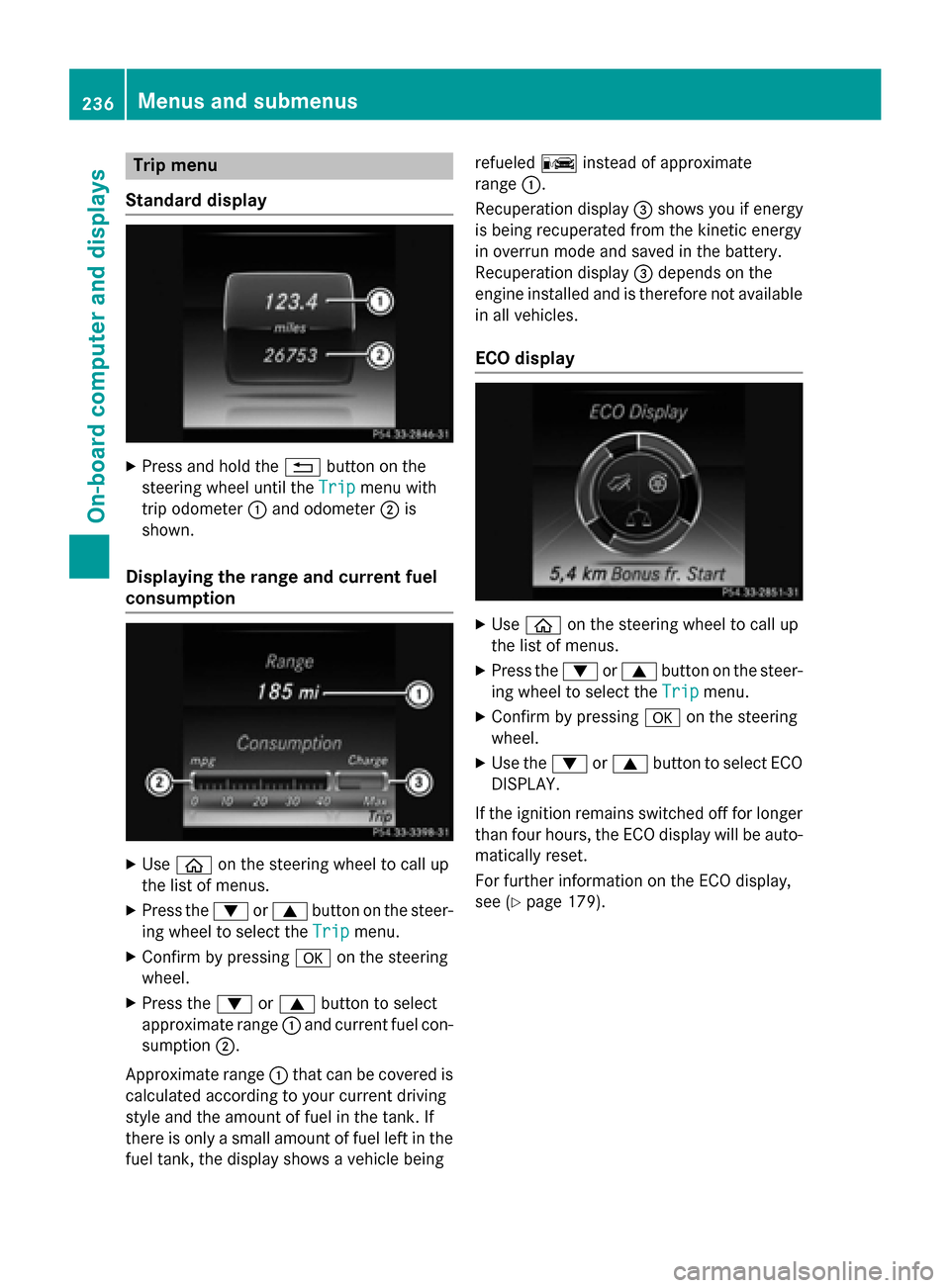
Trip menu
Standard display X
Press and hold the 0038button on the
steering wheel until the Trip
Tripmenu with
trip odometer 0043and odometer 0044is
shown.
Displaying the range and current fuel
consumption X
Use 00E2 on the steering wheel to call up
the list of menus.
X Press the 0064or0063 button on the steer-
ing wheel to select the Trip
Trip menu.
X Confirm by pressing 0076on the steering
wheel.
X Press the 0064or0063 button to select
approximate range 0043and current fuel con-
sumption 0044.
Approximate range 0043that can be covered is
calculated according to your current driving
style and the amount of fuel in the tank. If
there is only a small amount of fuel left in the fuel tank, the display shows a vehicle being refueled
00A8instead of approximate
range 0043.
Recuperation display 0087shows you if energy
is being recuperated from the kinetic energy
in overrun mode and saved in the battery.
Recuperation display 0087depends on the
engine installed and is therefore not available
in all vehicles.
ECO display X
Use 00E2 on the steering wheel to call up
the list of menus.
X Press the 0064or0063 button on the steer-
ing wheel to select the Trip Tripmenu.
X Confirm by pressing 0076on the steering
wheel.
X Use the 0064or0063 button to select ECO
DISPLAY.
If the ignition remains switched off for longer than four hours, the ECO display will be auto-
matically reset.
For further information on the ECO display,
see (Y page 179). 236
Menus and submenusOn-board computer and displays
Page 239 of 406
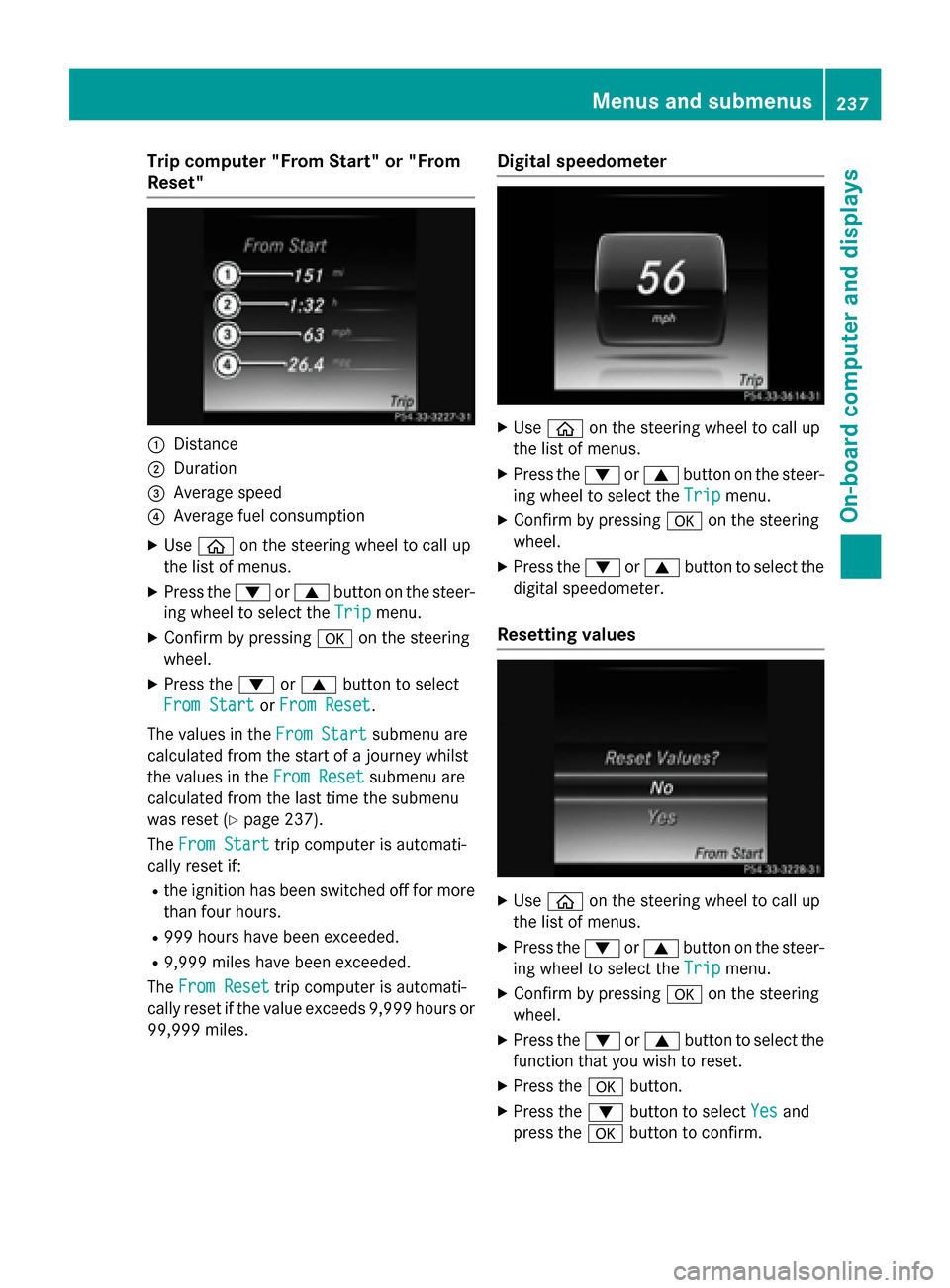
Trip computer "From Start" or "From
Reset" 0043
Distance
0044 Duration
0087 Average speed
0085 Average fuel consumption
X Use 00E2 on the steering wheel to call up
the list of menus.
X Press the 0064or0063 button on the steer-
ing wheel to select the Trip
Trip menu.
X Confirm by pressing 0076on the steering
wheel.
X Press the 0064or0063 button to select
From Start
From Start orFrom Reset
From Reset.
The values in the From Start
From Startsubmenu are
calculated from the start of a journey whilst
the values in the From Reset From Resetsubmenu are
calculated from the last time the submenu
was reset (Y page 237).
The From Start From Start trip computer is automati-
cally reset if:
R the ignition has been switched off for more
than four hours.
R 999 hours have been exceeded.
R 9,999 miles have been exceeded.
The From Reset
From Reset trip computer is automati-
cally reset if the value exceeds 9,999 hours or
99,999 miles. Digital speedometer
X
Use 00E2 on the steering wheel to call up
the list of menus.
X Press the 0064or0063 button on the steer-
ing wheel to select the Trip
Tripmenu.
X Confirm by pressing 0076on the steering
wheel.
X Press the 0064or0063 button to select the
digital speedometer.
Resetting values X
Use 00E2 on the steering wheel to call up
the list of menus.
X Press the 0064or0063 button on the steer-
ing wheel to select the Trip
Tripmenu.
X Confirm by pressing 0076on the steering
wheel.
X Press the 0064or0063 button to select the
function that you wish to reset.
X Press the 0076button.
X Press the 0064button to select Yes
Yesand
press the 0076button to confirm. Menus and submenus
237On-board computer and displays Z
Page 240 of 406
You can reset the values of the following func-
tions:
R Trip odometer
R "From Start" trip computer
R "From Reset" trip computer
R ECO display
When you reset the values in the "ECO dis-
play", the values in the trip computer "From
Start" are likewise reset. When you reset the values in the trip computer "From Start", the
values in the "ECO display" are likewise reset. Navigation system menu
Displaying navigation instructions In the
Navi
Navimenu, the multifunction display
shows navigation instructions.
Further information on navigation can be
found in the separate Audio 20 or COMAND
operating instructions.
X Switch on Audio 20 or COMAND; see the
separate operating instructions.
X Use 00E2 on the steering wheel to call up
the list of menus.
X Press the 0064or0063 button on the steer-
ing wheel to select the Navi
Navi menu.
X Confirm by pressing 0076on the steering
wheel.
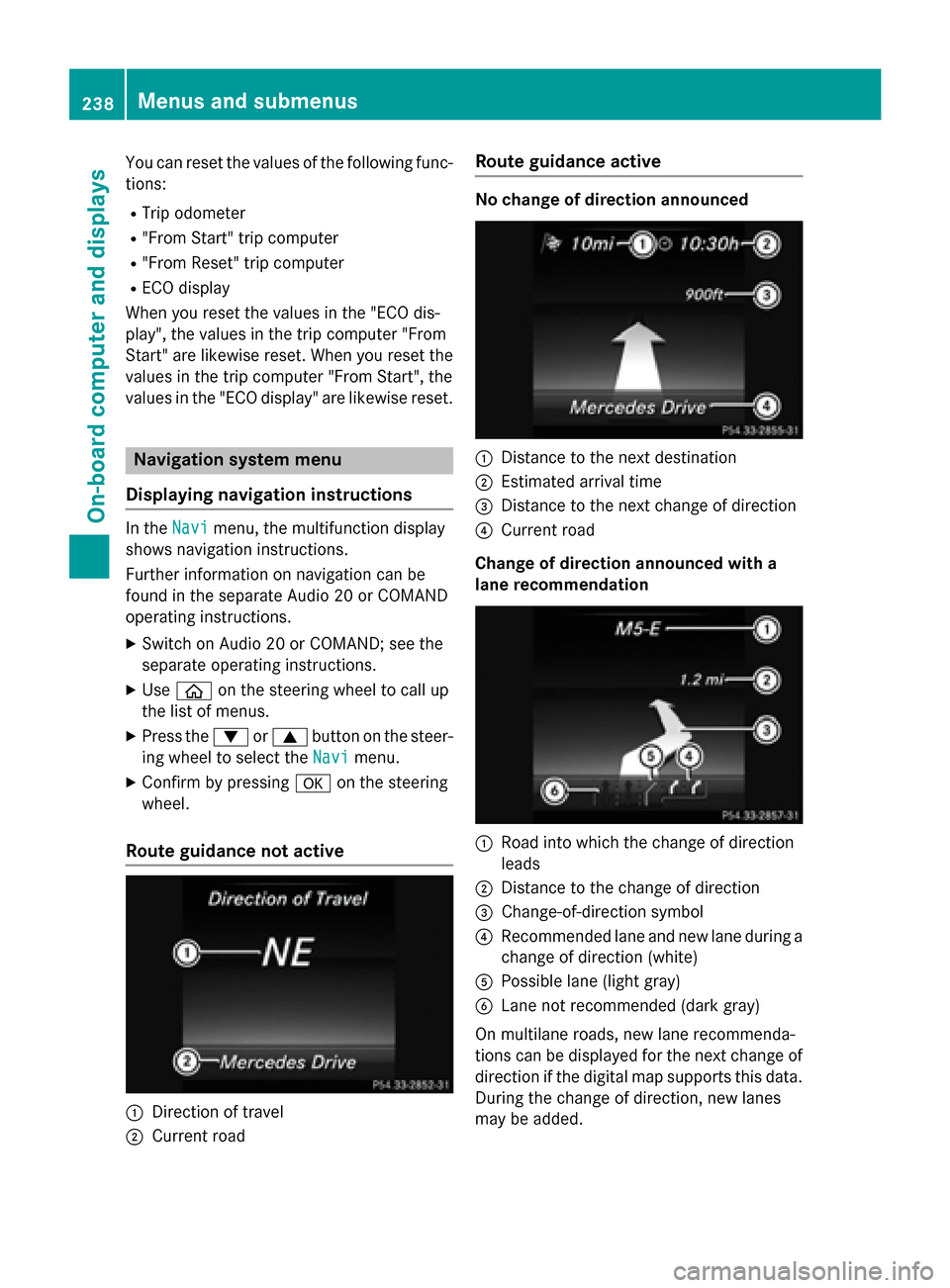
Route guidance not active 0043
Direction of travel
0044 Current road Route guidance active No change of direction announced
0043
Distance to the next destination
0044 Estimated arrival time
0087 Distance to the next change of direction
0085 Current road
Change of direction announced with a
lane recommendation 0043
Road into which the change of direction
leads
0044 Distance to the change of direction
0087 Change-of-direction symbol
0085 Recommended lane and new lane during a
change of direction (white)
0083 Possible lane (light gray)
0084 Lane not recommended (dark gray)
On multilane roads, new lane recommenda-
tions can be displayed for the next change of
direction if the digital map supports this data. During the change of direction, new lanes
may be added. 238
Menus and submenusOn-board computer and displays
Page 242 of 406
You have reached the destination or an
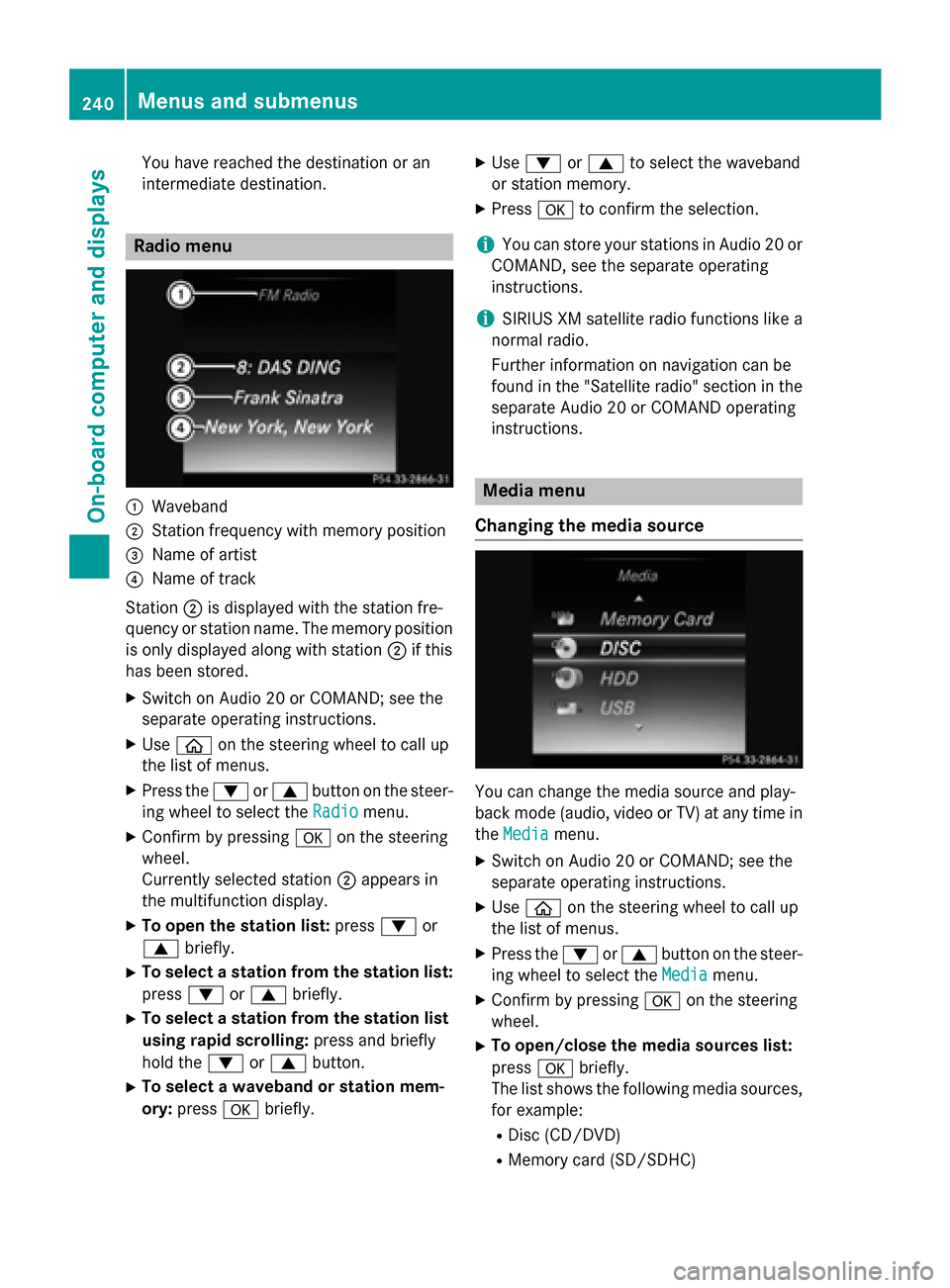
intermediate destination. Radio menu
0043
Waveband
0044 Station frequency with memory position
0087 Name of artist
0085 Name of track
Station 0044is displayed with the station fre-
quency or station name. The memory position is only displayed along with station 0044if this
has been stored.
X Switch on Audio 20 or COMAND; see the
separate operating instructions.
X Use 00E2 on the steering wheel to call up
the list of menus.
X Press the 0064or0063 button on the steer-
ing wheel to select the Radio
Radio menu.
X Confirm by pressing 0076on the steering
wheel.
Currently selected station 0044appears in
the multifunction display.
X To open the station list: press0064or
0063 briefly.
X To select a station from the station list:
press 0064or0063 briefly.
X To select a station from the station list
using rapid scrolling: press and briefly
hold the 0064or0063 button.
X To select a waveband or station mem-
ory: press 0076briefly. X
Use 0064 or0063 to select the waveband
or station memory.
X Press 0076to confirm the selection.
i You can store your stations in Audio 20 or
COMAND, see the separate operating
instructions.
i SIRIUS XM satellite radio functions like a
normal radio.
Further information on navigation can be
found in the "Satellite radio" section in the
separate Audio 20 or COMAND operating
instructions. Media menu
Changing the media source You can change the media source and play-
back mode (audio, video or TV) at any time in
the Media Media menu.
X Switch on Audio 20 or COMAND; see the
separate operating instructions.
X Use 00E2 on the steering wheel to call up
the list of menus.
X Press the 0064or0063 button on the steer-
ing wheel to select the Media Mediamenu.
X Confirm by pressing 0076on the steering
wheel.
X To open/close the media sources list:
press 0076briefly.
The list shows the following media sources,
for example:
R Disc (CD/DVD)
R Memory card (SD/SDHC) 240
Menus and submenusOn-board computer and displays
Page 243 of 406
R
MEDIA REGISTER
R USB storage device
R Bluetooth ®
audio device
Observe the additional information on media
support and on media mode in the separate
Audio 20 or COMAND operating instructions.
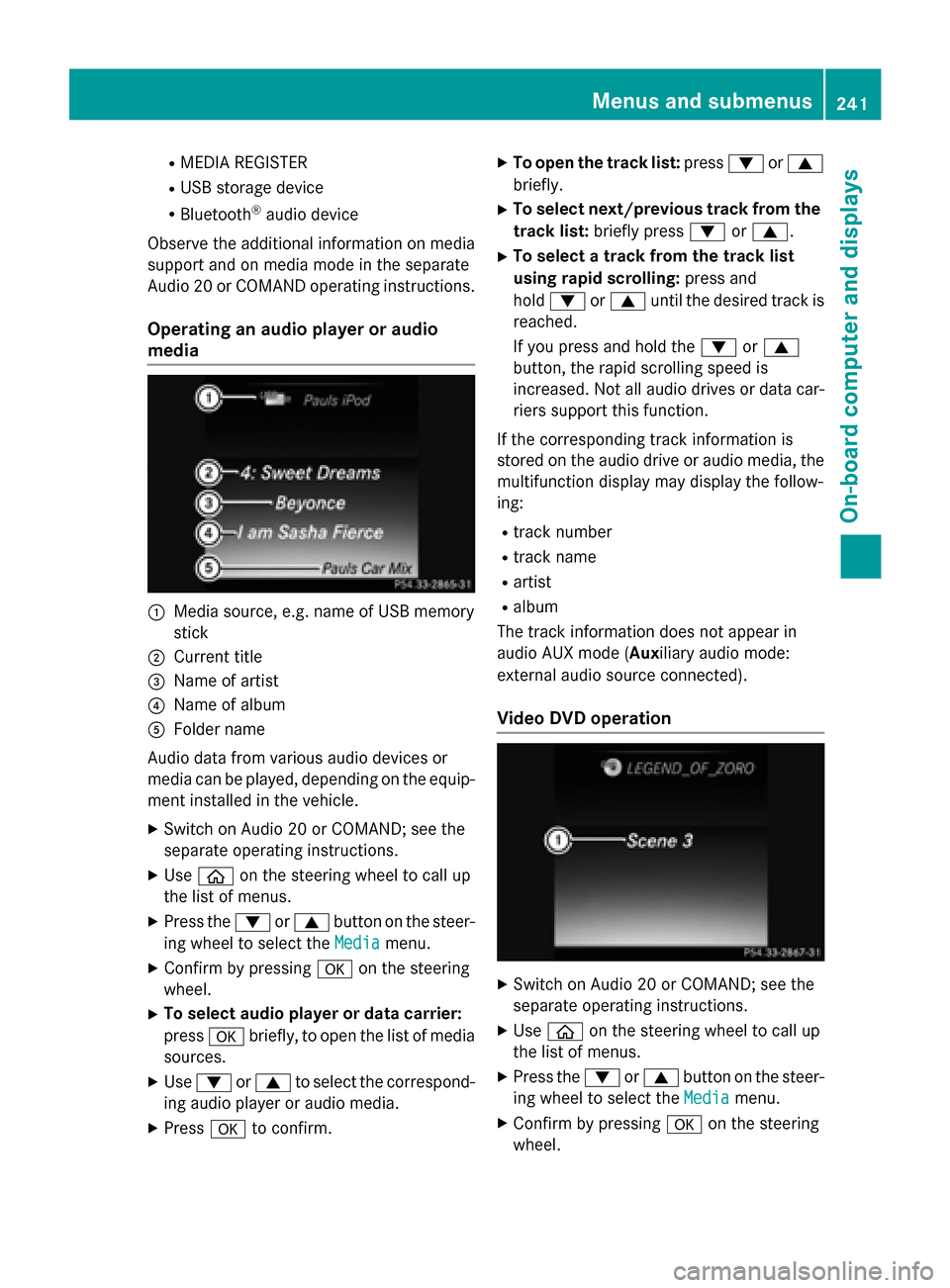
Operating an audio player or audio
media 0043
Media source, e.g. name of USB memory
stick
0044 Current title
0087 Name of artist
0085 Name of album
0083 Folder name
Audio data from various audio devices or
media can be played, depending on the equip- ment installed in the vehicle.
X Switch on Audio 20 or COMAND; see the
separate operating instructions.
X Use 00E2 on the steering wheel to call up
the list of menus.
X Press the 0064or0063 button on the steer-
ing wheel to select the Media Mediamenu.
X Confirm by pressing 0076on the steering
wheel.
X To select audio player or data carrier:
press 0076briefly, to open the list of media
sources.
X Use 0064 or0063 to select the correspond-
ing audio player or audio media.
X Press 0076to confirm. X
To open the track list: press0064or0063
briefly.
X To select next/previous track from the
track list: briefly press 0064or0063.
X To select a track from the track list
using rapid scrolling: press and
hold 0064 or0063 until the desired track is
reached.
If you press and hold the 0064or0063
button, the rapid scrolling speed is
increased. Not all audio drives or data car- riers support this function.
If the corresponding track information is
stored on the audio drive or audio media, the
multifunction display may display the follow-
ing:
R track number
R track name
R artist
R album
The track information does not appear in
audio AUX mode (Aux iliary audio mode:
external audio source connected).
Video DVD operation X
Switch on Audio 20 or COMAND; see the
separate operating instructions.
X Use 00E2 on the steering wheel to call up
the list of menus.
X Press the 0064or0063 button on the steer-
ing wheel to select the Media Mediamenu.
X Confirm by pressing 0076on the steering
wheel. Menus and submenus
241On-board computer and displays Z