steering MERCEDES-BENZ C-Class SEDAN 2015 W205 Manual PDF
[x] Cancel search | Manufacturer: MERCEDES-BENZ, Model Year: 2015, Model line: C-Class SEDAN, Model: MERCEDES-BENZ C-Class SEDAN 2015 W205Pages: 406, PDF Size: 7.62 MB
Page 244 of 406
X
To select DVD single drive or data car-
rier: press 0076briefly, to open the list of
media sources.
X Use 0064 or0063 to select the correspond-
ing DVD player or DVD media.
X Press 0076to confirm.
X To open the scene list: press0064or
0063 briefly.
X To select the next or previous scene
from the scene list: briefly press0064or
0063.
X To select a scene from the scene list
using rapid scrolling: press and
hold 0064 or0063 until desired scene 0043is
reached.
X Press 0076to confirm your selection. Telephone menu
Introduction G
WARNING
If you operate information systems and com-
munication equipment integrated in the vehi- cle while driving, you will be distracted from
traffic conditions. You could also lose control of the vehicle. There is a risk of an accident.
Only operate the equipment when the traffic
situation permits. If you are not sure that this
is possible, park the vehicle paying attention
to traffic conditions and operate the equip-
ment when the vehicle is stationary.
When telephoning, you must observe the
legal requirements for the country in which
you are currently driving.
X Switch on the mobile phone; see the sepa-
rate operating instructions.
X Switch on Audio 20 or COMAND; see the
separate operating instructions.
X Establish a Bluetooth ®
connection to Audio
20 or COMAND, see the separate operating
instructions.
X Use 00E2 on the steering wheel to call up
the list of menus. X
Press 0064or0063 on the steering wheel
to select the Telephone
Telephone menu.
X Confirm by pressing 0076on the steering
wheel.
You will see one of the following display mes- sages in the multifunction display:
R Phone READY
Phone READY or the name of the network
provider: the mobile phone has found a
network and is ready to receive.
R Phone No Service Phone No Service: there is no network
available or the mobile phone is searching
for a network.
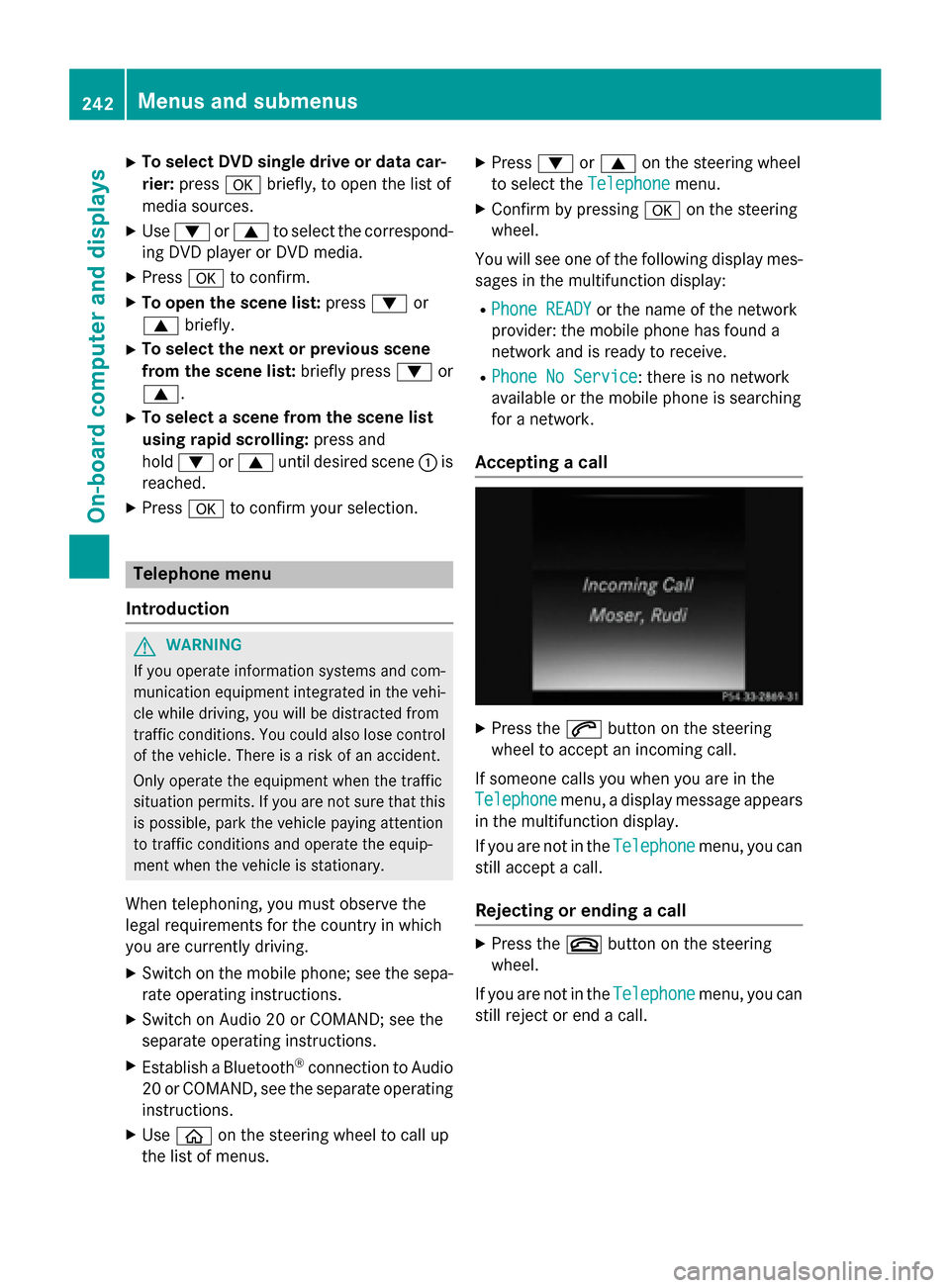
Accepting a call X
Press the 0061button on the steering
wheel to accept an incoming call.
If someone calls you when you are in the
Telephone Telephone menu, a display message appears
in the multifunction display.
If you are not in the Telephone Telephonemenu, you can
still accept a call.
Rejecting or ending a call X
Press the 0076button on the steering
wheel.
If you are not in the Telephone Telephonemenu, you can
still reject or end a call. 242
Menus and submenusOn-board computer and displays
Page 245 of 406
Dialing a number from the phone book
X
Use 00E2 on the steering wheel to call up
the list of menus.
X Press 0064or0063 on the steering wheel
to select the Telephone
Telephone menu.
X Confirm by pressing 0076on the steering
wheel.
X Press the 0064,0063or0076 button to
switch to the phone book.
X Press the 0064or0063 button to select the
desired name.
or X To begin rapid scrolling: press and hold
the 0064 or0063 button for longer than
one second.
Rapid scrolling stops when you release the button or reach the end of the list.
X If only one telephone number is stored
for a name: press the0061or0076 button
to start dialing.
or X If there is more than one number for a
particular name: press the0061or0076
button to display the numbers.
X Press the 0064or0063 button to select the
number you want to dial.
X Press the 0061or0076 button to start dial-
ing.
or X To exit the phone book: press the0076or
0038 button.
Redialing The on-board computer saves the last names
or numbers dialed in the redial memory.
X Use 00E2 on the steering wheel to call up
the list of menus.
X Press 0064or0063 on the steering wheel
to select the Telephone Telephonemenu.
X Confirm by pressing 0076on the steering
wheel. X
Press the 0061button to switch to the
redial memory.
X Press the 0064or0063 button to select the
desired name or number.
X Press the 0061or0076 button to start dial-
ing.
or
X To exit the redial memory: press the
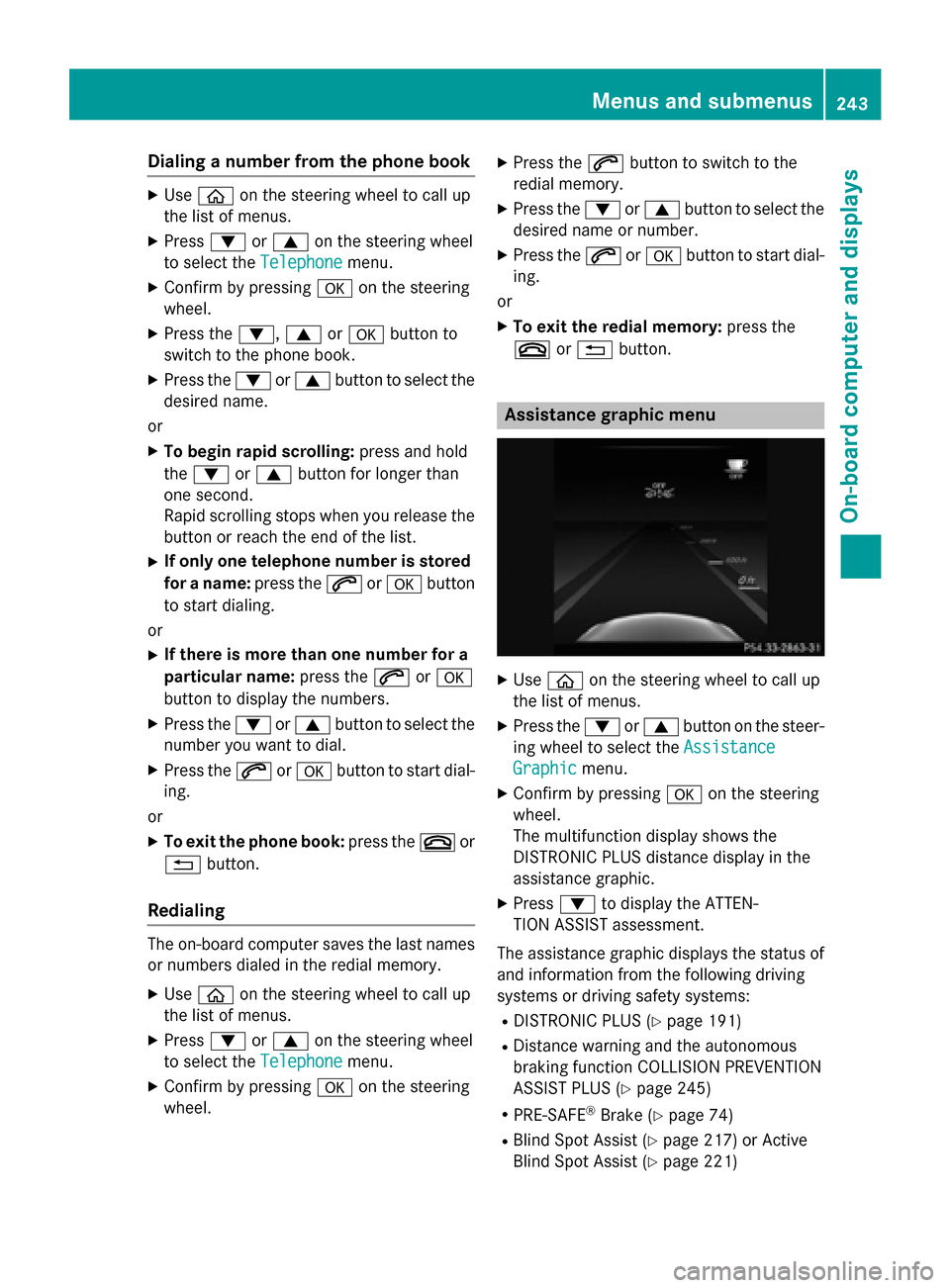
0076 or0038 button. Assistance graphic menu
X
Use 00E2 on the steering wheel to call up
the list of menus.
X Press the 0064or0063 button on the steer-
ing wheel to select the Assistance
Assistance
Graphic
Graphic menu.
X Confirm by pressing 0076on the steering
wheel.
The multifunction display shows the
DISTRONIC PLUS distance display in the
assistance graphic.
X Press 0064to display the ATTEN-
TION ASSIST assessment.
The assistance graphic displays the status of and information from the following driving
systems or driving safety systems:
R DISTRONIC PLUS (Y page 191)
R Distance warning and the autonomous
braking function COLLISION PREVENTION
ASSIST PLUS (Y page 245)
R PRE-SAFE ®
Brake (Y page 74)
R Blind Spot Assist (Y page 217) or Active
Blind Spot Assist (Y page 221) Menus and submenus
243On-boardcompu ter and displays Z
Page 246 of 406
R
ATTENTION ASSIST (Y page 216)
R Lane Keeping Assist (Y page 219)or Active
Lane Keeping Assist (Y page 224)Maintenance menu
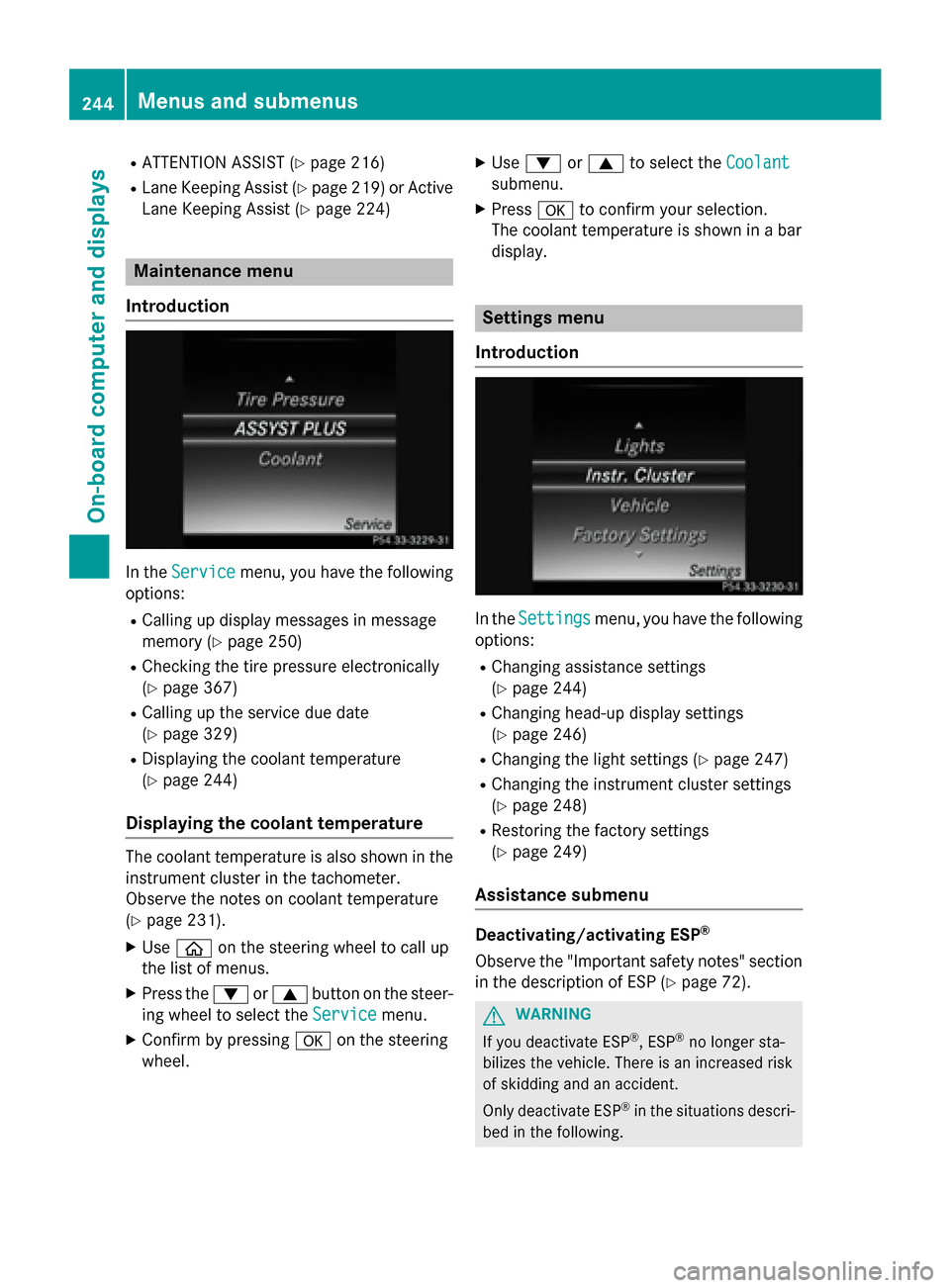
Introduction In the
Service
Service menu, you have the following
options:
R Calling up display messages in message
memory (Y page 250)
R Checking the tire pressure electronically
(Y page 367)
R Calling up the service due date
(Y page 329)
R Displaying the coolant temperature
(Y page 244)
Displaying the coolant temperature The coolant temperature is also shown in the
instrument cluster in the tachometer.
Observe the notes on coolant temperature
(Y page 231).
X Use 00E2 on the steering wheel to call up
the list of menus.
X Press the 0064or0063 button on the steer-
ing wheel to select the Service
Service menu.
X Confirm by pressing 0076on the steering
wheel. X
Use 0064 or0063 to select the Coolant Coolant
submenu.
X Press 0076to confirm your selection.
The coolant temperature is shown in a bar
display. Settings menu
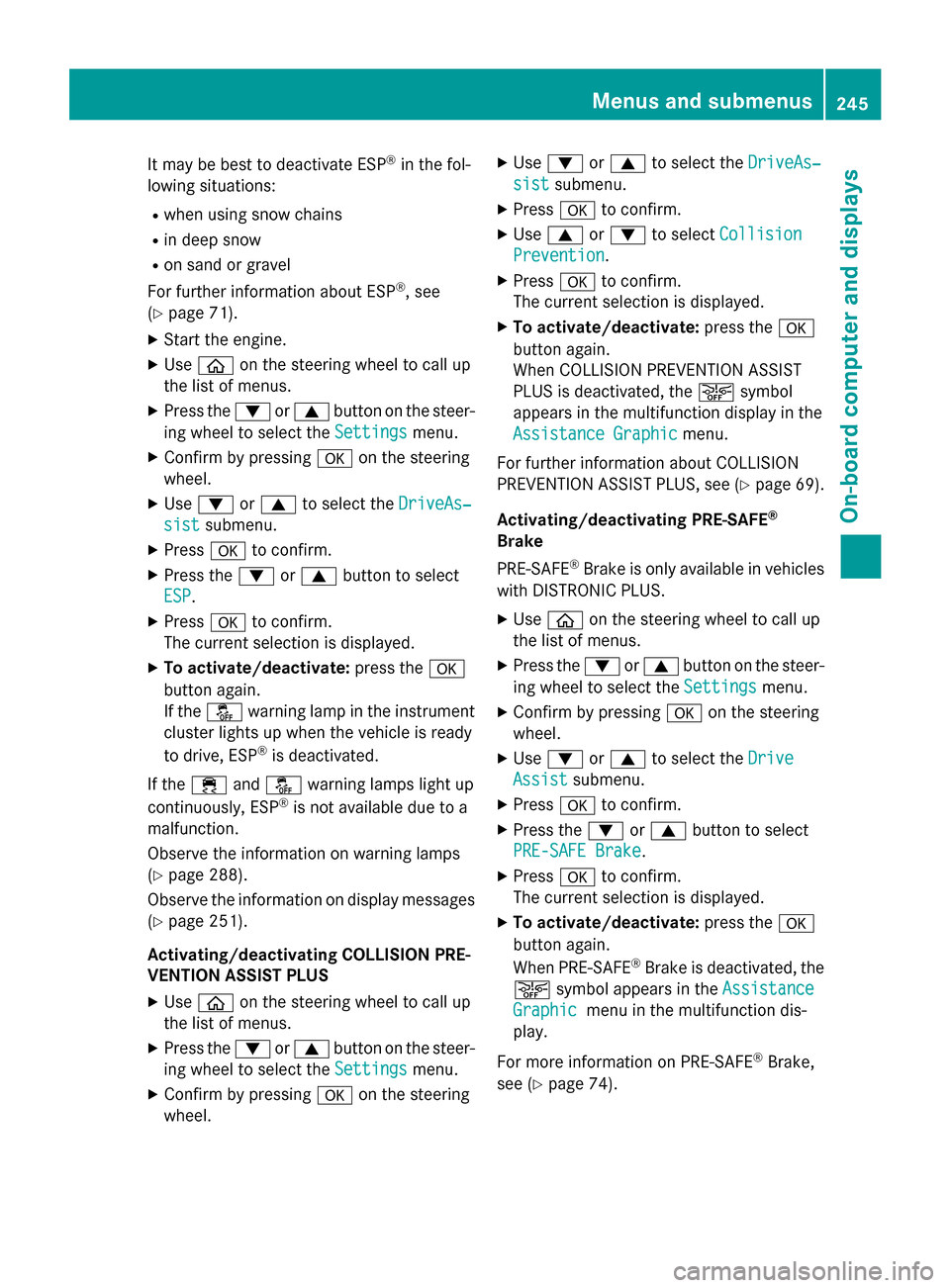
Introduction In the
Settings Settings menu, you have the following
options:
R Changing assistance settings
(Y page 244)
R Changing head-up display settings
(Y page 246)
R Changing the light settings (Y page 247)
R Changing the instrument cluster settings
(Y page 248)
R Restoring the factory settings
(Y page 249)
Assistance submenu Deactivating/activating ESP
®
Observe the "Important safety notes" section in the description of ESP (Y page 72). G
WARNING
If you deactivate ESP ®
, ESP ®
no longer sta-
bilizes the vehicle. There is an increased risk
of skidding and an accident.
Only deactivate ESP ®
in the situations descri-
bed in the following. 244
Menus and submenusOn-board computer and displays
Page 247 of 406
It may be best to deactivate ESP
®
in the fol-
lowing situations:
R when using snow chains
R in deep snow
R on sand or gravel
For further information about ESP ®
, see
(Y page 71).
X Start the engine.
X Use 00E2 on the steering wheel to call up
the list of menus.
X Press the 0064or0063 button on the steer-
ing wheel to select the Settings
Settings menu.
X Confirm by pressing 0076on the steering
wheel.
X Use 0064 or0063 to select the DriveAs‐
DriveAs‐
sist
sist submenu.
X Press 0076to confirm.
X Press the 0064or0063 button to select
ESP
ESP.
X Press 0076to confirm.
The current selection is displayed.
X To activate/deactivate: press the0076
button again.
If the 00BB warning lamp in the instrument
cluster lights up when the vehicle is ready
to drive, ESP ®
is deactivated.
If the 00E5 and00BB warning lamps light up
continuously, ESP ®
is not available due to a
malfunction.
Observe the information on warning lamps
(Y page 288).
Observe the information on display messages
(Y page 251).
Activating/deactivating COLLISION PRE-
VENTION ASSIST PLUS
X Use 00E2 on the steering wheel to call up
the list of menus.
X Press the 0064or0063 button on the steer-
ing wheel to select the Settings
Settings menu.
X Confirm by pressing 0076on the steering
wheel. X
Use 0064 or0063 to select the DriveAs‐
DriveAs‐
sist sist submenu.
X Press 0076to confirm.
X Use 0063 or0064 to select Collision
Collision
Prevention
Prevention.
X Press 0076to confirm.
The current selection is displayed.
X To activate/deactivate: press the0076
button again.
When COLLISION PREVENTION ASSIST
PLUS is deactivated, the 00D4symbol
appears in the multifunction display in the
Assistance Graphic Assistance Graphic menu.
For further information about COLLISION
PREVENTION ASSIST PLUS, see (Y page 69).
Activating/deactivating PRE-SAFE ®
Brake
PRE‑SAFE ®
Brake is only available in vehicles
with DISTRONIC PLUS.
X Use 00E2 on the steering wheel to call up
the list of menus.
X Press the 0064or0063 button on the steer-
ing wheel to select the Settings
Settings menu.
X Confirm by pressing 0076on the steering
wheel.
X Use 0064 or0063 to select the Drive Drive
Assist
Assist submenu.
X Press 0076to confirm.
X Press the 0064or0063 button to select
PRE-SAFE Brake
PRE-SAFE Brake.
X Press 0076to confirm.
The current selection is displayed.
X To activate/deactivate: press the0076
button again.
When PRE-SAFE ®
Brake is deactivated, the
00D4 symbol appears in the Assistance Assistance
Graphic
Graphic menu in the multifunction dis-
play.
For more information on PRE ‑SAFE®
Brake,
see (Y page 74). Menus and submenus
245On-board computer and displays Z
Page 248 of 406
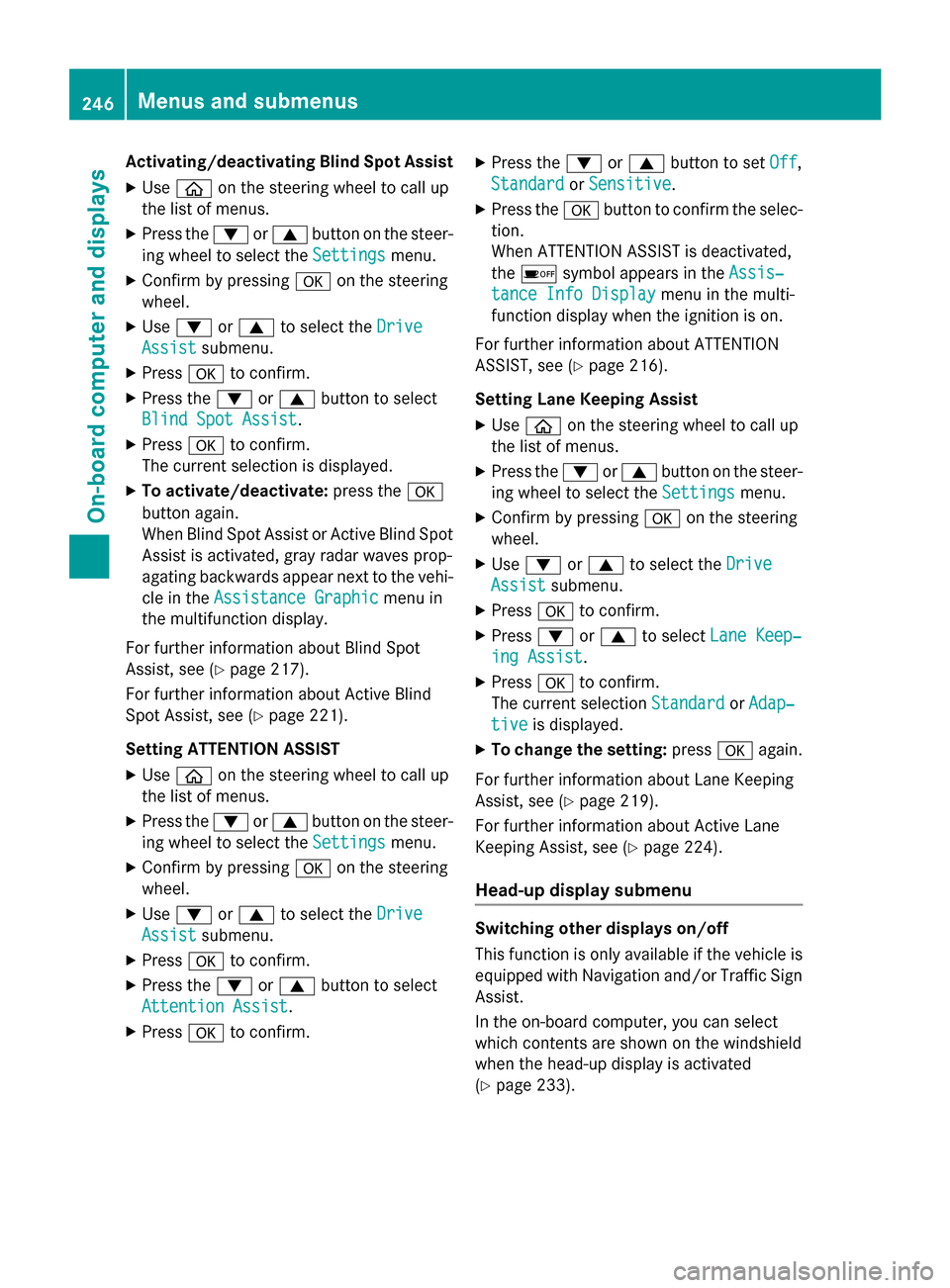
Activating/deactivating Blind Spot Assist
X Use 00E2 on the steering wheel to call up
the list of menus.
X Press the 0064or0063 button on the steer-
ing wheel to select the Settings
Settings menu.
X Confirm by pressing 0076on the steering
wheel.
X Use 0064 or0063 to select the Drive
Drive
Assist
Assist submenu.
X Press 0076to confirm.
X Press the 0064or0063 button to select
Blind Spot Assist
Blind Spot Assist .
X Press 0076to confirm.
The current selection is displayed.
X To activate/deactivate: press the0076
button again.
When Blind Spot Assist or Active Blind Spot Assist is activated, gray radar waves prop-
agating backwards appear next to the vehi-
cle in the Assistance Graphic
Assistance Graphic menu in
the multifunction display.
For further information about Blind Spot
Assist, see (Y page 217).
For further information about Active Blind
Spot Assist, see (Y page 221).
Setting ATTENTION ASSIST X Use 00E2 on the steering wheel to call up
the list of menus.
X Press the 0064or0063 button on the steer-
ing wheel to select the Settings
Settings menu.
X Confirm by pressing 0076on the steering
wheel.
X Use 0064 or0063 to select the Drive Drive
Assist
Assist submenu.
X Press 0076to confirm.
X Press the 0064or0063 button to select
Attention Assist
Attention Assist .
X Press 0076to confirm. X
Press the 0064or0063 button to set Off
Off ,
Standard
Standard orSensitive
Sensitive .
X Press the 0076button to confirm the selec-
tion.
When ATTENTION ASSIST is deactivated,
the 00D7 symbol appears in the Assis‐ Assis‐
tance Info Display
tance Info Display menu in the multi-
function display when the ignition is on.
For further information about ATTENTION
ASSIST, see (Y page 216).
Setting Lane Keeping Assist
X Use 00E2 on the steering wheel to call up
the list of menus.
X Press the 0064or0063 button on the steer-
ing wheel to select the Settings
Settings menu.
X Confirm by pressing 0076on the steering
wheel.
X Use 0064 or0063 to select the Drive Drive
Assist Assist submenu.
X Press 0076to confirm.
X Press 0064or0063 to select Lane Keep‐ Lane Keep‐
ing Assist
ing Assist .
X Press 0076to confirm.
The current selection Standard
StandardorAdap‐
Adap‐
tive
tive is displayed.
X To change the setting: press0076again.
For further information about Lane Keeping
Assist, see (Y page 219).
For further information about Active Lane
Keeping Assist, see (Y page 224).
Head-up display submenu Switching other displays on/off
This function is only available if the vehicle is
equipped with Navigation and/or Traffic Sign Assist.
In the on-board computer, you can select
which contents are shown on the windshield
when the head-up display is activated
(Y page 233). 246
Menus and submenusOn-board computer and displays
Page 249 of 406
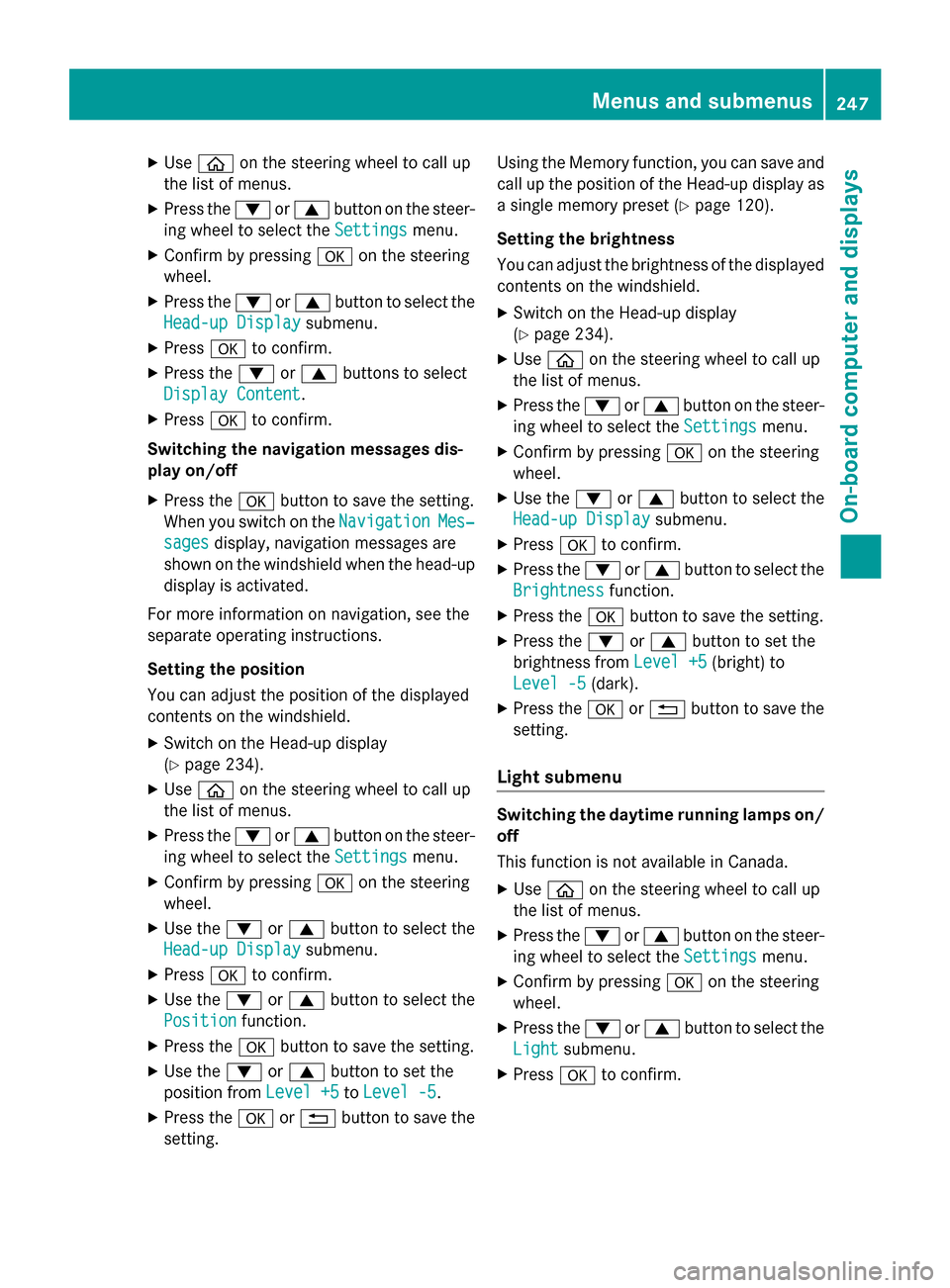
X
Use 00E2 on the steering wheel to call up
the list of menus.
X Press the 0064or0063 button on the steer-
ing wheel to select the Settings
Settingsmenu.
X Confirm by pressing 0076on the steering
wheel.
X Press the 0064or0063 button to select the
Head-up Display
Head-up Display submenu.
X Press 0076to confirm.
X Press the 0064or0063 buttons to select
Display Content
Display Content.
X Press 0076to confirm.
Switching the navigation messages dis-
play on/off
X Press the 0076button to save the setting.
When you switch on the Navigation
Navigation Mes‐ Mes‐
sages
sages display, navigation messages are
shown on the windshield when the head-up display is activated.
For more information on navigation, see the
separate operating instructions.
Setting the position
You can adjust the position of the displayed
contents on the windshield.
X Switch on the Head-up display
(Y page 234).
X Use 00E2 on the steering wheel to call up
the list of menus.
X Press the 0064or0063 button on the steer-
ing wheel to select the Settings Settingsmenu.
X Confirm by pressing 0076on the steering
wheel.
X Use the 0064or0063 button to select the
Head-up Display
Head-up Display submenu.
X Press 0076to confirm.
X Use the 0064or0063 button to select the
Position
Position function.
X Press the 0076button to save the setting.
X Use the 0064or0063 button to set the
position from Level +5
Level +5toLevel -5
Level -5.
X Press the 0076or0038 button to save the
setting. Using the Memory function, you can save and
call up the position of the Head-up display as
a single memory preset (Y page 120).
Setting the brightness
You can adjust the brightness of the displayed
contents on the windshield.
X Switch on the Head-up display
(Y page 234).
X Use 00E2 on the steering wheel to call up
the list of menus.
X Press the 0064or0063 button on the steer-
ing wheel to select the Settings
Settings menu.
X Confirm by pressing 0076on the steering
wheel.
X Use the 0064or0063 button to select the
Head-up Display Head-up Display submenu.
X Press 0076to confirm.
X Press the 0064or0063 button to select the
Brightness
Brightness function.
X Press the 0076button to save the setting.
X Press the 0064or0063 button to set the
brightness from Level +5
Level +5(bright) to
Level -5
Level -5 (dark).
X Press the 0076or0038 button to save the
setting.
Light submenu Switching the daytime running lamps on/
off
This function is not available in Canada.
X Use 00E2 on the steering wheel to call up
the list of menus.
X Press the 0064or0063 button on the steer-
ing wheel to select the Settings
Settings menu.
X Confirm by pressing 0076on the steering
wheel.
X Press the 0064or0063 button to select the
Light Light submenu.
X Press 0076to confirm. Menus and submenus
247On-board computer and displays Z
Page 250 of 406
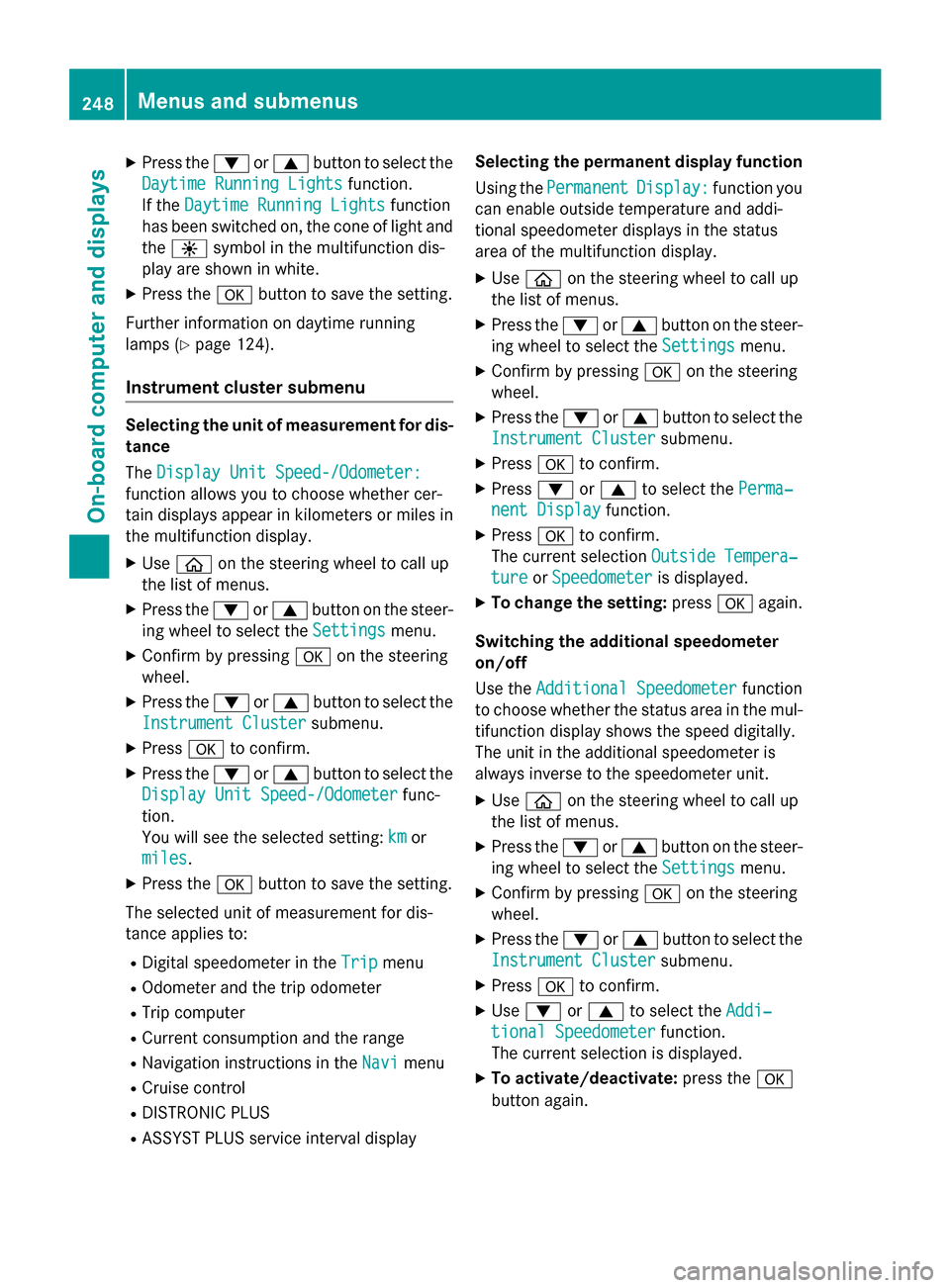
X
Press the 0064or0063 button to select the
Daytime Running Lights
Daytime Running Lights function.
If the Daytime Running Lights
Daytime Running Lights function
has been switched on, the cone of light and the 0086 symbol in the multifunction dis-
play are shown in white.
X Press the 0076button to save the setting.
Further information on daytime running
lamps (Y page 124).
Instrument cluster submenu Selecting the unit of measurement for dis-
tance
The Display Unit Speed-/Odometer:
Display Unit Speed-/Odometer:
function allows you to choose whether cer-
tain displays appear in kilometers or miles in the multifunction display.
X Use 00E2 on the steering wheel to call up
the list of menus.
X Press the 0064or0063 button on the steer-
ing wheel to select the Settings
Settings menu.
X Confirm by pressing 0076on the steering
wheel.
X Press the 0064or0063 button to select the
Instrument Cluster
Instrument Cluster submenu.
X Press 0076to confirm.
X Press the 0064or0063 button to select the
Display Unit Speed-/Odometer
Display Unit Speed-/Odometer func-
tion.
You will see the selected setting: km
km or
miles miles.
X Press the 0076button to save the setting.
The selected unit of measurement for dis-
tance applies to: R Digital speedometer in the Trip
Trip menu
R Odometer and the trip odometer
R Trip computer
R Current consumption and the range
R Navigation instructions in the Navi Navimenu
R Cruise control
R DISTRONIC PLUS
R ASSYST PLUS service interval display Selecting the permanent display function
Using the Permanent
Permanent Display:
Display:function you
can enable outside temperature and addi-
tional speedometer displays in the status
area of the multifunction display.
X Use 00E2 on the steering wheel to call up
the list of menus.
X Press the 0064or0063 button on the steer-
ing wheel to select the Settings Settingsmenu.
X Confirm by pressing 0076on the steering
wheel.
X Press the 0064or0063 button to select the
Instrument Cluster
Instrument Cluster submenu.
X Press 0076to confirm.
X Press 0064or0063 to select the Perma‐
Perma‐
nent Display
nent Display function.
X Press 0076to confirm.
The current selection Outside Tempera‐
Outside Tempera‐
ture
ture orSpeedometer
Speedometer is displayed.
X To change the setting: press0076again.
Switching the additional speedometer
on/off
Use the Additional Speedometer
Additional Speedometer function
to choose whether the status area in the mul- tifunction display shows the speed digitally.
The unit in the additional speedometer is
always inverse to the speedometer unit.
X Use 00E2 on the steering wheel to call up
the list of menus.
X Press the 0064or0063 button on the steer-
ing wheel to select the Settings
Settings menu.
X Confirm by pressing 0076on the steering
wheel.
X Press the 0064or0063 button to select the
Instrument Cluster Instrument Cluster submenu.
X Press 0076to confirm.
X Use 0064 or0063 to select the Addi‐
Addi‐
tional Speedometer
tional Speedometer function.
The current selection is displayed.
X To activate/deactivate: press the0076
button again. 248
Menus and submenusOn-board computer and displays
Page 251 of 406
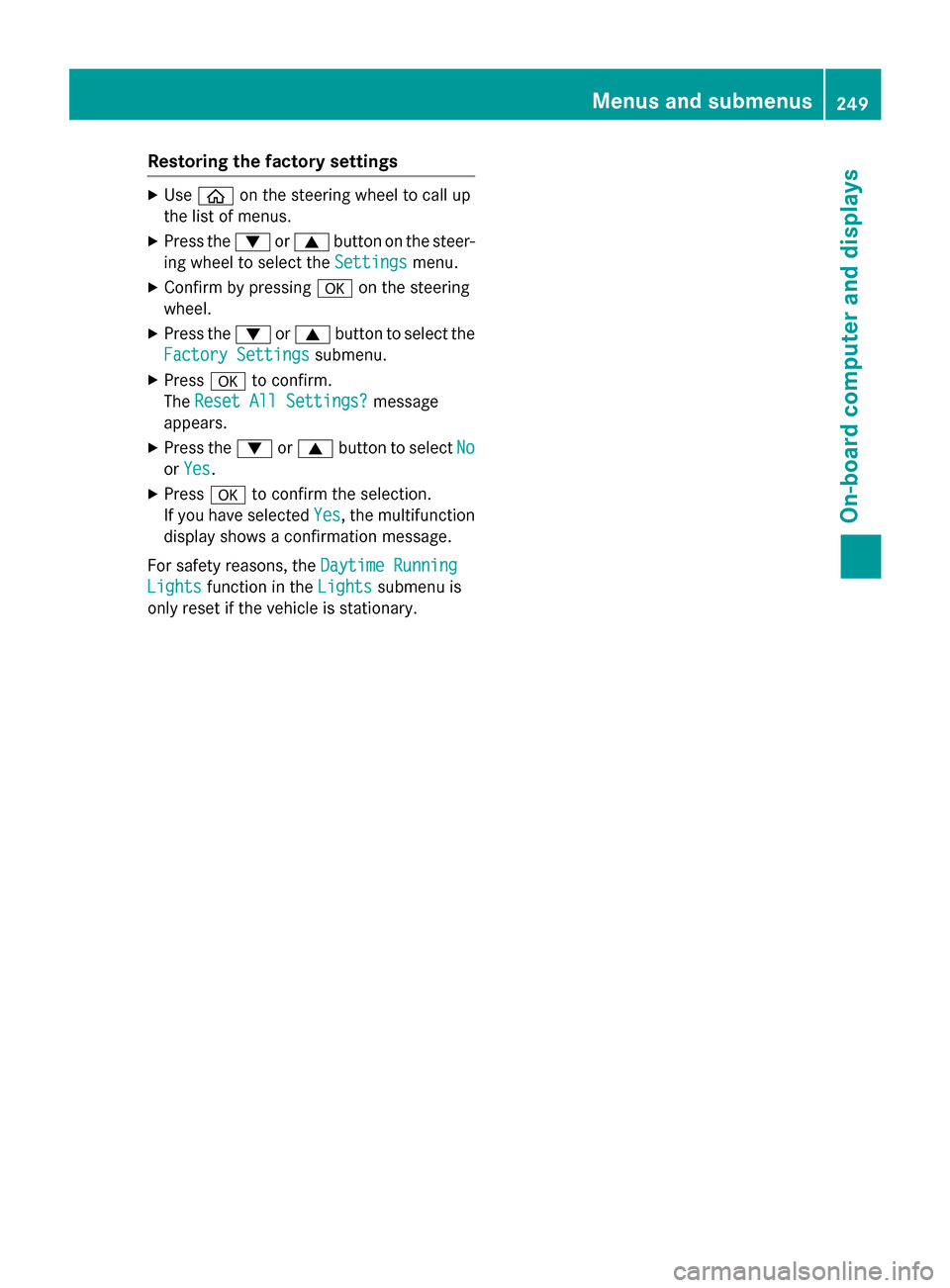
Restoring the factory settings
X
Use 00E2 on the steering wheel to call up
the list of menus.
X Press the 0064or0063 button on the steer-
ing wheel to select the Settings
Settings menu.
X Confirm by pressing 0076on the steering
wheel.
X Press the 0064or0063 button to select the
Factory Settings
Factory Settings submenu.
X Press 0076to confirm.
The Reset All Settings?
Reset All Settings? message
appears.
X Press the 0064or0063 button to select No
No
or Yes
Yes.
X Press 0076to confirm the selection.
If you have selected Yes
Yes, the multifunction
display shows a confirmation message.
For safety reasons, the Daytime Running
Daytime Running
Lights
Lights function in the Lights
Lightssubmenu is
only reset if the vehicle is stationary. Menus and submenus
249On-board computer and displays Z
Page 252 of 406
Display messages
Introduction
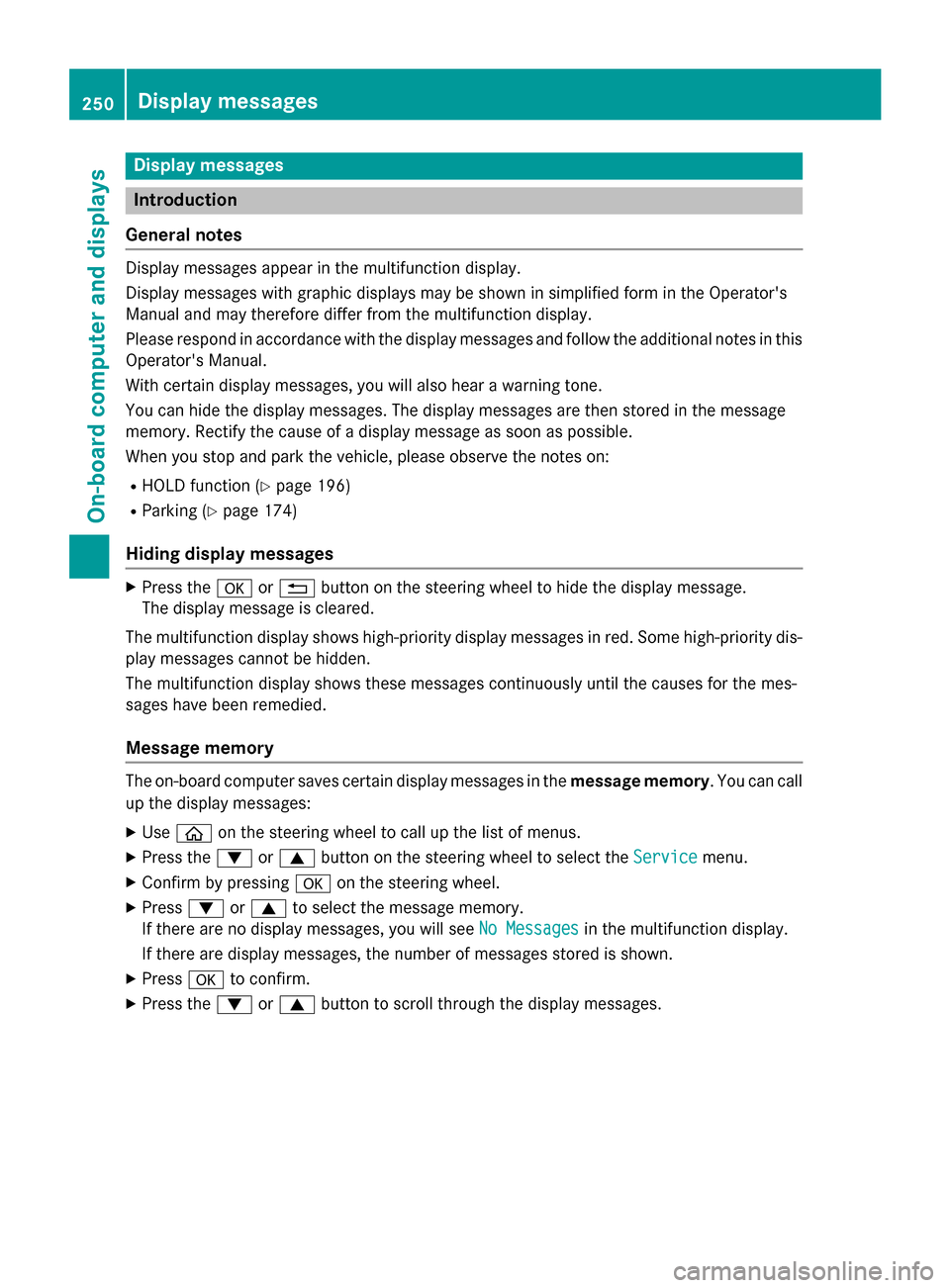
General notes Display messages appear in the multifunction display.
Display messages with graphic displays may be shown in simplified form in the Operator's
Manual and may therefore differ from the multifunction display.
Please respond in accordance with the display messages and follow the additional notes in this Operator's Manual.
With certain display messages, you will also hear a warning tone.
You can hide the display messages. The display messages are then stored in the message
memory. Rectify the cause of a display message as soon as possible.
When you stop and park the vehicle, please observe the notes on:
R HOLD function (Y page 196)
R Parking (Y page 174)
Hiding display messages X
Press the 0076or0038 button on the steering wheel to hide the display message.
The display message is cleared.
The multifunction display shows high-priority display messages in red. Some high-priority dis- play messages cannot be hidden.
The multifunction display shows these messages continuously until the causes for the mes-
sages have been remedied.
Message memory The on-board computer saves certain display messages in the
message memory. You can call
up the display messages:
X Use 00E2 on the steering wheel to call up the list of menus.
X Press the 0064or0063 button on the steering wheel to select the Service Servicemenu.
X Confirm by pressing 0076on the steering wheel.
X Press 0064or0063 to select the message memory.
If there are no display messages, you will see No Messages
No Messages in the multifunction display.
If there are display messages, the number of messages stored is shown.
X Press 0076to confirm.
X Press the 0064or0063 button to scroll through the display messages. 250
Display
messagesOn-board computer and displays
Page 253 of 406
Safety systems
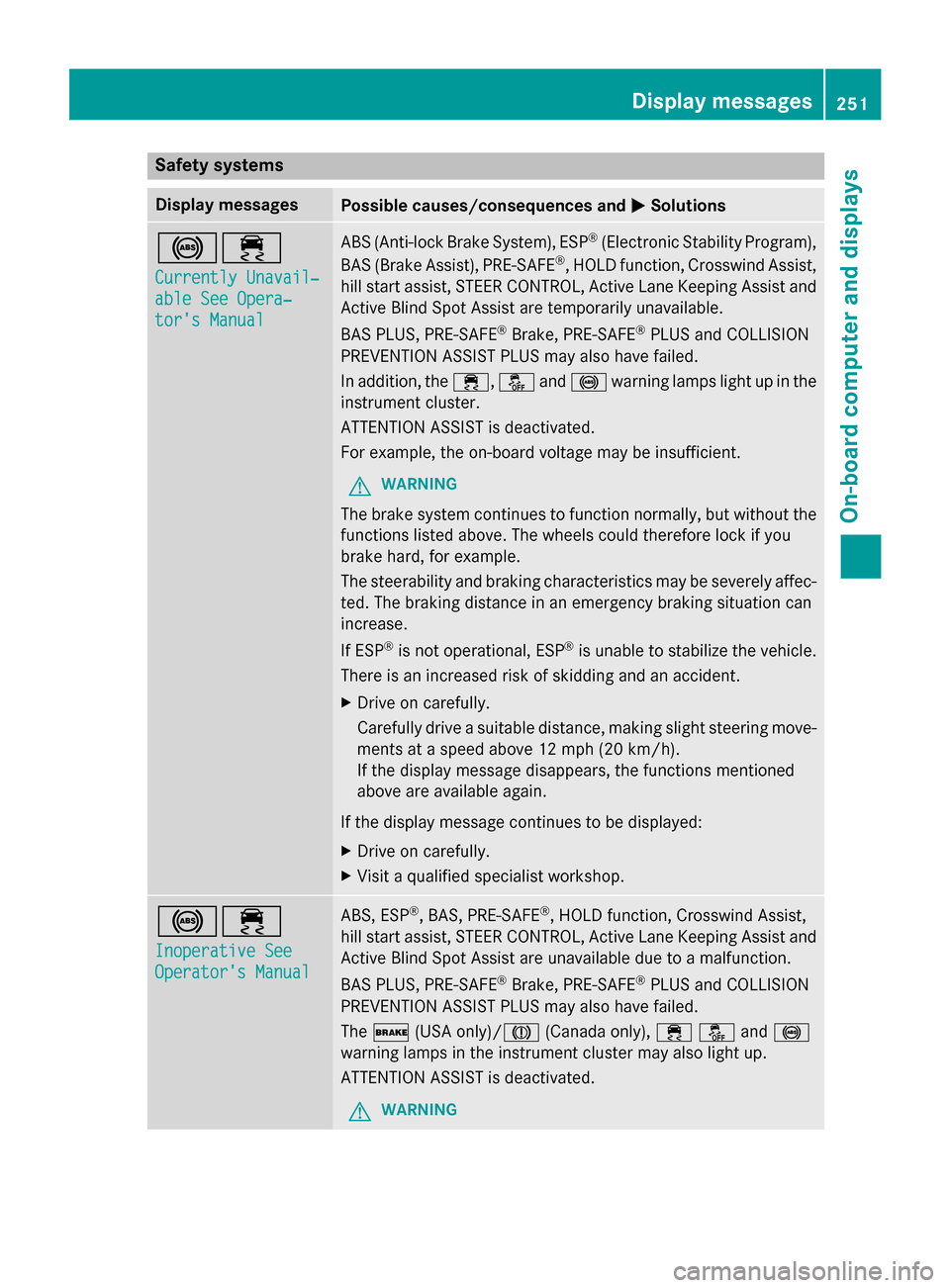
Display messages
Possible causes/consequences and
0050
0050Solutions 002500E5
Currently Unavail‐ Currently Unavail‐
able See Opera‐ able See Opera‐
tor's Manual tor's Manual ABS (Anti-lock Brake System), ESP
®
(Electronic Stability Program),
BAS (Brake Assist), PRE‑ SAFE®
, HOLD function, Crosswind Assist,
hill start assist, STEER CONTROL, Active Lane Keeping Assist and
Active Blind Spot Assist are temporarily unavailable.
BAS PLUS, PRE‑ SAFE®
Brake, PRE‑SAFE ®
PLUS and COLLISION
PREVENTION ASSIST PLUS may also have failed.
In addition, the 00E5,00BBand0025 warning lamps light up in the
instrument cluster.
ATTENTION ASSIST is deactivated.
For example, the on-board voltage may be insufficient.
G WARNING
The brake system continues to function normally, but without the functions listed above. The wheels could therefore lock if you
brake hard, for example.
The steerability and braking characteristics may be severely affec-ted. The braking distance in an emergency braking situation can
increase.
If ESP ®
is not operational, ESP ®
is unable to stabilize the vehicle.
There is an increased risk of skidding and an accident.
X Drive on carefully.
Carefully drive a suitable distance, making slight steering move-
ments at a speed above 12 mph (20 km/h).
If the display message disappears, the functions mentioned
above are available again.
If the display message continues to be displayed: X Drive on carefully.
X Visit a qualified specialist workshop. 002500E5
Inoperative See Inoperative See
Operator's Manual Operator's Manual ABS, ESP
®
, BAS, PRE‑SAFE ®
, HOLD function, Crosswind Assist,
hill start assist, STEER CONTROL, Active Lane Keeping Assist and Active Blind Spot Assist are unavailable due to a malfunction.
BAS PLUS, PRE‑SAFE ®
Brake, PRE‑SAFE ®
PLUS and COLLISION
PREVENTION ASSIST PLUS may also have failed.
The 0027 (USA only)/004D (Canada only),00E500BBand 0025
warning lamps in the instrument cluster may also light up.
ATTENTION ASSIST is deactivated.
G WARNING Display messages
251On-board computer and displays Z