car play MERCEDES-BENZ C-CLASS SEDAN 2018 COMAND Manual
[x] Cancel search | Manufacturer: MERCEDES-BENZ, Model Year: 2018, Model line: C-CLASS SEDAN, Model: MERCEDES-BENZ C-CLASS SEDAN 2018Pages: 174, PDF Size: 4.1 MB
Page 6 of 174
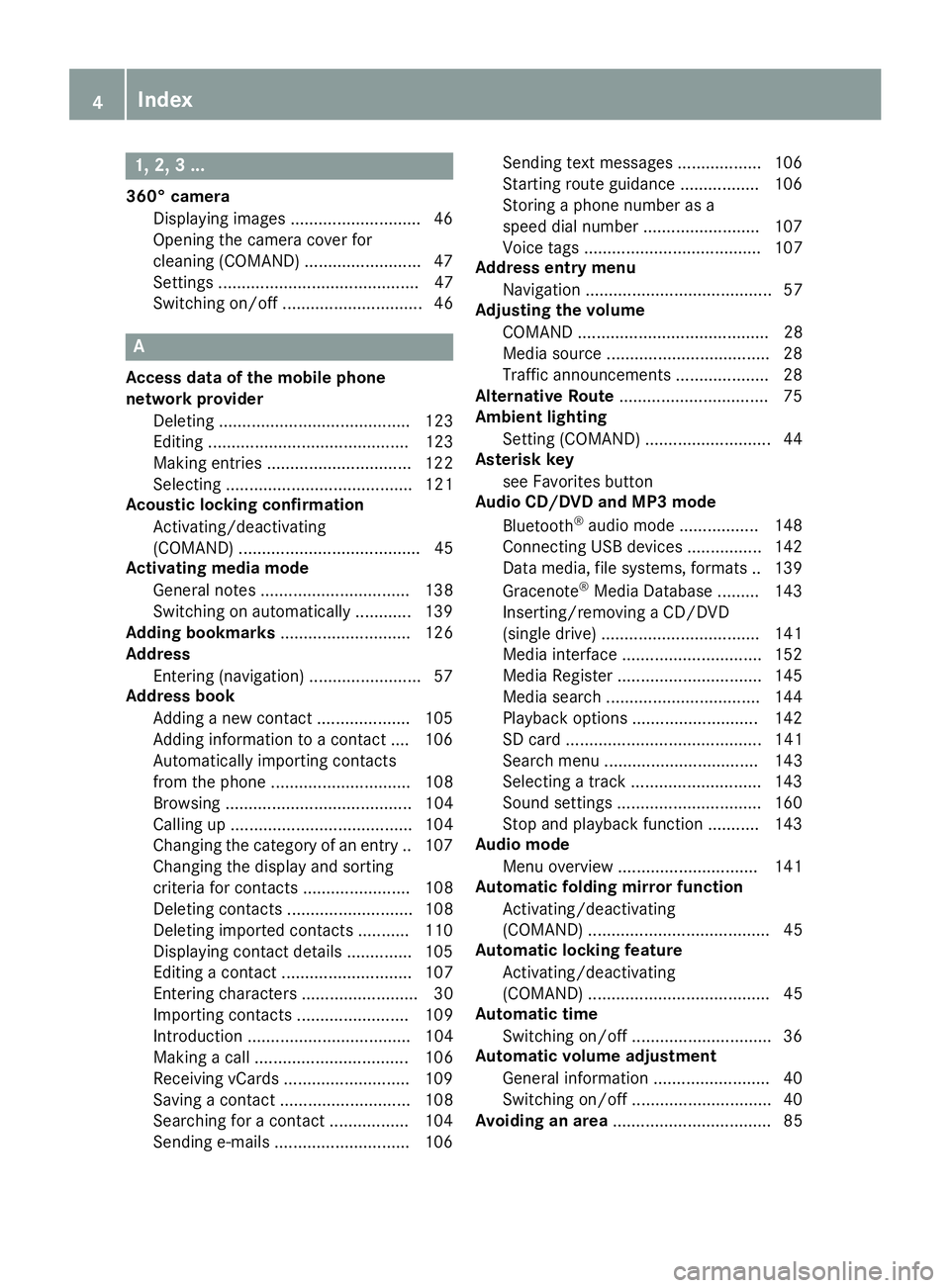
1, 2, 3 ...
360° cameraDisplaying images ............................ 46
Opening the camera cover for
cleaning (COMAND) .........................4 7
Settings ........................................... 47
Switching on/off .............................. 46
A
Access data of the mobile phone
network provider
Deleting ......................................... 123
Editing ........................................... 123
Making entries ............................... 122
Selecting ........................................ 121
Acoustic locking confirmation
Activating/deactivating
(COMAND) ....................................... 45
Activating media mode
General notes ................................ 138
Switching on automatically ............ 139
Adding bookmarks ............................ 126
Address
Entering (navigation) ........................ 57
Address book
Adding a new contact .................... 105
Adding information to a contact .... 106
Automatically importing contacts
from the phone .............................. 108
Browsing ........................................ 104
Calling up ....................................... 104
Changing the category of an entry .. 107
Changing the display and sorting
criteria for contacts ....................... 108
Deleting contacts ........................... 108
Deleting imported contacts ........... 110
Displaying contact details .............. 105
Editing a contact ............................ 107
Entering characters ......................... 30
Importing contacts ........................ 109
Introduction ................................... 104
Making a call ................................. 106
Receiving vCards ........................... 109
Saving a contact ............................ 108
Searching for a contact ................. 104
Sending e-mails ............................. 106 Sending text messages .................. 106
Starting route guidance ................. 106
Storing a phone number as a
speed dial number ......................... 107
Voice tags ...................................... 107
Address entry menu
Navigation ........................................ 57
Adjusting the volume
COMAND ......................................... 28
Media source ................................... 28
Traffic announcements .................... 28
Alternative Route ................................ 75
Ambient lighting
Setting (COMAND) ........................... 44
Asterisk key
see Favorites button
Audio CD/DVD and MP3 mode
Bluetooth
®audio mode ................. 148
Connecting USB devices ................ 142
Data media, fil e sy
stems, formats .. 139
Gracenote®Media Database ......... 143
Inserting/removing a CD/DVD
(single drive) .................................. 141
Media interface .............................. 152
Media Register ............................... 145
Media search ................................. 144
Playback options ........................... 142
SD card .......................................... 141
Search menu ................................. 143
Selecting a track ............................ 143
Sound settings ............................... 160
Stop and playback function ........... 143
Audio mode
Menu overview .............................. 141
Automatic folding mirror function
Activating/deactivating
(COMAND) ....................................... 45
Automatic locking feature
Activating/deactivating
(COMAND) ....................................... 45
Automatic time
Switching on/off .............................. 36
Automatic volume adjustment
General information ......................... 40
Switching on/off .............................. 40
Avoiding an area .................................. 85
4Index
Page 7 of 174
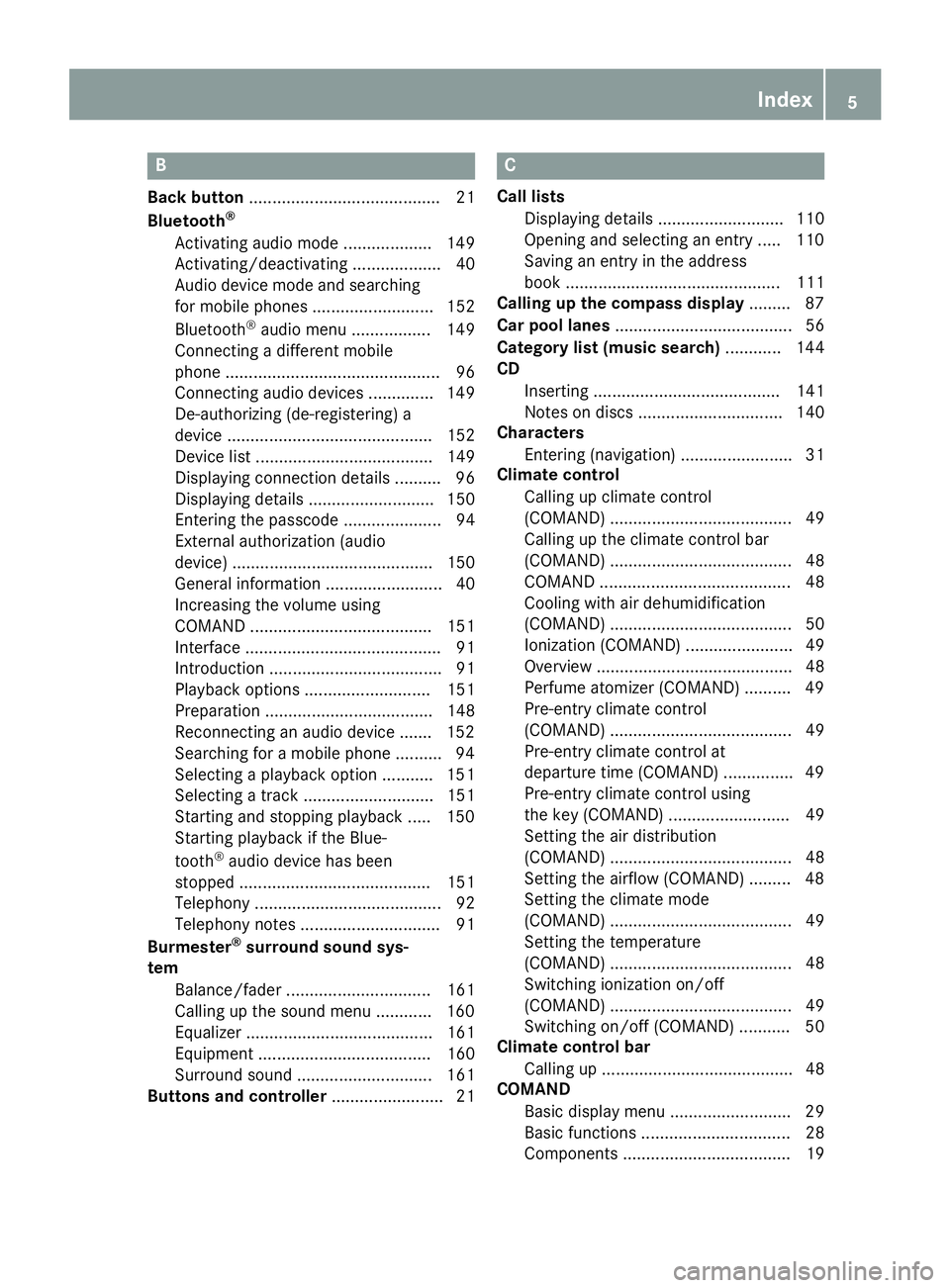
B
Back button......................................... 21
Bluetooth®
Activating audio mode ................... 149
Activating/deactivating ................... 40
Audio device mode and searching
for mobile phones .......................... 152
Bluetooth
®audio menu ................. 149
Connecting a different mobile
phone .............................................. 96
Connecting audio devices .............. 149
De-authorizing (de-registering) a
device ............................................ 152
Device list ...................................... 149
Displaying connection details .......... 96
Displaying details ........................... 150
Entering the passcode ..................... 94
External authorization (audio
device) ........................................... 150
General information ......................... 40
Increasing the volume using
COMAND ....................................... 151
Interface .......................................... 91
Introduction ..................................... 91
Playback options ........................... 151
Preparation .................................... 148
Reconnecting an audio device ....... 152
Searching for a mobile phone .......... 94
Selecting a playback option ........... 151
Selecting a track ............................ 151
Starting and stopping playback ..... 150
Starting playback if the Blue-
tooth
®audio device has been
stopped ......................................... 151
Telephony ........................................ 92
Telephony notes .............................. 91
Burmester
®surround sound sys-
tem
Balance/fader ............................... 161
Calling up the sound menu ............ 160
Equalizer ........................................ 161
Equipment ..................................... 160
Surround sound ............................. 161
Buttons and controller ........................ 21
C
Call lists
Displaying details ........................... 110
Opening and selecting an entry ..... 110
Saving an entry in the address
book .............................................. 111
Calling up the compass display ......... 87
Car pool lanes ...................................... 56
Category list (music search) ............ 144
CD
Inserting ........................................ 141
Notes on discs ............................... 140
Characters
Entering (navigation) ........................ 31
Climate control
Calling up climate control
(COMAND) ....................................... 49
Calling up the climate control bar
(COMAND) ....................................... 48
COMAND ......................................... 48
Cooling with air dehumidification
(COMAND) ....................................... 50
Ionization (COMAND) ....................... 49
Overview .......................................... 48
Perfume atomizer (COMAND) .......... 49
Pre-entry climate control
(COMAND) ....................................... 49
Pre-entry climate control at
departure time (COMAND) ............... 49
Pre-entry climate control using
the key (COMAND) .......................... 49
Setting the air distribution
(COMAND) ....................................... 48
Setting the airflow (COMAND) ......... 48
Setting the climate mode
(COMAND) ....................................... 49
Setting the temperature
(COMAND) ....................................... 48
Switching ionization on/off
(COMAND) ....................................... 49
Switching on/off (COMAND) ........... 50
Climate control bar
Calling up ......................................... 48
COMAND
Basic display menu .......................... 29
Basic functions ................................ 28
Components .................................... 19
Index5
Page 8 of 174
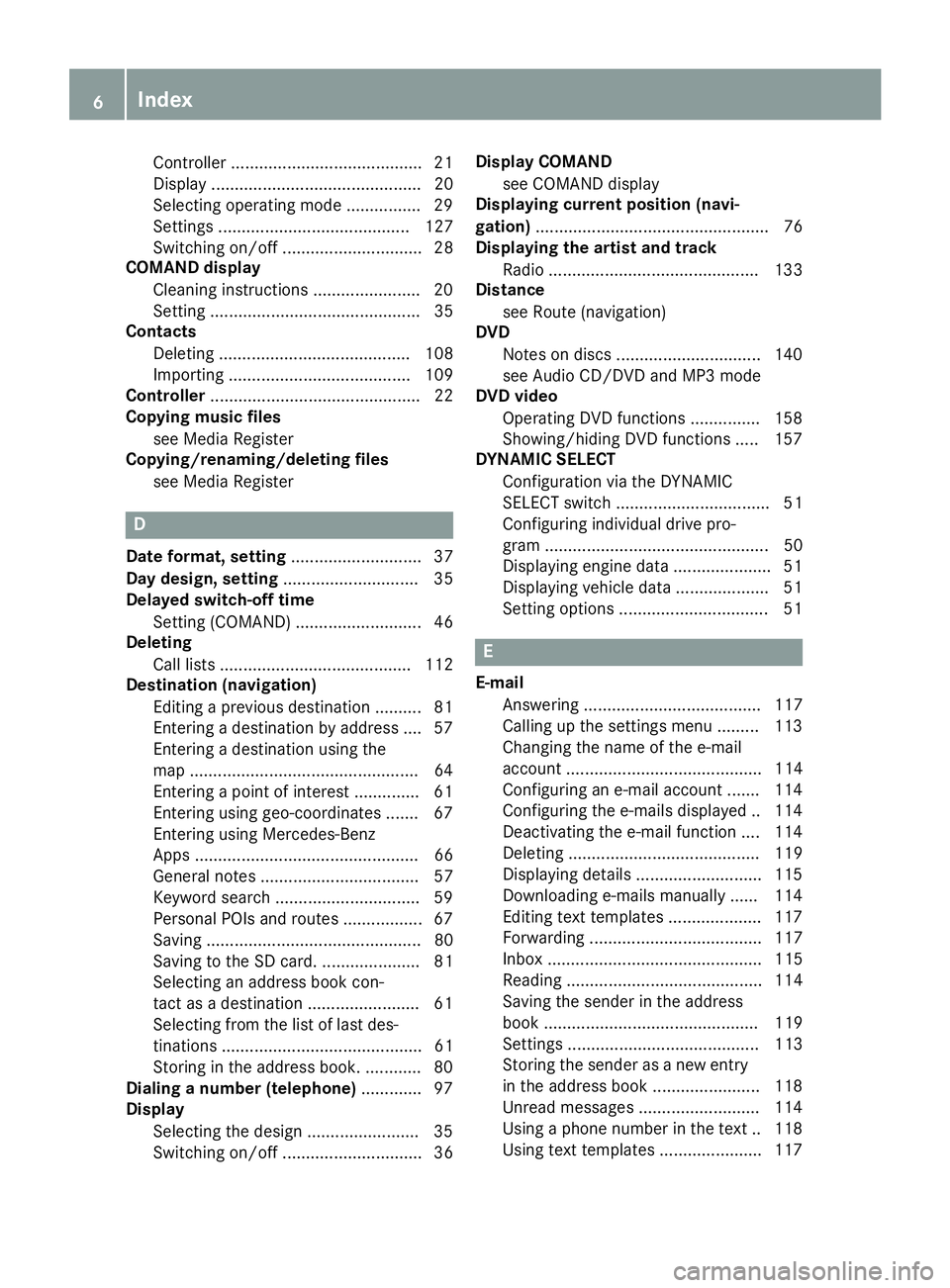
Controller .........................................21
Display ............................................. 20
Selecting operating mode ................ 29
Settings ......................................... 127
Switching on/off .............................. 28
COMAND display
Cleaning instructions ....................... 20
Setting ............................................. 35
Contacts
Deleting ......................................... 108
Importing ....................................... 109
Controller ............................................. 22
Copying music files
see Media Register
Copying/renaming/deleting files
see Media Register
D
Date format, setting ............................ 37
Day design, setting ............................. 35
Delayed switch-off time
Setting (COMAND) ........................... 46
Deleting
Call lists ......................................... 112
Destination (navigation)
Editing a previous destination .......... 81
Entering a destination by address .... 57
Entering a destination using the
map .................................................6 4
Entering a point of interest .............. 61
Entering using geo-coordinates ....... 67
Entering using Mercedes-Benz
Apps ................................................ 66
General notes .................................. 57
Keyword search ............................... 59
Personal POIs and routes ................. 67
Saving .............................................. 80
Saving to the SD card. ..................... 81
Selecting an address book con-
tact as a destination ........................ 61
Selecting from the list of last des-
tinations ........................................... 61
Storing in the address book. ............ 80
Dialing a number (telephone) ............. 97
Display
Selecting the design ........................ 35
Switching on/off .............................. 36 Display COMAND
see COMAND display
Displaying current position (navi-
gation) .................................................. 76
Displaying the artist and track
Radio ............................................. 133
Distance
see Route (navigation)
DVD
Notes on discs ............................... 140
see Audio CD/DVD and MP3 mode
DVD video
Operating DVD functions ............... 158
Showing/hiding DVD functions ..... 157
DYNAMIC SELECT
Configuration via the DYNAMIC
SELECT switch ................................. 51
Configuring individual drive pro-
gram ................................................ 50
Displaying engine data ..................... 51
Displaying vehicle data .................... 51
Setting options ................................ 51
E
E-mail
Answering ...................................... 117
Calling up the settings menu ......... 113
Changing the name of the e-mail
account .......................................... 114
Configuring an e-mail account ....... 114
Configuring the e-mails displayed .. 114
Deactivating the e-mail function .... 114
Deleting ......................................... 119
Displaying details ........................... 115
Downloading e-mails manually ...... 114
Editing text templates .................... 117
Forwarding ..................................... 117
Inbox .............................................. 115
Reading .......................................... 114
Saving the sender in the address
book .............................................. 119
Settings ......................................... 113
Storing the sender as a new entryin the address book ....................... 118
Unread messages .......................... 114
Using a phone number in the text .. 118
Using text templates ...................... 117
6Index
Page 12 of 174
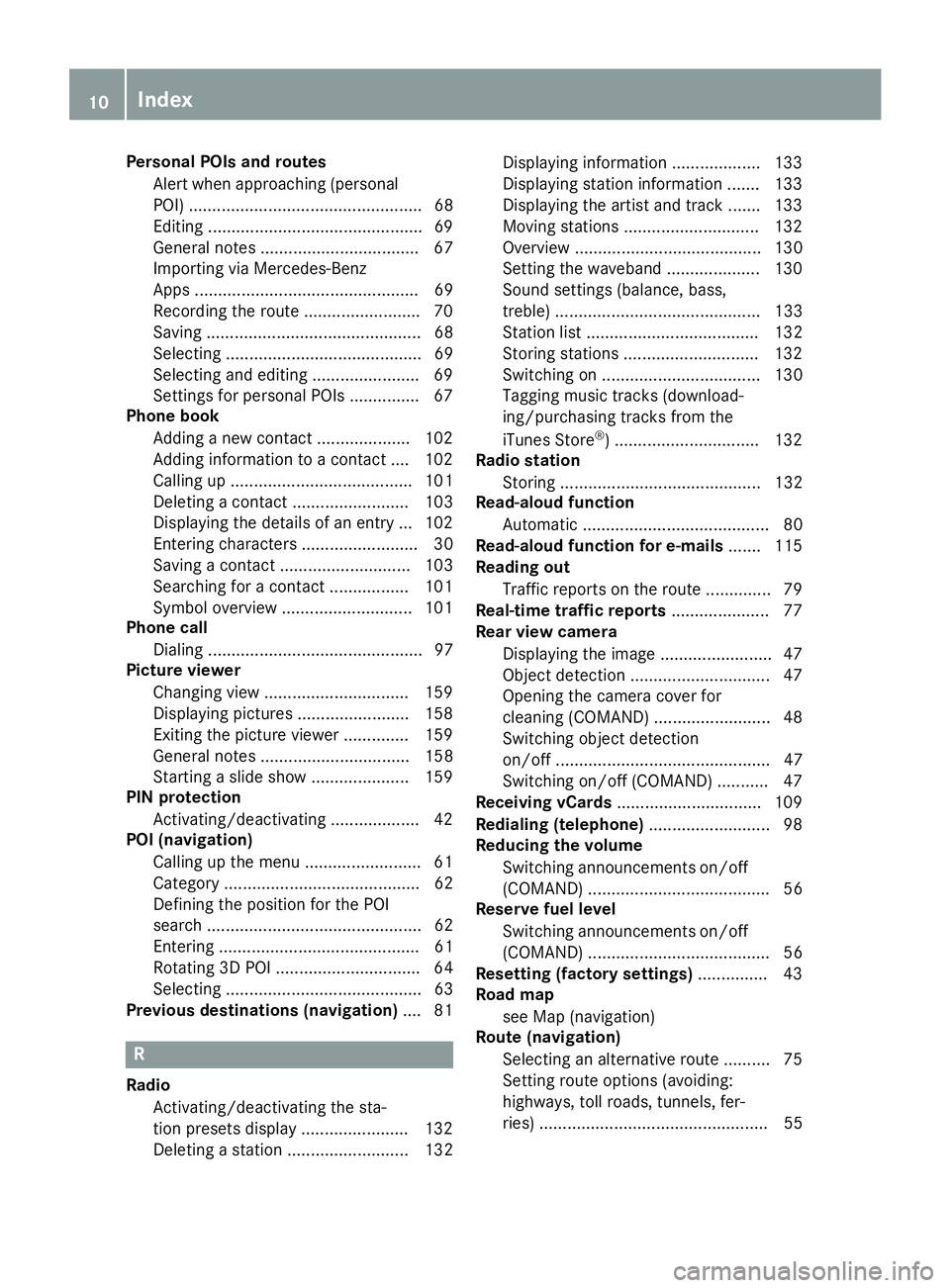
Personal POIs and routesAlert when approaching (personal
POI) .................................................. 68
Editing ..............................................6 9
General notes .................................. 67
Importing via Mercedes-Benz
Apps ................................................ 69
Recording the route ........................ .70
Saving .............................................. 68
Selecting .......................................... 69
Selecting and editing ....................... 69
Settings for personal POIs ............... 67
Phone book
Adding a new contact .................... 102
Adding information to a contact .... 102
Calling up ....................................... 101
Deleting a contact ......................... 103
Displaying the details of an entry ... 102
Entering characters ......................... 30
Saving a contact ............................ 103
Searching for a contact ................. 101
Symbol overview ............................ 101
Phone call
Dialing .............................................. 97
Picture viewer
Changing view ............................... 159
Displaying pictures ........................ 158
Exiting the picture viewer .............. 159
General notes ................................ 158
Starting a slide show ..................... 159
PIN protection
Activating/deactivating ................... 42
POI (navigation)
Calling up the menu ......................... 61
Category .......................................... 62
Defining the position for the POI
search .............................................. 62
Entering ........................................... 61
Rotating 3D POI ............................... 64
Selecting .......................................... 63
Previous destinations (navigation) .... 81
R
Radio
Activating/deactivating the sta-
tion presets display ....................... 132
Deleting a station .......................... 132 Displaying information ................... 133
Displaying station information ....... 133
Displaying the artist and track ....... 133
Moving stations ............................. 132
Overview ........................................ 130
Setting the waveband .................... 130
Sound settings (balance, bass,
treble) ............................................ 133
Station list ..................................... 132
Storing stations ............................. 132
Switching on .................................. 130
Tagging music tracks (download-
ing/purchasing tracks from the
iTunes Store
®) ............................... 132
Radio station
Storing ........................................... 132
Read-aloud function
Automatic ........................................ 80
Read-aloud function for e-mails ....... 115
Reading out
Traffic reports on the route .............. 79
Real-time traffic reports ..................... 77
Rear view camera
Displaying the image ........................ 47
Object detection .............................. 47
Opening the camera cover for
cleaning (COMAND) ......................... 48
Switching object detection
on/off .............................................. 47
Switching on/off (COMAND) ........... 47
Receiving vCards ............................... 109
Redialing (telephone) .......................... 98
Reducing the volume
Switching announcements on/off
(COMAND) ....................................... 56
Reserve fuel level
Switching announcements on/off(COMAND) ....................................... 56
Resetting (factory settings) ............... 43
Road map
see Map (navigation)
Route (navigation)
Selecting an alternative route .......... 75
Setting route options (avoiding:
highways, toll roads, tunnels, fer-
ries) ................................................. 55
10Index
Page 13 of 174
Setting the route type (short
route, fast route, dynamic route or
economic route) ............................... 55
Starting calculation .......................... 59
Route guidance
Canceling/continuing ...................... 74
Continue .......................................... 74
Freeway information ........................ 73
General notes .................................. 71
Lane recommendations ................... 72
Off-road ........................................... 76
Traffic reports .................................. 77
S
Safety notesAudio CD/DVD and MP3 mode ..... 139
Using the telephone ......................... 91
Satellite radio
Displaying information ................... 137
Overview ........................................ 134
Presets menu view ......................... 135
Registering .................................... 134
Switching to ................................... 134
SatRadio
Channel list updates ...................... 137
Memory functions .......................... 135
Music and sports alerts ................. 136
Notes ............................................. 133
Selecting a category ...................... 134
Selecting a channel ....................... 135
Tagging music tracks ..................... 136
SD card
Inserting ........................................ 141
Inserting/removing ........................ 141
Removing ....................................... 141
Searching for a gas station
When the fuel level is low ................ 66
Seat-belt adjustment function
Activating/deactivating
(COMAND) ....................................... 45
Selecting stations
Radio ............................................. 131
Sending DTMF tones ........................... 99
Setting access data
Online and Internet ........................ 121
Setting the language
COMAND ......................................... 41 Setting the night design
..................... 35
Setting the text reader speed ............ 37
Setting the volume
Telephone calls ................................ 28
Short message
see Text messages (SMS)
SIRIUS weather display
5-day forecast ................................ 162
Daily forecast ................................. 162
Detail information .......................... 163
Information chart ........................... 162
Selecting a location for the
weather forecast ............................ 163
Switching on/off ........................... 162
Weather map ................................. 165
SMS
Unread messages .......................... 114
Sound
Switching on/off .............................. 28
Sound settings
Audio ............................................. 160
Balance/fader ............................... 160
Calling up the sound menu ............ 160
Equalizer ........................................ 160
Sound system
see Burmester
®surround sound system
Speed dial
Deleting ......................................... 112
Setting up ...................................... 112
State/province
Selecting .......................................... 58
Stati
on presets (radio)
Deleting marked stations ............... 132
Stop function
Video DVD ..................................... 158
Storing stations
Radio ............................................. 132
Street name announcements
Switching on/off (COMAND) ........... 56
Switching between summer time
and standard time ............................... 36
Switching on media mode
Using the Media button ................. 138
Via the device list .......................... 139
Via the main function bar ............... 138
System settings
Automatic volume adjustment ......... 40
Index11
Page 17 of 174
Operating safety
Important safety notes
GWARNING
If you operate information systems and com-
munication equipment integrated in the vehi-
cle when driving, you may be distracted from
the traffic situation. You could also lose con-
trol of the vehicle. There is a risk of an acci-
dent.
Only operate this equipment when the traffic
situation permits. If you are not sure that this
is possible, park the vehicle paying attention
to traffic conditions and operate the equip-
ment when the vehicle is stationary.
You must observe the legal requirements for the
country in which you are currently driving when
operating the multimedia system.
The multimedia system calculates the route to
the destination without taking account of the
following, for example:
Rtraffic lights
Rstop and yield signs
Rmerging lanes
Rparking or stopping in a no parking/no stop-
ping zone
Rother road and traffic rules and regulations
Rnarrow bridges
The multimedia system may provide incorrect
navigation recommendations if the actual
street/traffic situation does not correspond
with the digital map's data. Digital maps do not
cover all areas nor all routes in an area. For
example, a route may have been diverted or the
direction of a one-way street may have changed.
For this reason, you must always observe road
and traffic rules and regulations during your
journey. Road and traffic rules and regulations
always have priority over the system's driving
recommendations.
Navigation announcements are intended to
direct you while driving without diverting your
attention from the road and driving.
Please always use this feature instead of con-
sulting the map display for directions. Looking
at the icons or map display can distract you from
traffic conditions and driving, and increase the
risk of an accident. Bear in mind that at a speed of only 30 mph
(approximately 50 km/
h), your vehicle covers a
distance of 44 feet (approximately 14 m) every
second.
This equipment complies with FCC radiation
exposure limits set forth for uncontrolled equip-
ment and meets t
he FCC radio frequency (RF)
Exposure Guidelines in Supplement C to OET65.
This equipment has very low levels of RF energy
that is deemed to comply without maximum
permissive exposure evaluation (MPE). How-
ever, it is recommended to install it at a distance of at least 8 inches (approx. 20 cm) between the
radiation source and a person's body (not
including limbs such as hands, wrists, feet and
legs).
GWARNING
Modifications to electronic components, their software as well as wiring can impair their
function and/or the function of other net-
worked components. In particular, systems
relevant to safety could also be affected. As a
result, these may no longer function as inten-
ded and/or jeopardize the operating safety of
the vehicle. There is an increased risk of an
accident and injury.
Never tamper with the wiring as well as elec-
tronic components or their software. You
should have all work to electrical and elec-
tronic equipment carried out at a qualified
specialist workshop.
Declarations of conformity
Vehicle components which receive
and/or transmit radio waves
USA only: The wireless devices of this vehicle
comply with Part 15 of the FCC Rules. Operation
is subject to the following two conditions:
1) These devices may not cause interference,
and
2) These devices must accept any interference,
including interference that may cause undesired
operation of the device.
Changes or modifications not expressly
approved by the party responsible for compli-
ance could void the user's authority to operate
the equipment.
Introduction15
Z
Page 21 of 174
Overview
Components
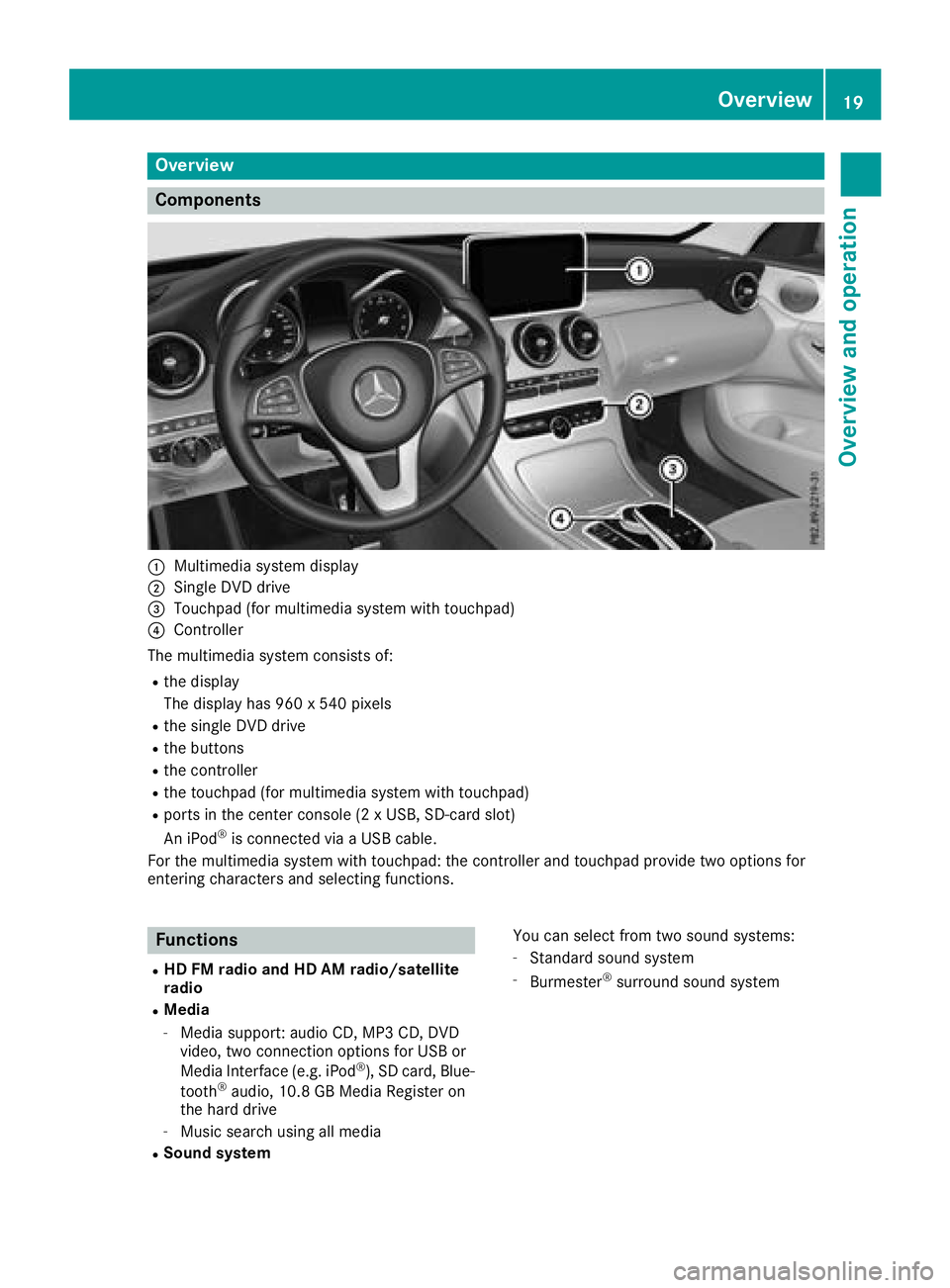
:Multimedia system display
;Single DVD drive
=Touchpad (for multimedia system with touchpad)
?Controller
The multimedia system consists of:
Rthe display
The display has 960 x 540 pixels
Rthe single DVD drive
Rthe buttons
Rthe controller
Rthe touchpad (for multimedia system with touchpad)
Rports in the center console (2 x USB, SD-card slot)
An iPod®is connected via a USB cable.
For the multimedia system with touchpad: the controller and touchpad provide two options for
entering characters and selecting functions.
Functions
RHD FM radio and HD AM radio/satellite
radio
RMedia
-Media support: audio CD, MP3 CD, DVD
video, two connection options for USB or
Media Interface (e.g. iPod
®), SD card, Blue-
tooth®audio, 10.8 GB Media Register on
the hard drive
-Music search using all media
RSound system You can select from two sound systems:
-Standard sound system
-Burmester®surround sound system
Overview19
Overview and operation
Page 22 of 174
RNavigation system
-Navigation via the hard drive
-Destination entry using keyword search
-Realistic 3D map with textured city models
-Personal POIs and routes using SD memory
card
-Dynamic route guidance with traffic reports
via SIRIUS satellite radio
-Additional navigation system functions,
such as Drive Information
RCommunication
-Messaging functions (text messages,
email)
-Address book
-Web browser
-Mercedes-Benz Apps with online search,
Facebook, stock prices, news and much
more
-Mercedes-Benz Companion app
-Mercedes-Benz Mobile Website
-Wi-Fi interface for the connection of a
smartphone to the multimedia system
RSIRIUS Weather
-Weather data as an information chart (cur-
rent forecast, 5-day preview, detailed infor-
mation)
-Weather data on the weather map, e.g. rain
radar data, storm characteristics and the
track of tropical cyclones (hurricanes,
typhoons)
RVehicle functions
-Vehicle settings, e.g. ambient lighting
-360° camera
-Rear view camera
-Climate control functions, e.g. climate
mode
-DYNAMIC SELECT (individual drive pro-
gram)
RFavorites button
-fast access to favorites on the controller or
on the touchpad
-adds and edits favorites
Display
General notes
!Avoid any direct contact with the display
surface. Pressure on the display surface may
result in impairments to the display, which
could be irreversible.
Wearing polarized sunglasses may impair your
ability to read the display.
The display has an automatic temperature-con-
trolled switch-off feature. The brightness is
automatically reduced if the temperature is too
high. The display may then temporarily switch
off completely.
Overview
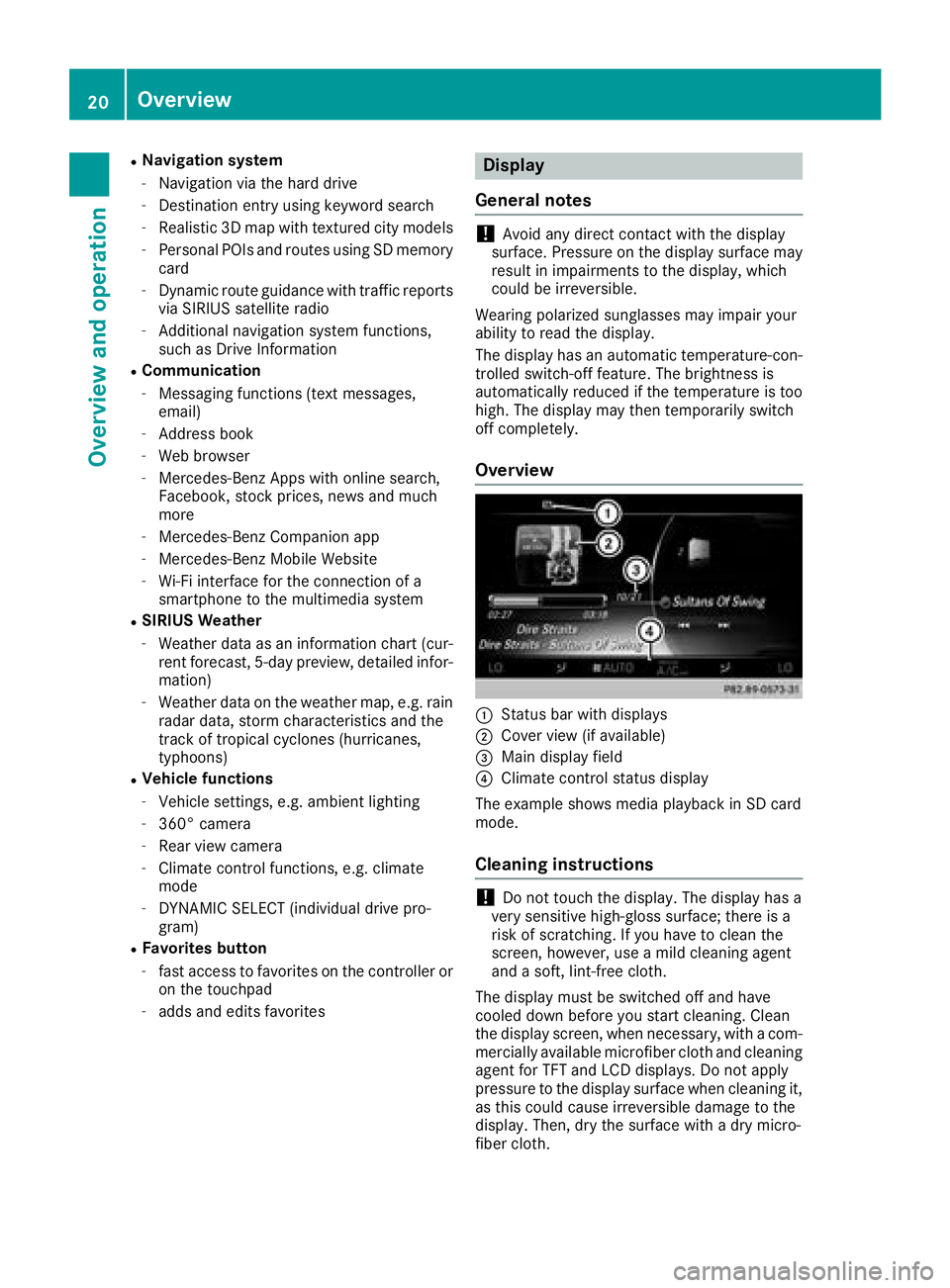
:Status bar with displays
;Cover view (if available)
=Main display field
?Climate control status display
The example shows media playback in SD card
mode.
Cleaning instructions
!Do not touch the display. The display has a
very sensitive high-gloss surface; there is a
risk of scratching. If you have to clean the
screen, however, use a mild cleaning agent
and a soft, lint-free cloth.
The display must be switched off and have
cooled down before you start cleaning. Clean
the display screen, when necessary, with a com-
mercially available microfiber cloth and cleaning
agent for TFT and LCD displays. Do not apply
pressure to the display surface when cleaning it,
as this could cause irreversible damage to the
display. Then, dry the surface with a dry micro-
fiber cloth.
20Overview
Overview and operation
Page 31 of 174
Switching navigation announcements
off and on again
XTo switch off navigation announcements:
press the thumbwheel to the right of the con-
troller during the announcement.
TheSpoken driving recommendations
have been deactivated.message
appears.
XTo switch navigation announcements on
again: switch the multimedia system off and
then on again (
Ypage 28).
or
XStart a new route calculation (Ypage 59).
or
XWhile route guidance is active, show the
menu and select +(Ypage 74).
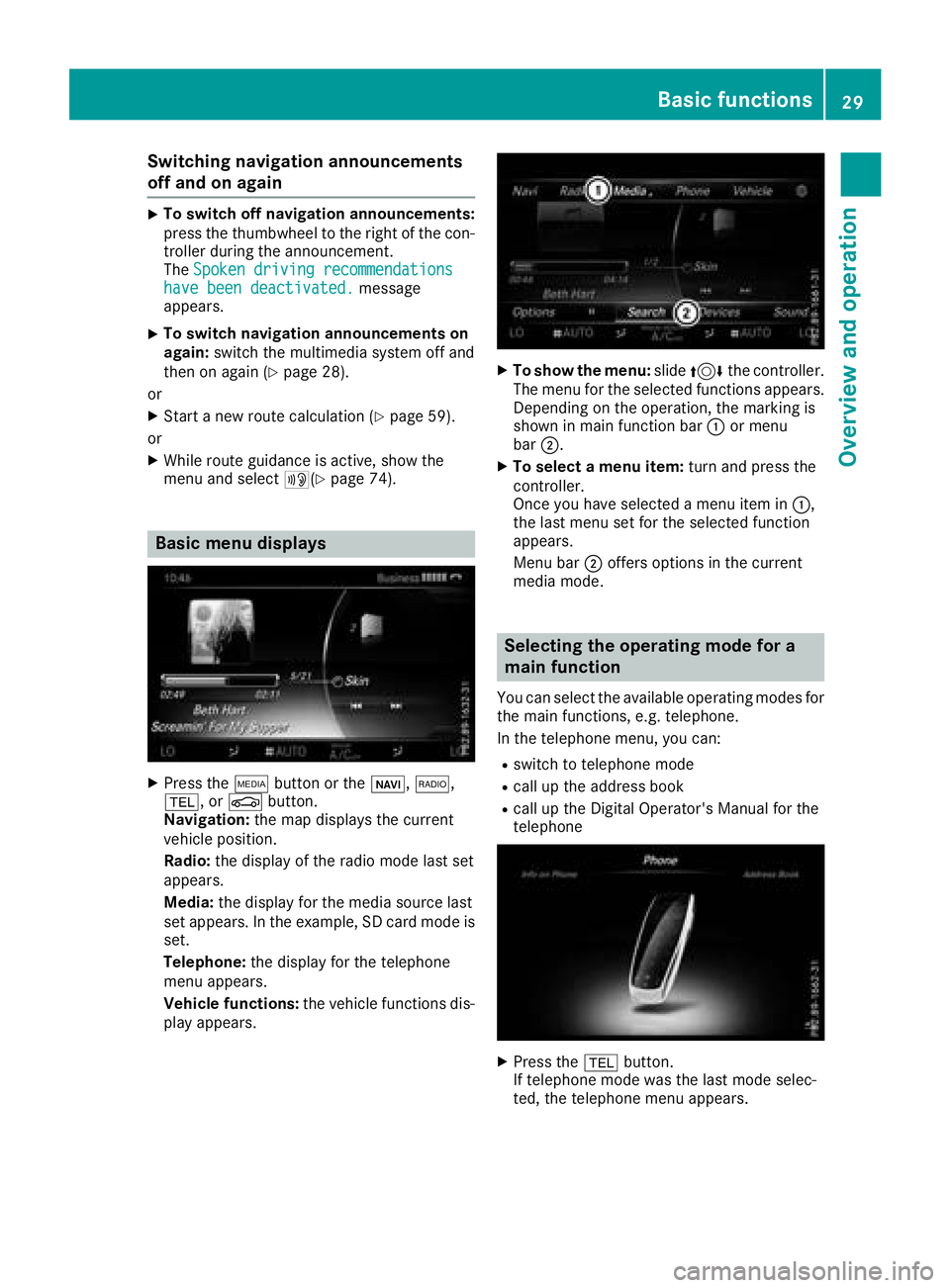
Basic menu displays
XPress theÕbutton or the ß,$,
%, or Øbutton.
Navigation: the map displays the current
vehicle position.
Radio: the display of the radio mode last set
appears.
Media: the display for the media source last
set appears. In the example, SD card mode is
set.
Telephone: the display for the telephone
menu appears.
Vehicle functions: the vehicle functions dis-
play appears.
XTo show the menu: slide4 the controller.
The menu for the selected functions appears.
Depending on the operation, the marking is
shown in main function bar :or menu
bar ;.
XTo select a menu item: turn and press the
controller.
Once you have selected a menu item in :,
the last menu set for the selected function
appears.
Menu bar ;offers options in the current
media mode.
Selecting the operating mode for a
main function
You can select the available operating modes for
the main functions, e.g. telephone.
In the telephone menu, you can:
Rswitch to telephone mode
Rcall up the address book
Rcall up the Digital Operator's Manual for the
telephone
XPress the %button.
If telephone mode was the last mode selec-
ted, the telephone menu appears.
Basic functions29
Overview and operation
Page 42 of 174
XSelectChange SSID.
A dialog for entering the SSID appears.
XEnter the new SSID.
XSelect ¬.
XPress the controller.
From now on, when establishing a connec-
tion, the vehicle will be shown with the new
SSID both on the device to be connected and
in the Connect
UsingSecurityKeymenu.
iDevice connections established using the
previous SSID will no longer work after the
SSID is changed. You have to reconnect these
devices (
Ypage 38).
Bluetooth®settings
General information about Blue-
tooth®
Bluetooth®-capable devices, e. g. mobile
phones, need to comply with a certain profile in
order to be connected to the multimedia sys-
tem. Every Bluetooth
®device has its own spe-
cific Bluetooth®name.
Bluetooth®technology is a standard for short-
range wireless data transmissions up to approx-
imately 10 m.
Yo u can use Bluetooth
®to connect your mobile
phone to the multimedia system, for example:
Ruse the hands-free system
Restablish an Internet connection
Rlisten to music using Bluetooth®Audio
Rexchange vCards
Bluetooth®is a registered trademark of Blue-
tooth Special Interest Group (SIG) Inc.
Activating/deactivating Bluetooth®
X
Press the Øbutton.
or
XPress Vehiclein the main function bar.
The vehicle menu is displayed.
XTo switch to the menu bar: slide 6the con-
troller.
XTo select System Settings: turn and press
the controller.
A menu appears.
XTo activate Oor deactivate ªActivateBluetooth: turn and press the controller.
Automatic volume adjustment
General information
With the AutomaticVolumeAdjustmentfunc-
tion, the volumes of different audio sources are
adjusted for each other, to compensate for rel-
ative differences in volume.
For example: changing from a relatively quiet to
a relatively loud radio station. The volume for
both stations sounds the same. Manual read-
justment of the volume is not required.
The Automatic Volume Adjustment
function
is deactivated ªwhen the vehicle leaves the
factory. Using this function, the dynamic range
of the music is slightly reduced. To make the
most of the audiophile sound quality, it is rec-
ommended to leave it off.
Switching the automatic volume
adjustment on/off
XPress the Øbutton.
or
XPress Vehiclein the main function bar.
The vehicle menu is displayed.
XTo switch to the menu bar: slide 6the con-
troller.
XTo select System Settings: turn and press
the controller.
A menu appears.
XTo select Automatic Volume Adjustment:
turn and press the controller.
Switch the Automatic Volume Adjustment
function on Oor off ª.
Setting the system language
General information
This function allows you to determine the lan-
guage for the menu displays and the navigation
40Setting the system language
System settings