audio MERCEDES-BENZ CL CLASS 2010 User Guide
[x] Cancel search | Manufacturer: MERCEDES-BENZ, Model Year: 2010, Model line: CL CLASS, Model: MERCEDES-BENZ CL CLASS 2010Pages: 500, PDF Size: 9.32 MB
Page 75 of 500
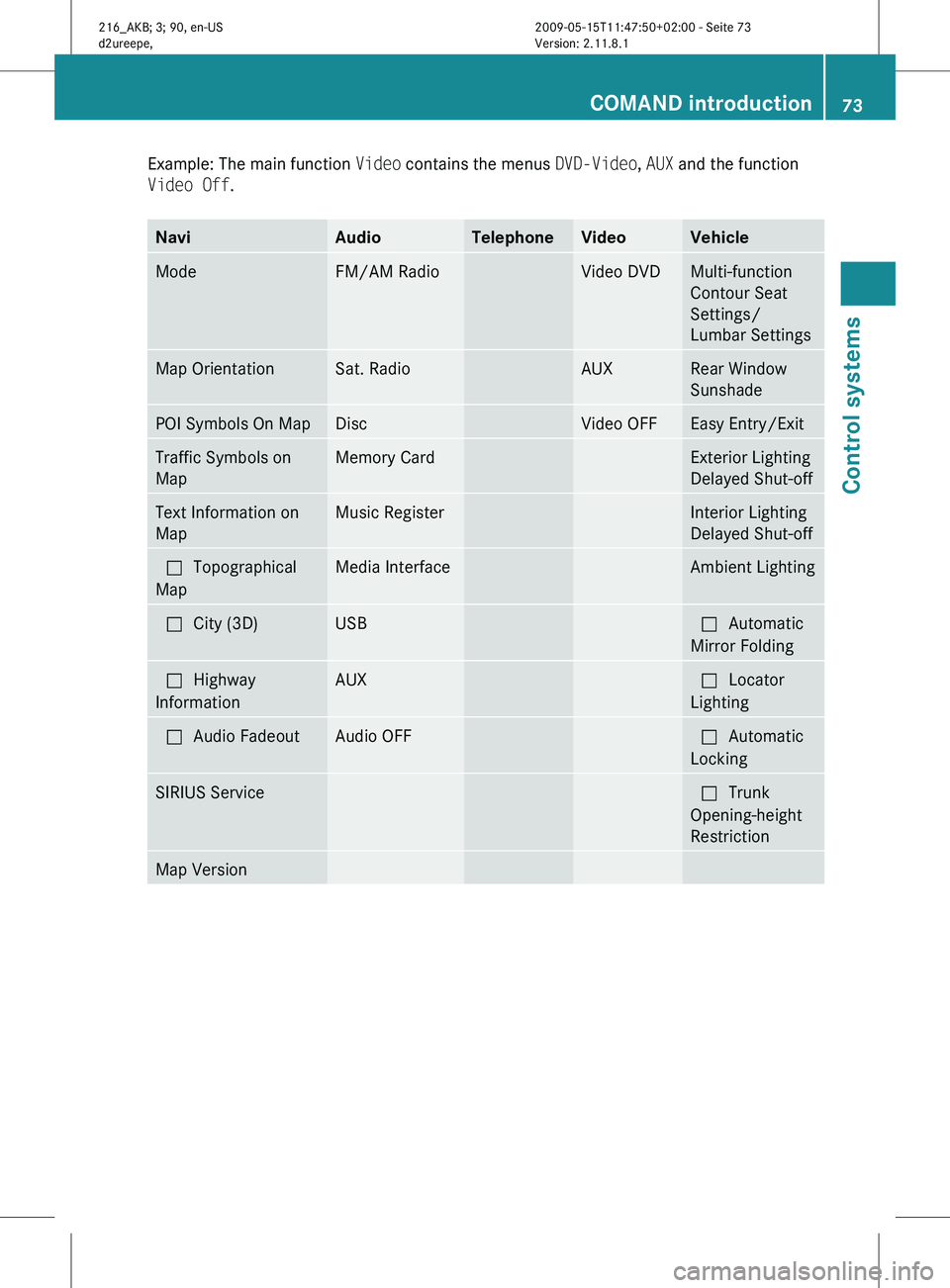
Example: The main function
Video contains the menus DVD-Video, AUX and the function
Video Off. Navi Audio Telephone Video Vehicle
Mode FM/AM Radio Video DVD Multi-function
Contour Seat
Settings/
Lumbar Settings
Map Orientation Sat. Radio AUX Rear Window
Sunshade
POI Symbols On Map Disc Video OFF Easy Entry/Exit
Traffic Symbols on
Map Memory Card Exterior Lighting
Delayed Shut-off
Text Information on
Map Music Register Interior Lighting
Delayed Shut-off
ªTopographical
Map Media Interface Ambient Lighting
ªCity (3D) USB ªAutomatic
Mirror Folding
ªHighway
Information AUX ªLocator
Lighting
ªAudio Fadeout Audio OFF ªAutomatic
Locking
SIRIUS Service ªTrunk
Opening-height
Restriction
Map Version COMAND introduction
73Control systems
216_AKB; 3; 90, en-US
d2ureepe, Version: 2.11.8.1 2009-05-15T11:47:50+02:00 - Seite 73 Z
Page 76 of 500
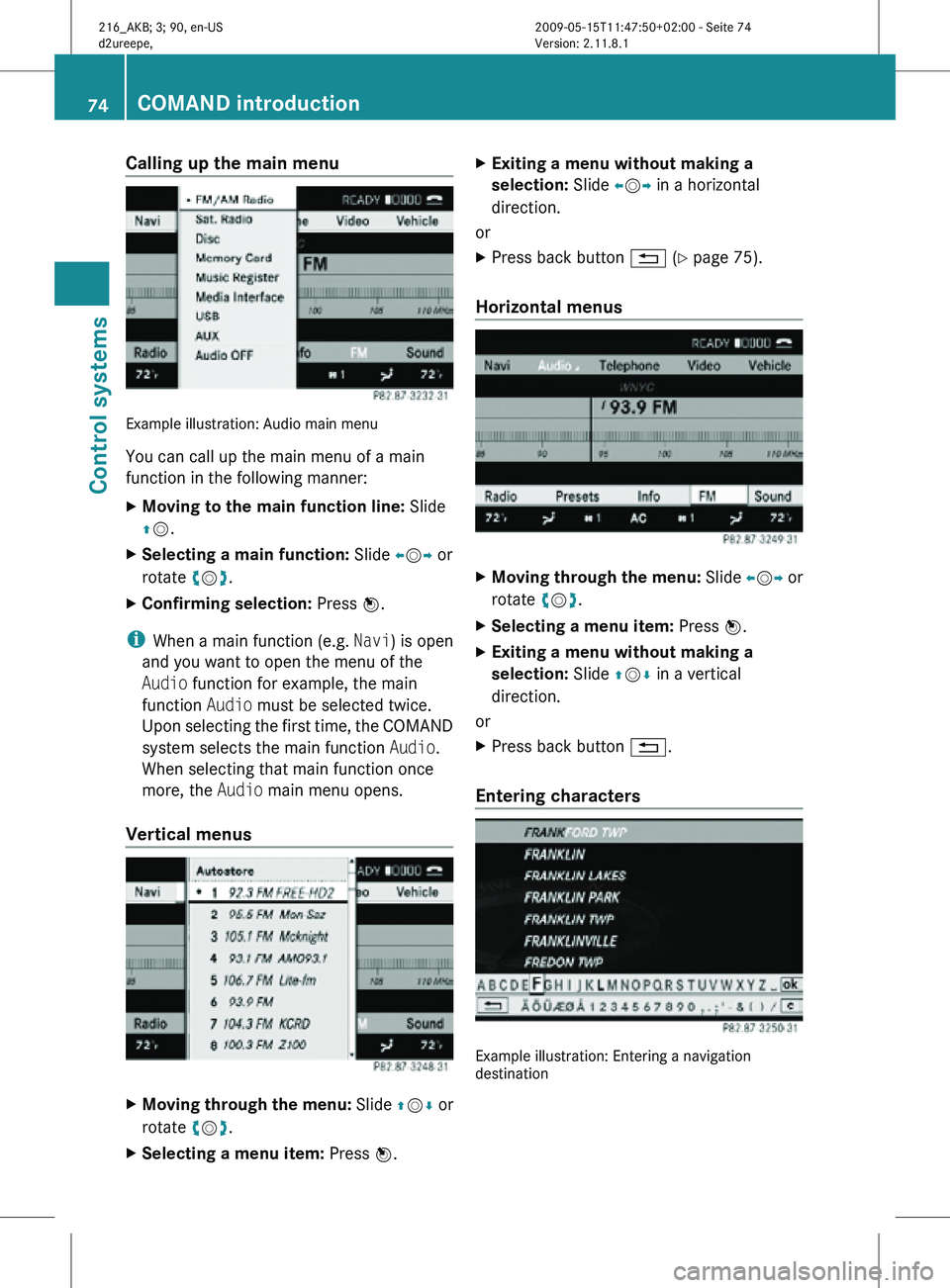
Calling up the main menu
Example illustration: Audio main menu
You can call up the main menu of a main
function in the following manner:
X
Moving to the main function line: Slide
ZV.
X Selecting a main function: Slide XVY or
rotate cVd.
X Confirming selection: Press W.
i When a main function (e.g. Navi) is open
and you want to open the menu of the
Audio function for example, the main
function Audio must be selected twice.
Upon selecting the first time, the COMAND
system selects the main function Audio.
When selecting that main function once
more, the Audio main menu opens.
Vertical menus X
Moving through the menu: Slide ZVÆ or
rotate cVd.
X Selecting a menu item: Press W.X
Exiting a menu without making a
selection: Slide XVY in a horizontal
direction.
or
X Press back button % (Y page 75).
Horizontal menus X
Moving through the menu: Slide XVY or
rotate cVd.
X Selecting a menu item: Press W.
X Exiting a menu without making a
selection: Slide ZVÆ in a vertical
direction.
or
X Press back button %.
Entering characters Example illustration: Entering a navigation
destination74
COMAND introductionControl systems
216_AKB; 3; 90, en-US
d2ureepe,
Version: 2.11.8.1 2009-05-15T11:47:50+02:00 - Seite 74
Page 78 of 500
X
Switching to the next higher menu:
Press back button % briefly.
COMAND switches to the next higher menu
level within the currently active operating
mode.
X Switching to the main menu: Press and
hold back button %.
COMAND switches to the main menu of the
currently active operating mode. Basic functions
i The components and operating principles
of COMAND can be found on ( Y page 68).
Sound X
Muting: Press button 8 on the
multifunction steering wheel
(Y page 202).
The sound of the current audio source is
switched on or is muted.
i When the sound is muted, symbol 8
appears in the status line. When you
change the audio source, the sound is
switched on automatically. Navigation
announcements will be audible even when
the sound is muted.
Switching navigation announcements off
X Press button 8 on the multifunction
steering wheel during an announcement.
i The announcements remain switched off
even when you start a new route guidance
or switch COMAND off/on with the u
button. When you switch COMAND off by
removing the SmartKey from the starter
switch and then switch the ignition back on
after more than 3 minutes, the
announcements are switched back on
automatically.
X Switching navigation announcements
back on manually: Select Navi Q RPT
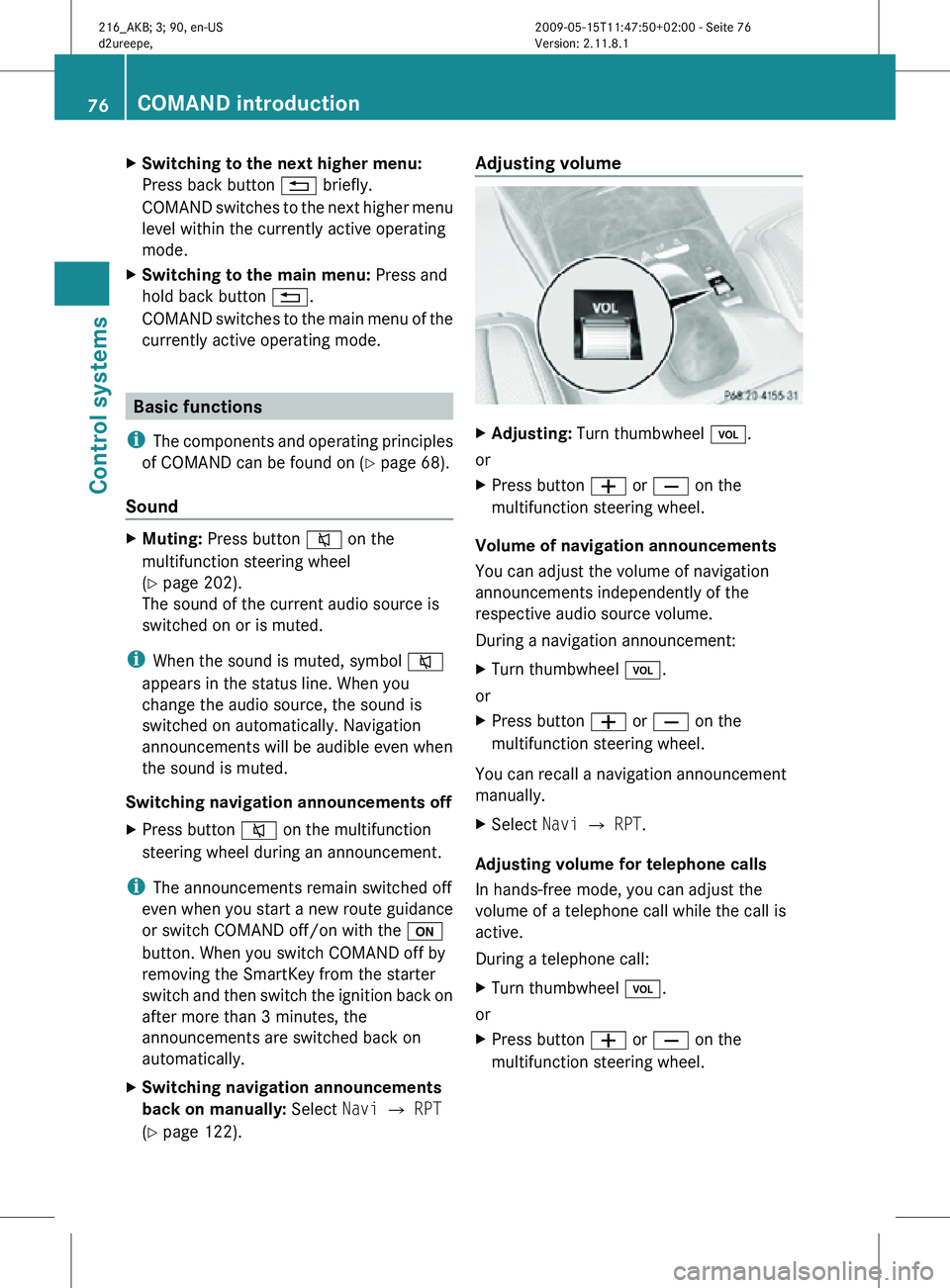
(Y page 122). Adjusting volume
X
Adjusting: Turn thumbwheel H.
or
X Press button W or X on the
multifunction steering wheel.
Volume of navigation announcements
You can adjust the volume of navigation
announcements independently of the
respective audio source volume.
During a navigation announcement:
X Turn thumbwheel H.
or
X Press button W or X on the
multifunction steering wheel.
You can recall a navigation announcement
manually.
X Select Navi Q RPT.
Adjusting volume for telephone calls
In hands-free mode, you can adjust the
volume of a telephone call while the call is
active.
During a telephone call:
X Turn thumbwheel H.
or
X Press button W or X on the
multifunction steering wheel. 76
COMAND introductionControl systems
216_AKB; 3; 90, en-US
d2ureepe,
Version: 2.11.8.1 2009-05-15T11:47:50+02:00 - Seite 76
Page 79 of 500
Selecting sound settings
You can select different bass and treble
settings for the individual audio and video
sources. The respective sound menu can be
found via the submenu for which you wish to
make settings.
Example:
Audio Q FM/AM Radio Q Sound
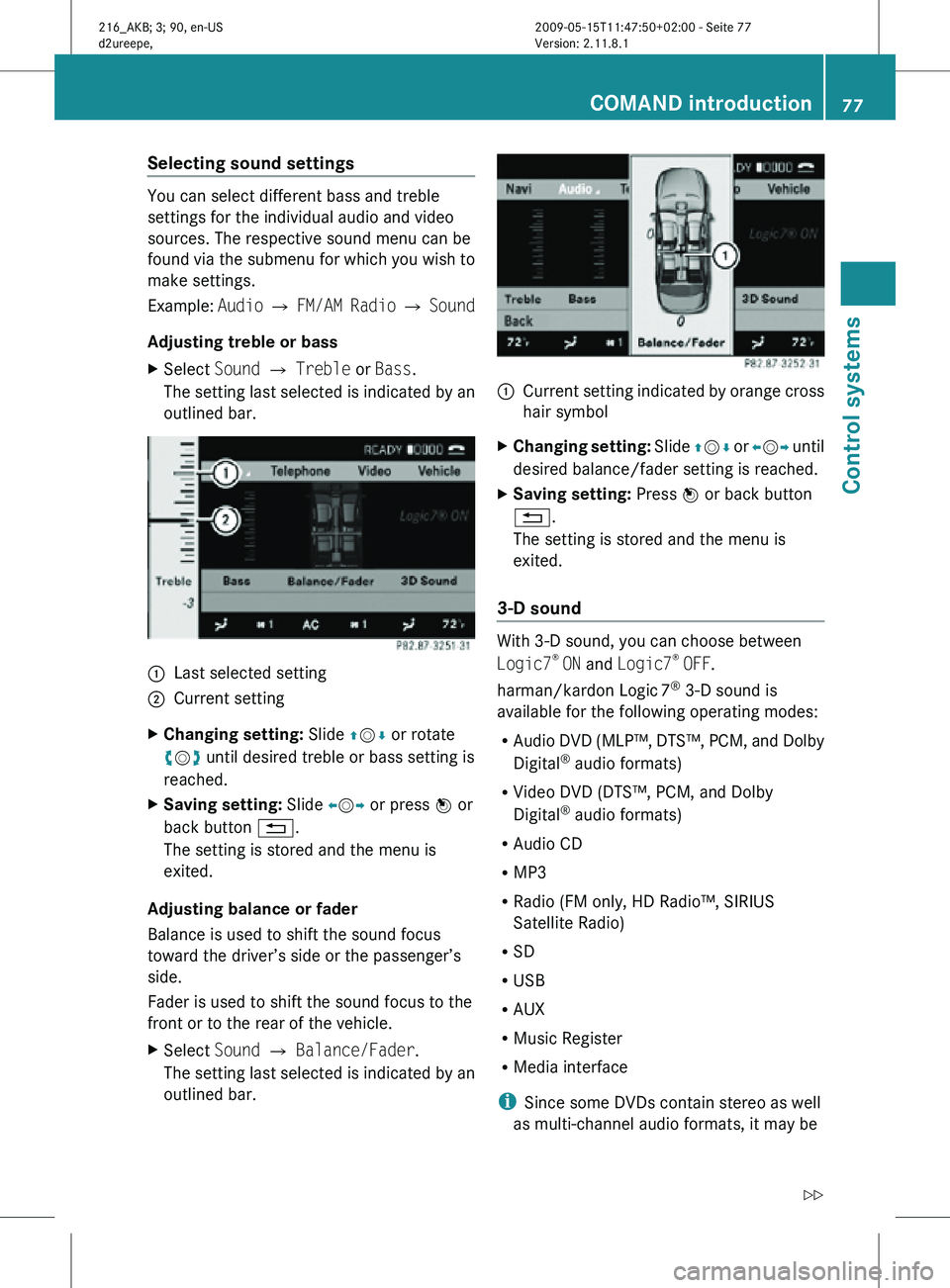
Adjusting treble or bass
X Select Sound Q Treble or Bass.
The setting last selected is indicated by an
outlined bar. :
Last selected setting
; Current setting
X Changing setting: Slide ZVÆ or rotate
cVd until desired treble or bass setting is
reached.
X Saving setting: Slide XVY or press W or
back button %.
The setting is stored and the menu is
exited.
Adjusting balance or fader
Balance is used to shift the sound focus
toward the driver’s side or the passenger’s
side.
Fader is used to shift the sound focus to the
front or to the rear of the vehicle.
X Select Sound Q Balance/Fader.
The setting last selected is indicated by an
outlined bar. :
Current setting indicated by orange cross
hair symbol
X Changing setting: Slide ZVÆ or XVY until
desired balance/fader setting is reached.
X Saving setting: Press W or back button
%.
The setting is stored and the menu is
exited.
3-D sound With 3-D sound, you can choose between
Logic7
®
ON and Logic7 ®
OFF.
harman/kardon Logic 7®
3-D sound is
available for the following operating modes:
R Audio DVD (MLP™, DTS™, PCM, and Dolby
Digital ®
audio formats)
R Video DVD (DTS™, PCM, and Dolby
Digital ®
audio formats)
R Audio CD
R MP3
R Radio (FM only, HD Radio™, SIRIUS
Satellite Radio)
R SD
R USB
R AUX
R Music Register
R Media interface
i Since some DVDs contain stereo as well
as multi-channel audio formats, it may be COMAND introduction
77Control systems
216_AKB; 3; 90, en-US
d2ureepe, Version: 2.11.8.1 2009-05-15T11:47:50+02:00 - Seite 77 Z
Page 80 of 500
necessary to adapt the audio format
(Y page 172).
i By selecting Logic7 ®
OFF, all compatible
formats are played back as they are
present on the medium. Due to the design
of the passenger compartment, an
optimum audio experience cannot be
guaranteed for all passengers.
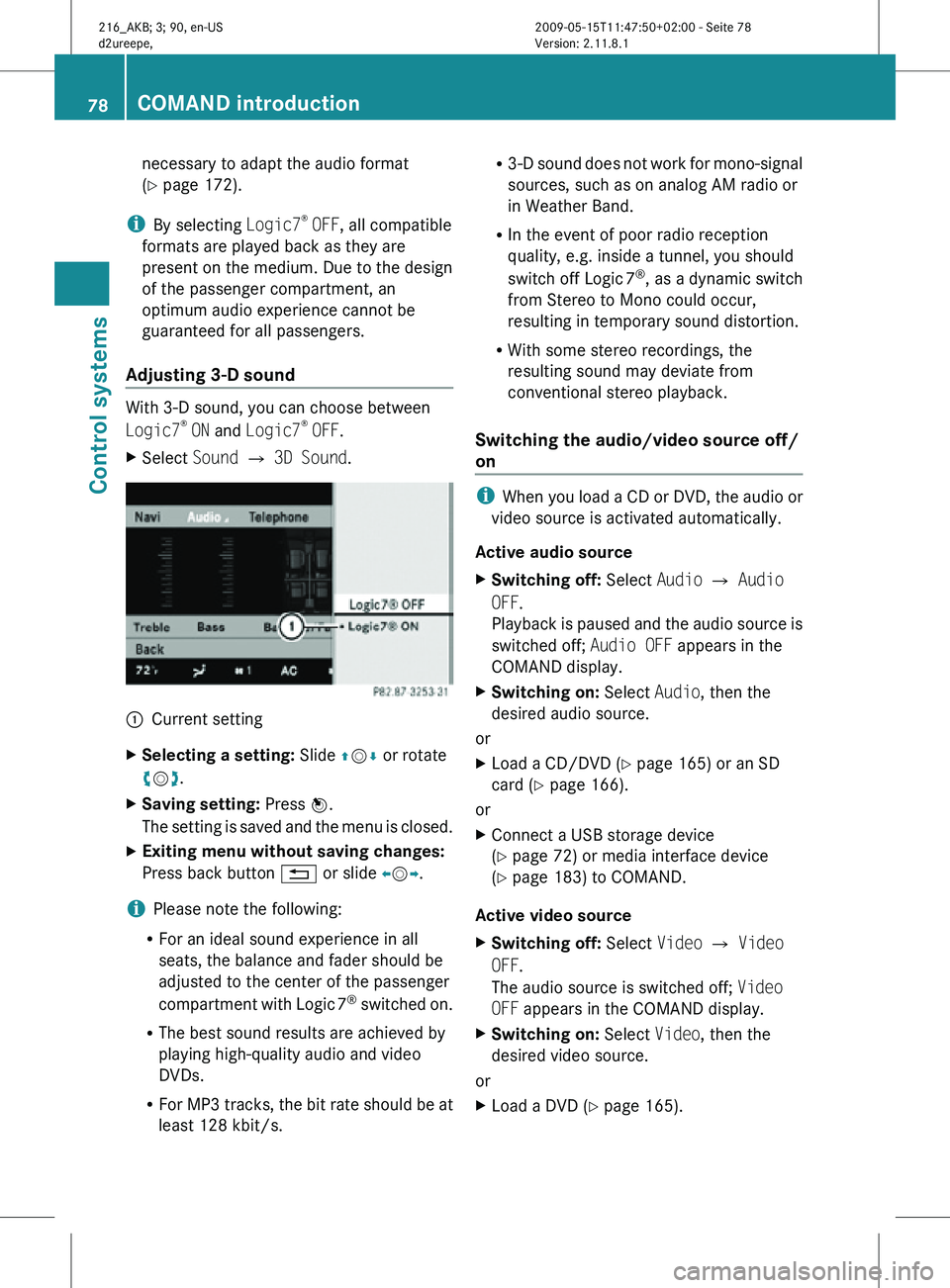
Adjusting 3-D sound With 3-D sound, you can choose between
Logic7
®
ON and Logic7 ®
OFF.
X Select Sound Q 3D Sound. :
Current setting
X Selecting a setting: Slide ZVÆ or rotate
cVd.
X Saving setting: Press W.
The setting is saved and the menu is closed.
X Exiting menu without saving changes:
Press back button % or slide XVY.
i Please note the following:
R For an ideal sound experience in all
seats, the balance and fader should be
adjusted to the center of the passenger
compartment with Logic 7 ®
switched on.
R The best sound results are achieved by
playing high-quality audio and video
DVDs.
R For MP3 tracks, the bit rate should be at
least 128 kbit/s. R
3-D sound does not work for mono-signal
sources, such as on analog AM radio or
in Weather Band.
R In the event of poor radio reception
quality, e.g. inside a tunnel, you should
switch off Logic 7 ®
, as a dynamic switch
from Stereo to Mono could occur,
resulting in temporary sound distortion.
R With some stereo recordings, the
resulting sound may deviate from
conventional stereo playback.
Switching the audio/video source off/
on i
When you load a CD or DVD, the audio or
video source is activated automatically.
Active audio source
X Switching off: Select Audio Q Audio
OFF.
Playback is paused and the audio source is
switched off; Audio OFF appears in the
COMAND display.
X Switching on: Select Audio, then the
desired audio source.
or
X Load a CD/DVD (Y page 165) or an SD
card (Y page 166).
or
X Connect a USB storage device
(Y page 72) or media interface device
(Y page 183) to COMAND.
Active video source
X Switching off: Select Video Q Video
OFF.
The audio source is switched off; Video
OFF appears in the COMAND display.
X Switching on: Select Video, then the
desired video source.
or
X Load a DVD (Y page 165). 78
COMAND introductionControl systems
216_AKB; 3; 90, en-US
d2ureepe,
Version: 2.11.8.1 2009-05-15T11:47:50+02:00 - Seite 78
Page 83 of 500
Individualization consists of two parts. You
train the system to recognize digits in the first
part and specific commands in the second
part.
Starting new individualization
i
The vehicle must be stationary to start
individualization. After starting the session,
acoustic instructions will guide you through
the individualization.
X Select Vehicle Q System Q Voice
Control Q Start New
Individualization.
A prompt appears asking whether you
would like further information.
X Select Yes or No.
If you select No, the first part of
individualization begins.
If you select Yes, an information display will
be shown with audio instruction.
X Closing display: Select OK.
The first part of individualization begins.
At the end of the first part, you will see a
prompt asking whether you want to begin
the second part.
X Select Yes or No.
If you select No, individualization will be
canceled. The data from the first part is
saved automatically.
If you select Yes, the second part begins.
Individualization is completed at the end of
the second part. You will see a message to
this effect. The data from the second part is
saved automatically.
Canceling during the first or second part
of individualization
X Select Cancel.
A prompt appears asking whether you
really do want to cancel.
X Select Yes or No.
If you select Yes, individualization will be
canceled. The data from the part at which
you exited is not saved. If you select
No, the part at which you
stopped begins again.
Deleting existing individualization data
X Select Vehicle Q System Q Voice
Control Q Delete
Individualization.
A prompt appears asking whether you
really do want to delete.
X Select Yes or No.
The individualization data will either be
deleted or not, depending on your
selection. Setting the system language
X Select Vehicle Q System Q
Language.
The language list appears. A dot #
indicates the current setting.
X Changing setting: Select the desired
language.
The language is set.
i For some system languages, the
navigation announcements are made in
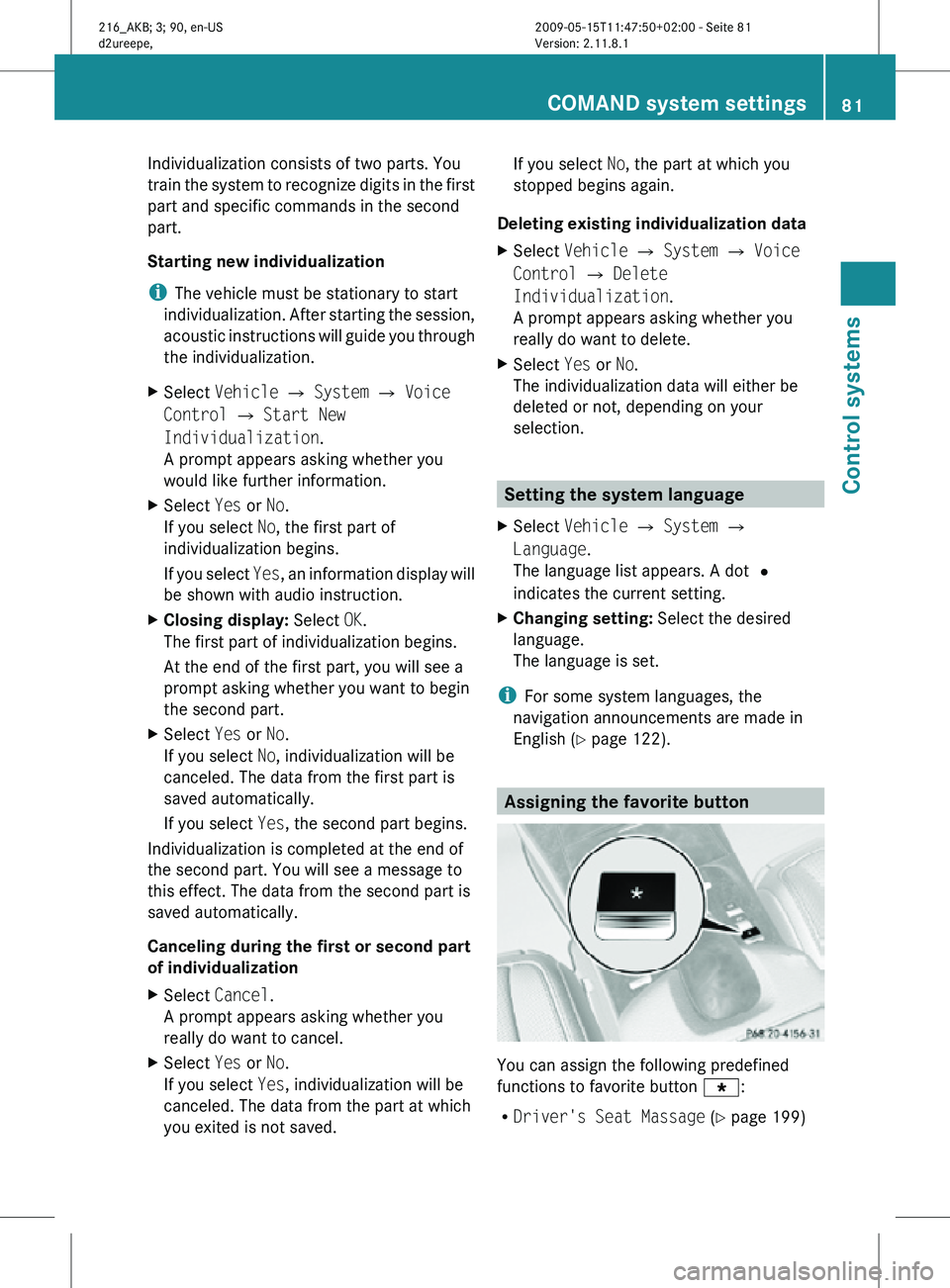
English (Y page 122). Assigning the favorite button
You can assign the following predefined
functions to favorite button
g:
R Driver's Seat Massage (Y page 199) COMAND system settings
81Control systems
216_AKB; 3; 90, en-US
d2ureepe, Version: 2.11.8.1 2009-05-15T11:47:50+02:00 - Seite 81 Z
Page 84 of 500

You can switch the massage function for
the driver’s seat on or off.
R Front Passenger Seat Massage
(Y page 199)
You can switch the massage function for
the passenger seat on or off.
R Driver and Front Passenger Seat
Massage (Y page 199)
You can switch the massage function for
the driver’s and passenger seat on or off.
R Display OFF (Y page 79)
You can use the favorite button to switch
the COMAND display on or off.
R Repeat Navigation Command
(Y page 122)
When route guidance is activated, you can
use the favorite button to generate or call
up a current navigation announcement.
X Select Vehicle Q System Q
Favorites Button *.
The list of predefined functions appears.
The dot
#
in front of the list entry indicates
the current setting.
X Changing setting: Rotate
c
Vd and select
desired function.
X Saving setting and exiting the menu:
Press W. Upload/Download of Data
This function
lets you transfer COMAND data
to a memory card or a USB storage device and
vice versa.
The following COMAND data can be
transferred:
R Navigation destination memory and last
destination
R Address book entries
R Audio/Video presets memory
R System settings i
You can
use this function, for example, to
save your COMAND data and transfer them
to another vehicle.
X Insert an SD card into the SD card slot
(Y page 166) or connect a USB storage
device to the built-in USB socket in the
glove box
(Y page 72). The USB jack of the
optional media interface is not intended for
this purpose.
X Select Vehicle Q System Q Upload/
Download Data.
X Download: Select Copy Data to
Storage Medium Q On the Memory
Card or On USB.
X Select Start Copying.
X Upload: Select Import Data from
Storage Medium Q From Memory Card
or From USB.
X Select Start Data Import.
X Exiting menu without data transfer:
Select Back. Reset
i You can reset COMAND back to its
factory settings.
Among other things, all personal data are
deleted, for example
R the address book entries
R the entries in the destination memory
R the list of last destinations of the
navigation system
X Select Vehicle Q System Q Reset.
A prompt appears asking whether you
really want to reset.
X Select Yes or No.
If you select Yes another prompt will
appear asking whether you really want to
reset.
X Select Yes or No.
If you select Yes, COMAND will be reset
and restarted. 82
COMAND system settings
Control systems
216_AKB; 3; 90, en-US
d2ureepe,
Version: 2.11.8.1 2009-05-15T11:47:50+02:00 - Seite 82
Page 95 of 500
X
Select Navi.
X Check the check box for menu item City
(3D).
Setting route type You can set the following route types:
R
Fast Route: COMAND calculates a route
with minimized driving time.
R Dynamic Route: COMAND calculates a
route with
minimized driving time and takes
into account traffic messages received
along the route. Thus, the navigation
system can dynamically recalculate the
route. Roads that are blocked will be
avoided whenever possible. For
information on traffic messages see
(Y page 125).
R Short Route : COMAND calculates a route
with minimized route length.
X Select Navi Q Mode.
The list
of available rote types appears. The
dot # indicates the currently selected
setting.
X Select route type: Fast Route
, Dynamic
Route or Short Route.
X Exit menu: Slide XVY.
i If you
change the route type setting during
active route guidance, COMAND calculates
a new route. If you change the setting when
route guidance is inactive, COMAND uses
the new setting for the next route guidance.
Setting route mode With this function you can select the following
options for route calculation:
R
Minimize Highways
R Minimize Toll Roads
R Minimize Tunnels
R Minimize Ferries
R Minimize Motorail Trains X
Select Navi Q Mode.
The mode list appears.
X Switching mode on or off: Select
desired
modes.
Depending on the previous status, the
mode is switched on or off. A checkmark
indicates that the mode is switched on. It
is possible to switch on more than one
mode.
X Exiting menu: Slide XVY or press back
button % in the center console
(Y page 75).
COMAND will verify whether it can
incorporate the modes if you select them
with route guidance active.
If possible, COMAND calculates a new
route considering the selected options.
If the
route cannot be recalculated with the
selected options, a message appears and
an announcement is made. COMAND
calculates a new route. Only options that
are possible will be considered.
Displaying highway information When this function is enabled, highway
information ahead will display automatically
(Y page 124).
Audio fadeout
X
Select Navi Q Audio Fadeout.
When the check box is checked U the
volume of the current audio source fades
during a navigation announcement. COMAND navigation system
(entering a destination)
Introduction
G
Warning!
For safety reasons, only enter a new
destination when the vehicle is stationary. COMAND navigation system (entering a destination)
93
Control systems
216_AKB; 3; 90, en-US
d2ureepe,Version: 2.11.8.1 2009-05-15T11:47:50+02:00 - Seite 93 Z
Page 124 of 500
The
Off Road
message and an arrow showing
the compass heading to the destination
appear on the display.
As soon as the system can allocate the
vehicle position to the map again, route
guidance continues in the usual way. Navigation announcements
G
Warning!
Navigation announcements are intended to
direct you
while driving without diverting your
attention from the road and driving.
Please always use navigation announcements
instead of consulting the map display for
directions. Consulting the symbols or map
display for directions may cause you to divert
your attention from driving and increase your
risk of an accident.
i If Chinese is set as the system language,
the navigation announcements are in
English. For information on how to set the
system language see ( Y page 81).
Navigation announcements are muted
during telephone calls. You can, however,
call up a current announcement at any
time. You can also call up a current
announcement at any time if you have
missed an announcement.
Route guidance is active already.
X Calling up a current announcement:
Select Navi Q RPT.
or
X Press favorite button h if
the button has
been programmed with this function
(Y page 81). X
Switching off navigation messages:
Press button 8 during an
announcement.
You will see the message The driving
instructions have been muted. for a
short while.
i The announcements remain switched off
even if
you start a new route guidance or if
COMAND is switched off/on with button
u.
If you switch COMAND off by removing the
SmartKey from the starter switch and then
switch the ignition back on after more than
3 minutes, the announcements are
automatically switched back on.
X Switching navigation announcements
back on manually: Select Navi Q RPT.
X Adjusting volume of the messages:
Adjust the volume during an automatic
announcement (
Y page 76).
or
X Call up an announcement manually using
Navi Q RPT and adjust the volume
(Y page 76).
i You can use the function Audio
Fadeout (Y
page 93) to reduce the volume
of audio sources during navigation
announcements. COMAND navigation system (during
route guidance)
Cancel route guidance
X Select Destination Q Cancel Route
Guidance in map view with the menu
system displayed (Y
page 89). Continuing canceled route guidance
X Select Destination Q Continue
Route Guidance in map view with the
menu system displayed (Y
page 89).
COMAND calculates the route. 122
COMAND navigation system (during route guidance)
Control systems
216_AKB; 3; 90, en-US
d2ureepe,
Version: 2.11.8.1 2009-05-15T11:47:50+02:00 - Seite 122
Page 155 of 500
Radio
(except
Weather Band) Presets
(except
Weather
Band) Channel
(only
Weather
Band) Info FM or AM
or WB Sound
Save Station Autostore Channel list Program
Information Switch to
FM wave
band Treble
Frequency Entry Preset
station list Switch to
AM wave
band Bass
Show Station
Info Switch to
Weather
Band Balance/
Fader
ª¥Radio 3D Sound
Switching to radio mode
X Select Audio Q FM/AM Radio.
or
X Press shortcut button R (Y page 69)
once or twice.
The radio display appears once you have
switched to radio mode. You will hear the
last tuned station/channel in the
previously selected wave band, provided
that the station/channel can be received.
i The number of times you have to press
shortcut button R depends on the
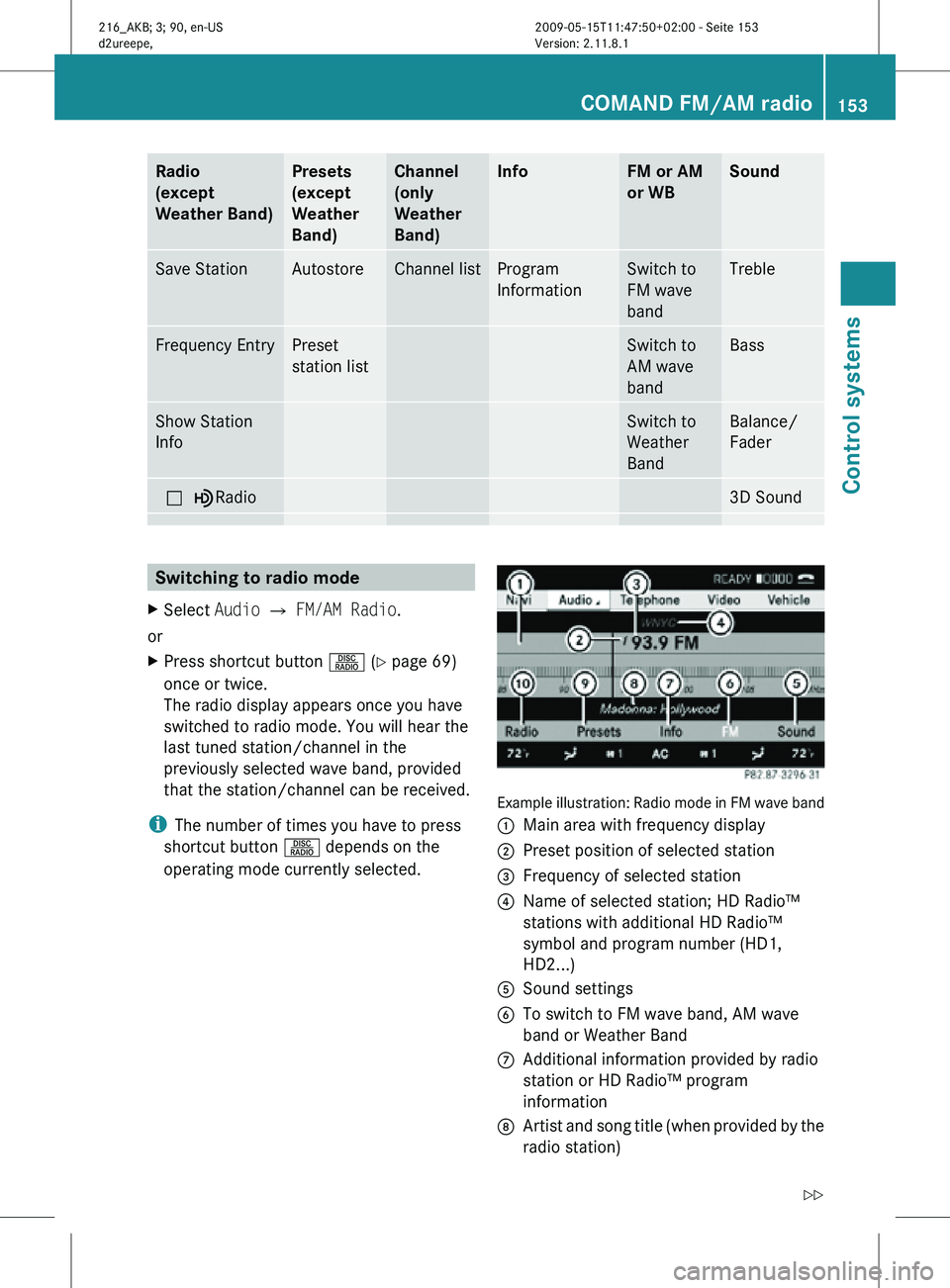
operating mode currently selected. Example illustration: Radio mode in FM wave band
:
Main area with frequency display
; Preset position of selected station
= Frequency of selected station
? Name of selected station; HD Radio™
stations with additional HD Radio™
symbol and program number (HD1,
HD2...)
A Sound settings
B To switch to FM wave band, AM wave
band or Weather Band
C Additional information provided by radio
station or HD Radio™ program
information
D Artist and song title (when provided by the
radio station) COMAND FM/AM radio
153Control systems
216_AKB; 3; 90, en-US
d2ureepe, Version: 2.11.8.1 2009-05-15T11:47:50+02:00 - Seite 153 Z