audio MERCEDES-BENZ CL CLASS 2010 Workshop Manual
[x] Cancel search | Manufacturer: MERCEDES-BENZ, Model Year: 2010, Model line: CL CLASS, Model: MERCEDES-BENZ CL CLASS 2010Pages: 500, PDF Size: 9.32 MB
Page 189 of 500
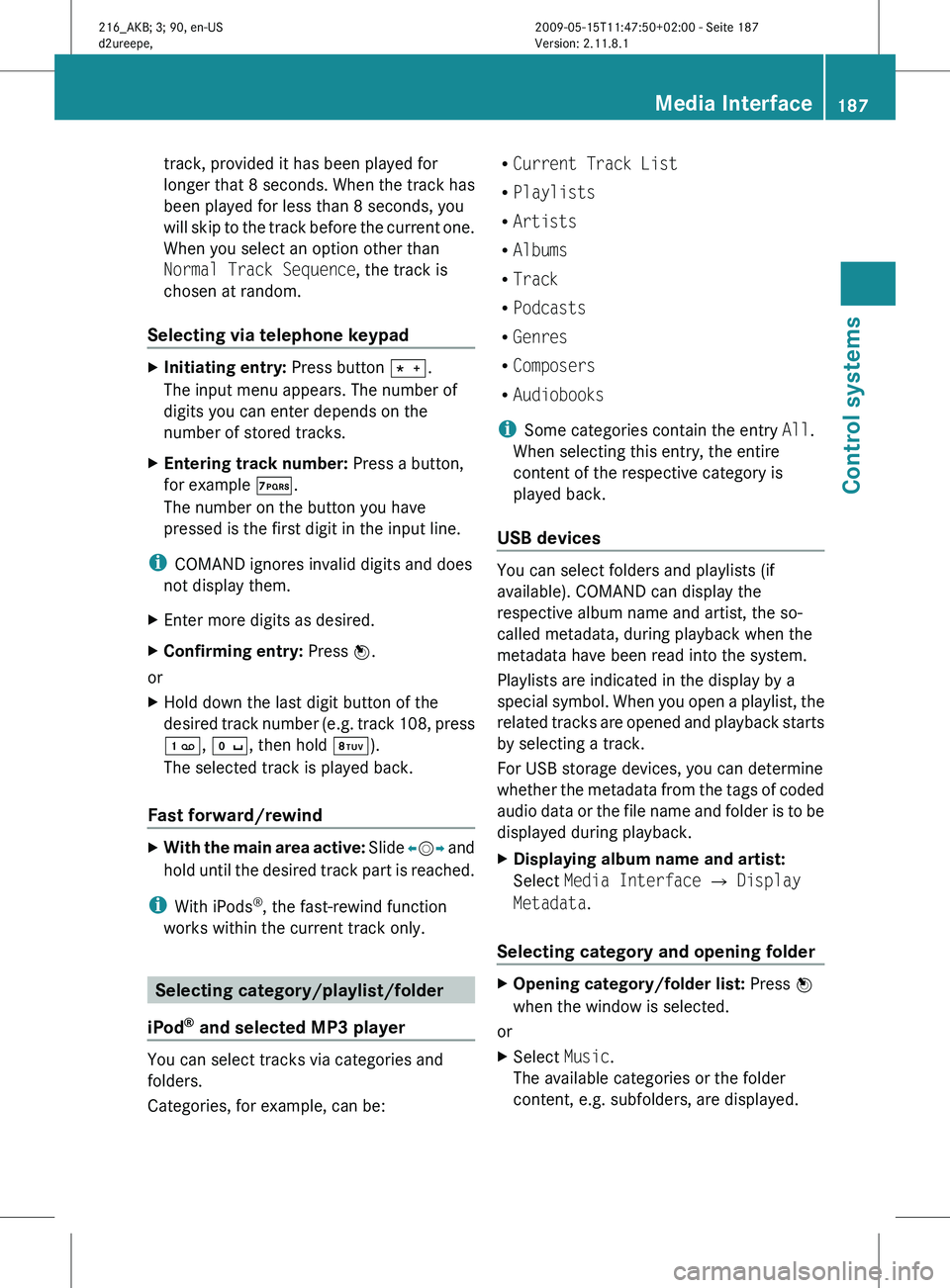
track, provided it has been played for
longer
that
8 seconds. When the track has
been played for less than 8 seconds, you
will skip to the track before the current one.
When you select an option other than
Normal Track Sequence, the track is
chosen at random.
Selecting via telephone keypad X
Initiating entry: Press button Ä.
The input menu appears. The number of
digits you can enter depends on the
number of stored tracks.
X Entering track number: Press a button,
for example Á.
The number on the button you have
pressed is the first digit in the input line.
i COMAND ignores invalid digits and does
not display them.
X Enter more digits as desired.
X Confirming entry: Press W.
or
X Hold down the last digit button of the
desired track
number (e.g. track 108, press
´, Å, then hold Â).
The selected track is played back.
Fast forward/rewind X
With the main area active: Slide X
VY and
hold until the desired track part is reached.
i With iPods ®
, the fast-rewind function
works within the current track only. Selecting category/playlist/folder
iPod ®
and selected MP3 player You can select tracks via categories and
folders.
Categories, for example, can be: R
Current Track List
R Playlists
R Artists
R Albums
R Track
R Podcasts
R Genres
R Composers
R Audiobooks
i Some categories contain the entry All.
When selecting this entry, the entire
content of the respective category is
played back.
USB devices You can select folders and playlists (if
available). COMAND can display the
respective album name and artist, the so-
called metadata, during playback when the
metadata have been read into the system.
Playlists are indicated in the display by a
special
symbol.
When you open a playlist, the
related tracks are opened and playback starts
by selecting a track.
For USB storage devices, you can determine
whether the metadata from the tags of coded
audio data or the file name and folder is to be
displayed during playback.
X Displaying album name and artist:
Select Media Interface Q Display
Metadata.
Selecting category and opening folder X
Opening category/folder list: Press W
when the window is selected.
or
X Select Music.
The available categories or the folder
content, e.g. subfolders, are displayed. Media Interface
187
Control systems
216_AKB; 3; 90, en-US
d2ureepe, Version: 2.11.8.1 2009-05-15T11:47:50+02:00 - Seite 187 Z
Page 204 of 500
The control system relays information to the
multifunction display.
Multifunction steering wheel
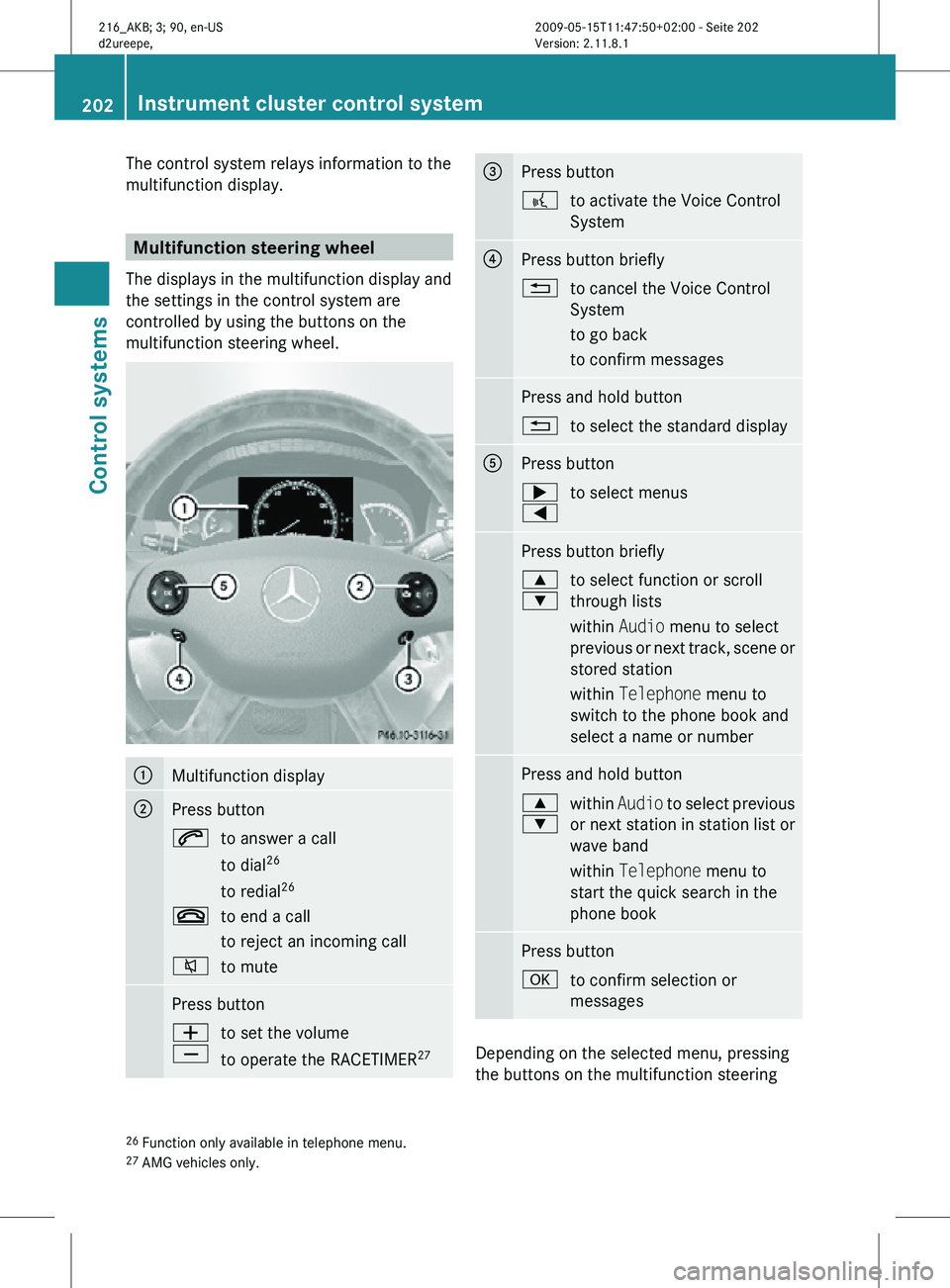
The displays in the multifunction display and
the settings in the control system are
controlled by using the buttons on the
multifunction steering wheel. :
Multifunction display
;
Press button
6
to answer a call
to dial26
to redial 26
~ to end a call
to reject an incoming call
8 to mute Press button
W
X
to set the volume
to operate the RACETIMER
27 =
Press button
?
to activate the Voice Control
System ?
Press button briefly
%
to cancel the Voice Control
System
to go back
to confirm messages Press and hold button
%
to select the standard display A
Press button
;
=
to select menus Press button briefly
9
:
to select function or scroll
through lists
within Audio menu to select
previous or next track, scene or
stored station
within Telephone menu to
switch to the phone book and
select a name or number Press and hold button
9
:
within
Audio to select previous
or next station in station list or
wave band
within Telephone menu to
start the quick search in the
phone book Press button
a
to confirm selection or
messages Depending on the selected menu, pressing
the buttons on the multifunction steering
26 Function only available in telephone menu.
27 AMG vehicles only. 202
Instrument cluster control systemControl systems
216_AKB; 3; 90, en-US
d2ureepe,
Version: 2.11.8.1 2009-05-15T11:47:50+02:00 - Seite 202
Page 206 of 500
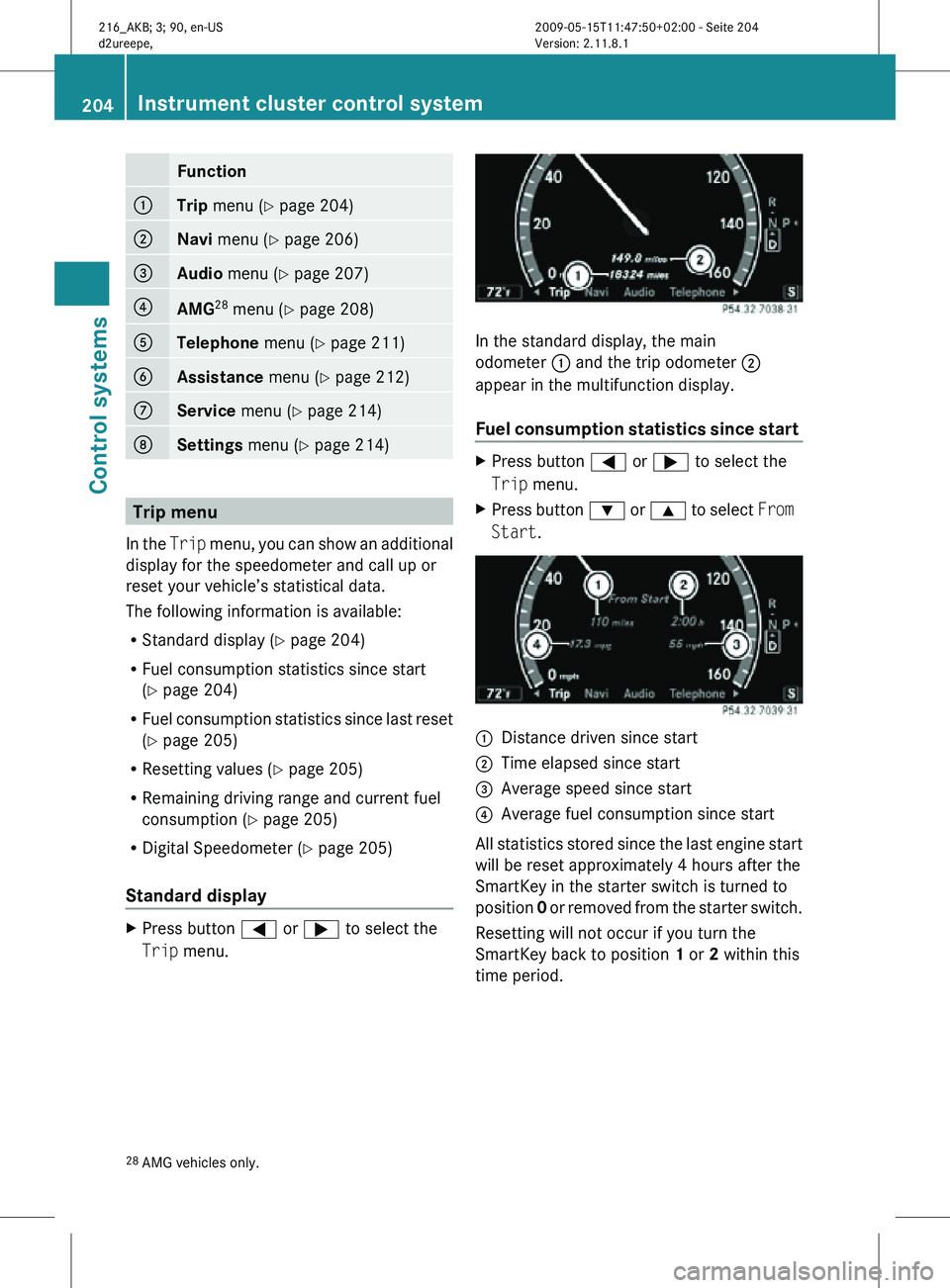
Function
:
Trip
menu (Y page 204) ;
Navi menu (Y page 206)
=
Audio
menu (Y page 207) ?
AMG
28
menu (Y page 208) A
Telephone
menu (Y page 211) B
Assistance
menu (Y page 212) C
Service
menu (Y page 214) D
Settings menu (Y page 214)
Trip menu
In the Trip menu, you can show an additional
display for the speedometer and call up or
reset your vehicle’s statistical data.
The following information is available:
R Standard display ( Y page 204)
R Fuel consumption statistics since start
(Y page 204)
R Fuel consumption statistics since last reset
(Y page 205)
R Resetting values ( Y page 205)
R Remaining driving range and current fuel
consumption (Y page 205)
R Digital Speedometer ( Y page 205)
Standard display X
Press button = or ; to select the
Trip menu. In the standard display, the main
odometer : and the trip odometer ;
appear in the multifunction display.
Fuel consumption statistics since start
X
Press button = or ; to select the
Trip menu.
X Press button : or 9 to select From
Start. :
Distance driven since start
; Time elapsed since start
= Average speed since start
? Average fuel consumption since start
All statistics stored since the last engine start
will be reset approximately 4 hours after the
SmartKey in the starter switch is turned to
position 0 or removed from the starter switch.
Resetting will not occur if you turn the
SmartKey back to position 1 or 2 within this
time period.
28 AMG vehicles only. 204
Instrument cluster control systemControl systems
216_AKB; 3; 90, en-US
d2ureepe,
Version: 2.11.8.1 2009-05-15T11:47:50+02:00 - Seite 204
Page 209 of 500
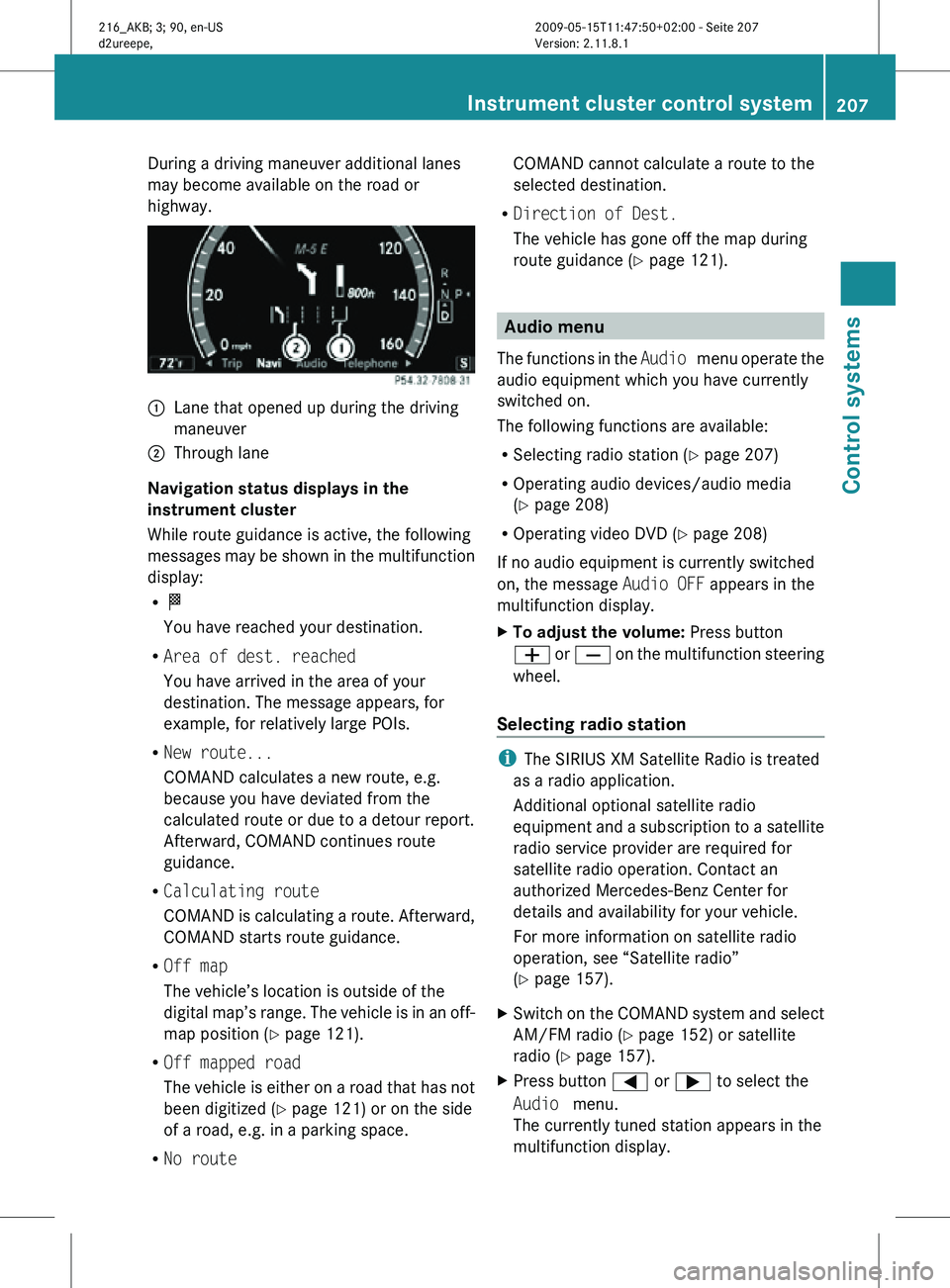
During a driving maneuver additional lanes
may become available on the road or
highway.
:
Lane that opened up during the driving
maneuver
; Through lane
Navigation status displays in the
instrument cluster
While route guidance is active, the following
messages may be shown in the multifunction
display:
R O
You have reached your destination.
R Area of dest. reached
You have arrived in the area of your
destination. The message appears, for
example, for relatively large POIs.
R New route...
COMAND calculates a new route, e.g.
because you have deviated from the
calculated route or due to a detour report.
Afterward, COMAND continues route
guidance.
R Calculating route
COMAND is calculating a route. Afterward,
COMAND starts route guidance.
R Off map
The vehicle’s location is outside of the
digital map’s range. The vehicle is in an off-
map position ( Y page 121).
R Off mapped road
The vehicle is either on a road that has not
been digitized ( Y page 121) or on the side
of a road, e.g. in a parking space.
R No route COMAND cannot calculate a route to the
selected destination.
R Direction of Dest.
The vehicle has gone off the map during
route guidance ( Y page 121). Audio menu
The functions in the Audio menu operate the
audio equipment which you have currently
switched on.
The following functions are available:
R Selecting radio station (Y page 207)
R Operating audio devices/audio media
(Y page 208)
R Operating video DVD (Y page 208)
If no audio equipment is currently switched
on, the message Audio OFF appears in the
multifunction display.
X To adjust the volume: Press button
W or X on the multifunction steering
wheel.
Selecting radio station i
The SIRIUS XM Satellite Radio is treated
as a radio application.
Additional optional satellite radio
equipment and a subscription to a satellite
radio service provider are required for
satellite radio operation. Contact an
authorized Mercedes-Benz Center for
details and availability for your vehicle.
For more information on satellite radio
operation, see “Satellite radio”
(Y page 157).
X Switch on the COMAND system and select
AM/FM radio (Y page 152) or satellite
radio ( Y page 157).
X Press button = or ; to select the
Audio menu.
The currently tuned station appears in the
multifunction display. Instrument cluster control system
207Control systems
216_AKB; 3; 90, en-US
d2ureepe, Version: 2.11.8.1 2009-05-15T11:47:50+02:00 - Seite 207 Z
Page 210 of 500
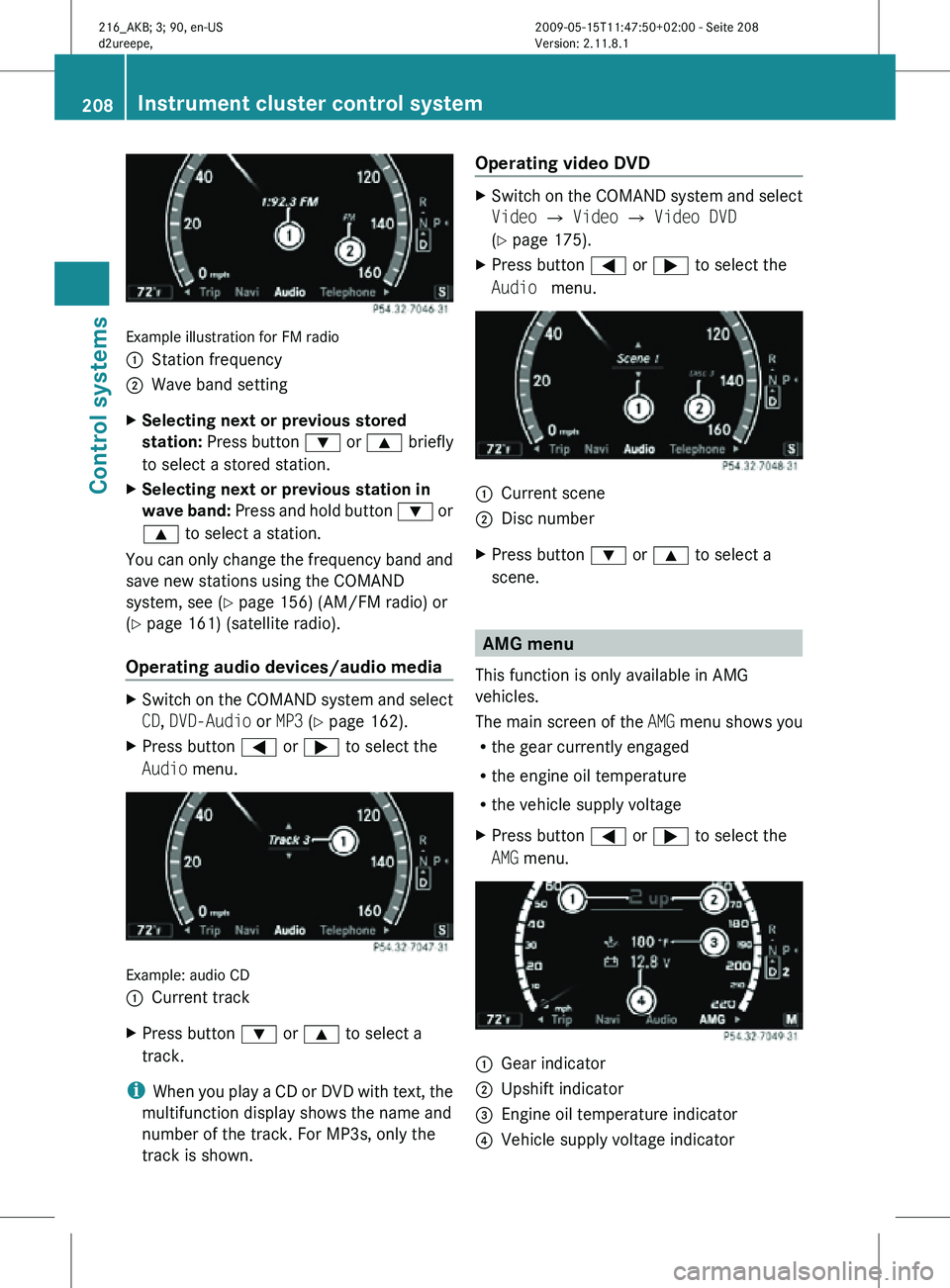
Example illustration for FM radio
:
Station frequency
; Wave band setting
X Selecting next or previous stored
station: Press button : or 9 briefly
to select a stored station.
X Selecting next or previous station in
wave band: Press and hold button : or
9 to select a station.
You can only change the frequency band and
save new stations using the COMAND
system, see ( Y page 156) (AM/FM radio) or
(Y page 161) (satellite radio).
Operating audio devices/audio media X
Switch on the COMAND system and select
CD, DVD-Audio or MP3 (Y page 162).
X Press button = or ; to select the
Audio menu. Example: audio CD
:
Current track
X Press button : or 9 to select a
track.
i When you play a CD or DVD with text, the
multifunction display shows the name and
number of the track. For MP3s, only the
track is shown. Operating video DVD X
Switch on the COMAND system and select
Video Q Video Q Video DVD
(Y page 175).
X Press button = or ; to select the
Audio menu. :
Current scene
; Disc number
X Press button : or 9 to select a
scene. AMG menu
This function is only available in AMG
vehicles.
The main screen of the AMG menu shows you
R the gear currently engaged
R the engine oil temperature
R the vehicle supply voltage
X Press button = or ; to select the
AMG menu. :
Gear indicator
; Upshift indicator
= Engine oil temperature indicator
? Vehicle supply voltage indicator 208
Instrument cluster control systemControl systems
216_AKB; 3; 90, en-US
d2ureepe,
Version: 2.11.8.1 2009-05-15T11:47:50+02:00 - Seite 208
Page 211 of 500
The engine oil temperature will be shown in
blue if the engine oil temperature has not yet
reached 176‡ (80†). During this time, avoid
driving at full engine speed.
If the engine reaches the overspeed range in
the manual shift program, you will see
up next
to gear indicator : as a reminder to upshift.
Use buttons : or 9 to select the
following functions in the AMG menu:
R RACETIMER (Y page 209)
R Overall analysis ( Y page 210)
R Lap analysis (Y page 210)
RACETIMER G
Warning!
The RACETIMER feature is only for use on
roads and in conditions where high speed
driving is permitted. Racing on public roads is
prohibited under all circumstances. The driver
is and must always remain responsible for
following posted speed limits.
The RACETIMER allows you to time and save
driving stretches.
X Press button = or ; to select the
AMG menu.
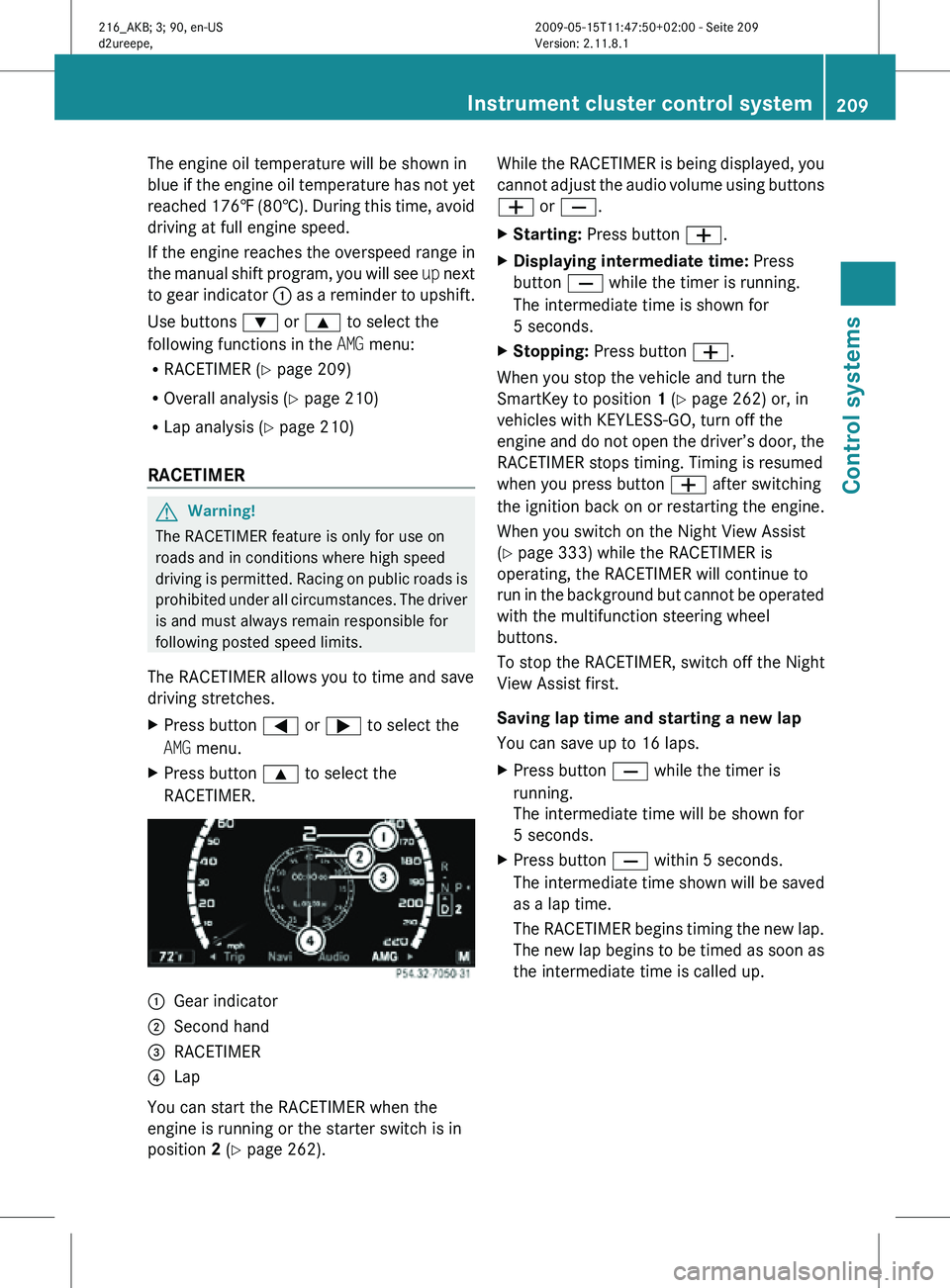
X Press button 9 to select the
RACETIMER. :
Gear indicator
; Second hand
= RACETIMER
? Lap
You can start the RACETIMER when the
engine is running or the starter switch is in
position 2 (Y page 262). While the RACETIMER is being displayed, you
cannot adjust the audio volume using buttons
W or X.
X
Starting: Press button W.
X Displaying intermediate time: Press
button X while the timer is running.
The intermediate time is shown for
5 seconds.
X Stopping: Press button W.
When you stop the vehicle and turn the
SmartKey to position 1 (Y page 262) or, in
vehicles with KEYLESS-GO, turn off the
engine and do not open the driver’s door, the
RACETIMER stops timing. Timing is resumed
when you press button W after switching
the ignition back on or restarting the engine.
When you switch on the Night View Assist
(Y page 333) while the RACETIMER is
operating, the RACETIMER will continue to
run in the background but cannot be operated
with the multifunction steering wheel
buttons.
To stop the RACETIMER, switch off the Night
View Assist first.
Saving lap time and starting a new lap
You can save up to 16 laps.
X Press button X while the timer is
running.
The intermediate time will be shown for
5 seconds.
X Press button X within 5 seconds.
The intermediate time shown will be saved
as a lap time.
The RACETIMER begins timing the new lap.
The new lap begins to be timed as soon as
the intermediate time is called up. Instrument cluster control system
209Control systems
216_AKB; 3; 90, en-US
d2ureepe, Version: 2.11.8.1 2009-05-15T11:47:50+02:00 - Seite 209 Z
Page 219 of 500
Voice Control System introduction
Safety notes
G
Warning!
Only use the Voice Control System when road
and traffic conditions permit you to do so.
Otherwise you could be involved in an
accident in which you or others could be
injured. G
Warning!
Please devote your attention first and
foremost to the traffic situation you are in.
While the system permits hands-free phone
operation, attention
to traffic may be diverted
not only by physical operation of a phone, but
also by the distraction of a phone
conversation while driving. As such, for safety
reasons, we encourage the driver to stop the
vehicle in a safe place before answering or
placing a phone call.
For safety reasons, you should only select a
destination when the vehicle is stationary.
While the navigation system provides
directional assistance, the driver must remain
focused on safe driving behavior, especially
attention to traffic and street signs, and
should utilize the system’s audio cues while
driving.
The navigation system does not supply any
information on stop signs, yield signs, traffic
regulations or traffic safety rules. Their
observance always remains in the driver’s
personal responsibility. Maps do not cover all
areas nor all routes within an area.
Traffic regulations always have priority over
any route recommendations given.
Bear in mind that at a speed of just 30 mph
(approximately 50 km/h), your vehicle is
covering a distance of 44 feet (approximately
14 m) every second. G
Warning!
Navigation announcements are intended to
direct you
while driving without diverting your
attention from the road and driving.
Please always use navigation announcements
instead of consulting the map display for
directions. Consulting the symbols or map
display for directions may cause you to divert
your attention from driving and increase your
risk of an accident. G
Warning!
Please do not use the Voice Control System
in an emergency, as the tone of your voice
may change
in a stressful situation. This could
cause a delay in completing your phone call
in a timely manner. This could distract you in
an emergency situation and cause you to be
involved in an accident. General information
Depending on vehicle equipment, you can
operate the following systems via the Voice
Control System:
R Telephone ( Y page 225)
R Navigation ( Y page 219)
R Address book (Y page 229)
R Audio ( Y page 231) (AM/FM radio,
Satellite radio, CD/DVD changer, MP3
mode (SD
card, USB, Music Register, Media
Interface), AUX)
R Video
You control these systems using spoken
commands. Moreover, controls such as the
buttons on the multifunction steering wheel
(Y page 218) allow you to keep your hands
on the steering wheel.
The Voice Control System recognizes
commands and number sequences,
irrespective of the speaker. To optimize
speech recognition for your voice follow the
individualization process ( Y page 250). Voice Control System introduction
217
Control systems
216_AKB; 3; 90, en-US
d2ureepe, Version: 2.11.8.1 2009-05-15T11:47:50+02:00 - Seite 217 Z
Page 236 of 500
To select a station:
X
Press button ?, when the system reads
the desired station.
X Canceling the dialog: Press button %.
The dialog is concluded. The system
confirms “Cancel”.
“Delete station” You can use the “Delete station” command to
delete a voice name for a station from the
Presets.
Sample dialog:
\
Delete station.
^ Which station name do you want to
delete?
\ Favorite station 30
.
^ Do you want to delete Favorite
station 30
?
\ Yes.
^ Favorite station 30
deleted.
“Delete station list” You can use the “Delete station list”
command to delete all voice names or
individual ones from the stations of the
Presets.
Sample dialog:
\
Delete station list.
^ Do you want to delete them all?
\ Yes.
^ Are you sure you want to delete all
voice names?
\ Yes.
^ All voice names have been deleted
from the station list.
The system permanently deletes all voice
names in the Presets.
or
^ No The system reads out the list of stations.
When the system reads the station to be
deleted:
X
Press button ?.
The station to be deleted is selected. The
system reads out the selected station
again.
^ Do you want to delete “Favorite
Station 30
”?
\ Yes.
^ Station deleted.
The system deletes the station and reads out
the remaining entries in the Presets.
or
^ No.
The system continues reading the Presets
entry by entry.
“HD Radio on”, “HD Radio off” Use “HD Radio on” or “HD Radio off” to switch
the HD Radio™ on or off.
“Sirius”
Use “Sirius” to switch to SIRIUS XM Satellite
Radio.
Voice Control System CD/DVD
changer/MP3
Safety notes
G
Warning!
Please devote your attention first and
foremost to the traffic situation you are in.
Before your journey, please familiarize
yourself with the audio functions.
Only use
the Voice Control System when road
and traffic conditions permit you to do so.
Otherwise you could be involved in an
accident in which you or others could be
injured.
30 Example for a voice name. 234
Voice Control System CD/DVD changer/MP3
Control systems
216_AKB; 3; 90, en-US
d2ureepe,
Version: 2.11.8.1 2009-05-15T11:47:50+02:00 - Seite 234
Page 237 of 500
Operation
You can use the Voice Control System to
R select a CD/DVD or another medium
R select a track
R select a folder in MP3 mode
R change the category when in media
interface mode
R select a group in audio DVD mode
R select a chapter or scene when in video
DVD mode
i Upon the
command “Next/Previous CD/
DVD”, the DVD changer switches from one
CD/DVD to the next. It will skip empty
slots. When you select an empty slot using
the commands “CD/DVD 1” through “CD/
DVD 6”, the current slot remains selected.
i The following commands “DVD audio”,
“DVD video”, “Next/Previous CD/DVD”
and “CD/DVD 1” to “CD/DVD 6”, cause
the DVD changer to switch from one slot to
another, regardless of the type of medium
found in the selected slot. In your
command, you can therefore replace the
term “CD/DVD” with “Medium”.
Selecting CD/DVD mode X
Press button ? on the multifunction
steering wheel.
X Speak one of the following commands:
R
“CD player”
R “CD changer”
R “DVD audio”
R “DVD video”
R “Hard disk”
R “Memory card”
R “Media interface”
R “USB”
R “Music Register” X
Press button ? on the multifunction
steering wheel.
X Speak one of the following commands. Commands
For a list of commands, see ( Y page 237).
Help commands Use the following commands and the Voice
Control
System
will read out a list of available
commands for the audio/video functions:
R “Help CD”
R “Help DVD audio”
R “Help DVD video”
R “Help MP3”
R “Help hard disk”
R “Help memory card”
R “Help media interface”
R “Help USB”
R “Help music register”
“Next CD/DVD/Medium” Use the command “Next CD”, “Next DVD” or
“Next Medium” to select the next available
medium in the CD/DVD changer.
“Previous CD/DVD/Medium”
Use the command “Previous CD”, “Previous
DVD” or “Previous Medium” to select the
previous medium in the CD/DVD change.
“CD/DVD/Medium 1” to “CD/DVD/
Medium 6”
Use commands “CD/DVD/Medium 1” to
“CD/DVD/Medium 6” to select one of up to
six mediums in your CD/DVD changer.Voice Control System CD/DVD changer/MP3
235
Control systems
216_AKB; 3; 90, en-US
d2ureepe,Version: 2.11.8.1 2009-05-15T11:47:50+02:00 - Seite 235 Z
Page 238 of 500
“Track 1” to “Track 99”
Use the commands “Track 1” to “Track 99”
to select a title number from a loaded
medium.
“Next track”
Use the command “Next track” to select the
next track.
“Previous track”, “Repeat track”
Use the command “Previous track” or
“Repeat
track”
to play again the track you are
listening to. When you speak the command
during the first seconds of the track, the
previous track is played back.
“Group 1” to “Group 9” The “Group 1” to “Group 9” commands are
used
to
select a group on the inserted audio-
DVD.
“Next group”, “Previous group” Use the command “Next group” or “Previous
group” to select a group on the inserted
audio-DVD.
“DVD audio”
Use the command “DVD audio” to start an
audio DVD in the COMAND.
“DVD video”
Use the command “DVD video” to start a
video DVD in the COMAND.
“Select scene”, “Select chapter”
Use the command “Select scene” or “Select
chapter” to select a scene or chapter on the
current video DVD. “Hard disk”, “Music Register” Use the command “Hard disk” or “Music
Register” to switch to the internal hard disk
(Music Register) of the COMAND.
“Memory card”
The “Memory card” command is used to
switch from the DVD drive to the SD card.
Voice Control System external
devices
Operation
You can use the Voice Control System to
R switch to audio AUX mode
R switch to media interface mode
R switch to the USB interface
X Selecting application: Press
button ? on the multifunction steering
wheel.
X Speak one of the following commands. Commands
For a list of commands, see ( Y page 237).
Help commands Use the following commands to hear all
commands for external devices:
R
“Help Media Interface”
R “Help USB-Interface”
“Audio AUX” Use the command “Audio AUX” to switch to
audio AUX mode.
“Video AUX”
Use the command “Video AUX” to switch to
video AUX mode.236
Voice Control System external devices
Control systems
216_AKB; 3; 90, en-US
d2ureepe,
Version: 2.11.8.1 2009-05-15T11:47:50+02:00 - Seite 236