radio MERCEDES-BENZ CL CLASS 2010 User Guide
[x] Cancel search | Manufacturer: MERCEDES-BENZ, Model Year: 2010, Model line: CL CLASS, Model: MERCEDES-BENZ CL CLASS 2010Pages: 500, PDF Size: 9.32 MB
Page 72 of 500

The currently selected main function is
highlighted.
Once you have selected a main function, main
area
= is active.
i The layout of the menus may vary
depending on your vehicle’s equipment.
This manual shows the menus for a fully
equipped vehicle.
Adjusting COMAND display illumination X
Increasing the illumination: Turn
knob : clockwise.
X Dimming the illumination: Turn knob :
counterclockwise.
Swiveling COMAND display With button
: or ; you can swivel the
COMAND display to the left or right. Instrument cluster multifunction
display This section describes features and controls
via the COMAND controller, display and
shortcut buttons only.
Related COMAND features are described in
the “Instrument cluster control system”
section (
Y page 201). It contains function
descriptions and operation of the instrument
cluster multifunction display and the
multifunction steering wheel buttons.
Telephone keypad X
Flip up cover ;.
With telephone keypad : you can
R enter and clear numbers and special
characters
R reject, answer, connect and end calls
(Y page 135)
R select preset radio stations and enter the
frequency manually ( Y page 155)
R select preset satellite radio stations and
enter the channel number (Y page 161)
R select a storage medium from the DVD
changer (Y page 170)
R select a track directly in CD mode, DVD
audio mode or MP3 mode (Y page 170), or
from a device connected to the media
interface (Y page 187) 70
COMAND introductionControl systems
216_AKB; 3; 90, en-US
d2ureepe,
Version: 2.11.8.1 2009-05-15T11:47:50+02:00 - Seite 70
Page 75 of 500
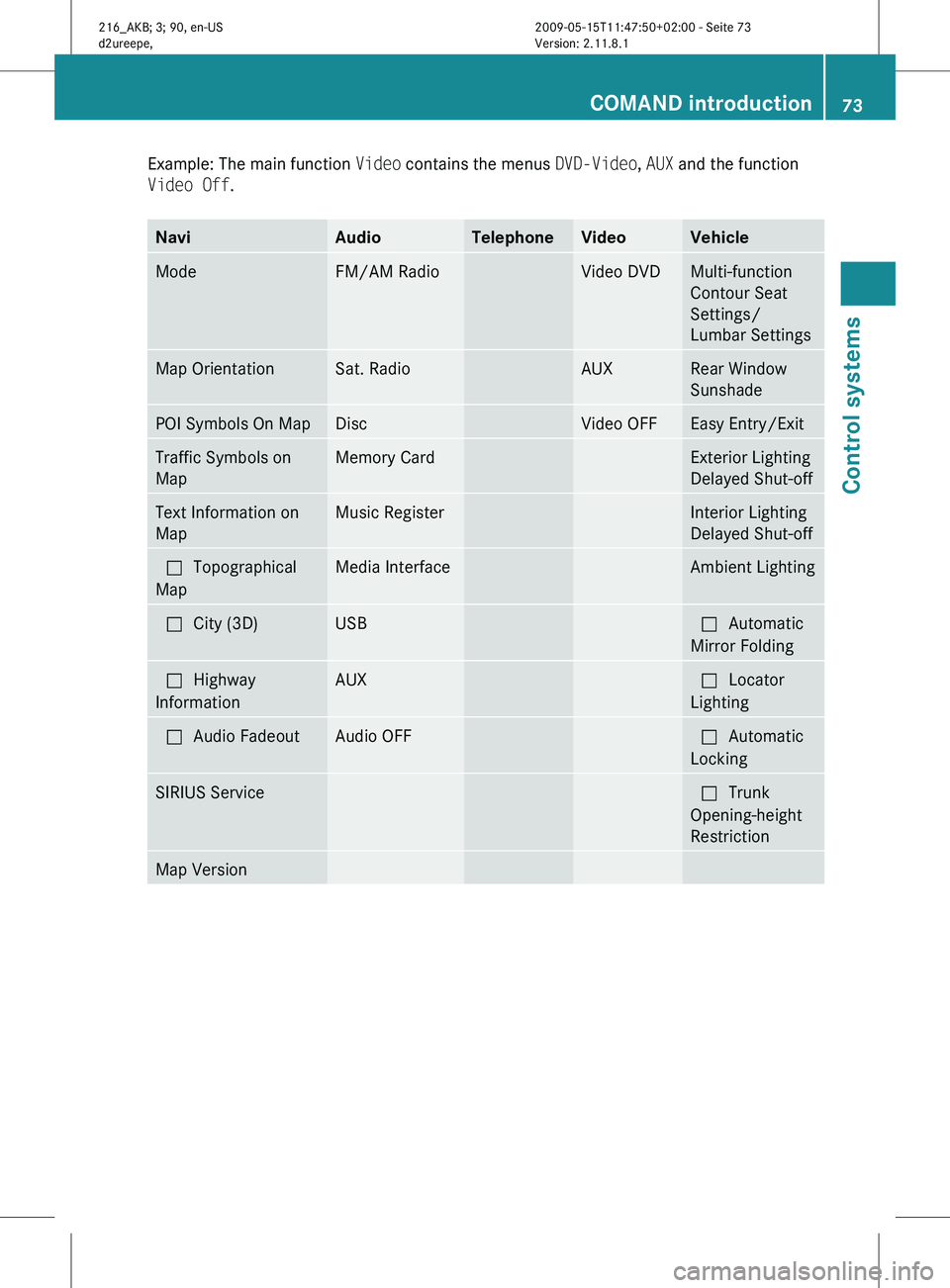
Example: The main function
Video contains the menus DVD-Video, AUX and the function
Video Off. Navi Audio Telephone Video Vehicle
Mode FM/AM Radio Video DVD Multi-function
Contour Seat
Settings/
Lumbar Settings
Map Orientation Sat. Radio AUX Rear Window
Sunshade
POI Symbols On Map Disc Video OFF Easy Entry/Exit
Traffic Symbols on
Map Memory Card Exterior Lighting
Delayed Shut-off
Text Information on
Map Music Register Interior Lighting
Delayed Shut-off
ªTopographical
Map Media Interface Ambient Lighting
ªCity (3D) USB ªAutomatic
Mirror Folding
ªHighway
Information AUX ªLocator
Lighting
ªAudio Fadeout Audio OFF ªAutomatic
Locking
SIRIUS Service ªTrunk
Opening-height
Restriction
Map Version COMAND introduction
73Control systems
216_AKB; 3; 90, en-US
d2ureepe, Version: 2.11.8.1 2009-05-15T11:47:50+02:00 - Seite 73 Z
Page 79 of 500
Selecting sound settings
You can select different bass and treble
settings for the individual audio and video
sources. The respective sound menu can be
found via the submenu for which you wish to
make settings.
Example:
Audio Q FM/AM Radio Q Sound
Adjusting treble or bass
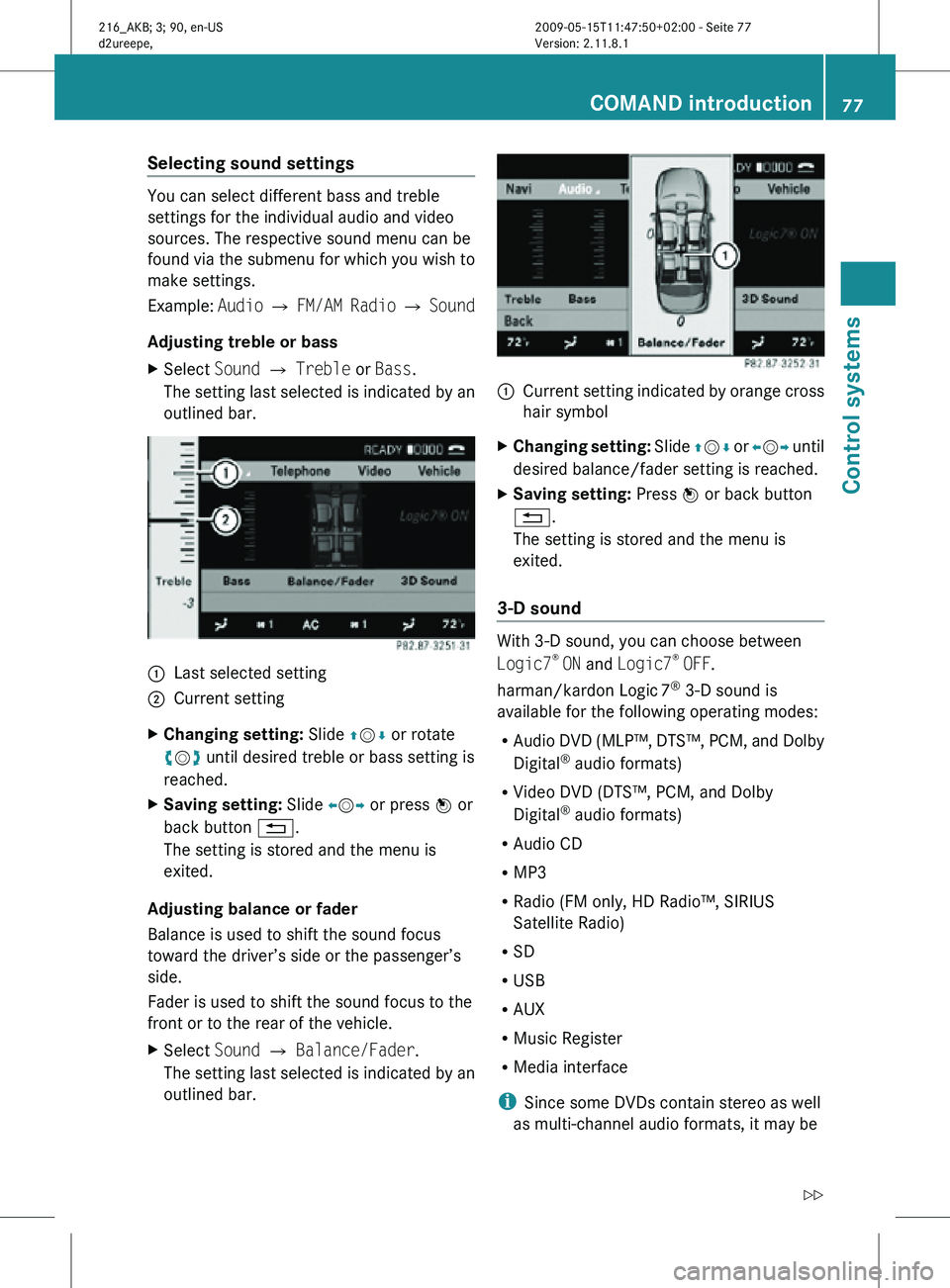
X Select Sound Q Treble or Bass.
The setting last selected is indicated by an
outlined bar. :
Last selected setting
; Current setting
X Changing setting: Slide ZVÆ or rotate
cVd until desired treble or bass setting is
reached.
X Saving setting: Slide XVY or press W or
back button %.
The setting is stored and the menu is
exited.
Adjusting balance or fader
Balance is used to shift the sound focus
toward the driver’s side or the passenger’s
side.
Fader is used to shift the sound focus to the
front or to the rear of the vehicle.
X Select Sound Q Balance/Fader.
The setting last selected is indicated by an
outlined bar. :
Current setting indicated by orange cross
hair symbol
X Changing setting: Slide ZVÆ or XVY until
desired balance/fader setting is reached.
X Saving setting: Press W or back button
%.
The setting is stored and the menu is
exited.
3-D sound With 3-D sound, you can choose between
Logic7
®
ON and Logic7 ®
OFF.
harman/kardon Logic 7®
3-D sound is
available for the following operating modes:
R Audio DVD (MLP™, DTS™, PCM, and Dolby
Digital ®
audio formats)
R Video DVD (DTS™, PCM, and Dolby
Digital ®
audio formats)
R Audio CD
R MP3
R Radio (FM only, HD Radio™, SIRIUS
Satellite Radio)
R SD
R USB
R AUX
R Music Register
R Media interface
i Since some DVDs contain stereo as well
as multi-channel audio formats, it may be COMAND introduction
77Control systems
216_AKB; 3; 90, en-US
d2ureepe, Version: 2.11.8.1 2009-05-15T11:47:50+02:00 - Seite 77 Z
Page 80 of 500
necessary to adapt the audio format
(Y page 172).
i By selecting Logic7 ®
OFF, all compatible
formats are played back as they are
present on the medium. Due to the design
of the passenger compartment, an
optimum audio experience cannot be
guaranteed for all passengers.
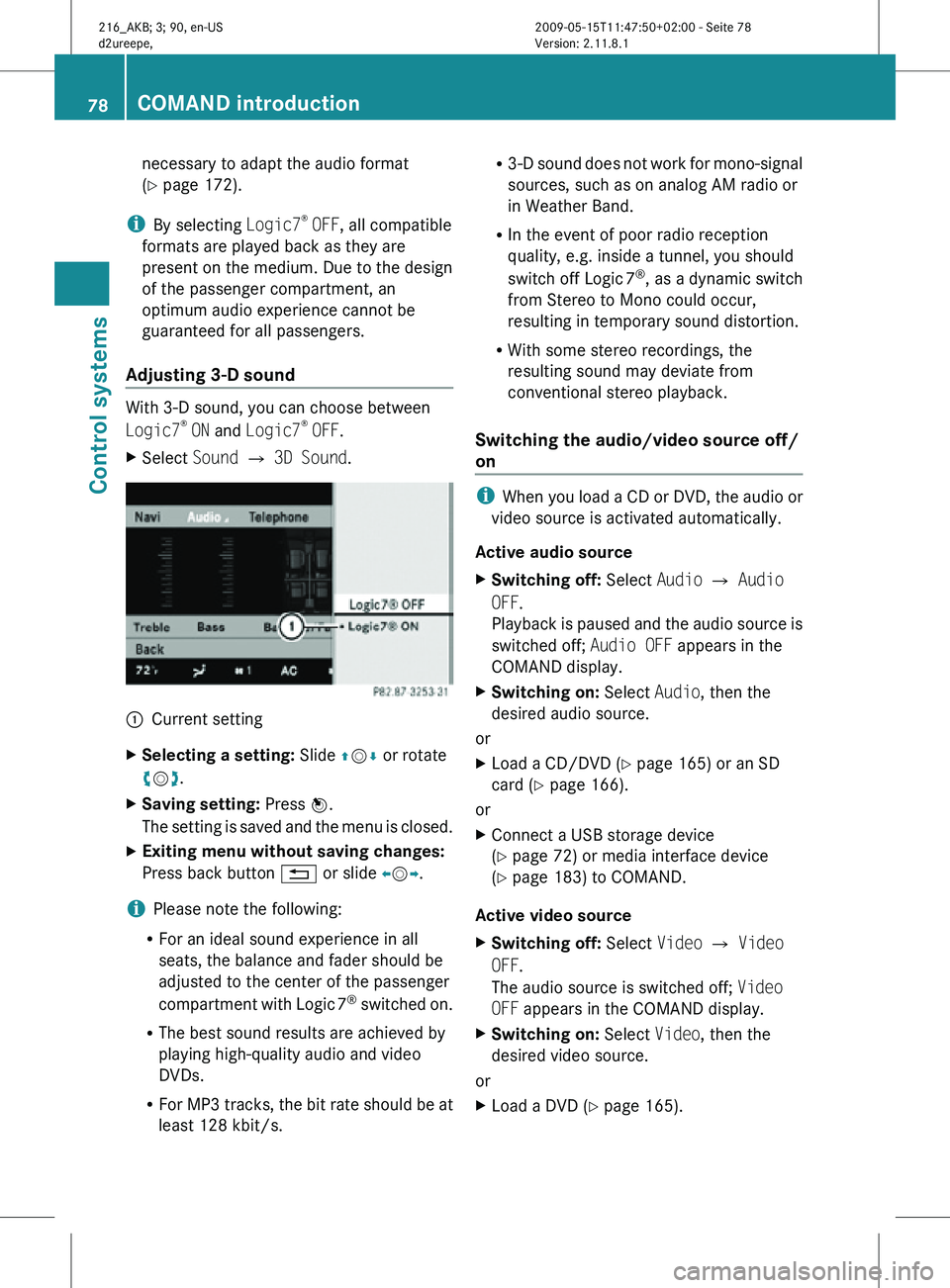
Adjusting 3-D sound With 3-D sound, you can choose between
Logic7
®
ON and Logic7 ®
OFF.
X Select Sound Q 3D Sound. :
Current setting
X Selecting a setting: Slide ZVÆ or rotate
cVd.
X Saving setting: Press W.
The setting is saved and the menu is closed.
X Exiting menu without saving changes:
Press back button % or slide XVY.
i Please note the following:
R For an ideal sound experience in all
seats, the balance and fader should be
adjusted to the center of the passenger
compartment with Logic 7 ®
switched on.
R The best sound results are achieved by
playing high-quality audio and video
DVDs.
R For MP3 tracks, the bit rate should be at
least 128 kbit/s. R
3-D sound does not work for mono-signal
sources, such as on analog AM radio or
in Weather Band.
R In the event of poor radio reception
quality, e.g. inside a tunnel, you should
switch off Logic 7 ®
, as a dynamic switch
from Stereo to Mono could occur,
resulting in temporary sound distortion.
R With some stereo recordings, the
resulting sound may deviate from
conventional stereo playback.
Switching the audio/video source off/
on i
When you load a CD or DVD, the audio or
video source is activated automatically.
Active audio source
X Switching off: Select Audio Q Audio
OFF.
Playback is paused and the audio source is
switched off; Audio OFF appears in the
COMAND display.
X Switching on: Select Audio, then the
desired audio source.
or
X Load a CD/DVD (Y page 165) or an SD
card (Y page 166).
or
X Connect a USB storage device
(Y page 72) or media interface device
(Y page 183) to COMAND.
Active video source
X Switching off: Select Video Q Video
OFF.
The audio source is switched off; Video
OFF appears in the COMAND display.
X Switching on: Select Video, then the
desired video source.
or
X Load a DVD (Y page 165). 78
COMAND introductionControl systems
216_AKB; 3; 90, en-US
d2ureepe,
Version: 2.11.8.1 2009-05-15T11:47:50+02:00 - Seite 78
Page 86 of 500
When reinstalling a map software that has
been installed in that vehicle already, an
activation code is not required.
Installation process
i
The installation process can take
between 10 and 120 minutes, depending
on the
size of the map software. If the radio
is switched on when you start the
installation process, you can still adjust the
volume. During the installation process,
some COMAND functions are suspended.
Still available are the COMAND functions
for automatic air conditioning operation
and canceling the installation process.
If possible, carry out the installation when
the vehicle is stationary. When the vehicle
is stationary, the reading rate of the DVD
drive is higher than in a moving vehicle and
the installation process requires less time. G
Observe Safety notes, see page 68.
i COMAND may switch off during the
installation process automatically in order
to protect the battery. This may happen
when the engine is switched off and the
vehicle battery has insufficient power. If
this occurs,
restart the installation with the
engine running. Similarly, if the SmartKey
position is unintentionally switched to 0,
restart the installation. G
Warning!
Inhalation of exhaust gas is hazardous to your
health. All exhaust gas contains carbon
monoxide (CO), and inhaling it can cause
unconsciousness and lead to death. Do not
run the engine in confined areas (such as a
garage) which are not properly ventilated. Installing
Notes about handling DVDs (Y page 165). X
Load the map software DVD into the DVD
changer (Y page 165).
The COMAND
system verifies the DVD and
a respective message appears in the
COMAND display.
Map software incompatible with
navigation system A message indicates that installation of the
map software is not possible.
X
Confirming message: Press W.
The DVD is ejected.
X Remove the DVD from the slot.
X Insert a DVD that is compatible with the
navigation system of the vehicle.
Map software incompatible with the
current system software A message indicates that the system
software and the map software are
incompatible.
X
Confirming message: Press W.
The DVD is ejected.
X Remove the DVD from the slot.
X Have the system software updated at an
authorized Mercedes-Benz Center.
The system software must be updated before
you can install the map software.
Map software compatible with
navigation software and current
system software The COMAND system verifies whether the
map data on the DVD have been installed
already.
Map data installed already
A message that indicates that the map data
have been installed already appears. Also,
you
are
being asked if you would like to install
the map software anyhow. 84
COMAND navigation (introduction)
Control systems
216_AKB; 3; 90, en-US
d2ureepe,
Version: 2.11.8.1 2009-05-15T11:47:50+02:00 - Seite 84
Page 127 of 500
:
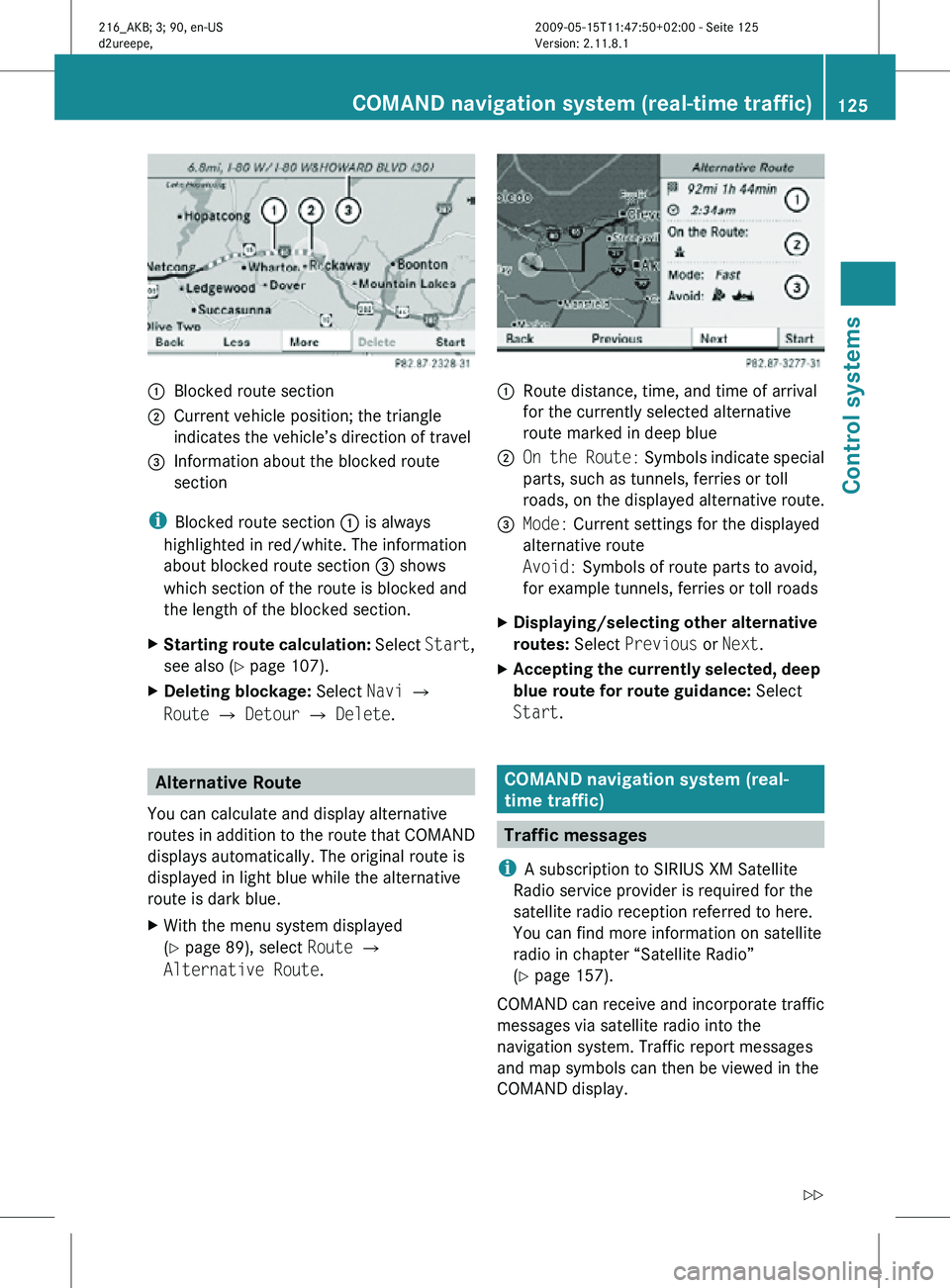
Blocked route section
; Current vehicle position; the triangle
indicates the vehicle’s direction of travel
= Information about the blocked route
section
i Blocked route section : is always
highlighted in red/white. The information
about blocked route section = shows
which section of the route is blocked and
the length of the blocked section.
X Starting route calculation: Select Start,
see also ( Y page 107).
X Deleting blockage: Select Navi Q
Route Q Detour Q Delete. Alternative Route
You can calculate and display alternative
routes in addition to the route that COMAND
displays automatically. The original route is
displayed in light blue while the alternative
route is dark blue.
X With the menu system displayed
(Y page 89), select Route Q
Alternative Route. :
Route distance, time, and time of arrival
for the currently selected alternative
route marked in deep blue
; On the Route: Symbols indicate special
parts, such as tunnels, ferries or toll
roads, on the displayed alternative route.
= Mode: Current settings for the displayed
alternative route
Avoid: Symbols of route parts to avoid,
for example tunnels, ferries or toll roads
X Displaying/selecting other alternative
routes: Select Previous or Next.
X Accepting the currently selected, deep
blue route for route guidance: Select
Start. COMAND navigation system (real-
time traffic)
Traffic messages
i A subscription to SIRIUS XM Satellite
Radio service provider is required for the
satellite radio reception referred to here.
You can find more information on satellite
radio in chapter “Satellite Radio”
(Y page 157).
COMAND can receive and incorporate traffic
messages via satellite radio into the
navigation system. Traffic report messages
and map symbols can then be viewed in the
COMAND display. COMAND navigation system (real-time traffic)
125Control systems
216_AKB; 3; 90, en-US
d2ureepe,Version: 2.11.8.1 2009-05-15T11:47:50+02:00 - Seite 125 Z
Page 130 of 500
Symbol Description Traffic notifications in map display Traffic
report
lists Traffic
report
message
Traffic jam
(red car) Traffic congestion, average speed
5 – 20
mph (8 – 32 km/h).
Could appear repeatedly to indicate
length of traffic congestion. (Not
possible) (Not
possible)
XXXX Blocked
section Road impassable.
Could appear repeatedly to indicate
length of blocked area (Not
possible) (Not
possible)
Displaying real-time traffic reports
X
If necessary, switch to navigation mode
and show the menu system ( Y page 89).
X Select Traffic.
COMAND searches for satellite radio
channels sending traffic messages.
The message No traffic reports are
currently available for this area.
may appear for the following reasons:
R Messages were not yet received.
R There are no messages available.
X Cancelling the search: Select Cancel.
X Closing the message: Select OK
If there are traffic reports, you will see a list
or a submenu, depending on whether route
guidance is active or not.
i A traffic message may also concern an
area or region rather than a road, e.g.
impaired visibility due to fog.
List when route guidance is not active
The list shows all the roads, areas or regions
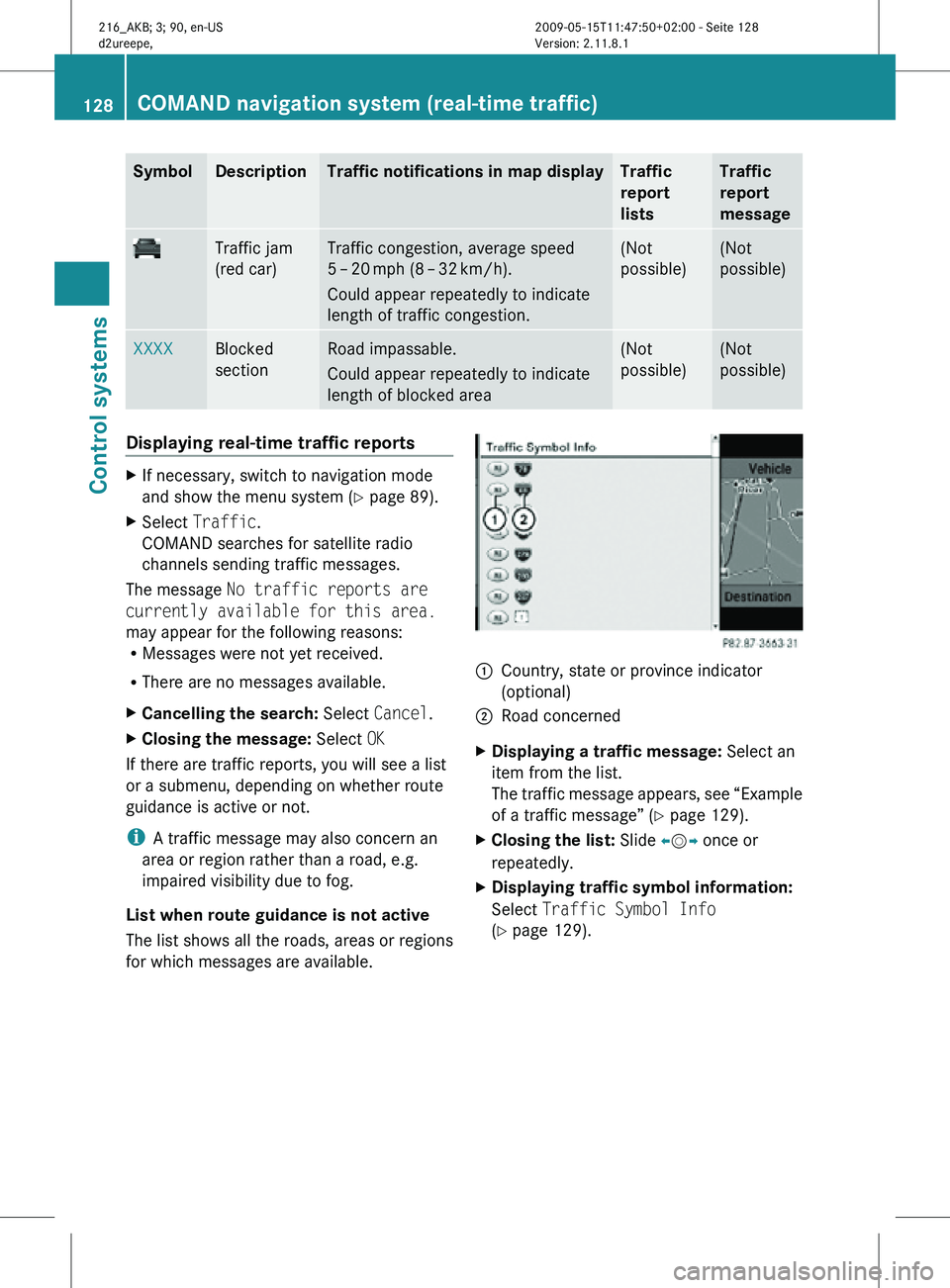
for which messages are available. 1
Country, state or province indicator
(optional)
2 Road concerned
X Displaying a traffic message: Select an
item from the list.
The traffic message appears, see “Example
of a traffic message” ( Y page 129).
X Closing the list: Slide XVY once or
repeatedly.
X Displaying traffic symbol information:
Select Traffic Symbol Info
(Y page 129). 128
COMAND navigation system (real-time traffic)Control systems
216_AKB; 3; 90, en-US
d2ureepe,
Version: 2.11.8.1 2009-05-15T11:47:50+02:00 - Seite 128
Page 154 of 500
:
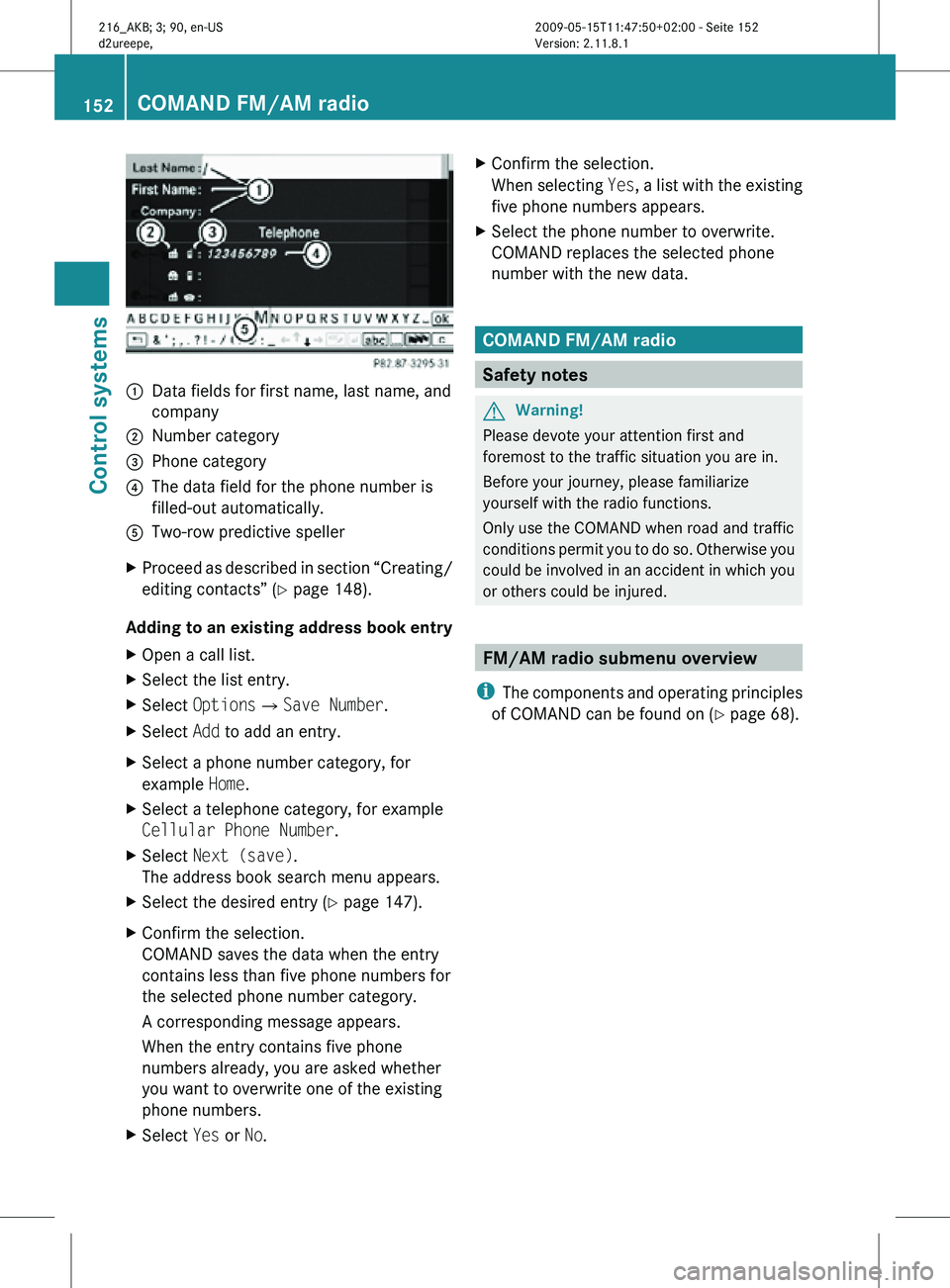
Data fields for first name, last name, and
company
; Number category
= Phone category
? The data field for the phone number is
filled-out automatically.
A Two-row predictive speller
X Proceed as described in section “Creating/
editing contacts” (Y page 148).
Adding to an existing address book entry
X Open a call list.
X Select the list entry.
X Select OptionsQSave Number.
X Select Add to add an entry.
X Select a phone number category, for
example Home.
X Select a telephone category, for example
Cellular Phone Number.
X Select Next (save).
The address book search menu appears.
X Select the desired entry (Y page 147).
X Confirm the selection.
COMAND saves the data when the entry
contains less than five phone numbers for
the selected phone number category.
A corresponding message appears.
When the entry contains five phone
numbers already, you are asked whether
you want to overwrite one of the existing
phone numbers.
X Select Yes or No. X
Confirm the selection.
When selecting Yes, a list with the existing
five phone numbers appears.
X Select the phone number to overwrite.
COMAND replaces the selected phone
number with the new data. COMAND FM/AM radio
Safety notes
G
Warning!
Please devote your attention first and
foremost to the traffic situation you are in.
Before your journey, please familiarize
yourself with the radio functions.
Only use the COMAND when road and traffic
conditions permit you to do so. Otherwise you
could be involved in an accident in which you
or others could be injured. FM/AM radio submenu overview
i The components and operating principles
of COMAND can be found on ( Y page 68).152
COMAND FM/AM radioControl systems
216_AKB; 3; 90, en-US
d2ureepe,
Version: 2.11.8.1 2009-05-15T11:47:50+02:00 - Seite 152
Page 155 of 500
Radio
(except
Weather Band) Presets
(except
Weather
Band) Channel
(only
Weather
Band) Info FM or AM
or WB Sound
Save Station Autostore Channel list Program
Information Switch to
FM wave
band Treble
Frequency Entry Preset
station list Switch to
AM wave
band Bass
Show Station
Info Switch to
Weather
Band Balance/
Fader
ª¥Radio 3D Sound
Switching to radio mode
X Select Audio Q FM/AM Radio.
or
X Press shortcut button R (Y page 69)
once or twice.
The radio display appears once you have
switched to radio mode. You will hear the
last tuned station/channel in the
previously selected wave band, provided
that the station/channel can be received.
i The number of times you have to press
shortcut button R depends on the
operating mode currently selected. Example illustration: Radio mode in FM wave band
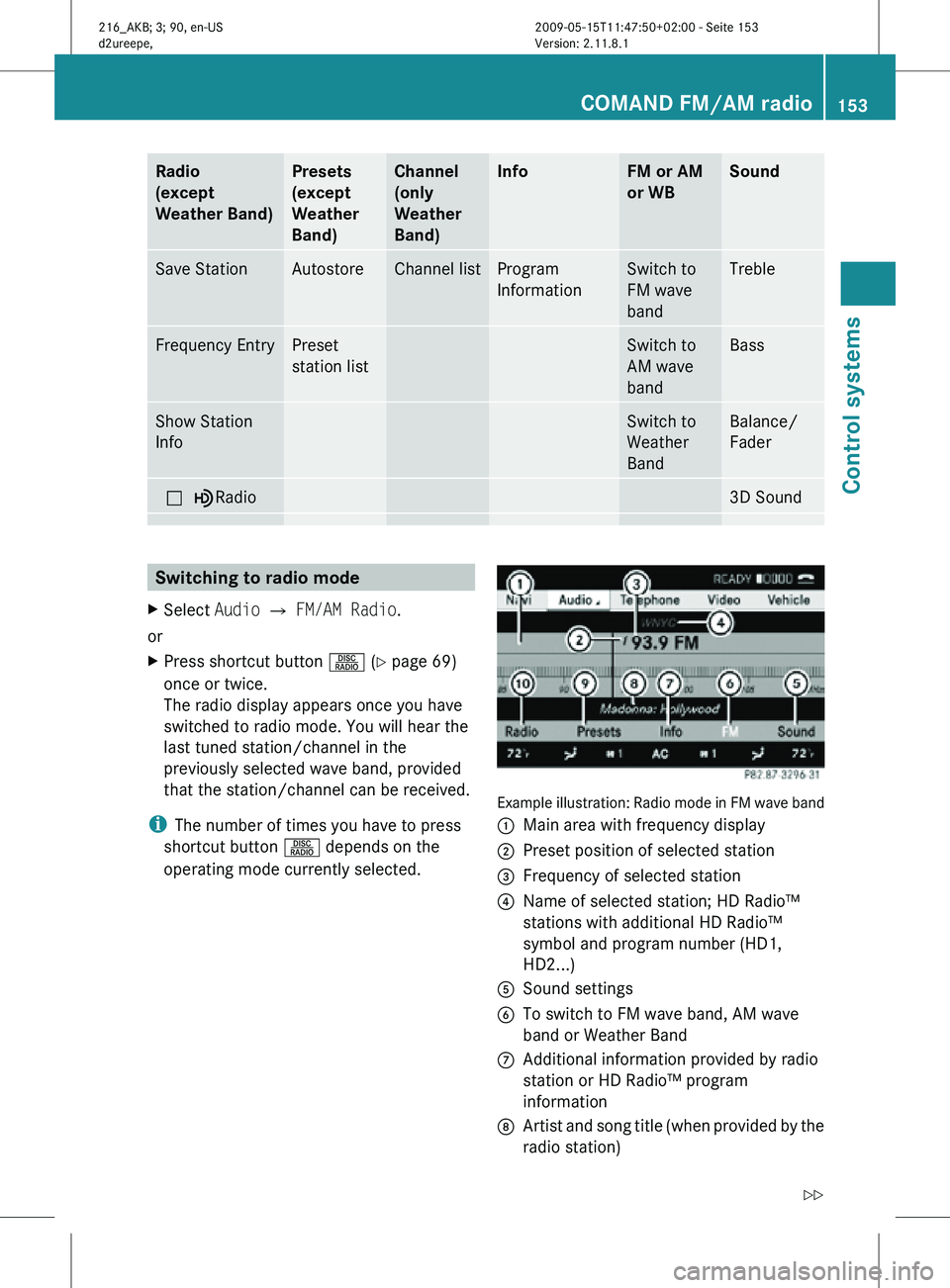
:
Main area with frequency display
; Preset position of selected station
= Frequency of selected station
? Name of selected station; HD Radio™
stations with additional HD Radio™
symbol and program number (HD1,
HD2...)
A Sound settings
B To switch to FM wave band, AM wave
band or Weather Band
C Additional information provided by radio
station or HD Radio™ program
information
D Artist and song title (when provided by the
radio station) COMAND FM/AM radio
153Control systems
216_AKB; 3; 90, en-US
d2ureepe, Version: 2.11.8.1 2009-05-15T11:47:50+02:00 - Seite 153 Z
Page 156 of 500
E
Preset options
F Radio options
i Station name display ? is available for
the AM/FM wave band and can only be
seen when it is switched on (Y page 156)
and if the station transmits a name.
HD Radio™ Important Notes
i
HD Radio™ features include
R digital broadcasts in the same wave band
as analog AM/FM; the analog AM/FM
stations remain at their current place on
the dial
R the ability to broadcast multiple program
streams over a single FM/AM frequency
(e.g. HD1, HD2, etc.)
R static-free, clear reception
R FM stations offer CD quality sound, AM
stations sound like analog FM stations
R a variety of data services, including text-
based information – artist name, song
title, etc. – shown on the display
More information on HD Radio™ you will
find at www.hdradio.com.
i Note that subprograms and program info
shown in illustrations are dependent on
program content delivered by the radio
stations. Program content is subject to
change. Therefore, subprograms and
program info shown in illustrations and
descriptions contained in this manual may
differ from the subprograms and program
info delivered by the radio station.
Switching to HD Radio™
i Since HD Radio™ stations are embedded
in the AM/FM wave band, HD Radio™
operation is very similar to analog AM/FM
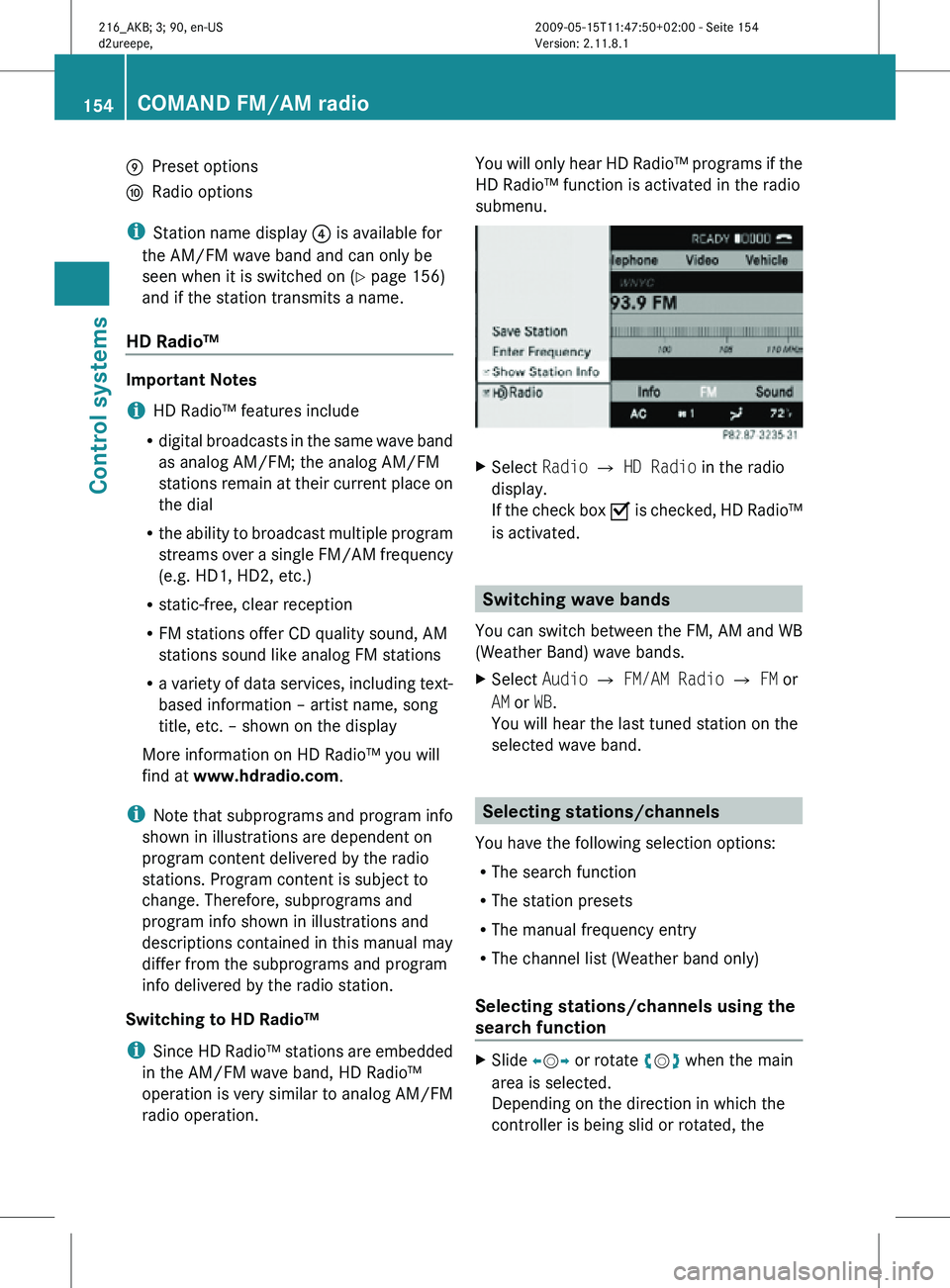
radio operation. You will only hear HD Radio™ programs if the
HD Radio™ function is activated in the radio
submenu.
X
Select Radio £ HD Radio in the radio
display.
If the check box Ç is checked, HD Radio™
is activated. Switching wave bands
You can switch between the FM, AM and WB
(Weather Band) wave bands.
X Select Audio Q FM/AM Radio Q FM or
AM or WB.
You will hear the last tuned station on the
selected wave band. Selecting stations/channels
You have the following selection options:
R The search function
R The station presets
R The manual frequency entry
R The channel list (Weather band only)
Selecting stations/channels using the
search function X
Slide XVY or rotate cVd when the main
area is selected.
Depending on the direction in which the
controller is being slid or rotated, the 154
COMAND FM/AM radioControl systems
216_AKB; 3; 90, en-US
d2ureepe,
Version: 2.11.8.1 2009-05-15T11:47:50+02:00 - Seite 154