reset MERCEDES-BENZ CL CLASS 2010 Owner's Manual
[x] Cancel search | Manufacturer: MERCEDES-BENZ, Model Year: 2010, Model line: CL CLASS, Model: MERCEDES-BENZ CL CLASS 2010Pages: 500, PDF Size: 9.32 MB
Page 164 of 500
X
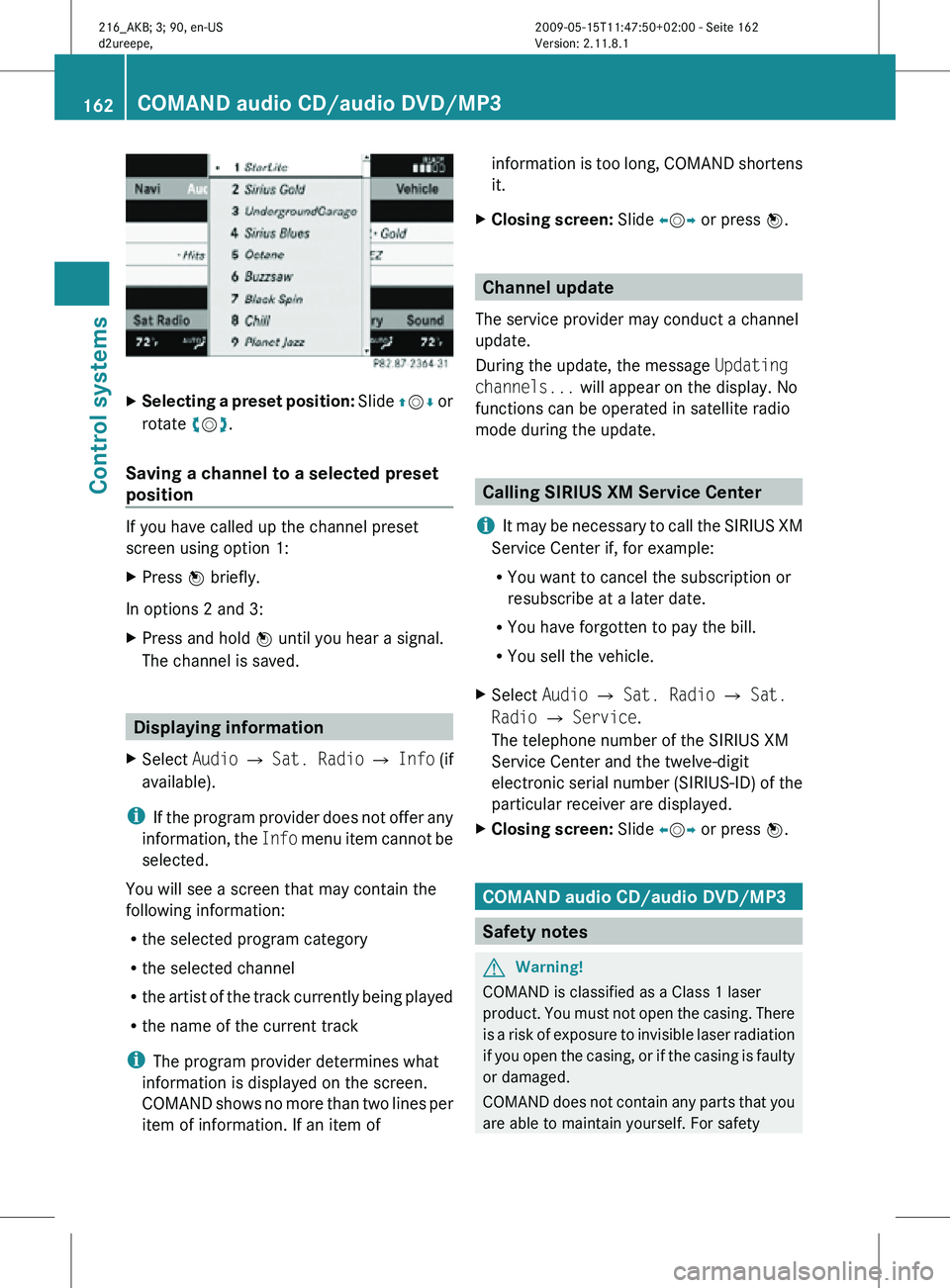
Selecting a preset position: Slide ZVÆ or
rotate cVd.
Saving a channel to a selected preset
position If you have called up the channel preset
screen using option 1:
X
Press W briefly.
In options 2 and 3:
X Press and hold W until you hear a signal.
The channel is saved. Displaying information
X Select Audio Q Sat. Radio Q Info (if
available).
i If the program provider does not offer any
information, the Info menu item cannot be
selected.
You will see a screen that may contain the
following information:
R the selected program category
R the selected channel
R the artist of the track currently being played
R the name of the current track
i The program provider determines what
information is displayed on the screen.
COMAND shows no more than two lines per
item of information. If an item of information is too long, COMAND shortens
it.
X Closing screen: Slide XVY or press W. Channel update
The service provider may conduct a channel
update.
During the update, the message Updating
channels... will appear on the display. No
functions can be operated in satellite radio
mode during the update. Calling SIRIUS XM Service Center
i It may be necessary to call the SIRIUS XM
Service Center if, for example:
R You want to cancel the subscription or
resubscribe at a later date.
R You have forgotten to pay the bill.
R You sell the vehicle.
X Select Audio Q Sat. Radio Q Sat.
Radio Q Service.
The telephone number of the SIRIUS XM
Service Center and the twelve-digit
electronic serial number (SIRIUS-ID) of the
particular receiver are displayed.
X Closing screen: Slide XVY or press W. COMAND audio CD/audio DVD/MP3
Safety notes
G
Warning!
COMAND is classified as a Class 1 laser
product. You must not open the casing. There
is a risk of exposure to invisible laser radiation
if you open the casing, or if the casing is faulty
or damaged.
COMAND does not contain any parts that you
are able to maintain yourself. For safety 162
COMAND audio CD/audio DVD/MP3Control systems
216_AKB; 3; 90, en-US
d2ureepe,
Version: 2.11.8.1 2009-05-15T11:47:50+02:00 - Seite 162
Page 206 of 500
Function
:
Trip
menu (Y page 204) ;
Navi menu (Y page 206)
=
Audio
menu (Y page 207) ?
AMG
28
menu (Y page 208) A
Telephone
menu (Y page 211) B
Assistance
menu (Y page 212) C
Service
menu (Y page 214) D
Settings menu (Y page 214)
Trip menu
In the Trip menu, you can show an additional
display for the speedometer and call up or
reset your vehicle’s statistical data.
The following information is available:
R Standard display ( Y page 204)
R Fuel consumption statistics since start
(Y page 204)
R Fuel consumption statistics since last reset
(Y page 205)
R Resetting values ( Y page 205)
R Remaining driving range and current fuel
consumption (Y page 205)
R Digital Speedometer ( Y page 205)
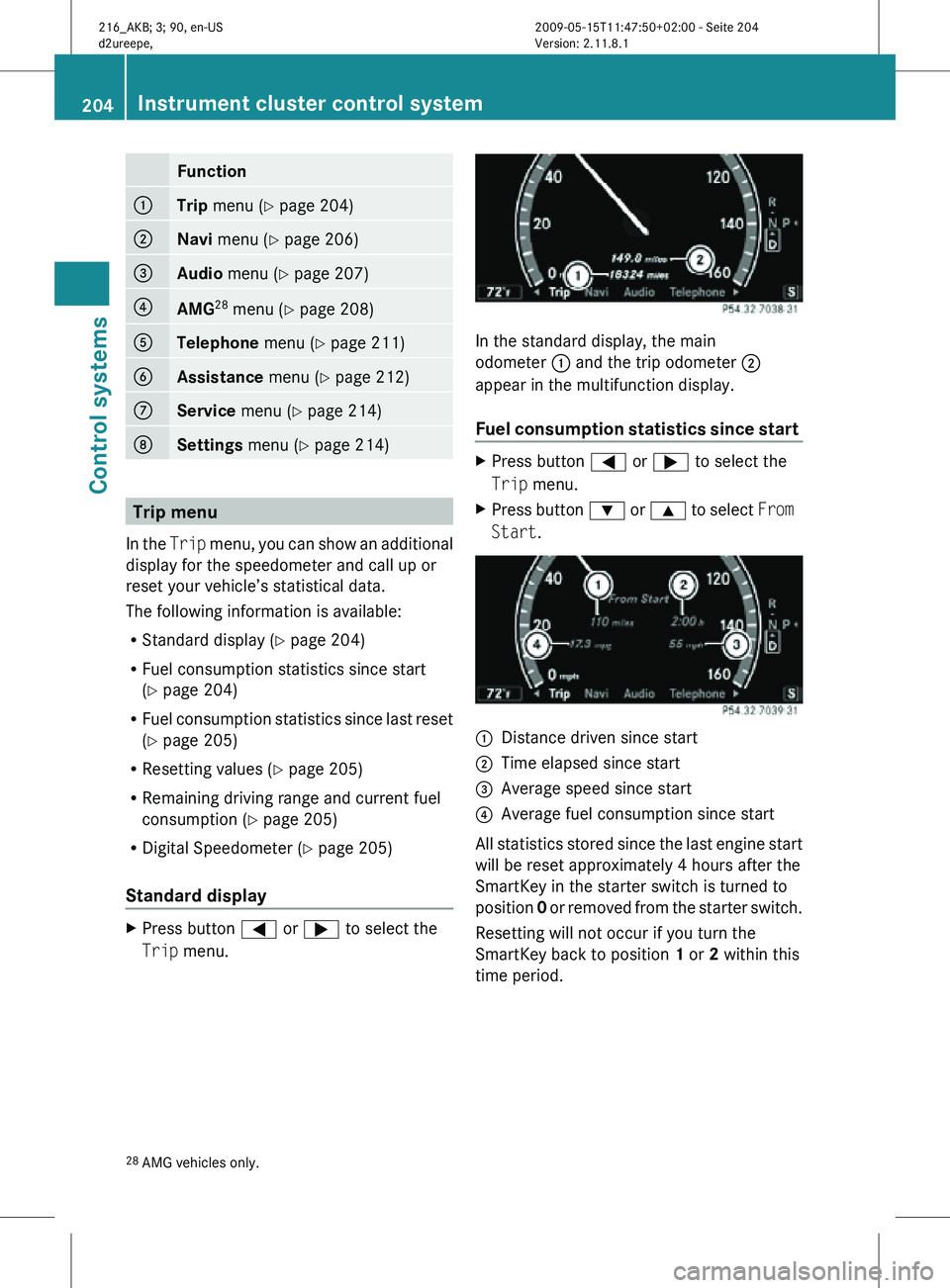
Standard display X
Press button = or ; to select the
Trip menu. In the standard display, the main
odometer : and the trip odometer ;
appear in the multifunction display.
Fuel consumption statistics since start
X
Press button = or ; to select the
Trip menu.
X Press button : or 9 to select From
Start. :
Distance driven since start
; Time elapsed since start
= Average speed since start
? Average fuel consumption since start
All statistics stored since the last engine start
will be reset approximately 4 hours after the
SmartKey in the starter switch is turned to
position 0 or removed from the starter switch.
Resetting will not occur if you turn the
SmartKey back to position 1 or 2 within this
time period.
28 AMG vehicles only. 204
Instrument cluster control systemControl systems
216_AKB; 3; 90, en-US
d2ureepe,
Version: 2.11.8.1 2009-05-15T11:47:50+02:00 - Seite 204
Page 207 of 500
Fuel consumption statistics since last
reset
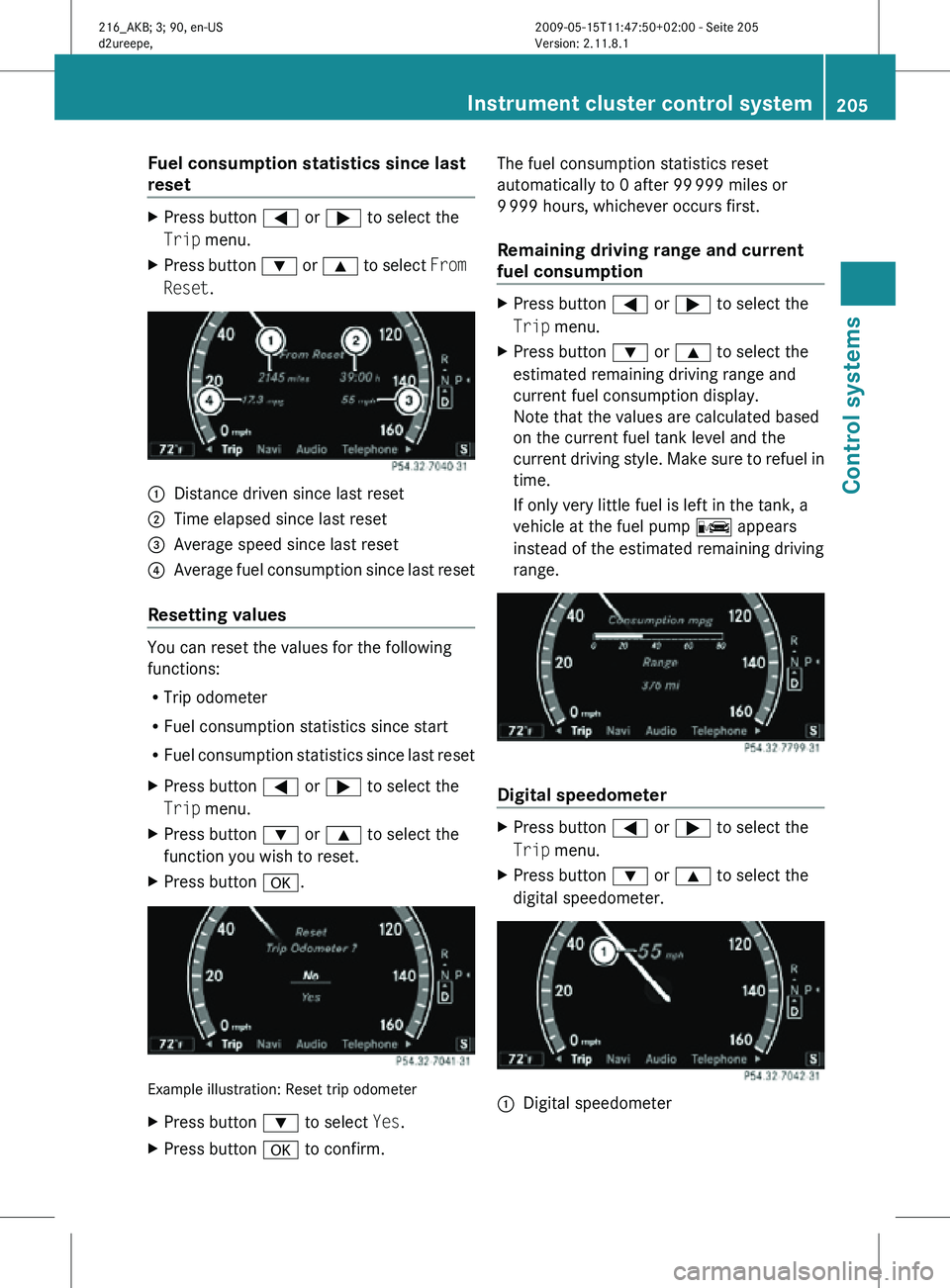
X
Press button = or ; to select the
Trip menu.
X Press button : or 9 to select From
Reset. :
Distance driven since last reset
; Time elapsed since last reset
= Average speed since last reset
? Average fuel consumption since last reset
Resetting values You can reset the values for the following
functions:
R
Trip odometer
R Fuel consumption statistics since start
R Fuel consumption statistics since last reset
X Press button = or ; to select the
Trip menu.
X Press button : or 9 to select the
function you wish to reset.
X Press button a. Example illustration: Reset trip odometer
X
Press button : to select Yes.
X Press button a to confirm. The fuel consumption statistics reset
automatically to 0 after 99
999 miles or
9 999 hours, whichever occurs first.
Remaining driving range and current
fuel consumption X
Press button = or ; to select the
Trip menu.
X Press button : or 9 to select the
estimated remaining driving range and
current fuel consumption display.
Note that the values are calculated based
on the current fuel tank level and the
current driving style. Make sure to refuel in
time.
If only very little fuel is left in the tank, a
vehicle at the fuel pump C appears
instead of the estimated remaining driving
range. Digital speedometer
X
Press button = or ; to select the
Trip menu.
X Press button : or 9 to select the
digital speedometer. :
Digital speedometer Instrument cluster control system
205Control systems
216_AKB; 3; 90, en-US
d2ureepe, Version: 2.11.8.1 2009-05-15T11:47:50+02:00 - Seite 205 Z
Page 212 of 500
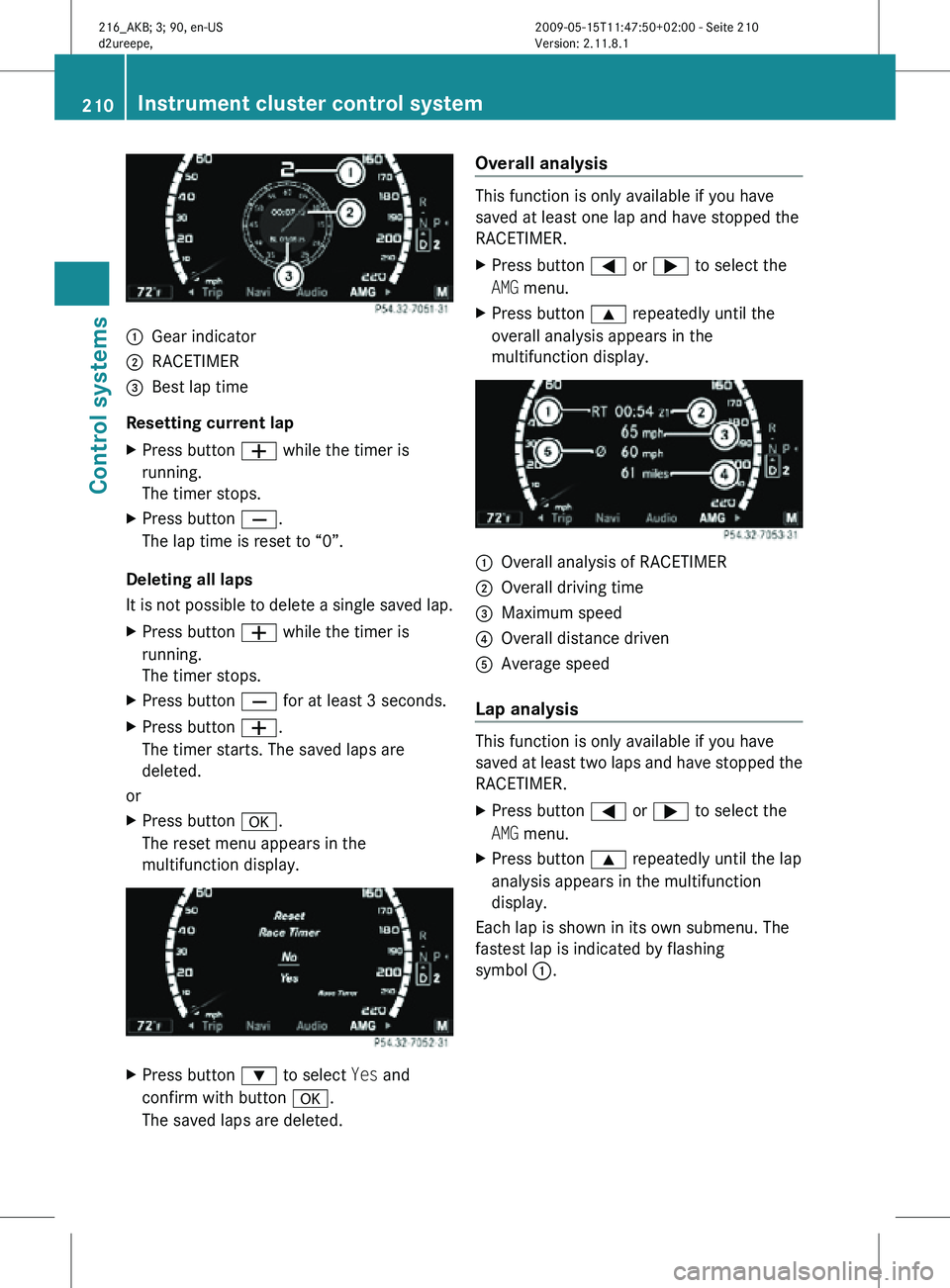
:
Gear indicator
; RACETIMER
= Best lap time
Resetting current lap
X Press button W while the timer is
running.
The timer stops.
X Press button X.
The lap time is reset to “0”.
Deleting all laps
It is not possible to delete a single saved lap.
X Press button W while the timer is
running.
The timer stops.
X Press button X for at least 3 seconds.
X Press button W.
The timer starts. The saved laps are
deleted.
or
X Press button a.
The reset menu appears in the
multifunction display. X
Press button : to select Yes and
confirm with button a.
The saved laps are deleted. Overall analysis This function is only available if you have
saved at least one lap and have stopped the
RACETIMER.
X
Press button = or ; to select the
AMG menu.
X Press button 9 repeatedly until the
overall analysis appears in the
multifunction display. :
Overall analysis of RACETIMER
; Overall driving time
= Maximum speed
? Overall distance driven
A Average speed
Lap analysis This function is only available if you have
saved at least two laps and have stopped the
RACETIMER.
X
Press button = or ; to select the
AMG menu.
X Press button 9 repeatedly until the lap
analysis appears in the multifunction
display.
Each lap is shown in its own submenu. The
fastest lap is indicated by flashing
symbol :. 210
Instrument cluster control systemControl systems
216_AKB; 3; 90, en-US
d2ureepe,
Version: 2.11.8.1 2009-05-15T11:47:50+02:00 - Seite 210
Page 233 of 500
the desired entry contains at least one
phone number or one address, the Voice
Control
System
will ask you what you would
like to do. You can either dial the phone
number or calculate the route to the stored
address.
“Read out destination memory” For information on “Read out destination
memory”, see
(
Y
page 223).
“Delete address book” Use the command “Delete address book” to
delete all or individual voice names of the
address
book
entries. Only the voice name is
deleted; the remaining data in the entry are
retained. When the address book entry
contains a voice name only, the entire
address book entry will be deleted.
“Address book” Use this command to open the address book.
“Open entry”
Use the command “Open entry” you can open
any address book entry.
Sample dialog:
\
Open entry.
_ The system displays a numbered list of
entries in the COMAND display.
^ Please select a line number.
\ Number 1.
^ Number 1 accepted.
_ The system opens the first entry from
the list.
When selected entry contains at least
one phone
number or one address, the
Voice Control System will ask you what
you would like to do. You can either
dial the phone number or calculate the
route to the stored address. i
The list is displayed only when the
address book
contains a very small number
of entries. When the address book contains
several entries, the Voice Control System
prompts you to speak a name.
You can also use the commands “Open
John Smith”, “Open Smith John”, or “Open
entry directly. Voice Control System radio
Safety notes
G
Warning!
Please devote your attention first and
foremost to the traffic situation you are in.
Before your journey, please familiarize
yourself with the radio functions.
Only use
the Voice Control System when road
and traffic conditions permit you to do so.
Otherwise you could be involved in an
accident in which you or others could be
injured. Radio operation
You can use the Voice Control System to
R select a station
R find a station
R select a frequency (FM, AM)
R select a category (satellite radio)
R select the wave band (FM, AM or weather
band)
R reading out the Presets
R switch to satellite radio
R switch to HD Radio™
R save a voice name for a station
R delete a station list (voice names only)
R delete a station (voice name only)
R select a channel number (satellite radio) Voice Control System radio
231Control systems
216_AKB; 3; 90, en-US
d2ureepe, Version: 2.11.8.1 2009-05-15T11:47:50+02:00 - Seite 231 Z
Page 235 of 500
“Save station”
Using the “Save station” command you can
give a voice name to the station currently
selected. You can also use this command to
improve voice recognition for difficult names
or
if
you want to use a name of your own. You
could, for example, save a station with the
name “Favorite station 30
”.
When you have given the command, the Voice
Control System prompts up to three times to
say the station name. When repeating the
station name, make sure that you pronounce
it in exactly the same way as you did the first
time. Otherwise, the name cannot be saved
and the Voice Control System aborts the
saving procedure.
Sample dialog:
\ Save station.
^ Please say the station name.
\ Favorite station 30
.
^ Please repeat the station name.
\ Favorite station 30
.
^ The station “Favorite station 30
” has
been saved.
“Select station” Using the “Select station” command, you can
select a saved station.
Sample dialog:
\
Select station.
^ Please say the station name.
\ Favorite station 30
.
The Voice Control System sets the station.
“Favorite station 30
” or e.g. “WNYC” Using this command, you can directly select
a saved station. Sample dialog:
\
Favorite station 30
.
The Voice Control System sets the station.
“Select Category” (satellite radio) Using the “Select category” command, you
can select an available category.
Sample dialog:
\
Select category.
^ Please say the category name.
\ News.
The Voice Control System sets the category.
“Category News” (satellite radio) Use this command to select a satellite radio
category.
Sample dialog:
\
Category news.
The Voice Control System sets the category.
“Enter Channel Number” (satellite
radio) Use the command “Enter channel number” to
select a satellite radio channel.
“List station list” and “Selecting a
Station” (FM only)
Using the “List station list” command, you
can hear the stored stations from the
Presets and you can choose one of them.
i
If the Voice Control System does not
recognize the
station name, have it read out
the list of stations. This allows you to check
whether you have saved the station you
require in the Presets.
Sample dialog:
\ List station list.
The Voice Control System reads out the
stored stations from the Presets.
30 Example for a voice name. Voice Control System radio
233
Control systems
216_AKB; 3; 90, en-US
d2ureepe, Version: 2.11.8.1 2009-05-15T11:47:50+02:00 - Seite 233 Z
Page 236 of 500
To select a station:
X
Press button ?, when the system reads
the desired station.
X Canceling the dialog: Press button %.
The dialog is concluded. The system
confirms “Cancel”.
“Delete station” You can use the “Delete station” command to
delete a voice name for a station from the
Presets.
Sample dialog:
\
Delete station.
^ Which station name do you want to
delete?
\ Favorite station 30
.
^ Do you want to delete Favorite
station 30
?
\ Yes.
^ Favorite station 30
deleted.
“Delete station list” You can use the “Delete station list”
command to delete all voice names or
individual ones from the stations of the
Presets.
Sample dialog:
\
Delete station list.
^ Do you want to delete them all?
\ Yes.
^ Are you sure you want to delete all
voice names?
\ Yes.
^ All voice names have been deleted
from the station list.
The system permanently deletes all voice
names in the Presets.
or
^ No The system reads out the list of stations.
When the system reads the station to be
deleted:
X
Press button ?.
The station to be deleted is selected. The
system reads out the selected station
again.
^ Do you want to delete “Favorite
Station 30
”?
\ Yes.
^ Station deleted.
The system deletes the station and reads out
the remaining entries in the Presets.
or
^ No.
The system continues reading the Presets
entry by entry.
“HD Radio on”, “HD Radio off” Use “HD Radio on” or “HD Radio off” to switch
the HD Radio™ on or off.
“Sirius”
Use “Sirius” to switch to SIRIUS XM Satellite
Radio.
Voice Control System CD/DVD
changer/MP3
Safety notes
G
Warning!
Please devote your attention first and
foremost to the traffic situation you are in.
Before your journey, please familiarize
yourself with the audio functions.
Only use
the Voice Control System when road
and traffic conditions permit you to do so.
Otherwise you could be involved in an
accident in which you or others could be
injured.
30 Example for a voice name. 234
Voice Control System CD/DVD changer/MP3
Control systems
216_AKB; 3; 90, en-US
d2ureepe,
Version: 2.11.8.1 2009-05-15T11:47:50+02:00 - Seite 234
Page 252 of 500
Problem Possible cause/consequence Suggested solution
You want to
enter a city,
street or city
center but
you have to
spell the
entry. Entering part of an address has failed
after several attempts, e.g. due to
background noise, or you have tried
to enter an address in Puerto Rico
(Y page 220). X
Spell the entry. You have
entered a
phone
number as a
string
but
the
Voice
Control
System does
not
understand
you. X
Speak the phone number in groups
of digits, e.g. three to five digits
each. Voice Control System
individualization
i The individualization can only be
performed when the vehicle is stationary.
If you
drive off, the individualization will be
canceled.
After starting the session, the system will
guide you through the individualization by
means of acoustic instructions.
The individualization is used to adapt the
Voice Control System to your own voice and
to therefore improve speech recognition. This
does not affect the speech recognition of
other users.
Individualization consists of two stages:
R Digits
R Commands
You can activate individualization in the
COMAND system settings (Y page 80). A
dialog and screen displays will guide you
through the individualization process. The system can be reset to the factory
settings at any time.
i
You may wish to complete only a portion
of the individualization process.
Completing the digits portion alone may
result in an improved recognition rate.
Individualization can
be exited at any time.
The data trained, however, will only be
retained if a given individualization portion
is completed and the data is stored when
prompted to do so by the system. 250
Voice Control System individualization
Control systems
216_AKB; 3; 90, en-US
d2ureepe,
Version: 2.11.8.1 2009-05-15T11:47:50+02:00 - Seite 250
Page 259 of 500
Fix whatever is affecting the window before
trying to shut the door.
Automatic central locking
You can switch the automatic central locking
on or off using the COMAND system
(Y page 193).
The doors and the trunk lock automatically
when the vehicle is set into motion.
You can open a locked door from the inside.
Open door only when conditions are safe to
do so.
The doors are designed to unlock
automatically after an accident if the force of
the impact exceeds a preset threshold.
The vehicle locks automatically when the
ignition is switched on and the wheels are
turning at a vehicle speed of above 9 mph
(15 km/h). You could therefore lock yourself
out when the vehicle is pushed or towed or is
on a test stand. Locking and unlocking from the inside
G
Observe Safety notes, see page 51.
You can lock or unlock the vehicle from the
inside using the central locking or unlocking
switch. This can be useful, for example, if you
want to lock the vehicle before starting to
drive.
The central locking or unlocking switch does
not lock or unlock the fuel filler flap or the
interior storage compartments, such as the
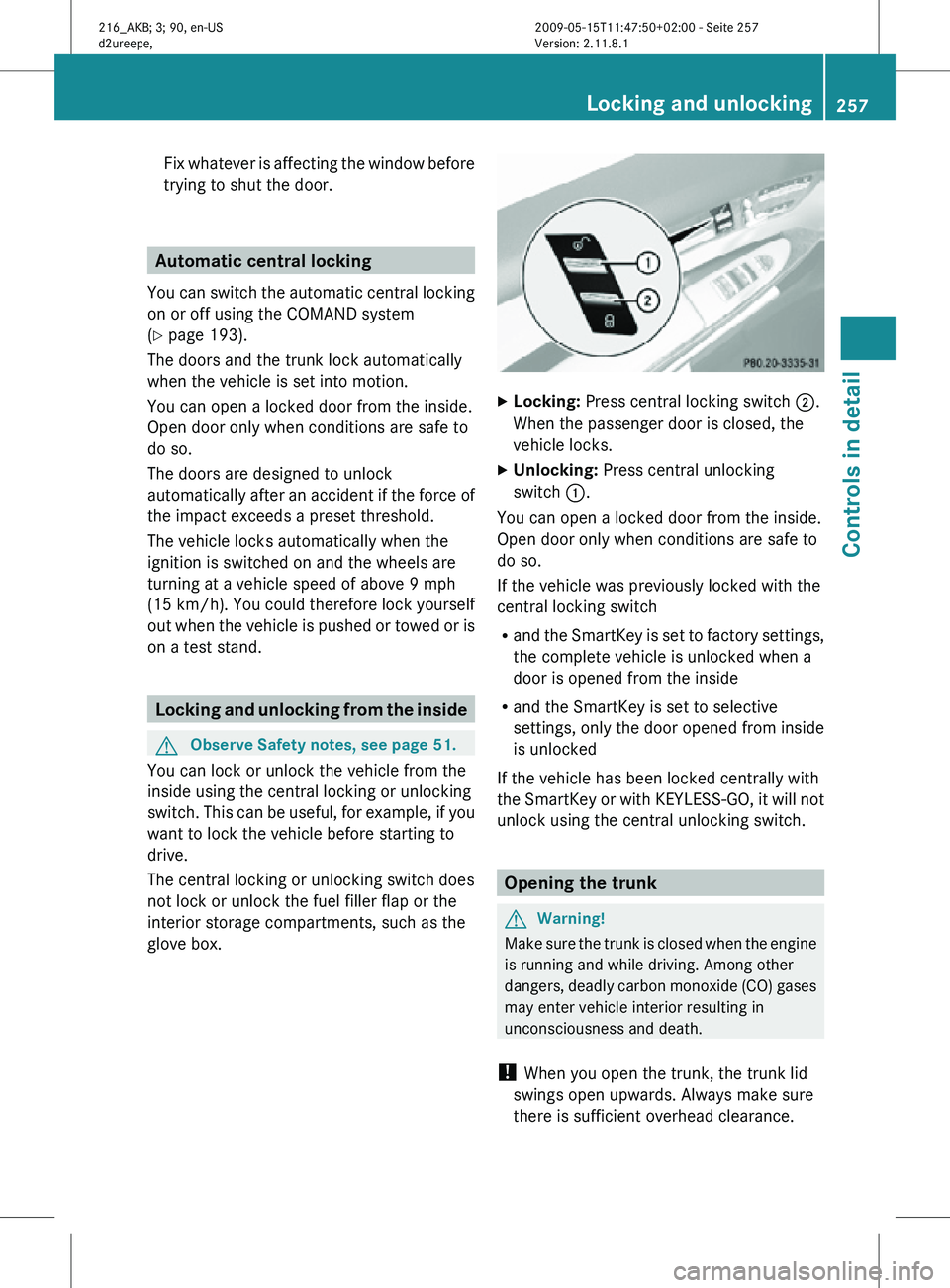
glove box. X
Locking: Press central locking switch ;.
When the passenger door is closed, the
vehicle locks.
X Unlocking: Press central unlocking
switch :.
You can open a locked door from the inside.
Open door only when conditions are safe to
do so.
If the vehicle was previously locked with the
central locking switch
R and the SmartKey is set to factory settings,
the complete vehicle is unlocked when a
door is opened from the inside
R and the SmartKey is set to selective
settings, only the door opened from inside
is unlocked
If the vehicle has been locked centrally with
the SmartKey or with KEYLESS-GO, it will not
unlock using the central unlocking switch. Opening the trunk
G
Warning!
Make sure the trunk is closed when the engine
is running and while driving. Among other
dangers, deadly carbon monoxide (CO) gases
may enter vehicle interior resulting in
unconsciousness and death.
! When you open the trunk, the trunk lid
swings open upwards. Always make sure
there is sufficient overhead clearance. Locking and unlocking
257Controls in detail
216_AKB; 3; 90, en-US
d2ureepe, Version: 2.11.8.1 2009-05-15T11:47:50+02:00 - Seite 257 Z
Page 274 of 500

i
At low ambient temperatures, the exterior
rear view mirrors will be heated
automatically. Auto-dimming rear view mirrors
The exterior rear view mirror on the driver’s
side and the interior rear view mirror will
respond automatically to glare when the
ignition is switched on and incoming light
from headlamps falls on the sensor in the
interior rear view mirror.
The rear view mirrors will not react if the
automatic transmission is set to reverse gear
R or the interior lighting is switched on. G
Warning!
The auto dimming function does not react if
incoming light is not aimed directly at sensors
in the interior rear view mirror.
The interior rear view mirror and the exterior
rear view mirror on the driver’s side do not
react, for example, if the rear window
sunshade is in raised position.
Light hitting the mirror(s) at certain angles
(incident light) could blind you. As a result,
you may not be able to observe traffic
conditions and could cause an accident. Exterior rear view mirror parking
position
To assist during parking maneuvers, you can
set the passenger-side exterior rear view
mirror so that you can see the rear wheel and
the road curb.
Setting and storing the parking position X
Switch on the ignition.
X Press button =, to select the passenger-
side exterior rear view mirror.
X Shift the automatic transmission into
reverse gear R.
The passenger-side exterior rear view
mirror moves to the preset parking
position.
X Adjust the passenger-side exterior rear
view mirror with adjustment button ; so
that you see the rear wheel and the road
curb.
The exterior rear view mirror parking
position is stored.
You can also store the parking position using
the memory button M ::
X Switch on the ignition.
X Press button =, to select the passenger-
side exterior rear view mirror.
X Adjust the passenger-side exterior rear
view mirror with adjustment button ; so
that you see the rear wheel and the road
curb.
X Press memory button M : and within
3 seconds, press one of the arrows of
adjustment button ;.
The parking position is stored if the exterior
rear view mirror does not move.
i If the exterior rear view mirror does move,
repeat the above steps. After the setting is
stored, you can move the exterior rear view
mirror again. 272
MirrorsControls in detail
216_AKB; 3; 90, en-US
d2ureepe,
Version: 2.11.8.1 2009-05-15T11:47:50+02:00 - Seite 272