reset MERCEDES-BENZ CL CLASS 2010 User Guide
[x] Cancel search | Manufacturer: MERCEDES-BENZ, Model Year: 2010, Model line: CL CLASS, Model: MERCEDES-BENZ CL CLASS 2010Pages: 500, PDF Size: 9.32 MB
Page 111 of 500

Entering a destination from the list of
last destinations
X Select Navi Q Destination Q From
Last Destinations.
The list of last destinations appears. The
most recent destination is at the top of the
list.
X Select desired destination.
X Starting route calculation: Select Start,
see also ( Y page 107). Entering a destination from the map
i Depending on the factory settings of the
vehicle, it may not be possible to enter a
destination while the vehicle exceeds a
preset speed. As soon as the vehicles
speed drops to below the preset speed, the
function is available again.
Calling up the map X
In the address input menu, select Map
(Y page 94).
You will see the map with a cross hair. The
map is set to the address set in the address
input menu.
or
X Select Navi Q Destination Q Via
Map.
You will see the map with a cross hair. :
Cross hair
; Details of the cross hair position
= Map scale i
Display ; may be the name of a road, for
example, provided the digital map contains
the necessary data.
If no data is available, display ; shows:
R the coordinates if the Geo
Coordinates display is switched on
(Y page 92)
R no display if the Geo Coordinates
display is switched off ( Y page 92)
Moving the map and selecting the
destination X
Moving map: Slide ZVÆ, XVY or aVb.
X Adjusting map scale: Rotate cVd.
Rotating clockwise enlarges the map,
rotating counterclockwise reduces it.
X Selecting a destination: Press W.
If the cross hair is located off the edge of
the digital map, a route cannot be
calculated to this destination and you will
see the message The destination is
located off the map..
X Select OK.
X Move the map and select a destination
again.
If the destination can be attributed, you will
see the address of the destination. If not,
you will see the display Destination
from map.
X Starting route calculation: Select Start,
see also ( Y page 107). Entering a stopover
When route guidance is active, you can enter
a stopover. Stopovers can be predefined
destinations from the following predefined
categories:
R Mercedes-Benz Service Center
R Hospital
R Gas Station
R Parking Lot COMAND navigation system (entering a destination)
109Control systems
216_AKB; 3; 90, en-US
d2ureepe,Version: 2.11.8.1 2009-05-15T11:47:50+02:00 - Seite 109 Z
Page 151 of 500
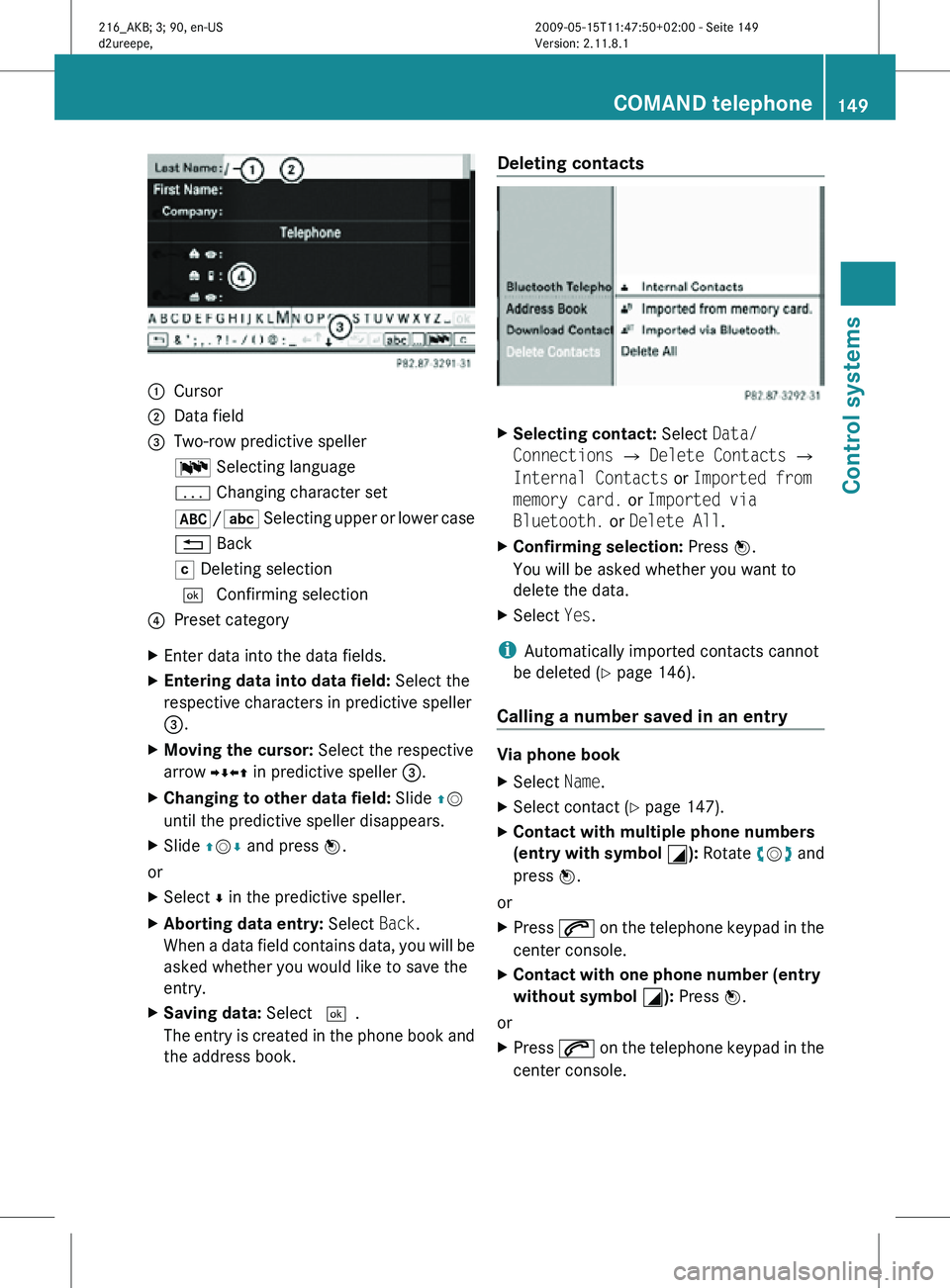
:
Cursor
; Data field
= Two-row predictive speller
B Selecting language
p Changing character set
*/E Selecting upper or lower case
% Back
F Deleting selection
¬ Confirming selection
? Preset category
X Enter data into the data fields.
X Entering data into data field: Select the
respective characters in predictive speller
=.
X Moving the cursor: Select the respective
arrow YÆXZ in predictive speller =.
X Changing to other data field: Slide ZV
until the predictive speller disappears.
X Slide ZVÆ and press W.
or
X Select Æ in the predictive speller.
X Aborting data entry: Select Back.
When a data field contains data, you will be
asked whether you would like to save the
entry.
X Saving data: Select ¬.
The entry is created in the phone book and
the address book. Deleting contacts
X
Selecting contact: Select Data/
Connections Q Delete Contacts Q
Internal Contacts or Imported from
memory card. or Imported via
Bluetooth. or Delete All.
X Confirming selection: Press W.
You will be asked whether you want to
delete the data.
X Select Yes.
i Automatically imported contacts cannot
be deleted (Y page 146).
Calling a number saved in an entry Via phone book
X
Select Name.
X Select contact (Y page 147).
X Contact with multiple phone numbers
(entry with symbol G): Rotate cVd and
press W.
or
X Press 6 on the telephone keypad in the
center console.
X Contact with one phone number (entry
without symbol G): Press W.
or
X Press 6 on the telephone keypad in the
center console. COMAND telephone
149Control systems
216_AKB; 3; 90, en-US
d2ureepe, Version: 2.11.8.1 2009-05-15T11:47:50+02:00 - Seite 149 Z
Page 155 of 500
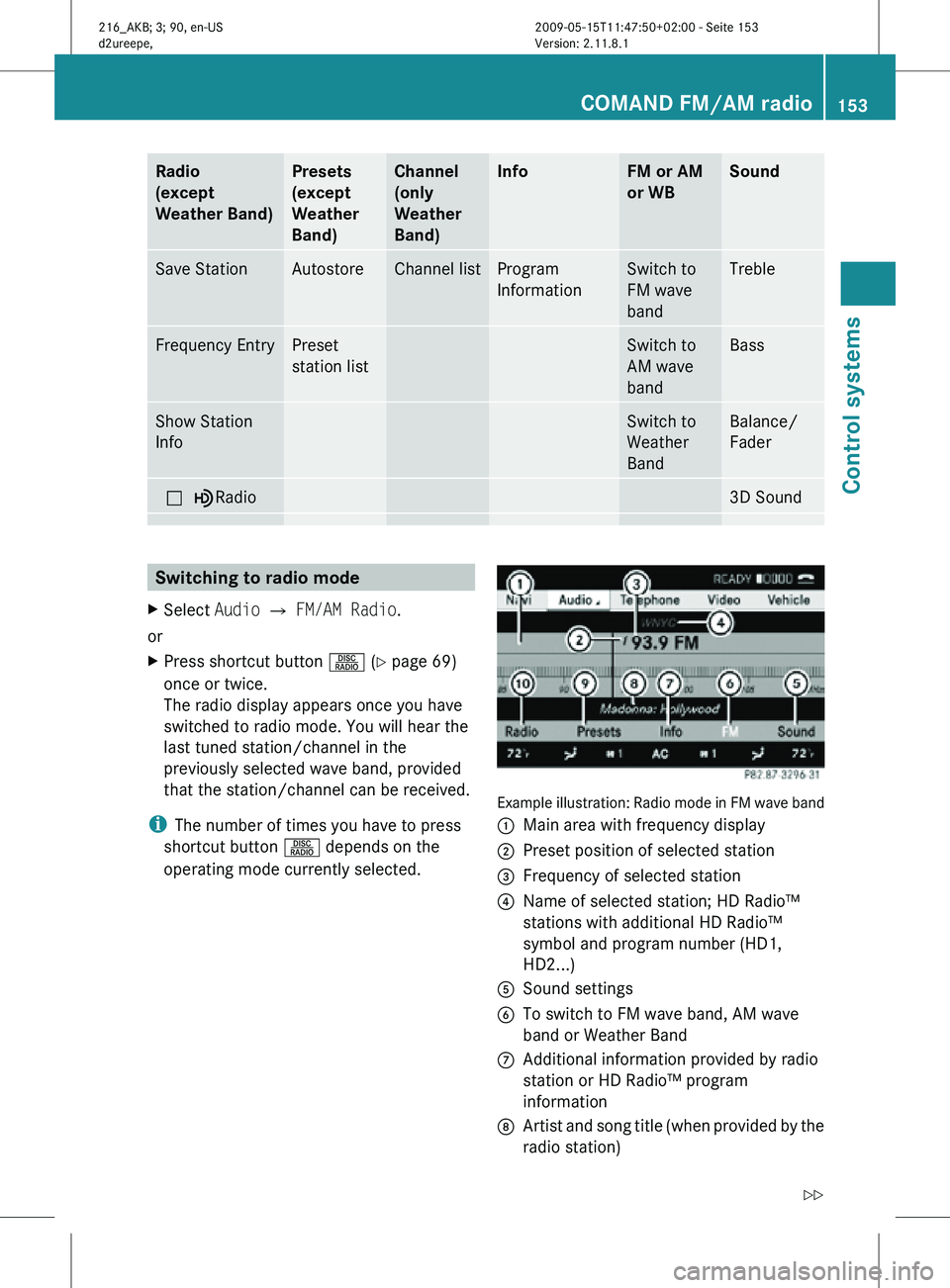
Radio
(except
Weather Band) Presets
(except
Weather
Band) Channel
(only
Weather
Band) Info FM or AM
or WB Sound
Save Station Autostore Channel list Program
Information Switch to
FM wave
band Treble
Frequency Entry Preset
station list Switch to
AM wave
band Bass
Show Station
Info Switch to
Weather
Band Balance/
Fader
ª¥Radio 3D Sound
Switching to radio mode
X Select Audio Q FM/AM Radio.
or
X Press shortcut button R (Y page 69)
once or twice.
The radio display appears once you have
switched to radio mode. You will hear the
last tuned station/channel in the
previously selected wave band, provided
that the station/channel can be received.
i The number of times you have to press
shortcut button R depends on the
operating mode currently selected. Example illustration: Radio mode in FM wave band
:
Main area with frequency display
; Preset position of selected station
= Frequency of selected station
? Name of selected station; HD Radio™
stations with additional HD Radio™
symbol and program number (HD1,
HD2...)
A Sound settings
B To switch to FM wave band, AM wave
band or Weather Band
C Additional information provided by radio
station or HD Radio™ program
information
D Artist and song title (when provided by the
radio station) COMAND FM/AM radio
153Control systems
216_AKB; 3; 90, en-US
d2ureepe, Version: 2.11.8.1 2009-05-15T11:47:50+02:00 - Seite 153 Z
Page 156 of 500
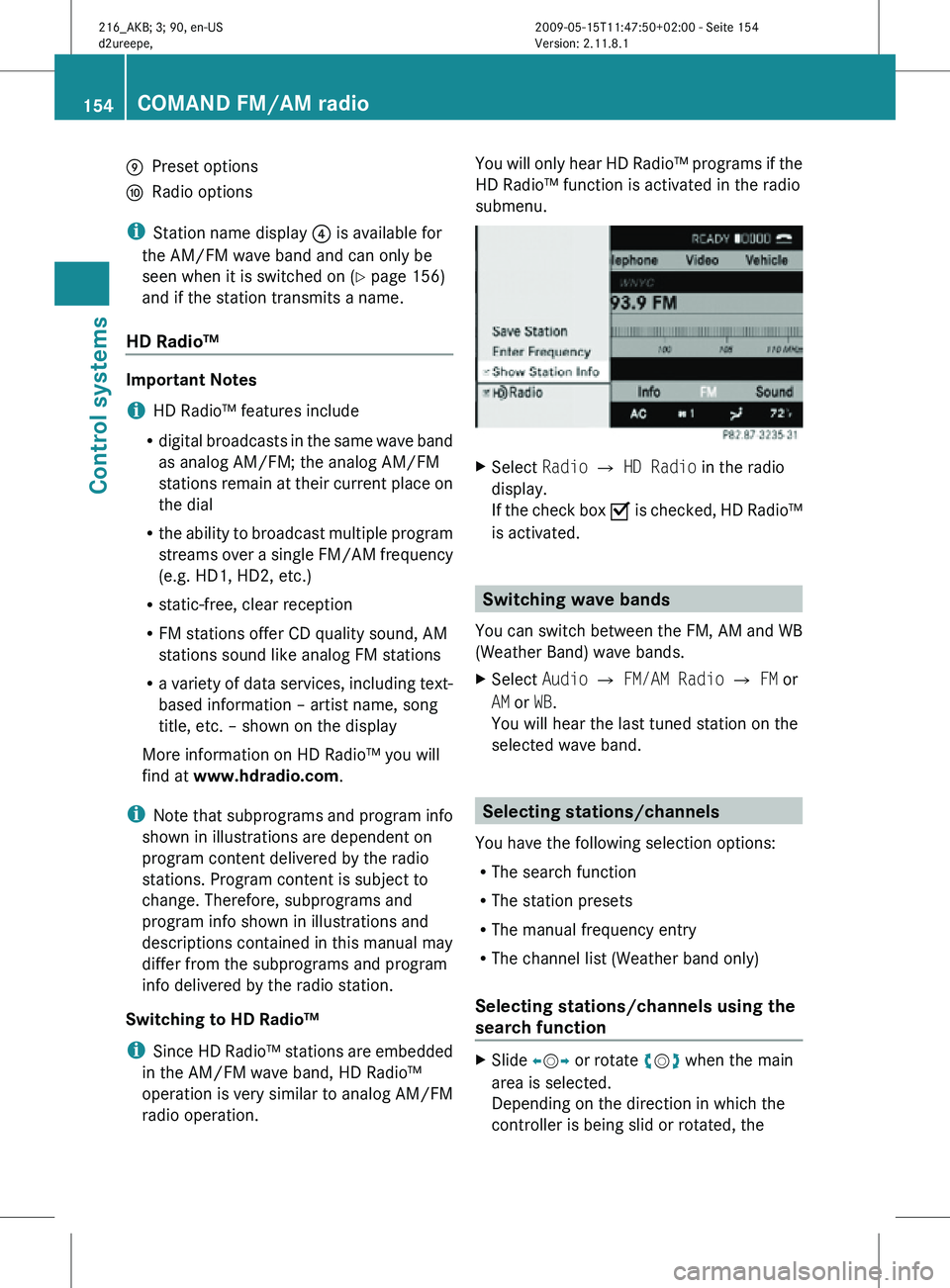
E
Preset options
F Radio options
i Station name display ? is available for
the AM/FM wave band and can only be
seen when it is switched on (Y page 156)
and if the station transmits a name.
HD Radio™ Important Notes
i
HD Radio™ features include
R digital broadcasts in the same wave band
as analog AM/FM; the analog AM/FM
stations remain at their current place on
the dial
R the ability to broadcast multiple program
streams over a single FM/AM frequency
(e.g. HD1, HD2, etc.)
R static-free, clear reception
R FM stations offer CD quality sound, AM
stations sound like analog FM stations
R a variety of data services, including text-
based information – artist name, song
title, etc. – shown on the display
More information on HD Radio™ you will
find at www.hdradio.com.
i Note that subprograms and program info
shown in illustrations are dependent on
program content delivered by the radio
stations. Program content is subject to
change. Therefore, subprograms and
program info shown in illustrations and
descriptions contained in this manual may
differ from the subprograms and program
info delivered by the radio station.
Switching to HD Radio™
i Since HD Radio™ stations are embedded
in the AM/FM wave band, HD Radio™
operation is very similar to analog AM/FM
radio operation. You will only hear HD Radio™ programs if the
HD Radio™ function is activated in the radio
submenu.
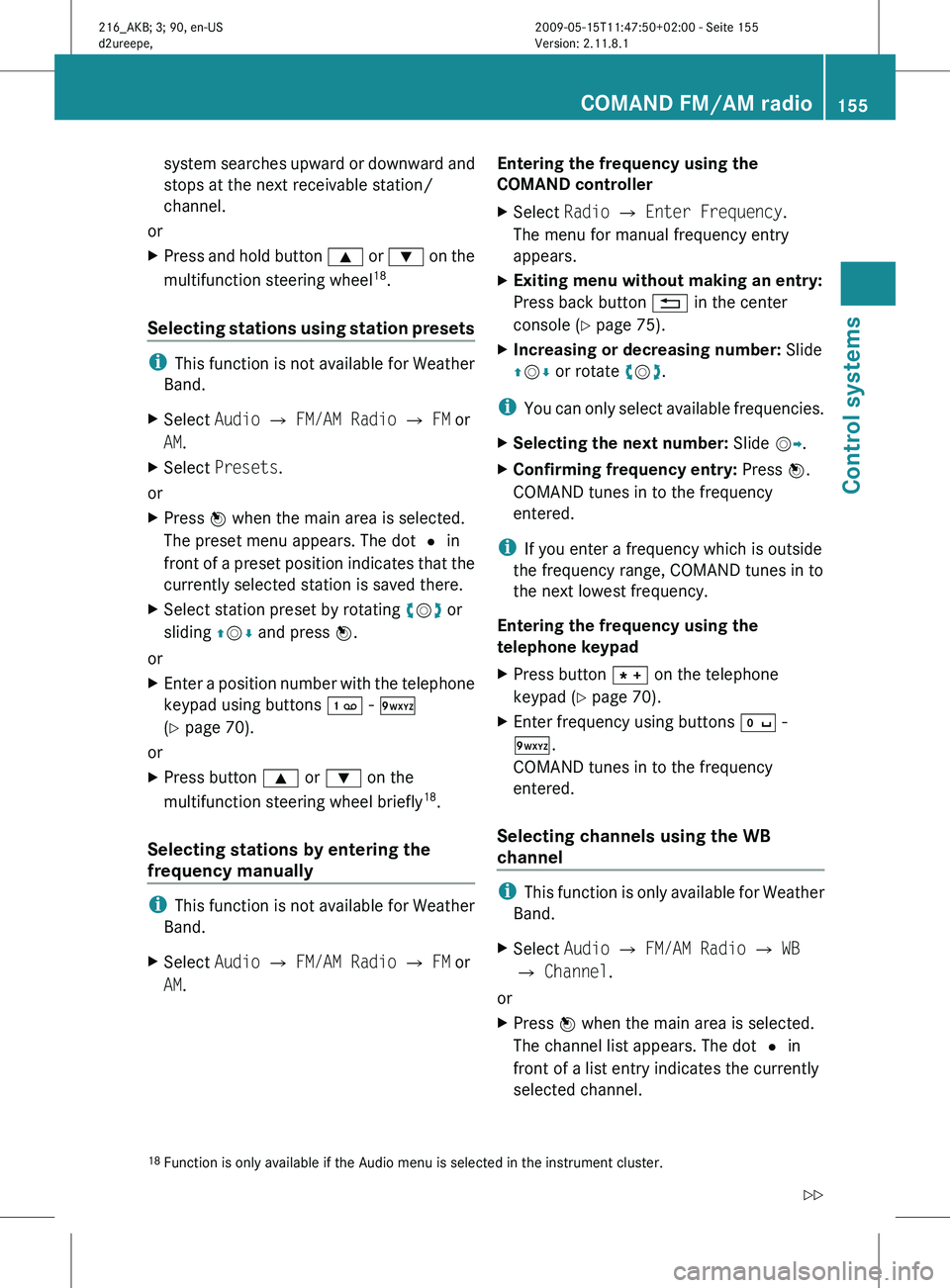
X
Select Radio £ HD Radio in the radio
display.
If the check box Ç is checked, HD Radio™
is activated. Switching wave bands
You can switch between the FM, AM and WB
(Weather Band) wave bands.
X Select Audio Q FM/AM Radio Q FM or
AM or WB.
You will hear the last tuned station on the
selected wave band. Selecting stations/channels
You have the following selection options:
R The search function
R The station presets
R The manual frequency entry
R The channel list (Weather band only)
Selecting stations/channels using the
search function X
Slide XVY or rotate cVd when the main
area is selected.
Depending on the direction in which the
controller is being slid or rotated, the 154
COMAND FM/AM radioControl systems
216_AKB; 3; 90, en-US
d2ureepe,
Version: 2.11.8.1 2009-05-15T11:47:50+02:00 - Seite 154
Page 157 of 500
system searches upward or downward and
stops at the next receivable station/
channel.
or
X Press and hold button 9 or : on the
multifunction steering wheel 18
.
Selecting stations using station presets i
This function is not available for Weather
Band.
X Select Audio Q FM/AM Radio Q FM or
AM.
X Select Presets.
or
X Press W when the main area is selected.
The preset menu appears. The dot # in
front of
a preset position indicates that the
currently selected station is saved there.
X Select station preset by rotating cVd or
sliding ZVÆ and press W.
or
X Enter a position number with the telephone
keypad using buttons ´ - Ã
(Y page 70).
or
X Press button 9 or : on the
multifunction steering wheel briefly 18
.
Selecting stations by entering the
frequency manually i
This function is not available for Weather
Band.
X Select Audio Q FM/AM Radio Q FM or
AM. Entering the frequency using the
COMAND controller
X
Select Radio Q Enter Frequency.
The menu for manual frequency entry
appears.
X Exiting menu without making an entry:
Press back button % in the center
console (Y page 75).
X Increasing or decreasing number: Slide
ZVÆ or rotate cVd.
i You can
only select available frequencies.
X Selecting the next number: Slide VY.
X Confirming frequency entry: Press W.
COMAND tunes in to the frequency
entered.
i If you enter a frequency which is outside
the frequency range, COMAND tunes in to
the next lowest frequency.
Entering the frequency using the
telephone keypad
X Press button à on the telephone
keypad (
Y page 70).
X Enter frequency using buttons Å -
Ã.
COMAND tunes in to the frequency
entered.
Selecting channels using the WB
channel i
This function
is only available for Weather
Band.
X Select Audio Q FM/AM Radio Q WB
Q Channel.
or
X Press W when the main area is selected.
The channel list appears. The dot # in
front of a list entry indicates the currently
selected channel.
18 Function is only available if the Audio menu is selected in the instrument cluster. COMAND FM/AM radio
155
Control systems
216_AKB; 3; 90, en-US
d2ureepe, Version: 2.11.8.1 2009-05-15T11:47:50+02:00 - Seite 155 Z
Page 158 of 500
X
Select channel by rotating cVd or sliding
ZVÆ and press W. Saving stations
i Twenty stations can be saved in each
wave band except for Weather Band.
You have the following options:
R Saving stations manually
R Saving stations using the autostore
function
Saving stations manually Option 1
X
Select Audio Q FM/AM Radio Q FM or
AM.
X Select Radio Q Save Station.
Option 2
X Press W when the main area is selected.
Option 3
X Select Audio Q FM/AM Radio Q FM or
AM.
X Select Presets.
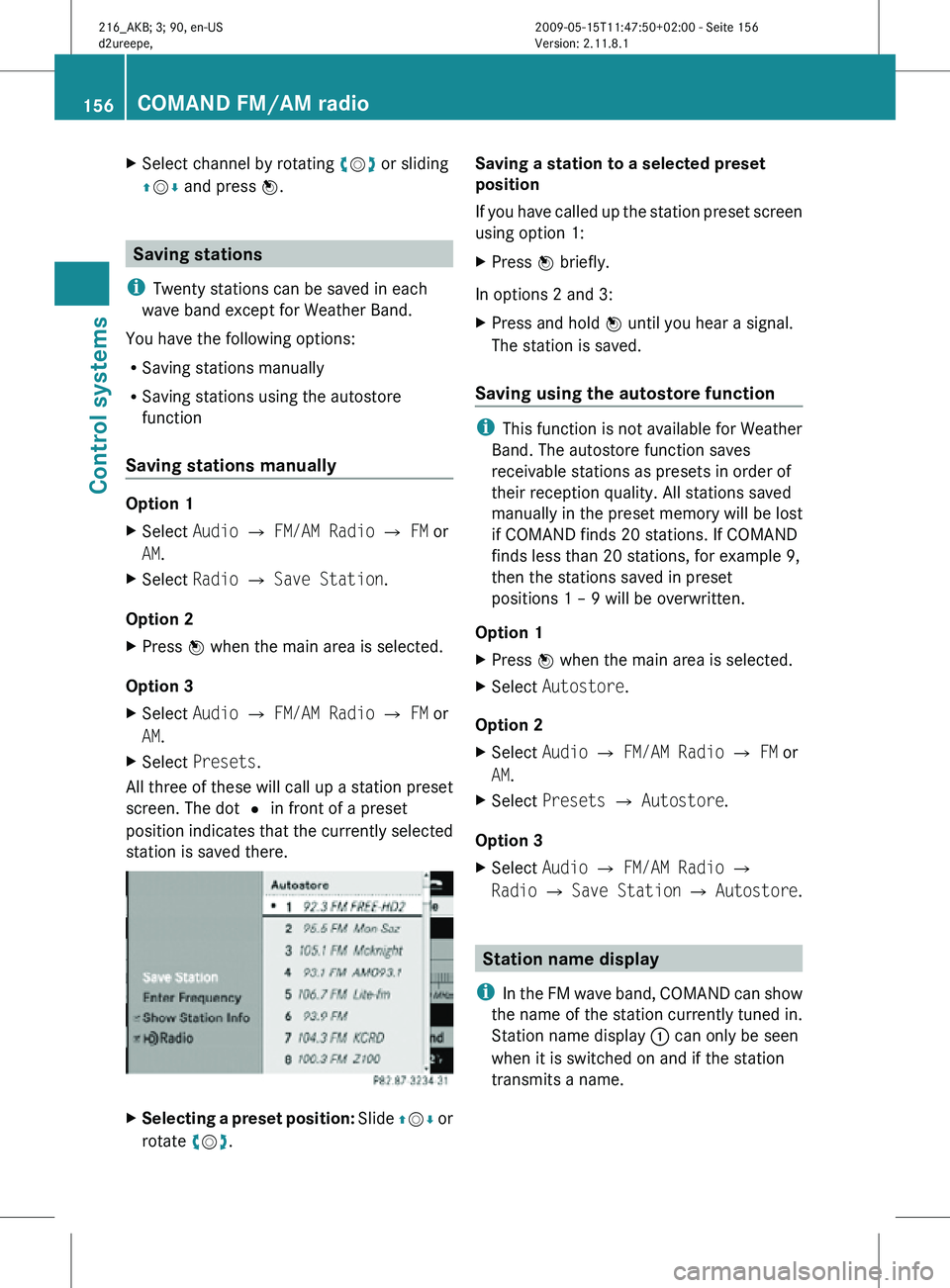
All three of these will call up a station preset
screen. The dot # in front of a preset
position indicates that the currently selected
station is saved there. X
Selecting a preset position: Slide ZVÆ or
rotate cVd. Saving a station to a selected preset
position
If you have called up the station preset screen
using option 1:
X
Press W briefly.
In options 2 and 3:
X Press and hold W until you hear a signal.
The station is saved.
Saving using the autostore function i
This function is not available for Weather
Band. The autostore function saves
receivable stations as presets in order of
their reception quality. All stations saved
manually in the preset memory will be lost
if COMAND finds 20 stations. If COMAND
finds less than 20 stations, for example 9,
then the stations saved in preset
positions 1 – 9 will be overwritten.
Option 1
X Press W when the main area is selected.
X Select Autostore.
Option 2
X Select Audio Q FM/AM Radio Q FM or
AM.
X Select Presets Q Autostore.
Option 3
X Select Audio Q FM/AM Radio Q
Radio Q Save Station Q Autostore. Station name display
i In the FM wave band, COMAND can show
the name of the station currently tuned in.
Station name display : can only be seen
when it is switched on and if the station
transmits a name. 156
COMAND FM/AM radioControl systems
216_AKB; 3; 90, en-US
d2ureepe,
Version: 2.11.8.1 2009-05-15T11:47:50+02:00 - Seite 156
Page 159 of 500
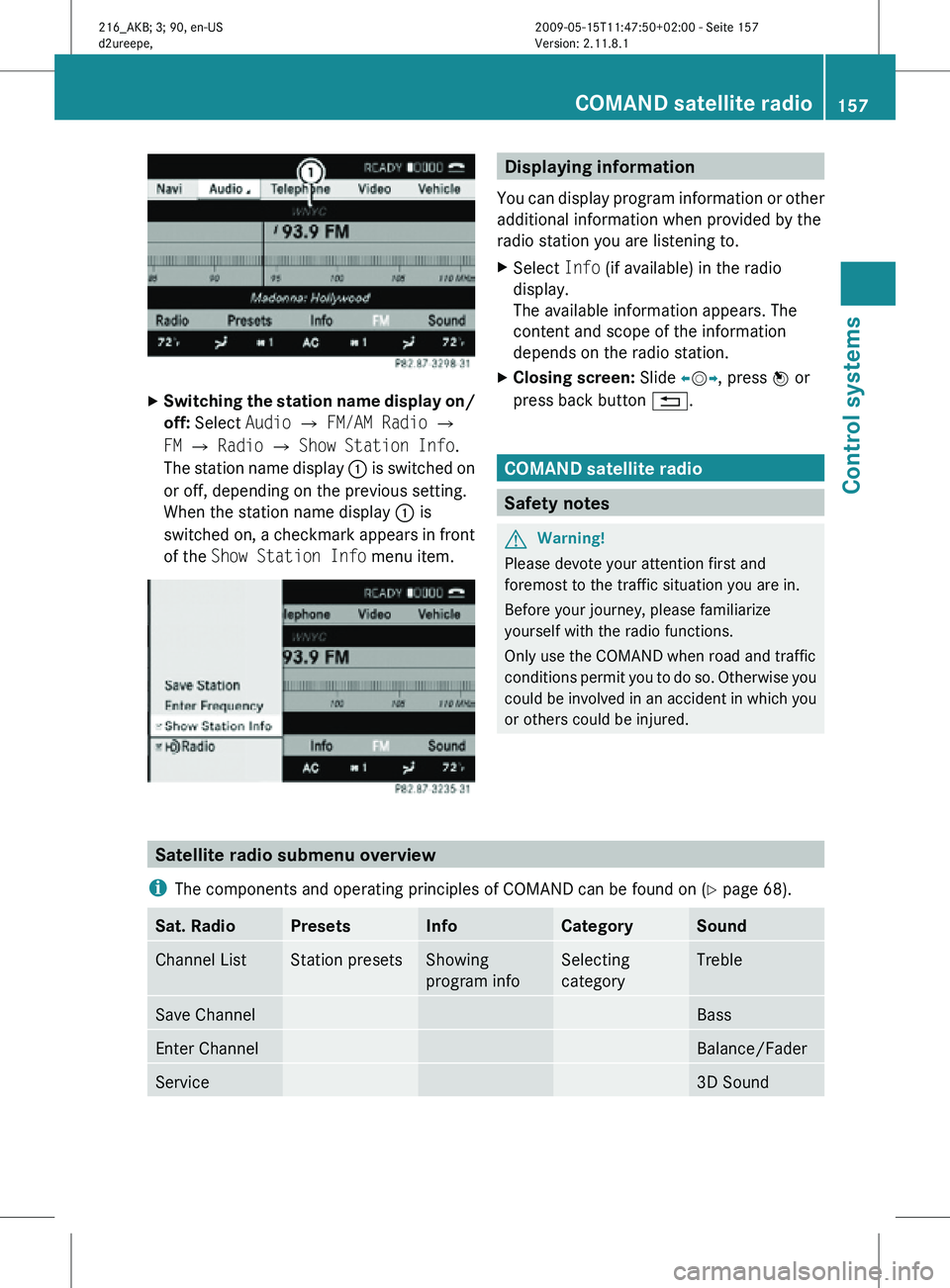
X
Switching the station name display on/
off: Select Audio Q FM/AM Radio Q
FM Q Radio Q Show Station Info.
The station name display : is switched on
or off, depending on the previous setting.
When the station name display : is
switched on, a checkmark appears in front
of the Show Station Info menu item. Displaying information
You can display program information or other
additional information when provided by the
radio station you are listening to.
X Select Info (if available) in the radio
display.
The available information appears. The
content and scope of the information
depends on the radio station.
X Closing screen: Slide XVY, press W or
press back button %. COMAND satellite radio
Safety notes
G
Warning!
Please devote your attention first and
foremost to the traffic situation you are in.
Before your journey, please familiarize
yourself with the radio functions.
Only use the COMAND when road and traffic
conditions permit you to do so. Otherwise you
could be involved in an accident in which you
or others could be injured. Satellite radio submenu overview
i The components and operating principles of COMAND can be found on ( Y page 68).Sat. Radio Presets Info Category Sound
Channel List Station presets Showing
program info Selecting
category Treble
Save Channel Bass
Enter Channel Balance/Fader
Service 3D SoundCOMAND satellite radio
157Control systems
216_AKB; 3; 90, en-US
d2ureepe, Version: 2.11.8.1 2009-05-15T11:47:50+02:00 - Seite 157 Z
Page 161 of 500
i
It is also possible to activate the satellite
radio service online. To do so please visit
SIRIUS XM Satellite Radio’s website at
www.sirius.com (USA) or
www.siriuscanada.ca (Canada).
X Closing screen: Press W.
Preview channel i
If the satellite radio service has not been
activated, only the preview channel is
available. You cannot tune in another
channel. If you try to do this, you will see
the screen described in the section
“Satellite radio service is not activated”
(Y page 158).
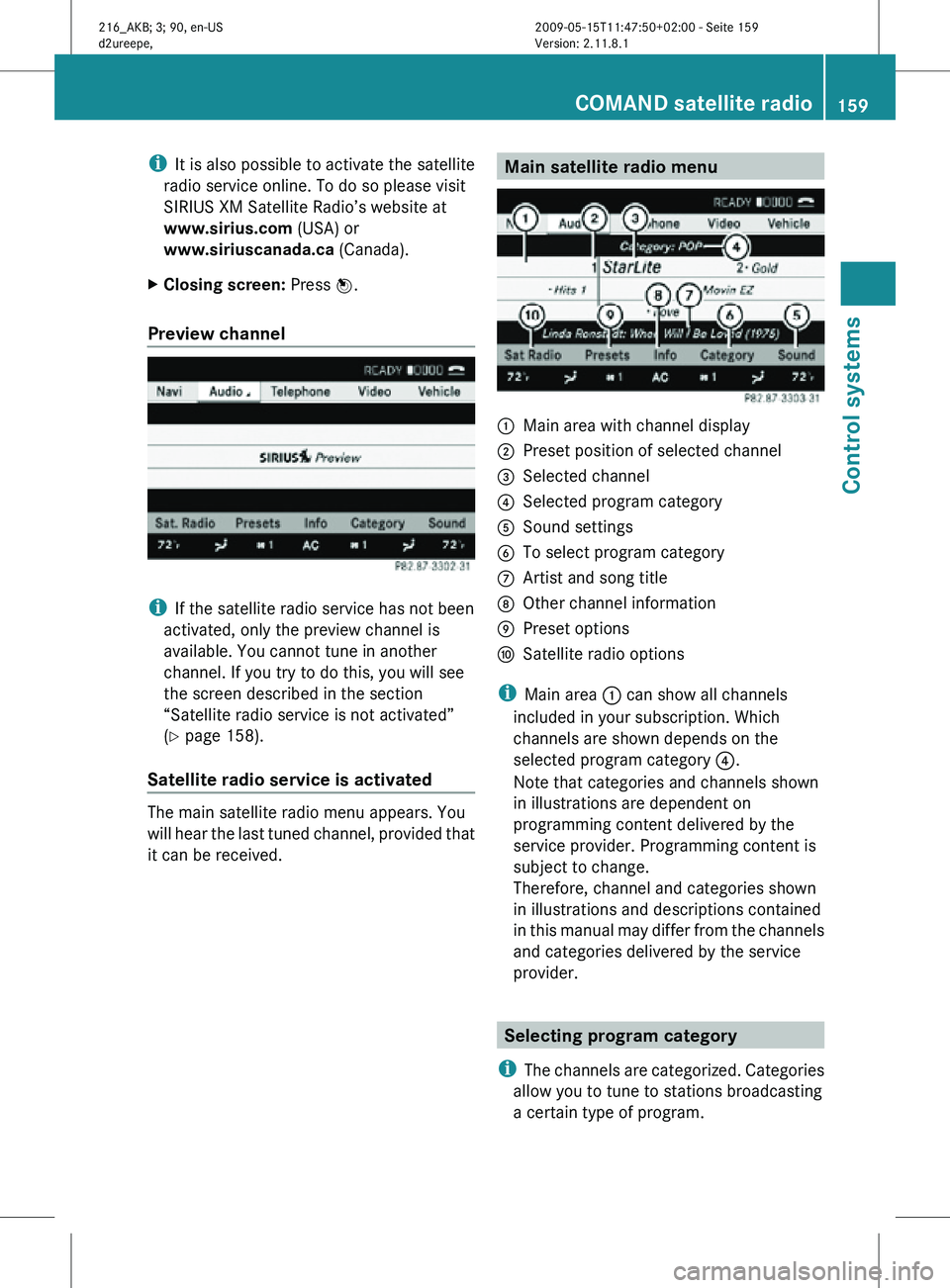
Satellite radio service is activated The main satellite radio menu appears. You
will hear the last tuned channel, provided that
it can be received. Main satellite radio menu
:
Main area with channel display
; Preset position of selected channel
= Selected channel
? Selected program category
A Sound settings
B To select program category
C Artist and song title
D Other channel information
E Preset options
F Satellite radio options
i Main area : can show all channels
included in your subscription. Which
channels are shown depends on the
selected program category ?.
Note that categories and channels shown
in illustrations are dependent on
programming content delivered by the
service provider. Programming content is
subject to change.
Therefore, channel and categories shown
in illustrations and descriptions contained
in this manual may differ from the channels
and categories delivered by the service
provider. Selecting program category
i The channels are categorized. Categories
allow you to tune to stations broadcasting
a certain type of program. COMAND satellite radio
159Control systems
216_AKB; 3; 90, en-US
d2ureepe, Version: 2.11.8.1 2009-05-15T11:47:50+02:00 - Seite 159 Z
Page 162 of 500
Satellite radio channels are split up into
categories such as News, Sports, Rock, or
Country, if available.
X
Select Audio Q Sat. Radio Q
Category.
The category list appears.
X Select category by rotating cVd or sliding
ZVÆ and press W.
When selecting a channel using the
channel search function or the channel list,
you have access to the channels you
subscribe to and which are included in the
selected category.
i When you select the category All
Channels, you have access to all the
channels you subscribe to, regardless of
category, when you are tuning in a channel
using the channel search function or the
channel list. Tuning in channels
You have the following selection options:
R the channel search function
R the channel presets
R the manual channel number entry
R the channel list
Tuning in channels using channel
search function i
If you try to tune in a channel when the
satellite radio service is not activated, you
will see the screen described in the section
“Satellite radio service is not activated”
(Y page 158).
X Slide XVY or rotate cVd when the main
area is selected.
Depending on the direction in which the
controller is being pressed or rotated, the
system searches upward or downward and
stops at the next receivable channel. i
Which channels are found by the channel
search function depends on which
channels you have subscribed to and the
program category you have selected
(Y page 159).
Tuning in channels using channel
presets X
Select Audio Q Sat. Radio Q
Presets.
or
X Press W when the main area is selected.
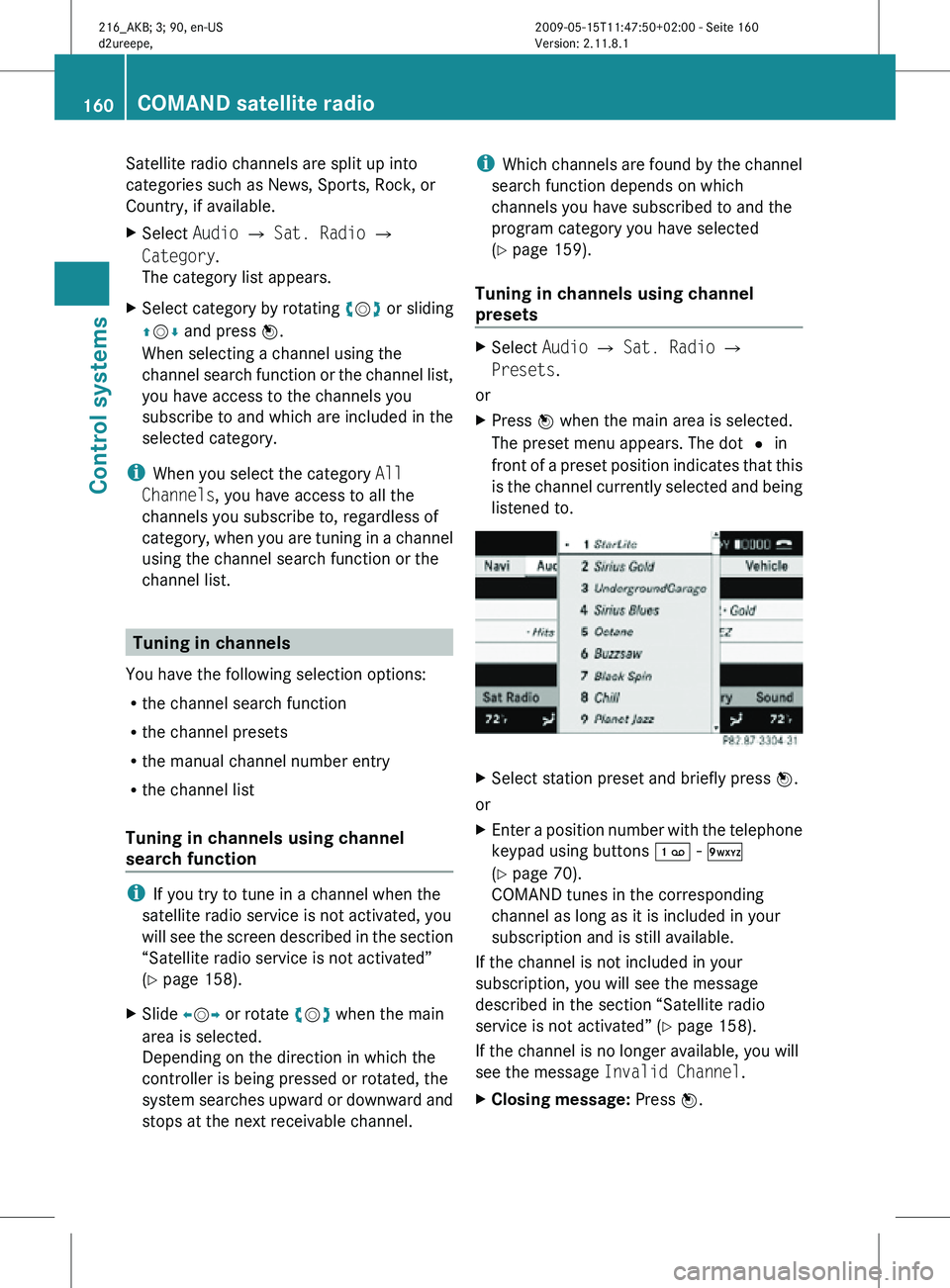
The preset menu appears. The dot # in
front of a preset position indicates that this
is the channel currently selected and being
listened to. X
Select station preset and briefly press W.
or
X Enter a position number with the telephone
keypad using buttons ´ - Ã
(Y page 70).
COMAND tunes in the corresponding
channel as long as it is included in your
subscription and is still available.
If the channel is not included in your
subscription, you will see the message
described in the section “Satellite radio
service is not activated” (Y page 158).
If the channel is no longer available, you will
see the message Invalid Channel.
X Closing message: Press W.160
COMAND satellite radioControl systems
216_AKB; 3; 90, en-US
d2ureepe,
Version: 2.11.8.1 2009-05-15T11:47:50+02:00 - Seite 160
Page 163 of 500
Tuning in channels using manual
channel number entry
i
If you try to tune in a channel when the
satellite radio service is not activated, you
will see
the screen described in the section
“Satellite radio service is not activated”
(Y page 158).
Entering the channel number using the
COMAND controller
X Select Audio Q Audio Q Sat. Radio
Q Sat. Radio Q Channel Entry.
The menu
for manual channel number entry
appears.
X Exiting menu without making an entry:
Press back button % in the center
console (Y page 75).
X Increase or decreasing number: Slide
ZVÆ or rotate cVd.
X Selecting next number: Slide XVY.
X Confirming channel entry: Press W.
Further operation
depends on whether the
selected channel number is valid or if the
channel is included in your subscription.
Entering the channel number using the
telephone keypad
X Press button à on the telephone
keypad (
Y page 70).
X Enter channel number using buttons Å
- Ã.
Further operation
depends on whether the
selected channel number is valid or if the
channel is included in your subscription.
Channel number is valid and channel is
included in subscription
COMAND tunes in the channel entered.
Channel number is invalid
You will
see the message Invalid Channel .
X Closing message: Press W. Channel number is valid but channel is
not included in subscription
You will see the screen described in the
section “Satellite radio service is not
activated” (
Y page 158).
X Closing display: Press W.
Tuning in channels using the channel
list X
Select Audio Q Audio Q Sat. Radio
Q Sat. Radio Q Channel List.
The channel list appears. The dot # in
front of a list entry indicates the currently
selected channel.
X Select channel by rotating cVd or sliding
ZVÆ and press W.
i The contents of the channel list depends
on which channels are included in your
subscription and which program category
you have
selected (Y page 159). If satellite
radio service is not activated, the channel
list contains only the preview channel. Saving channels
i There are 20 preset positions available.
Option 1 X
Select Audio Q Sat. Radio Q Sat.
Radio Q Save Channel.
Option 2 X
Press W when the main area is selected.
Option 3 X
Select Audio Q Sat. Radio Q
Presets.
All three of these will call up a preset menu.
The dot # in front of a preset position
indicates that this is the channel currently
selected and being listened to. COMAND satellite radio
161
Control systems
216_AKB; 3; 90, en-US
d2ureepe, Version: 2.11.8.1 2009-05-15T11:47:50+02:00 - Seite 161 Z