display MERCEDES-BENZ CL-Class 2012 C216 Owner's Manual
[x] Cancel search | Manufacturer: MERCEDES-BENZ, Model Year: 2012, Model line: CL-Class, Model: MERCEDES-BENZ CL-Class 2012 C216Pages: 488, PDF Size: 21.88 MB
Page 192 of 488
XTo switch from the character bar to the
list: slide ZV the COMAND controller until
the character bar is hidden.
or
XSelect ¬.XTo call a contact: select by sliding ZVÆ
or turning cVd the COMAND controller
and press W to confirm.
i
The phone book is also available via the
on-board computer ( Y page 341).
Calling up contacts using the character
bar
XPhone book: select Name in the telephone
basic menu by sliding VÆ and turning
cVd the COMAND controller and press
W to confirm.XAddress book: select Data/Connections
in the telephone basic menu by sliding
V Æ and turning cVd the COMAND
controller and press W to confirm.XSelect Address Book and press W to
confirm.XTo select a character: select by sliding
ZV Æ or XVY the COMAND controller and
press W to confirm. Repeat this procedure
until COMAND automatically switches over
to the list.
You determine the first letter of the entry
you are looking for with the first character
you enter. If there are similar entries, the
next character which is different will be
displayed and offered for selection.
i You can also use the telephone number
keypad to enter characters.
Creating new contacts/changing
contacts
i In certain countries, this function stops
being available from a vehicle speed of
more than approximately 3 mph (5 km/h).
As soon as the speed falls below
approximately 2 mph (3 km/h), the
function becomes available again.
i You can enter address data directly into
the address book. If you store contacts in
the phone book, these are also saved in the
address book.
i Automatically imported contacts cannot
be edited. They have to be saved first
before being copied to the COMAND
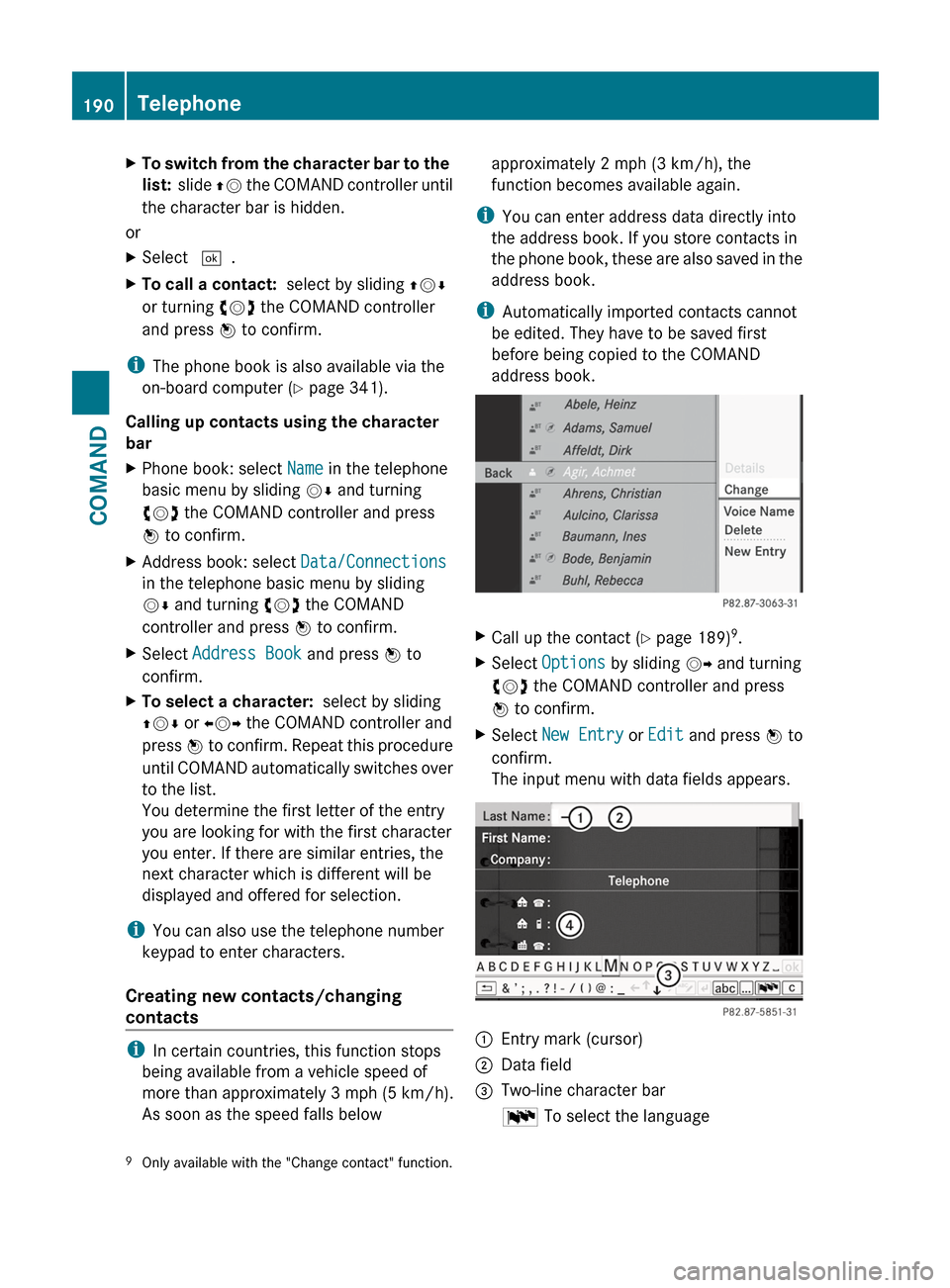
address book.XCall up the contact ( Y page 189) 9
.XSelect Options by sliding VY and turning
cVd the COMAND controller and press
W to confirm.XSelect New Entry or Edit and press W to
confirm.
The input menu with data fields appears.:Entry mark (cursor);Data field=Two-line character barB To select the language9
Only available with the "Change contact" function.190TelephoneCOMAND
Page 194 of 488
Calling a number stored in an entry
Using the phone book
XSelect Name in the telephone basic menu
by sliding VY and turning cVd the
COMAND controller and press W to
confirm.XCall up the contact ( Y page 189).XContact with multiple telephone
numbers (with the G symbol): press
W .
or
XPress SEND on the telephone keypad.
A list of all telephone numbers is opened.XSelect the desired number by turning
cVd the COMAND controller.XPress W.
or
XPress SEND on the telephone keypad.
The number is dialed.XContact with one telephone number
(without the G symbol): press W.
or
XPress SEND on the telephone keypad.
The number is dialed.
i You can also use the phone book in the
on-board computer to make a call
( Y page 341).
Using the address book
XSelect Data/Connections in the
telephone basic menu by sliding VÆ and
turning cVd the COMAND controller and
press W to confirm.XSelect Address Book and press W to
confirm.XCall contact ( Y page 189) and press W to
confirm.XSelect the telephone number by turning
cVd the COMAND controller and press
W to confirm.Starting route guidance to an entry
i
This function is available as soon as you
have stored a destination in the destination
memory ( Y page 163). COMAND also
stores the destination in the address book
with the complete navigable address data.
In this case, navigation can be started
without any further data input.
If the contact entry contains a postal
address, e.g. as a result of importing a
vCard, the system can also navigate to this
address. If the data is incomplete or
unclear, COMAND asks the user to enter
the relevant address data. After the entry
has been completed and navigation has
been started, COMAND replaces the
existing address with the navigable
address if necessary.
XSearch for an address book entry using the
¤ symbol.XConfirm the entry by pressing W.
Telephone numbers and addresses are
displayed.XSelect the address data field.XPress the COMAND controller.
or
XSelect Options by sliding VY the
COMAND controller and press W to
confirm.XSelect Navigate and press W to confirm.XSelect Start and press W to confirm.
Voice tags
i
Voice tags are entered via the Voice
Control System; see the separate operating
instructions for the Voice Control System.
Adding or changing a voice tag
i You can add one voice tag per address
book entry.
192TelephoneCOMAND
Page 195 of 488
XSearch for an address book entry with or
without a voice tag ( ¦ symbol).XSelect Options by sliding VY and turning
cVd the COMAND controller and press
W to confirm.XSelect Voice Name and press W to
confirm.XSelect Add or Edit and press W to confirm.
Subsequent operation is voice-controlled.
The Voice Control System guides you
through the menus.
Deleting a voice tag
XSearch for an address book entry with a
voice tag.XSelect Options by sliding VY and turning
cVd the COMAND controller and press
W to confirm.XSelect Voice Name and press W to
confirm.XSelect Delete and press W to confirm.
A deletion prompt appears.
Listening to a voice tag
XSearch for an address book entry with a
voice tag.XSelect Options by sliding VY and turning
cVd the COMAND controller and press
W to confirm.XSelect Voice Name and press W to
confirm.XSelect Listen and press W to confirm.
You will hear the voice tag.
Using call lists
Introduction
COMAND displays calls received (including
missed calls) and made during phone
operation in lists.
i The respective menu item can only be
selected if calls have already been made or
received in COMAND or if the call lists have
been imported from the telephone.
Opening the call list and selecting an
entryXTo call up the telephone menu: press the
S function button.XSelect Call lists in the telephone basic
menu by sliding VÆ and turning cVd the
COMAND controller and press W to
confirm.
A menu appears.XSelect Calls received or Calls
Dialed and press W to confirm.
The corresponding list appears.
i The list of calls made can also be opened
by pressing the SEND button in the menu
or on the telephone keypad as long as no
phone numbers have been entered in the
basic menu. The list of calls made can also
be opened in the on-board computer.
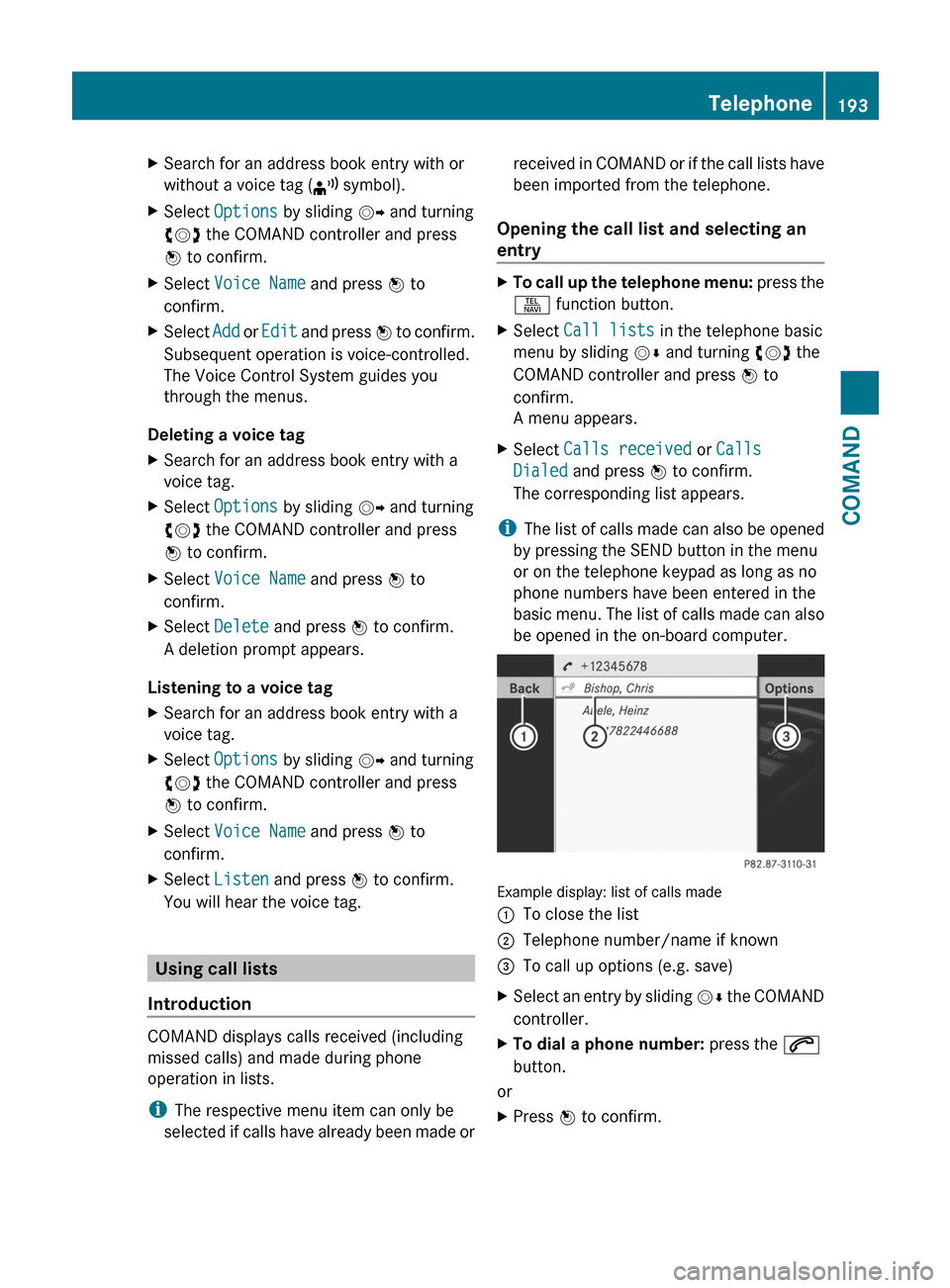
Example display: list of calls made
:To close the list;Telephone number/name if known=To call up options (e.g. save)XSelect an entry by sliding VÆ the COMAND
controller.XTo dial a phone number: press the 6
button.
or
XPress W to confirm.Telephone193COMANDZ
Page 196 of 488
Incoming calls which you could not or did not
want to answer are marked with a symbol in
front of the name or phone number.
Storing a phone number which has not
yet been stored
Introduction
For incoming calls from a person who is not
in the address book, COMAND displays the
phone number in the call list. You can save
this entry.
Storing as a new entry in the address book
XOpen a call list and select an entry
( Y page 193).XSelect Options by sliding VY the
COMAND controller and press W to
confirm.XSelect Save Number and press W to
confirm.XSelect New Entry and press W to confirm.XSelect a category for the number, e.g.
Home , and press W to confirm.XSelect a category for the phone, e.g.
Cellular Phone Number , and press W to
confirm.Number categoryDisplay (phone
book and address
book)Not ClassifiedNo symbolHome6Work\Phone categoryDisplay (phone
book and address
book)Not ClassifiedNo symbolMobile Phone¢Pager¨Phone categoryDisplay (phone
book and address
book)Car^Landline¬PreferredO
i If you have not entered the phone number
in a number and telephone category,
the ; icon will appear in the display.
XSelect Next (save) and press W to
confirm.
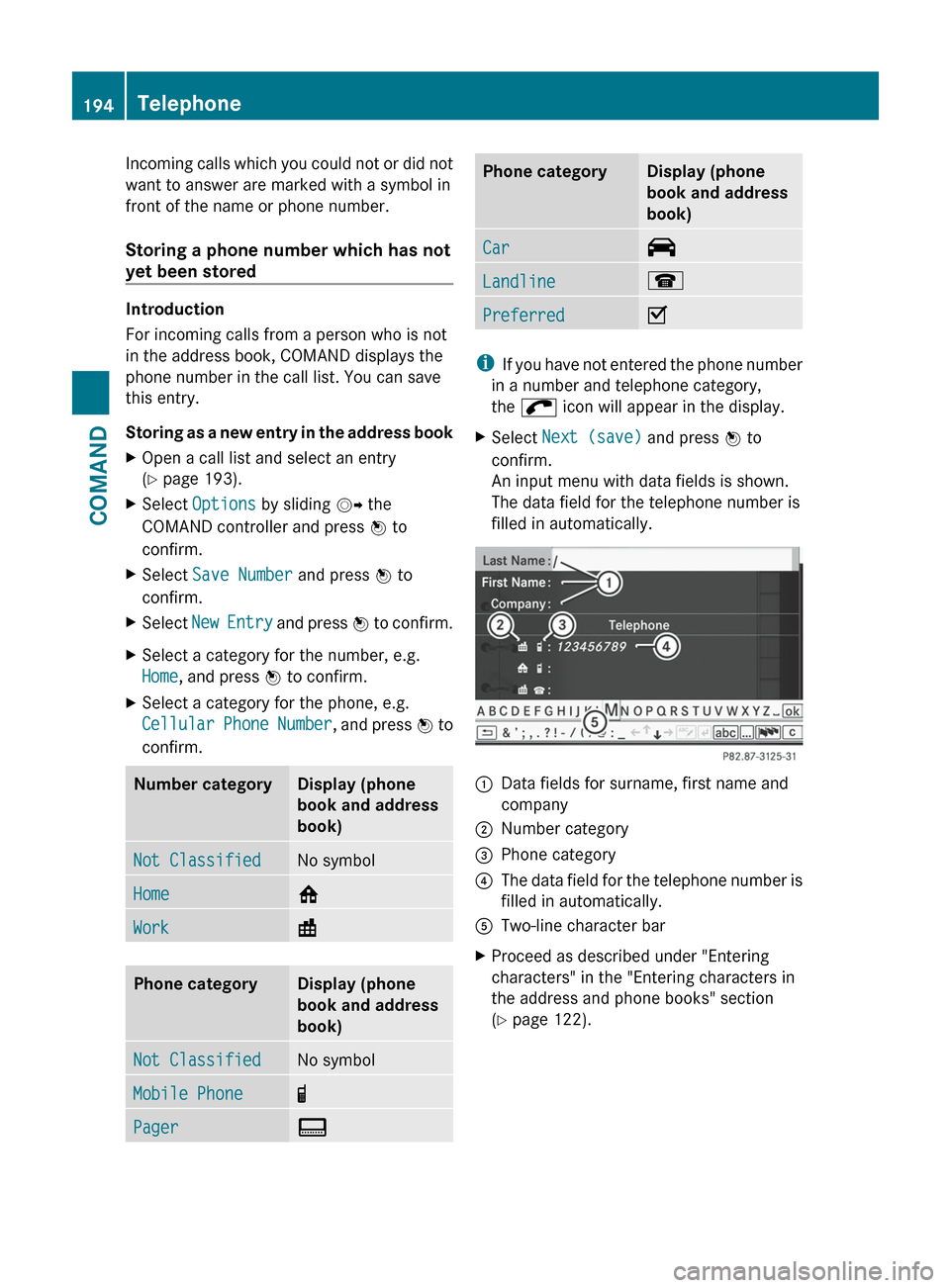
An input menu with data fields is shown.
The data field for the telephone number is
filled in automatically.:Data fields for surname, first name and
company;Number category=Phone category?The data field for the telephone number is
filled in automatically.ATwo-line character barXProceed as described under "Entering
characters" in the "Entering characters in
the address and phone books" section
( Y page 122).194TelephoneCOMAND
Page 197 of 488
Adding a phone number to an address
book entryXOpen a call list and select an entry
( Y page 193).XSelect Options by sliding VY the
COMAND controller and press W to
confirm.XSelect Save Number and press W to
confirm.XSelect Add and press W to confirm.
The search menu for address book entries
appears.XSearch for the desired entry ( Y page 189).XPress W when you have finished searching.XSelect a category for the number, e.g.
Home , and press W to confirm.XSelect a category for the phone, e.g.
Cellular Phone Number , and press W to
confirm.XSelect Next (save) and press W to
confirm.
COMAND stores the data if there are fewer
than five numbers assigned to the entry you
are searching for.
You will see a message to this effect.
If five numbers are stored for the entry you
are searching for, a prompt will appear
asking whether you wish to overwrite one
of the existing numbers.XSelect Yes or No and press W to confirm.
If you select Yes, a selection list with the
five existing numbers appears.
If you select No, the process will be aborted.XSelect the number to be overwritten in the
list by turning cVd the COMAND controller
and press W to confirm.
COMAND overwrites the selected number
with the new data.Audio
Radio mode
General information
i Portable electronic devices in the vehicle
may seriously impair radio reception.
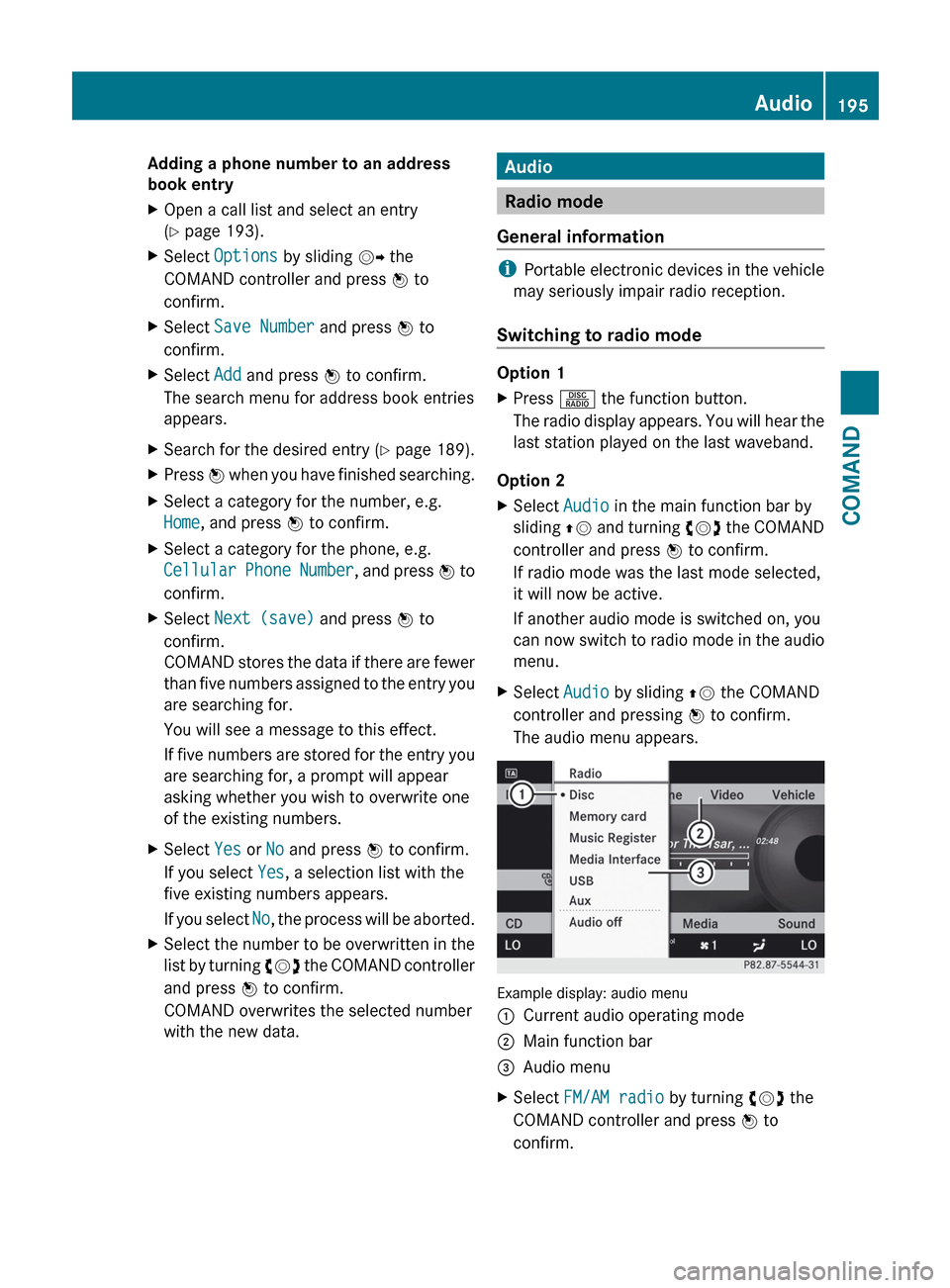
Switching to radio mode
Option 1
XPress R the function button.
The radio display appears. You will hear the
last station played on the last waveband.
Option 2
XSelect Audio in the main function bar by
sliding ZV and turning cVd the COMAND
controller and press W to confirm.
If radio mode was the last mode selected,
it will now be active.
If another audio mode is switched on, you
can now switch to radio mode in the audio
menu.XSelect Audio by sliding ZV the COMAND
controller and pressing W to confirm.
The audio menu appears.
Example display: audio menu
:Current audio operating mode;Main function bar=Audio menuXSelect FM/AM radio by turning cVd the
COMAND controller and press W to
confirm.Audio195COMANDZ
Page 198 of 488
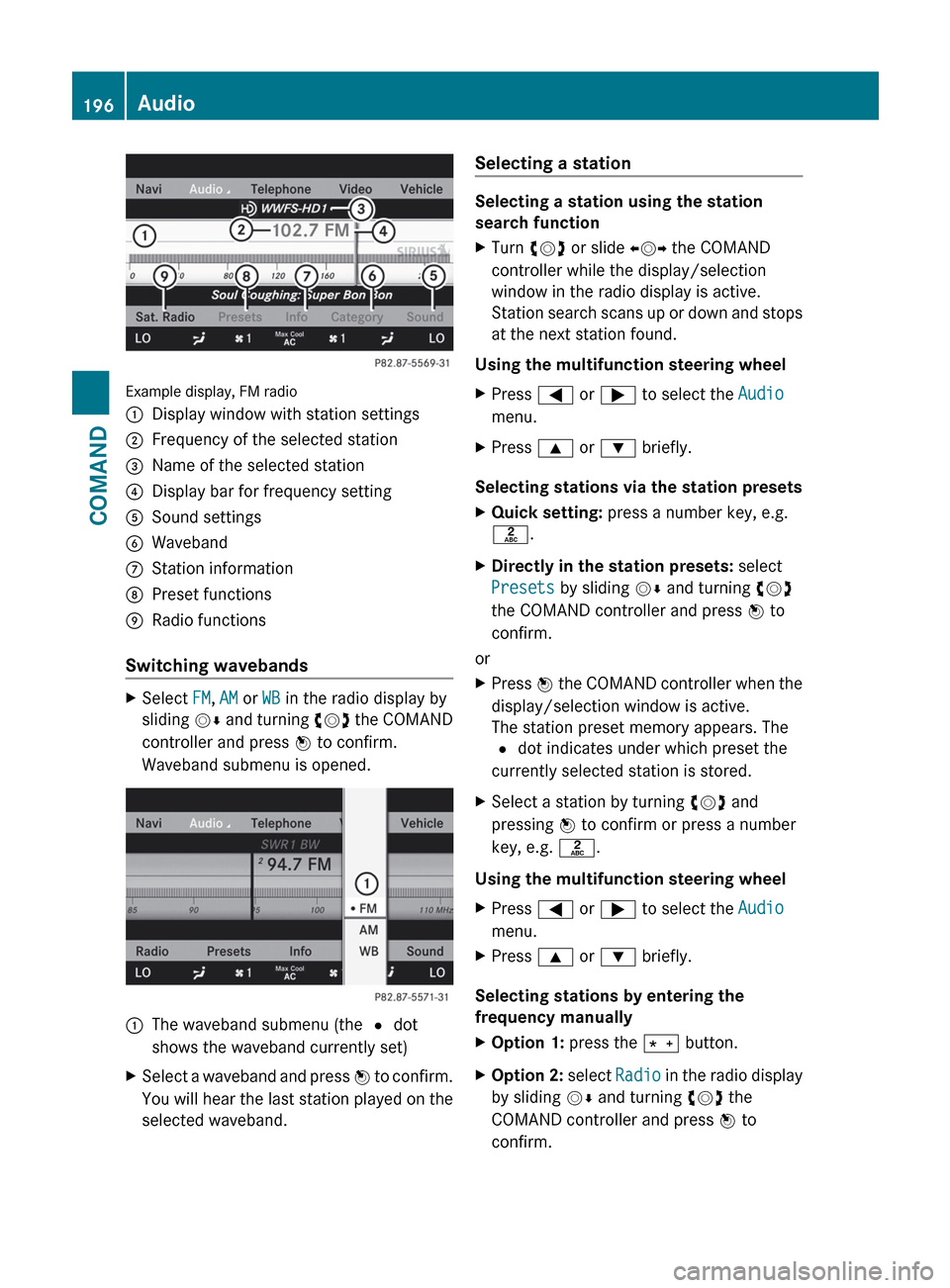
Example display, FM radio
:Display window with station settings;Frequency of the selected station=Name of the selected station?Display bar for frequency settingASound settingsBWavebandCStation informationDPreset functionsERadio functions
Switching wavebands
XSelect FM, AM or WB in the radio display by
sliding VÆ and turning cVd the COMAND
controller and press W to confirm.
Waveband submenu is opened.1The waveband submenu (the # dot
shows the waveband currently set)XSelect a waveband and press W to confirm.
You will hear the last station played on the
selected waveband.Selecting a station
Selecting a station using the station
search function
XTurn cVd or slide XVY the COMAND
controller while the display/selection
window in the radio display is active.
Station search scans up or down and stops
at the next station found.
Using the multifunction steering wheel
XPress = or ; to select the Audio
menu.XPress 9 or : briefly.
Selecting stations via the station presets
XQuick setting: press a number key, e.g.
l .XDirectly in the station presets: select
Presets by sliding VÆ and turning cVd
the COMAND controller and press W to
confirm.
or
XPress W the COMAND controller when the
display/selection window is active.
The station preset memory appears. The
# dot indicates under which preset the
currently selected station is stored.XSelect a station by turning cVd and
pressing W to confirm or press a number
key, e.g. l.
Using the multifunction steering wheel
XPress = or ; to select the Audio
menu.XPress 9 or : briefly.
Selecting stations by entering the
frequency manually
XOption 1: press the Ä button.XOption 2: select Radio in the radio display
by sliding VÆ and turning cVd the
COMAND controller and press W to
confirm.196AudioCOMAND
Page 199 of 488
XSelect Enter Frequency and press W to
confirm.
Irrespective of the option chosen, an input
menu will appear.XEnter a frequency using the number keys.
COMAND tunes in to the frequency
entered.WavebandFrequencyAM (MF)530 – 1700 kHzFM (VHF)87.7 – 107.9 MHzWB (Weather Band)Weather report
channels
i You can only enter currently permitted
numbers.
i If you enter a frequency in the FM or AM
wavebands which is outside the frequency
range, COMAND tunes in to the next lower
frequency.
Storing stations
Storing stations manually
There are twenty presets available for the FM
and AM wavebands.
XQuick save: press and hold a number key,
e.g. l , until you hear a tone.
The station is stored.XDirectly in the station presets: press W
the COMAND controller when the display/
selection window is active.
or
XSelect Presets by sliding VÆ and turning
cVd the COMAND controller and press
W to confirm.
In both cases, the station presets appear.
The # dot indicates under which preset
the currently selected station is stored.
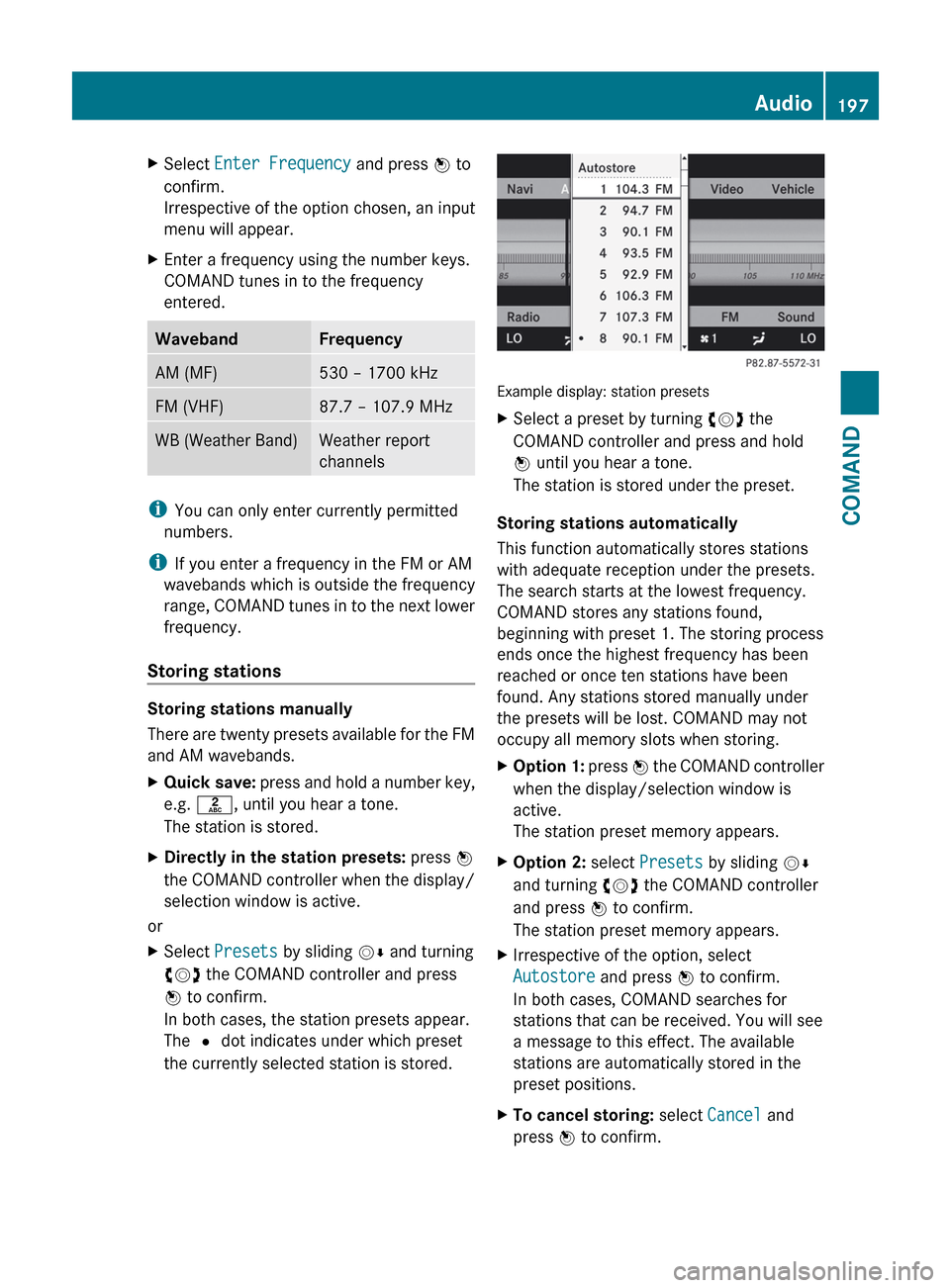
Example display: station presets
XSelect a preset by turning cVd the
COMAND controller and press and hold
W until you hear a tone.
The station is stored under the preset.
Storing stations automatically
This function automatically stores stations
with adequate reception under the presets.
The search starts at the lowest frequency.
COMAND stores any stations found,
beginning with preset 1. The storing process
ends once the highest frequency has been
reached or once ten stations have been
found. Any stations stored manually under
the presets will be lost. COMAND may not
occupy all memory slots when storing.
XOption 1: press W the COMAND controller
when the display/selection window is
active.
The station preset memory appears.XOption 2: select Presets by sliding VÆ
and turning cVd the COMAND controller
and press W to confirm.
The station preset memory appears.XIrrespective of the option, select
Autostore and press W to confirm.
In both cases, COMAND searches for
stations that can be received. You will see
a message to this effect. The available
stations are automatically stored in the
preset positions.XTo cancel storing: select Cancel and
press W to confirm.Audio197COMANDZ
Page 200 of 488
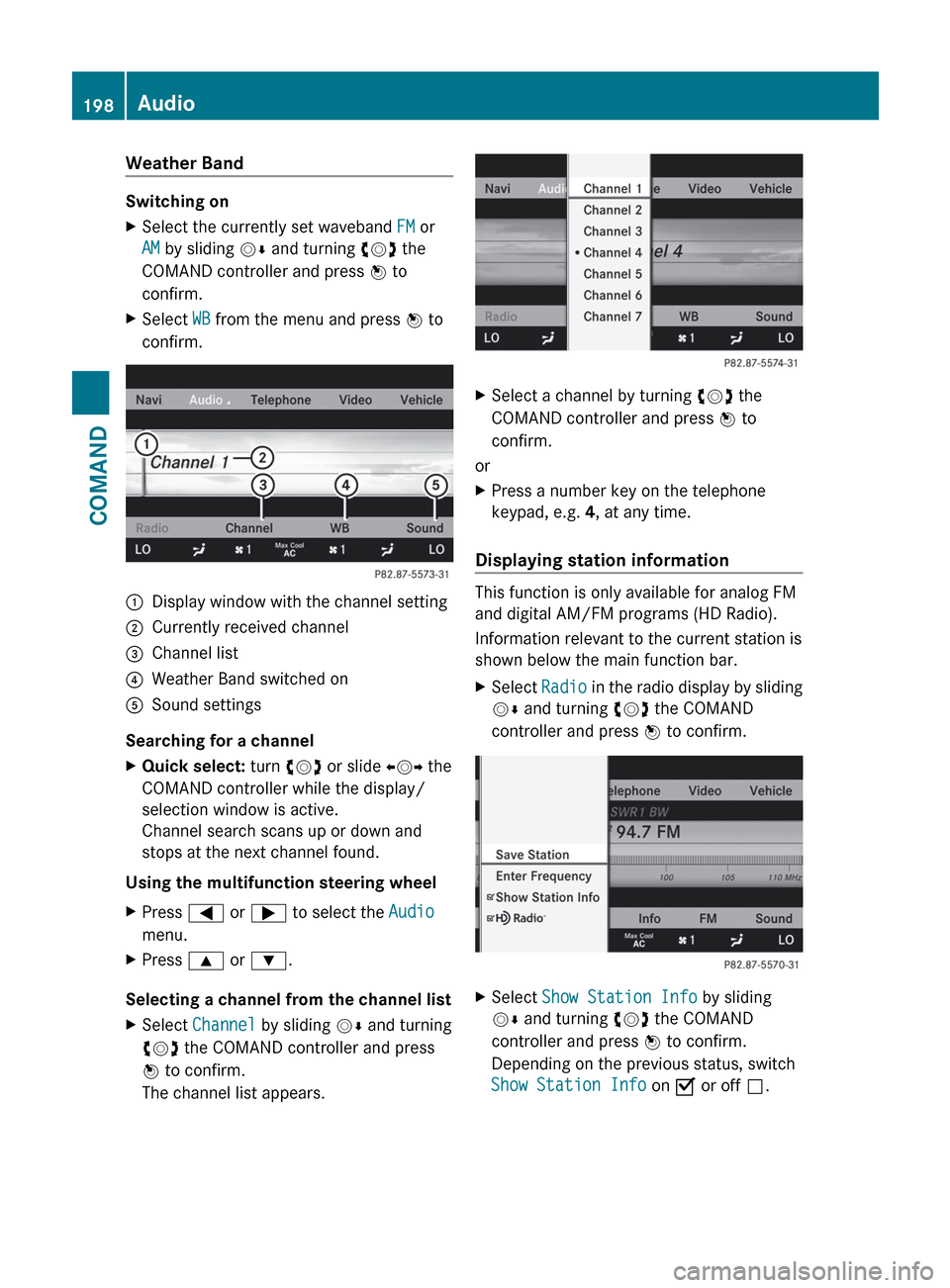
Weather Band
Switching on
XSelect the currently set waveband FM or
AM by sliding VÆ and turning cVd the
COMAND controller and press W to
confirm.XSelect WB from the menu and press W to
confirm.:Display window with the channel setting;Currently received channel=Channel list?Weather Band switched onASound settings
Searching for a channel
XQuick select: turn cVd or slide XVY the
COMAND controller while the display/
selection window is active.
Channel search scans up or down and
stops at the next channel found.
Using the multifunction steering wheel
XPress = or ; to select the Audio
menu.XPress 9 or : .
Selecting a channel from the channel list
XSelect Channel by sliding VÆ and turning
cVd the COMAND controller and press
W to confirm.
The channel list appears.XSelect a channel by turning cVd the
COMAND controller and press W to
confirm.
or
XPress a number key on the telephone
keypad, e.g. 4, at any time.
Displaying station information
This function is only available for analog FM
and digital AM/FM programs (HD Radio).
Information relevant to the current station is
shown below the main function bar.
XSelect Radio in the radio display by sliding
V Æ and turning cVd the COMAND
controller and press W to confirm.XSelect Show Station Info by sliding
V Æ and turning cVd the COMAND
controller and press W to confirm.
Depending on the previous status, switch
Show Station Info on O or off ª.198AudioCOMAND
Page 201 of 488
Displaying program information
This function is only available for analog FM
and digital AM/FM programs (HD Radio).
Information relevant to the current station is
shown in the display window.
XSelect Info in the radio display by sliding
V Æ and turning cVd the COMAND
controller and press W to confirm.
Information on the currently selected
station is displayed. The contents and
purpose of the information depend on the
HD Radio station.
HD Radio
Important notes
The "HD Radio" section provides detailed
information on the following:
R special functions available exclusively for
HD Radio when compared with analog AM
and FM radio
R selecting an HD Radio station
R displaying program information
i Optional HD Radio equipment is required
to make use of the HD Radio functions
described here. Registration is not
required.
i HD Radio functions offer:
R digital transmission on the same
wavebands as analog AM/FM. The
analog AM/FM stations remain in the
same position when selecting a station.
R the ability to broadcast several program
streams over a single AM/FM frequency
(e.g. HD1, HD2 etc.)
R clear, interference free reception
R on FM stations: CD quality sound; on AM
stations: analog FM station sound quality
R a wide range of data services, text-based
information – name of artist, name of
song etc. – on the display.
For further information on HD Radio, visit
http://www.hdradio.com .
i Please note that sub-programs and
program information shown in the
illustrations are dependent on the program
broadcast by the respective radio station.
The program contents may vary. The sub-
programs and programs shown in the
illustrations in this manual may therefore
differ from the sub-programs and programs
broadcast by radio stations.
Switching on HD Radio
i As HD Radio stations are broadcast in the
AM/FM wavebands, operating HD Radio is
very similar to operating analog AM/FM
radio. This section describes only those
functions that differ from standard FM
radio functions.
Operating analog FM/AM radio is described
in the "Radio" section ( Y page 195).
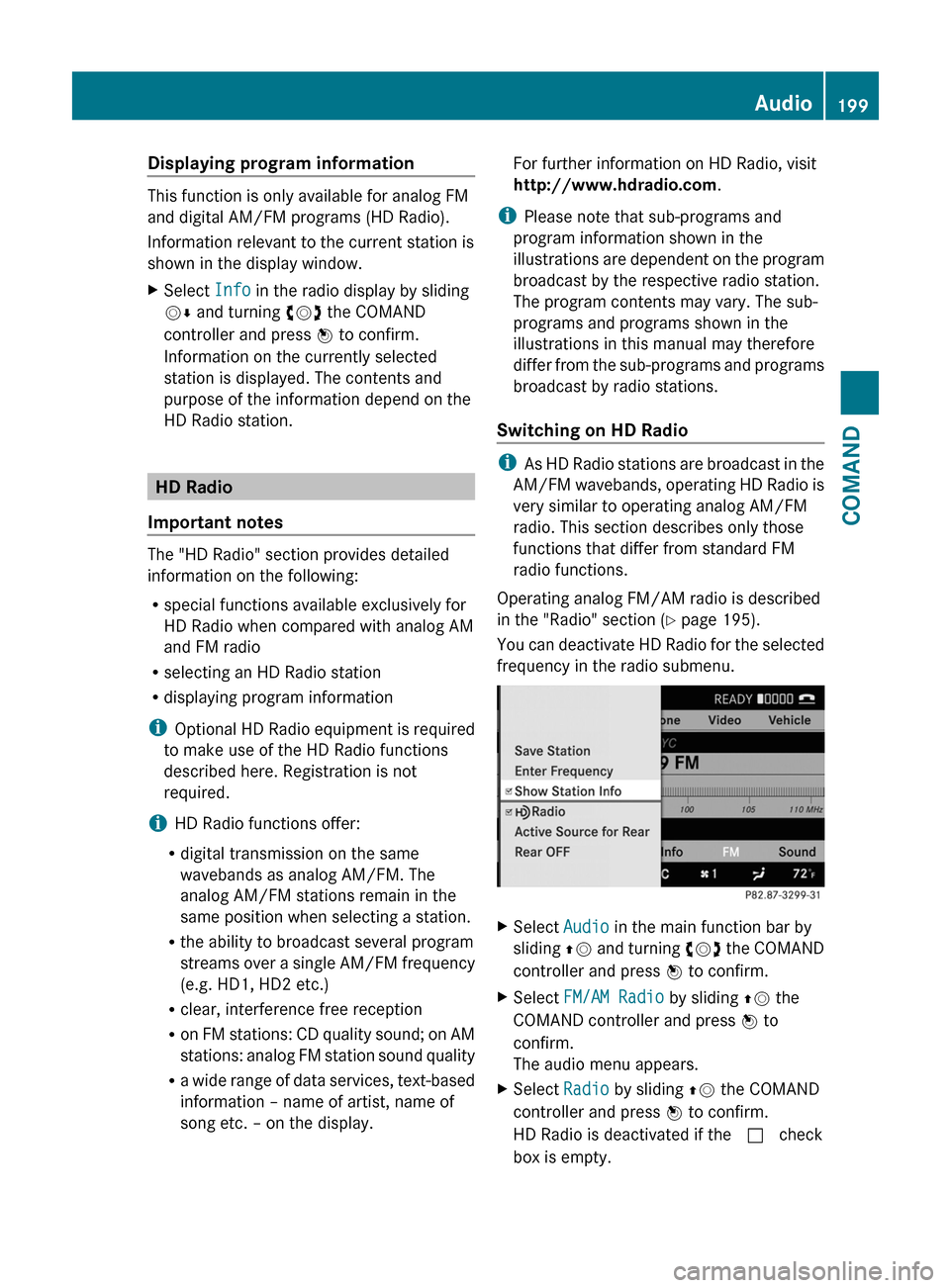
You can deactivate HD Radio for the selected
frequency in the radio submenu.
XSelect Audio in the main function bar by
sliding ZV and turning cVd the COMAND
controller and press W to confirm.XSelect FM/AM Radio by sliding ZV the
COMAND controller and press W to
confirm.
The audio menu appears.XSelect Radio by sliding ZV the COMAND
controller and press W to confirm.
HD Radio is deactivated if the c check
box is empty.Audio199COMANDZ
Page 202 of 488
You hear the analog program of this
frequency.
As soon as you change to another HD Radio
frequency, the HD Radio is reactivated.
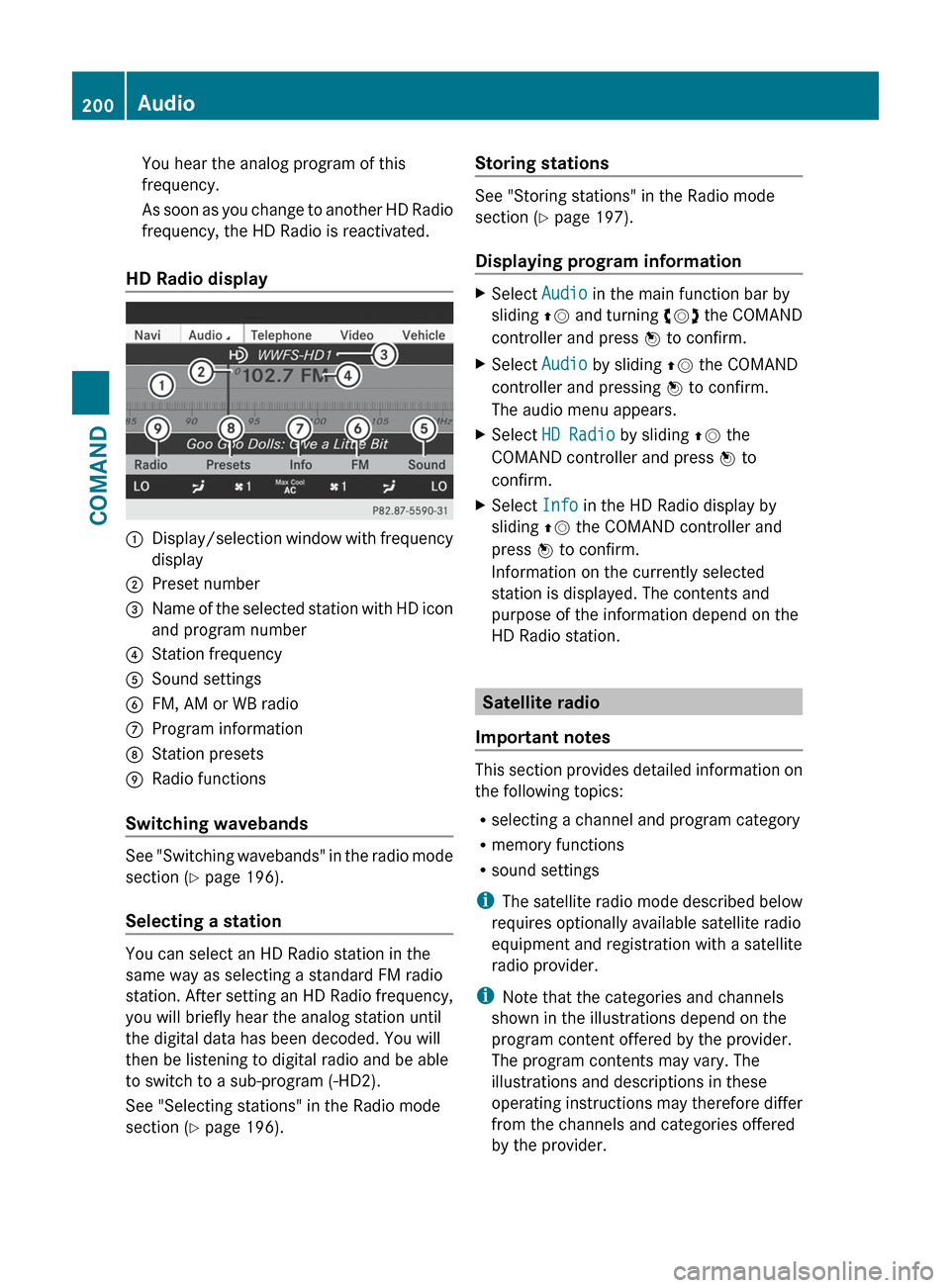
HD Radio display
1Display/selection window with frequency
display2Preset number3Name of the selected station with HD icon
and program number4Station frequency5Sound settings6FM, AM or WB radio7Program information8Station presets9Radio functions
Switching wavebands
See "Switching wavebands" in the radio mode
section ( Y page 196).
Selecting a station
You can select an HD Radio station in the
same way as selecting a standard FM radio
station. After setting an HD Radio frequency,
you will briefly hear the analog station until
the digital data has been decoded. You will
then be listening to digital radio and be able
to switch to a sub-program (-HD2).
See "Selecting stations" in the Radio mode
section ( Y page 196).
Storing stations
See "Storing stations" in the Radio mode
section ( Y page 197).
Displaying program information
XSelect Audio in the main function bar by
sliding ZV and turning cVd the COMAND
controller and press W to confirm.XSelect Audio by sliding ZV the COMAND
controller and pressing W to confirm.
The audio menu appears.XSelect HD Radio by sliding ZV the
COMAND controller and press W to
confirm.XSelect Info in the HD Radio display by
sliding ZV the COMAND controller and
press W to confirm.
Information on the currently selected
station is displayed. The contents and
purpose of the information depend on the
HD Radio station.
Satellite radio
Important notes
This section provides detailed information on
the following topics:
R selecting a channel and program category
R memory functions
R sound settings
i The satellite radio mode described below
requires optionally available satellite radio
equipment and registration with a satellite
radio provider.
i Note that the categories and channels
shown in the illustrations depend on the
program content offered by the provider.
The program contents may vary. The
illustrations and descriptions in these
operating instructions may therefore differ
from the channels and categories offered
by the provider.
200AudioCOMAND