display MERCEDES-BENZ CL-Class 2012 C216 Owner's Manual
[x] Cancel search | Manufacturer: MERCEDES-BENZ, Model Year: 2012, Model line: CL-Class, Model: MERCEDES-BENZ CL-Class 2012 C216Pages: 488, PDF Size: 21.88 MB
Page 228 of 488
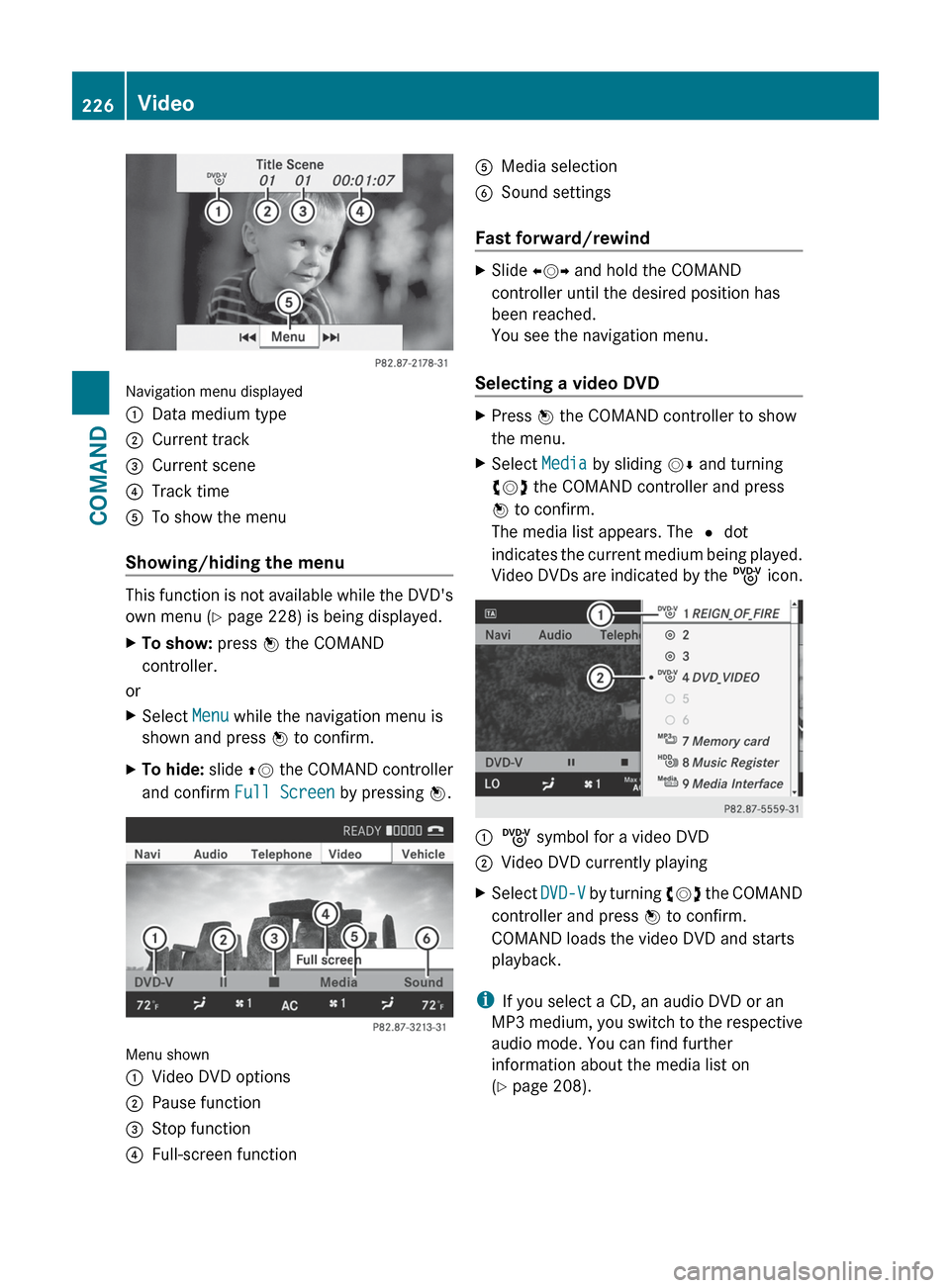
Navigation menu displayed
:Data medium type;Current track=Current scene?Track timeATo show the menu
Showing/hiding the menu
This function is not available while the DVD's
own menu ( Y page 228) is being displayed.
XTo show: press W the COMAND
controller.
or
XSelect Menu while the navigation menu is
shown and press W to confirm.XTo hide: slide ZV the COMAND controller
and confirm Full Screen by pressing W.
Menu shown
:Video DVD options;Pause function=Stop function?Full-screen functionAMedia selectionBSound settings
Fast forward/rewind
XSlide XVY and hold the COMAND
controller until the desired position has
been reached.
You see the navigation menu.
Selecting a video DVD
XPress W the COMAND controller to show
the menu.XSelect Media by sliding VÆ and turning
cVd the COMAND controller and press
W to confirm.
The media list appears. The # dot
indicates the current medium being played.
Video DVDs are indicated by the ý icon.:ý symbol for a video DVD;Video DVD currently playingXSelect DVD-V by turning cVd the COMAND
controller and press W to confirm.
COMAND loads the video DVD and starts
playback.
i If you select a CD, an audio DVD or an
MP3 medium, you switch to the respective
audio mode. You can find further
information about the media list on
( Y page 208).
226VideoCOMAND
Page 229 of 488
Stop functionXPress W the COMAND controller to show
the menu.XTo interrupt playback: select É by
turning cVd the COMAND controller and
press W to confirm.
The Ë display changes to Ì. The
video image is hidden.XTo continue playback: select Ì and
press W to confirm.
Playback continues from the point where it
was interrupted.XTo stop playback: while playback is
interrupted, select É again and press
W to confirm.
or
XDuring playback, confirm É by pressing
W twice in quick succession.
Selection is at Ì.XTo restart playback: confirm Ì by
pressing W.
Playback restarts from the beginning.
Pause function
XPress W the COMAND controller to show
the menu.XTo pause: select Ë by turning cVd the
COMAND controller and press W to
confirm.
The Ë display changes to Ì.XTo continue playback: select Ì and
press W to confirm.
The menu is hidden.
Selecting a scene/chapter
If the film is divided into scenes or chapters,
you can select them directly while the film is
running, or skip forwards step-by-step. Some
DVDs do not permit this at certain points (e.g.
during the opening credits).
It may also be possible to select the scene/
chapter from within the menu stored on the
DVD.XTo skip forwards or back: turn cVd or
slide XVY the COMAND controller.
The control menu (Y page 225) appears for
approximately eight seconds.XOn the multifunction steering wheel:
switch on video DVD mode in COMAND
( Y page 225).XUse the = or ; button to select the
Audio menu.XPress 9 or : to select a scene/
chapter.
If you press and hold 9 or : for an
extended period, rapid scroll begins.
Selecting a film/title
This function is only available if the DVD is
divided into several films/tracks. If the DVD
contains several films, these can be selected
directly. A film can be selected either when
the DVD is being played back or when it is
stopped.
The film can also be selected from the menu
on the DVD itself.
XPress W the COMAND controller to show
the menu.XSelect DVD-V by turning cVd the COMAND
controller and press W to confirm.XSelect DVD Functions and press W to
confirm.
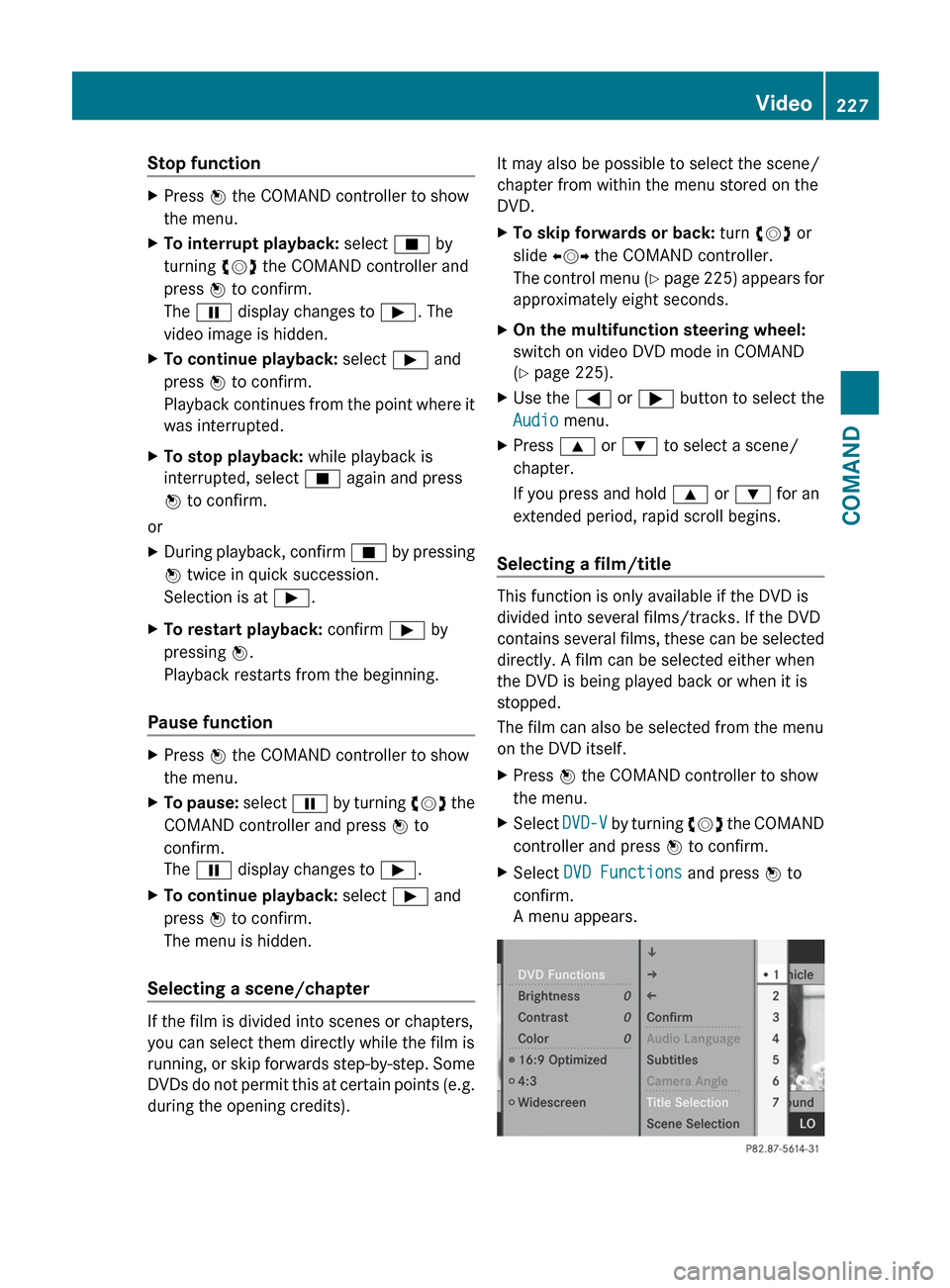
A menu appears.Video227COMANDZ
Page 230 of 488
XSelect Title Selection by turning cVd
the COMAND controller and press W to
confirm.XSelect a film/title and press W to confirm.
DVD menu
Calling up the DVD menu
The DVD menu is the menu stored on the DVD
itself. It is structured in various ways
according to the individual DVD and permits
certain actions and settings.
In the case of multi-language DVDs, for
example, you can set the language in the DVD
menu.
XPress W the COMAND controller to show
the menu.XSelect DVD-V in the menu by turning cVd
the COMAND controller and press W to
confirm.XSelect DVD Functions and press W to
confirm.XSelect Menu and press W to confirm.
The DVD menu appears.
Selecting menu items in the DVD menu
XSelect a menu item by sliding ZVÆ or
turning XVY the COMAND controller and
press W to confirm.
The menu appears.
i Menu items that cannot be selected are
grayed out.
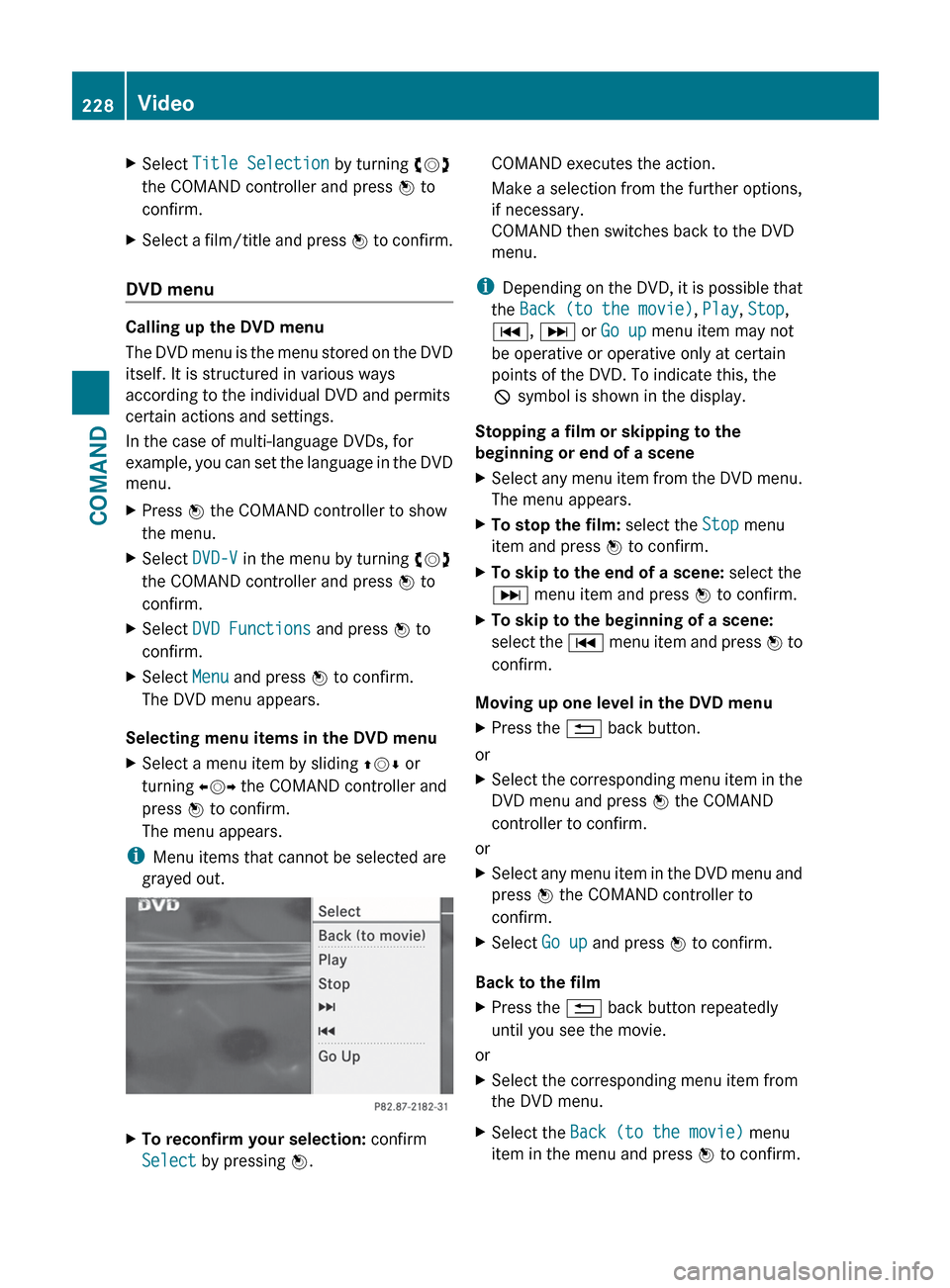
XTo reconfirm your selection: confirm
Select by pressing W.COMAND executes the action.
Make a selection from the further options,
if necessary.
COMAND then switches back to the DVD
menu.
i Depending on the DVD, it is possible that
the Back (to the movie) , Play , Stop ,
C , D or Go up menu item may not
be operative or operative only at certain
points of the DVD. To indicate this, the
K symbol is shown in the display.
Stopping a film or skipping to the
beginning or end of a scene
XSelect any menu item from the DVD menu.
The menu appears.XTo stop the film: select the Stop menu
item and press W to confirm.XTo skip to the end of a scene: select the
D menu item and press W to confirm.XTo skip to the beginning of a scene:
select the C menu item and press W to
confirm.
Moving up one level in the DVD menu
XPress the % back button.
or
XSelect the corresponding menu item in the
DVD menu and press W the COMAND
controller to confirm.
or
XSelect any menu item in the DVD menu and
press W the COMAND controller to
confirm.XSelect Go up and press W to confirm.
Back to the film
XPress the % back button repeatedly
until you see the movie.
or
XSelect the corresponding menu item from
the DVD menu.XSelect the Back (to the movie) menu
item in the menu and press W to confirm.228VideoCOMAND
Page 232 of 488
Switching to video AUX modeXSelect Video in the main function bar by
sliding ZV and turning cVd the COMAND
controller and press W to confirm.
If video AUX mode was the last mode
selected, it will now be active.
If another video source is switched on, you
can now switch to video AUX mode in the
video menu.XSelect Video and press W to confirm.XSelect AUX and press W to confirm.
The video AUX menu appears. You will hear
and see the content of the external video
source if it is connected and switched to
playback.
For details on how to operate the external
video source, see the respective device's
operating instructions.
Showing/hiding the menu
XTo show: press W the COMAND
controller.XTo hide: slide ZV the COMAND controller
and confirm Full screen by pressing W.
Volume and sound settings
You will find details on volume ( Y page 124)
and sound ( Y page 125) settings in the "At a
glance" section.
GWARNING
External video sources may have different
volumes, which can mean that system
messages such as traffic announcements and
navigation system announcements are much
louder. If necessary, please deactivate the
system messages or adjust their volume
manually.
i In some cases, the volume of the AUX
device may be quieter or louder, or the
usual maximum possible volume cannot be
reached. On some devices, it is possible to
adjust the volume separately. In this case,
start at a medium volume and increase it
gradually. This enables you to determine
whether the system is able to play the
music at high volume without distorting it.
Vehicle
Vehicle functions
General notes
In this menu, you can set the following vehicle
functions:
R ECO
R multicontour seat settings
R rear window blind
R EASY-ENTRY/EXIT feature
R exterior lighting delayed switch-off
R interior lighting delayed switch-off
R ambient lighting
R automatic folding mirror
R locator lighting
R automatic locking feature
R trunk lid opening height restriction
You can open the "Vehicle" menu in one of
two ways.
Opening the "Vehicle" menu from the
main area in the center of the display
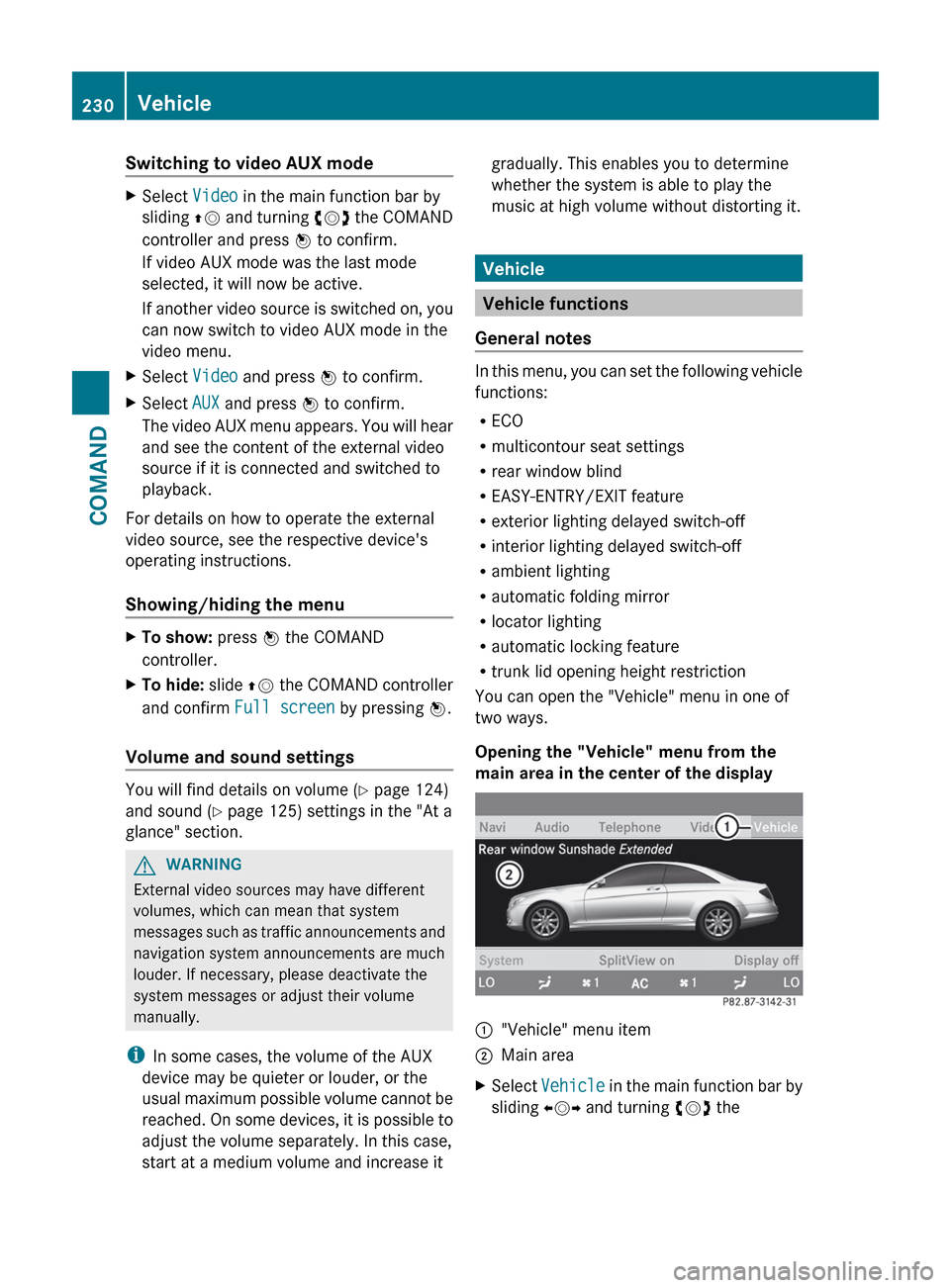
:"Vehicle" menu item;Main areaXSelect Vehicle in the main function bar by
sliding XVY and turning cVd the230VehicleCOMAND
Page 237 of 488
turning cVd the COMAND controller and
press W to confirm.
The main area is active.XSelect the Automatic Locking function
by sliding XVY or turning cVd the
COMAND controller and press W to
confirm.
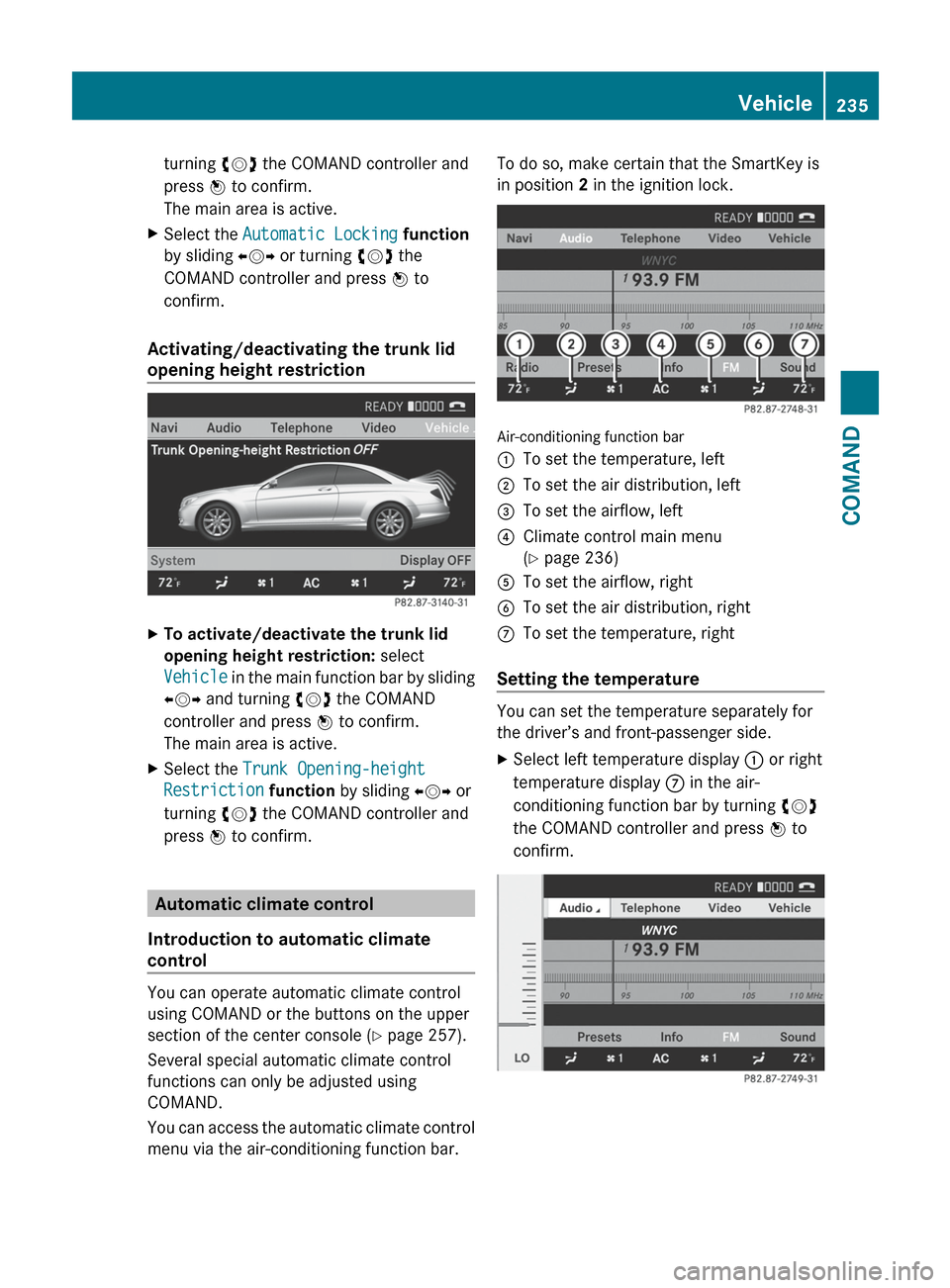
Activating/deactivating the trunk lid
opening height restriction
XTo activate/deactivate the trunk lid
opening height restriction: select
Vehicle in the main function bar by sliding
XVY and turning cVd the COMAND
controller and press W to confirm.
The main area is active.XSelect the Trunk Opening-height
Restriction function by sliding XVY or
turning cVd the COMAND controller and
press W to confirm.
Automatic climate control
Introduction to automatic climate
control
You can operate automatic climate control
using COMAND or the buttons on the upper
section of the center console ( Y page 257).
Several special automatic climate control
functions can only be adjusted using
COMAND.
You can access the automatic climate control
menu via the air-conditioning function bar.
To do so, make certain that the SmartKey is
in position 2 in the ignition lock.
Air-conditioning function bar
:To set the temperature, left;To set the air distribution, left=To set the airflow, left?Climate control main menu
( Y page 236)ATo set the airflow, rightBTo set the air distribution, rightCTo set the temperature, right
Setting the temperature
You can set the temperature separately for
the driver’s and front-passenger side.
XSelect left temperature display : or right
temperature display C in the air-
conditioning function bar by turning cVd
the COMAND controller and press W to
confirm.Vehicle235COMANDZ
Page 240 of 488
Adjusting the footwell temperature
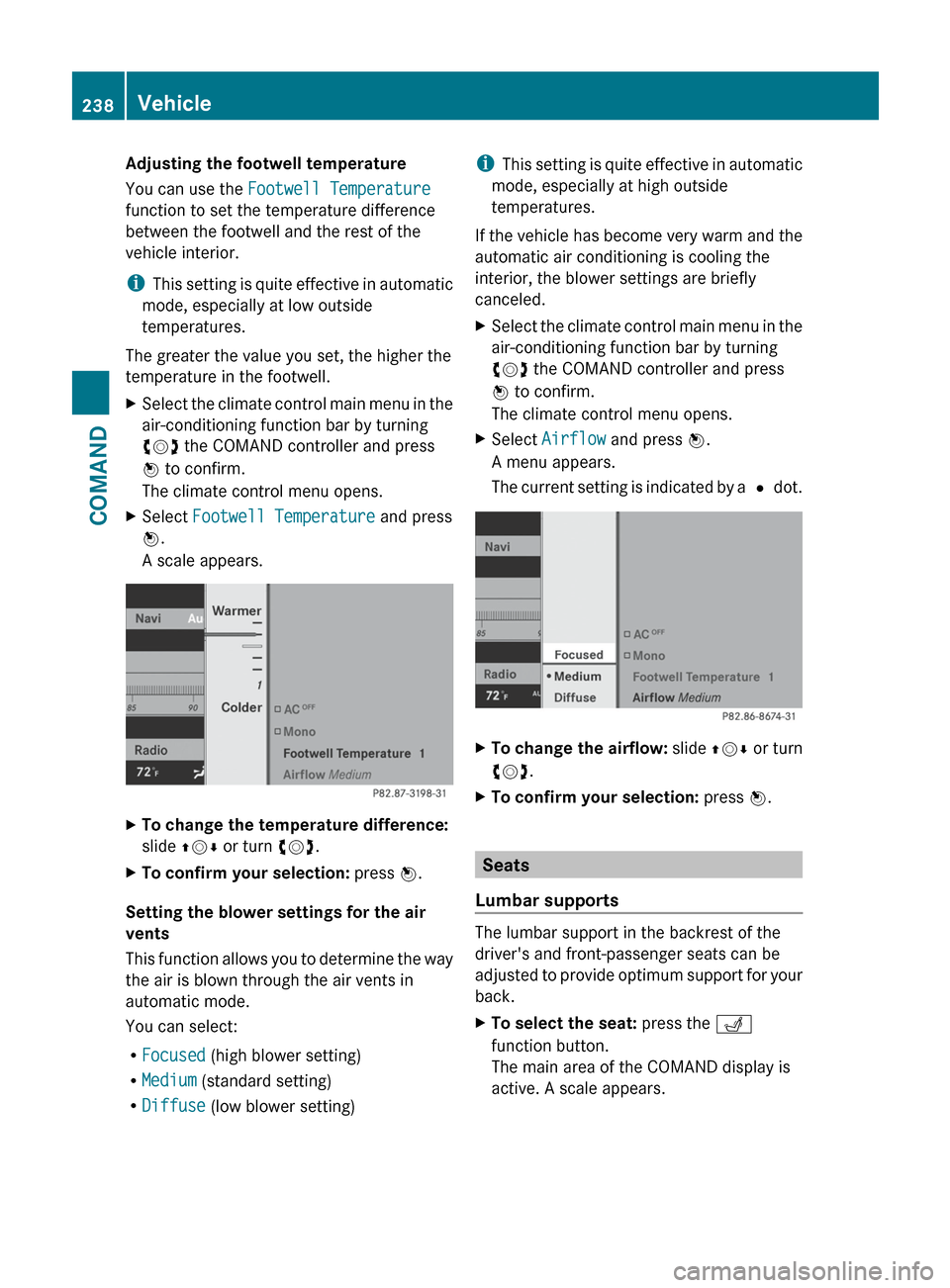
You can use the Footwell Temperature
function to set the temperature difference
between the footwell and the rest of the
vehicle interior.
i This setting is quite effective in automatic
mode, especially at low outside
temperatures.
The greater the value you set, the higher the
temperature in the footwell.XSelect the climate control main menu in the
air-conditioning function bar by turning
cVd the COMAND controller and press
W to confirm.
The climate control menu opens.XSelect Footwell Temperature and press
W .
A scale appears.XTo change the temperature difference:
slide ZVÆ or turn cVd.XTo confirm your selection: press W.
Setting the blower settings for the air
vents
This function allows you to determine the way
the air is blown through the air vents in
automatic mode.
You can select:
R Focused (high blower setting)
R Medium (standard setting)
R Diffuse (low blower setting)
i
This setting is quite effective in automatic
mode, especially at high outside
temperatures.
If the vehicle has become very warm and the
automatic air conditioning is cooling the
interior, the blower settings are briefly
canceled.XSelect the climate control main menu in the
air-conditioning function bar by turning
cVd the COMAND controller and press
W to confirm.
The climate control menu opens.XSelect Airflow and press W.
A menu appears.
The current setting is indicated by a # dot.XTo change the airflow: slide ZVÆ or turn
cVd .XTo confirm your selection: press W.
Seats
Lumbar supports
The lumbar support in the backrest of the
driver's and front-passenger seats can be
adjusted to provide optimum support for your
back.
XTo select the seat: press the T
function button.
The main area of the COMAND display is
active. A scale appears.238VehicleCOMAND
Page 241 of 488
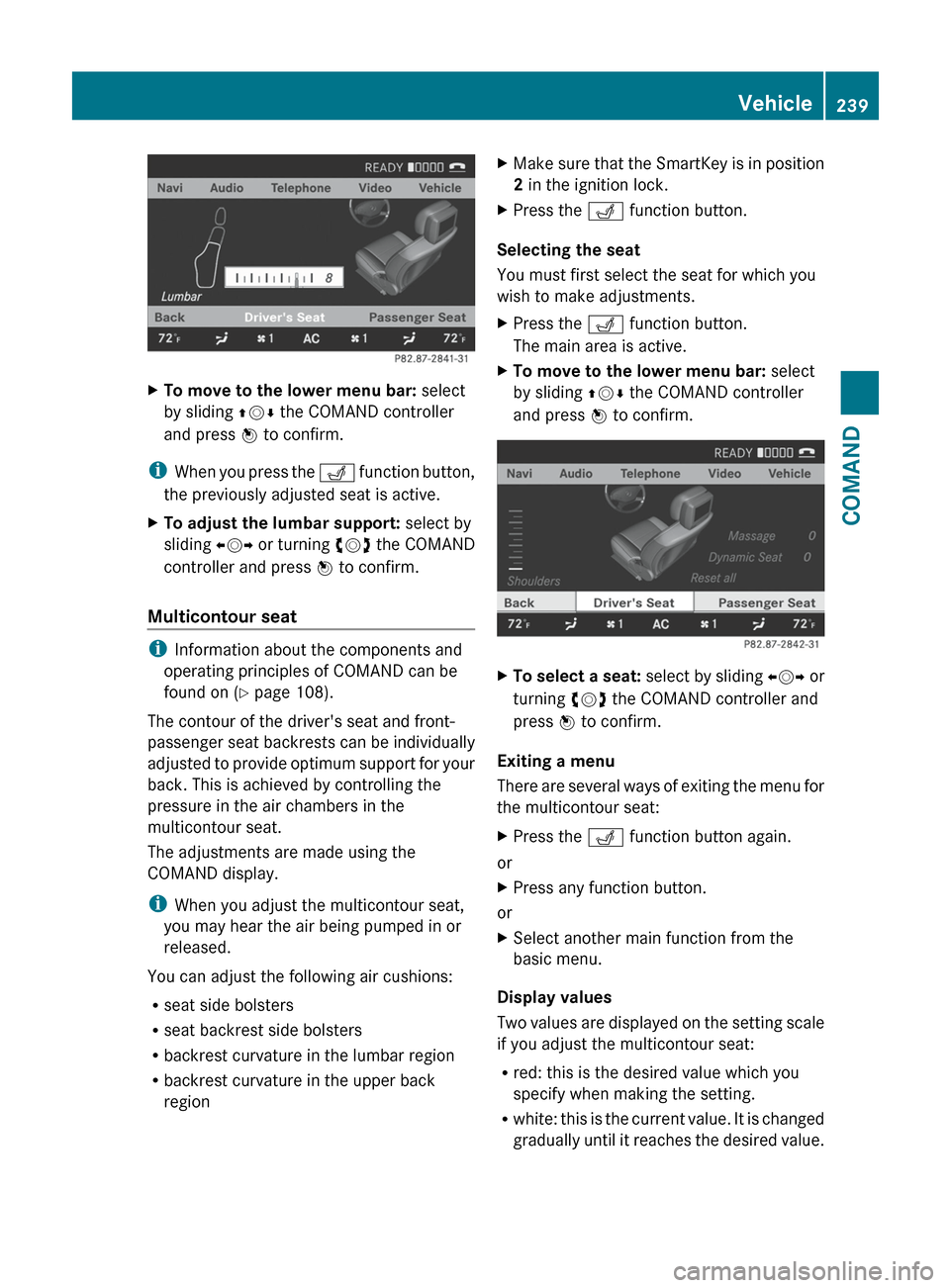
XTo move to the lower menu bar: select
by sliding ZVÆ the COMAND controller
and press W to confirm.
i
When you press the T function button,
the previously adjusted seat is active.
XTo adjust the lumbar support: select by
sliding XVY or turning cVd the COMAND
controller and press W to confirm.
Multicontour seat
i
Information about the components and
operating principles of COMAND can be
found on ( Y page 108).
The contour of the driver's seat and front-
passenger seat backrests can be individually
adjusted to provide optimum support for your
back. This is achieved by controlling the
pressure in the air chambers in the
multicontour seat.
The adjustments are made using the
COMAND display.
i When you adjust the multicontour seat,
you may hear the air being pumped in or
released.
You can adjust the following air cushions:
R seat side bolsters
R seat backrest side bolsters
R backrest curvature in the lumbar region
R backrest curvature in the upper back
region
XMake sure that the SmartKey is in position
2 in the ignition lock.XPress the T function button.
Selecting the seat
You must first select the seat for which you
wish to make adjustments.
XPress the T function button.
The main area is active.XTo move to the lower menu bar: select
by sliding ZVÆ the COMAND controller
and press W to confirm.XTo select a seat: select by sliding XVY or
turning cVd the COMAND controller and
press W to confirm.
Exiting a menu
There are several ways of exiting the menu for
the multicontour seat:
XPress the T function button again.
or
XPress any function button.
or
XSelect another main function from the
basic menu.
Display values
Two values are displayed on the setting scale
if you adjust the multicontour seat:
R red: this is the desired value which you
specify when making the setting.
R white: this is the current value. It is changed
gradually until it reaches the desired value.
Vehicle239COMANDZ
Page 262 of 488
XTo deactivate: press the ¬ rocker
switch up or down.
The indicator lamp in the ¬ rocker
switch goes out. The previously selected
settings come into effect again. The cooling
with air dehumidification function remains
on. Air-recirculation mode remains
deactivated.
or
XPress the w rocker switch up or down.
or
XPress the K rocker switch up or down.
MAX COOL maximum cooling
The MAX COOL function is only available in
vehicles for the USA.
MAX COOL is only operational when the
engine is running.
The MAX COOL function is activated
automatically:
R if climate control is set to automatic
( Ã ) on both sides
R if additional cooling is used
The display shows MAX COOL.
This is the quickest way to cool the vehicle
interior when the sliding sunroof and the side
windows are closed.
Defrosting the windows
Windows fogged up on the inside
XActivate the cooling with air
dehumidification function via COMAND
( Y page 237).XActivate automatic mode Ã.XIf the windows continue to fog up, activate
the defrosting function ( Y page 259).
i
You should only select this setting until
the windshield is clear again.
Windows fogged up on the outsideXSwitch on the windshield wipers.XActivate automatic climate control.
i You should only select this setting until
the windshield is clear again.
Rear window defroster
Activating/deactivating
GWARNING
Any accumulation of snow and ice should be
removed from the rear window before driving.
Visibility could otherwise be impaired,
endangering you and others.
The rear window defroster has a high current
draw. You should therefore switch it off as
soon as the window is clear as it only switches
off automatically after several minutes.
If the battery voltage is too low, the rear
window defroster may switch off.
XTurn the SmartKey to position 2 in the
ignition lock.XPress the ¤ rocker switch up or down.
The indicator lamp in the ¤ rocker
switch lights up or goes out.
Problems with the rear window
defroster
The rear window defroster has deactivated
itself prematurely or cannot be activated.
XSwitch off any consumers that are not
required, e.g. reading lamps or interior
lighting.
When the battery is sufficiently charged,
the rear window defroster is activated
again automatically.
Activating/deactivating air-
recirculation mode
You can deactivate the flow of fresh air if
unpleasant odors are entering the vehicle
260Operating the climate control systemClimate control
Page 268 of 488
Useful information
i This Operator's Manual describes all
models and all standard and optional
equipment of your vehicle available at the
time of publication of the Operator's
Manual. Country-specific differences are
possible. Please note that your vehicle may
not be equipped with all features
described. This also applies to safety-
related systems and functions.
i Please read the information on qualified
specialist workshops ( Y page 29).
Breaking-in notes
The first 1000 miles (1500 km)
The more you look after the engine when it is
new, the more satisfied you will be with its
performance in the future.
R Drive at varying vehicle speeds and engine
speeds for the first 1000 miles (1500 km)
for this reason.
R Avoid overstraining the vehicle during this
period, e.g. driving at full throttle.
R Change gear in good time, at the latest
when the tachometer needle is 2
/ 3 of the
way to the red area in the tachometer
display.
R Do not manually shift to a lower gear to
brake the vehicle.
R If possible, do not depress the accelerator
pedal past the point of resistance
(kickdown).
R Only select shift ranges 3, 2 or 1 when
driving slowly, e.g. in mountainous terrain.
R If possible, drive in drive program E (in AMG
vehicles in drive program C) for the first
1000 miles (1500 km).
After 1000 miles (1500 km), you can increase
the engine speed gradually and bring the
vehicle up to full speed.
Additional breaking-in notes for AMG
vehicles:
R do not drive faster than 85 mph
(140 km/h) in the first 1000 miles
(1500 km).
R only allow the engine to reach a maximum
engine speed of 4500 rpm briefly.
R change gear in good time.
i You should also observe these notes on
running in if the engine or parts of the drive
train on your vehicle have been replaced.
i Always observe the respective speed
restrictions.
Driving
Important safety notes
GWARNING
Make sure absolutely no objects are
obstructing the pedals' range of movement.
Keep the driver's footwell clear of all
obstacles. If there are any floormats or
carpets in the footwell, make sure the pedals
still have sufficient clearance.
During sudden driving or braking maneuvers
the objects could get caught between the
pedals. You could then no longer brake or
accelerate. This could lead to accidents and
injury.
GWARNING
On slippery road surfaces, never downshift in
order to obtain braking action. This could
result in drive wheel slip and reduced vehicle
control. Your vehicle's ABS will not prevent
this type of loss of control.
GWARNING
It is dangerous to shift the automatic
transmission out of parking position P or
neutral position N if the engine speed is
higher than idle speed. If your foot is not firmly
on the brake pedal, the vehicle could
accelerate quickly forward or in reverse. You
266DrivingDriving and parking
Page 270 of 488

XInsert Start/Stop button : into ignition
lock ;.
i
When you insert Start/Stop button :
into ignition lock ;, the system requires a
detection time of approximately two
seconds before you can use Start/Stop
button :.
Start/Stop button
=USA only?Canada onlyXPosition 0: if Start/Stop button : has not
yet been pressed, this corresponds to the
SmartKey being removed from the ignition.XPosition 1: press Start/Stop button :.
You can now activate the windshield
wipers, for example.
i If you then open the driver's door when in
this position, the power supply is
deactivated.
XPosition 2 (ignition): press Start/Stop
button : twice.
i
If you press Start/Stop button : once
when in this position and the driver's door
is open, the power supply is deactivated
again.
As soon as the ignition is switched on, all the
indicator lamps in the instrument cluster light
up. If an indicator lamp does not go out after
the engine is started or if it lights up while the
vehicle is in motion, see ( Y page 379).
Starting the engine
Important safety notesGWARNING
Inhalation of exhaust gas is hazardous to your
health. All exhaust gas contains carbon
monoxide (CO), and inhaling it can cause
unconsciousness and possible death.
Do not run the engine in confined areas (such
as a garage) which are not properly ventilated.
If you think that exhaust gas fumes are
entering the vehicle while driving, have the
cause determined and corrected
immediately. If you must drive under these
conditions, drive only with at least one
window fully open at all times.
! Do not depress the accelerator pedal
when starting the engine.
i The catalytic converter preheats for up to
30 seconds after a cold start. The sound of
the engine may change during this time.
i The catalytic converter preheats for up to
30 seconds after a cold start. The sound of
the engine may change during this time.
Automatic transmission
XShift the transmission to position P.
The transmission position display in the
multifunction display shows P.
i
You can also start the engine when the
transmission is in position N.
Starting procedure with the SmartKey
i To start the engine using the SmartKey
instead of KEYLESS-GO, pull the Start/
Stop button out of the ignition lock.
XTurn the SmartKey to position 3 in the
ignition lock (Y page 267) and release it as
soon as the engine is running.268DrivingDriving and parking