ad blue MERCEDES-BENZ CL-Class 2014 C217 Comand Manual
[x] Cancel search | Manufacturer: MERCEDES-BENZ, Model Year: 2014, Model line: CL-Class, Model: MERCEDES-BENZ CL-Class 2014 C217Pages: 274, PDF Size: 5.76 MB
Page 144 of 274
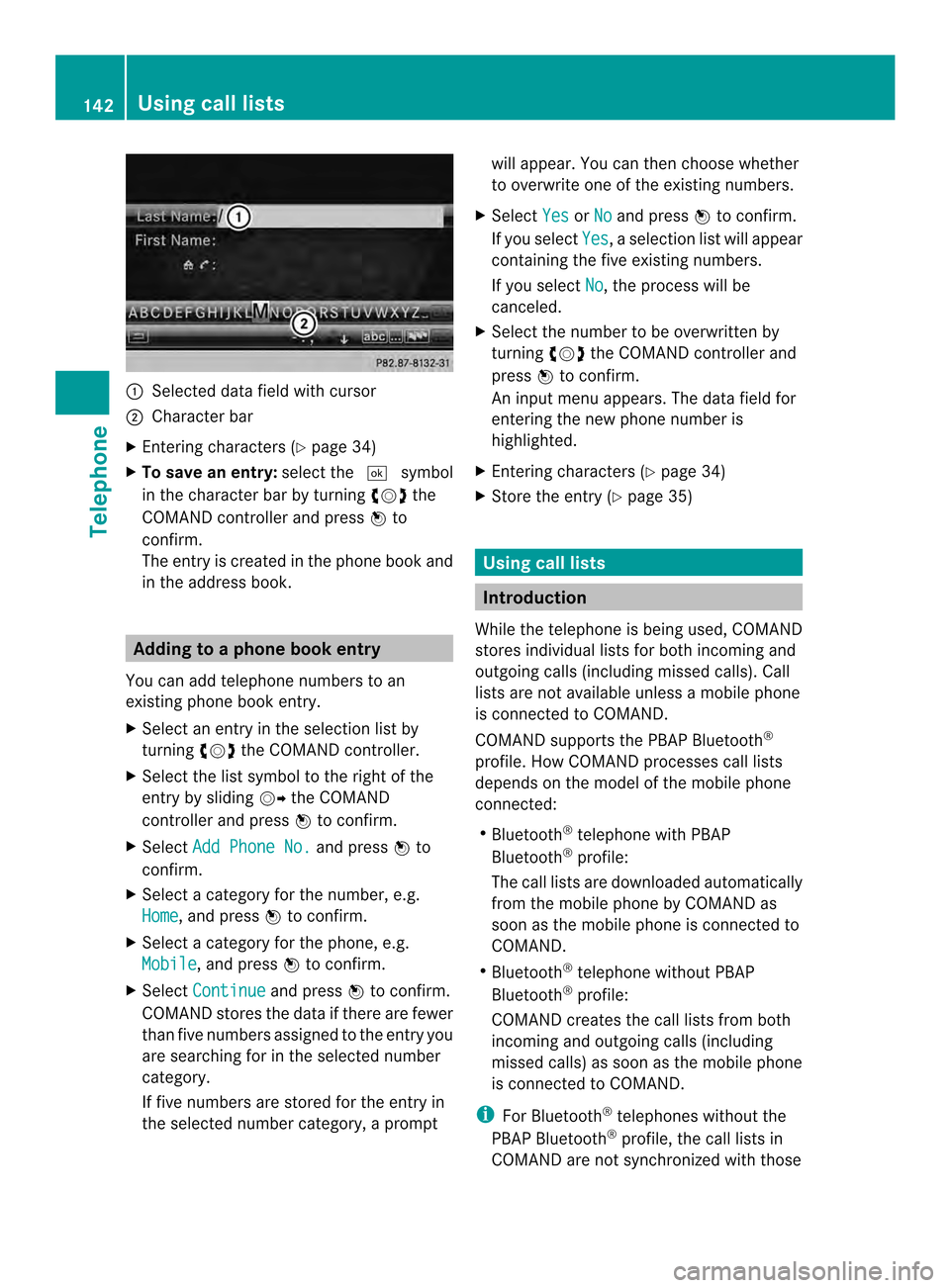
0001
Selected data field with cursor
0002 Character bar
X Entering characters ( Ypage 34)
X To save an entry: select the0004symbol
in the character bar by turning 003C0012003Dthe
COMAND controlle rand press 0037to
confirm.
The entry is created in the phone book and
in the address book. Adding to a phone book entry
You can add telephone numbers to an
existing phone book entry.
X Select an entry in the selection list by
turning 003C0012003Dthe COMAND controller.
X Select the list symbol to the right of the
entry by sliding 00120035the COMAND
controller and press 0037to confirm.
X Select Add Phone No. and press
0037to
confirm.
X Select a category for the number, e.g.
Home , and press
0037to confirm.
X Select a category for the phone, e.g.
Mobile , and press
0037to confirm.
X Select Continue and press
0037to confirm.
COMAND stores the data if there are fewer
tha nfive numbers assigned to the entry you
are searching for in the selected number
category.
If five numbers are stored for the entry in
the selected number category, a prompt will appear. You can the
nchoose whether
to overwrite one of the existing numbers.
X Select Yes or
No and press
0037to confirm.
If you select Yes , a selection list will appear
containing the five existing numbers.
If you select No , the process will be
canceled.
X Select the number to be overwritten by
turning 003C0012003Dthe COMAND controller and
press 0037to confirm.
An input menu appears. The data field for
entering the new phone number is
highlighted.
X Entering characters (Y page 34)
X Store the entry( Ypage 35) Using call lists
Introduction
While the telephone is being used, COMAND
stores individual lists for both incoming and
outgoing calls (including missed calls). Call
lists are not available unless a mobile phone
is connected to COMAND.
COMAND supports the PBAP Bluetooth ®
profile. How COMAND processes call lists
depends on the model of the mobile phone
connected:
R Bluetooth ®
telephone with PBAP
Bluetooth ®
profile:
The call lists are downloaded automatically
from the mobile phone by COMAND as
soon as the mobile phone is connected to
COMAND.
R Bluetooth ®
telephone without PBAP
Bluetooth ®
profile:
COMAND creates the call lists from both
incoming and outgoing calls (including
missed calls) as soon as the mobile phone
is connected to COMAND.
i For Bluetooth ®
telephones without the
PBAP Bluetooth ®
profile, the call lists in
COMAND are not synchronized with those 142
Using call listsTelephone
Page 146 of 274
Number category Display (phone
book and address
book)
Not Classified No symbol
Home 0010
Work 000E
Telephone
category Display (phone
book and address
book)
Not Classified 001F
Mobile 000D
Car 0008
Pager 0038
X
Select Save and press
0037to confirm.
An input menu with data fields is shown.
The data field for the telephone numbe ris
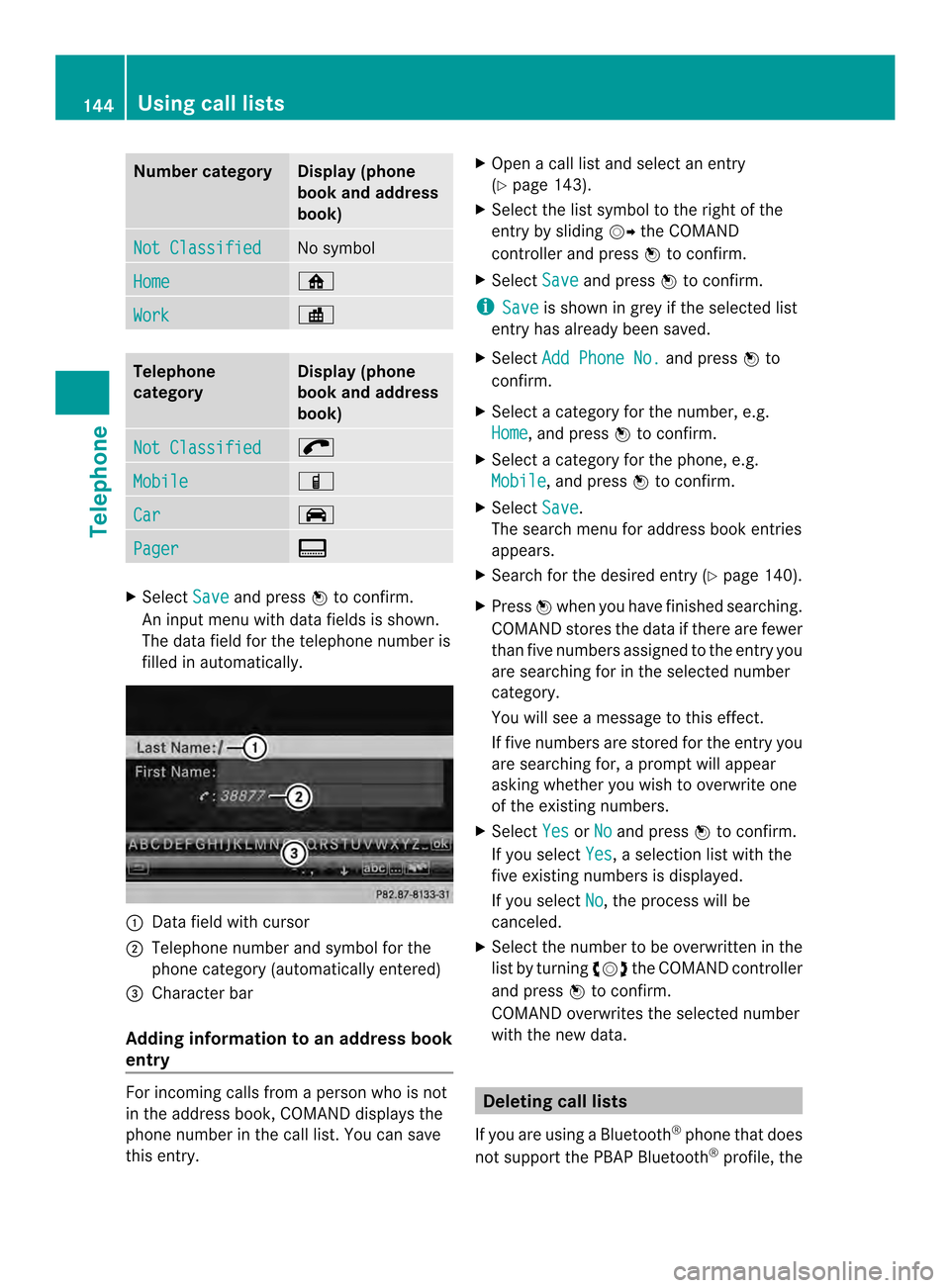
filled in automatically. 0001
Data field with cursor
0002 Telephone numbe rand symbol for the
phone category (automaticall yentered)
0014 Characte rbar
Adding information to an address book
entry For incoming calls from a person who is not
in the address book, COMAND displays the
phone number in the call list
.You can save
this entry. X
Open a call list and select an entry
(Y page 143).
X Select the list symbol to the right of the
entry by sliding 00120035the COMAND
controller and press 0037to confirm.
X Select Save and press
0037to confirm.
i Save is shown in grey if the selected list
entry has already been saved.
X Select Add Phone No. and press
0037to
confirm.
X Select a category for the number, e.g.
Home , and press
0037to confirm.
X Select a category for the phone, e.g.
Mobile , and press
0037to confirm.
X Select Save .
The search menu for address book entries
appears.
X Search for the desired entry (Y page 140).
X Press 0037when you have finished searching.
COMAND stores the data if there are fewer
than five numbers assigned to the entry you
are searching for in the selected number
category.
You will see a message to this effect.
If five numbers are stored for the entry you
are searching for, a prompt will appear
asking whether you wish to overwrite one
of the existing numbers.
X Select Yes or
No and press
0037to confirm.
If you select Yes , a selection list with the
five existing numbers is displayed.
If you select No , the process will be
canceled.
X Select the number to be overwritten in the
list by turning 003C0012003Dthe COMAND controller
and press 0037to confirm.
COMAND overwrites the selected number
with the new data. Deleting call lists
If you are using a Bluetooth ®
phone that does
not support the PBAP Bluetooth ®
profile, the 144
Using call listsTelephone
Page 147 of 274
call lists are generated and managed by
COMAND. You can delete these call lists in
COMAND.
If you download call lists from a Bluetooth
®
phone that supports the PBAP Bluetooth ®
profile, you cannot delete them from
COMAND.
X Select Call Lists in the telephone basic
menu by turning 003C0012003Dthe COMAND
controlle rand press 0037to confirm.
X Select Delete Call Lists and press
0037
to confirm.
Ap rompt appears asking whethe ryou wish
to delete all call lists.
X Select Yes or
No and press
0037to confirm.
If you select Yes , the call lists are deleted.
If you select No , the process will be
canceled.
i If you delete these call lists from the
mobile phone (see the separate mobile
phone operating instructions), COMAND
updates the call list display the next time it
connects. Using the speed dial list
Storing an entry
You can assign ten speed dial presets (0 –9)
to the speed dial list. There are two options
available for this purpose.
Option 1:
X Search for a phone book entry in the phone
book (Y page 140).
X If an entry has several phone numbers,
select the desired numbe rby turning
003C0012003D the COMAND controller. X
Selec tthe list symbol to the right of the
entry by sliding 00120035the COMAND
controller and press 0037to confirm.
Am enu appears.
X Select Speed Dial by turning
003C0012003Dthe
COMAND controller and press 0037to
confirm.
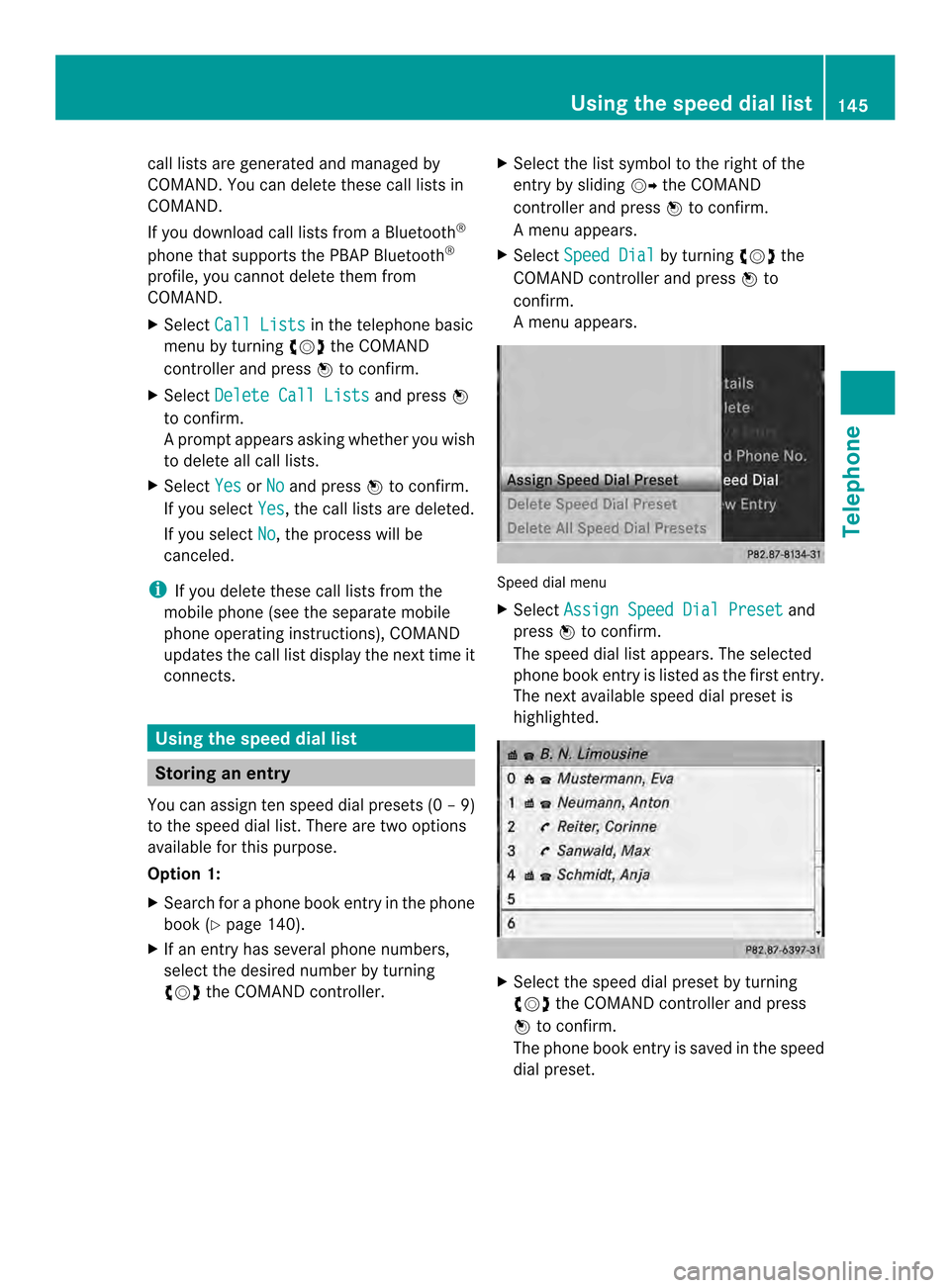
Am enu appears. Speed dial menu
X
Select Assign Speed Dial Preset and
press 0037to confirm.
The speed dial list appears. The selected
phone book entry is listed as the first entry.
The nexta vailable speed dial prese tis
highlighted. X
Select the speed dial preset by turning
003C0012003D the COMAND controller and press
0037 to confirm.
The phone book entry is saved in the speed
dial preset. Using the speed dial list
145Telephone Z
Page 148 of 274
Option 2:
X
Call up the telephone basic menu
(Y page 133).
X Select Call Lists by sliding
00120008and
turning 003C0012003Dthe COMAND controller and
press 0037to confirm.
X Select Speed Dial Preset List and
press 0037to confirm.
The speed dial list appears.
X Select the list symbol to the right of the
entry by sliding 00120035the COMAND
controller and press 0037to confirm.
X Select Assign Speed Dial Preset and
press 0037to confirm.
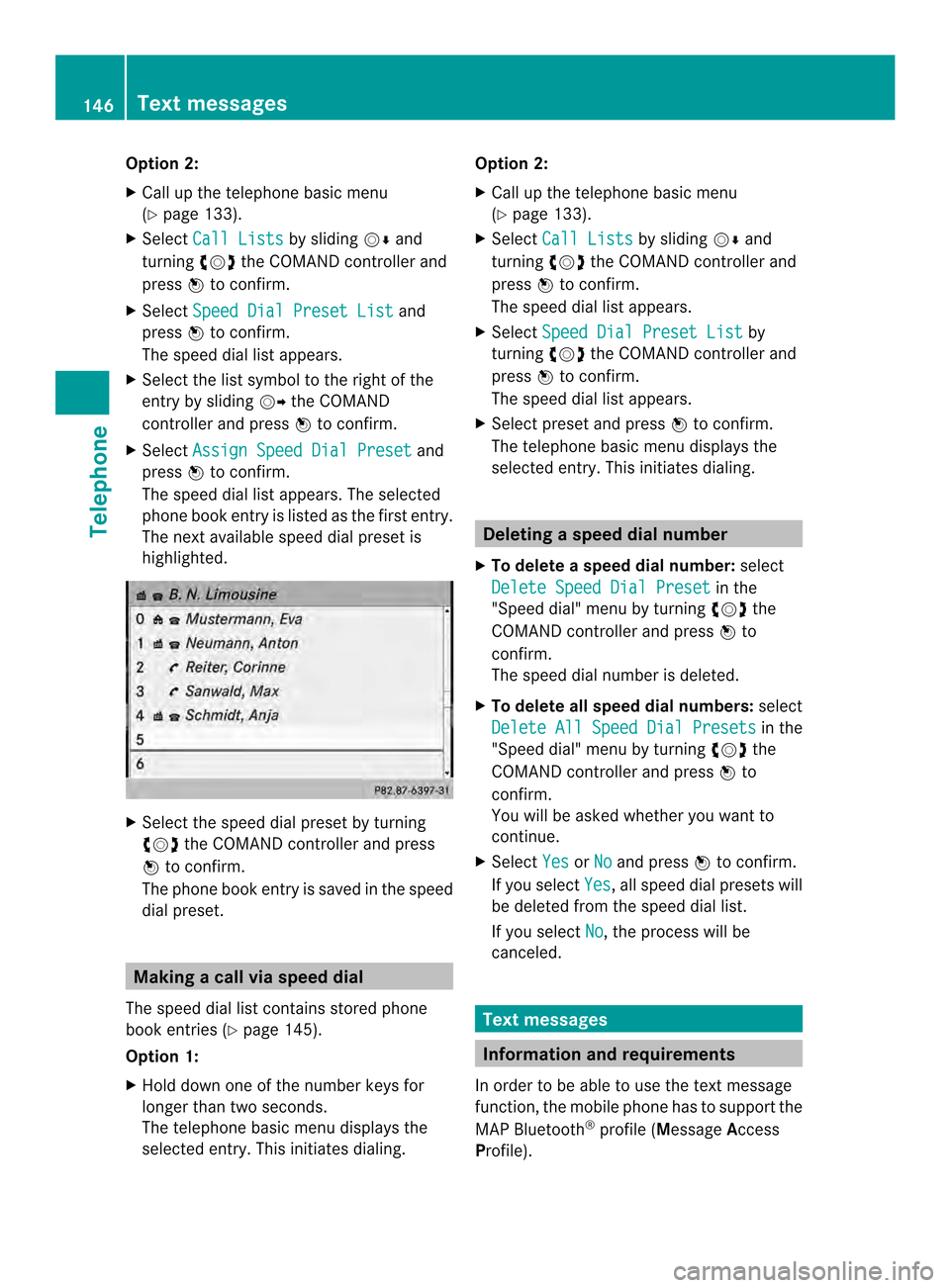
The speed dial list appears. The selected
phone book entry is listed as the first entry.
The nexta vailable speed dial prese tis
highlighted. X
Select the speed dial preset by turning
003C0012003D the COMAND controller and press
0037 to confirm.
The phone book entry is saved in the speed
dial preset. Making a call via speed dial
The speed dial list contains stored phone
book entries (Y page 145).
Option 1:
X Hold down one of the number keys for
longer than two seconds.
The telephone basic menu displays the
selected entry. This initiates dialing. Option 2:
X Call up the telephone basic menu
(Y page 133).
X Select Call Lists by sliding
00120008and
turning 003C0012003Dthe COMAND controller and
press 0037to confirm.
The speed dial list appears.
X Select Speed Dial Preset List by
turning 003C0012003Dthe COMAND controller and
press 0037to confirm.
The speed dial list appears.
X Select preset and press 0037to confirm.
The telephone basic menu displays the
selected entry. This initiates dialing. Deleting
aspee ddial number
X To delete a speed dial number: select
Delete Speed Dial Preset in the
"Speed dial" menu by turning 003C0012003Dthe
COMAN Dcontroller and press 0037to
confirm.
The speed dial number is deleted.
X To delete all speed dial numbers: select
Delete All Speed Dial Presets in the
"Speed dial" menu by turning 003C0012003Dthe
COMAND controller and press 0037to
confirm.
You will be asked whether you want to
continue.
X Select Yes or
No and press
0037to confirm.
If you select Yes , all speed dial presets will
be deleted from the speed dial list.
If you select No , the process will be
canceled. Text messages
Information and requirements
In order to be able to use the text message
function, the mobile phone has to support the
MAP Bluetooth ®
profile (Message Access
Profile). 146
Text messagesTelephone
Page 154 of 274
Showing the details of an address book
entry
X
Select the list symbol to the right of the
entry by sliding 00120035the COMAND
controller and press 0037to confirm.
X Select Details and press
0037to confirm.
The display is shown in full.
X To close the detailed display: press the
001E back button.
Changing an address book entry X
Option 1: search for an address book entry
(Y page 140).
X Make a selection in the selection list by
turning 003C0012003Dthe COMAND controller.
X Select the list symbol to the right of the
entry by sliding 00120035the COMAND
controller and press 0037to confirm.
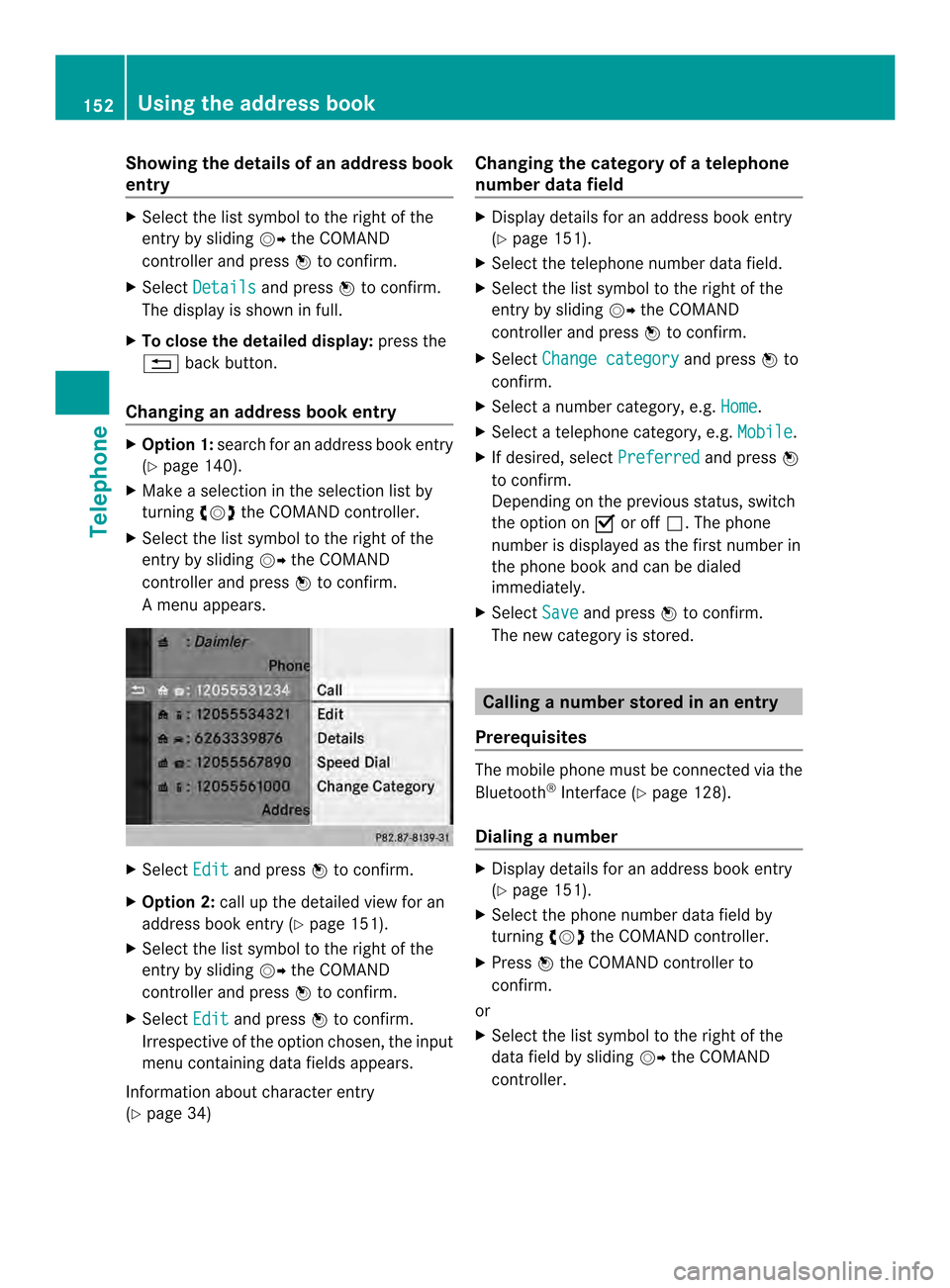
Am enu appears. X
Select Edit and press
0037to confirm.
X Option 2: call up the detailed view for an
address book entry (Y page 151).
X Select the list symbol to the right of the
entry by sliding 00120035the COMAND
controller and press 0037to confirm.
X Select Edit and press
0037to confirm.
Irrespective of the option chosen, the input
menu containing data fields appears.
Information about character entry
(Y page 34) Changing the category of a telephone
number data field X
Display details for an address book entry
(Y page 151).
X Select the telephone number data field.
X Select the list symbol to the right of the
entry by sliding 00120035the COMAND
controller and press 0037to confirm.
X Select Change category and press
0037to
confirm.
X Select a number category, e.g. Home .
X Select a telephone category, e.g. Mobile .
X If desired, select Preferred and press
0037
to confirm.
Depending on the previous status, switch
the option on 0010or off 0003.The phone
number is displayed as the first number in
the phone book and can be dialed
immediately.
X Select Save and press
0037to confirm.
The new category is stored. Calling
anumber stored in an entry
Prerequisites The mobile phone must be connected via the
Bluetooth
®
Interface ( Ypage 128).
Dialing anumber X
Display details for an address book entry
(Y page 151).
X Select the phone numbe rdata field by
turning 003C0012003Dthe COMAND controller.
X Press 0037the COMAND controller to
confirm.
or
X Select the list symbol to the righ tofthe
data field by sliding 00120035the COMAND
controller. 152
Using the address bookTelephone
Page 156 of 274
X
Select Voice Name and press
0037to
confirm.
X Select Add or
Change and press
0037to
confirm.
Subsequent operation is voice-controlled.
The Voice Control System guides you
through the dialogs.
Deleting avoice tag X
Search for an address book entry with a
voice tag (Y page 150).
X Select the list symbol to the righ tofthe
entry by sliding 00120035the COMAND
controller and press 0037to confirm.
X Select Voice Name and press
0037to
confirm.
X Select Delete and press
0037to confirm.
Ad eletion prompt appears.
X Select Yes or
No and press the
0016button
to confirm.
If you select Yes , COMAND deletes the
voice tag.
If you select No , the process will be
canceled.
Listening to avoice tag X
Search for an address book entry with a
voice tag (Y page 150).
X Select the list symbol to the righ tofthe
entry by sliding 00120035the COMAND
controller and press 0037to confirm.
X Select Voice Name and press
0037to
confirm.
X Select Listen and press
0037to confirm.
You hear the voice tag. Importing phone book entries
This function allows you to store phone book
entries from the mobile phone in the address
book. The following can be used as a source:
R
the mobile phone
R the memory card
R the USB device
R the Bluetooth ®
Interface
Imported phone book entries are indicated in
the phone book by different symbols
(Y page 139).
X Search for an entry in the phone book on
the mobile phone 000C(Ypage 140).
X Select the list symbol to the right of the
entry by sliding 00120035the COMAND
controller and press 0037to confirm.
X Select Save Entry and press
0037to
confirm.
The Data saved. message appears. The
phone book entry is now saved as an
address book entry.
The 000Csymbol is replaced by the ¥
symbol. Importing contacts
Information and requirements You can import contacts (vCards) from the
memory card and a USB device into the
address book, or receive vCards via
Bluetooth
®
.
i Up to 2500 entries can be imported into
the address book. Amessage notifies you
when the maximum number is reached.
You then have to delete existing entries in
order to import new entries (Y page 151).
Depending on the source of the contact data,
differen trequirements apply: 154
Using the address bookTelephone
Page 157 of 274

Source Prerequisites
Memory card The SD memory card is
inserted (Y
page 197). It
contains importable
contact details. USB device The USB device is inserted
into the USB port
(Y
page 197). It contains
importable contact details. Requirements for receiving vCards via
Bluetooth ®
You can receive vCards from devices (e.g.
from a PC) that support the sending of vCards
via Bluetooth ®
.
It is not necessary to authorize the device in
COMAND to do so.
Please bear the following in mind:
R Bluetooth ®
must be activated in COMAND
and on the Bluetooth ®
device, see the
operating instructions for the device.
R the Bluetooth ®
device must be able to send
vCards via Bluetooth ®
(see operating
instructions for the device).
R the Bluetooth ®
device in the vehicle must
be switched on.
Importing from the memory card or USB
device Entries imported from the memory card or
from a USB device have the 0004symbol.
The following conditions must be fulfilled in
order to import vCards:
R vCards (vcf files) may be located in the main
directory or in folders. COMAND allows you
to select the relevant folders directly.
R vCards must have the file extension ".vcf".
i One vcf file may contain several vCards.
COMAND supports vCards in versions 2.1
and 3.0.
X Select Address Book in the address book
or, if the telephone basic menu is shown, select
Phone by sliding
00120008and turning
003C0012003D the COMAND controller and press
0037 to confirm.
X Select Download Contacts and press
0037
to confirm.
Am enu appears.
X Select From The Memory Card or
From USB device in the menu by turning
003C0012003D
the COMAND controller and press 0037to
confirm.
X Select Add or
Overwrite and press
0037to
confirm.
Add imports the entries from the memory
card or USB device into the address book.
Overwrite imports the entries from the
memory card or USB device and overwrites
all entries in the address book with the
0004 symbol. The previous entries are then
no longer available.
After the contact data has been imported
successfully, you will see amessage to this
effect. The address book or the respective
telephone basic menu is displayed.
i You can select Overwrite if the address
book already contains corresponding
entries. Amessage notifies you when the
address book is full.
Receiving vCards via Bluetooth ® X
Select Address Book in the address book
or, if the telephone basic menu is shown,
select Phone by sliding
00120008and turning Using the address book
155Telephone Z
Page 158 of 274

003C0012003D
the COMAND controller and press
0037 to confirm.
Am enu appears.
X Select Download Contacts and press
0037
to confirm.
X Select Receive Contacts From Phone in
the menu by turning 003C0012003Dthe COMAND
controller and press 0037to confirm.
This interrupts the Bluetooth ®
connection
between COMAND and your active mobile
phone. COMAND is, however, ready to
receive vCards from another Bluetooth ®
device (PC, mobile phone).
X Start the data transfer on the external
Bluetooth ®
device (see the operating
instructions for the device).
The number of vCards received is
displayed.
X To end reception: press0037or the 001E
back button.
COMAND then reconnects to the mobile
phone.
Received vCards are identified by the 000A
symbol in the address book.
i If you switch to another main function,
e.g. navigation, while receiving vCards, the
reception of vCards will be terminated.
Deleting contacts X
Select Address Book in the address book
or, if the telephone basic menu is shown,
select Phone by sliding
00120008and turning
003C0012003D the COMAND controller and press
0037 to confirm.
Am enu appears.
X Select Delete Contacts and press
0037to
confirm.
X Select one of the following options:
R
Internal Contacts R
Contacts From Storage Device R
Received Business Cards R
Delete All Ap
rompt corresponding to yours election
appears.
X Select Yes or
No and press
0037to confirm.
If you select Yes , the contacts are deleted
according to your selection.
If you select No , the process will be
canceled.
Switching importing of contacts on/off You can choose whether contacts are
automatically downloaded when a mobile
phone is connected to COMAND, or whether
the automatic download is suppressed.
Connecting a mobile phone (Y
page 128)
X Select Phone in the telephone basic menu
by sliding 00120008and turning 003C0012003Dthe
COMAND controller and press 0037to
confirm.
Am enu appears.
X Select Import Contacts from
0037to confirm.
You can allow 0010or suppress 0003the
automatic download. 156
Using the address bookTelephone
Page 185 of 274
Your COMAND equipment
................184
Radio mode ........................................ 184
Satellite radio .................................... 188
CD/audio DVD and MP3 mode ........193
Music search ..................................... 206
MUSIC REGISTER .............................. 209
Bluetooth ®
audio mode .................... 213
Operation with the Media Interface 219
Audio AUX mode ............................... 225 183Audio
Page 199 of 274
further information at any authorized
Mercedes-Benz Center.
Insert an SD memory card X
Insert the memory card into the slot on the
control panel until it engages in place. The
side with the contacts must face
downwards and point towards the slot.
If no MP3 tracks can be found, you will see
a message to this effect.
The first 100 MP3 tracks are loaded. The
first MP3 track is then played. Further
tracks are loaded in the background; this is
indicated by an hourglass symbol.
Ejecting an SD memory card X
Press the memory card.
The memory card is ejected.
X Remove the memory card from slot. Connecting
aUSB device
The USB port is located in the stowage
compartment in the center console.
Electrical consumption at this connection
must not exceed a continuous current of
500 mA. If the electrical consumption is
higher, use a separate source to provide
power for the USB device (e.g.
12 Vp ower supply).
X Connect the USB device (e.g. USB stick)to
the USB port.
If no MP 3tracks can be found, you will see
a message to this effect.
The first 100 MP3 tracks are loaded. The
first MP3 track is then played. Further
tracks are loaded in the background; this is
indicated by an hourglass symbol.
i Due to the wide range of USB devices
available on the market, playback cannot
be guaranteed for all brands of USB device.
Information about suitable USB devices
can be obtained from an authorized
Mercedes-Benz Center. MP3 players must support Media Transfer
Protocol (MTP). The MTP mode must be
active. Switching to audio CD/DVD or MP3
mode
Inserting or connecting amedium X
Insert CDs/DVD s(Ypage 194)
or
X Insert an SD memory card (Y page 197)
or
X Connect a USB device (Y page 197).
COMAND loads the medium inserted and
starts to play it.
Switching modes using the function
button X
Press the 0007function button one or more
times.
By pressing the function button repeatedly,
you can change the operating mode in the
following order:
R CD/audio DVD/video DVD/MP3 CD/MP3
DVD in the DVD changer or single DVD
drive (disc mode)
R Memory card mode
R MUSIC REGISTER
R USB storage device
R Media Interface or audio AUX mode
R Bluetooth ®
audio mode
X Select an audio medium from the media list
(Y page 199).
Switching modes via the audio menu X
Select Audio in the main function bar by
sliding 00360012and turning 003C0012003Dthe COMAND
controller and press 0037to confirm.
The last active audio source is now
activated.
You can activate a differen taudio source
using the audio menu. CD/audio DVD and MP3 mode
197Audio Z