lock MERCEDES-BENZ CL COUPE 2009 Owners Manual
[x] Cancel search | Manufacturer: MERCEDES-BENZ, Model Year: 2009, Model line: CL COUPE, Model: MERCEDES-BENZ CL COUPE 2009Pages: 421, PDF Size: 10.78 MB
Page 94 of 421
transmitting it and if the reception condi-
tions are adequate.
X Select VideoQTV.
X Display the menu system if necessary
(Y page 90).
X Select TVQ Channel list.
The station list appears.
It is sorted alphabetically and contains:
R analogue TV channels (all standards)
R digital TV channels (DVB-T standard)
R digital radio stations (DVB-T standard)
The #dot in front of a list entry indicates
the currently selected channel. A number
in front of the list entry indicates the preset
position in the channel preset memory.
Selecting channels by entering the
channel and programme number i
Several programmes can be transmitted
on one channel with digital TV. You can
therefore enter a channel and the desired
programme on this channel. Only one pro-
gramme can be sent on a channel with ana-
logue TV. The programme entry function
therefore has no effect.
X Select VideoQTV.
X Display the menu system if necessary
(Y page 90).
X Select TVQ Channel entry.
X Select a number to enter the channel or
programme.
X To select a higher or lower number: slide
ZV Æor turn cVd.
X To select the next number: slideXVY.
X To confirm the entry: pressW.
i The TV tuner always sets the channel and
the programme that you have entered.
Therefore, you can also set channels and programmes that cannot currently be
received. Storing TV channels
There are twenty preset positions.
Storing channels manually Calling up the preset memory display and
selecting a preset
X
Select VideoQTV.
X Display the menu system if necessary
(Y page 90).
X Select TVQ Save channel.
or
X Select Presets.
Both of these will bring up a selection list.
The #dot in front of a preset position
indicates that the currently selected chan-
nel is stored there.
X To select a preset position: slideZVÆor
turn cVd.
Storing the channel to the selected preset
position
X If you have called up the channel preset
display via the Save channel menu item,
press Wbriefly.
or
X If you have called up the channel preset
display via the Presetsmenu item, press
and hold Wuntil a tone sounds.
The channel is stored.
Storing using Autostore This function automatically stores channels
which can be received in order of their recep-
tion quality. Any channels stored manually in
the preset memory will be lost.
X
Select VideoQTV.
X Display the menu system if necessary
(Y page 90). TV*
91COMAND
* optional
216_AKB; 2; 3, en-GB
bjanott,
Version: 2.11.7.7 2009-02-27T14:54:17+01:00 - Seite 91 Z
Dateiname: 6515230602_buchblock.pdf; erzeugt am 04. Mar 2009 11:15:02; WK
Page 95 of 421
X
Select Presets QAutostore .
or
X Select TVQ Save channel QAutos‐
tore.
COMAND searches for channels. The avail-
able channels are automatically stored in
the preset positions. Information about the current pro-
gramme
i This function is only available on digital TV
channels.
X Select VideoQTV.
X Display the menu system if necessary
(Y page 90).
X Select Info.
If the service is provided by the current TV
channel, you will see a field containing
information about the programme.
i It may take a few seconds for the infor-
mation to appear.
X To scroll the display: slideZVÆ or turn
cVd . Displaying the current programme or
programme preview
i This function is only available on digital TV
channels.
X Select VideoQTV.
X Display the menu system if necessary
(Y page 90).
X Select TVQ Channel list.
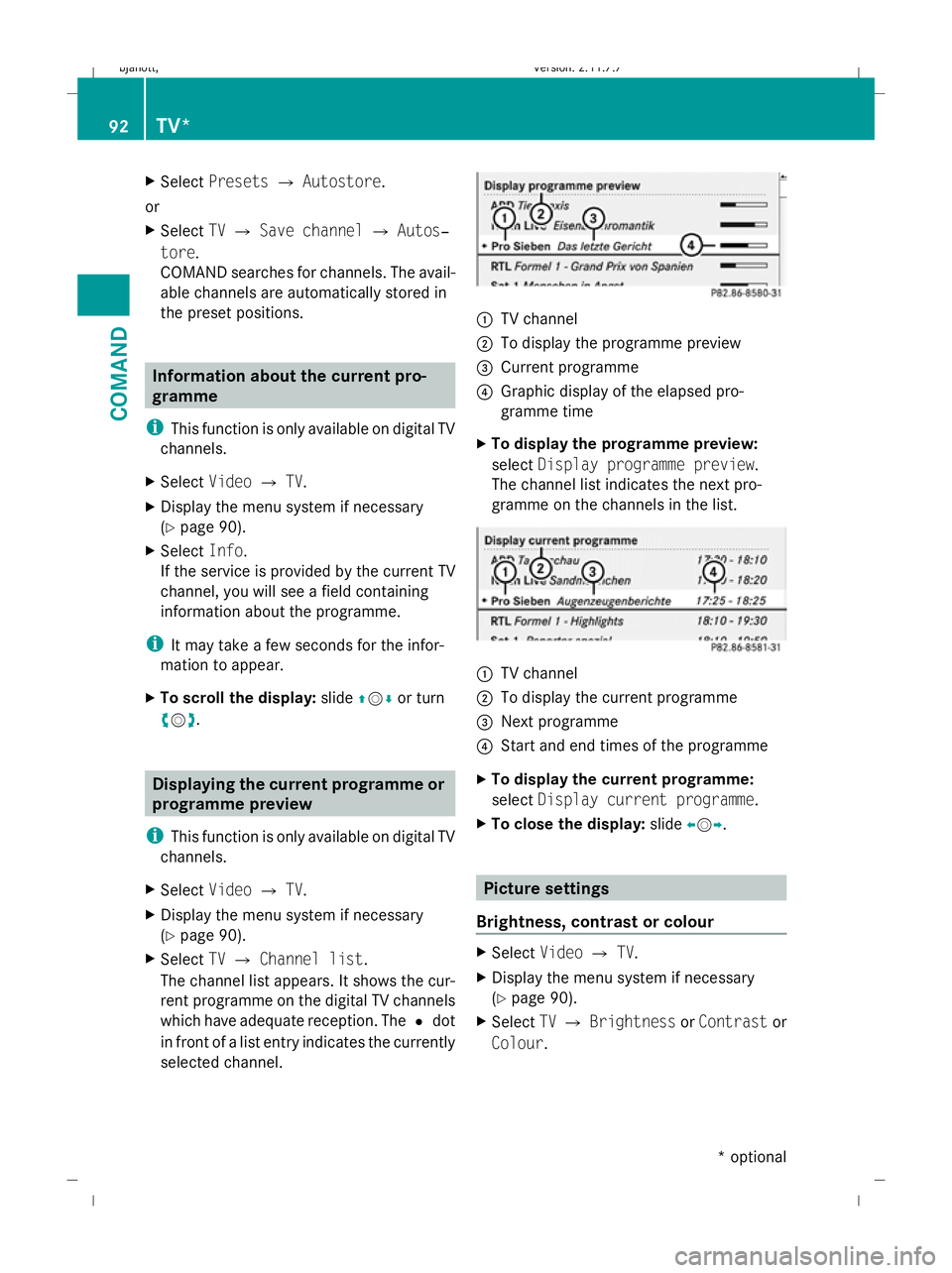
The channel list appears. It shows the cur-
rent programme on the digital TV channels
which have adequate reception. The #dot
in front of a list entry indicates the currently
selected channel. :
TV channel
; To display the programme preview
= Current programme
? Graphic display of the elapsed pro-
gramme time
X To display the programme preview:
select Display programme preview.
The channel list indicates the next pro-
gramme on the channels in the list. :
TV channel
; To display the current programme
= Next programme
? Start and end times of the programme
X To display the current programme:
select Display current programme .
X To close the display: slideXVY. Picture settings
Brightness, contrast or colour X
Select VideoQTV.
X Display the menu system if necessary
(Y page 90).
X Select TVQ Brightness orContrast or
Colour . 92
TV*COMAND
* optional
216_AKB; 2; 3, en-GB
bjanott,
Version: 2.11.7.7 2009-02-27T14:54:17+01:00 - Seite 92
Dateiname: 6515230602_buchblock.pdf; erzeugt am 04. Mar 2009 11:15:03; WK
Page 96 of 421
X
To change the setting: slideZVÆ or turn
cVd until the desired setting is reached.
X To save the setting: pressW.
Changing the picture format X
Select VideoQTV.
X Display the menu system if necessary
(Y page 90).
X Select TV.
The TV menu appears. The #dot in front
of the Auto,16:9 optimised ,4:3 or
Widescreen menu item indicates the for-
mat currently set.
If you have switched Autooff, you can only
switch between the 16:9 and 4:3 formats.
X To change the format: slideZVÆ or turn
cVd until the desired format is selected.
X To save the format: pressW. Basic TV settings
Fixing the frequency The TV tuner may automatically switch to an
alternative channel with the same pro-
gramme content but better reception,
depending on reception quality. You can use
Channel fix to prevent this channel switch-
ing. This is useful, for example, when there is
a noticeable time offset between the frequen-
cies or if there is interference on a frequency.
X Select VideoQTV.
X Display the menu system if necessary
(Y page 90).
X Select TVQ Channel fix .
You have switched the function on or off. A
tick appears next to Channel fixwhen
the function is switched on. You will also
see the FIXdisplay in the main area.
X To exit the menu: slideXVY. Setting the reception region The correct reception region setting ensures
that analogue TV channels can be received
with the usual quality and functionality.
COMAND is set to the correct reception
region at the factory. If you are driving your
vehicle in a different country or region, you
should set COMAND accordingly. A
Mercedes-Benz Service Centre can help you
to select the correct reception region if nec-
essary.
X
Select VideoQTV.
X Display the menu system if necessary
(Y page 90).
X Select TVQ TV standard.
The reception region list appears. The #
dot in front of a list entry indicates the cur-
rently selected country.
X To select the reception region: slide
ZVÆ or turn cVduntil the desired region
is selected.
X To save the selection: pressW.
A message appears to inform you that if the
wrong country is set, correct reception will
not be possible.
X Select YesorNo.
If you select Yes, COMAND will switch to
the country setting you have selected.
If you select No, the country list will appear
again. Teletext
Switching teletext on or off i
Teletext can only be received if there is no
interference in the picture reception. The
teletext function receives all teletext
pages, with the exception of subpages, for
the channel currently set and saves them
in the system memory. When you set a dif-
ferent channel, the memory is cleared and
refilled. TV*
93COMAND
* optional
216_AKB; 2; 3, en-GB
bjanott,
Version: 2.11.7.7 2009-02-27T14:54:17+01:00 - Seite 93 Z
Dateiname: 6515230602_buchblock.pdf; erzeugt am 04. Mar 2009 11:15:03; WK
Page 97 of 421
X
Select VideoQTV.
X Display the menu system if necessary
(Y page 90).
X To switch on: selectTeletext.
X To switch off: press the%back button.
Selecting a teletext page X
To enter a page number directly: select
a number button.
X To select a higher or lower number: slide
ZVÆ or turn cVd.
Dynamic teletext page A dynamic teletext page consists of several
subpages. The display automatically changes
to the next page after a certain time. MUSIC REGISTER*
i This function is available if COMAND is
equipped with an integrated hard disk.
You can store music files in MP3 or WMA for-
mat in the MUSIC REGISTER. The memory has
a capacity of approximately 7 GB.
! Retain the original music files in a secure
location. An error in COMAND might result
in the loss of the music files stored in the
MUSIC REGISTER. Mercedes-Benz is not
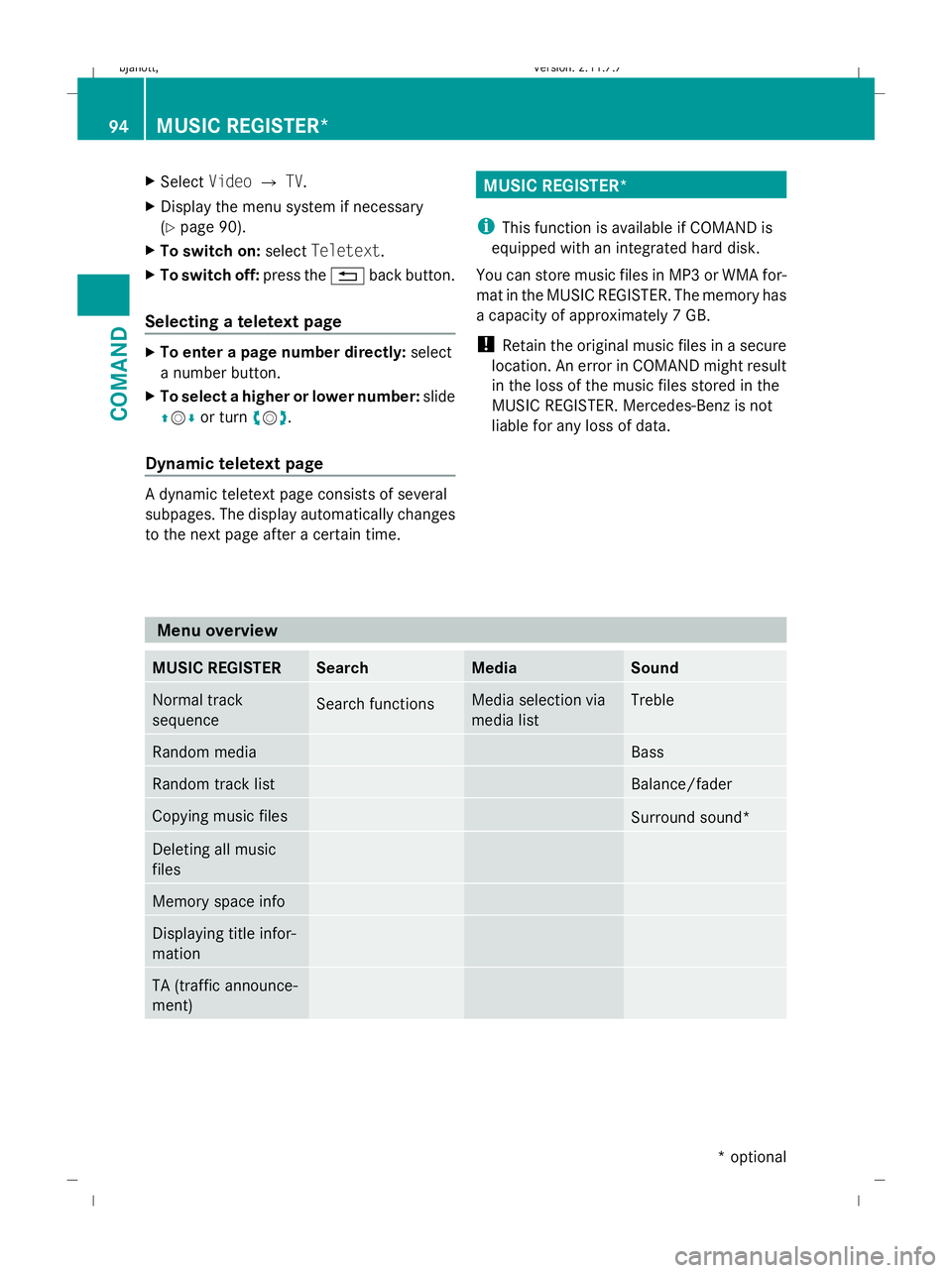
liable for any loss of data. Menu overview
MUSIC REGISTER Search Media Sound
Normal track
sequence
Search functions Media selection via
media list Treble
Random media Bass
Random track list Balance/fader
Copying music files
Surround sound*
Deleting all music
files
Memory space info
Displaying title infor-
mation
TA (traffic announce-
ment)94
MUSIC REGISTER*COMAND
* optional
216_AKB; 2; 3, en-GB
bjanott,
Version: 2.11.7.7 2009-02-27T14:54:17+01:00 - Seite 94
Dateiname: 6515230602_buchblock.pdf; erzeugt am 04. Mar 2009 11:15:03; WK
Page 98 of 421
Switching to the MUSIC REGISTER
From another main mode X
Select Audio.
The system changes to the last active audio
mode.
X Select Audioagain.
The Audio menu appears.
X Select MUSIC REGISTER.
i IfMusic Register was the last mode,
you only need to select Audio.
From audio mode X
Select Audio.
The Audio menu appears.
X Select MUSIC REGISTER.
MUSIC REGISTER is loaded. The MUSIC
REGISTER display appears.
There are no music files:
You see a message to this effect.
X You first need to copy music files to the
MUSIC REGISTER (Y page 95).
There are music files:
You hear the first track in the first folder, or
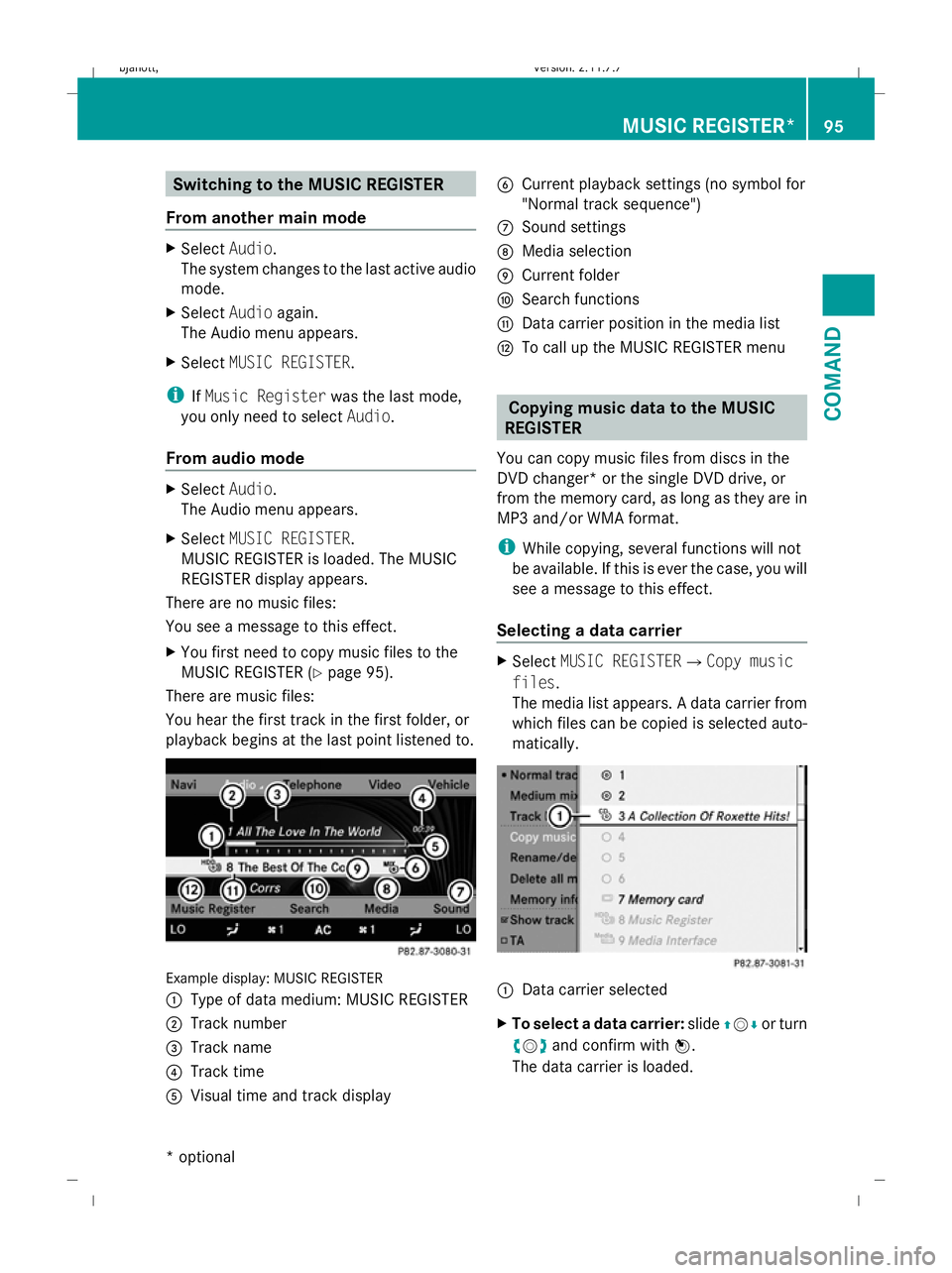
playback begins at the last point listened to. Example display: MUSIC REGISTER
:
Type of data medium: MUSIC REGISTER
; Track number
= Track name
? Track time
A Visual time and track display B
Current playback settings (no symbol for
"Normal track sequence")
C Sound settings
D Media selection
E Current folder
F Search functions
G Data carrier position in the media list
H To call up the MUSIC REGISTER menu Copying music data to the MUSIC
REGISTER
You can copy music files from discs in the
DVD changer* or the single DVD drive, or
from the memory card, as long as they are in
MP3 and/or WMA format.
i While copying, several functions will not
be available. If this is ever the case, you will
see a message to this effect.
Selecting a data carrier X
Select MUSIC REGISTERQCopy music
files.
The media list appears. A data carrier from
which files can be copied is selected auto-
matically. :
Data carrier selected
X To select a data carrier: slideZVÆ or turn
cVd and confirm with W.
The data carrier is loaded. MUSIC REGISTER*
95COMAND
* optional
216_AKB; 2; 3, en-GB
bjanott,
Version: 2.11.7.7 2009-02-27T14:54:17+01:00 - Seite 95 Z
Dateiname: 6515230602_buchblock.pdf; erzeugt am 04. Mar 2009 11:15:03; WK
Page 99 of 421
Selecting music files
X
Select All music files.
This function copies all music files on the
selected data carrier. The symbol in front
of All music files is filled in.
X Select Next.
The copying menu appears.
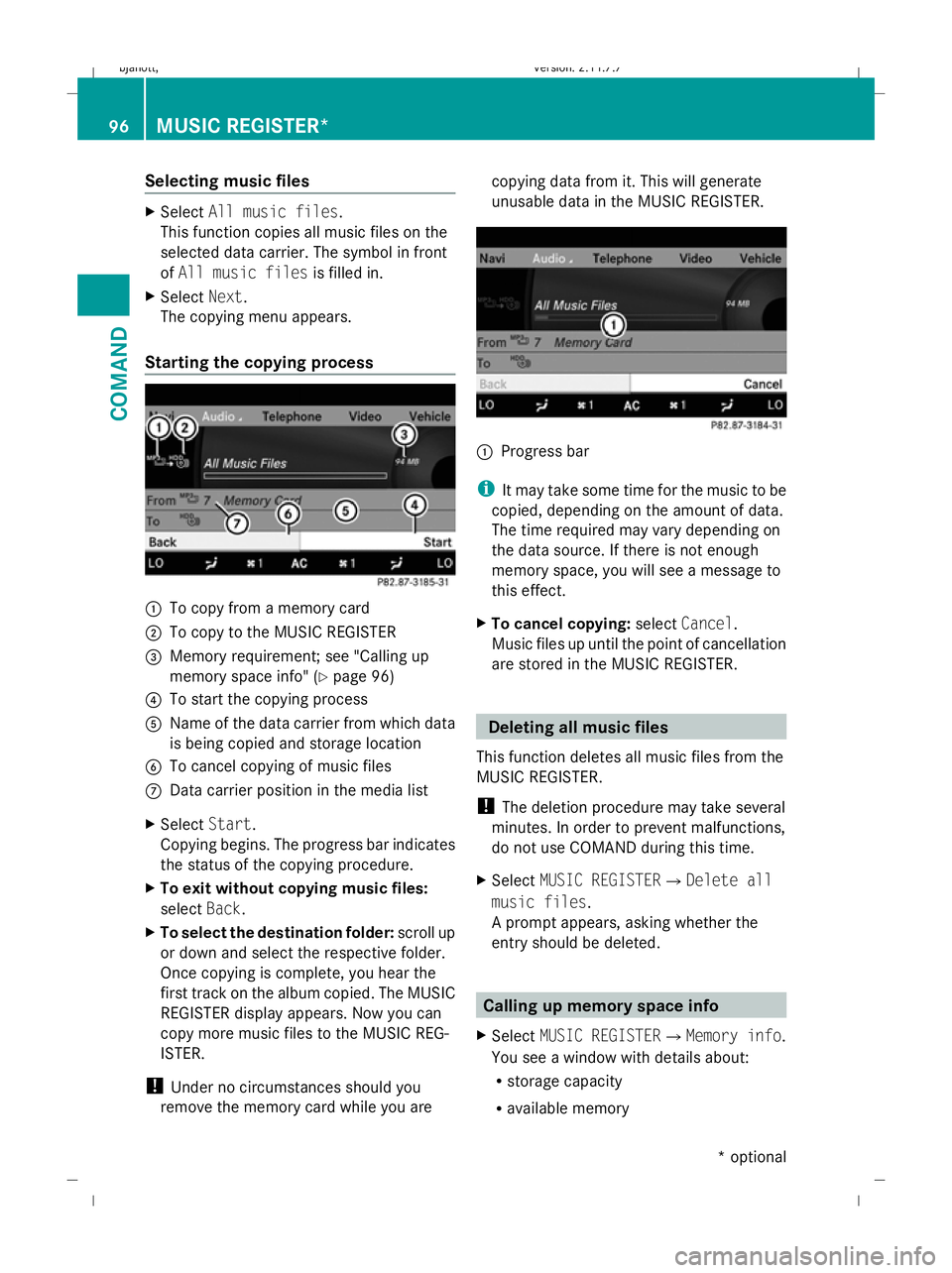
Starting the copying process :
To copy from a memory card
; To copy to the MUSIC REGISTER
= Memory requirement; see "Calling up
memory space info" (Y page 96)
? To start the copying process
A Name of the data carrier from which data
is being copied and storage location
B To cancel copying of music files
C Data carrier position in the media list
X Select Start.
Copying begins. The progress bar indicates
the status of the copying procedure.
X To exit without copying music files:
select Back.
X To select the destination folder: scroll up
or down and select the respective folder.
Once copying is complete, you hear the
first track on the album copied. The MUSIC
REGISTER display appears. Now you can
copy more music files to the MUSIC REG-
ISTER.
! Under no circumstances should you
remove the memory card while you are copying data from it. This will generate
unusable data in the MUSIC REGISTER.
:
Progress bar
i It may take some time for the music to be
copied, depending on the amount of data.
The time required may vary depending on
the data source. If there is not enough
memory space, you will see a message to
this effect.
X To cancel copying: selectCancel.
Music files up until the point of cancellation
are stored in the MUSIC REGISTER. Deleting all music files
This function deletes all music files from the
MUSIC REGISTER.
! The deletion procedure may take several
minutes. In order to prevent malfunctions,
do not use COMAND during this time.
X Select MUSIC REGISTERQDelete all
music files.
A prompt appears, asking whether the
entry should be deleted. Calling up memory space info
X Select MUSIC REGISTERQMemory info.
You see a window with details about:
R storage capacity
R available memory 96
MUSIC REGISTER*COMAND
* optional
216_AKB; 2; 3, en-GB
bjanott,
Version: 2.11.7.7 2009-02-27T14:54:17+01:00 - Seite 96
Dateiname: 6515230602_buchblock.pdf; erzeugt am 04. Mar 2009 11:15:04; WK
Page 100 of 421
R
occupied memory
R content (folders, tracks) Folder functions
You can view the MUSIC REGISTER contents,
modify data and delete it.
Calling up the MUSIC REGISTER X
Select Rename/delete files.
or
X Press Wwhen the display/selection win-
dow is active.
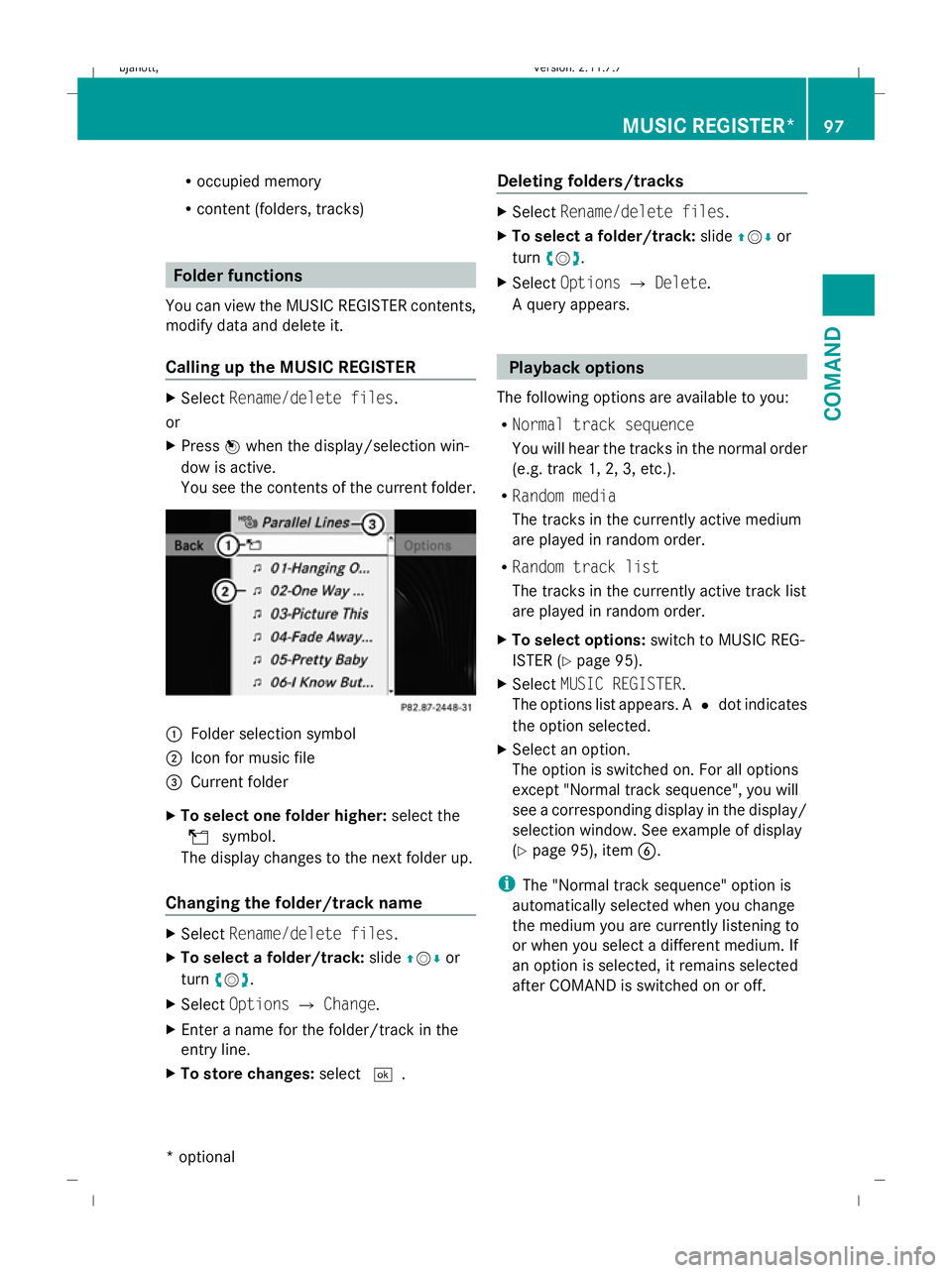
You see the contents of the current folder. :
Folder selection symbol
; Icon for music file
= Current folder
X To select one folder higher: select the
U symbol.
The display changes to the next folder up.
Changing the folder/track name X
Select Rename/delete files.
X To select a folder/track: slideZVÆ or
turn cVd.
X Select Options QChange.
X Enter a name for the folder/track in the
entry line.
X To store changes: select¬. Deleting folders/tracks X
Select Rename/delete files.
X To select a folder/track: slideZVÆ or
turn cVd.
X Select Options QDelete.
A query appears. Playback options
The following options are available to you:
R Normal track sequence
You will hear the tracks in the normal order
(e.g. track 1, 2, 3, etc.).
R Random media
The tracks in the currently active medium
are played in random order.
R Random track list
The tracks in the currently active track list
are played in random order.
X To select options: switch to MUSIC REG-
ISTER (Y page 95).
X Select MUSIC REGISTER.
The options list appears. A #dot indicates
the option selected.
X Select an option.
The option is switched on. For all options
except "Normal track sequence", you will
see a corresponding display in the display/
selection window. See example of display
(Y page 95), item B.
i The "Normal track sequence" option is
automatically selected when you change
the medium you are currently listening to
or when you select a different medium. If
an option is selected, it remains selected
after COMAND is switched on or off. MUSIC REGISTER*
97COMAND
* optional
216_AKB; 2; 3, en-GB
bjanott,
Version: 2.11.7.7 2009-02-27T14:54:17+01:00 - Seite 97 Z
Dateiname: 6515230602_buchblock.pdf; erzeugt am 04. Mar 2009 11:15:04; WK
Page 101 of 421
Media Interface* mode
Information on operating with Media
Interface
Connection options i
Stow the equipment in a secure location.
Use only genuine Mercedes-Benz connect-
ing cables.
You can connect the following data carriers
to COMAND via the Media Interface:
R iPod ®9
R USB devices
For more details and a comprehensive list of
supported devices, please contact a
Mercedes-Benz Service Centre or visit
http://www.mercedes-benz.com/connect
and proceed as described under "Media Inter-
face".
Supported iPod ®
variants
The following are examples of supported
iPod ®
variants:
R iPod ®
mini
R iPod ®
nano
R iPod ®
classic
R iPod ®
touch
Supported USB devices
The following USB devices are supported:
R USB sticks (flash memory)
R USB hard drives (1-inch, 1.8-inch and 2.5-
inch drives) with a starting/continuous cur-
rent of up to 800 mA (a separate power
supply may be necessary)
R certain MP3 players
i The Media Interface supports USB stor-
age media of USB Device Subclass 6. Infor-
mation concerning USB Device Subclass 6 is available from the equipment manufac-
turer.
Supported data formats (USB devices) The following data types are supported:
R
MP3: CBR, VBR (up to 320 kbit/s)
R WMA: CBR, VBR (up to 320 kbit/s)
Notes on USB devices
R Avoid storing data other than music data on
the USB device so that the start-up time is
not extended unnecessarily.
R Up to eight directory levels with up to 1,000
tracks are supported.
R Do not use a USB extension cable or
adapter. These may impair functionality.
R A background search of the USB device is
performed and any playlists found are pro-
vided in a separate category in addition to
the folders. Initialisation of larger USB
mass storage devices containing a high
number of files can take up to several
minutes.
i Files protected with DRM (Digital Rights
Management) are not supported by the
Media Interface. Connecting external devices
Device-specific adapter cables are needed to
connect external equipment to the Media
Interface. These cables are included in the
Media Interface scope of delivery.
You will find the connection sockets in the
glove compartment.
Never connect more than one device at a
time. You will otherwise not be able to play
back from the external device. Please consult
a Mercedes-Benz Service Centre for further
information.
9 iPod ®
is a registered trademark of Apple Inc., Cupertino, California, USA. 98
Media Interface* modeCOMAND
* optional
216_AKB; 2; 3, en-GB
bjanott,
Version: 2.11.7.7 2009-02-27T14:54:17+01:00 - Seite 98
Dateiname: 6515230602_buchblock.pdf; erzeugt am 04. Mar 2009 11:15:04; WK
Page 102 of 421
i
Never leave external devices in the vehi-
cle as extreme temperatures (e.g. if sub-
jected to direct sunlight or at extremely low
outside temperatures) may prevent them
from functioning correctly (see separate
operating instructions of the respective
device). Mercedes-Benz does not take
responsibility for any damage to external
devices. :
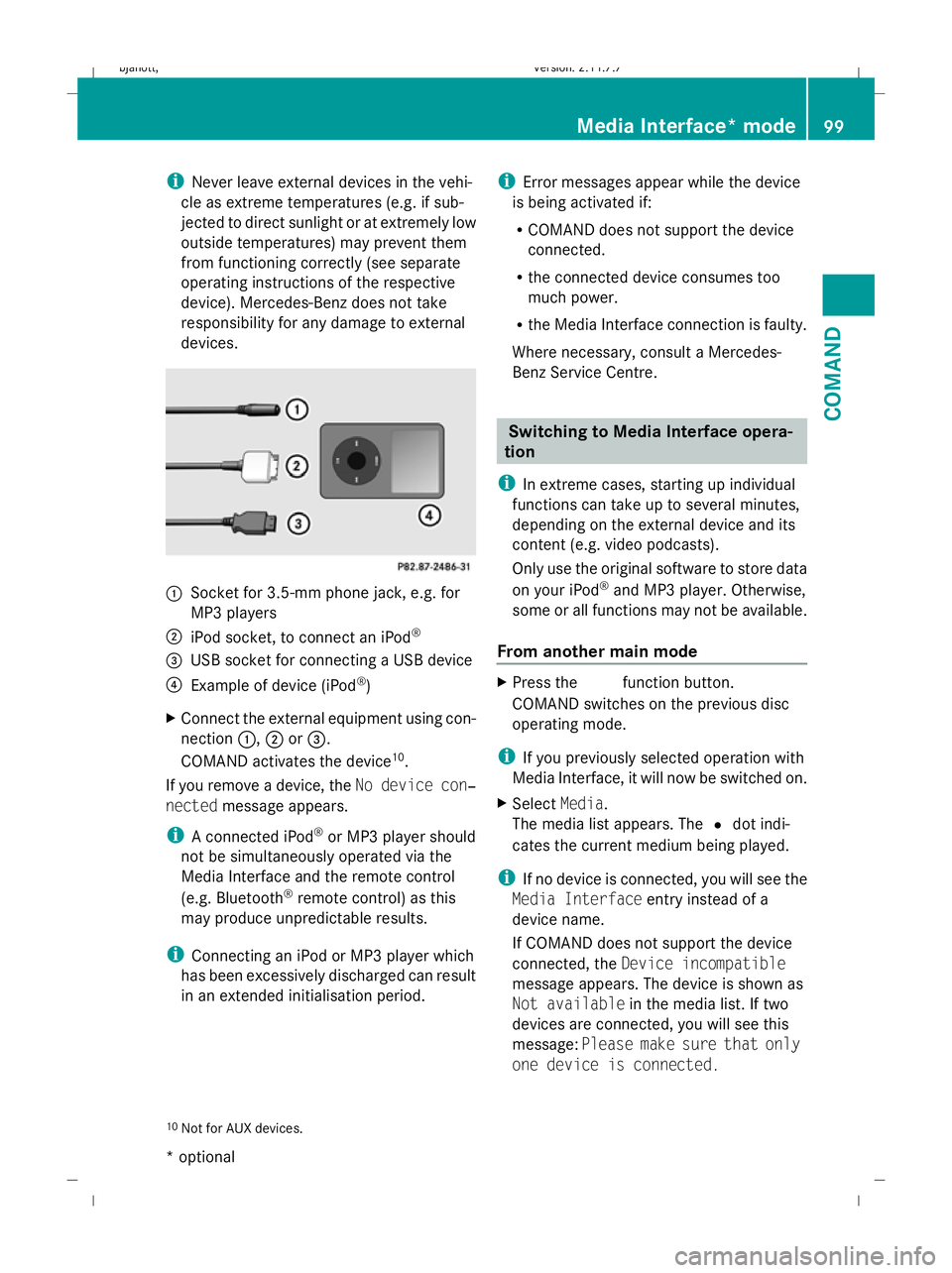
Socket for 3.5-mm phone jack, e.g. for
MP3 players
; iPod socket, to connect an iPod ®
= USB socket for connecting a USB device
? Example of device (iPod ®
)
X Connect the external equipment using con-
nection :,;or=.
COMAND activates the device 10
.
If you remove a device, the No device con‐
nected message appears.
i A connected iPod ®
or MP3 player should
not be simultaneously operated via the
Media Interface and the remote control
(e.g. Bluetooth ®
remote control) as this
may produce unpredictable results.
i Connecting an iPod or MP3 player which
has been excessively discharged can result
in an extended initialisation period. i
Error messages appear while the device
is being activated if:
R COMAND does not support the device
connected.
R the connected device consumes too
much power.
R the Media Interface connection is faulty.
Where necessary, consult a Mercedes-
Benz Service Centre. Switching to Media Interface opera-
tion
i In extreme cases, starting up individual
functions can take up to several minutes,
depending on the external device and its
content (e.g. video podcasts).
Only use the original software to store data
on your iPod ®
and MP3 player. Otherwise,
some or all functions may not be available.
From another main mode X
Press the Rfunction button.
COMAND switches on the previous disc
operating mode.
i If you previously selected operation with
Media Interface, it will now be switched on.
X Select Media.
The media list appears. The #dot indi-
cates the current medium being played.
i If no device is connected, you will see the
Media Interface entry instead of a
device name.
If COMAND does not support the device
connected, the Device incompatible
message appears. The device is shown as
Not available in the media list. If two
devices are connected, you will see this
message: Please make sure that only
one device is connected.
10 Not for AUX devices. Media Interface* mode
99COMAND
* optional
216_AKB; 2; 3, en-GB
bjanott,
Version: 2.11.7.7 2009-02-27T14:54:17+01:00 - Seite 99 Z
Dateiname: 6515230602_buchblock.pdf; erzeugt am 04. Mar 2009 11:15:04; WK
Page 103 of 421
X
Confirm your entry with W.
COMAND activates the connected device.
You will see a message to this effect. The
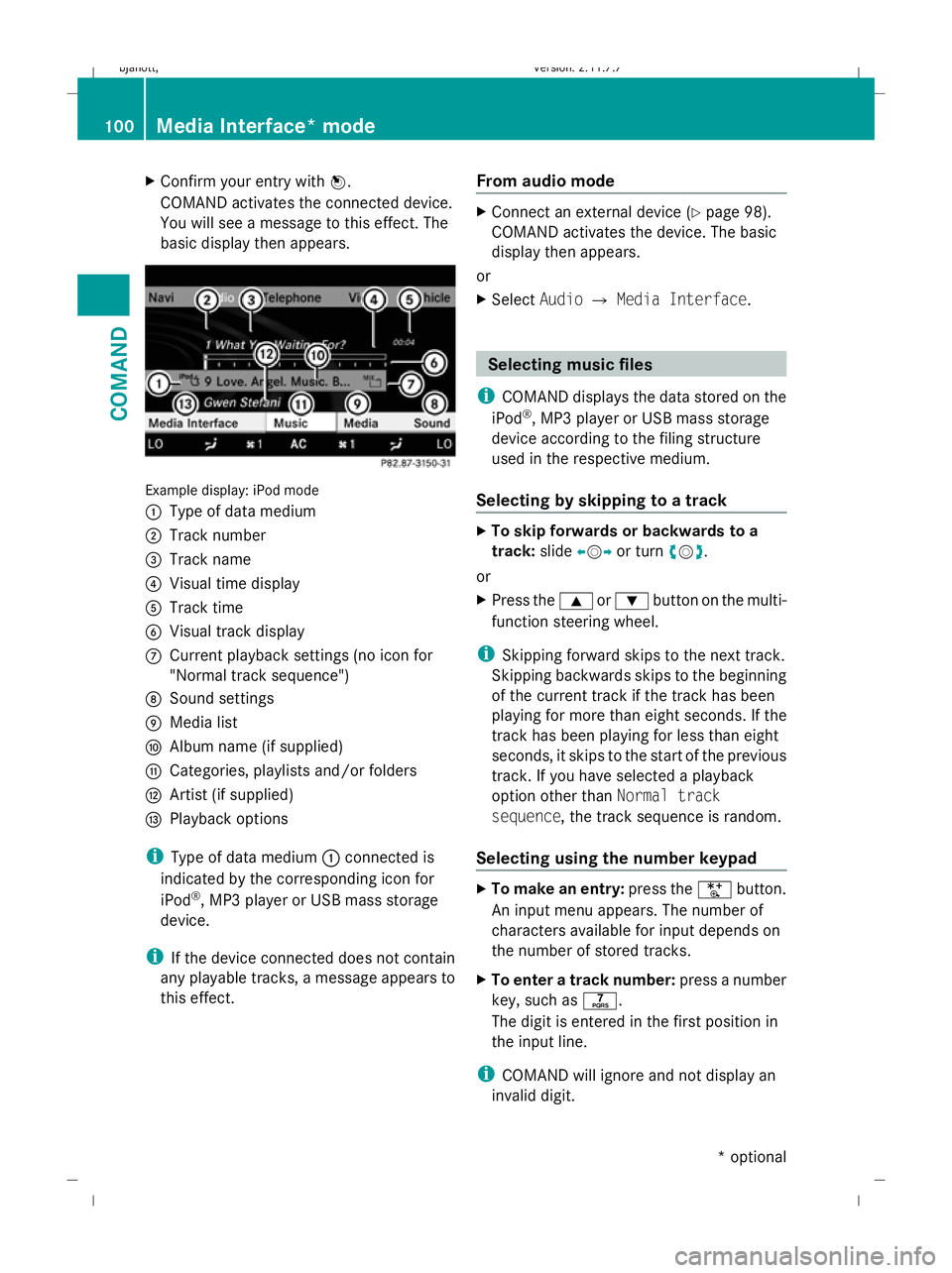
basic display then appears. Example display: iPod mode
:
Type of data medium
; Track number
= Track name
? Visual time display
A Track time
B Visual track display
C Current playback settings (no icon for
"Normal track sequence")
D Sound settings
E Media list
F Album name (if supplied)
G Categories, playlists and/or folders
H Artist (if supplied)
I Playback options
i Type of data medium :connected is
indicated by the corresponding icon for
iPod ®
, MP3 player or USB mass storage
device.
i If the device connected does not contain
any playable tracks, a message appears to
this effect. From audio mode X
Connect an external device (Y page 98).
COMAND activates the device. The basic
display then appears.
or
X Select AudioQMedia Interface . Selecting
music files
i COMAND displays the data stored on the
iPod ®
, MP3 player or USB mass storage
device according to the filing structure
used in the respective medium.
Selecting by skipping to a track X
To skip forwards or backwards to a
track: slideXVY or turn cVd.
or
X Press the 9or: button on the multi-
function steering wheel.
i Skipping forward skips to the next track.
Skipping backwards skips to the beginning
of the current track if the track has been
playing for more than eight seconds. If the
track has been playing for less than eight
seconds, it skips to the start of the previous
track. If you have selected a playback
option other than Normal track
sequence, the track sequence is random.
Selecting using the number keypad X
To make an entry: press theUbutton.
An input menu appears. The number of
characters available for input depends on
the number of stored tracks.
X To enter a track number: press a number
key, such as q.
The digit is entered in the first position in
the input line.
i COMAND will ignore and not display an
invalid digit. 100
Media Interface* modeCOMAND
* optional
216_AKB; 2; 3, en-GB
bjanott
,V ersion: 2.11.7.7
2009-02-27T14:54:17+01:00 - Seite 100
Dateiname: 6515230602_buchblock.pdf; erzeugt am 04. Mar 2009 11:15:05; WK