navigation MERCEDES-BENZ CL COUPE 2009 User Guide
[x] Cancel search | Manufacturer: MERCEDES-BENZ, Model Year: 2009, Model line: CL COUPE, Model: MERCEDES-BENZ CL COUPE 2009Pages: 421, PDF Size: 10.78 MB
Page 63 of 421
Symbol Operating the
COMAND controller Functions
XVY
Slide R
Scrolls through a horizontal menu
R Exits a vertical menu Slide and hold R
Quicker fast-forward or rewind during CD or
DVD playback
R Moves in the navigation map* aVb
Slide and hold R
Moves in the navigation map* COMAND function buttons
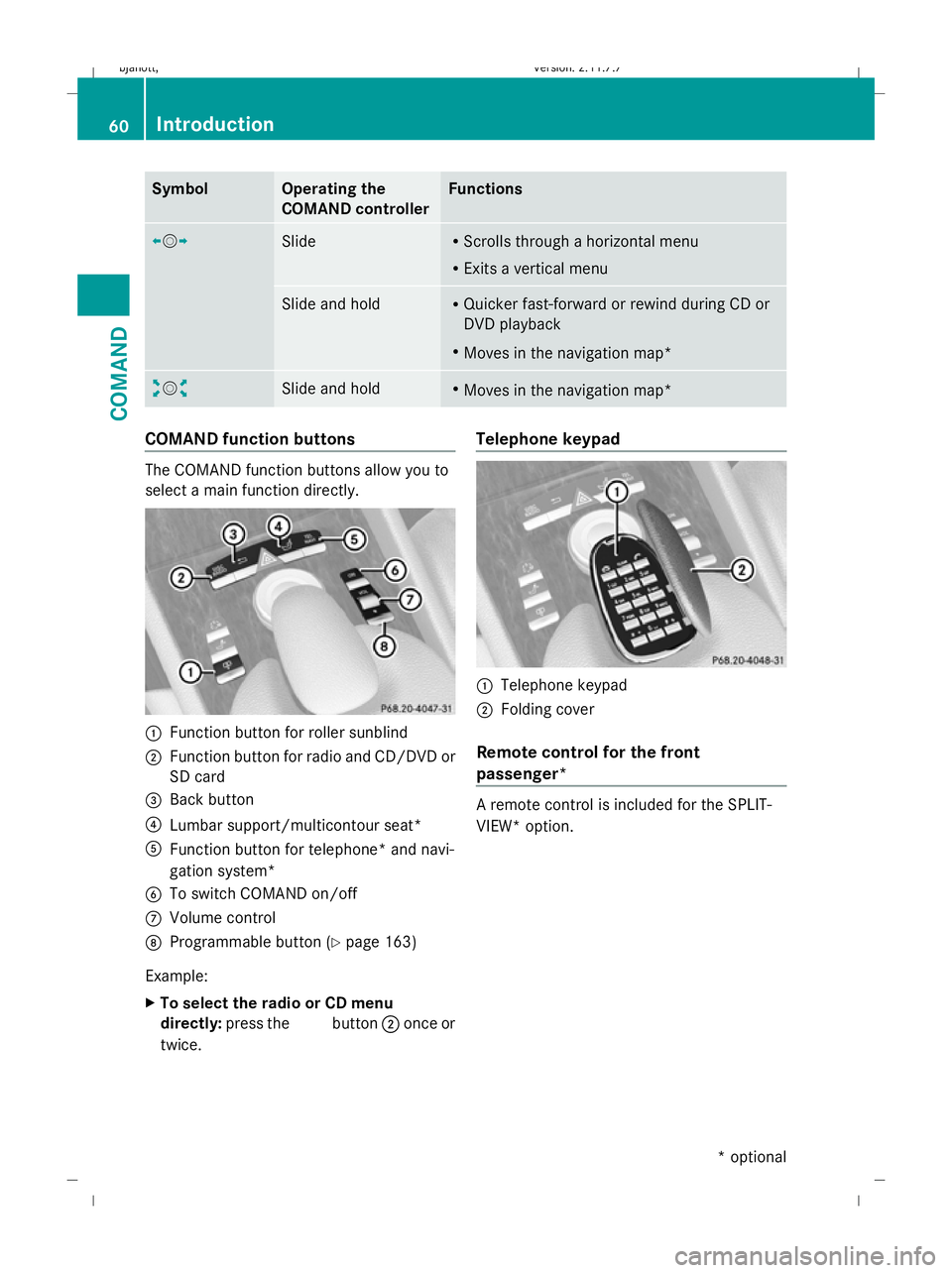
The COMAND function buttons allow you to
select a main function directly. :
Function button for roller sunblind
; Function button for radio and CD/DVD or
SD card
= Back button
? Lumbar support/multicontour seat*
A Function button for telephone* and navi-
gation system*
B To switch COMAND on/off
C Volume control
D Programmable button (Y page 163)
Example:
X To select the radio or CD menu
directly: press the Rbutton ;once or
twice. Telephone keypad
:
Telephone keypad
; Folding cover
Remote control for the front
passenger* A remote control is included for the SPLIT-
VIEW* option. 60
IntroductionCOMAND
* optional
216_AKB; 2; 3, en-GB
bjanott,
Version: 2.11.7.7
2009-02-27T14:54:17+01:00 - Seite 60
Dateiname: 6515230602_buchblock.pdf; erzeugt am 04. Mar 2009 11:14:53; WK
Page 66 of 421
i
When the audio output is switched off, the
status line will show the 8symbol. If
you switch the audio or video source, the
audio output is automatically activated.
You will still hear traffic announcements
and navigation system announcements*,
even if the sound is muted.
Muting traffic and navigation announce-
ments*
X RDS: press and hold the 8button on
the multi-function steering wheel until the
TA display switches off.
X Navigation announcements: during an
announcement, press the 8button on
the multi-function steering wheel.
i The announcements remain switched
off even if you start a new route guidance
or if COMAND is switched off and on with
the u button. They will be switched on
again under the following conditions: if you
switch COMAND off by removing the key
from the ignition lock and then switch the
ignition back on after more than 3 minutes.
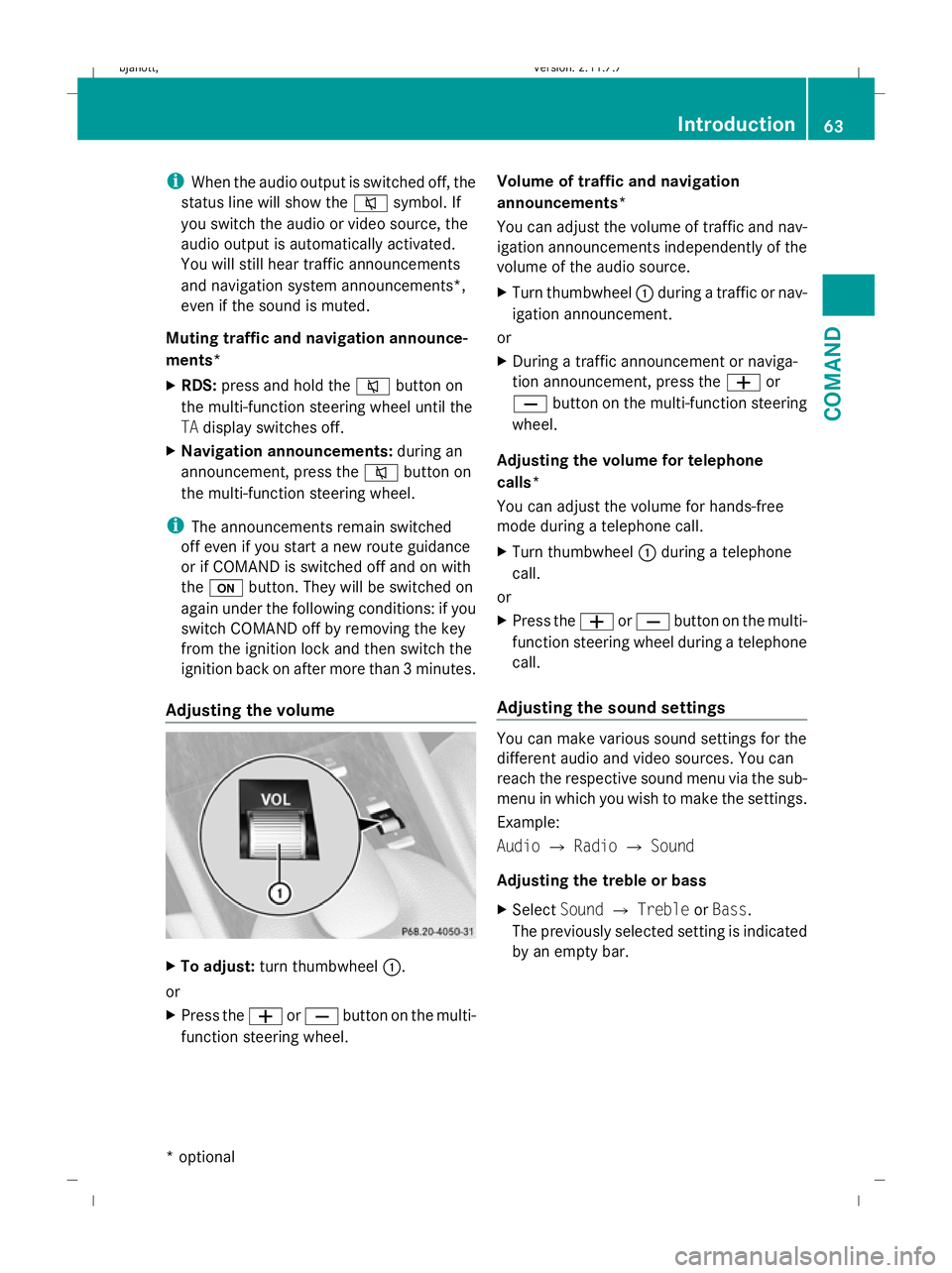
Adjusting the volume X
To adjust: turn thumbwheel :.
or
X Press the WorX button on the multi-
function steering wheel. Volume of traffic and navigation
announcements*
You can adjust the volume of traffic and nav-
igation announcements independently of the
volume of the audio source.
X
Turn thumbwheel :during a traffic or nav-
igation announcement.
or
X During a traffic announcement or naviga-
tion announcement, press the Wor
X button on the multi-function steering
wheel.
Adjusting the volume for telephone
calls*
You can adjust the volume for hands-free
mode during a telephone call.
X Turn thumbwheel :during a telephone
call.
or
X Press the WorX button on the multi-
function steering wheel during a telephone
call.
Adjusting the sound settings You can make various sound settings for the
different audio and video sources. You can
reach the respective sound menu via the sub-
menu in which you wish to make the settings.
Example:
Audio
QRadio QSound
Adjusting the treble or bass
X Select SoundQTreble orBass.
The previously selected setting is indicated
by an empty bar. Introduction
63COMAND
* optional
216_AKB; 2; 3, en-GB
bjanott,
Version: 2.11.7.7 2009-02-27T14:54:17+01:00 - Seite 63 Z
Dateiname: 6515230602_buchblock.pdf; erzeugt am 04. Mar 2009 11:14:54; WK
Page 70 of 421
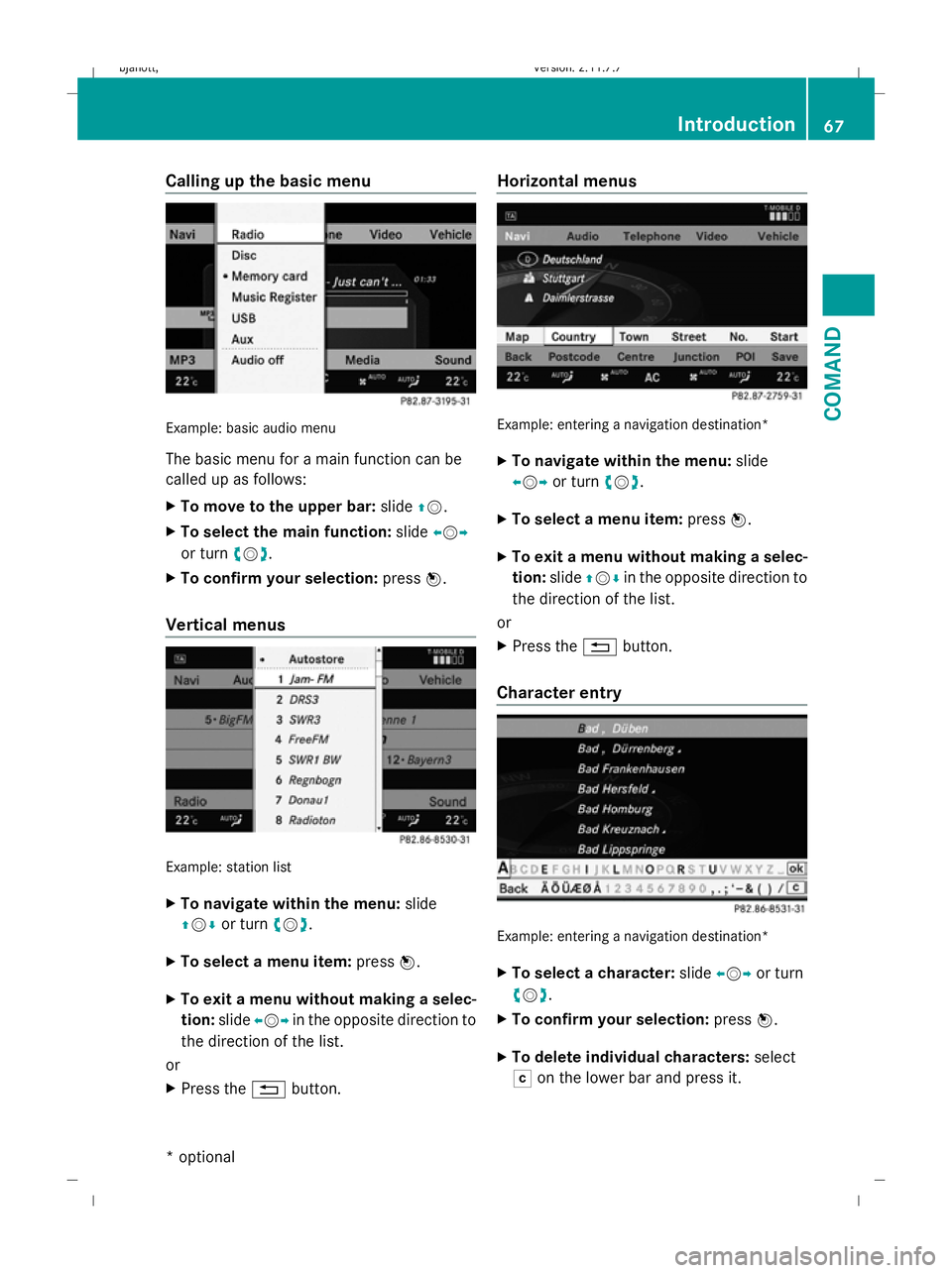
Calling up the basic menu
Example: basic audio menu
The basic menu for a main function can be
called up as follows:
X
To move to the upper bar: slideZV.
X To select the main function: slideXVY
or turn cVd.
X To confirm your selection: pressW.
Vertical menus Example: station list
X
To navigate within the menu: slide
ZVÆ or turn cVd.
X To select a menu item: pressW.
X To exit a menu without making a selec-
tion: slideXVY in the opposite direction to
the direction of the list.
or
X Press the %button. Horizontal menus
Example: entering a navigation destination*
X
To navigate within the menu: slide
XVY or turn cVd.
X To select a menu item: pressW.
X To exit a menu without making a selec-
tion: slideZVÆ in the opposite direction to
the direction of the list.
or
X Press the %button.
Character entry Example: entering a navigation destination*
X
To select a character: slideXVY or turn
cVd.
X To confirm your selection: pressW.
X To delete individual characters: select
F on the lower bar and press it. Introduction
67COMAND
* optional
216_AKB; 2; 3, en-GB
bjanott
,V ersion: 2.11.7.7
2009-02-27T14:54:17+01:00 - Seite 67 Z
Dateiname: 6515230602_buchblock.pdf; erzeugt am 04. Mar 2009 11:14:55; WK
Page 71 of 421
X
To delete an entire word or number:
select Fon the lower bar and press it until
the entire word or number has been
deleted.
X To exit character entry: pressBackon the
lowest bar.
or
X Press the %button.
X To switch to the list: slideZV.
or
X Select !on the second lowest bar.
X To accept the first entry: press and hold
W until you exit character entry.
COMAND completes the entry as soon as
it can be clearly identified. If this is the
case, the view does not switch to the list.
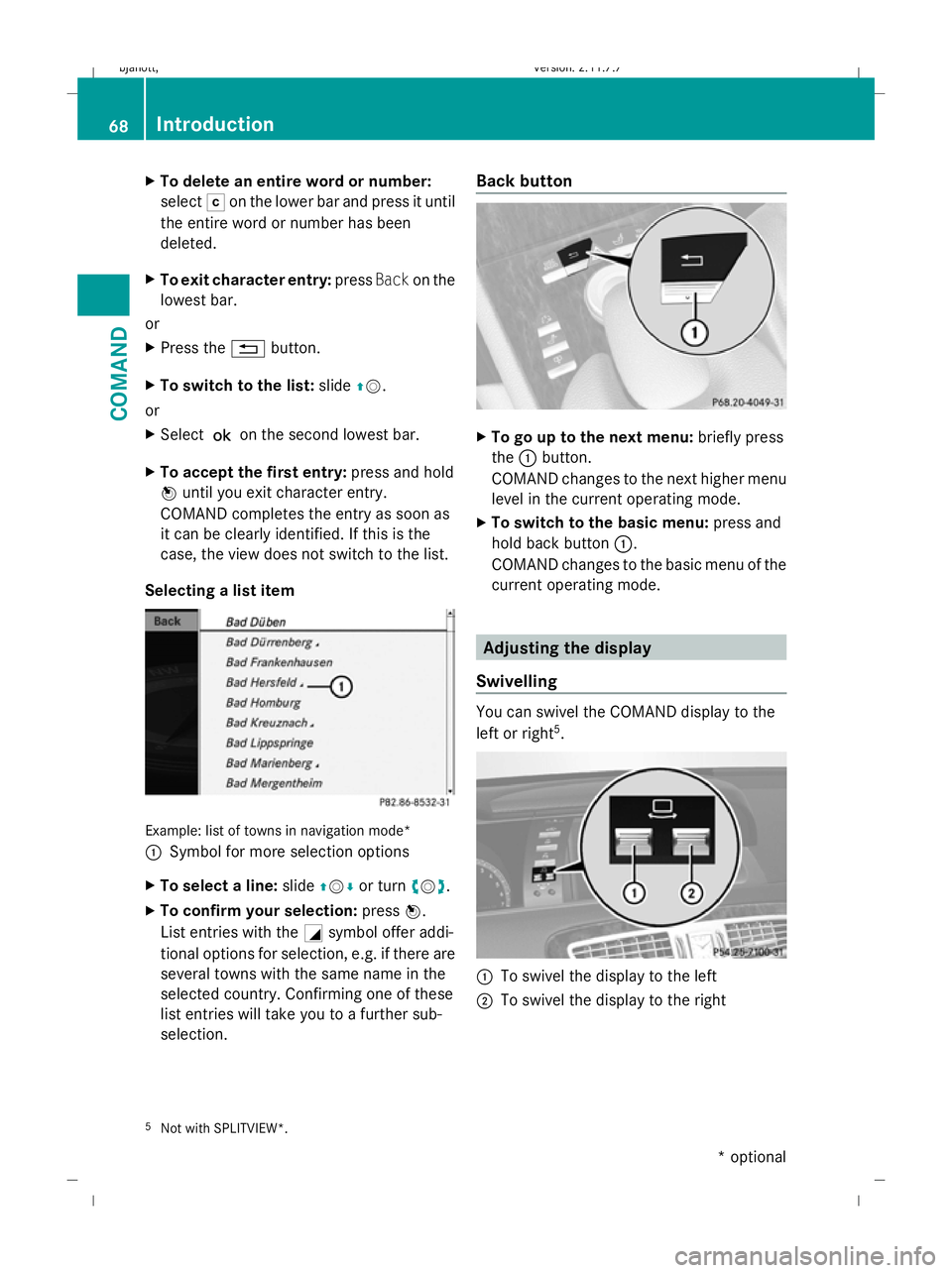
Selecting a list item Example: list of towns in navigation mode*
: Symbol for more selection options
X To select a line: slideZVÆ or turn cVd.
X To confirm your selection: pressW.
List entries with the Gsymbol offer addi-
tional options for selection, e.g. if there are
several towns with the same name in the
selected country. Confirming one of these
list entries will take you to a further sub-
selection. Back button
X
To go up to the next menu: briefly press
the :button.
COMAND changes to the next higher menu
level in the current operating mode.
X To switch to the basic menu: press and
hold back button :.
COMAND changes to the basic menu of the
current operating mode. Adjusting the display
Swivelling You can swivel the COMAND display to the
left or right 5
. :
To swivel the display to the left
; To swivel the display to the right
5 Not with SPLITVIEW*. 68
IntroductionCOMAND
* optional
216_AKB; 2; 3, en-GB
bjanott,
Version: 2.11.7.7 2009-02-27T14:54:17+01:00 - Seite 68
Dateiname: 6515230602_buchblock.pdf; erzeugt am 04. Mar 2009 11:14:56; WK
Page 77 of 421
When traffic announcements are switched
on, a traffic announcement will interrupt the
audio signal from the currently activated
audio or video source.
i Telephone conversations and navigation
announcements are not interrupted.
A display message appears in the display in
all audio operating modes.
Interrupting a traffic announcement X
During a traffic announcement, briefly
press the 8button on the multi-func-
tion steering wheel.
COMAND switches back to the audio
source that was selected before the
announcement. Subsequent announce-
ments will interrupt the audio source again.
Switching off RDS X
Press and hold the 8button on the
multi-function steering wheel until the TA
display switches off. DAB*
DAB radio mode
i Information about the components and
operating principles of COMAND can be
found on (Y page 58).
DAB 6
(Digital Audio Broadcasting) is an opti-
mised digital transmission standard designed
for the mobile reception of radio transmis-
sions. Several programmes are combined
into so-called ensembles and transmitted on
one single frequency. Digital radio stations
can be transmitted nationally, regionally or
locally.
Digital stations are selected and saved in the
same way as analogue stations. The following
section therefore lists only those features
specific to DAB. Some stations only transmit programmes at
certain times. If you have selected a station
that is subsequently removed from the
ensemble, it will no longer be received. You
will continue to receive the other pro-
grammes in the ensemble. Select either a dif-
ferent programme or a different ensemble. Switching to DAB radio mode
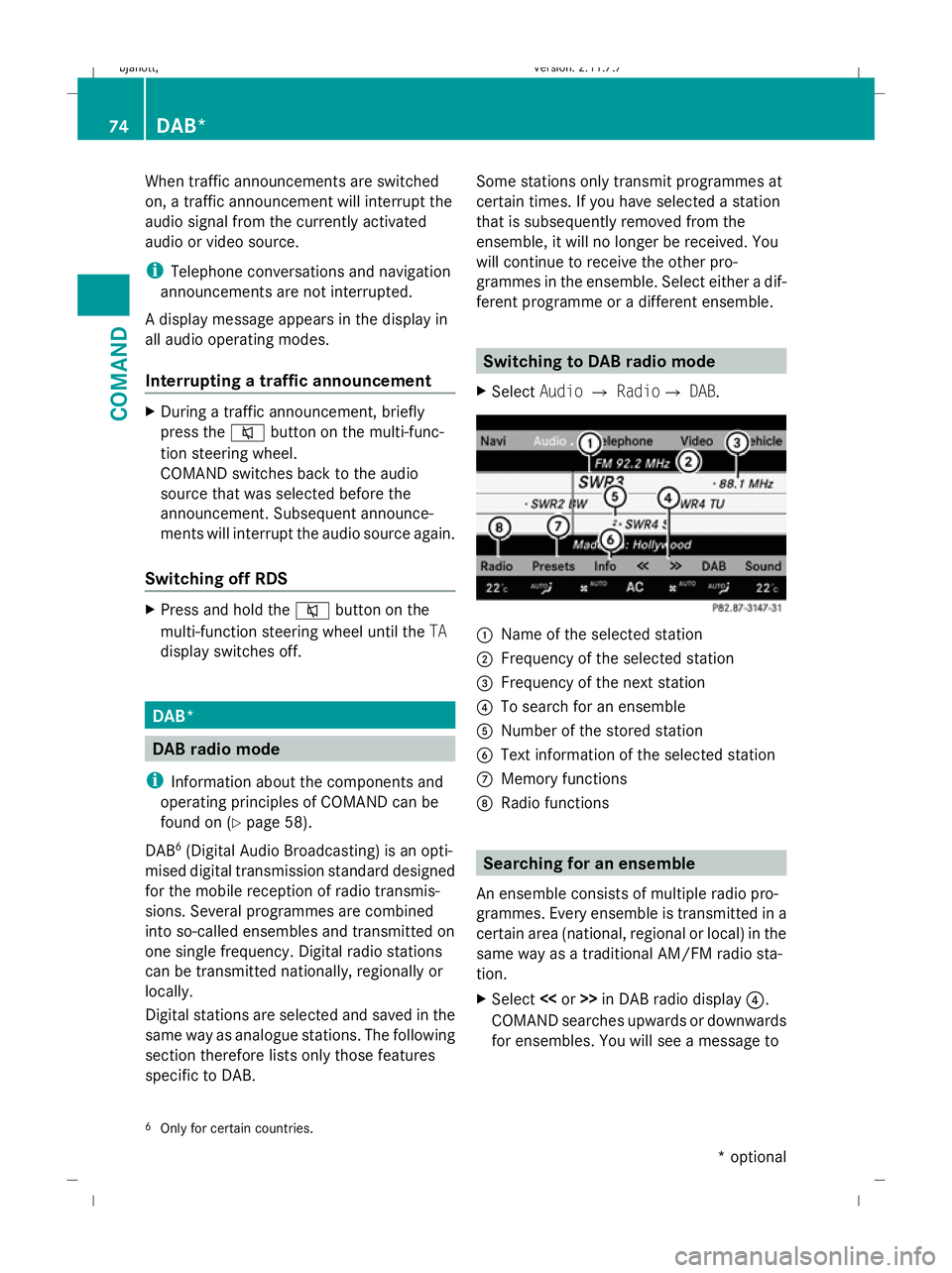
X Select AudioQRadioQ DAB. :
Name of the selected station
; Frequency of the selected station
= Frequency of the next station
? To search for an ensemble
A Number of the stored station
B Text information of the selected station
C Memory functions
D Radio functions Searching for an ensemble
An ensemble consists of multiple radio pro-
grammes. Every ensemble is transmitted in a
certain area (national, regional or local) in the
same way as a traditional AM/FM radio sta-
tion.
X Select <
COMAND searches upwards or downwards
for ensembles. You will see a message to
6 Only for certain countries. 74
DAB*COMAND
* optional
216_AKB; 2; 3, en-GB
bjanott,
Version: 2.11.7.7 2009-02-27T14:54:17+01:00 - Seite 74
Dateiname: 6515230602_buchblock.pdf; erzeugt am 04. Mar 2009 11:14:57; WK
Page 93 of 421
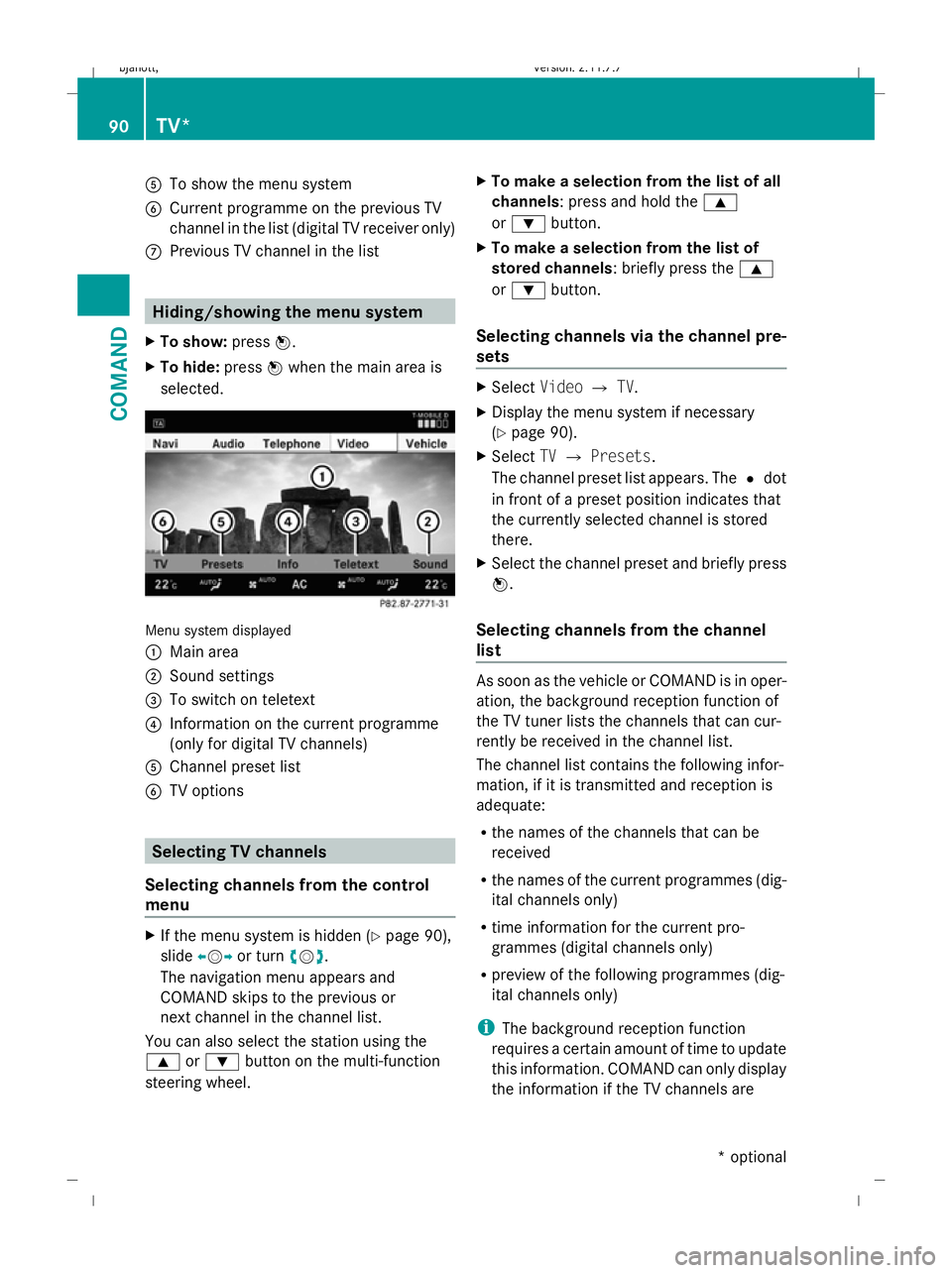
A
To show the menu system
B Current programme on the previous TV
channel in the list (digital TV receiver only)
C Previous TV channel in the list Hiding/showing the menu system
X To show: pressW.
X To hide: pressWwhen the main area is
selected. Menu system displayed
:
Main area
; Sound settings
= To switch on teletext
? Information on the current programme
(only for digital TV channels)
A Channel preset list
B TV options Selecting TV channels
Selecting channels from the control
menu X
If the menu system is hidden (Y page 90),
slide XVY or turn cVd.
The navigation menu appears and
COMAND skips to the previous or
next channel in the channel list.
You can also select the station using the
9 or: button on the multi-function
steering wheel. X
To make a selection from the list of all
channels: press and hold the 9
or : button.
X To make a selection from the list of
stored channels: briefly press the 9
or : button.
Selecting channels via the channel pre-
sets X
Select VideoQTV.
X Display the menu system if necessary
(Y page 90).
X Select TVQ Presets.
The channel preset list appears. The #dot
in front of a preset position indicates that
the currently selected channel is stored
there.
X Select the channel preset and briefly press
W.
Selecting channels from the channel
list As soon as the vehicle or COMAND is in oper-
ation, the background reception function of
the TV tuner lists the channels that can cur-
rently be received in the channel list.
The channel list contains the following infor-
mation, if it is transmitted and reception is
adequate:
R
the names of the channels that can be
received
R the names of the current programmes (dig-
ital channels only)
R time information for the current pro-
grammes (digital channels only)
R preview of the following programmes (dig-
ital channels only)
i The background reception function
requires a certain amount of time to update
this information. COMAND can only display
the information if the TV channels are 90
TV*COMAND
* optional
216_AKB; 2; 3, en-GB
bjanott,
Version: 2.11.7.7 2009-02-27T14:54:17+01:00 - Seite 90
Dateiname: 6515230602_buchblock.pdf; erzeugt am 04. Mar 2009 11:15:02; WK
Page 122 of 421
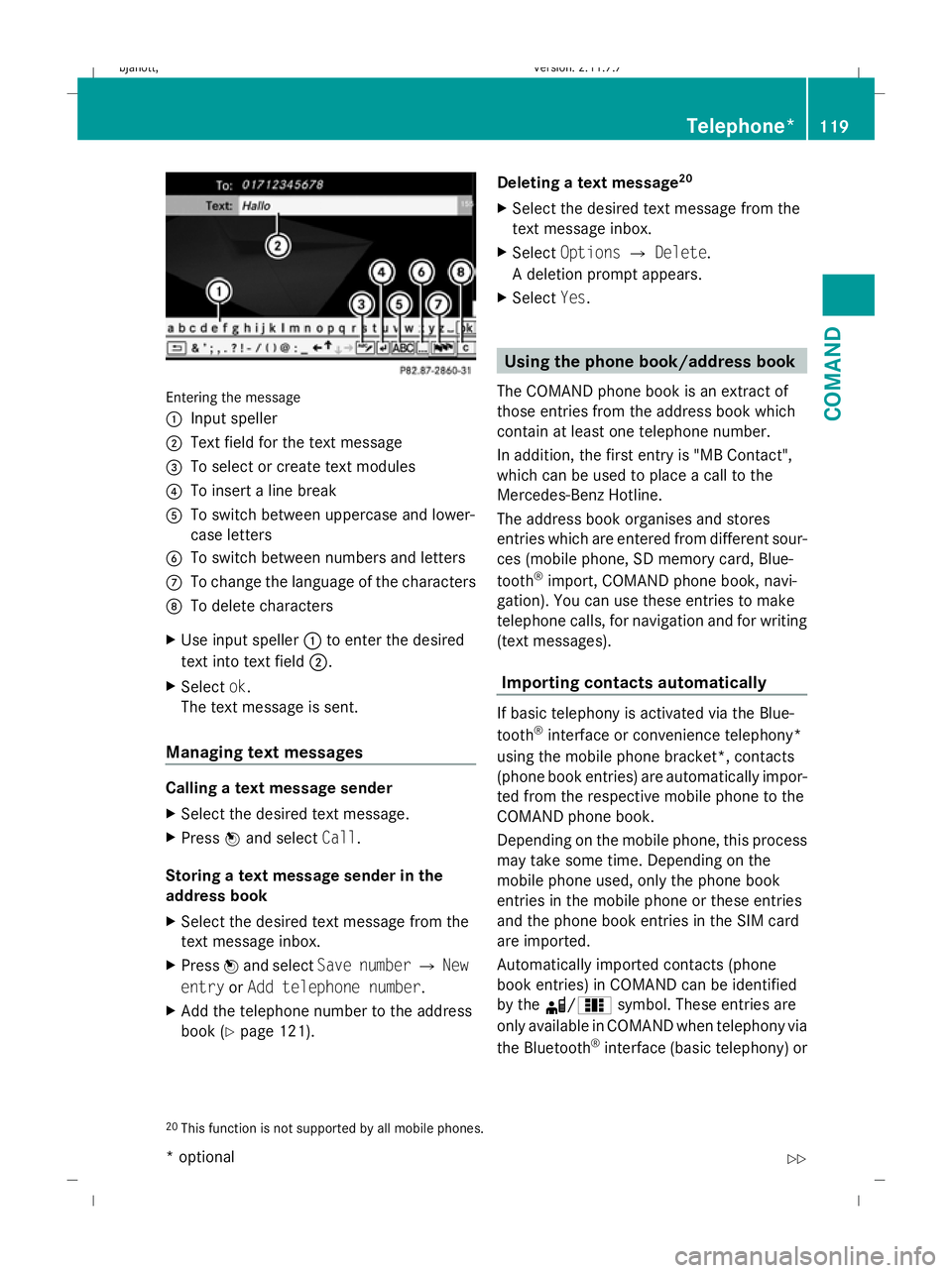
Entering the message
: Input speller
; Text field for the text message
= To select or create text modules
? To insert a line break
A To switch between uppercase and lower-
case letters
B To switch between numbers and letters
C To change the language of the characters
D To delete characters
X Use input speller :to enter the desired
text into text field ;.
X Select ok.
The text message is sent.
Managing text messages Calling a text message sender
X
Select the desired text message.
X Press Wand select Call.
Storing a text message sender in the
address book
X Select the desired text message from the
text message inbox.
X Press Wand select Save number QNew
entry orAdd telephone number .
X Add the telephone number to the address
book (Y page 121). Deleting a text message
20
X Select the desired text message from the
text message inbox.
X Select Options QDelete .
A deletion prompt appears.
X Select Yes. Using the phone book/address book
The COMAND phone book is an extract of
those entries from the address book which
contain at least one telephone number.
In addition, the first entry is "MB Contact",
which can be used to place a call to the
Mercedes-Benz Hotline.
The address book organises and stores
entries which are entered from different sour-
ces (mobile phone, SD memory card, Blue-
tooth ®
import, COMAND phone book, navi-
gation). You can use these entries to make
telephone calls, for navigation and for writing
(text messages).
Importing contacts automatically If basic telephony is activated via the Blue-
tooth
®
interface or convenience telephony*
using the mobile phone bracket*, contacts
(phone book entries) are automatically impor-
ted from the respective mobile phone to the
COMAND phone book.
Depending on the mobile phone, this process
may take some time. Depending on the
mobile phone used, only the phone book
entries in the mobile phone or these entries
and the phone book entries in the SIM card
are imported.
Automatically imported contacts (phone
book entries) in COMAND can be identified
by the d/0 symbol. These entries are
only available in COMAND when telephony via
the Bluetooth ®
interface (basic telephony) or
20 This function is not supported by all mobile phones. Telephone*
119COMAND
* optional
216_AKB; 2; 3, en-GB
bjanott,
Version: 2.11.7.7
2009-02-27T14:54:17+01:00 - Seite 119 Z
Dateiname: 6515230602_buchblock.pdf; erzeugt am 04. Mar 2009 11:15:09; WK
Page 123 of 421
using the mobile phone bracket* (conveni-
ence telephony*) is activated.
Importing contacts manually i
Manually imported contacts are always
available. Automatically imported contacts
are available only when basic telephony via
the Bluetooth ®
interface or convenience
telephony* using the mobile phone
bracket* is activated.
You can import existing data manually:
R from the memory card
R via the Bluetooth ®
interface (e.g. Blue-
tooth ®
telephone, Bluetooth ®
PC)
X To import data: load the memory card or
activate Bluetooth ®
in COMAND
(Y page 106) and on the Bluetooth ®
tele-
phone or PC (see operating instructions of
the respective mobile phone/PC).
X Select Data/connectionsQImport
contactsQ From Memory card.
X Select AddorOverwrite .
X To cancel data import: pressW.
or
X Press the %button.
If the data has been imported, the Import
procedure successful message is dis-
played.
If the COMAND phone book memory is full,
this message appears in the display: Mem‐
ory full. Contacts could not be
completely imported. i
If you switch over to another main func-
tion (e.g. navigation) while importing data,
the import will be cancelled. If you switch
to another function while importing vCards
from the memory card, the import will not
be cancelled.
Calling up contacts/details You can call up contacts with the list or by
using the input speller.
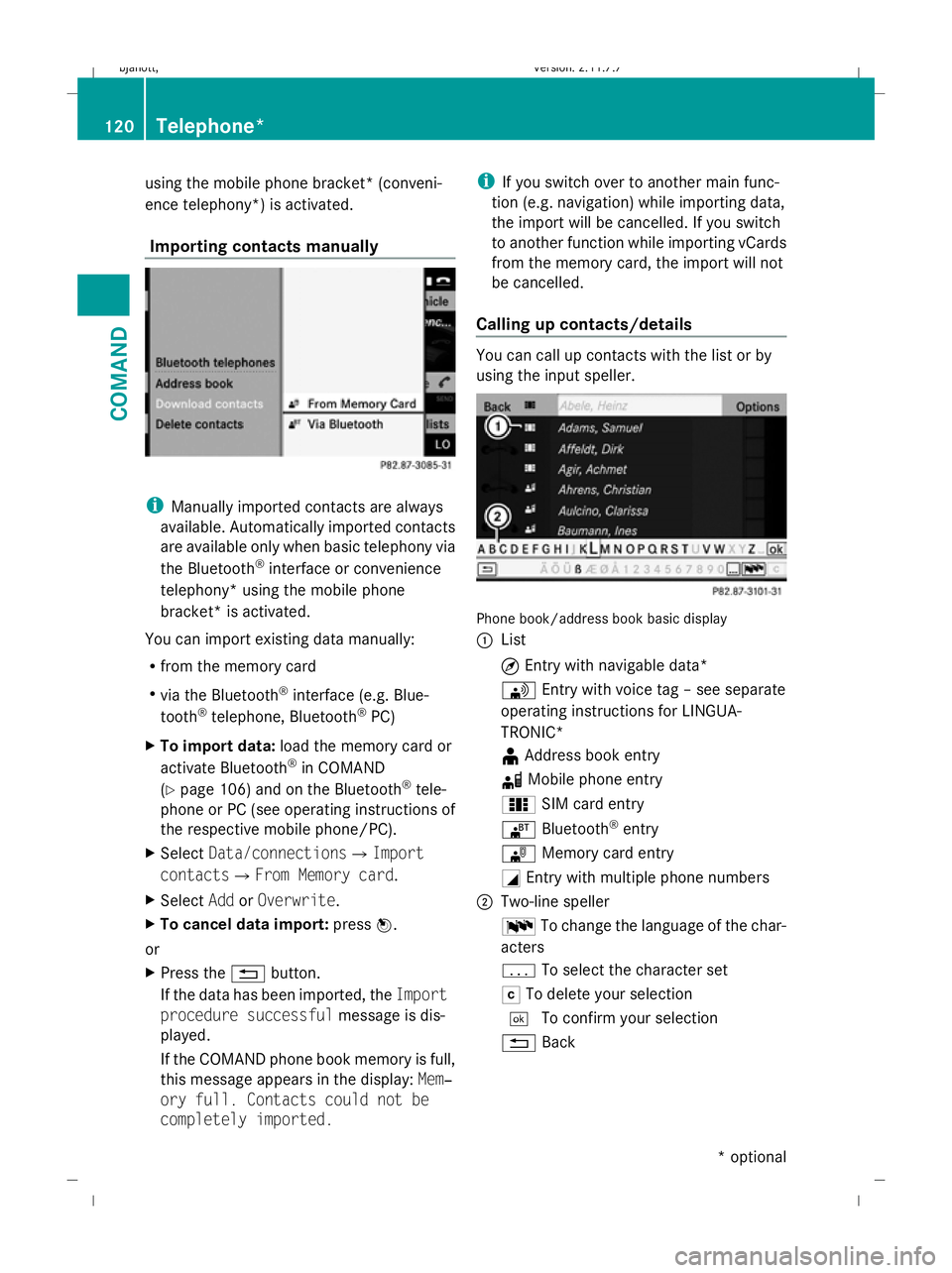
Phone book/address book basic display
:
List
¤Entry with navigable data*
\ Entry with voice tag – see separate
operating instructions for LINGUA-
TRONIC*
¥ Address book entry
d Mobile phone entry
0 SIM card entry
® Bluetooth ®
entry
¯ Memory card entry
G Entry with multiple phone numbers
; Two-line speller
B To change the language of the char-
acters
p To select the character set
F To delete your selection
¬ To confirm your selection
% Back 120
Telephone*COMAND
* optional
216_AKB; 2; 3, en-GB
bjanott
,V ersion: 2.11.7.7
2009-02-27T14:54:17+01:00 - Seite 120
Dateiname: 6515230602_buchblock.pdf; erzeugt am 04. Mar 2009 11:15:10; WK
Page 124 of 421
Calling up contacts from a list
X
Phone book: select Name.
X Address book: select Data/connections
Q Address book.
X To switch from the input speller to the
list: press ZVuntil the input speller is hid-
den.
or
X Select ¬.
X To call up a contact: slideZVÆ or turn
cVd and push W.
Calling up contacts using the input speller
X Phone book: select Name.
X Address book: select Data/connections
Q Address book.
X To switch from the list to the input
speller: selectBackfrom the list.
or
X Press the %button.
X To select characters: slideZVÆ orXVY
and press W. Repeat this procedure until
COMAND automatically switches over to
the list.
You determine the first letter of the entry
you are looking for with the first character
you enter. If there are similar entries, the
next character which is different will be dis-
played and offered for selection.
i You can also use the telephone number
pad to enter characters.
Displaying contact details
X Select Options QDetails.
The detailed view appears.
X To return to the list: slideXVY until the
list is highlighted. Creating new contacts/changing con-
tacts i
In certain countries, this function is not
available if the vehicle is travelling at more
than approximately 5 km/h. As soon as the
vehicle speed drops below about 3 km/h,
the function is available again.
i You can enter address data directly in the
address book. If you store telephone num-
bers in the phone book, these are saved in
the address book. If you store a navigation
destination*, COMAND creates an address
book entry which includes the complete
navigable address data. X
Call up the contact (Y page 120).21
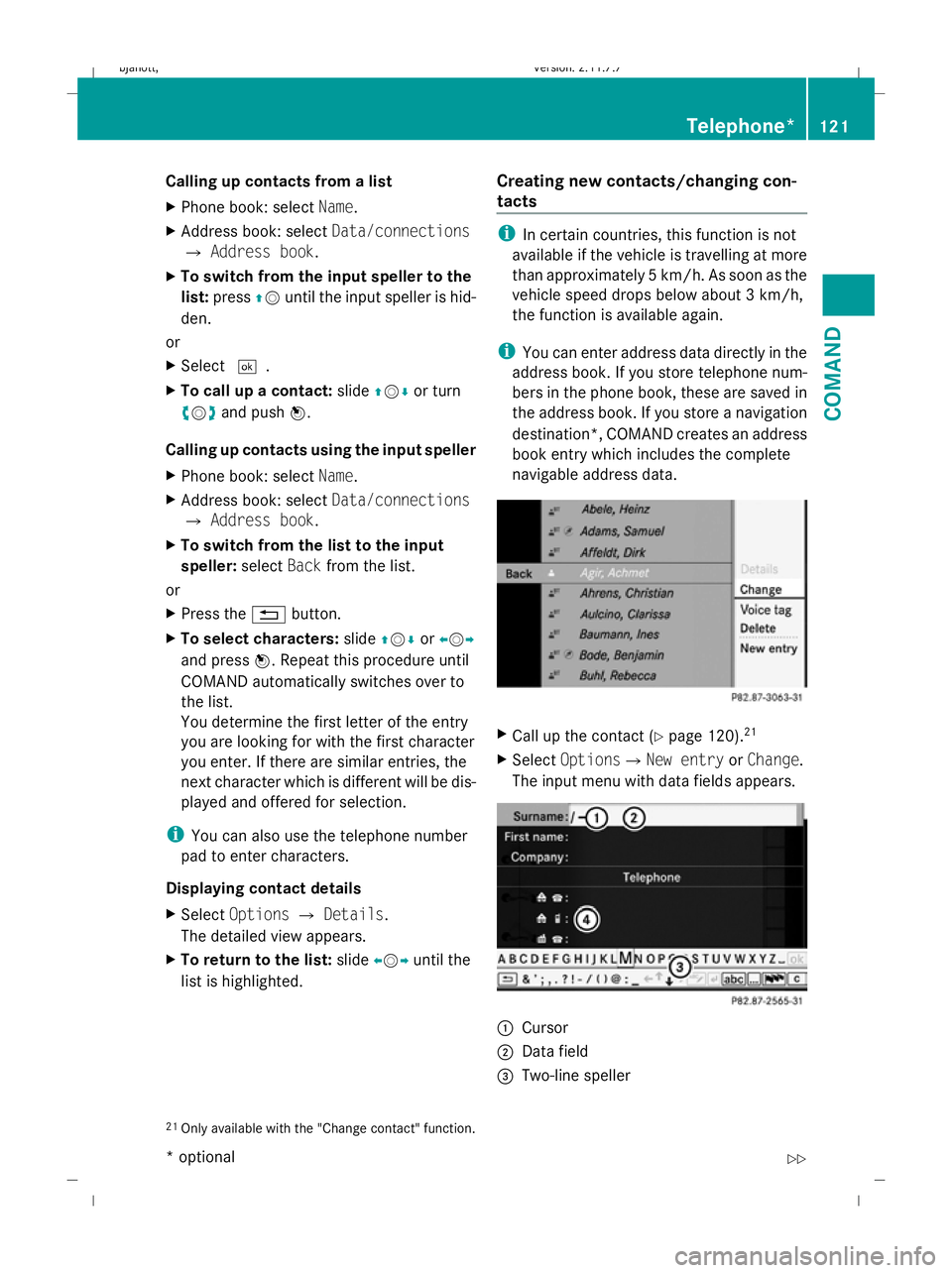
X Select OptionsQNew entry orChange .
The input menu with data fields appears. :
Cursor
; Data field
= Two-line speller
21 Only available with the "Change contact" function. Telephone*
121COMAND
* optional
216_AKB; 2; 3, en-GB
bjanott
,V ersion: 2.11.7.7
2009-02-27T14:54:17+01:00 - Seite 121 Z
Dateiname: 6515230602_buchblock.pdf; erzeugt am 04. Mar 2009 11:15:10; WK
Page 128 of 421
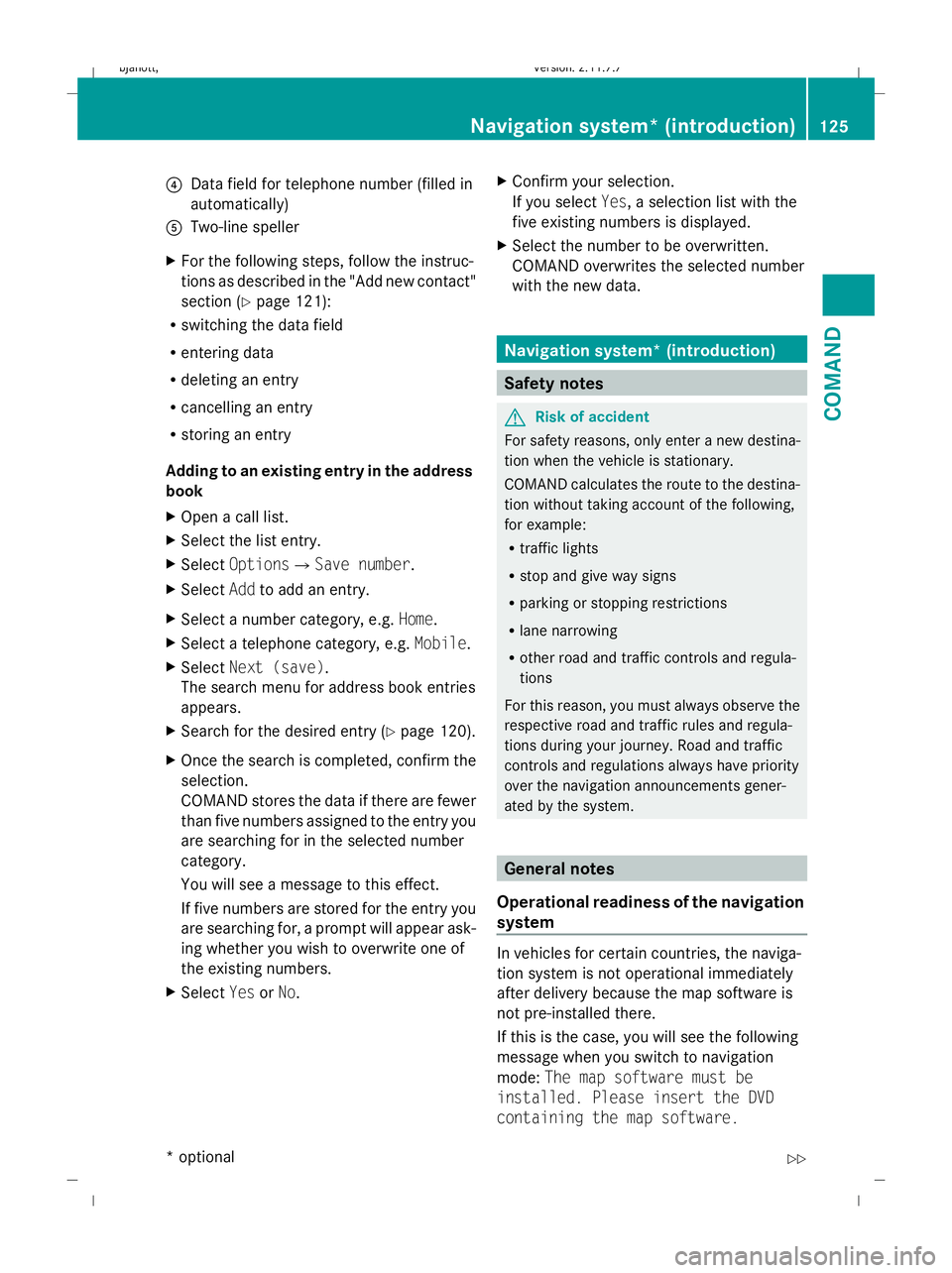
?
Data field for telephone number (filled in
automatically)
A Two-line speller
X For the following steps, follow the instruc-
tions as described in the "Add new contact"
section ( Ypage 121):
R switching the data field
R entering data
R deleting an entry
R cancelling an entry
R storing an entry
Adding to an existing entry in the address
book
X Open a call list.
X Select the list entry.
X Select OptionsQ Save number .
X Select Addto add an entry.
X Select a number category, e.g. Home.
X Select a telephone category, e.g. Mobile.
X Select Next (save) .
The search menu for address book entries
appears.
X Search for the desired entry (Y page 120).
X Once the search is completed, confirm the
selection.
COMAND stores the data if there are fewer
than five numbers assigned to the entry you
are searching for in the selected number
category.
You will see a message to this effect.
If five numbers are stored for the entry you
are searching for, a prompt will appear ask-
ing whether you wish to overwrite one of
the existing numbers.
X Select YesorNo. X
Confirm your selection.
If you select Yes, a selection list with the
five existing numbers is displayed.
X Select the number to be overwritten.
COMAND overwrites the selected number
with the new data. Navigation system* (introduction)
Safety notes
G
Risk of accident
For safety reasons, only enter a new destina-
tion when the vehicle is stationary.
COMAND calculates the route to the destina-
tion without taking account of the following,
for example:
R traffic lights
R stop and give way signs
R parking or stopping restrictions
R lane narrowing
R other road and traffic controls and regula-
tions
For this reason, you must always observe the
respective road and traffic rules and regula-
tions during your journey. Road and traffic
controls and regulations always have priority
over the navigation announcements gener-
ated by the system. General notes
Operational readiness of the navigation
system In vehicles for certain countries, the naviga-
tion system is not operational immediately
after delivery because the map software is
not pre-installed there.
If this is the case, you will see the following
message when you switch to navigation
mode:
The map software must be
installed. Please insert the DVD
containing the map software. Navigation system* (introduction)
125COMAND
* optional
216_AKB; 2; 3, en-GB
bjanott,
Version: 2.11.7.7 2009-02-27T14:54:17+01:00 - Seite 125 Z
Dateiname: 6515230602_buchblock.pdf; erzeugt am 04. Mar 2009 11:15:11; WK