online MERCEDES-BENZ CLA-Class 2014 C117 Comand Manual
[x] Cancel search | Manufacturer: MERCEDES-BENZ, Model Year: 2014, Model line: CLA-Class, Model: MERCEDES-BENZ CLA-Class 2014 C117Pages: 270, PDF Size: 5.76 MB
Page 120 of 270
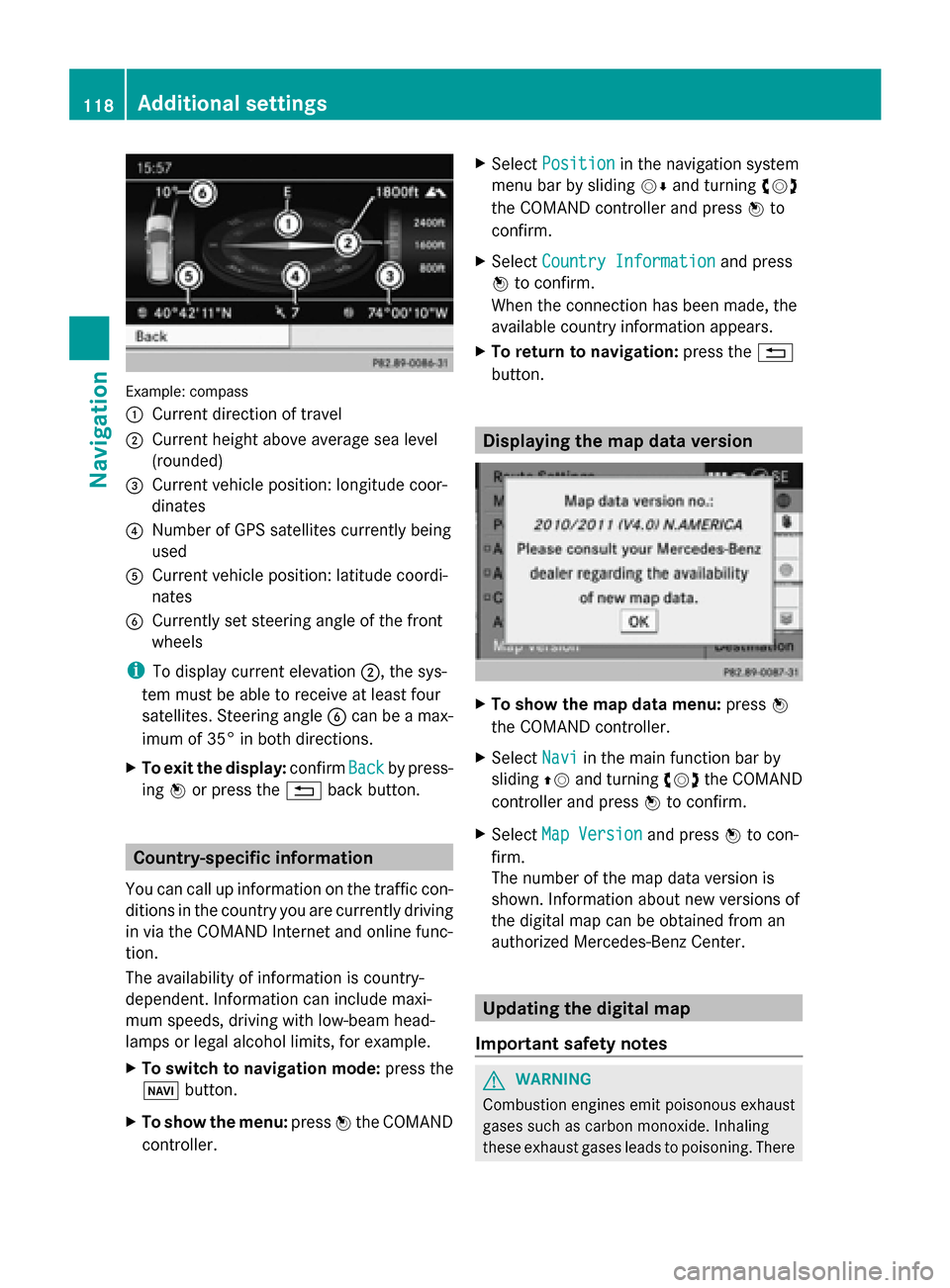
Example: compass
0043
Current direction of travel
0044 Current height above average sea level
(rounded)
0087 Current vehicle position: longitude coor-
dinates
0085 Number of GPS satellites currently being
used
0083 Current vehicle position: latitude coordi-
nates
0084 Currently set steering angle of the front
wheels
i To display current elevation 0044, the sys-
tem must be able to receive at least four
satellites. Steering angle 0084can be a max-
imum of 35° in both directions.
X To exit the display: confirmBack
Back by press-
ing 0098or press the 0038back button. Country-specific information
You can call up information on the traffic con-
ditions in the country you are currently driving
in via the COMAND Internet and online func-
tion.
The availability of information is country-
dependent. Information can include maxi-
mum speeds, driving with low-beam head-
lamps or legal alcohol limits, for example.
X To switch to navigation mode: press the
00BE button.
X To show the menu: press0098the COMAND
controller. X
Select Position
Position in the navigation system
menu bar by sliding 00520064and turning 00790052007A
the COMAND controller and press 0098to
confirm.
X Select Country Information
Country Information and press
0098 to confirm.
When the connection has been made, the
available country information appears.
X To return to navigation: press the0038
button. Displaying the map data version
X
To show the map data menu: press0098
the COMAND controller.
X Select Navi Naviin the main function bar by
sliding 00970052and turning 00790052007Athe COMAND
controller and press 0098to confirm.
X Select Map Version
Map Version and press0098to con-
firm.
The number of the map data version is
shown. Information about new versions of
the digital map can be obtained from an
authorized Mercedes-Benz Center. Updating the digital map
Important safety notes G
WARNING
Combustion engines emit poisonous exhaust
gases such as carbon monoxide. Inhaling
these exhaust gases leads to poisoning. There 118
Additional settingsNavigation
Page 133 of 270
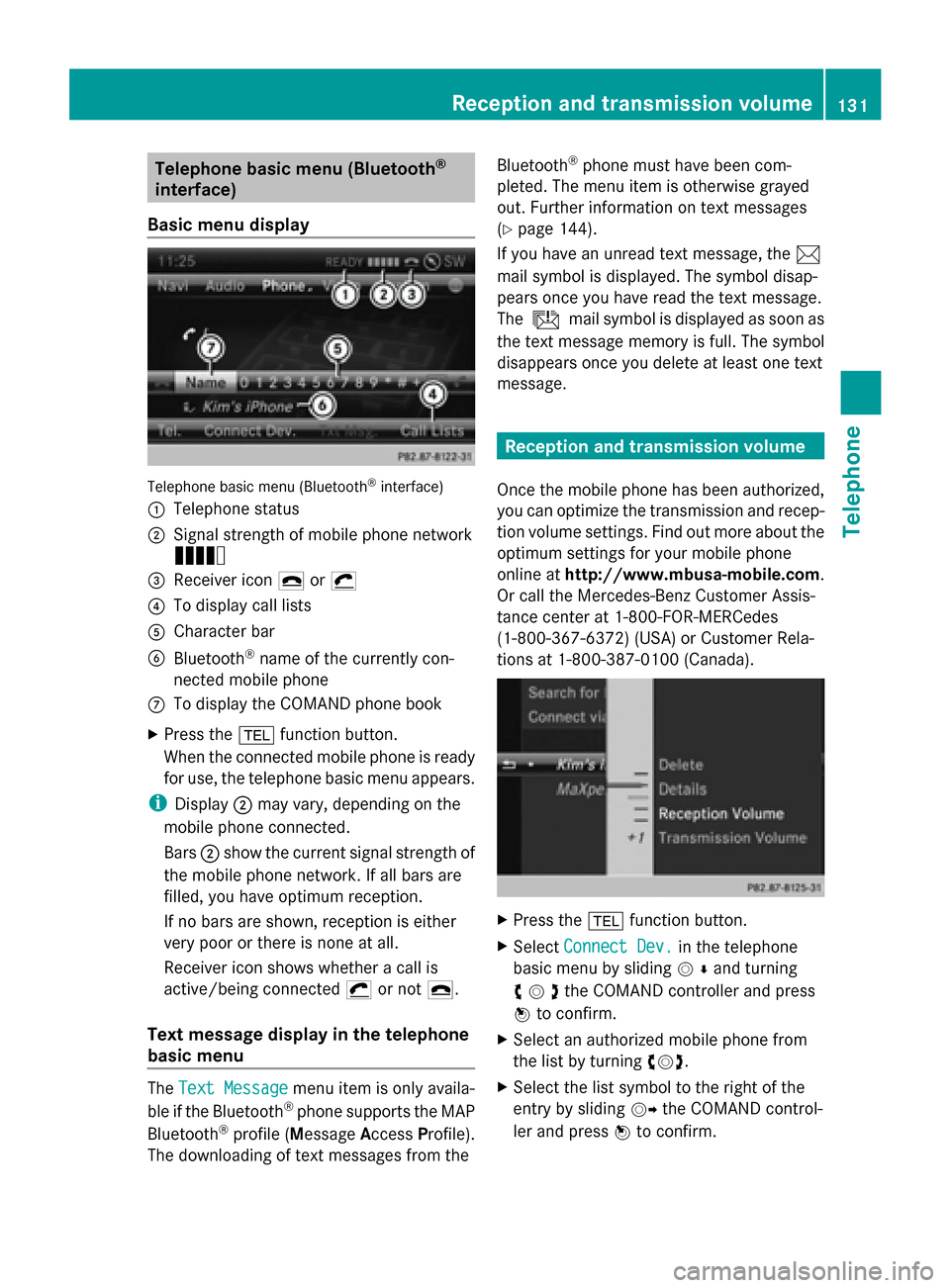
Telephone basic menu (Bluetooth
®
interface)
Basic menu display Telephone basic menu (Bluetooth
®
interface)
0043 Telephone status
0044 Signal strength of mobile phone network
Ä
0087 Receiver icon 0071or0075
0085 To display call lists
0083 Character bar
0084 Bluetooth ®
name of the currently con-
nected mobile phone
006B To display the COMAND phone book
X Press the 002Bfunction button.
When the connected mobile phone is ready
for use, the telephone basic menu appears.
i Display 0044may vary, depending on the
mobile phone connected.
Bars 0044show the current signal strength of
the mobile phone network. If all bars are
filled, you have optimum reception.
If no bars are shown, reception is either
very poor or there is none at all.
Receiver icon shows whether a call is
active/being connected 0075or not 0071.
Text message display in the telephone
basic menu The
Text Message
Text Message menu item is only availa-
ble if the Bluetooth ®
phone supports the MAP
Bluetooth ®
profile ( Message AccessProfile).
The downloading of text messages from the Bluetooth
®
phone must have been com-
pleted. The menu item is otherwise grayed
out. Further information on text messages
(Y page 144).
If you have an unread text message, the 0083
mail symbol is displayed. The symbol disap-
pears once you have read the text message.
The ú mail symbol is displayed as soon as
the text message memory is full. The symbol
disappears once you delete at least one text
message. Reception and transmission volume
Once the mobile phone has been authorized,
you can optimize the transmission and recep-
tion volume settings. Find out more about the
optimum settings for your mobile phone
online at http://www.mbusa-mobile.com.
Or call the Mercedes-Benz Customer Assis-
tance center at 1-800-FOR-MERCedes
(1-800-367-6372) (USA) or Customer Rela-
tions at 1-800-387-010 0(Canada). X
Press the 002Bfunction button.
X Select Connect Dev. Connect Dev. in the telephone
basic menu by sliding 00520064and turning
00790052007Athe COMAND controller and press
0098 to confirm.
X Select an authorized mobile phone from
the list by turning 00790052007A.
X Select the list symbol to the right of the
entry by sliding 00520096the COMAND control-
ler and press 0098to confirm. Reception and transmission volume
131Telephone Z
Page 159 of 270
Your COMAND equipment
................158
General notes .................................... 158
Establishing/ending the connec-
tion ..................................................... 158
Google™ local search .......................159
Destination/route download ...........162
Options .............................................. 164
Other services ................................... 166
Internet radio .................................... 167
Internet .............................................. 168 157Online and Internet functions
Page 160 of 270
Your COMAND equipment
These operating instructions describe all the
standard and optional equipment for your
COMAND system, as available at the time of
going to print. Country-specific differences
are possible. Please note that your
COMAND system may not be equipped with
all the features described. General notes
Conditions for access
To use COMAND Mercedes-Benz Apps and
Internet access, the following conditions
must be fulfilled:
R mbrace is activated and operational
R mbrace is activated for COMAND
Mercedes-Benz Apps and Internet access
Priority of connections: an emergency call
has the highest priority. When a service call,
e.g. a breakdown service call or the MB Info
Call, is active, an emergency call can still be
initiated.
A service call, on the other hand, has priority
over a current Internet connection. Therefore,
you cannot establish an Internet connection
during a service call.
i The availability of individual COMAND
Mercedes-Benz Apps may vary depending
on the country.
i The terms of use are shown when
COMAND is used for the first time and then
once a year thereafter. Only read and
accept the terms of use when the vehicle
is stationary.
i Internet pages cannot be shown on the
driver's side while the vehicle is in motion. Establishing/ending the connection
Establishing the connection
Preconditions for establishing a connection
can be found under "General notes"
(Y page 158).
X Option 1: select the00A7icon in the main
function bar by turning 00790052the COMAND
controller and press 0098to confirm.
The carousel view appears.
X Turn 00790052 or slide 00950052the COMAND con-
troller until the Mercedes-Benz Apps Mercedes-Benz Apps
panel or a favorite is brought to the front, if
these have been previously created
(Y page 173).
X Option 2: enter a web address
(Y page 168). X
For both options, press 0098the COMAND
controller.
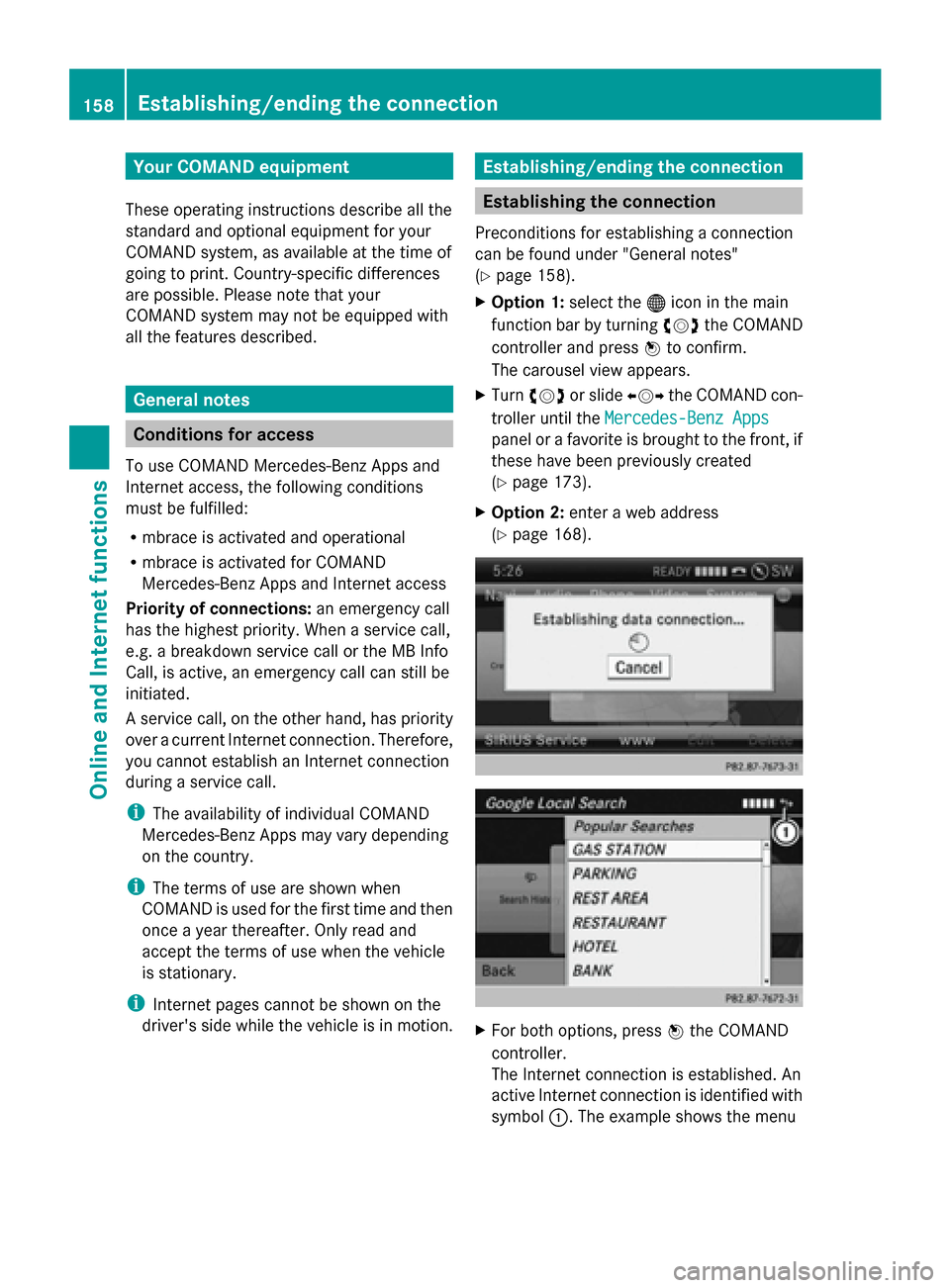
The Internet connection is established. An
active Internet connection is identified with
symbol 0043. The example shows the menu 158
Establishing/ending
theconnectionOnline and Internet functions
Page 161 of 270
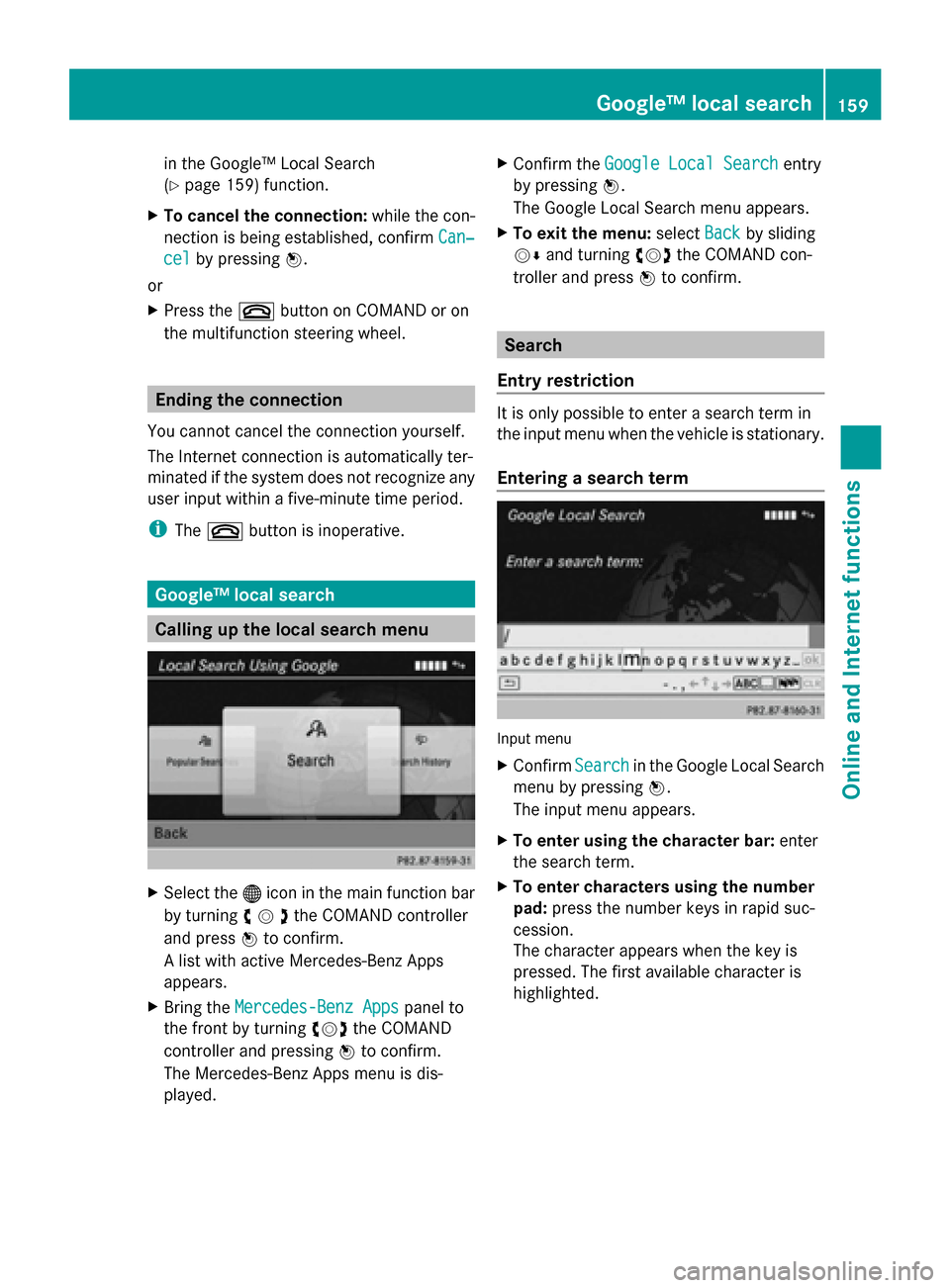
in the Google™ Local Search
(Y
page 159) function.
X To cancel the connection: while the con-
nection is being established, confirm Can‐
Can‐
cel cel by pressing 0098.
or
X Press the 0076button on COMAND or on
the multifunction steering wheel. Ending the connection
You cannot cancel the connection yourself.
The Internet connection is automatically ter-
minated if the system does not recognize any
user input within a five-minute time period.
i The 0076 button is inoperative. Google™ local search
Calling up the local search menu
X
Select the 00A7icon in the main function bar
by turning 00790052007Athe COMAND controller
and press 0098to confirm.
A list with active Mercedes-Benz Apps
appears.
X Bring the Mercedes-Benz Apps Mercedes-Benz Apps panel to
the front by turning 00790052007Athe COMAND
controller and pressing 0098to confirm.
The Mercedes-Benz Apps menu is dis-
played. X
Confirm the Google Local Search
Google Local Search entry
by pressing 0098.
The Google Local Search menu appears.
X To exit the menu: selectBack
Backby sliding
00520064 and turning 00790052007Athe COMAND con-
troller and press 0098to confirm. Search
Entry restriction It is only possible to enter a search term in
the input menu when the vehicle is stationary.
Entering a search term
Input menu
X
Confirm Search Searchin the Google Local Search
menu by pressing 0098.
The input menu appears.
X To enter using the character bar: enter
the search term.
X To enter characters using the number
pad: press the number keys in rapid suc-
cession.
The character appears when the key is
pressed. The first available character is
highlighted. Google™ local search
159Online andInternet functions
Page 162 of 270
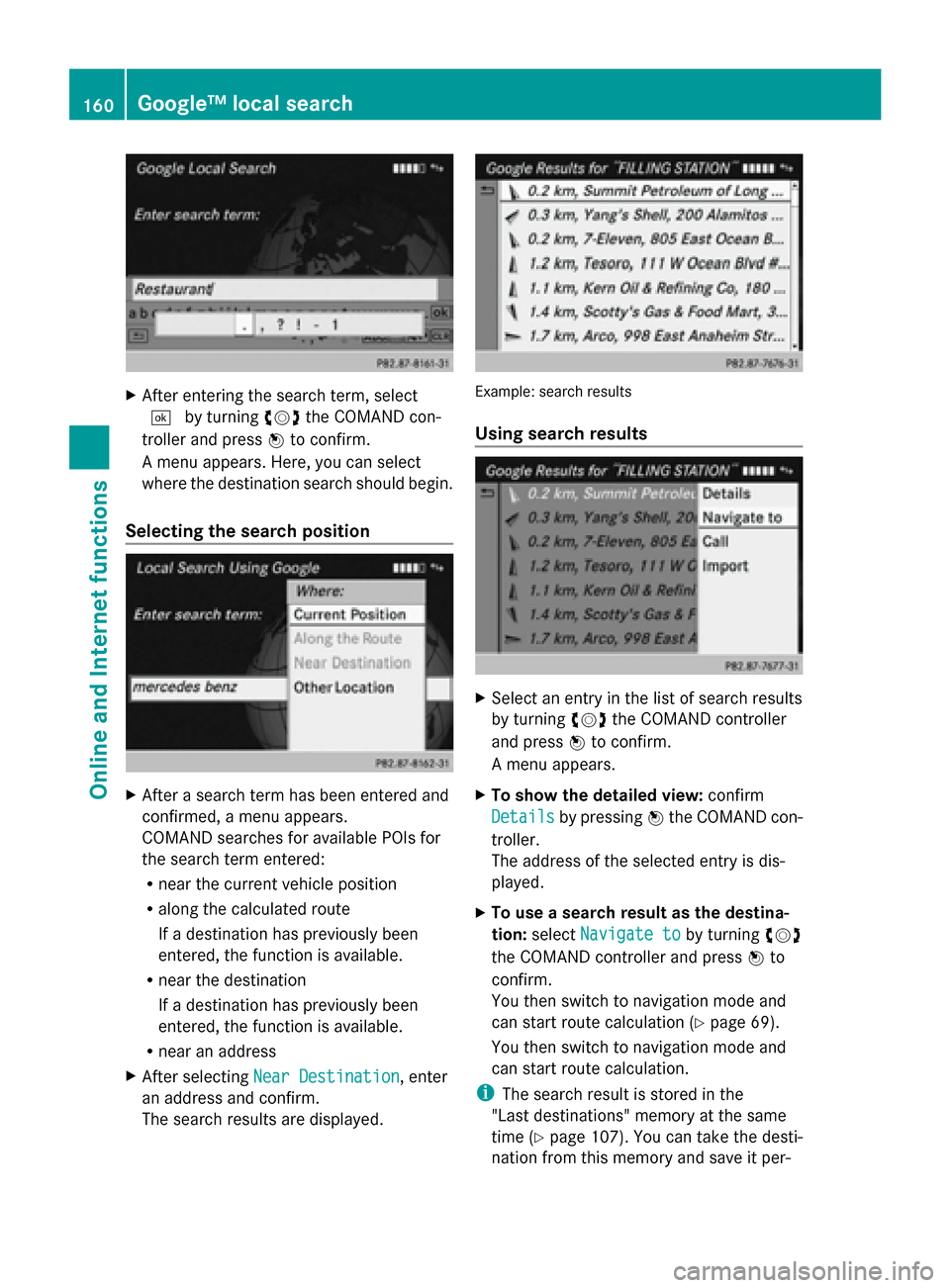
X
After entering the search term, select
0054 by turning 00790052007Athe COMAND con-
troller and press 0098to confirm.
A menu appears. Here, you can select
where the destination search should begin.
Selecting the search position X
After a search term has been entered and
confirmed, a menu appears.
COMAND searches for available POIs for
the search term entered:
R near the current vehicle position
R along the calculated route
If a destination has previously been
entered, the function is available.
R near the destination
If a destination has previously been
entered, the function is available.
R near an address
X After selecting Near Destination
Near Destination, enter
an address and confirm.
The search results are displayed. Example: search results
Using search results
X
Select an entry in the list of search results
by turning 00790052007Athe COMAND controller
and press 0098to confirm.
A menu appears.
X To show the detailed view: confirm
Details
Details by pressing 0098the COMAND con-
troller.
The address of the selected entry is dis-
played.
X To use a search result as the destina-
tion: select Navigate to Navigate to by turning00790052007A
the COMAND controller and press 0098to
confirm.
You then switch to navigation mode and
can start route calculation (Y page 69).
You then switch to navigation mode and
can start route calculation.
i The search result is stored in the
"Last destinations" memory at the same
time (Y page 107). You can take the desti-
nation from this memory and save it per- 160
Google™ local searchOnline and Internet functions
Page 163 of 270
manently in the destination memory
(Y
page 105).
X To call up a destination: selectCall Callwith
the COMAND controller and press 0098to
confirm.
You then switch to the telephone function
and make the call (Y page 132).
You then switch to the telephone function
and make the call.
i If there is no phone number available, the
menu item cannot be selected.
X To import a destination: selectImport
Import
with the COMAND controller and press 0098
to confirm.
You can choose whether you want to save
the POI as a personal POI on the SD mem-
ory card or in the address book.
i If there is no SD memory card in the slot,
the Save As Personal POI Save As Personal POI menu item
cannot be selected.
X Insert the SD memory card (Y page 191).
X To save as a personal POI: confirmSave
Save
As Personal POI
As Personal POI by pressing0098the
COMAND controller.
The entry is saved as a personal POI on the
SD memory card.
i You can use a personal POI in navigation
mode for route calculation (Y page 85).
If the personal POI is saved on the SD mem-
ory, you can also use it for route calculation
in another vehicle.
X To save to the address book: select
Save to Address Book Save to Address Book by turning00790052007A
the COMAND controller and press 0098to
confirm.
The entry is stored in the address book. Popular searches
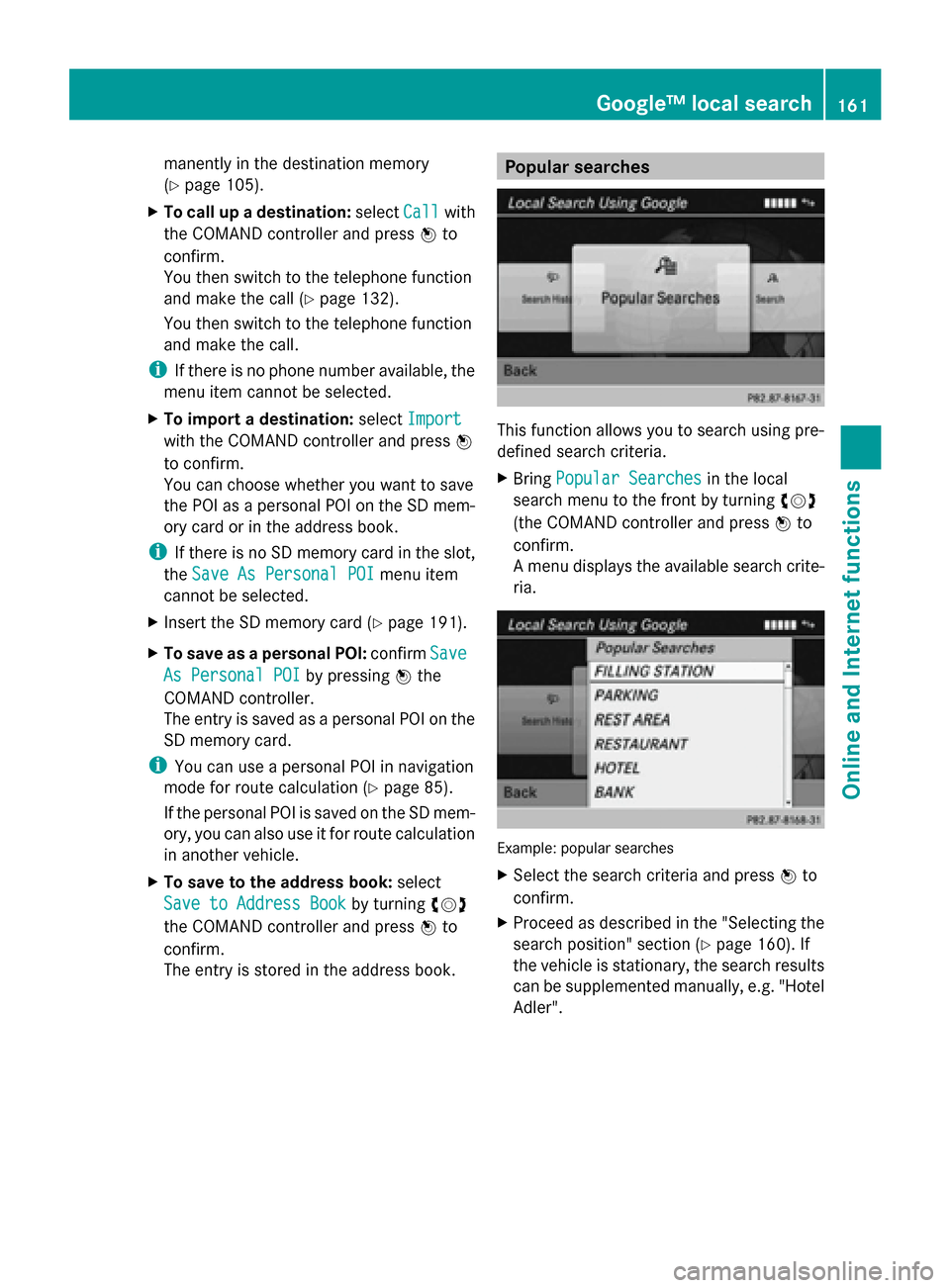
This function allows you to search using pre-
defined search criteria.
X
Bring Popular Searches Popular Searches in the local
search menu to the front by turning 00790052007A
(the COMAND controller and press 0098to
confirm.
A menu displays the available search crite-
ria. Example: popular searches
X
Select the search criteria and press 0098to
confirm.
X Proceed as described in the "Selecting the
search position" section (Y page 160). If
the vehicle is stationary, the search results
can be supplemented manually, e.g. "Hotel
Adler". Google™ local search
161Online and Internet functions
Page 164 of 270
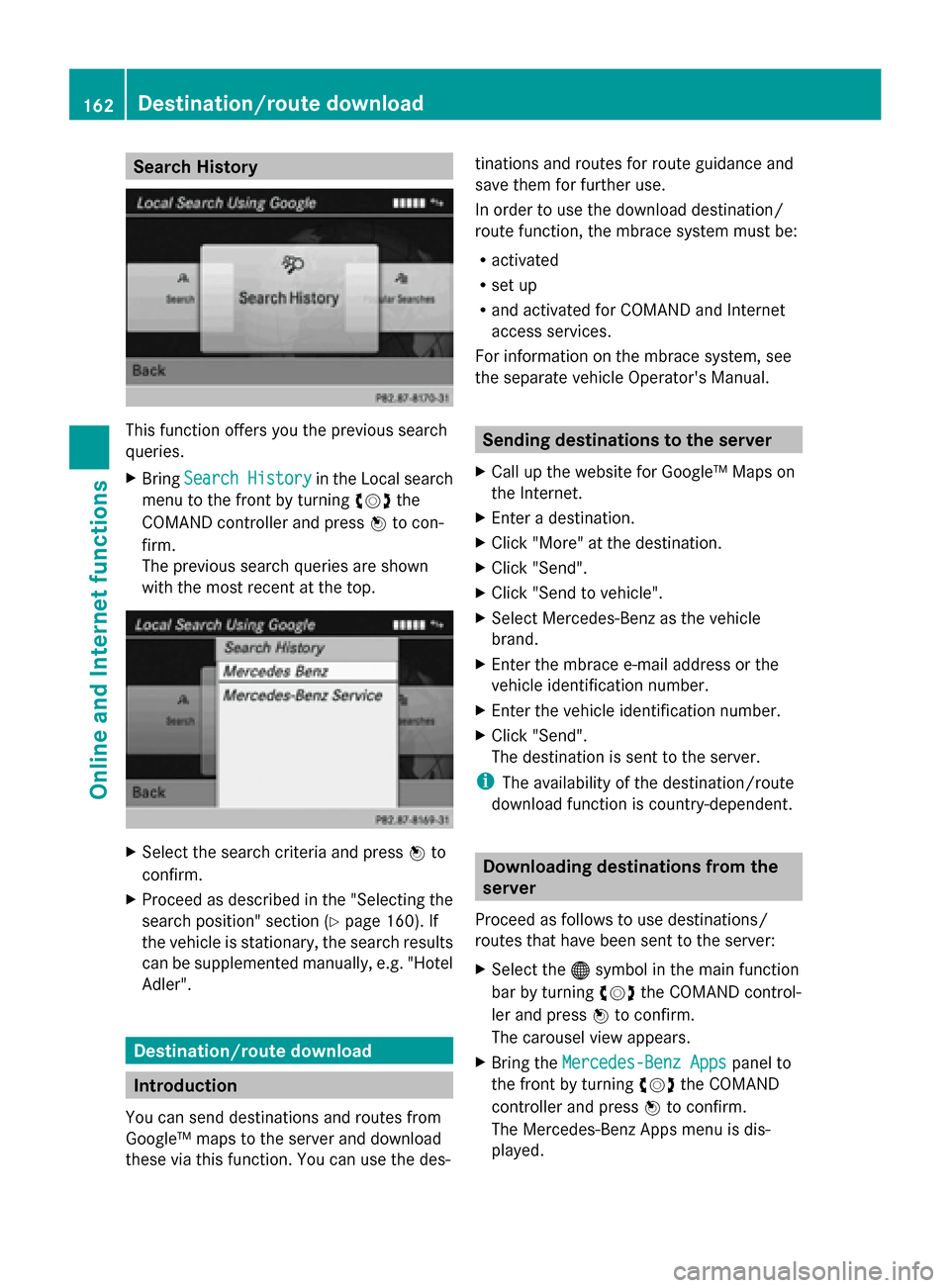
Search History
This function offers you the previous search
queries.
X Bring Search History
Search History in the Local search
menu to the front by turning 00790052007Athe
COMAND controller and press 0098to con-
firm.
The previous search queries are shown
with the most recent at the top. X
Select the search criteria and press 0098to
confirm.
X Proceed as described in the "Selecting the
search position" section (Y page 160). If
the vehicle is stationary, the search results
can be supplemented manually, e.g. "Hotel
Adler". Destination/route download
Introduction
You can send destinations and routes from
Google™ maps to the server and download
these via this function. You can use the des- tinations and routes for route guidance and
save them for further use.
In order to use the download destination/
route function, the mbrace system must be:
R
activated
R set up
R and activated for COMAND and Internet
access services.
For information on the mbrace system, see
the separate vehicle Operator's Manual. Sending destinations to the server
X Call up the website for Google™ Maps on
the Internet.
X Enter a destination.
X Click "More" at the destination.
X Click "Send".
X Click "Send to vehicle".
X Select Mercedes-Benz as the vehicle
brand.
X Enter the mbrace e-mail address or the
vehicle identification number.
X Enter the vehicle identification number.
X Click "Send".
The destination is sent to the server.
i The availability of the destination/route
download function is country-dependent. Downloading destinations from the
server
Proceed as follows to use destinations/
routes that have been sent to the server:
X Select the 00A7symbol in the main function
bar by turning 00790052007Athe COMAND control-
ler and press 0098to confirm.
The carousel view appears.
X Bring the Mercedes-Benz Apps Mercedes-Benz Apps panel to
the front by turning 00790052007Athe COMAND
controller and press 0098to confirm.
The Mercedes-Benz Apps menu is dis-
played. 162
Destination/route downloadOnline and Internet functions
Page 165 of 270
X
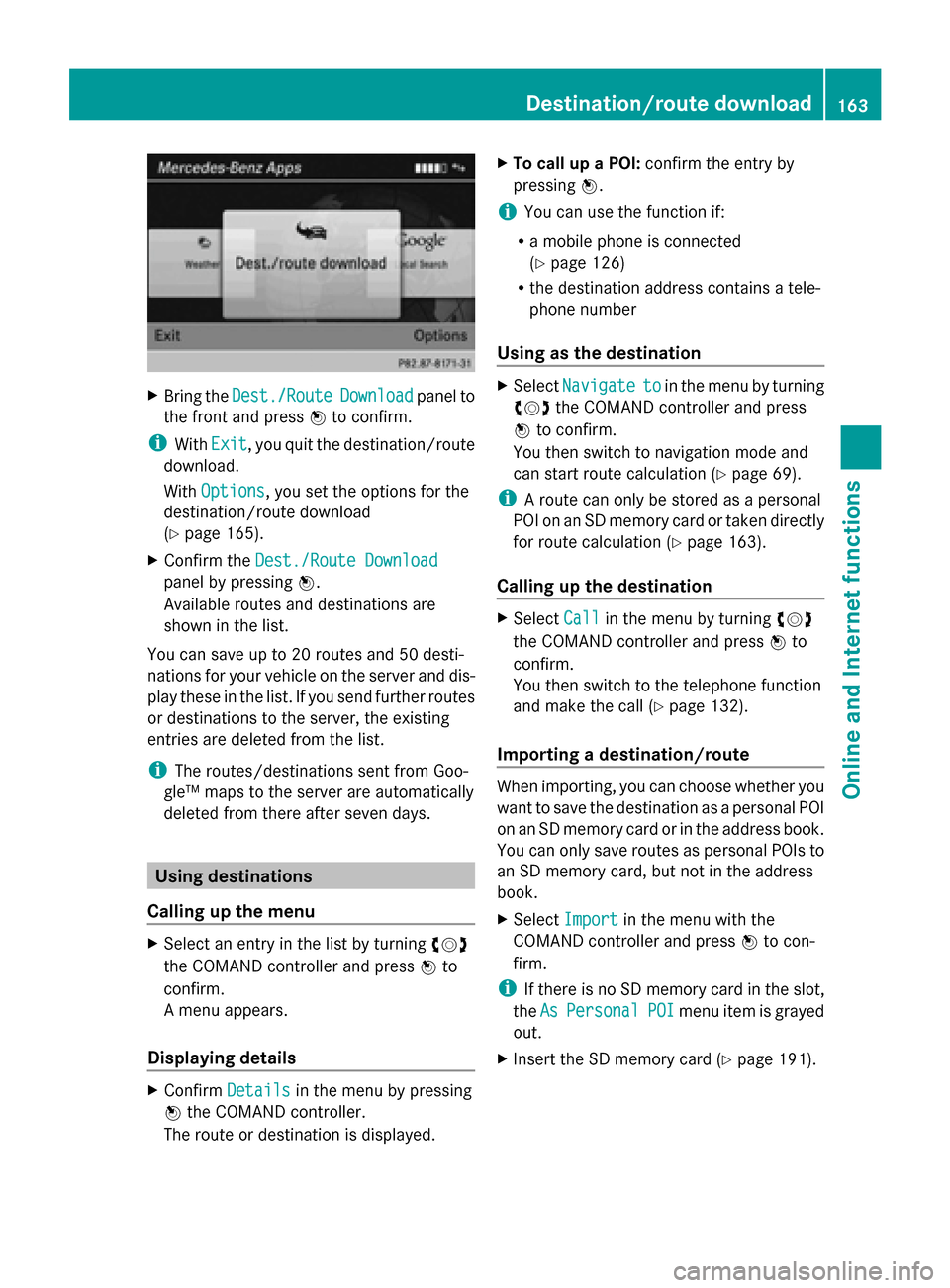
Bring the Dest./Route
Dest./Route Download
Downloadpanel to
the front and press 0098to confirm.
i With Exit
Exit , you quit the destination/route
download.
With Options
Options, you set the options for the
destination/route download
(Y page 165).
X Confirm the Dest./Route Download
Dest./Route Download
panel by pressing 0098.
Available routes and destinations are
shown in the list.
You can save up to 20 routes and 50 desti-
nations for your vehicle on the server and dis-
play these in the list. If you send further routes
or destinations to the server, the existing
entries are deleted from the list.
i The routes/destinations sent from Goo-
gle™ maps to the server are automatically
deleted from there after seven days. Using destinations
Calling up the menu X
Select an entry in the list by turning 00790052007A
the COMAND controller and press 0098to
confirm.
A menu appears.
Displaying details X
Confirm Details
Details in the menu by pressing
0098 the COMAND controller.
The route or destination is displayed. X
To call up a POI: confirm the entry by
pressing 0098.
i You can use the function if:
R a mobile phone is connected
(Y page 126)
R the destination address contains a tele-
phone number
Using as the destination X
Select Navigate Navigate to
toin the menu by turning
00790052007A the COMAND controller and press
0098 to confirm.
You then switch to navigation mode and
can start route calculation (Y page 69).
i A route can only be stored as a personal
POI on an SD memory card or taken directly
for route calculation (Y page 163).
Calling up the destination X
Select Call Callin the menu by turning 00790052007A
the COMAND controller and press 0098to
confirm.
You then switch to the telephone function
and make the call (Y page 132).
Importing a destination/route When importing, you can choose whether you
want to save the destination as a personal POI
on an SD memory card or in the address book.
You can only save routes as personal POIs to
an SD memory card, but not in the address
book.
X
Select Import Import in the menu with the
COMAND controller and press 0098to con-
firm.
i If there is no SD memory card in the slot,
the As AsPersonal Personal POI
POImenu item is grayed
out.
X Insert the SD memory card (Y page 191). Destination/route download
163Online and Internet functions
Page 166 of 270
X
To save as a personal POI: confirmAs
As
Personal POI
Personal POI by pressing0098the
COMAND controller.
The entry is saved as a personal POI on the
SD memory card.
i You can use a personal POI in navigation
mode for route calculation (Y page 85).
You can also use a personal POI in another
vehicle for route calculation.
X To save to the address book: selectTo
To
Address Book
Address Book by turning00790052007Athe
COMAND controller and press 0098to con-
firm.
The entry is stored in the address book.
Deleting a destination/route from the
server X
Select an entry in the list by turning 00790052007A
the COMAND controller and press 0098to
confirm.
X Select Delete
Delete and press 0098to confirm.
A query appears asking whether the desti-
nation or the route should be deleted.
X Select Yes
Yes orNo No and press 0098to confirm. Options
Introduction
You can select options for the following
Mercedes-Benz Apps on COMAND:
R Local Search (Y page 164)
R Destination download (Y page 165)
You can reset the selected options to the
default settings (Y page 166). Calling up the options menu
X Select the 00A7symbol in the main function
bar by turning 00790052007Athe COMAND con-
troller and press 0098to confirm.
The carousel view appears.
X Bring the Mercedes-Benz Apps Mercedes-Benz Apps panel to
the front by turning 00790052007Athe COMAND
controller and press 0098to confirm.
X Select Options
Options by sliding 00520064and turning
00790052007A the COMAND controller and press
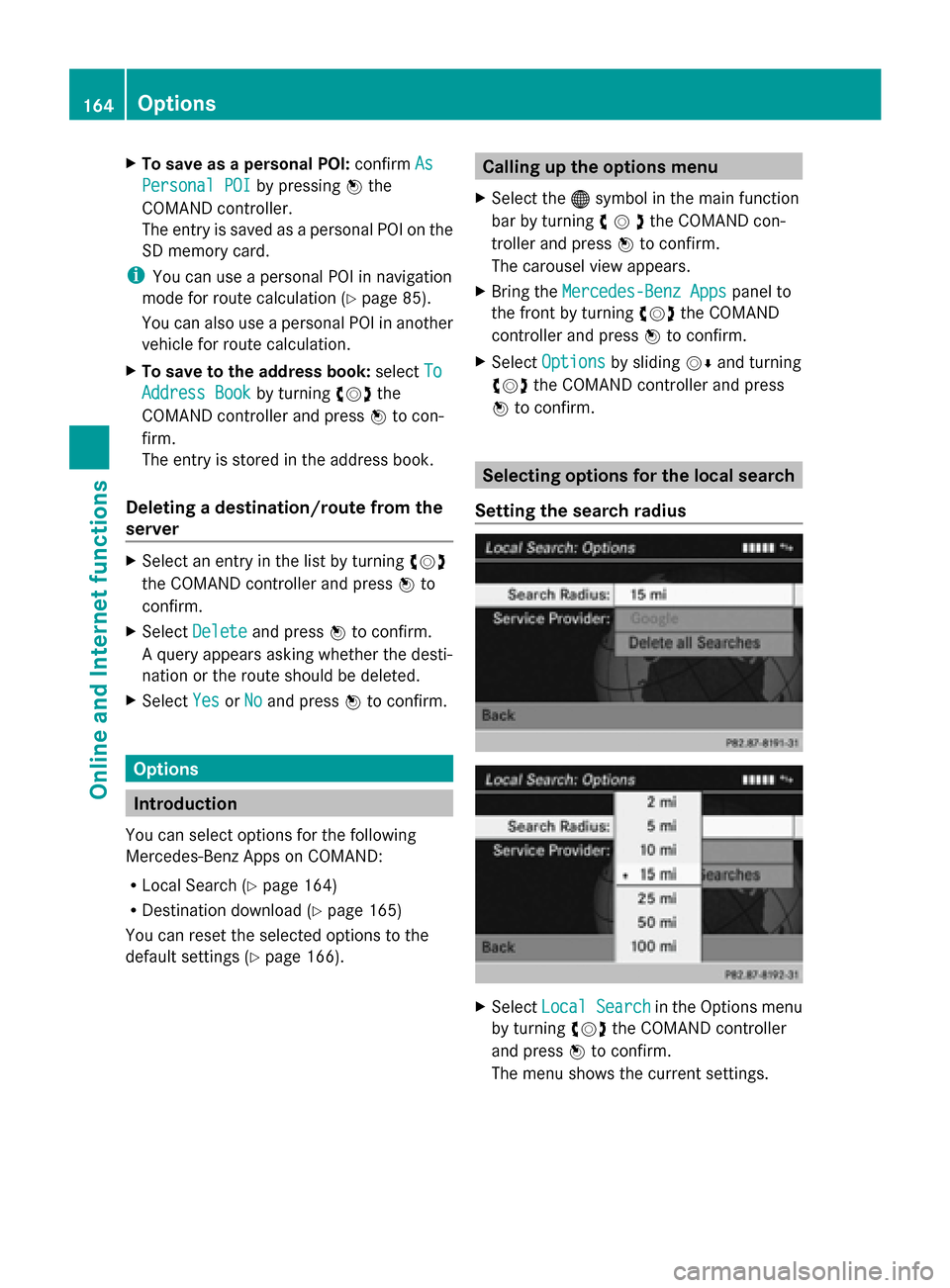
0098 to confirm. Selecting options for the local search
Setting the search radius X
Select Local Search
Local Search in the Options menu
by turning 00790052007Athe COMAND controller
and press 0098to confirm.
The menu shows the current settings. 164
OptionsOnline and
Internet functions