online MERCEDES-BENZ CLA-Class 2014 C117 Comand Manual
[x] Cancel search | Manufacturer: MERCEDES-BENZ, Model Year: 2014, Model line: CLA-Class, Model: MERCEDES-BENZ CLA-Class 2014 C117Pages: 270, PDF Size: 5.76 MB
Page 177 of 270
Deleting favorites in the Favorites menu
X Select Delete
Delete by turning 00790052007Aor sliding
009700520064 the COMAND controller and press
0098 to confirm.
or
X Press the 0084button to the right of the
COMAND controller.
The favorite is deleted. Settings
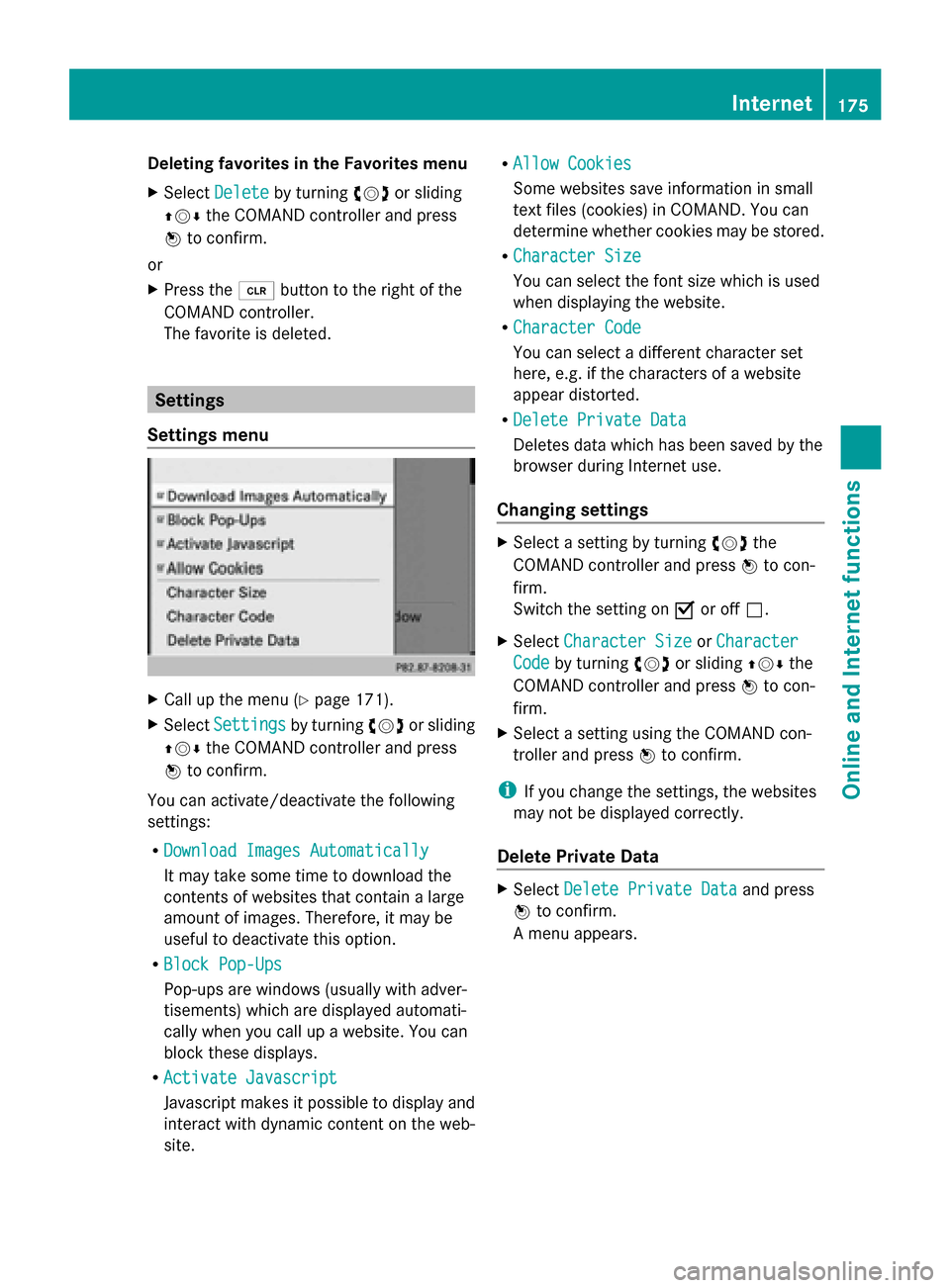
Settings menu X
Call up the menu ( Ypage 171).
X Select Settings Settings by turning00790052007Aor sliding
009700520064 the COMAND controller and press
0098 to confirm.
You can activate/deactivate the following
settings:
R Download Images Automatically
Download Images Automatically
It may take some time to download the
contents of websites that contain a large
amount of images. Therefore, it may be
useful to deactivate this option.
R Block Pop-Ups
Block Pop-Ups
Pop-ups are windows (usually with adver-
tisements) which are displayed automati-
cally when you call up a website. You can
block these displays.
R Activate Javascript Activate Javascript
Javascript makes it possible to display and
interact with dynamic content on the web-
site. R
Allow Cookies
Allow Cookies
Some websites save information in small
text files (cookies) in COMAND. You can
determine whether cookies may be stored.
R Character Size
Character Size
You can select the font size which is used
when displaying the website.
R Character Code Character Code
You can select a different character set
here, e.g. if the characters of a website
appear distorted.
R Delete Private Data Delete Private Data
Deletes data which has been saved by the
browser during Internet use.
Changing settings X
Select a setting by turning 00790052007Athe
COMAND controller and press 0098to con-
firm.
Switch the setting on 0073or off 0053.
X Select Character Size Character Size orCharacter
Character
Code
Code by turning 00790052007Aor sliding 009700520064the
COMAND controller and press 0098to con-
firm.
X Select a setting using the COMAND con-
troller and press 0098to confirm.
i If you change the settings, the websites
may not be displayed correctly.
Delete Private Data X
Select Delete Private Data Delete Private Data and press
0098 to confirm.
A menu appears. Internet
175Online and Internet functions
Page 178 of 270
X
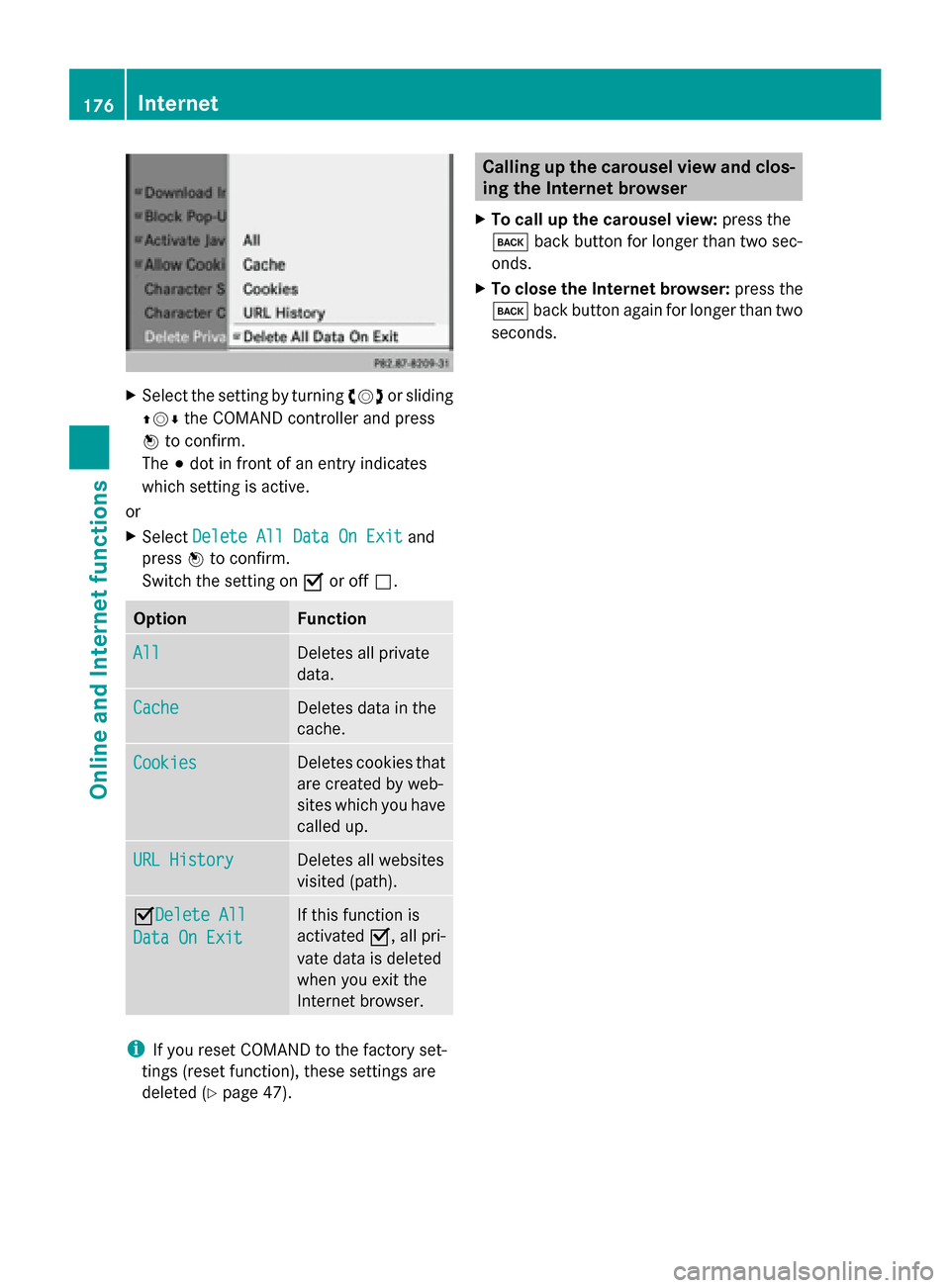
Select the setting by turning 00790052007Aor sliding
009700520064 the COMAND controller and press
0098 to confirm.
The 003Bdot in front of an entry indicates
which setting is active.
or
X Select Delete All Data On Exit Delete All Data On Exit and
press 0098to confirm.
Switch the setting on 0073or off 0053. Option Function
All
All Deletes all private
data.
Cache Cache Deletes data in the
cache.
Cookies Cookies Deletes cookies that
are created by web-
sites which you have
called up.
URL History URL History Deletes all websites
visited (path).
0073Delete All
Delete All
Data On Exit Data On Exit If this function is
activated
0073, all pri-
vate data is deleted
when you exit the
Internet browser. i
If you reset COMAND to the factory set-
tings (reset function), these settings are
deleted (Y page 47). Calling up the carousel view and clos-
ing the Internet browser
X To call up the carousel view: press the
003D back button for longer than two sec-
onds.
X To close the Internet browser: press the
003D back button again for longer than two
seconds. 176
InternetOnline and Internet functions
Page 185 of 270
i
SIRIUS XM Radio offers more than 130
radio stations in digital quality, for example
100% commercial-free music, sports, news
and entertainment.
SIRIUS XM Radio employs a fleet of high-
performance satellites to broadcast around
the clock in the contiguous USA and Can-
ada.
The satellite radio program is available for
a monthly fee. Details are available from
the SIRIUS XM Service Center and at
http://www.sirius.com (USA) or
http://www.siriuscanada.com (Can-
ada). Registering SatRadio
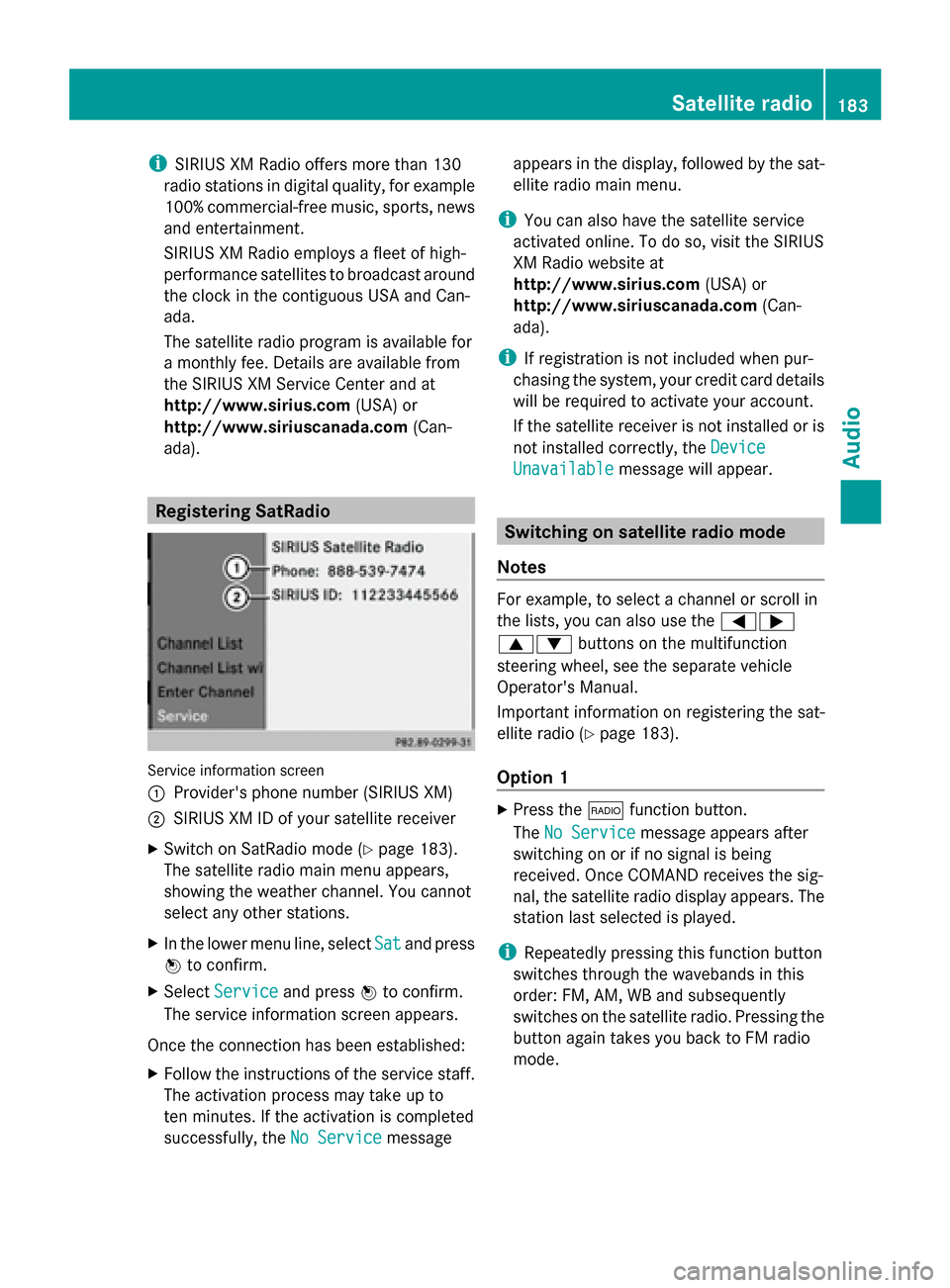
Service information screen
0043
Provider's phone number (SIRIUS XM)
0044 SIRIUS XM ID of your satellite receiver
X Switch on SatRadio mode (Y page 183).
The satellite radio main menu appears,
showing the weather channel. You cannot
select any other stations.
X In the lower menu line, select Sat
Sat and press
0098 to confirm.
X Select Service Service and press 0098to confirm.
The service information screen appears.
Once the connection has been established:
X Follow the instructions of the service staff.
The activation process may take up to
ten minutes. If the activation is completed
successfully, the No Service No Servicemessage appears in the display, followed by the sat-
ellite radio main menu.
i You can also have the satellite service
activated online. To do so, visit the SIRIUS
XM Radio website at
http://www.sirius.com (USA) or
http://www.siriuscanada.com (Can-
ada).
i If registration is not included when pur-
chasing the system, your credit card details
will be required to activate your account.
If the satellite receiver is not installed or is
not installed correctly, the Device Device
Unavailable
Unavailable message will appear. Switching on satellite radio mode
Notes For example, to select a channel or scroll in
the lists, you can also use the
00590065
00630064 buttons on the multifunction
steering wheel, see the separate vehicle
Operator's Manual.
Important information on registering the sat-
ellite radio (Y page 183).
Option 1 X
Press the 002Afunction button.
The No Service No Service message appears after
switching on or if no signal is being
received. Once COMAND receives the sig-
nal, the satellite radio display appears. The
station last selected is played.
i Repeatedly pressing this function button
switches through the wavebands in this
order: FM, AM, WB and subsequently
switches on the satellite radio. Pressing the
button again takes you back to FM radio
mode. Satellite radio
183Audio
Page 222 of 270
Audio AUX mode
Notes on audio AUX mode
External audio sources may have different
volumes, which can mean that system mes-
sages such as traffic announcements and
navigation system announcements are much
louder. If necessary, deactivate the system
messages or adjust their volume manually.
You can connect an external audio source
(AUX) to COMAND.
Depending on the vehicle model series the
connection is made via a jack in the storage
compartment in the center console or via the
USB port (Y page 191).
If COMAND is equipped with the Media Inter-
face, external audio sources are connected
using the cable set provided. An AUX socket
is not provided. The connections for the
Media Interface are located in the stowage
compartment in the center console.
i You will find further information online at
http://www.mbusa-mobile.com. Or call
the Mercedes-Benz Customer Assistance
Center at 1-800-FOR-MERCedes
(1-800-367-6372 )(for the USA) or Cus-
tomer Relations at 1-800-387-010 0(for
Canada). Switching to audio AUX mode
Switching modes using the function
button The external device is connected to the audio
AUX in.
X Press the 003Afunction button one or more
times.
By pressing the function button repeatedly,
you can change the operating mode in the
following order:
R CD/audio DVD/MP3 (disc)
R Memory card mode
R MUSIC REGISTER
R USB storage device R
Media Interface or audio AUX mode
R Bluetooth ®
audio mode
Switching modes via the audio menu When you connect an external audio source,
audio AUX is not selected automatically.
X
Select Audio
Audio in the main function bar by
sliding 00970052and turning 00790052007Athe COMAND
controller and press 0098to confirm.
If AUX mode was the last mode selected, it
will now be active.
If another audio source is switched on, you
can now switch to audio AUX mode in the
audio menu.
X Select Audio Audiousing00970052and press 0098to
confirm.
The audio menu appears.
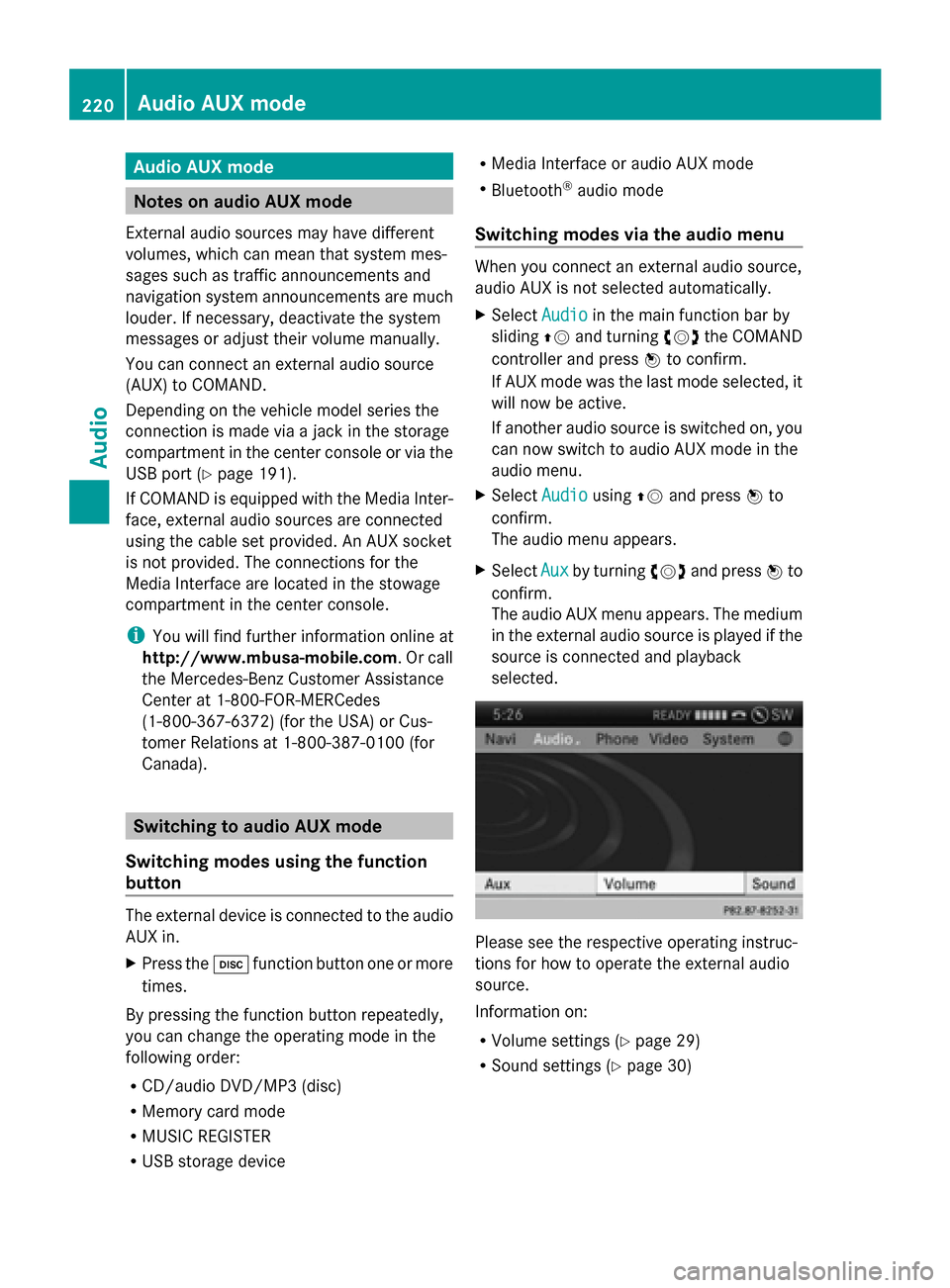
X Select Aux Auxby turning 00790052007Aand press 0098to
confirm.
The audio AUX menu appears. The medium
in the external audio source is played if the
source is connected and playback
selected. Please see the respective operating instruc-
tions for how to operate the external audio
source.
Information on:
R
Volume settings (Y page 29)
R Sound settings (Y page 30)220
Audio AUX modeAudio