online MERCEDES-BENZ CLA-Class 2014 C117 Comand Manual
[x] Cancel search | Manufacturer: MERCEDES-BENZ, Model Year: 2014, Model line: CLA-Class, Model: MERCEDES-BENZ CLA-Class 2014 C117Pages: 270, PDF Size: 5.76 MB
Page 5 of 270
Index
....................................................... 4Operating safety
................................. 14 At a glance
........................................... 19 System settings
.................................. 41 Vehicle functions
................................ 49 Navigation
........................................... 59 Telephone
.......................................... 123 Online and Internet functions
..........157 Audio
.................................................. 177 Video
.................................................. 223 Rear Seat Entertainment System
....233 SIRIUS Weather
................................ 255 Contents
3
Page 11 of 270
Setting route options (avoiding:
highways, toll roads, tunnels, fer-
ries)
................................................. 62
Setting the route type (short
route, fast route, dynamic route or
economic route) ............................... 62
Showing/hiding the menu ...............61
Starting route calculation ................69
Switching announcements on/off ...91
Switching to ..................................... 61
Navigation announcements
Switching off .................................... 29
Night View Assist Plus
Showing the image on the
COMAND displa y............................. 56
Switching automatic activation
on/off .............................................. 56
North orientation (navigation) .........109 O
Off-map ................................................ 98
Off-road ................................................ 97
Online and Internet functions Ending the connection ...................159
Establishing/ending the connec-
tion ................................................ 158
Further Mercedes-Benz Apps ......... 166
Mercedes-Benz Mobile Website .....166
Options menu ................................ 164
Resetting settings ..........................166
Selecting options for the local
search ............................................ 164
Setting options for destination/
route downloa d.............................. 165
Own address ...................................... 103P
Pause function Audio mode (CD, DVD, MP3) .........193
Video DVD ..................................... 227
Personal POIs
Acoustic notification ........................83
Calling up the menu .........................82
Displaying on the map .....................82
Managing categories ........................ 83
Saving .............................................. 84Selecting as the destination ............. 85
Settings ........................................... 82
Visual information ............................ 83
Phone book
Adding a number to an address
book entry ..................................... 140
Calling up ....................................... 137
Creating a new entry .....................139
Deleting an entry ........................... 139
Entering characters .........................34
Icon overview ................................. 137
Searching for an entry ...................138
Picture settings (TV, video) ..............224
Picture viewer Displaying pictures ........................231
Introduction ................................... 231
Playback options
Audio mode (CD, DVD, MP3) .........198
POI (navigation)
Category .......................................... 79
Defining the position for the POI
search .............................................. 78
Entering ........................................... 76
Entering a point of interest using
the map ........................................... 81
List ................................................... 79
ZAGAT ®
survey service ....................81
see Personal POIs
Point of interest icon
Setting ........................................... 110
Point of interest list
With character bar ...........................80
Previous destinations (navigation) ..107 R
Radio Overview ........................................ 178
Setting a statio n............................ 180
Sound settings (balance, bass,
treble) .............................................. 30
Storing stations ............................. 180
Switching HD Radio on/off ............179
Switching on .................................. 178
Switching wavebands ....................179
Read-aloud function ..........................102
Real-time traffic reports .....................99
Rear-compartment screens ..............235 Index
9
Page 22 of 270
Your COMAND equipment
These operating instructions describe all the
standard and optional equipment for your
COMAND system, as available at the time of
going to print. Country-specific differences
are possible. Please note that your
COMAND system may not be equipped with
all the features described. COMAND operating system
Overview
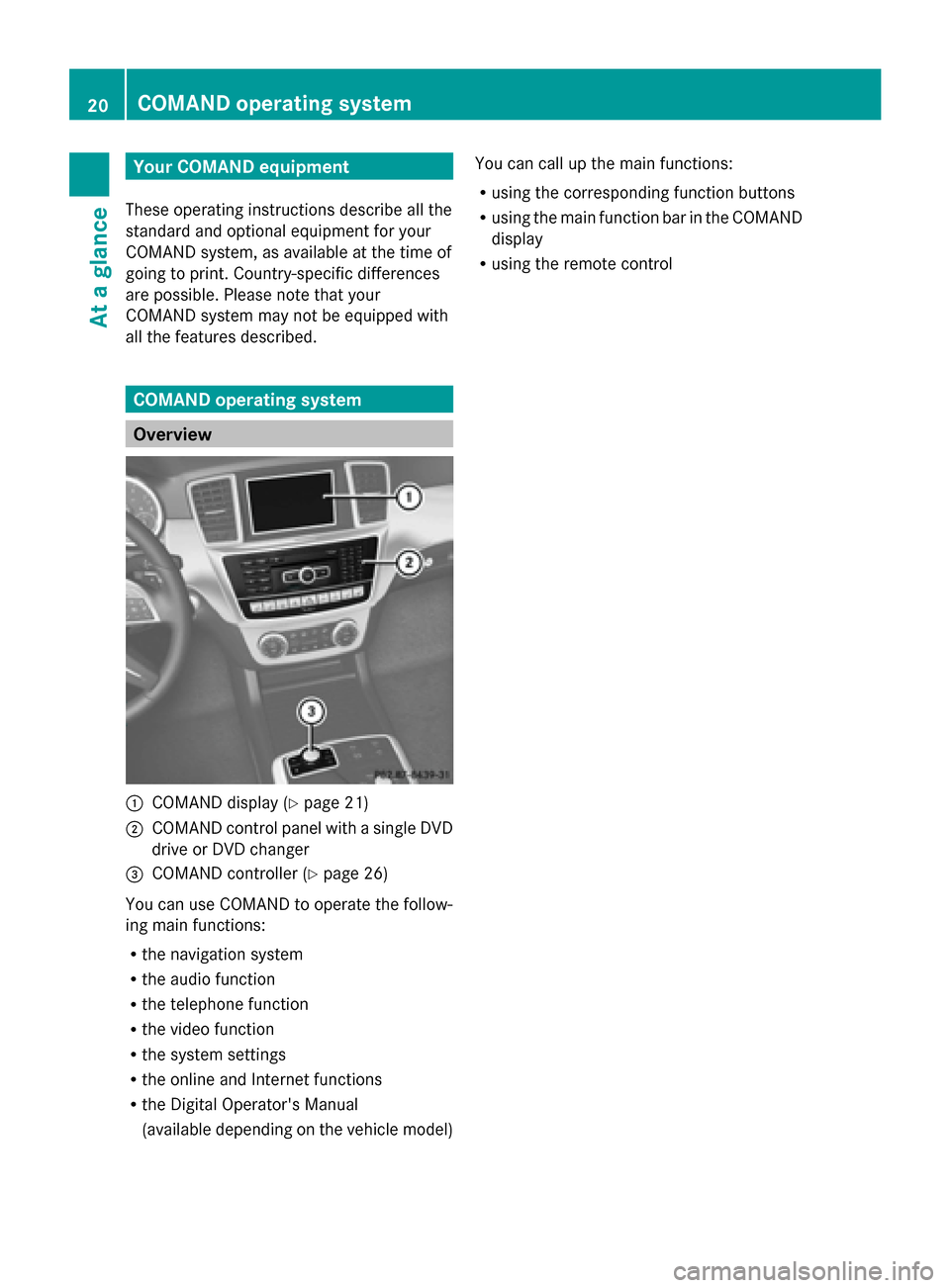
0043
COMAND display (Y page 21)
0044 COMAND control panel with a single DVD
drive or DVD changer
0087 COMAND controller (Y page 26)
You can use COMAND to operate the follow-
ing main functions:
R the navigation system
R the audio function
R the telephone function
R the video function
R the system settings
R the online and Internet functions
R the Digital Operator's Manual
(available depending on the vehicle model) You can call up the main functions:
R
using the corresponding function buttons
R using the main function bar in the COMAND
display
R using the remote control 20
COMAND ope
rating systemAt a glance
Page 47 of 270
Activating/deactivating Bluetooth
®
X Press 0066.
The system menu appears.
X Select Settings
Settings by turning 00790052007Athe
COMAND controller and press 0098to con-
firm.
X Select Activate Bluetooth
Activate Bluetooth and press
0098 to confirm.
This switches Bluetooth ®
on 0073 or off 0053. Setting the system language
This function allows you to determine the lan-
guage for the menu displays and the naviga-
tion announcements. The selected language
affects the characters available for entry.
The navigation announcements are not avail-
able in all languages. If a language is not avail-
able, the navigation announcements will be in
English.
When you set the system language, the lan-
guage of the Voice Control System will
change accordingly. If the selected language
is not supported by the Voice Control System,
English will be selected.
X Press the 0066button.
X Select System
System by turning 00790052007Athe
COMAND controller and press 0098to con-
firm.
X Select Language Language and press0098to confirm.
The list of languages appears. The 003Bdot
indicates the current setting.
X Select the language by turning 00790052007Athe
COMAND controller and press 0098to con-
firm.
COMAND loads the selected language and
sets it. Assigning a favorites button
X To assign a favorites button: press the
0066 button.
X Select System System by turning 00790052007Athe
COMAND controller and press 0098to con-
firm.
X Select Assign as Favorite
Assign as Favorite and press
0098 to confirm.
The list of predefined functions appears.
The dot 003Bindicates the currently selected
function.
X Select the function by turning 00790052007Athe
COMAND controller and press 0098to con-
firm.
The favorites button is assigned the
selected function.
X Example: to call up a favorite: press the
007D favorites button.
This calls up the predefined function.
You can select the following predefined func-
tions in a menu:
R SplitView on/off SplitView on/off : you can switch the
screen view for the front passenger on or
off.
R Display On/Off Display On/Off : you can switch the dis-
play off or on.
R Full Screen: 'Clock'
Full Screen: 'Clock': you can call up
the full screen with the clock.
R 00A7 Menu Menu: you can call up the online and
Internet functions.
R 360° Camera
360° Camera : you can call up the picture
of the 360° camera.
R Full screen: 'Map'
Full screen: 'Map' : you can call up the
full screen with the map.
R Spoken Driving Tip
Spoken Driving Tip : you can call up the
current driving recommendation.
R Display
Display Traffic
TrafficMessages
Messages : you can call
up traffic reports.
R Navigate Home
Navigate Home: you can start route guid-
ance to your home address if you have
already entered and saved the address
(Y page 69). Assigning a favorites button
45System settings
Page 85 of 270
Selection Explanation
0053
Not Clas‐
Not Clas‐
sified
sified Standard entry for per-
sonal POIs
0053
COMAND COMAND Personal POIs (destina-
tions, routes) that you
have imported via the
online function
(Y
page 163). If you have created your own categories (e.g.
"Fishing", "Hotels"), they are also displayed
(Y
page 83).
X Select a category and press 0098to confirm.
The icon display is switched on 0073or off
0053, depending on the previous status.
i The icons will be displayed in the following
map scales:
R 1/16 mile (50 m)
R 1/8 mile (100 m)
R 1/4 mile (200 m)
R 1/2 mile (500 m)
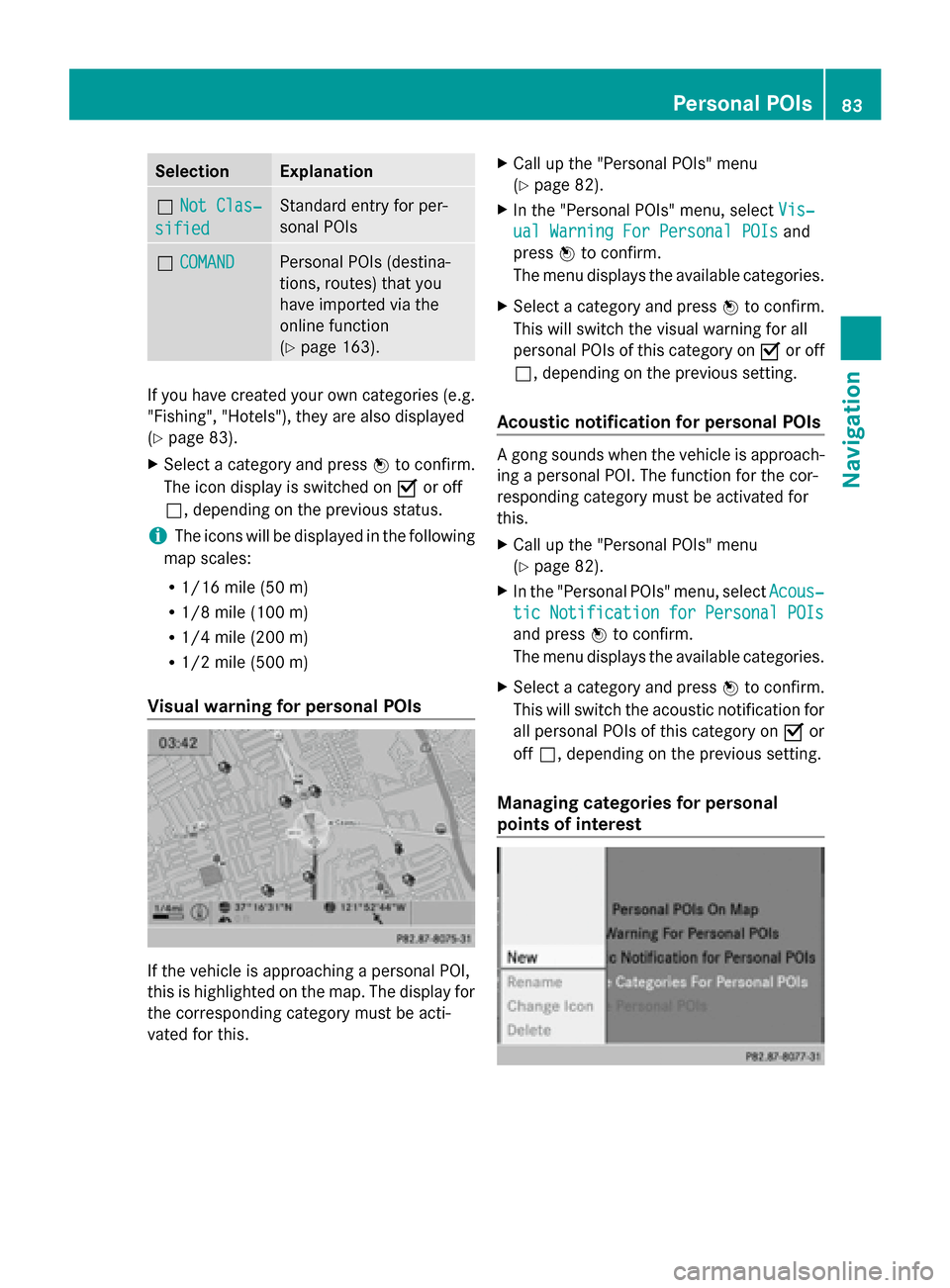
Visual warning for personal POIs If the vehicle is approaching a personal POI,
this is highlighted on the map. The display for
the corresponding category must be acti-
vated for this. X
Call up the "Personal POIs" menu
(Y page 82).
X In the "Personal POIs" menu, select Vis‐ Vis‐
ual Warning For Personal POIs
ual Warning For Personal POIs and
press 0098to confirm.
The menu displays the available categories.
X Select a category and press 0098to confirm.
This will switch the visual warning for all
personal POIs of this category on 0073or off
0053, depending on the previous setting.
Acoustic notification for personal POIs A gong sounds when the vehicle is approach-
ing a personal POI. The function for the cor-
responding category must be activated for
this.
X
Call up the "Personal POIs" menu
(Y page 82).
X In the "Personal POIs" menu, select Acous‐
Acous‐
tic Notification for Personal POIs tic Notification for Personal POIs
and press 0098to confirm.
The menu displays the available categories.
X Select a category and press 0098to confirm.
This will switch the acoustic notification for
all personal POIs of this category on 0073or
off 0053, depending on the previous setting.
Managing categories for personal
points of interest Personal POIs
83Navigation Z
Page 86 of 270
X
Call up the "Personal POIs" menu
(Y page 82).
X In the "Personal POIs" menu, select Man‐ Man‐
age Categories For Personal POIs
age Categories For Personal POIs
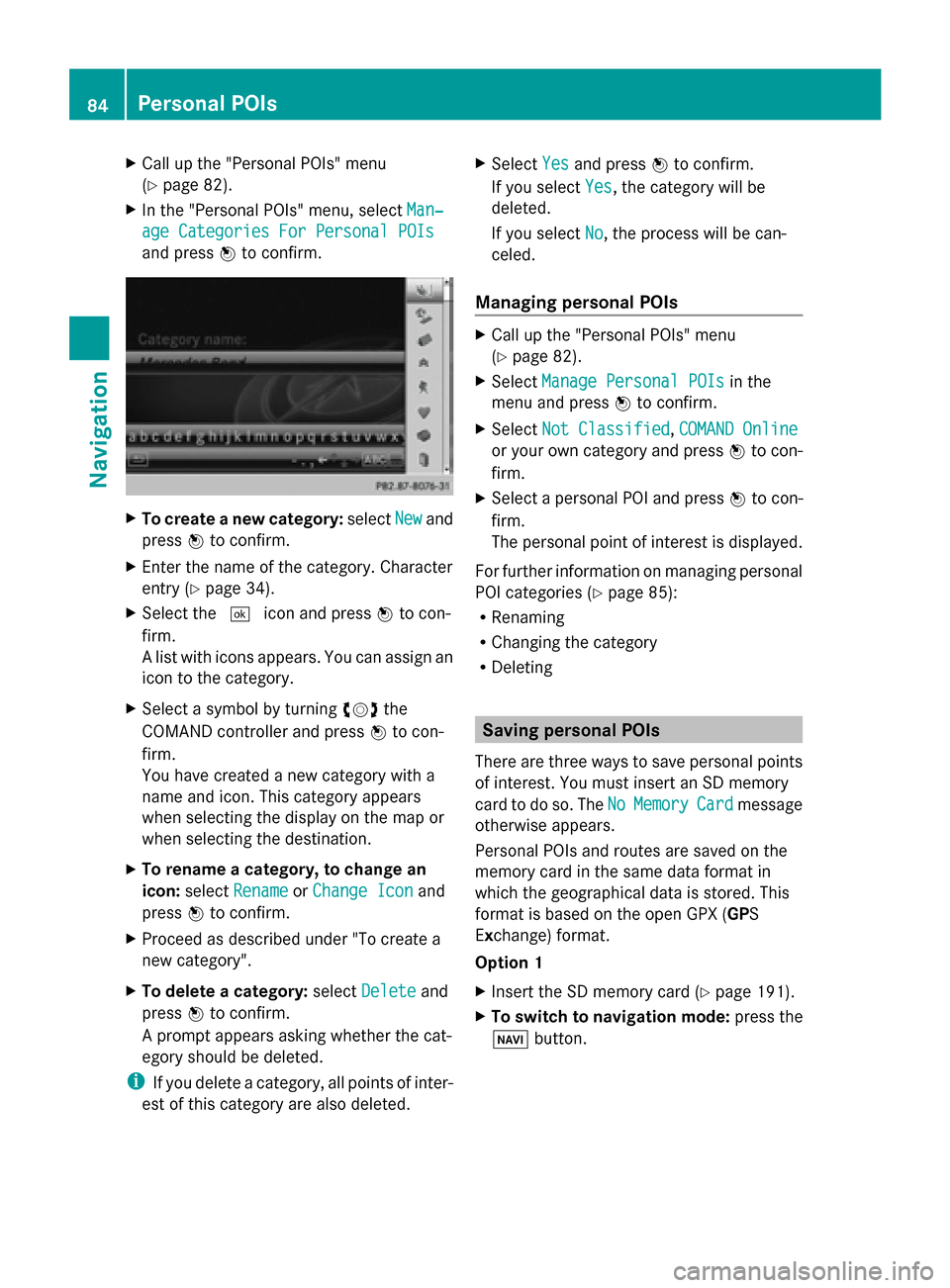
and press 0098to confirm. X
To create a new category: selectNew
Newand
press 0098to confirm.
X Enter the name of the category. Character
entry (Y page 34).
X Select the 0054icon and press 0098to con-
firm.
A list with icons appears. You can assign an
icon to the category.
X Select a symbol by turning 00790052007Athe
COMAND controller and press 0098to con-
firm.
You have created a new category with a
name and icon. This category appears
when selecting the display on the map or
when selecting the destination.
X To rename a category, to change an
icon: select Rename
Rename orChange Icon Change Icon and
press 0098to confirm.
X Proceed as described under "To create a
new category".
X To delete a category: selectDelete
Delete and
press 0098to confirm.
A prompt appears asking whether the cat-
egory should be deleted.
i If you delete a category, all points of inter-
est of this category are also deleted. X
Select Yes
Yes and press 0098to confirm.
If you select Yes
Yes , the category will be
deleted.
If you select No
No, the process will be can-
celed.
Managing personal POIs X
Call up the "Personal POIs" menu
(Y page 82).
X Select Manage Personal POIs Manage Personal POIs in the
menu and press 0098to confirm.
X Select Not Classified
Not Classified, COMAND Online
COMAND Online
or your own category and press 0098to con-
firm.
X Select a personal POI and press 0098to con-
firm.
The personal point of interest is displayed.
For further information on managing personal
POI categories (Y page 85):
R Renaming
R Changing the category
R Deleting Saving personal POIs
There are three ways to save personal points
of interest. You must insert an SD memory
card to do so. The No NoMemory
Memory Card
Cardmessage
otherwise appears.
Personal POIs and routes are saved on the
memory card in the same data format in
which the geographical data is stored. This
format is based on the open GPX ( GPS
Exchange) format.
Option 1
X Insert the SD memory card (Y page 191).
X To switch to navigation mode: press the
00BE button. 84
Personal POIsNavigation
Page 87 of 270
X
Hide the menu to show the map in full
screen mode (Y page 61).
X Press 0098the COMAND controller for longer
than two seconds.
The current position of the vehicle is saved
as a personal POI on the SD memory card
in the Not Classified
Not Classified category.
i The crosshair position is saved in the
scrolling map function (Y page 108).
Option 2:
X Insert the SD memory card (Y page 191).
X To switch to navigation mode: press the
00BE button.
X To show the menu: press0098the COMAND
controller.
X Select Position
Position in the navigation system
menu bar by turning 00790052007Athe COMAND
controller and press 0098to confirm.
X Select Save Position As Personal Save Position As Personal
POI
POI orSave Crosshair Pos. as Per‐
Save Crosshair Pos. as Per‐
sonal POI
sonal POI ("Move map" function active)
and press 0098to confirm.
The list of personal categories appears.
X Select a category and press 0098to confirm.
X Name for the personal point of interest.
Character entry (Y page 34).
Option 3
X Insert the SD memory card (Y page 191).
X To switch to navigation mode: press the
00BE button.
X Call up the address entry menu
(Y page 64).
X Select Save Savefrom the address entry menu
and press 0098to confirm.
X Select Save As Personal POI
Save As Personal POI and press
0098 to confirm.
X Select a category.
X Enter the name.
The current address is saved as a personal
point of interest on the SD memory card. Importing personal POIs via the online
function
You can import personal POIs (destinations,
routes) via the online function (Y page 163).
When importing, you can choose whether to
write files to the SD memory card or to file
them in the address book. The imported per-
sonal POIs have their own icon and are filed
in the COMAND Online COMAND Online category. Selecting as the destination
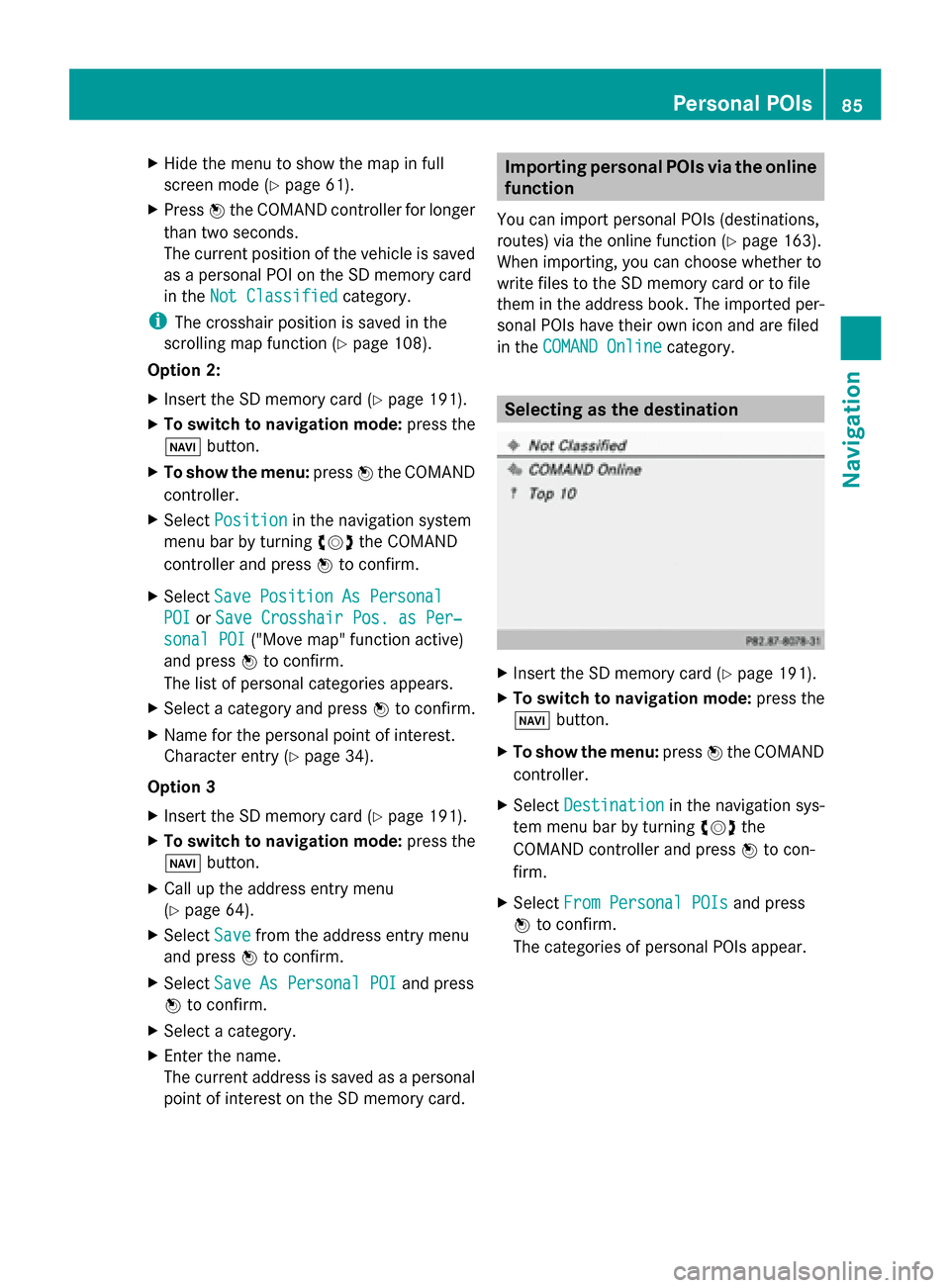
X
Insert the SD memory card (Y page 191).
X To switch to navigation mode: press the
00BE button.
X To show the menu: press0098the COMAND
controller.
X Select Destination
Destination in the navigation sys-
tem menu bar by turning 00790052007Athe
COMAND controller and press 0098to con-
firm.
X Select From Personal POIs
From Personal POIs and press
0098 to confirm.
The categories of personal POIs appear. Personal POIs
85Navigation Z
Page 88 of 270
Selection Explanation
Not Classi‐
Not Classi‐
fied fied Standard entry for per-
sonal points of interest.
COMAND COMAND
Online Online Personal POIs which you
have imported via the
online function
(Y
page 163). Coffee Coffee
Shops Shops Symbol and category that
you have created yourself
(Y
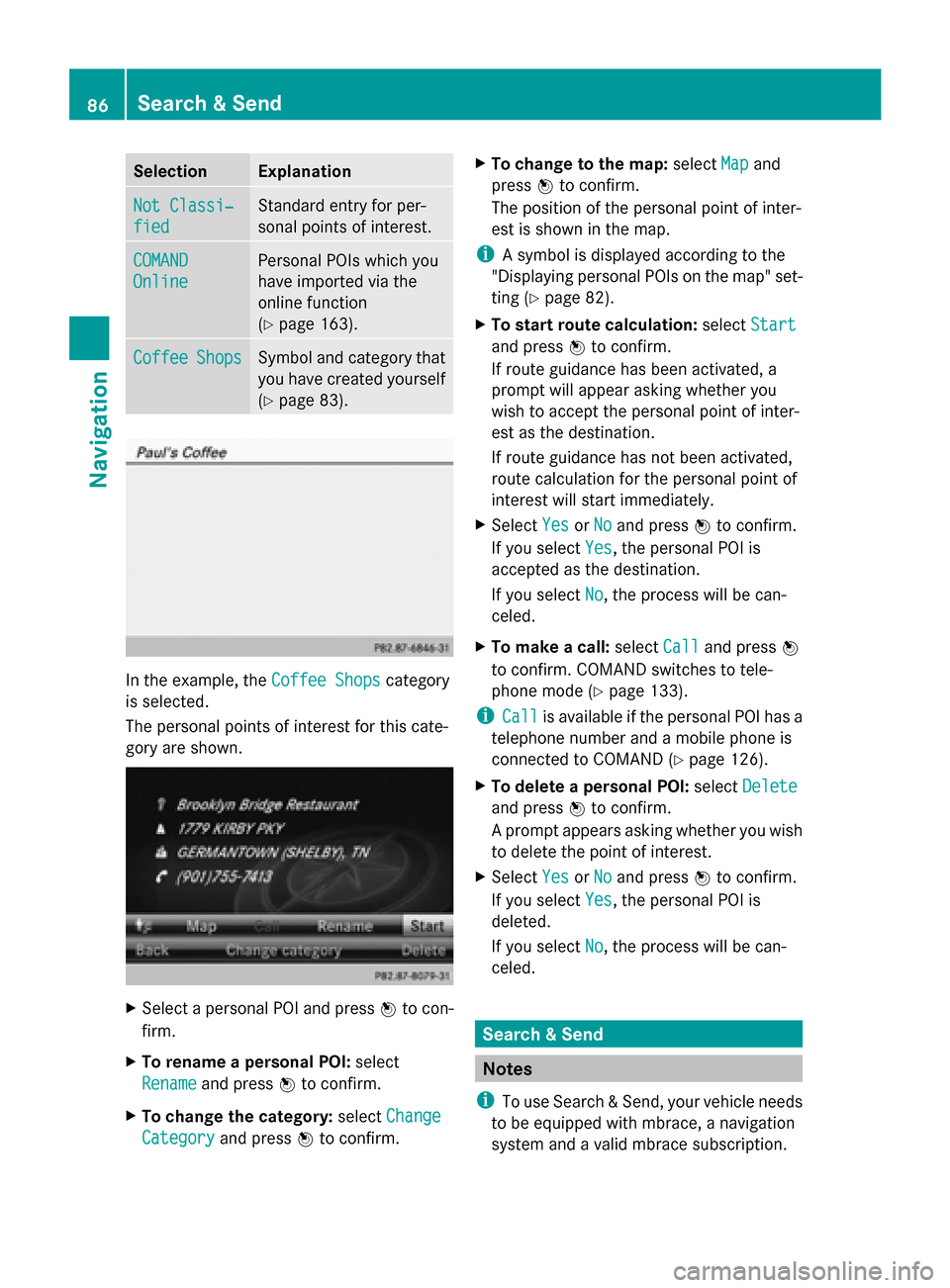
page 83). In the example, the
Coffee Shops Coffee Shopscategory
is selected.
The personal points of interest for this cate-
gory are shown. X
Select a personal POI and press 0098to con-
firm.
X To rename a personal POI: select
Rename
Rename and press 0098to confirm.
X To change the category: selectChange Change
Category
Category and press0098to confirm. X
To change to the map: selectMap
Mapand
press 0098to confirm.
The position of the personal point of inter-
est is shown in the map.
i A symbol is displayed according to the
"Displaying personal POIs on the map" set-
ting (Y page 82).
X To start route calculation: selectStart Start
and press 0098to confirm.
If route guidance has been activated, a
prompt will appear asking whether you
wish to accept the personal point of inter-
est as the destination.
If route guidance has not been activated,
route calculation for the personal point of
interest will start immediately.
X Select Yes
Yes orNo No and press 0098to confirm.
If you select Yes
Yes, the personal POI is
accepted as the destination.
If you select No No, the process will be can-
celed.
X To make a call: selectCall
Calland press 0098
to confirm. COMAND switches to tele-
phone mode (Y page 133).
i Call Call is available if the personal POI has a
telephone number and a mobile phone is
connected to COMAND (Y page 126).
X To delete a personal POI: selectDelete Delete
and press 0098to confirm.
A prompt appears asking whether you wish
to delete the point of interest.
X Select Yes YesorNo
No and press 0098to confirm.
If you select Yes
Yes, the personal POI is
deleted.
If you select No No, the process will be can-
celed. Search & Send
Notes
i To use Search & Send, your vehicle needs
to be equipped with mbrace, a navigation
system and a valid mbrace subscription. 86
Search & SendNavigation
Page 89 of 270
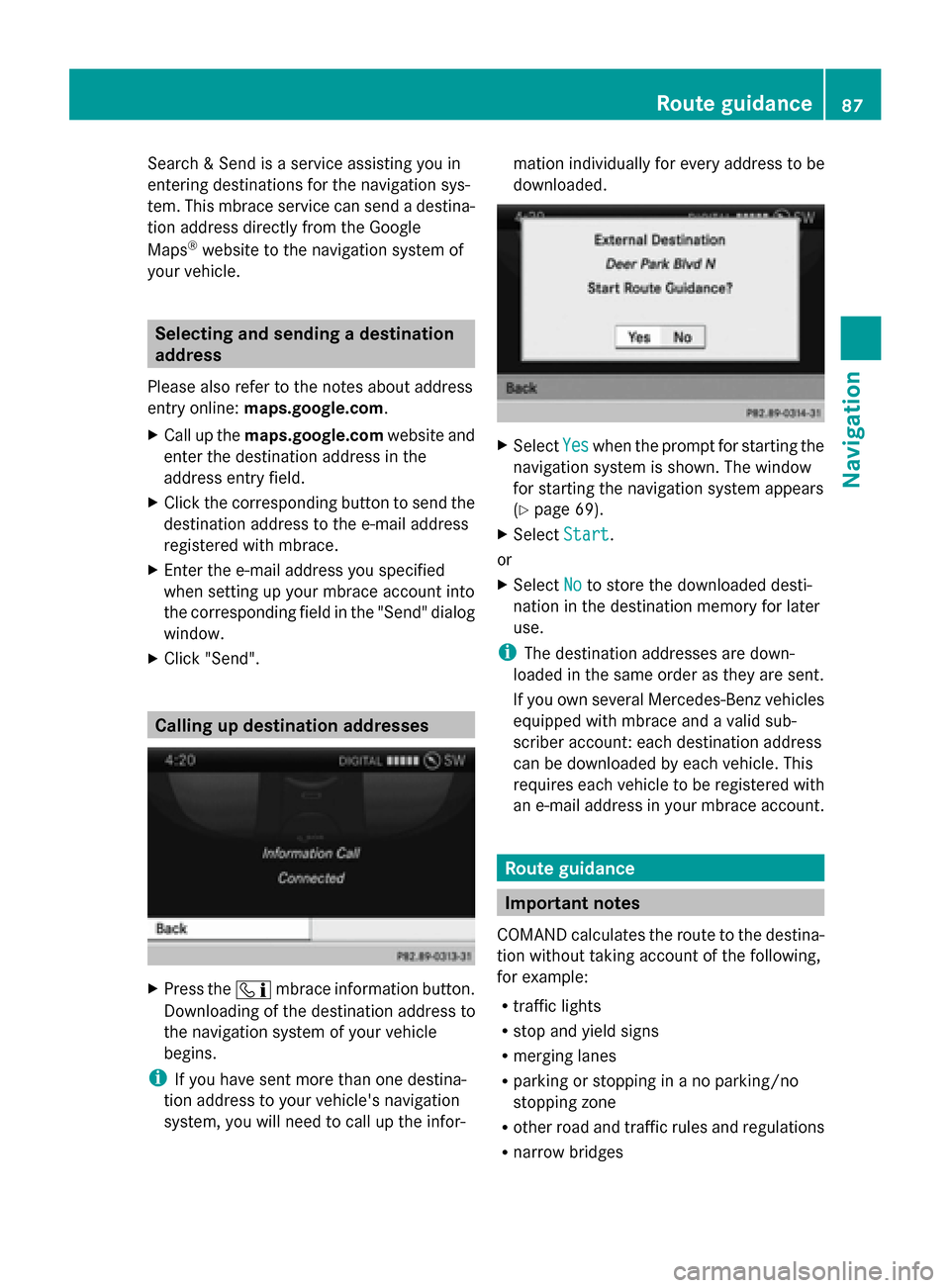
Search & Send is a service assisting you in
entering destinations for the navigation sys-
tem. This mbrace service can send a destina-
tion address directly from the Google
Maps ®
website to the navigation system of
your vehicle. Selecting and sending a destination
address
Please also refer to the notes about address
entry online: maps.google.com.
X Call up the maps.google.com website and
enter the destination address in the
address entry field.
X Click the corresponding button to send the
destination address to the e-mail address
registered with mbrace.
X Enter the e-mail address you specified
when setting up your mbrace account into
the corresponding field in the "Send" dialog
window.
X Click "Send". Calling up destination addresses
X
Press the 00D9mbrace information button.
Downloading of the destination address to
the navigation system of your vehicle
begins.
i If you have sent more than one destina-
tion address to your vehicle's navigation
system, you will need to call up the infor- mation individually for every address to be
downloaded.
X
Select Yes Yeswhen the prompt for starting the
navigation system is shown. The window
for starting the navigation system appears
(Y page 69).
X Select Start Start.
or
X Select No Noto store the downloaded desti-
nation in the destination memory for later
use.
i The destination addresses are down-
loaded in the same order as they are sent.
If you own several Mercedes-Benz vehicles
equipped with mbrace and a valid sub-
scriber account: each destination address
can be downloaded by each vehicle. This
requires each vehicle to be registered with
an e-mail address in your mbrace account. Route guidance
Important notes
COMAND calculates the route to the destina-
tion without taking account of the following,
for example:
R traffic lights
R stop and yield signs
R merging lanes
R parking or stopping in a no parking/no
stopping zone
R other road and traffic rules and regulations
R narrow bridges Route guidance
87Navigation Z
Page 119 of 270
X
To adjust the size of the area: turn
00790052007A the COMAND controller.
The area is enlarged or reduced.
X To confirm the change: press0098the
COMAND controller.
The list appears and the change is entered.
Deleting a set area X
Call up the area list (Y page 116).
X Select an entry in the list by turning 00790052007A
the COMAND controller.
X Slide 00520096the COMAND controller and
press 0098to confirm.
X Select Delete
Delete and press 0098to confirm.
A query appears asking whether the entry
should be deleted.
X Select Yes
Yes orNo No.
If you select Yes
Yes, the entry is deleted.
If you select No
No, the process will be can-
celed. SIRIUS XM service
Displaying SIRIUS XM service informa-
tion You can display the SIRIUS XM service infor-
mation.
X To show the menu: press0098the COMAND
controller.
X Select Navi
Navi in the main function bar by
sliding 00970052and turning 00790052007Athe COMAND
controller and press 0098to confirm.
X Select SIRIUS Service SIRIUS Service and press0098to
confirm.
The window on the right half of the display
shows the telephone number of the pro-
vider (SIRIUS XM) and the serial number of
your service module. Registering for the SIRIUS XM traffic
report service X
Call the traffic report provider's phone
number shown on the screen.
i You can also have the satellite service
activated online. To do so, visit the SIRIUS
XM Radio website at
http://www.sirius.com (USA).
Once the connection has been established:
X Follow the instructions of the operator.
The activation process may take up to ten
minutes.
If registration is not included when purchas-
ing the system, your credit card details will be
required to activate your account. Compass function
You can view the current direction of travel,
the current height and the coordinates of the
current vehicle position in the compass view.
X To switch to navigation mode: press the
00BE button.
X To show the menu: press0098the COMAND
controller.
X Select Position
Position in the navigation system
menu bar by sliding 00520064and turning 00790052007A
the COMAND controller and press 0098to
confirm.
X Select Compass
Compass and press 0098to confirm. Additional settings
117Navigation Z