display MERCEDES-BENZ CLA COUPE 2019 Manual PDF
[x] Cancel search | Manufacturer: MERCEDES-BENZ, Model Year: 2019, Model line: CLA COUPE, Model: MERCEDES-BENZ CLA COUPE 2019Pages: 645, PDF Size: 10.94 MB
Page 269 of 645
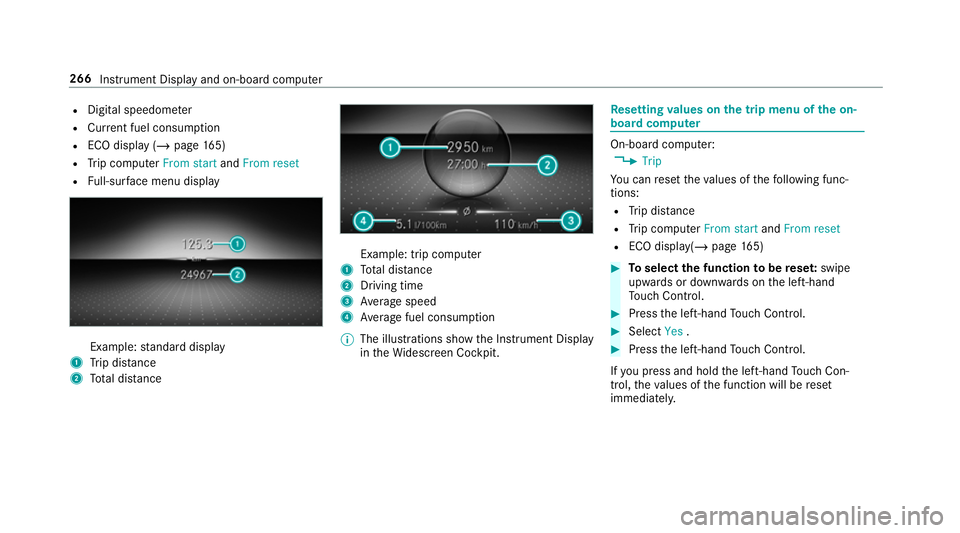
R
Digital speedome ter
R Cur rent fuel consu mption
R ECO display (/ page 165)
R Trip computer From startandFrom reset
R Full-sur face menu displ ay Example:
standard display
1 Trip dis tance
2 Total dis tance Example: trip compu
ter
1 Total dis tance
2 Driving time
3 Average speed
4 Average fuel consum ption
% The illustrations show the Instrument Display
in theWi descreen Cockpit. Re
setting values on the trip menu of the on-
board compu ter On-board computer:
4 Trip
Yo u can reset theva lues of thefo llowing func‐
tions:
R Trip dis tance
R Trip computer From startandFrom reset
R ECO displa y(/ page 165) #
Toselect the function tobe rese t:swipe
upwards or down wards on the left-hand
To uch Control. #
Press the left-hand Touch Control. #
Select Yes. #
Press the left-hand Touch Control.
If yo u press and hold the left-hand Touch Con‐
trol, theva lues of the function will be reset
immediatel y. 266
Instrument Display and on-board computer
Page 270 of 645
Calling up navigation instructions on
the on-
board compu ter On-board computer:
4 Navigation
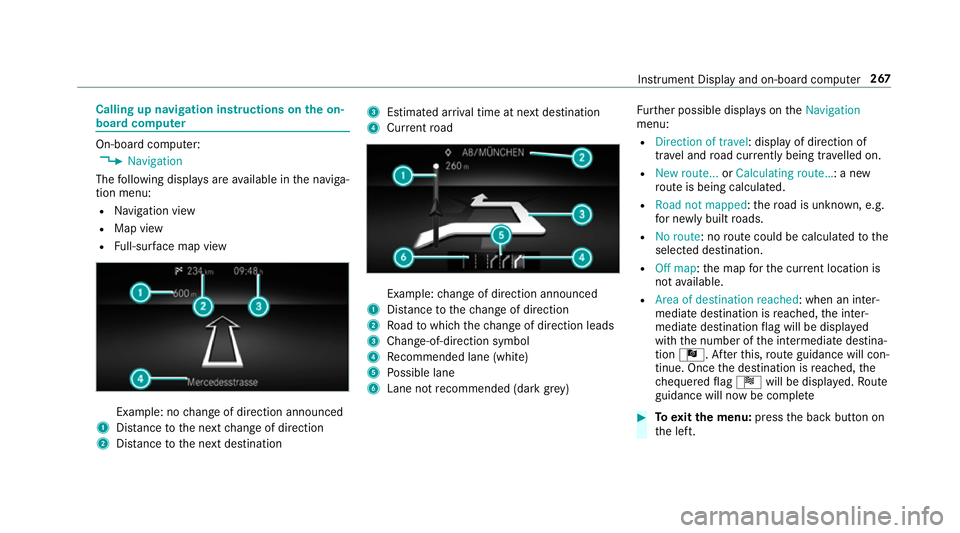
The following displa ysare available in the naviga‐
tion menu:
R Navigation view
R Map view
R Full-sur face map view Example: no
change of direction announced
1 Distance tothe next change of direction
2 Distance tothe next destination 3
Estimated ar riva l time at next destination
4 Current road Example:
change of direction announced
1 Distance tothech ange of direction
2 Road towhich thech ange of direction leads
3 Chan ge-of-direction symbol
4 Recommended lane (white)
5 Possible lane
6 Lane not recommended (da rkgrey) Fu
rther possible displa yson theNavigation
menu:
R Direction of travel: display of direction of
tra vel and road cur rently being tr avelled on.
R New route... orCalculating route… : a new
ro ute is being calculated.
R Road not mapped :th ero ad is unknown, e.g.
fo r newly built roads.
R No route: no route could be calculated tothe
selected destination.
R Off map: the map forth e cur rent location is
not available.
R Area of destination reached: when an inter‐
mediate destination is reached, the inter‐
mediate destination flag will be displa yed
with the number of the intermediate destina‐
tion Î. Af terth is, route guidance will con‐
tinue. Once the destination is reached, the
ch equered flag Í will be displa yed. Ro ute
guidance will now be co mplete #
Toexitth e menu: pressthe back button on
th e left. Instrument Display and on-board computer
267
Page 271 of 645
Ve
hicles with the MBUX multimedia sy stem:
Yo u can also start navigation toone of the
re cent destinations on theNavigation menu: #
Press the left-hand Touch Control. #
Toselect a destination: swipe upwards or
down wards on the left-hand Touch Control. #
Press the left-hand Touch Control.
Ro ute guidance will start.
If ro ute guidance has already been activated,
a re qu est will appear asking whe ther you
wish toend the cur rent route guidance. #
Select Yes. #
Press the left-hand Touch Control.
Ro ute guidance will start. Selecting
radio stations using the on-boa rd
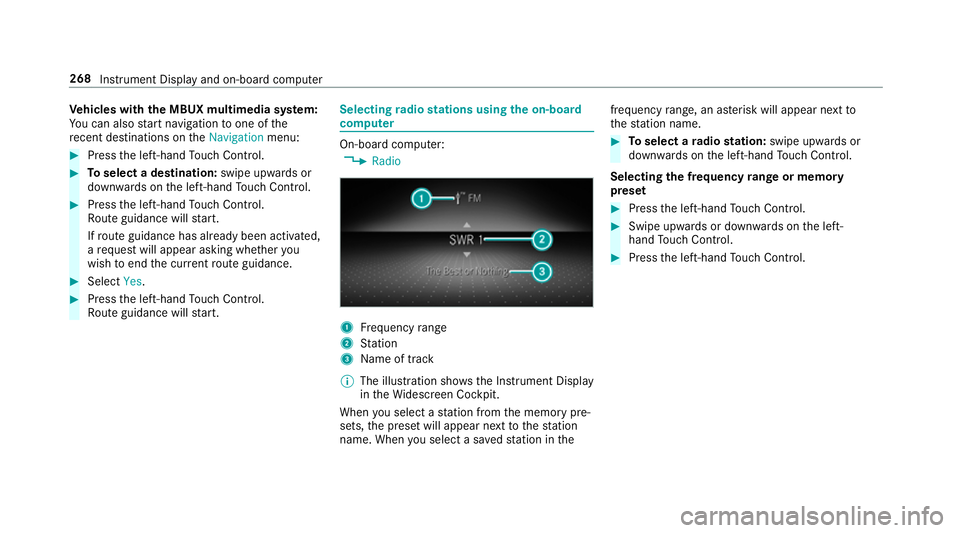
compu ter On-board computer:
4 Radio 1
Frequency range
2 Station
3 Name of track
% The illustration sho wsthe Instrument Display
in theWi descreen Cockpit.
When you select a station from the memory pre‐
sets, the preset will appear next tothest ation
name. When you select a sa vedstation in the frequency
range, an as terisk will appear next to
th est ation name. #
Toselect a radio station: swipe upwards or
down wards on the left-hand Touch Control.
Selecting the frequency range or memory
preset #
Press the left-hand Touch Control. #
Swipe upwards or down wards on the left-
hand Touch Control. #
Press the left-hand Touch Control. 268
Instru ment Display and on-board computer
Page 272 of 645
Media playback using
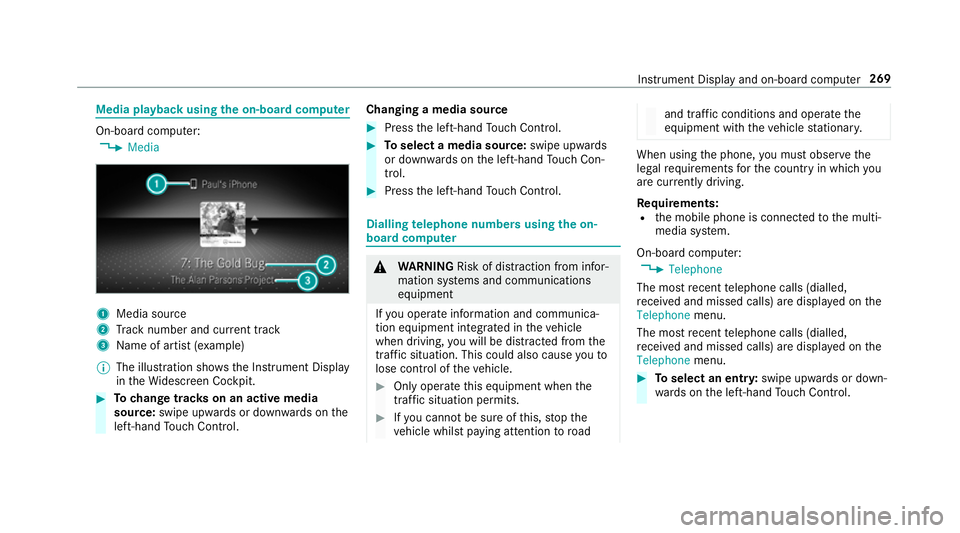
the on-boa rdcompu ter On-board computer:
4 Media 1
Media source
2 Track number and cur rent track
3 Name of artist (e xamp le)
% The illustration sho wsthe Instrument Display
in theWi descreen Cockpit. #
Tochange trac kson an active media
source: swipe upwards or down wards on the
left-hand Touch Control. Changing a media source #
Press the left-hand Touch Control. #
Toselect a media source: swipe upwards
or down wards on the left-hand Touch Con‐
trol. #
Press the left-hand Touch Control. Dialling
telephone numbers using the on-
board compu ter &
WARNING Risk of di stra ction from infor‐
mation sy stems and communications
equipment
If yo u operate information and communica‐
tion equipment integ rated in theve hicle
when driving, you will be distracted from the
traf fic situation. This could also cause youto
lose control of theve hicle. #
Only operate this equipment when the
traf fic situation permits. #
Ifyo u cannot be sure of this, stop the
ve hicle whilst paying attention toroad and traf
fic conditions and ope rate the
equipment with theve hicle stationar y. When using
the phone, you must obse rvethe
legal requirements forth e count ryin which you
are cur rently driving.
Re quirements:
R the mobile phone is connected tothe multi‐
media sy stem.
On-board computer: 4 Telephone
The most recent telephone calls (dialled,
re cei ved and missed calls) are displa yed on the
Telephone menu.
The most recent telephone calls (dialled,
re cei ved and missed calls) are displa yed on the
Telephone menu. #
Toselect an entr y:swipe upwards or down‐
wa rds on the left-hand Touch Control. In
stru ment Display and on-board computer 269
Page 273 of 645
#
Press the left-hand Touch Control.
If th ere is only one telephone number
sa ve dto an entr y:thete lephone number
will be selec ted. #
Ifth ere are multiple telephone numbers
sa ve dto an entr y:swipe upwards or down‐
wa rds on the left-hand touch cont rolto
select the desired telephone number. #
Press the left-hand Touch Control.
The telephone number will be dialled.
The following displa ysmay appear ins tead of the
te lephone numbers dialled:
R Please wait :th e application is starting. If a
Blue tooth ®
connection tothe mobile phone
is not es tablished, the menu for auth orising
and connecting a mobile phone will be dis‐
pla yed on the multimedia sy stem
(/ page 388).
R Updating data: the call list is being updated.
R Importing contacts : contacts are being
impor ted from the mobile phone or a storage
medium. Ac
cepting/rejecting an incoming call
Ve hicles with head-up displa y:when you
re cei vea call, theIncoming call message will
appear on the head-up displa y. #
Swipe up wards or down wards on the left-
hand Touch Control and select 6(accept)
or ~ (reject). #
Press the left-hand Touch Control.
Yo u may accept/ reject the call using the6
or ~ button on thesteering wheel. Setting
the head-up display using the on-
board compu ter On-board computer:
4 HEAD-UP DISPLAY
The following head-up display settings can be
selec ted:
R Position
R Brightness
R Displa ys #
Toselect a setting: swipe upwards or down‐
wa rds on the left-hand Touch Control. #
Press the left-hand Touch Control. #
Toadjust the position: swipe upwards or
down wards on the left-hand Touch Control. #
Toadjust the brightness: swipetothe left
or right on the left-hand Touch Control. #
Press the left-hand Touch Control.
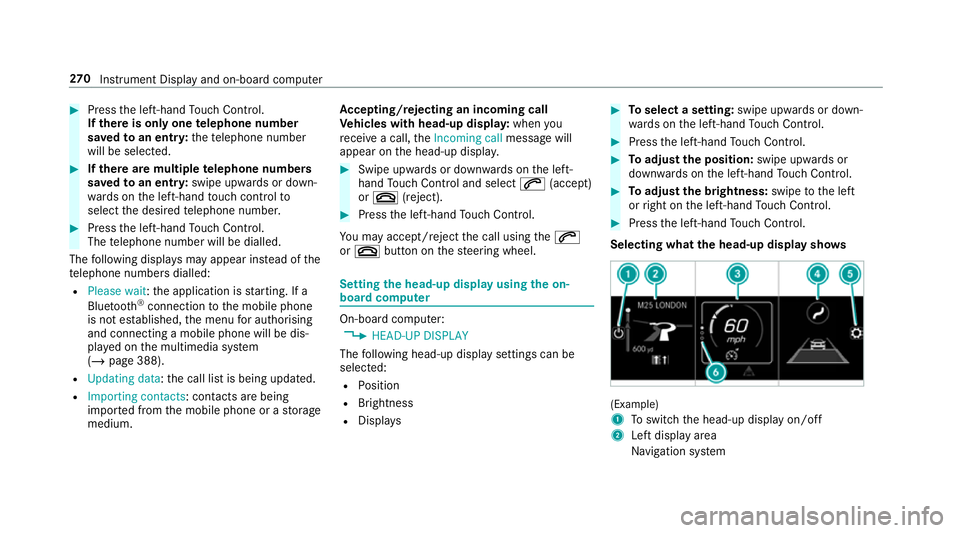
Selecting what the head-up display sho ws (Example)
1
Toswitch the head-up display on/off
2 Left display area
Navigation sy stem 270
Instrument Display and on-board computer
Page 274 of 645
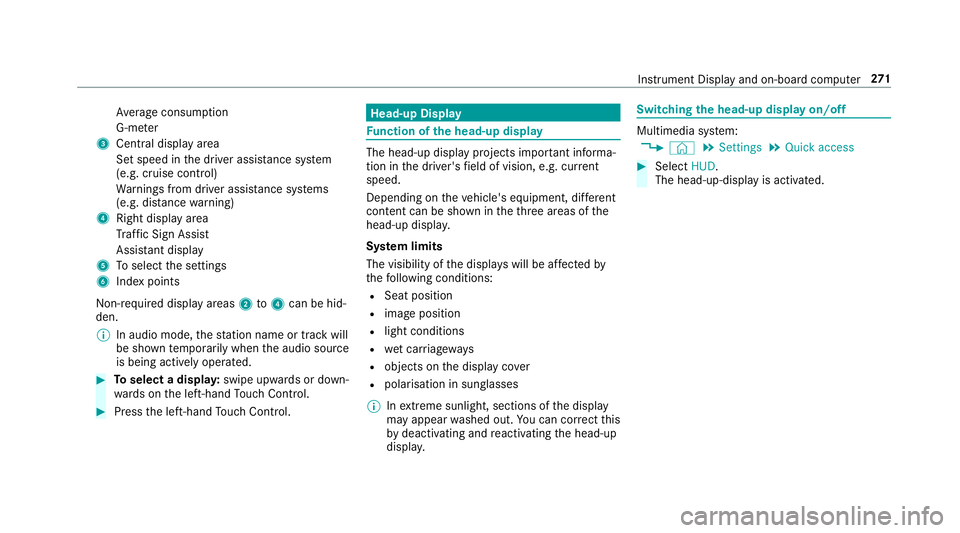
Av
erage consum ption
G-me ter
3 Central displ ayarea
Set speed in the driver assis tance sy stem
(e.g. cruise control)
Wa rnings from driver assis tance sy stems
(e.g. dis tance warning)
4 Right display area
Traf fic Sign Assi st
Assi stant display
5 Toselect the settings
6 Index points
Non- required display areas 2to4 can be hid‐
den.
% In audio mode, thest ation name or track will
be shown temp orarily when the audio source
is being actively operated. #
Toselect a displa y:swipe upwards or down‐
wa rds on the left-hand Touch Control. #
Press the left-hand Touch Control. Head-up Display
Fu
nction of the head-up display The head-up display projects impor
tant informa‐
tion in the driver's field of vision, e.g. cur rent
speed.
Depending on theve hicle's equipment, dif fere nt
content can be shown in theth re e areas of the
head-up displa y.
Sy stem limits
The visibility of the displa yswill be af fected by
th efo llowing conditions:
R Seat position
R image position
R light conditions
R wet car riag ewa ys
R objects on the display co ver
R polarisation in sunglasses
% Inextreme sunlight, sections of the display
may appear washed out. You can co rrect this
by deactivating and reactivating the head-up
displa y. Switching
the head-up display on/off Multimedia sy
stem:
4 © 5
Settings 5
Quick access #
Select HUD.
The head-up-display is activated. Instrument Display and on-board computer
271
Page 292 of 645
Vo
ice command Colloquialexample Function
Vehicle data Can you please display the vehicle
data menu?Calls up
theve hicle data.
Range Tell me the current rangeCalls up
the cur rent range da ta.
Assistance menu Show me the driver assistance set-
tings Displ
aysth e assis tance settings.
Climate control menu Jump to the climate control menuDispla
ys the climate control settings.
Light menu Switch to the light settingsDispla
ys the light settings.
Seats menu I would like to switch to seat menuDispla
ys the seat adjustment settings.
Massage menu Could you please switch to the
massage seat menu?Displa
ys the massage settings.
Next servic eT ell me my next service appoint-
ment Calls up
the next service due date. LINGU
ATRO NIC 289
Page 293 of 645
Overview and operation
Overview of
the MBUX multimedia sy stem &
WARNING Risk of di stra ction from infor‐
mation sy stems and communications
equipment
If yo u operate information and communica‐
tion equipment integ rated in theve hicle
when driving, you will be distracted from the
traf fic situation. This could also cause youto
lose control of theve hicle. #
Only operate this equipment when the
traf fic situation permits. #
Ifyo u cannot be sure of this, stop the
ve hicle whilst paying attention toroad
and traf fic conditions and ope rate the
equipment with theve hicle stationar y. Yo
u must obse rveth e legal requirements forthe
country in whi chyou are cur rently driving when
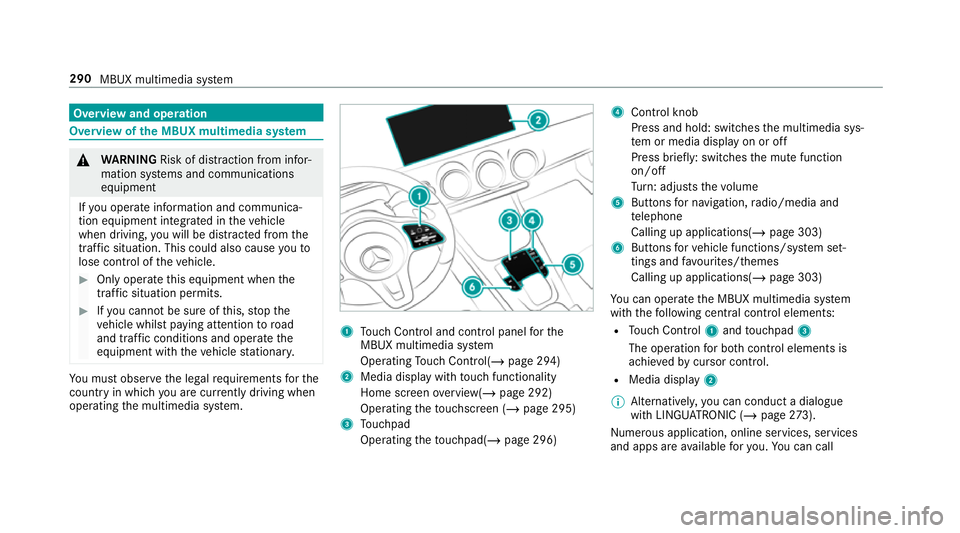
operating the multimedia sy stem. 1
Touch Control and cont rol panel forthe
MBUX multimedia sy stem
Operating Touch Control(/ page 294)
2 Media displ aywith touch functionality
Home sc reen ove rview(/ page 292)
Operating theto uchsc reen (/ page 295)
3 Touchpad
Operating theto uchpad( /page 296) 4
Control knob
Press and hold: swit ches the multimedia sys‐
te m or media display on or off
Press brief ly: switches the mute function
on/off
Tu rn: adjusts thevo lume
5 Buttons for navigation, radio/media and
te lephone
Calling up applications(/ page 303)
6 Buttons forve hicle functions/sy stem set‐
tings and favo urites/ themes
Calling up applications(/ page 303)
Yo u can operate the MBUX multimedia sy stem
with thefo llowing central control elements:
R Touch Control 1and touchpad 3
The operation for bo thcontrol elements is
achie vedby cursor control.
R Media displ ay2
% Alternati vely, you can conduct a dialogue
with LINGU ATRO NIC (/ page273).
Nu merous application, online services, services
and apps are available foryo u. You can call 290
MBUX multimedia sy stem
Page 294 of 645
th
ese up using the home screen or using buttons
5 and 6next totheto uchpad.
Yo u can co nveniently call up and add favo urites
using theß rocker switch on thesteering
wheel or using theß button next tothe
to uchpad. Quic k-access in the home screen and
in the applications ser vetoselect functions
more quickl y.
If yo u use the learn function of the multimedia
sy stem, you will recei vesuggestions during oper‐
ation of the most probable navigation destina‐
tions, radio stations and con tacts. The configu‐
ra tion of the suggestions take s place in your pro‐
fi le. You can co mpileyour profile from various
ve hicle settings and settings of the multimedia
sy stem. You can create themes forva rious driv‐
ing situations in the home screen as well as using
theß rocker switch or theß but‐
to n.
The Notifications Centre collects incoming notifi‐
cations, e.g. about an available software update.
Depending on the type of notification it of fers
va rious actions. You can call up the Notifications
Centre on the home screen and in the applica‐
tion menus.
Wi th th eglobal sear chintheve hicle you can
sear chon-board across many categories as well
as online in the Internet. You can use theglobal
sear chinthe home screen and in the notifica‐
tions.
Anti-theft pr otection
This device is equipped with tech nical pr ovisions
to protect it against theft. More de tailed informa‐ tion about anti-theft pr
otection can be obtained
at a qualified specialist workshop. Note
s onthe media display Obser
vethe no tes on caring forth e interior
(/ page 460).
Au tomatic temperature-cont rolled switch-
off feature: ifth ete mp erature is too high, the
brightness is initially reduced automatically. The
media display may then switch off comple tely for
a while.
% Ifyo u are wearing polarised sun glasses, it
may be dif ficult toread the multimedia sys‐
te m displa y. MBUX multimedia sy
stem 291
Page 296 of 645
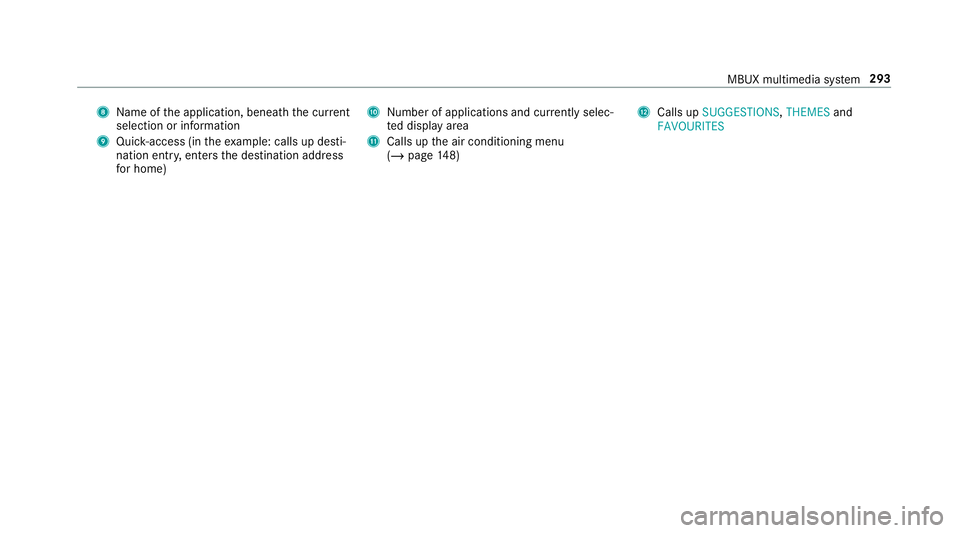
8
Name of the application, beneath the cur rent
selection or information
9 Quick-access (in theex ample: calls up desti‐
nation ent ry, enters the destination address
fo r home) A
Number of applications and cur rently selec‐
te d display area
B Calls up the air conditioning menu
(/ page 148) C
Calls up SUGGESTIONS ,THEMES and
FAVOURITES MBUX multimedia sy
stem 293