format MERCEDES-BENZ CLS-Class 2010 W164 Comand Manual
[x] Cancel search | Manufacturer: MERCEDES-BENZ, Model Year: 2010, Model line: CLS-Class, Model: MERCEDES-BENZ CLS-Class 2010 W164Pages: 224, PDF Size: 7 MB
Page 129 of 224
Satellite Radio Operation
i For many operating functions you can
also use the buttons on the multifunction
steering wheel, e.g. the ;, = , 9
or : buttons, for selecting a channel or
a menu or scrolling through lists
( Y page 23).
Switching on
See “Subscribing to Satellite Radio” for
important subscription information
( Y page 126).
To switch to satellite radio operation:
XFrom another main function: Select
Audio £Audio £SatRadio .
i
If radio mode was active last, you only
need to select Audio.
XWithin the audio function: Select Audio
£ SatRadio .
The message No Service will appear at start
up or when the signal is not available.
After the COMAND acquires the signal, the
Satellite radio display will appear. The station
last tuned to will begin to play.
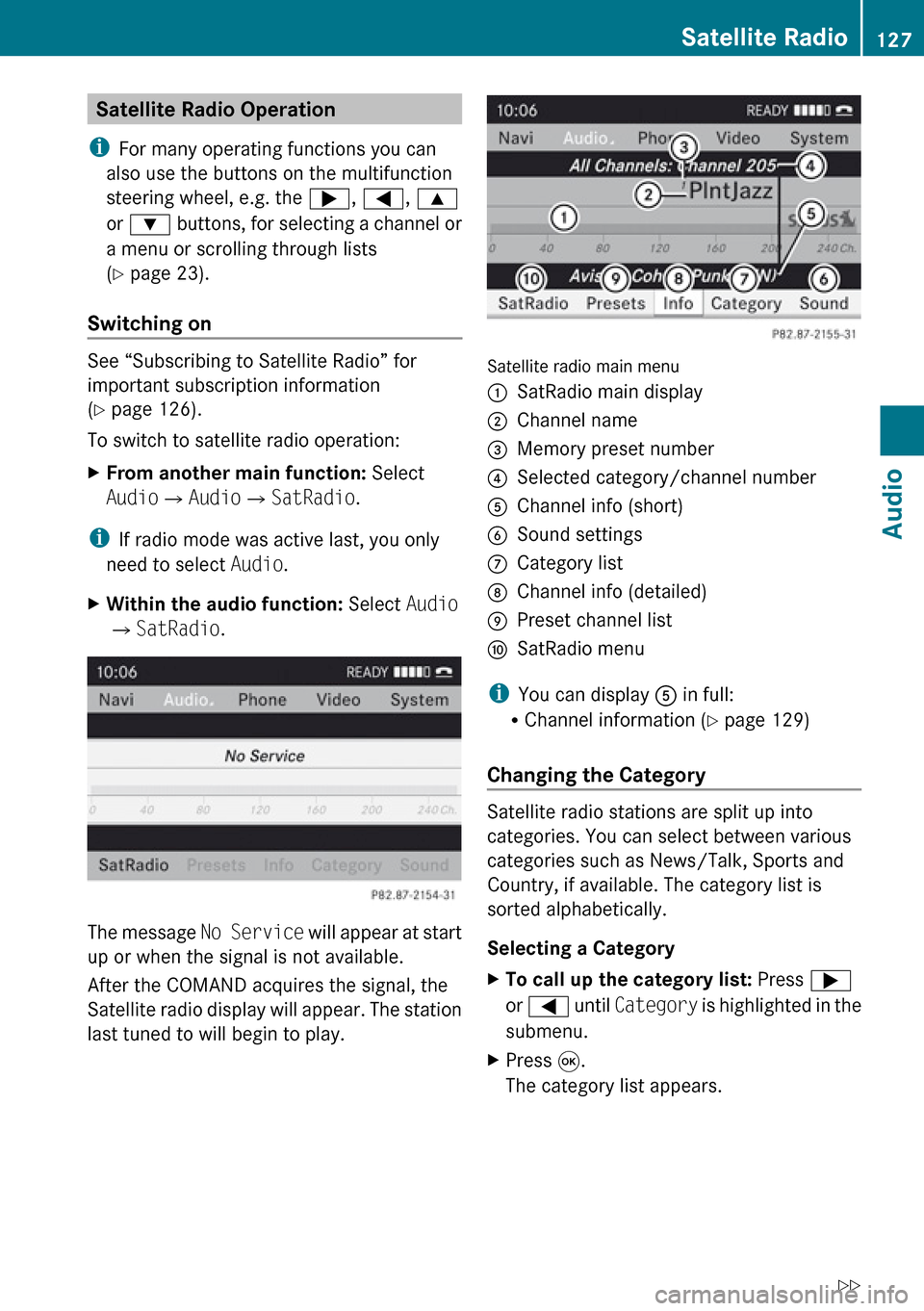
Satellite radio main menu
1SatRadio main display2Channel name3Memory preset number4Selected category/channel number5Channel info (short)6Sound settings7Category list8Channel info (detailed)9Preset channel listaSatRadio menu
i You can display 5 in full:
R Channel information ( Y page 129)
Changing the Category
Satellite radio stations are split up into
categories. You can select between various
categories such as News/Talk, Sports and
Country, if available. The category list is
sorted alphabetically.
Selecting a Category
XTo call up the category list: Press ;
or = until Category is highlighted in the
submenu.XPress 9.
The category list appears.Satellite Radio127AudioZ
Page 131 of 224
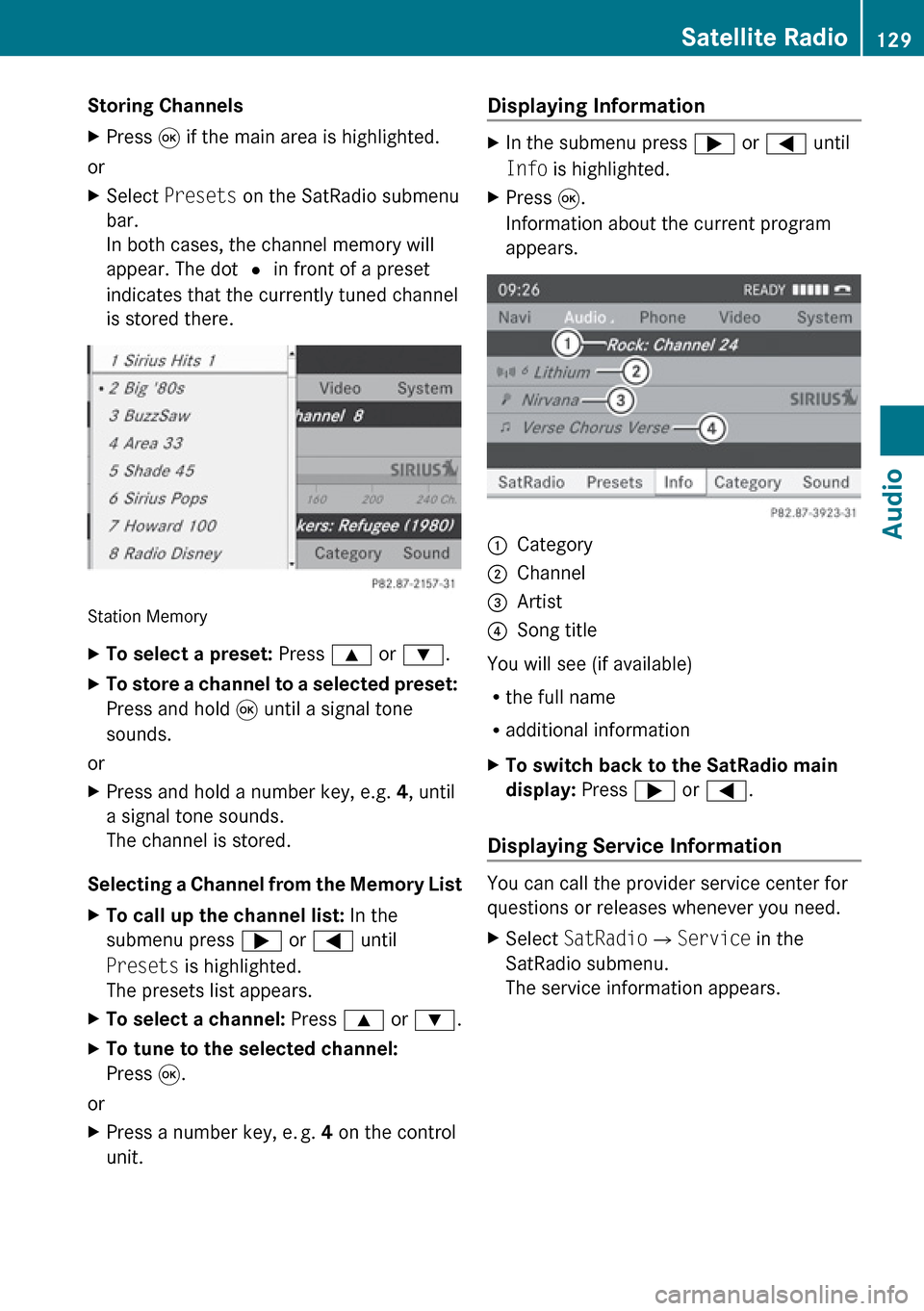
Storing ChannelsXPress 9 if the main area is highlighted.
or
XSelect Presets on the SatRadio submenu
bar.
In both cases, the channel memory will
appear. The dot R in front of a preset
indicates that the currently tuned channel
is stored there.
Station Memory
XTo select a preset: Press 9 or : .XTo store a channel to a selected preset:
Press and hold 9 until a signal tone
sounds.
or
XPress and hold a number key, e.g. 4, until
a signal tone sounds.
The channel is stored.
Selecting a Channel from the Memory List
XTo call up the channel list: In the
submenu press ; or = until
Presets is highlighted.
The presets list appears.XTo select a channel: Press 9 or : .XTo tune to the selected channel:
Press 9.
or
XPress a number key, e. g. 4 on the control
unit.Displaying Information XIn the submenu press ; or = until
Info is highlighted.XPress 9.
Information about the current program
appears.1Category2Channel3Artist4Song title
You will see (if available)
R the full name
R additional information
XTo switch back to the SatRadio main
display: Press ; or = .
Displaying Service Information
You can call the provider service center for
questions or releases whenever you need.
XSelect SatRadio £Service in the
SatRadio submenu.
The service information appears.Satellite Radio129AudioZ
Page 133 of 224
If the first session, for example, contains data
in audio CD format and the second session
contains MP3 tracks, COMAND handles the
CD as a conventional audio CD. This means
that the MP3 tracks cannot be accessed.
Similarly, if the first session contains MP3
tracks and the second session contains data
in audio CD format, COMAND handles the CD
as an MP3 CD. Only the MP3 tracks can be
accessed.
File Structure of Storage Medium
When creating an MP3 storage medium, you
can organize MP3 tracks into folders. A folder
can also contain additional folders. A storage
medium may have a maximum of 255 folders
in total. A maximum of 255 tracks and 255
folders are permissible per folder. A
maximum of 1200 tracks in total are
permissible per storage medium.
Track Names and Folder Names
When creating an MP3 storage medium, you
can assign names to the MP3 tracks and to
the folders.
COMAND uses these names in MP3 mode for
the corresponding display. Empty folders or
folders containing data other than MP3 tracks
will not be displayed by COMAND.
If MP3 files are stored in the root directory
itself, the root directory also counts as a
folder. COMAND will then display the root
directory name as a folder name.
Please note the following when assigning
track names:
R Track names must contain at least one
character.
R Track names must have the extension
“mp3”.
R A period must appear between the track
name and the extension.
i COMAND does not support ID3 tags.
Permissible Formats
COMAND supports the following formats:
R MPEG1 audio layer 3 format
i In everyday speech, this format
designation has been replaced by the
designation “MP3”.
R Microsoft Windows ®
Media Audio V2, V7,
V8 und V9 (WMA).
Notes on Copyright
The music tracks that you can create for
playback in MP3 mode are generally
copyright-protected under applicable
international and national laws.
In many countries, the reproduction of
copyrighted material is not permitted even if
only for personal use without the express
prior consent of the copyright holder.
Please check the current copyright laws for
your country and comply with them.
These restrictions do not apply, for example,
to your own compositions and recordings or
for recordings for which authorization has
been obtained from the copyright holder.
Notes about Audio DVD Discs
COMAND can playback commercially
available, prerecorded audio DVDs that bear
the following label. You will usually find the
label on the DVD booklet, the inlay or the DVD
itself.
i Audio DVDs differ from recordable DVD-R
and DVD-RW discs.
Data on audio DVDs are stored either in
uncompressed format or in lossless
compressed format. The sound quality on
CD Audio/DVD Audio/MP3131AudioZ
Page 134 of 224
audio DVDs is therefore better than on
recordable DVDs that contain MP3 data
because the MP3 format uses a lossy type of
compression. You cannot delete data from or
record additional data to commercially
available, prerecorded audio DVDs. Please
note the following information about CDs/
DVDs and pay special attention to the notes
on copied and/or self-written CDs/DVDs.
Permissible Bit and Scan Rates
R Fixed and variable bit rates from 32 kbps
to 320 kbps
R Scan rates from 8 kHz to 48 kHz
i Only use MP3 tracks with a bit rate of
128 kbps or higher and with a scan rate of
44.1 kHz or higher. Lower rates may result
in impaired sound quality. This is
particularly true if the surround sound
function has been activated.
WMA (Windows ®
Media Audio) format of the
following type:
R fixed bit rates from 5 kBit/s up to
384 kBit/s
R sampling rates from 8 kHz to 48 kHz.
COMAND does not support WMA files of the
following type:
R DRM (Digital Rights Management)
encrypted files
i If other music files are stored in these
audio formats on a storage medium, in
addition to MP3 files, the loading process
may take longer before the first track is
played.
Notes about CD/DVD Discs
i Discs with copy protection do not comply
with the CD audio standard and in some
cases cannot be played by COMAND. When
playing copied discs, problems may occur
with the playback.
A wide variety of discs, disc writing software
and writers are available. Due to this variety
we cannot guarantee that the system will be
able to play discs that you have written/
copied yourself.
There may be playback problems with
userburned CDs with a storage capacity of
more than 700 MB. These CDs do not meet
current valid standards.
i When playing a DVD audio, it may be the
case with numerous albums that the last
track does not contain any music and
COMAND switches to the next track. This
is due to the production method and does
not imply a fault with the unit.
! Do not attach stickers or labels of any
kind to discs. They may come loose and
damage COMAND.
COMAND has been designed for discs
meeting the requirements of standard
EN 60908. Therefore, only discs with a
maximum thickness of 1.3 mm can be
used.
If a thicker disc is inserted, e.g. one which
stores data on both sides, (DVD on one
side, audio data on the other side), this
cannot be ejected and COMAND will be
damaged.
Do not use 8 cm diameter discs, not even
with an adapter. Only use round discs with
a diameter of 12 cm.
i COMAND can play audio CDs with the
high resolution surround format.
Notes on the Care of CD/DVD Discs
R Only touch the discs at the edges.
R Handle discs with care in order to prevent
malfunctions during playback.
R Avoid scratching, leaving fingerprints and
dust on the discs.
R Clean the discs occasionally with a
commercially available cleaning cloth.
132CD Audio/DVD Audio/MP3Audio
Page 142 of 224
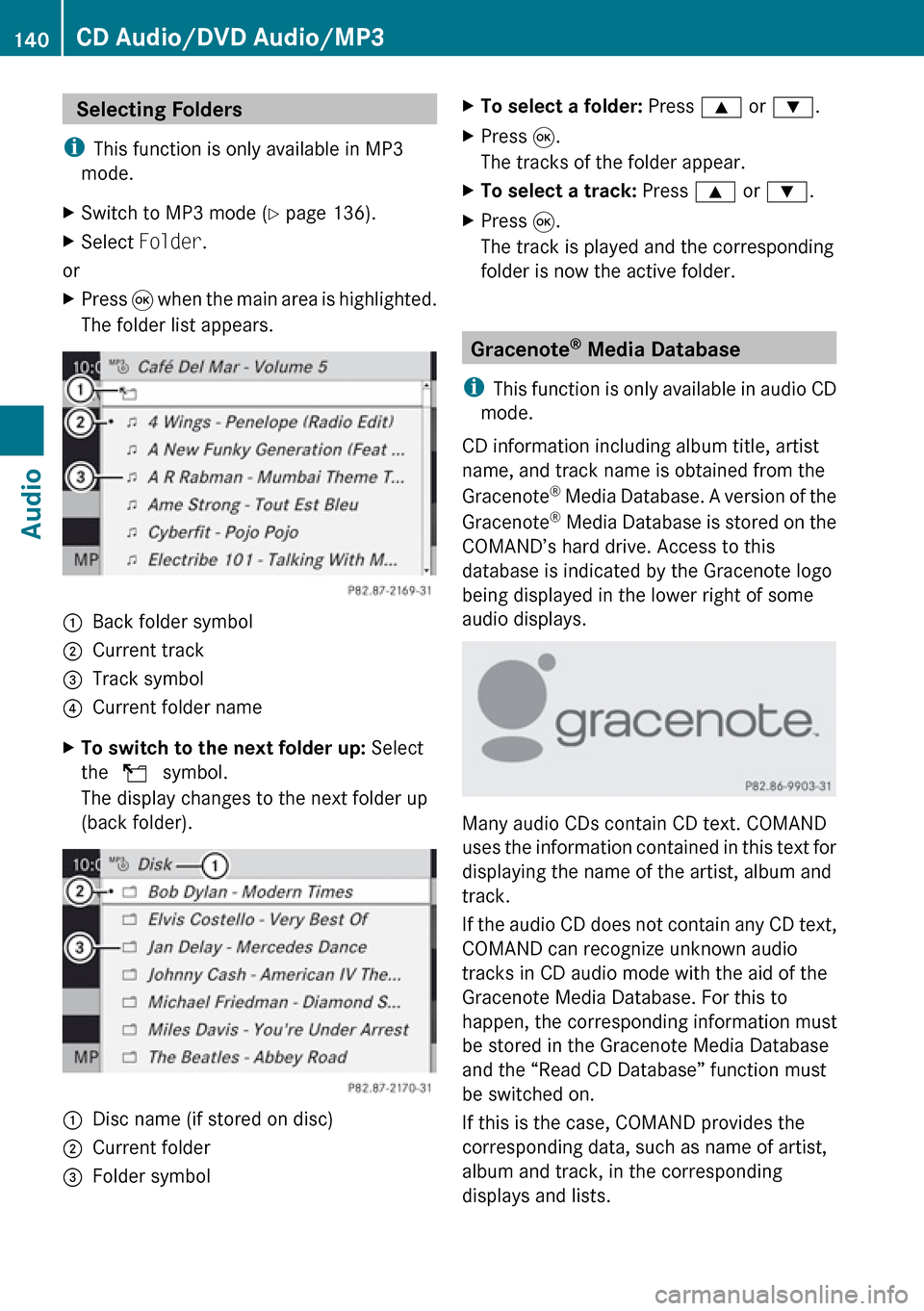
Selecting Folders
i This function is only available in MP3
mode.XSwitch to MP3 mode ( Y page 136).XSelect Folder .
or
XPress 9 when the main area is highlighted.
The folder list appears.1Back folder symbol2Current track3Track symbol4Current folder nameXTo switch to the next folder up: Select
the Q symbol.
The display changes to the next folder up
(back folder).1Disc name (if stored on disc)2Current folder3Folder symbolXTo select a folder: Press 9 or : .XPress 9.
The tracks of the folder appear.XTo select a track: Press 9 or : .XPress 9.
The track is played and the corresponding
folder is now the active folder.
Gracenote ®
Media Database
i This function is only available in audio CD
mode.
CD information including album title, artist
name, and track name is obtained from the
Gracenote ®
Media Database. A version of the
Gracenote ®
Media Database is stored on the
COMAND’s hard drive. Access to this
database is indicated by the Gracenote logo
being displayed in the lower right of some
audio displays.
Many audio CDs contain CD text. COMAND
uses the information contained in this text for
displaying the name of the artist, album and
track.
If the audio CD does not contain any CD text,
COMAND can recognize unknown audio
tracks in CD audio mode with the aid of the
Gracenote Media Database. For this to
happen, the corresponding information must
be stored in the Gracenote Media Database
and the “Read CD Database” function must
be switched on.
If this is the case, COMAND provides the
corresponding data, such as name of artist,
album and track, in the corresponding
displays and lists.
140CD Audio/DVD Audio/MP3Audio
Page 143 of 224
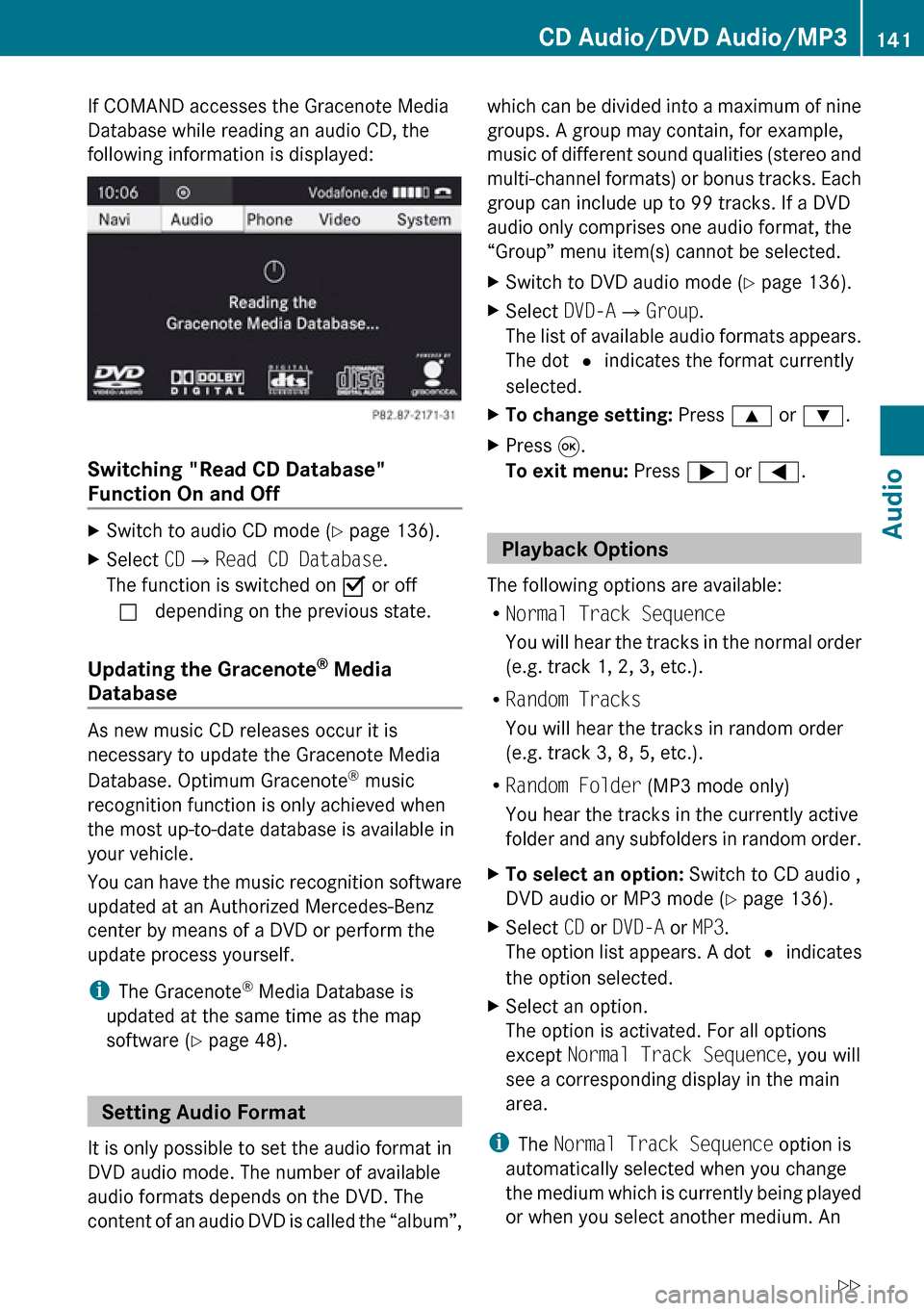
If COMAND accesses the Gracenote Media
Database while reading an audio CD, the
following information is displayed:
Switching "Read CD Database"
Function On and Off
XSwitch to audio CD mode ( Y page 136).XSelect CD£ Read CD Database .
The function is switched on Ç or off
c depending on the previous state.
Updating the Gracenote ®
Media
Database
As new music CD releases occur it is
necessary to update the Gracenote Media
Database. Optimum Gracenote ®
music
recognition function is only achieved when
the most up-to-date database is available in
your vehicle.
You can have the music recognition software
updated at an Authorized Mercedes-Benz
center by means of a DVD or perform the
update process yourself.
i The Gracenote ®
Media Database is
updated at the same time as the map
software ( Y page 48).
Setting Audio Format
It is only possible to set the audio format in
DVD audio mode. The number of available
audio formats depends on the DVD. The
content of an audio DVD is called the “album”,
which can be divided into a maximum of nine
groups. A group may contain, for example,
music of different sound qualities (stereo and
multi-channel formats) or bonus tracks. Each
group can include up to 99 tracks. If a DVD
audio only comprises one audio format, the
“Group” menu item(s) cannot be selected.XSwitch to DVD audio mode ( Y page 136).XSelect DVD-A£Group .
The list of available audio formats appears.
The dot R indicates the format currently
selected.XTo change setting: Press 9 or : .XPress 9.
To exit menu: Press ; or = .
Playback Options
The following options are available:
R Normal Track Sequence
You will hear the tracks in the normal order
(e.g. track 1, 2, 3, etc.).
R Random Tracks
You will hear the tracks in random order
(e.g. track 3, 8, 5, etc.).
R Random Folder (MP3 mode only)
You hear the tracks in the currently active
folder and any subfolders in random order.
XTo select an option: Switch to CD audio ,
DVD audio or MP3 mode ( Y page 136).XSelect CD or DVD-A or MP3 .
The option list appears. A dot R indicates
the option selected.XSelect an option.
The option is activated. For all options
except Normal Track Sequence , you will
see a corresponding display in the main
area.
i The Normal Track Sequence option is
automatically selected when you change
the medium which is currently being played
or when you select another medium. An
CD Audio/DVD Audio/MP3141AudioZ
Page 146 of 224
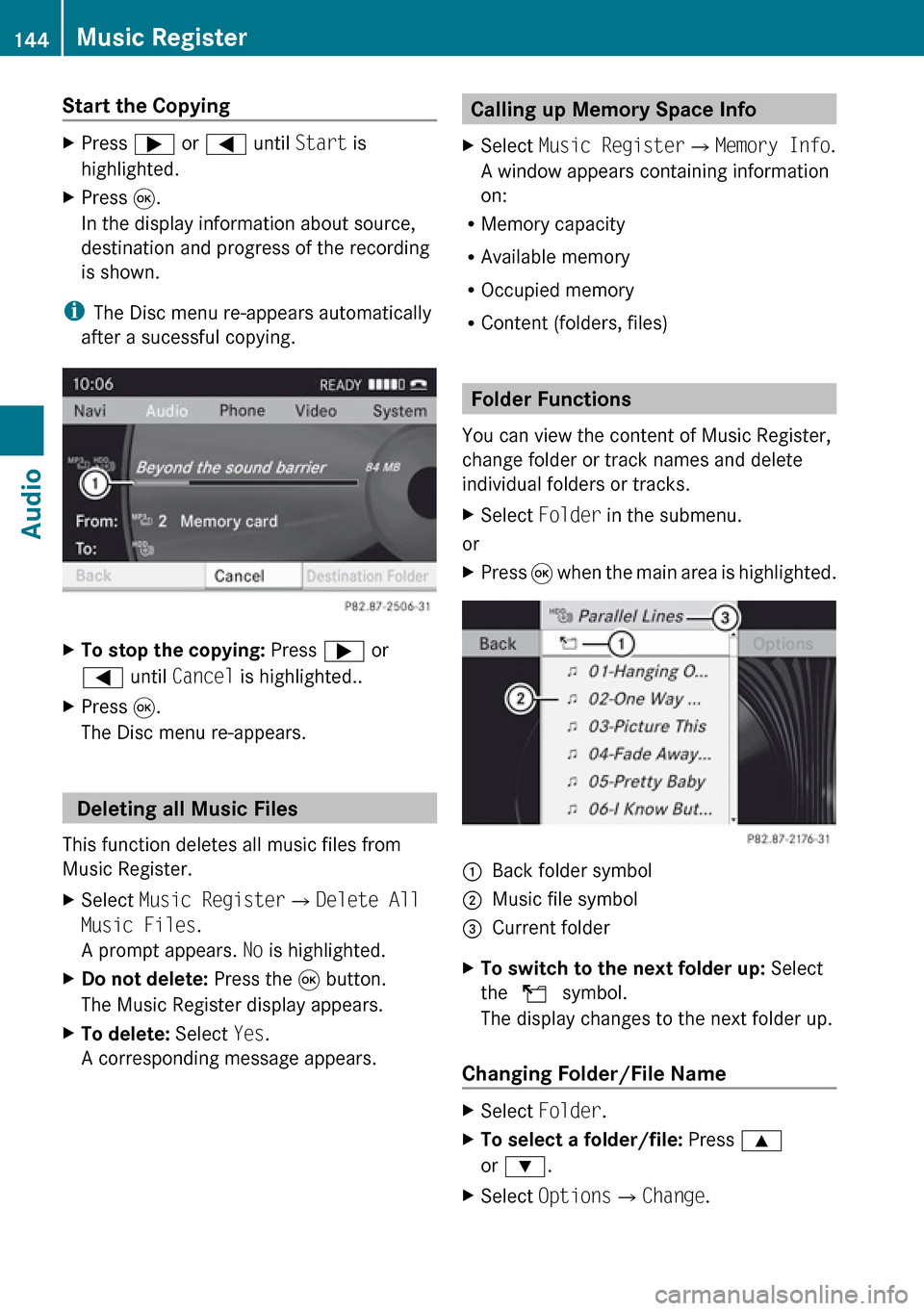
Start the CopyingXPress ; or = until Start is
highlighted.XPress 9.
In the display information about source,
destination and progress of the recording
is shown.
i The Disc menu re-appears automatically
after a sucessful copying.
XTo stop the copying: Press ; or
= until Cancel is highlighted..XPress 9.
The Disc menu re-appears.
Deleting all Music Files
This function deletes all music files from
Music Register.
XSelect Music Register £Delete All
Music Files .
A prompt appears. No is highlighted.XDo not delete: Press the 9 button.
The Music Register display appears.XTo delete: Select Yes.
A corresponding message appears.Calling up Memory Space Info XSelect Music Register £Memory Info .
A window appears containing information
on:
R Memory capacity
R Available memory
R Occupied memory
R Content (folders, files)
Folder Functions
You can view the content of Music Register,
change folder or track names and delete
individual folders or tracks.
XSelect Folder in the submenu.
or
XPress 9 when the main area is highlighted.1Back folder symbol2Music file symbol3Current folderXTo switch to the next folder up: Select
the Q symbol.
The display changes to the next folder up.
Changing Folder/File Name
XSelect Folder .XTo select a folder/file: Press 9
or : .XSelect Options £Change .144Music RegisterAudio
Page 147 of 224
XEnter a name for the folder/track in the
input line.XTo save changes: Select d.
Deleting Folders/Track
XSelect Folder .XTo select a folder/track: Press 9
or : .XSelect Options £Delete .
A query appears. No is highlighted.XDo not delete: Press the 9 button.XTo delete: Select Yes and press 9.
A message appears.
Playback Options
The following options are available:
R Normal Track Sequence
You will hear the tracks in the normal
sequence (e.g. track 1, 2, 3 etc.).
R Random Tracks:
You hear the tracks in random order.
R Random Folder
The tracks of the currently active folder and
any subfolders are heard in random order.
XTo select an option: Switch to Music
Register ( Y page 142).XSelect Music Register in the submenu.
The option list appears. A R dot indicates
the activated option.XSelect an option.
The option is activated. A corresponding
display will appear in the main area for all
options except Normal Track Sequence .
i
The option Normal Track Sequence is
automatically activated if you change the
medium which is currently being played or
if you select another medium. An activated
option remains active after COMAND is
switched on or off.
Media Interface
Important Notes
Connection Options
Via the Media Interface you can connect the
following media to COMAND:
R iPod ®
i iPod ®
is a registered trademark of Apple
Inc., Cupertino, Kalifornien, USA.
R USB devices (USB stick, USB hard drive)
Supported iPod Versions
The following iPod versions are fully
supported:
R iPod mini
R iPod nano
R iPod classic
R iPod touch
Supported USB Devices
The following USB devices are supported:
R USB sticks (flash memory)
R USB hard drives (1-inch, 1.8-inch and 2.5-
inch drives) with a starting/continuous
current rating of maximum 800 mA
(otherwise a separate power supply will be
necessary)
i The Media Interface supports USB
storage media of "USB Device Subclass 6".
You can obtain information about the "USB
Device Subclass 6" from the manufacturer.
Further Information on Supported
Devices
Further information on compatible
multimedia devices is available via the
Internet at www.mbusa-mobile.com. Or call
the Mercedes-Benz Customer Assistance
Center at 1-800-FOR-MERCedes
(1-800-367-6372) (US), or Customer
Relations at 1-800-387-0100 (Canada).
Media Interface145AudioZ
Page 148 of 224
Supported Data Formats (USB devices)
The following data types are supported:
R MP3: CBR, VBR (up to 320 kbit/s)
R WMA: CBR, VBR (up to 320 kbit/s)
In order to display the metadata during
playback, ID3 tags (version 1.x, 2.3, 2.4) and
WMA tags in ASCII and UTF16 coding are
supported.
Notes on USB Devices
R In order to keep the initialisation time short,
do not store data other than music files on
the USB device.
R Up to eight directory levels with up to 1,000
tracks are supported.
R Do not use a USB extension cable or
adapter. These may impair functionality.
R Playlists are searched for in the
background on the USB device and, if
available, are offered beside folders in a
separate category. The initialisation of
large USB mass storage devices can take
several minutes.
i Files protected with DRM (Digital Rights
Management) are not supported by the
Media Interface.
Connecting External Devices
For the connection of external devices to the
Media Interface device-specific adaption
cables are needed, which are included in the
delivery of the Media Interface. You will find
the connection sockets in the glove
compartment or in the storage compartment
of the center console (SL-Class).
Never connect more than one device at a
time. Please consult a Mercedes-Benz
Service Center for further information.
i Do not leave external devices in the
vehicle, as functionality cannot be
guaranteed above certain temperatures
(such as inside a vehicle in direct sunlight).
Mercedes-Benz does not take
responsibility for any damage to external
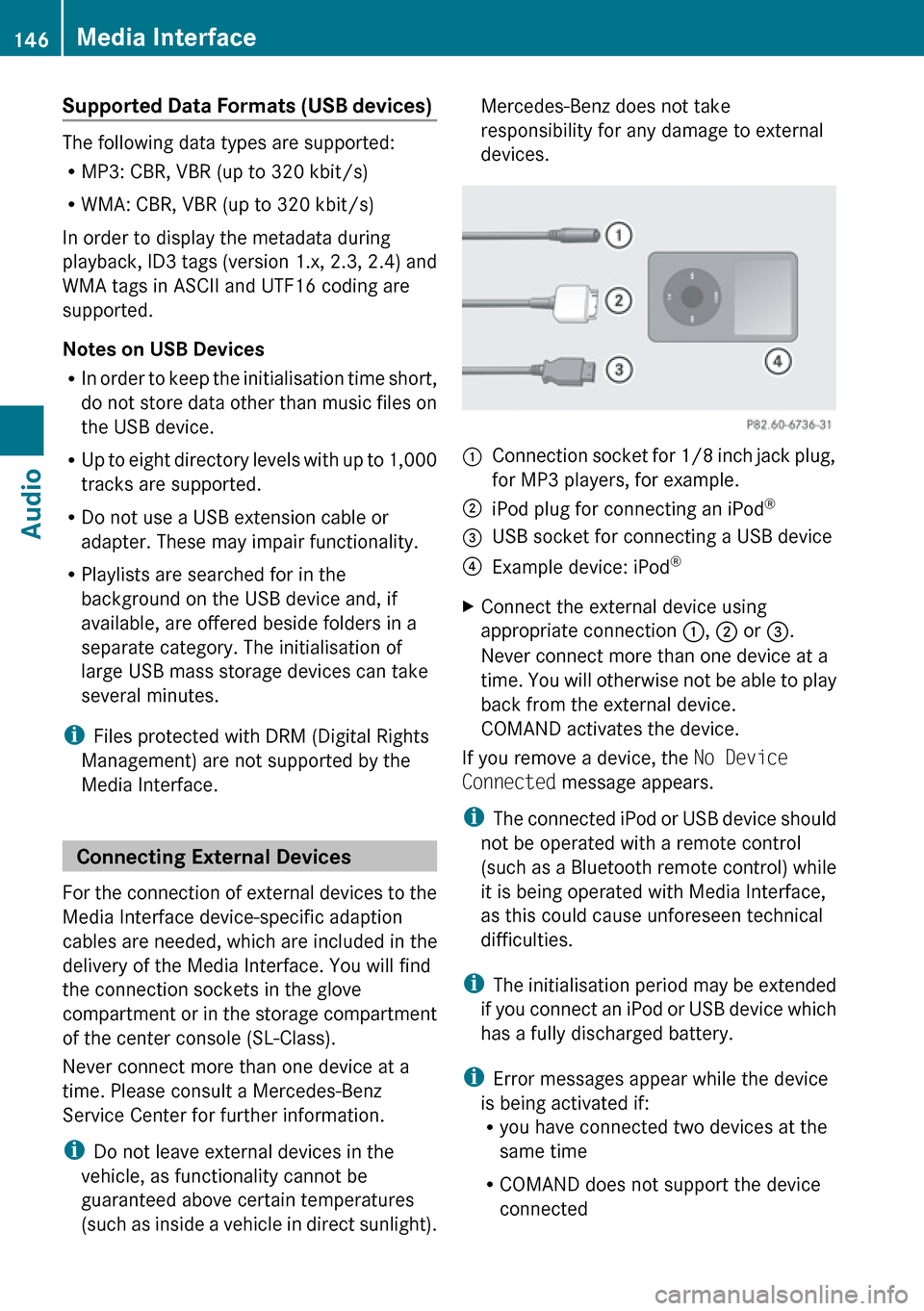
devices.1Connection socket for 1/8 inch jack plug,
for MP3 players, for example.2iPod plug for connecting an iPod ®3USB socket for connecting a USB device4Example device: iPod®XConnect the external device using
appropriate connection 1, 2 or 3.
Never connect more than one device at a
time. You will otherwise not be able to play
back from the external device.
COMAND activates the device.
If you remove a device, the No Device
Connected message appears.
i The connected iPod or USB device should
not be operated with a remote control
(such as a Bluetooth remote control) while
it is being operated with Media Interface,
as this could cause unforeseen technical
difficulties.
i The initialisation period may be extended
if you connect an iPod or USB device which
has a fully discharged battery.
i Error messages appear while the device
is being activated if:
R you have connected two devices at the
same time
R COMAND does not support the device
connected
146Media InterfaceAudio
Page 149 of 224
Rthe device connected consumes too
much power
R the Media Interface connection is
defective
If necessary, consult a Mercedes-Benz
Service Center.
Switching to Media Interface
From Another Main Function
XSelect Audio£Audio £Media
Interface in the audio menu display.
i
If you previously selected operation with
Media Interface, you need only select
Audio .
or
XPress the h function button.
Switch on the previous disc operating
mode.
i If you previously selected operation with
Media Interface, it will now be switched on.
XPress number key i.
This will automatically select the audio
device connected.
or
XSelect Media.
The media list appears. The R dot
indicates the current medium being played.XPress 9 or : until position 0 is
highlighted in the media list.
i If no device is connected, you will see the
entry Media Interface instead of a
device name.
If COMAND does not support the device
connected or if two devices have been
connected, the Not available entry
appears.
XPress 9.
COMAND activates the connected device.
You will see a corresponding message. The
basic display then appears.
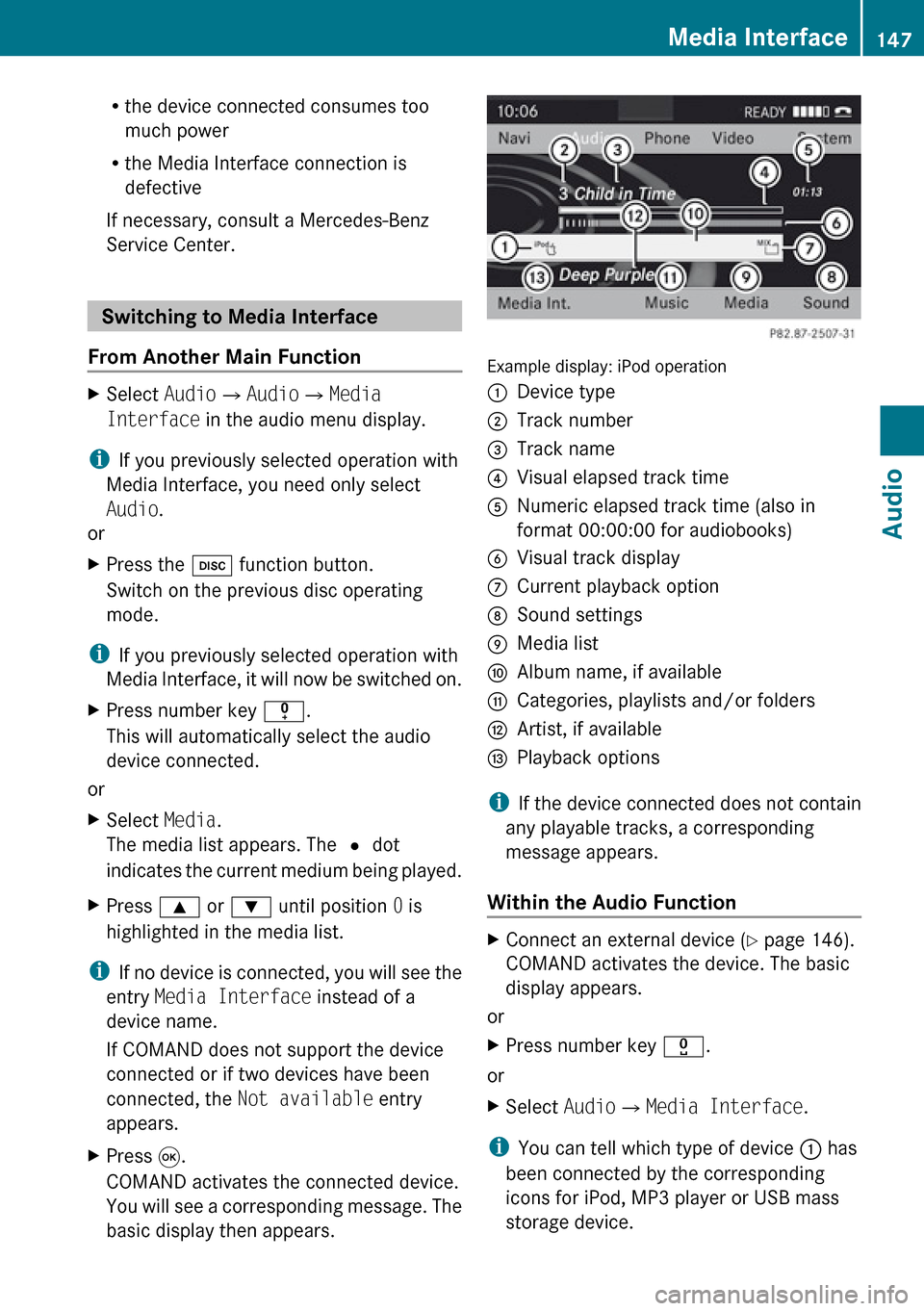
Example display: iPod operation
1Device type2Track number3Track name4Visual elapsed track time5Numeric elapsed track time (also in
format 00:00:00 for audiobooks)6Visual track display7Current playback option8Sound settings9Media listaAlbum name, if availablebCategories, playlists and/or folderscArtist, if availabledPlayback options
i If the device connected does not contain
any playable tracks, a corresponding
message appears.
Within the Audio Function
XConnect an external device ( Y page 146).
COMAND activates the device. The basic
display appears.
or
XPress number key x.
or
XSelect Audio£Media Interface .
i
You can tell which type of device 1 has
been connected by the corresponding
icons for iPod, MP3 player or USB mass
storage device.
Media Interface147AudioZ