Theme MERCEDES-BENZ CLS-Class 2012 W218 Comand Manual
[x] Cancel search | Manufacturer: MERCEDES-BENZ, Model Year: 2012, Model line: CLS-Class, Model: MERCEDES-BENZ CLS-Class 2012 W218Pages: 234, PDF Size: 6.74 MB
Page 160 of 234
Exam
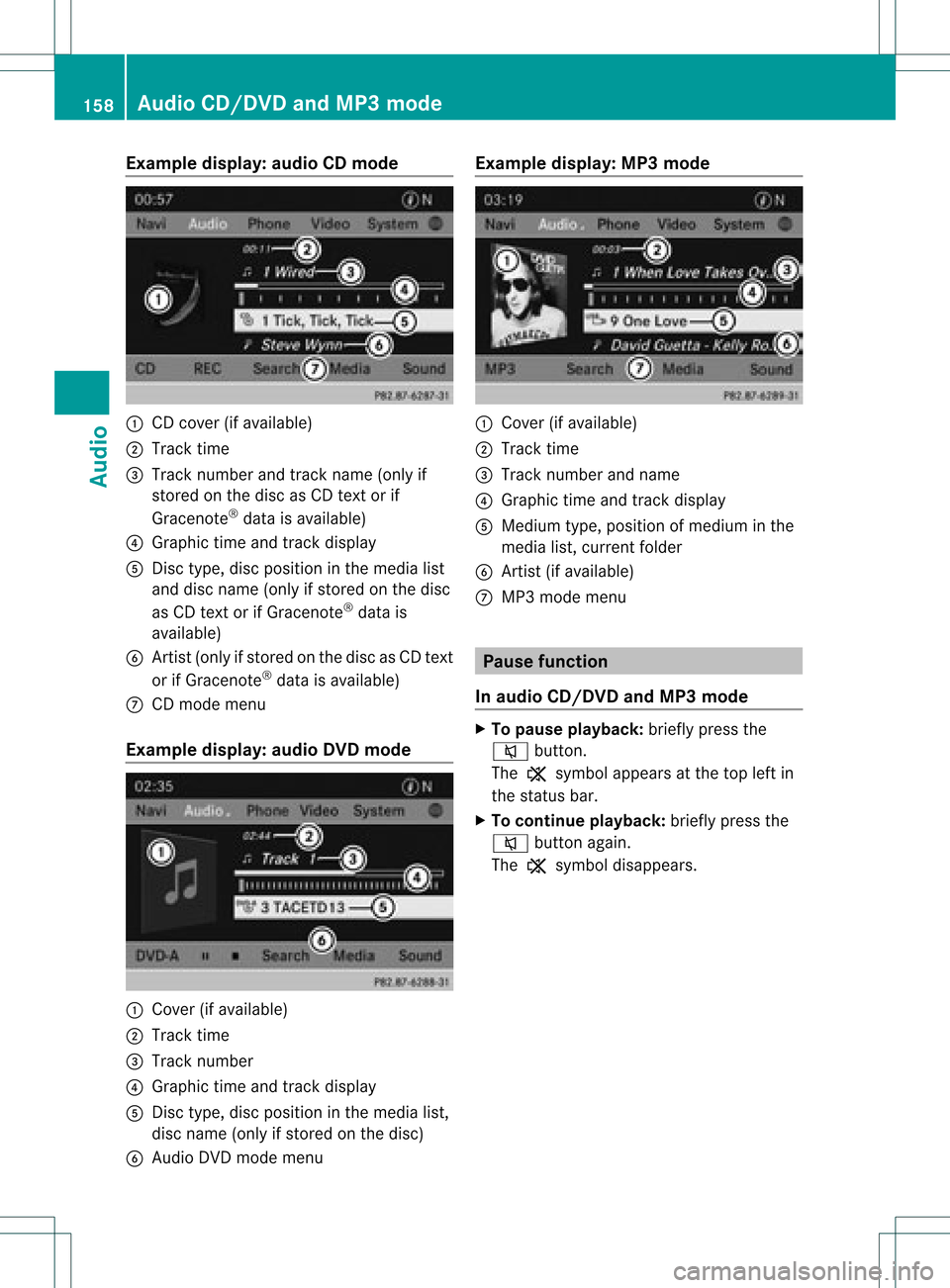
pledispla y:au dio CDmod e :
CD cover(ifavailable )
; Trac ktim e
= Trac knum berand track nam e(on lyif
st ore don thedisc asCD text or if
Grac enote®
dat ais available )
? Graph ictim eand track display
A Disctype, discposition inthemed ialist
and disc name(on lyifstor ed on thedisc
as CD text or ifGrac enote®
dat ais
avail able)
B Artist (on lyifst or ed on thedisc asCD text
or ifGrac enote®
dat ais avail able)
C CD mod emen u
Exa mpledisp lay :au dioDVD mode :
Cov er(ifavail able)
; Tracktime
= Tracknum ber
? Grap hictime and track disp lay
A Disc typ e,disc position inthemed ialist ,
disc name(on lyifstor ed on thedisc )
B Aud ioDV Dmod emen u Exa
mpledisp lay :MP 3mo de :
Cov er(ifavail able)
; Tracktime
= Tracknum berand nam e
? Grap hictime and track disp lay
A Med iumtype,pos ition ofmed iuminthe
med ialist ,cur ren tfolder
B Artist (ifavaila ble)
C MP3 mode menu Pause
function
In audio CD/DVDand MP3 mode X
To pause playback: brieflypressthe
8 button .
The , symbol appears atthe top leftin
the status bar.
X To continue playback: brieflypressthe
8 button again.
The , symbol disappea rs. 158
Audio
CD/DVD andMP3 modeAudio
Page 165 of 234
Disp
laying metada ta (MP 3mo de)
COM ANDc analso displ aythea lbum name
and artist (met adata) duringplayback ,if this
inf orm ation hasbeen entered intothe
syst em.
For allmedia thatcontain MP3 data(e.g.MP3
CD, SDmemory card,MUSIC REGISTE R),you
can determin ewhether:
R the metadata contained inthe tags ofthe
encoded musicdatashould bedisplaye d
R the fileand directo rynames should be
displaye dduring playback
X To display thealbum andartist name:
select MP3 or
USB in
the basic display by
sliding VÆandturningcVd theCOMAND
cont roller andpress Wtoconf irm.
X Select Display TrackInformati on and
press Wtoconf irm. Selecting
agrou p
Th econte ntofan audio DVD canbe divide d
into upto9g roup s.The availabil ity and type
of grou pdepe ndsonthe respe ctiveDVD.
Ag roup cancontain musicind iffe ren tsound
quali ties(stereo andmultichann elformats ,
for example), orbonus tracks.
Each group cancont ainupto99 track s.
If an audio DVDonlycontains oneaudio
format, theGroup menu
item(s) cannotbe
selected.
X Switch onaudio DVDmode (Ypage 157).
X Select DVD-A by
sliding VÆandturnin g
cVd theCOMAND controller andpress
W toconf irm.
X Select Group by
turnin gcVd andpress
W toconf irm.
The #dot indicates thegroup current ly
selected.
X Select thedesired groupbyturnin gcVd
and press Wtoconf irm.
X To exit themenu: slideXVY theCOMAND
cont roller orpress the% backbutton . Selecting
anactive partition (USB
mass storagedevices only)
You canselect thisfunct ionforUSB mass
storage devices whenthestorage deviceis
partition ed.Upto9p artition s(pri mar yor
logic al;FATand FAT32 )are suppo rted.
X Sel ect MP3 in
thebasic displayby slidin g
VÆ andturnin gcVd theCOMA ND
co ntroll erand pres sW toconfirm .
X Sel ect Select Active Partition and
pres sW toconfirm . Pla
yba ckopt ions
The followin gopt ionsare availabl eto you:
R Nor mal TrackSequence The
track sare played intheno rm alord er
(e. g.track 1,2,3, etc.).
In MP3 mode,thetrack orderisdet erm ined
by theord erinwhic hth etrack sare writ ten
to theMP3 datacar rier when itis creat ed.
Alp habet icalorderisthemos tcommon.
Once allthe track sin afolder havebeen
playe d,the track sin the next folder are
playe d.
R Random Media All
the track son the medium areplaye din
random order(e.g.track 3,8, 5etc. ).
R Random TrackList (MP3
mode only)
You hear thetrack sof the current tracklist
or the current lyactive folder(including all
sub-folders) inrandom order.
X To select options: switchonaudio CD/
DVD orMP3 mode (Ypage 157).
X Select CD ,
DVD-A or
MP3 by
sliding VÆand
turnin gcVd theCOMAND controller and
press Wtoconf irm.
The options listappears. The#dot
indicates theoption selected.
X Select anoption byturnin gcVd andpress
W toconf irm.
The option isswitched on.For alloptions
except "Normal tracksequence", youwill Audio
CD/DVD andMP3 mode
163Audio Z
Page 171 of 234
If
music filesareavai lable,pla yba ckbegi nsat
the point lastlistened to.
If there arenomusic files,you willsee a
messag eto this effect.
X Confirm themessag eby pressi ngW the
COMAND controller andcopy themusic
files (Ypage 169).
Option 2 X
Select Audio in
the main function barby
slid ing ZV andturning cVdtheCOMAND
controller andpress Wtoconfirm.
If MUSIC REGISTER wasthelast mode
selected, itis now switched on.
If another audiosource isswitched on,you
can now switch onthe MUSIC REGISTER in
the audiomenu.
X Select Audio by
slid ing ZV andturning
cVd theCOMAND controller andpress
W toconfirm.
The audiomenu appears.
X Select Music Register and
press Wto
confirm.
Option 3 X
Press ther number key(DVD changer).
The MUSIC REGISTER isswitched on. Importing
musicfiles
Introductio n You
cancopy music filesinthe fileformats
MP3, WMA andAAC (withthe file
extensions .m4p,.m4a,.m4band.aac) from
the follo wing media :
R discs inthe DVD changer
R memory card
R USB storage device
i CDinformation suchasalb um name, disc
name, artistandtrack isprovide dby the
Gracenote MediaDataba se(Ypage 161). X
Switch onaud ioCD mode (Ypage 157).
X With anaud ioCD inserted, selectREC in
the
CD basi cdisplay byslidin gVÆ andturnin g
cVd theCOMA NDcontroller andpress
W tocon firm .
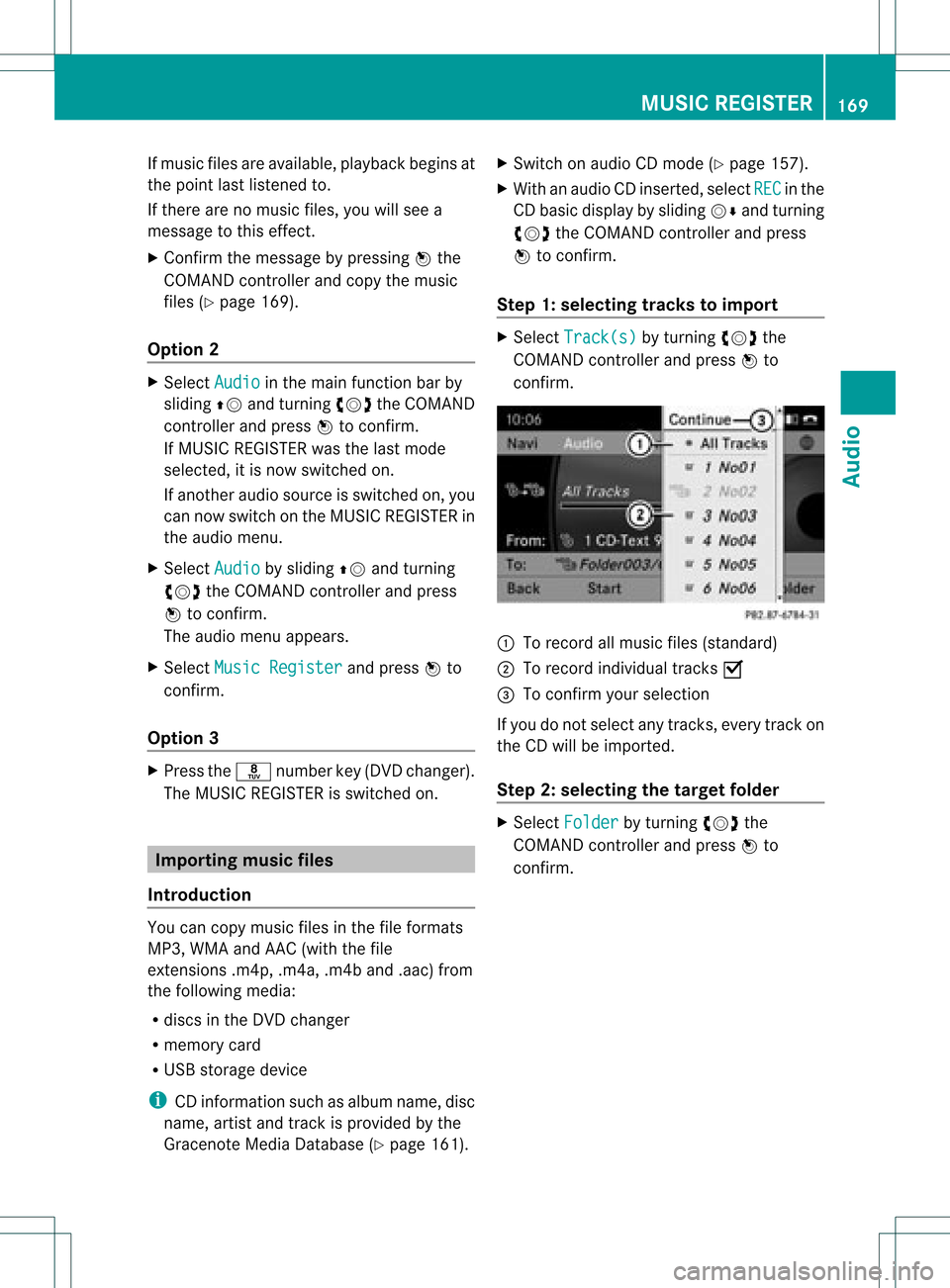
Step 1:selecting tracks toimp ort X
Selec tTrac k(s) by
turnin gcVd the
COMA NDcontroller andpress Wto
con firm . :
Torec ord allmusic files(standard )
; Torec ord indiv idual track sO
= Tocon firm your selec tion
If you donot selec tany trac ks,eve rytrac kon
the CDwillbe impo rted .
Ste p2:selectin gth eta rget folder X
Sele ctFol der by
turnin gcVd the
COMA NDcontroller andpres sW to
con firm. MUSIC
REGISTER
169Audio Z
Page 174 of 234
X
To select opti ons:sw itch tothe MUSI C
REG ISTER (Ypage 168) .
X Sel ect Mus ic Reg
ister by
slid ing VÆ and
tur ning cVd theCOMAND controller and
pre ssW toconfi rm.
The optio ns list appe ars. The #dot
ind icates the optio ns elected.
X Select anoption andpress Wtocon firm.
The option isswitch edon. For alloption s
exc ept Normal TrackSequenc e ,
you will
see acorr espondin gdisplay inthe display/
select ionwindow.
i The Normal TrackSequenc e option
is
automatic allyselect edwhen youchange
the disc youarecurren tlylisten ingtoor
when youselect adifferen tmedium. Ifan
option isselect ed,itremains selectedafter
COMAND isswitch edon oroff. Bluet
ooth®
aud iomode Connecting
Bluetooth®
aud iodevices
Conditions Bluet
ooth®
aud iodevice
Bluetoot h®
audio mode requires a
Bluetoot h®
-c apable audiodevice.
i Not allBluetoot h®
audio devices available
on the market areequally suitable. For
more detailed information onsuitable
Bluetoot h®
audio devices andon
con nectingBluetoot h®
audio devices to
COMAND ,visit
htt p://ww w.mbu sa-mobile.com (for
USA ).Alt ernat ively, calltheMercedes- Benz
Customer AssistanceCenter at
1-8 00- FOR-ME RCedes (1-800-367 -6372)
(for USA )or Customer Relationsat
1-8 00- 387 -0100(for Canada). Befor
eusing Bluetoot h®
audio mode, you
should checkyour Bluetooth ®
audio device
for the following (seetheBluetooth ®
audio
device's operating instructions):
R Bluetooth ®
audio profile
The Bluetooth ®
audio device mustsupport
the A2D Pand AVRCP Bluetooth ®
audio
profiles.
R Bluetooth ®
visibility
On cert ainBluetooth ®
audio devices, as
well asactivatin gthe Bluetooth ®
funct ion,
the device itselfmust alsobemade
"visible" toother devices (seethe
Bluetooth ®
audio device's operating
instr uctions).
R Bluetooth ®
device name
This device nameispredetermin edbut can
usual lybe changed. Tomake aclear
selection ofthe Bluetooth ®
device
possible, Mercedes-B enzrecomm ends
that youcustomiz ethe device name(see
the Bluetooth ®
audio device's operating
instr uctions).
i A2D P(Advanced AudioDistribution
Profile): Bluetooth ®
audio profile foraudio
data trans mission
AVRCP (AudioVideoRemote Control
Profile): Bluetooth ®
audio profile foraudio
data playb ack
X Act ivate Bluetooth ®
and Bluetooth ®
visibility onthe Bluetooth ®
audio device.
On COMAND
X Act ivate theBluetooth ®
funct ionin
COMAND (Ypage 45).
General information Before
usingyourBluetooth ®
audio device
with COMAND forthe first time, youwillneed
to authorize it.
When youauthorize anew Bluetooth ®
audio
device, itis conn ected automatically.
Connect ioninvolves firstsearching fora 172
Bluetooth ®
aud iomodeAudio
Page 180 of 234
Media
Interface mode Co
nne ctio noption s
Overvi ew The
connection socketsareloca tedinthe
stowa gecompartme ntinthe center console.
Device-spe cificadapter cables,inclu dedwith
the Medi aInterface, arerequ iredtoconnect
external devicestothe Medi aInterface.
i Store individualparts inas afe plac e.
On lyuse genuine Mercedes-Ben z
co nn ect ion cabl es.
You canconn ect thefoll owin gdat amedi ato
COMA NDviatheMedia Inte rface:
R iPod ®
R cer tain MP3 player s
i iPod ®
is areg istere dtrademar kofApple
Inc .,Cupertino ,California, USA.
Supp orted devices For
details andalist ofsupported devices,
visit http://www .mbusa- mobile.com.
Alt ernat ively, calltheMercede s-Benz
Customer AssistanceCente rat
1-800-FOR-MERC edes(1-800-367-6372)
(for USA) orCu stomer Relatio nsat
1-800-387-0100 (forCanada ). Co
nne ctin gan exte rnal device
i Donot leaveexternal devicesinthe
vehi cle,astheir correct function cannotbe
gua ranteed ifthey aresubjected to
extreme temperatures,e.g.from expos ure
to dire ctsunl ight orvery lowoutsi de
tempera tures(seetheoper ating
instructio nsofthe respe ctivedevice).
Merced es-Benz USA,LLCaccep tsno
lia bil ity for dam agetoexternal devices.
Never connect morethanonedeviceata
time. Youwillotherw isenot beableto pla y
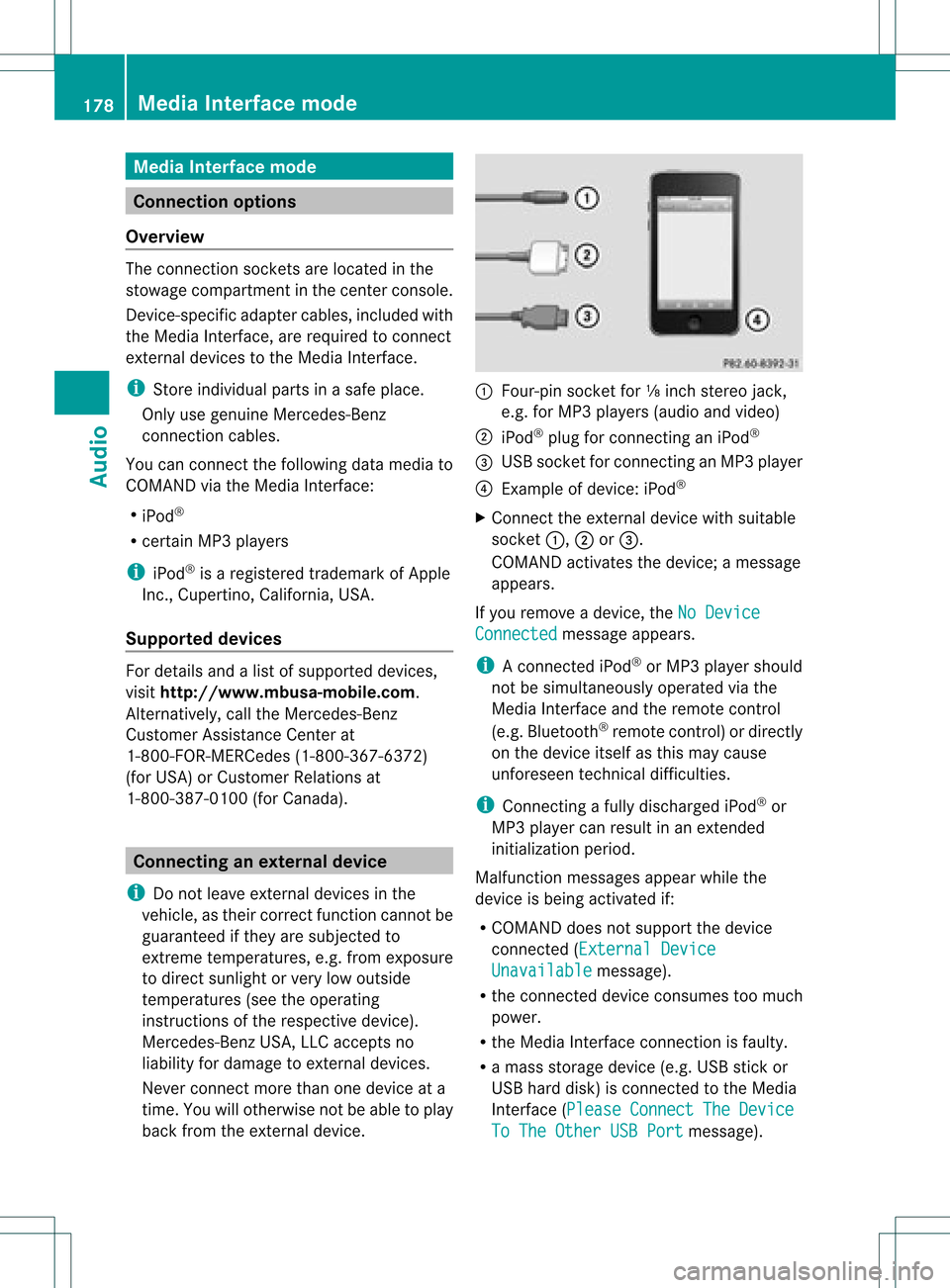
back fromtheexternal device. :
Four-p insocket for⅛inch stereo jack,
e.g. forMP3 players (audi oand video)
; iPod®
plu gfor connecting aniPo d®
= USB socket forconnecting anMP3 player
? Exampl eof devi ce:iPod®
X Connect theexternal devicewith sui tabl e
socket :,;or=.
COM AND activa testhe devi ce;amessa ge
app ears .
If you remove adevi ce,the NoDevice Connec
ted messa
geapp ears .
i Aconnected iPod®
or MP3 players hould
not besimultaneously operatedviathe
Media Interface andtheremote control
(e.g. Bluetooth ®
remote control)ordirectly
on the device itselfasthis may cause
unforeseen technicaldifficulties.
i Connect ingafully discharged iPod®
or
MP3 playercan result inan exten ded
initialization period.
Malfunction messagesappearwhile the
device isbeing activated if:
R COMAND doesnotsupport thedevice
conn ected (External Device Unavailable message).
R the conn ected device consumes toomuch
power.
R the Media Interface connection isfaulty.
R amass storage device(e.g.USBstick or
USB hard disk) isconn ected tothe Media
Int erface (Please Connect The Device
To
The Other USBPort message).178
Media
Interface modeAudio
Page 189 of 234
Note
sabo utdis cs
Pl ay ba ck pro blems mayoccu rwhen playing
copied discs.Therearealarge variety of
discs, DVDauthoring software,writing
software andwriters available.This variety
means thatthere isno guarantee thatthe
system willbeable toplay discs thatyouhave
copied yourself.
! Donot affix stick ersorlabel sto the discs,
as they could peeloffand damage
COMAND. Stickers cancause thedisc to
bend, which canresult inread errors and
disc recognit ionproblems.
! COMAND isdesigned toaccommodate
discs which comply withtheEN60908
standard. Youcantherefore onlyusediscs
with amaximum thickness of1.3 mm.
If you insert thickerdiscs, e.g.those that
cont aindata onboth sides (DVD onone
side andaudiodata onthe other), they
cannot beeject edand candamage
COMAND.
Use round discswithadiameter of12 cm.
Do not use discs withadiameter of8cm,
even withanadapter. DVD
playback conditions
If video DVDsdon otconf orm tothe NTSC or
PAL TVstandards, theymaycreate picture,
sound orother problems duringplayback.
COMAND canplay back video DVDs
produced according tothe following
standards:
R region code1orregion code0(no reg ion
cod e)
R PAL orNTSC standa rd
Yo uwi llge nera lly find thereleva ntdetai ls
ei ther onthe DVD itselfor on the DVD case.
i Ifyo uins ert avid eo DVD with adi ffe rent
reg ionc ode, youwillsee amessage tothis
effect . i
COMAND isset toregion code1at the
factor y.This settingcan bechanged atan
authorized Mercedes-B enzCenter. Thiswill
allow youtoplay video DVDswith a
different regioncode,provided thatthey
are produced inaccordanc ewith thePAL
or NTSC standard. Theregion codecanbe
changed uptofive times. Function
restrictions
Dependin gon the DVD ,it is possible that
cert ainfunct ionsoractions willbe
temporarily blockedormay notfunct ionatall.
As soon asyou trytoactivate thesefunctions
or actions ,you willsee theKsymbol inthe
display . Inserting
andremoving DVDs
X Proceed asdescribed inthe "Insert ingand
eject ingCDs andDVD s"section
(Y page 154). Switching
tovideo DVDmode
Option 1 X
DVD changer: insertavideo DVD.
X Press theh functionbutton orthe
% backbutton .
COMAND loadsthemedium insertedand
start sto play it.
Option 2 X
Press theh functionbutton oneormore
times.
COMAND switchestothe previous disc
operating mode. Video
DVDmode
187Video Z
Page 190 of 234
i
Bypre ssing this functi onbutton
rep eatedl y,yo ucan change theoperating
mod ein the follow ing order:
R au dio CD/DVD, video DVD orMP3 disc
in the DVD changer
R memo rycard mode
R MUSIC REGISTER
R USB stora gedev ice
R Med iaInterfa ceoraudio AUX mode
R Blu etoo th®
au dio mod e
X Sele ctMedi a by
sliding VÆ andturni ng
cVd theCOMAND controllerand press
W toconfir m.
X Sele ctaý video DVD from themed ialist
(Y page 190).
Optio n3 X
Sele ctVide o in
the mainfuncti onbarby
sli ding ZV andturni ngcVd theCOMAND
control lera nd pre ssW toconfi rm.
Vi de oDVD modeis sw itch edon. Hidi
ng/show ingthe navigatio nmen u
X To dis play :sl id e ZVÆ theCOMAND
contro ller.
i Thisfu nctio nisnot avail able while the
DVD's ownmenu (Ypage 190)isbeing
displa yed.
X To hide: slideZVÆ theCOMAND
cont roller.
or
X Wait forapproximately eightseconds. Navigation
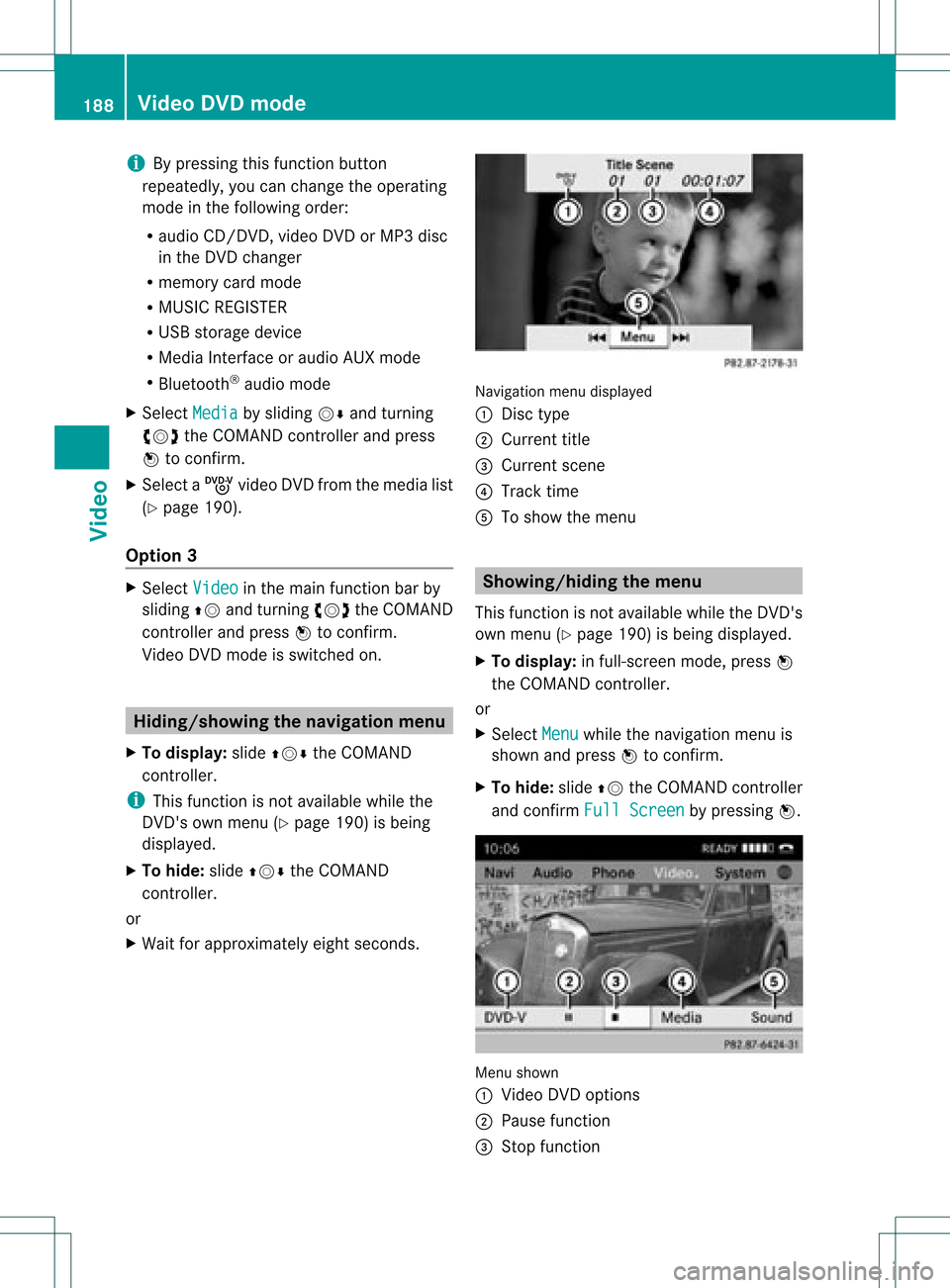
menudisplayed
: Disc type
; Current title
= Current scene
? Track time
A Toshow themenu Showin
g/hiding themenu
This function isnot avail able while theDVD's
own menu (Ypage 190)isbeing displayed.
X To display: infull-screen mode,pressW
the COMAND controller.
or
X Select Menu while
thenavigation menuis
shown andpress Wtoconfirm.
X To hide: slideZVtheCOMAND controller
and confirm FullScreen by
pressing W. Menu
shown
: Video DVDoptions
; Pause function
= Stop function 188
Video
DVDmodeVideo
Page 191 of 234
?
Media selection
A Sound settings Fast
forward ing/rew inding
X In full-screen mode,slideXVY andhold the
COMAND controller untilthedesired
position hasbeen reached.
or
X Press andhold theE orF button
until thedesired position isreached.
You seethenavigation menu. Stop
function
X Press Wthe COMAND controller toshow
the menu.
X To interru ptplayback: selectÉby
turning cVdtheCOMAND controller and
press Wtoconfirm .
The Ë displa ychanges toÌ.T he
video image ishidden.
X To continue playback: selectÌand
press Wtoconfirm .
Play back continues fromthepoint where it
was interrupted.
X To stop playback: whileplayback is
interrupted, selectÉagain andpress
W toconfirm .
or
X During playback, confirm Ébypressing
W twice inrapid succession.
Ì ishighlighted.
X To restar tplayback: confirmtheÌ
selection bypressing W.
Play back restarts fromthebeginning. Pause
function
X Press Wthe COMAND controller toshow
the menu.
X To pause playback: selectËby
turning cVdtheCOMAND controller and
press Wtoconfirm .
The Ë displa ychanges toÌ.
X To continue playback: selectÌand
press Wtoconfirm .
The menu ishidden. Selec
tingascene/ch apter
If th efilm isdivi ded intosc en es orchapt ers,
you can selectthem dire ctly while thefilm is
run ning,or skip for wards step- by-s tep. So me
DV Ds donotpermit thisatcert ainpoint s(e.g.
during theopenin gcredit s).
It may alsobepossible toselect thescen e/
chapter fromwithin themenu storedon the
DVD .
X To skip forwar dsorback: infull-scr een
mode, turncVd orslide XVY the
COMAND controller.
or
X Press theE orF button onthe
con trol panel.
The navigation menu(Ypage 188)appears
for approximat elyeight secon ds. Selecting
afilm/t itle
This function isonly available ifthe DVD is
divided intosever alfilms /titles .Ift he DVD
cont ains several films,these canbeselected
directly. Afilm can beselec tedeitherwhen
the DVDisbeing playedback orwhen itis
stopped.
The film canalso beselected fromthemenu
on the DVD itself. Video
DVDmode
189Video Z
Page 192 of 234
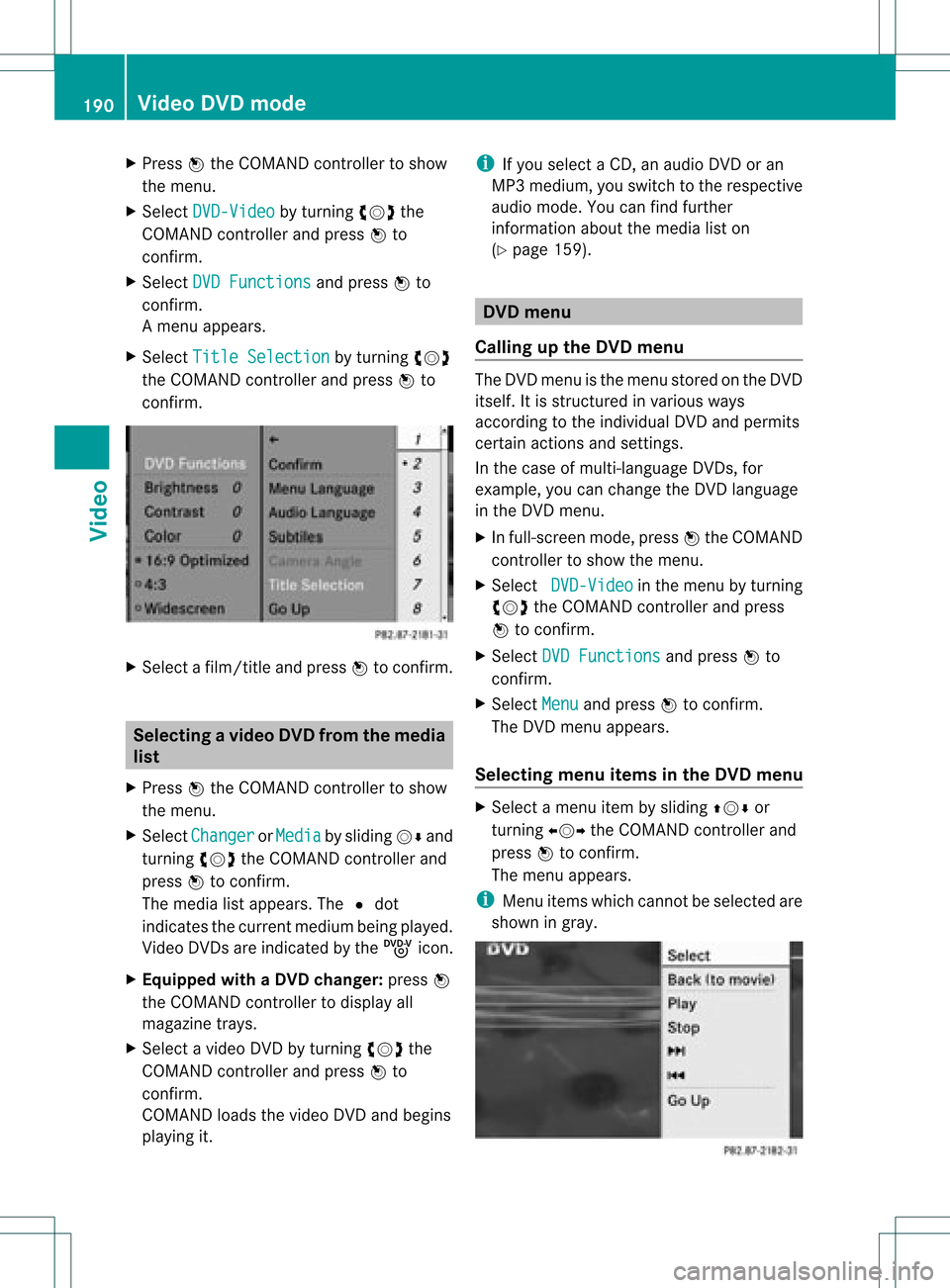
X
Press Wthe COMAND controller toshow
the menu.
X Select DVD-Video by
turn ingcVd the
COMAND controller andpress Wto
conf irm.
X Select DVDFunctions and
press Wto
conf irm.
Am enu appears.
X Select Title Selecti on by
turn ingcVd
the COMAND controller andpress Wto
con firm. X
Select afilm/t itleand press Wtocon firm. Selecting
avideo DVD from themed ia
list
X Press Wthe COMAN Dcon troller toshow
the men u.
X Selec tChan ger or
Medi a by
sliding VÆand
turn ingcVd theCOMAN Dcon troller and
press Wtocon firm .
The media listappears. The#dot
indic atesthecurr entmedium beingplayed.
Video DVDsare indic ated bythe ý icon.
X Equip pedwith aDVD changer :press W
the COMAN Dcontroller todisplay all
magazine trays.
X Select avideo DVDbyturnin gcVd the
COMAND controller andpress Wto
conf irm.
COMAND loadsthevideo DVDandbegins
playi ngit. i
Ifyou select aCD, anaudio DVDoran
MP3 medium, youswitch tothe respect ive
audio mode. Youcanfind further
inform ationabout themedia liston
(Y page 159). DVD
menu
Calling upthe DVD menu The
DVD menu isthe menu stored onthe DVD
itself. Itis struct uredinvarious ways
according tothe individual DVDandpermits
cert ainactions andsettings.
In the case ofmulti-language DVDs,for
example, youcan change theDVD language
in the DVD menu.
X In full-screen mode,pressWthe COMAND
cont roller toshow themenu.
X Select DVD-Video in
the menu byturnin g
cVd theCOMAND controller andpress
W toconf irm.
X Select DVDFunctions and
press Wto
conf irm.
X Select Menu and
press Wtoconf irm.
The DVD menu appears.
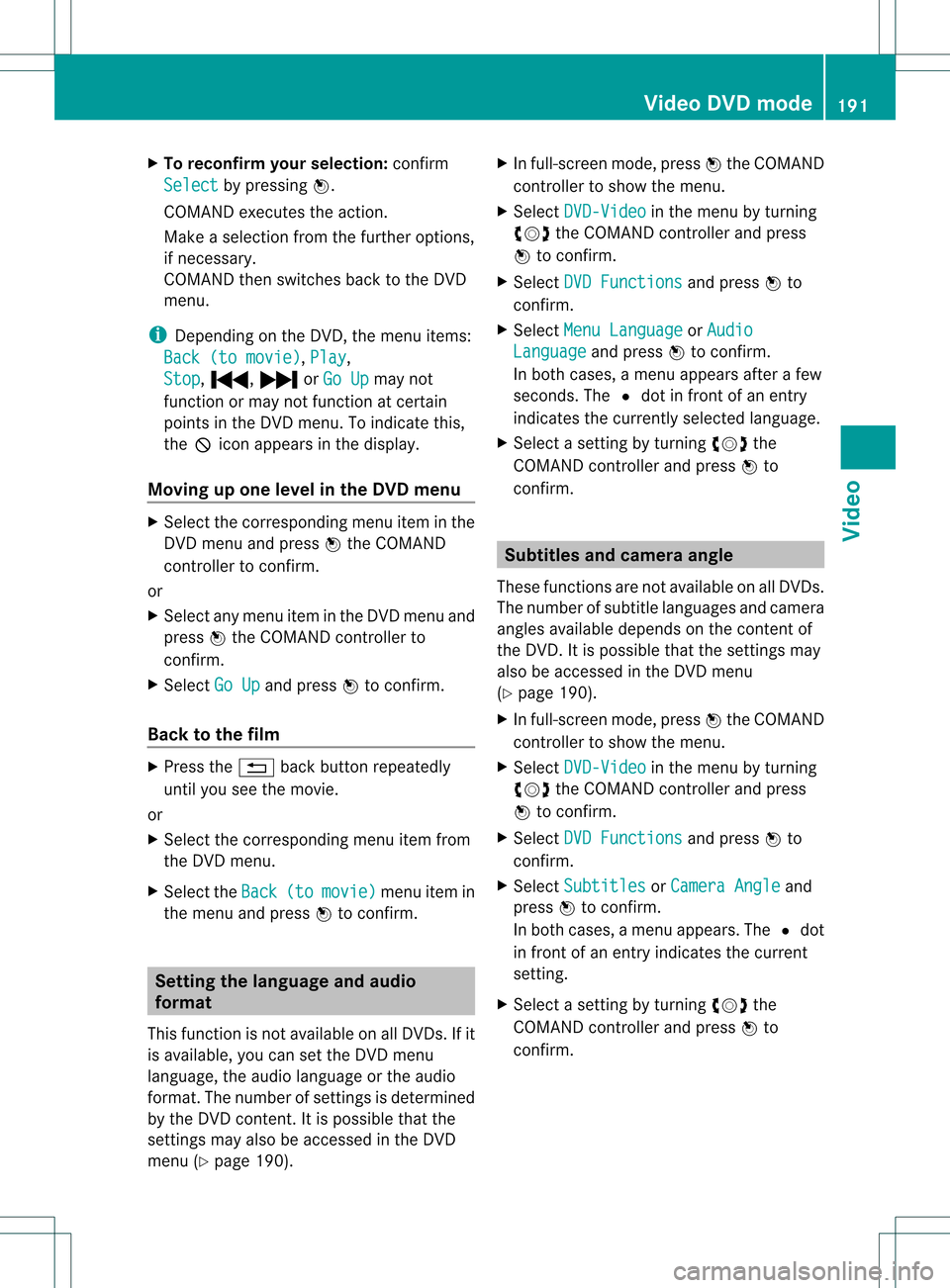
Selecting menuitemsinthe DVD menu X
Select amenu itembysliding ZVÆor
turnin gXVY theCOMAND controller and
press Wtoconf irm.
The menu appears.
i Menu itemswhich cannotbe selected are
shown ingray. 190
Video
DVDmodeVideo
Page 193 of 234
X
To rec onfirm your selecti on:confi rm
Sel ect by
pre ssing W.
CO MAND execute sthe action.
Ma keasel ecti onfrom thefurthe roption s,
if nec essary.
COMAND thenswitc hesback tothe DVD
menu.
i Depen dingonthe DVD ,the menu items:
Back (tomovie) ,
Play ,
Stop ,
., /orGo Up may
not
func tion ormay notfunc tion atcert ain
point sin the DVD menu. Toindicat ethis,
the Kicon appears inthe display.
Moving upone level inthe DVD menu X
Select thecorr espondin gmenu iteminthe
DVD menu andpress Wthe COMAND
con troller tocon firm.
or
X Select anymenu iteminthe DVD menu and
press Wthe COMAND controller to
con firm.
X Select GoUp and
press Wtocon firm.
Back tothe film X
Press the% backbuttonrepeatedly
until youseethemovie.
or
X Select thecorr espondin gmenu itemfrom
the DVD menu.
X Select theBack (to movie) menu
itemin
the menu andpress Wtocon firm. Sett
ingthe langua geand audio
form at
This function isnot available onallDVD s.Ifit
is available, youcan setthe DVD menu
language, theaudio language orthe audio
form at.The number ofsett ings isdeter mined
by the DVD content.Itis possible thatthe
sett ings may alsobeaccess edinthe DVD
menu (Ypage 190). X
In full-sc reenmode, pressWthe COMAND
con troller toshow themenu.
X Select DVD-Vi deo in
the menu byturn ing
cVd theCOMAND controller and press
W tocon firm.
X Select DVDFuncti ons and
press Wto
con firm.
X Select MenuLangua ge or
Audio Langua
ge and
press Wtocon firm.
In both cases, amenu appears afterafew
secon ds.The #dot infron tof an ent ry
indicat esthe curren tlyselect edlanguage.
X Select asett ingbyturn ingcVd the
COMAND controller and press Wto
con firm. Subt
itles andcamer aangle
These functionsare not available onallDVD s.
The number ofsubtit lelanguages andcamera
angles available dependsonthe contentof
the DVD. Itis po ssi ble tha tthe settin gsmay
also beaccessed inthe DVD menu
(Y page 190).
X In full-screen mode,pressWthe COMAND
cont roller toshow themenu.
X Select DVD-Video in
the menu byturning
cVd theCOMAND controller andpress
W toconfirm .
X Select DVDFunctions and
press Wto
confirm .
X Select Subtitles or
Camera Angle and
press Wtoconfirm .
In both cases, amenu appears.The #dot
in front ofan entr yindicates thecurrent
settin g.
X Select asettin gby turning cVdthe
COMAND controller andpress Wto
confirm . Video
DVDmode
191Video Z