Theme MERCEDES-BENZ CLS-Class 2012 W218 Comand Manual
[x] Cancel search | Manufacturer: MERCEDES-BENZ, Model Year: 2012, Model line: CLS-Class, Model: MERCEDES-BENZ CLS-Class 2012 W218Pages: 234, PDF Size: 6.74 MB
Page 73 of 234
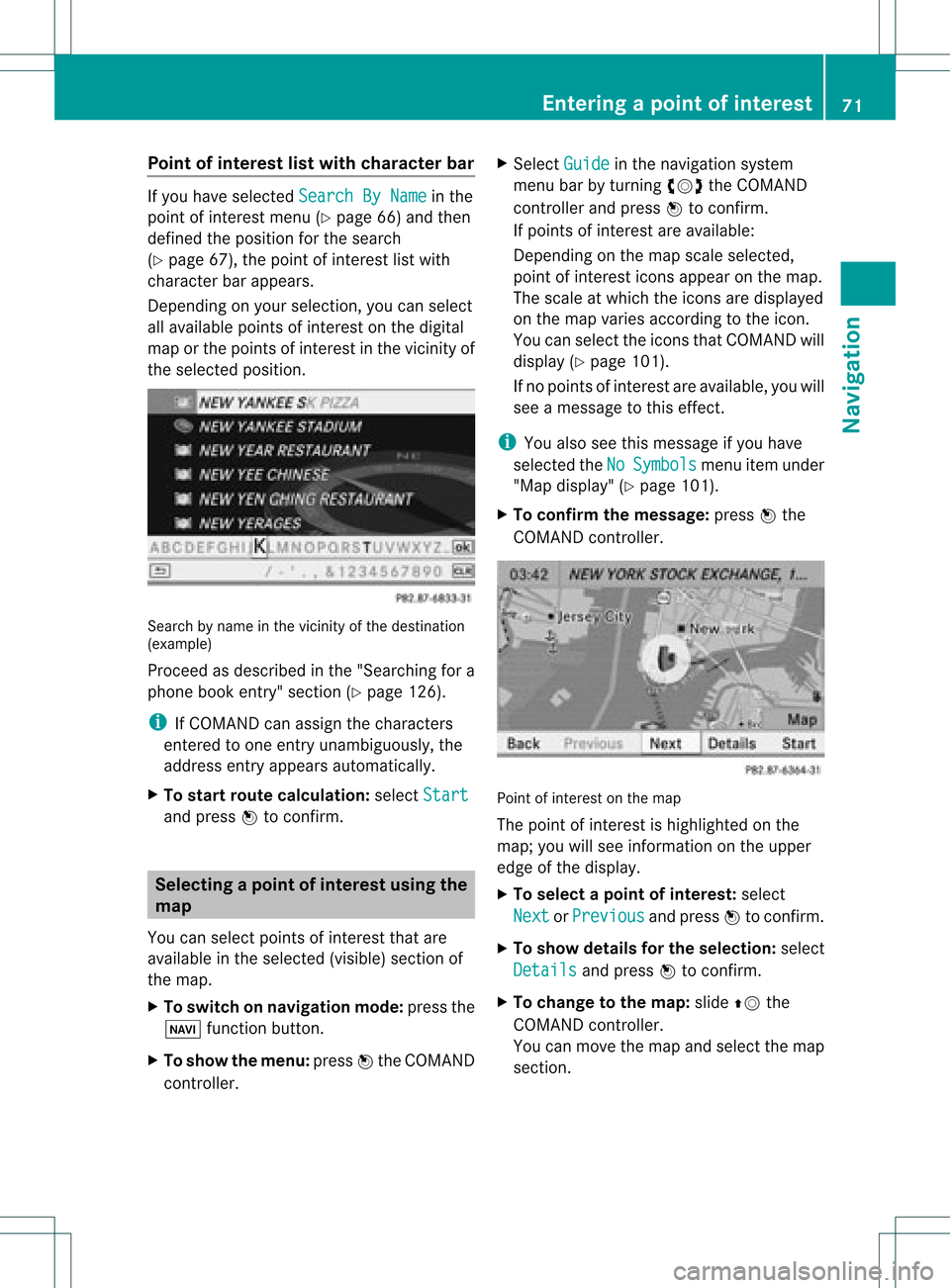
Point
ofinterest listwith charact erbar If
you have selected SearchByName in
the
point ofinterest menu(Ypage 66)and then
defined theposition forthe search
(Y page 67),thepoint ofinterest listwith
character barappears.
Depending onyour selection, youcan select
all availa blepoints ofinterest onthe digital
map orthe points ofinterest inthe vicinity of
the selected position. Search
byname inthe vicinity ofthe destination
(example)
Proceed asdescribed inthe "Searching fora
phone bookentry"section (Ypage 126).
i IfCOMAND canassign thecharacters
entered toone entryunambiguou sly,the
address entryappears automatically.
X To star troute calculation: selectStart and
press Wtoconf irm. Selec
tingapoint ofint eres tusing the
map
You canselect points ofinter estthat are
available inthe selected (visible)sectionof
the map.
X To switch onnavigat ionmode: pressthe
Ø function button .
X To show themenu: pressWthe COMAND
con troller. X
Select Guide in
the navigation system
menu barbyturn ingcVd theCOMAND
con troller andpress Wtocon firm.
If points ofinter estare available:
Depen dingonthe map scale selected,
point ofinter esticons appear onthe map.
The scale atwhich theicons aredisplayed
on the map varies accordin gto the icon.
You canselect theicons thatCOMAND will
display (Ypage 101).
If no points ofinter estare available, youwill
see amessage tothis effec t.
i You also seethis message ifyou have
selected theNo Symbols menu
itemunder
"Map display" (Ypage 101).
X To confirm themessage: pressWthe
COMAND controller. Point
ofinter estonthe map
The point ofinter estishighlighted onthe
map; youwillsee infor mation onthe upper
edge ofthe display.
X To select apoint ofint erest :selec t
Nex t or
Pre vious and
pres sW tocon firm.
X To show details fortheselecti on:selec t
Det ails and
pres sW tocon firm.
X To chan getothema p:slide ZVthe
COMA NDcontroller .
You canmov eth emap andselec tthe map
section. Entering
apoint ofint eres t
71Navi gatio n Z
Page 74 of 234
X
To start route calculati on:sel ect Start and
pressW toconfi rm.
Ap rompt appears asking whethe rthe point
of interest shouldbeused asthe
destination.
X Select Yes or
No and
press Wtoconfirm .
If you select Yes ,
route guidancestarts.
If you select No ,
you can choose anew point
of interest .
i Cont. is
displa yedinstead ofStart when
Calculate Alternative Routes is
activated inthe navigation menu
(Y page 82),option 2. Personal
pointsofinterest Settings
Overview Personal
destinations canbe:
R displa yedonthe map
R highlighted onthe map asyou approach
them
R managed incategories
R managed
Calling upthe "Personal pointsof
interest" menu X
To switch onnavigation mode:pressthe
Ø functionbutton.
X To show themenu: pressWthe COMAND
cont roller.
X Select Navi in
the main functionbar by
sliding ZVandturning cVdtheCOMAND
cont roller andpress Wtoconfirm .
X Select Personal POIs and
press Wto
confirm . Displaying
personalpointsofinterest
on the map The
personal pointsofinterest areshown on
the map withanicon according totheir
category.
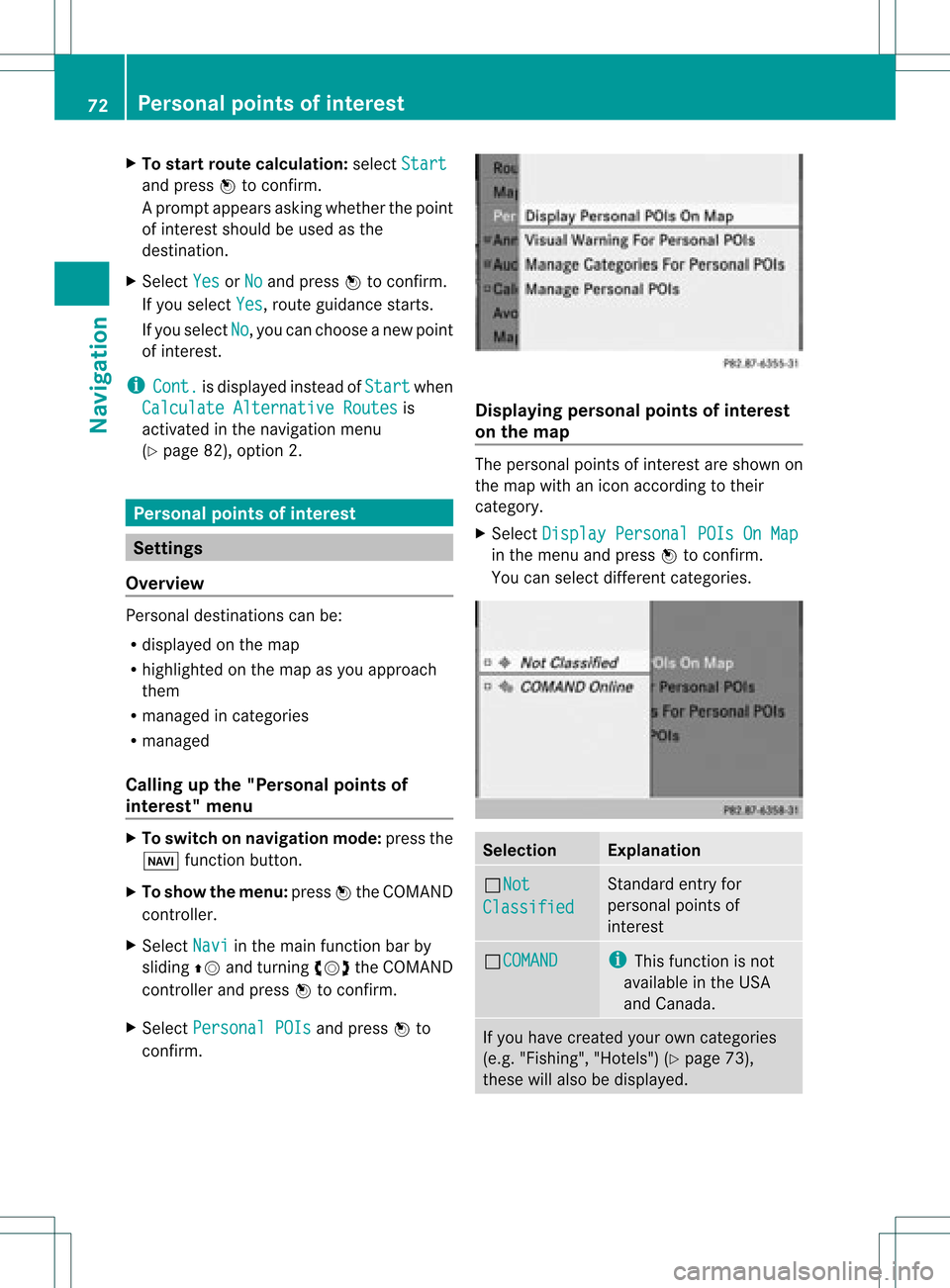
X Select Display Personal POIsOnMap in
the menu andpress Wtoconfirm .
You canselect different categories. Selec
tion Explanation
ªNot
Classified Standard
entryfor
personal pointsof
interest ªCOMAND i
This funct ionisnot
availa bleinthe USA
and Canada . If
you have created yourowncategories
(e.g. "Fishing", "Hotels")(Ypage 73),
these willalso bedispla yed. 72
Personal
pointsofinterestNavigat ion
Page 76 of 234
X
To del ete acate gory: select Delete and
pre ssW toconfi rm.
Ap rompt appears asking whethe rthe
category shouldbedeleted.
i Ifyou delete acategory, allpoints of
interest ofthis category arealso deleted.
X Select Yes and
press Wtoconfirm .
If you select Yes ,
the category willbe
deleted.
If you select No ,
the process willbe
canceled.
Managing personalpointsofinterest X
Select Manage Personal POIs in
the
menu andpress Wtoconfirm .
X Select NotClassified ,
COMAND or
your
own category andpress Wtoconfirm .
X Select apersonal pointofinterest and
press Wtoconfirm .
The personal pointofinterest isdispla yed.
The following functionsaredescribed inthe
"Select asdestination" section
(Y page 75):
R renaming
R changing thecategory
R deleting Saving
personal pointsofinterest
There arethree waysto save personal points
of interest .You must insert anSD memory
card todo so. The No Memory Card message
otherwise appears.
i Personal pointsofinterest androutes are
written tothe memory cardinadata format
based uponopenformat GPX(GPS
Exchange Format).Geodataissaved inthis
format. Option
1
X Insert theSDmemory card(Ypage 157).
X Hide themenu (Ypage 51)todispla ythe
map infull screen mode.
X Press Wthe COMAND controller forlonger
than twoseconds.
The current position ofthe vehicle issaved
as apersonal pointofinterest onthe SD
memory cardinthe "Unclassified"
category.
i The crosshair positionissaved while
scrolling themap (Ypage 61).
Option 2
X Insert theSDmemory card(Ypage 61).
X To show themenu: pressWthe COMAND
cont roller.
X Select Position in
the navigation system
menu barbyturning cVdtheCOMAND
cont roller andpress Wtoconfirm .
X Select SavePosition AsPersonal POI or
Save Crosshair Pos.As Personal
POI ("Move
map"function
active) andpress Wtoconfirm .
The listofpersonal categories appears.
X Select acategory andpress Wtoconfirm .
X Name forthe personal pointofinterest .
Proceed asdescribed under"Entering
characters" inthe "Ent ering characters in
the address andphone books" section
(Y page 31).
Option 3
X Insert theSDmemory card(Ypage 157).
X Select Save from
theaddress entrymenu
and press Wtoconfirm .
X Select SaveAsPersonal POI and
press
W toconfirm .
X Select acategory.
X Ent erthe name.
The current address issaved asapersonal
point ofinterest onthe SDmemory card. 74
Personal
pointsofinterestNavigat ion
Page 77 of 234
Selec
tingasthe destination
X Insert theSDmemory card(Ypage 157).
X To switch onnavigation mode:pressthe
Ø functionbutton.
X To show themenu: pressWthe COMAND
cont roller.
X Select Destination in
the navigation
system menubarbyturnin gcVd the
COMAND controller andpress Wto
conf irm.
X Select FromPersonal POIs and
press
W toconf irm.
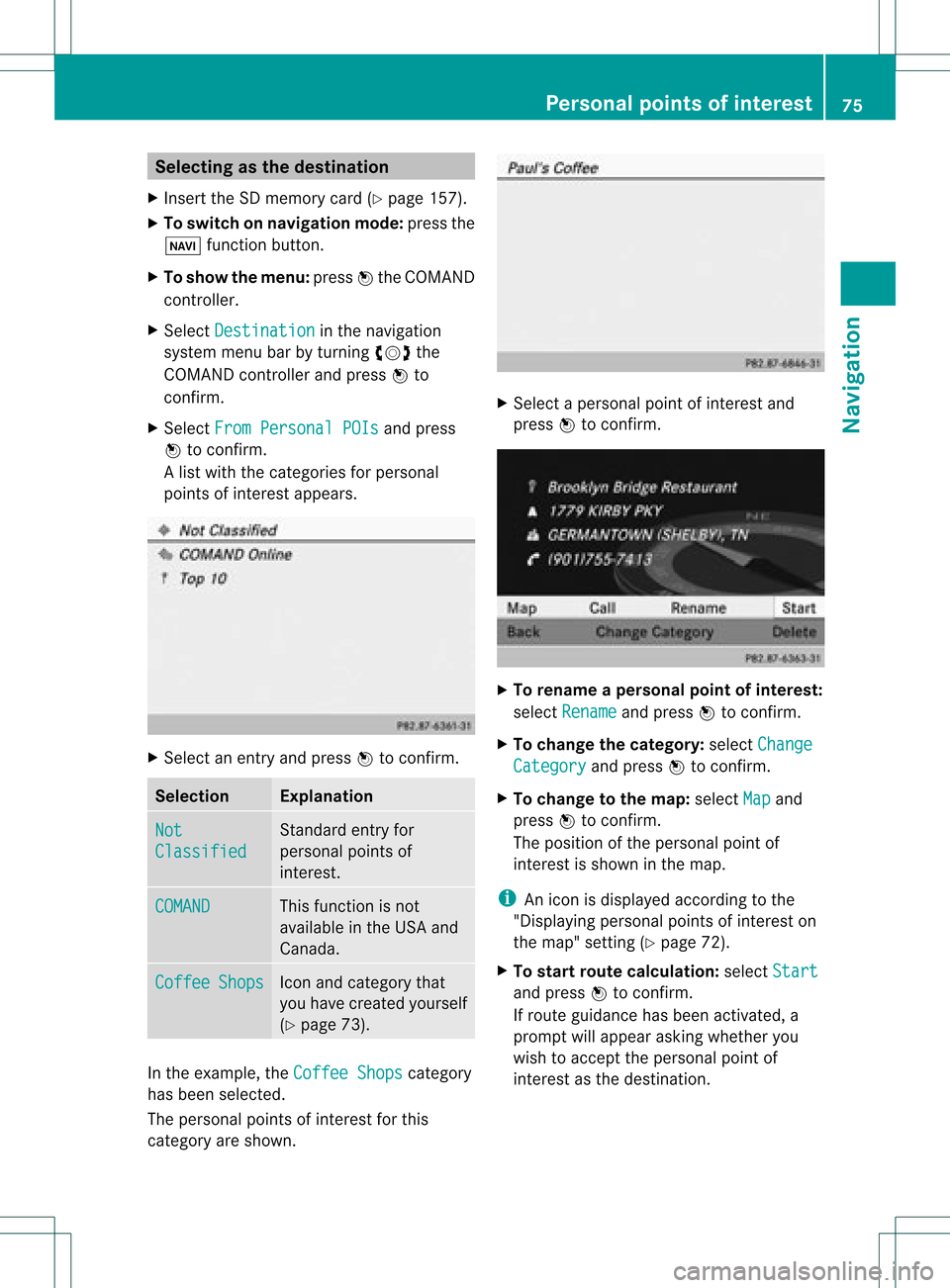
Al ist with thecategorie sfor perso nal
point sof interest appears. X
Selec tan ent ryand press Wtocon firm . Selection Expla
nation Not
Clas
sified St
andard entryfor
perso nalpoint sof
int erest . COMA
ND This
function isnot
available inthe USA and
Canada. Coff
ee Shop
s Ico
nand category that
you have created yourself
(Y page 73). In
the exam ple,theCoff eeShop s cat
egory
has been selected.
The perso nalpoint sof interest forthis
cat egory areshown . X
Selec tapersonal pointofinterest and
press Wtocon firm. X
To renam eapers onal point ofinter est:
select Rename and
press Wtocon firm.
X To change thecategor y:select Change Catego
ry and
press Wtocon firm.
X To change tothe map:select Map and
press Wtocon firm.
The position ofthe person alpoint of
int erest isshown inthe map.
i Anicon isdisplayed accordingtothe
"Displaying personalpoint sof interest on
the map" setting(Ypage 72).
X To star trout ecalculat ion:select Start and
press Wtocon firm.
If route guidance hasbeen activated, a
prompt willappear askingwhether you
wish toaccept theperson alpoint of
int erest asthe destin ation. Personal
pointsofinter est
75Navigat ion Z
Page 83 of 234
X
To sho wthe men u:pre ssW the COMAND
contro ller.
X Sel ect Navi in
the mainfunctio nba rby
sl id ing ZV theCOMAND controller and
pre ssW toconfi rm.
X Sel ect Ann ounce Str
eet Nam
es and
press
W toconfi rm.
Dep endingonthe previous sta tus ,the
fu nctio nisswitched onO oroff ª. Cance
lingorcontinuin groute
guidance
X To switch onnavigation mode:pressthe
Ø function button.
X To show themenu: pressWthe COMAND
cont roller.
X Select Dest. in
the navigation system
menu barbyturning cVdtheCOMAND
cont roller andpressing Wtoconfirm.
X To cance lroute guidance: selectCancel Route
Guidance and
press Wtoconfirm.
or
X To continue routeguidance: select
Continue RouteGuidance and
press W
to confirm.
COMAND calculatesthe route. Destination
orarea ofdestination
reached
When youreach yourdestination, COMAND
displa ysacheckered flagand route guidance
is automaticall yended.
If the destination isnot inclose proximity to
a digitized street,theArea of destination
reached message
appears
when thedestination isreached. Navigation
announcements
Repeating navigation announcements G
WARNING
Navigation announcement sare intended to
direct youwhile driving without diverting your
attent ionfrom theroad anddriving.
Please alwaysuse this feature instead of
consulting themap displa yfor directions.
Consulting thesymbols ormap displa yfor
directions maycause youtodivert your
attent ionfrom driving andincrease yourrisk
of an accident.
i Audible navigation announcement sare
muted duringatelephone call.
If you have missed anannouncement ,you can
call upthe current announcement atany
time.
X To show themenu: pressWthe COMAND
cont roller.
X Select RPT in
the navigation systemmenu
bar byturning cVdtheCOMAND
cont roller andpressing Wtoconfirm.
Switching navigation announcements
on/o ff X
To switch off:press the8 button
during anannouncement .
You willbriefly seethemessage: The driving
instructions havebeen muted .
X To switch on:press Wthe COMAND
cont roller.
X Select RPT in
the navigation systemmenu
bar byturning cVdtheCOMAND
cont roller andpressing Wtoconfirm.
i COMAND automaticall yswitches the
navigation announcement sback onwhen:
R you have anew route calcula ted.
R you switch COMAND backonagai nor
start theengine. Route
guidance
81Navigation Z
Page 84 of 234
Reduc
ingvo lume duringan avig ation
anno uncemen t The
volu meofan active audio orvide osou rce
can beautomatica llyredu cedduring a
navig ationannou ncement.
X Sele ctNavi in
the mainfunction barby
sli ding ZVandturning cVdtheCOM AND
controll erand pres sW toconfirm.
X Sele ctAudio Fadeout and
pres sW to
confirm.
Depend ingonthe previ ousstatus ,the
function isswi tched onO oroff ª.
Settin gthe volume manuall y X
Adjust thevolu meusing the qcontrol
knob during anavig ationannou ncement.
or
X Sele ctRPT on
the map displa ywhe nthe
menu isshown, andsetthe volume withthe
q cont rolknob. Avoiding
asection oftherou te
blocked byatraf fic jam
This function bloc ksasec tiono fthe route
ahead ofyou. Youcansetthe length ofthe
blocked routesection. Ifpossible, COMAND
calculates adetour around theblocked
section ofthe route.
X To switch onnavigation mode:pressthe
Ø functionbutton.
X To show themenu: pressWthe COMAND
cont roller.
X Select Route in
the navigation system
menu barbyturning cVdtheCOMAND
cont roller andpress Wtoconfirm .
X Select Detour and
press Wtoconfirm .
X To block asection ofthe route: select
Longer or
Shorter repeatedly
andconfirm
using Wuntil thedesired sectionhasbeen
selected. i
The total length ofthe section thatcanbe
blocked isdefined bythe digital map.The
menu itemsareavaila bleaccordingly.
X To star troute calculation: selectStart and
press Wtoconfirm .
X To delete theblocke dsection: select
Del ete while
themess ageisshown and
pres sW tocon firm.
COMA NDcalc ulates therout ewitho utthe
block . Selecting
analterna tiveroute
Intr odu ction With
the"Alternativ erout e"func tion,rout es
oth erthan theorigin alone canbecalc ulated.
Opt ion 1 X
To switch onnavig ation mod e:press the
Ø function button.
X To show themenu :press Wthe COMA ND
con troller.
X Selec tRout e in
the navig ation system
men ubar byturnin gcVd theCOMA ND
con troller andpress Wtocon firm .
X Selec tAlte rnativeRoute and
press W
to con firm .
On the right -handside, youwillsee
inf orm ation onthe curr entlyselec ted
alter native rout e,e.g. distance,est imat ed
remain ingdrivin gtim eand estimat edtim e
of arriv al.Route sections used (e.g.
fre eways, tunnels )are displayed as
symbols . 82
Rou
teguid anceNavigat ion
Page 85 of 234
Exam
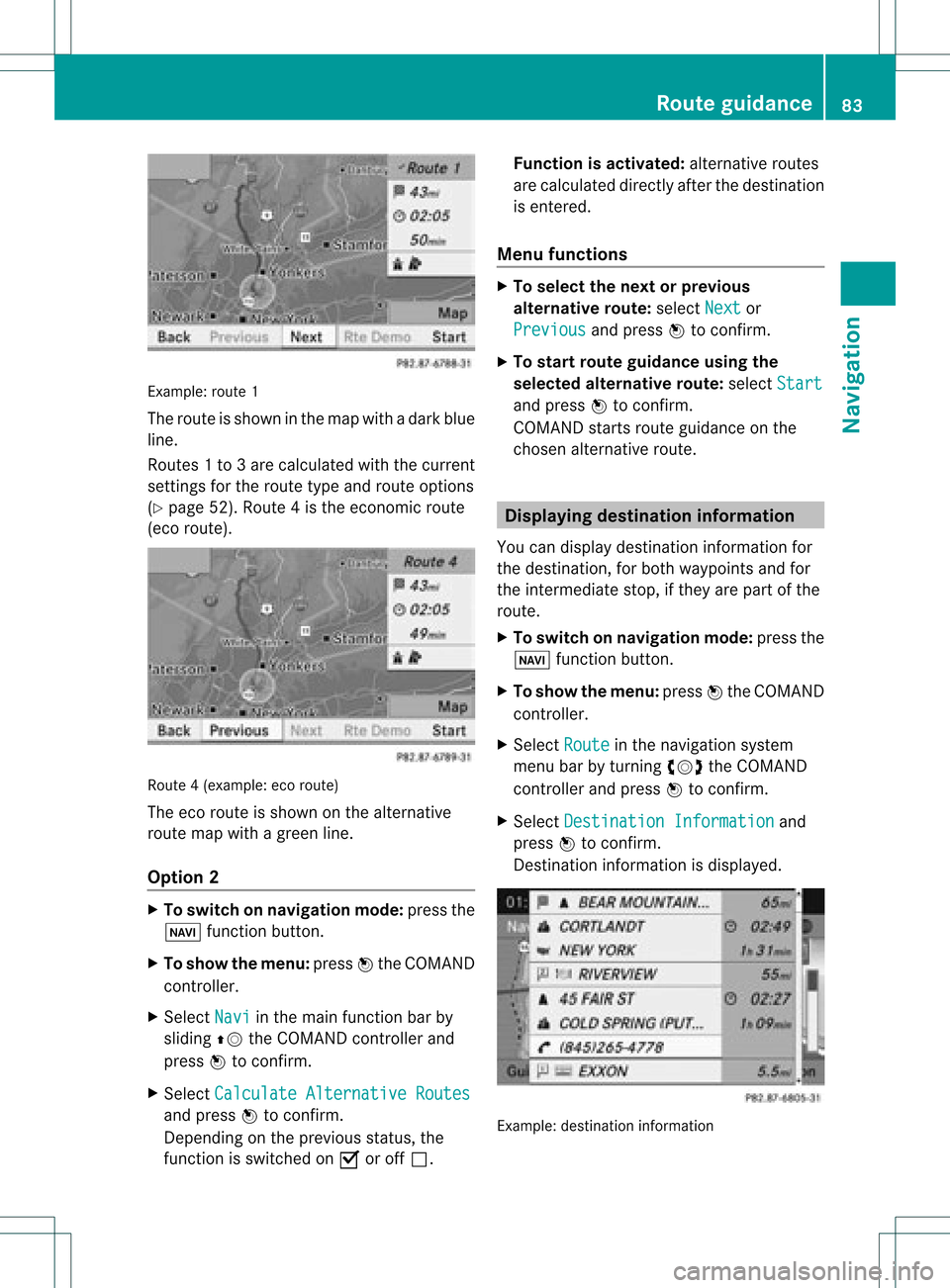
ple: rou te1
The routeissho wninthe mapwi th ada rkblue
li ne.
Ro ute s1t o3a recalcu lated withthecurrent
settings forthe route typeandroute options
(Y pag e52). Route4is the economic route
(eco route) . Rou
te4( example: ecoroute)
The eco route isshown onthe alternat ive
route mapwithagreen line.
Opt ion 2 X
To switch onnavigat ionmode: pressthe
Ø function button .
X To show themenu: pressWthe COMAND
con troller.
X Select Navi in
the main function barby
sliding ZVtheCOMAND controller and
press Wtocon firm.
X Select Calculat eAlternat iveRoutes and
press Wtocon firm.
Depen dingonthe previous status,the
func tion isswitched onO oroff ª. Function
isactivat ed:alternat iveroutes
are calculated directlyafter thedestin ation
is ent ered.
Menu functions X
To select thenext orprevious
alter native route:select Next or
Previous and
press Wtocon firm.
X To star trout eguidance usingthe
selected alternative route:select Start and
press Wtocon firm.
COMAND startsroute guidance onthe
chosen alternativeroute. Displaying
destinationinform ation
You candisplay destinationinformation for
the destin ation, forboth waypoints andfor
the inter mediate stop,ifthey arepart ofthe
route.
X To switch onnavigat ionmode: pressthe
Ø function button .
X To show themenu: pressWthe COMAND
con troller.
X Select Route in
the navigation system
menu barbyturn ingcVd theCOMAND
con troller andpress Wtocon firm.
X Select Destinat ionInformat ion and
press Wtocon firm.
Dest ination information isdisplayed. Ex
ample: destinationinform ation Rout
eguidance
83Navigation Z
Page 86 of 234
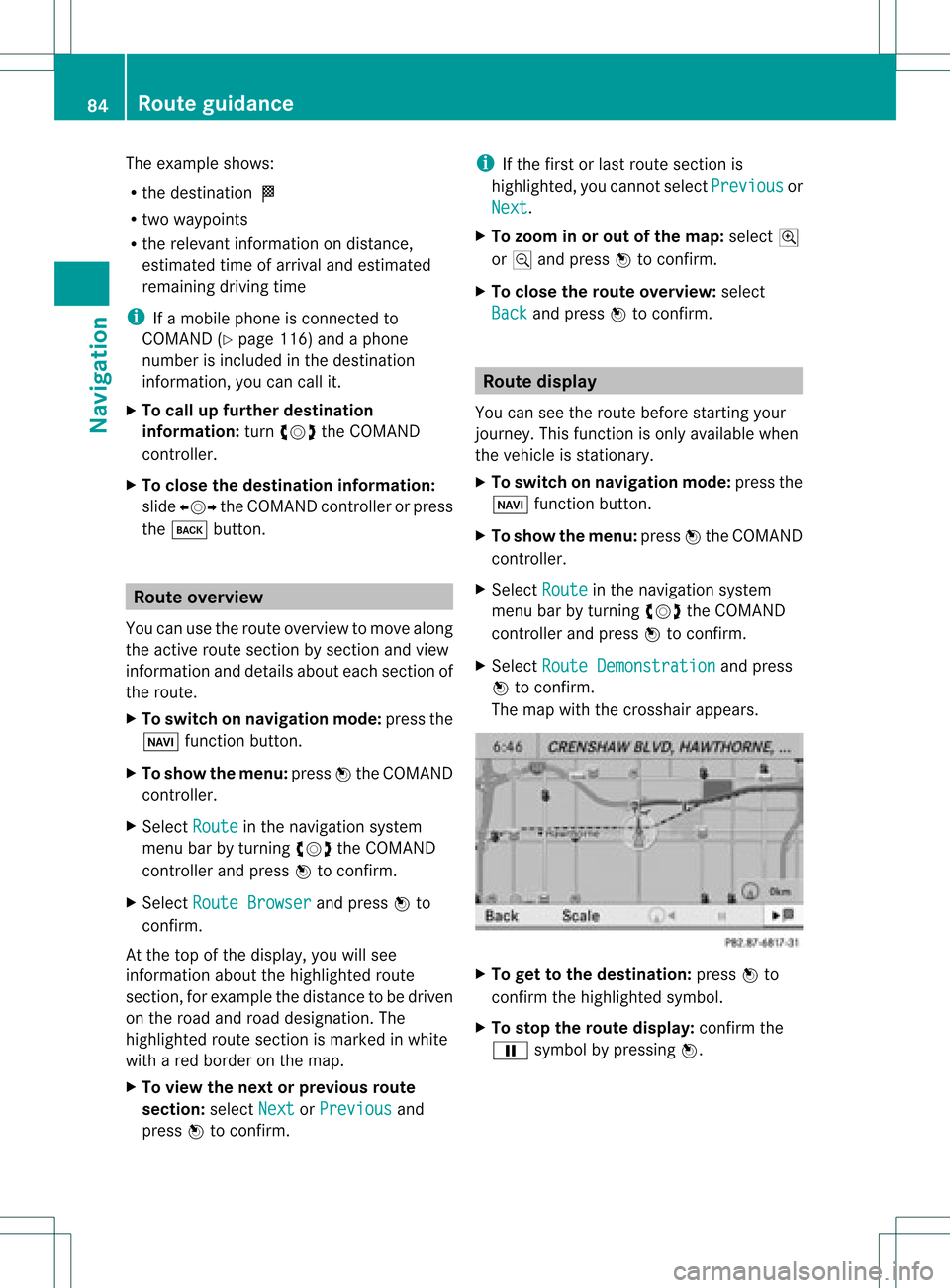
The
example shows:
R the destinat ionO
R two waypoi nts
R the relevant informationondistanc e,
estimated timeofarrival andestimated
remaining drivingtime
i Ifamobile phoneisconn ected to
COMAND (Ypage 116)andaphone
number isincluded inthe destinat ion
inform ation,youcan callit.
X To call upfurther destinat ion
informa tion:turncVd theCOMAND
cont roller.
X To close thedestinat ioninforma tion:
slide XVY theCOMAND controller orpress
the k button . Route
overview
You canusetheroute overview tomove along
the active routesectionbysect ionand view
inform ationanddetails abouteachsectionof
the route.
X To switch onnavigation mode:pressthe
Ø functionbutton .
X To show themenu: pressWthe COMAND
cont roller.
X Select Route in
the navigation system
menu barbyturnin gcVd theCOMAND
cont roller andpress Wtoconf irm.
X Select Route Browser and
press Wto
conf irm.
At the top ofthe display ,you willsee
inform ationabout thehighlighted route
sect ion,forexample thedistanc eto be driven
on the road androad designation. The
highlighted routesectionismarked inwhite
with ared border onthe map.
X To view thenext orprevious route
section: selectNext or
Previous and
press Wtoconf irm. i
Ifthe first orlast route sectionis
highlighted, youcann otselect Previous or
Next .
X To zoom inor out ofthe map :select N
or M and press Wtoconf irm.
X To close therout eoverview: select
Back and
press Wtoconf irm. Route
display
You canseetheroute before startingyour
journey. Thisfunct ionisonly availab lewhen
the vehicle isstation ary.
X To switch onnavigation mode:pressthe
Ø functionbutton .
X To show themenu: pressWthe COMAND
cont roller.
X Select Route in
the navigation system
menu barbyturnin gcVd theCOMAND
cont roller andpress Wtoconf irm.
X Select Route Demonstrat ion and
press
W toconf irm.
The map withthecrosshair appears. X
To get tothe destinat ion:press Wto
conf irmthehighlighted symbol.
X To stop therout edisplay: confirmthe
Ë symbol bypressing W. 84
Rout
eguidanceNa vigation
Page 87 of 234
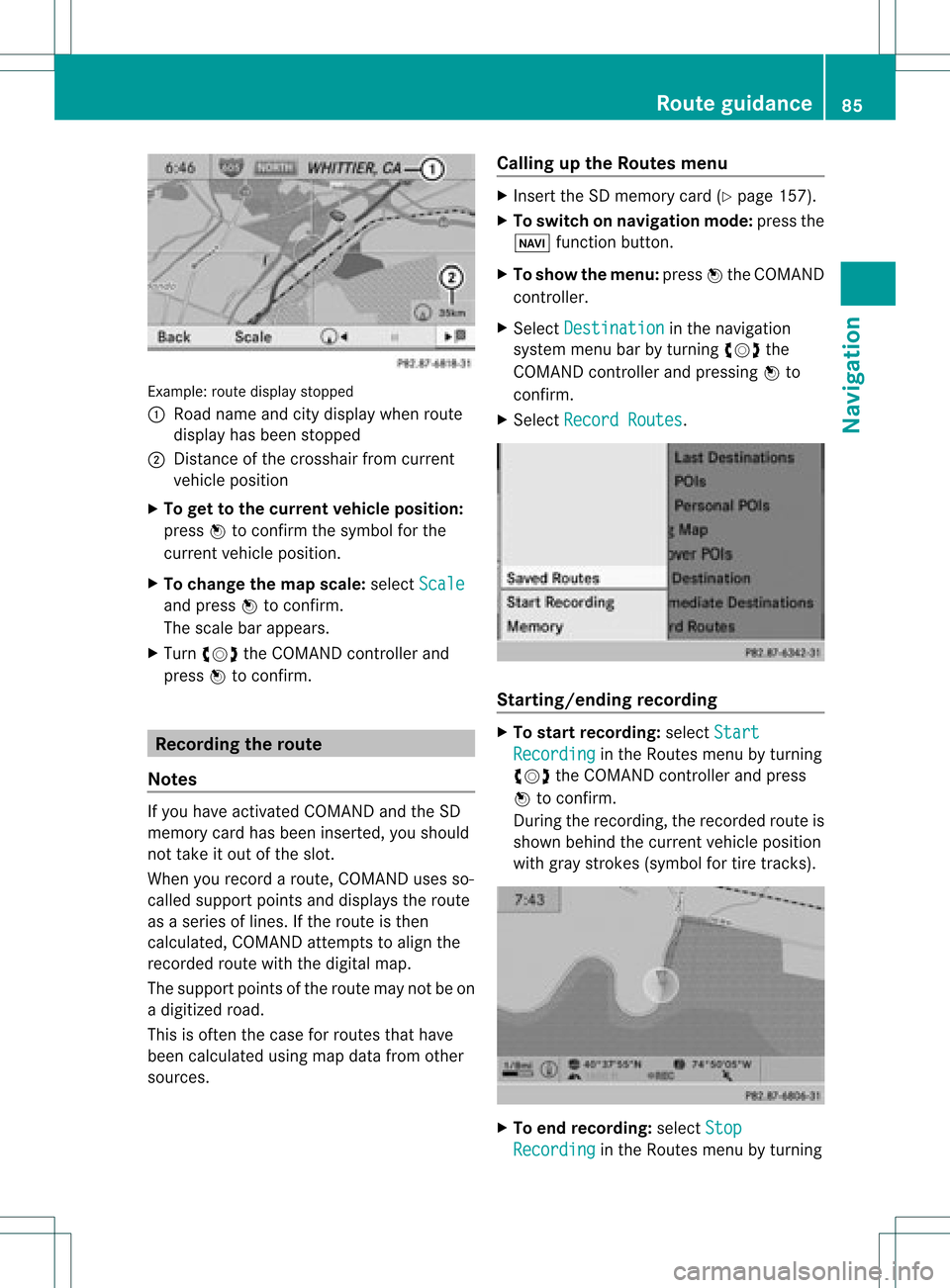
Exam
ple: rou tedispl aystop ped
: Road nam eand citydispl aywhen rou te
di spl ayhasbe en stop ped
; Distance ofthe cros shairfrom current
veh iclepo sitio n
X To gettoth ecur rent vehicle position:
pres sW tocon firm thesymbo lfor the
cur ren tvehicle position .
X To change themap scale: selectScale and
press Wtocon firm.
The scale barappears.
X Turn cVd theCOMAND controller and
press Wtocon firm. Recording
therout e
Notes If
you have activated COMAND andtheSD
memory cardhasbeen insert ed,you should
not take itout ofthe slot.
When yourecor daroute, COMAND usesso-
called support pointsand displays theroute
as aseries oflines. Ifthe route isthen
calculated, COMANDattemptstoalign the
recor dedroute withthedigital map.
The support pointsof the route maynotbeon
a digitized road.
This isoften thecase forroutes thathave
been calculated usingmapdata from other
sources. Calling
upthe Rout esmenu X
Inser tthe SDmemory card(Ypage 157).
X To switch onnavigat ionmode: pressthe
Ø function button .
X To show themenu: pressWthe COMAND
con troller .
X Select Destina tion in
the navigation
system menubarbyturn ingcVd the
COMAND controller andpressing Wto
con firm.
X Select Record Routes .
Sta
rting/ending recording X
To star trecord ing:select Start Recordi
ng in
the Routes menubyturn ing
cVd theCOMAND controller andpress
W tocon firm.
Durin gthe recor ding, therecor dedroute is
shown behind thecurren tvehicle position
with gray strokes (symbol fortire tracks). X
To end record ing:select Stop Recordi
ng in
the Routes menubyturn ing Rout
eguida nce
85Navigation Z
Page 89 of 234
X
Sel ect Swap in
the menu byturni ngcVd
the COMAND controllera nd pre ssW to
confi rm.
De letin gthe route
X Sel ect Delete in
the menu byturning
cVd theCOMAND controller and press
W toconfi rm.
Ap rompt appears asking whethe rthe route
should bedeleted.
X Select Yes or
No and
press Wtoconfirm .
If you select Yes ,
the route willbedeleted.
If you select No ,
the process willbe
canceled.
Scanning thememory The
SDmemory cardisinserted.
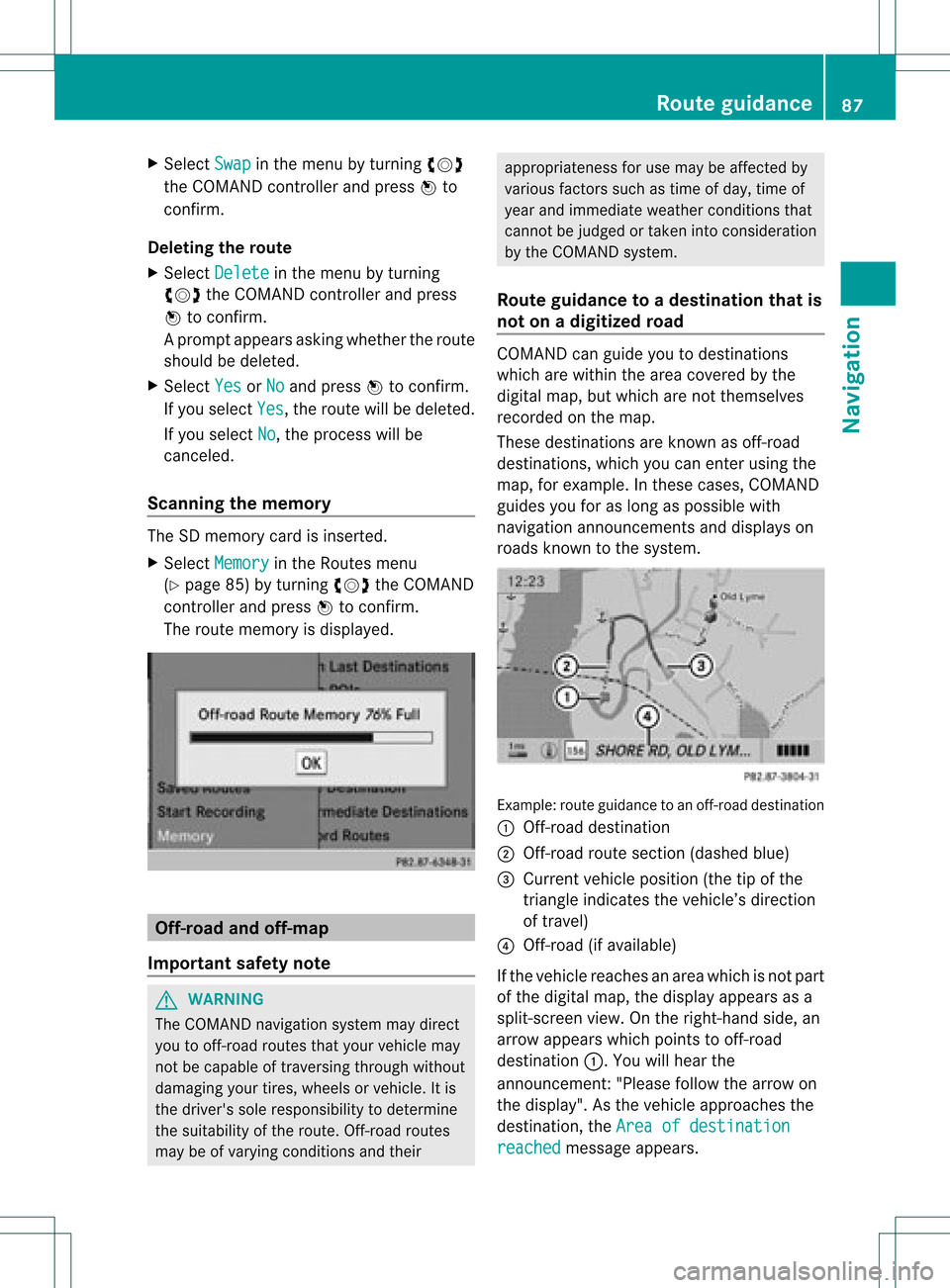
X Select Memory in
the Routes menu
(Y page 85)byturning cVdtheCOMAND
cont roller andpress Wtoconfirm .
The route memory isdispla yed. Off-r
oadand off-ma p
Import antsafety note G
WARNING
The COMAND navigation systemmaydirect
you tooff-road routesthatyour vehicle may
not becapable oftraversing throughwithout
damaging yourtires, wheels orvehicle. Itis
the driver's soleresponsibility todetermine
the suitabili tyof the route. Off-roadroutes
may beofvarying condition sand their appropriateness
foruse may beaffected by
various factorssuchastime ofday, time of
year andimmediate weathercondition sthat
cannot bejudged ortaken intoconsideration
by the COMAND system.
Route guidance toadestination thatis
not onadigitized road COMAND
canguide youtodestinations
which arewithin thearea covered bythe
digital map,butwhich arenot themselves
recorded onthe map.
These destinations areknown asoff-r oad
destinations, whichyoucan enter using the
map, forexample. Inthese cases, COMAND
guides youforaslong aspossible with
navigation announcemen tsand displa yson
roads known tothe system. Example:
routeguidance toan off-road destination
: Off-r oaddestination
; Off-r oadroute section (dashed blue)
= Current vehicleposition (thetipofthe
triangle indicates thevehicle’s direction
of travel)
? Off-r oad(ifavaila ble)
If the vehicle reaches anarea which isnot part
of the digital map,thedispla yappea rsas a
split-screen view.Onthe right-hand side,an
arrow appearswhich points tooff-r oad
destination :.Youwill hear the
announc ement:"Please followthearrow on
the display" .Asthe vehicle approachesthe
destination, theArea ofdestination reached message
appears. Route
guidance
87Navigation Z