Theme MERCEDES-BENZ CLS-Class 2012 W218 Comand Manual
[x] Cancel search | Manufacturer: MERCEDES-BENZ, Model Year: 2012, Model line: CLS-Class, Model: MERCEDES-BENZ CLS-Class 2012 W218Pages: 234, PDF Size: 6.74 MB
Page 120 of 234
X
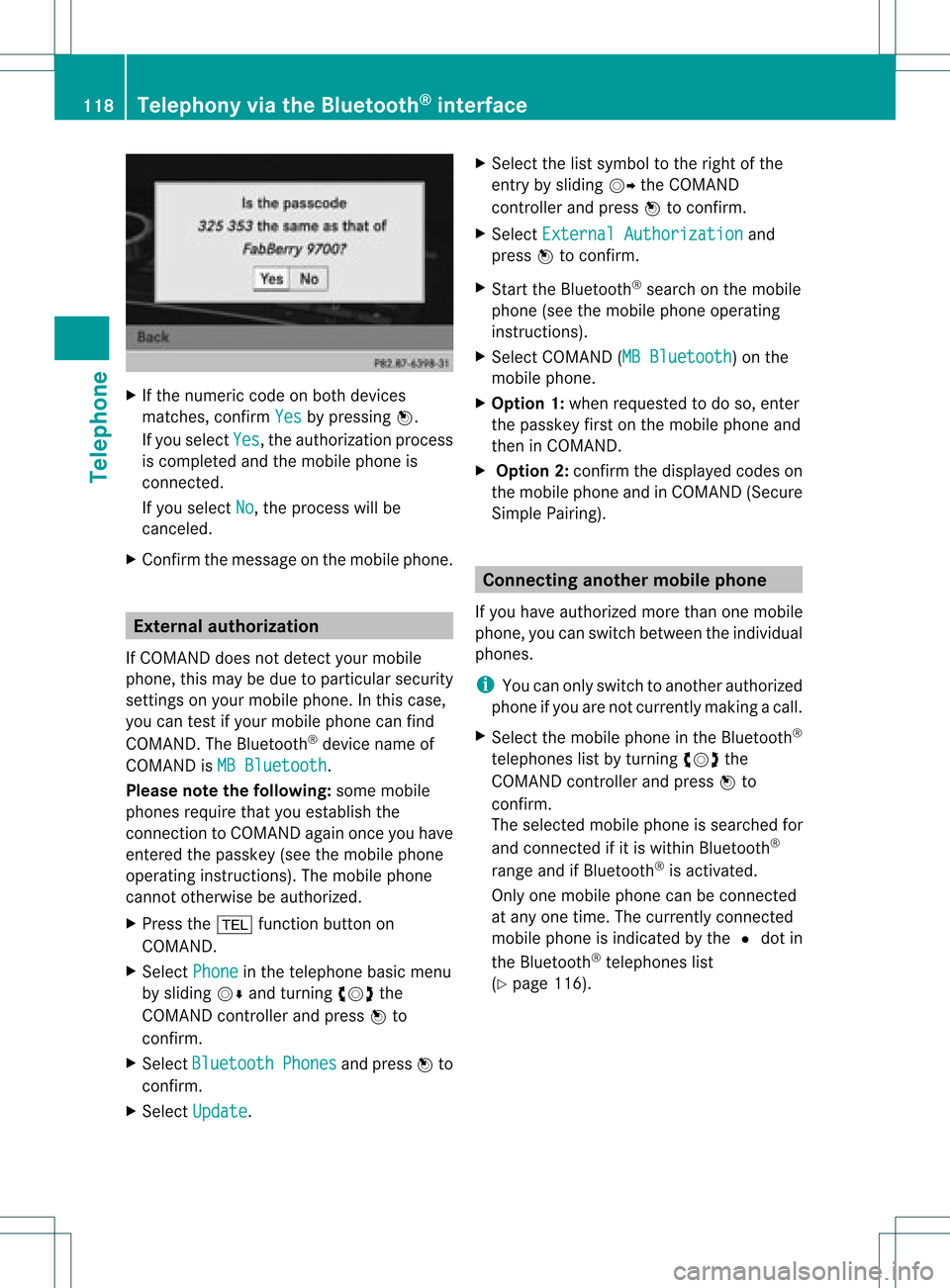
Ifthe numeric codeonboth devices
matches, confirmYes by
pressi ngW.
If you select Yes ,
the authori zationprocess
is completed andthemobil ephone is
connect ed.
If you select No ,
the process willbe
canceled.
X Confirm themessag eon the mobil ephone. External
authorization
If COMAND doesnotdetect yourmobile
phone, thismay bedue toparticular security
sett ings onyour mobile phone. Inthis case,
you can test ifyour mobile phonecanfind
COMAND. TheBluetooth ®
device nameof
COMAND isMB Bluetooth .
Please notethefollowi ng:some mobile
phones requirethatyouestablish the
conn ection toCOMAND againonceyouhave
enter edthe passkey (seethemobile phone
operating instructions). Themobile phone
cann ototherwise beauthorized.
X Press the% functionbutton on
COMAND.
X Select Phone in
the telephone basicmenu
by sliding VÆandturnin gcVd the
COMAND controller andpress Wto
conf irm.
X Select Bluetooth Phones and
press Wto
conf irm.
X Select Update .X
Select thelistsymbol tothe right ofthe
entr yby sliding VYtheCOMAND
cont roller andpress Wtoconf irm.
X Select External Authorizatio n and
press Wtoconf irm.
X Start theBluetooth ®
search onthe mobile
phone (seethemobile phoneoperating
instr uctions).
X Select COMAND (MBBluetooth )
on the
mobile phone.
X Option 1:when requested todo so, enter
the passkey firstonthe mobile phoneand
then inCOMAND.
X Option 2:conf irmthedisplay edcodes on
the mobile phoneandinCOMAND (Secure
Simple Pairing). Connec
tinganother mobilephone
If you have authorized morethanonemobile
phone, youcan switch between theindividual
phones.
i You canonly switch toanother authorized
phone ifyou arenot current lymaking acall.
X Select themobile phoneinthe Bluetooth ®
telephones listbyturnin gcVd the
COMAND controller andpress Wto
conf irm.
The selected mobilephoneissearched for
and conn ected ifit is within Bluetooth ®
range andifBluetooth ®
is activated.
Only onemobile phonecanbeconn ected
at any one time. Thecurrent lyconn ected
mobile phoneisindicated bythe #dot in
the Bluetooth ®
telephones list
(Y page 116). 118
Telephony viathe Bluetooth ®
interfa ceTelephone
Page 122 of 234
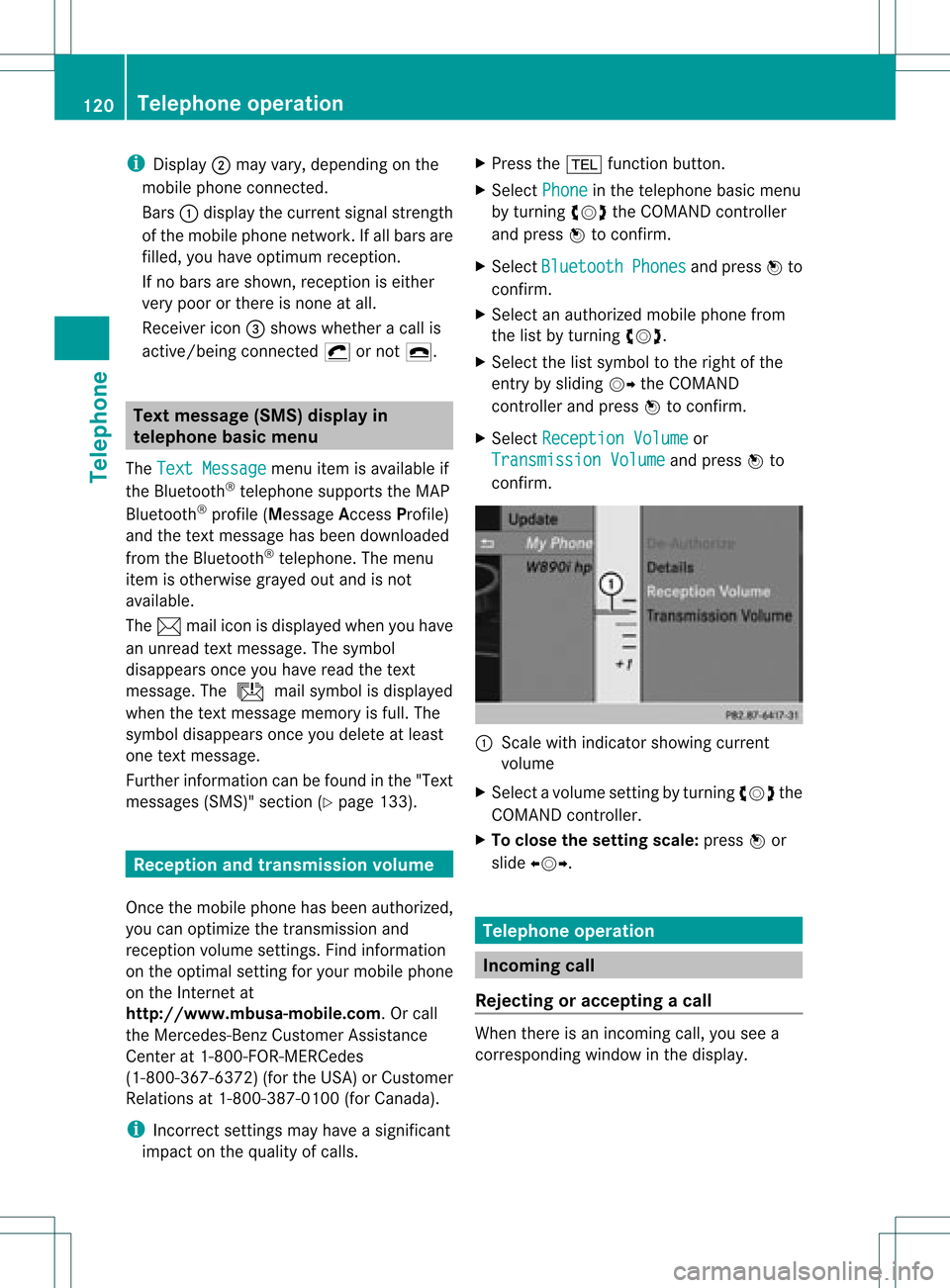
i
Display ; mayva ry,de pendi ng on the
mob ile ph one conne cted.
Bar s: disp laythe current signa lstre ngth
of the mob ile ph one netw ork.Ifallba rsare
fil led, youha ve optim um receptio n.
If no bars aresho wn, receptio niseither
very poor orthere isnone atall.
Receiver icon=shows whether acall is
active/being connected ¡ornot ¢. Text
message (SMS)display in
telephone basicmenu
The Text Message menu
itemisavail able if
the Bluetooth ®
telephone supportstheMAP
Bluetooth ®
profile (Message AccessProfile)
and thetext message hasbeen download ed
from theBluetooth ®
telephone. Themenu
item isotherwise grayedoutand isnot
avail able.
The 1mail icon isdispla yedwhen youhave
an unread textmessage. Thesymbol
disapp earsonce youhave readthetext
message. Theú mailsymbol isdispla yed
when thetext message memoryisfull. The
symbol disappearsonce youdelete atleast
one text message.
Further information canbefound inthe "Text
messages (SMS)"section (Ypage 133). Reception
andtransmission volume
Once themobile phonehasbeen authorized,
you can optimize thetransmission and
reception volumesettings. Findinformation
on the optimal settingforyour mobile phone
on the Intern etat
htt p://www .mbusa-mobile.com. Orcall
the Mercedes-Benz CustomerAssistance
Center at1-80 0-FOR-ME RCedes
(1-800 -367-6372)(for theUSA) orCustomer
Rela tions at1-80 0-387-01 00(for Canada ).
i Incorr ectsettings mayhave asignificant
impact onthe qual ityofcalls. X
Press the% function button.
X Select Phone in
the telephone basicmenu
by turning cVdtheCOMAND controller
and press Wtoconfirm.
X Select Bluetooth Phones and
press Wto
confirm.
X Select anauthorized mobilephonefrom
the listbyturning cVd.
X Select thelistsymbol tothe right ofthe
entry bysliding VYtheCOMAND
cont roller andpress Wtoconfirm.
X Select Reception Volume or
Transmission Volume and
press Wto
confirm. :
Scale withindicator showingcurrent
volume
X Select avolume settingbyturning cVdthe
COMAND controller.
X To clos ethe setting scale:pressWor
slide XVY. Telephone
operation Inco
ming call
Rejecting oraccepting acall When
thereisan incomi ngcall ,you seea
corresp ondingwindow inthe displa y. 120
Tele
phone operationTele phone
Page 127 of 234
X
To return tothe calldis play :sel ect
Bac k and
pressW toconfi rm.
i Youcan also send DTMF tonesusing the
Voi ceControl System (see the separate
op era ting instructio ns). Us
ingthe phonebook In
troduc tion
The phone book displ aysthe nam esand
ph one num bers of allof the addre ssbook
entri essaved inthe COMAND addre ssbook.
If an addre ssbook entry does not have a
tel ephone number,itdo es not appe ar inthe
ph one book.
Yo ucan storetel ephone numbers inthe
ph one book orimp ortconta cts.Thephone
bo ok ofthe mob ile ph one isau toma tically
do wnl oade dto CO MAND after conne ction.
Yo ucan importconta ctsfrom themem ory
car dand theUSB devic einto thephone book,
or rece ivevCards via Bluetoo th®
.
The functio ns:
R imp ortingconta cts
R rece iving vCards
R de leting conta cts
ar ede scri bedin de tai lin the "Address
bo ok" section(Ypage 141).
i The storedphone bookandthevCards
remain inCOMAND ,even ifyou use
COMAND withanothermobile phone. The
ent ries canbeviewed without amobile
phone. Forthis reason, deletethephone book
before sellingortran sferr ing
owners hipofyour vehicle. Calling
upthe phone book
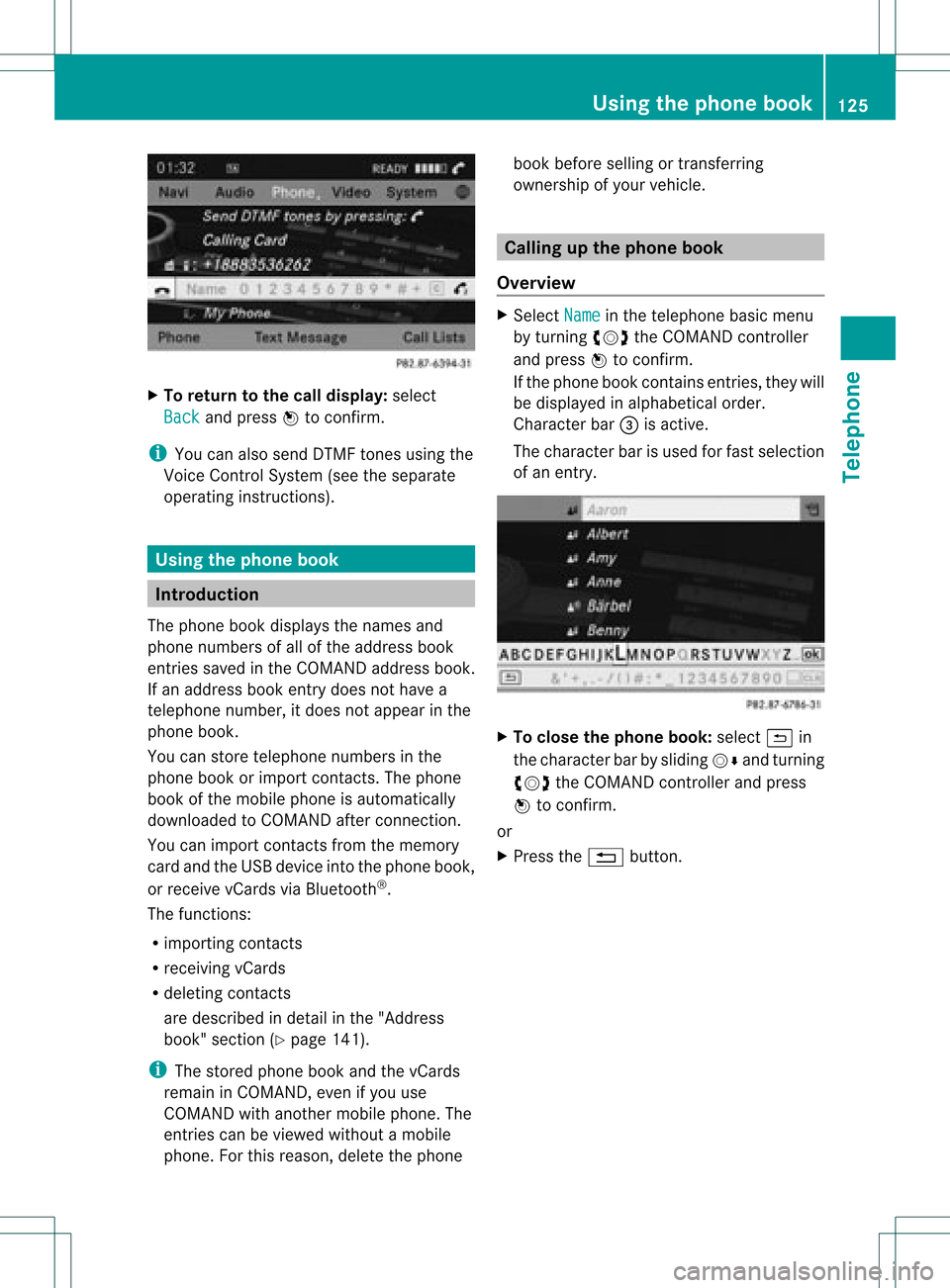
Overview X
Select Name in
the telephon ebasic menu
by turn ingcVd theCOMAND controller
and press Wtocon firm.
If the phone bookcontains entries, they will
be displayed inalphabetical order.
Character bar=isactiv e.
The charac terbar isused forfast select ion
of an ent ry. X
To close thephone book:select &in
the charac terbar bysliding VÆandturning
cVd theCOMAND controller and press
W tocon firm.
or
X Press the% button. Using
thephone book
125Telephone Z
Page 128 of 234

Symbol
overview Icon Explanation
Æ
Address
bookentrythat hasbeen entered orchanged viaCOMAND
Imported contactthat hasbeen saved inthe phone oraddress book \
Address
bookentrywith voice tag
i These entrieshave alsobeen assigned avoice tag.Voice tagsareavaila ble
in vehicles withtheVoice Control System (seetheseparate operating
instruc tions). Ã
Contact
thathasbeen imported fromamobile phonethatsupports PBAP ¯
Ent
rythat hasbeen imported fromthememory cardorUSB device ®
Ent
ryimported viathe Bluetooth ®
interf ace Searching
foraphone bookentry
Using thecharact erbar You
determine thefirst letter ofthe entr yyou
are looking forwith thefirst character you
enter.
X Select acharacter byturnin gcVd the
COMAND controller andpress Wto
conf irm.
The first entryin the listthat starts withthe
letter selected ishighlighted. Ifthere are
similar entries,thenext different character
is shown. Forexample, withentriessuch as
Christel and
Christine ,
the beginnings
of the names aresimilar. Inthis case, you
will beoffered achoice between E and
I .
X Select thecharacters ofthe entr yyou are
searching forone byone andpress Wto
conf irm.
When theselection isclear, COMAND
switches automatically tothe selection list.
X To complete thesearch: switchfromthe
phone bookwiththecharacter bartothe
selection list(Ypage 127).
The lastlistentr yis automatically
highlighted. Using
thenumber keypad Altern
atively, youcan also enter digits using
the number keypad(directentry)
(Y page 29).
Dele ting charact ers X
To delete anindividual character:select
the 2 symbol byturnin gcVd the
COMAND controller andpress Wbriefly.
or
X Briefly pressthe2 button
Each timeacharacter isdeleted, theentr y
most closely resembling theremaining
characters isshown atthe top ofthe list.
X To delete anentry: selectthe2
symbol byturnin gcVd theCOMAND
cont roller andpress Wuntil theentr yis
deleted.
or
X Press andhold the2 button untilthe
entire entryis deleted.
Changing thelanguage ofthe charact er
bar X
Select Bandpress W.
X Select thedesired language. 126
Using
thephone bookTelephone
Page 138 of 234

When
anew mobile phoneiscon nect edto
COMAND ,all the contact sfrom the
previous mobilephonearedeleted fromthe
address book.
If amobile phoneisnot (yet) connect edto
COMAND ,the contact sfrom thatmobile
phone willnot(yet) beshown inthe address
book.
Address bookentries remain storedwhen
the mobile phoneisdisconn ected.
Therefor e,you should deleteyourpersonal
data using thereset function before selling
your vehicle, forexample (Ypage 47). Calling
upthe address book
Option 1:
X Press the% function button .
You seethetelephon ebasic menu orthe
address bookifit was open previously.
X When thetelephon ebasic menu is
displayed, pressthe% function button
again.
Option 2:
X With thetelephon ebasic menu shown,
select Phone by
sliding VZtheCOMAND
con troller andpress Wtocon firm.
X Select Address Book from
themenu and
press Wtocon firm. Address
bookwithaddress bookentry¥ and
navigable data¤
i Anaddress bookentrycan contain the
following information :surn ame, first nam e, co
mpan y,two addr esses, geo- coord inat es
and uptofivete leph onenum bers.
X To browse inthead dress book: turn
cVd theCOMA NDcontrol ler.
X To close thead dress book: pressthe
% button. Sea
rching foranaddress book entry
X Call uptheaddr essbook (Ypage 136).
X Se lec tSea rch in
theaddr essbook by
slidi ngVÆ andturnin gcVd theCOMA ND
co ntrol ler and pressW toconfirm .
If th ere aremor eth an eigh ten tries, the
sear chmen uand thech arac terb arappear . Sea
rchmen uwit hch arac terbar
: ¥Sym bolforaddre ssbook entry
; ¤Sym bolforcomple teaddre ssdat a
fr om thenav igat ionsyst em
= Charac terb ar
? d Sym bolforphon ebook entryfrom the
mob ilephon e
A Entry wit hvoic etag
Ad dition alsymb olsare desc ribedint he
"Symbol overview" section(Ypage 126).
X Proceed asdescribed under"Searching for
a phone bookentry"(Y page 126). 136
Using
theaddress bookTelephone
Page 143 of 234
X
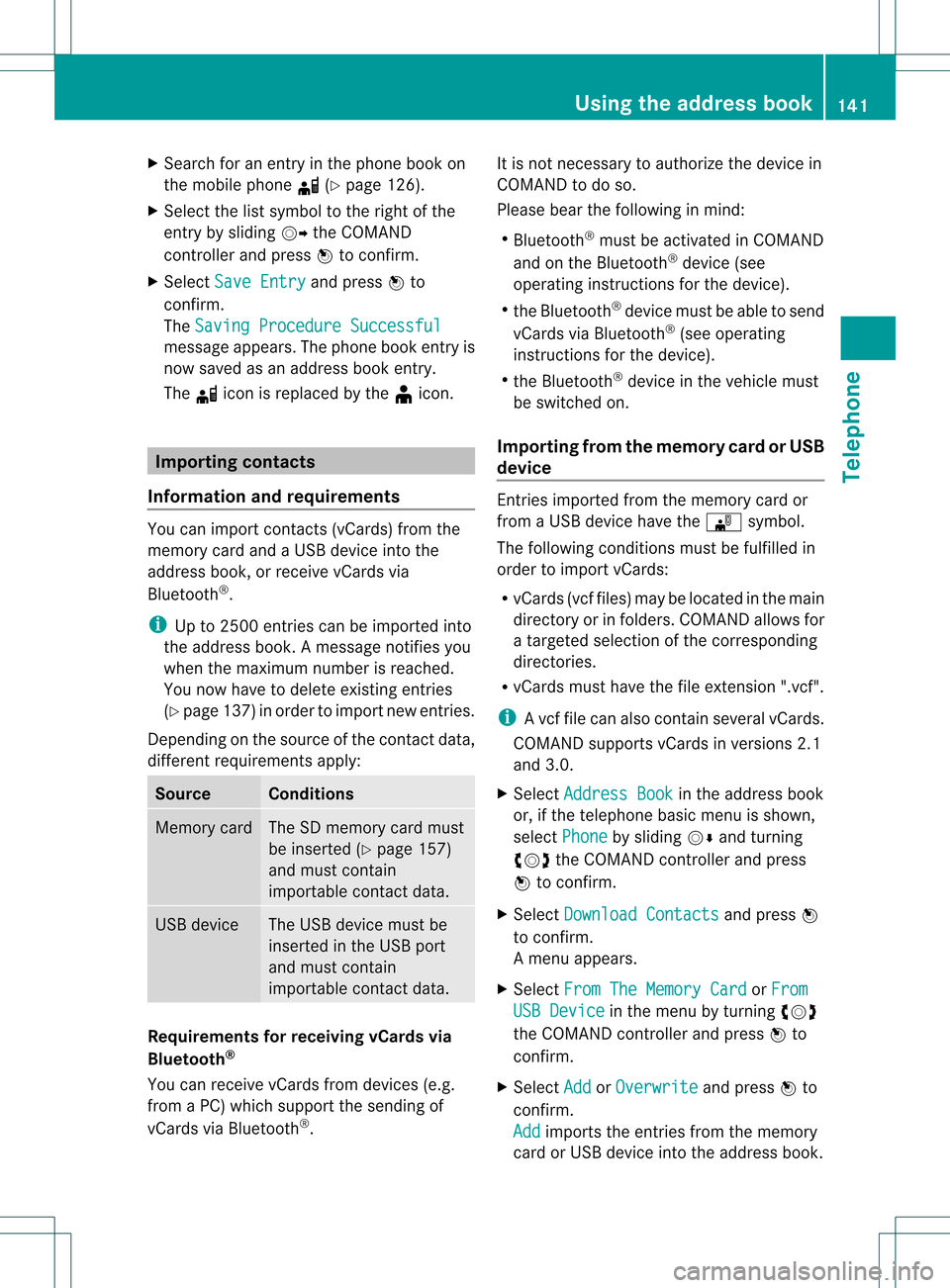
Sea rch foranentry inthe phoneboo kon
the mob ile pho ned (Ypage 126) .
X Sel ect the list symbo lto the right ofthe
entry bysliding VY theCOMAND
control lera nd pre ssW toconfi rm.
X Sel ect SaveEnt ry and
pressW to
confi rm.
The Saving Procedure Successful mes
sage appe ars. The phone book entry is
now saved asan addre ssbook entry .
The diconisreplaced bythe ¥icon. Importing
contacts
Information andrequirem ents You
canimport contacts (vCards) fromthe
memory cardandaUSB device intothe
address book,orreceive vCardsvia
Bluetooth ®
.
i Upto2500 entries canbeimported into
the address book.Amessage notifies you
when themaximum numberisreached.
You now have todelete existingentries
(Y page 137)ino rder toimport newentries.
Dependi ngon the source ofthe contact data,
differe ntrequ ireme ntsapply: Source Con
dition s Memory
card The
SDmemory cardmust
be inserted (Ypag e157)
and must contain
importa blecontact data. USB
device The
USB devicemust be
inserted inthe USB port
and must contain
importa blecontact data. Requiremen
tsfor rece ivingvCards via
Bluetoo th®
You canreceive vCards from devices(e.g.
from aPC) whichsup port thesending of
vCa rds viaBlue tooth ®
. It
is not necessary toauthorize thedevi cein
COMAND todo so.
Plea sebea rthe following inmind:
R Bluetooth ®
must beactivated inCOMAND
and onthe Bluetooth ®
device (see
operating instructionsforthe device).
R the Bluetooth ®
device mustbeable tosend
vCards viaBluetooth ®
(see operating
instruct ionsforthe device).
R the Bluetooth ®
device inthe vehicle must
be switched on.
Import ingfrom thememory cardorUSB
device Ent
ries imported fromthememory cardor
from aUSB device havethe¯ symbol.
The following conditionsmust befulfilled in
order toimport vCards:
R vCards (vcffiles) maybelocated inthe main
directory orinfolders. COMAND allowsfor
a targeted selection ofthe corresponding
directories.
R vCards musthavethefileexten sion".vcf".
i Avcffilecan also contai nseveral vCards.
COMAND supportsvCardsinversion s2.1
and 3.0.
X Select Address Book in
the address book
or, ifthe telephon ebasic menu isshown,
select Phone by
sliding VÆandturning
cVd theCOMAND controller andpress
W tocon firm.
X Select Downloa dContact s and
press W
to con firm.
Am enu appears.
X Select FromTheMemory Card or
From USB
Device in
the menu byturn ingcVd
the COMAND controller andpress Wto
con firm.
X Select Add or
Overwri te and
press Wto
con firm.
Add import
sthe entries from thememory
card orUSB device intothe address book. Using
theadd ress book
141Telephone Z
Page 149 of 234
Stati
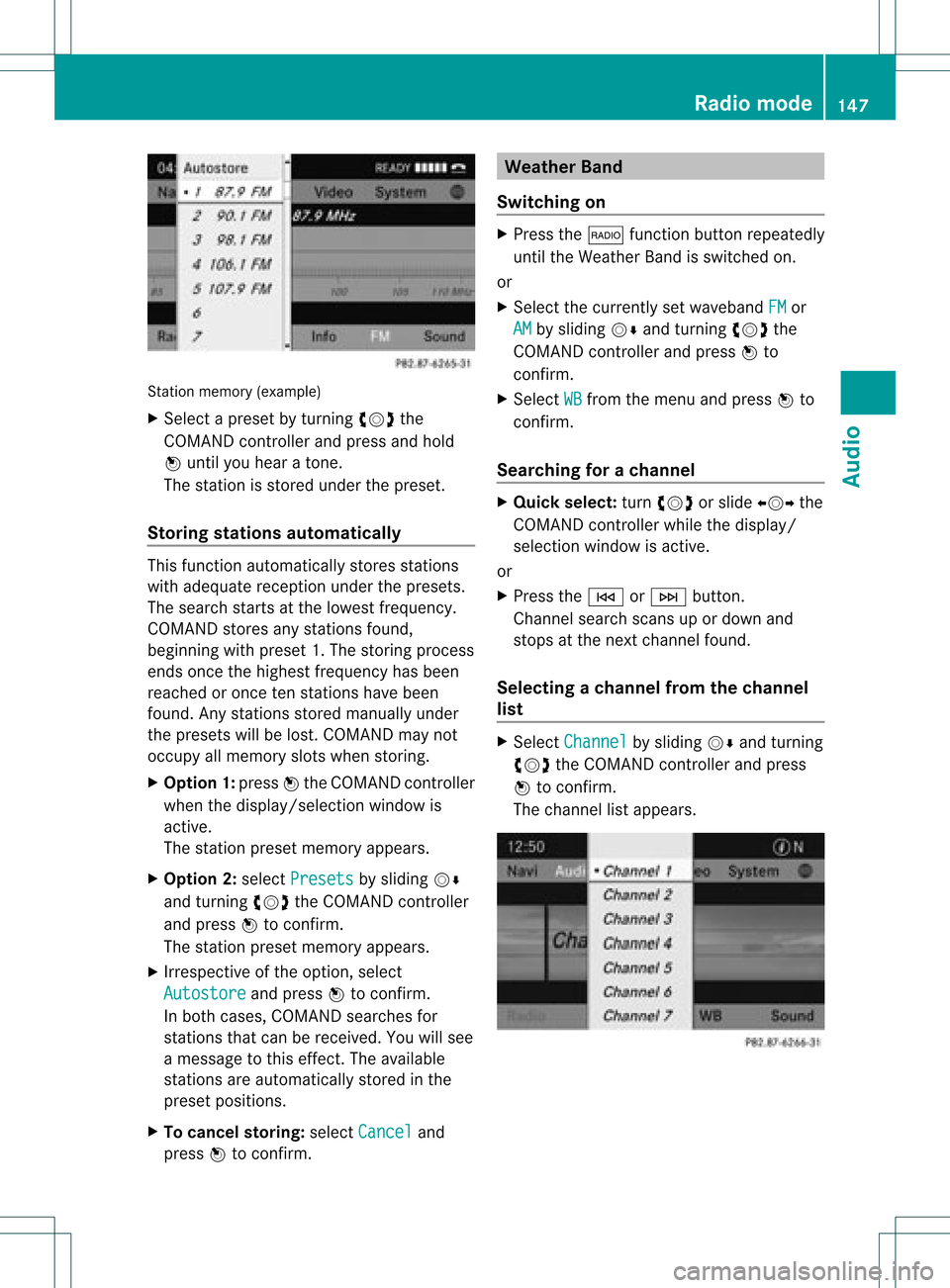
onmemo ry(exa mple)
X Sel ect apre set byturni ngcVd the
CO MAND controllera nd pre ssand hold
W unti lyo uhea rato ne.
Th esta tionisstored underthepreset.
Storing stations automatically This
function automaticall ystores stations
with adequ atereception underthepresets.
The search startsatthe lowest frequency.
COMAND storesanystations found,
beginning withpreset 1.The storing process
ends once thehighest frequency hasbeen
reached oronce tenstations havebeen
found. Anystations storedmanuall yunder
the presets willbelost. COMAND maynot
occupy allmemory slotswhen storing.
X Option 1:press Wthe COMAND controller
when thedispla y/selection windowis
active.
The station presetmemory appears.
X Option 2:select Presets by
sliding VÆ
and turning cVdtheCOMAND controller
and press Wtoconfirm.
The station presetmemory appears.
X Irrespective ofthe option, select
Autostore and
press Wtoconfirm.
In both cases, COMAND searchesfor
stations thatcanbereceived. Youwillsee
a message tothis effect. Theavail able
stations areautomaticall ystored inthe
preset positions.
X To cance lstoring: selectCancel and
press Wtoconfirm. Weather
Band
Switching on X
Press the$ function buttonrepeatedly
until theWeather Bandisswitched on.
or
X Select thecurrently setwaveba ndFM or
AM by
sliding VÆandturning cVdthe
COMAND controller andpress Wto
confirm.
X Select WB from
themenu andpress Wto
confirm.
Searching forachanne l X
Quic kselect: turncVd orslide XVY the
COMA NDcontroller while thed isplay/
selec tionwindow isact ive.
or
X Press theE orF button.
Chann elsearc hscan sup ordown and
st ops atthe nextchan nelfoun d.
Selecting achanne lfrom thechann el
lis t X
Select Channe l by
sliding VÆandturning
cVd theCOMAND controllerand press
W toconfirm.
The channel lista ppears. Ra
dio mod e
147Audio
Page 157 of 234
The
DVD changer loadsthedisc intothe
selected magazine tray.TheLoading disc
appears.
i Itmay take some timeforthe disc tobe
loaded, depending onthe type ofdisc. Ifno
disc isinsert edfor approximately 20
seconds, thedisplay returnstothe
magazine menu.
The DVD changer playsthedisc if:
R ithas been insert edcorrec tly.
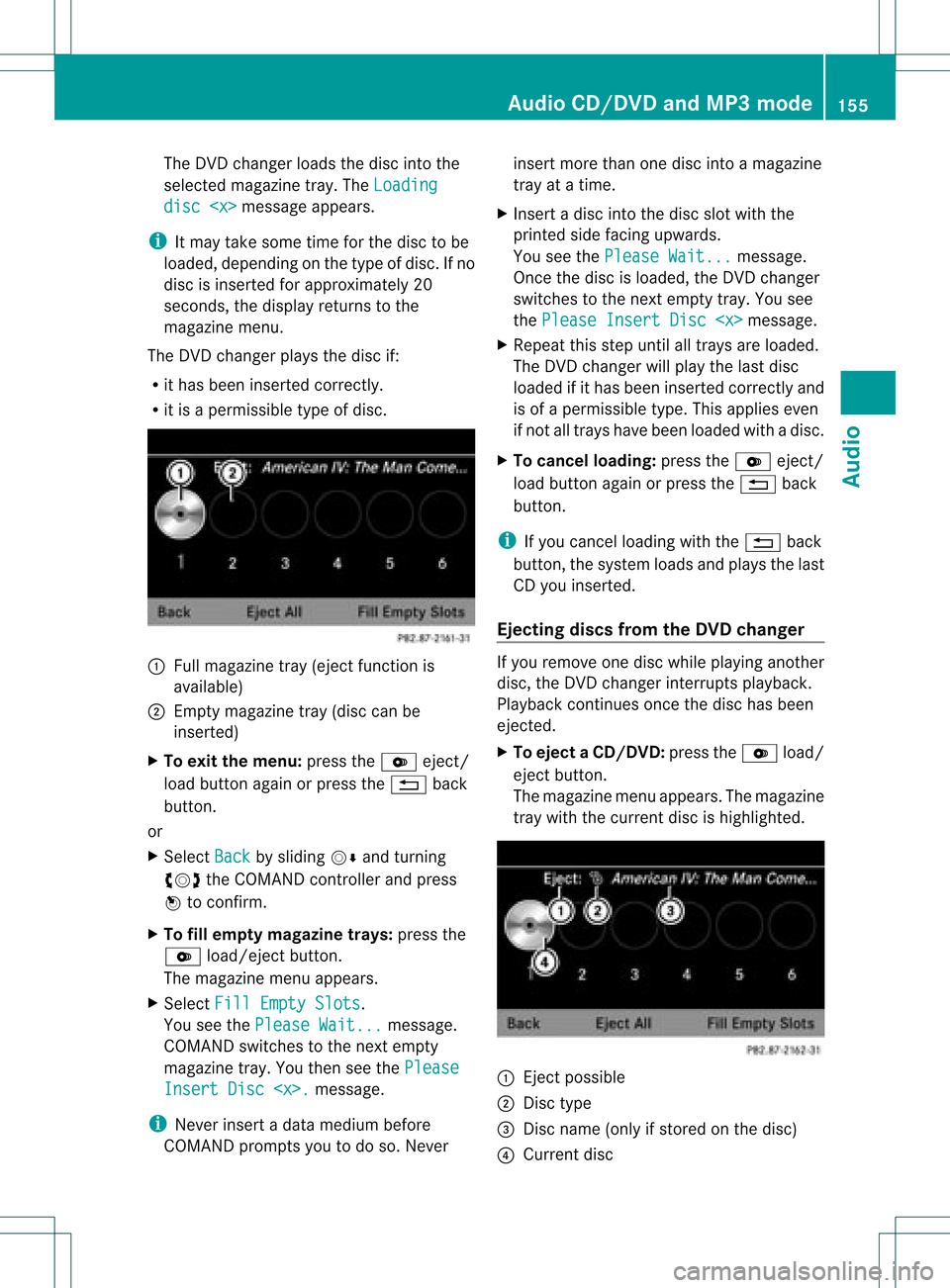
R itis apermissible typeofdisc. :
Full magazine tray(eject functionis
availa ble)
; Empt ymagazine tray(disc canbe
insert ed)
X To exit themenu: presstheV eject/
load button againorpress the% back
button .
or
X Select Back by
sliding VÆandturnin g
cVd theCOMAND controller andpress
W toconf irm.
X To fill empt ymagaz inetrays: press the
V load/eject button.
The magazine menuappears.
X Select FillEmpty Slots .
You seethePlease Wait... message.
COMAND switchestothe next empty
magazine tray.Youthen seethePlease Insert
Disc
i Never insertadata medium before
COMAND promptsyoutodo so. Never insert
morethanonedisc intoamagazine
tray atatime.
X Insert adisc intothedisc slotwith the
printed sidefacing upwards.
You seethePlease Wait... message.
Once thedisc isloaded, theDVD changer
switches tothe next empty tray.Yousee
the Please InsertDisc
X Repeat thisstep until alltrays areloaded.
The DVD changer willplay thelast disc
loaded ifit has been insert edcorrec tlyand
is of apermissible type.Thisapplies even
if not alltrays havebeen loaded withadisc.
X To cancel loading: presstheV eject/
load button againorpress the% back
button .
i Ifyou cancel loading withthe% back
button ,the system loadsandplays thelast
CD you insert ed.
Ejecting discsfromtheDVD changer If
you remove onedisc while playinganother
disc, theDVD changer interruptsplayb ack.
Playba ckcont inues oncethedisc hasbeen
eject ed.
X To eject aCD/DVD: presstheV load/
ej ec tbut ton.
The mag azine men uappea rs.T he magazine
tray with thecurrent discishighlighted. :
Ejec tpossible
; Disc type
= Disc name (onlyifstored onthe disc)
? Current disc Audio
CD/DVD andMP3 mode
155Audio Z
Page 158 of 234
X
Sel ect amag azine tray conta ining adi sc by
turni ngcVd theCOMAND controllerand
pre ssW toconfi rm.
or
X Pre ssanumb erkey ,e.g. j.
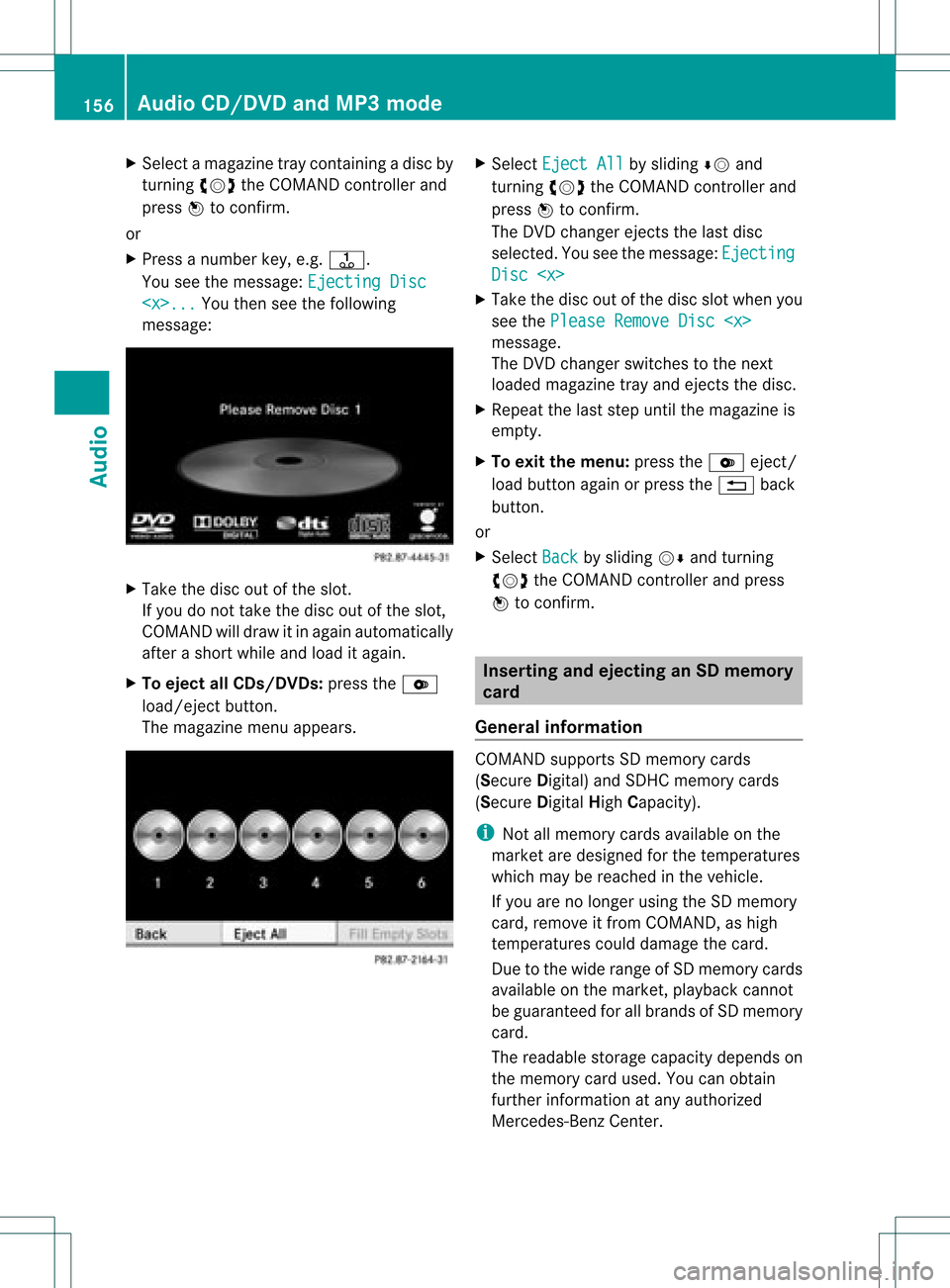
Yo usee themes sage: Eje ctingDisc
... Yo
uthen seethefollowi ng
mes sage: X
Ta ke the disc outo fthe slot.
If you donot take thedisc outofthe slot,
COMAND willdraw itin again automatically
after ashort while andload itagain.
X To eject allCDs/ DVDs: presstheV
load/eject button.
The magazine menuappears. X
Select Eject All by
sliding ÆVand
turning cVdtheCOMAND controller and
press Wtoconfirm .
The DVD changer ejectsthe last disc
selected. Youseethemessage: Ejecting Disc
Take thedisc outofthe disc slotwhen you
see thePlease RemoveDisc
The DVD changer switches tothe next
loaded magazine trayandeject sthe disc.
X Repea tthe last step until themagazine is
empty.
X To exit themenu: presstheV eject/
load button againorpress the% back
button.
or
X Select Back by
sliding VÆandturning
cVd theCOMAND controller andpress
W toconfirm . Inserting
andejecting anSD memory
card
General informat ion COMAND
supportsSDmemory cards
(Secure Digital)andSDH Cmemory cards
(Secure DigitalHighCapacity).
i Not allmemory cardsavailableonthe
market aredesigned forthe temperatures
which maybereached inthe vehicle.
If you arenolonger usingtheSDmemory
card, remove itfrom COMAND, ashigh
temperatures coulddamage thecard.
Due tothe wide range ofSD memory cards
availa bleonthe market, playback cannot
be guaranteed forallbrands ofSD memory
card.
The readabl estorage capacity depends on
the memory cardused. Youcanobtain
further information atany authorized
Mercedes-Ben zCent er. 156
Audio
CD/DVD andMP3 modeAudio
Page 159 of 234
Inser
ting anSD mem orycard X
Inser tthe memory cardintotheslot until it
engages inplace. Theside with the
cont acts must facedownwards andpoint
towards theslot.
COMAND loadsthememory cardand
shows amessage tothis effect .Ifn oMP3
track scan befound, youwillsee amessage
to this effect .
Ejecting anSD memor ycard X
Press thememory card.
The memory cardiseject ed.
X Take thememory cardoutofthe slot
(Y page 17),position H. Connec
tingaUSBdevice
The USB portislocated inthe stowage
compartmen tin the cent erconsole.
Elect ricalconsumpt ionatthis conn ection
must notexceed acont inuous current of
500 mA.Ifthe electrical consumpt ionis
higher, useaseparate sourcetoprovide
power forthe USB device (e.g.
12 Vp ower supply).
X Connect theUSB device (e.g.USBstick)to
the USB port. Ac
tiv atin gaudi oCD /DVD orMP3
mode
Opti on1 X
Inse rtaC D/DVD (Ypage 154) ,SDmem ory
car d(Y page 157) orconne ctaU SBdevice
(Y page 157) .
CO MAND load sthe med iumi nser tedand
sta rts toplay it.
Opti on2 X
Pre ssthe h functio nbu tton oneormor e
time s. i
Bypre ssing the functio nbutton
rep eatedly, youcan chang eth eoper ating
mod ein thefol lowin gord er:
R audio CD/DVD/vide oDV D/ MP3 CD/
MP3 DVDin theDV Dch ang er(disc
mod e)
R mem orycardmod e
R MUS ICREGI STER
R US Bstorag edev ice
R Medi aIn te rface oraudio AUXmod e
R Blue toot h®
audio mode
X Se lec tana udio mediumfrom themed ialist
(Y page 159).
Op tion 3 X
Se lec tAud io in
themain function bar by
slidi ngZV andturnin gcVd theCOMA ND
co ntrol ler and pressW toconfirm .
The lastactive audio sourceisno w
act ivat ed.
You canactivat eadiff ere ntaudio source
usin gth eaudio menu.
X Se lec tAud io by
slidi ngZV andturnin g
cVd theCOMA NDcontrol ler and press
W toconfirm .
The audio menuappear s.
X Se lec tDis c ,
Mem ory Card ,
Mus ic Reg
ister ,
USB Storage or
Med ia Int
erface and
pressW toconfirm .
This switches tothedesi redaudio source.
X Se lec tana udio mediumfrom themed ialist
(Y page 159). Aud
ioCD/DVD andMP3 mode
157Aud io Z