phone MERCEDES-BENZ CLS-Class 2014 W218 Comand Manual
[x] Cancel search | Manufacturer: MERCEDES-BENZ, Model Year: 2014, Model line: CLS-Class, Model: MERCEDES-BENZ CLS-Class 2014 W218Pages: 270, PDF Size: 5.76 MB
Page 133 of 270
Telephone basic menu (Bluetooth
®
interface)
Basic menu display Telephone basic menu (Bluetooth
®
interface)
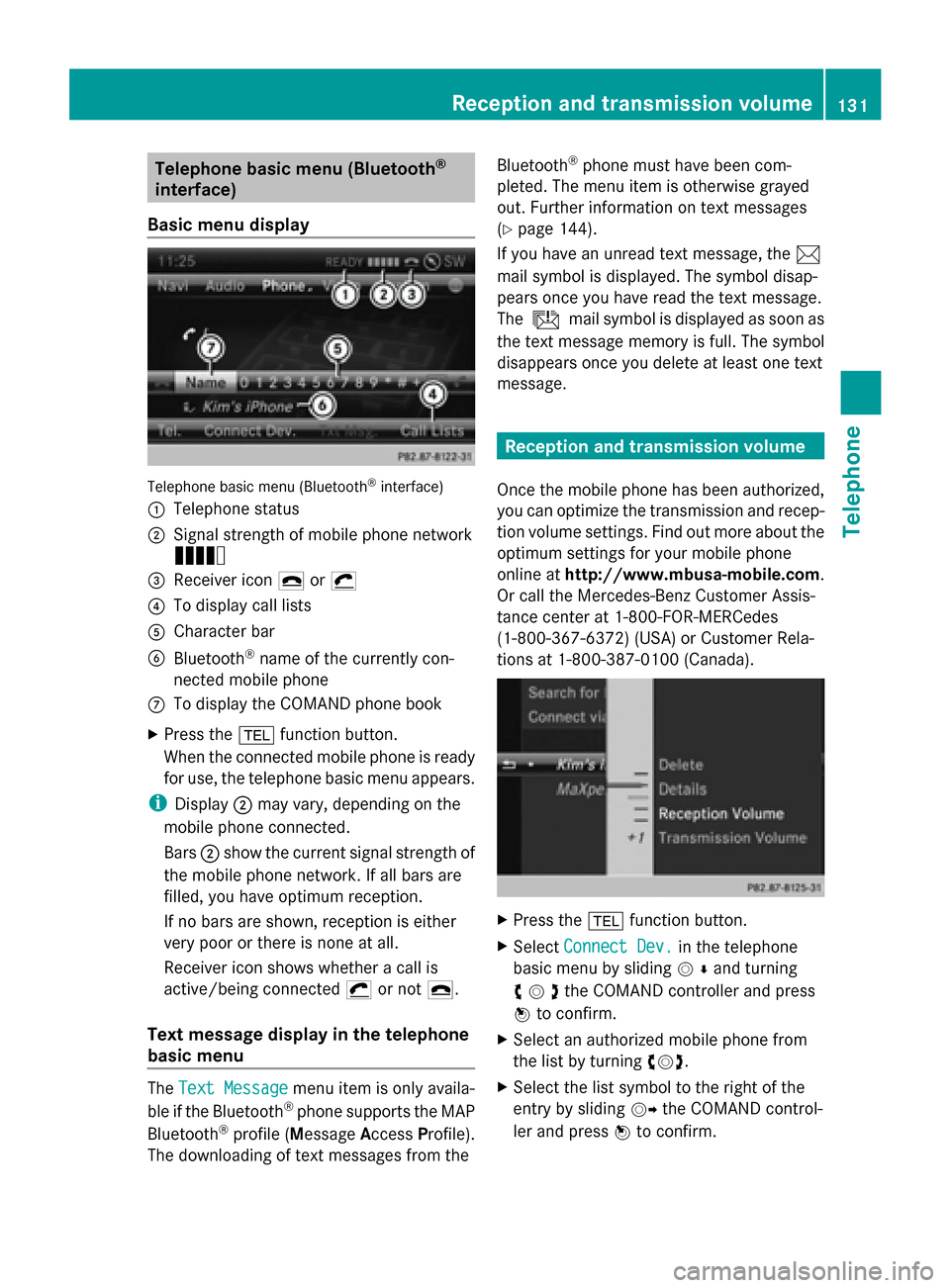
0043 Telephone status
0044 Signal strength of mobile phone network
Ä
0087 Receiver icon 0071or0075
0085 To display call lists
0083 Character bar
0084 Bluetooth ®
name of the currently con-
nected mobile phone
006B To display the COMAND phone book
X Press the 002Bfunction button.
When the connected mobile phone is ready
for use, the telephone basic menu appears.
i Display 0044may vary, depending on the
mobile phone connected.
Bars 0044show the current signal strength of
the mobile phone network. If all bars are
filled, you have optimum reception.
If no bars are shown, reception is either
very poor or there is none at all.
Receiver icon shows whether a call is
active/being connected 0075or not 0071.
Text message display in the telephone
basic menu The
Text Message
Text Message menu item is only availa-
ble if the Bluetooth ®
phone supports the MAP
Bluetooth ®
profile ( Message AccessProfile).
The downloading of text messages from the Bluetooth
®
phone must have been com-
pleted. The menu item is otherwise grayed
out. Further information on text messages
(Y page 144).
If you have an unread text message, the 0083
mail symbol is displayed. The symbol disap-
pears once you have read the text message.
The ú mail symbol is displayed as soon as
the text message memory is full. The symbol
disappears once you delete at least one text
message. Reception and transmission volume
Once the mobile phone has been authorized,
you can optimize the transmission and recep-
tion volume settings. Find out more about the
optimum settings for your mobile phone
online at http://www.mbusa-mobile.com.
Or call the Mercedes-Benz Customer Assis-
tance center at 1-800-FOR-MERCedes
(1-800-367-6372) (USA) or Customer Rela-
tions at 1-800-387-010 0(Canada). X
Press the 002Bfunction button.
X Select Connect Dev. Connect Dev. in the telephone
basic menu by sliding 00520064and turning
00790052007Athe COMAND controller and press
0098 to confirm.
X Select an authorized mobile phone from
the list by turning 00790052007A.
X Select the list symbol to the right of the
entry by sliding 00520096the COMAND control-
ler and press 0098to confirm. Reception and transmission volume
131Telephone Z
Page 134 of 270
X
Select Reception Volume
Reception Volume orTransmis‐
Transmis‐
sion Volume
sion Volume and press0098to confirm.
X Select a volume setting by turning 00790052007Athe
COMAND controller.
X To close the setting scale: press0098or
slide 009500520096 .
i Incorrect settings may have an impact on
the quality of calls. Using the telephone
Incoming call
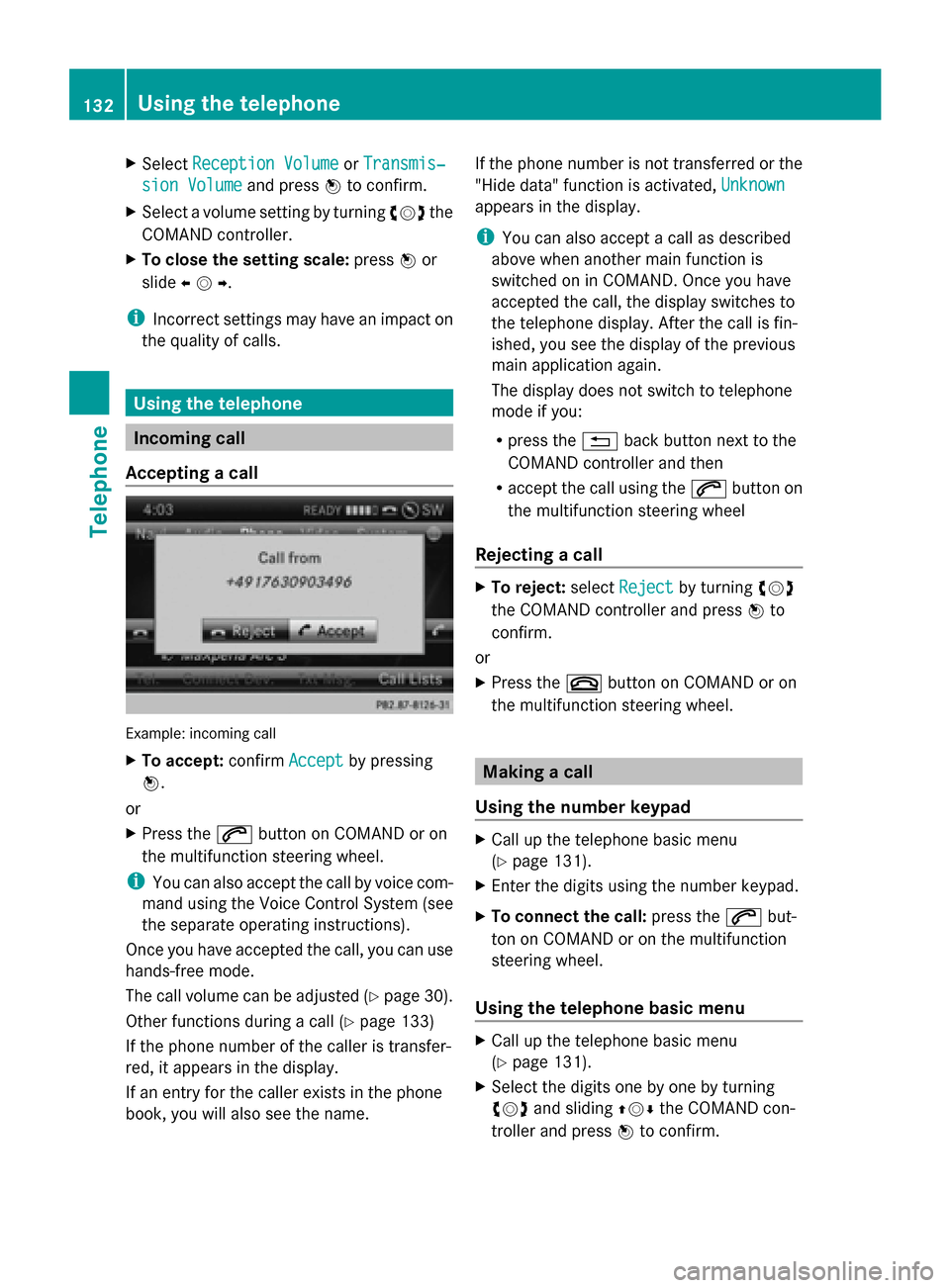
Accepting a call Example: incoming call
X
To accept: confirmAccept Acceptby pressing
0098.
or
X Press the 0061button on COMAND or on
the multifunction steering wheel.
i You can also accept the call by voice com-
mand using the Voice Control System (see
the separate operating instructions).
Once you have accepted the call, you can use
hands-free mode.
The call volume can be adjusted (Y page 30).
Other functions during a call (Y page 133)
If the phone number of the caller is transfer-
red, it appears in the display.
If an entry for the caller exists in the phone
book, you will also see the name. If the phone number is not transferred or the
"Hide data" function is activated,
Unknown
Unknown
appears in the display.
i You can also accept a call as described
above when another main function is
switched on in COMAND. Once you have
accepted the call, the display switches to
the telephone display. After the call is fin-
ished, you see the display of the previous
main application again.
The display does not switch to telephone
mode if you:
R press the 0038back button next to the
COMAND controller and then
R accept the call using the 0061button on
the multifunction steering wheel
Rejecting a call X
To reject: selectReject Reject by turning 00790052007A
the COMAND controller and press 0098to
confirm.
or
X Press the 0076button on COMAND or on
the multifunction steering wheel. Making a call
Using the number keypad X
Call up the telephone basic menu
(Y page 131).
X Enter the digits using the number keypad.
X To connect the call: press the0061but-
ton on COMAND or on the multifunction
steering wheel.
Using the telephone basic menu X
Call up the telephone basic menu
(Y page 131).
X Select the digits one by one by turning
00790052007A and sliding 009700520064the COMAND con-
troller and press 0098to confirm. 132
Using the telephoneTelephone
Page 135 of 270
X
To make a call: select°in the character
bar and press 0098to confirm.
or
X Press the 0061button on COMAND or on
the multifunction steering wheel.
Redial X
Call up the telephone basic menu
(Y page 131).
X Select °in the character bar and press
0098 to confirm.
or
X If the telephone basic menu is displayed,
press the 0061button on COMAND.
In both cases, the calls dialed list appears.
The most recently dialed number is at the
top.
X To select a call: turn00790052007A the COMAND
controller.
X To connect the call: press0098the
COMAND controller.
Using the call list or COMAND phone
book X
Open a call list and select an entry
(Y page 141).
or
X Call up the COMAND phone book and
select an entry (Y page 138).
X To make a call: press0098the COMAND
controller or the 0061button.
Making a call via speed dial The speed dial list contains stored entries
from the phone book ( Ypage 143).
Option 1:
X Hold down one of the number keys for lon-
ger than two seconds.
The telephone basic menu displays the
selected entry. This initiates dialing. Option 2:
X
Call up the telephone basic menu
(Y page 131).
X Select Call
Call Lists Lists by sliding 00520064and turn-
ing 00790052007A the COMAND controller and press
0098 to confirm.
A menu appears.
X Select Speed
Speed Dial
DialPreset
Preset List
Listby turn-
ing 00790052007A the COMAND controller and press
0098 to confirm.
The speed dial list appears.
X Select preset and press 0098to confirm.
The telephone basic menu displays the
selected entry. This initiates dialing. Functions available during a call
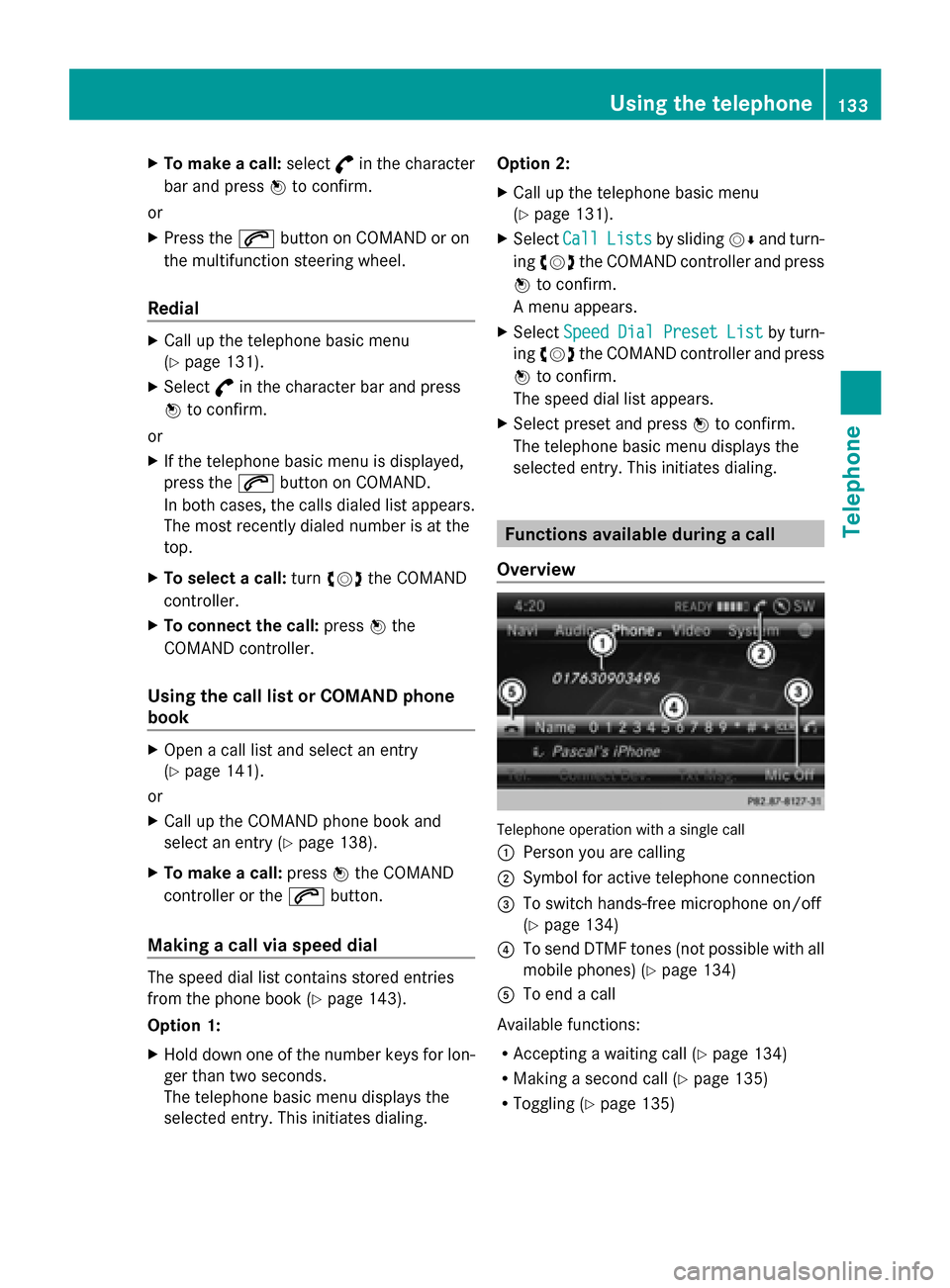
Overview Telephone operation with a single call
0043
Person you are calling
0044 Symbol for active telephone connection
0087 To switch hands-free microphone on/off
(Ypage 134)
0085 To send DTMF tones (not possible with all
mobile phones) (Y page 134)
0083 To end a call
Available functions:
R Accepting a waiting call (Y page 134)
R Making a second call (Y page 135)
R Toggling (Y page 135) Using the telephone
133Telephone Z
Page 136 of 270
Availability depends on the network (only pos-
sible in the GSM network) and on the Blue-
tooth ®
mobile phone.
Switching the hands-free microphone
on/off This function is also available during an active
phone call.
X
Call up the telephone basic menu
(Y page 131).
X To switch off: selectMic Off
Mic Off and press
0098 to confirm.
If the microphone is switched off, the dis-
play shows the 004Dicon, and the The
The
microphone is off. microphone is off. message appears
for a short period.
X To switch on: selectMic On
Mic On and press
0098 to confirm.
The 004Dsymbol disappears. You will briefly
see the The microphone is on.
The microphone is on. mes-
sage.
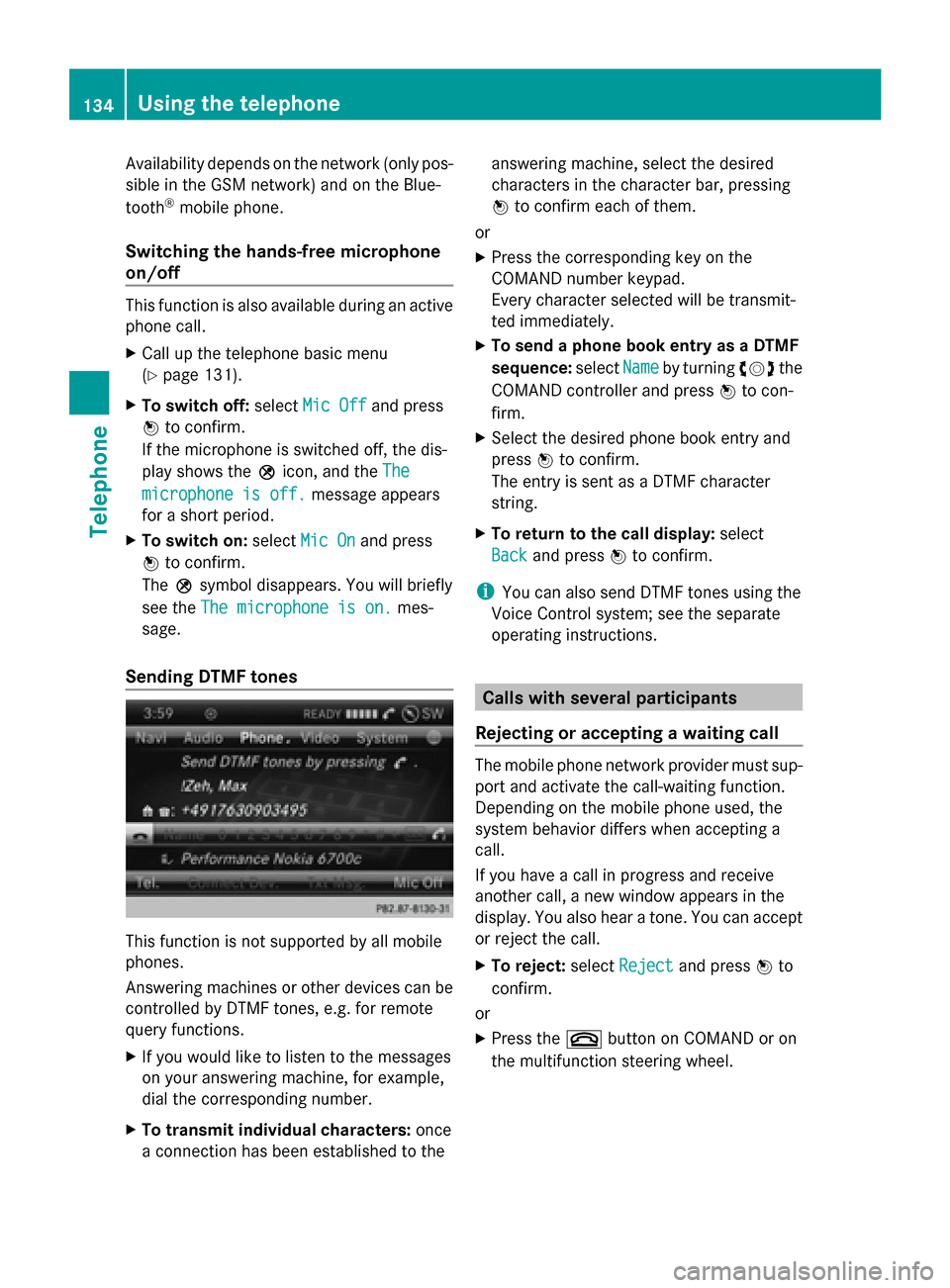
Sending DTMF tones This function is not supported by all mobile
phones.
Answering machines or other devices can be
controlled by DTMF tones, e.g. for remote
query functions.
X If you would like to listen to the messages
on your answering machine, for example,
dial the corresponding number.
X To transmit individual characters: once
a connection has been established to the answering machine, select the desired
characters in the character bar, pressing
0098
to confirm each of them.
or
X Press the corresponding key on the
COMAND number keypad.
Every character selected will be transmit-
ted immediately.
X To send a phone book entry as a DTMF
sequence: selectName
Name by turning 00790052007Athe
COMAND controller and press 0098to con-
firm.
X Select the desired phone book entry and
press 0098to confirm.
The entry is sent as a DTMF character
string.
X To return to the call display: select
Back
Back and press 0098to confirm.
i You can also send DTMF tones using the
Voice Control system; see the separate
operating instructions. Calls with several participants
Rejecting or accepting a waiting call The mobile phone network provider must sup-
port and activate the call-waiting function.
Depending on the mobile phone used, the
system behavior differs when accepting a
call.
If you have a call in progress and receive
another call, a new window appears in the
display. You also hear a tone. You can accept
or reject the call.
X To reject: selectReject Reject and press 0098to
confirm.
or
X Press the 0076button on COMAND or on
the multifunction steering wheel. 134
Using the telephoneTelephone
Page 137 of 270
X
To accept: selectAccept
Accept and press 0098to
confirm.
or
X Press the 0061button on COMAND or on
the multifunction steering wheel.
The system behavior after accepting the
incoming call depends on your mobile phone.
R The mobile phone supports the call waiting
function (via Bluetooth ®
) when:
The previously active call is held. You can
then switch back and forth between both
calls (toggling) (Y page 135).
R The mobile phone does not support the call
waiting function (via Bluetooth ®
) when:
The previously active call is ended.
This is also the case if you accept the wait-
ing call using the Voice Control System (see
the separate operating instructions).
The COMAND display changes. If you con-
tinue to operate functions on the mobile
phone, the COMAND display may differ from
that of the mobile phone.
Making a second call If the following requirements are met, you can
make another call while on the phone with
someone else:
R The function has to be supported by the
mobile phone network.
R The mobile phone has to support the con-
nection of a further call via Bluetooth ®
. This
action puts the previous call on hold if the
mobile phone supports this function.
R The appropriate setting has to be activated
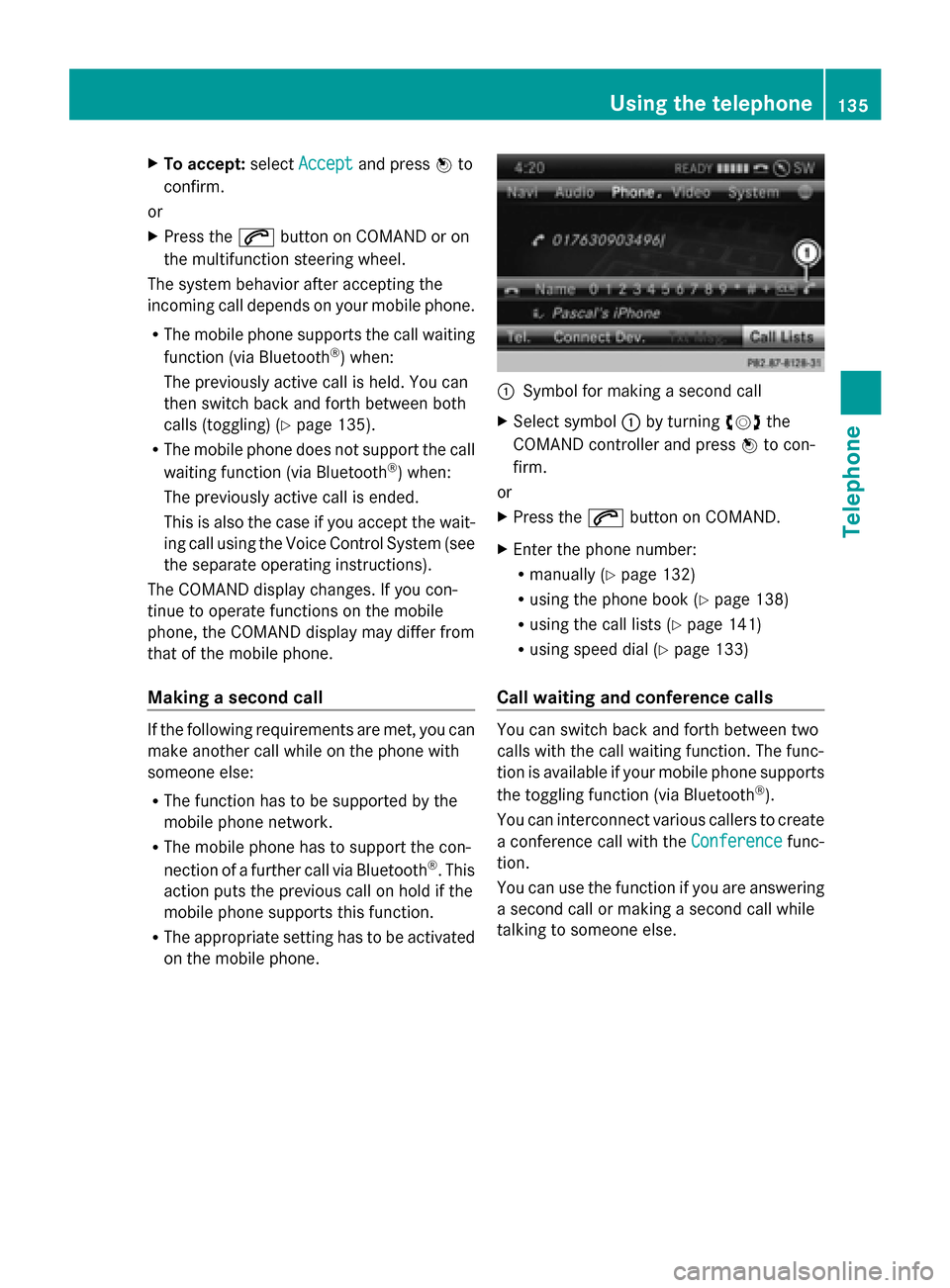
on the mobile phone. 0043
Symbol for making a second call
X Select symbol 0043by turning 00790052007Athe
COMAND controller and press 0098to con-
firm.
or
X Press the 0061button on COMAND.
X Enter the phone number:
R
manually (Y page 132)
R using the phone book (Y page 138)
R using the call lists (Y page 141)
R using speed dial (Y page 133)
Call waiting and conference calls You can switch back and forth between two
calls with the call waiting function. The func-
tion is available if your mobile phone supports
the toggling function (via Bluetooth
®
).
You can interconnect various callers to create
a conference call with the Conference Conferencefunc-
tion.
You can use the function if you are answering
a second call or making a second call while
talking to someone else. Using the telephone
135Telephone Z
Page 138 of 270
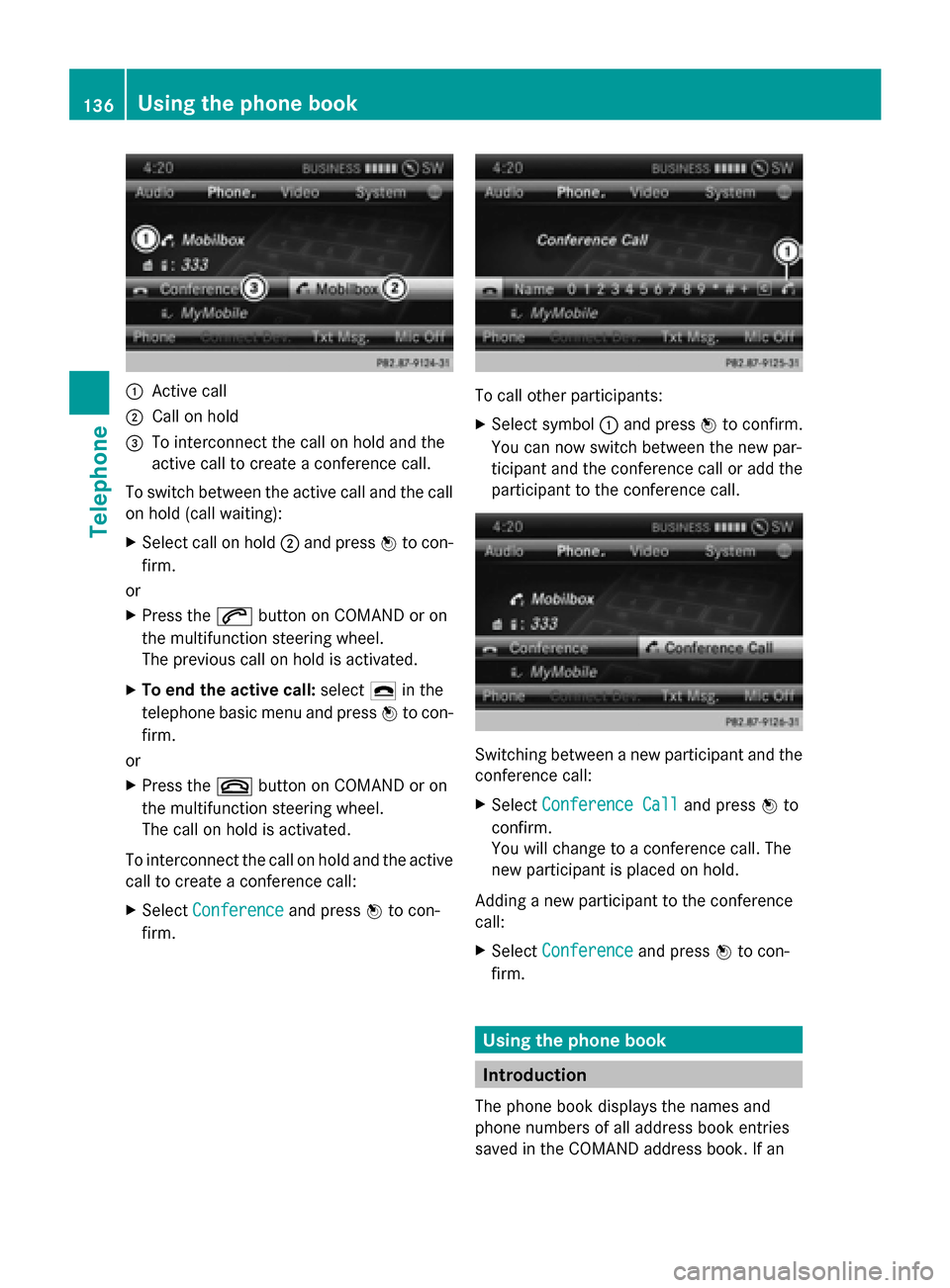
0043
Active call
0044 Call on hold
0087 To interconnect the call on hold and the
active call to create a conference call.
To switch between the active call and the call
on hold (call waiting):
X Select call on hold 0044and press 0098to con-
firm.
or
X Press the 0061button on COMAND or on
the multifunction steering wheel.
The previous call on hold is activated.
X To end the active call: select0071in the
telephone basic menu and press 0098to con-
firm.
or
X Press the 0076button on COMAND or on
the multifunction steering wheel.
The call on hold is activated.
To interconnect the call on hold and the active
call to create a conference call:
X Select Conference
Conference and press0098to con-
firm. To call other participants:
X Select symbol 0043and press 0098to confirm.
You can now switch between the new par-
ticipant and the conference call or add the
participant to the conference call. Switching between a new participant and the
conference call:
X
Select Conference Call Conference Call and press0098to
confirm.
You will change to a conference call. The
new participant is placed on hold.
Adding a new participant to the conference
call:
X Select Conference Conference and press0098to con-
firm. Using the phone book
Introduction
The phone book displays the names and
phone numbers of all address book entries
saved in the COMAND address book. If an 136
Using the phone bookTelephone
Page 139 of 270
address book entry does not have a tele-
phone number, it does not appear in the
phone book.
The phone book of the mobile phone is auto-
matically downloaded to COMAND after con-
nection.
In the telephone book, you can:
R save phone numbers (Y page 139)
R search for entries (Y page 138)
R delete entries (Y page 139)
R import contacts (Y page 152)
R delete contacts (Y page 154)
R receive vCards ( Ypage 153)
i The stored phone book and the vCards
remain in COMAND even if you use
COMAND with another mobile phone. The
entries can be viewed without a mobile
phone. For this reason, you should delete
any phone book entries before handing
over or selling the vehicle. Calling up the phone book
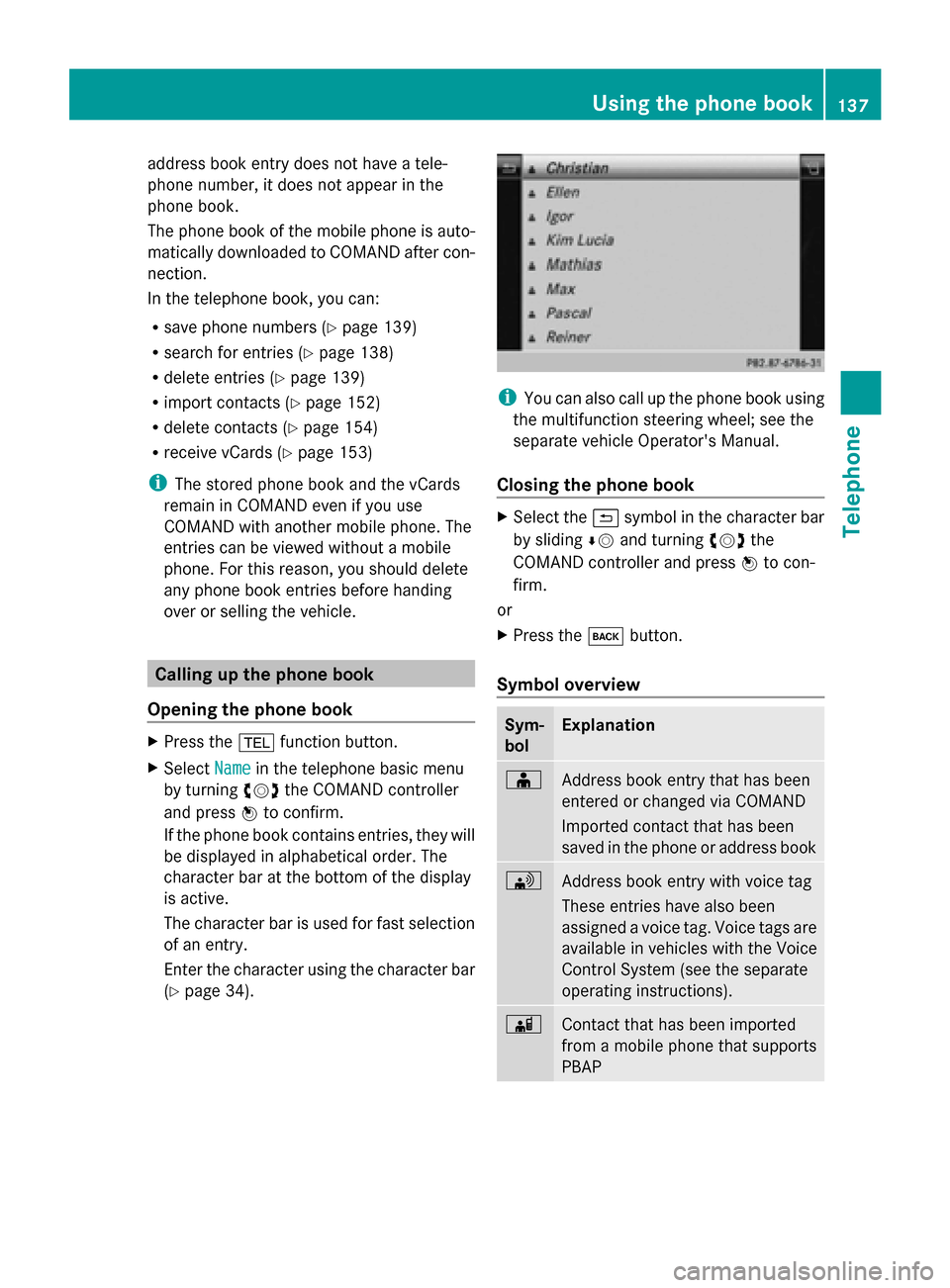
Opening the phone book X
Press the 002Bfunction button.
X Select Name
Name in the telephone basic menu
by turning 00790052007Athe COMAND controller
and press 0098to confirm.
If the phone book contains entries, they will
be displayed in alphabetical order. The
character bar at the bottom of the display
is active.
The character bar is used for fast selection
of an entry.
Enter the character using the character bar
(Y page 34). i
You can also call up the phone book using
the multifunction steering wheel; see the
separate vehicle Operator's Manual.
Closing the phone book X
Select the 0039symbol in the character bar
by sliding 00640052and turning 00790052007Athe
COMAND controller and press 0098to con-
firm.
or
X Press the 003Dbutton.
Symbol overview Sym-
bol Explanation
00D8
Address book entry that has been
entered or changed via COMAND
Imported contact that has been
saved in the phone or address book 0094
Address book entry with voice tag
These entries have also been
assigned a voice tag. Voice tags are
available in vehicles with the Voice
Control System (see the separate
operating instructions). 00D7
Contact that has been imported
from a mobile phone that supports
PBAP Using the phone book
137Telephone Z
Page 140 of 270
Sym-
bol Explanation
00BB
Entry that has been imported from
the memory card or USB device 00BA
Entry imported via the Bluetooth
®
interface Searching for a phone book entry
Using the character bar You determine the first letter of the entry you
are looking for with the first character you
enter.
X Select a character by turning 00790052007Athe
COMAND controller and press 0098to con-
firm.
The first entry in the list that starts with the
letter selected is highlighted. If there are
similar entries, the next different character
is shown. For example, with entries such as
Christel Christel andChristine
Christine, the beginnings
of the names are similar. In this case, you
will be offered a choice between E
E and I I.
X Select the characters of the entry you are
searching for one by one and press 0098to
confirm.
When the selection is clear, COMAND
switches automatically to the selection list.
X To complete the search: slide00520097the
COMAND controller repeatedly or press
and hold 0098until the character bar disap-
pears.
The selection list appears.
Information about character entry
(Y page 34) Using the number keypad You determine the first letter of the entry you
are looking for with the first character you
enter.
X
Press the appropriate number keys as
many times as necessary and one after the
other.
Further information on character entry using
the number keypad (direct entry)
(Y page 36).
Directly from the list You can switch to the list at any time during
character entry.
X
Slide 00520097the COMAND controller repeat-
edly or press and hold 0098until the charac-
ter bar disappears.
or
X Select 0054and press 0098to confirm.
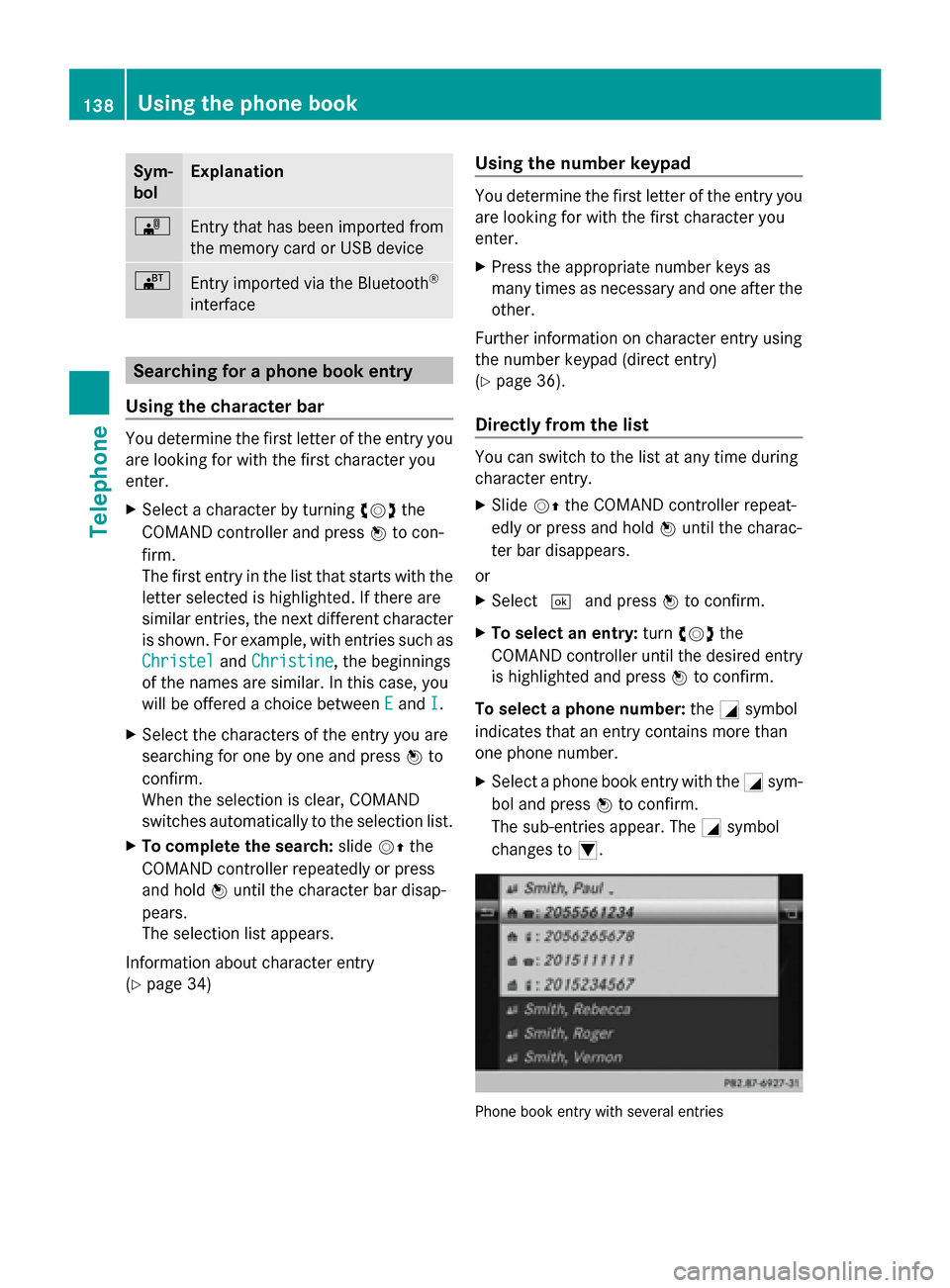
X To select an entry: turn00790052007A the
COMAND controller until the desired entry
is highlighted and press 0098to confirm.
To select a phone number: the0043symbol
indicates that an entry contains more than
one phone number.
X Select a phone book entry with the 0043sym-
bol and press 0098to confirm.
The sub-entries appear. The 0043symbol
changes to 0045. Phone book entry with several entries138
Using the phone bookTelephone
Page 141 of 270
X
Select a sub-entry by turning 00790052007Aand
press 0098to confirm.
X To return to the phone book using the
character bar: select0039in the list and
press 0098to confirm.
or
X Press the 003Dbutton. Displaying details for an entry
X Select an entry in the selection list by turn-
ing 00790052007A the COMAND controller.
X Select the list symbol to the right of the
entry by sliding 00520096the COMAND control-
ler and press 0098to confirm.
X Select Details
Details and press 0098to confirm.
The detailed view appears.
X To close the detailed display: slide
009500520096 repeatedly until the entry is high-
lighted again.
or
X Press the 003Dback button. Deleting an entry from the phone
book
If the entry contains only phone numbers, it
is deleted from the phone book and address
book.
If it contains additional data, such as a navi-
gable destination, the entry is deleted in the
phone book. However, the entry is retained in
the address book.
X Select an entry in the selection list by turn-
ing 00790052007A the COMAND controller.
X Select the list symbol to the right of the
entry by sliding 00520096the COMAND control-
ler and press 0098to confirm.
X Select Delete
Delete and press 0098to confirm.
A prompt appears asking whether the entry
should be deleted. X
Select Yes
Yes orNo No and press 0098to confirm.
If you select Yes
Yes, the entry is deleted in
accordance with the rules described above.
If you select No No, the process will be can-
celed. Creating a new entry in the phone
book
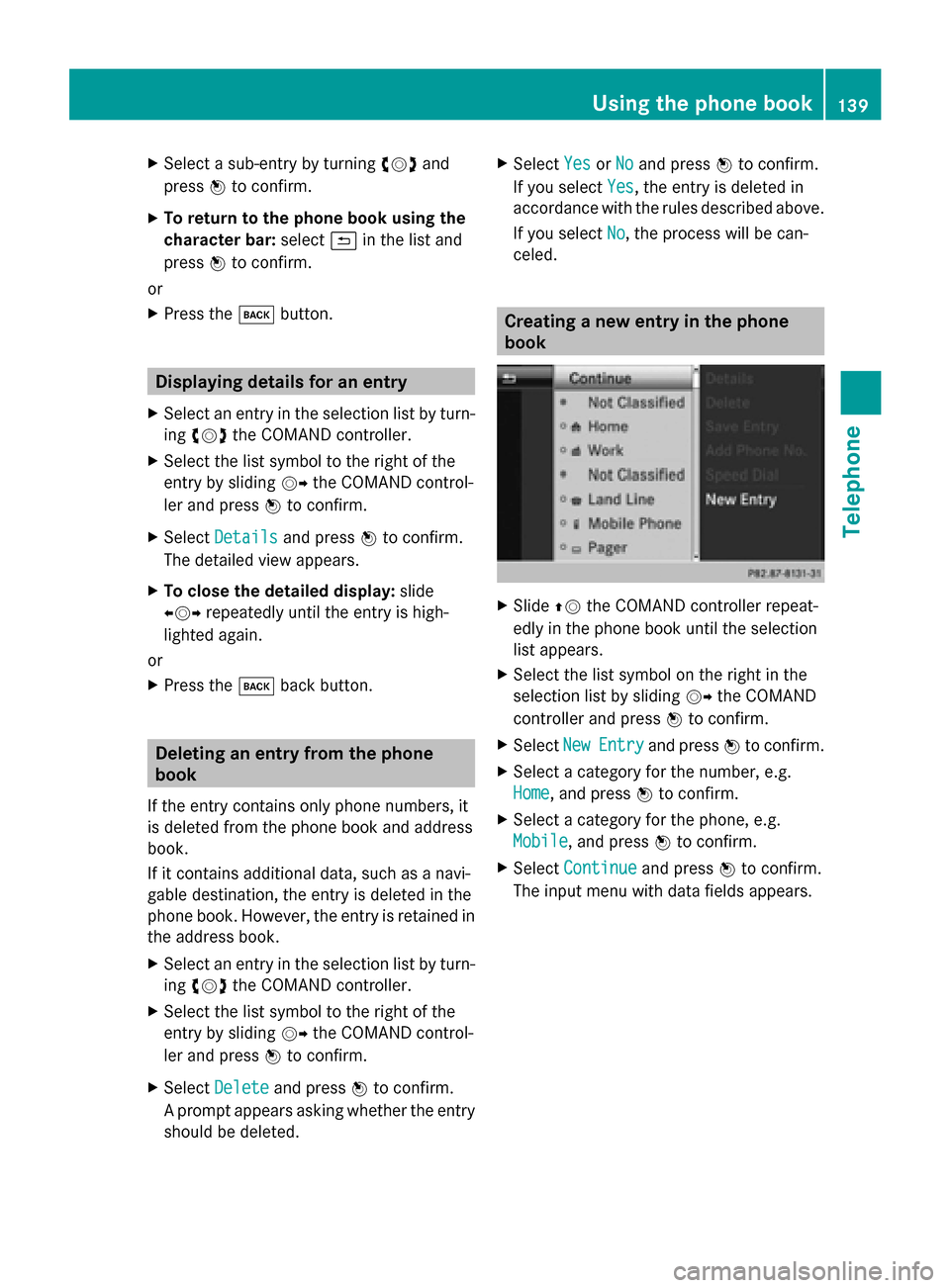
X
Slide 00970052the COMAND controller repeat-
edly in the phone book until the selection
list appears.
X Select the list symbol on the right in the
selection list by sliding 00520096the COMAND
controller and press 0098to confirm.
X Select New NewEntry
Entry and press 0098to confirm.
X Select a category for the number, e.g.
Home Home, and press 0098to confirm.
X Select a category for the phone, e.g.
Mobile Mobile , and press 0098to confirm.
X Select Continue
Continue and press0098to confirm.
The input menu with data fields appears. Using the phone book
139Telephone Z
Page 142 of 270
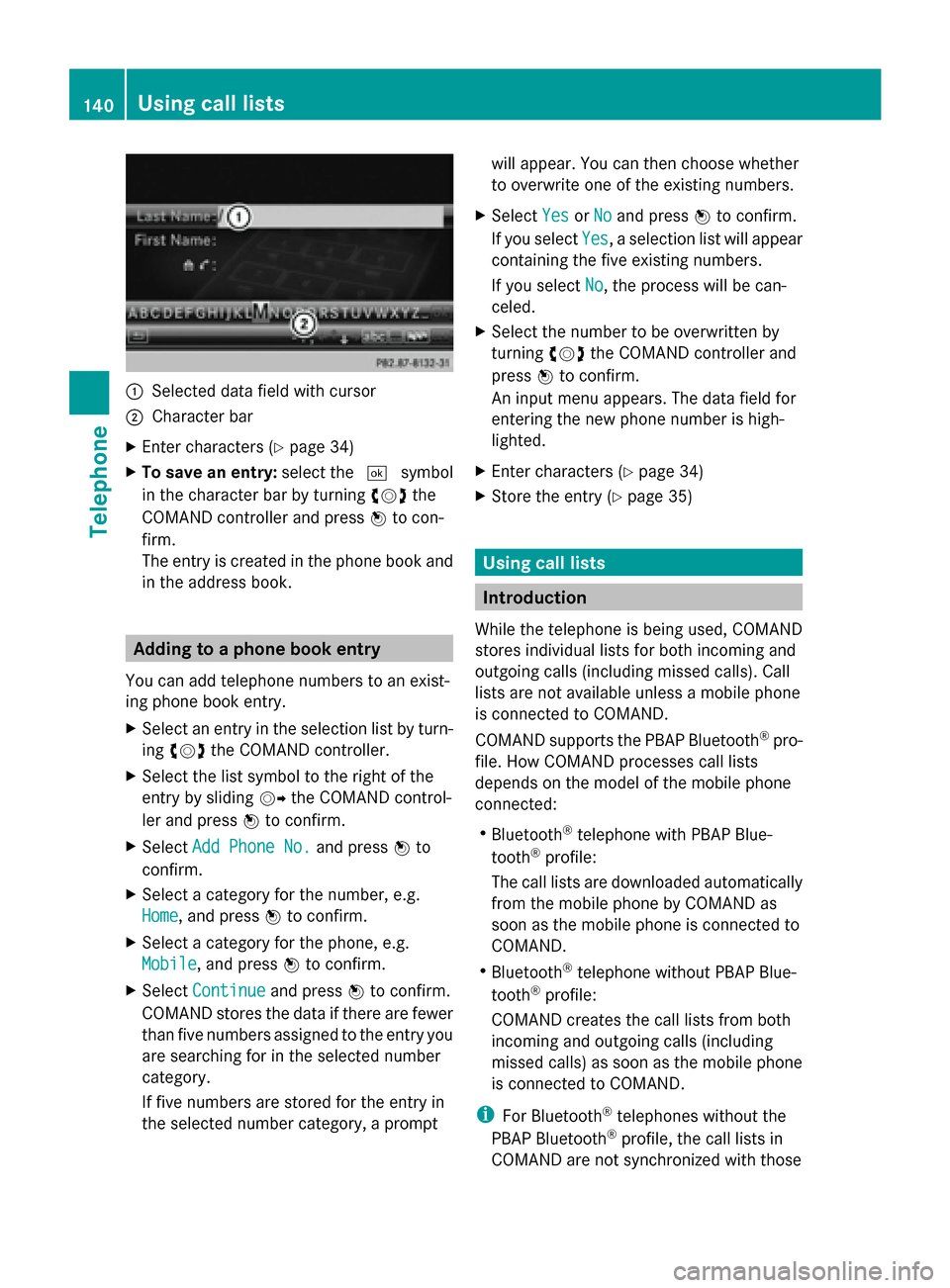
0043
Selected data field with cursor
0044 Character bar
X Enter characters ( Ypage 34)
X To save an entry: select the0054symbol
in the character bar by turning 00790052007Athe
COMAND controller and press 0098to con-
firm.
The entry is created in the phone book and
in the address book. Adding to a phone book entry
You can add telephone numbers to an exist-
ing phone book entry.
X Select an entry in the selection list by turn-
ing 00790052007A the COMAND controller.
X Select the list symbol to the right of the
entry by sliding 00520096the COMAND control-
ler and press 0098to confirm.
X Select Add Phone No.
Add Phone No. and press0098to
confirm.
X Select a category for the number, e.g.
Home Home, and press 0098to confirm.
X Select a category for the phone, e.g.
Mobile Mobile , and press 0098to confirm.
X Select Continue
Continue and press0098to confirm.
COMAND stores the data if there are fewer
than five numbers assigned to the entry you
are searching for in the selected number
category.
If five numbers are stored for the entry in
the selected number category, a prompt will appear. You can then choose whether
to overwrite one of the existing numbers.
X Select Yes
Yes orNo No and press 0098to confirm.
If you select Yes
Yes, a selection list will appear
containing the five existing numbers.
If you select No No, the process will be can-
celed.
X Select the number to be overwritten by
turning 00790052007Athe COMAND controller and
press 0098to confirm.
An input menu appears. The data field for
entering the new phone number is high-
lighted.
X Enter characters ( Ypage 34)
X Store the entry (Y page 35) Using call lists
Introduction
While the telephone is being used, COMAND
stores individual lists for both incoming and
outgoing calls (including missed calls). Call
lists are not available unless a mobile phone
is connected to COMAND.
COMAND supports the PBAP Bluetooth ®
pro-
file. How COMAND processes call lists
depends on the model of the mobile phone
connected:
R Bluetooth ®
telephone with PBAP Blue-
tooth ®
profile:
The call lists are downloaded automatically
from the mobile phone by COMAND as
soon as the mobile phone is connected to
COMAND.
R Bluetooth ®
telephone without PBAP Blue-
tooth ®
profile:
COMAND creates the call lists from both
incoming and outgoing calls (including
missed calls) as soon as the mobile phone
is connected to COMAND.
i For Bluetooth ®
telephones without the
PBAP Bluetooth ®
profile, the call lists in
COMAND are not synchronized with those 140
Using call listsTelephone