light MERCEDES-BENZ CLS COUPE 2018 Owners Manual
[x] Cancel search | Manufacturer: MERCEDES-BENZ, Model Year: 2018, Model line: CLS COUPE, Model: MERCEDES-BENZ CLS COUPE 2018Pages: 589, PDF Size: 10.95 MB
Page 321 of 589
#
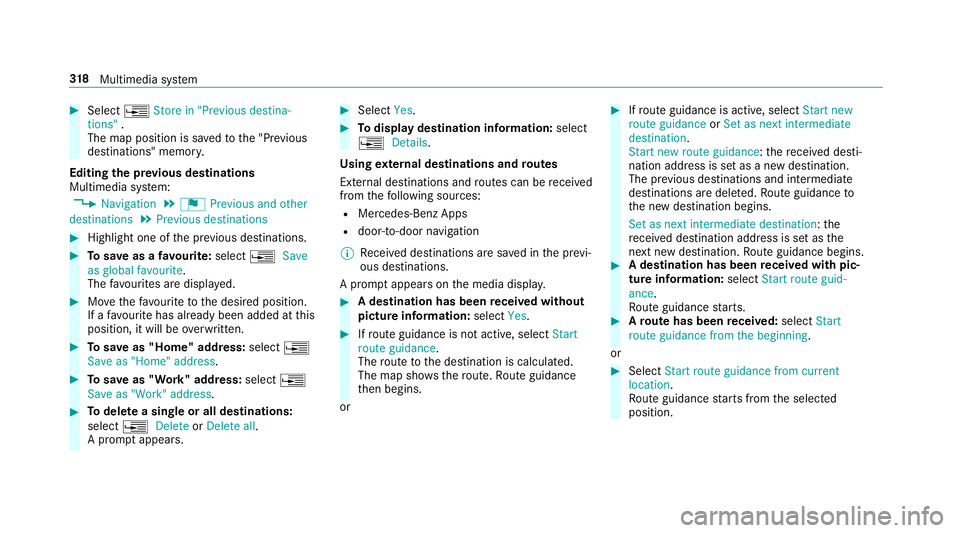
Select ¥Store in "Previous destina-
tions" .
The map position is sa vedto the "Pr evious
destinations" memo ry.
Editing the pr evious destinations
Multimedia sy stem:
, Navigation .
¬ Previous and other
destinations .
Previous destinations #
Highlight one of the pr evious destinations. #
Tosave as a favo urite: select ¥Save
as global favourite .
The favo urites are displ ayed. #
Movethefa vo urite tothe desired position.
If a favo urite has already been added at this
position, it will be overwritten. #
Tosave as "Home" address: select¥
Save as "Home" address .#
Tosave as "Work" address: select¥
Save as "Work" address .#
Todel ete a single or all destinations:
select ¥Delete orDelete all.
A prom ptappears. #
Select Yes. #
Todispl aydestination information: select
¥ Details.
Using extern al destinations and routes
External destinations and routes can be recei ved
from thefo llowing sources:
R Mercedes-Benz Apps
R door-to-door navigation
% Recei ved destinations are sa ved in the pr evi‐
ous destinations.
A prom ptappears on the media displa y. #
A destination has been received without
picture information: selectYes. #
Ifro ute guidance is not active, select Start
route guidance .
The route tothe destination is calculated.
The map sho ws thero ute. Route guidance
th en begins.
or #
Ifro ute guidance is active, select Start new
route guidance orSet as next intermediate
destination .
Start new route guidance: there cei ved desti‐
nation address is set as a new destination.
The pr evious destinations and intermediate
destinations are dele ted. Ro ute guidance to
th e new destination begins.
Set as next intermediate destination: the
re cei ved destination address is set as the
next new de stination. Route guidance begins. #
A destination has been received with pic‐
tu re information: selectStart route guid-
ance .
Ro ute guidance starts. #
Aro ute has been received: selectStart
route guidance from the beginning.
or #
Select Start route guidance from current
location.
Ro ute guidance starts from the selected
position. 318
Multimedia sy stem
Page 328 of 589
Mo
torw ays are alw aysta ke n into account for
th ero ute.
R there is no sensible alternative route
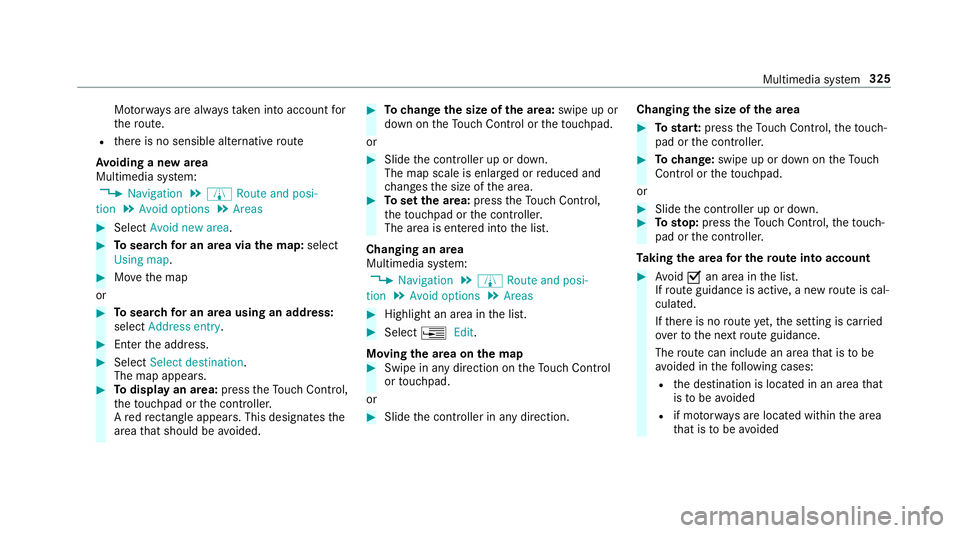
Av oiding a new area
Multimedia sy stem:
, Navigation .
À Route and posi-
tion .
Avoid options .
Areas #
Select Avoid new area. #
Tosear chfor an area via the map: select
Using map. #
Movethe map
or #
Tosear chfor an area using an address:
select Address entry . #
Enter the address. #
Select Select destination.
The map appears. #
Todispl ayan area: presstheTo uch Control,
th eto uchpad or the controller.
A redre ctangle appea rs. This designates the
area that should be avoided. #
Tochange the size of the area: swipe up or
down on theTo uch Control or theto uchpad.
or #
Slide the controller up or down.
The map scale is enlar ged or reduced and
ch anges the size of the area. #
Toset the area: presstheTo uch Control,
th eto uchpad or the controller.
The area is entered into the list.
Changing an area
Multimedia sy stem:
, Navigation .
À Route and posi-
tion .
Avoid options .
Areas #
Highlight an area in the list. #
Select ¥Edit.
Moving the area on the map #
Swipe in any direction on theTo uch Control
or touchpad.
or #
Slide the controller in any direction. Changing
the size of the area #
Tostar t:press theTo uch Control, theto uch‐
pad or the controller. #
Tochange: swipe up or down on theTo uch
Control or theto uchpad.
or #
Slide the controller up or down. #
Tosto p:press theTo uch Control, theto uch‐
pad or the controller.
Ta king the area for the route into account #
Avoid Oan area in the list.
If ro ute guidance is active, a new route is cal‐
culated.
If th ere is no route yet,th e setting is car ried
ove rto the next route guidance.
The route can include an area that is tobe
av oided in thefo llowing cases:
R the destination is located in an area that
is to be avo ided
R if mo torw ays are located within the area
th at is tobe avo ided Multimedia sy
stem 325
Page 329 of 589
Mo
torw ays are alw aysta ke n into account
fo rth ero ute.
R there is no sensible alternative route
Deleting one or all areas
Multimedia sy stem:
, Navigation .
À Route and posi-
tion .
Avoid options .
Areas #
Highlight an area in the list. #
Select ¥Delete or¥ Delete all. #
Confirm the prom ptwith Yes.
One or all areas are dele ted.
Map data update overview
Up dating at the Mercedes-Benz se rvice
centre
The digital maps generated bythe map software
become outdated in the same way as co nven‐
tional road maps. Optimal route guidance can
on ly be pr ovided bythe navigation sy stem in
conjunction with the most up-to-date map data.
Information about new versions of the digital
map can be obtained from a Mercedes-Benz
service cent re. Yo
u can recei veupdates tothe digital map there.
Online map update
The online map update service from Mercedes
me connect can be used toupdate map data.
% The online map update service is not availa‐
ble in all countries.
The following options are available forthe
update:
R the automatic map update updates map data
fo r one region.
Fo r auto matic map updates Automatic
online updates must be activated in the sys‐
te m settings (→ page 298).
R the manual map update updates map data
fo r se veral or all regions.
Fu rther information on the online map update
http://www.mercedes.me.
Fu rther information on updates: http://
manuals.daimle r.com/baix/cars/connectme/
en_GB/index.html. Overview of map data
Yo
ur vehicle is supplied with map data at thefa c‐
to ry. Depending on the count ry, map data for
yo ur region is either pre-ins talled or the map
data is supplied on a data storage medium.
If th e map data on your vehicle has been ins tal‐
led at thefa ctory and you wish toreins tall it, you
do not need toenter the activation code.
Fo r map data that you ha vepur chased in the
fo rm of a data storage medium, you must en ter
th e accompanying activation code.
% Ifyo u sa vethe map data on a data storage
medium with the online map update service,
no entry isrequ ired. The activation code is
st ored on the data storage medium during
th e downloading process.
The online map update service is not availa‐
ble in all countries.
Obse rveth efo llowing when entering the activa‐
tion code:
R The activation code can be used for one vehi‐
cle
R The activation code is not transferable
R The activation code has six digits 326
Multimedia sy stem
Page 357 of 589
Multimedia sy
stem:
, System .
ö Connectivity .
Inter-
net settings
Blue tooth ®
connection via PAN#
Select the mobile phone.
The Internet connection is es tablished.
Switching the Blu etoo th®
pr ofile
Re quirements:
R The mobile phone supports the DUN and
PA N Blue tooth®
profiles.
Multimedia sy stem:
, System .
ö Connectivity .
Inter-
net settings #
Toswitch from DUN toPAN: select the
mobile phone. #
Select ¥. #
Select Change configuration. #
Activate OAutomatic configuration.
The Internet connection is au tomatical lycon‐
fi gured using thePA N Blue tooth®
profile. #
Toswitch from PANto DUN: select the
mobile phone. #
Select ¥. #
Select Change configuration. #
Deactivate ªAutomatic configuration. #
Select Configure settings using COMAND . #
Configuri ngthe Internet connection using
preset or manual access data (→ page 353).
Editing access data
Re quirements:
R The mobile phone supports the Blue tooth®
DUN profile.
Multimedia sy stem:
, System .
ö Connectivity .
Inter-
net settings #
Highlight the mobile phone. #
Select ¥. #
Select Change configuration . #
For mobile phones with PAN and DUN:
select Configure settings using COMAND. #
Configure the Internet connection using pre‐
set or manual access data (→ page 353).
Cancelling Internet access permission for a
mobile phone
Multimedia sy stem:
, System .
ö Connectivity .
Inter-
net settings #
Highlight the mobile phone. #
Select ¥. #
Select Delete configuration. #
Select Yes.
Displaying mobile phone details
Multimedia sy stem:
, System .
ö Connectivity .
Inter-
net settings #
Highlight the mobile phone. #
Select ¥. #
Select Details. 354
Multimedia sy stem
Page 361 of 589
Creating a bookmark
#
Select Add new bookmark. #
Enter a URL and a name. #
Select ¡.
Editing a bookmark #
Highlight a bookmar k.#
Select p. #
Select Edit. #
Enter a URL and a name. #
Select ¡.
Deleting a bookmark #
Highlight a bookmar k.#
Select p. #
Select Delete. #
Select Yes.
Closing the br owser
Multimedia sy stem:
, Connect .
z Browser #
Select åClose browser . Internet
radio Calling up In
ternetradio
Re quirements:
R There is an account on http://
www.me rcedes.me.
R The Internet radio service is activated.
R The data volume is available.
Depending on the count ry, data volume may
need tobe pur chased.
R Afast Internet connection for data transmis‐
sion free of inter fere nce.
The services are countr y-dependent.
Fo r more information, consult a Mercedes-
Benz service centre.
Multimedia sy stem:
, Radio .
Þ Radio source #
Select TuneIn radio.
The Internet radio display appears. The last
st ation set starts playing.
% The connection quality depends on the local
mobile phone reception. In
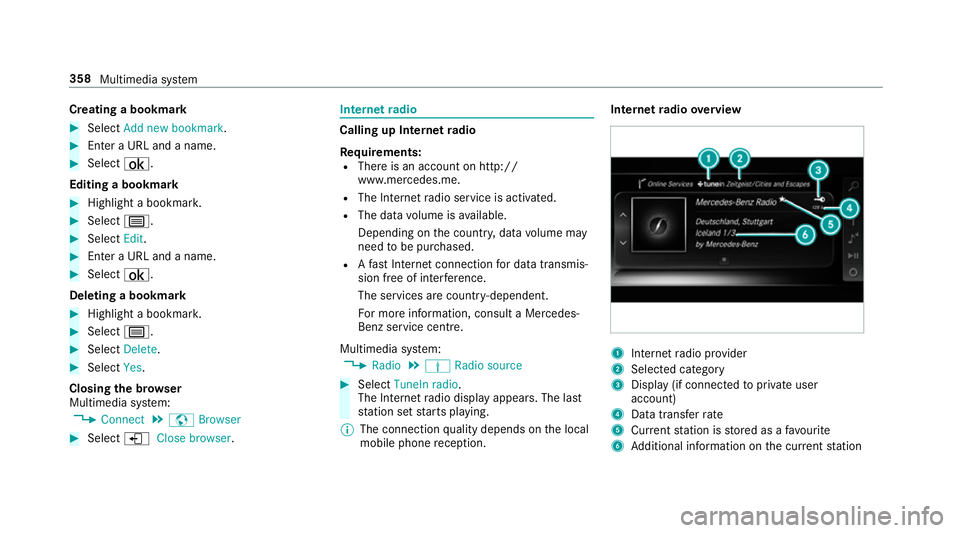
tern etradio overview 1
Inte rn et radio pr ovider
2 Selec ted category
3 Display (if connec tedto private user
account)
4 Data transfer rate
5 Current station is stored as a favo urite
6 Additional information on the cur rent station 358
Multimedia sy stem
Page 374 of 589
Ac
tivating Blue tooth ®
audio
Multimedia sy stem:
, Media .
à Media sources #
Select áBluetooth audio.
The multimedia sy stem activates the connec‐
te d Blue tooth®
audio equipment.
Selecting the music pla yer on the Blue tooth ®
audio device
Multimedia sy stem:
, Media .
ª #
Select theBluetooth audio players category.
If multiple music pla yers are present on the
Blu etoo th®
audio equipment a list appears. #
Select a music pla yer.
Playback starts.
% The function is not suppo rted byeve ry
mobile phone. Sear
ching for a music track on the Blue‐
to oth ®
audio device
Multimedia sy stem:
, Media .
à Media sour-
ces .
á Bluetooth audio #
Select ª. #
Select a categor y.
A track li stappears. #
Select a trac k.
% The function is only available when the
mobile phone and the music pla yer selected
on the mobile phone support this function.
Switching Blu etoo th®
audio equipment via
NFC
Requ irements:
R Obser vethe no tes on using NFC
(→ page 333).
R The Blue tooth®
audio overview is displa yed
( → page 369). #
Lightly press the NFC area on the mobile
phone (see the manufacturer's operating
instructions).
If th e mobile phone has already been author‐
ised on the multimedia sy stem as Blue tooth®
audio equipment, it is now connec ted.
If th e mobile phone is authorised on the mul‐
timedia sy stem as Blue tooth ®
audio equip‐
ment forth efirs t time, it is connected af ter
confirming the instructions forth e mobile
phone (see the manufacturer's operating
instructions).
Disconnecting Blue tooth ®
audio equipment
Multimedia sy stem:
, Telephone .
á Media sources #
Select thei symbol in the line of the
mobile phone.
The disconnection of the mobile phone takes
place without a con firm ation prom pt. The
mobile phone remains auth orised inthe sys‐
te m. Multimedia sy
stem 371
Page 377 of 589
Setting
the frequency band Multimedia sy
stem:
, Radio .
Þ Radio source #
Select a frequency band. Selecting a
radio station Multimedia sy
stem:
, Radio #
Navigate up or down. Calling up
thera dio station list Multimedia sy
stem:
, Radio .
è #
Select a station. Sear
ching forra dio stations using station
names or direct frequency entry Multimedia sy
stem:
, Radio .
è .
è #
Ente r astation name or frequenc y. #
Select a.
The sea rchre sults are displa yed. #
Select a station. St
oring radio stations Multimedia sy
stem:
, Radio .
ß Presets #
Select Store current station in the presets . Editing
radio station presets Multimedia sy
stem:
, Radio .
ß Presets
Moving stations: #
Highlight a preset entry and navigate tothe
left. #
Select Move highlighted station. #
Select a memo rypreset.
Deleting stations: #
Highlight a preset entry and navigate tothe
left. #
Select Delete highlighted station. #
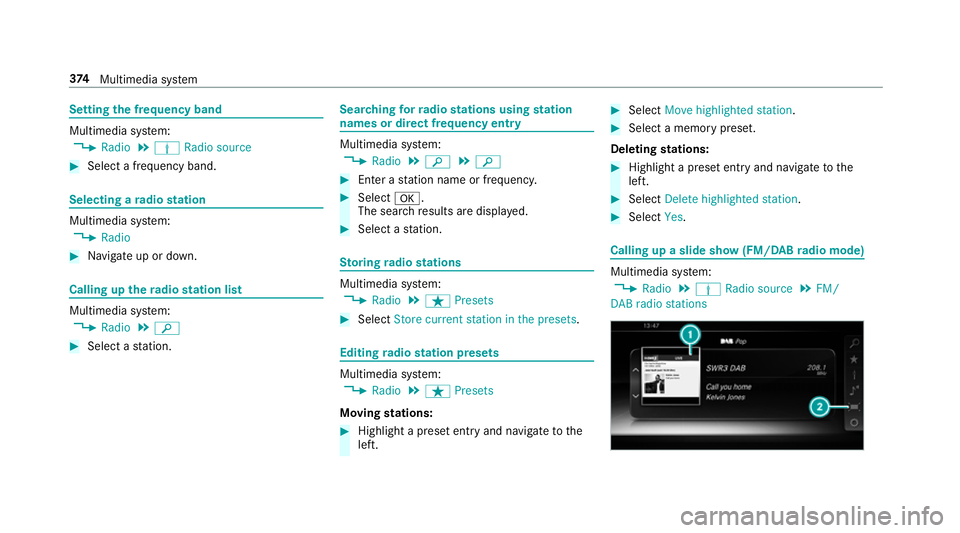
Select Yes. Calling up a slide show (FM/DAB
radio mode) Multimedia sy
stem:
, Radio .
Þ Radio source .
FM/
DAB radio stations 374
Multimedia sy stem
Page 384 of 589
Quic
k-saving a TVchannel
Multimedia sy stem:
, Media .
à Media sources .
TV #
In full-screen mode, press theto uchpad for
longer than thre e seconds.
The cur rent TV channel is stored in the
fa vo urites in the next available position.
St oring TVchannels
Multimedia sy stem:
, Media .
à Media sour-
ces .
TV .
ß Presets #
Select Store current station in the presets .
or #
Highlight a channel in thech annel list and
st ore as a favo urite.
The cur rent channel is stored in thefa vo ur‐
ites in the next available position.
Moving channels in thefa vo urites #
Highlight a channel in thefa vo urites. #
Select ¥Move highlighted station. #
Highlight the new position. #
Confirm the position.
Deleting channels #
Highlight a channel in thefa vo urites. #
Select ¥Delete highlighted station. #
Select Yes. TV
prog ramme Overvi
ewof audio language and subtitles
Au dio language
R It is possible tochoose between se veral
audio languages when a programme is broad‐
cast in multiple languages.
R If En glish, forex ample, is set as the sy stem
language and a TVchannel is broadcasting in
th is language, En glish is selec ted automati‐
cally.
The prog ramme transmission may be indica ted
with thefo llowing symbols:
m Programme with audio explanations for
th e visually impaired
o Stereo broadcast n
Programme forth e hearing impaired
5.1 Broadcast in sur
round sound
If a symbol is not shown, the prog ramme is
either broadca stin mono or the transmission
properties are unkn own.
Subtitles
R The function is switched on: subtitles are
shown in the selected language forth e cur‐
re nt programme (if available).
Setting theTV audio language
Multimedia sy stem:
, Media .
à Media sour-
ces .
TV .
Z Options #
Select Audio/subtitles. #
Select one of theav ailable audio languages.
The audio language selec ted only applies to
th e cur rent programme. Multimedia sy
stem 381
Page 392 of 589
#
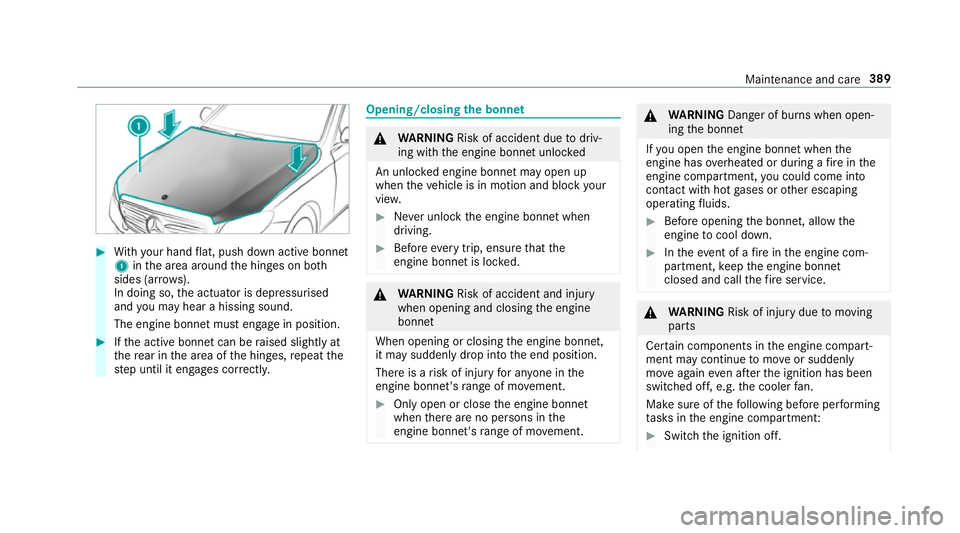
With your hand flat, push down active bonnet
1 inthe area around the hinges on bo th
sides (ar rows).
In doing so, the actuator is depressurised
and you may hear a hissing sound.
The engine bonnet must en gage in position. #
Ifth e active bonn etcan be raised slight lyat
th ere ar in the area of the hinges, repeat the
st ep until it engages cor rectl y. Opening/closing
the bonnet &
WARNING Risk of accident due todriv‐
ing with the engine bonn etunlo cked
An unloc ked engine bonn etmay open up
when theve hicle is in motion and block your
vie w. #
Never unlock the engine bonn etwhen
driving. #
Before every trip, ensure that the
engine bonn etis loc ked. &
WARNING Risk of accident and inju ry
when opening and closing the engine
bonn et
When opening or closing the engine bonn et,
it may suddenly drop into the end position.
There is a risk of injury for an yone in the
engine bonn et's range of mo vement. #
Only open or close the engine bonn et
when there are no persons in the
engine bonn et's range of mo vement. &
WARNING Danger of bu rns when open‐
ing the bonn et
If yo u open the engine bonn etwhen the
engine has overheated or during a fire inthe
engine compartment, you could come into
contact with hot gases or other escaping
operating fluids. #
Before opening the bonn et, allow the
engine tocool down. #
Intheeve nt of a fire inthe engine com‐
partment, keep the engine bonn et
closed and call thefire service. &
WARNING Risk of inju rydue tomoving
parts
Cer tain components in the engine compart‐
ment may continue tomo veor suddenly
mo veagain even af terth e ignition has been
switched off, e.g. the cooler fan.
Ma kesure of thefo llowing before per form ing
ta sks in the engine compartmen t: #
Switch the ignition off. Maintenance and care
389
Page 394 of 589
#
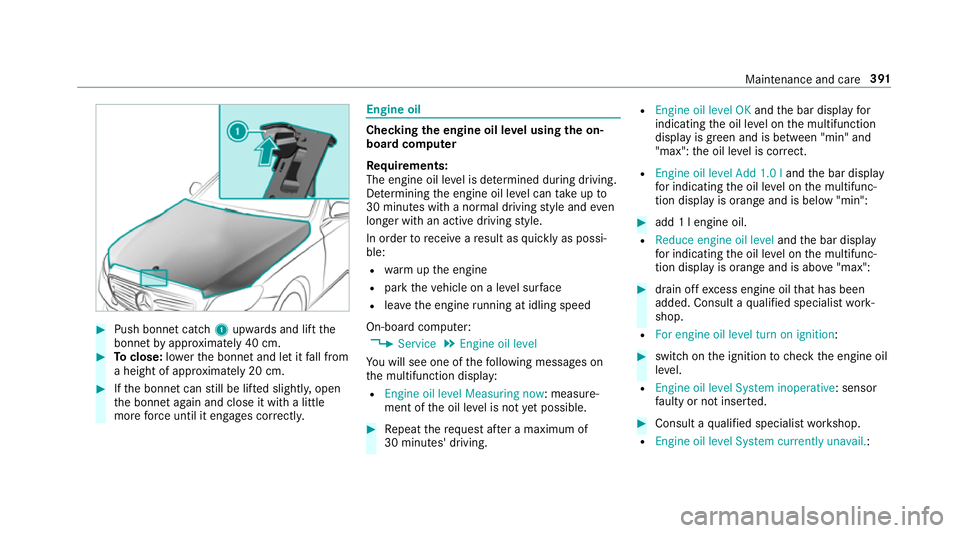
Push bonnet catch 1upwards and lift the
bonn etby appr oximately 40 cm. #
Toclose: lowe rth e bonn etand let it fall from
a height of appr oximately 20 cm. #
Ifth e bonn etcan still be lif ted slightl y,open
th e bonn etagain and close it with a little
more forc e until it engages cor rectly. Engine oil
Che
cking the engine oil le vel using the on-
board compu ter
Re quirements:
The engine oil le vel is de term ined during driving.
De term ining the engine oil le vel can take up to
30 minutes with a normal driving style and even
longer with an active driving style.
In order torecei veare sult as quickly as possi‐
ble:
R warm upthe engine
R park theve hicle on a le vel sur face
R leave the engine running at idling speed
On-board compu ter:
, Service .
Engine oil level
Yo u will see one of thefo llowing messages on
th e multifunction display:
R Engine oil level Measuring now : measure‐
ment of the oil le vel is not yet possible. #
Repeat there qu est af ter a maximum of
30 minutes' driving. R
Engine oil level OK andthe bar display for
indicating the oil le vel on the multifunction
display is green and is between "min" and
"max": the oil le vel is cor rect.
R Engine oil level Add 1.0 l andthe bar display
fo r indicating the oil le vel on the multifunc‐
tion display is orange and is below "min": #
add 1 l engine oil.
R Reduce engine oil level andthe bar display
fo r indicating the oil le vel on the multifunc‐
tion display is orange and is abo ve"max": #
drain off excess engine oil that has been
added. Consult a qualified specialist work‐
shop.
R For engine oil level turn on ignition: #
switch on the ignition tocheck the engine oil
le ve l.
R Engine oil level System inoperative : sensor
fa ulty or not inser ted. #
Consult a qualified specialist workshop.
R Engine oil level System currently unavail. : Maintenance and care
391