light MERCEDES-BENZ CLS COUPE 2018 Owners Manual
[x] Cancel search | Manufacturer: MERCEDES-BENZ, Model Year: 2018, Model line: CLS COUPE, Model: MERCEDES-BENZ CLS COUPE 2018Pages: 589, PDF Size: 10.95 MB
Page 296 of 589
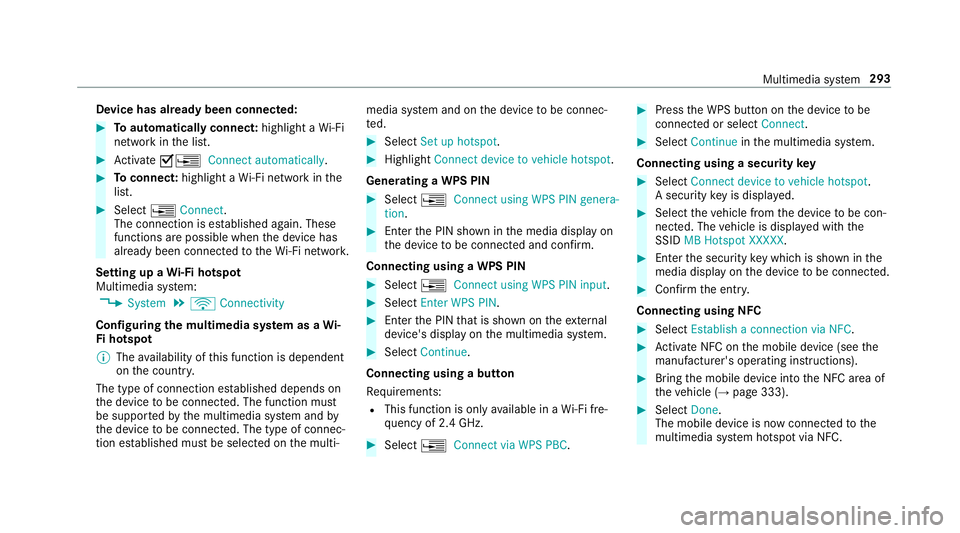
Device has already been connected:
#
Toautomatically connect: highlight aWi-Fi
network in the list. #
Activate O¥ Connect automatically. #
Toconnect: highlight a Wi-Fi network in the
list. #
Select ¥Connect.
The connection is es tablished again. These
functions are possible when the device has
already been connected totheWi -Fi networ k.
Setting up a Wi-Fi hotspot
Multimedia sy stem:
, System .
ö Connectivity
Configuring the multimedia sy stem as a Wi-
Fi hotspot
% The availability of this function is dependent
on the count ry.
The type of connection es tablished depends on
th e device tobe connec ted. The function must
be suppor tedby the multimedia sy stem and by
th e device tobe connec ted. The type of connec‐
tion es tablished must be selected on the multi‐ media sy
stem and on the device tobe connec‐
te d. #
Select Set up hotspot. #
Highlight Connect device to vehicle hotspot.
Generating a WPS PIN #
Select ¥Connect using WPS PIN genera-
tion . #
Ente rth e PIN shown in the media display on
th e device tobe connec ted and con firm.
Connecting using a WPS PIN #
Select ¥Connect using WPS PIN input. #
Select Enter WPS PIN. #
Enterth e PIN that is shown on theex tern al
device's display on the multimedia sy stem. #
Select Continue.
Connecting using a button
Re quirements:
R This function is only available in a Wi-Fi fre‐
qu ency of 2.4 GHz. #
Select ¥Connect via WPS PBC. #
Press the WPS button on the device tobe
connec ted or select Connect. #
Select Continue inthe multimedia sy stem.
Connecting using a security key #
Select Connect device to vehicle hotspot .
A secu rity key is displa yed. #
Select theve hicle from the device tobe con‐
nec ted. The vehicle is displa yed with the
SSID MB Hotspot XXXXX . #
Enter the security key which is shown in the
media display on the device tobe connec ted. #
Confirm the entry.
Connecting using NFC #
Select Establish a connection via NFC. #
Activate NFC on the mobile device (see the
manufacturer's operating instructions). #
Bring the mobile device into the NFC area of
th eve hicle (→ page 333). #
Select Done.
The mobile device is now connected tothe
multimedia sy stem hotspot via NFC. Multimedia sy
stem 293
Page 301 of 589
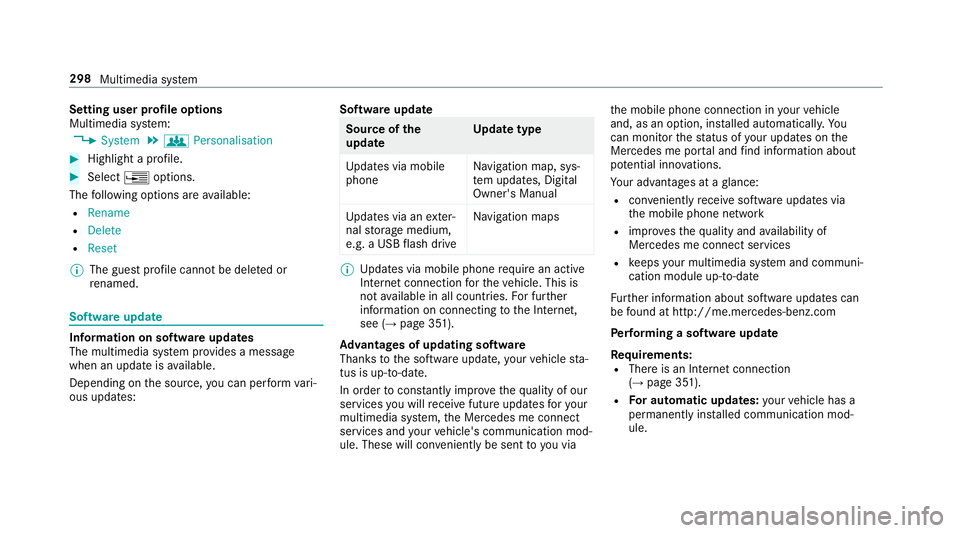
Setting user profile options
Multimedia sy
stem:
, System .
g Personalisation #
Highlight a profile. #
Select ¥options.
The following options are available:
R Rename
R Delete
R Reset
% The guest profile cannot be dele ted or
re named. So
ftwa reupdate Information on software updates
The multimedia sy
stem pr ovides a message
when an update is available.
Depending on the source, you can per form vari‐
ous updates: Software update Source of
the
update Up
date type
Up dates via mobile
phone Na
vigation map, sys‐
te m updates, Digital
Owner's Manual
Up dates via an exter‐
nal storage medium,
e.g. a USB flash drive Na
vigation maps %
Updates via mobile phone requ ire an active
Internet connection forth eve hicle. This is
not available in all countries. For fur ther
information on connecting tothe Internet,
see (→ page 351).
Ad vantages of updating software
Thanks tothe software update, your vehicle sta‐
tus is up-to-date.
In order tocons tantly impr ovethequ ality of our
services you will recei vefuture updates foryo ur
multimedia sy stem, the Mercedes me connect
services and your vehicle's communication mod‐
ule. These will con veniently be sent to you via th
e mobile phone connection in your vehicle
and, as an option, ins talled automaticall y.Yo u
can moni torth est atus of your updates on the
Mercedes me por tal and find information about
po tential inno vations.
Yo ur advantages at a glance:
R con veniently recei vesoftware update s via
th e mobile phone network
R impr ovesth equ ality and availability of
Mercedes me connect services
R keeps your multimedia sy stem and communi‐
cation module up-to-date
Fu rther information about software updates can
be found at http://me.mercedes-benz.com
Pe rforming a software upda te
Requ irements:
R There is an Internet connection
(→ page 351).
R For automatic updates: your vehicle has a
permanently ins talled communication mod‐
ule. 298
Multimedia sy stem
Page 303 of 589
#
Select Yes.
If PIN pr otection is activated, a prom ptappears
asking if you also wish torestore this to thefa c‐
to ry settings during a reset. #
Select Yes. #
Enter the cur rent PIN.
The PIN is reset. or #
Select No.
The cur rent PIN stay sth e same af terre set‐
ting.
% Ifyo u ha veforg ottenyo ur PIN, a Mercedes-
Benz service centre can deactivate the PIN
pr otection foryo u. A prom
ptappears again asking whe ther you
re ally wish toreset. #
Select Yes.
The multimedia sy stem is reset tothefa ctory
settings. Fi
t & Healthy ENE
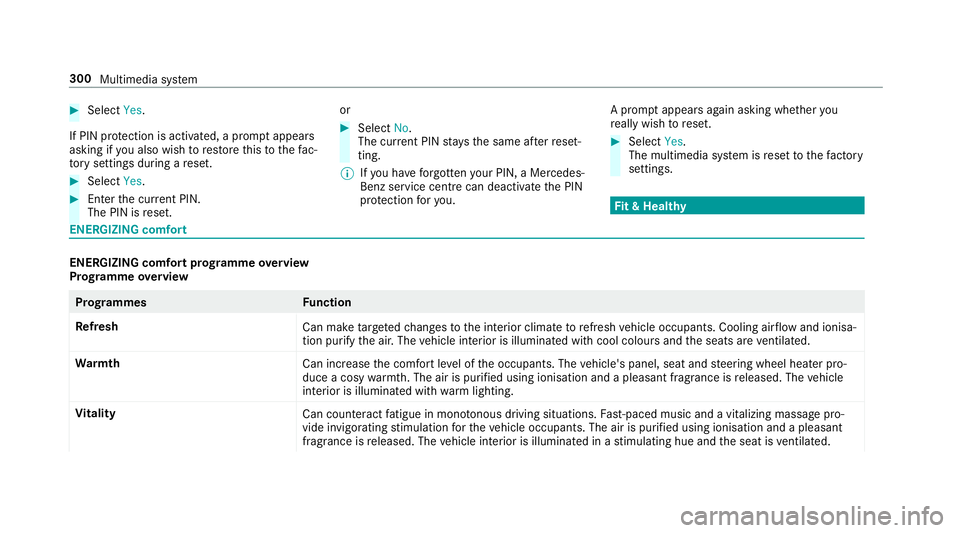
RGIZING comfort ENERGIZING comfort prog
ramme overview
Prog ramme overview Prog
rammes Function
Re fresh
Can maketargeted changes tothe interior climate torefresh vehicle occupants. Cooling air flow and ionisa‐
tion purify the air. The vehicle interior is illuminated with cool colours and the seats are ventilated.
Wa rmth
Can increase the comfort le vel of the occupants. The vehicle's panel, seat and steering wheel heater pro‐
duce a cosy warmth. The air is pu rified using ionisation and a pleasant fragrance is released. The vehicle
interior is illuminated with warm lighting.
Vi tality
Can countera ct fatigue in mono tonous driving situations. Fast-paced music and a vitalizing massa gepro‐
vide invigorating stimulation forth eve hicle occupants. The air is purified using ionisation and a pleasant
fragrance is released. The vehicle interior is illuminated in a stimulating hue and the seat is ventilated. 300
Multimedia sy stem
Page 304 of 589
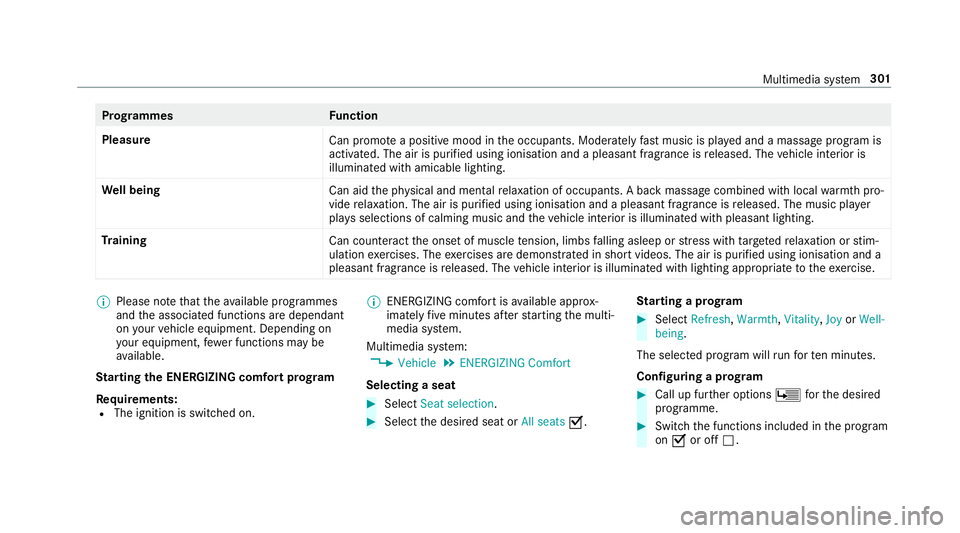
Prog
rammes Function
Pleasure Can promotea positive mood in the occupants. Moderately fastmusic is pla yed and a massage program is
activated. The air is purified using ionisation and a pleasant fragrance is released. The vehicle interior is
illuminated with amicable lighting.
We ll being
Can aidthe ph ysical and men talre laxation of occupants. A back massage combined with local warmthpro‐
vide relaxation. The air is purified using ionisation and a pleasant fragrance is released. The music pla yer
pla ysselections of calming music and theve hicle interior is illuminated with pleasant lighting.
Tr aining
Can counteractthe onset of muscle tension, limbs falling asleep or stre ss with targeted relaxation or stim‐
ulation exercises. The exercises are demon stra ted in short videos. The air is purified using ionisation and a
pleasant fragrance is released. The vehicle interior is illuminated with lighting appropriate totheex ercise. %
Please no tethat theav ailable prog rammes
and the associated functions are dependant
on your vehicle equipment. Depending on
yo ur equipment, fewe r functions may be
av ailable.
St arting the ENERGIZING comfort prog ram
Re quirements:
R The ignition is switched on. %
ENE RGIZING comfort is available appr ox‐
imately five minutes af terst arting the multi‐
media sy stem.
Multimedia sy stem:
, Vehicle .
ENERGIZING Comfort
Selecting a seat #
Select Seat selection. #
Select the desired seat or All seatsO. St
arting a prog ram #
Select Refresh, Warmth, Vitality,JoyorWell-
being.
The selected program will runfo rte n minu tes.
Configuring a prog ram #
Call up fur ther options Üforth e desired
programme. #
Switch the functions included in the program
on O or off ª. Multimedia sy
stem 301
Page 308 of 589
#
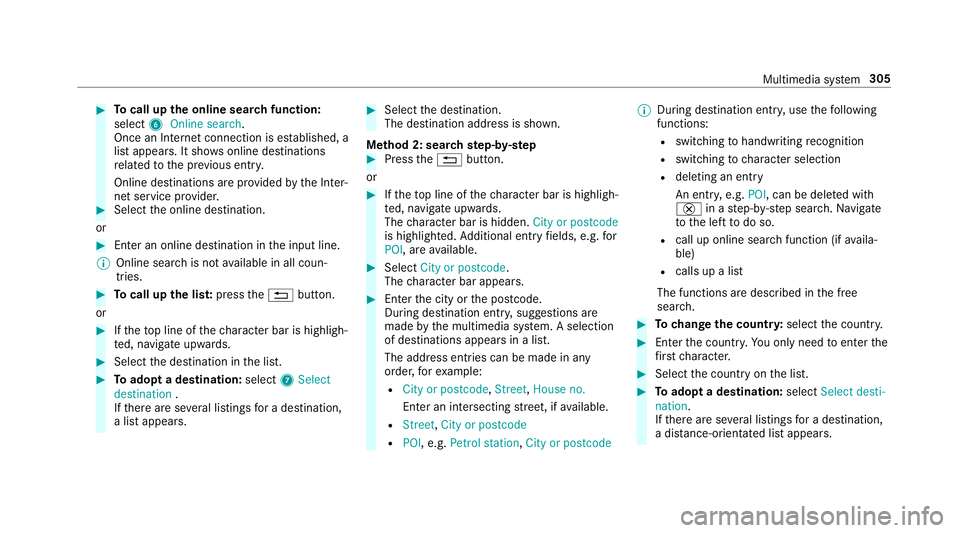
Tocall up the online sear chfunction:
select 6Online search.
Once an Internet connection is es tablished, a
list appears. It sho wsonline destinations
re lated tothe pr evious ent ry.
Online destinations are pr ovided bythe Inter‐
net service pr ovider. #
Select the online destination.
or #
Ente r an online destination in the input line.
% Online sear chis not available in all coun‐
tries. #
Tocall up the lis t:press the% button.
or #
Ifth eto p line of thech aracter bar is highligh‐
te d, navigate upwards. #
Select the destination in the list. #
Toadopt a destination: select7Select
destination .
If th ere are se veral listings for a destination,
a list appears. #
Select the destination.
The destination address is shown.
Me thod 2: sear chstep- by-step #
Press the% button.
or #
Ifth eto p line of thech aracter bar is highligh‐
te d, navigate upwards.
The character bar is hidden. City or postcode
is highlighted. Additional ent ryfields, e.g. for
POI, are available. #
Select City or postcode.
The character bar appears. #
Enterth e city or the postcode.
During destination entry , suggestions are
made bythe multimedia sy stem. A selection
of destinations appears in a list.
The address entri es can be made in any
order, forex ample:
R City or postcode, Street,House no.
En ter an intersecting stre et, if available.
R Street, City or postcode
R POI , e.g. Petrol station, City or postcode %
During destination ent ry, use thefo llowing
functions:
R switching tohandwriting recognition
R switching tocharacter selection
R deleting an ent ry
An entr y,e.g. POI, can be dele ted with
£ in astep-b y-step sear ch.Na vigate
to the left todo so.
R call up online sear chfunction (if availa‐
ble)
R calls up a list
The functions are desc ribed in the free
sear ch. #
Tochange the count ry:select the count ry. #
Enter the count ry.Yo u on ly need toenter the
fi rs tch aracter. #
Select the count ryon the list. #
Toadopt a destination: selectSelect desti-
nation.
If th ere are se veral listings for a destination,
a dis tance-o rientated list appears. Multimedia sy
stem 305
Page 309 of 589
#
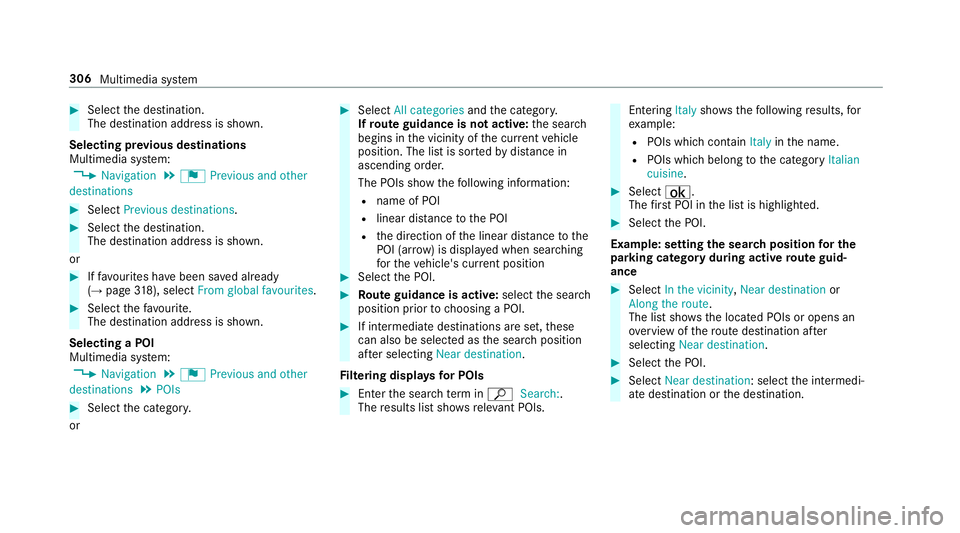
Select the destination.
The destination address is shown.
Selecting pr evious destinations
Multimedia sy stem:
, Navigation .
¬ Previous and other
destinations #
Select Previous destinations. #
Select the destination.
The destination address is shown.
or #
Iffavo urites ha vebeen sa ved already
(→ page 318), select From global favourites. #
Select thefa vo urite.
The destination address is shown.
Selecting a POI
Multimedia sy stem:
, Navigation .
¬ Previous and other
destinations .
POIs #
Select the categor y.
or #
Select All categories andthe categor y.
If ro ute guidance is not active: the sear ch
begins in the vicinity of the cur rent vehicle
position. The list is sor tedby distance in
ascending orde r.
The POIs show thefo llowing information:
R name of POI
R linear dis tance tothe POI
R the direction of the linear dis tance tothe
POI (ar row) is displa yed when sear ching
fo rth eve hicle's cur rent position #
Select the POI. #
Route guidance is active: selectthe sear ch
position prior tochoosing a POI. #
If intermediate destinations are set, these
can also be selected as the sear chposition
af te r selecting Near destination.
Fi ltering displa ysfor POIs #
Enter the sear chterm inª Search:.
The results list sho wsreleva nt POIs. Entering
Italyshowsthefo llowing results, for
ex ample:
R POIs which con tain Italy inthe name.
R POIs which belong tothe category Italian
cuisine. #
Select ¡.
The firs t POI in the list is highlighted. #
Select the POI.
Example: setting the sear chposition for the
parking ca tegory during active route guid‐
ance #
Select In the vicinity ,Near destination or
Along the route.
The list sho ws the located POIs or opens an
ove rview of thero ute destination af ter
selecting Near destination. #
Select the POI. #
Select Near destination: select the intermedi‐
ate destination or the destination. 306
Multimedia sy stem
Page 311 of 589
Multimedia sy
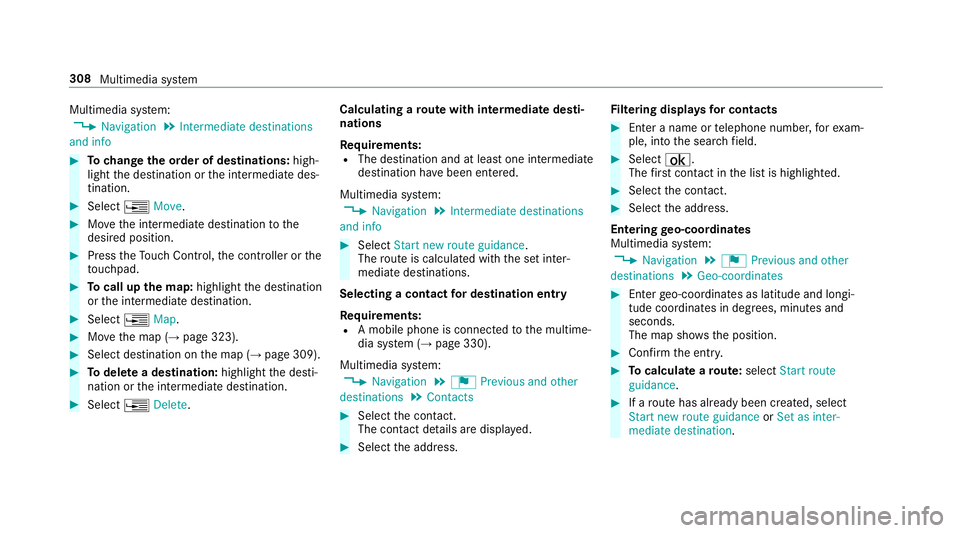
stem:
, Navigation .
Intermediate destinations
and info #
Tochange the order of destinations: high‐
light the destination or the intermediate des‐
tination. #
Select ¥Move. #
Movethe intermediate destination tothe
desired position. #
Press theTo uch Control, the controller or the
to uchpad. #
Tocall up the map: highlight the destination
or the intermediate destination. #
Select ¥Map. #
Movethe map (→ page 323). #
Select destination on the map (→ page 309). #
Todel ete a destination: highlightthe desti‐
nation or the intermediate destination. #
Select ¥Delete. Calculating a
route with intermediate desti‐
nations
Re quirements:
R The destination and at least one intermediate
destination ha vebeen entered.
Multimedia sy stem:
, Navigation .
Intermediate destinations
and info #
Select Start new route guidance.
The route is calculated with the set inter‐
mediate destinations.
Selecting a contact for destination entry
Re quirements:
R A mobile phone is connec tedto the multime‐
dia sy stem (→ page 330).
Multimedia sy stem:
, Navigation .
¬ Previous and other
destinations .
Contacts #
Select the conta ct.
The contact de tails are displa yed. #
Select the address. Fi
ltering displa ysfor contacts #
Enter a name or telephone number, forex am‐
ple, into the sear chfield. #
Select ¡.
The firs t contact in the list is highlighted. #
Select the conta ct. #
Select the address.
Entering geo-coordina tes
Multimedia sy stem:
, Navigation .
¬ Previous and other
destinations .
Geo-coordinates #
Ente rge o-coordinates as latitude and longi‐
tude coordinates in degrees, minutes and
seconds.
The map sho ws the position. #
Confirm the entry. #
Tocalculate a route: select Start route
guidance. #
If a route has already been created, select
Start new route guidance orSet as inter-
mediate destination .308
Multimedia sy stem
Page 312 of 589
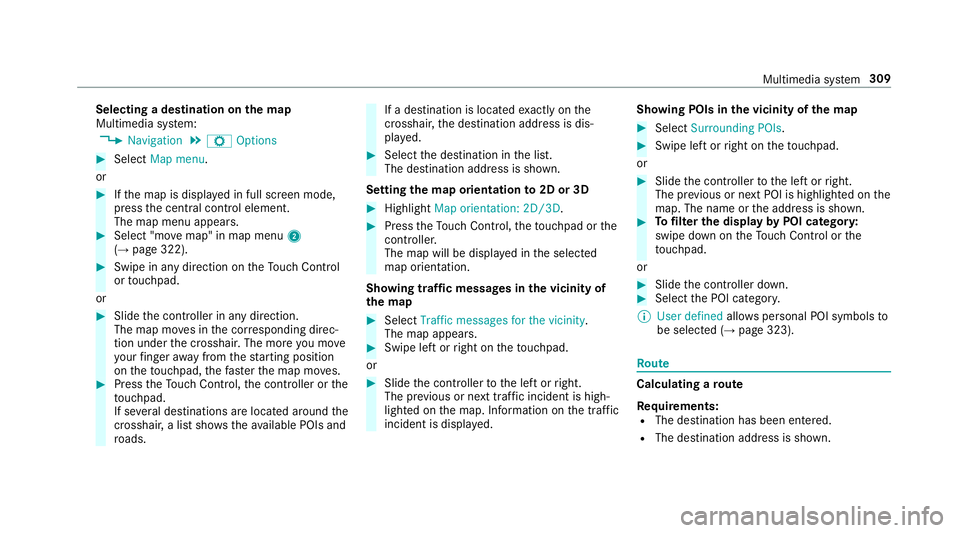
Selecting a destination on
the map
Multimedia sy stem:
, Navigation .
Z Options #
Select Map menu.
or #
Ifth e map is displa yed in full screen mode,
press the cent ral control element.
The map menu appears. #
Select "mo vemap" in map menu 2
(→ page 322). #
Swipe in any direction on theTo uch Control
or touchpad.
or #
Slide the controller in any direction.
The map mo ves in the cor responding direc‐
tion under the crosshair. The more you mo ve
yo ur finger away from thest arting position
on theto uchpad, thefast erthe map mo ves. #
Press theTo uch Control, the controller or the
to uchpad.
If se veral destinations are located around the
crosshair, a li stsho wstheav ailable POIs and
ro ads. If a destination is located
exact ly on the
crosshair, the destination address is dis‐
pla yed. #
Select the destination in the list.
The destination address is shown.
Setting the map orientation to2D or 3D #
Highlight Map orientation: 2D/3D. #
Press theTo uch Control, theto uchpad or the
controller.
The map will be displ ayed in the selected
map orientation.
Showing traf fic messages in the vicinity of
th e map #
Select Traffic messages for the vicinity.
The map appears. #
Swipe left or right on theto uchpad.
or #
Slide the controller tothe left or right.
The pr evious or next traf fic incident is high‐
lighted on the map. Information on the tra ffic
incident is displa yed. Showing POIs in
the vicinity of the map #
Select Surrounding POIs . #
Swipe left or right on theto uchpad.
or #
Slide the controller tothe left or right.
The pr evious or next POI is highligh ted on the
map. The name or the address is shown. #
Tofilter the display byPOI categor y:
swipe down on theTo uch Control or the
to uchpad.
or #
Slide the controller down. #
Select the POI categor y.
% User defined allowspersonal POI symbols to
be selected (→ page 323). Ro
ute Calculating a
route
Re quirements:
R The destination has been entered.
R The destination address is shown. Multimedia sy
stem 309
Page 317 of 589
Changing direction
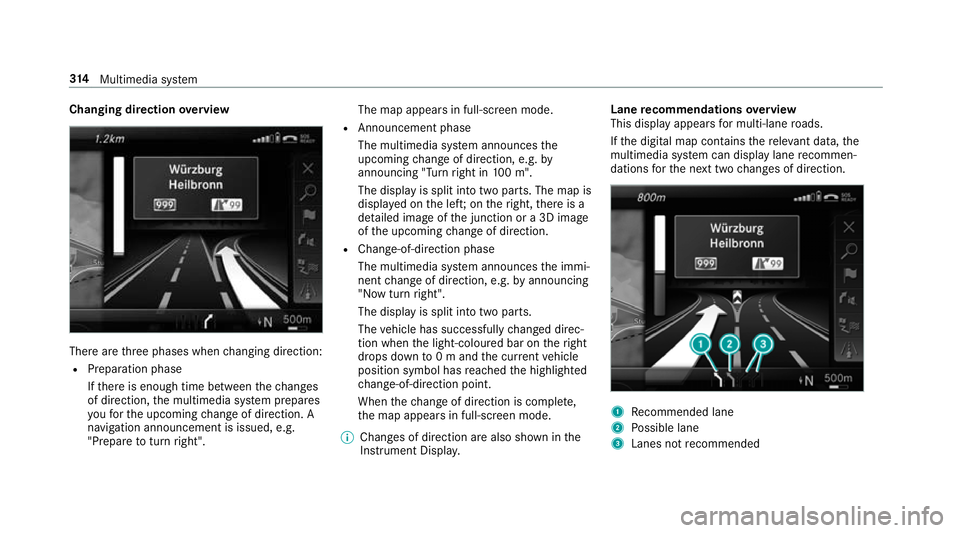
overview There are
thre e phases when changing direction:
R Preparation phase
Ifth ere is enough time between thech anges
of direction, the multimedia sy stem prepares
yo ufo rth e upcoming change of direction. A
navigation announcement is issued, e.g.
"Prepare toturn right". The map appears in full-screen mode.
R Announcement phase
The multimedia sy stem announces the
upcoming change of direction, e.g. by
announcing "Turn right in 100 m".
The display is split into two parts. The map is
displa yed on the lef t;on theright, there is a
de tailed image of the junction or a 3D image
of the upcoming change of direction.
R Chan ge-of-direction phase
The multimedia sy stem announces the immi‐
nent change of direction, e.g. byannouncing
"N ow turn right".
The display is split into two parts.
The vehicle has successfully changed direc‐
tion when the light-coloured bar on theright
drops down to0 m and the cur rent vehicle
position symbol has reached the highlighted
ch ange-of-direction point.
When thech ange of direction is comple te,
th e map appears in full-screen mode.
% Changes of direction are also shown in the
Instrument Displa y. Lane
recommendations overview
This display appears for multi-lane roads.
If th e digital map conta insthere leva nt da ta,the
multimedia sy stem can display lane recommen‐
dations forth e next two changes of direction. 1
Recommended lane
2 Possible lane
3 Lanes not recommended 314
Multimedia sy stem
Page 320 of 589
Yo
u can en ter off-road destinations on the map.
Ro ute guidance guides youfo r as long as possi‐
ble with navigation announcements and displa ys
on roads that are kn ownto the multimedia sys‐
te m.
Shortly before youre ach the last know n position
on the map, you will hear the "Please follow the
direction ar row" announcement. The displ ay
sho wsa direction ar rowand the linear dis tance
to the destination.
Overview of route guidance from an off-road
location toa destination
Off-road position: the cur rent vehicle position is
located within the digital map on roads that are
not available.
When route guidance begins thefo llowing dis‐
pla ysappear:
R The Road not mapped message is shown.
R A direction ar row showing the linear direc‐
tion tothe POI.
When theve hicle is back on a road kn ownto the
multimedia sy stem, route guidance continues as
no rm al. Overview of off-
road status during route
guidance
Due toroadwor ks,fo rex ample, there may be dif‐
fe re nces between the data on the digital map
and the actual course of thero ad. In such cases,
th e multimedia sy stem will temp orarily be
unable tolocate theve hicle's cur rent position on
th e digital map. The vehicle is off-road.
When theve hicle is off-road, thefo llowing dis‐
pla ysare shown:
R theRoad not mapped message
R a direction ar rowshowing the linear direction
to the POI
When theve hicle is back on a road kn ownto the
multimedia sy stem, route guidance continues as
no rm al. Destination
Saving
the cur rent vehicle position
Multimedia sy stem:
, Navigation #
Ifth e map is displa yed in full screen mode,
press the cent ral control element.
The map menu appears. #
Select 1onthe map menu (→ page 322).
The cur rent vehicle position is sa vedto the
"Pr evious destinations" memo ry.
St oring a map position
Multimedia sy stem:
, Navigation
The map is in full-screen mode. #
Press theTo uch Control, the controller or the
to uchpad. #
Select "mo vemap" in map menu 2
(→ page 322). #
Select a position on the map.
If multiple entri es areavailable for a map
position, a list appears. #
Highlight an entr y. Multimedia sy
stem 317